Manage items on the board
Organise and edit items
The current board displays items of a specific design/interface, which are grouped into columns according to the value they hold for the Column attribute tracked by the board. You can scroll each column individually and use its Menu button to refresh the contents as needed.
Select an item to view its details and interact with its data.
To edit the properties of one or more columns, see Edit the board.
Drag items between columns
To change the value of the tracked attribute on an item, simply drag the item to another column.
For example, the board below tracks the Priority attribute on the Jobs interface. Dragging an item to the red column will change its Priority to "High (P1)".
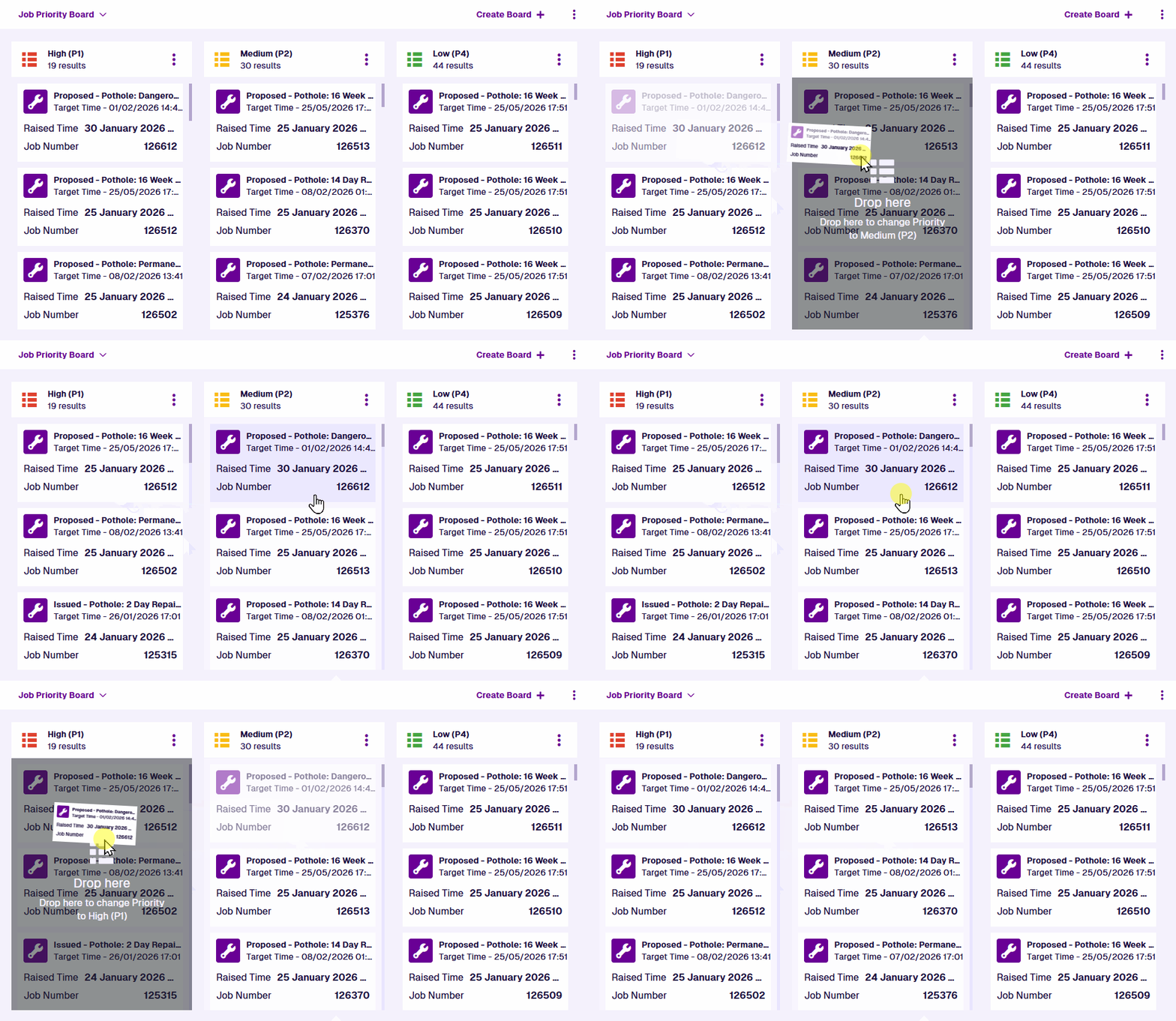
Boards don't necessarily have a column for every possible value of the tracked Column attribute. If you edit an item and set that attribute to a value without a corresponding column, the item will no longer appear on the board!
Bulk edit
To edit various aspects of all the items in a column, select the column's Menu button and choose Bulk edit items .
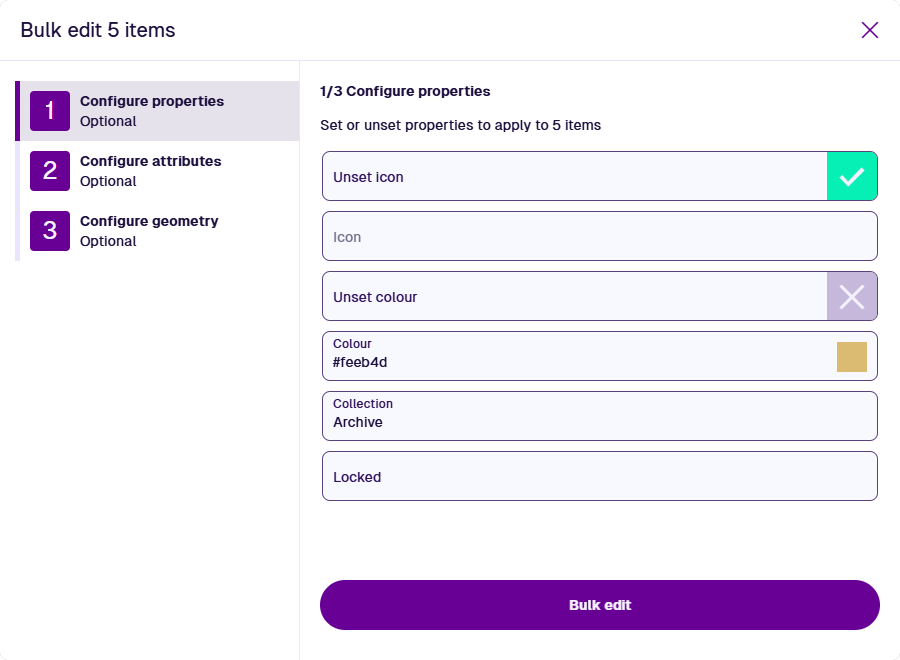
1 Configure properties
Select a property to overwrite it with a new value on all selected items:
-
Icon - use the icon picker to set a new icon, or select Unset icon to revert the items to their design's icon.
-
Colour - use the colour picker to set a new colour, or select Unset colour to revert the items to their design's colour.
-
Collection - move the items to another collection, if allowed by their design.
-
Locked - lock or unlock the items. Locked items can't be edited. Only admin users can do this!
Select another step or select Bulk edit to finish.
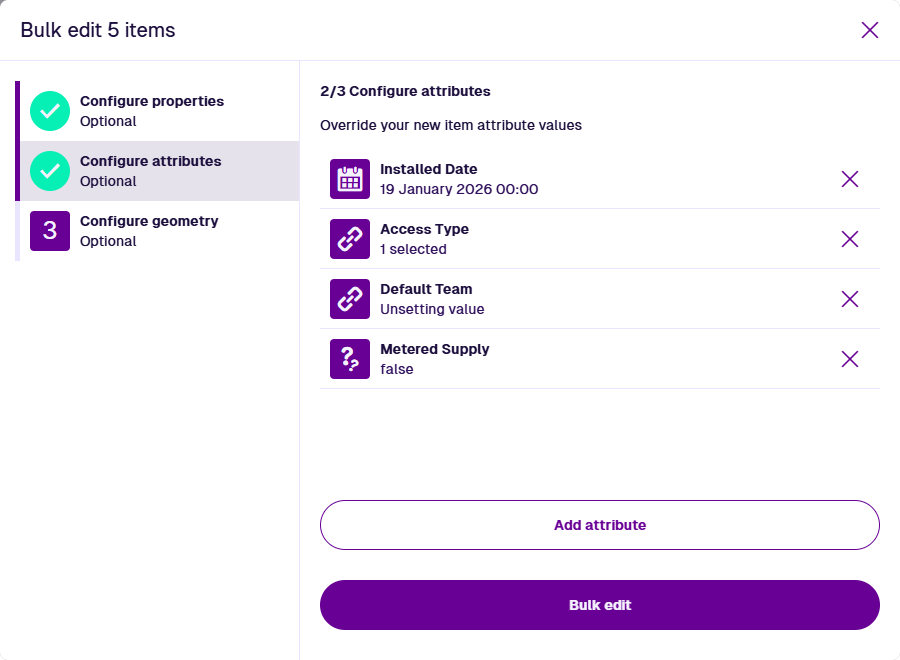
2 Configure attributes
To overwrite a particular attribute value on all selected items, select Add attribute and choose it from the list. Provide a new value or select Unset to clear the current one. Repeat for each attribute you want to overwrite.
Select another step or select Bulk edit to finish.
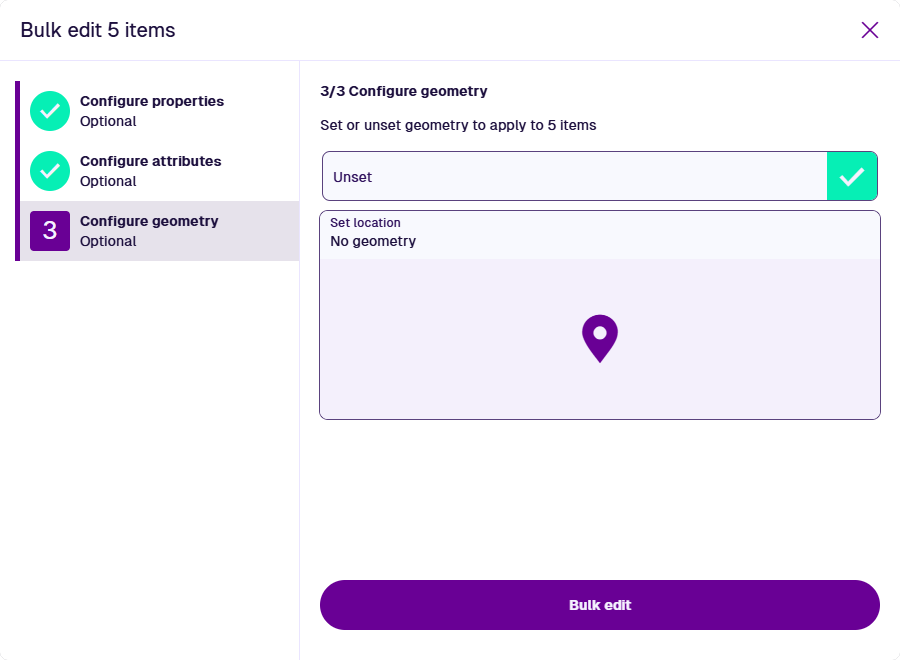
3 Configure geometry
Select one of the following to overwrite the geometry of all selected items:
-
Unset - clear existing geometry.
-
Set location - use the Geometry Editor to set new geometry by drawing points, lines or polygons on the map. This is only possible if the designs of all selected items have the same allowed geometry types.
Select another step or select Bulk edit to finish.
Create new item
To create a new item directly from the current board, select a column's Menu button and choose Create item .
Depending on the board, this lets you:
-
create an item of the targeted design, or
-
create an item of a design implementing the targeted interface
The Column attribute tracked by the board will be populated on the new item with the value represented by the column.
For example, the new job created below will have its Priority attribute set to "Medium".

To learn more, see Create an item.