Permits section
Manage the permit status of a job
Jobs affecting public streets and roads typically require formal permission before works can begin. In England and Wales, statutory undertakers (e.g. local authorities, utility companies, subcontractors) must use the government's Street Manager service to apply for permits. For official information and guidance, see the GOV.UK website.
Our optional Street Works module provides Street Manager integration! This enables us to communicate with the service on your behalf. If a job requires a works permit, you can use CausewayOne Asset Management to apply for one, and to log when the works start and stop.
When viewing a job's details, the Permits section displays the current permit application for the job, if one exists. You can see the permit's reference, category and status at a glance.
Select the permit to view its details. To open the full application details on the Street Manager website, select View in Street Manager (opens in a new browser tab).
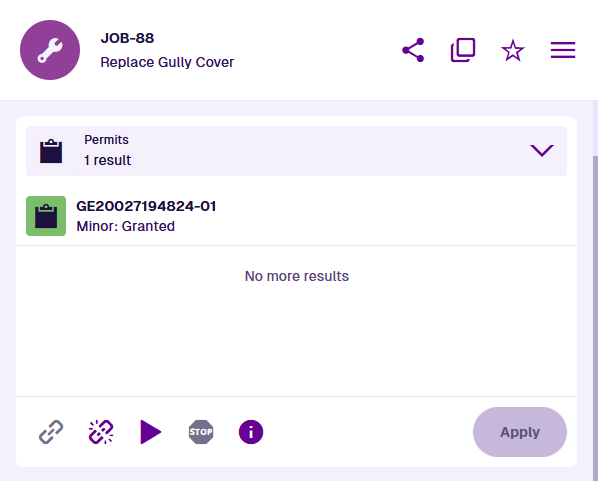
The Permits section only appears for items of job designs that implement the Street Manager Works Reference Assignable interface.
Section actions
You can perform the following actions in this section:
-
Link works - if the job has no permit, link it to an existing one by entering the works reference, e.g. GE20027194824.
-
Unlink works - unlink the job from the current permit. This won't affect the application or works record stored in Street Manager.
-
Log works start - use the calendar picker to record the date and time when the works started. In Street Manager, the works status will change to In progress.
-
Log works stop - use the calendar picker to record the date and time when the works ended. In Street Manager, the works status will change to Completed and the permit application status will change to Closed.
-
View works - open the full works record on the Street Manager website (opens in a new browser tab).
Log works start/stop can only be performed once each, unless reverted on the Street Manager website.
Apply for a permit
If the job has no permit, you can submit a new permit application. Select Apply to start the process.
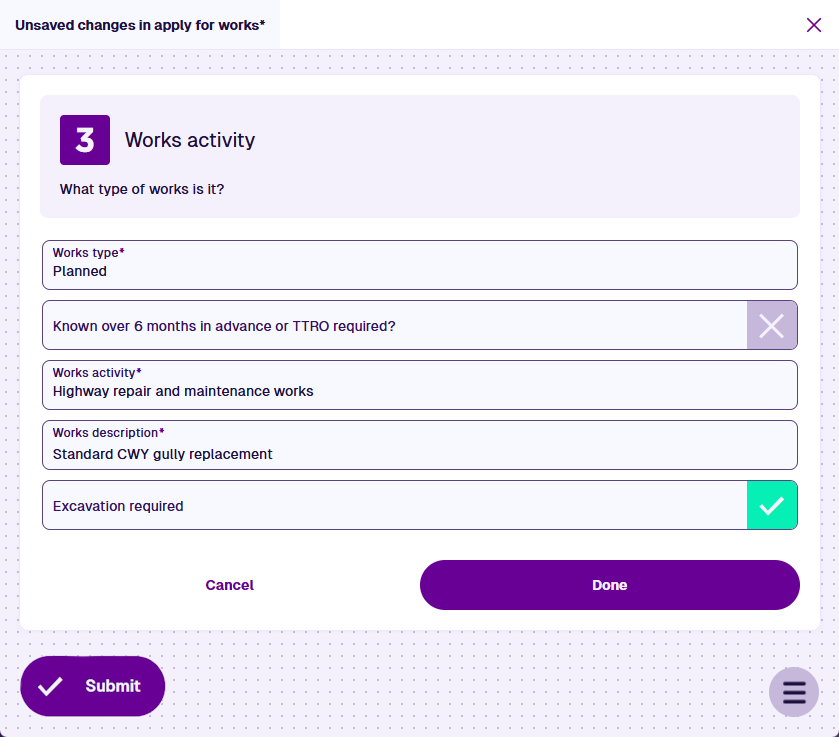
The process is split into numbered stages. Some require the previous stage to be completed first. Each stage contains standard data fields for you to fill in. Fields marked with an asterisk * require a value to continue. Where possible, fields are pre-populated with values for your convenience! Select Done to complete a stage.
To add permit conditions in the 5 Conditions stage, use the bottom-right Menu.
The Attachments stage lets you include any supporting files that are attached to the job (see the Gallery section).
Once all stages are completed, select Submit to finish. A notification indicates whether your application was submitted successfully or failed due to an error. Select the notification for details.
Pre-populated fields
1 Location details
-
USRN - the unique street reference number. Taken from the USRN attribute of the NSG Type 11 Street Records item linked to the job's parent asset via a Network Reference.
attributes_nsgType11StreetRecordsUsrn -
Works location - taken from the job's Geometry attribute.
attributes_itemsGeometry -
Works location types - aspects of the location that will be affected by the works. Taken from the job's Location Types attribute (if it implements the Street Manager Location Assignable interface).
attributes_streetManagerLocationAssignableLocationTypes -
Works location description - taken from the job's Location Description attribute (if it implements the Street Manager Location Assignable interface).
attributes_streetManagerLocationAssignableLocationDescription
2 Organisation details
-
Highways authority - the authority responsible for the selected USRN, retrieved from Street Manager.
-
Promoter organisation - the organisation associated with the account credentials used to access Street Manager.
-
Workstream - the operational category or division associated with the account credentials used to access Street Manager (if assigned to one only).
-
Secondary contact - supplementary contact details for the selected workstream, retrieved from Street Manager.
3 Works activity
- Works description - taken from the job's Description attribute.
attributes_tasksDescription
4 Timings
-
Start date/time - taken from the job's Start Time or Estimated Start Time attribute.
attributes_tasksStartTimeorattributes_tasksEstimatedStartTime -
End date/time - taken from the job's End Time or Estimated End Time attribute.
attributes_tasksEndTimeorattributes_tasksEstimatedEndTime
5 Conditions
- Permit conditions - NCT01a, NCT01b, NCT11a are always mandatory.
For information about the data fields in permit applications, see the official Street Manager documentation. Select the current release and then 2.1. Works submissions and applications.
Street Manager credentials
CausewayOne Asset Management automatically uses a set of stored credentials to communicate with Street Manager on your behalf. If there's a problem with this, an error notification will appear:
-
E1631003995: Unauthorised. The credentials allocated to you are invalid.
-
E1631017244: No credentials have been allocated to you.
If you're an admin, you can manage the Street Manager credentials stored for your company and allocate them to specific users:
Details
-
Open the Data Explorer app.
-
Select Add query in the app bar and choose From design or interface. In the Search window, use the search box to find and select the Street Manager Credentials design.
-
Any existing items will be listed. To view and edit an existing set of credentials, select an item's button to view its details.
-
To create a new set of credentials:
-
Select Create item in the bottom toolbar.
-
Choose the Street Manager Credentials design.
-
Fill in the following fields:
-
Password * - the password of your Street Manager account.
-
Api Url * -
https://api.manage-roadworks.service.gov.ukis typically used. -
Ui Url * -
https://www.manage-roadworks.service.gov.ukis typically used. -
Users - select one or more users in your company. When they view a job with a Permits section, these credentials will automatically be used to communicate with Street Manager behind-the-scenes.
-
Email address * - the email address of your Street Manager account.
-
-
Select Create to finish.
-
For information about creating a Street Manager account, see the GOV.UK website.