Item canvas
Customise how item details are displayed
When viewing an item's details, the data is displayed across multiple item canvas sections.
Each section displays a set of item data (e.g. attribute values, map location) or a list of related items (e.g. activities, reports, file attachments). Most sections are interactive, letting you edit the data or perform an action. Some sections provide specific functionality (e.g. apply for a work permit).
By default, all sections are displayed. Create custom views to tailor the information shown for specific designs/interfaces.
What is a canvas view?
A canvas view is a custom layout of sections. Choose which sections are included and the order to display them in. Each section has a set of configurable properties that determine its size, appearance and behaviour.
You can create canvas views for any design/interface. Keep them for your personal use, or share them with other users in your company project to provide a consistent view.
When viewing an item's details, you can switch views at any time.
Why use canvas views?
One layout rarely fits all users. Canvas views let you adapt item details to the role someone has and the device they use.
Target audiences
Different audiences have different needs and priorities. Not every section is relevant to every role, and some may contain information that's better kept out of view.
For example, a maintenance crew wants to see an asset's location and outstanding jobs at the top. An asset manager is more interested in its condition history, related infrastructure and lifecycle costs.
Create canvas views for specific roles that:
-
include only the sections that matter to them
-
exclude sections that are irrelevant or inappropriate
-
reorder sections to put the most important information first
This makes information easier to absorb and provides another way to control data visibility.
To control which items are visible to specific user groups (including related items shown in sections), see Permissions.
Target devices
While the default canvas can adapt to different screen sizes, a tailored layout usually works better. For smaller screens, create canvas views with fewer, more compact sections to make best use of limited space. For larger desktop screens, include more sections and show more in each one.
Target apps
Some Asset Management Apps work best with purpose-built canvas views, tailored to how items are reached and used within them.
For example, an item opened in the Maps app doesn't need a Map section at the top. Replace it with sections that users need next, such as Defects or Jobs.
Create canvas views for specific apps that use Screen tags to control where they appear.
Add custom item lists
By default, items show AQS list sections for items commonly related to them, e.g. Defects, Jobs, Reports. These appear depending on the item's design and implemented interfaces.
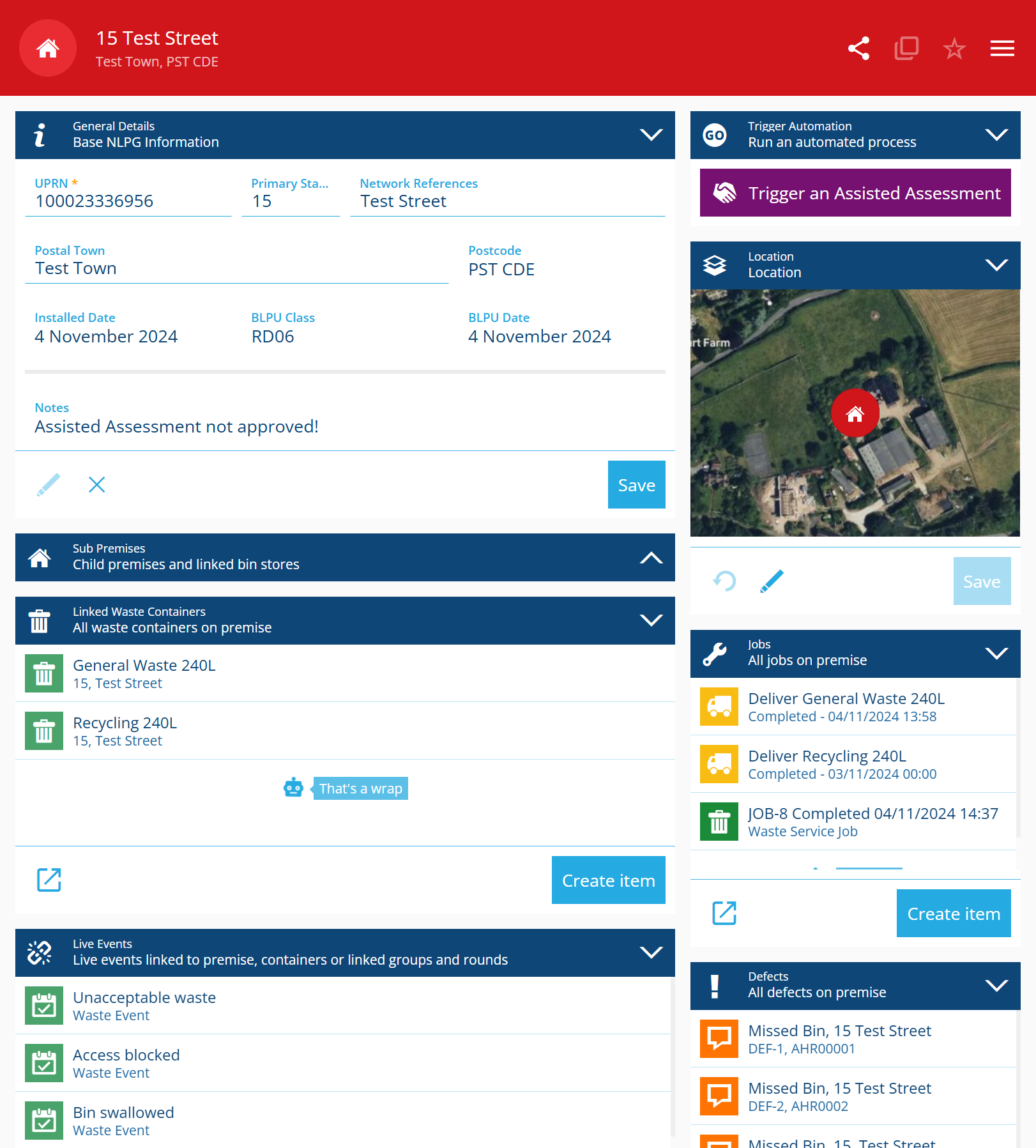
In a canvas view, you can add any number of extra AQS list sections, each with its own custom query. A query can fetch items of any design/interface, whether they're related to the current item or not, e.g. in the image above, the item has extra sections for linked Waste Containers and live Events.
An AQS list section includes buttons to open its results in other apps (such as Data Explorer) or to create a new item of the relevant design.