Item forms
Customise how item attribute fields are displayed
By default, when users create, edit or view an item, they see all of its attributes in the order they were added to its design.
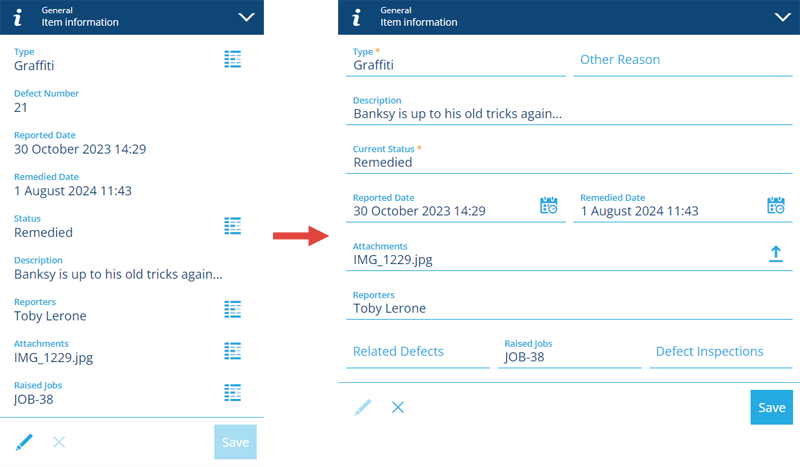
An item form lets you customise the order, visibility and behaviour of item attribute fields, and which controls are used for data input. Each item form applies to a specific design or interface and can be used in one or more scenarios:
-
editing the General section of an item
-
viewing the General section of an item
Item forms have a simple grid layout. Each attribute can be represented with a single control on the form. The control type determines how data can be entered for that attribute. Each control has configurable properties that determine its appearance and behaviour. See Edit the item form.
If you're unable to view or manage item forms, your user account may lack the required permissions.
Why use item forms?
Item forms provide ways to control how item data is viewed and entered:
-
show or hide attributes
-
reorder attributes
-
make an attribute read-only
-
make an optional attribute required
-
override an attribute's default value
-
sort and filter items in the lookup list of a Link attribute
For advanced use cases, these behaviours can be configured to happen dynamically, based on the output of an item form expression. This makes it possible to create item forms that react to user input!
Using Permissions, different item forms can be made available to different user groups as needed. Item forms can also be targeted to specific apps and platforms (e.g. Classic, Mobile) using screen tags.
Item forms vs stencils
If you're a veteran user, you may be familiar with stencils. They are the precursor to item forms and can only customise the attribute fields shown when viewing an item's details.
Stencil functionality is now provided by item forms. Therefore, it isn't possible to edit a design's stencil within the Asset Management Apps. If you still need to do this, see Stencils in Asset Classic.
When viewing an item in the Asset Management Apps, the General section will respect a previously defined stencil by default. However, if an applicable item form exists with Applies to view enabled, it will be used instead.