Edit the item form
Configure its attributes and expressions
After you create or open an item form, the Item Form Builder appears. Use it to add controls to the item form's layout and configure their properties.
Controls are the building blocks of your item form. There are three types:
-
Attribute controls - input fields for setting the value of attributes on the item being created/edited.
-
Label controls - read-only fields to display static or dynamic values.
-
Layout controls - cosmetic elements to give your item form structure.
Item forms have a grid layout, which helps them adapt to different screen sizes. When you add a control, it fills a new row. You can then resize and drag the control to different places in the grid. Up to six minimum-width controls can fit on a single row.
Using the Item Form Builder
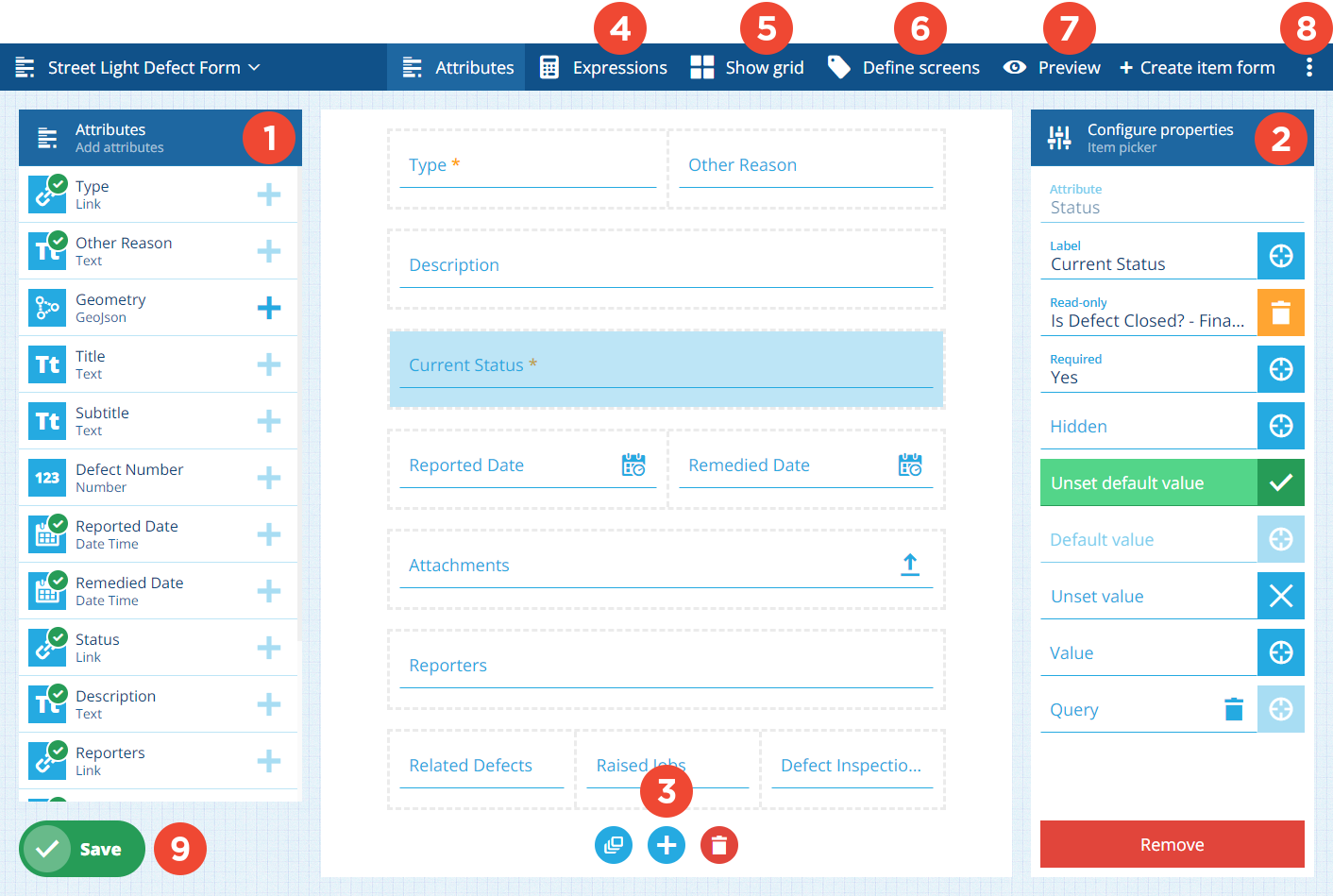
1 Attributes
An item form applies to a specific design/interface. The attributes of that design/interface appear on the left.
For each attribute, the item form can contain:
-
multiple label controls
A green badge indicates that an attribute is referenced by one or more controls on the item form. Select it to flash each control's location.
To add an attribute to the item form, select its Add button, then choose a suitable control type.
2 Configure properties
Select a control on the item form to display its properties on the right. They determine the control's appearance, behaviour and initial value.
Properties can be set dynamically, based on the output of a computed expression. To target an expression, select a property's Target button and choose from a list of compatible expressions (their Final node output matches the property type).
For full details, see Attribute controls and Other controls.
3 Layout actions
Select an action at the bottom:
-
Add all default controls - automatically add controls for all missing attributes to the item form.
-
Add control - add other controls to the item form.
-
Clear controls - remove all controls from the item form.
4 Expressions
To manage the item form's expressions, select Expressions . This advanced feature provides a powerful way to make item forms dynamic and reactive to user input.
An expression is a sequence of values and functions that outputs a final value. Using our handy builder, you can create an expression that reads and reacts to the properties of any control on the form (or a variable like the current time).
If you configure a control property to target an expression, it will be set according to the expression's output, which can change as the item form is used (e.g. a control becomes required if another control is populated).
To learn more, see Item form expressions.
5 Show grid
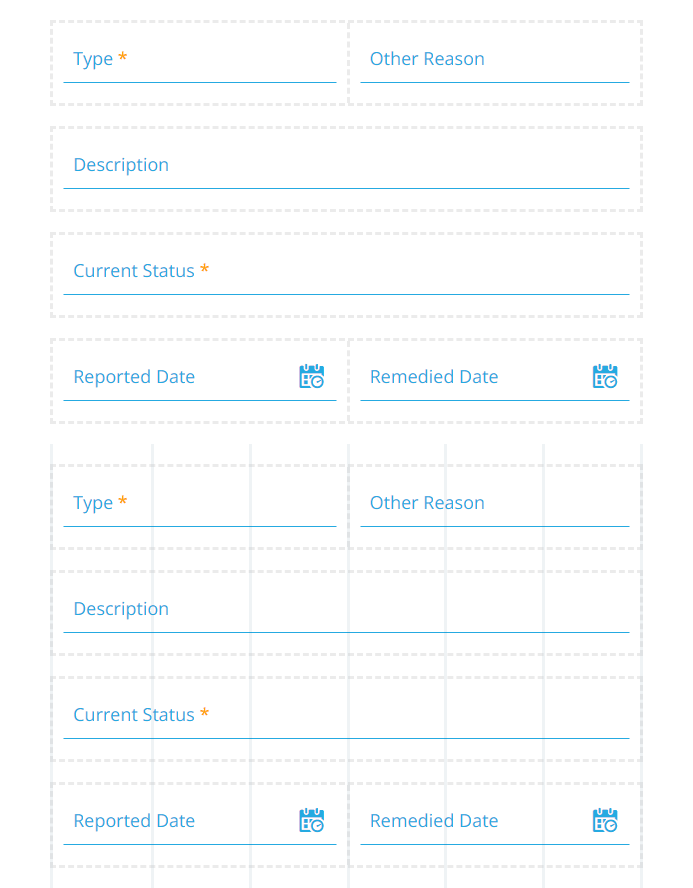
To display a grid overlay on the item form, select Show grid in the app bar. This can be helpful when resizing controls and moving them between rows. Select Hide grid to remove the overlay.
6 Define screens
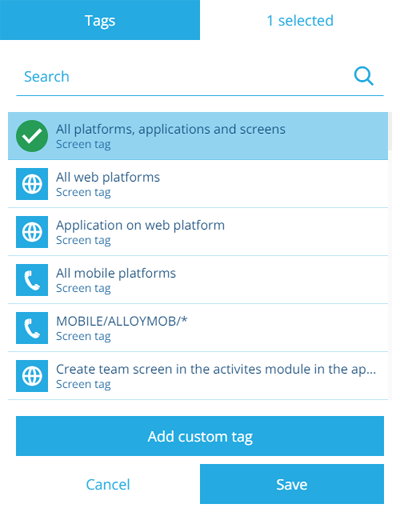
To manage the item form's screen tags, select Define screens in the app bar. Each screen tag represents a scenario that the item form can be used in. This lets you create different item forms for different use cases.
For example, you could have one item form that targets the Boards app (WEB/BOARDS/*), one that targets Alloy Mobile (MOBILE/ALLOYMOB/*) and one that targets Asset Classic (Application on web platform).
Custom tags
Select Add custom tag to define your own. Use the format platform/application/screen as follows:
-
platform- targetWEBorMOBILE(Android/iOS). -
application- target an individual app, e.g.BOARDS,DATA-EXPLORER,ALLOYWEB(Asset Classic). -
screen- target a specific view or process within an app, e.g.CreateJobDetails(the Create Job process in Asset Classic).
Use the * wildcard to include everything, e.g. */*/* (all platforms, all apps, all screens).
Alternatively, select All platforms, applications and screens to use it everywhere.
To review the selected screen tags, open the X selected tab. To deselect tags, you can then select Remove or use the Remove all button.
7 Preview
To test the item form, select Preview in the app bar. After selecting an existing item to test with, you can see how the item form looks at different screen sizes and interact with its controls.
To learn more, see Preview the item form.
8 Edit properties
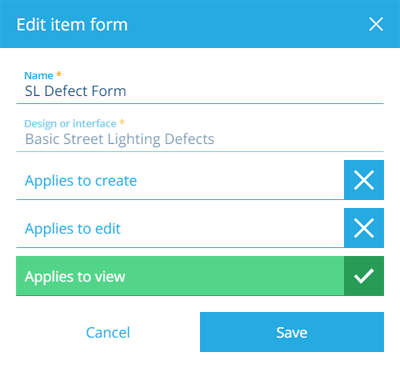
To edit the item form's properties, open the Item Form Menu in the app bar and choose Edit . The Design or interface can't be changed after the item form is created.
9 Save button
When you're finished, select Save in the bottom-left corner to save your changes. To leave without saving, select Designer in the top-left corner to return to the start screen.