Item form expressions
Make item forms context-sensitive
An expression is a sequence of values, inputs and functions that outputs a final value.
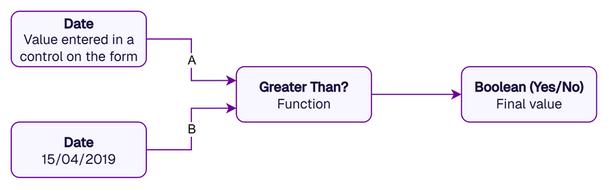
Each control on an item form has properties, e.g. Read-only, Required, Value. If a control property targets an expression, the property becomes context-sensitive and changes depending on the expression's output. Expressions can read the properties of other controls on the form and are continually recalculated. This lets you create dynamic item forms that respond to user input.
Use an expression to:
-
make an optional control required if another is populated
-
unlock a read-only control if a Checkbox control is checked
-
limit the values accepted by a control
e.g. limit an End Date control to 30 days after the Start Date control's value -
filter the item lookup list of a Link attribute control
e.g. filter a Team Member control based on the Team control's value -
set the default value of a control
e.g. if a Priority control is set to "High", the Target Date control defaults to 7 days after the Start Date control's value
Expressions are currently unsupported on Alloy Mobile and will go unprocessed if present.
Manage a form's expressions
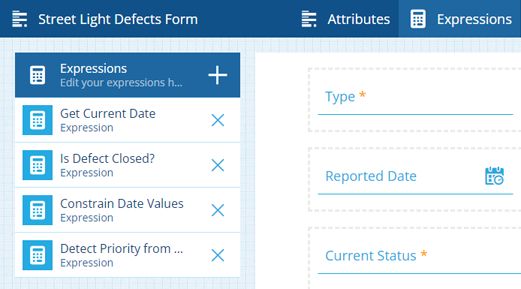
When editing an item form, select Expressions in the app bar. Any expressions defined in the item form are listed on the left.
Select an expression to edit it or select Add to create one. See Item Form Expression Builder. To delete an expression, select its Remove button.
Developers can define an expressions array when using the Alloy API to create/edit an item form.
Target an expression
When editing an item form, select a control to display its properties on the right.
To make a control property target an expression, select its Target button and choose a saved expression. That property now depends on the output of the expression, which may change as a user interacts with the item form.
To stop targeting an expression, select Remove.
Examples
Follow these step-by-step examples to build different expressions: