Example 2 - Cascading lookup list
Introduction
This example demonstrates the following scenario:
I want to filter a lookup list based on the value chosen in another lookup list.
Let's imagine an example of this:
My item form has controls for two Link attributes named Team and Team Member.
If a value is chosen in the Team control, the Team Member control should only list members of that team. I can create an expression that:
-
uses an AQS query to fetch items of Team Members with a parent whose Item ID matches a parameter
-
reads the Value property of the Team control (the Item ID of the chosen team)
-
injects that value into the AQS query to populate the parameter
1 Create the expression
When editing an item form, select Expressions in the app bar. On the left, select Add to create an expression.

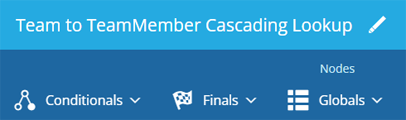
In the Item Form Expression Builder, select Edit at the top. Enter a descriptive name and select Save.
2 Add a literal AQS
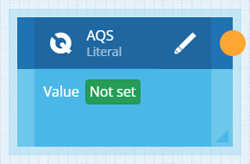
Select Literals in the app bar and choose AQS to add a node to the canvas.
Select the node's Edit button. Select Value to open the AQS Builder. Build your query and then select Save.
Build the AQS query
This query fetches items of the Team Members design, with a parent whose Item ID matches a parameter.
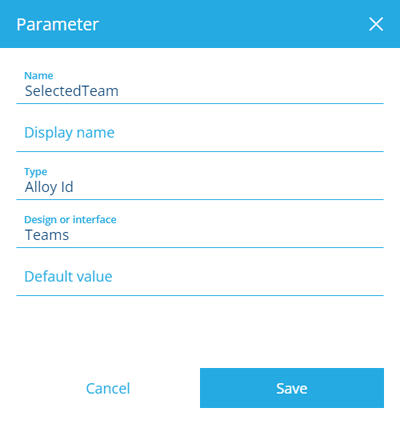
- In the AQS Builder, select Add in the left Parameters box. Configure as shown below and select Save.
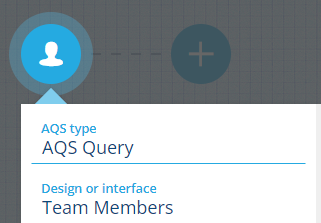
- Select the root node and set its Design or interface to Team Members.
- Select Add and choose the Equals node.

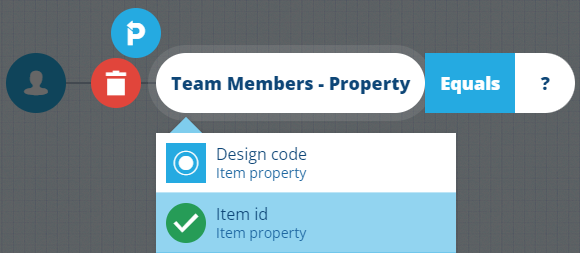
- Select the left segment, select the Property node and then Item id.
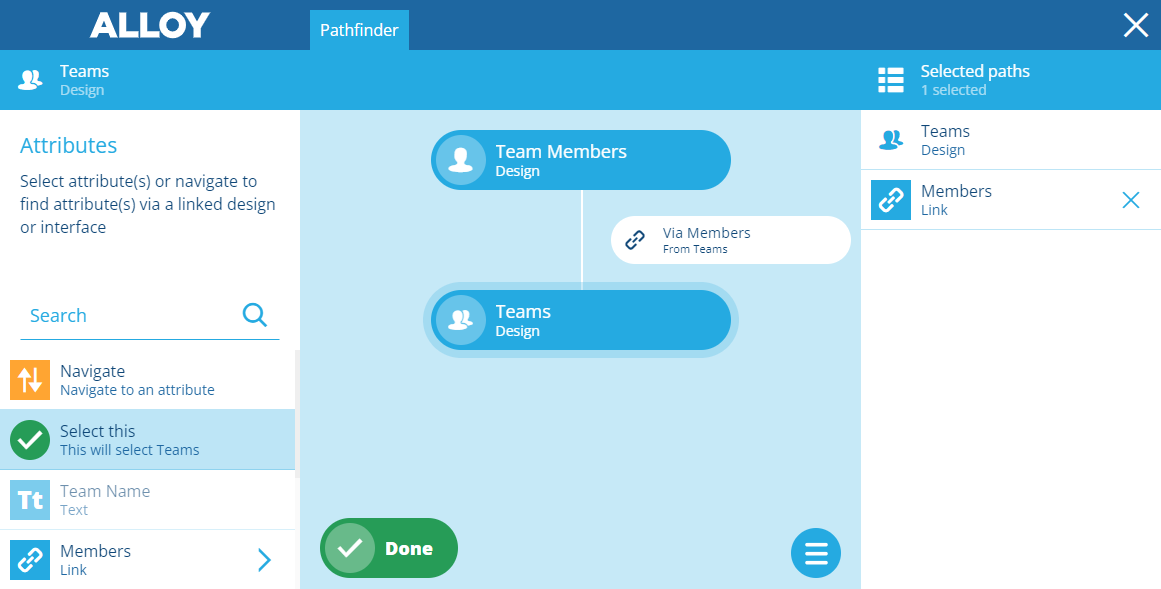
- Select to open the Pathfinder. On the left, select Navigate > Teams > Via Members > Select this. Select Done to finish.
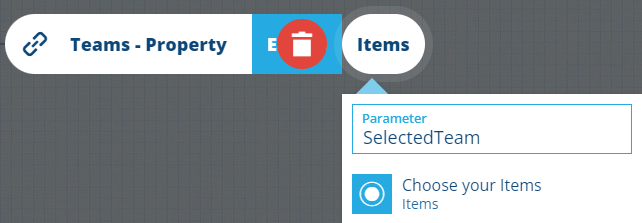
- Select the right segment, select Item, select Parameter and then choose your parameter.
- Select Done to finish and close the AQS Builder.
3 Add a literal String
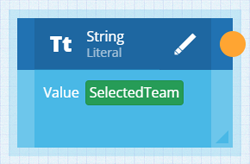
Select Literals in the app bar and choose String to add a node to the canvas.
Select the node's Edit button. Enter the exact name of your AQS parameter and select Save.
4 Add a global Alloy ID Array
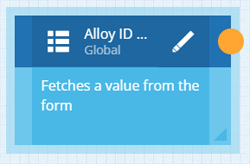
Select Global in the app bar and choose Alloy ID Array to add a node to the canvas.
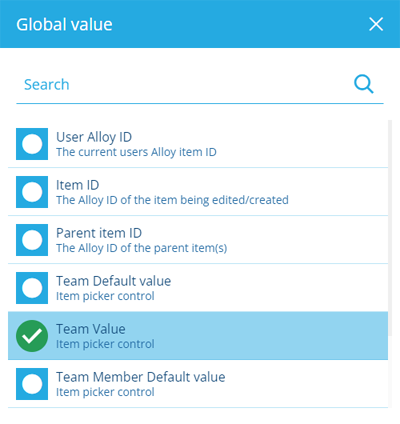
Select the node's Edit button. Select Global value, choose Team Value and then select Save.
5 Add an AQS Set Parameter
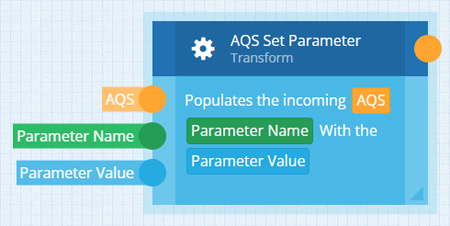
Select Transforms in the app bar and choose AQS Set Parameter to add a node to the canvas.
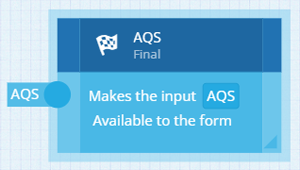
6 Add a final AQS
Select Finals in the app bar and choose AQS to add a node to the canvas.
7 Link the nodes together
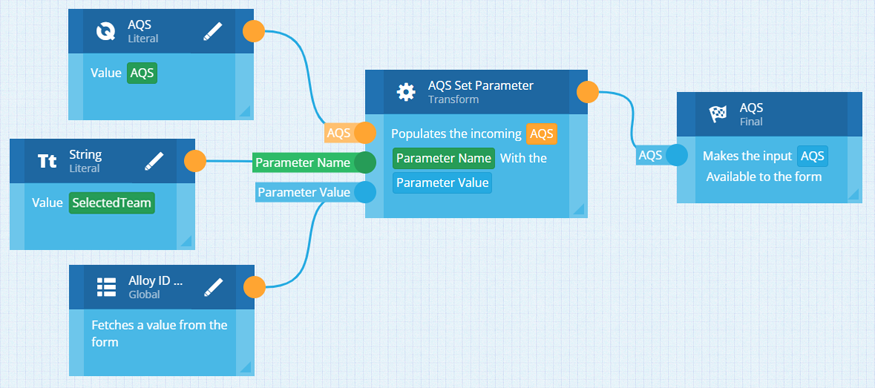
For the first three nodes, select their right circle and then select the relevant left circle on the AQS Set Parameter node. Repeat to link the AQS Set Parameter node to the final AQS node.
Select Save to finish.
8 Target the expression
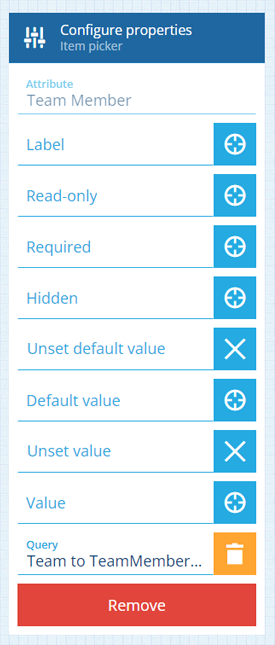
Back in the Item Form Builder, select the Team Member control. For its Query property, select Target and choose your saved expression.
Select Save to finish.