Other controls
Configure label and layout controls
When editing an item form, you can add other controls to provide structure and display extra information.
Select Add control at the bottom and choose one of the following control types. Select the new control to configure its properties on the right.
Layout controls
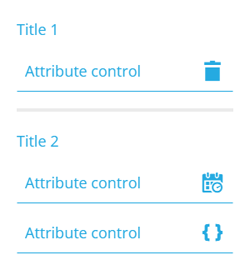
Use these cosmetic controls to improve the readability of your item form:
-
Separator - divide your item form into sections.
-
Title - name the sections in your item form.
Both have a Hidden property. If enabled, the control won't be visible when the item form is used.
Label controls
Use these controls to display read-only data values. They can be dynamic or static. Unlike attribute controls, their values are not submitted when the item form is saved. They're informational, not functional.
All label controls have these properties:
-
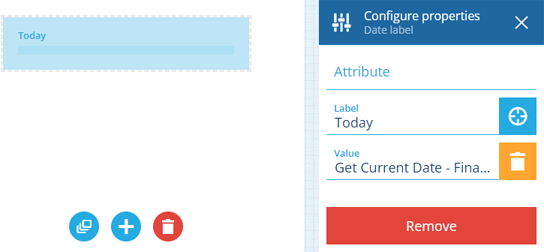
Attribute - display the value of a compatible attribute. For some label controls, only attributes with the relevant tag are selectable.
or
-
Value - display a static value entered by you. Alternatively, select Target to display a dynamic value from a targeted expression.
- Label - set a display name for the control. If left blank, the attribute's name will be used (if set).
Some label controls have extra properties that affect how data is displayed. If a label control has nothing to display, it appears empty when creating or editing an item, but is hidden when viewing one.
Text labels
These label controls can display text values in different ways. Use a Text attribute or enter a static value. Some controls only accept attributes with the relevant tag.
| Control Type | Description | Extra Properties | Attribute Tag | Example Value |
|---|---|---|---|---|
| Collection code label | Display an item collection. | Collection | Template | |
| Colour label | Display a hexadecimal colour code and sample square. | Colour | #df412c | |
| Design or interface label | Display the name of a design or interface. | DodiCode or ReportDodiCode | designs_taskStatuses or designInterfaces_assets | |
| Feature label | Display the name of an Asset Management feature (Basemap, Design, Interface, Layer, Workflow). | FeatureCode | workflows_closeProject | |
| Icon code label | Display an icon and its code. | Icon | icon-element-fire | |
| Image SVG label | Display a graphic rendered from SVG code. | Svg | <svg width="536" height="115" viewBox="0 0 536 115" fill="none" xmlns="http://www.w3.org/2000/svg"><path d="M511.999 73.5593L501.819 ... | |
| Image URL label | Display an image loaded from a URL. | Image | https://www.example.com/my-image.jpg | |
| Mesh label | Display the name of an integration endpoint used to push or pull data. | MeshCode | meshes_telensaFaultPushAlloy | |
| Multiline text label | Display a text value with multiple lines. | Some things take longer to say properly. That's what this field is for. Take your time. | ||
| Text label | Display a text value. | Format - see Text and Number Formatting. | Some things are meant to be seen, not changed. | |
| Text URL label | Display a web address. Select to open it in a new tab. | Url | https://www.example.com |
Other labels
These label controls can display different types of data. Use a compatible attribute or enter a static value.
| Control Type | Description | Extra Properties | Attribute Type | Example Value |
|---|---|---|---|---|
| AQS label | Display an AQS query as code. Double-click to copy it. Select to open it in the AQS Builder. | AQS | {"type":"Query","properties":{"attributes":["attributes_itemsTitle" ... | |
| AQS results label | Display the first item result of an AQS query. Select to open all results in the Data Explorer app. | Display - set to Count to show the number of results instead. | AQS | DEF-1287 or 24 items |
| Checkbox label | Display a Yes/No (boolean) value. | Yes/No | or | |
| Date label | Display a date value. | Date | 2 July 2026 | |
| Date time label | Display a date time value. | Precision - set to Minutes, Seconds or Milliseconds. | Date Time | 2 July 2026 16:20:00 |
| File label | Display one or more linked files. Select to open them in the Data Explorer app. | Link | site-plan.pdf or 3 items | |
| Geometry label | Display geometry in a map thumbnail. Select to open the area in the Geometry Editor. | Geometry | 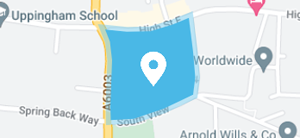 | |
| Geometry street view | Display a photo of the geometry's location. Select to open the location in Google Street View. | Geometry | 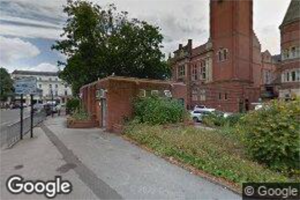 | |
| Item image label | Display the thumbnail of one file item or the total file count. Select to open them in the Data Explorer app. | Link with Image tag | IMG_02652.jpg or 7 items | |
| Item label | Display one item or the total item count. Select to open them in the Data Explorer app. | Design or interface - filter the available items. | Link | JOB-0360 or 128 items |
| Json form label | Display a dropdown list of read-only JSON data values. | Attribute - choose one that has schema. or Value - populate this with JSON code and set a Schema that defines its structure. | Json | 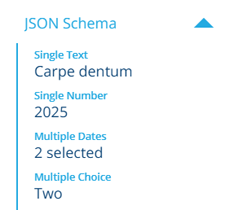 |
| Json label | Display read-only JSON code. | Json | {"is_monday": true} | |
| Number label | Display a numerical value. | Currency - display the number in your local currency. Format - see Text and Number Formatting. | Number | 12.9 or £12.90 |
| Seasonal label | Display a date without a year. | Seasonal | 2 July | |
| Time label | Display a time value. | Precision - set to Minutes, Seconds or Milliseconds. | Time | 16:20:00 |
Remove controls
To remove a control, select it, then select Remove at the bottom of the Configure properties panel.
To remove all controls from the item form, select Clear controls at the bottom.