Show results on the map
Display query results in a temporary map layer
After creating a query in the Data Explorer app, you can open its results in the Maps app. The results appear as a temporary layer, which is only visible to you and remains available until your session ends. This provides a convenient way to view the results in a geographic context.
Select items
By default, this includes all items in the active query tab. To target specific items instead, select them in the query results. The toolbar indicates how many items are currently selected. Select to clear your selection.
When you're ready, select Open in in the bottom toolbar and choose Map.
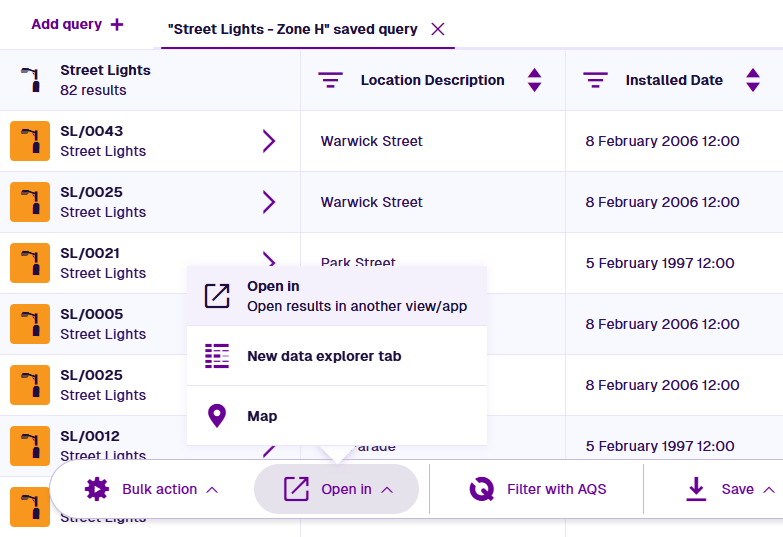
Open in Maps
The Maps app will open in a new browser tab, displaying the selected items from your query as a temporary layer. Depending on the number of items and how far apart they are, you may need to pan and zoom the map to locate them. To learn more, see Navigation in the Maps app.
Temporary layers are always turned on. They disappear automatically when you sign out of CausewayOne Asset Management or close the browser tab. To remove a specific temporary layer, select Layers in the right toolbar, and then select its Remove button.
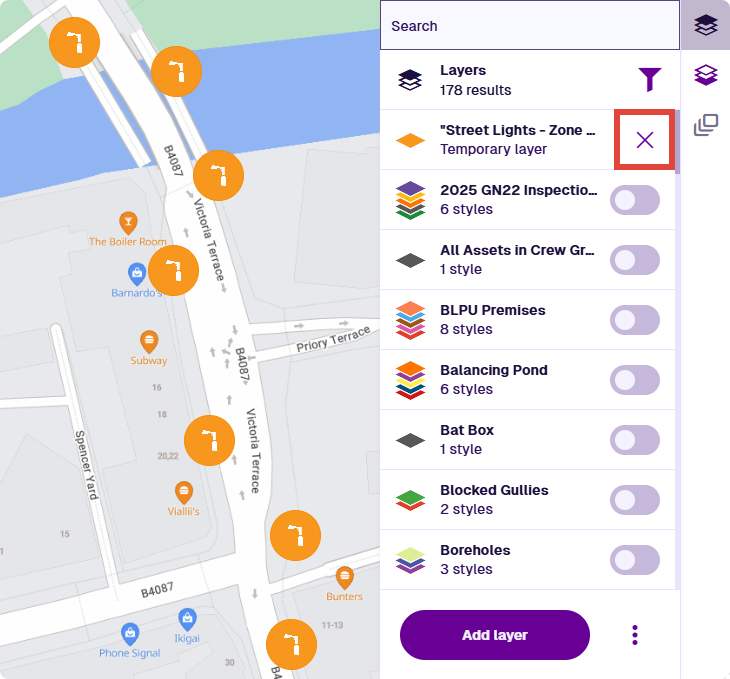
If you select More and choose Turn off all layers, any temporary layers will be lost.