Open an item
View an item's details
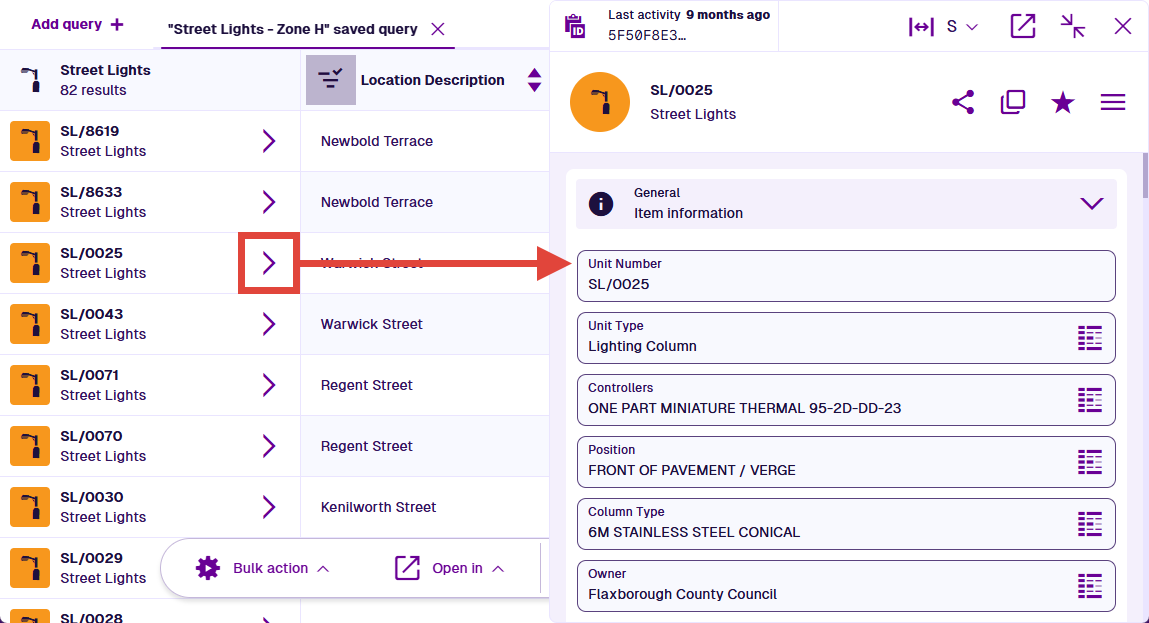
Each query tab in the Data Explorer displays a set of item results. To open an item, select its Open button. The item will open in a resizeable side panel, so you can view its details without interrupting what you're doing.
Item panel controls
When viewing an item's details in the side panel, extra controls appear along the top of the item header.
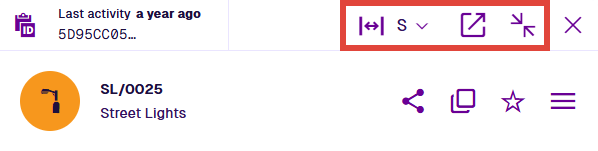
Use these controls to resize and minimise the item panel:
-
Container width - make the item panel narrower or wider. Choose a size and the item's canvas layout will adjust itself accordingly. Alternatively, select anywhere within the panel and press a number key from 1 and 5 to switch sizes.
-
Open in new tab - open the item in a new browser tab, where you can view its details at full size.
-
Minimise - hide the item panel without closing it, so it doesn't cover the app. To show the item panel again, select Expand in the top-right corner. To close the item, select Close.