Clone the item
Create an exact copy or make changes
To create a copy of the current item, you can clone it. This provides a quick way to create multiple items with similar data.
During the item clone process, you can choose to override any aspect of the new item, including its properties, attribute values and geographical location. You can also choose how any linked items will be processed.
For example, the following diagram shows an item of the Street Lights design. It links to several component items (directly and indirectly). When cloning this street light, one of the following behaviours can be chosen.
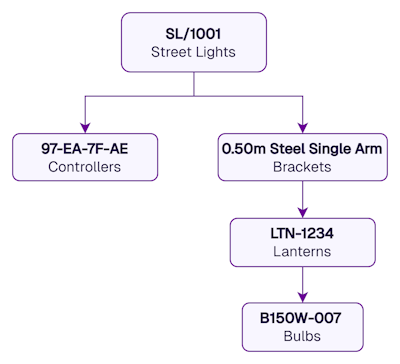
Example - Keep links
The clone will link to the same component items as the original.

Example - Clone links
The entire chain of component items will also be cloned (regardless of whether each Link attribute is Strong or Weak) and the clone will link to them.
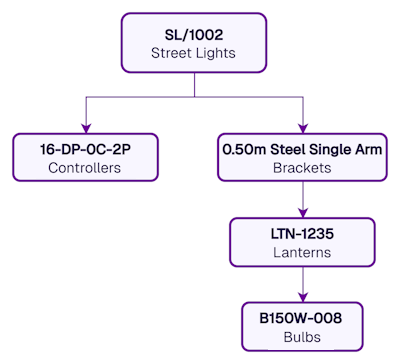
Example - Ignore links
The clone won't link to any components.

If you need to clone an item regularly, consider making it a reusable template instead!
Start the process
To clone an item, your user account must have permission to create items of the relevant design. To start the process, select Clone item in the item header.
To create an exact copy of the item, select Clone immediately. If the original item links to any child items, they will also be cloned (except for activities). Each clone will have a unique Item ID but otherwise be identical to the original.
Alternatively, select any of the following steps to customise how the item is cloned.
1 Configure properties
These values are copied from the original item's properties. Select a property to override it with a new value:
-
Collection - move the clone to another collection, if allowed by its design.
-
Icon - use the icon picker to set the clone's icon. Deselect the current icon to use the design's icon.
-
Colour - use the colour picker to change the clone's colour. Deselect the current colour to use the design's colour.
Select another step or select Clone to finish.

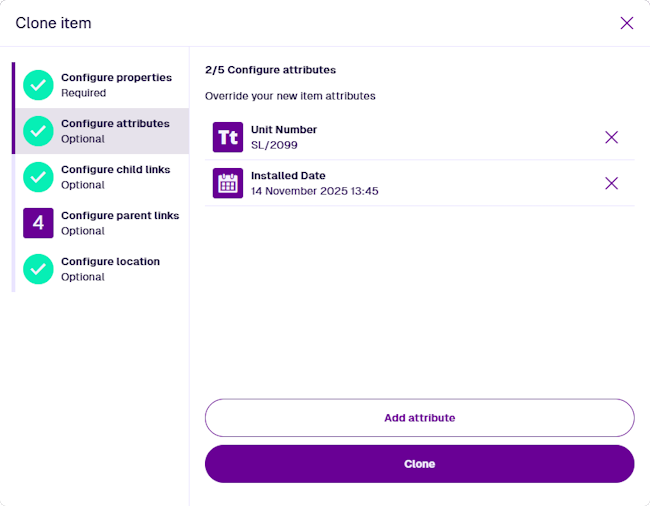
2 Configure attributes
By default, all attribute values are copied from the original item.
To override a particular attribute value, select Add attribute and choose it from the list. Provide a new value or select Unset to clear the current one. Repeat for each attribute you want to override.
Select another step or select Clone to finish.
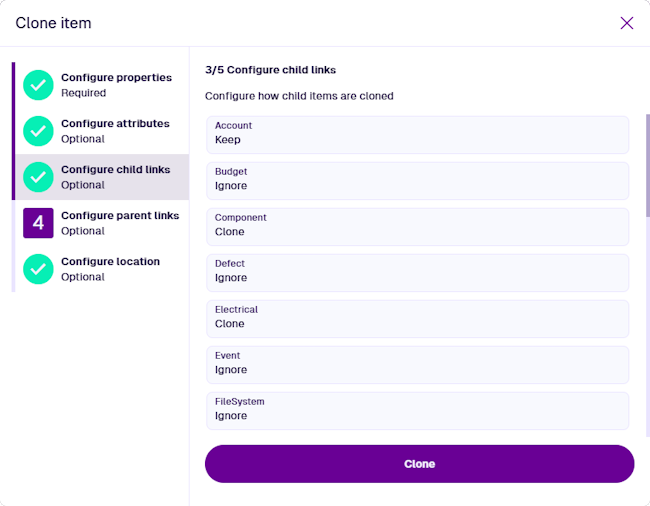
3 Configure child links
By default, the clone will link to the same child items as the original. If any child items are templates, the clone will link to clones of them instead. However, you can selectively override this behaviour as needed.
Each Link attribute on the original item has a Graph property, which determines the graph type that its linked items appear on. For each graph type, you can specify what happens to the Link Attributes that use it (some are pre-populated with suggestions):
-
Ignore - the Link attributes on the clone will be empty.
-
Keep - the Link attributes on the clone will link to the same items as the original.
-
Clone - the Link attributes on the clone will link to clones of the original linked items.
Select another step or select Clone to finish.
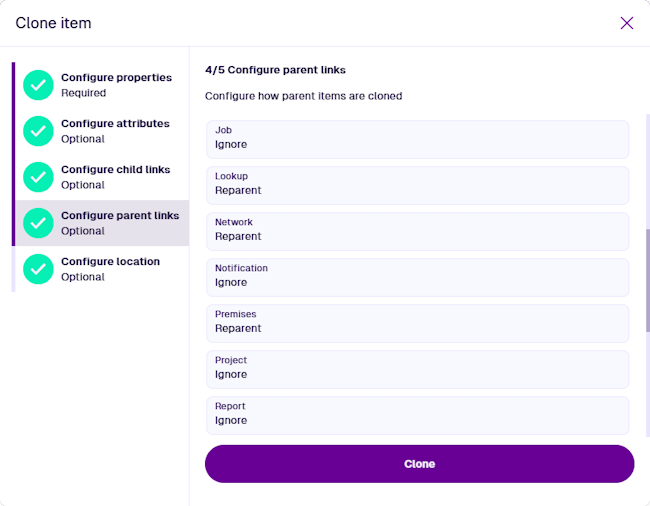
4 Configure parent links
There may be parent items that link to the original item (it appears in their Link attributes). By default, parent items won't link to the clone, unless the original item is a template (and the parents themselves are not).
However, you can selectively override this behaviour as needed. Like the previous step, this is set per graph type, but on the parent items instead:
-
Ignore - the Link attributes on parent items won't link to the clone.
-
Reparent - the Link attributes on parent items will link to the clone.
Select another step or select Clone to finish.
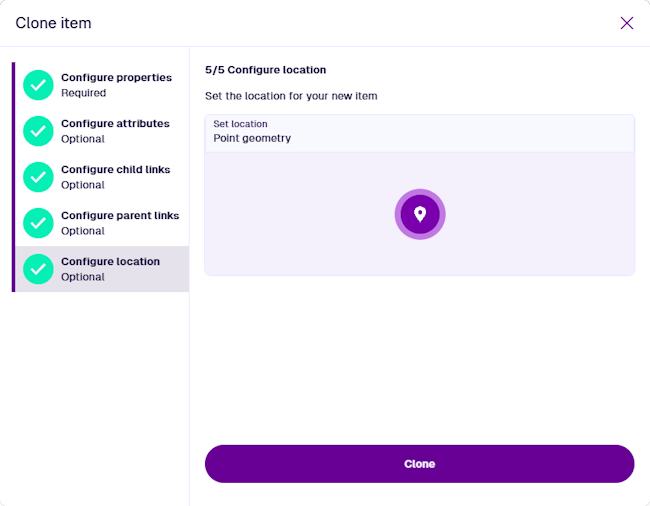
5 Configure location
By default, the clone will use the same geometry as the original item (if available). To override this, select Set location to open the Geometry Editor and use it to draw a point, line or polygon on the map.
Select another step or select Clone to finish.
Finish the process
After completing the relevant steps as needed, select Clone to finish. A notification indicates whether the item was cloned successfully or failed due to an error.
The details of the new clone item will be displayed.
Scheduled cloning
You can create a schedule that automatically clones an item on certain dates or at repeated intervals. This is particularly useful for activity items, e.g. clone an inspection item for a particular asset every month.
To learn more, see Schedules in Asset Classic.