Inspections section
Condition assessments
Use inspections to plan and perform investigations of your organisation's assets. Record the state of an asset's condition by filling in data fields, answering yes/no to pre-defined questions and attaching photos from your device. Inspections can discover defects, which can then be fixed with jobs. To learn more, see Inspections in Asset Classic.
While inspections are typically registered against asset items, they can also be registered against other activity items. An inspection may be needed to confirm a defect or verify that a job was completed satisfactorily.
When viewing an item's details, the Inspections section lists any past, present and future inspections related to it.
Select an inspection item to open it and view its details. To return to the original item, use the breadcrumbs to navigate backwards, or use your browser's back button.
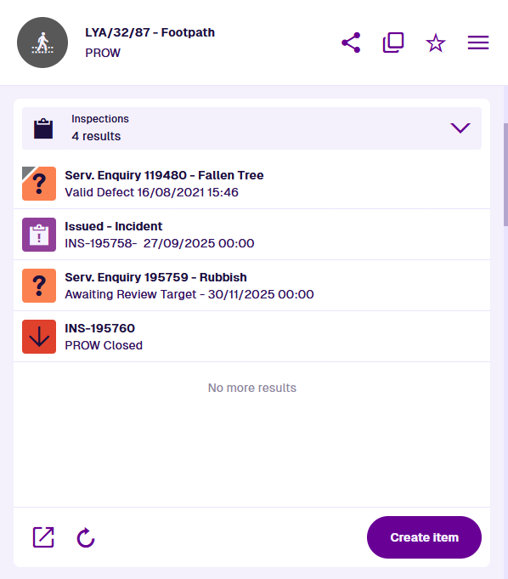
In the Designer app, this section is an AQS list section. When adding it to a canvas view, choose the ready-made Inspections query. There's also an option to hide the Create item button.
Section actions
To open the listed inspections in another Asset App, select Open with at the bottom and choose one of the following:
-
Data Explorer - list the inspections in the Data Explorer app, where you can view their attribute values, filter and sort them, and perform bulk actions on them.
-
Maps - display the inspections within a temporary layer in the Maps app.
To refresh the section's contents, select Refresh.
Create
To start creating a new inspection, select Create item at the bottom of the section. Follow the usual process:
-
1 Select a design - select from a list of compatible designs.
-
2 Item details - fill in the attribute fields as needed.
-
3 Parents - by default, the current item is a parent of the new inspection.
-
4 Item location - by default, the new inspection has the same geometry as the current item (if allowed by the selected design). If left blank, it may be inherited again automatically, depending on the design's configuration.
Select Create to finish.