Highlights
Draw attention to important data
When editing a hub, you can configure its highlights to display key information at a glance.
A highlight gives focus to one or more data points from an existing widget. It can be used to draw attention to an important number or render a widget's data points as a graph. Selecting a data point within a highlight will flash its position in the widget it belongs to.
If the highlights area isn't visible, select Editing in the app bar and switch to Viewing mode. Turn on Show highlights and then switch back.
Add highlight
You can add a maximum of eight highlights to a hub. Select Add highlight in the top area, or select beside the last highlight, and then choose a highlight type.
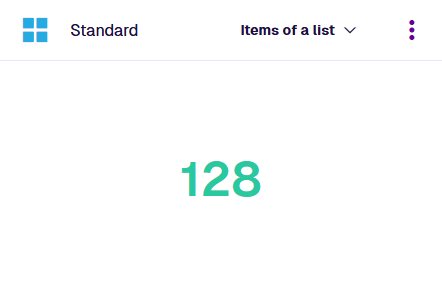
Number
To surface an important number from a widget, choose Number. Fill in the following fields:
-
Widget * - choose the widget containing the data you want to highlight.
-
Data point * - choose one of the widget's data points to display.
Select Create to finish.
Bar
To render a widget's data as a bar graph, choose Bar. Fill in the following fields as needed:
-
Widget * - choose the widget containing the data you want to highlight.
-
Data points * - select some or all of the widget's data points.
Select Create to finish. To reorder data points in the rendered graph, reorder them in the widget.
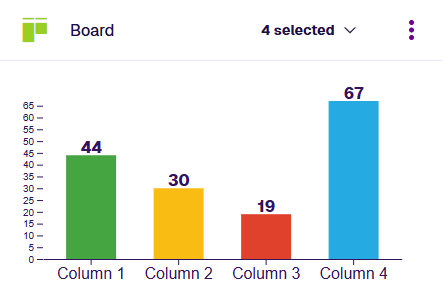
If column labels appear truncated, consider spreading the data points across multiple bar highlights.
Donut
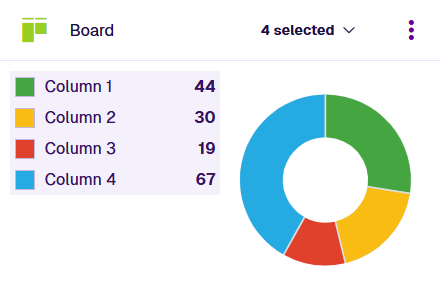
To render a widget's data as a donut graph, choose Donut. Fill in the following fields:
-
Widget * - choose the widget containing the data you want to highlight.
-
Data points * - select some or all of the widget's data points.
-
Show values - if enabled, each segment of the donut will display its item count.
-
Show percentages - if enabled, each segment of the donut will display its percentage.
- Use widget total for percentages - if enabled, percentages will be calculated based on the total item count of the widget, rather than the highlight (which may not include all data points).
Select Create to finish. To reorder data points in the rendered graph, reorder them in the widget.
Highlight actions
To perform an action with a highlight, select its Menu button:
-
Edit - change the highlight's properties.
-
Delete - permanently remove the highlight.