Template items
Speed up repetitive item creation
If you regularly create items with common attribute values, use a template item to save time.
Items in the Template collection are reusable "drafts" that new items can be based on. A typical template item only includes properties and attribute values likely to be the same on items created from it. This can even include links to other template items!
Templates are useful for items with repetitive data, such as:
-
equipment types, e.g. a litter bin model with a fixed manufacturer and capacity
-
recurring activities, e.g. a routine inspection with a fixed checklist
-
regular contacts, e.g. a contractor whose company details stay the same each time
To use templates with items of a particular design, it must be configured to allow the Template collection.
Create a template
There are two ways to create a template item.
Create from scratch
To create a new template item:
-
Open the Designer app.
-
At the start screen, choose Designs. Use the Search window to find and open the design you want to use.
-
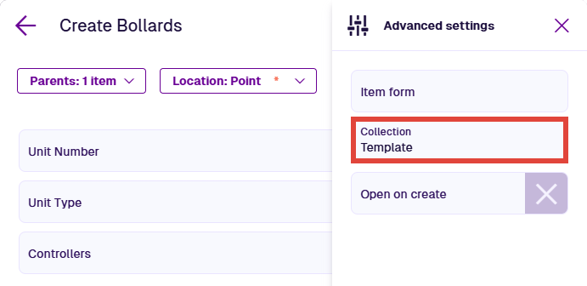
Select Create item in the app bar to start the Create Item process:
-
1 Select a design - set Collection to Template.
-
2 Item details - fill in the attributes you want to include on new items created from this template. While required attributes (marked with an asterisk *) normally require a value to continue, they can be left blank on template items.
-
3 Parents - new items will inherit any parents you add, unless the parent is also a template. By contrast, converting an item to a template removes existing parent links, since they're usually specific to the original item.
-
4 Item location - leave this blank, unless you want new items to have the same geometry.
-
-
Select Create to finish.
Convert an existing item
To convert an existing item to a template:
-
Open the item to view its details.
-
In the General section, select Edit to modify any attribute values that shouldn't be included in the template. Check the other sections to add or remove any related items as needed.
-
Open the Item Menu in the item header and choose Make template .
This moves the item to the Template collection. Any parent links are removed, since they usually reflect the original item's specific relationships, rather than something every new item should inherit. To add parents to a template, create it from scratch instead.
To reverse this, edit the item's Settings section and change the Collection back to Live (or another allowed collection).
Create from template
To create an item from an existing template, clone it and set the Collection to Live (or another allowed collection). Otherwise, the clone will also be a template.
Item canvas views
To create a canvas view from an initial template, choose From template and select one in the list. You can also make a template from an existing canvas view via the Canvas Menu. See Create or open a canvas view.
Hub widgets
To create a widget from an initial template, choose From template and select one in the list. You can also make a template from an existing widget via its Menu button. See Widgets.
Manage templates
Items of the Template collection don't normally appear in searches, lists or map layers by default.
Find templates
To list the templates of a design/interface or category (e.g. Boards):
-
Select Search in the app bar.
-
In the Search window, type the name of a design/interface in the search box, or use the nearby button to browse a category instead.
-
When the relevant items are listed, select Data Explorer at the top of the Results tab.
-
In the Data Explorer app, use the bottom toolbar to only show items of the Template collection.
-
Continue using the Data Explorer to manage the template items.
Convert templates in bulk
To move multiple items in or out of the Template collection:
-
Create a query in the Data Explorer app.
-
Select Bulk action in the bottom toolbar and choose Edit X items.
-
In the first step of the Bulk Edit process, set Collection to Template (to move items in) or Live (to move them back out).
-
Complete any other steps as needed. Select Bulk edit to finish.