Comments section
Post messages for other users to read
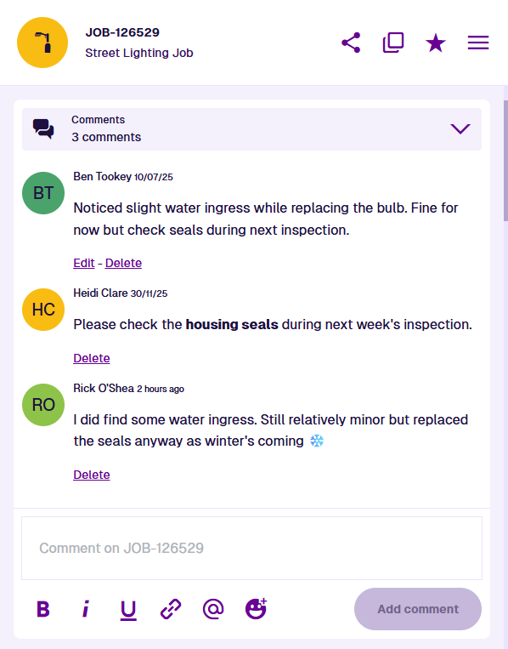
When viewing an item's details, the Comments section lets you see comments from other users and add your own! Use comments to record observations, provide instructions or leave notes for future users.
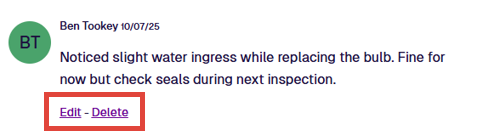
The section header displays the total number of comments. They are listed in chronological order, from oldest to newest. Each comment bears the author's name and when it was added.
If you're unable to add or edit comments, the item may be locked.
Add a comment
This works like most comment systems you've used before! Type any amount of text in the comment box. You can also copy and paste text from elsewhere.
Comments can include formatted text, bulleted/numbered lists and basic Markdown. Images are not supported. However, you can use the Gallery section to attach images and other files to the item instead.
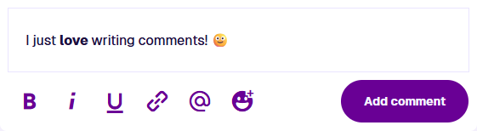
Select Add comment to post your message.
Writing tools
When writing a comment, use these tools to format new or selected text:
-
Bold - use for strong emphasis.
-
Italics - use for moderate emphasis.
-
Underline - typically indicates a hyperlink.
-
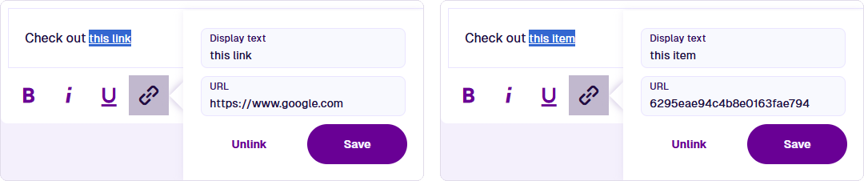
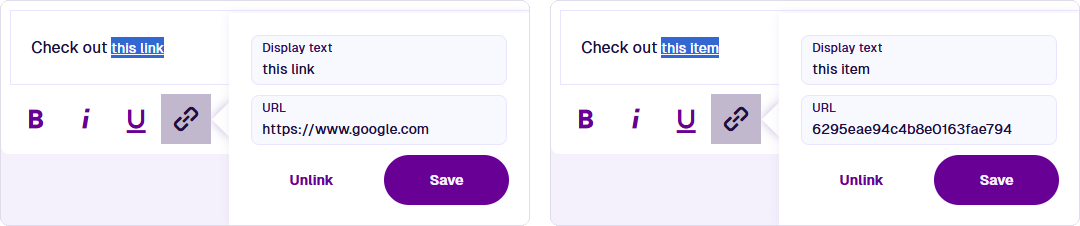
Link - add a link to open a website URL in a new browser tab. Alternatively, link to another item by entering its Item ID. Select Unlink to remove an existing link from selected text. You can also type or paste a URL directly into the comment box.
-
Mention - tag a specific user. Type
@or select this tool, start typing their name and choose it when it appears.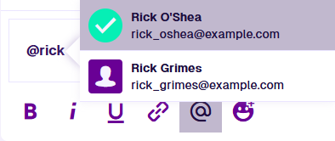
-
Emoji - display a searchable list of emoji. Adding one to your comment can help set the tone, emphasise a point, or simply brighten the reader's day!
Edit a comment
You can select Edit or Delete beneath any of your own comments. You can't perform these actions on other people's comments, unless you are an admin.