General section
View and edit item information
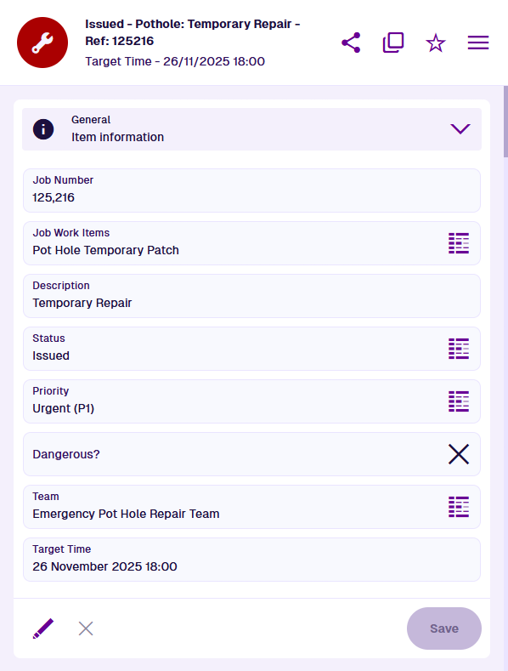
An item stores a set of values for the attributes defined by its design. When viewing an item's details, the General section lets you view and edit these attribute values.
By default, all attribute fields are displayed when viewing or editing an item. However, if an item form has been created for the item's design, it will affect the order and visibility of attributes, and how they can be populated with values.
Link attributes store references to other items. To see the contents of a Link attribute, select its button to open the linked items in the Data Explorer app.
Edit item attributes
To edit the item's attribute values, select Edit at the bottom of the General section.
If an item form has been created for the item's design, the order and visibility of attributes may change while editing. Calculated attributes such as Job Number are never displayed. Read-only attributes are not displayed by default but may be included on an item form.
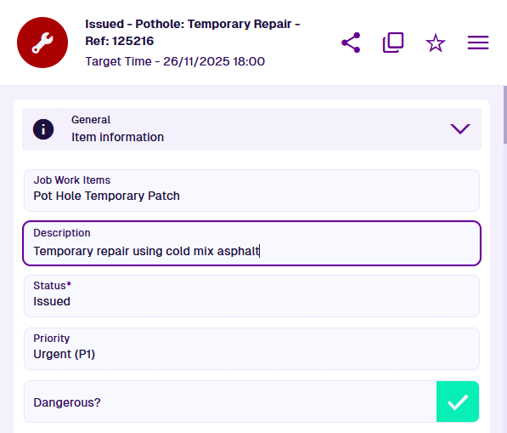
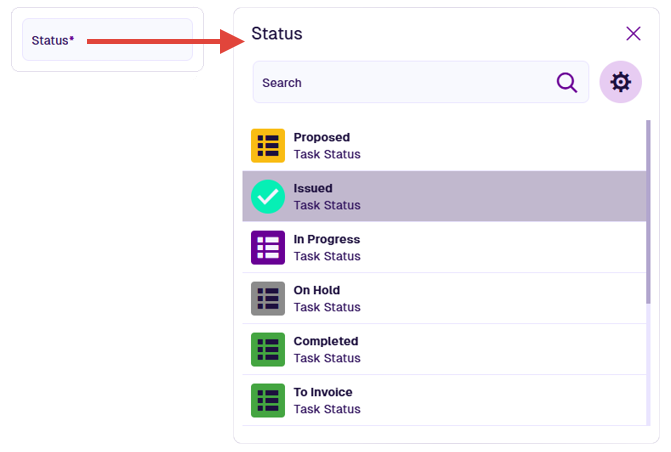
Select an attribute field to edit its value. Depending on the attribute type, enter a value directly into the field, or use the specialised picker to choose one or more values.
Attribute types
| Icon | Type | Description | Input Method |
|---|---|---|---|
| AQS | Store an AQS query in JSON format | Build a query in the AQS Builder | |
| Date | Store a date value, e.g. 30 April 2024 | Select a value with the calendar picker | |
| Date Time | Store a date and time value, e.g. 2 July 2025 13:30:00 | Select a value with the calendar picker | |
| Geometry | Store geometry coordinates in GeoJSON format | Draw points, lines or polygons using the Geometry Editor | |
| JSON | Store JSON code | Type into a fullscreen JSON Editor | |
| Link | Store the IDs of items of a specific design/interface | Select one or more items with the item picker or map picker | |
| Number | Store a number value, e.g. 256, 3.1415 | Type directly into the field | |
| Seasonal | Store a date without a year, e.g. 25th December | Select a value with the calendar picker | |
| Text | Store a text value, e.g. I love managing my assets with Causeway | Type directly into the field | |
| Time | Store a time value e.g. 14:20:55 | Select a value with the calendar picker | |
| Yes/No | Store a boolean value, e.g. true or false | Toggle the field to enable or disable it |
To finish, select Save at the bottom of the section. Your changes will be recorded in the item's audit log. Alternatively, select to discard your changes.
If you're unable to edit an item, it may be locked by an admin, or your user account may lack the required permissions.