Settings section
View and override the item's properties
When viewing an item's details, the Settings section lets you view and edit its properties.
These determine the item's appearance and placement within the data structure of your company project. They're typically inherited from the item's design. However, you can override some of them on individual items.
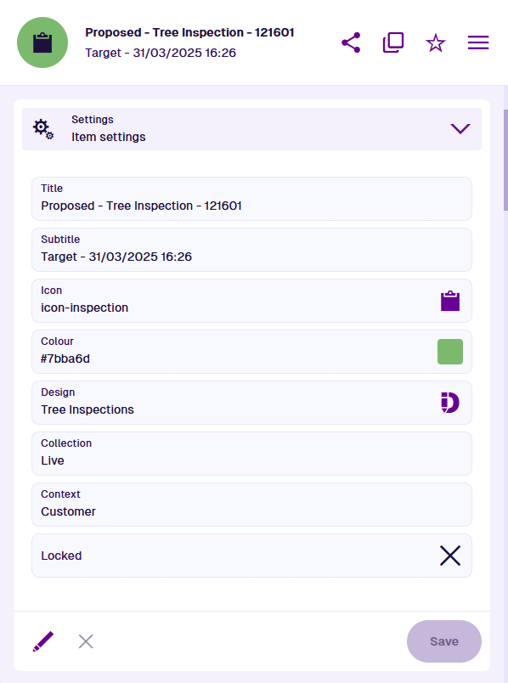
Property descriptions
All items have the following properties:
-
Title / Subtitle - the item's primary and secondary labels, as defined by the item's design. See Titles and subtitles in the Designer app.
-
Icon - the symbol used to represent the item, especially on maps. Part of the item's visual identity.
-
Colour - the tint of the item's icon background. Part of the item's visual identity.
-
Design - the name of the item's design. This determines the item's available attributes. Select the button to open the design in the Designer app. To open in a new browser tab, use middle-click or Ctrl-click.
-
Collection - the item currently belongs to this collection.
-
Context - the origin of the item. If set to Customer, the item was created by your organisation and can be edited freely. Otherwise, it's a protected system item. To learn more, see Item context.
-
Locked - has the item been locked by an admin to prevent editing?
Edit item properties
To edit some of the item's properties, select Edit at the bottom:
-
Icon - use the icon picker to change the item's icon. Deselect the current icon to use the design's icon.
-
Colour - use the colour picker to change the item's colour. Deselect the current colour to use the design's colour.
-
Collection - move the item to another collection, if allowed by the item's design.
Select Save to finish.
You can always edit an item's Colour and Icon, regardless of the item's Context.