Browse and search the list
Find items in the active list
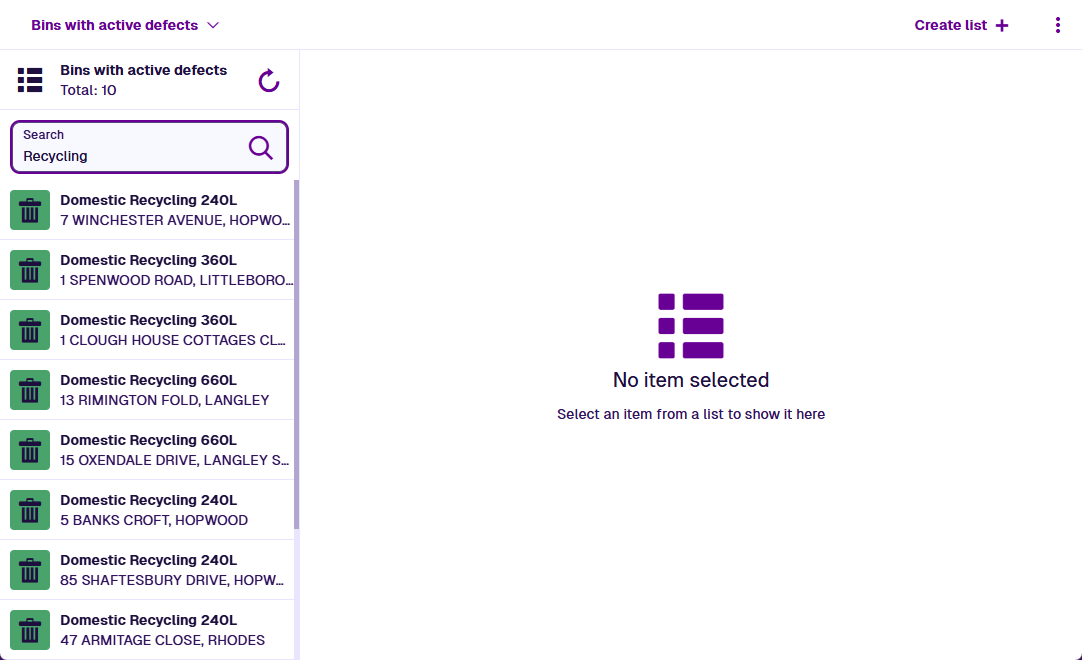
Items in the current list are displayed in the left pane. The header displays the total number of items found when the list was loaded. To update the contents of the list, select Refresh to re-run its query.
To filter the items in the list, enter one or more terms into its search box, then press the Enter key.
Select an item to view its details in the right pane, without losing your place in the list.
Appearance on mobile
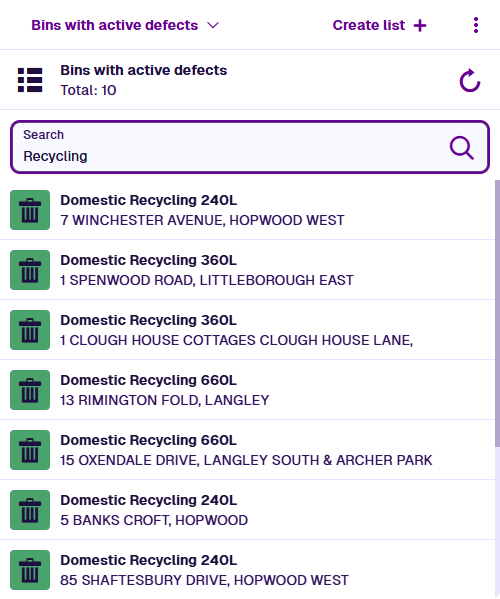
Lists appear full screen on mobile devices. Select an item to view its details in a pop-up.
Full item search
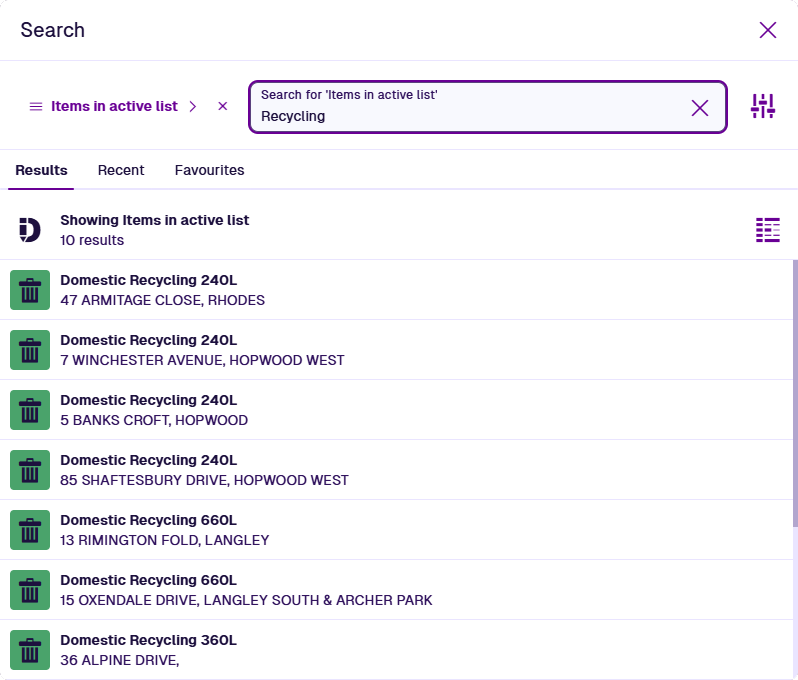
Alternatively, select Search in the app bar. Select the button beside the search box and choose Items in active list. Enter one or more terms in the search box and then press the Enter key.
Select an item in the results to view its details.
To open your search results in the Data Explorer app, select the Data Explorer button. This lets you view their attribute values, perform bulk actions and export their data.
To learn more about searching for items and other things, see Search.
Recent items
For a list of recently viewed items and lists, switch to the Recent tab. To remove an item from the list, select its button.
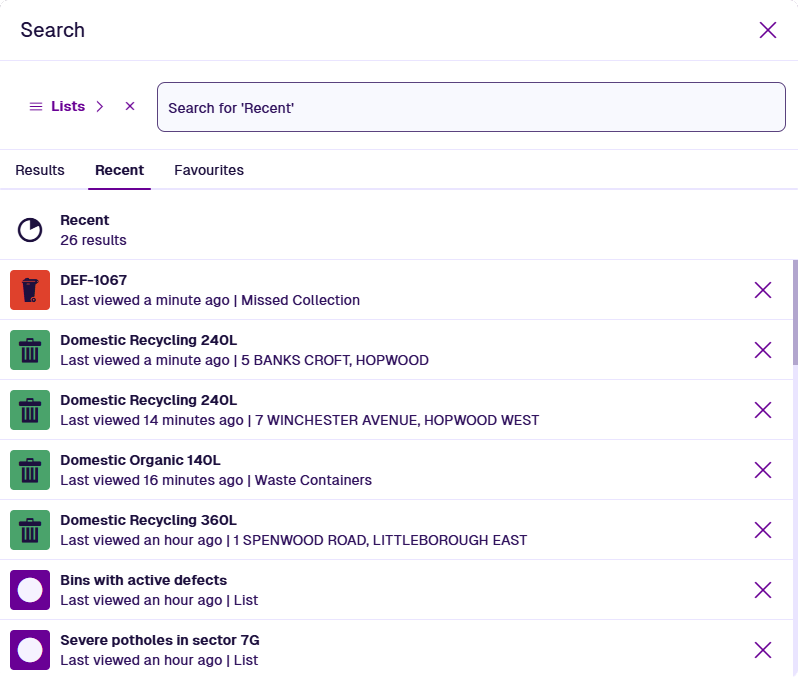
The contents of the Recent tab are affected by the search box.