Select multiple items
Open selected items in Data Explorer
As you navigate around the map, you can select multiple items and open them in the Data Explorer app. This lets you view their attribute data in a table layout, perform bulk actions, and export their data for use elsewhere.
Select individual items
To select items one by one:
-
Select the Toggle selection tool on the left (or just hold the Shift key).
-
Select each item you want to add to your selection.
-
Select the tool again (or release Shift) to disable it.
Select items by area
To select multiple items at once:
-
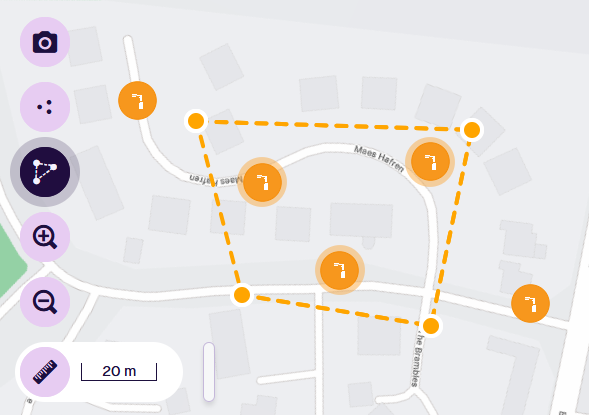
Select the Draw selection area tool on the left.
-
Select points around the items to draw a polygon.
-
Select the last point twice to complete the polygon and select all items within it.
Manage your selection
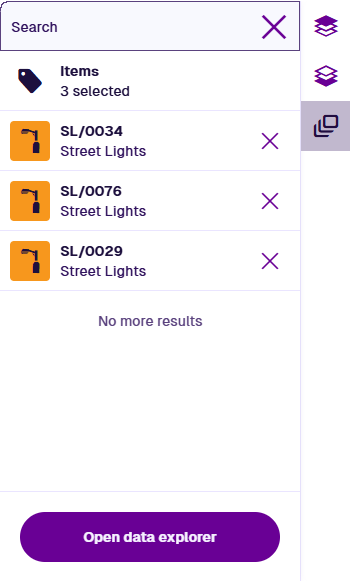
Your selected items are listed on the right. You can continue to navigate the map and select more items as needed. If the list disappears, select Selected items in the right toolbar to show it again.
To remove an item from the list, select its Remove button or deselect it on the map. To clear your selection, select Close in the top-right corner.
When you're ready, select Open data explorer to work with your selected items in a new browser tab.