Set DoDI permissions
Configure group access to designs and interfaces
Designs and Interfaces offer more granular permissions than other categories.
A design defines a type of item. Its permissions apply to all items of that design. You can control whether a group is able to create and delete those items, as well as read and edit. You can also control access to item attributes. Set the default level and then override individual attributes as needed.
For example, let a group read items of the Pothole Jobs design but hide the Total Cost attribute.
An interface can be implemented by designs (directly or via other interfaces). Its permissions apply to all items of those designs, combining with any permissions set on the designs themselves. This makes interfaces a powerful way to set permissions across many designs.
For example, set read access on the Jobs interface to grant it across all job designs. You can then grant additional permissions on individual designs as needed.
To limit access to specific items based on their attribute values, combine permissions with access policies.
Set permissions
In the Permissions Explorer, select a group, then the Designs or Interfaces category, then an object within it.
The Permissions panel shows two tabs:
-
Permissions for design / interface - object-level permissions and a default for attributes.
-
Permissions for attributes - per-attribute overrides.
Make your changes on either tab, then select Save at the bottom to finish.
Design / interface
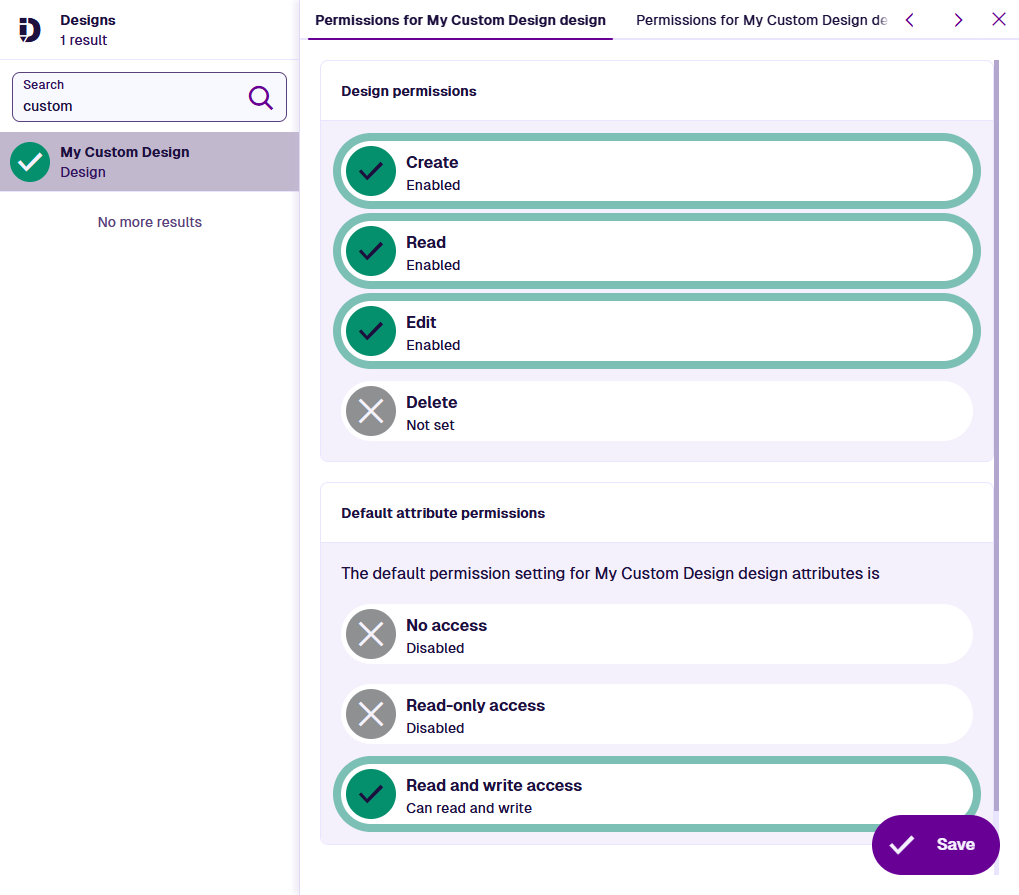
Design permissions
Turn each permission on or off for items of the selected design, or items of designs that implement the selected interface:
-
Create - the group can create items.
-
Read - the group can view items.
-
Edit - the group can modify items, including their properties and attribute values (subject to further permissions).
-
Delete - the group can delete items permanently.
If a permission is Not set, it isn't granted on this design/interface. However, it may be inherited from an implemented interface. Users may also gain it from another group they belong to (directly or via a role).
Therefore, all permissions being Not set doesn't necessarily mean "no access". To explicitly prevent the group from reading or writing item data, set the default attribute permissions below to No access.
To create or edit items, required attributes must have Read and write permission set (directly or via an interface).
Default attribute permissions
Set the default permission level for all attributes on the selected design/interface:
-
Disabled - no level is selected. No default is set but one may be inherited from an implemented interface.
-
No access - the group cannot see the attributes or their values.
-
Read-only - the group can see the attributes and their values, but cannot edit them.
-
Read and write - the group can see the attributes and edit their values.
To reset this to Disabled, deselect the current selection.
When a default is set on an interface, it applies to all attributes on designs that implement the interface - not just the inherited ones. If a design also sets its own default, the highest level wins.
For example, if Read-only is set on the Jobs interface, all attributes on the Bench Jobs design will be read-only by default, including its own.
Attributes
Use this tab to override the default permission for individual attributes:
-
Attribute list (left) - every attribute on the design/interface. Use the top search box to filter by name or code.
-
Permission sections (right) - the permission settings of the selected attribute.
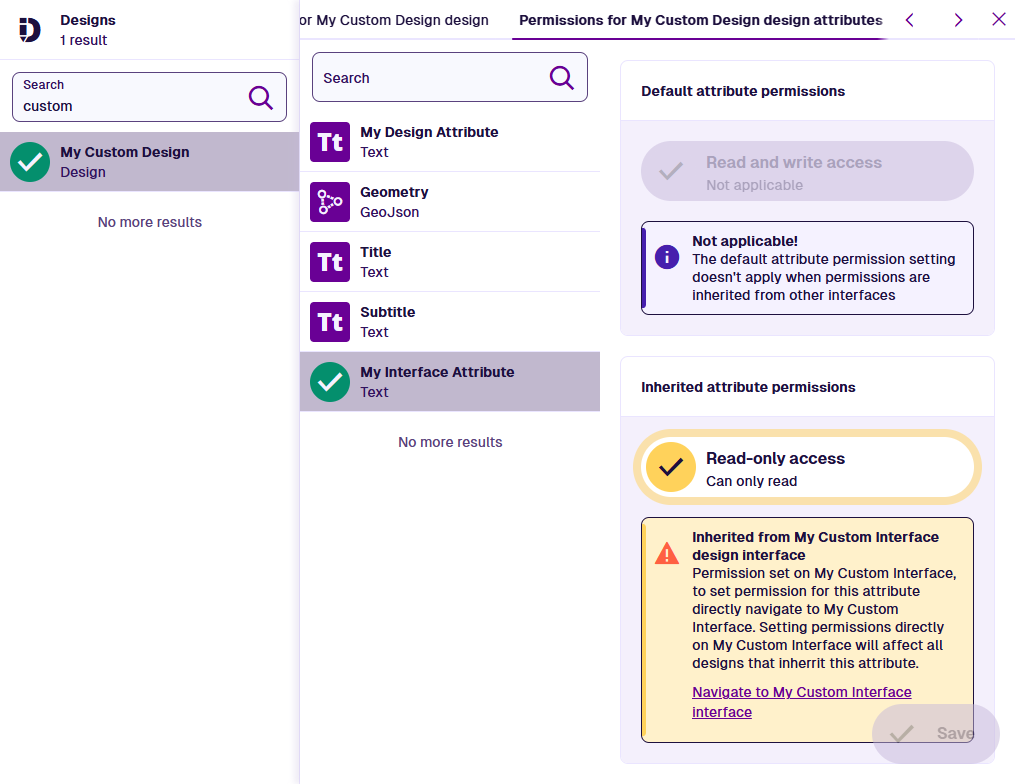
Default attribute permissions
A reminder of the default permission level and how it applies to the selected attribute:
-
Default - the attribute has the default permission.
-
Overridden - the attribute has its own permission set.
-
Not applicable - the attribute is inherited from an interface, so the default doesn't apply.
Inherited attribute permissions
This section only appears if the selected attribute is inherited from an interface (directly or via another interface). It shows the attribute's current permission level and a link to that interface.
To change the permission at its source:
-
Select the link to open the attribute on that interface.
-
Select a different level in its Override attribute permissions section, then select Save.
-
Select Back to design/interface in the bottom-left corner.
If you change the attribute permission at its source, it will affect all designs/interfaces that implement the interface.
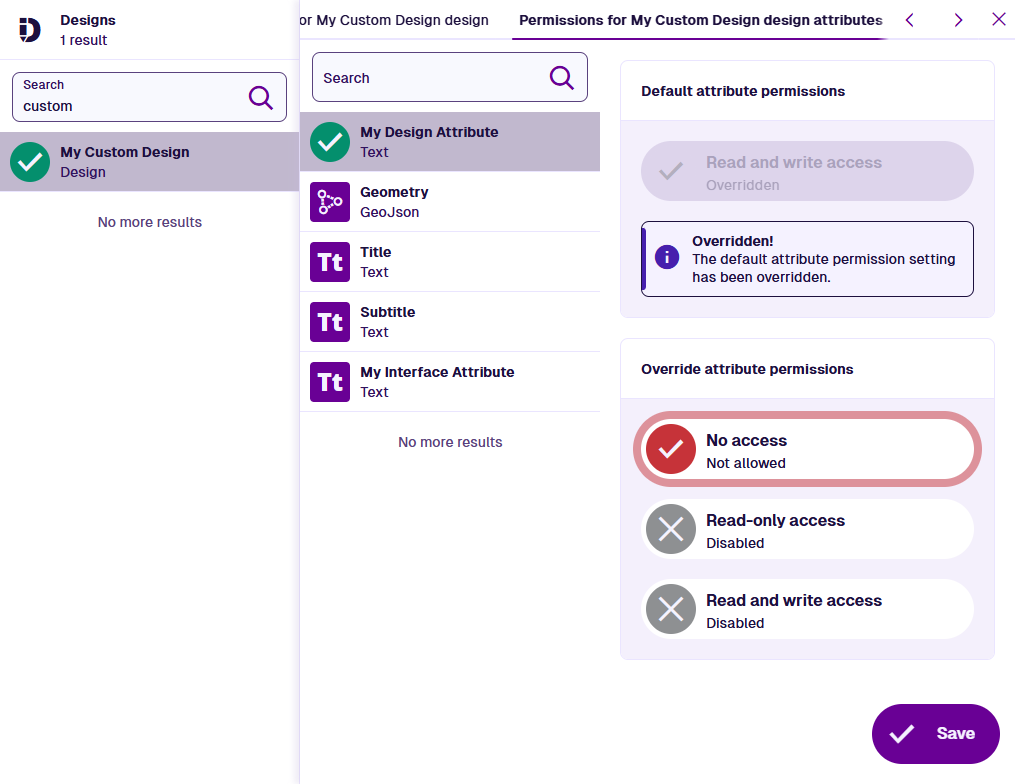
Override attribute permissions
Set an explicit permission level for the selected attribute:
-
Disabled - no level is selected. No override is set.
-
No access - the group cannot see the attribute or its value.
-
Read-only - the group can see the attribute and its value, but cannot edit it.
-
Read and write - the group can see the attribute and edit its value.
To reset this to Disabled, deselect the current selection.
You cannot override an inherited attribute.
Link attributes
Link attributes store references to items of a design, or items of designs implementing an interface.
Therefore, when granting access to a Link attribute, make sure the group can also access the linked design/interface. Otherwise, the linked items will fail to load for the group's users.
How permissions combine
A user receives a set of permissions combined from every source:
-
the design itself
-
every interface the design implements (directly or via another interface)
-
other groups the user belongs to (directly or via a role)
The two permission types combine differently:
-
Design permissions are independent operations. The user can perform one if any source grants it. No source can remove what another grants.
-
Interface (Read) + Design (Edit) = User (Read, Edit)
-
Group A (Create) + Group B (Delete) = User (Create, Delete)
-
-
Attribute permissions are a single level per attribute. The user gets the highest level any source grants. A design cannot override an attribute inherited from an interface.
-
Interface (Read-only) + Design (cannot override) = User (Read-only)
-
Group A (No access) + Group B (Read and write) = User (Read and write)
-