Set permissions
Configure group access to features
Use the Permissions Explorer to control which groups can access specific features. Select a group and a feature category, then choose an object within that category to view and edit the group's permissions for it.
Most categories have a single permission with three levels. Designs and Interfaces offer more granular control, including per-attribute overrides.
| Icon | Category | What it controls access to | Permission style |
|---|---|---|---|
| Designs | Items of specific designs and their attributes | Granular | |
| Interfaces | Items of designs that implement specific interfaces and inherit permissions | Granular | |
| Layers | Map data layers | 3-level | |
| Basemaps | Map background imagery | 3-level | |
| Boards | Kanban boards for tracking item status/progress | 3-level | |
| Hubs | Data dashboards with item counts and graphs | 3-level | |
| Item canvases | Item section layouts | 3-level | |
| Item forms | Item attribute layouts | 3-level | |
| Lists | Dynamic item lists | 3-level | |
| Meshes | 3rd party integrations included with modules | 3-level | |
| Workflows | Automated action sequences | 3-level |
There is no Apps category. Instead, app access is granted through system groups.
Some apps provide a Share with action, letting users share Boards, Lists, Hubs and Item canvases with other users. Setting permissions here works the same way, but for groups rather than individuals.
Set a permission level
For most categories:
-
If it helps, select a role to highlight its groups.
-
Select a group and then a category, e.g. Layers.
-
Select a category object in the next column, e.g. a specific layer. To filter the column by keyword, use its top search box.
-
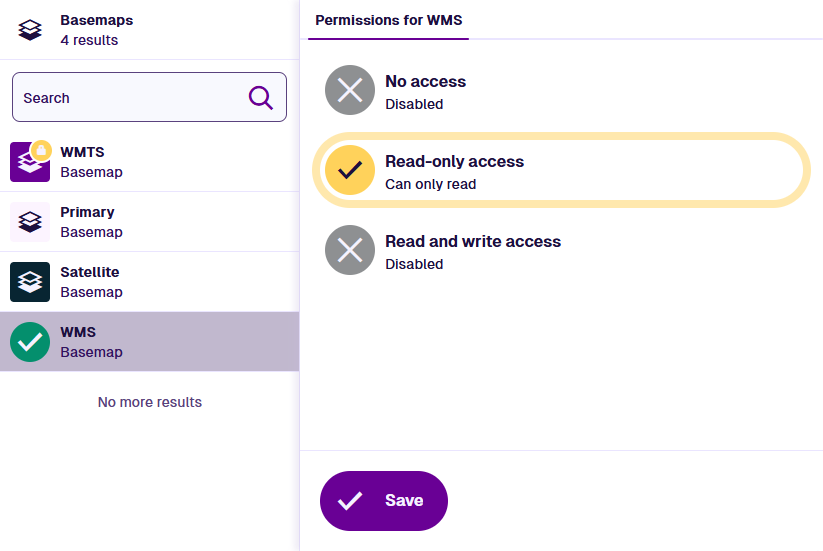
In the Permissions panel, choose one:
-
No access (default) - the group cannot see or use the object.
-
Read-only - the group can see and use the object, but cannot edit it.
-
Read and write - the group can see, use and edit the object.
-
-
Select Save at the bottom to finish.
Each object with configured permissions is raised and highlighted with a coloured Lock badge that indicates its permission level. This lets you see at a glance what permissions the group has in the selected category.
When permissions aren't editable
You can only change permissions on groups your organisation has created.
If you select a system group, or a role on its own, the permissions are shown but the controls are disabled. This is because system groups have fixed permissions, and roles inherit the winning permission from their groups.
How permissions combine
When a user belongs to multiple groups (directly or via roles), the highest permission level wins:
-
Group A (No access) + Group B (Read-only) = User (Read-only)
-
Group X (Read-only) + Group Y (Read and write) = User (Read and write)
This means you can't remove access by adding a more restrictive group. If a user shouldn't have access to something, they shouldn't belong to any group that grants it.
Designs and interfaces combine a little differently, as permissions can be inherited from interfaces. See How permissions combine.