AQS Builder
A visual query editor
The AQS Builder is a visual editor for AQS queries. Create your query by configuring the root node and then adding child nodes, until they collectively describe the items and data you want to work with.
While no coding is required, the underlying JSON is always there to view or edit directly. You can switch between the two views at any time - changes in one are reflected in the other.
Open the AQS Builder
The AQS Builder appears whenever a feature needs you to specify a query. This ranges from report data sources and layer styles to Boards, Hubs and Lists.
AQS Statistics queries return calculations instead of items, so not every location supports them.
See all locations
| Where | What the query does | Supports AQS Statistics? |
|---|---|---|
| Advanced search | Filters the items of a specific design/interface | No |
| AQS attribute | Stored as a value on an item, or as a default on the design/interface | Configurable |
| Boards | Filters the items shown on a board | No |
| Hubs | Populates a widget data point with items and an item count | No |
| Item canvas sections | Populates an AQS list section with related items | No |
| Item form controls | Customises a Link attribute's lookup list, or displays a query's code or results | No |
| Item form expressions | Provides an AQS value inside an expression | Yes |
| Layer styles | Determines which items are included in a design style | No |
| Lists | Populates a list with items meeting specific conditions | No |
| Report Builder | Populates a report data source with items or a statistic | Yes |
| Workflow actions | Narrows or fetches the items a workflow acts on | No |
In some contexts, certain properties or the entire query may be read-only, e.g. an AQS attribute's configuration can lock the query to a specific Design or interface.
From the Data Explorer
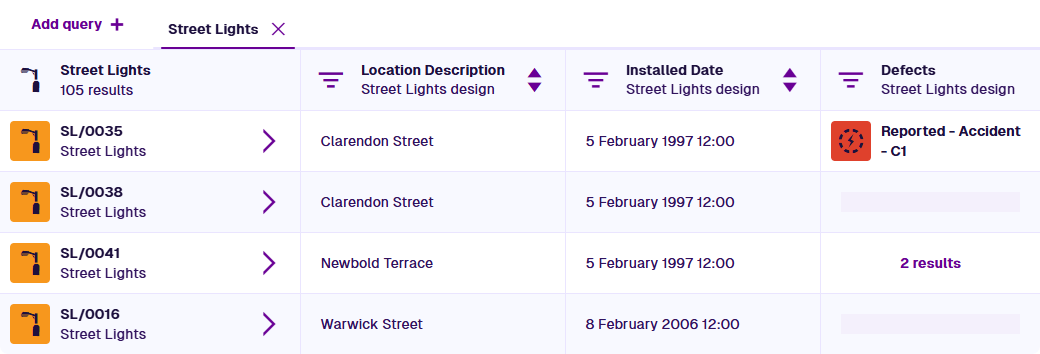
You can also open the AQS Builder from the Data Explorer to run your query straight away. The results appear as a table, with items as rows and your chosen attributes as columns. The instant feedback makes it a great place to learn AQS!
To build a query and see its results:
-
Select Data Explorer in the left panel or the Overview page.
-
Select Add query , choose From design or interface, then select one in the Search window.
-
Select Filter with AQS in the bottom toolbar.
-
Build your query. Select Done to finish.
The Data Explorer silently runs AQS Statistics queries as AQS Join, showing the items and attributes instead of calculations.
Key features
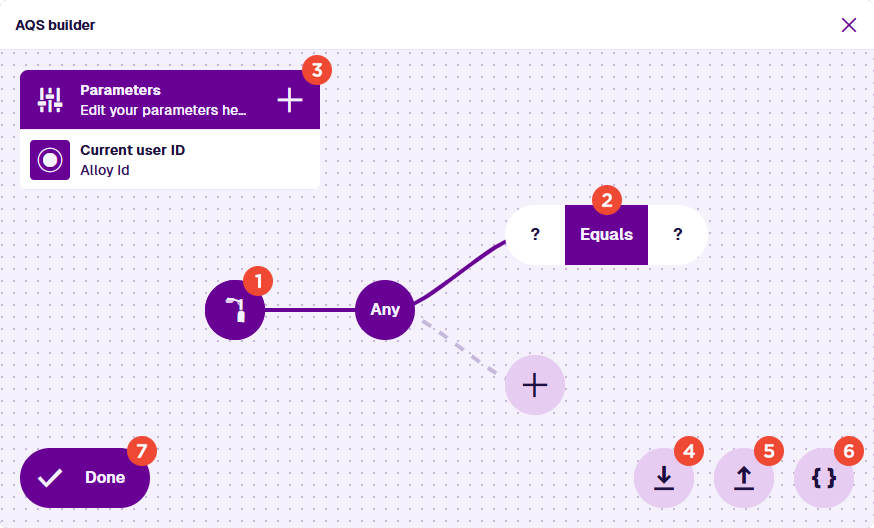
1 Root node
Every query starts with a root node, which fetches an initial set of items. The icon indicates the design/interface being queried. Select it to configure properties such as:
-
the AQS type (Query, Join, Statistics)
-
which design/interface to query
-
the attributes you want to fetch
-
how results are sorted and grouped
To learn more, see Root node.
2 Child nodes
To filter the items fetched by the root node, add any number of child nodes. By connecting nodes together, you can build anything from a simple filter to a complex, multi-branch query.
Select the Add node button extending from a previous node, then choose one:
-
Logical nodes - chain conditions together (all/any).
-
Comparison nodes - impose a condition that items must satisfy.
Select a segment on a comparison node to fill it with an input:
-
Reference nodes - read the value of an item attribute or property.
-
Value nodes - store a value provided by you, e.g. number, date, text.
-
Arithmetic nodes - calculate a number from one or two inputs.
To learn more, see Build a query.
3 Parameters
A parameter is a placeholder for a value that gets provided when the query runs. It lets you build a valid query without setting the value upfront. The same parameter can be used by multiple nodes in the query.
To learn more, see AQS Parameters.
4 Save query
Save the query for future use. Select Overwrite query and choose one from the list. Alternatively, enable Save as new query.
Enter a Name and select Save to finish.
5 Load query
Load a previously saved query. It replaces whatever you're working on, so save your current query first if you want to keep it.
6 Open JSON editor
This displays the underlying JSON code of your query, which you can edit directly. Select Done and the builder reloads to match, providing your changes are valid. It's a good way to get familiar with the underlying syntax, especially if you plan to perform queries via the Alloy API.
7 Done
Select Done to finish building your query and close the AQS Builder. To leave without saving, select Close in the top-right corner.
If you selected a field to open the AQS Builder, it will be populated with your query.
If you're using the Data Explorer, the query is performed and the results are displayed.