AQS parameters
Define placeholders for future values
An AQS parameter is a placeholder for a value that is provided when the query runs, either by the person running it, or by a system process such as a workflow.
The same parameter can be used in multiple query nodes, providing one value in several places at once.
For example, you want to fetch all jobs assigned to a team. Instead of targeting one specific team, build the query with a TeamName parameter, so whoever runs it can provide the team they're interested in.

To build this step-by-step, see Example 4 - Parameters and AQS Join.
Add a parameter
To define a parameter in a query:
-
In the AQS Builder, select Add parameter in the top-left corner.
-
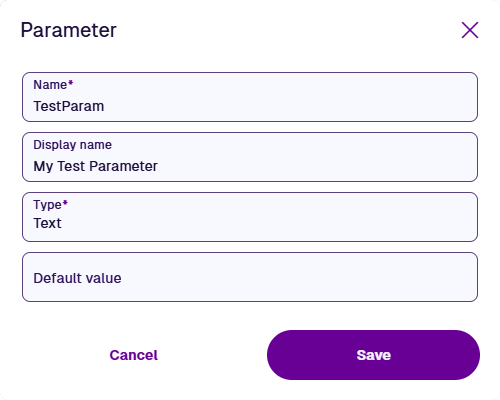
Fill in the fields:
-
Name * - enter a distinct name for the parameter.
-
Display name - a friendlier label, shown when users are prompted for a value. If left blank, the Name is shown.
-
Type * - the kind of value the parameter holds. This determines which nodes can use it.
-
Default value - used if no value is provided at run time.
-
-
Select Save to finish.
Use a parameter
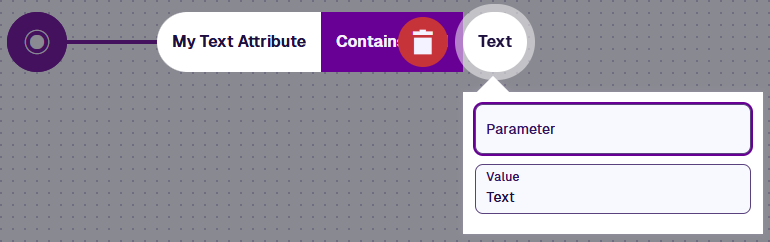
Once a segment is filled with a value node, select it and choose Parameter. Only compatible parameters of the same value type are listed.
The segment gains an icon to indicate that the displayed value is a parameter.
Built-in parameters
The builder offers these ready-made parameters where they make sense. They let one query return different data depending on who runs it, or where it runs:
-
Current user ID - the ID of the signed-in user, detected automatically. Use it to fetch items related to the current user.
-
Current item ID - the ID of the item being viewed or edited, available wherever the query is tied to a specific item, e.g. an item form control. Use it to fetch items relating to the current item.
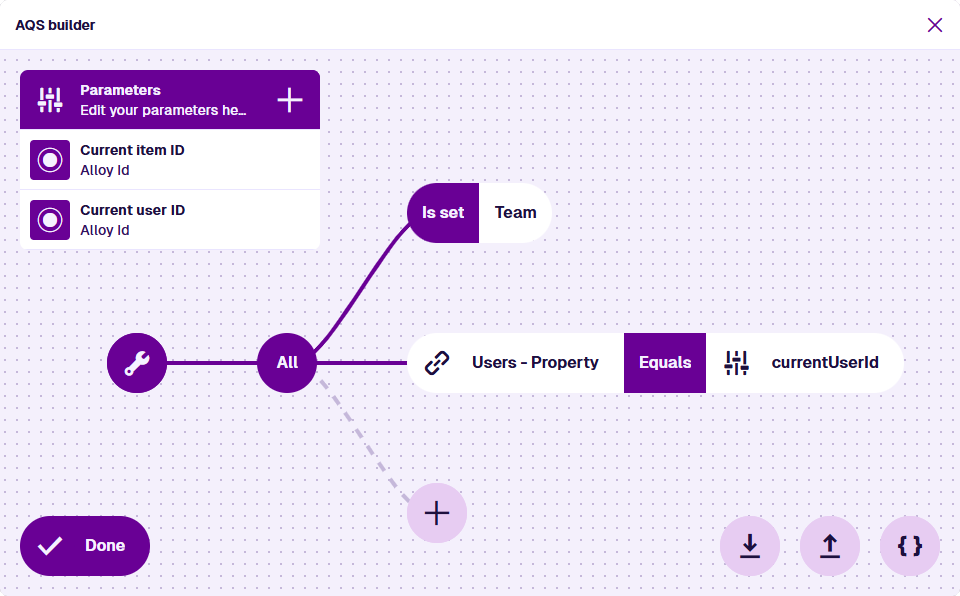
For example, the query below fetches jobs assigned to teams the current user belongs to. It navigates from each job to its team, then to that team's members, then to their user records, and compares each one against the Current user ID parameter.
See JSON code
This code may reference designs, interfaces, attributes or items that don't exist in your company project.
{
  "type": "Query",
  "properties": {
    "collectionCode": "Live",
    "dodiCode": "designInterfaces_jobs",
    "parameters": [
      {
        "name": "currentItemId",
        "type": "AlloyId",
        "title": "Current item ID"
      },
      {
        "name": "currentUserId",
        "type": "AlloyId",
        "title": "Current user ID"
      }
    ]
  },
  "children": [
    {
      "type": "And",
      "children": [
        {
          "type": "Exists",
          "children": [
            {
              "type": "Attribute",
              "properties": {
                "attributeCode": "attributes_tasksTeam"
              }
            }
          ]
        },
        {
          "type": "Equals",
          "children": [
            {
              "type": "ItemProperty",
              "properties": {
                "itemPropertyName": "itemId",
                "path": "root.attributes_tasksTeam.attributes_teamsMembers^attributes_usersTeamMembers"
              }
            },
            {
              "type": "AlloyId",
              "properties": {
                "parameterName": "currentUserId"
              }
            }
          ]
        }
      ]
    }
  ]
}