Build a query
How to use the AQS Builder
This walkthrough explains the process of creating a query using the AQS Builder. While every query is different, it covers the main steps and how the different node types can fit together.
For more specific guidance, check out the Examples.
Configure the root node
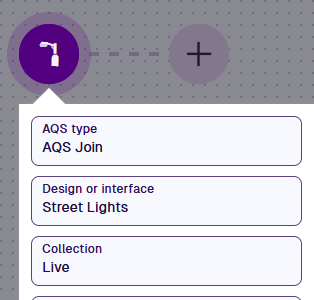
The root node lets you control the target of the query and which attributes are fetched. Select it to configure its properties:
-
AQS type - choose the output:
-
AQS Query - fetch qualifying items and data from their attributes.
-
AQS Join - as above, plus data from attributes on linked designs/interfaces.
-
AQS Statistics - calculate statistics for a single attribute on qualifying items.
-
-
Design or interface - target items of a design, or items of designs implementing an interface.
-
Collection - target items from one or more collections. Only Live by default.
-
Attributes - use the Pathfinder to select the attributes you want to fetch. If the type is AQS Join, you can perform one or more "hops" to visit linked designs/interfaces, then select attributes on them too.
Example
Imagine an AQS Join query that targets the Jobs interface.
You want to see the Raised Time and Team Name of qualifying items. Select the first two attributes, then follow the Team Link attribute to the Teams design. You can then select its Team Name attribute.
To build this step-by-step, see Example 4 - Parameters and AQS Join.
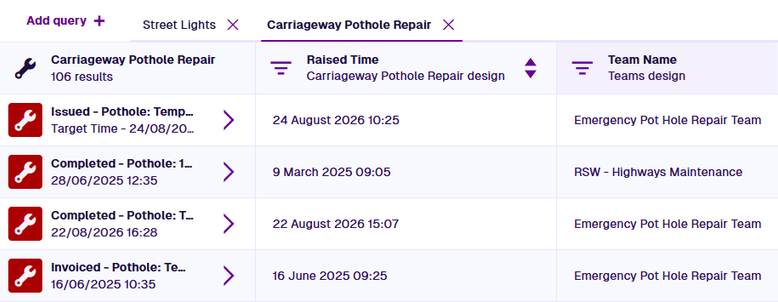
Other properties vary depending on the selected AQS type. To learn more, see Root node.
The more attributes you select, the more data is fetched. For optimal performance, only select the attributes that your query needs.
Add child nodes
To filter the items fetched by the root node, select Add node at the end of a branch and choose one. The list only offers child nodes that are currently valid, so it changes as you build. For the full list, see Child node types.
Comparison nodes
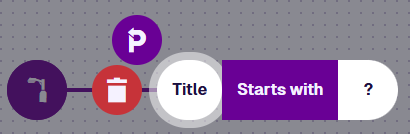
Comparison nodes define a condition that items must satisfy. They have one or two segments that must be populated.
Select a segment and choose another child node to fill it. This is typically an input that represents a value provided by you, or the value of an item attribute or property.
Compatibility
A few rules govern what fits where, once both segments hold matching value types:
-
One segment must read from the queried items.
-
Filling one segment restricts what the other can hold, so the order you build in changes what the builder offers.
-
To compare two attributes against each other, they must be the same type on the same item.


Functions
A segment can also hold a function that calculates a number, such as Add. Functions have segments of their own, so you can nest one inside another for complex calculations.

Logical nodes
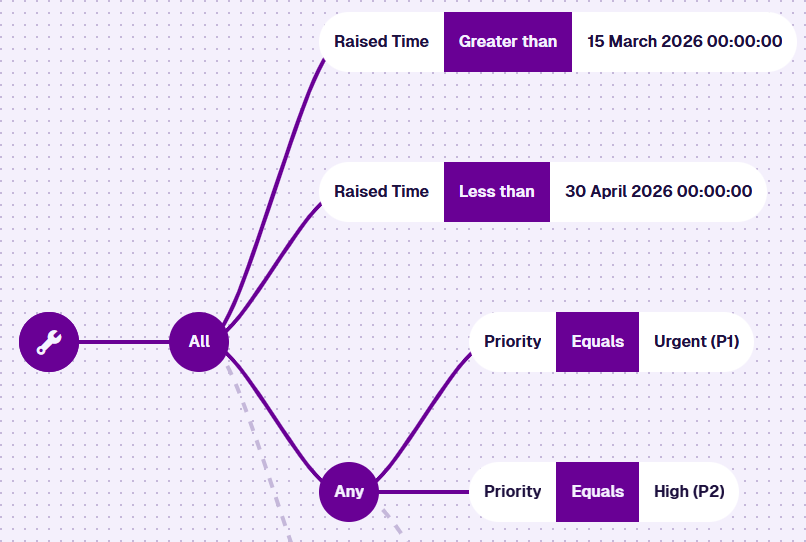
A logical node splits the query into branches, so you can apply several conditions at once:
-
All - items must satisfy every branch.
-
Any - items must satisfy at least one branch.
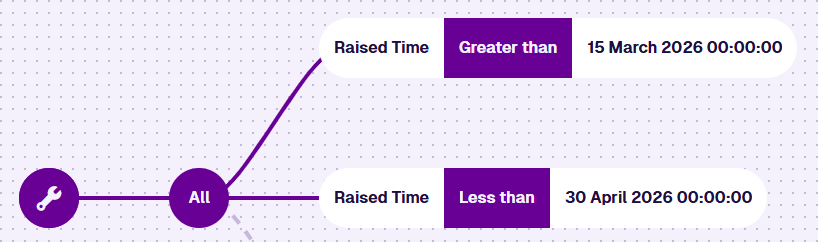
Branches can hold logical nodes of their own, so you can nest one inside another for precise combinations.
See screenshot
Edit a condition
Select a logical or comparison node to access its options:
-
Swap - use another node of the same type. If any segments are populated, only compatible nodes are listed.
-
Delete - remove the node and anything after it.
-
Inclusive - on a Less than or Greater than node, makes the condition "or equal to".
-
Link negated - inverts the condition (see below).
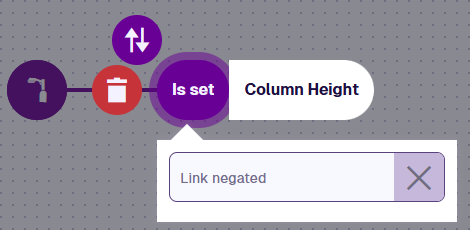
Link negated
This is only available if a segment reads an attribute or property on a linked design/interface, not the one being queried.
If enabled, the query fetches items that are not linked to anything satisfying the condition. Crucially, that includes items with nothing linked at all.
For example, querying Jobs for a linked team whose Team Name equals "Highways" normally fetches jobs assigned to that team. Negate the link and you get every job that isn't assigned to a team called "Highways", including jobs with no team set.
This is why Link negated isn't the same as swapping to the opposite comparison node.
For example, Not equals fetches items with a linked item that doesn't hold the specified value. A negated Equals also fetches items where the Link attribute is empty.
Edit a segment
Select a filled segment to access the node's options:
-
Open in Pathfinder - use the Pathfinder to change the selected attribute or property. You can perform one or more "hops" to visit a linked design/interface, then choose one there. Only appears for these nodes:
-
Delete - remove the node from the segment.
-
The node's own settings, such as the value it holds or the property it reads.