Root node
Configure query properties
Every AQS query starts with a root node. It lets you control the target of the query and which attributes are fetched, producing an initial set of results that are filtered by the child nodes following it.
The root node's icon matches the design/interface being queried.

Shared properties
Select the root node to configure its properties. All three types share these:
-
AQS type - choose the output:
-
AQS Query - fetch items and their attribute data.
-
AQS Join - fetch items, their attribute data, the attributes of linked items.
-
AQS Statistics - calculate a statistic instead of returning items.
-
-
Design or interface - target items of a design, or items of designs implementing an interface.
-
Collection - target items from one or more collections. Only Live by default.
AQS Query
The standard query type. It fetches items of a design/interface along with data from the attributes you select.
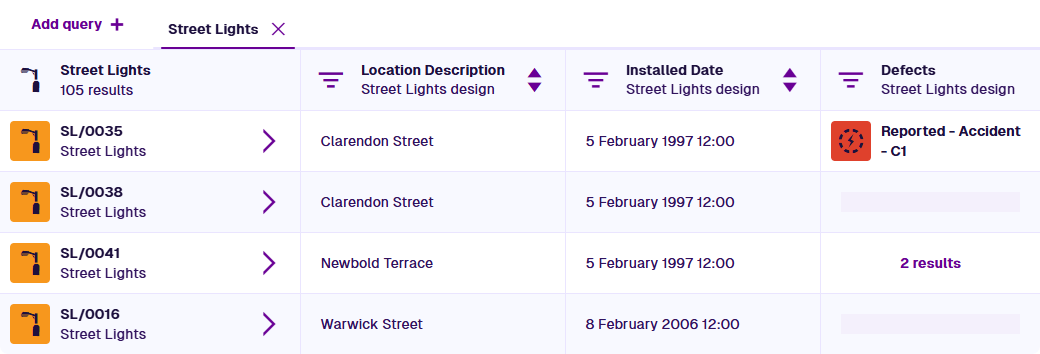
Properties
-
Sort order - sort results in Ascending (A to Z) or Descending (Z to A) order.
-
Sort attribute - sort results by their values of this attribute.
-
Sort item property - sort results by this property instead, e.g. Last edit date.
-
Attributes - use the Pathfinder to select the attributes you want to fetch.
The more attributes you select, the more data is fetched. For optimal performance, only select the attributes that your query needs.
Example
Fetch all defects that are awaiting inspection.
In AQS terms:
Fetch items of the Defects interface whose Status attribute equals Awaiting Inspection.

To build this step-by-step, see Example 1 - Check an attribute.
JSON code
This code may reference designs, interfaces, attributes or items that don't exist in your company project.
{
  "type": "Query",
  "properties": {
    "attributes": ["attributes_itemsTitle", "attributes_itemsSubtitle", "attributes_defectsStatus"],
    "collectionCode": "Live",
    "dodiCode": "designInterfaces_defects"
  },
  "children": [
    {
      "type": "Equals",
      "children": [
        {
          "type": "Attribute",
          "properties": {
            "attributeCode": "attributes_defectsStatus"
          }
        },
        {
          "type": "AlloyId",
          "properties": {
            "value": ["5c8bdfb58ae862230019dc1f"]
          }
        }
      ]
    }
  ]
}
AQS Join
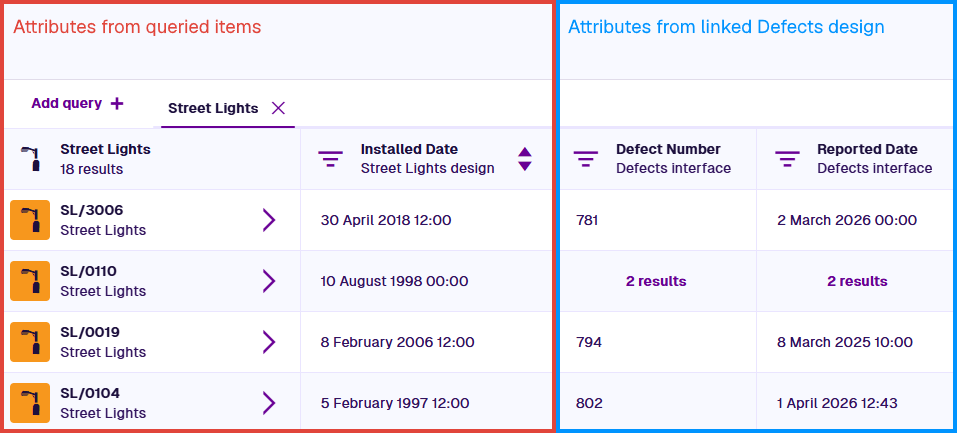
The same as AQS Query, plus it fetches attribute data from items linked to the ones being queried.
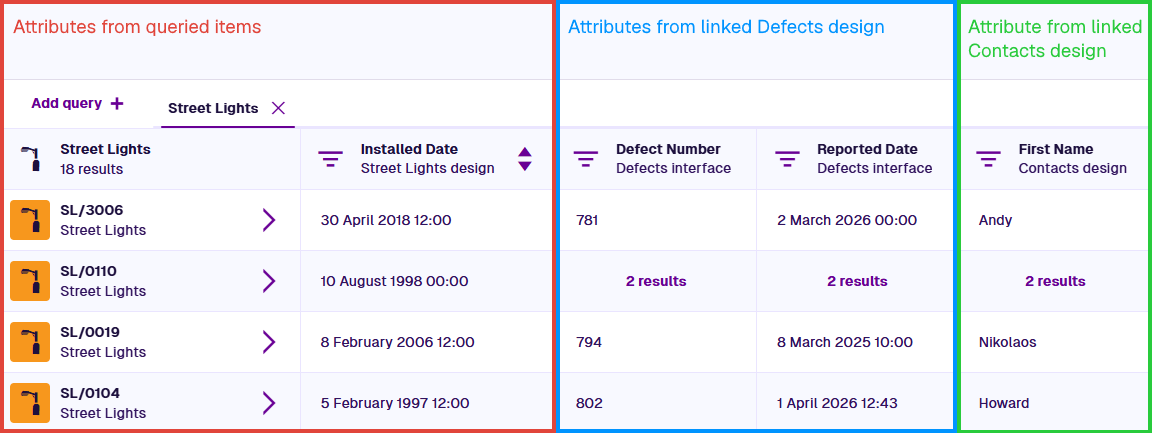
For example, when querying Street Lights items, each one has a Defects Link attribute that references any number of Defects items. An AQS Join can return data from those Defects items alongside the Street Lights data.
You can go further. Each linked Defects item has a Reporters attribute referencing a Contacts item. The AQS Join can fetch data from those too.
Properties
-
Sort order - sort results in Ascending (A to Z) or Descending (Z to A) order.
-
Sort attribute - sort results by their values of this attribute.
-
Sort item property - sort results by this property instead, e.g. Last edit date.
-
Attributes - use the Pathfinder to select the attributes you want to fetch.
The same as AQS Query, with one key difference. When you select Attributes, you can perform one or more "hops" to visit linked designs/interfaces, then select attributes on them too.
Example
Fetch all inspections assigned to a particular team and show its name.
In AQS terms:
Fetch items of the Inspections interface that link to a Teams item whose Team Name attribute matches some text, and return the Team Name alongside each inspection.

To build this step-by-step, see Example 4 - Parameters and AQS Join.
See JSON code
This code may reference designs, interfaces, attributes or items that don't exist in your company project.
{
  "type": "Join",
  "properties": {
    "attributes": ["attributes_itemsTitle", "attributes_itemsSubtitle"],
    "collectionCode": "Live",
    "dodiCode": "designInterfaces_inspections",
    "joinAttributes": ["root.attributes_tasksTeam.attributes_teamsTeamName"],
    "parameters": [
      {
        "name": "TeamName",
        "type": "String"
      }
    ]
  },
  "children": [
    {
      "type": "Equals",
      "children": [
        {
          "type": "Attribute",
          "properties": {
            "attributeCode": "attributes_teamsTeamName",
            "path": "root.attributes_tasksTeam"
          }
        },
        {
          "type": "String",
          "properties": {
            "parameterName": "TeamName"
          }
        }
      ]
    }
  ]
}
AQS Statistics
Instead of returning items, this query type aggregates the values of one attribute across all qualifying items and calculates a single statistic from them.
For example, the maximum Column Height of the queried Street Lights items = 12.
If you choose a Group by attribute, the statistic is calculated for each group, in addition to all queried items.
This query type can be used in a report data source, an AQS attribute, and queries performed via the Alloy API.
Properties
-
Aggregation type - the statistic to calculate:
-
Count - how many items the query fetched.
-
Sum - all the values added together.
-
Average - the mean value (Sum divided by Count).
-
Maximum - the largest value.
-
Minimum - the smallest value.
-
Standard deviation population - how far values spread from the Average. For queries that fetch all items of the design/interface.
-
Standard deviation sample - how far values spread from the Average. For queries that only fetch some items.
-
Bounding box - the coordinates of a rectangle enclosing all values of a Geometry attribute.
-
-
Attribute - the target attribute to calculate the statistic from (hidden for Count, which counts items rather than values).
-
Group by - split queried items into groups, according to their values for this attribute. The statistic is calculated for each group.
While the Attributes property is still available, it has no effect on AQS Statistics.
Example
Compare the average column height of street lights near and away from railways.
In AQS terms:
Fetch items of the Street Lights design, group them by their Near railway line? attribute, and calculate the average Column Height for each group, in addition to all queried items.
See JSON code
This code may reference designs, interfaces, attributes or items that don't exist in your company project.
{
  "type": "StatisticsAggregation",
  "properties": {
    "aggregationType": "Average",
    "attributeCode": "attributes_streetLightsColumnHeight_5e1db714ca31500ad87c5d18",
    "collectionCode": "Live",
    "dodiCode": "designs_streetLights",
    "groupBy": "attributes_streetLightsNearRailwayLine_602ba97b56a33800665a0895"
  },
  "children": []
}
See sample results
{
  "page": 1,
  "pageSize": 20,
  "results": [
    {
      "key": true,
      "value": {
        "attributeCode": "attributes_fake",
        "value": 10 // Average Column Height of Street Lights near a railway
      }
    },
    {
      "key": false,
      "value": {
        "attributeCode": "attributes_fake",
        "value": 7.76923076923 // Average Column Height of Street Lights not near a railway
      }
    },
    {
      "value": {
        "attributeCode": "attributes_fake",
        "value": 8.39361702127 // Average Column Height of all queried Street Lights
      }
    }
  ]
}