Pathfinder
Select attributes on connected designs/interfaces
When configuring a query, use the Pathfinder to explore available attributes and select which ones to include in the results.
Browse the attributes of the queried design/interface. You can also visit any designs/interfaces linked to it:
-
Follow a Link attribute to visit a child design/interface.
-
Navigate to a parent design/interface with a Link attribute that points to the current one.
You can repeat this in either direction for any number of possible "hops". This lets you select multiple attributes across multiple connected designs/interfaces.
Open the Pathfinder
The Pathfinder appears whenever you need to specify an attribute path. For example:
-
adding attribute columns to a query in the Data Explorer
-
selecting which attributes are fetched by an AQS data source in the Report Builder
-
defining the path of a Relation action in a workflow
-
using the AQS builder:
Key features
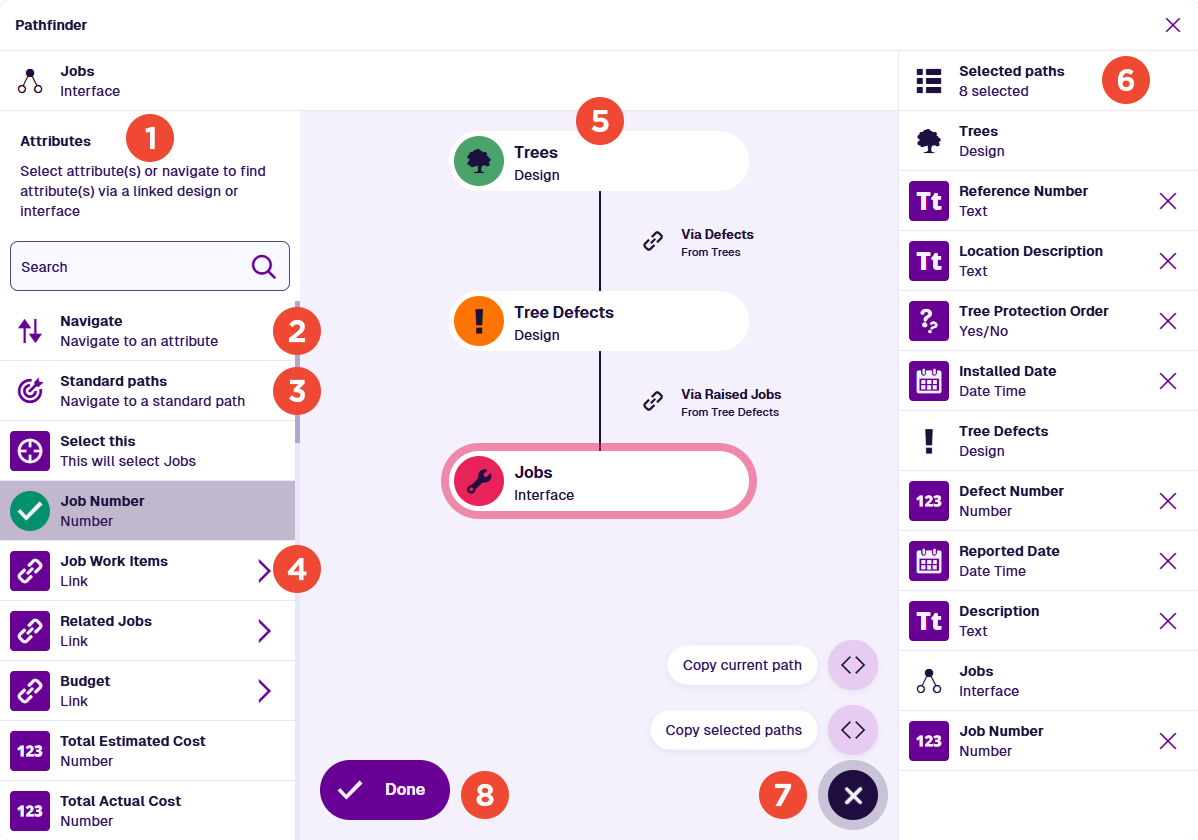
1 Attributes
By default, the left-hand list shows the attributes of the current design/interface. When you hop to a linked design/interface, the list updates to show the new set of attributes. Use the top search box to filter the list by keyword.
Select any attributes you want to include in the query results. For Link attributes, see below.
In the two contexts below, this list shows linked designs/interfaces or standard paths instead.
2 Navigate
To hop to a parent or child design/interface, select Navigate in the left-hand list. Choose a design/interface, then choose a Link attribute that connects it to the current design/interface. To learn more, see Navigating paths.
3 Standard paths
For a list of predefined shortcuts to attributes on connected designs/interfaces, select Standard paths in the left-hand list. Select a standard path to include the target attribute in the query, without leaving the current design/interface. To learn more, see Using standard paths.
4 Link attributes
Select a Link attribute's arrow to hop to the corresponding child design/interface. The left-hand list will update to show the attributes of that design/interface. To learn more, see Quick path selection.
To include a Link attribute itself in the query results, select its arrow and then Select this. When the query runs, this returns any Item IDs stored in the attribute. In the Data Explorer, the attribute value appears as a single item or an X results link.
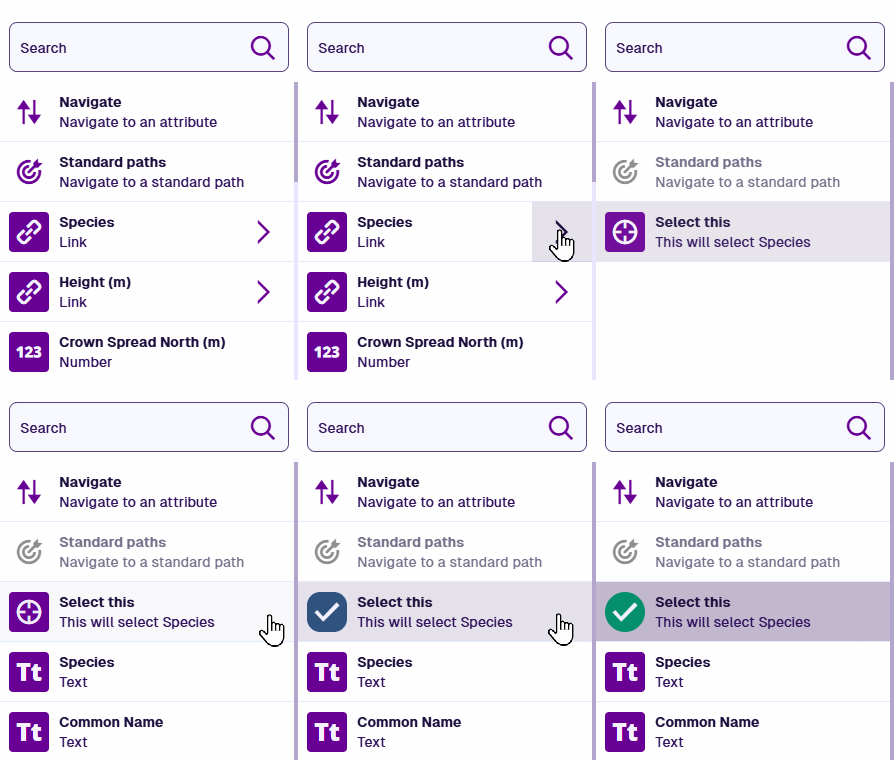
Selecting a Link attribute does not automatically select any attributes on the child design/interface, and vice versa.
5 Path graph
As you hop between designs/interfaces, the path graph provides a visualisation of the path you've taken. Select a previous design/interface to return to it. The initial design/interface always appears at the top.
6 Selected attribute paths
As you select attributes in the left-hand list, they appear in the right-hand list, grouped by design/interface. This helps you keep track of which attributes are included in the query and their processing order. To deselect an attribute, select its Remove button.
7 Menu actions
To perform an action, select Menu at the bottom:
-
Copy current path - copy the path visualised in the path graph to your device's clipboard.
-
Copy selected paths - copy the paths of all the selected attributes to your device's clipboard.
These can be useful when using the Alloy API. Define paths visually with the Pathfinder, then copy them into the relevant part of an AQS query.
Example outputs
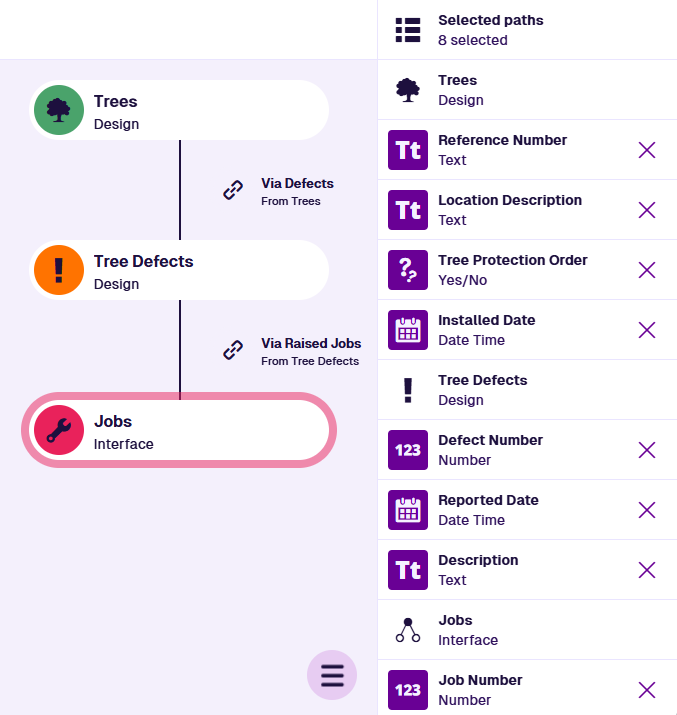
Based on the following image:
-
Copy current path
root.attributes_defectsAssignableDefects<designs_treeDefects>.attributes_defectsRaisingJobsRaisedJobs -
Copy selected paths
root.attributes_groundsAssetsReferenceNumberroot.attributes_treesLocationDescription_5dfa13c5ca31500cec413ec9root.attributes_treesTreeProtectionOrderroot.attributes_assetsInstalledDateroot.attributes_defectsAssignableDefects<designs_treeDefects>.attributes_defectsDefectNumberroot.attributes_defectsAssignableDefects<designs_treeDefects>.attributes_defectsReportedDateroot.attributes_defectsAssignableDefects<designs_treeDefects>.attributes_defectsDescriptionroot.attributes_defectsAssignableDefects<designs_treeDefects>.attributes_defectsRaisingJobsRaisedJobs.attributes_jobsJobNumber
8 Done button
When you're finished, select Done to save your changes. To leave without saving, select Close in the top-right corner.