Using standard paths
Predefined shortcuts to attributes
A design/interface can have any number of standard paths. Each one is a predefined shortcut to an attribute on a connected design/interface, which can otherwise be reached in the Pathfinder by following Link attributes or manually navigating a path.
Standard paths provide a quick way to select specific attributes, without having to navigate to them yourself!
For example, imagine your organisation stores National Street Gazetteer (NSG) data in CausewayOne Asset Management for all streets within a region of England/Wales (we can provide a module for this). NSG data is highly structured and includes reference values for each street, e.g. USRN, DfT Code, Street Type.
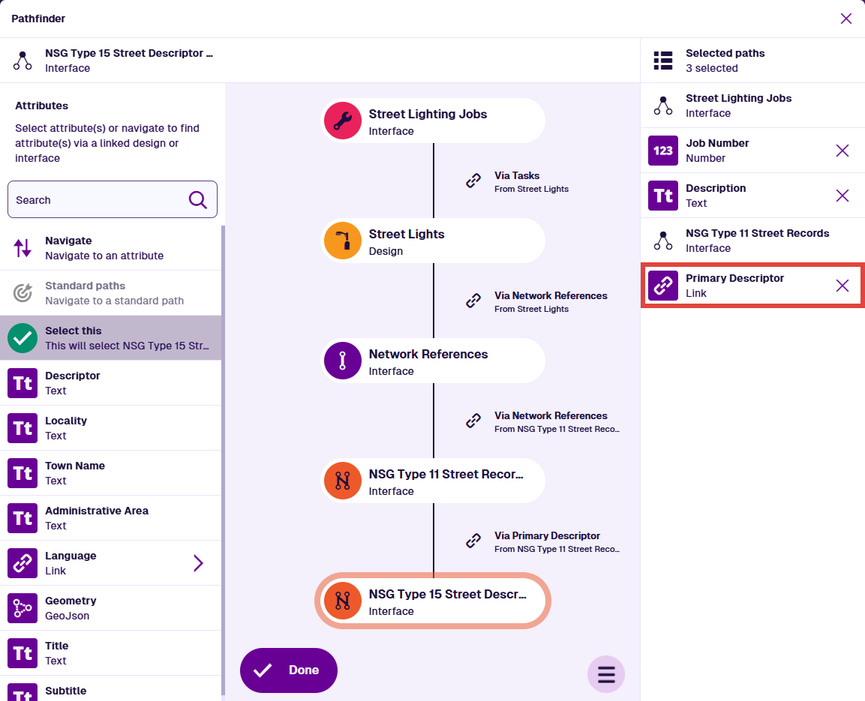
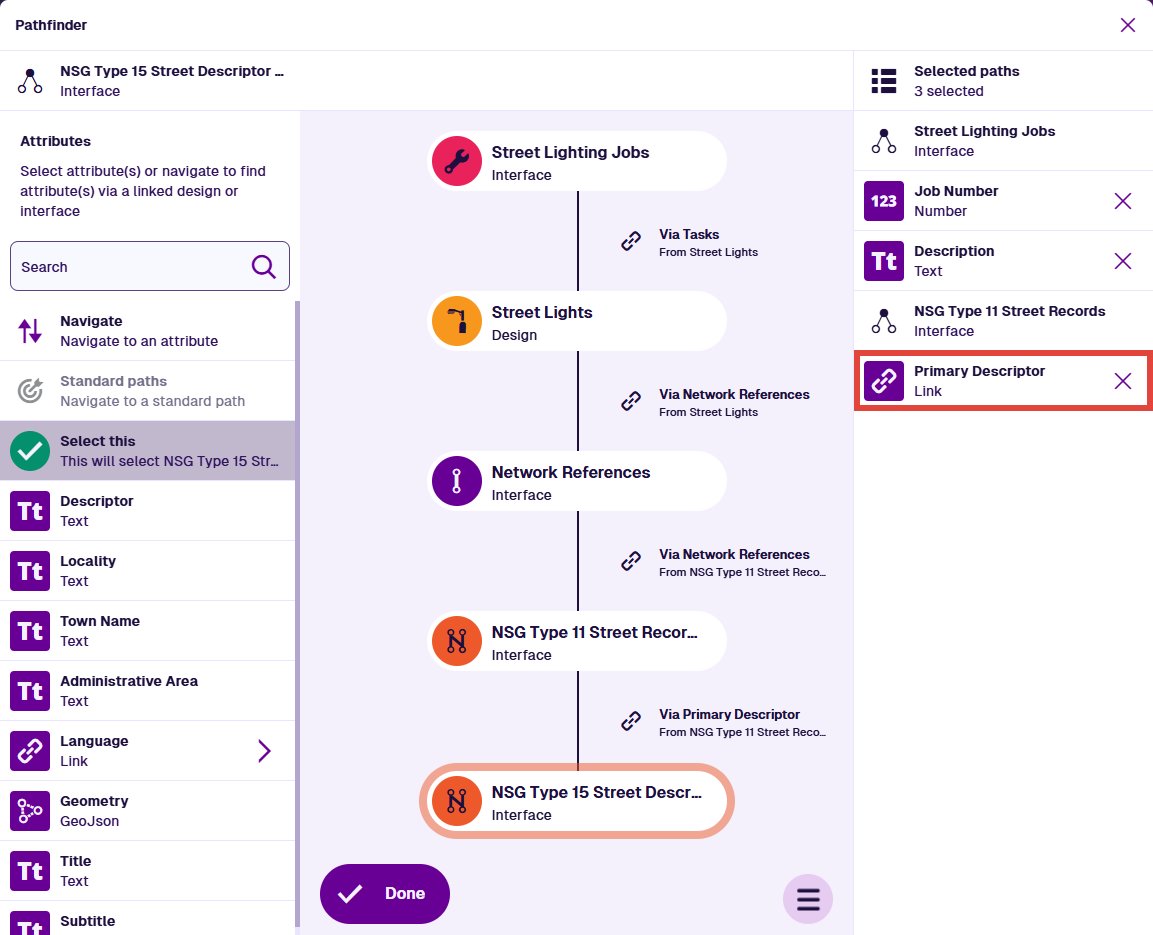
Now, imagine viewing items of the Street Lighting Jobs interface in the Data Explorer. You want to see the street name of each job's location. Using network references, it's possible to navigate a path from that interface to the relevant NSG design, as illustrated below. By defining this as a standard path, the Primary Descriptor attribute can be selected in one go, without having to perform four manual hops to reach it.
A design/interface can have standard paths to its own attributes! This can be useful for surfacing key attributes in a long list.
Select a standard path
To include the target attribute of a standard path in the query:
-
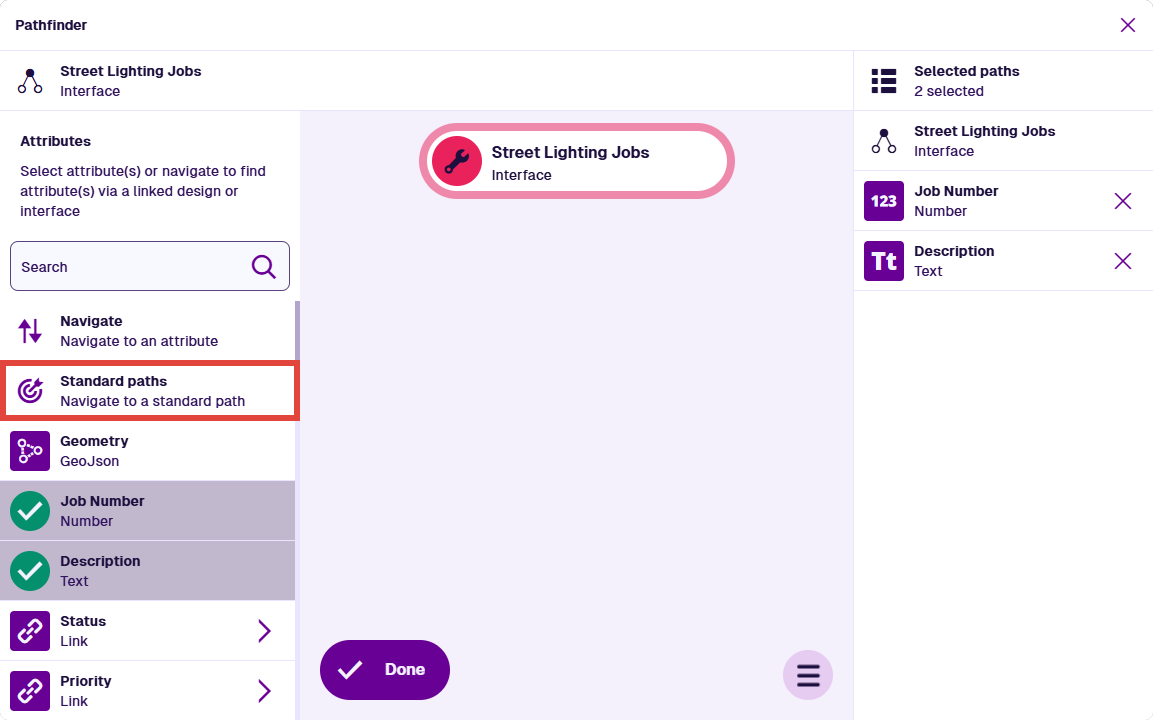
Select Standard paths in the left-hand list. This is only available on the design/interface being queried.
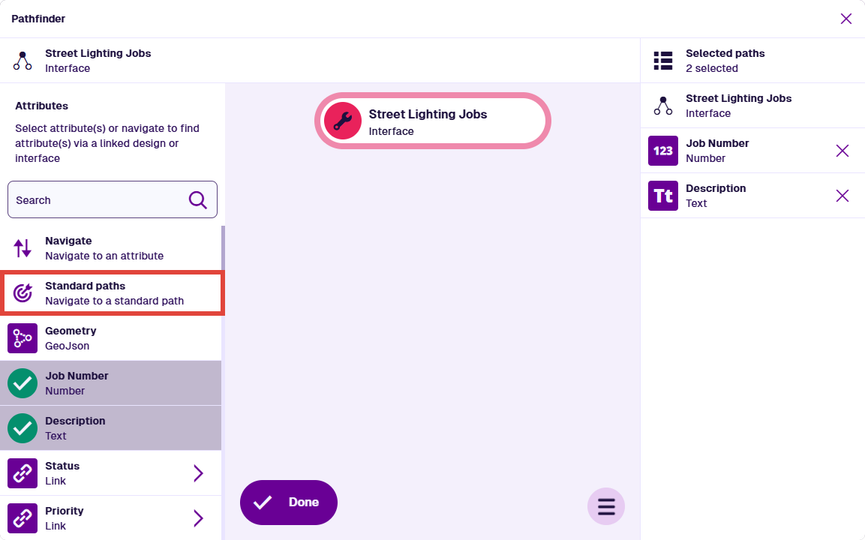
-
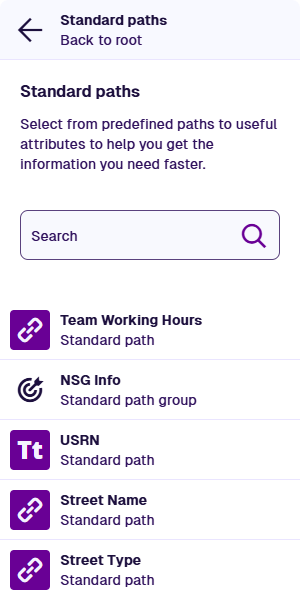
The left-hand list now shows any standard paths defined on the current design/interface (or inherited via an interface). Related paths may be grouped together. Choose the standard path you want to include. Alternatively, select at the top to go back.
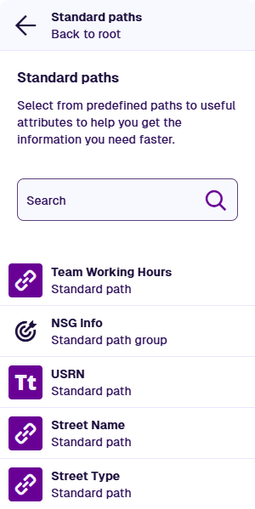
-
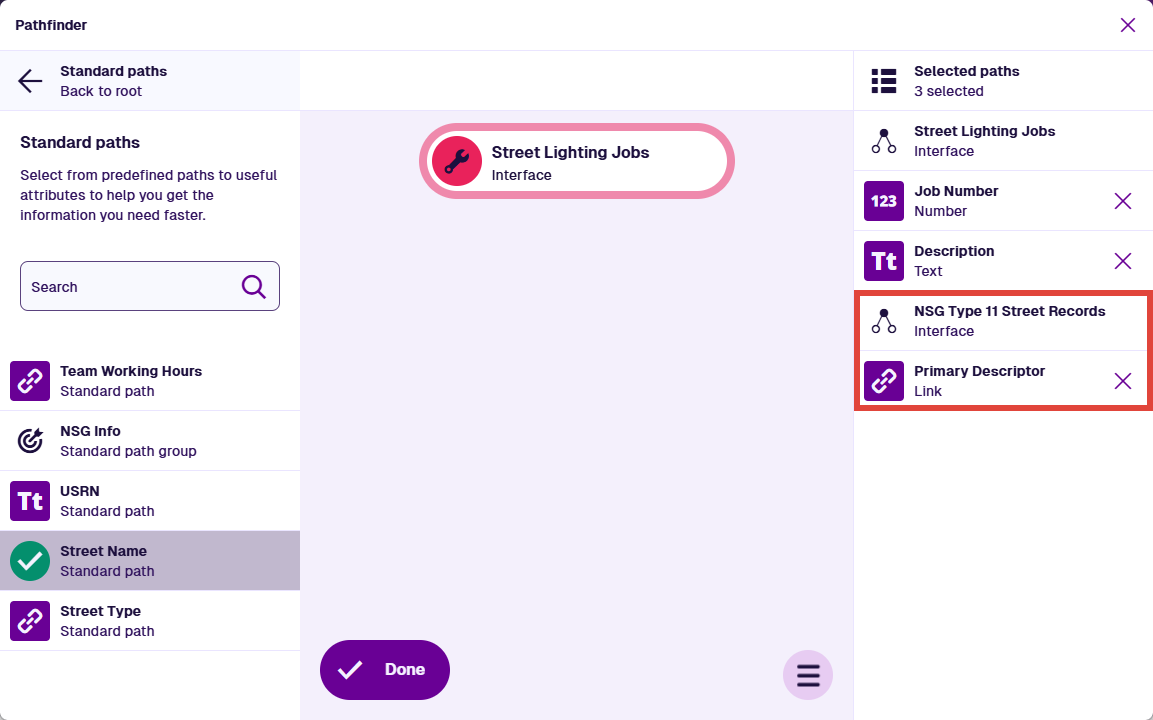
The target attribute for the selected standard path appears in the right-hand list, under the design/interface it belongs to. You can continue selecting standard paths in the left-hand list, without leaving the current design/interface.
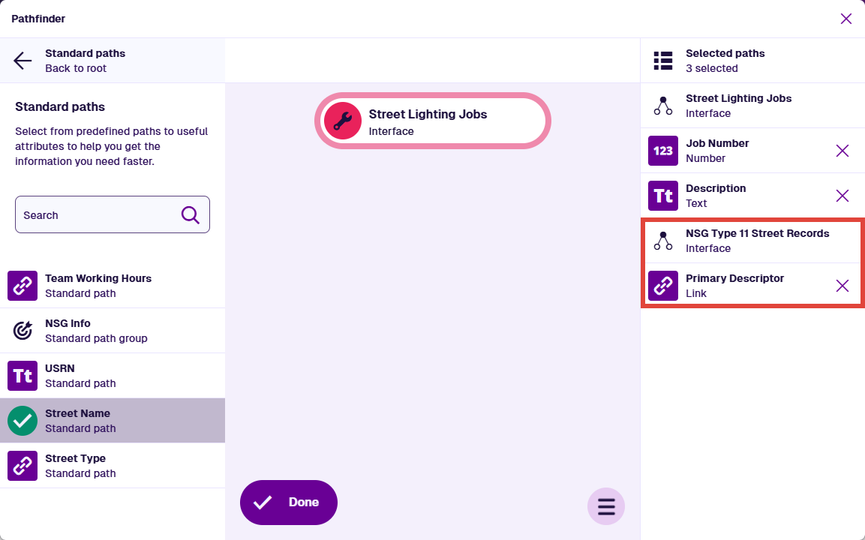
-
To visualise the path to the target attribute, select it in the right-hand list. The Pathfinder will hop to the corresponding design/interface and the left-hand list will update to show its attributes.
To return to a previous design/interface, select it in the path graph. Select Done to finish.
Use the Designer app to create and edit the standard paths of a design/interface.