Navigating paths
Hop to a parent or child design/interface
The Pathfinder lets you browse the attributes of a design/interface and "hop" to any others that are linked to it.
While following a Link attribute is the simplest way to hop, navigating manually gives you more control. This is particularly useful when a Link attribute points to an interface rather than a design.
For example, imagine querying a Carriageways design. If you follow its Tasks attribute, you'll hop to the Tasks Assignable interface, which only has generic task attributes. Alternatively, you could navigate to a Carriageways Jobs design that implements that interface and contains both generic and design-specific attributes.
Navigating also lets you hop to a parent design/interface, which has a Link attribute pointing to the current one.
Following Link attributes is preferable if:
-
you're unsure which designs/interfaces can be navigated to
-
you only want to hop to child designs/interfaces
Navigate to a design/interface
To browse the attributes of a linked design/interface:
-
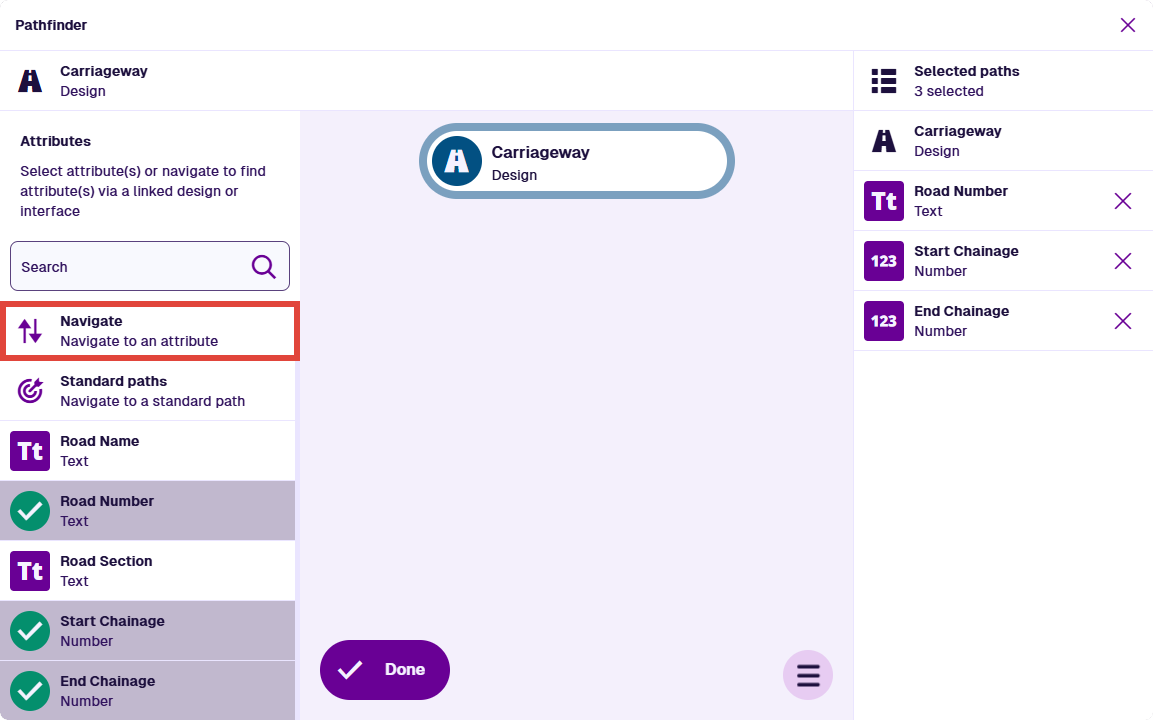
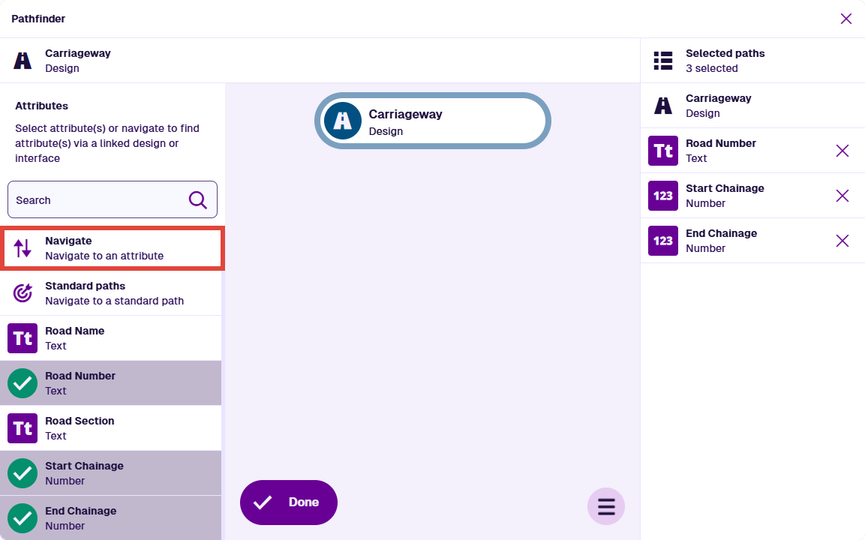
Select Navigate in the left-hand list.
-
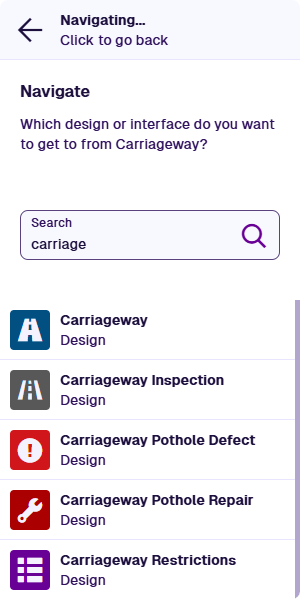
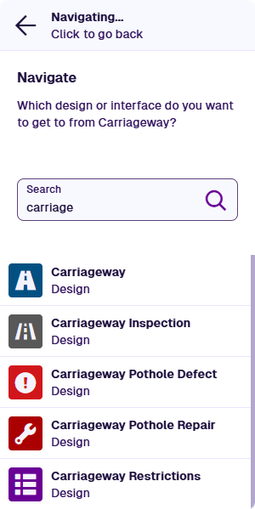
The left-hand list now shows all the designs/interfaces in your company project. Use the top search box to filter the list by keyword. Choose the design/interface you want to hop to.
-
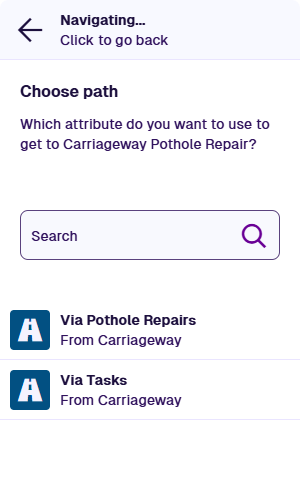
The left-hand list now shows any Link attributes connecting the current design/interface and your chosen one. They can be located on either. Choose the Link attribute you want to travel via. If there aren't any, select at the top to choose another design/interface.
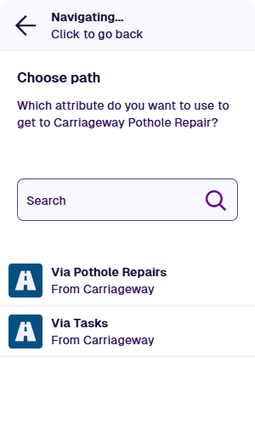
-
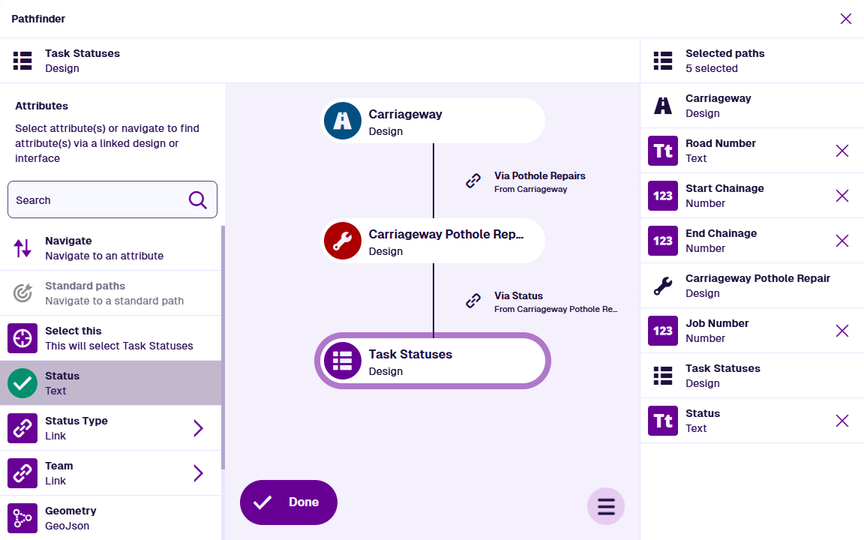
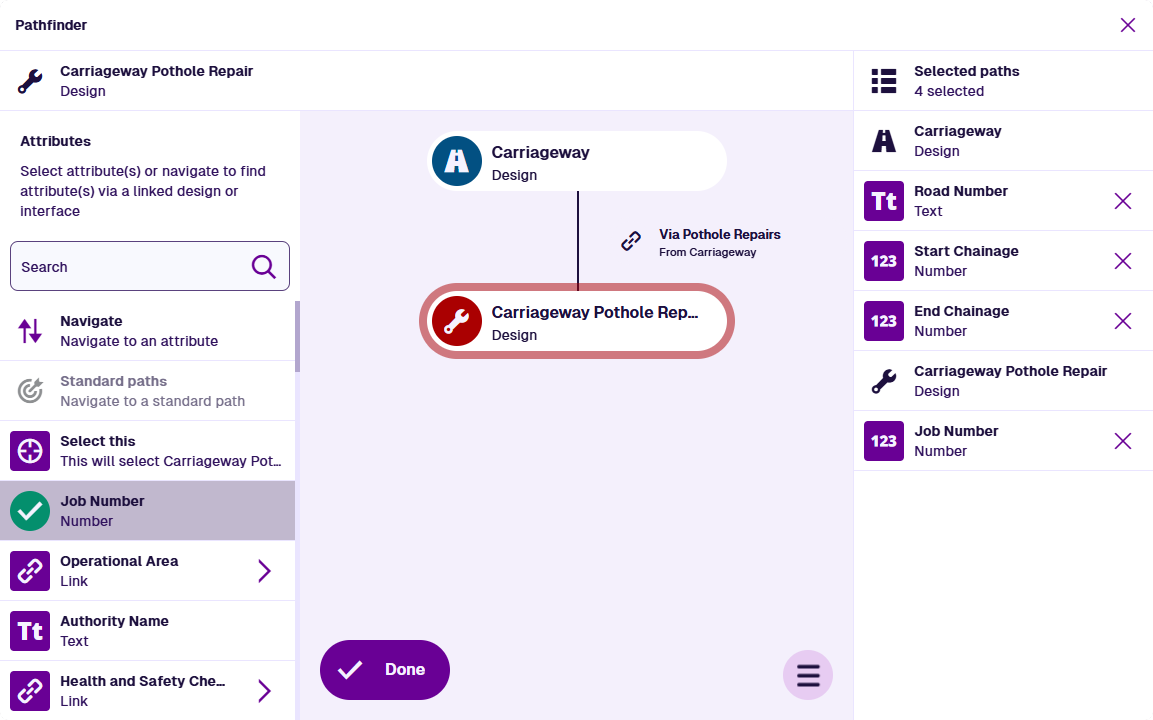
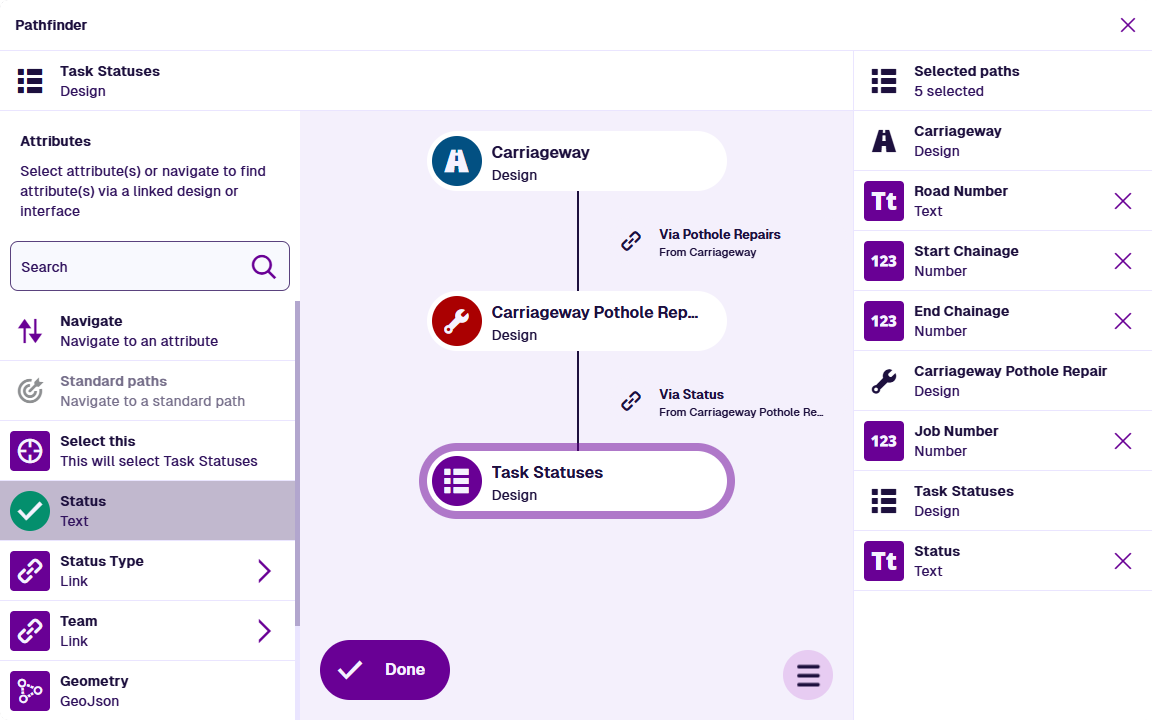
The left-hand list now shows the attributes of your chosen design/interface. Select any you want to include in the query. The path graph visualises the path you've taken.
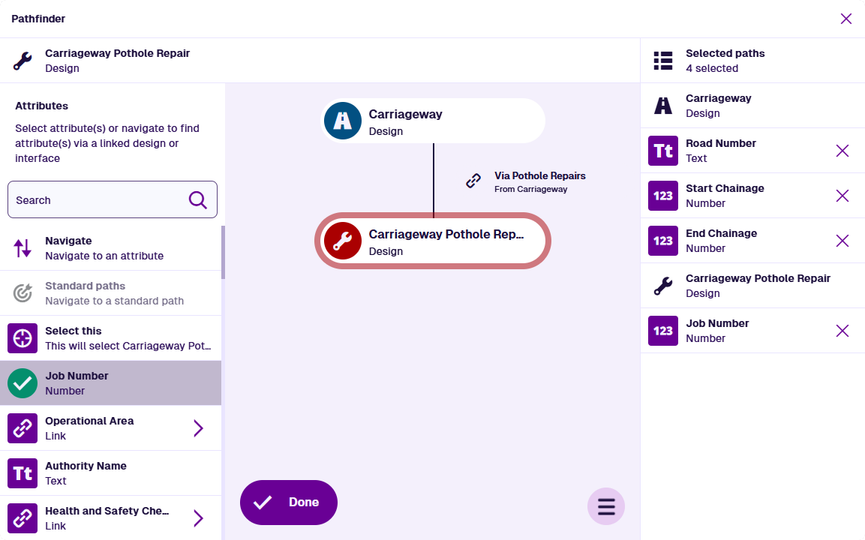
-
You can repeat this process according to your needs. At each stage, the attributes you select appear in the right-hand list, in the order you selected them. To deselect an attribute, select its Remove button.
To return to a previous design/interface, select it in the path graph. Select Done to finish.