Quick path selection
Hop to a child design/interface
The Pathfinder lets you browse the attributes of a design/interface and "hop" to any others that are linked to it.
The simplest way to do this is to follow a Link attribute to the design/interface it points to. From there, browse the attributes and repeat as needed.
For example, imagine querying a Street Lights design. Select the attributes on it you want to see data for. Follow its Defects attribute to browse and select attributes on the Defects interface (e.g. Reported Date, Status). Then select the Reporters attribute on that to browse attributes on the Contacts design.
Navigating a path is preferable if you want to:
-
hop to a compatible design instead of following a Link attribute to an interface
-
hop to a parent design/interface with a Link attribute pointing to the current one
Follow a Link attribute
To follow a Link attribute to a child design/interface:
-
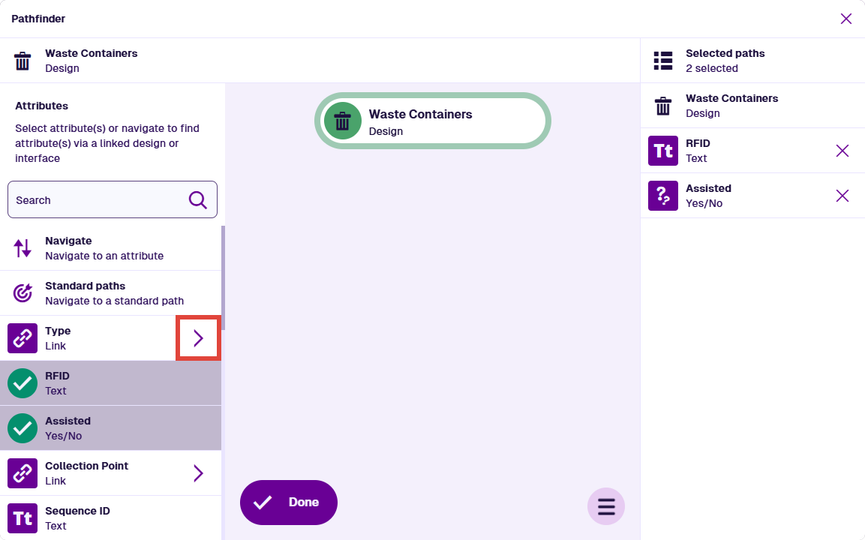
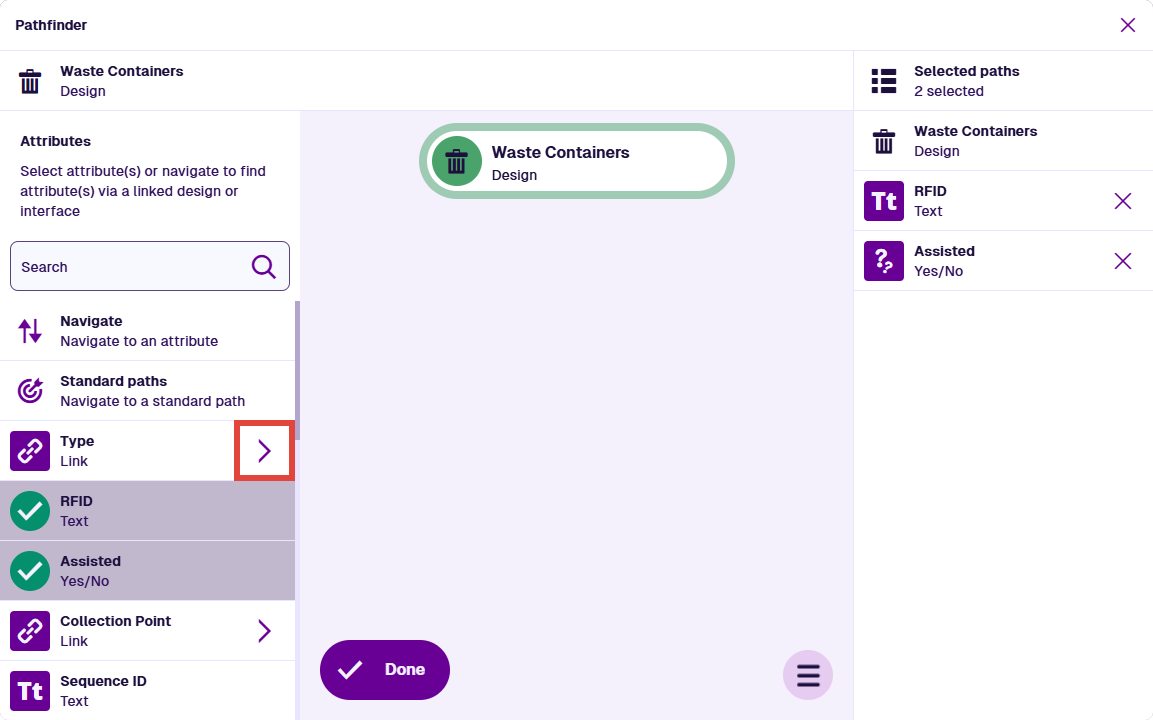
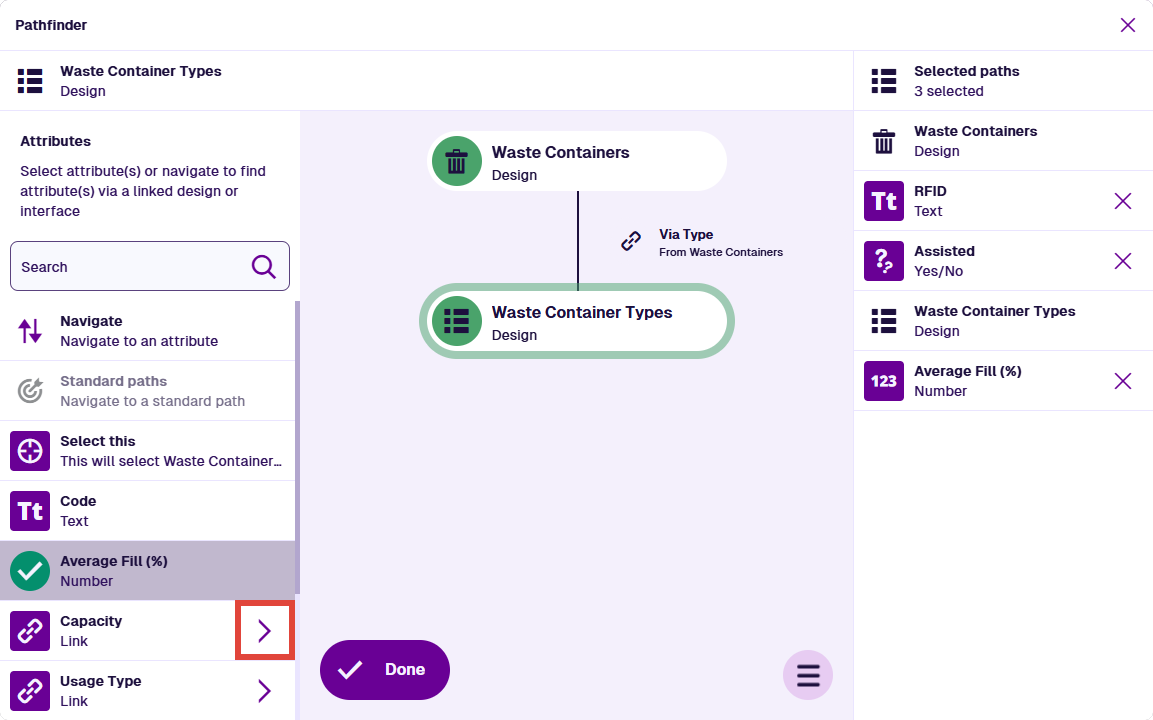
Select the arrow beside the Link attribute to "step into" it.
-
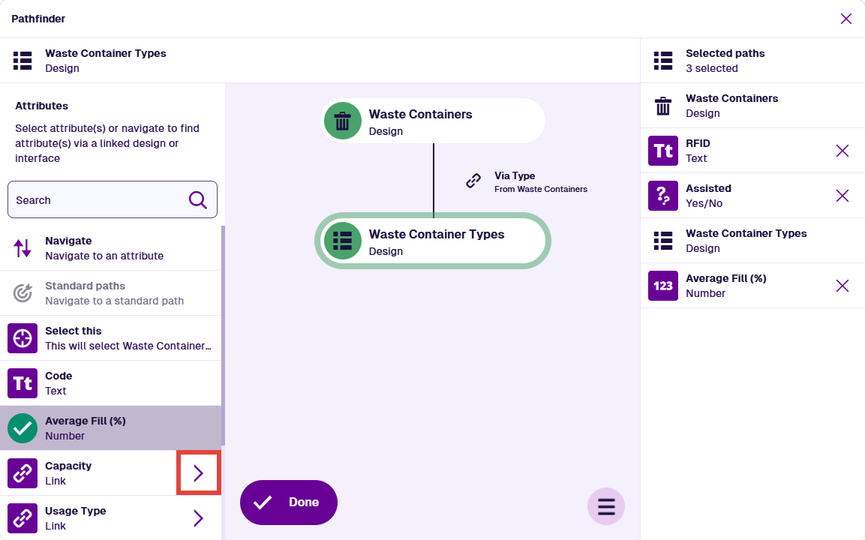
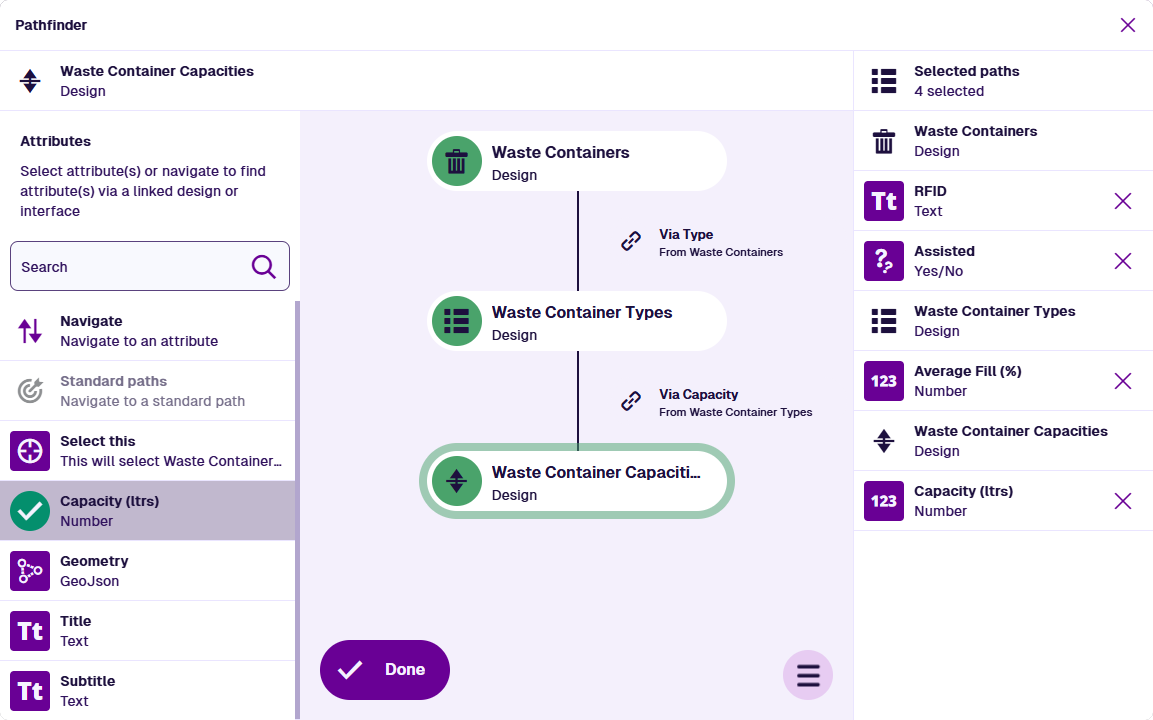
The left-hand list now shows the attributes of the child design/interface. Select any you want to include in the query. The path graph visualises the path you've taken.
If the child design/interface has any Link attributes, select the arrow beside one to visit the next child design/interface.
-
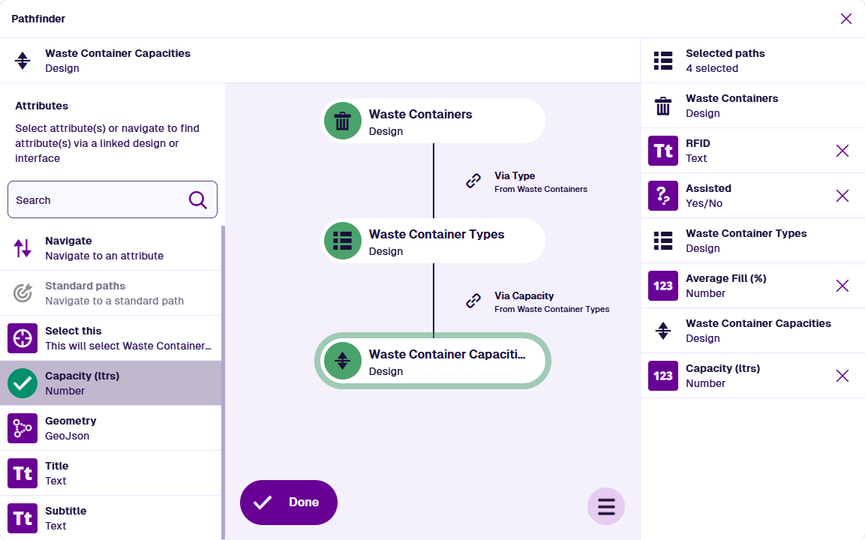
You can repeat this process across multiple Link attributes. At each stage, the attributes you select appear in the right-hand list, in the order you selected them. To deselect an attribute, select its Remove button.
To return to a previous design/interface, select it in the path graph. Select Done to finish.
Select a Link attribute
To include a Link attribute itself in the query results, select its arrow and then Select this. When the query runs, this returns any Item IDs stored in the attribute. In the Data Explorer, the attribute value appears as a single item or an X results link.
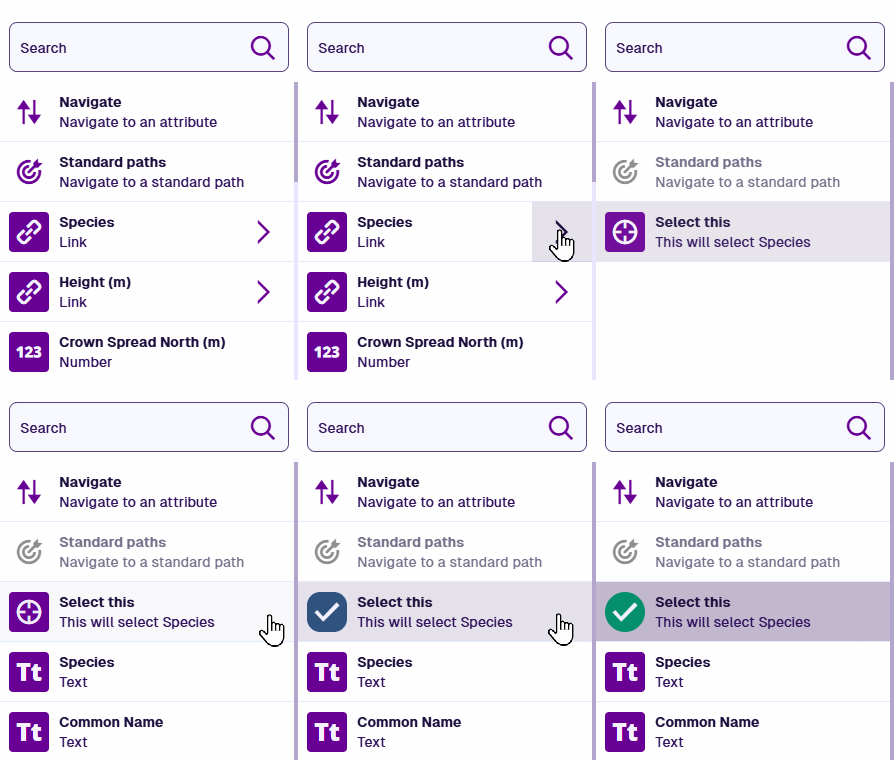
Selecting a Link attribute does not automatically select any attributes on the child design/interface, and vice versa.