Calendar picker
Select date and time values
The calendar picker provides a familiar way to enter dates and times. When you select a relevant field, the corresponding picker appears.
| Picker | Appears when | Key features |
|---|---|---|
| Date | Selecting a Date field | Calendar grid with month and year selection |
| Date Time | Selecting a Date Time field | Calendar grid plus time input boxes |
| Multi-Date | Adding multiple dates or date times to a field | Add and Add many buttons for single or bulk entry |
| Seasonal | Selecting a Seasonal field | Month and day only (no year) for annual recurring dates |
Date picker
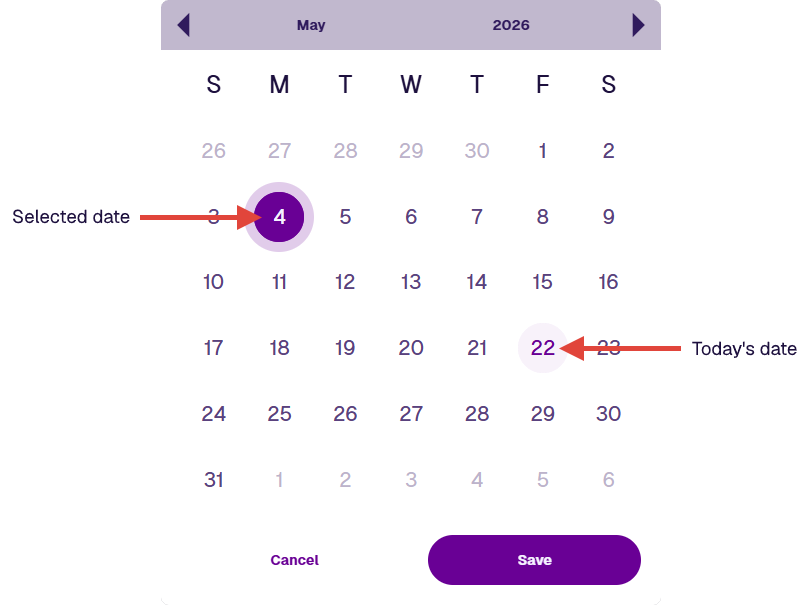
This picker lets you select a year, month and day. By default, the current month in the current year is shown, with today's date highlighted.
Use the top arrows to move between months. To specify the month or year, select it in the picker bar, then choose a new value (use the arrows to move between years).
Select the date you want, then select Save to finish.
Date Time picker
This picker works similarly to the Date picker but also requires a time to be set.
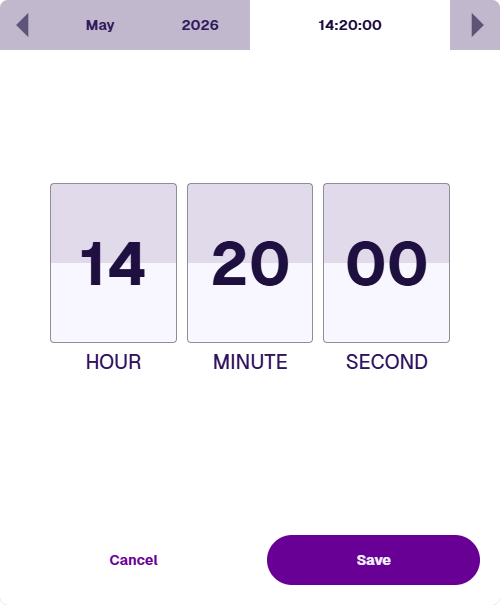
Select the time in the picker bar, then enter numbers in the boxes. Depending on the field being edited, the Second box may not appear.
Specify the date and time you want, then select Save to finish.
Multi-Date picker
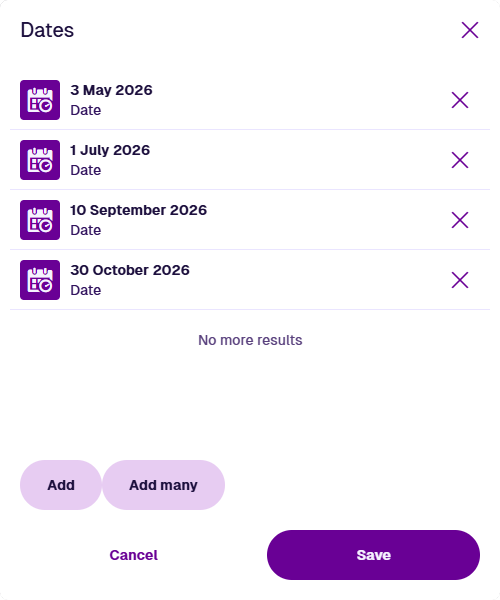
This picker lets you add multiple dates to a single field, e.g. when creating a scheduled workflow. Depending on the field, you may add dates only or dates with times. The method of entry matches the Date or Date Time picker described above.
The main window lists everything you've added. Use these buttons to build up your list:
-
Add - add a single date or date time, as described above. Use this multiple times to enter different dates (with different times, if applicable).
-
Add many - add multiple dates at once. For date time fields, all dates share a single time. You'll be prompted to set it when saving, if you haven't already.
To remove an entry, select its Remove button. Select Save to finish.
Seasonal picker
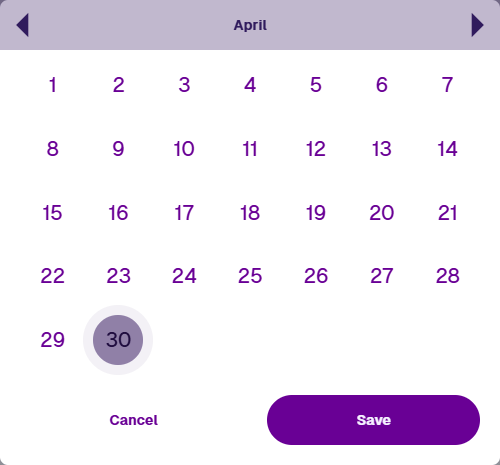
This picker lets you select a month and day to represent an annually recurring date. By default, the current month is shown.
Use the top arrows to move between months. Alternatively, select the month in the picker bar, then choose one from the list.
Select the date you want to repeat each year, then select Save to finish.