Map picker
Select items based on their location
The map picker provides a visual way to locate and select items with geometry, by displaying them on a map. It's an alternative to the item picker, which lists items in a searchable text list.
To select items on the map, select Open map picker in the item picker's search box.
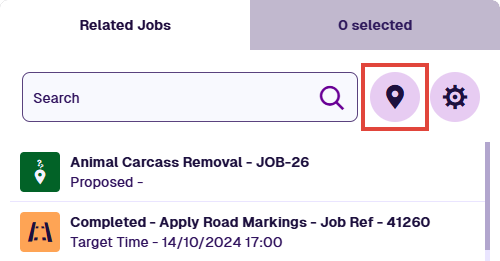
Using the map picker
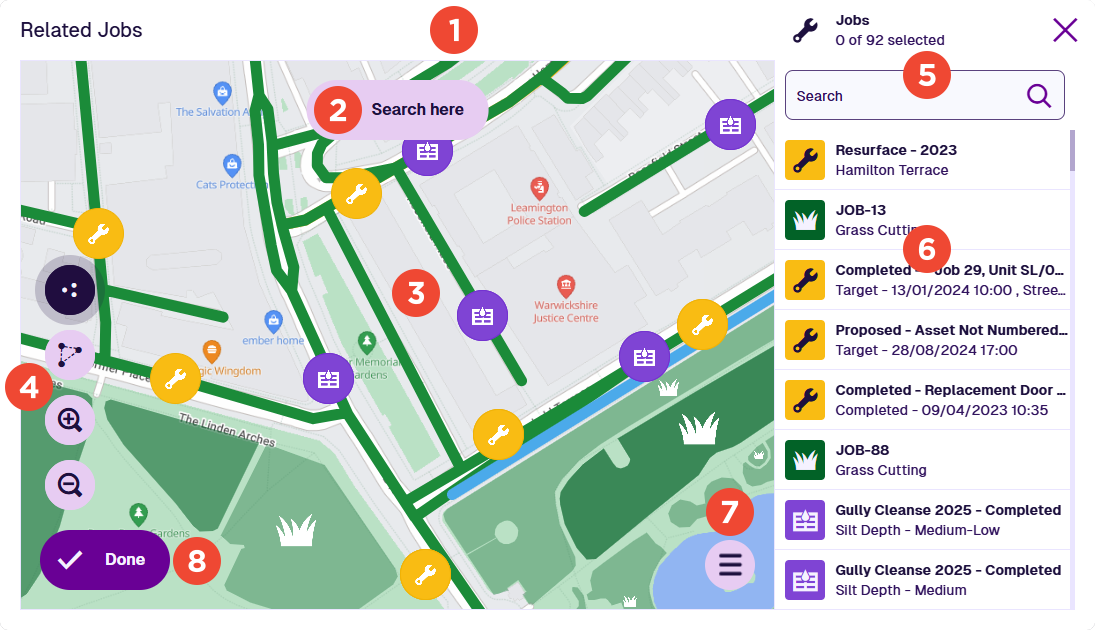
1 Title bar
The title bar shows the name of the field you're editing. On the right, it shows the design/interface that items must match to appear in the picker.
2 Search here button
The map picker only loads matching items located within the current area. If you pan or zoom the map, use this button to refresh the loaded items for the new map area.
3 Map
This uses the same basemap as the Maps app and initially shows the same area. All matching items within the area are displayed by default (if you have permission to view them). If any layers are enabled in the Maps app, their items aren't shown here - only items that match the design/interface in the title bar.
To examine a different area, pan and zoom the map with the tools below, then select Search here to refresh the displayed items.
4 Map tools
These are the same tools as in the Maps app:
-
Toggle selection - on by default. Select multiple items on the map in succession.
-
Draw selection area - select this, then select multiple points around items to draw your selection. Select the last point twice to finish.
-
Pan controls - select this to reveal four direction buttons.
-
Zoom in
-
Zoom out
Items selected on the map are also selected in the items panel and vice versa.
5 Items panel
By default, the items panel lists all the items on the map. The list changes if Show selected items is selected or the Search settings are configured (see below). Scroll through the list and select the items you want (select again to deselect).
Items selected in the panel are also selected on the map and vice versa.
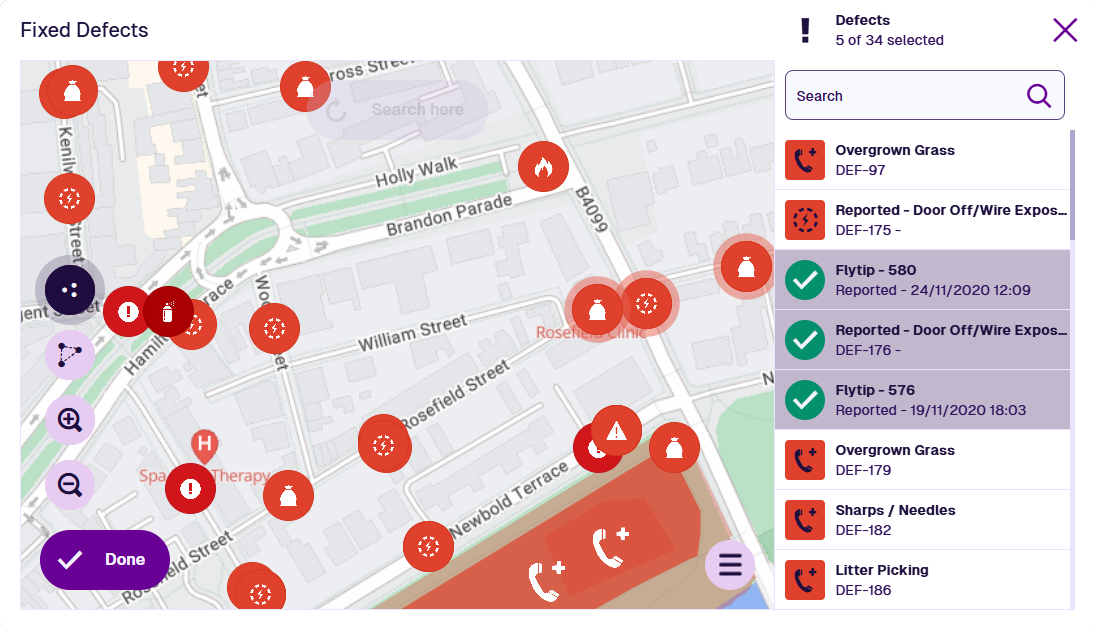
6 Search box
Use the search box to filter the items displayed on the map and in the items panel. By default, all item attributes are searched. Therefore, you can potentially search by name, serial number, location and so on, depending on the design/interface being searched.
Searches can be partial. In the image below, searching for lit located items in the area containing the word litter.
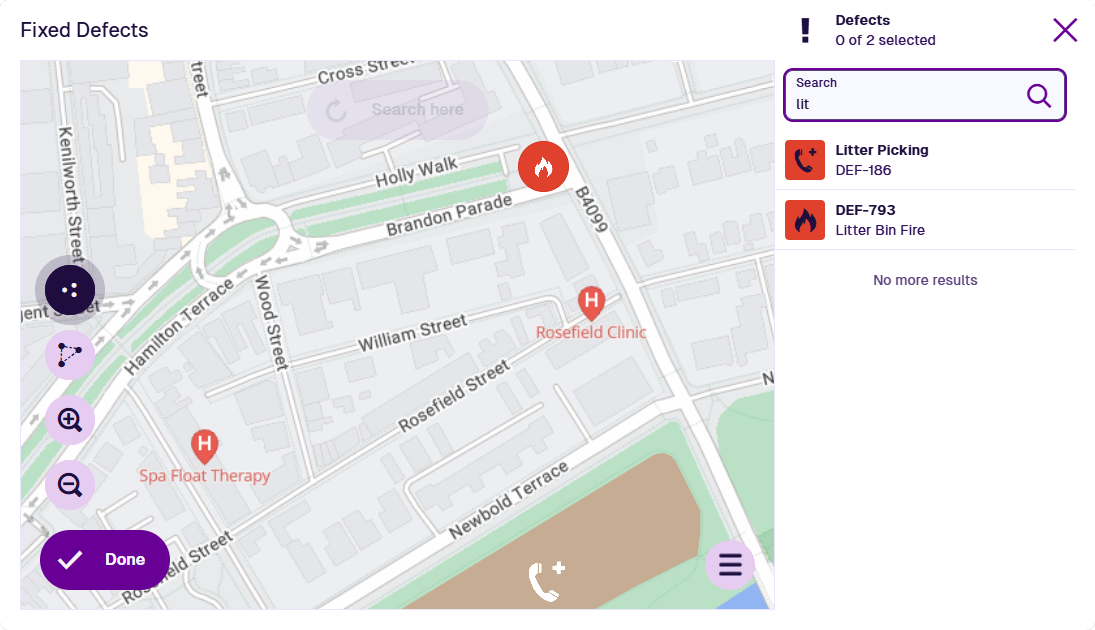
Searching doesn't affect item selection. Selected items remain selected, even if they don't appear in the search results.
7 Menu
To perform these actions, select Menu in the bottom-right corner:
-
Back to picker - close the map picker and return to the item picker. Selected items are remembered between both pickers.
-
Clear selection - deselect all selected items.
-
Filter designs - only show items of the selected design(s).
-
Search settings - customise how items are searched and sorted.
-
Show all items - list all available items in the items panel. The list is still affected by Filter designs or the search box.
-
Show selected items - list only selected items in the items panel. To deselect an item, select its Deselect button.
-
Zoom to selection - zoom the map to the centre of the selected item(s).
8 Done button
Select Done to finish. The field you're editing is populated with your selected items.