Tag Manager
Use tags to identify and group things
Throughout CausewayOne Asset Management, you can mark things with tags. A tag can be any keyword or phrase, often describing a category or shared characteristic, e.g. Street furniture, Highways Department, Zone D.
By assigning the same tag to multiple things, you define a relationship between them while keeping them separate. Each one can have multiple tags, so you can create overlapping relationships without conflict. This provides a way to filter lists and narrow down searches.
For some things, you can assign system tags to change how they're treated or acted upon, e.g. tag a Number attribute as "Currency".
Where can I use tags?
You can tag the following:
-
Item forms and canvas views - assign at least one screen tag to determine where they can be used (platform, application and screen). Select an existing screen tag or add your own.
-
Layers - assign custom tags to categorise your layers, so you can filter the contents of the Layers panel.
-
Access policies - assign custom tags to categorise your access policies.
-
Report data sources - assign system tags to capture contextual data:
-
Item - if tagged with Incoming item id, it will default to the current item's ID when running the report from an item.
-
AQS - if tagged with Incoming AQS query, it will default to the query configured in the Run Report workflow action.
-
-
Attributes - assign system tags to change how an attribute is treated or acted upon:
Using the Tag Manager
To manage the tags of something you're creating or editing:
-
Select the Tags field to show the Tag Manager.
 info
infoWhen editing an item form, select Define screens in the app bar. To learn more, see Edit the item form.
-
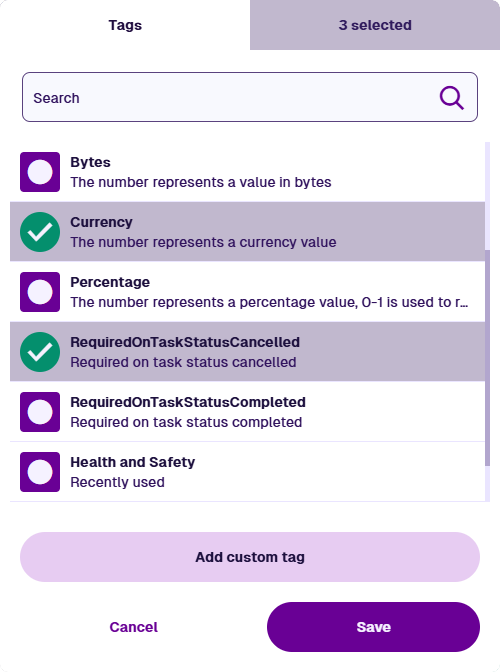
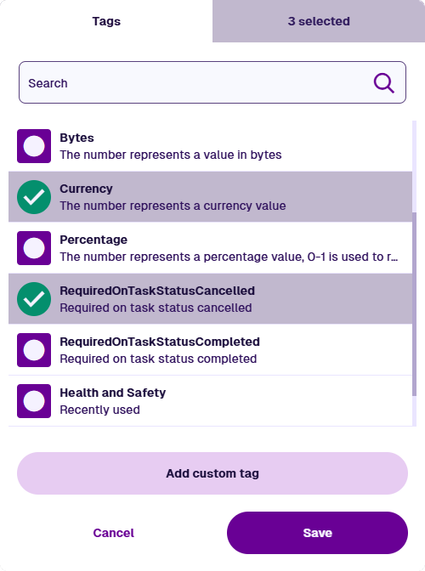
The Tag Manager lists any system tags that are relevant to what you're doing, plus any recently used custom tags. Select the tags you want.
-
To create a new tag, select Add custom tag. Enter your text and select Add. Your new tag will be available to everyone in your company project.
-
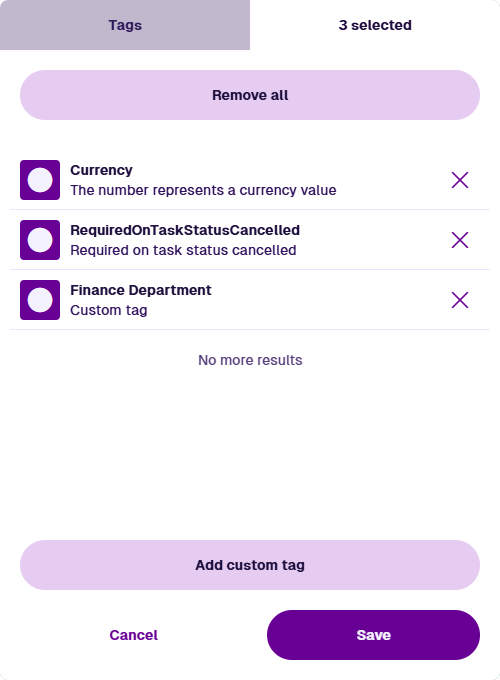
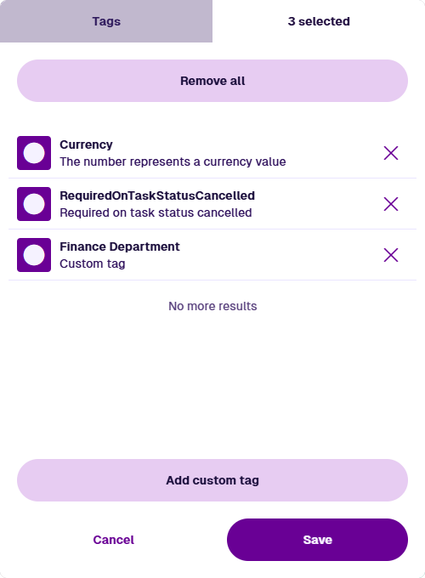
To review the selected tags, open the X selected tab. To deselect tags, you can then select Remove or use the Remove all button.
-
Select Save to finish.