# CausewayOne Asset Management Documentation
> This documentation describes and explains the features of the CausewayOne Asset Management cloud application, and how to use them
- [CausewayOne Asset Management Documentation](/index.md)
## concepts
- [Core Concepts](/basics/fundamentals.md): New to CausewayOne Asset Management? Start with these core concepts. Once you understand them, everything else will be much easier to follow!
- [Activities](/basics/fundamentals/activities.md): Defects, inspections and jobs
- [AQS](/basics/fundamentals/aqs.md): A language for querying item data
- [Collections](/basics/fundamentals/collections.md): Items stored in separate datasets
- [Designs](/basics/fundamentals/designs.md): A set of attributes that describe a type of thing
- [Interfaces](/basics/fundamentals/interfaces.md): A set of generic attributes shared by multiple designs
- [Items](/basics/fundamentals/items.md): A set of attribute values that describe an actual thing
- [Layers](/basics/fundamentals/layers.md): A map overlay showing item locations
- [Modules](/basics/fundamentals/modules.md): Optional business features
- [Reports](/basics/fundamentals/reports.md): A documented snapshot of item data
- [Workflows](/basics/fundamentals/workflows.md): A sequence of programmed actions
- [Why CausewayOne?](/basics/why-causeway.md): What do people use Asset Management for?
## apps
- [Asset Management Apps](/apps/home.md): Streamlined experiences
- [App Guides](/apps/home/app-guides.md): Learn about each app
- [Overview](/apps/home/app-overview.md): Personalise your app access
- [General](/apps/home/general.md): The information in these docs applies to all the Asset Management Apps.
- [Navigation](/apps/home/navigation.md): Find your way around
- [Search](/apps/home/search.md): Search your Asset Management data
- [Location search](/apps/home/search/location-search.md): Go anywhere in the world
- [Flexible search terms](/apps/home/search/search-terms.md): Searching item attribute data
- [Search categories](/apps/home/search/suggestions.md): Customise your suggested categories
- [Sign in](/apps/home/sign-in.md): How to access Asset Management
- [Standalone app access](/apps/home/standalone.md): Temporary access for non-CausewayOne users
- [Tools](/apps/home/tools.md): Included in the Asset Management Apps
### boards
Visualise and manage the status/progress of items
- [Boards](/apps/boards.md): Visualise and manage the status/progress of items
#### actions
Choose an action from the menu
- [Board actions](/apps/boards/actions.md): Choose an action from the menu
- [Delete the board](/apps/boards/actions/delete.md): Discard boards that are no longer needed
- [Share the board](/apps/boards/actions/share.md): Give other users access to the board
#### edit-boards
Configure board columns and properties
- [Edit the board](/apps/boards/edit-boards.md): Configure board columns and properties
#### load-boards
Load a new or existing board
- [Create or open a board](/apps/boards/load-boards.md): Load a new or existing board
#### manage-board-items
Organise and edit items
- [Manage items on the board](/apps/boards/manage-board-items.md): Organise and edit items
#### open-item
View an item's details
- [Open an item](/apps/boards/open-item.md): View an item's details
- [Clone the item](/apps/boards/open-item/clone-item.md): Create an exact copy or make changes
- [Item details](/apps/boards/open-item/item-details.md): View and edit an item's data and relationships
- [Activity sections](/apps/boards/open-item/item-details/activity.md): View activity items related to the current item
- [Applies To section](/apps/boards/open-item/item-details/activity/applies-to-section.md): The applicable job types of a work item
- [Defects section](/apps/boards/open-item/item-details/activity/defects-section.md): Registered faults
- [Inspections section](/apps/boards/open-item/item-details/activity/inspections-section.md): Condition assessments
- [Jobs section](/apps/boards/open-item/item-details/activity/jobs-section.md): Related work assignments
- [Job work items section](/apps/boards/open-item/item-details/activity/jwi-section.md): The individual work units of a job
- [Permits section](/apps/boards/open-item/item-details/activity/permits-section.md): Manage the permit status of a job
- [Routes section](/apps/boards/open-item/item-details/activity/routes-section.md): Optimise travel between tasks in a project
- [Audit section](/apps/boards/open-item/item-details/audit-section.md): Track every change
- [Comments section](/apps/boards/open-item/item-details/comments-section.md): Post messages for other users to read
- [Gallery section](/apps/boards/open-item/item-details/gallery-section.md): Manage file attachments
- [General section](/apps/boards/open-item/item-details/general-section.md): View and edit item information
- [Manual workflows section](/apps/boards/open-item/item-details/manual-workflows-section.md): Trigger a workflow
- [Map section](/apps/boards/open-item/item-details/map-section.md): Visualise item location and geometry
- [Parents section](/apps/boards/open-item/item-details/parents-section.md): Manage parent item links
- [Reports section](/apps/boards/open-item/item-details/reports-section.md): View generated report items
- [Settings section](/apps/boards/open-item/item-details/settings-section.md): View and override the item's properties
- [Make a template item](/apps/boards/open-item/make-template.md): Speed up repetitive item creation
- [Remove the item](/apps/boards/open-item/remove-items.md): Discard items that are no longer needed
#### search-boards
Find items listed in the active board
- [Search within the board](/apps/boards/search-boards.md): Find items listed in the active board
### designer
Define how your data is stored and represented
- [Designer](/apps/designer.md): Define how your data is stored and represented
#### dodis
Define a set of data attributes for each type of thing
- [Designs and Interfaces](/apps/designer/dodis.md): Define a set of data attributes for each type of thing
##### actions
Choose an action from the menu
- [Design and interface actions](/apps/designer/dodis/actions.md): Choose an action from the menu
##### attributes
What are attributes?
- [Attributes](/apps/designer/dodis/attributes.md): What are attributes?
- [AQS attribute](/apps/designer/dodis/attributes/aqs-attribute.md): Store an AQS query
- [Date attribute](/apps/designer/dodis/attributes/date-attribute.md): Store a date value
- [Date Time attribute](/apps/designer/dodis/attributes/date-time-attribute.md): Store a date and time value
- [Geometry attribute](/apps/designer/dodis/attributes/geometry-attribute.md): Store location and geometry coordinates
- [JSON attribute](/apps/designer/dodis/attributes/json-attribute.md): Store JSON code
- [Link attribute](/apps/designer/dodis/attributes/link-attribute.md): Store links to items
- [Number attribute](/apps/designer/dodis/attributes/number-attribute.md): Store an integer or decimal number
- [Seasonal attribute](/apps/designer/dodis/attributes/seasonal-attribute.md): Store a day of the year
- [Text attribute](/apps/designer/dodis/attributes/text-attribute.md): Store a string of text
- [Time attribute](/apps/designer/dodis/attributes/time-attribute.md): Store a time value
- [Yes/No attribute](/apps/designer/dodis/attributes/yes-no-attribute.md): Store a boolean value
##### delete-dodi
Discard designs/interfaces that are no longer needed
- [Delete the design or interface](/apps/designer/dodis/delete-dodi.md): Discard designs/interfaces that are no longer needed
##### edit-dodi
Configure attributes, interfaces and other details
- [Edit the design or interface](/apps/designer/dodis/edit-dodi.md): Configure attributes, interfaces and other details
- [Attributes section](/apps/designer/dodis/edit-dodi/attributes.md): Define the data to be stored
- [Create an item](/apps/designer/dodis/edit-dodi/create-item.md): Store a set of attribute values
- [Details section](/apps/designer/dodis/edit-dodi/details.md): Configure properties and appearance
- [Interfaces section](/apps/designer/dodis/edit-dodi/interfaces.md): Inherit attributes and standard paths
- [Standard paths section](/apps/designer/dodis/edit-dodi/standard-paths.md): Define shortcuts to other attributes
##### geometry-types
Define locations and shapes
- [Geometry types](/apps/designer/dodis/geometry-types.md): Define locations and shapes
- [Geometry Collection](/apps/designer/dodis/geometry-types/design-collection-geometry-type.md): Allow multiple geometry types
- [Line geometry](/apps/designer/dodis/geometry-types/design-line-geometry-type.md): Define a line of connected points
- [Multi-line geometry](/apps/designer/dodis/geometry-types/design-multiline-geometry-type.md): Define multiple lines
- [Multi-point geometry](/apps/designer/dodis/geometry-types/design-multipoint-geometry-type.md): Define multiple unconnected points
- [Multi-polygon geometry](/apps/designer/dodis/geometry-types/design-multipolygon-geometry-type.md): Define multiple shapes
- [Point geometry](/apps/designer/dodis/geometry-types/design-point-geometry-type.md): Define a single point
- [Polygon geometry](/apps/designer/dodis/geometry-types/design-polygon-geometry-type.md): Define a shape using connected points
##### implement-interfaces
Extend a design by implementing an interface
- [Implementing interfaces](/apps/designer/dodis/implement-interfaces.md): Extend a design by implementing an interface
##### load-design
Load a new or existing design
- [Create or open a design](/apps/designer/dodis/load-design.md): Load a new or existing design
- [Asset designs](/apps/designer/dodis/load-design/asset-design.md): Represent your physical assets
- [Component designs](/apps/designer/dodis/load-design/component-design.md): Represent component parts
- [Defect designs](/apps/designer/dodis/load-design/defect-design.md): Represent a type of defect
- [Inspection designs](/apps/designer/dodis/load-design/inspection-design.md): Represent a type of inspection
- [Job designs](/apps/designer/dodis/load-design/job-design.md): Represent a type of job
- [Item lookup designs](/apps/designer/dodis/load-design/lookup-design.md): Represent a set of predefined choices
- [Network designs](/apps/designer/dodis/load-design/network-design.md): Represent a geographic network
##### load-interface
Load a new or existing interface
- [Create or open an interface](/apps/designer/dodis/load-interface.md): Load a new or existing interface
##### titles-subtitles
Configure the primary and secondary labels of items
- [Titles and subtitles](/apps/designer/dodis/titles-subtitles.md): Configure the primary and secondary labels of items
#### item-canvas
Customise how item details are displayed
- [Item canvas](/apps/designer/item-canvas.md): Customise how item details are displayed
##### actions
Choose an action from the menu
- [Canvas view actions](/apps/designer/item-canvas/actions.md): Choose an action from the menu
- [Remove the canvas view](/apps/designer/item-canvas/actions/delete.md): Discard canvas views that are no longer needed
- [Share the canvas view](/apps/designer/item-canvas/actions/share.md): Give other users access to the canvas view
##### edit-view
Manage sections and configure their properties
- [Edit the canvas view](/apps/designer/item-canvas/edit-view.md): Manage sections and configure their properties
- [Canvas sections](/apps/designer/item-canvas/edit-view/canvas-sections.md): Manage the sections of a canvas view
- [Preview the canvas view](/apps/designer/item-canvas/edit-view/preview-view.md): Test how the canvas view looks and performs
##### load-views
Load a new or existing canvas view
- [Create or open a canvas view](/apps/designer/item-canvas/load-views.md): Load a new or existing canvas view
#### item-forms
Customise how item attribute fields are displayed
- [Item forms](/apps/designer/item-forms.md): Customise how item attribute fields are displayed
##### actions
Choose an action from the menu
- [Item form actions](/apps/designer/item-forms/actions.md): Choose an action from the menu
##### delete-forms
Discard item forms that are no longer needed
- [Delete the item form](/apps/designer/item-forms/delete-forms.md): Discard item forms that are no longer needed
##### edit-forms
Configure its attributes and expressions
- [Edit the item form](/apps/designer/item-forms/edit-forms.md): Configure its attributes and expressions
- [Attribute controls](/apps/designer/item-forms/edit-forms/attribute-controls.md): Configure the attributes on the item form
- [Item form expressions](/apps/designer/item-forms/edit-forms/expressions.md): Make item forms context-sensitive
- [Example 1 - Simple boolean check](/apps/designer/item-forms/edit-forms/expressions/exp-example-1.md): Introduction
- [Example 2 - Cascading lookup list](/apps/designer/item-forms/edit-forms/expressions/exp-example-2.md): Introduction
- [Build an expression](/apps/designer/item-forms/edit-forms/expressions/expression-builder.md): Using the Item Form Expression Builder
- [Expression nodes](/apps/designer/item-forms/edit-forms/expressions/expression-nodes.md): The building blocks of an expression
- [Item form layout](/apps/designer/item-forms/edit-forms/form-layout.md): Resize and arrange controls
- [Other controls](/apps/designer/item-forms/edit-forms/other-controls.md): Configure label and layout controls
- [Preview the item form](/apps/designer/item-forms/edit-forms/preview-form.md): Test how the item form looks and performs
##### forms-in-action
When item forms get used
- [Item forms in action](/apps/designer/item-forms/forms-in-action.md): When item forms get used
##### load-forms
Load a new or existing item form
- [Create or open an item form](/apps/designer/item-forms/load-forms.md): Load a new or existing item form
### explorer
Query your data and view the results as a table
- [Data Explorer](/apps/explorer.md): Query your data and view the results as a table
#### actions
Perform actions on queries and their results
- [Toolbar actions](/apps/explorer/actions.md): Perform actions on queries and their results
- [Bulk actions](/apps/explorer/actions/bulk-actions.md): Perform actions on multiple items
- [Change collections](/apps/explorer/actions/change-collections.md): View items in other collections
- [Create an item](/apps/explorer/actions/create-item.md): Store a set of attribute values
- [Export query results](/apps/explorer/actions/export-query.md): Download item data in a standard format
- [Show results on the map](/apps/explorer/actions/show-on-map.md): Display query results in a temporary map layer
#### attribute-columns
View the attribute data of queried items
- [Attribute columns](/apps/explorer/attribute-columns.md): View the attribute data of queried items
#### load-query
Perform multiple queries in separate tabs
- [Create or open queries](/apps/explorer/load-query.md): Perform multiple queries in separate tabs
#### open-item
View an item's details
- [Open an item](/apps/explorer/open-item.md): View an item's details
- [Clone the item](/apps/explorer/open-item/clone-item.md): Create an exact copy or make changes
- [Item details](/apps/explorer/open-item/item-details.md): View and edit an item's data and relationships
- [Activity sections](/apps/explorer/open-item/item-details/activity.md): View activity items related to the current item
- [Applies To section](/apps/explorer/open-item/item-details/activity/applies-to-section.md): The applicable job types of a work item
- [Defects section](/apps/explorer/open-item/item-details/activity/defects-section.md): Registered faults
- [Inspections section](/apps/explorer/open-item/item-details/activity/inspections-section.md): Condition assessments
- [Jobs section](/apps/explorer/open-item/item-details/activity/jobs-section.md): Related work assignments
- [Job work items section](/apps/explorer/open-item/item-details/activity/jwi-section.md): The individual work units of a job
- [Permits section](/apps/explorer/open-item/item-details/activity/permits-section.md): Manage the permit status of a job
- [Routes section](/apps/explorer/open-item/item-details/activity/routes-section.md): Optimise travel between tasks in a project
- [Audit section](/apps/explorer/open-item/item-details/audit-section.md): Track every change
- [Comments section](/apps/explorer/open-item/item-details/comments-section.md): Post messages for other users to read
- [Gallery section](/apps/explorer/open-item/item-details/gallery-section.md): Manage file attachments
- [General section](/apps/explorer/open-item/item-details/general-section.md): View and edit item information
- [Manual workflows section](/apps/explorer/open-item/item-details/manual-workflows-section.md): Trigger a workflow
- [Map section](/apps/explorer/open-item/item-details/map-section.md): Visualise item location and geometry
- [Parents section](/apps/explorer/open-item/item-details/parents-section.md): Manage parent item links
- [Reports section](/apps/explorer/open-item/item-details/reports-section.md): View generated report items
- [Settings section](/apps/explorer/open-item/item-details/settings-section.md): View and override the item's properties
- [Make a template item](/apps/explorer/open-item/make-template.md): Speed up repetitive item creation
- [Remove the item](/apps/explorer/open-item/remove-items.md): Discard items that are no longer needed
#### refine-query
Filter and sort queried items
- [Refine a query](/apps/explorer/refine-query.md): Filter and sort queried items
#### tab-management
Manage multiple query tabs
- [Tab management](/apps/explorer/tab-management.md): Manage multiple query tabs
### hubs
Stay informed with data dashboards
- [Hubs](/apps/hubs.md): Stay informed with data dashboards
#### actions
Choose an action from the menu
- [Hub actions](/apps/hubs/actions.md): Choose an action from the menu
- [Remove the hub](/apps/hubs/actions/delete.md): Discard hubs that are no longer needed
- [Share the hub](/apps/hubs/actions/share.md): Give other users access to the hub
#### edit-hub
Configure widgets and highlights
- [Edit the hub](/apps/hubs/edit-hub.md): Configure widgets and highlights
- [Data points](/apps/hubs/edit-hub/data-points.md): Manage the queries of a widget
- [Highlights](/apps/hubs/edit-hub/highlights.md): Draw attention to important data
- [Widgets](/apps/hubs/edit-hub/widgets.md): Create spaces for data points
#### load-hubs
Load a new or existing hub
- [Create or open a hub](/apps/hubs/load-hubs.md): Load a new or existing hub
#### view-hub
Access multiple data streams in one place
- [View the hub](/apps/hubs/view-hub.md): Access multiple data streams in one place
### items
Store data for assets, tasks, projects and more
- [Items](/apps/items.md): Store data for assets, tasks, projects and more
#### create-item
Create items to store data
- [Create an item](/apps/items/create-item.md): Create items to store data
#### item-attachments
Attach supporting files to items
- [Item attachments](/apps/items/item-attachments.md): Attach supporting files to items
#### item-collections
Organise items by collection
- [Item collections](/apps/items/item-collections.md): Organise items by collection
#### item-context
Identify protected items
- [Item context](/apps/items/item-context.md): Identify protected items
#### item-id
A unique identifier
- [Item ID](/apps/items/item-id.md): A unique identifier
#### template-items
Speed up repetitive item creation
- [Template items](/apps/items/template-items.md): Speed up repetitive item creation
#### view-item
View item details in any app
- [Open an item](/apps/items/view-item.md): View item details in any app
- [Clone the item](/apps/items/view-item/clone-item.md): Create an exact copy or make changes
- [Item details](/apps/items/view-item/item-details.md): View and edit an item's data and relationships
- [Activity sections](/apps/items/view-item/item-details/activity.md): View activity items related to the current item
- [Applies To section](/apps/items/view-item/item-details/activity/applies-to-section.md): The applicable job types of a work item
- [Defects section](/apps/items/view-item/item-details/activity/defects-section.md): Registered faults
- [Inspections section](/apps/items/view-item/item-details/activity/inspections-section.md): Condition assessments
- [Jobs section](/apps/items/view-item/item-details/activity/jobs-section.md): Related work assignments
- [Job work items section](/apps/items/view-item/item-details/activity/jwi-section.md): The individual work units of a job
- [Permits section](/apps/items/view-item/item-details/activity/permits-section.md): Manage the permit status of a job
- [Routes section](/apps/items/view-item/item-details/activity/routes-section.md): Optimise travel between tasks in a project
- [Audit section](/apps/items/view-item/item-details/audit-section.md): Track every change
- [Comments section](/apps/items/view-item/item-details/comments-section.md): Post messages for other users to read
- [Gallery section](/apps/items/view-item/item-details/gallery-section.md): Manage file attachments
- [General section](/apps/items/view-item/item-details/general-section.md): View and edit item information
- [Manual workflows section](/apps/items/view-item/item-details/manual-workflows-section.md): Trigger a workflow
- [Map section](/apps/items/view-item/item-details/map-section.md): Visualise item location and geometry
- [Parents section](/apps/items/view-item/item-details/parents-section.md): Manage parent item links
- [Reports section](/apps/items/view-item/item-details/reports-section.md): View generated report items
- [Settings section](/apps/items/view-item/item-details/settings-section.md): View and override the item's properties
- [Make a template item](/apps/items/view-item/make-template.md): Speed up repetitive item creation
- [Remove the item](/apps/items/view-item/remove-items.md): Discard items that are no longer needed
### lists
Stay organised with item lists
- [Lists](/apps/lists.md): Stay organised with item lists
#### actions
Choose an action from the menu
- [List actions](/apps/lists/actions.md): Choose an action from the menu
- [Create an item](/apps/lists/actions/create-item.md): Add a new item to the list
- [Delete the list](/apps/lists/actions/delete.md): Discard lists that are no longer needed
- [Share the list](/apps/lists/actions/share.md): Give other users access to the list
#### edit-lists
Change the list's query
- [Edit the list](/apps/lists/edit-lists.md): Change the list's query
#### load-lists
Load a new or existing list
- [Create or open a list](/apps/lists/load-lists.md): Load a new or existing list
#### open-item
View an item's details
- [Open an item](/apps/lists/open-item.md): View an item's details
- [Clone the item](/apps/lists/open-item/clone-item.md): Create an exact copy or make changes
- [Item details](/apps/lists/open-item/item-details.md): View and edit an item's data and relationships
- [Activity sections](/apps/lists/open-item/item-details/activity.md): View activity items related to the current item
- [Applies To section](/apps/lists/open-item/item-details/activity/applies-to-section.md): The applicable job types of a work item
- [Defects section](/apps/lists/open-item/item-details/activity/defects-section.md): Registered faults
- [Inspections section](/apps/lists/open-item/item-details/activity/inspections-section.md): Condition assessments
- [Jobs section](/apps/lists/open-item/item-details/activity/jobs-section.md): Related work assignments
- [Job work items section](/apps/lists/open-item/item-details/activity/jwi-section.md): The individual work units of a job
- [Permits section](/apps/lists/open-item/item-details/activity/permits-section.md): Manage the permit status of a job
- [Routes section](/apps/lists/open-item/item-details/activity/routes-section.md): Optimise travel between tasks in a project
- [Audit section](/apps/lists/open-item/item-details/audit-section.md): Track every change
- [Comments section](/apps/lists/open-item/item-details/comments-section.md): Post messages for other users to read
- [Gallery section](/apps/lists/open-item/item-details/gallery-section.md): Manage file attachments
- [General section](/apps/lists/open-item/item-details/general-section.md): View and edit item information
- [Manual workflows section](/apps/lists/open-item/item-details/manual-workflows-section.md): Trigger a workflow
- [Map section](/apps/lists/open-item/item-details/map-section.md): Visualise item location and geometry
- [Parents section](/apps/lists/open-item/item-details/parents-section.md): Manage parent item links
- [Reports section](/apps/lists/open-item/item-details/reports-section.md): View generated report items
- [Settings section](/apps/lists/open-item/item-details/settings-section.md): View and override the item's properties
- [Make a template item](/apps/lists/open-item/make-template.md): Speed up repetitive item creation
- [Remove the item](/apps/lists/open-item/remove-items.md): Discard items that are no longer needed
#### search-list-items
Find items in the active list
- [Browse and search the list](/apps/lists/search-list-items.md): Find items in the active list
### maps
Put your data on the map
- [Maps](/apps/maps.md): Put your data on the map
#### basemaps
Visualise your data in different contexts
- [Basemaps](/apps/maps/basemaps.md): Visualise your data in different contexts
- [Basemap actions](/apps/maps/basemaps/actions.md): Choose an action
- [Add a basemap](/apps/maps/basemaps/add-basemap.md): Use any map service as a basemap
- [Add a WMS basemap](/apps/maps/basemaps/add-basemap/wms-basemap.md): Use a standard image map service
- [Add a WMTS basemap](/apps/maps/basemaps/add-basemap/wmts-basemap.md): Use a standard tiled map service
- [Add an XYZ basemap](/apps/maps/basemaps/add-basemap/xyz-basemap.md): Use a generic tiled map service
- [Change the basemap](/apps/maps/basemaps/change-basemap.md): Set the map's background imagery
- [Delete a basemap](/apps/maps/basemaps/delete-basemap.md): Discard basemaps that are no longer needed
- [Edit a basemap](/apps/maps/basemaps/edit-basemap.md): Change the properties of a basemap
#### items
View items on the map and select them to view their details.
- [Items](/apps/maps/items.md): View items on the map and select them to view their details.
- [Create an item](/apps/maps/items/create-item.md): Create items of any design
- [Open an item](/apps/maps/items/open-item.md): View an item's details
- [Clone the item](/apps/maps/items/open-item/clone-item.md): Create an exact copy or make changes
- [Item details](/apps/maps/items/open-item/item-details.md): View and edit an item's data and relationships
- [Activity sections](/apps/maps/items/open-item/item-details/activity.md): View activity items related to the current item
- [Applies To section](/apps/maps/items/open-item/item-details/activity/applies-to-section.md): The applicable job types of a work item
- [Defects section](/apps/maps/items/open-item/item-details/activity/defects-section.md): Registered faults
- [Inspections section](/apps/maps/items/open-item/item-details/activity/inspections-section.md): Condition assessments
- [Jobs section](/apps/maps/items/open-item/item-details/activity/jobs-section.md): Related work assignments
- [Job work items section](/apps/maps/items/open-item/item-details/activity/jwi-section.md): The individual work units of a job
- [Permits section](/apps/maps/items/open-item/item-details/activity/permits-section.md): Manage the permit status of a job
- [Routes section](/apps/maps/items/open-item/item-details/activity/routes-section.md): Optimise travel between tasks in a project
- [Audit section](/apps/maps/items/open-item/item-details/audit-section.md): Track every change
- [Comments section](/apps/maps/items/open-item/item-details/comments-section.md): Post messages for other users to read
- [Gallery section](/apps/maps/items/open-item/item-details/gallery-section.md): Manage file attachments
- [General section](/apps/maps/items/open-item/item-details/general-section.md): View and edit item information
- [Manual workflows section](/apps/maps/items/open-item/item-details/manual-workflows-section.md): Trigger a workflow
- [Map section](/apps/maps/items/open-item/item-details/map-section.md): Visualise item location and geometry
- [Parents section](/apps/maps/items/open-item/item-details/parents-section.md): Manage parent item links
- [Reports section](/apps/maps/items/open-item/item-details/reports-section.md): View generated report items
- [Settings section](/apps/maps/items/open-item/item-details/settings-section.md): View and override the item's properties
- [Make a template item](/apps/maps/items/open-item/make-template.md): Speed up repetitive item creation
- [Remove the item](/apps/maps/items/open-item/remove-items.md): Discard items that are no longer needed
- [Select multiple items](/apps/maps/items/select-items.md): Open selected items in Data Explorer
#### layers
Overlay data items on the map
- [Layers](/apps/maps/layers.md): Overlay data items on the map
- [Layer actions](/apps/maps/layers/actions.md): Choose an action
- [Delete a layer](/apps/maps/layers/delete-layer.md): Discard layers that are no longer needed
- [Edit a layer](/apps/maps/layers/edit-layer.md): Change the properties of a layer
- [Layers panel](/apps/maps/layers/layers-panel.md): Manage your visible layers
- [Layer styles](/apps/maps/layers/styles.md): Define the data items shown by a layer
- [Layer style actions](/apps/maps/layers/styles/actions.md): Choose an action from the menu
- [Add a layer style](/apps/maps/layers/styles/add-style.md): Create a style for a layer
- [Add a design style](/apps/maps/layers/styles/add-style/add-design-style.md): Define a style that displays items
- [Add a WFS style](/apps/maps/layers/styles/add-style/add-wfs-style.md): Define a style that displays third-party data
- [Delete a layer style](/apps/maps/layers/styles/delete-style.md): Discard layer styles that are no longer needed
- [Edit a layer style](/apps/maps/layers/styles/edit-style.md): Change the properties of a layer style
#### locations-of-interest
Maintain a list of commonly used places
- [Locations of Interest](/apps/maps/locations-of-interest.md): Maintain a list of commonly used places
#### map-tools
Find your way around the map
- [Navigation](/apps/maps/map-tools.md): Find your way around the map
#### measure-tool
Draw on things to measure their dimensions
- [Measure length and area](/apps/maps/measure-tool.md): Draw on things to measure their dimensions
### permissions
Give users access to data and features
- [Permissions](/apps/permissions.md): Give users access to data and features
#### access-policies
Control access to items based on their data
- [Access policies](/apps/permissions/access-policies.md): Control access to items based on their data
- [Access policy expressions](/apps/permissions/access-policies/ap-expressions.md): Manage the conditions of an access policy rule
- [Delete the access policy](/apps/permissions/access-policies/delete-policy.md): Discard policies that are no longer needed
- [Edit the access policy](/apps/permissions/access-policies/edit-policy.md): Configure its conditions and user groups
- [Create or load an access policy](/apps/permissions/access-policies/load-policy.md): Load a new or existing policy
#### explorer
Control access to data and features
- [Permissions Explorer](/apps/permissions/explorer.md): Control access to data and features
- [Set DoDI permissions](/apps/permissions/explorer/dodi-permissions.md): Configure group access to designs and interfaces
- [Mobile permissions](/apps/permissions/explorer/mobile-permissions.md): Permissions required for Alloy Mobile
- [Planning permissions](/apps/permissions/explorer/planning-permissions.md): Tips for a maintainable structure
- [Manage roles and groups](/apps/permissions/explorer/roles-groups.md): Organise your permissions structure
- [Set permissions](/apps/permissions/explorer/set-permissions.md): Configure group access to features
#### overview
Concepts at a glance
- [Overview](/apps/permissions/overview.md): Concepts at a glance
#### users
Add, remove and configure user accounts
- [User management](/apps/permissions/users.md): Add, remove and configure user accounts
- [Create a user](/apps/permissions/users/create-user.md): Give someone access to Asset Management
- [Manage memberships](/apps/permissions/users/memberships.md): View and edit user memberships
- [Open a user](/apps/permissions/users/open-user.md): Configure user details and memberships
- [Remove a user](/apps/permissions/users/remove-user.md): Remove someone's access to Asset Management
### tools
#### aqs
Query your asset management data
- [Asset Query Syntax (AQS)](/apps/tools/aqs.md): Query your asset management data
- [AQS Builder](/apps/tools/aqs/aqs-builder.md): A visual query editor
- [AQS parameters](/apps/tools/aqs/aqs-parameters.md): Define placeholders for future values
- [Build a query](/apps/tools/aqs/building-aqs-query.md): How to use the AQS Builder
- [Child node types](/apps/tools/aqs/child-node-types.md): Filter query results
- [Arithmetic nodes](/apps/tools/aqs/child-node-types/arithmetic-nodes.md): Calculate a number from one or two inputs
- [Comparison nodes](/apps/tools/aqs/child-node-types/comparison-nodes.md): Overview
- [Connected To](/apps/tools/aqs/child-node-types/comparison-nodes/connected-to-node.md): Check whether items are linked together
- [Equals](/apps/tools/aqs/child-node-types/comparison-nodes/equals-node.md): Check whether two values match
- [Geographic comparisons](/apps/tools/aqs/child-node-types/comparison-nodes/geographic-comparisons.md): Check how two areas overlap
- [Is Set](/apps/tools/aqs/child-node-types/comparison-nodes/is-set-node.md): Check whether an attribute holds a value
- [Less Than / Greater Than](/apps/tools/aqs/child-node-types/comparison-nodes/less-than-node.md): Check whether one value exceeds another
- [Text comparisons](/apps/tools/aqs/child-node-types/comparison-nodes/text-comparisons.md): Search attributes for text
- [Count node](/apps/tools/aqs/child-node-types/count-node.md): Count linked items
- [Length node](/apps/tools/aqs/child-node-types/length-function.md): Count the characters in a text value
- [Logical nodes](/apps/tools/aqs/child-node-types/logical-nodes.md): Combine multiple conditions
- [Reference nodes](/apps/tools/aqs/child-node-types/reference-nodes.md): Overview
- [Attribute node](/apps/tools/aqs/child-node-types/reference-nodes/attribute-node.md): Reference an item's attribute value
- [Property node](/apps/tools/aqs/child-node-types/reference-nodes/property-node.md): Reference an item's property value
- [Value nodes](/apps/tools/aqs/child-node-types/value-nodes.md): Overview
- [Date and time values](/apps/tools/aqs/child-node-types/value-nodes/date-time-node.md): Provide a fixed date or time
- [GeoJSON node](/apps/tools/aqs/child-node-types/value-nodes/geometry-node.md): Provide a fixed geometry value
- [Item and Global Unique Code](/apps/tools/aqs/child-node-types/value-nodes/item-node.md): Choose specific items or designs
- [Number node](/apps/tools/aqs/child-node-types/value-nodes/number-node.md): Provide a fixed number
- [Relative date and time values](/apps/tools/aqs/child-node-types/value-nodes/rel-date-time-node.md): Provide a dynamic date or time
- [Text node](/apps/tools/aqs/child-node-types/value-nodes/text-node.md): Provide a fixed text value
- [Value From Item Attribute node](/apps/tools/aqs/child-node-types/value-nodes/value-from-item-attribute.md): Read an attribute value from other items
- [Yes/No node](/apps/tools/aqs/child-node-types/value-nodes/yesno-node.md): Provide a true or false value
- [Examples](/apps/tools/aqs/examples.md): Follow step-by-step instructions
- [Example 1 - Check an attribute](/apps/tools/aqs/examples/aqs-example-1.md): Compare an attribute to a fixed value
- [Example 2 - Geographic](/apps/tools/aqs/examples/aqs-example-2.md): Filter by location and sort the results
- [Example 3 - Logical branches](/apps/tools/aqs/examples/aqs-example-3.md): Combine conditions to test a range
- [Example 4 - Parameters and AQS Join](/apps/tools/aqs/examples/aqs-example-4.md): Reuse a parameter across linked data
- [Root node](/apps/tools/aqs/root-node-types.md): Configure query properties
#### geometry-editor
View and edit defined geometry
- [Geometry Editor](/apps/tools/geometry-editor.md): View and edit defined geometry
#### pathfinder
Select attributes on connected designs/interfaces
- [Pathfinder](/apps/tools/pathfinder.md): Select attributes on connected designs/interfaces
- [Using standard paths](/apps/tools/pathfinder/navigate-std-path.md): Predefined shortcuts to attributes
- [Navigating paths](/apps/tools/pathfinder/navigate-to-path.md): Hop to a parent or child design/interface
- [Quick path selection](/apps/tools/pathfinder/quick-path.md): Hop to a child design/interface
#### selection
CausewayOne Asset Management often presents you with data fields to fill in. Depending on the data type, you can either type in the field directly, or select from a set of values using a specialised picker.
- [Selection pickers](/apps/tools/selection.md): CausewayOne Asset Management often presents you with data fields to fill in. Depending on the data type, you can either type in the field directly, or select from a set of values using a specialised picker.
- [Colour picker](/apps/tools/selection/selecting-colours.md): Select a colour value
- [Calendar picker](/apps/tools/selection/selecting-dates.md): Select date and time values
- [Icon picker](/apps/tools/selection/selecting-icons.md): Select an icon value
- [Item picker](/apps/tools/selection/selecting-items.md): Select items from a list
- [Map picker](/apps/tools/selection/selecting-map.md): Select items based on their location
#### tags
Use tags to identify and group things
- [Tag Manager](/apps/tools/tags.md): Use tags to identify and group things
## web
Use the classic web interface
- [Asset Management Classic](/web.md): Use the classic web interface
### getting-started
#### action-bar
Perform actions in the right panel
- [Action bar](/web/getting-started/action-bar.md): Perform actions in the right panel
#### choosing-project
Open the company dataset of your choice
- [Choose a customer project](/web/getting-started/choosing-project.md): Open the company dataset of your choice
#### dashboard
Learn about the dashboard
- [Dashboard](/web/getting-started/dashboard.md): Learn about the dashboard
#### logging-in
How to access the classic workspace
- [Sign in](/web/getting-started/logging-in.md): How to access the classic workspace
#### right-panel-menu
Access different panels and tools
- [Right panel menu](/web/getting-started/right-panel-menu.md): Access different panels and tools
- [Search](/web/getting-started/right-panel-menu/alloy-search.md): Search your asset management data
- [Favourites](/web/getting-started/right-panel-menu/favourites.md): Quickly access favourite objects
- [File Explorer](/web/getting-started/right-panel-menu/file-explorer.md): Manage uploaded files
#### selection
Using specialised pickers
- [Selecting field values](/web/getting-started/selection.md): Using specialised pickers
- [Colour picker](/web/getting-started/selection/selecting-colours.md): Using colour in Asset Classic
- [Calendar picker](/web/getting-started/selection/selecting-dates.md): Selecting date and time values
- [Icon picker](/web/getting-started/selection/selecting-icons.md): Using icons in Asset Classic
- [Item picker](/web/getting-started/selection/selecting-items.md): Selecting items from a list
- [Map picker](/web/getting-started/selection/selecting-map.md): Selecting items visually
#### standalone
Temporary access for non-CausewayOne users
- [Standalone classic access](/web/getting-started/standalone.md): Temporary access for non-CausewayOne users
#### tab-bar
View information across multiple tabs
- [Tab bar](/web/getting-started/tab-bar.md): View information across multiple tabs
#### user-profile
Manage your profile details
- [User profile](/web/getting-started/user-profile.md): Manage your profile details
- [Change your password](/web/getting-started/user-profile/changing-password.md): How to change your password
- [Edit your profile](/web/getting-started/user-profile/editing-profile.md): Change your name
- [Leave a customer project](/web/getting-started/user-profile/leaving-project.md): Remove your own access
#### workspace
Learn about the key areas
- [The classic workspace](/web/getting-started/workspace.md): Learn about the key areas
### activities
Plan, perform and record asset maintenance
- [Activities](/web/activities.md): Plan, perform and record asset maintenance
#### defects
Flag potentially faulty assets
- [Defects](/web/activities/defects.md): Flag potentially faulty assets
- [Creating defects](/web/activities/defects/creating-defects.md): Identify assets with defects
- [Defect statuses](/web/activities/defects/customise-defect-status.md): Customise a system status or create your own
- [Removing defects](/web/activities/defects/deleting-defects.md): Discard defects that are no longer needed
- [Editing defects](/web/activities/defects/editing-defects.md): Record observations or edit other details
- [Risk assessment](/web/activities/defects/risk-assessment.md): Determine the risks posed by defects
- [Implement the risk interface](/web/activities/defects/risk-assessment/add-risk-interface.md): Incorporate risk into a defect design
- [Using risk designs](/web/activities/defects/risk-assessment/using-risk-designs.md): Define your risk assessment model
- [Standard defect details](/web/activities/defects/standard-defect-details.md): Attributes common to all defects
- [Viewing defects](/web/activities/defects/viewing-defects.md): Find defects and view their details
#### projects
Organise tasks into a manageable batches
- [Projects](/web/activities/projects.md): Organise tasks into a manageable batches
- [Closing a project](/web/activities/projects/completing-projects.md): Close all tasks within a project
- [Creating a project](/web/activities/projects/creating-projects.md): Store tasks in a new project
- [Editing projects](/web/activities/projects/editing-projects.md): Manage a project's tasks, routes and team
- [Managing project tasks](/web/activities/projects/editing-projects/editing-project-tasks.md): Add or remove tasks associated with a project
- [Managing project routes](/web/activities/projects/editing-projects/managing-project-routes.md): Add or remove routes associated with a project
- [Managing a project's team](/web/activities/projects/editing-projects/managing-project-teams.md): Change the team associated with a project
- [Removing projects](/web/activities/projects/removing-projects.md): Discard projects that are no longer needed
- [Viewing projects](/web/activities/projects/viewing-projects.md): Find projects and track their progress
#### routing
Optimise travel between task locations
- [Routing](/web/activities/routing.md): Optimise travel between task locations
- [Creating routes](/web/activities/routing/creating-routes.md): Define the order of travel between project tasks
- [Removing routes](/web/activities/routing/deleting-routes.md): Discard routes that are no longer needed
- [Editing routes](/web/activities/routing/editing-routes.md): Edit a route's waypoints manually or optimise automatically
- [Adding a route location](/web/activities/routing/route-add-location.md): Adding locations to a route
- [Adding a route stop](/web/activities/routing/route-add-stop.md): Adding stops to a route
- [Adding tasks](/web/activities/routing/route-add-tasks.md): Adding tasks to a route
- [Display mode](/web/activities/routing/route-display-mode.md): Using the Display mode in routes
- [Routing Editor](/web/activities/routing/route-manager.md): How to manage routes within a project
- [Optimising a route](/web/activities/routing/route-optimise-route.md): Optimising your route
- [Routing tools](/web/activities/routing/routing-tools.md): The routing screen tools
- [Viewing routes](/web/activities/routing/viewing-routes.md): View your project's active routes
#### tasks
Inspections and jobs are collectively known as tasks.
- [Tasks](/web/activities/tasks.md): Inspections and jobs are collectively known as tasks.
##### customise-task-priority
Define your priority levels
- [Task priorities](/web/activities/tasks/customise-task-priority.md): Define your priority levels
##### customise-task-status
Customise a system status or create your own
- [Task statuses](/web/activities/tasks/customise-task-status.md): Customise a system status or create your own
##### inspections
Observe and record the condition of assets
- [Inspections](/web/activities/tasks/inspections.md): Observe and record the condition of assets
- [Creating inspections](/web/activities/tasks/inspections/creating-inspections.md): Examine and record asset condition data
- [Removing inspections](/web/activities/tasks/inspections/deleting-inspections.md): Discard inspections that are no longer needed
- [Editing inspections](/web/activities/tasks/inspections/editing-inspections.md): Enter inspection results or edit other details
- [Assigning an inspection](/web/activities/tasks/inspections/editing-inspections/assigning-inspection.md): Assign to a project and/or team
- [Closing an inspection](/web/activities/tasks/inspections/editing-inspections/completing-inspection.md): Update an inspection's status when it's finished
- [Standard inspection details](/web/activities/tasks/inspections/standard-inspection-details.md): Attributes common to all inspections
- [Viewing inspections](/web/activities/tasks/inspections/viewing-inspections.md): Find inspections and view their details
##### jobs
Get work done!
- [Jobs](/web/activities/tasks/jobs.md): Get work done!
- [Creating a job report](/web/activities/tasks/jobs/creating-job-report.md): Summarise a job's key details
- [Creating jobs](/web/activities/tasks/jobs/creating-jobs.md): Define and assign work
- [Removing jobs](/web/activities/tasks/jobs/deleting-jobs.md): Discard jobs that are no longer needed
- [Editing jobs](/web/activities/tasks/jobs/editing-jobs.md): Specify job requirements or edit other details
- [Assigning a job](/web/activities/tasks/jobs/editing-jobs/assigning-job.md): Assign to a project and/or team
- [Closing a job](/web/activities/tasks/jobs/editing-jobs/completing-job.md): Update a job's status when it's finished
- [Standard job details](/web/activities/tasks/jobs/standard-job-details.md): Attributes common to all jobs
- [Viewing jobs](/web/activities/tasks/jobs/viewing-jobs.md): Find jobs and view their details
- [Work units](/web/activities/tasks/jobs/work-units.md): Understanding work units
- [Bill Items](/web/activities/tasks/jobs/work-units/bill-items.md): Understanding bill items and how to use them
- [Creating bill items](/web/activities/tasks/jobs/work-units/bill-items/creating-bill-items.md): How to create bill items
- [Job work items](/web/activities/tasks/jobs/work-units/job-work-items.md): Understanding job work items and how to use them.
- [Adding job work items](/web/activities/tasks/jobs/work-units/job-work-items/configuring-job-work-items.md): How to add job work items within a job
- [Editing job work items](/web/activities/tasks/jobs/work-units/job-work-items/edit-job-works-item.md): How to edit a job work item
- [Job Work Unit Editor](/web/activities/tasks/jobs/work-units/job-work-items/job-work-unit-editor.md): Understanding the Job Work Unit Editor
- [Working with multiple jobs](/web/activities/tasks/jobs/work-units/job-work-items/multiple-jobs-work-items.md): How to add job work items within to multiple jobs
- [Viewing job work items](/web/activities/tasks/jobs/work-units/job-work-items/viewing-job-work-items.md): How to view job work items in a job
- [Work Items](/web/activities/tasks/jobs/work-units/work-items.md): Understanding work items and how to use them
- [Applying work items](/web/activities/tasks/jobs/work-units/work-items/applying-work-items.md): How to apply work items to designs
- [Creating work items](/web/activities/tasks/jobs/work-units/work-items/creating-work-items.md): How to create work items
- [Editing work items](/web/activities/tasks/jobs/work-units/work-items/editing-work-items.md): Editing work item details
- [Replacing components](/web/activities/tasks/jobs/work-units/work-items/replacing-components.md): How to configure the replacement of components
- [Viewing work items](/web/activities/tasks/jobs/work-units/work-items/viewing-work-items.md): View your work items and their setup at a glance
##### task-assignment
Visualise and manage the work assigned to teams
- [Task assignment](/web/activities/tasks/task-assignment.md): Visualise and manage the work assigned to teams
#### teams
Allocate work to teams to get stuff done
- [Teams](/web/activities/teams.md): Allocate work to teams to get stuff done
- [Creating teams](/web/activities/teams/creating-teams.md): Form a new team
- [Removing teams](/web/activities/teams/deleting-teams.md): Disband a team that's no longer in use
- [Editing teams](/web/activities/teams/editing-teams.md): Need to reorganise your teams?
- [Viewing teams](/web/activities/teams/viewing-teams.md): Look up teams and their members
#### working-days-holidays
Configure your organisation's working days
- [Working days and holidays](/web/activities/working-days-holidays.md): Configure your organisation's working days
### aqs
Query your asset management data
- [Asset Query Syntax (AQS)](/web/aqs.md): Query your asset management data
#### aqs-builder
A visual query editor
- [AQS Builder](/web/aqs/aqs-builder.md): A visual query editor
#### aqs-parameters
Define placeholders for future values
- [AQS parameters](/web/aqs/aqs-parameters.md): Define placeholders for future values
#### building-aqs-query
How to use the AQS Builder
- [Build a query](/web/aqs/building-aqs-query.md): How to use the AQS Builder
#### child-node-types
Filter query results
- [Child node types](/web/aqs/child-node-types.md): Filter query results
##### arithmetic-nodes
Calculate a number from one or two inputs
- [Arithmetic nodes](/web/aqs/child-node-types/arithmetic-nodes.md): Calculate a number from one or two inputs
##### comparison-nodes
Overview
- [Comparison nodes](/web/aqs/child-node-types/comparison-nodes.md): Overview
- [Connected To](/web/aqs/child-node-types/comparison-nodes/connected-to-node.md): Check whether items are linked together
- [Equals](/web/aqs/child-node-types/comparison-nodes/equals-node.md): Check whether two values match
- [Geographic comparisons](/web/aqs/child-node-types/comparison-nodes/geographic-comparisons.md): Check how two areas overlap
- [Is Set](/web/aqs/child-node-types/comparison-nodes/is-set-node.md): Check whether an attribute holds a value
- [Less Than / Greater Than](/web/aqs/child-node-types/comparison-nodes/less-than-node.md): Check whether one value exceeds another
- [Text comparisons](/web/aqs/child-node-types/comparison-nodes/text-comparisons.md): Search attributes for text
##### count-node
Count linked items
- [Count node](/web/aqs/child-node-types/count-node.md): Count linked items
##### length-function
Count the characters in a text value
- [Length node](/web/aqs/child-node-types/length-function.md): Count the characters in a text value
##### logical-nodes
Combine multiple conditions
- [Logical nodes](/web/aqs/child-node-types/logical-nodes.md): Combine multiple conditions
##### reference-nodes
Overview
- [Reference nodes](/web/aqs/child-node-types/reference-nodes.md): Overview
- [Attribute node](/web/aqs/child-node-types/reference-nodes/attribute-node.md): Reference an item's attribute value
- [Property node](/web/aqs/child-node-types/reference-nodes/property-node.md): Reference an item's property value
##### value-nodes
Overview
- [Value nodes](/web/aqs/child-node-types/value-nodes.md): Overview
- [Date and time values](/web/aqs/child-node-types/value-nodes/date-time-node.md): Provide a fixed date or time
- [GeoJSON node](/web/aqs/child-node-types/value-nodes/geometry-node.md): Provide a fixed geometry value
- [Item and Global Unique Code](/web/aqs/child-node-types/value-nodes/item-node.md): Choose specific items or designs
- [Number node](/web/aqs/child-node-types/value-nodes/number-node.md): Provide a fixed number
- [Relative date and time values](/web/aqs/child-node-types/value-nodes/rel-date-time-node.md): Provide a dynamic date or time
- [Text node](/web/aqs/child-node-types/value-nodes/text-node.md): Provide a fixed text value
- [Value From Item Attribute node](/web/aqs/child-node-types/value-nodes/value-from-item-attribute.md): Read an attribute value from other items
- [Yes/No node](/web/aqs/child-node-types/value-nodes/yesno-node.md): Provide a true or false value
#### examples
Follow step-by-step instructions
- [Examples](/web/aqs/examples.md): Follow step-by-step instructions
- [Example 1 - Check an attribute](/web/aqs/examples/aqs-example-1.md): Compare an attribute to a fixed value
- [Example 2 - Geographic](/web/aqs/examples/aqs-example-2.md): Filter by location and sort the results
- [Example 3 - Logical branches](/web/aqs/examples/aqs-example-3.md): Combine conditions to test a range
- [Example 4 - Parameters and AQS Join](/web/aqs/examples/aqs-example-4.md): Reuse a parameter across linked data
#### root-node-types
Configure query properties
- [Root node](/web/aqs/root-node-types.md): Configure query properties
### assets
Manage your assets with CausewayOne
- [Assets](/web/assets.md): Manage your assets with CausewayOne
#### asset-components
Manage your assets at the component level
- [Asset components](/web/assets/asset-components.md): Manage your assets at the component level
#### asset-groups
Group related assets together
- [Asset groups](/web/assets/asset-groups.md): Group related assets together
### dash-cards
All about dashboard cards
- [Dashboard Cards](/web/dash-cards.md): All about dashboard cards
#### creating-cards
Create your own dashboard cards
- [Creating cards](/web/dash-cards/creating-cards.md): Create your own dashboard cards
#### editing-cards
Edit a card's appearance
- [Editing cards](/web/dash-cards/editing-cards.md): Edit a card's appearance
#### managing-card-queries
Add and remove queries on cards
- [Managing card queries](/web/dash-cards/managing-card-queries.md): Add and remove queries on cards
### data-explorer
Query your data and view the results as a table
- [Data Explorer](/web/data-explorer.md): Query your data and view the results as a table
#### bulk-action-function
Perform actions on multiple items
- [Bulk actions](/web/data-explorer/bulk-action-function.md): Perform actions on multiple items
#### creating-query
Fetch the items of a design/interface
- [Creating a query](/web/data-explorer/creating-query.md): Fetch the items of a design/interface
#### export-query-results
Save data in a standard format
- [Export query results](/web/data-explorer/export-query-results.md): Save data in a standard format
#### refining-query
Sort and filter queried items
- [Refining a query](/web/data-explorer/refining-query.md): Sort and filter queried items
#### saving-loading-query
Keep a library of common queries
- [Saving and loading queries](/web/data-explorer/saving-loading-query.md): Keep a library of common queries
#### show-results-map
Display query results in a temporary map layer
- [Viewing results on the map](/web/data-explorer/show-results-map.md): Display query results in a temporary map layer
#### viewing-collections
See items belonging to other collections
- [Viewing collections](/web/data-explorer/viewing-collections.md): See items belonging to other collections
### designer
Define a set of attributes for each type of thing
- [Designer](/web/designer.md): Define a set of attributes for each type of thing
#### attribute
- [Attribute types](/web/designer/attribute/types.md): Learn about the different types of attribute in CausewayOne Asset Management.
#### attributes
What are attributes?
- [Attributes](/web/designer/attributes.md): What are attributes?
- [Adding custom attributes](/web/designer/attributes/adding-custom-attributes.md): Define new data fields in a design/interface
- [Editing custom attributes](/web/designer/attributes/editing-design-attributes.md): How to edit custom attributes on a design/interface
- [AQS attribute](/web/designer/attributes/types/aqs-attribute.md): Store an AQS query
- [Date attribute](/web/designer/attributes/types/date-attribute.md): Store a date value
- [Date and Time attribute](/web/designer/attributes/types/date-time-attribute.md): Store a date and time value
- [Geometry attribute](/web/designer/attributes/types/geometry-attribute.md): Store location and geometry coordinates
- [JSON attribute](/web/designer/attributes/types/json-attribute.md): Store JSON code
- [Link attribute](/web/designer/attributes/types/link-attribute.md): Store links to other items
- [Number attribute](/web/designer/attributes/types/number-attribute.md): Store an integer or decimal number
- [Seasonal attribute](/web/designer/attributes/types/seasonal-attribute.md): Store a day of the year
- [Text attribute](/web/designer/attributes/types/text-attribute.md): Store a string of text
- [Time attribute](/web/designer/attributes/types/time-attribute.md): Store a time value
- [Yes/No attribute](/web/designer/attributes/types/yes-no-attribute.md): Store a boolean value
#### creating-designs
How to create a new design
- [Creating designs](/web/designer/creating-designs.md): How to create a new design
- [Creating asset designs](/web/designer/creating-designs/creating-asset-designs.md): How to create a basic asset design
- [Creating component designs](/web/designer/creating-designs/creating-component-designs.md): Create a basic design for your new component type
- [Creating defect designs](/web/designer/creating-designs/creating-defect-designs.md): Create a design for a new defect type
- [Creating inspection designs](/web/designer/creating-designs/creating-inspection-designs.md): Customise your inspections with the right questions
- [Creating job designs](/web/designer/creating-designs/creating-job-designs.md): Create a job type that's right for your asset
- [Creating lookup designs](/web/designer/creating-designs/creating-lookup-designs.md): Create a basic lookup design
- [Creating network designs](/web/designer/creating-designs/creating-network-designs.md): Create a design for your new network
#### creating-interfaces
How to create a new interface
- [Creating interfaces](/web/designer/creating-interfaces.md): How to create a new interface
#### deleting-designs
How to delete a design/interface
- [Deleting designs or interfaces](/web/designer/deleting-designs.md): How to delete a design/interface
#### design-context
Identify protected designs/interfaces
- [Design context](/web/designer/design-context.md): Identify protected designs/interfaces
#### design-graphs
What are design graphs?
- [Design graphs](/web/designer/design-graphs.md): What are design graphs?
#### editing-design-general-details
Overview
- [Editing general design details](/web/designer/editing-design-general-details.md): Overview
#### editing-designs
How to edit a design/interface
- [Editing designs or interfaces](/web/designer/editing-designs.md): How to edit a design/interface
#### geometry-types
Define locations and shapes
- [Geometry Types](/web/designer/geometry-types.md): Define locations and shapes
- [Geometry Collection](/web/designer/geometry-types/design-collection-geometry-type.md): Allow multiple geometry types
- [Line geometry](/web/designer/geometry-types/design-line-geometry-type.md): Define a line of connected points
- [Multi-line geometry](/web/designer/geometry-types/design-multiline-geometry-type.md): Define multiple lines
- [Multi-point geometry](/web/designer/geometry-types/design-multipoint-geometry-type.md): Define multiple unconnected points
- [Multi-polygon geometry](/web/designer/geometry-types/design-multipolygon-geometry-type.md): Define multiple shapes
- [Point geometry](/web/designer/geometry-types/design-point-geometry-type.md): Define a single point
- [Polygon geometry](/web/designer/geometry-types/design-polygon-geometry-type.md): Define a shape using connected points
#### item-forms
Use item forms to customise how users create/edit items
- [Item forms](/web/designer/item-forms.md): Use item forms to customise how users create/edit items
- [Creating item forms](/web/designer/item-forms/creating-item-forms.md): How to create an item form
- [Editing item forms](/web/designer/item-forms/editing-item-forms.md): How to edit an item form
- [Item form expressions](/web/designer/item-forms/expressions.md): Make item forms dynamic and reactive to user input
- [Example 1 - Simple boolean check](/web/designer/item-forms/expressions/exp-example-1.md): This example demonstrates a simple scenario:
- [Example 2 - Cascading lookup list](/web/designer/item-forms/expressions/exp-example-2.md): This example demonstrates the following scenario:
- [Item form expression nodes](/web/designer/item-forms/expressions/expression-nodes.md): Build an expression out of nodes
- [Item form controls](/web/designer/item-forms/item-form-controls.md): Build your item form with controls
- [Item forms in action](/web/designer/item-forms/item-forms-in-action.md): When item forms get used
#### managing-interfaces
Extend a design by implementing an interface
- [Implementing interfaces](/web/designer/managing-interfaces.md): Extend a design by implementing an interface
#### stencil-editor
Customise how items are displayed
- [Stencil Editor](/web/designer/stencil-editor.md): Customise how items are displayed
- [Stencil controls](/web/designer/stencil-editor/controls.md): Learn about the controls that can be added to a design's stencil.
- [AQS control](/web/designer/stencil-editor/controls/control-aqs.md): How to use the AQS control
- [Date and time controls](/web/designer/stencil-editor/controls/control-date-time.md): How to use date and time controls
- [Dodi controls](/web/designer/stencil-editor/controls/control-dodi.md): How to use the Dodi controls
- [Geometry control](/web/designer/stencil-editor/controls/control-geometry.md): How to use the geometry control
- [Title and separator controls](/web/designer/stencil-editor/controls/control-heading-separator.md): How to use the title and separator controls
- [Icon and colour controls](/web/designer/stencil-editor/controls/control-icon-colour.md): How to use the Icon and Colour controls
- [Image controls](/web/designer/stencil-editor/controls/control-images.md): How to use various image controls
- [Item control](/web/designer/stencil-editor/controls/control-item.md): How to use the item control
- [JSON control](/web/designer/stencil-editor/controls/control-json.md): How to use the JSON control
- [Mesh control](/web/designer/stencil-editor/controls/control-mesh.md): How to use the Mesh control
- [Number controls](/web/designer/stencil-editor/controls/control-numbers.md): How to use the number controls
- [Text control](/web/designer/stencil-editor/controls/control-text.md): How to use the text control
- [Yes/No control](/web/designer/stencil-editor/controls/control-yes-no.md): How to use the Yes/No control
- [Google Street View controls](/web/designer/stencil-editor/controls/google-streetview.md): How to use the Google Street View control
- [Hiding a control](/web/designer/stencil-editor/hiding-controls.md): How to hide controls in the Stencil Editor
- [Moving stencil controls](/web/designer/stencil-editor/moving-control.md): How to move controls in the Stencil Editor
- [Removing a control](/web/designer/stencil-editor/removing-control.md): How to remove controls in the Stencil Editor
- [Text and Number formatting](/web/designer/stencil-editor/sprintf-formatting.md): How to format text and number fields
- [Adding stencil controls](/web/designer/stencil-editor/stencil-adding-controls.md): How to add controls in the Stencil Editor
#### titles-subtitles
Configure your designs to ensure clear labelling of items
- [Titles and subtitles](/web/designer/titles-subtitles.md): Configure your designs to ensure clear labelling of items
- [Using the Title/Subtitle Editor](/web/designer/titles-subtitles/title-subtitle-editor.md): Define a template for item titles and subtitles
#### viewing-designs
Overview
- [Viewing designs](/web/designer/viewing-designs.md): Overview
### financial-accounts
Invoice customers and pay suppliers
- [Financial Accounts](/web/financial-accounts.md): Invoice customers and pay suppliers
#### account-pricing
Define work pricing bands for different accounts
- [Account pricing](/web/financial-accounts/account-pricing.md): Define work pricing bands for different accounts
- [Account pricing band dates](/web/financial-accounts/account-pricing/account-pricing-dates.md): Make pricing bands date-sensitive
- [Importing account pricing default rate](/web/financial-accounts/account-pricing/account-pricing-default-rate-import.md): How to import the account pricing default rate
- [Account pricing export](/web/financial-accounts/account-pricing/account-pricing-export-report.md): How to generate an account pricing export report
- [Importing account pricing data](/web/financial-accounts/account-pricing/account-pricing-import.md): How to prepare to import account pricing data
- [Importing account pricing bands](/web/financial-accounts/account-pricing/account-pricing-pricing-bands-import.md): How to import account pricing bands
- [Configuring account pricing](/web/financial-accounts/account-pricing/configuring-account-pricing.md): Customise account pricing to show the cost of different work units
#### budgets
Plan and review your financial strategies
- [Budgets](/web/financial-accounts/budgets.md): Plan and review your financial strategies
- [Creating budget periods](/web/financial-accounts/budgets/creating-budget-periods.md): Create budgets periods to allocate budget funds
- [Creating budget reports](/web/financial-accounts/budgets/creating-budget-reports.md): Creating a budget report
- [Creating budgets](/web/financial-accounts/budgets/creating-budgets.md): Create budgets to track spending, allocate funds and produce budget reports.
- [Editing budgets](/web/financial-accounts/budgets/editing-budgets.md): How to edit existing budgets
- [Viewing budgets](/web/financial-accounts/budgets/viewing-budgets.md): View budgets amounts
- [Working with sub budgets](/web/financial-accounts/budgets/working-sub-budgets.md): How to work with sub budgets
#### creating-accounts
How to create customer and supplier accounts
- [Creating accounts](/web/financial-accounts/creating-accounts.md): How to create customer and supplier accounts
#### invoices
Invoice customers for work done and items supplied
- [Invoices](/web/financial-accounts/invoices.md): Invoice customers for work done and items supplied
- [Creating invoices](/web/financial-accounts/invoices/creating-invoices.md): Generate invoices from job work units
- [Issuing invoices](/web/financial-accounts/invoices/issuing-invoices.md): Mark an invoice as issued and generate its report
- [Paying invoices](/web/financial-accounts/invoices/paying-invoices.md): Create a payment to mark an invoice as paid
- [Viewing invoice reports](/web/financial-accounts/invoices/viewing-invoice-reports.md): Download an invoice's report as a PDF/CSV
### gateway
Import data from uploaded files
- [Gateway](/web/gateway.md): Import data from uploaded files
#### attach-files
Store files in Asset Management
- [Upload files](/web/gateway/attach-files.md): Store files in Asset Management
#### clone-import
Create an exact copy or make changes
- [Cloning an import](/web/gateway/clone-import.md): Create an exact copy or make changes
#### importing-data
How to import custom CSV files
- [Importing custom data](/web/gateway/importing-data.md): How to import custom CSV files
- [Committing an import](/web/gateway/importing-data/committing-import.md): Perform a validated import
- [Configuring an import](/web/gateway/importing-data/configuring-import.md): Specify how the data should be imported
- [Creating an import](/web/gateway/importing-data/creating-import.md): Specify the files you want to import
- [Formatting a CSV for import](/web/gateway/importing-data/import-csv-file-format.md): Prepare your data!
#### importing-nsg-nlpg-files
How to import Gazetter data
- [Importing NSG and NLPG files](/web/gateway/importing-nsg-nlpg-files.md): How to import Gazetter data
#### importing-shp-files
How to import a set of shapefiles
- [Importing shapefiles](/web/gateway/importing-shp-files.md): How to import a set of shapefiles
#### reconfiguring-import
Edit an import and fix any errors
- [Reconfiguring an import](/web/gateway/reconfiguring-import.md): Edit an import and fix any errors
### items
Store data for assets, tasks, projects and more
- [Items](/web/items.md): Store data for assets, tasks, projects and more
#### audit-log
See an item's history of changes
- [Audit log](/web/items/audit-log.md): See an item's history of changes
#### creating-items
Add data to Asset Management
- [Creating items](/web/items/creating-items.md): Add data to Asset Management
- [Cloning items](/web/items/creating-items/cloning-items.md): Create an exact copy or make changes
- [Template items](/web/items/creating-items/template-items.md): Speed up repetitive item creation
#### editing-items
How to edit item attributes and properties
- [Editing items](/web/items/editing-items.md): How to edit item attributes and properties
- [Editing item geometry](/web/items/editing-items/editing-geometry.md): Put an item on the map
- [Locking items](/web/items/editing-items/locking-items.md): Lock items to prevent editing
#### item-attachments
Attach supporting files to items
- [Item attachments](/web/items/item-attachments.md): Attach supporting files to items
#### item-collections
Organise items by collection
- [Item collections](/web/items/item-collections.md): Organise items by collection
#### item-context
Identify protected items
- [Item context](/web/items/item-context.md): Identify protected items
#### item-graphs
See visual representations of an item and its connections
- [Item graphs](/web/items/item-graphs.md): See visual representations of an item and its connections
#### item-id
What is an Item ID?
- [Item ID](/web/items/item-id.md): What is an Item ID?
#### linking-items
Reference other items with a Link attribute
- [Linking items together](/web/items/linking-items.md): Reference other items with a Link attribute
#### removing-items
When items are no longer useful, you can remove them from service by archiving them for future reference, or permanently deleting them.
- [Removing items](/web/items/removing-items.md): When items are no longer useful, you can remove them from service by archiving them for future reference, or permanently deleting them.
- [Archiving items](/web/items/removing-items/archiving-items.md): Keep unused items aside for future reference
- [Deleting items](/web/items/removing-items/deleting-items.md): Permanently remove unneeded items
- [Unarchiving items](/web/items/removing-items/unarchive-items.md): Bring archived items back to Live
#### viewing-items
See an item's data, relationships and components
- [Viewing items](/web/items/viewing-items.md): See an item's data, relationships and components
### maps
Get a better view of your data with maps
- [Layers and Visualisation](/web/maps.md): Get a better view of your data with maps
#### basemaps
Set the background imagery of the map
- [Basemaps](/web/maps/basemaps.md): Set the background imagery of the map
- [Adding basemaps](/web/maps/basemaps/adding-basemaps.md): Use any map service as a basemap
- [Switching basemaps](/web/maps/basemaps/changing-basemaps.md): Visualise your data in different contexts
- [Editing basemap details](/web/maps/basemaps/editing-basemap.md): Edit the properties of a basemap
- [Deleting basemaps](/web/maps/basemaps/removing-basemap.md): Delete an unused basemap
#### layers
Overlay data items on the map
- [Layers](/web/maps/layers.md): Overlay data items on the map
- [Layer tags](/web/maps/layers/add-layer-tags.md): Use tags to categorise layers
- [Adding a WFS layer style](/web/maps/layers/add-wfs-style.md): How to add WFS layer styles to layers
- [Adding a layer style](/web/maps/layers/adding-layer-styles.md): How to add new styles to layers
- [Cloning a layer style](/web/maps/layers/cloning-styles.md): How to clone styles within layers
- [Creating layers](/web/maps/layers/creating-layers.md): Ready to create a new layer?
- [Deleting layer styles](/web/maps/layers/deleting-layer-styles.md): Fine-tune your layer styles until they're just right
- [Deleting layers](/web/maps/layers/deleting-layers.md): Delete layers that you no longer need
- [Editing layer styles](/web/maps/layers/editing-layers-styles.md): Fine-tune your layer styles until they're just right
- [Customising styles](/web/maps/layers/editing-styles-query.md): Fine-tune your layer styles until they're just right
- [Layers panel](/web/maps/layers/layer-panel.md): The Layers panel lets you manage your layers
- [Layer style visualisation](/web/maps/layers/layer-style-visualisation.md): How to change the way items are visualised
- [Layer styles](/web/maps/layers/layer-styles.md): Apply unique styles to make your data layers pop!
#### locations-of-interest
Maintain a list of commonly used places
- [Locations of Interest](/web/maps/locations-of-interest.md): Maintain a list of commonly used places
#### map-tools
Navigate the map and use its tools
- [Map tools](/web/maps/map-tools.md): Navigate the map and use its tools
#### measuring-tool
Draw lines and polygons on the map
- [Measuring length and area](/web/maps/measuring-tool.md): Draw lines and polygons on the map
#### networks
Reference your assets against a network framework
- [Networks](/web/maps/networks.md): Reference your assets against a network framework
- [Adding a network layer](/web/maps/networks/adding-network-layer.md): How to add a network layer
- [Creating a network item](/web/maps/networks/create-network-item.md): How to create a network item
- [Creating a network](/web/maps/networks/creating-network.md): How to create a network
- [Network picker](/web/maps/networks/network-editor.md): How to work with the network picker
- [Referencing a Network](/web/maps/networks/referencing-network.md): How to reference a network
- [Viewing networks](/web/maps/networks/viewing-networks.md): View your network and all of its details!
#### selecting-items
Find and select items geographically
- [Selecting items on the map](/web/maps/selecting-items.md): Find and select items geographically
### pathfinder
Select attributes on connected designs/interfaces
- [Pathfinder](/web/pathfinder.md): Select attributes on connected designs/interfaces
#### navigate-std-path
Predefined shortcuts to attributes
- [Using standard paths](/web/pathfinder/navigate-std-path.md): Predefined shortcuts to attributes
#### navigate-to-path
Hop to a parent or child design/interface
- [Navigating paths](/web/pathfinder/navigate-to-path.md): Hop to a parent or child design/interface
#### quick-path
Hop to a child design/interface
- [Quick path selection](/web/pathfinder/quick-path.md): Hop to a child design/interface
### permissions
Give users access to features and data
- [Permissions](/web/permissions.md): Give users access to features and data
#### access-advisor
Examine a user's permissions
- [Access Advisor](/web/permissions/access-advisor.md): Examine a user's permissions
#### groups
A group is a set of permissions that grant access to objects across one or more data categories, including designs and interfaces.
- [Groups](/web/permissions/groups.md): A group is a set of permissions that grant access to objects across one or more data categories, including designs and interfaces.
- [Creating groups](/web/permissions/groups/creating-groups.md): Create a new group
- [Deleting groups](/web/permissions/groups/deleting-groups.md): Delete an unused group
- [Editing groups](/web/permissions/groups/editing-groups.md): Edit a group's roles, users and permissions
- [System groups](/web/permissions/groups/system-groups.md): Preconfigured user groups
- [Viewing groups](/web/permissions/groups/viewing-groups.md): View the details of a group
#### mobile-permissions
Permissions required for Alloy Mobile
- [Mobile permissions](/web/permissions/mobile-permissions.md): Permissions required for Alloy Mobile
#### permissions-manager
Configure group permissions
- [Permissions Manager](/web/permissions/permissions-manager.md): Configure group permissions
- [Group permissions for designs](/web/permissions/permissions-manager/group-permissions-designs.md): Set permissions for designs and their attributes
- [Group permissions for interfaces](/web/permissions/permissions-manager/group-permissions-interfaces.md): Set permissions for interfaces and their attributes
#### planning-permissions
Tips and suggestions
- [Planning permissions](/web/permissions/planning-permissions.md): Tips and suggestions
#### roles
A role is a combination of groups and users. It typically represents a position, persona or responsibility within your organisation.
- [Roles](/web/permissions/roles.md): A role is a combination of groups and users. It typically represents a position, persona or responsibility within your organisation.
- [Creating roles](/web/permissions/roles/creating-roles.md): Create a new role
- [Deleting roles](/web/permissions/roles/deleting-roles.md): Delete an unused role
- [Editing roles](/web/permissions/roles/editing-roles.md): Edit a role's groups and users
- [Viewing roles](/web/permissions/roles/viewing-roles.md): View the details of a role
#### users
A user represents an account that someone can sign into CausewayOne Asset Management with.
- [Users](/web/permissions/users.md): A user represents an account that someone can sign into CausewayOne Asset Management with.
- [Creating users](/web/permissions/users/creating-users.md): Create an account for a new user
- [Removing users](/web/permissions/users/deleting-users.md): Remove a user's access to Asset Management
- [Editing users](/web/permissions/users/editing-users.md): Edit a user's groups and roles
- [Viewing users](/web/permissions/users/viewing-users.md): View the details of a user
### reporting
Stay informed about your assets and operations
- [Reporting](/web/reporting.md): Stay informed about your assets and operations
#### custom-reports
Design your own reports!
- [Custom reports](/web/reporting/custom-reports.md): Design your own reports!
#### downloading-reports
Download the documents of a generated report
- [Downloading report documents](/web/reporting/downloading-reports.md): Download the documents of a generated report
#### report-builder
Use the Report Builder to compose custom reports
- [Report Builder](/web/reporting/report-builder.md): Use the Report Builder to compose custom reports
##### custom-report-limits
Performance-related limitations
- [Custom report limits](/web/reporting/report-builder/custom-report-limits.md): Performance-related limitations
##### data-sources
Bring content into your custom report
- [Report data sources](/web/reporting/report-builder/data-sources.md): Bring content into your custom report
- [AQS data source](/web/reporting/report-builder/data-sources/create-aqs-data-source.md): Item data returned by an AQS query
- [AQS statistics data source](/web/reporting/report-builder/data-sources/create-aqs-statistic-data-source.md): Item statistics returned by an AQS query
- [Constant data source](/web/reporting/report-builder/data-sources/create-constant-data-source.md): Types of fixed value
- [Item data source](/web/reporting/report-builder/data-sources/create-item-data-source.md): The attribute data of a single item
- [Join data source](/web/reporting/report-builder/data-sources/create-join-data-source.md): Combine matching rows from two data sources
- [Data source headers](/web/reporting/report-builder/data-sources/data-source-headers.md): Customise the headers of a data source
- [Data source sorting](/web/reporting/report-builder/data-sources/data-source-sorting.md): Sort the contents of a data source
##### report-documents
Define the layout of your custom report
- [Report documents](/web/reporting/report-builder/report-documents.md): Define the layout of your custom report
- [Creating a flow document](/web/reporting/report-builder/report-documents/create-flow-document.md): Present the data outputted from a custom report
- [Creating a tabular document](/web/reporting/report-builder/report-documents/create-tabular-document.md): Record the data outputted from a custom report
- [Dynamic report values](/web/reporting/report-builder/report-documents/dynamic-fields.md): Display values from a data source
- [Flow controls](/web/reporting/report-builder/report-documents/flow-controls.md): Add controls to flow documents
- [Defining a bounding box](/web/reporting/report-builder/report-documents/flow-controls/defining-a-bounding-box.md): How to set the bounding box of a Map control
- [Flow control margins](/web/reporting/report-builder/report-documents/flow-controls/flow-control-margins.md): Set the margins of a flow control
- [Flow control width](/web/reporting/report-builder/report-documents/flow-controls/flow-control-width.md): Set the relative width of a flow control
- [Field control](/web/reporting/report-builder/report-documents/flow-controls/flow-field-control.md): Display a data value
- [File image control](/web/reporting/report-builder/report-documents/flow-controls/flow-fileimage-control.md): Display an image stored in Asset Management
- [File link control](/web/reporting/report-builder/report-documents/flow-controls/flow-filelink-control.md): Link to a file stored in Asset Management
- [Horizontal stack control](/web/reporting/report-builder/report-documents/flow-controls/flow-horizontal-stack-control.md): Arrange controls in a horizontal row
- [Image control](/web/reporting/report-builder/report-documents/flow-controls/flow-image-control.md): Display an image from a URL
- [Map control](/web/reporting/report-builder/report-documents/flow-controls/flow-map-control.md): Display geometry on a Google Map
- [Repeater control](/web/reporting/report-builder/report-documents/flow-controls/flow-repeater-control.md): Repeat a set of controls for multiple items
- [Table control](/web/reporting/report-builder/report-documents/flow-controls/flow-table-control.md): Display data source values in a table
- [Text control](/web/reporting/report-builder/report-documents/flow-controls/flow-text-control.md): Display text content
- [Vertical stack control](/web/reporting/report-builder/report-documents/flow-controls/flow-vertical-stack-control.md): Arrange controls in a vertical column
- [Using controls within a Repeater](/web/reporting/report-builder/report-documents/flow-controls/using-within-repeater.md): How to use nested Repeater controls
- [Document Layout Editor](/web/reporting/report-builder/report-documents/report-document-layout.md): Edit the layout of a report document
- [Tabular Table control](/web/reporting/report-builder/report-documents/tabular-table-control.md): Display data source values
#### run-reports
Generate a report item
- [Run a report](/web/reporting/run-reports.md): Generate a report item
#### viewing-reports
Access previously run reports
- [Viewing generated reports](/web/reporting/viewing-reports.md): Access previously run reports
### search
Search your asset management data
- [Searching](/web/search.md): Search your asset management data
#### configure-suggestions
Search within a suggested feature category
- [Search suggestions](/web/search/configure-suggestions.md): Search within a suggested feature category
#### create-items-from-search
Quickly create a new item
- [Creating items from search](/web/search/create-items-from-search.md): Quickly create a new item
#### location-search
Go anywhere in the world
- [Location search](/web/search/location-search.md): Go anywhere in the world
#### search-settings
Customise how the search works
- [Search settings](/web/search/search-settings.md): Customise how the search works
### tags
Use tags to identify and group things
- [Tags](/web/tags.md): Use tags to identify and group things
### workflows
Automate your business processes
- [Workflows](/web/workflows.md): Automate your business processes
#### building-workflow
Define a sequence of actions
- [Building a workflow](/web/workflows/building-workflow.md): Define a sequence of actions
- [Inputs and outputs](/web/workflows/building-workflow/action-io.md): Understand how items are passed between actions
- [Actions](/web/workflows/building-workflow/actions.md): Learn about the actions that workflows can perform
- [Add Links action](/web/workflows/building-workflow/actions/action-add-link.md): Populate a Link attribute on the input item(s)
- [Clone Item action](/web/workflows/building-workflow/actions/action-clone.md): Clone the input item(s)
- [Create Item action](/web/workflows/building-workflow/actions/action-create.md): Create a new item of any design
- [Delete Item action](/web/workflows/building-workflow/actions/action-delete.md): Delete the input item(s)
- [Edit Item action](/web/workflows/building-workflow/actions/action-edit.md): Edit the input item(s)
- [Http Request action](/web/workflows/building-workflow/actions/action-http-request.md): Send an outgoing web request
- [Call Mesh action](/web/workflows/building-workflow/actions/action-mesh.md): Communicate with a Mesh endpoint
- [Message action](/web/workflows/building-workflow/actions/action-messaging.md): Send an email or SMS
- [Manual workflow reference](/web/workflows/building-workflow/actions/action-mwr.md): Perform a manual workflow and use its output
- [Output action](/web/workflows/building-workflow/actions/action-output.md): Fetch specific items or JSON data
- [Filter action](/web/workflows/building-workflow/actions/action-relation-filter.md): Filter out unwanted input items
- [Query action](/web/workflows/building-workflow/actions/action-relation-query.md): Fetch qualifying items
- [Relation action](/web/workflows/building-workflow/actions/action-relation-relation.md): Fetch items related to the input item(s)
- [Remove Links action](/web/workflows/building-workflow/actions/action-remove-link.md): Edit a Link attribute on the input item(s)
- [Run Report action](/web/workflows/building-workflow/actions/action-run-report.md): Run a system or custom report
- [Stop action](/web/workflows/building-workflow/actions/action-stop.md): Halt execution
- [Dynamic action values](/web/workflows/building-workflow/dynamic-actions.md): Link to values in other nodes
- [Single Instance](/web/workflows/building-workflow/single-instance.md): Always perform an action once
#### computations
Compute attribute values via the API
- [Computations](/web/workflows/computations.md): Compute attribute values via the API
#### creating-workflows
Learn about the different types of workflow you can create.
- [Creating workflows](/web/workflows/creating-workflows.md): Learn about the different types of workflow you can create.
- [Event workflows](/web/workflows/creating-workflows/event-workflows.md): Trigger when items change
- [Manual workflows](/web/workflows/creating-workflows/manual-workflows.md): Trigger on demand
- [Schedule workflows](/web/workflows/creating-workflows/scheduled-workflows.md): Trigger at certain times
- [Activity schedules](/web/workflows/creating-workflows/schedules.md): Clone tasks/projects automatically
#### editing-workflows
Configure a workflow's triggers
- [Editing workflow properties](/web/workflows/editing-workflows.md): Configure a workflow's triggers
#### trigger-workflow
How to run a manual workflow
- [Triggering a manual workflow](/web/workflows/trigger-workflow.md): How to run a manual workflow
#### viewing-workflows
See a workflow's actions and properties
- [Viewing workflows](/web/workflows/viewing-workflows.md): See a workflow's actions and properties
#### workflow-logs
See what's been happening
- [Workflow logs](/web/workflows/workflow-logs.md): See what's been happening
## Alloy Mobile
Update inventory and track your work on the go
- [Alloy Mobile](/mobile.md): Update inventory and track your work on the go
### menu
Access your tasks and other app features
- [Main menu](/mobile/menu.md): Access your tasks and other app features
- [App settings](/mobile/menu/app-settings.md): Customise your app experience
- [Assigned work](/mobile/menu/assigned-work.md): View the tasks assigned to you
- [Basemaps](/mobile/menu/change-basemap.md): Set the map's background imagery
- [Switching workspaces](/mobile/menu/change-workspace.md): Open the customer dataset of your choice
- [Filters](/mobile/menu/filters.md): How to filter the display
- [Offline maps](/mobile/menu/offline-maps.md): Download maps for offline use
### requirements
Hardware specification and OS support
- [Device requirements](/mobile/requirements.md): Hardware specification and OS support
### sign-in
How to access Asset Management on mobile
- [Sign in](/mobile/sign-in.md): How to access Asset Management on mobile
### sync
Sync your data to download new items and submit your work
- [Synchronisation](/mobile/sync.md): Sync your data to download new items and submit your work
### workspace
Understanding the Alloy Mobile workspace
- [The mobile workspace](/mobile/workspace.md): Understanding the Alloy Mobile workspace
## unlisted
### text-num-format
How to format text and number fields
- [Text and Number formatting](/unlisted/text-num-format.md): How to format text and number fields
## Optional
- [Developer Docs](https://developer.alloyapp.io): API documentation for CausewayOne Asset Management, aimed at developers
---
# Full Documentation Content
# Boards
### Visualise and manage the status/progress of items[](#visualise-and-manage-the-statusprogress-of-items "Direct link to Visualise and manage the status/progress of items")
Use the **Boards** app to apply [Kanban](https://en.wikipedia.org/wiki/Kanban_\(development\)) methodology to your asset management!
Each board displays items of a particular [design](/basics/fundamentals/designs.md) or [interface](/basics/fundamentals/interfaces.md) and groups them by a target attribute. Each column represents a possible value of that attribute. Items appear under the relevant column, according to the value they hold for the target attribute. Items can be dragged between columns to change their attribute value accordingly, without leaving the board.
This provides a simple yet effective visualisation of the state or progress of those items.
Boards can easily be shared with other users in your company project, making it possible to distribute standardised boards to staff within specific roles or teams.
### Use cases[](#use-cases "Direct link to Use cases")
A typical use case is task management. For a given task type, you could create a board that tracks the **Status** or **Priority** attribute of those task items, sorted by their **Raised Time**. This provides a visualisation of the current task distribution and makes it easy to update tasks by dragging them between columns.
[](/img-cw1/apps/boards/boards-example.png)
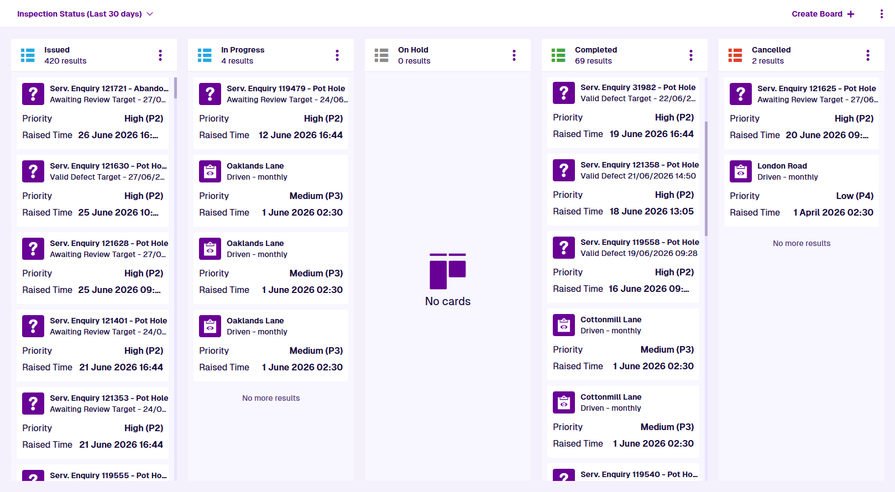
Similarly, you could create a task allocation board that tracks the **Team** attribute of task items. By including a column for each team value, and an *Unconnected* column for tasks where the attribute is empty, you can then drag tasks between the columns to allocate them to teams. To prevent closed tasks from appearing, you can filter the board's query, so that only tasks with a **Status** of *Proposed*, *Issued* or *In Progress* are shown.
For extra convenience, you could also create an [event workflow](/web/workflows/creating-workflows/event-workflows.md) to automatically update a job's **Status** attribute to *Issued* when its **Team** attribute changes.
[](/img-cw1/apps/boards/boards-example-03.png)
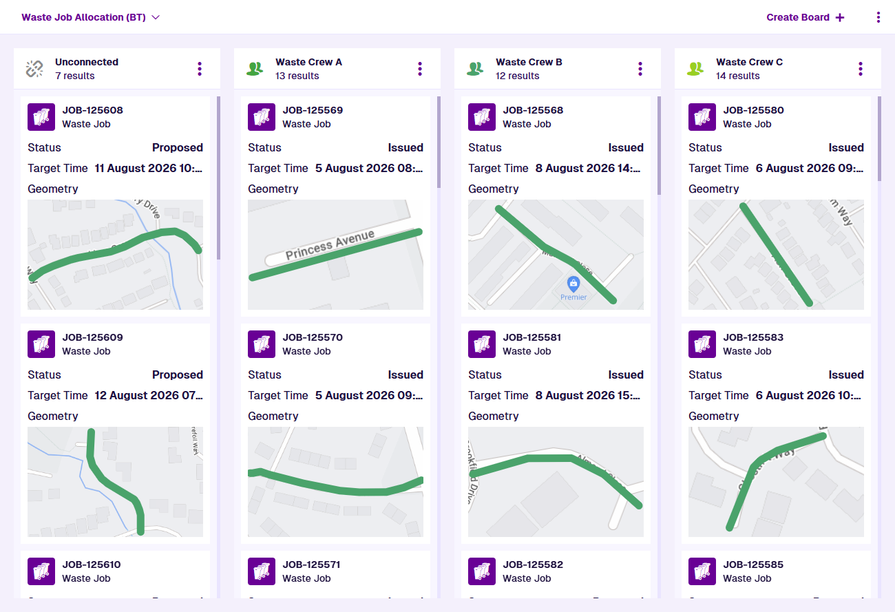
But it doesn't stop there! Boards provides you with the flexibility to adopt this methodology for any type of thing. It can be used to track asset conditions, team assignments, vehicle locations, and any other type of categorisation that you can imagine.
*For example, the board below tracks the **Life Stage** attribute of a **Trees** design.*
[](/img-cw1/apps/boards/boards-example-02.png)
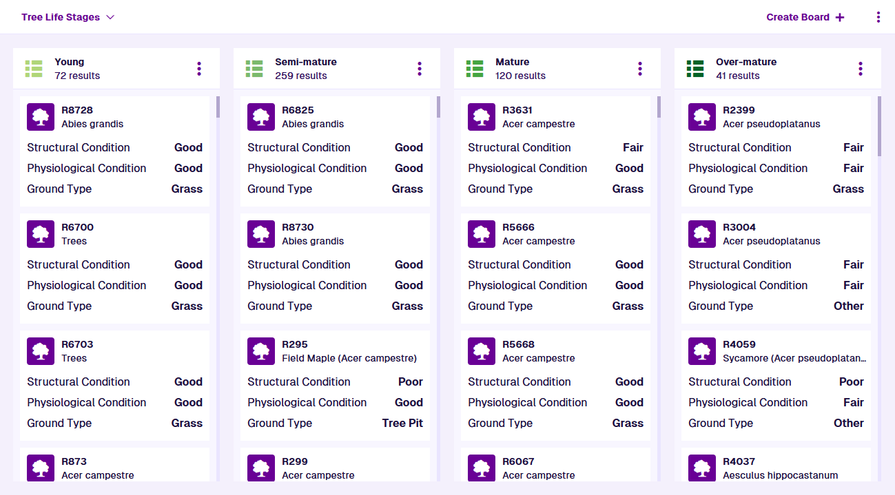
### Add to hubs[](#add-to-hubs "Direct link to Add to hubs")
Include boards within [hubs](/apps/hubs.md) by adding them as widgets! This lets you view each column's item count and visualise those numbers alongside other data points in bar/donut graphs. It also provides a handy shortcut for opening a column's items within a compatible Asset App, such as the [Data Explorer](/apps/explorer.md).
[](/img-cw1/apps/hubs/edit-widget-board.png)
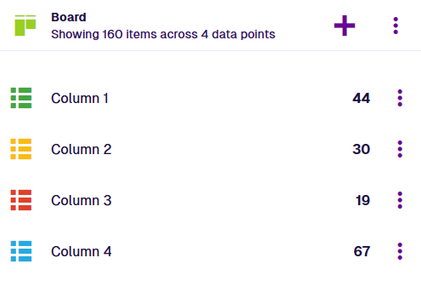
### How to access[](#how-to-access "Direct link to How to access")
To open the Boards app:
1. [Sign in](/apps/home/sign-in.md) to CausewayOne.
2. If necessary, use the Company Switch in the CausewayOne header.
3. Select **Asset Management** in the CausewayOne sidebar.
4. Select **Boards** in the left panel or the [Overview](/apps/home/app-overview.md) page.
info
To show Boards by default when you start Asset Management, select **Settings** in the [left panel](/apps/home/navigation.md#-2--left-panel).
---
# Board actions
### Choose an action from the menu[](#choose-an-action-from-the-menu "Direct link to Choose an action from the menu")
To perform an action with the [current board](/apps/boards/load-boards.md), open the **Board Menu** in the app bar (top-right):
* **Edit board** - [edit](/apps/boards/edit-boards.md) the board's columns and properties.
* **Add to favourites** - add the board to your [favourites](/apps/home/search.md#favourites) for quick access.
* **Remove from favourites** - remove the board from your favourites.
* **Clone board** - create and open an identical copy of the board. Its name will be suffixed with *(Copy)*.
* **Share with** - [share](/apps/boards/actions/share.md) the board with other users.
* **Refresh columns** - update the items shown on the board.
* **Delete board** - permanently [delete](/apps/boards/actions/delete.md) the board.
---
# Delete the board
### Discard boards that are no longer needed[](#discard-boards-that-are-no-longer-needed "Direct link to Discard boards that are no longer needed")
If the [current board](/apps/boards/load-boards.md) is no longer needed, consider deleting it to save space and reduce clutter.
You can delete any boards that you've created. You can also delete boards that are [shared](/apps/boards/actions/share.md) with you, providing that you're included in its **Editors** list. Admins can remove any board they want!
To delete the board, open the **Board Menu** in the app bar (top-right), choose **Delete board** and answer *Yes* to the confirmation.
Important
Deletions can't be undone, so please think carefully before doing so!
---
# Share the board
### Give other users access to the board[](#give-other-users-access-to-the-board "Direct link to Give other users access to the board")
To share the [current board](/apps/boards/load-boards.md) with other users in your company project:
1. Open the **Board Menu** in the app bar (top-right) and choose **Share with** .
2. Fill in the following fields as needed:
* **Viewers** - give read-only access to specific users. They can open and use the board.
* **Editors** - give full access to specific users. They can open, edit and delete the board. They can also edit its sharing settings.
* **Public** - give read-only access to all users in the company project.
3. Select **Save** to finish.
The current board will now appear in the **Shared** tab of the Search window for the specified users, or in the **Public** tab for everyone.
[](/img-cw1/apps/share-with.png)
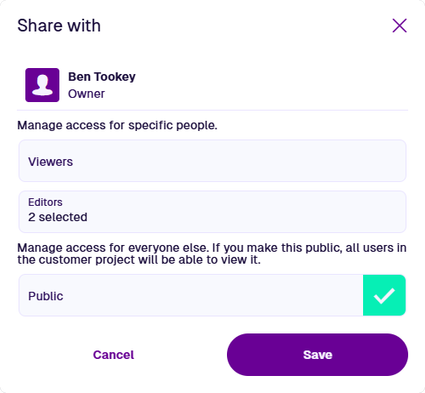
info
Admins can view and edit all boards within the company project.
---
# Edit the board
### Configure board columns and properties[](#configure-board-columns-and-properties "Direct link to Configure board columns and properties")
You can edit the [current board](/apps/boards/load-boards.md) at any time. If it's a [shared](/apps/boards/actions/share.md) board, you must be in its **Editors** list do so! Any changes you make are saved automatically.
### Add a column[](#add-a-column "Direct link to Add a column")
To add a column to the board, select **+ Add column**. If the button is offscreen, drag the board's background sideways.
[](/img-cw1/apps/boards/add-column.png)
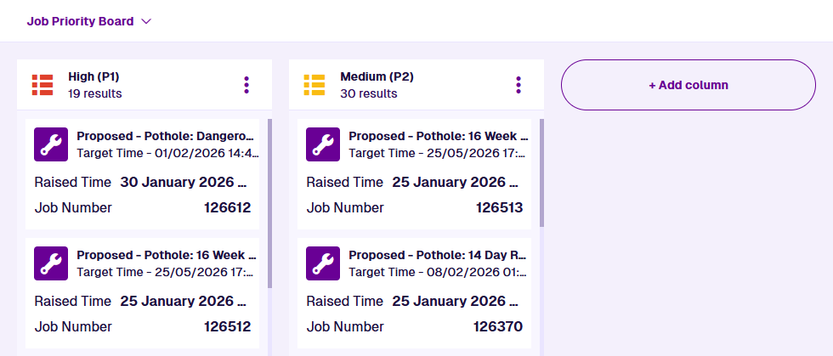
Fill in the following fields as needed:
* **Value** \* - choose one of the possible item values for the board's **Column attribute**. The columns's name, icon and colour will be populated automatically based on your choice (but can still be changed).
* *Unconnected* - choose this value to represent items with no value set!
* **Name** \* - the title of the column as it appears on the board.
* **Icon** \* - use the [icon picker](/apps/tools/selection/selecting-icons.md) to change the icon shown in the column header.
* **Colour** \* - use the [colour picker](/apps/tools/selection/selecting-colours.md) to change the colour of the column header.
These let you override the equivalent board properties for this column only:
* **Select up to 3 attributes to display** - each item in the column will display the selected attribute(s). To reorder the attributes, select this field, open the **X selected** tab, then drag them up/down the list.
* **Sort by** - sort the column's items by the chosen attribute.
* **Sort order** - sort the column's items in *Ascending* (A -> Z) or *Descending* (Z -> A) order.
Select **Add** to finish. The board will automatically refresh to display the new column.
[](/img-cw1/apps/boards/column-settings-hybrid.png)
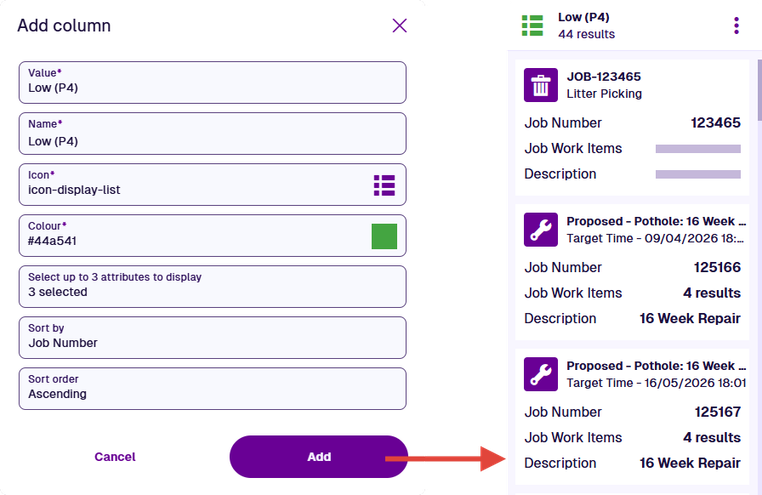
Important
While you don't have to add a column for every possible value of the **Column attribute**, be aware that some items therefore won't appear on the board!
### Edit and reorder columns[](#edit-and-reorder-columns "Direct link to Edit and reorder columns")
To edit any of the above properties for a column, select its **Menu** button and choose **Edit column** .
Reorder columns by dragging their header to another position.
[](/img-cw1/apps/boards/column-reorder.gif)
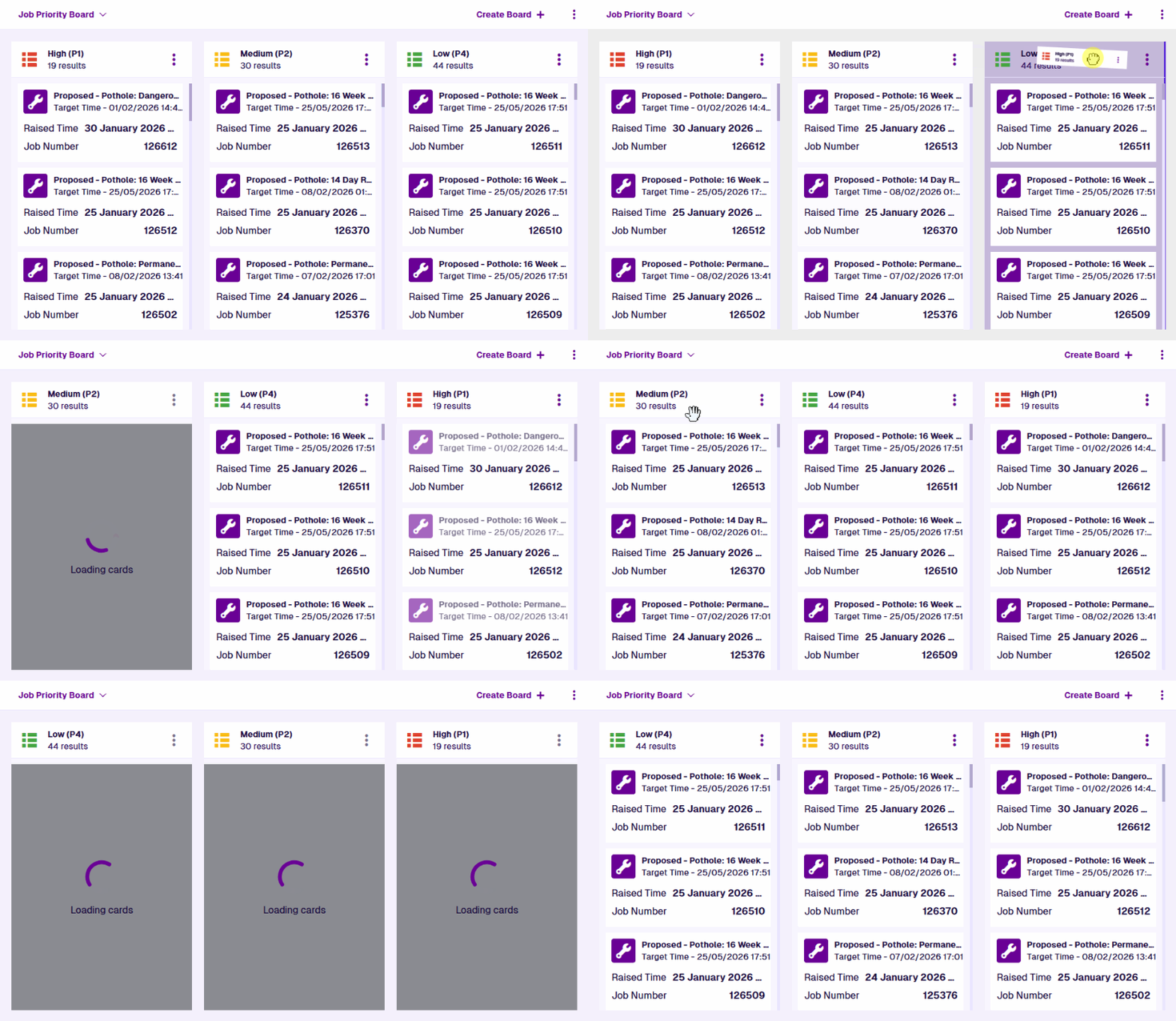
### Delete a column[](#delete-a-column "Direct link to Delete a column")
To remove a column from the board, select its **Menu** button and choose **Delete column** .
### Board properties[](#board-properties "Direct link to Board properties")
To edit any of the board's properties, open the **Board Menu** in the app bar (top-right) and choose **Edit board** :
* **Board name** \* - enter a distinct name that clearly identifies the board.
* **Display items from** \* - choose the design/interface of items that may appear on the board.
* **Column attribute** \* - choose the [Link attribute](/apps/designer/dodis/attributes/link-attribute.md) to be tracked on those items.
* **Filter query** - to filter the items shown on the board, use the [AQS Builder](/apps/tools/aqs/aqs-builder.md) to set conditions, e.g. *only fetch task items with a specific **Priority** value, only fetch asset items with **Geometry** located in a specific area*. Select **Clear** to remove the filter.
AQS parameters
For a more flexible board, use [AQS parameters](/apps/tools/aqs/aqs-parameters.md) in its query. Whenever the board is opened, you'll be prompted to enter parameter values for your current session, e.g. *choose which **Priority** to filter task items by, draw the **Geometry** area to fetch asset items from*. To change these inputs when the board is open, select **AQS parameters** in the app bar.
* **Select up to 3 attributes to display** - each item on the board will display these attributes. To reorder the selected attributes, select this field, open the **X selected** tab, then drag them up/down the list.
* **Sort by** - sort all board items by the chosen attribute.
* **Sort order** - sort all board items in *Ascending* (A -> Z) or *Descending* (Z -> A) order.
* **Show empty attributes** - if enabled, the board's items will always display the selected attributes, even if they have no value.
Select **Edit** to finish and save your changes.
---
# Create or open a board
### Load a new or existing board[](#load-a-new-or-existing-board "Direct link to Load a new or existing board")
To get started, create a new board or open an existing one. The loaded board will appear in the app area. Feel free to create or open another at any time. If the current board has any unsaved changes, you'll be prompted to save before continuing.
You can create any number of boards for yourself. However, be aware that your organisation's subscription may limit the total number of new boards that can be created. You can also [share](/apps/boards/actions/share.md) your boards with other users in your company project.
info
To set a default board that opens automatically when the app opens, select **Settings** in the [left panel](/apps/home/navigation.md#-2--left-panel).
### Create a board[](#create-a-board "Direct link to Create a board")
Select **Create Board** in the top-right corner. Fill in the following fields as needed:
* **Board name** \* - enter a distinct name that clearly identifies the board.
* **Display items from** \* - choose the design/interface of items that may appear on the board.
* **Column attribute** \* - choose the [Link attribute](/apps/designer/dodis/attributes/link-attribute.md) to be tracked on those items.
* **Filter query** - to filter the items shown on the board, use the [AQS Builder](/apps/tools/aqs/aqs-builder.md) to set conditions, e.g. *only fetch task items with a specific **Priority** value, only fetch asset items with **Geometry** located in a specific area*. Select **Clear** to remove the filter.
AQS parameters
For a more flexible board, use [AQS parameters](/apps/tools/aqs/aqs-parameters.md) in its query. Whenever the board is opened, you'll be prompted to enter parameter values for your current session, e.g. *choose which **Priority** to filter task items by, draw the **Geometry** area to fetch asset items from*. To change these inputs when the board is open, select **AQS parameters** in the app bar.
* **Select up to 3 attributes to display** - each item on the board will display these attributes. To reorder the selected attributes, select this field, open the **X selected** tab, then drag them up/down the list.
* **Sort by** - sort all board items by the chosen attribute.
* **Sort order** - sort all board items in *Ascending* (A -> Z) or *Descending* (Z -> A) order.
* **Show empty attributes** - if enabled, the board's items will always display the selected attributes, even if they have no value.
Select **Create** to finish. You can then [edit the board](/apps/boards/edit-boards.md) to add columns to it.
[](/img-cw1/apps/boards/create-board.png)
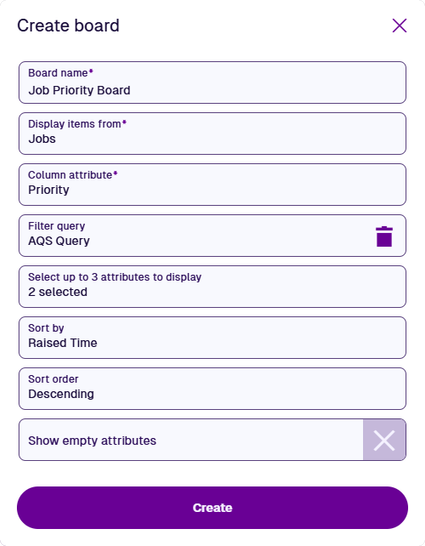
info
If you're unable to create a board, your subscription may have reached its limit. Consider [deleting](/apps/boards/actions/delete.md) boards that are no longer needed or [contact Support](https://www.causeway.com/support/asset-management/support/) for assistance.
### Open a board[](#open-a-board "Direct link to Open a board")
To open an existing board, select **Open Board** in the top-left corner. Alternatively, select **Search** in the app bar.
By default, the Search window displays all boards available to you. Depending on your last search, you may need to select the button beside the search box and choose the **Boards** category. To search the available boards, enter one or more terms into the search box, then press the `Enter` key.
Browse the following search tabs:
* **Results** - boards that match your search terms and settings.
* **Recent** - things you've recently viewed across the Asset Management Apps, including boards, items and other features.
* **Favourites** - things you've added to your personal list of favourites.
Select a result to open it. To open it in a new browser tab, use middle-click or `Ctrl`-click.
[](/img-cw1/apps/boards/search-boards.png)
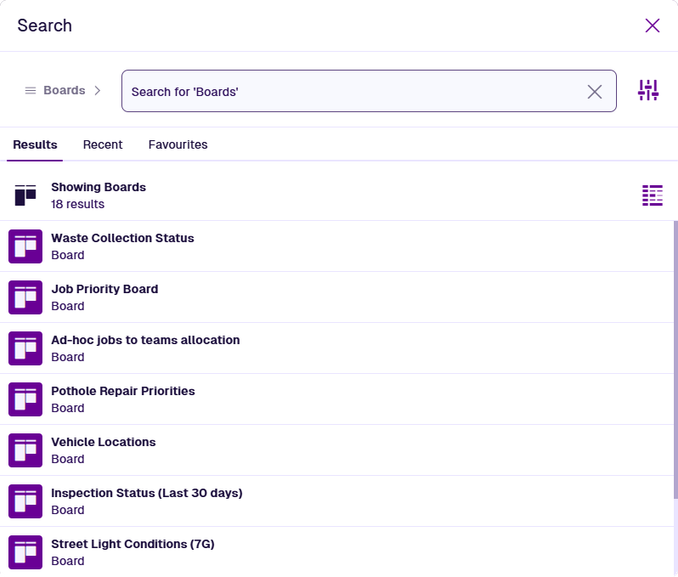
info
To learn more about searching for boards and other things, see [Search](/apps/home/search.md).
#### Advanced search[](#advanced-search "Direct link to Advanced search")
To refine your search results, select **Advanced search** beside the search box. Use these settings to filter the resulting boards.
Only show boards which:
* **Query** - meet the conditions of a custom query created with the [AQS Builder](/apps/tools/aqs/aqs-builder.md). Configure the root node to filter board items by their [collection](/basics/fundamentals/collections.md). Add any number of logical and conditional nodes to the query to filter the resulting boards accordingly.
* **Mine** - were created by you.
* **Shared** - are shared specifically with you.
* **Public** - are shared with everyone in your company project.
Select **Apply** to filter the results according to your settings. To clear these settings (but not the search box), select **Reset**.
[](/img-cw1/apps/boards/search-filter.png)
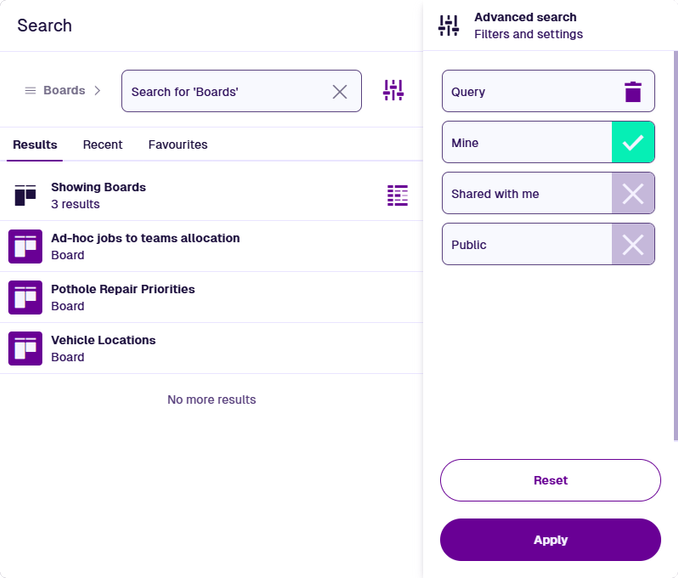
#### Set parameters[](#set-parameters "Direct link to Set parameters")
If the chosen board has any [AQS parameters](/apps/tools/aqs/aqs-parameters.md), enter values for them when prompted. Some may have a default value. This lets you customise the board for your current session (parameters aren't saved). To change these inputs when the board is open, select **AQS parameters** in the app bar.
[](/img-cw1/apps/explorer/add-aqs-parameters.png)
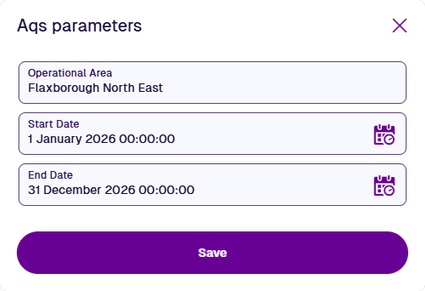
---
# Manage items on the board
### Organise and edit items[](#organise-and-edit-items "Direct link to Organise and edit items")
The [current board](/apps/boards/load-boards.md) displays items of a specific design/interface, which are grouped into columns according to the value they hold for the **Column attribute** tracked by the board. You can scroll each column individually and use its **Menu** button to refresh the contents as needed.
Select an item to [view its details](/apps/boards/open-item/item-details/.md) and interact with its data.
info
To edit the properties of one or more columns, see [Edit the board](/apps/boards/edit-boards.md).
### Drag items between columns[](#drag-items-between-columns "Direct link to Drag items between columns")
To change the value of the tracked attribute on an item, simply drag the item to another column.
*For example, the board below tracks the **Priority** attribute on the **Jobs** interface. Dragging an item to the red column will change its **Priority** to "High (P1)".*
[](/img-cw1/apps/boards/boards-item-drag.gif)
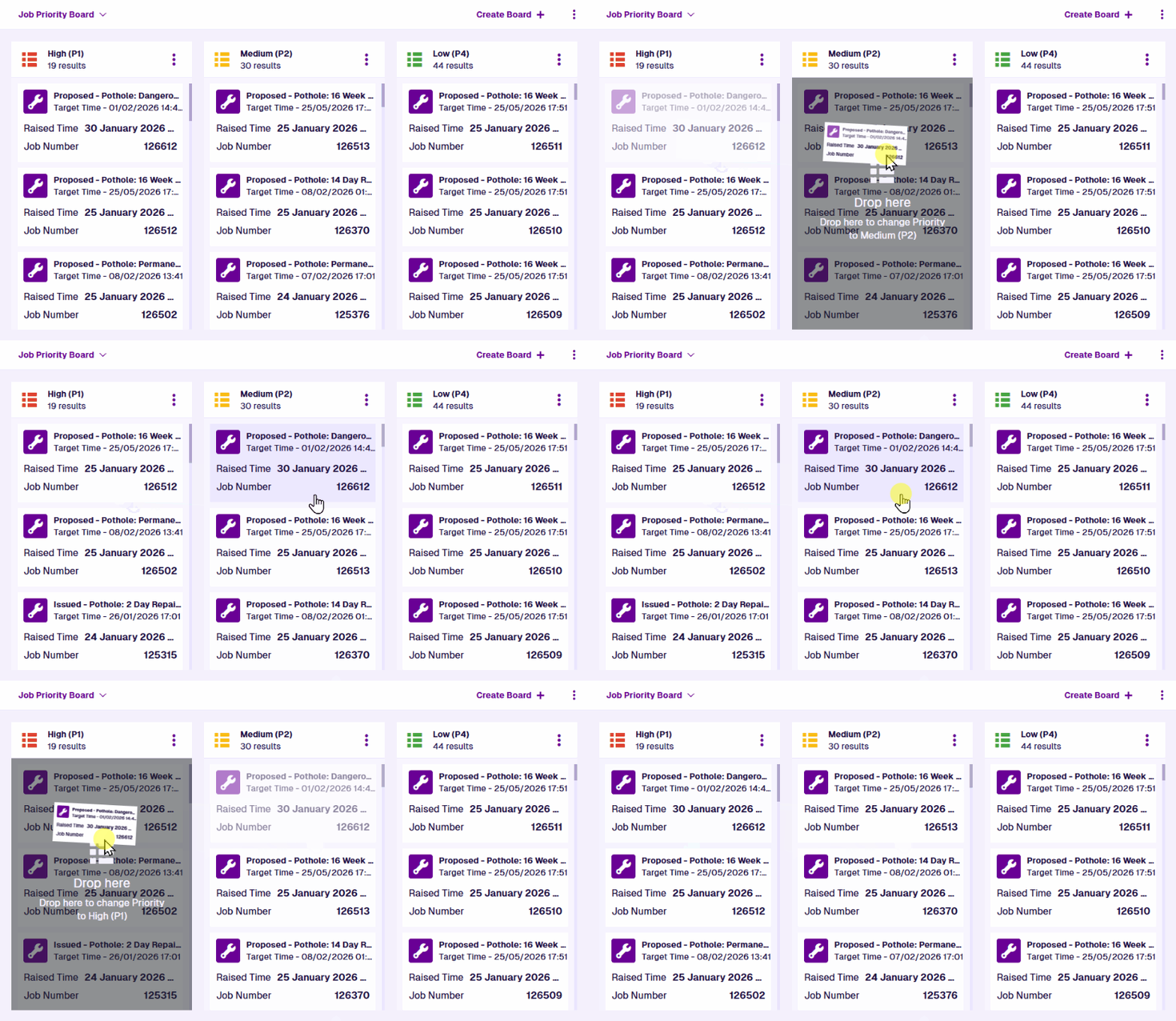
Important
Boards don't necessarily have a column for every possible value of the tracked **Column attribute**. If you [edit an item](/apps/boards/open-item/item-details/general-section.md#edit-item-attributes) and set that attribute to a value without a corresponding column, the item will no longer appear on the board!
### Bulk edit[](#bulk-edit "Direct link to Bulk edit")
To edit various aspects of all the items in a column, select the column's **Menu** button and choose **Bulk edit items** .
#### 1 Configure properties[](#-1--configure-properties "Direct link to -1--configure-properties")
Select a property to overwrite it with a new value on all selected items:
* **Icon** - use the [icon picker](/web/getting-started/selection/selecting-icons.md) to set a new icon, or select **Unset icon** to revert the items to their design's icon.
* **Colour** - use the [colour picker](/web/getting-started/selection/selecting-colours.md) to set a new colour, or select **Unset colour** to revert the items to their design's colour.
* **Collection** - move the items to another [collection](/apps/items/item-collections.md), if allowed by their design.
* **Locked** - lock or unlock the items. Locked items can't be edited. Only admin users can do this!
Select another step or select **Bulk edit** to finish.
[](/img-cw1/apps/explorer/bulk-edit-properties.png)
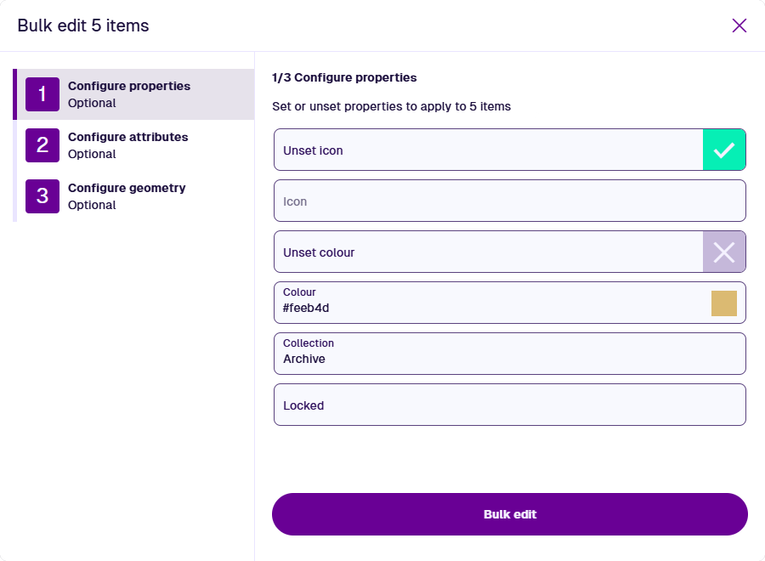
#### 2 Configure attributes[](#-2--configure-attributes "Direct link to -2--configure-attributes")
To overwrite a particular attribute value on all selected items, select **Add attribute** and choose it from the list. Provide a new value or select **Unset** to clear the current one. Repeat for each attribute you want to overwrite.
Select another step or select **Bulk edit** to finish.
[](/img-cw1/apps/explorer/bulk-edit-attributes.png)
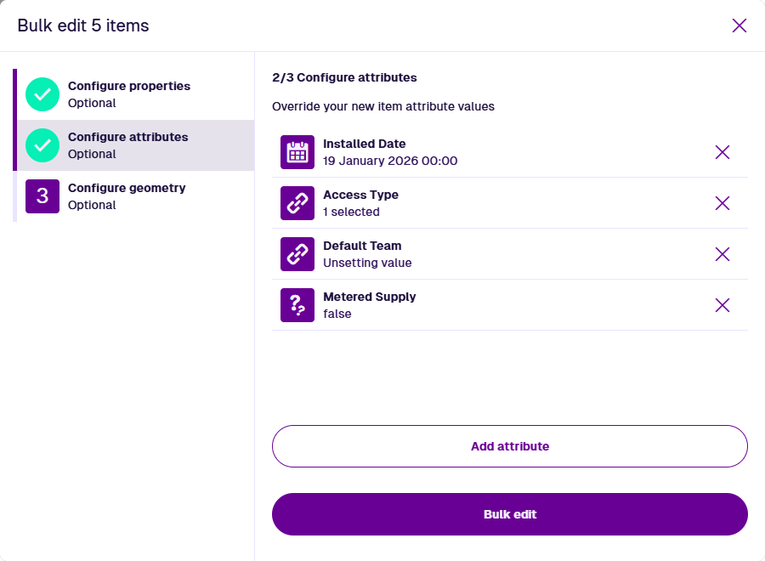
#### 3 Configure geometry[](#-3--configure-geometry "Direct link to -3--configure-geometry")
Select one of the following to overwrite the geometry of all selected items:
* **Unset** - clear existing geometry.
* **Set location** - use the [Geometry Editor](/apps/tools/geometry-editor.md) to set new geometry by drawing points, lines or polygons on the map. This is only possible if the designs of all selected items have the same [allowed geometry](/apps/designer/dodis/edit-dodi/details.md) types.
Select another step or select **Bulk edit** to finish.
[](/img-cw1/apps/explorer/bulk-edit-geometry.png)
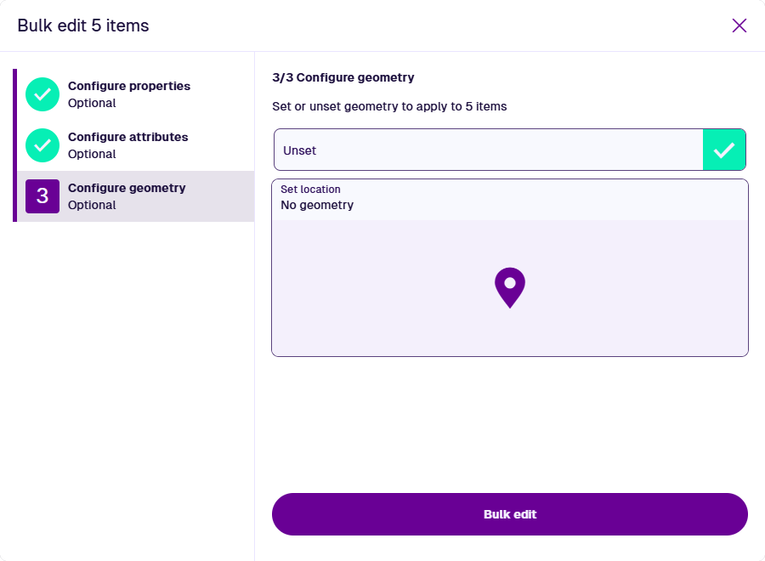
### Create new item[](#create-new-item "Direct link to Create new item")
To create a new item directly from the [current board](/apps/boards/load-boards.md), select a column's **Menu** button and choose **Create item** .
Depending on the board, this lets you:
* create an item of the targeted design, or
* create an item of a design implementing the targeted interface
The **Column attribute** tracked by the board will be populated on the new item with the value represented by the column.
*For example, the new job created below will have its **Priority** attribute set to "Medium"*.
[](/img-cw1/apps/items/create/from-boards.png)
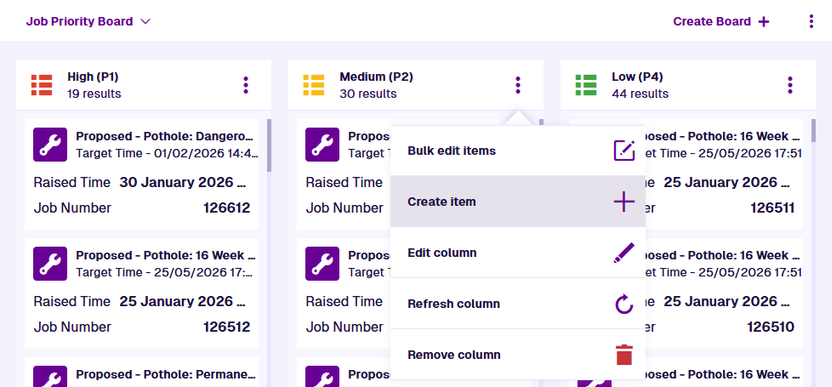
info
To learn more, see [Create an item](/apps/items/create-item.md#the-create-item-process).
---
# Open an item
### View an item's details[](#view-an-items-details "Direct link to View an item's details")
Select an item on the [current board](/apps/boards/load-boards.md) to open it. Alternatively, [search the board](/apps/boards/search-boards.md) by keyword and select an item in the results.
[](/img-cw1/apps/boards/boards-select-item.png)
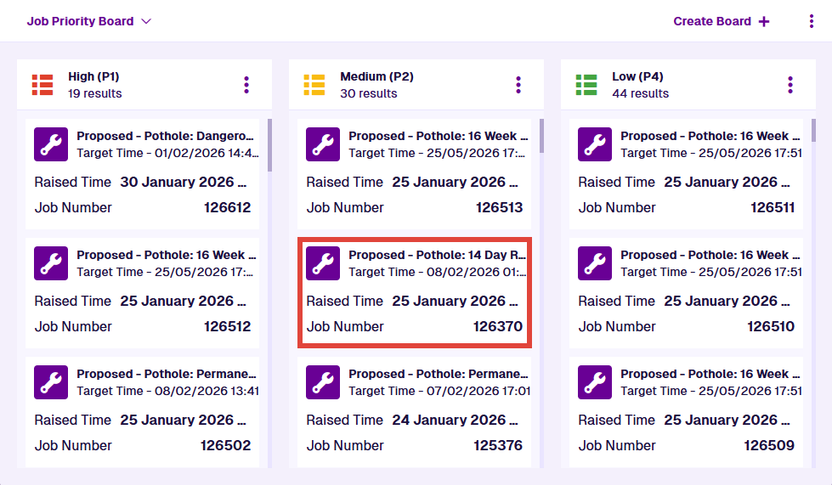
The item will open in a pop-up, so you can [view its details](/apps/boards/open-item/item-details/.md) without interrupting what you're doing. To open the item in a new browser tab, select **Open** in the corner of the pop-up. Otherwise, select **Close** to return to the board.
[](/img-cw1/apps/boards/boards-opened-item.png)
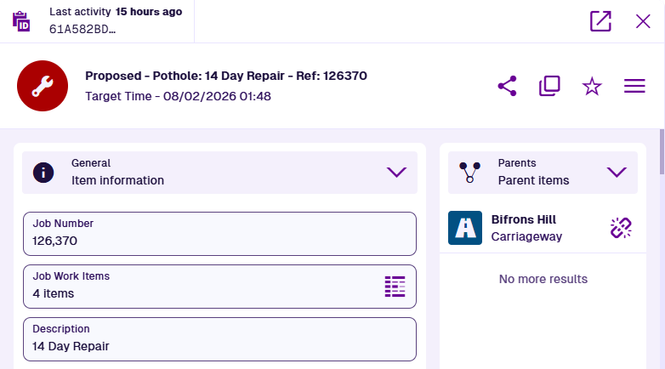
---
# Clone the item
### Create an exact copy or make changes[](#create-an-exact-copy-or-make-changes "Direct link to Create an exact copy or make changes")
To create a copy of the [current item](/apps/boards/open-item/.md), you can clone it. This provides a quick way to create multiple items with similar data.
During the item clone process, you can choose to override any aspect of the new item, including its properties, attribute values and geographical location. You can also choose how any linked items will be processed.
*For example, the following diagram shows an item of the **Street Lights** design. It links to several [component](/apps/designer/dodis/load-design/component-design.md) items (directly and indirectly). When cloning this street light, one of the following behaviours can be chosen.*
[](/img-cw1/apps/items/clone/clone-diagram-01.png)
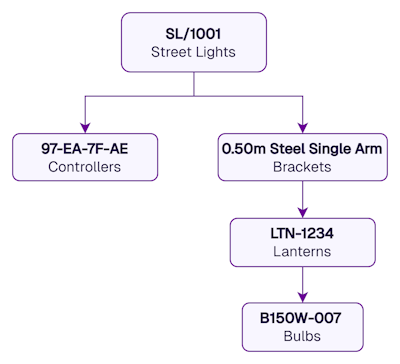
*Example - Keep links*
The clone will link to the same component items as the original.
[](/img-cw1/apps/items/clone/clone-diagram-02.png)
*Example - Clone links*
The entire chain of component items will also be cloned (regardless of whether each Link attribute is *Strong* or *Weak*) and the clone will link to them.
[](/img-cw1/apps/items/clone/clone-diagram-03.png)
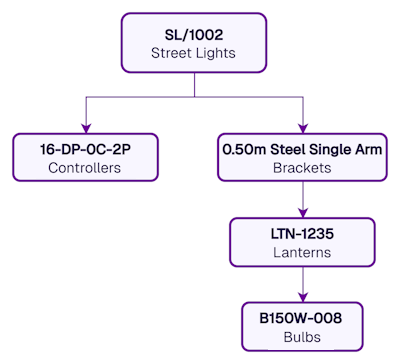
*Example - Ignore links*
The clone won't link to any components.
[](/img-cw1/apps/items/clone/clone-diagram-04.png)

info
If you need to clone an item regularly, consider making it a reusable [template](/apps/boards/open-item/make-template.md) instead!
### Start the process[](#start-the-process "Direct link to Start the process")
To clone an item, your user account must have [permission](/apps/permissions/explorer/.md) to create items of the relevant design. To start the process, select **Clone item** in the item header.
To create an exact copy of the item, select **Clone** immediately. If the original item links to any child items, they will also be cloned (except for [activities](/basics/fundamentals/activities.md)). Each clone will have a unique [Item ID](/apps/items/item-id.md) but otherwise be identical to the original.
Alternatively, select any of the following steps to customise how the item is cloned.
#### 1 Configure properties[](#-1--configure-properties "Direct link to -1--configure-properties")
These values are copied from the original item's properties. Select a property to override it with a new value:
* **Collection** - move the clone to another [collection](/apps/items/item-collections.md), if allowed by its design.
* **Icon** - use the [icon picker](/apps/tools/selection/selecting-icons.md) to set the clone's icon. Deselect the current icon to use the design's icon.
* **Colour** - use the [colour picker](/apps/tools/selection/selecting-colours.md) to change the clone's colour. Deselect the current colour to use the design's colour.
Select another step or select **Clone** to finish.
[](/img-cw1/apps/items/clone/configure-properties.png)
#### 2 Configure attributes[](#-2--configure-attributes "Direct link to -2--configure-attributes")
By default, all attribute values are copied from the original item.
To override a particular attribute value, select **Add attribute** and choose it from the list. Provide a new value or select **Unset** to clear the current one. Repeat for each attribute you want to override.
Select another step or select **Clone** to finish.
[](/img-cw1/apps/items/clone/configure-attributes.png)
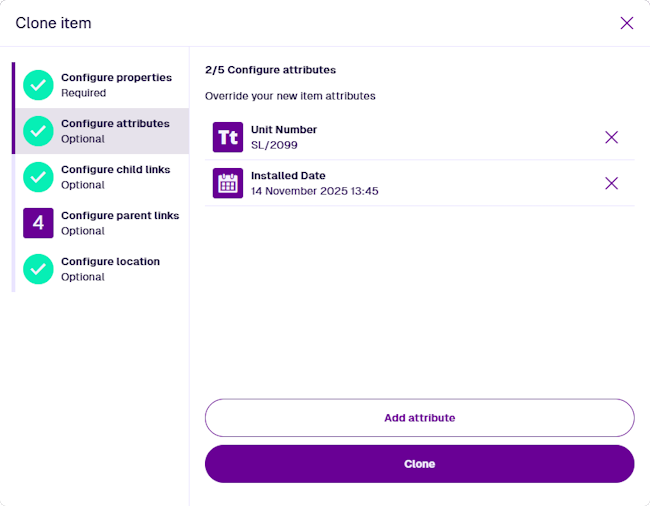
#### 3 Configure child links[](#-3--configure-child-links "Direct link to -3--configure-child-links")
By default, the clone will link to the same child items as the original. If any child items are [templates](/apps/items/template-items.md), the clone will link to clones of them instead. However, you can selectively override this behaviour as needed.
Each [Link attribute](/apps/designer/dodis/attributes/link-attribute.md) on the original item has a **Graph** property, which determines the [graph type](/web/items/item-graphs.md) that its linked items appear on. For each graph type, you can specify what happens to the Link Attributes that use it (some are pre-populated with suggestions):
* *Ignore* - the Link attributes on the clone will be empty.
* *Keep* - the Link attributes on the clone will link to the same items as the original.
* *Clone* - the Link attributes on the clone will link to clones of the original linked items.
Select another step or select **Clone** to finish.
[](/img-cw1/apps/items/clone/configure-child-links.png)
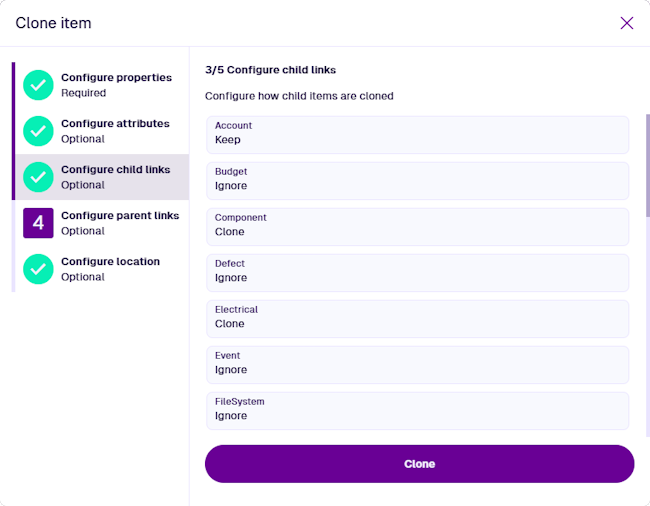
#### 4 Configure parent links[](#-4--configure-parent-links "Direct link to -4--configure-parent-links")
There may be parent items that link to the original item (it appears in *their* Link attributes). By default, parent items won't link to the clone, unless the original item is a [template](/apps/items/template-items.md) (and the parents themselves are not).
However, you can selectively override this behaviour as needed. Like the previous step, this is set per graph type, but on the parent items instead:
* *Ignore* - the Link attributes on parent items won't link to the clone.
* *Reparent* - the Link attributes on parent items will link to the clone.
Select another step or select **Clone** to finish.
[](/img-cw1/apps/items/clone/configure-parent-links.png)
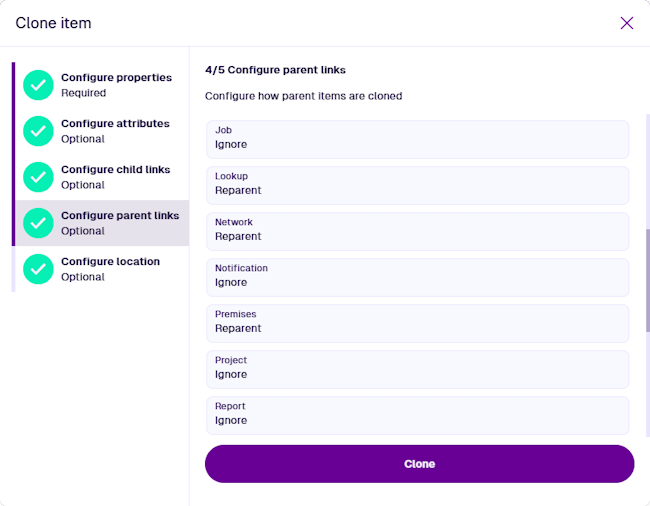
#### 5 Configure location[](#-5--configure-location "Direct link to -5--configure-location")
By default, the clone will use the same geometry as the original item (if available). To override this, select **Set location** to open the [Geometry Editor](/apps/tools/geometry-editor.md) and use it to draw a point, line or polygon on the map.
Select another step or select **Clone** to finish.
[](/img-cw1/apps/items/clone/configure-location.png)
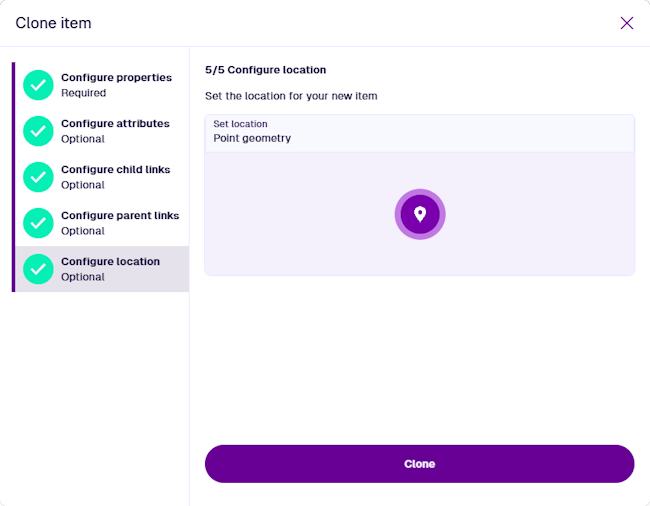
#### Finish the process[](#finish-the-process "Direct link to Finish the process")
After completing the relevant steps as needed, select **Clone** to finish. A notification indicates whether the item was cloned successfully or failed due to an error.
The details of the new clone item will be displayed.
[](/img-cw1/apps/items/clone/notification.png)
### Scheduled cloning[](#scheduled-cloning "Direct link to Scheduled cloning")
You can create a schedule that automatically clones an item on certain dates or at repeated intervals. This is particularly useful for [activity](/basics/fundamentals/activities.md) items, e.g. *clone an inspection item for a particular asset every month*.
To learn more, see [Schedules](/web/workflows/creating-workflows/schedules.md) in Asset Classic.
---
# Item details
### View and edit an item's data and relationships[](#view-and-edit-an-items-data-and-relationships "Direct link to View and edit an item's data and relationships")
When you select an item in an Asset App, its details are displayed. Depending on the situation, it may appear full screen, as a central overlay, or as a side panel.
The item header displays its title and subtitle, along with various actions that you can perform. At the top, the **Last activity** field indicates when the item was last modified.
The item canvas is displayed below, which displays the item's data and relationships in multiple interactive sections.
[](/img-cw1/apps/items/details/item-details.png)
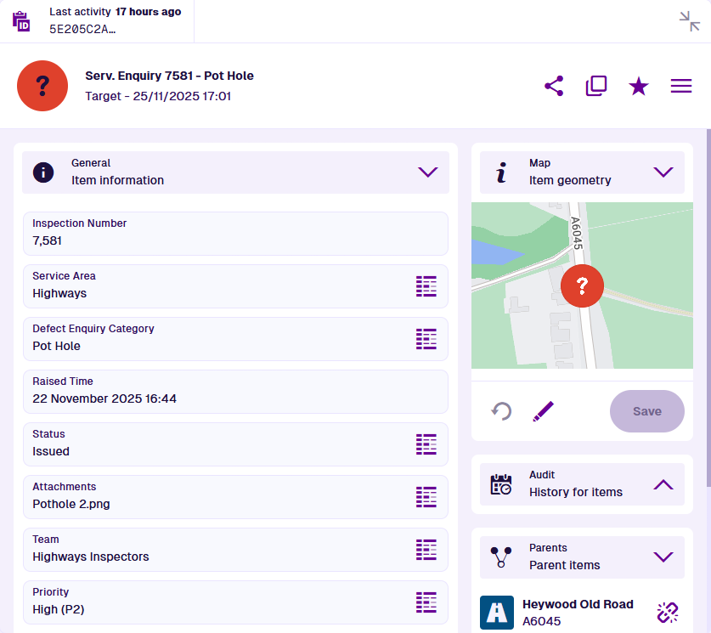
### Item actions[](#item-actions "Direct link to Item actions")
The following actions are available in the item header:
* **Copy link to item** - copy the item's URL to your device's clipboard, so you can share it with other users in your [company](/apps/home/navigation.md#-1--causewayone-sidebar--header).
* **Clone item** - [create a copy](/apps/boards/open-item/clone-item.md) of the item, with or without changes.
* **Add to favourites** - add the item to your [favourites](/apps/home/search.md#favourites) for quick access. Select to remove the item from your favourites.
* **Item Menu**:
* **Switch view** - for a different perspective, choose another view from the list (if available). This changes the order and visibility of the item's [canvas sections](#canvas-sections).
* **Make template** - convert the item into a reusable [template](/apps/boards/open-item/make-template.md), if allowed by its design.
* **Attach** - link one or more [uploaded files](/apps/items/item-attachments.md) to the current item.
* **Archive** - [remove](/apps/boards/open-item/remove-items.md) the item from active service, if allowed by its design.
* **Unarchive** - restore the archived item to active service.
* **Delete** - remove the item permanently.
Action availability depends on the current item. Items typically need to be archived before they can be deleted. You can only attach files to items whose design implements the **Files Attachable** interface.
info
At smaller widths, all actions appear within the **Item Menu** to save space.
### Navigation[](#navigation "Direct link to Navigation")
Items often have [Link attributes](/apps/designer/dodis/attributes/link-attribute.md) that store references to other items. These are typically displayed in the **General** section (unless hidden by an [item form](/apps/designer/item-forms/.md)). Select **Data Explorer** beside a Link attribute to open the set of items stored in that attribute.
By default, the contents of important Link attributes are displayed in separate sections on the item canvas, such as **Defects**, **Jobs** and **Reports**. The **Parents** section also displays other items with Link attributes that reference the current item! Select an item in these sections to view its details.
As you move from item to item, a breadcrumb trail appears above the item header to illustrate the path you've taken. Select any item along the path to return to it. Alternatively, use your browser's back button.
[](/img-cw1/apps/items/details/canvas-breadcrumbs.png)

If the breadcrumb path gets too long, it shortens itself to save space. To return to a previous item that's hidden, select ... and choose it from the list.
[](/img-cw1/apps/items/details/canvas-breadcrumbs-short.png)
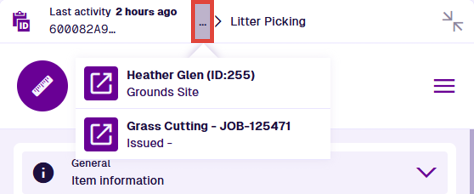
### Canvas sections[](#canvas-sections "Direct link to Canvas sections")
Item data is displayed across multiple sections on the item canvas. Each section displays a set of data or a list of related items. Most are interactive and let you edit the data they display or perform a related action (if you have [permission](/apps/permissions/explorer/.md)).
By default, all sections relevant to the current item are displayed.
However, one or more [canvas views](/apps/designer/item-canvas/.md) may be available for the item's design (or an interface it implements), which can display the item's data in different ways. These are either created by yourself or shared with you by other users. To switch to another canvas view, open the **Item Menu** in the item header and choose **Switch view** .
To hide the contents of a section, select the button in its header to collapse it.
info
To create canvas views with custom section layouts, see the [Designer](/apps/designer.md) app.
## [📄️General](/apps/boards/open-item/item-details/general-section.md)
[View and edit item information](/apps/boards/open-item/item-details/general-section.md)
## [🗃Activities](/apps/boards/open-item/item-details/activity/.md)
[Defects, Inspections, Jobs](/apps/boards/open-item/item-details/activity/.md)
## [📄️Audit](/apps/boards/open-item/item-details/audit-section.md)
[Track every change](/apps/boards/open-item/item-details/audit-section.md)
## [📄️Comments](/apps/boards/open-item/item-details/comments-section.md)
[Post messages for other users to read](/apps/boards/open-item/item-details/comments-section.md)
## [📄️Gallery](/apps/boards/open-item/item-details/gallery-section.md)
[Manage file attachments](/apps/boards/open-item/item-details/gallery-section.md)
## [📄️Manual workflows](/apps/boards/open-item/item-details/manual-workflows-section.md)
[Trigger a workflow](/apps/boards/open-item/item-details/manual-workflows-section.md)
## [📄️Map](/apps/boards/open-item/item-details/map-section.md)
[Visualise item location and geometry](/apps/boards/open-item/item-details/map-section.md)
## [📄️Parents](/apps/boards/open-item/item-details/parents-section.md)
[Manage parent item links](/apps/boards/open-item/item-details/parents-section.md)
## [📄️Reports](/apps/boards/open-item/item-details/reports-section.md)
[View generated report items](/apps/boards/open-item/item-details/reports-section.md)
## [📄️Settings](/apps/boards/open-item/item-details/settings-section.md)
[View and override the item's properties](/apps/boards/open-item/item-details/settings-section.md)
---
# Activity sections
### View activity items related to the current item
By default, the following canvas sections are displayed for relevant items.
When viewing an asset item, you can see any defects, inspections and jobs related to it. When viewing an activity item, you can see other activity items related to it, e.g. *defects arising from an inspection*.
Some sections only appear on specific item types, e.g. *the **Job work items** section only appears on job items*.
## [📄️Defects](/apps/boards/open-item/item-details/activity/defects-section.md)
[Registered faults](/apps/boards/open-item/item-details/activity/defects-section.md)
## [📄️Inspections](/apps/boards/open-item/item-details/activity/inspections-section.md)
[Condition assessments](/apps/boards/open-item/item-details/activity/inspections-section.md)
## [📄️Jobs](/apps/boards/open-item/item-details/activity/jobs-section.md)
[Related work assignments](/apps/boards/open-item/item-details/activity/jobs-section.md)
## [📄️Job work items](/apps/boards/open-item/item-details/activity/jwi-section.md)
[The individual work units of a job](/apps/boards/open-item/item-details/activity/jwi-section.md)
## [📄️Applies To](/apps/boards/open-item/item-details/activity/applies-to-section.md)
[The applicable job types of a work item](/apps/boards/open-item/item-details/activity/applies-to-section.md)
## [📄️Permits](/apps/boards/open-item/item-details/activity/permits-section.md)
[Manage the permit status of a job](/apps/boards/open-item/item-details/activity/permits-section.md)
## [📄️Routes](/apps/boards/open-item/item-details/activity/routes-section.md)
[Optimise travel between tasks in a project](/apps/boards/open-item/item-details/activity/routes-section.md)
info
If a section seems to be missing, you may be using a [custom canvas view](/apps/designer/item-canvas/.md) that doesn't include it.
---
# Applies To section
### The applicable job types of a work item[](#the-applicable-job-types-of-a-work-item "Direct link to The applicable job types of a work item")
Work items are discrete units of work that can be quantified and costed, e.g. *a length of billable time, a quantity of materials, replacement of a component*. To formalise the requirements of a job, you can add work items to it. This creates corresponding job work items containing values for that specific job, e.g. *5 hours of billable time at £30 per hour*. To learn more, see [Work units](/web/activities/tasks/jobs/work-units/.md) in Asset Classic.
A work item must apply to one or more job designs or job interfaces. When creating job work items for those jobs, this ensures that only suitable work items are available to choose from, e.g. *"Contractor A" work items can only be added to "Contractor A" jobs*.
When viewing a [work item's details](/apps/boards/open-item/item-details/.md), the **Applies to** section lists the job designs/interfaces that the work item is applicable to.
Select a design/interface to open it in the Designer app. To return to the work item, use your browser's back button. Alternatively, use middle-click or `Ctrl`-click to open the design/interface in a new browser tab.
[](/img-cw1/apps/items/details/applies-to/applies-to.png)
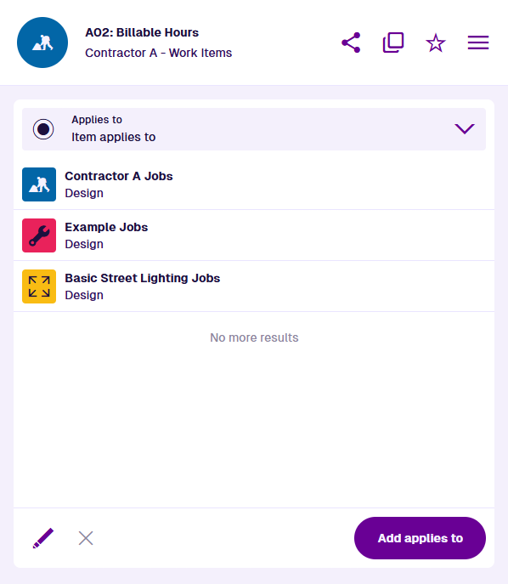
info
The **Applies to** section only appears for work items.
### Remove applicable types[](#remove-applicable-types "Direct link to Remove applicable types")
To remove an applicable job type from the work item:
1. Select **Edit**.
2. Select beside each job design or job interface you want to remove.
3. Select **Save** to finish.
It will no longer be possible to add this work item to any of the removed jobs. However, any existing job work items created from this work item will remain on those jobs.
### Add applicable types[](#add-applicable-types "Direct link to Add applicable types")
To add an applicable job type to the work item:
1. Select **Add applies to**.
2. Select one or more job designs or job interfaces from the list.
3. Select **Save** to finish.
The work item can now be added to any of the applicable jobs using the [**Job work items**](/apps/boards/open-item/item-details/activity/jwi-section.md) section.
---
# Defects section
### Registered faults[](#registered-faults "Direct link to Registered faults")
Use defects to record possible issues with your organisation's assets. These may be noticed by a worker during a visit, reported by a member of the public, or triggered automatically by sensor readings. Defects can be examined with inspections and fixed with jobs. To learn more, see [Defects](/web/activities/defects/.md) in Asset Classic.
While defects are typically registered against asset items, they can also be registered against other activity items. A defect may be discovered during an inspection or arise during a job.
When viewing an [item's details](/apps/boards/open-item/item-details/.md), the **Defects** section lists any defects registered against it.
Select a defect item to open it and view its details. To return to the original item, use the breadcrumbs to [navigate](/apps/boards/open-item/item-details/.md#navigation) backwards, or use your browser's back button.
[](/img-cw1/apps/items/details/defects/defects-view.png)
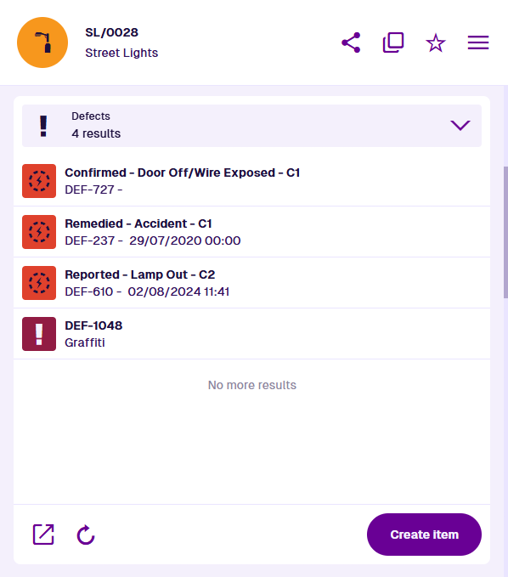
tip
In the Designer app, this section is an **[AQS list](/apps/designer/item-canvas/edit-view/canvas-sections.md)** section. When adding it to a canvas view, choose the ready-made **Defects** query. There's also an option to hide the **Create item** button.
### Section actions[](#section-actions "Direct link to Section actions")
To open the listed defects in another Asset App, select **Open with** at the bottom and choose one of the following:
* **Data Explorer** - list the defects in the [Data Explorer](/apps/explorer.md) app, where you can view their attribute values, filter and sort them, and perform bulk actions on them.
* **Maps** - display the defects within a temporary layer in the [Maps](/web/maps.md) app.
To refresh the section's contents, select **Refresh**.
### Create[](#create "Direct link to Create")
To start creating a new defect, select **Create item** at the bottom of the section. Follow the [usual process](/apps/items/create-item.md#the-create-item-process):
* 1 **Select a design** - select from a list of compatible designs.
* 2 **Item details** - fill in the attribute fields as needed.
* 3 **Parents** - by default, the current item is a parent of the new defect.
* 4 **Item location** - by default, the new defect has the same geometry as the current item (if allowed by the selected design). If left blank, it may be inherited again automatically, depending on the design's configuration.
Select **Create** to finish.
---
# Inspections section
### Condition assessments[](#condition-assessments "Direct link to Condition assessments")
Use inspections to plan and perform investigations of your organisation's assets. Record the state of an asset's condition by filling in data fields, answering yes/no to pre-defined questions and attaching photos from your device. Inspections can discover defects, which can then be fixed with jobs. To learn more, see [Inspections](/web/activities/tasks/inspections/.md) in Asset Classic.
While inspections are typically registered against asset items, they can also be registered against other activity items. An inspection may be needed to confirm a defect or verify that a job was completed satisfactorily.
When viewing an [item's details](/apps/boards/open-item/item-details/.md), the **Inspections** section lists any past, present and future inspections related to it.
Select an inspection item to open it and view its details. To return to the original item, use the breadcrumbs to [navigate](/apps/boards/open-item/item-details/.md#navigation) backwards, or use your browser's back button.
[](/img-cw1/apps/items/details/inspections/inspections-view.png)
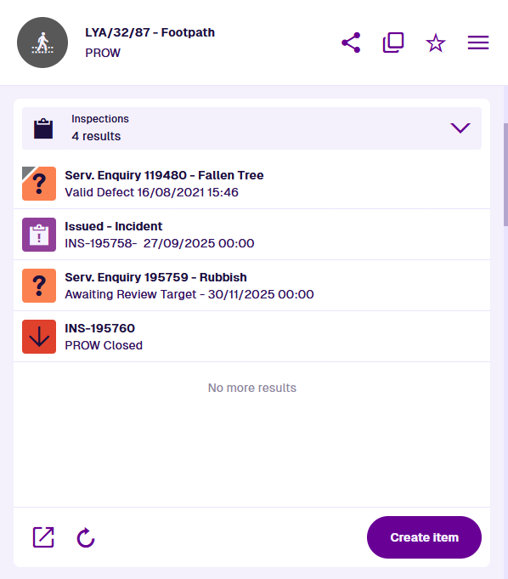
tip
In the Designer app, this section is an **[AQS list](/apps/designer/item-canvas/edit-view/canvas-sections.md)** section. When adding it to a canvas view, choose the ready-made **Inspections** query. There's also an option to hide the **Create item** button.
### Section actions[](#section-actions "Direct link to Section actions")
To open the listed inspections in another Asset App, select **Open with** at the bottom and choose one of the following:
* **Data Explorer** - list the inspections in the [Data Explorer](/apps/explorer.md) app, where you can view their attribute values, filter and sort them, and perform bulk actions on them.
* **Maps** - display the inspections within a temporary layer in the [Maps](/web/maps.md) app.
To refresh the section's contents, select **Refresh**.
### Create[](#create "Direct link to Create")
To start creating a new inspection, select **Create item** at the bottom of the section. Follow the [usual process](/apps/items/create-item.md#the-create-item-process):
* 1 **Select a design** - select from a list of compatible designs.
* 2 **Item details** - fill in the attribute fields as needed.
* 3 **Parents** - by default, the current item is a parent of the new inspection.
* 4 **Item location** - by default, the new inspection has the same geometry as the current item (if allowed by the selected design). If left blank, it may be inherited again automatically, depending on the design's configuration.
Select **Create** to finish.
---
# Jobs section
### Related work assignments[](#related-work-assignments "Direct link to Related work assignments")
Use jobs to plan and perform any kind of work that needs doing. Maintain your organisation's assets and fix reported defects as they arise, or schedule preventative work. Use work units to quantify and cost a job's requirements. Attach photos from your device to record completed work. To learn more, see [Jobs](/web/activities/tasks/jobs/.md) in Asset Classic.
While jobs are typically registered against asset items, they can also be registered against other activity items. A job may arise from an inspection or directly from a confirmed defect.
When viewing an [item's details](/apps/boards/open-item/item-details/.md), the **Jobs** section lists any past, present and future jobs related to it.
Select a job item to open it and view its details. To return to the original item, use the breadcrumbs to [navigate](/apps/boards/open-item/item-details/.md#navigation) backwards, or use your browser's back button.
[](/img-cw1/apps/items/details/jobs/jobs-view.png)
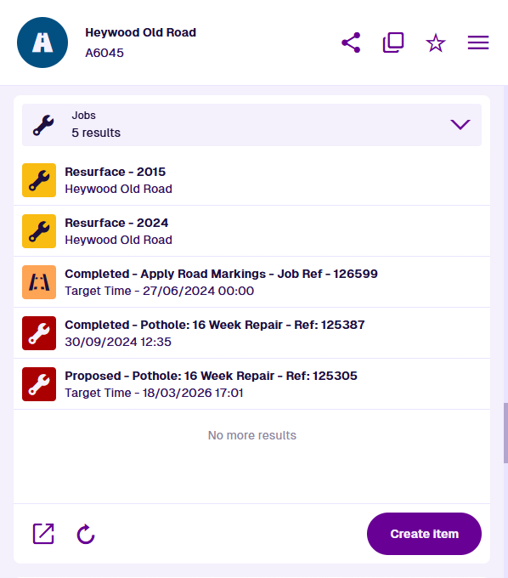
tip
In the Designer app, this section is an **[AQS list](/apps/designer/item-canvas/edit-view/canvas-sections.md)** section. When adding it to a canvas view, choose the ready-made **Jobs** query. There's also an option to hide the **Create item** button.
### Section actions[](#section-actions "Direct link to Section actions")
To open the listed jobs in another Asset App, select **Open with** at the bottom and choose one of the following:
* **Data Explorer** - list the jobs in the [Data Explorer](/apps/explorer.md) app, where you can view their attribute values, filter and sort them, and perform bulk actions on them.
* **Maps** - display the jobs within a temporary layer in the [Maps](/web/maps.md) app.
To refresh the section's contents, select **Refresh**.
### Create[](#create "Direct link to Create")
To start creating a new job, select **Create item** at the bottom of the section. Follow the [usual process](/apps/items/create-item.md#the-create-item-process):
* 1 **Select a design** - select from a list of compatible designs.
* 2 **Item details** - fill in the attribute fields as needed.
* 3 **Parents** - by default, the current item is a parent of the new job.
* 4 **Item location** - by default, the new job has the same geometry as the current item (if allowed by the selected design). If left blank, it may be inherited again automatically, depending on the design's configuration.
Select **Create** to finish.
---
# Job work items section
### The individual work units of a job[](#the-individual-work-units-of-a-job "Direct link to The individual work units of a job")
Use job work items to specify any measurements or quantities required for different aspects of the current job, e.g. *materials, labour, equipment*. They make it clear what is needed to perform the job and are used to calculate the job's total cost. To learn more, see [Work units](/web/activities/tasks/jobs/work-units/.md) in Asset Classic.
When viewing a [job's details](/apps/boards/open-item/item-details/.md), the **Job work items** section lists any job work items that have been added to it. These are created from generic work items and contain specific values for the current job.
Each job work item will display its estimated/actual cost, depending on the quantities entered for it. The total costs of the job may also be visible in the section header (depending on the chosen canvas view).
Select a job work item to open it and view its details. To return to the job, use the breadcrumbs to [navigate](/apps/boards/open-item/item-details/.md#navigation) backwards, or use your browser's back button.
[](/img-cw1/apps/items/details/jwi/jwi-view.png)
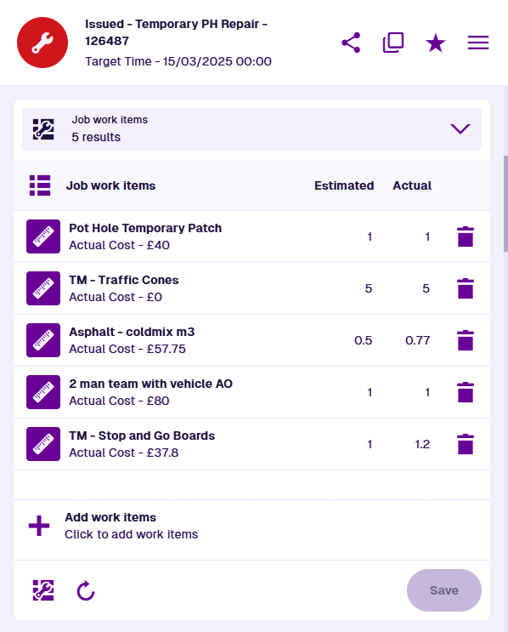
info
The **Job work items** section only appears for job items.
### Edit quantities[](#edit-quantities "Direct link to Edit quantities")
To specify the **Estimated** or **Actual** quantity of a job work item, select the cell in the relevant column. Type in the value and then press the `Enter` key (or select anywhere else). The cell will become orange to indicate the changed value.
To remove a job work item, select its button. The row will become red to indicate that it's marked for deletion.
Select **Save** to finish. Alternatively, select **Refresh** to discard your changes.
[](/img-cw1/apps/items/details/jwi/jwi-edit.png)
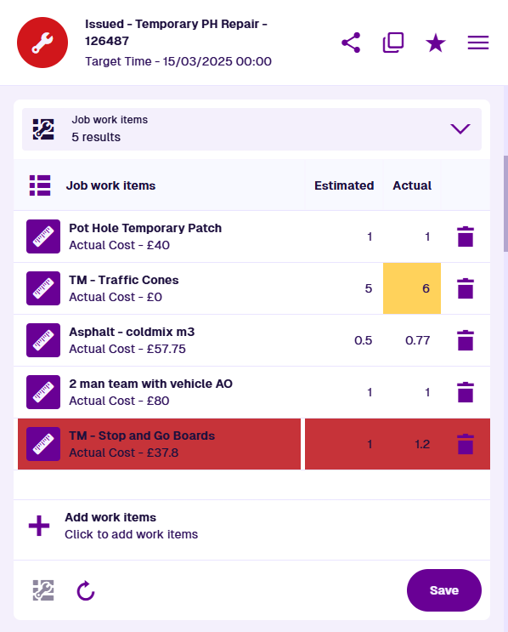
### Add work items[](#add-work-items "Direct link to Add work items")
To add work items to the job, select **Add work items**. Only work items that [apply to](/apps/boards/open-item/item-details/activity/applies-to-section.md) the current job's design will be listed. Select one or more and then select **Save**.
[](/img-cw1/apps/items/details/jwi/jwi-add.png)
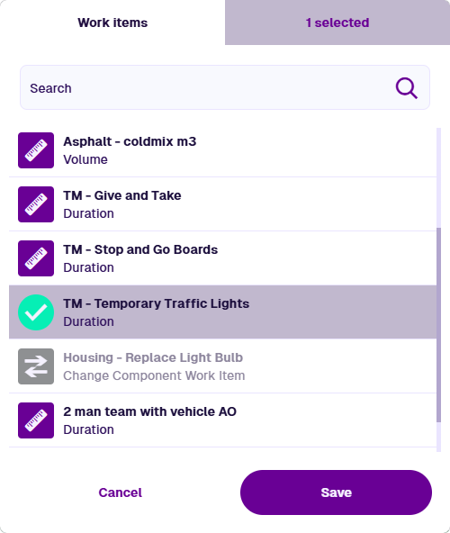
For each selected work item, a new job work item will be created and linked to the job.
If a row appears red, it indicates that the job work item has one or more required attributes that are missing values. To address this, select the row, and then enter values for the displayed attributes. The row will then become green to indicate that it can be added successfully.
Select **Save** to finish. Alternatively, select **Refresh** to discard your changes.
[](/img-cw1/apps/items/details/jwi/jwi-new.png)
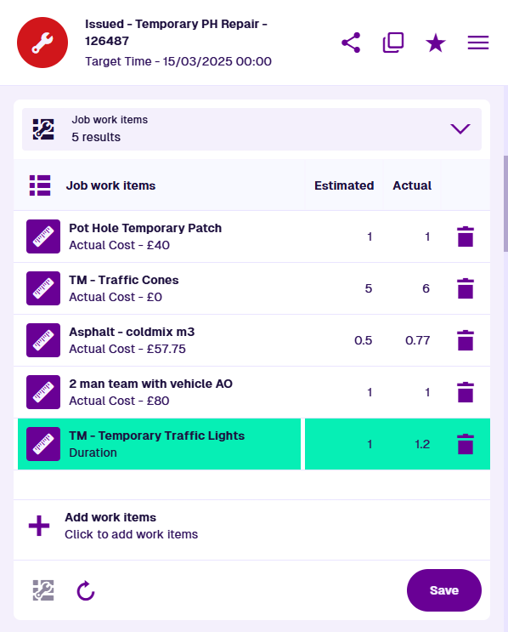
Important
It isn't currently possible to add **Change component** work items from this section. To do this, select the button to open the full [Job Work Unit Editor](/web/activities/tasks/jobs/work-units/job-work-items/configuring-job-work-items.md) in Asset Classic.
---
# Permits section
### Manage the permit status of a job[](#manage-the-permit-status-of-a-job "Direct link to Manage the permit status of a job")
Jobs affecting public streets and roads typically require formal permission before works can begin. In England and Wales, statutory undertakers (e.g. *local authorities, utility companies, subcontractors*) must use the government's **Street Manager** service to apply for permits. For official information and guidance, see the [GOV.UK](https://www.gov.uk/government/collections/street-works) website.
Our optional Street Works [module](/basics/fundamentals/modules.md) provides Street Manager integration! This enables us to communicate with the service on your behalf. If a job requires a works permit, you can use CausewayOne Asset Management to apply for one, and to log when the works start and stop.
When viewing a [job's details](/apps/boards/open-item/item-details/.md), the **Permits** section displays the current permit application for the job, if one exists. You can see the permit's reference, category and status at a glance.
Select the permit to view its details. To open the full application details on the Street Manager website, select **View in Street Manager** (opens in a new browser tab).
[](/img-cw1/apps/items/details/permits/permits-view.png)
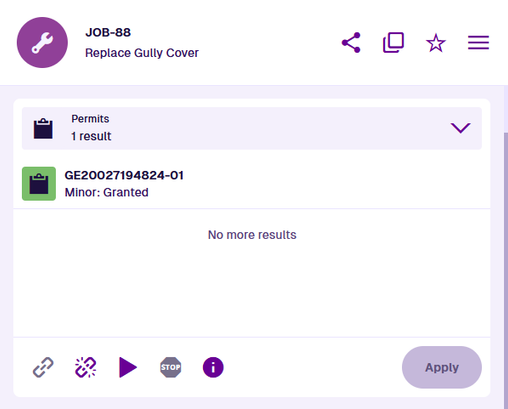
info
The **Permits** section only appears for items of job designs that implement the **Street Manager Works Reference Assignable** interface.
### Section actions[](#section-actions "Direct link to Section actions")
You can perform the following actions in this section:
* **Link works** - if the job has no permit, link it to an existing one by entering the works reference, e.g. *GE20027194824*.
* **Unlink works** - unlink the job from the current permit. This won't affect the application or works record stored in Street Manager.
* **Log works start** - use the [calendar picker](/apps/tools/selection/selecting-dates.md) to record the date and time when the works started. In Street Manager, the works status will change to *In progress*.
* **Log works stop** - use the [calendar picker](/apps/tools/selection/selecting-dates.md) to record the date and time when the works ended. In Street Manager, the works status will change to *Completed* and the permit application status will change to *Closed*.
* **View works** - open the full works record on the Street Manager website (opens in a new browser tab).
Important
**Log works start/stop** can only be performed once each, unless reverted on the Street Manager website.
### Apply for a permit[](#apply-for-a-permit "Direct link to Apply for a permit")
If the job has no permit, you can submit a new permit application. Select **Apply** to start the process.
The process is split into numbered stages. Some require the previous stage to be completed first. Each stage contains standard data fields for you to fill in. Fields marked with an asterisk **\*** require a value to continue. Where possible, fields are pre-populated with values for your convenience! Select **Done** to complete a stage.
To add permit conditions in the 5 **Conditions** stage, use the bottom-right **Menu**.
The **Attachments** stage lets you include any supporting files that are attached to the job (see the [Gallery](/apps/boards/open-item/item-details/gallery-section.md) section).
Once all stages are completed, select **Submit** to finish. A notification indicates whether your application was submitted successfully or failed due to an error. Select the notification for details.
Pre-populated fields
#### 1 Location details
* **USRN** - the unique street reference number. Taken from the **USRN** attribute of the **NSG Type 11 Street Records** item linked to the job's parent asset via a [Network Reference](/web/maps/networks/referencing-network.md). `attributes_nsgType11StreetRecordsUsrn`
* **Works location** - taken from the job's **Geometry** attribute. `attributes_itemsGeometry`
* **Works location types** - aspects of the location that will be affected by the works. Taken from the job's **Location Types** attribute (if it implements the **Street Manager Location Assignable** interface). `attributes_streetManagerLocationAssignableLocationTypes`
* **Works location description** - taken from the job's **Location Description** attribute (if it implements the **Street Manager Location Assignable** interface). `attributes_streetManagerLocationAssignableLocationDescription`
#### 2 Organisation details
* **Highways authority** - the authority responsible for the selected USRN, retrieved from Street Manager.
* **Promoter organisation** - the organisation associated with the account credentials used to access Street Manager.
* **Workstream** - the operational category or division associated with the account credentials used to access Street Manager (if assigned to one only).
* **Secondary contact** - supplementary contact details for the selected workstream, retrieved from Street Manager.
#### 3 Works activity
* **Works description** - taken from the job's **Description** attribute.
`attributes_tasksDescription`
#### 4 Timings
* **Start date/time** - taken from the job's **Start Time** or **Estimated Start Time** attribute. `attributes_tasksStartTime` or `attributes_tasksEstimatedStartTime`
* **End date/time** - taken from the job's **End Time** or **Estimated End Time** attribute. `attributes_tasksEndTime` or `attributes_tasksEstimatedEndTime`
#### 5 Conditions
* **Permit conditions** - NCT01a, NCT01b, NCT11a are always mandatory.
[](/img-cw1/apps/items/details/permits/apply-permit-stage-03.png)
info
For information about the data fields in permit applications, see the official [Street Manager documentation](https://department-for-transport-streetmanager.github.io/street-manager-docs/articles/business-rules-home.html). Select the current release and then **2.1. Works submissions and applications**.
### Street Manager credentials[](#street-manager-credentials "Direct link to Street Manager credentials")
CausewayOne Asset Management automatically uses a set of stored credentials to communicate with Street Manager on your behalf. If there's a problem with this, an error notification will appear:
* E1631003995: Unauthorised. The credentials allocated to you are invalid.
* E1631017244: No credentials have been allocated to you.
If you're an admin, you can manage the Street Manager credentials stored for your company and allocate them to specific users:
Details
1. Open the [Data Explorer](/apps/explorer.md#how-to-access) app.
2. Select **Add query** in the app bar and choose **From design or interface**. In the [Search](/apps/home/search.md) window, use the search box to find and select the **Street Manager Credentials** design.
3. Any existing items will be listed. To view and edit an existing set of credentials, select an item's button to view its details.
4. To create a new set of credentials:
1. Select **Create item** in the bottom toolbar.
2. Choose the **Street Manager Credentials** design.
3. Fill in the following fields:
* **Password** \* - the password of your Street Manager account.
* **Api Url** \* - `https://api.manage-roadworks.service.gov.uk` is typically used.
* **Ui Url** \* - `https://www.manage-roadworks.service.gov.uk` is typically used.
* **Users** - select one or more users in your company. When they view a job with a **Permits** section, these credentials will automatically be used to communicate with Street Manager behind-the-scenes.
* **Email address** \* - the email address of your Street Manager account.
4. Select **Create** to finish.
For information about creating a Street Manager account, see the [GOV.UK](https://www.gov.uk/guidance/plan-and-manage-roadworks) website.
---
# Routes section
### Optimise travel between tasks in a project[](#optimise-travel-between-tasks-in-a-project "Direct link to Optimise travel between tasks in a project")
If you have a batch of related inspections or jobs (e.g. *waste collections for a given area*), consider adding them to a **project** for easier task management. The entire project can be assigned to a team and closing the project will automatically close all the tasks within it. To learn more, see [Projects](/web/activities/projects/.md) in Asset Classic.
This gives you the ability to plan optimised routes between the locations of the project's tasks! Set the desired task order and the fastest/shortest route between them will be calculated. Workers using [Alloy Mobile](/mobile.md) can receive the route and use it to navigate, optimising their time and fuel efficiency.
When viewing a [project's details](/apps/boards/open-item/item-details/.md), the **Routes** section lists any routes that have been created for it.
Select a route item to open it and view its details. To return to the original item, use the breadcrumbs to [navigate](/apps/boards/open-item/item-details/.md#navigation) backwards, or use your browser's back button.
[](/img-cw1/apps/items/details/routes/routes-view.png)
info
The **Routes** section only appears for project items.
tip
In the Designer app, this section is an **[AQS list](/apps/designer/item-canvas/edit-view/canvas-sections.md)** section. When adding it to a canvas view, choose the ready-made **Routes** query.
### Section actions[](#section-actions "Direct link to Section actions")
To open an existing route in the [Routing Editor](/web/activities/routing/route-manager.md), select the route's **Open with** button. This provides a visualisation of the route in a new browser tab, where you also edit the route as needed.
To open the listed routes in another Asset App, select **Open with** at the bottom and choose one of the following:
* **Data Explorer** - list the routes in the [Data Explorer](/apps/explorer.md) app, where you can view their attribute values, filter and sort them, and perform bulk actions on them.
* **Maps** - display the routes within a temporary layer in the [Maps](/web/maps.md) app.
To refresh the section's contents, select **Refresh**.
### Create a route[](#create-a-route "Direct link to Create a route")
To create a new route for the project:
1. Select **Create route** at the bottom of the section.
2. Enter a distinct **Name** that clearly identifies the route and select **Next**.
3. Use the [Routing Editor](/web/activities/routing/route-manager.md) to select the project tasks you want to visit. You can also add any other location waypoints or rest stops along the way.
4. To plot an optimised route between the selected waypoints, open the bottom-right **Menu** and choose one of the following:
* **Optimise fastest** - find the quickest path between the waypoints in their current order, based on road data.
* **Optimise shortest** - reorder the waypoints to minimise overall travel distance.
5. Select **Save** to finish and close the Routing Editor. Alternatively, select to discard the new route.
[](/img-cw1/apps/items/details/routes/routes-editor.png)
---
# Audit section
### Track every change[](#track-every-change "Direct link to Track every change")
When viewing an [item's details](/apps/boards/open-item/item-details/.md), the **Audit** section displays the item's history of changes.
See how the item was created and view the details of every subsequent edit. Each event in the log provides a visual depiction of the changes, when the changes were made, and who made them.
[](/img-cw1/apps/items/details/audit/audit-view.png)
### View event details[](#view-event-details "Direct link to View event details")
Select an event to see a side-by-side comparison of the item's attributes before and after the event. This lets you see which attribute values were populated, edited or cleared, and exactly when it happened.
Hover over truncated attributes to see the full value in a tooltip. Select code-based attributes (e.g. *Geometry, JSON*) to see their full values in a separate window. Double-select any attribute to copy its value to your device's clipboard, so you can paste it elsewhere.
Use the arrow buttons to cycle between events. To close the event view, select **Close** in the top-right corner.
[](/img-cw1/apps/items/details/audit/audit-visual.png)
### System events[](#system-events "Direct link to System events")
The audit log also records when the item was created or edited by system processes:
* **Auto increment** - one or more Number attributes were set automatically, based on an incrementing [counter](/apps/designer/dodis/attributes/number-attribute.md#auto-increment).
* **Clone** - the item was created by cloning another item. The subsequent edit event records any changes that were specified during the cloning process.
* **Engine script** - the item was modified by a background engine process, e.g. *copy geometry from parent asset during defect creation, populate empty **Completion Time** during job completion*.
* **Import** - the item was created or edited during a [data import](/web/gateway.md).
* **Workflow** - the item was created or edited by the actions of a workflow. To see the details of what happened during that workflow, select the event, select in the bottom-right corner and choose **Open workflow log**. To learn more, see [Workflow logs](/web/workflows/workflow-logs.md).
### Retention period[](#retention-period "Direct link to Retention period")
By default, all audit log events are stored indefinitely (this may change in future).
However, you may prefer to set a rolling retention period, where events are deleted automatically after a number of days. This can be useful for saving storage space.
To set your audit log retention period, please [contact Support](https://www.causeway.com/support/) to request the change.
---
# Comments section
### Post messages for other users to read[](#post-messages-for-other-users-to-read "Direct link to Post messages for other users to read")
When viewing an [item's details](/apps/boards/open-item/item-details/.md), the **Comments** section lets you see comments from other users and add your own! Use comments to record observations, provide instructions or leave notes for future users.
The section header displays the total number of comments. They are listed in chronological order, from oldest to newest. Each comment bears the author's name and when it was added.
[](/img-cw1/apps/items/details/comments/comments-view.png)
info
If you're unable to add or edit comments, the item may be [locked](/web/items/editing-items/locking-items.md).
### Add a comment[](#add-a-comment "Direct link to Add a comment")
This works like most comment systems you've used before! Type any amount of text in the comment box. You can also copy and paste text from elsewhere.
Comments can include formatted text, bulleted/numbered lists and basic Markdown. Images are not supported. However, you can use the [Gallery section](/apps/boards/open-item/item-details/gallery-section.md) to attach images and other files to the item instead.
Select **Add comment** to post your message.
[](/img-cw1/apps/items/details/comments/comments-post.png)
#### Writing tools[](#writing-tools "Direct link to Writing tools")
When writing a comment, use these tools to format new or selected text:
* **Bold** - use for **strong** emphasis.
* **Italics** - use for *moderate* emphasis.
* **Underline** - typically indicates a *hyperlink*.
* **Link** - add a link to open a website URL in a new browser tab. Alternatively, link to another item by entering its [Item ID](/apps/items/item-id.md). Select **Unlink** to remove an existing link from selected text. You can also type or paste a URL directly into the comment box.
[](/img-cw1/apps/items/details/comments/comments-link-duo.png)
* **Mention** - tag a specific user. Type `@` or select this tool, start typing their name and choose it when it appears.
[](/img-cw1/apps/items/details/comments/comments-tag.png)
* **Emoji** - display a searchable list of emoji. Adding one to your comment can help set the tone, emphasise a point, or simply brighten the reader's day!
### Edit a comment[](#edit-a-comment "Direct link to Edit a comment")
You can select **Edit** or **Delete** beneath any of your own comments. You can't perform these actions on other people's comments, unless you are an admin.
[](/img-cw1/apps/items/details/comments/comments-edit.png)
---
# Gallery section
### Manage file attachments[](#manage-file-attachments "Direct link to Manage file attachments")
When viewing an [item's details](/apps/boards/open-item/item-details/.md), the **Gallery** section lists any linked file attachments.
You can upload files to CausewayOne Asset Management and attach them to items for easy reference. Image files display their thumbnails and can be viewed directly, e.g. *JPG*, *PNG*, *BMP*, *GIF*. This provides a great way to record an asset's condition, especially when reporting a defect or performing an inspection.
It's not just images though! Most types of file can be uploaded and attached, e.g. *PDF*, *CSV*, *ZIP*. These must be downloaded and opened on your device. For security purposes, we block the same file extensions as [Microsoft Outlook](https://support.microsoft.com/office/blocked-attachments-in-outlook-434752e1-02d3-4e90-9124-8b81e49a8519).
[](/img-cw1/apps/items/details/gallery/files-view.png)
info
To support attachments, the item's design must implement the **Files Attachable** interface.
### Preview[](#preview "Direct link to Preview")
Select an attachment to open the preview. Use the arrow buttons to cycle through all of the item's attachments. Images are displayed at full size. To download an attachment, select the **Download** button in its bottom-right corner.
[](/img-cw1/apps/items/details/gallery/files-gallery.png)
In the preview's bottom-right corner, open the **Menu** and choose an action:
* **Open item** - open the corresponding item of the **Files** design that represents the attached file.
* **Rotate clockwise** - temporarily rotate the image 90° to the right.
* **Rotate counterclockwise** - temporarily rotate the image 90° to the left.
To close the preview, select in the top-right corner.
### Section actions[](#section-actions "Direct link to Section actions")
To perform an action on one or more attachments, select at the bottom of the section. Select the attachments and then choose an action:
* **Cancel** - stop selecting attachments.
* **Download** - download a single zip file containing the selected attachment files.
* **Menu**:
* **Move** - if one attachment is selected, move the corresponding file to a different folder in your online storage. It will remain attached to the current item.
* **Unlink** - remove the selected attachments from the item. The files themselves will remain in your online storage.
* **Archive** / **Unarchive** - move the selected attachments to the *Archive* or *Live* [collection](/basics/fundamentals/collections.md). They will remain attached to the current item.
* **Delete** - permanently delete the selected attachments from your online storage.
[](/img-cw1/apps/items/details/gallery/files-select.png)
### Add attachments[](#add-attachments "Direct link to Add attachments")
Select **Attach** at the bottom of the section or open the top-right **Item Menu** and choose **Attach** .
To attach files already stored in CausewayOne Asset Management, browse the folder structure of your company project. Everyone has their own user folder to store their uploaded files. There may be other folders created by your organisation. Keep scrolling to see files that don't belong to any folder! Select to enter a folder and select **Home** to go back.
To filter the current list of files and folders, type in the search bar and press the `Enter` key.
Select one or more files (they can be in different folders) and then select **Save**. When prompted, select **Refresh** at the top of the item canvas to update the **Gallery** section.
[](/img-cw1/apps/items/details/gallery/files-attach.png)
#### Drag and drop[](#drag-and-drop "Direct link to Drag and drop")
If your device supports dragging and dropping files, use this method to quickly upload and attach a file to the current item:
1. Open your device's file manager. Browse to the folder containing your file.
2. Drag the file over the CausewayOne Asset Management area in your web browser.
3. Two drop zones will appear:
* To **upload** the file without attaching it to anything, release it over the **first** drop zone.
* To **upload and attach** the file to the current item, release it over the **second** drop zone (which mentions the item's title).
A notification will appear to indicate when the upload has succeeded or failed.
[](/img-cw1/apps/items/details/gallery/attachments-drag-drop.png)
info
This doesn't work on the [Overview](/apps/home/app-overview.md) page.
---
# General section
### View and edit item information[](#view-and-edit-item-information "Direct link to View and edit item information")
An item stores a set of values for the [attributes](/apps/designer/dodis/attributes/.md) defined by its design. When viewing an [item's details](/apps/boards/open-item/item-details/.md), the **General** section lets you view and edit these attribute values.
By default, all attribute fields are displayed when viewing or editing an item. However, if an [item form](/apps/designer/item-forms/.md) has been created for the item's design, it will affect the order and visibility of attributes, and how they can be populated with values.
[Link attributes](/apps/designer/dodis/attributes/link-attribute.md) store references to other items. To see the contents of a Link attribute, select its button to open the linked items in the [Data Explorer](/apps/explorer.md) app.
[](/img-cw1/apps/items/details/general/general-view.png)
### Edit item attributes[](#edit-item-attributes "Direct link to Edit item attributes")
To edit the item's attribute values, select **Edit** at the bottom of the **General** section.
If an [item form](/apps/designer/item-forms/.md) has been created for the item's design, the order and visibility of attributes may change while editing. Calculated attributes such as **Job Number** are never displayed. Read-only attributes are not displayed by default but may be included on an item form.
Select an attribute field to edit its value. Depending on the attribute type, enter a value directly into the field, or use the specialised picker to choose one or more values.
Attribute types
| Icon | Type | Description | Input Method |
| ---- | ----------------------------------------------------------------------- | ------------------------------------------------------------------------------- | ------------------------------------------------------------------------------------------------------------------------------------------------- |
| | [**AQS**](/apps/designer/dodis/attributes/aqs-attribute.md) | Store an AQS query in JSON format | Build a query in the [AQS Builder](/apps/tools/aqs/aqs-builder.md) |
| | [**Date**](/apps/designer/dodis/attributes/date-attribute.md) | Store a date value, e.g. *30 April 2024* | Select a value with the [calendar picker](/apps/tools/selection/selecting-dates.md) |
| | [**Date Time**](/apps/designer/dodis/attributes/date-time-attribute.md) | Store a date and time value, e.g. *2 July 2025 13:30:00* | Select a value with the [calendar picker](/apps/tools/selection/selecting-dates.md#date-time-picker) |
| | [**Geometry**](/apps/designer/dodis/attributes/geometry-attribute.md) | Store geometry coordinates in GeoJSON format | Draw points, lines or polygons using the [Geometry Editor](/apps/tools/geometry-editor.md) |
| | [**JSON**](/apps/designer/dodis/attributes/json-attribute.md) | Store JSON code | Type into a fullscreen JSON Editor |
| | [**Link**](/apps/designer/dodis/attributes/link-attribute.md) | Store the [IDs](/apps/items/item-id.md) of items of a specific design/interface | Select one or more items with the [item picker](/apps/tools/selection/selecting-items.md) or [map picker](/apps/tools/selection/selecting-map.md) |
| | [**Number**](/apps/designer/dodis/attributes/number-attribute.md) | Store a number value, e.g. *256*, *3.1415* | Type directly into the field |
| | [**Seasonal**](/apps/designer/dodis/attributes/seasonal-attribute.md) | Store a date without a year, e.g. *25th December* | Select a value with the [calendar picker](/apps/tools/selection/selecting-dates.md#seasonal-picker) |
| | [**Text**](/apps/designer/dodis/attributes/text-attribute.md) | Store a text value, e.g. *I love managing my assets with Causeway* | Type directly into the field |
| | [**Time**](/apps/designer/dodis/attributes/time-attribute.md) | Store a time value e.g. *14:20:55* | Select a value with the [calendar picker](/apps/tools/selection/selecting-dates.md#date-time-picker) |
| | [**Yes/No**](/apps/designer/dodis/attributes/yes-no-attribute.md) | Store a boolean value, e.g. *true* or *false* | Toggle the field to enable or disable it |
To finish, select **Save** at the bottom of the section. Your changes will be recorded in the item's [audit log](/apps/boards/open-item/item-details/audit-section.md). Alternatively, select to discard your changes.
[](/img-cw1/apps/items/details/general/general-edit.png)
[](/img-cw1/apps/items/details/general/general-edit-attribute.png)
info
If you're unable to edit an item, it may be locked by an admin, or your user account may lack the required [permissions](/apps/permissions/explorer/.md).
---
# Manual workflows section
### Trigger a workflow[](#trigger-a-workflow "Direct link to Trigger a workflow")
When viewing an [item's details](/apps/boards/open-item/item-details/.md), the **Manual workflows** section provides an easy way to trigger an available workflow.
This section displays a button for any [manual workflow](/web/workflows/creating-workflows/manual-workflows.md) that has been configured to appear in the current item canvas view. To learn more, see [Canvas sections](/apps/designer/item-canvas/edit-view/canvas-sections.md) in the Designer app.
Select a manual workflow to trigger it! The current item will be passed as input to the workflow, if applicable.
[](/img-cw1/apps/items/details/workflows/workflows-view.png)
### Input parameter values[](#input-parameter-values "Direct link to Input parameter values")
Its possible for manual workflows to have one or more [trigger parameters](/web/workflows/creating-workflows/manual-workflows.md#workflow-trigger-parameters). This lets the workflow take input from you to customise the work it performs.
If your chosen workflow has any parameters, the **Workflow parameters** window will appear, so you can populate them with values. Parameters with an asterisk **\*** require a value to continue!
*For example, the **Close Project** workflow is included with CausewayOne Asset Management. When triggered for a [project](/basics/fundamentals/activities.md#projects), it sets the **Status** attribute of all the project's tasks to a single value. The workflow contains one required parameter named **Close Project Status**, which lets you choose the **Task Status** item to be applied.*
[](/img-cw1/classic/workflows/manual-workflow-parameter.png)
---
# Map section
### Visualise item location and geometry[](#visualise-item-location-and-geometry "Direct link to Visualise item location and geometry")
When viewing an [item's details](/apps/boards/open-item/item-details/.md), the **Map** section lets you view and edit the item's main **Geometry** attribute.
If the item has any geometry set, it will be visualised in the map area. Depending on the item's design, the geometry may be a point, a line of points, a polygon, or a collection of different types! To learn more, see [Geometry Types](/apps/designer/dodis/geometry-types/.md).
Computed dimensions are displayed below the map area by default, such as the item's central point, length and area (where relevant).
To reload the section's contents, select **Refresh** at the bottom.
[](/img-cw1/apps/items/details/map/map-view.png)
info
Defects, inspections and jobs typically inherit the same geometry as their parent asset.
### Expand the map[](#expand-the-map "Direct link to Expand the map")
Select the map area to open an expanded view of the item's geometry and the surrounding environment. Drag the map to pan around and use the tools to **Zoom in** and **Zoom out** (or use the scroll wheel on your mouse).
[](/img-cw1/apps/items/details/map/map-expand.png)
### Edit item geometry[](#edit-item-geometry "Direct link to Edit item geometry")
Select **Edit** at the bottom of the section to open the [Geometry Editor](/apps/tools/geometry-editor.md).
To alter existing geometry, select and hold anywhere along an edge, and then drag the new point to the desired position (illustrated below). To remove points, select the **Remove** tool and then select any orange circle to remove that point. Alternatively, open the bottom-right **Menu** and choose **Clear all**.
[](/img-cw1/apps/items/details/map/map-edit.png)
To add new geometry, select one of the draw tools. If a tool appears dimmed, no additional geometry of that type can be added. Select one or more points on the map to plot your geometry.
Point
Select the **Point** tool and then select your desired location on the map.
[](/img-cw1/shared/geometry/types/point-editor.gif)
Once a point is selected, the **Point** tool becomes dimmed to indicate that no further points can be added. To reposition the point, drag it to another location, or use the **Erase** tool to remove it and start again.
Select **Done** to save your changes.
Line
Select the **Line** tool and then select a starting point on the map. Continue selecting points along your desired line. If you need to track a fine curve, select as many points as possible along it! To finish drawing, double-select the final point.
[](/img-cw1/shared/geometry/types/line-editor.gif)
Once a line is finished, the **Line** tool becomes dimmed to indicate that no further lines can be added.
To edit the line, select an existing point (your mouse will snap to it) and drag it to a different position. To add a new point, select and hold anywhere along the line, and then drag the new point into position! Use the **Erase** tool to remove points as needed.
Select **Done** to save your changes.
[](/img-cw1/shared/geometry/types/line-editor-change.gif)
Polygon
Select the **Polygon** tool and then select a starting point on the map. Continue selecting points along your desired shape. If you need to track a fine curve, select as many points as possible along it! To finish drawing, double-select the last point (or select the starting point again).
Alternatively, you can use the **Box** tool to draw a rectangle between two diagonal points.
[](/img-cw1/shared/geometry/types/polygon-editor.gif)
Once a polygon is finished, the **Polygon** tool becomes dimmed to indicate that no further polygons can be added.
To edit the polygon, select an existing point (your mouse will snap to it) and drag it to a different position. To add a new point, select and hold anywhere along an edge, and then drag the new point into position! Use the **Erase** tool to remove points as needed.
Select **Done** to save your changes.
[](/img-cw1/shared/geometry/types/polygon-editor-change.gif)
To finish, select **Done** in the Geometry Editor, and then **Save** at the bottom of the **Map** section.
info
If you're unable to edit the item, your user account may lack the required [permissions](/apps/permissions/explorer/.md).
---
# Parents section
### Manage parent item links[](#manage-parent-item-links "Direct link to Manage parent item links")
When viewing an [item's details](/apps/boards/open-item/item-details/.md), the **Parents** section lists any other items that link to it.
A parent is defined as any item with a [Link attribute](/apps/designer/dodis/attributes/link-attribute.md) that references the current item. There are various scenarios where this happens. For example:
* *activities are typically created against a parent asset*
* *inspections and jobs can belong to a parent project*
* *assets can belong to a parent [asset group](/apps/designer/dodis/load-design/asset-design.md#asset-groups)*
* *[components](/apps/designer/dodis/load-design/component-design.md) can be connected to parent components or assets*
* *assets can be located within another parent asset (e.g. street lights on a carriageway) or connected to an NSG/NLPG reference*
[](/img-cw1/apps/items/details/parents/parents-view.png)
### Remove a parent[](#remove-a-parent "Direct link to Remove a parent")
To remove an existing parent link, select its button and answer yes to the confirmation. This deletes the current item from the parent item's Link attribute.
### Add a parent[](#add-a-parent "Direct link to Add a parent")
To add the current item to a Link attribute on a compatible parent item:
1. Select **Add parent** at the bottom of the section.
2. Fill in the following fields as needed:
* **Design** \* - choose from the list of designs containing a compatible Link attribute.
* **Attribute** \* - after choosing the design, specify the Link attribute to use.
* **Item** \* - after choosing the design, specify which of its items should link to the new item. To browse for items on the map, select the button in the search box to use the [map picker](/web/getting-started/selection/selecting-map.md).
3. Select **Add** to finish.
[](/img-cw1/apps/items/details/parents/add-parent.png)
---
# Reports section
### View generated report items[](#view-generated-report-items "Direct link to View generated report items")
Use reports to capture a snapshot of your asset management data and present it in a format that's easy to read and understand. You can create custom report types or use the included system reports, e.g. *Job Ticket Report*. When a report is run, data is collected from its sources and compiled into one or more documents, which can then be downloaded to your device. To learn more, see [Reports](/web/reporting.md) in Asset Classic.
When viewing an [item's details](/apps/boards/open-item/item-details/.md), the **Reports** section lists any reports involving the current item as a data source, or that were run directly from it.
Select a report item to open it and view its details. You can then use its **Report Documents** section to download its document files. To return to the original item, use the breadcrumbs to [navigate](/apps/boards/open-item/item-details/.md#navigation) backwards, or use your browser's back button.
[](/img-cw1/apps/items/details/reports/reports-view.png)
info
To support reports, the item's design must implement the **Items with Reports** interface.
tip
In the Designer app, this section is an **[AQS list](/apps/designer/item-canvas/edit-view/canvas-sections.md)** section. When adding it to a canvas view, choose the ready-made **Reports** query.
### Section actions[](#section-actions "Direct link to Section actions")
To open the listed reports in another Asset App, select **Open with** at the bottom and choose one of the following:
* **Data Explorer** - list the reports in the [Data Explorer](/apps/explorer.md) app, where you can view their attribute values, filter and sort them, and perform bulk actions on them.
* **Maps** - display the reports within a temporary layer in the [Maps](/web/maps.md) app.
To refresh the section's contents, select **Refresh**.
### Run report[](#run-report "Direct link to Run report")
To run a report on the current item:
1. Select **Run report** at the bottom of the section.
2. Choose from a list of available report types. These either apply to the item's design or are item-level reports designed to operate on just one item.
[](/img-cw1/apps/items/details/reports/reports-run-type.png)
3. The report's [data sources](/web/reporting/report-builder/data-sources/.md) are displayed. These determine what data is included in the report. Some fields may be pre-populated by the report's author, some may need filling in by you. Those marked with an asterisk **\*** require a value to continue!
Edit the data sources as needed, by entering text or [selecting values](/apps/tools/selection/.md) with a picker. For AQS data sources, select the field to edit the query in the [AQS Builder](/apps/tools/aqs/aqs-builder.md).
Supply a meaningful **Name** for the report item that will be generated.
info
Some data sources may act as a parameter for other data sources. In the example below, the **Installed Date** data source is used to filter the items returned by the **Street Light items** data source above it.
[](/img-cw1/apps/items/details/reports/reports-run-details.png)
4. Select **Create** to start the report. The generated report item appears in the right panel with a **Status** of *Running*. While reports typically process in minutes, complex ones with lots of data can take longer. You can work on other things without interrupting the processing.
5. When the report is processed, its **Status** changes:
* *Completed* - the report was successful. The number of generated documents is shown. See [Downloading report documents](/web/reporting/downloading-reports.md) in Asset Classic.
* *Failed* - the report failed to process. Hover over the **Error** field to see what went wrong.
---
# Settings section
### View and override the item's properties[](#view-and-override-the-items-properties "Direct link to View and override the item's properties")
When viewing an [item's details](/apps/boards/open-item/item-details/.md), the **Settings** section lets you view and edit its properties.
These determine the item's appearance and placement within the data structure of your company project. They're typically inherited from the item's [design](/apps/designer/dodis/.md). However, you can override some of them on individual items.
[](/img-cw1/apps/items/details/settings/settings-view.png)
### Property descriptions[](#property-descriptions "Direct link to Property descriptions")
All items have the following properties:
* **Title** / **Subtitle** - the item's primary and secondary labels, as defined by the item's design. See [Titles and subtitles](/apps/designer/dodis/titles-subtitles.md) in the Designer app.
* **Icon** - the symbol used to represent the item, especially on maps. Part of the item's visual identity.
* **Colour** - the tint of the item's icon background. Part of the item's visual identity.
* **Design** - the name of the item's design. This determines the item's available attributes. Select the button to [open the design](/apps/designer/dodis/.md) in the Designer app. To open in a new browser tab, use middle-click or `Ctrl`-click.
* **Collection** - the item currently belongs to this [collection](/apps/items/item-collections.md).
* **Context** - the origin of the item. If set to *Customer*, the item was created by your organisation and can be edited freely. Otherwise, it's a protected system item. To learn more, see [Item context](/apps/items/item-context.md).
* **Locked** - has the item been locked by an admin to prevent editing?
### Edit item properties[](#edit-item-properties "Direct link to Edit item properties")
To edit some of the item's properties, select **Edit** at the bottom:
* **Icon** - use the [icon picker](/apps/tools/selection/selecting-icons.md) to change the item's icon. Deselect the current icon to use the design's icon.
* **Colour** - use the [colour picker](/apps/tools/selection/selecting-colours.md) to change the item's colour. Deselect the current colour to use the design's colour.
* **Collection** - move the item to another collection, if allowed by the item's design.
Select **Save** to finish.
info
You can always edit an item's **Colour** and **Icon**, regardless of the item's **Context**.
---
# Make a template item
### Speed up repetitive item creation[](#speed-up-repetitive-item-creation "Direct link to Speed up repetitive item creation")
If you regularly create items with common attribute values, use a **template item** to save time.
Items in the *Template* [collection](/apps/items/item-collections.md) are reusable "drafts" that new items can be based on. A typical template item only includes properties and attribute values likely to be the same on items created from it. This can even include links to other template items!
Templates are useful for items with repetitive data, such as:
* equipment types, e.g. *a litter bin model with a fixed manufacturer and capacity*
* recurring activities, e.g. *a routine inspection with a fixed checklist*
* regular contacts, e.g. *a contractor whose company details stay the same each time*
info
To use templates with items of a particular design, it must be configured to [allow](/apps/items/item-collections.md#set-allowed-collections) the *Template* collection.
### Convert an existing item[](#convert-an-existing-item "Direct link to Convert an existing item")
To convert an existing item to a template:
1. [Open the item](/apps/boards/open-item/.md) to view its details.
2. In the [**General**](/apps/boards/open-item/item-details/general-section.md) section, select **Edit** to modify any attribute values that shouldn't be included in the template. Check other sections to add or remove any related items as needed.
3. Open the **Item Menu** in the item header and choose **Make template** .
This moves the item to the *Template* collection. Any [parent links](/apps/boards/open-item/item-details/parents-section.md) are removed, since they usually reflect the original item's specific relationships, rather than something every new item should inherit. To add parents to a template, [create it from scratch](/apps/items/template-items.md#create-from-scratch) instead.
[Clone](/apps/items/view-item/clone-item.md) this template to create new items with the same configuration.
info
To reverse this, edit the item's [**Settings**](/apps/boards/open-item/item-details/settings-section.md) section and change the **Collection** back to *Live* (or another allowed collection).
### Manage templates[](#manage-templates "Direct link to Manage templates")
To learn more about templates, including how to create one from scratch and manage existing ones, see [Template items](/apps/items/template-items.md).
---
# Remove the item
### Discard items that are no longer needed[](#discard-items-that-are-no-longer-needed "Direct link to Discard items that are no longer needed")
If the [current item](/apps/boards/open-item/.md) is no longer needed, consider removing it to save space and reduce clutter. It can be archived for future reference or permanently deleted from your company project.
Be aware, this may also affect linked items! If the current item contains a *Strong* type of [Link attribute](/apps/designer/dodis/attributes/link-attribute.md), any linked items stored in that attribute will also be archived/deleted.
### Archive[](#archive "Direct link to Archive")
To archive the item, open the **Item Menu** and choose **Archive **.
The item will be moved to the *Archive* [collection](/basics/fundamentals/collections.md), which is excluded from day-to-day operations. This lets you preserve its data and relationships in case they need to be referenced in future, without it appearing alongside your other items.
Archived items display a red strip in the top-left corner of their icon and don't appear in searches or pickers by default.
### Unarchive[](#unarchive "Direct link to Unarchive")
To bring an archived item back, open the **Item Menu** and choose **Unarchive **.
The item will be moved from the *Archive* collection to another of your choice. Choose the *Live* collection to make the item available in day-to-day operations again.
info
To browse archived items, use the [Data Explorer](/apps/explorer.md) or [Lists](/apps/lists.md) apps (or the [Search](/apps/home/search.md#advanced-search) window) to fetch items in the *Archive* collection.
### Delete[](#delete "Direct link to Delete")
To permanently delete the item:
1. Open the **Item Menu** and choose **Archive **if available.
2. Open the **Item Menu** again, choose **Delete **and answer *Yes* to the confirmation.
If you're unable to delete the item, your user account may lack the required [permissions](/apps/permissions/explorer/.md).
Important
Deletions can't be undone, so please think carefully before doing so!
---
# Search within the board
### Find items listed in the active board[](#find-items-listed-in-the-active-board "Direct link to Find items listed in the active board")
To search for items in the [current board](/apps/boards/load-boards.md), select **Search** in the app bar. Select the button beside the search box and choose **Items in active board**. Enter one or more terms in the search box and then press the `Enter` key.
Select an item in the results to [view its details](/apps/boards/open-item/item-details/.md) in a pop-up. To open the item in a new browser tab, select **Open** in the corner of the pop-up. Otherwise, select **Close** to return to the board.
To open your search results in the [Data Explorer](/apps/explorer.md) app, select the **Data Explorer** button. This lets you view their attribute values, perform bulk actions and export their data.
[](/img-cw1/apps/boards/search-board-items.png)
info
To learn more about searching for items and other things, see [Search](/apps/home/search.md).
### Recent items[](#recent-items "Direct link to Recent items")
For a list of recently viewed items and boards, open the **Recent** tab. To remove an item from the list, select its button.
[](/img-cw1/apps/boards/search-recent.png)
info
The contents of the **Recent** tab are affected by the search box.
---
# Designer
### Define how your data is stored and represented[](#define-how-your-data-is-stored-and-represented "Direct link to Define how your data is stored and represented")
Use the **Designer** app to define the data structure of your company project.
Use designs to specify the data attributes you want to record and store for each type of thing, such as an asset or task. Use interfaces to group related designs together and extend them with shared data attributes. Create items of designs to store specific sets of values for the design's attributes.
You can also customise how item data is displayed to users. Use item forms to control the visibility and order of data attributes when users create or edit items of a particular design/interface. Use item canvas views to provide tailored viewing experiences for different audiences and device types.
info
The Designer app is primarily intended for **admin users**.
### Navigation[](#navigation "Direct link to Navigation")
The app's start screen displays the types of features you can create and edit:
* [**Designs**](/apps/designer/dodis/.md) - define a type of thing and its data attributes.
* [**Interfaces**](/apps/designer/dodis/.md) - define a set of shared data attributes that designs can implement.
* [**Item forms**](/apps/designer/item-forms/.md) - customise the data fields shown when creating, editing or viewing items of a design/interface.
* [**Item canvas**](/apps/designer/item-canvas/.md) - customise the data sections shown when viewing an item's details.
To return to this screen at any time, select **Designer** in the left panel or the [Overview](/apps/home/app-overview.md) page.
[](/img-cw1/apps/designer/designer-landing.png)
### How to access[](#how-to-access "Direct link to How to access")
To open the Designer app:
1. [Sign in](/apps/home/sign-in.md) to CausewayOne.
2. If necessary, use the Company Switch in the CausewayOne header.
3. Select **Asset Management** in the CausewayOne sidebar.
4. Select **Designer** in the left panel or the [Overview](/apps/home/app-overview.md) page.
---
# Designs and Interfaces
### Define a set of data attributes for each type of thing[](#define-a-set-of-data-attributes-for-each-type-of-thing "Direct link to Define a set of data attributes for each type of thing")
The data structure of your [company](/apps/home/navigation.md#-1--causewayone-sidebar--header) is determined by the **designs** and **interfaces** within it, sometimes referred to collectively as **DoDIs**. While they share a lot of the same characteristics, there are also some important differences!
Use designs to define the data attributes you want to record and store for each type of thing. Use interfaces to group related designs and extend them with shared data attributes.
If you're new to CausewayOne Asset Management, we recommend reading the [Designs](/basics/fundamentals/designs.md) and [Interfaces](/basics/fundamentals/interfaces.md) concept articles first, which provide a simplified overview of their key features.
info
If you're unable to view or manage designs/interfaces, your user account may lack the required [permissions](/apps/permissions/explorer/.md).
### Designs[](#designs "Direct link to Designs")
A design is a set of attributes that describe a particular type of thing. It can represent a physical object (e.g. *assets, components*) or an abstract concept (e.g. *defects, tasks*). Many system designs are included but you can of course [create your own](/apps/designer/dodis/load-design/.md).
There are several [attribute types](/apps/designer/dodis/attributes/.md) for storing different types of data, such as numbers, dates or text. You can add custom attributes to any design, even the system ones!
Every design has the following default attributes:
* **Title** - a primary text label to help identify each item of the design. Typically displays one or more unique attribute values, e.g. *a serial number, asset tag or ID number*.
* **Subtitle** - a secondary text label to identify items. Typically displays the item's design name but can be configured to display additional information, e.g. *installed date, active task status*.
* **Geometry** - coordinate data representing the item's location and shape. Optional by default but can be made required. There are several [geometry types](/apps/designer/dodis/geometry-types/.md) for storing different types of coordinates, which can be limited as needed, e.g. *point, line, polygon*.
To enter data in CausewayOne Asset Management, you can [create items](/apps/items/create-item.md) of your designs. When creating or editing an item, you can populate its attributes with values to represent a specific instance of that design. Items can subsequently be queried to fetch their attribute data, which can be filtered and sorted according to your needs.
[](/img-cw1/apps/items/create/design-vs-item.png)
### Interfaces[](#interfaces "Direct link to Interfaces")
Interfaces are similar to designs. However, it isn't possible to create items directly from an interface.
Instead, the purpose of an interface is to define a set of generic attributes that can be shared among related designs (and other interfaces). If a design/interface implements an interface, it inherits that interface's attributes alongside its own. This saves you from redefining the same attribute in multiple places.
Additionally, an interface provides a single point of reference for the designs/interfaces that implement it. When performing a query, you can target all items of those designs by just targeting the interface!
*For example, the **Defects** interface contains generic attributes for recording any defect (e.g. **Reported Date**), some of which are inherited from other interfaces. Whenever you create a design to represent a type of defect, it will implement the **Defects** interface and inherit all of those attributes. Want to add a new **Hazard Score** attribute to all your defect designs? Just add it to the **Defects** interface!*
*Throughout CausewayOne Asset Management, you can target the **Defects** interface to fetch all items of all defect designs. For example, when creating a layer in the [Maps](/apps/maps.md) app, or a query in the [Data Explorer](/apps/explorer.md) app, or a widget in the [Hubs](/apps/hubs.md) app.*
To learn more, see [Implementing interfaces](/apps/designer/dodis/implement-interfaces.md).
Diagram of the Defects interface
[](/img-cw1/apps/designer/designs/defect-design-diagram.png)
### System DoDIs[](#system-dodis "Direct link to System DoDIs")
Various system designs and interfaces are included with CausewayOne Asset Management. They provide core functionality, along with modular functionality related to specific service areas or integrations. While they can't be fundamentally changed or deleted, you can customise their appearance (e.g. *colour, icon, title, subtitle*) and extend them with custom attributes as needed, e.g. *to store a team's working hours, you could add two Time attributes to the **Teams** design*.
You can of course create any number of [custom designs](/apps/designer/dodis/load-design/.md) and [custom interfaces](/apps/designer/dodis/load-interface.md) to represent your organisation's assets, operations and business processes.
### Comparison[](#comparison "Direct link to Comparison")
| Designs | Interfaces |
| ------------------------------------------------------------ | --------------------------------------------------------------------- |
| Specific attributes for one type of thing | Generic attributes to be shared among multiple types of things |
| Designs can implement interfaces to inherit their attributes | Interfaces can implement other interfaces to inherit their attributes |
| Items can be created from designs | Items cannot be created from interfaces |
---
# Design and interface actions
### Choose an action from the menu[](#choose-an-action-from-the-menu "Direct link to Choose an action from the menu")
To perform an action with the [current design](/apps/designer/dodis/load-design/.md) or [interface](/apps/designer/dodis/load-interface.md), open the **DoDI Menu** in the app bar (top-right):
* **Add to favourites** - add the design/interface to your [favourites](/apps/home/search.md#favourites) for quick access.
* **Remove from favourites** - remove the design/interface from your favourites.
* **Delete design/interface** - permanently [delete](/apps/designer/dodis/delete-dodi.md) the design/interface.
---
# Attributes
### What are attributes?[](#what-are-attributes "Direct link to What are attributes?")
In CausewayOne Asset Management, an attribute is a data field that represents a single characteristic of the concept described by a design/interface.
Attributes can be used to represent almost any kind of data, from physical characteristics (e.g. *dimensions, location, condition*) to abstract characteristics (e.g. *unit number, installed date, owner*).
There are several types of attribute for storing different types of data. Some are pretty standard, such as Text, Number and Date attributes. Others are a bit more specialised, such as Geometry attributes that store GeoJSON coordinates. Don't worry, we have a [Geometry Editor](/apps/tools/geometry-editor.md) that lets you draw points, lines and shapes if you don't fancy writing code!
Link attributes are a special type that can store references to items of a particular design/interface (e.g. *a **Teams** item can store links to multiple **Team Members** items*). This lets you represent the relationships between assets, activities and more.
[](/img-cw1/apps/designer/attributes/attributes-landing.png)
### Define attributes on designs/interfaces[](#define-attributes-on-designsinterfaces "Direct link to Define attributes on designs/interfaces")
You can add custom attributes to any design or interface, whether it's an included system one or one created by your organisation. Additionally, you can [implement](/apps/designer/dodis/implement-interfaces.md) one or more interfaces to inherit their attributes.
Each custom attribute has properties, such as **Required** and **Default value**. These can be edited at any time. However, note that any existing items will remain unchanged until they're next edited.
*For example, setting a **Default value** for an attribute won't automatically populate that value on existing items where the attribute is blank. However, the attribute will be pre-populated with that value when those items are next edited.*
You can delete a custom attribute from a design or interface, providing that no existing items have a value for it. If there are, you can edit those items to clear those values, or delete the items if they're no longer needed. Use [bulk actions](/apps/explorer/actions/bulk-actions.md) to update multiple items at once!
To learn more, see [Edit the design or interface](/apps/designer/dodis/edit-dodi/.md).
info
While system attributes can't be edited or deleted, you can use [item forms](/apps/designer/item-forms/.md) to customise their behaviour or hide them entirely.
[](/img-cw1/apps/designer/attributes/attributes-design.png)
### Populate attributes on items[](#populate-attributes-on-items "Direct link to Populate attributes on items")
When [creating](/apps/items/create-item.md) or [editing](/apps/items/view-item/item-details/general-section.md) an item of a design, you can populate the item's attributes with data values. Depending on each attribute's type, this may involve selecting values with a specialised picker, or typing a value directly into the field.
By default, all attributes are displayed in the order they were added. They can be reordered using [item forms](/apps/designer/item-forms/.md). If an attribute is configured with a **Default Value**, it will be populated automatically but can typically be changed before saving.
Attributes marked with an asterisk **\*** have their **Required** property enabled, so they must contain a value when the item is saved. They can't be left blank!
info
You may encounter items with empty required attributes. This happens if an item was saved before an attribute was made required. A value will be required next time the item is edited.
[](/img-cw1/apps/designer/attributes/attributes-item.png)
### Attribute types[](#attribute-types "Direct link to Attribute types")
Select an attribute type to learn about its properties.
| Icon | Type | Description | Input Method |
| ---- | ----------------------------------------------------------------------- | ------------------------------------------------------------------------------- | ------------------------------------------------------------------------------------------------------------------------------------------------- |
| | [**AQS**](/apps/designer/dodis/attributes/aqs-attribute.md) | Store an AQS query in JSON format | Build a query in the [AQS Builder](/apps/tools/aqs/aqs-builder.md) |
| | [**Date**](/apps/designer/dodis/attributes/date-attribute.md) | Store a date value, e.g. *30 April 2024* | Select a value with the [calendar picker](/apps/tools/selection/selecting-dates.md) |
| | [**Date Time**](/apps/designer/dodis/attributes/date-time-attribute.md) | Store a date and time value, e.g. *2 July 2025 13:30:00* | Select a value with the [calendar picker](/apps/tools/selection/selecting-dates.md#date-time-picker) |
| | [**Geometry**](/apps/designer/dodis/attributes/geometry-attribute.md) | Store geometry coordinates in GeoJSON format | Draw points, lines or polygons using the [Geometry Editor](/apps/tools/geometry-editor.md) |
| | [**JSON**](/apps/designer/dodis/attributes/json-attribute.md) | Store JSON code | Type into a fullscreen JSON Editor |
| | [**Link**](/apps/designer/dodis/attributes/link-attribute.md) | Store the [IDs](/apps/items/item-id.md) of items of a specific design/interface | Select one or more items with the [item picker](/apps/tools/selection/selecting-items.md) or [map picker](/apps/tools/selection/selecting-map.md) |
| | [**Number**](/apps/designer/dodis/attributes/number-attribute.md) | Store a number value, e.g. *256*, *3.1415* | Type directly into the field |
| | [**Seasonal**](/apps/designer/dodis/attributes/seasonal-attribute.md) | Store a date without a year, e.g. *25th December* | Select a value with the [calendar picker](/apps/tools/selection/selecting-dates.md#seasonal-picker) |
| | [**Text**](/apps/designer/dodis/attributes/text-attribute.md) | Store a text value, e.g. *I love managing my assets with Causeway* | Type directly into the field |
| | [**Time**](/apps/designer/dodis/attributes/time-attribute.md) | Store a time value e.g. *14:20:55* | Select a value with the [calendar picker](/apps/tools/selection/selecting-dates.md#date-time-picker) |
| | [**Yes/No**](/apps/designer/dodis/attributes/yes-no-attribute.md) | Store a boolean value, e.g. *true* or *false* | Toggle the field to enable or disable it |
---
# AQS attribute
### Store an AQS query[](#store-an-aqs-query "Direct link to Store an AQS query")
An **AQS** attribute can store a single [AQS query](/basics/fundamentals/aqs.md) in JSON format.
#### Configuration[](#configuration "Direct link to Configuration")
When [adding](/apps/designer/dodis/edit-dodi/attributes.md#add-an-attribute) or [editing](/apps/designer/dodis/edit-dodi/attributes.md#edit-an-attribute) an AQS attribute on a design/interface, you can configure the following properties. These determine how the attribute will behave when users populate its value on corresponding items.
* **Code** *(read-only)* - the attribute's Global Unique Code (Guc) identifier.
- **Name** \* - enter a distinct name that clearly identifies the attribute.
* **Description** - describe what the attribute represents and how it's intended to be used. This helps users and AI agents to understand its purpose.
- **Required** - if enabled, the attribute must be populated before an item can be saved. It can't be left blank!
* **Read-only** - if enabled, the attribute can only be populated when creating items. It can't be edited afterwards!
- **Unique** - if enabled, the attribute only accepts values that aren't already stored in other items of the design/interface.
* **Allowed query types** - the attribute will only accept AQS queries that use one of the selected [root node](/apps/tools/aqs/root-node-types.md) types.
* **Design or interface** - the attribute will only accept AQS queries that target the chosen design/interface.
* **Attributes** - use the [Pathfinder](/apps/tools/pathfinder/.md) to select one or more attributes from the chosen design/interface. The attribute will only accept AQS queries that include these selected attributes.
- **Default value** - the attribute is automatically populated with this value. It can usually be changed before saving, unless the attribute is also **Read-only** or excluded from an [item form](/apps/designer/item-forms/.md).
* **Tags** - use the [Tag Manager](/apps/tools/tags.md) to assign custom tags or a relevant system tag.
Available system tags
* *RequiredOnTaskStatus\[Completed/Cancelled]* - only relevant if the design/interface implements the **Tasks** interface. The attribute becomes required when a task's status changes to *Completed* or *Cancelled*.
* *ActionParameter\[Dynamic]* - for internal use only. Marks the attribute as a configurable parameter on a workflow action.
- **AQS agent enabled** - if disabled, the attribute is excluded from AI agent queries.
### Populate the attribute on items[](#populate-the-attribute-on-items "Direct link to Populate the attribute on items")
When [creating](/apps/items/create-item.md) or [editing](/apps/items/view-item/item-details/general-section.md) an item, select the attribute to open the [AQS Builder](/apps/tools/aqs/aqs-builder.md). Build your query visually, load a saved query or enter AQS code.
[](/img-cw1/apps/designer/attributes/aqs-field.png)
[](/img-cw1/apps/designer/attributes/aqs-builder.png)
---
# Date attribute
### Store a date value[](#store-a-date-value "Direct link to Store a date value")
A **Date** attribute can store a single date in ISO 8601 format: `yyyy-mm-dd`
#### Configuration[](#configuration "Direct link to Configuration")
When [adding](/apps/designer/dodis/edit-dodi/attributes.md#add-an-attribute) or [editing](/apps/designer/dodis/edit-dodi/attributes.md#edit-an-attribute) a Date attribute on a design/interface, you can configure the following properties. These determine how the attribute will behave when users populate its value on corresponding items.
* **Code** *(read-only)* - the attribute's Global Unique Code (Guc) identifier.
- **Name** \* - enter a distinct name that clearly identifies the attribute.
* **Description** - describe what the attribute represents and how it's intended to be used. This helps users and AI agents to understand its purpose.
- **Required** - if enabled, the attribute must be populated before an item can be saved. It can't be left blank!
* **Read-only** - if enabled, the attribute can only be populated when creating items. It can't be edited afterwards!
- **Unique** - if enabled, the attribute only accepts values that aren't already stored in other items of the design/interface.
* **Default value** - the attribute is automatically populated with this value. It can usually be changed before saving, unless the attribute is also **Read-only** or excluded from an [item form](/apps/designer/item-forms/.md).
- **Min** - the attribute won't accept a value occurring before this date.
- **Max** - the attribute won't accept a value occurring after this date.
- **Tags** - use the [Tag Manager](/apps/tools/tags.md) to assign custom tags or a relevant system tag.
Available system tags
* *RequiredOnTaskStatus\[Completed/Cancelled]* - only relevant if the design/interface implements the **Tasks** interface. The attribute becomes required when a task's status changes to *Completed* or *Cancelled*.
* *ActionParameter\[Dynamic]* - for internal use only. Marks the attribute as a configurable parameter on a workflow action.
* **AQS agent enabled** - if disabled, the attribute is excluded from AI agent queries.
### Populate the attribute on items[](#populate-the-attribute-on-items "Direct link to Populate the attribute on items")
When [creating](/apps/items/create-item.md) or [editing](/apps/items/view-item/item-details/general-section.md) an item, select the attribute to open the [calendar picker](/apps/tools/selection/selecting-dates.md). Use the purple bar to set the year and month, then select the day.
[](/img-cw1/apps/designer/attributes/date-field.png)
[](/img-cw1/apps/designer/attributes/date-picker.png)
---
# Date Time attribute
### Store a date and time value[](#store-a-date-and-time-value "Direct link to Store a date and time value")
A **Date Time** attribute can store a single date and time in ISO 8601 format: `yyyy-mm-ddThh:mm:ss.sss`
#### Configuration[](#configuration "Direct link to Configuration")
When [adding](/apps/designer/dodis/edit-dodi/attributes.md#add-an-attribute) or [editing](/apps/designer/dodis/edit-dodi/attributes.md#edit-an-attribute) a Date Time attribute on a design/interface, you can configure the following properties. These determine how the attribute will behave when users populate its value on corresponding items.
* **Code** *(read-only)* - the attribute's Global Unique Code (Guc) identifier.
- **Name** \* - enter a distinct name that clearly identifies the attribute.
* **Description** - describe what the attribute represents and how it's intended to be used. This helps users and AI agents to understand its purpose.
- **Required** - if enabled, the attribute must be populated before an item can be saved. It can't be left blank!
* **Read-only** - if enabled, the attribute can only be populated when creating items. It can't be edited afterwards!
- **Unique** - if enabled, the attribute only accepts values that aren't already stored in other items of the design/interface.
* **Default value** - the attribute is automatically populated with this value. It can usually be changed before saving, unless the attribute is also **Read-only** or excluded from an [item form](/apps/designer/item-forms/.md).
- **Min** - the attribute won't accept a value occurring before this date and time.
- **Max** - the attribute won't accept a value occurring after this date and time.
- **Precision** \* - choose between *Minutes* and *Seconds*.
- **Tags** - use the [Tag Manager](/apps/tools/tags.md) to assign custom tags or a relevant system tag.
Available system tags
* *RequiredOnTaskStatus\[Completed/Cancelled]* - only relevant if the design/interface implements the **Tasks** interface. The attribute becomes required when a task's status changes to *Completed* or *Cancelled*.
* *ActionParameter\[Dynamic]* - for internal use only. Marks the attribute as a configurable parameter on a workflow action.
* **AQS agent enabled** - if disabled, the attribute is excluded from AI agent queries.
### Populate the attribute on items[](#populate-the-attribute-on-items "Direct link to Populate the attribute on items")
When [creating](/apps/items/create-item.md) or [editing](/apps/items/view-item/item-details/general-section.md) an item, select the attribute to open the [calendar picker](/apps/tools/selection/selecting-dates.md#date-time-picker). Use the purple bar to set the year and month, then select the day. To set the time, select it in the purple bar and type directly into the **Hour**, **Minute** and **Second** boxes.
[](/img-cw1/apps/designer/attributes/date-time-field.png)
[](/img-cw1/apps/designer/attributes/date-time-picker.png)
---
# Geometry attribute
### Store location and geometry coordinates[](#store-location-and-geometry-coordinates "Direct link to Store location and geometry coordinates")
A **Geometry** attribute can store geometry coordinates in [GeoJSON](https://geojson.org/) format.
While all designs/interfaces inherit a standard **Geometry** attribute via the **Items** interface, you can add additional Geometry attributes to hold other location information.
info
To configure the standard **Geometry** attribute, see [Edit the design or interface](/apps/designer/dodis/edit-dodi/details.md).
#### Configuration[](#configuration "Direct link to Configuration")
When [adding](/apps/designer/dodis/edit-dodi/attributes.md#add-an-attribute) or [editing](/apps/designer/dodis/edit-dodi/attributes.md#edit-an-attribute) a Geometry attribute on a design/interface, you can configure the following properties. These determine how the attribute will behave when users populate its value on corresponding items.
* **Code** *(read-only)* - the attribute's Global Unique Code (Guc) identifier.
- **Name** \* - enter a distinct name that clearly identifies the attribute.
* **Description** - describe what the attribute represents and how it's intended to be used. This helps users and AI agents to understand its purpose.
- **Required** - if enabled, the attribute must be populated before an item can be saved. It can't be left blank!
* **Read-only** - if enabled, the attribute can only be populated when creating items. It can't be edited afterwards!
- **Unique** - if enabled, the attribute only accepts values that aren't already stored in other items of the design/interface.
* **Allows** \* - the attribute will only accept the selected [geometry types](/apps/designer/dodis/geometry-types/.md).
- **Default value** - the attribute is automatically populated with this value. It can usually be changed before saving, unless the attribute is also **Read-only** or excluded from an [item form](/apps/designer/item-forms/.md).
* **Tags** - use the [Tag Manager](/apps/tools/tags.md) to assign custom tags or a relevant system tag.
Available system tags
Treat the attribute as:
* *GeometryTrail* - a line of points that may be extended over time, rather than a fixed line, e.g. *tracking location history in the **Vehicles** [module](/basics/fundamentals/modules.md)*. The tag doesn't do this automatically. It can be done via a workflow, import, or similar.
***
* *RequiredOnTaskStatus\[Completed/Cancelled]* - only relevant if the design/interface implements the **Tasks** interface. The attribute becomes required when a task's status changes to *Completed* or *Cancelled*.
* *ActionParameter\[Dynamic]* - for internal use only. Marks the attribute as a configurable parameter on a workflow action.
- **AQS agent enabled** - if disabled, the attribute is excluded from AI agent queries.
### Populate the attribute on items[](#populate-the-attribute-on-items "Direct link to Populate the attribute on items")
When [creating](/apps/items/create-item.md) or [editing](/apps/items/view-item/item-details/general-section.md) an item, select the attribute to open the [Geometry Editor](/apps/tools/geometry-editor.md). Draw point, line or polygon geometry using the available tools or enter GeoJSON code.
[](/img-cw1/apps/designer/attributes/geometry-field.png)
[](/img-cw1/apps/designer/attributes/geometry-editor.png)
info
To populate the standard **Geometry** attribute on an item, use the [Map section](/apps/items/view-item/item-details/map-section.md).
---
# JSON attribute
### Store JSON code[](#store-json-code "Direct link to Store JSON code")
A **JSON** attribute can store code written in [JSON](https://en.wikipedia.org/wiki/JSON) format and validated against an optional schema.
#### Configuration[](#configuration "Direct link to Configuration")
When [adding](/apps/designer/dodis/edit-dodi/attributes.md#add-an-attribute) or [editing](/apps/designer/dodis/edit-dodi/attributes.md#edit-an-attribute) a Json attribute on a design/interface, you can configure the following properties. These determine how the attribute will behave when users populate its value on corresponding items.
* **Code** *(read-only)* - the attribute's Global Unique Code (Guc) identifier.
- **Name** \* - enter a distinct name that clearly identifies the attribute.
* **Description** - describe what the attribute represents and how it's intended to be used. This helps users and AI agents to understand its purpose.
- **Required** - if enabled, the attribute must be populated before an item can be saved. It can't be left blank!
* **Read-only** - if enabled, the attribute can only be populated when creating items. It can't be edited afterwards!
- **Unique** - if enabled, the attribute only accepts values that aren't already stored in other items of the design/interface.
* **Default value** - the attribute is automatically populated with this value. It can usually be changed before saving, unless the attribute is also **Read-only** or excluded from an [item form](/apps/designer/item-forms/.md).
- **Schema** - supply [JSON Schema](https://json-schema.org/learn) to define the structure of the expected JSON data and validate it against a set of rules and constraints. This gives you total control over what can be stored. If someone tries to populate the attribute with code that doesn't conform, it will fail with an E1731360131 error.
When schema is combined with item forms, it becomes possible for users to [enter values directly](#attributes-with-schema). No JSON knowledge required!
- **Tags** - use the [Tag Manager](/apps/tools/tags.md) to assign custom tags or a relevant system tag.
Available system tags
* *RequiredOnTaskStatus\[Completed/Cancelled]* - only relevant if the design/interface implements the **Tasks** interface. The attribute becomes required when a task's status changes to *Completed* or *Cancelled*.
* *ActionParameter\[Dynamic]* - for internal use only. Marks the attribute as a configurable parameter on a workflow action.
* **AQS agent enabled** - if disabled, the attribute is excluded from AI agent queries.
### Populate the attribute on items[](#populate-the-attribute-on-items "Direct link to Populate the attribute on items")
When [creating](/apps/items/create-item.md) or [editing](/apps/items/view-item/item-details/general-section.md) an item, select the attribute to open the JSON Editor. Type or paste in your code.
[](/img-cw1/apps/designer/attributes/json-field.png)
[](/img-cw1/apps/designer/attributes/json-editor.png)
#### Attributes with schema[](#attributes-with-schema "Direct link to Attributes with schema")
If the following conditions are met, things happen differently:
* the attribute's **Schema** property is populated
* an [item form](/apps/designer/item-forms/.md) exists for the item's design and is being applied
* the item form uses a **Json form editor** control to represent the attribute
In this situation, the attribute is displayed as a dropdown list instead, displaying a field for each property defined by the schema. This lets you enter values directly, without having to supply any JSON code!
Select a field to populate it with a valid value. Depending on the field's configuration, you can either type within it or choose a value from the picker that appears, e.g. *a field that expects a date will open the [calendar picker](/apps/tools/selection/selecting-dates.md)*.
[](/img-cw1/apps/designer/attributes/json-populate-schema.png)
If a field accepts multiple values, a window will appear to let you add them.
[](/img-cw1/apps/designer/attributes/json-schema-multi-number.png)
### Schema format[](#schema-format "Direct link to Schema format")
For developers, here's a rundown of the expected schema format, the types of properties that can be defined and how their fields will behave.
```
{
"type": "object",
"properties": {
"name": { // a unique identifier
"title": "My Property", // the label of the displayed field
"type": "string" | "number" | "array",
// other property options...
},
// other properties...
},
"required": true | false | [array of property names] // optional - all or none or some of the properties will require values
}
```
To define a property that accepts multiple values, use the `array` type like this:
```
"name": {
"title": "My Multi Property",
"type": "array",
"items": {
"type": "string" | "number",
// other property options...
}
}
```
#### Text[](#text "Direct link to Text")
This property can accept a string value with optional length constraints. Users can type directly into the field.
```
"singleText": {
"title": "Single Text",
"type": "string",
"minLength": 5, // optional - minimum number of characters
"maxLength": 50 // optional - maximum number of characters
}
```
Multi Text
This property can accept multiple string values with optional length constraints.
```
"multiText": {
"title": "Multi Text",
"type": "array",
"items": {
"type": "string",
"minLength": 5, // optional - minimum number of characters
"maxLength": 50 // optional - maximum number of characters
}
}
```
Selecting the field will open an input window, where users can add a number of string values.
[](/img-cw1/apps/designer/attributes/json-schema-multi-string.png)
#### Number[](#number "Direct link to Number")
This property can accept a numeric value within an optional min/max range. Users can type directly into the field.
```
"singleNumber": {
"title": "Single Number",
"type": "number",
"minimum": 1000, // optional - smallest possible value
"maximum": 9999 // optional - largest possible value
}
```
Multi Number
This property can accept multiple numeric values within an optional min/max range.
```
"multiNumber": {
"title": "Multi Number",
"type": "array",
"items": {
"type": "number",
"minimum": 1000, // optional - smallest possible value
"maximum": 9999 // optional - largest possible value
}
}
```
Selecting the field will open an input window, where users can add a number of numeric values.
[](/img-cw1/apps/designer/attributes/json-schema-multi-number.png)
#### Date[](#date "Direct link to Date")
This property can accept a string value that represents a date. Users can choose a date with the [calendar picker](/apps/tools/selection/selecting-dates.md).
```
"singleDate": {
"title": "Single Date",
"type": "string",
"format": "date"
}
```
Multi Date
This property can accept multiple string values that represent dates.
```
"multiDate": {
"title": "Multi Date",
"type": "array",
"items": {
"type": "string",
"format": "date"
}
}
```
Selecting the field will open the [multi-date calendar picker](/apps/tools/selection/selecting-dates.md#multi-date-picker), where users can add a number of date values.
[](/img-cw1/apps/designer/attributes/json-schema-multi-date.png)
#### Fixed Choices[](#fixed-choices "Direct link to Fixed Choices")
This property can accept a fixed string value. Users can choose one from the list with a picker.
```
"singleChoice": {
"title": "Single Fixed Choice",
"type": "string",
"enum": ["One", "Two", "Three"]
}
```
Multi Fixed Choice
This property can accept multiple fixed string values.
```
"multiChoice": {
"title": "Multi Fixed Choice",
"type": "array",
"items": {
"minItems": 2,
"maxItems": 3,
"type": "string",
"enum": ["One", "Two", "Three"]
}
}
```
Selecting the field will open a picker, where users can select multiple fixed values in the list. The number of selections can be constrained using `minItems` / `maxItems`.
[](/img-cw1/apps/designer/attributes/json-schema-multi-choice.png)
### Example schema[](#example-schema "Direct link to Example schema")
This example schema showcases all of the property types documented above and can be easily copied and pasted into the Designer app for you to experiment with!
```
{
"type": "object",
"properties": {
"singleText": {
"title": "Single Text",
"type": "string",
"minLength": 5,
"maxLength": 50
},
"singleNumber": {
"title": "Single Number",
"type": "number",
"minimum": 1000,
"maximum": 9999
},
"singleDate": {
"title": "Single Date",
"type": "string",
"format": "date"
},
"singleChoice": {
"title": "Single Fixed Choice",
"type": "string",
"enum": ["One", "Two", "Three"]
},
"multiText": {
"title": "Multi Text",
"type": "array",
"items": {
"type": "string",
"minLength": 5,
"maxLength": 50
}
},
"multiNumber": {
"title": "Multi Number",
"type": "array",
"items": {
"type": "number",
"minimum": 1000,
"maximum": 9999
}
},
"multiDate": {
"title": "Multi Date",
"type": "array",
"items": {
"type": "string",
"format": "date"
}
},
"multiChoice": {
"title": "Multi Fixed Choice",
"type": "array",
"items": {
"minItems": 1,
"maxItems": 3,
"type": "string",
"enum": ["One", "Two", "Three"]
}
}
},
"required": ["singleText", "singleNumber", "multiDate"]
}
```
---
# Link attribute
### Store links to items[](#store-links-to-items "Direct link to Store links to items")
A **Link** attribute can reference one or more items of a specific design/interface by storing each item's ID, e.g. `6758a550ff1c5166ca70d673`.
This lets you define relationships between designs/interfaces and link their items together. The item containing the Link attribute is considered the **parent** and the stored items are its **children**. You can navigate from a parent item to a child item and vice versa!
*For example, this is how assets and defects are linked together. By default, all asset items have a **Defects** attribute, which can link to items of any design that implements the **Defects** interface.*
[](/img-cw1/apps/designer/attributes/link-graph.png)
#### Configuration[](#configuration "Direct link to Configuration")
When [adding](/apps/designer/dodis/edit-dodi/attributes.md#add-an-attribute) or [editing](/apps/designer/dodis/edit-dodi/attributes.md#edit-an-attribute) a Link attribute on a design/interface, you can configure the following properties. These determine how the attribute will behave when users populate its value on corresponding items.
* **Code** *(read-only)* - the attribute's Global Unique Code (Guc) identifier.
- **Name** \* - enter a distinct name that clearly identifies the attribute.
* **Description** - describe what the attribute represents and how it's intended to be used. This helps users and AI agents to understand its purpose.
- **Required** - if enabled, the attribute must be populated before an item can be saved. It can't be left blank!
* **Read-only** - if enabled, the attribute can only be populated when creating items. It can't be edited afterwards!
- **Unique** - if enabled, the attribute only accepts values that aren't already stored in other items of the design/interface.
* **Design or interface** \* - choose the type of items the attribute can link to. This can be the same design/interface that the attribute is defined on, e.g. *all job items contain a **Related Jobs** attribute that can reference other job items*.
* **Graph** \* - choose the [item graph type](/basics/fundamentals/items.md#item-graphs) that linked items will appear on.
- **Default value** - the attribute is automatically populated with this value. It can usually be changed before saving, unless the attribute is also **Read-only** or excluded from an [item form](/apps/designer/item-forms/.md).
* **Weak link** - if disabled, the attribute will become *Strong*. This means, when an item is [removed](/apps/items/view-item/remove-items.md), any child items referenced by this attribute will also be removed! However, child items may always be [cloned](/apps/items/view-item/clone-item.md), regardless of this property.
* **Max** - limit the number of items the attribute can link to.
* **Tags** - use the [Tag Manager](/apps/tools/tags.md) to assign custom tags or a relevant system tag.
Available system tags
Treat the attribute as:
* *Image* - if the attribute links to an item of the **Files** design that stores an image, its thumbnail is displayed. If multiple items are linked, the count is shown as usual.
***
* *RequiredOnTaskStatus\[Completed/Cancelled]* - only relevant if the design/interface implements the **Tasks** interface. The attribute becomes required when a task's status changes to *Completed* or *Cancelled*.
* *ActionParameter\[Dynamic]* - for internal use only. Marks the attribute as a configurable parameter on a workflow action.
- **AQS agent enabled** - if disabled, the attribute is excluded from AI agent queries.
### Populate the attribute on items[](#populate-the-attribute-on-items "Direct link to Populate the attribute on items")
When [creating](/apps/items/create-item.md) or [editing](/apps/items/view-item/item-details/general-section.md) an item, select the attribute to open the [item picker](/apps/tools/selection/selecting-items.md). All items of the configured design/interface will be listed. Scroll the list or use the search box to find and select items.
If the items have geometry, you can visualise them on the map. Select **Open Map** in the item picker to open the [map picker](/apps/tools/selection/selecting-map.md). Select items on the map or in the list.
[](/img-cw1/apps/designer/attributes/link-field.png)
[](/img-cw1/apps/designer/attributes/link-item-picker.png)
[](/img-cw1/apps/designer/attributes/link-map-picker.png)
---
# Number attribute
### Store an integer or decimal number[](#store-an-integer-or-decimal-number "Direct link to Store an integer or decimal number")
A **Number** attribute can store a single number to any amount of decimal places.
#### Configuration[](#configuration "Direct link to Configuration")
When [adding](/apps/designer/dodis/edit-dodi/attributes.md#add-an-attribute) or [editing](/apps/designer/dodis/edit-dodi/attributes.md#edit-an-attribute) a Number attribute on a design/interface, you can configure the following properties. These determine how the attribute will behave when users populate its value on corresponding items.
* **Code** *(read-only)* - the attribute's Global Unique Code (Guc) identifier.
- **Name** \* - enter a distinct name that clearly identifies the attribute.
* **Description** - describe what the attribute represents and how it's intended to be used. This helps users and AI agents to understand its purpose.
- **Required** - if enabled, the attribute must be populated before an item can be saved. It can't be left blank!
* **Read-only** - if enabled, the attribute can only be populated when creating items. It can't be edited afterwards!
- **Unique** - if enabled, the attribute only accepts values that aren't already stored in other items of the design/interface.
* **Default value** - the attribute is automatically populated with this value. It can usually be changed before saving, unless the attribute is also **Read-only** or excluded from an [item form](/apps/designer/item-forms/.md).
- **Min** - the attribute won't accept a value smaller than this number.
- **Max** - the attribute won't accept a value larger than this number.
- **Decimal places** \* - enter the desired amount.
- **Tags** - use the [Tag Manager](/apps/tools/tags.md) to assign custom tags or a relevant system tag:
Available system tags
Treat the attribute as:
* *Currency* - an amount of local currency, determined by your company project.
* *Percentage* - a decimal between 0 and 1.
* *Bytes* - a size in bytes.
* *AutoIncrement* - a number that increments automatically per item. [See below](#auto-increment) for details.
***
* *RequiredOnTaskStatus\[Completed/Cancelled]* - only relevant if the design/interface implements the **Tasks** interface. The attribute becomes required when a task's status changes to *Completed* or *Cancelled*.
* *ActionParameter\[Dynamic]* - for internal use only. Marks the attribute as a configurable parameter on a workflow action.
* **AQS agent enabled** - if disabled, the attribute is excluded from AI agent queries.
### Populate the attribute on items[](#populate-the-attribute-on-items "Direct link to Populate the attribute on items")
When [creating](/apps/items/create-item.md) or [editing](/apps/items/view-item/item-details/general-section.md) an item, select the attribute to start typing in it. Enter or paste in a number that meets the configured restrictions.
[](/img-cw1/apps/designer/attributes/number-field.png)
### Auto increment[](#auto-increment "Direct link to Auto increment")
A design may benefit from having an incrementing Number attribute, which is set automatically for each item. This can be added as a variable in the design's [title/subtitle](/apps/designer/dodis/titles-subtitles.md) for easy identification.
*For example, all jobs have an automatic **Job Number** attribute inherited from the standard **Jobs** interface, which is displayed in each job item's title.*
[](/img-cw1/apps/designer/attributes/number-auto.png)
To enable this behaviour when [adding](/apps/designer/dodis/edit-dodi/attributes.md#add-an-attribute) or [editing](/apps/designer/dodis/edit-dodi/attributes.md#edit-an-attribute) a Number attribute on a design/interface:
1. Select its **Tags** property and assign the *AutoIncrement* tag.
2. Enable **Required** and **Unique** to ensure no items can receive the same number.
3. Set **Decimal places** and **Min** to *0*. Leave **Default value** and **Max** blank.
4. Select **Save** to finish.
From now on, the attribute will be set automatically, so it won't be shown when creating or editing items.
Existing items will receive the attribute when they're next edited (consider using a [bulk action](/apps/explorer/actions/bulk-actions.md) to **Touch** them). If an item already has the attribute with a positive number stored (e.g. *from a [data import](/web/gateway.md)*), that value will remain untouched. [Template items](/apps/items/template-items.md) never receive a number.
How it works
When *AutoIncrement* is assigned to an attribute, an item of the **Counters** design is created, with its **Number** attribute set to *1*. If that attribute is on an interface, every design that implements the interface shares the same counter.
When an item is created, its *AutoIncrement* attribute is populated with the counter's number. The counter then always increments, even if item creation fails (e.g. *due to lack of permission*). This can result in numbers being skipped.
---
# Seasonal attribute
### Store a day of the year[](#store-a-day-of-the-year "Direct link to Store a day of the year")
A **Seasonal** attribute can store a date without a year, typically to represent a reoccurring event, e.g. *25th December*.
#### Configuration[](#configuration "Direct link to Configuration")
When [adding](/apps/designer/dodis/edit-dodi/attributes.md#add-an-attribute) or [editing](/apps/designer/dodis/edit-dodi/attributes.md#edit-an-attribute) a Seasonal attribute on a design/interface, you can configure the following properties. These determine how the attribute will behave when users populate its value on corresponding items.
* **Code** *(read-only)* - the attribute's Global Unique Code (Guc) identifier.
- **Name** \* - enter a distinct name that clearly identifies the attribute.
* **Description** - describe what the attribute represents and how it's intended to be used. This helps users and AI agents to understand its purpose.
- **Required** - if enabled, the attribute must be populated before an item can be saved. It can't be left blank!
* **Read-only** - if enabled, the attribute can only be populated when creating items. It can't be edited afterwards!
- **Unique** - if enabled, the attribute only accepts values that aren't already stored in other items of the design/interface.
* **Default value** - the attribute is automatically populated with this value. It can usually be changed before saving, unless the attribute is also **Read-only** or excluded from an [item form](/apps/designer/item-forms/.md).
- **Min** - the attribute won't accept a value occurring before this day.
- **Max** - the attribute won't accept a value occurring after this day.
- **Tags** - use the [Tag Manager](/apps/tools/tags.md) to assign custom tags or a relevant system tag.
Available system tags
* *RequiredOnTaskStatus\[Completed/Cancelled]* - only relevant if the design/interface implements the **Tasks** interface. The attribute becomes required when a task's status changes to *Completed* or *Cancelled*.
* *ActionParameter\[Dynamic]* - for internal use only. Marks the attribute as a configurable parameter on a workflow action.
* **AQS agent enabled** - if disabled, the attribute is excluded from AI agent queries.
### Populate the attribute on items[](#populate-the-attribute-on-items "Direct link to Populate the attribute on items")
When [creating](/apps/items/create-item.md) or [editing](/apps/items/view-item/item-details/general-section.md) an item, select the attribute open the [calendar picker](/apps/tools/selection/selecting-dates.md#seasonal-picker). Use the purple bar to set the month and then select the day.
[](/img-cw1/apps/designer/attributes/seasonal-field.png)
[](/img-cw1/apps/designer/attributes/seasonal-picker.png)
Setting a Seasonal attribute via the API
To populate a Seasonal attribute via the [Alloy API](https://developer.alloyapp.io/dev/alloy-api), the value must be supplied in the correct format.
**Seasonal Date**
When specifying a seasonal date, the value must be supplied in this format:
`1972-[month]-[day]T00:00:00`
* The year must be set to `1972` (because it's a leap year).
* `month` and `day` are the required month and day respectively, e.g. *02-11 equals February 11th*.
* The time must be zeroed out.
**Seasonal Time**
When specifying a seasonal time, the value must be supplied in this format:
`1970-01-01T[hours]:[minutes]:[seconds].[milliseconds]`
* The year must be `1970`, the month must be `01`, and the day must be `01`.
* `hours`, `minutes`, `seconds` are the required time. These may be zeroed depending on the precision required.
* `milliseconds` may be ignored completely, depending on the precision of the attribute.
---
# Text attribute
### Store a string of text[](#store-a-string-of-text "Direct link to Store a string of text")
A **Text** attribute can store a single text string containing any number of characters.
#### Configuration[](#configuration "Direct link to Configuration")
When [adding](/apps/designer/dodis/edit-dodi/attributes.md#add-an-attribute) or [editing](/apps/designer/dodis/edit-dodi/attributes.md#edit-an-attribute) a Text attribute on a design/interface, you can configure the following properties. These determine how the attribute will behave when users populate its value on corresponding items.
* **Code** *(read-only)* - the attribute's Global Unique Code (Guc) identifier.
- **Name** \* - enter a distinct name that clearly identifies the attribute.
* **Description** - describe what the attribute represents and how it's intended to be used. This helps users and AI agents to understand its purpose.
- **Required** - if enabled, the attribute must be populated before an item can be saved. It can't be left blank!
* **Read-only** - if enabled, the attribute can only be populated when creating items. It can't be edited afterwards!
- **Unique** - if enabled, the attribute only accepts values that aren't already stored in other items of the design/interface.
* **Default value** - the attribute is automatically populated with this value. It can usually be changed before saving, unless the attribute is also **Read-only** or excluded from an [item form](/apps/designer/item-forms/.md).
- **Min length** - the attribute won't accept text with fewer characters than this. If left blank, this is effectively zero.
- **Max length** - the attribute won't accept text with more characters than this. If left blank, text is only constrained by database limitations (roughly 16 million characters).
- **Regular expression** - the attribute will only accept text that matches the supplied [regular expression](https://en.wikipedia.org/wiki/Regular_expression), e.g. *to block special characters, enter `^[A-Za-z0-9\., ]+$`*
- **Searchable** - if disabled, the attribute will be excluded from all [searches](/apps/home/search.md) and [AQS queries](/basics/fundamentals/aqs.md). Useful for storing sensitive data!
Important
This can only be disabled when **adding** the attribute. It can't be edited afterwards.
- **Tags** - use the [Tag Manager](/apps/tools/tags.md) to assign custom tags or a relevant system tag.
Available system tags
Treat the attribute as:
* *Barcode* - the value is rendered as a scannable barcode in [Alloy Mobile](/mobile.md).
* *Colour* - a hexadecimal colour code, e.g. `#df412c` .
* *Collection* - an [item collection](/basics/fundamentals/collections.md).
* *DodiCode* - the Global Unique Code (Guc) of a design or interface, e.g. `designs_taskStatuses`, `designInterfaces_assets`.
* *Email* - an email address.
* *FeatureCode* - an Asset Management feature code, e.g. `workflows_closeProject`.
* *Icon* - an icon library code, e.g. `icon-element-fire` .
* *Image* - a URL to an image. If valid, the image is displayed.
* *MeshCode* - the Global Unique Code (Guc) of an integration endpoint used to push or pull data, e.g. `meshes_telensaFaultPushAlloy`.
* *Phone* - a phone number.
* *ReportDodiCode* - the Global Unique Code (Guc) of a runnable [report](/basics/fundamentals/reports.md) design, e.g. `designs_jobTicketReport`.
* *Svg* - the SVG markup of a graphic. If valid, the graphic is displayed.
Example
```
```
* *Url* - a URL to a website. Users can select **Open** to view the website in a new browser tab.
* *Username* - an Asset Management username.
***
* *RequiredOnTaskStatus\[Completed/Cancelled]* - only relevant if the design/interface implements the **Tasks** interface. The attribute becomes required when a task's status changes to *Completed* or *Cancelled*.
* *ActionParameter\[Dynamic]* - for internal use only. Marks the attribute as a configurable parameter on a workflow action.
* **AQS agent enabled** - if disabled, the attribute is excluded from AI agent queries.
### Populate the attribute on items[](#populate-the-attribute-on-items "Direct link to Populate the attribute on items")
When [creating](/apps/items/create-item.md) or [editing](/apps/items/view-item/item-details/general-section.md) an item, select the attribute to start typing in it. Enter or paste in text that meets the configured restrictions.
[](/img-cw1/apps/designer/attributes/text-field.png)
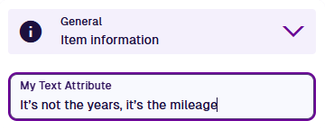
If a system tag is assigned to the attribute, a picker may appear to let you choose a value instead, e.g. *if the "FeatureCode" tag is assigned, use the picker to browse the available features by category*.
[](/img-cw1/apps/designer/attributes/text-feature-picker.png)
---
# Time attribute
### Store a time value[](#store-a-time-value "Direct link to Store a time value")
A **Time** attribute can store a single time in ISO 8601 format: `Thh:mm:ss.sss`
#### Configuration[](#configuration "Direct link to Configuration")
When [adding](/apps/designer/dodis/edit-dodi/attributes.md#add-an-attribute) or [editing](/apps/designer/dodis/edit-dodi/attributes.md#edit-an-attribute) a Time attribute on a design/interface, you can configure the following properties. These determine how the attribute will behave when users populate its value on corresponding items.
* **Code** *(read-only)* - the attribute's Global Unique Code (Guc) identifier.
- **Name** \* - enter a distinct name that clearly identifies the attribute.
* **Description** - describe what the attribute represents and how it's intended to be used. This helps users and AI agents to understand its purpose.
- **Required** - if enabled, the attribute must be populated before an item can be saved. It can't be left blank!
* **Read-only** - if enabled, the attribute can only be populated when creating items. It can't be edited afterwards!
- **Unique** - if enabled, the attribute only accepts values that aren't already stored in other items of the design/interface.
* **Default value** - the attribute is automatically populated with this value. It can usually be changed before saving, unless the attribute is also **Read-only** or excluded from an [item form](/apps/designer/item-forms/.md).
- **Min** - the attribute won't accept a value occurring before this time.
- **Max** - the attribute won't accept a value occurring after this time.
- **Precision** \* - choose between *Minutes* and *Seconds*.
- **Tags** - use the [Tag Manager](/apps/tools/tags.md) to assign custom tags or a relevant system tag.
Available system tags
* *RequiredOnTaskStatus\[Completed/Cancelled]* - only relevant if the design/interface implements the **Tasks** interface. The attribute becomes required when a task's status changes to *Completed* or *Cancelled*.
* *ActionParameter\[Dynamic]* - for internal use only. Marks the attribute as a configurable parameter on a workflow action.
* **AQS agent enabled** - if disabled, the attribute is excluded from AI agent queries.
### Populate the attribute on items[](#populate-the-attribute-on-items "Direct link to Populate the attribute on items")
When [creating](/apps/items/create-item.md) or [editing](/apps/items/view-item/item-details/general-section.md) an item, select the attribute to open the time picker. Type valid numbers directly into the **Hour**, **Minute** and **Second** boxes.
[](/img-cw1/apps/designer/attributes/time-field.png)
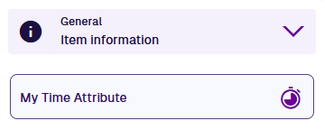
[](/img-cw1/apps/designer/attributes/time-picker.png)
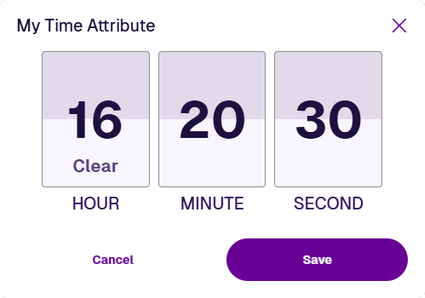
---
# Yes/No attribute
### Store a boolean value[](#store-a-boolean-value "Direct link to Store a boolean value")
A **Yes/No** value can store a single boolean with a value of `true` or `false`.
#### Configuration[](#configuration "Direct link to Configuration")
When [adding](/apps/designer/dodis/edit-dodi/attributes.md#add-an-attribute) or [editing](/apps/designer/dodis/edit-dodi/attributes.md#edit-an-attribute) a Yes/No attribute on a design/interface, you can configure the following properties. These determine how the attribute will behave when users populate its value on corresponding items.
* **Code** *(read-only)* - the attribute's Global Unique Code (Guc) identifier.
- **Name** \* - enter a distinct name that clearly identifies the attribute.
* **Description** - describe what the attribute represents and how it's intended to be used. This helps users and AI agents to understand its purpose.
- **Required** - if enabled, the attribute must be populated before an item can be saved. It can't be left blank!
* **Read-only** - if enabled, the attribute can only be populated when creating items. It can't be edited afterwards!
- **Unique** - if enabled, the attribute only accepts values that aren't already stored in other items of the design/interface.
* **Default value** - the attribute is automatically populated with this value. It can usually be changed before saving, unless the attribute is also **Read-only** or excluded from an [item form](/apps/designer/item-forms/.md).
- **Tags** - use the [Tag Manager](/apps/tools/tags.md) to assign custom tags or a relevant system tag.
Available system tags
* *RequiredOnTaskStatus\[Completed/Cancelled]* - only relevant if the design/interface implements the **Tasks** interface. The attribute becomes required when a task's status changes to *Completed* or *Cancelled*.
* *ActionParameter\[Dynamic]* - for internal use only. Marks the attribute as a configurable parameter on a workflow action.
* **AQS agent enabled** - if disabled, the attribute is excluded from AI agent queries.
### Populate the attribute on items[](#populate-the-attribute-on-items "Direct link to Populate the attribute on items")
When [creating](/apps/items/create-item.md) or [editing](/apps/items/view-item/item-details/general-section.md) an item, select the attribute to toggle between its `true` and `false` states.
[](/img-cw1/apps/designer/attributes/yes-no-field.gif)
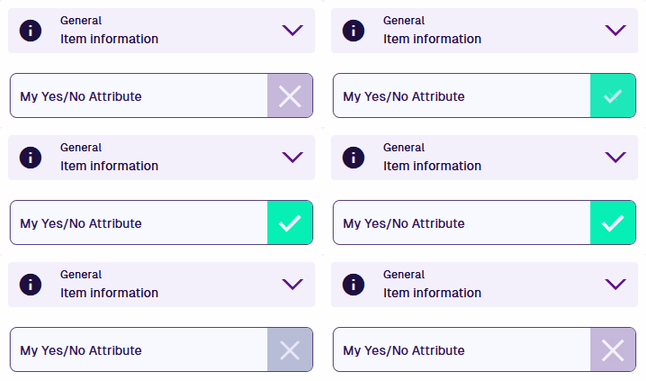
---
# Delete the design or interface
### Discard designs/interfaces that are no longer needed[](#discard-designsinterfaces-that-are-no-longer-needed "Direct link to Discard designs/interfaces that are no longer needed")
If the [current design](/apps/designer/dodis/load-design/.md) or [interface](/apps/designer/dodis/load-interface.md) is no longer needed, it can be deleted to save space and reduce clutter.
However, bear in mind that designs and interfaces form the basis of your data structure. Therefore, they can only be deleted if nothing else in your [company](/apps/home/navigation.md#-1--causewayone-sidebar--header) depends on them.
#### Design dependencies[](#design-dependencies "Direct link to Design dependencies")
Before deleting a design, ensure that:
* any existing items of the design are deleted
* any [Link attributes](/apps/designer/dodis/attributes/link-attribute.md) referencing the design are deleted from other designs/interfaces
#### Interface dependencies[](#interface-dependencies "Direct link to Interface dependencies")
Before deleting an interface, ensure that:
* any populated interface attributes on existing items of designs that implement the interface are cleared
* the interface is removed from all designs that implement it
* any [Link attributes](/apps/designer/dodis/attributes/link-attribute.md) referencing the interface are deleted from other designs/interfaces
info
It isn't possible to delete the system designs/interfaces included with CausewayOne Asset Management (whose **Context** isn't *Customer*).
### Delete the design or interface[](#delete-the-design-or-interface "Direct link to Delete the design or interface")
To delete the current design/interface, open the **DoDI Menu** in the top-right corner, choose **Delete** and answer yes to the confirmation. A notification will appear to indicate success or failure.
If something is preventing the design/interface from being deleted, select the notification for a description of the reason. Use [bulk actions](/apps/explorer/actions/bulk-actions.md) to edit or delete existing items as needed.
[](/img-cw1/apps/designer/edit-dodi/design-delete-fail.png)
Important
Deletions can't be undone, so please think carefully before doing so!
---
# Edit the design or interface
### Configure attributes, interfaces and other details[](#configure-attributes-interfaces-and-other-details "Direct link to Configure attributes, interfaces and other details")
The designs and interfaces in CausewayOne Asset Management can be customised to fit your organisation's needs. While you can of course edit any custom designs/interfaces you've created, you can also edit the system ones to some degree.
After you [load a design](/apps/designer/dodis/load-design/.md) or [interface](/apps/designer/dodis/load-interface.md), its configuration is displayed. This lets you see the attributes, interfaces and standard paths that have been added to it. Scroll between the sections or select one on the right to jump to it. Any changes you make are saved automatically.
To edit a design/interface, you must be an admin or belong to the **Design Managers** group (see [Permissions](/apps/permissions/explorer/.md)).
Important
If any items of the design/interface exist, they won't reflect your changes until they're updated. To do this, perform a [bulk action](/apps/explorer/actions/bulk-actions.md) to **Touch** (resave without changes) or **Edit** them.
[](/img-cw1/apps/designer/edit-dodi/edit-dodi-overview.png)
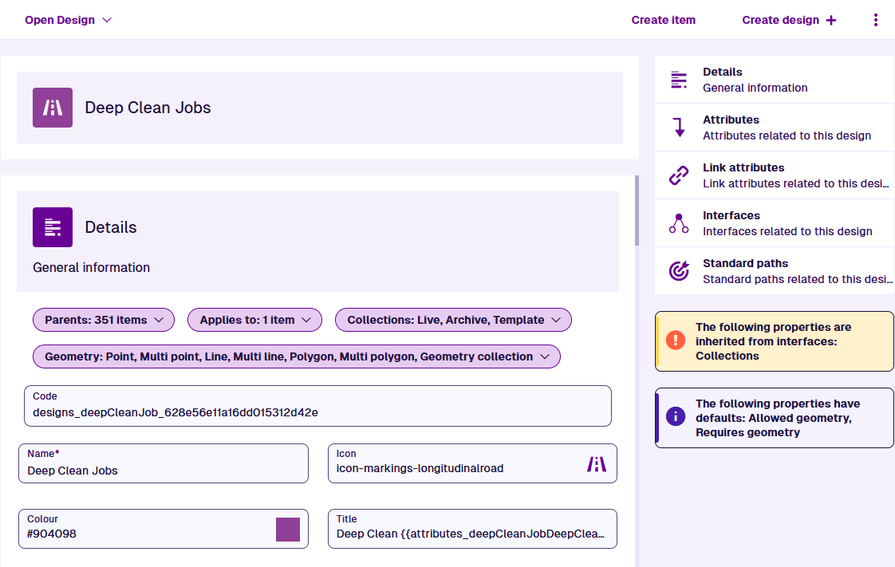
### Contents[](#contents "Direct link to Contents")
## [📄️Details](/apps/designer/dodis/edit-dodi/details.md)
[Configure properties and appearance](/apps/designer/dodis/edit-dodi/details.md)
## [📄️Attributes](/apps/designer/dodis/edit-dodi/attributes.md)
[Define the data to be stored](/apps/designer/dodis/edit-dodi/attributes.md)
## [📄️Interfaces](/apps/designer/dodis/edit-dodi/interfaces.md)
[Inherit attributes and standard paths](/apps/designer/dodis/edit-dodi/interfaces.md)
## [📄️Standard paths](/apps/designer/dodis/edit-dodi/standard-paths.md)
[Define shortcuts to other attributes](/apps/designer/dodis/edit-dodi/standard-paths.md)
## [📄️Create an item](/apps/designer/dodis/edit-dodi/create-item.md)
[Store a set of attribute values](/apps/designer/dodis/edit-dodi/create-item.md)
---
# Attributes section
### Define the data to be stored[](#define-the-data-to-be-stored "Direct link to Define the data to be stored")
When [editing](/apps/designer/dodis/edit-dodi/.md) a design/interface, the **Attributes** section lists the attributes that are defined on it, plus any attributes inherited from implemented interfaces.
An [attribute](/apps/designer/dodis/attributes/.md) is a data field that can store a single bit of information, like a number or date. Select an attribute to view its properties and the interface it belongs to (if inherited).
You can add any number of custom attributes to any design/interface. Custom attributes added by your organisation are identifiable by their **Remove** button.
[](/img-cw1/apps/designer/edit-dodi/attributes-section.png)
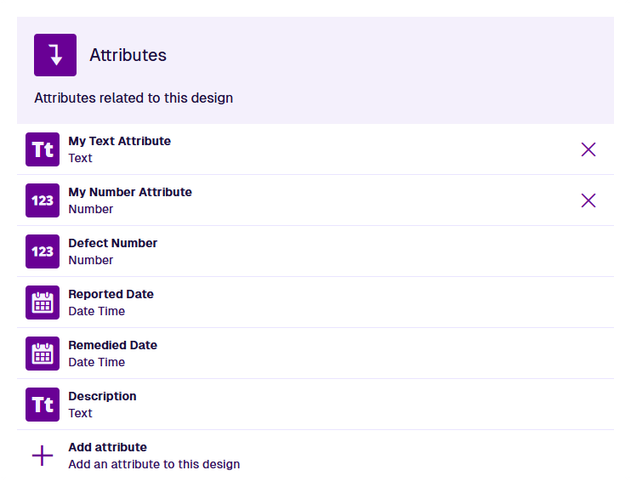
### Add an attribute[](#add-an-attribute "Direct link to Add an attribute")
To add an attribute to the current design/interface:
1. Select **Add attribute**.
2. Choose an attribute type from the list.
3. All attribute types have the following properties. They configure the attribute and determine its behaviour on items. Fill them in as needed:
* **Code** *(read-only)* - the attribute's Global Unique Code (Guc) identifier.
- **Name** \* - enter a distinct name that clearly identifies the attribute.
* **Description** - describe what the attribute represents and how it's intended to be used. This helps users and AI agents to understand its purpose.
- **Required** - if enabled, the attribute must be populated before an item can be saved. It can't be left blank!
* **Read-only** - if enabled, the attribute can only be populated when creating items. It can't be edited afterwards!
- **Unique** - if enabled, the attribute only accepts values that aren't already stored in other items of the design/interface.
* **Default value** - the attribute is automatically populated with this value. It can usually be changed before saving, unless the attribute is also **Read-only** or excluded from an [item form](/apps/designer/item-forms/.md).
- **AQS agent enabled** - if disabled, the attribute is excluded from AI agent queries.
4. Fill in the other property fields as needed. To learn about the full properties of an attribute type, select it in the following table:
Attribute types
| Icon | Type | Description | Input Method |
| ---- | ----------------------------------------------------------------------- | ------------------------------------------------------------------------------- | ------------------------------------------------------------------------------------------------------------------------------------------------- |
| | [**AQS**](/apps/designer/dodis/attributes/aqs-attribute.md) | Store an AQS query in JSON format | Build a query in the [AQS Builder](/apps/tools/aqs/aqs-builder.md) |
| | [**Date**](/apps/designer/dodis/attributes/date-attribute.md) | Store a date value, e.g. *30 April 2024* | Select a value with the [calendar picker](/apps/tools/selection/selecting-dates.md) |
| | [**Date Time**](/apps/designer/dodis/attributes/date-time-attribute.md) | Store a date and time value, e.g. *2 July 2025 13:30:00* | Select a value with the [calendar picker](/apps/tools/selection/selecting-dates.md#date-time-picker) |
| | [**Geometry**](/apps/designer/dodis/attributes/geometry-attribute.md) | Store geometry coordinates in GeoJSON format | Draw points, lines or polygons using the [Geometry Editor](/apps/tools/geometry-editor.md) |
| | [**JSON**](/apps/designer/dodis/attributes/json-attribute.md) | Store JSON code | Type into a fullscreen JSON Editor |
| | [**Link**](/apps/designer/dodis/attributes/link-attribute.md) | Store the [IDs](/apps/items/item-id.md) of items of a specific design/interface | Select one or more items with the [item picker](/apps/tools/selection/selecting-items.md) or [map picker](/apps/tools/selection/selecting-map.md) |
| | [**Number**](/apps/designer/dodis/attributes/number-attribute.md) | Store a number value, e.g. *256*, *3.1415* | Type directly into the field |
| | [**Seasonal**](/apps/designer/dodis/attributes/seasonal-attribute.md) | Store a date without a year, e.g. *25th December* | Select a value with the [calendar picker](/apps/tools/selection/selecting-dates.md#seasonal-picker) |
| | [**Text**](/apps/designer/dodis/attributes/text-attribute.md) | Store a text value, e.g. *I love managing my assets with Causeway* | Type directly into the field |
| | [**Time**](/apps/designer/dodis/attributes/time-attribute.md) | Store a time value e.g. *14:20:55* | Select a value with the [calendar picker](/apps/tools/selection/selecting-dates.md#date-time-picker) |
| | [**Yes/No**](/apps/designer/dodis/attributes/yes-no-attribute.md) | Store a boolean value, e.g. *true* or *false* | Toggle the field to enable or disable it |
5. Select **Save** to finish.
[](/img-cw1/apps/designer/attributes/yes-no-props.png)
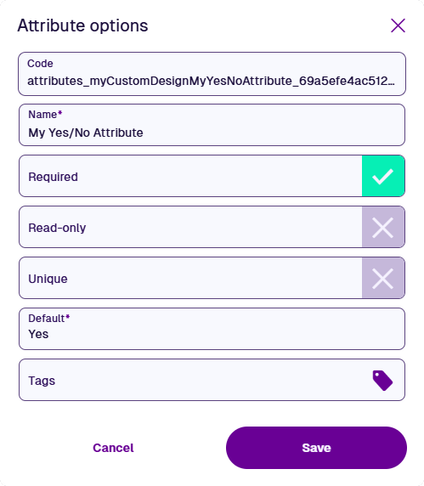
### Edit an attribute[](#edit-an-attribute "Direct link to Edit an attribute")
Select an attribute to view its properties. If the attribute was added by your organisation (it has a button and its **Context** is *Customer*), you can also edit those properties. Populate the fields as needed and select **Save** to finish.
If the attribute is inherited, select the displayed **Go to...** link to edit the attribute on the interface it belongs to. To do this a new browser tab, use middle-click or `Ctrl`-click.
[](/img-cw1/apps/designer/edit-dodi/attribute-props-inherited.png)
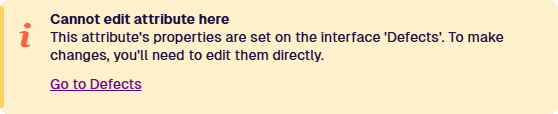
System attributes can't be edited, except for their **Name** property. If you try to edit any other properties, it will fail with a *DodiAttributeEditForbidden* error (E1528825211). This ensures the core functionality of CausewayOne Asset Management runs consistently and reliably for everybody.
[](/img-cw1/apps/designer/edit-dodi/attribute-edit-fail.png)
info
Remember, any existing items of the design/interface must be updated to reflect your changes! See [Bulk actions](/apps/explorer/actions/bulk-actions.md).
### Delete an attribute[](#delete-an-attribute "Direct link to Delete an attribute")
To delete an attribute from the design/interface, select its **Remove** button and answer *Yes* to the confirmation.
If the attribute is populated on any existing items, this will fail with a *DodiAttributeInUse* error (E1594038036). Select the error notification for more details. To continue, perform a [bulk action](/apps/explorer/actions/bulk-actions.md) that either edits those items to clear the attribute on them, or deletes the items entirely if they're no longer needed.
If the attribute doesn't have a **Remove** button, select the attribute to see if it's inherited. If so, follow the **Go to...** link to the interface it belongs to. If not, it's a protected system attribute that can't be deleted!
[](/img-cw1/apps/designer/edit-dodi/attribute-delete-fail.png)
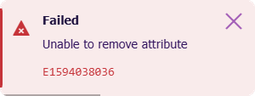
### Link attributes[](#link-attributes "Direct link to Link attributes")
The **Link attributes** section lists the Link attributes that are defined on the current design/interface, plus any Link attributes inherited from implemented interfaces.
A [Link attribute](/apps/designer/dodis/attributes/link-attribute.md) can store references to one or more items of a specific design/interface. You can add, edit and delete Link attributes in the same way as other attributes, as described above.
To quickly open the design/interface targeted by a Link attribute, select its **Designer** button. To open it in a new browser tab, use middle-click or `Ctrl`-click. Custom attributes added by your organisation are identifiable by their **Menu** button, which also lets you delete the attribute as needed.
[](/img-cw1/apps/designer/edit-dodi/link-attributes-section.png)
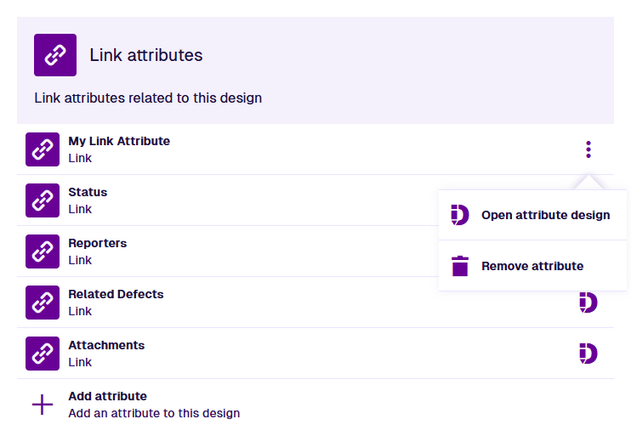
---
# Create an item
### Store a set of attribute values[](#store-a-set-of-attribute-values "Direct link to Store a set of attribute values")
When [editing](/apps/designer/dodis/edit-dodi/.md) a design, you can create an item of it. This lets you store a set of data values for the attributes defined by it. When editing an interface, you create an item of any design that [implements](/apps/designer/dodis/implement-interfaces.md) it. To get started, select **Create item** in the app bar.
Select a step to show its settings. Some fields are populated automatically, depending on where you started from, e.g. *starting from the Designer app automatically selects the design you have open.*
To proceed, complete all required steps and fields marked with an asterisk **\***.
#### 1 Select a design[](#-1--select-a-design "Direct link to -1--select-a-design")
Fill in these fields:
* **Design** \* - select the [design](/basics/fundamentals/designs.md) of the new item. This determines the next steps: the attributes you can fill in, the parents you can link, and the geometry you can set.
The available designs depend on where you started from. If you were working with an interface, only designs that implement the interface are listed.
* **Collection** \* - select the [collection](/basics/fundamentals/collections.md) the new item will belong to (usually *Live* by default). The selected design determines which are available. If set to *Template*, required attributes can be left blank on the new [template item](/apps/items/template-items.md).
Alternatively, choose an item under **From recently created** to reuse its configuration. The new item will use the same design, collection, attribute values and geometry by default (but not parents). You can change any of these before selecting **Create**.
[](/img-cw1/apps/items/create/create-item-01.png)
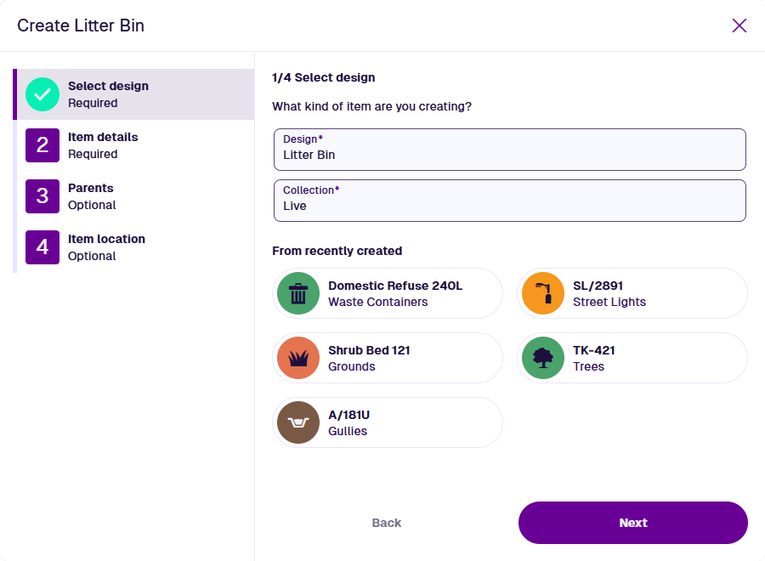
#### 2 Item details[](#-2--item-details "Direct link to -2--item-details")
By default, item attributes are displayed in the order they were added to the selected design. Read-only and calculated attributes (e.g. *Job Number*) are hidden.
Alternatively, the layout and visibility of attributes are determined by an [item form](/apps/designer/item-forms/.md), which can also show read-only data. If any item forms exist for the selected design, the most suitable one is used. To use another, select the **Item form** button.
Some attributes may be populated with a default value. Required attributes are marked with an asterisk **\*** and must have a value to continue. The only exception is creating a template item (those attributes will be required when creating a new item from it).
Select an attribute field to edit its value. Depending on the attribute type, enter a value directly into the field, or use the specialised picker to choose one or more values.
Attribute types
| Icon | Type | Description | Input Method |
| ---- | ----------------------------------------------------------------------- | ------------------------------------------------------------------------------- | ------------------------------------------------------------------------------------------------------------------------------------------------- |
| | [**AQS**](/apps/designer/dodis/attributes/aqs-attribute.md) | Store an AQS query in JSON format | Build a query in the [AQS Builder](/apps/tools/aqs/aqs-builder.md) |
| | [**Date**](/apps/designer/dodis/attributes/date-attribute.md) | Store a date value, e.g. *30 April 2024* | Select a value with the [calendar picker](/apps/tools/selection/selecting-dates.md) |
| | [**Date Time**](/apps/designer/dodis/attributes/date-time-attribute.md) | Store a date and time value, e.g. *2 July 2025 13:30:00* | Select a value with the [calendar picker](/apps/tools/selection/selecting-dates.md#date-time-picker) |
| | [**Geometry**](/apps/designer/dodis/attributes/geometry-attribute.md) | Store geometry coordinates in GeoJSON format | Draw points, lines or polygons using the [Geometry Editor](/apps/tools/geometry-editor.md) |
| | [**JSON**](/apps/designer/dodis/attributes/json-attribute.md) | Store JSON code | Type into a fullscreen JSON Editor |
| | [**Link**](/apps/designer/dodis/attributes/link-attribute.md) | Store the [IDs](/apps/items/item-id.md) of items of a specific design/interface | Select one or more items with the [item picker](/apps/tools/selection/selecting-items.md) or [map picker](/apps/tools/selection/selecting-map.md) |
| | [**Number**](/apps/designer/dodis/attributes/number-attribute.md) | Store a number value, e.g. *256*, *3.1415* | Type directly into the field |
| | [**Seasonal**](/apps/designer/dodis/attributes/seasonal-attribute.md) | Store a date without a year, e.g. *25th December* | Select a value with the [calendar picker](/apps/tools/selection/selecting-dates.md#seasonal-picker) |
| | [**Text**](/apps/designer/dodis/attributes/text-attribute.md) | Store a text value, e.g. *I love managing my assets with Causeway* | Type directly into the field |
| | [**Time**](/apps/designer/dodis/attributes/time-attribute.md) | Store a time value e.g. *14:20:55* | Select a value with the [calendar picker](/apps/tools/selection/selecting-dates.md#date-time-picker) |
| | [**Yes/No**](/apps/designer/dodis/attributes/yes-no-attribute.md) | Store a boolean value, e.g. *true* or *false* | Toggle the field to enable or disable it |
[](/img-cw1/apps/items/create/create-item-02.png)
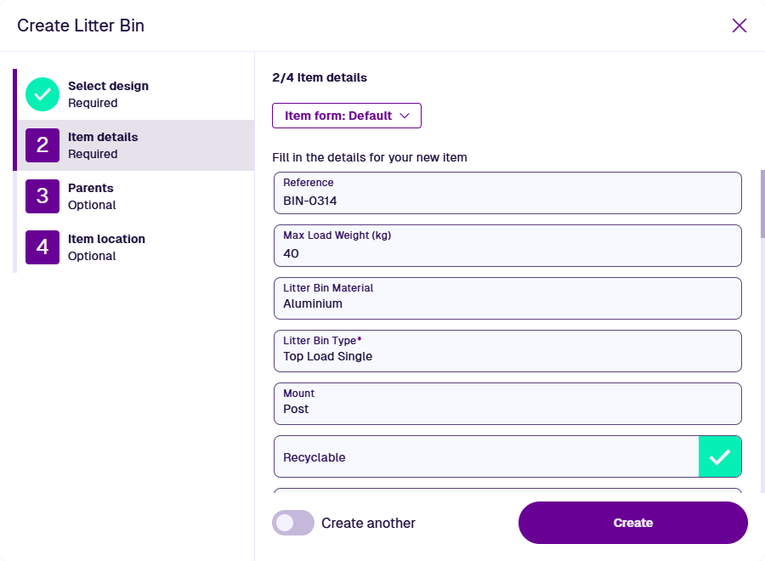
info
If the item form includes any attributes covered by other steps (e.g. *Geometry*), their controls are read-only. This stops you accidentally setting two values and shows if the attribute has a default value.
#### 3 Parents[](#-3--parents "Direct link to -3--parents")
You can link the new item to any number of parent items. This works by adding the new item to a compatible [Link attribute](/apps/designer/dodis/attributes/link-attribute.md) on the parent.
*For example, you're creating a bin item. It's located at the Jephson Gardens site. The **Grounds Site** design has a Link attribute pointing to the **Assets** interface, which is implemented by the **Litter Bin** design. Therefore, you can add a parent-to-child relationship from the site item to the bin item, via that attribute.*
Select **Add parent** and fill in these fields:
* **Design** \* - choose from the list of designs containing a compatible Link attribute.
* **Attribute** \* - choose a Link attribute on the design.
* **Item** \* - choose an item of the design to be the parent, using the [item picker](/apps/tools/selection/selecting-items.md) or [map picker](/apps/tools/selection/selecting-map.md).
Select **Add** to finish.
If you start the process from an existing item, that item is automatically added as a parent, e.g. *creating a job from an asset*.
Select an existing parent to edit its relationship. To remove a parent, select its **Remove** button.
[](/img-cw1/apps/items/create/create-item-03.png)
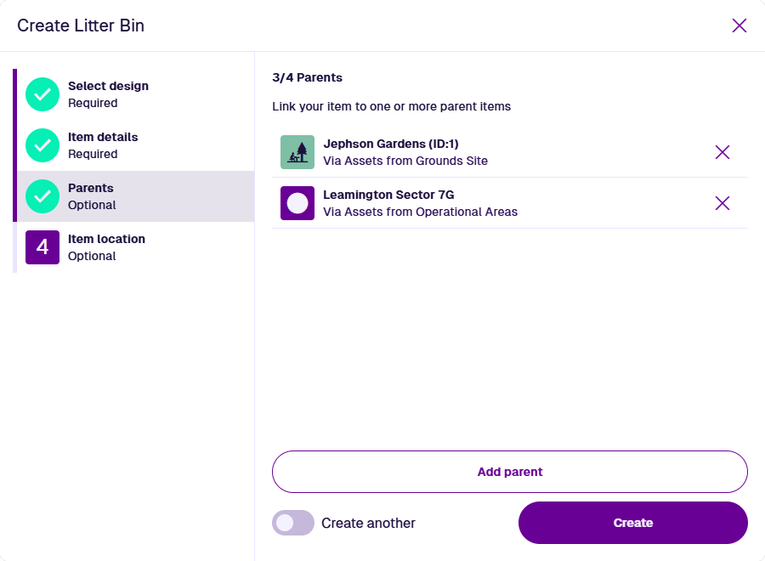
info
When creating an [activity](/basics/fundamentals/activities.md), if you add another activity as a parent, its parent asset will automatically be added as a second parent.
*For example, you're creating a job to resolve a defect. If you add the defect as a parent, the new job will automatically get the defect's asset as another parent.*
#### 4 Item location[](#-4--item-location "Direct link to -4--item-location")
To set the new item's geometry, select **Set location**. Use the [Geometry Editor](/apps/tools/geometry-editor.md) to draw the geometry on the map or supply coordinates. This may be a point, line or polygon, depending on what the selected design allows.
If the field has an asterisk **\***, the selected design (or an interface it implements) has the **Requires geometry** [property](/apps/designer/dodis/edit-dodi/details.md) enabled. Therefore, a value must be supplied, unless **Collection** is set to *Template* or *Inventory*.
[](/img-cw1/apps/items/create/create-item-04.png)
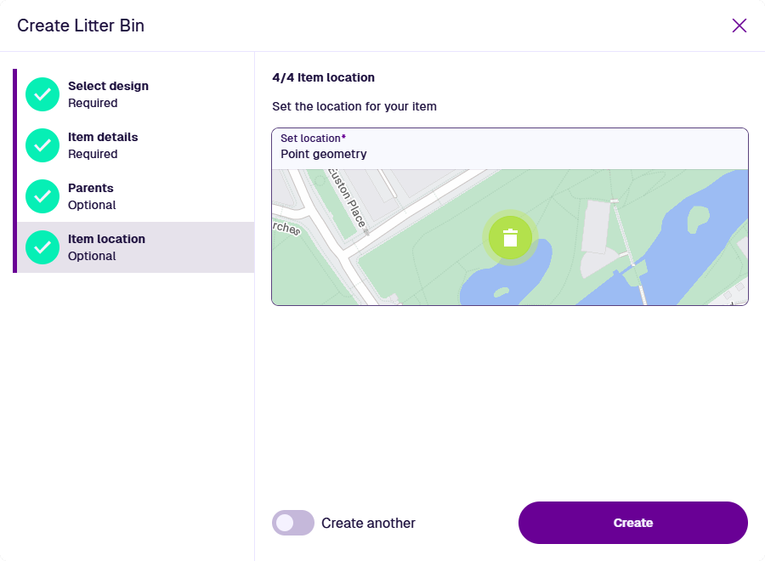
info
When creating an [activity](/basics/fundamentals/activities.md), if you leave this step blank, the activity will automatically inherit the geometry of its parent.
#### Finish the process[](#finish-the-process "Direct link to Finish the process")
After completing the relevant steps for your item, select **Create** to finish. A notification indicates whether the item was created successfully or failed due to an error.
The new [item's details](/apps/items/view-item/item-details/.md) are displayed. To open the item in a new browser tab, select **Open item** in the notification. Every setting you've configured can be changed later, except for the item's design.
[](/img-cw1/apps/items/create/notification.png)
### Create multiple items[](#create-multiple-items "Direct link to Create multiple items")
To keep creating similar items, enable **Create another** before selecting **Create**. The process remains open, letting you adjust the current configuration as needed for the next item.
There are several other ways to create multiple items:
* To create activity items for multiple existing items, perform a [bulk action](/apps/explorer/actions/bulk-actions.md) in the Data Explorer app.
* For more complex scenarios, you can build workflows that perform **Create** actions according to various conditions. These can be triggered automatically or on demand. See [Workflows](/web/workflows.md) in Asset Classic.
* If you need to create lots of items, consider storing the attribute data in a CSV file and importing it. See [Gateway](/web/gateway.md) in Asset Classic.
---
# Details section
### Configure properties and appearance[](#configure-properties-and-appearance "Direct link to Configure properties and appearance")
When [editing](/apps/designer/dodis/edit-dodi/.md) a design/interface, the **Details** section displays its properties. Configure these to define its relationships, geometry requirements and visual appearance. Those marked with an asterisk **\*** require a value to be set.
[](/img-cw1/apps/designer/edit-dodi/details-section.png)
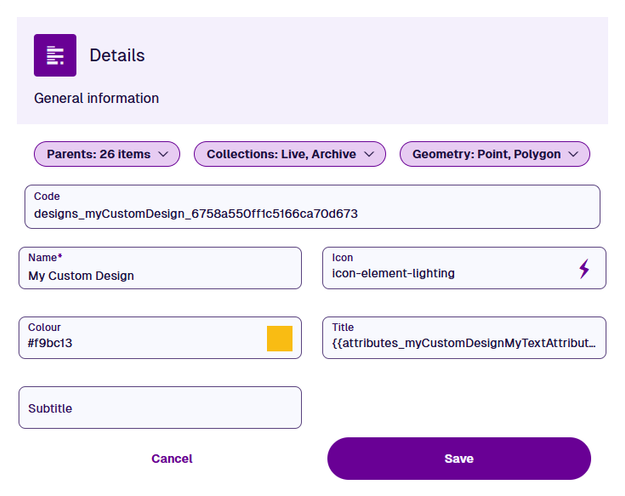
### Dropdown details[](#dropdown-details "Direct link to Dropdown details")
The following properties appear as dropdown menus along the top of the section:
* **Parents** - lists all designs/interfaces containing a [Link attribute](/apps/designer/dodis/attributes/link-attribute.md) pointing to the current design/interface (or an interface it implements).
* **Implements** (*interfaces only*) - lists all designs/interfaces that [implement](/apps/designer/dodis/implement-interfaces.md) the current interface.
* **Applies to** (*activities only*) - to be usable, an [activity](/basics/fundamentals/activities.md) design must be applicable to one or more other designs. This makes it selectable when creating activities for items of those designs. If an interface is added to this list, the activity design will apply to all designs that implement it.
To add a design/interface to the list, select **Add applies to**. To remove one from the list, select its button.
For example
*Imagine that you're editing a **Graffiti Removal Jobs** design. This type of job is performed on benches and bridges, so you add the **Benches** and **Bridges** designs to the list.*
*Similarly, this type of job is performed on playground equipment. Therefore, you add the **Playground Assets** interface to the list, which is implemented by multiple related designs (e.g. **Swing Sets**, **Roundabouts**, **Slides**).*
* **Collections** - determines the [collections](/basics/fundamentals/collections.md) that items of the current design (or designs implementing the current interface) can belong to. The default is *Live* and *Archive*.
* **Set collection** - if enabled, items will be limited to the selected collections.
***
* **Geometry** (\*) - determines whether geometry is required on items of the current design (or designs implementing the current interface) and which [geometry types](/apps/designer/dodis/geometry-types/.md) can be stored. By default, geometry is optional and all types are allowed.
* **Set allowed geometry** - if enabled, items will be limited to the selected geometry types. When populating an item's geometry, **one** of the allowed types can be supplied, e.g. *Point *or* Line *or* Polygon*.
* If the *Geometry Collection* type is also allowed, **one or more** of the allowed types can be supplied, e.g. *Point *and* Line *and* Polygon*.
* To prevent any geometry being set, leave this enabled without any types selected.
* **Requires geometry** - if enabled, geometry must be supplied when creating or editing items. Geometry will not be inherited from parent items. Any existing items without geometry will require it when they're next edited.
info
**Collections** and **Geometry** can only be edited on designs/interfaces created by your organisation (**Context** = *Customer*).
### General details[](#general-details "Direct link to General details")
The following properties configure the design/interface and how it appears to users:
* **Code** *(read-only)* - a unique identifier known as the Global Unique Code (Guc). Double-select to copy it to your device's clipboard.
* **Name** \* - enter a distinct name that clearly identifies the design/interface.
* **Description** - describe what the design/interface represents. What data is stored? How is it intended to be used? This helps users and AI agents to understand its purpose.
* **Icon** - use the [icon picker](/apps/tools/selection/selecting-icons.md) to set the icon of the design/interface. The default is for designs and for interfaces.
* **Colour** - use the [colour picker](/apps/tools/selection/selecting-colours.md) to set the colour of the design/interface. The default is .
* **Title** / **Subtitle** - templates that determine the primary and secondary text labels of corresponding items. To learn more, see [Titles and subtitles](/apps/designer/dodis/titles-subtitles.md).
* **AQS agent enabled** - if disabled, the design/interface is excluded from AI agent queries.
### Save changes[](#save-changes "Direct link to Save changes")
Select **Save** to finish or **Cancel** to discard your changes.
If a property is left blank, it may inherit a value from an interface or use a default value. If it's inherited, select the displayed **Go to...** link to edit the property on the interface it belongs to. To edit it in a new browser tab, use middle-click or `Ctrl`-click.
[](/img-cw1/apps/designer/edit-dodi/dodi-props-warnings.png)
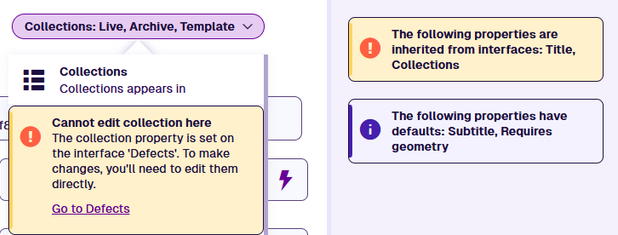
---
# Interfaces section
### Inherit attributes and standard paths[](#inherit-attributes-and-standard-paths "Direct link to Inherit attributes and standard paths")
When [editing](/apps/designer/dodis/edit-dodi/.md) a design/interface, the **Interfaces** section lists the interfaces it implements. This includes directly implemented interfaces (identifiable by their **Remove** button), plus any interfaces inherited indirectly via those interfaces.
An interface is a set of shared attributes and standard paths that designs (and other interfaces) can inherit alongside their own. To learn more, see [Implementing interfaces](/apps/designer/dodis/implement-interfaces.md).
Select an interface to open it. To open it in a new browser tab, use middle-click or `Ctrl`-click.
[](/img-cw1/apps/designer/edit-dodi/interfaces-section.png)
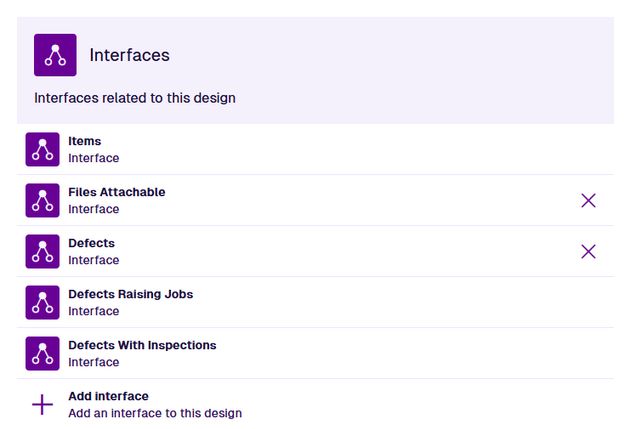
info
All designs/interfaces implement the standard **Items** interface and inherit its **Title**, **Subtitle** and **Geometry** attributes.
### Add an interface[](#add-an-interface "Direct link to Add an interface")
You can typically add interfaces to any design/interface, providing they're compatible with each other.
To add an interface, select **Add interface** and choose one from the list. The chosen interface and any interfaces it implements will be added, along with all their collective attributes and standard paths.
#### Placeholder paths[](#placeholder-paths "Direct link to Placeholder paths")
A standard path is a shortcut to an attribute on a connected design/interface. If the chosen interface contains any standard paths that are [abstract placeholders](/apps/designer/dodis/edit-dodi/standard-paths.md#abstract-placeholders), you must define them on the current design before that interface can be added. For each placeholder, specify a path from the current design to the target attribute on the relevant design/interface.
[](/img-cw1/apps/designer/edit-dodi/standard-paths-placeholders.png)
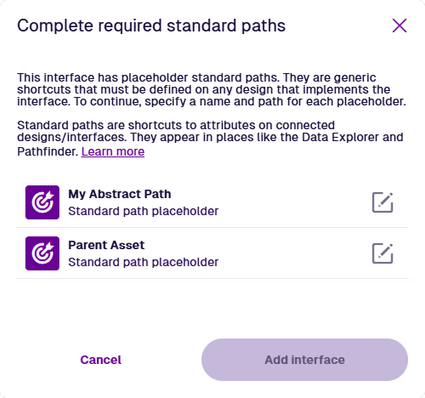
Select a placeholder to set the following properties:
* **Name** \* - enter a distinct name that clearly identifies the target attribute.
* **Path** \* - use the [Pathfinder](/apps/tools/pathfinder/.md) to "hop" to a parent or child design/interface from the current one. You can follow Link attributes , follow existing standard paths, or use **Navigate** to hop to a specific design/interface. Repeat for any number of hops until you're on the correct design/interface. Select the target attribute and then select **Done**.
* **Standard path group** - organise standard paths into groups for easier navigation. Select an existing group or select **Add** to create a new one. To delete a group, select its **Remove** button (this won't delete the standard paths within it).
Select **Add** to finish. Repeat for each placeholder and then select **Add interface** to continue.
[](/img-cw1/apps/designer/edit-dodi/standard-paths-placeholders-props.png)
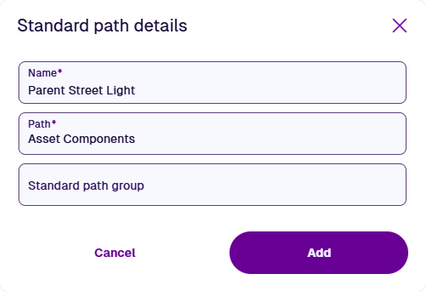
info
The target attribute should be evident from the placeholder's name. If you're unsure, ask a colleague or contact [Causeway Support](https://www.causeway.com/support) for assistance.
#### Compatibility concerns[](#compatibility-concerns "Direct link to Compatibility concerns")
If the chosen interface is incompatible, it will fail with a DodiIncompatible error. This can happen when a property on the chosen interface conflicts with the same one on the current design/interface, such as the **Geometry** (E1584453762) or **Collections** (E1584453485) property, e.g. *the current design/interface allows the "Inventory" collection but the chosen interface doesn't*.
[](/img-cw1/apps/designer/edit-dodi/interface-add-fail.png)
To continue, select the error notification to see more details. Depending on the source of the conflict, the solution may be to reconfigure the conflicting property on the chosen interface, or on the current design/interface, or to remove another interface from the current design/interface that the property is being inherited from.
[](/img-cw1/apps/designer/edit-dodi/collections-warning.png)
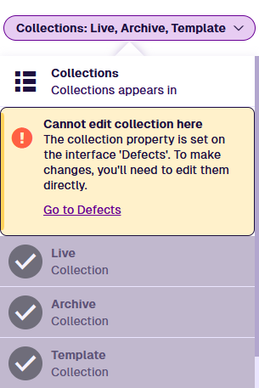
### Remove an interface[](#remove-an-interface "Direct link to Remove an interface")
To remove an interface from the current design/interface, select its **Remove** button and answer *Yes* to the confirmation. Any interfaces inherited via that interface will also be removed, along with their collective attributes and standard paths.
If any attributes from the removed interface(s) are populated on existing items, it will fail with a *DodiAttributeInUse* error (E1594039108). To continue, perform a [bulk action](/apps/explorer/actions/bulk-actions.md) that either edits the items to clear those attributes on them, or deletes the items entirely if they're no longer needed.
Interfaces can't be removed from system designs/interfaces. If you try, it will fail with an *DesignInterfaceEditForbidden* error (E1535298831).
[](/img-cw1/apps/designer/edit-dodi/interface-remove-fail.png)
---
# Standard paths section
### Define shortcuts to other attributes[](#define-shortcuts-to-other-attributes "Direct link to Define shortcuts to other attributes")
When [editing](/apps/designer/dodis/edit-dodi/.md) a design or interface, the **Standard paths** section lists the standard paths defined on it, plus any standard paths inherited from implemented interfaces. They may be organised into groups for convenience. Select beside a group to show the standard paths within it.
A standard path is a shortcut to an attribute on a connected design/interface, which users would otherwise need to navigate to using the [Pathfinder](/apps/tools/pathfinder/.md). It may involve "hopping" to a parent design/interface (which links to the current one), or to a child design/interface (the current one links to it), for any number of hops. This brings the connected attribute within easy reach and surfaces it to users that may be unaware of its availability!
You can add any number of standard paths to any design/interface. Custom standard paths added by your organisation are identifiable by their **Remove** button.
[](/img-cw1/apps/designer/edit-dodi/standard-paths-section.png)
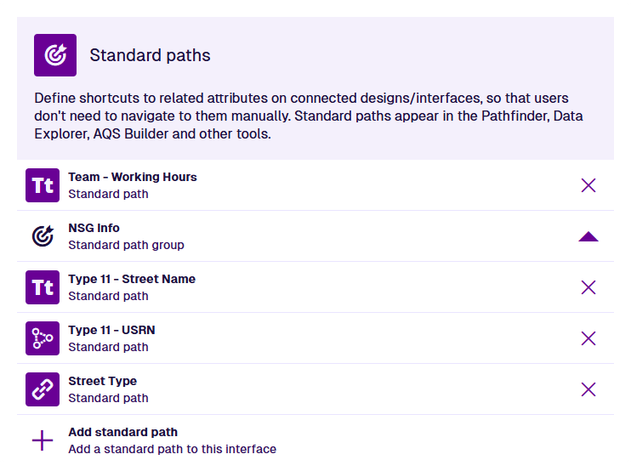
### Add a standard path[](#add-a-standard-path "Direct link to Add a standard path")
To add a standard path to the current design/interface:
1. Select **Add standard path**.
2. Fill in the following fields:
* **Name** \* - enter a distinct name that clearly identifies the target attribute.
* **Path** \* - use the [Pathfinder](/apps/tools/pathfinder/.md) to "hop" to a parent or child design/interface from the current one. You can follow Link attributes , follow existing standard paths, or use **Navigate** to hop to a specific design/interface. Repeat for any number of hops until you're on the correct design/interface. Select the target attribute and then select **Done**.
* **Standard path group** - organise standard paths into groups for easier navigation. Select an existing group or select **Add** to create a new one. To delete a group, select its **Remove** button (this won't delete the standard paths within it).
3. Select **Add** to finish.
[](/img-cw1/apps/designer/edit-dodi/standard-paths-props.png)
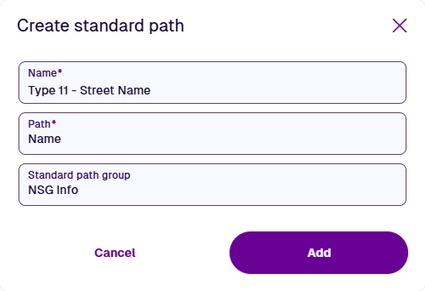
### Edit a standard path[](#edit-a-standard-path "Direct link to Edit a standard path")
Select a standard path to view its properties. If the standard path was added by your organisation (it has a button), you can also edit those properties. Populate the fields as needed and select **Save** to finish.
If the standard path is inherited, select the displayed **Go to...** link to edit the standard path on the interface it belongs to. To do this in a new browser tab, use middle-click or `Ctrl`-click.
System standard paths can't be edited. This ensures the core functionality of CausewayOne Asset Management runs consistently and reliably for everybody.
[](/img-cw1/apps/designer/edit-dodi/standard-paths-props-inherited.png)
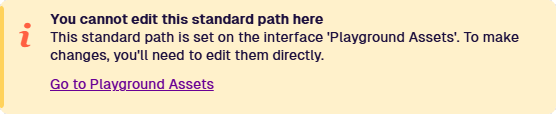
### Delete a standard path[](#delete-a-standard-path "Direct link to Delete a standard path")
To delete a standard path from the design/interface, select its **Remove** button and answer *Yes* to the confirmation.
If the standard path doesn't have a **Remove** button, select the standard path to see if it's inherited. If so, follow the **Go to...** link to the interface it belongs to.
Standard paths can't be removed from system designs/interfaces. If you try, it will fail with an *DodiStandardPathDeleteForbidden* error (E1720000055).
[](/img-cw1/apps/designer/edit-dodi/standard-path-remove-fail.png)
### Abstract Placeholders[](#abstract-placeholders "Direct link to Abstract Placeholders")
On interfaces only, it's possible for a standard path to have no path! This is known as an **abstract** standard path. It serves as a placeholder shortcut that only describes the type and design/interface of the target attribute.
When **designs** implement the interface, they must override the abstract standard path with a real path, which can be different on each design. When **other interfaces** implement the interface, the override is optional, but will affect anything that implements them.
This provides a single point of reference that [workflows](/web/workflows.md), [reports](/web/reporting.md) and other Asset Management features can use to target an attribute connected to multiple designs/interfaces, even if the path from each one to the attribute is different.
*For example, imagine a workflow that triggers on a [component](/apps/designer/dodis/load-design/component-design.md) item and uses a **Relation** action to fetch its parent asset item. By referencing the ID of an abstract standard path (instead of a fixed AQS path), the **Relation** action can fetch items of any design that implements the interface, over any number of hops.*
*In other words, the workflow could trigger on a street light component and fetch the corresponding street light asset it belongs to, whether it's one hop away (column > street light) or multiple hops (lamp > housing > bracket > column > street light).*
info
We include some abstract standard paths in our blueprinted modules to maximise their flexibility. Currently, abstract standard paths can only be created using the **DesignInterface** endpoint of the Alloy API (see [ReDoc](https://api.uk.alloyapp.io/docs/index.html?url=/openapi.json#tag/DesignInterface/operation/DesignInterface_CreateDesignInterfaceStandardPath) / [Swagger](https://api.uk.alloyapp.io/swagger/ui/index.html?url=/openapi.json#/DesignInterface/DesignInterface_CreateDesignInterfaceStandardPath)).
---
# Geometry types
### Define locations and shapes[](#define-locations-and-shapes "Direct link to Define locations and shapes")
A key feature of CausewayOne Asset Management is the ability to visualise your assets and tasks on the map.
Therefore, all items have a standard **Geometry** attribute. It can store coordinate data that describes the item's location and shape. When viewing an item's details, the [Map section](/apps/items/view-item/item-details/map-section.md) lets you view and edit its geometry. Use the Geometry Editor to draw the geometry directly on the map or import coordinate data from elsewhere.
Several types of geometry data can be stored, ranging from a single point to complex polygons. The item's design determines which of these types are allowed. By default, all geometry types are allowed on custom designs/interfaces created by your organisation.
To limit the allowed geometry types of a design/interface (including none at all), see [Edit the design or interface](/apps/designer/dodis/edit-dodi/details.md).
info
You can add extra [Geometry attributes](/apps/designer/dodis/attributes/geometry-attribute.md) to a design/interface.
### Geometry types[](#geometry-types "Direct link to Geometry types")
Learn about the different types of geometry in CausewayOne Asset Management.
## [📄️Point](/apps/designer/dodis/geometry-types/design-point-geometry-type.md)
[Define a single point](/apps/designer/dodis/geometry-types/design-point-geometry-type.md)
## [📄️Line](/apps/designer/dodis/geometry-types/design-line-geometry-type.md)
[Define a line of connected points](/apps/designer/dodis/geometry-types/design-line-geometry-type.md)
## [📄️Polygon](/apps/designer/dodis/geometry-types/design-polygon-geometry-type.md)
[Define a shape using connected points](/apps/designer/dodis/geometry-types/design-polygon-geometry-type.md)
## [📄️Multi-point](/apps/designer/dodis/geometry-types/design-multipoint-geometry-type.md)
[Define multiple unconnected points](/apps/designer/dodis/geometry-types/design-multipoint-geometry-type.md)
## [📄️Multi-line](/apps/designer/dodis/geometry-types/design-multiline-geometry-type.md)
[Define multiple lines](/apps/designer/dodis/geometry-types/design-multiline-geometry-type.md)
## [📄️Multi-polygon](/apps/designer/dodis/geometry-types/design-multipolygon-geometry-type.md)
[Define multiple shapes](/apps/designer/dodis/geometry-types/design-multipolygon-geometry-type.md)
## [📄️Collection](/apps/designer/dodis/geometry-types/design-collection-geometry-type.md)
[Allow multiple geometry types](/apps/designer/dodis/geometry-types/design-collection-geometry-type.md)
### Basemap alignment[](#basemap-alignment "Direct link to Basemap alignment")
In CausewayOne Asset Management, all geometry is saved using the **WGS84 Lat/Lng** ([EPSG:4326](https://epsg.io/4326)) coordinate system.
If the [active basemap](/apps/maps/basemaps/change-basemap.md) uses another coordinate system, item geometry is automatically transformed (by us or the map service) to keep things in proportion. As a result, item geometry may appear slightly misaligned with the basemap.
Therefore, switch to the most relevant basemap before editing an item's geometry, so you can draw directly over the basemap's features as needed.
---
# Geometry Collection
### Allow multiple geometry types[](#allow-multiple-geometry-types "Direct link to Allow multiple geometry types")
This geometry type makes it possible to store a mixture of geometry types.
If a design/interface is [configured](/apps/designer/dodis/edit-dodi/details.md) to allow certain geometry types, only one type can be set when populating an item's geometry. However, if the allow list includes the *Geometry Collection* type, it's possible to set any combination of the other allowed types!
*For example, if a design allows the "Point" and "Line" geometry types, you can only set one or the other. But if the "Geometry Collection" type is also allowed, you can set both "Point" and "Line" geometry on an item if you want to.*
[](/img-cw1/shared/geometry/types/collection-example.png)
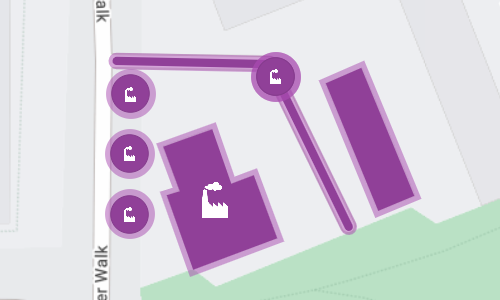
info
If *Geometry Collection* is the only allowed type, it won't be possible to populate items with any geometry!
### How to draw[](#how-to-draw "Direct link to How to draw")
When you're [editing item geometry](/apps/items/view-item/item-details/map-section.md#edit-item-geometry), or another geometry data field, the Geometry Editor appears. The row of draw tools indicates which geometry types are [allowed](/apps/designer/dodis/edit-dodi/details.md) by the item's design (or the source of the field).
[](/img-cw1/shared/geometry/types/draw-tools-collection.png)
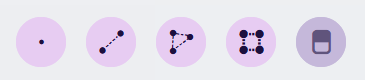
Use the draw tools to plot multiple types of geometry. If a tool appears dimmed, no additional geometry of that type can be added.
Point
Select the **Point** tool and then select your desired location on the map.
[](/img-cw1/shared/geometry/types/point-editor.gif)
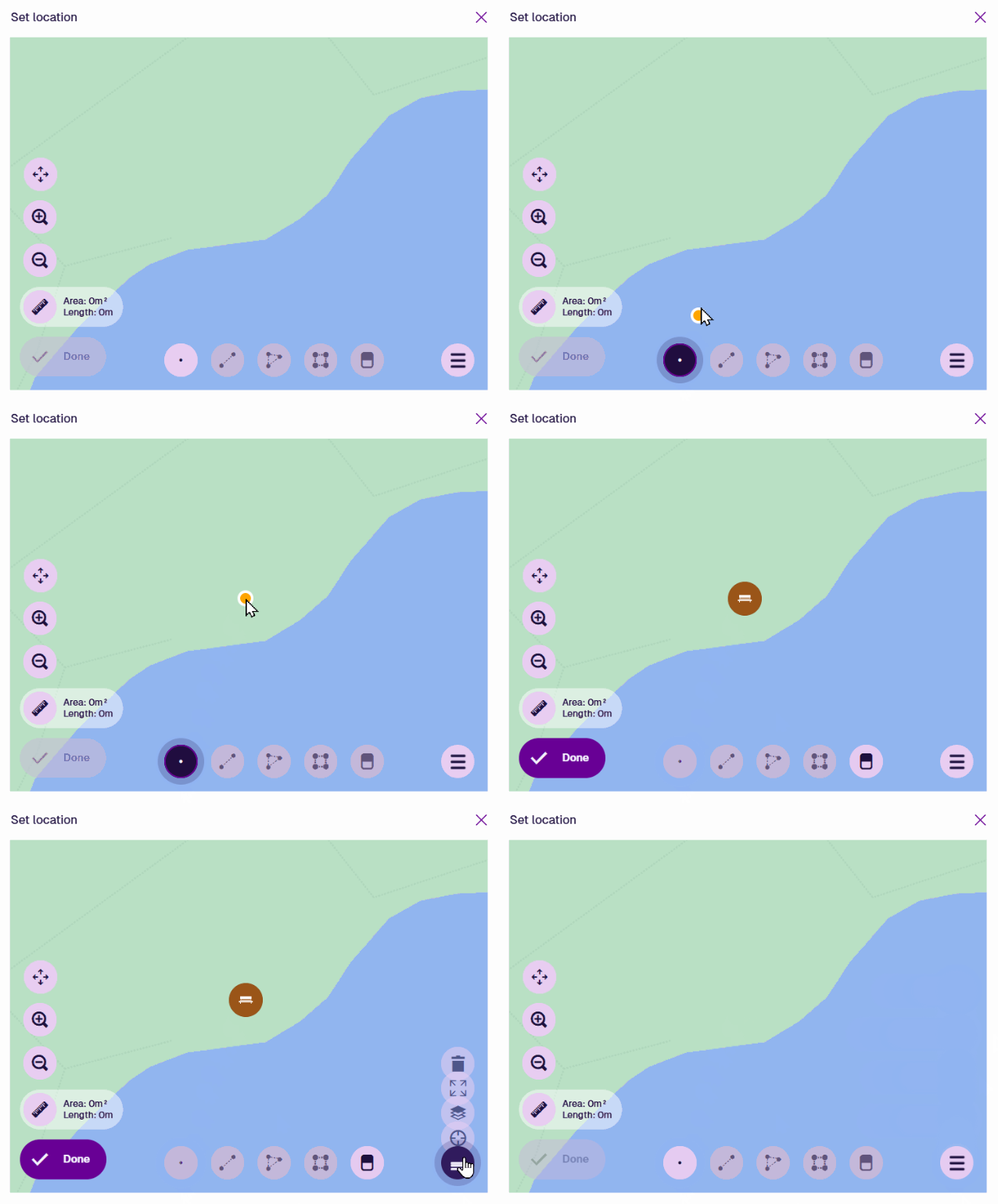
Once a point is selected, the **Point** tool becomes dimmed to indicate that no further points can be added. To reposition the point, drag it to another location, or use the **Erase** tool to remove it and start again.
Select **Done** to save your changes.
Line
Select the **Line** tool and then select a starting point on the map. Continue selecting points along your desired line. If you need to track a fine curve, select as many points as possible along it! To finish drawing, double-select the final point.
[](/img-cw1/shared/geometry/types/line-editor.gif)
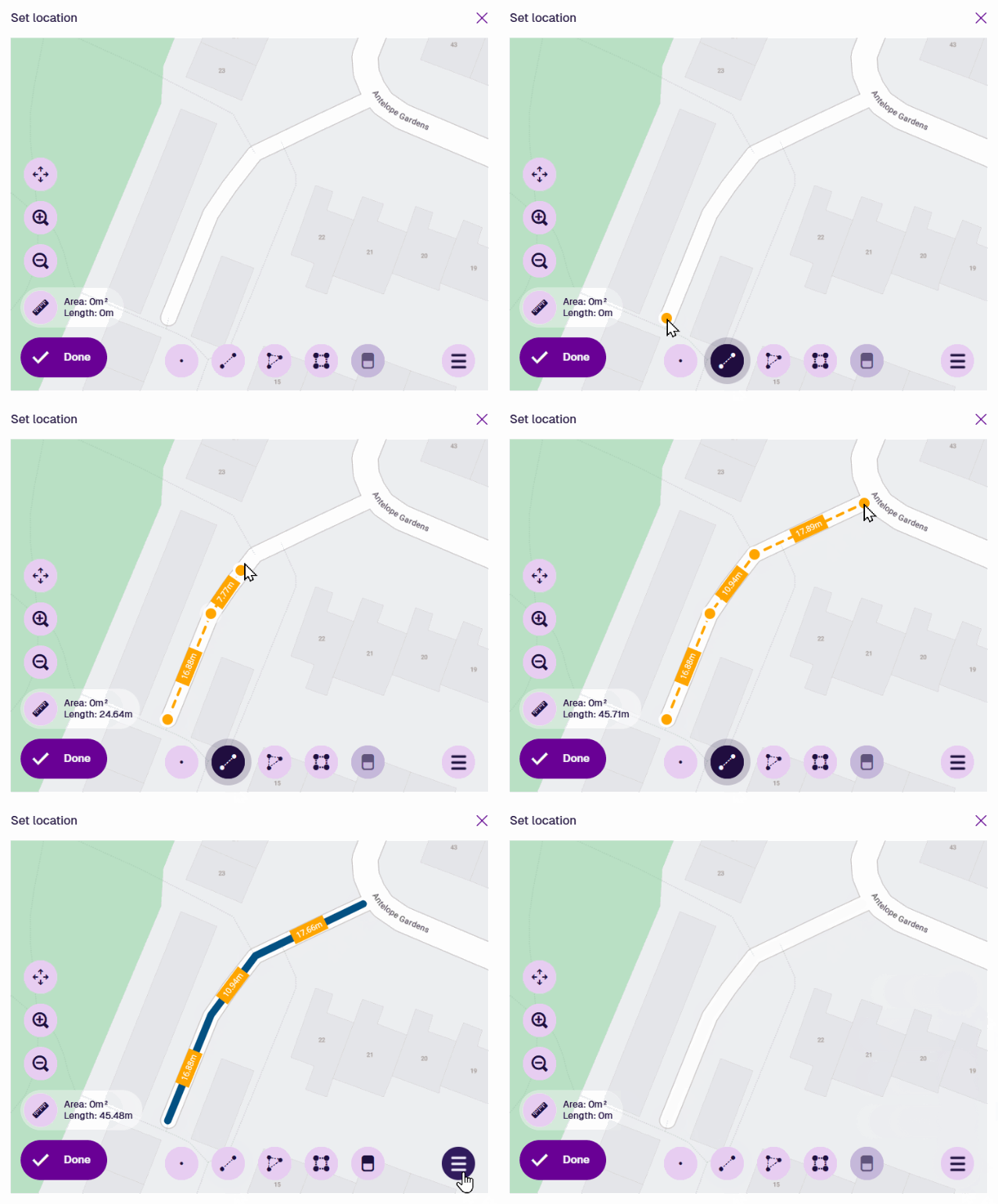
Once a line is finished, the **Line** tool becomes dimmed to indicate that no further lines can be added.
To edit the line, select an existing point (your mouse will snap to it) and drag it to a different position. To add a new point, select and hold anywhere along the line, and then drag the new point into position! Use the **Erase** tool to remove points as needed.
Select **Done** to save your changes.
[](/img-cw1/shared/geometry/types/line-editor-change.gif)
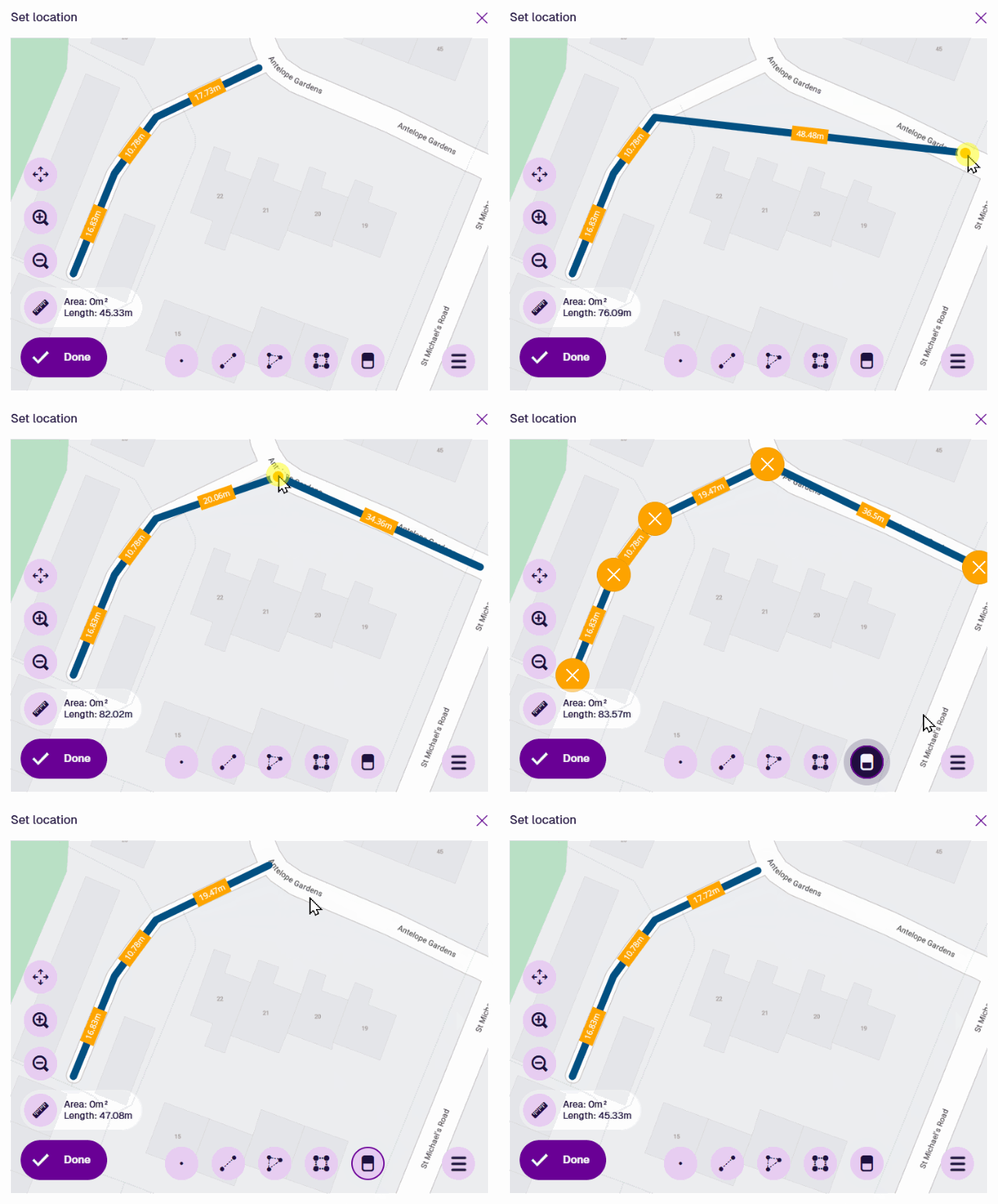
Polygon
Select the **Polygon** tool and then select a starting point on the map. Continue selecting points along your desired shape. If you need to track a fine curve, select as many points as possible along it! To finish drawing, double-select the last point (or select the starting point again).
Alternatively, you can use the **Box** tool to draw a rectangle between two diagonal points.
[](/img-cw1/shared/geometry/types/polygon-editor.gif)
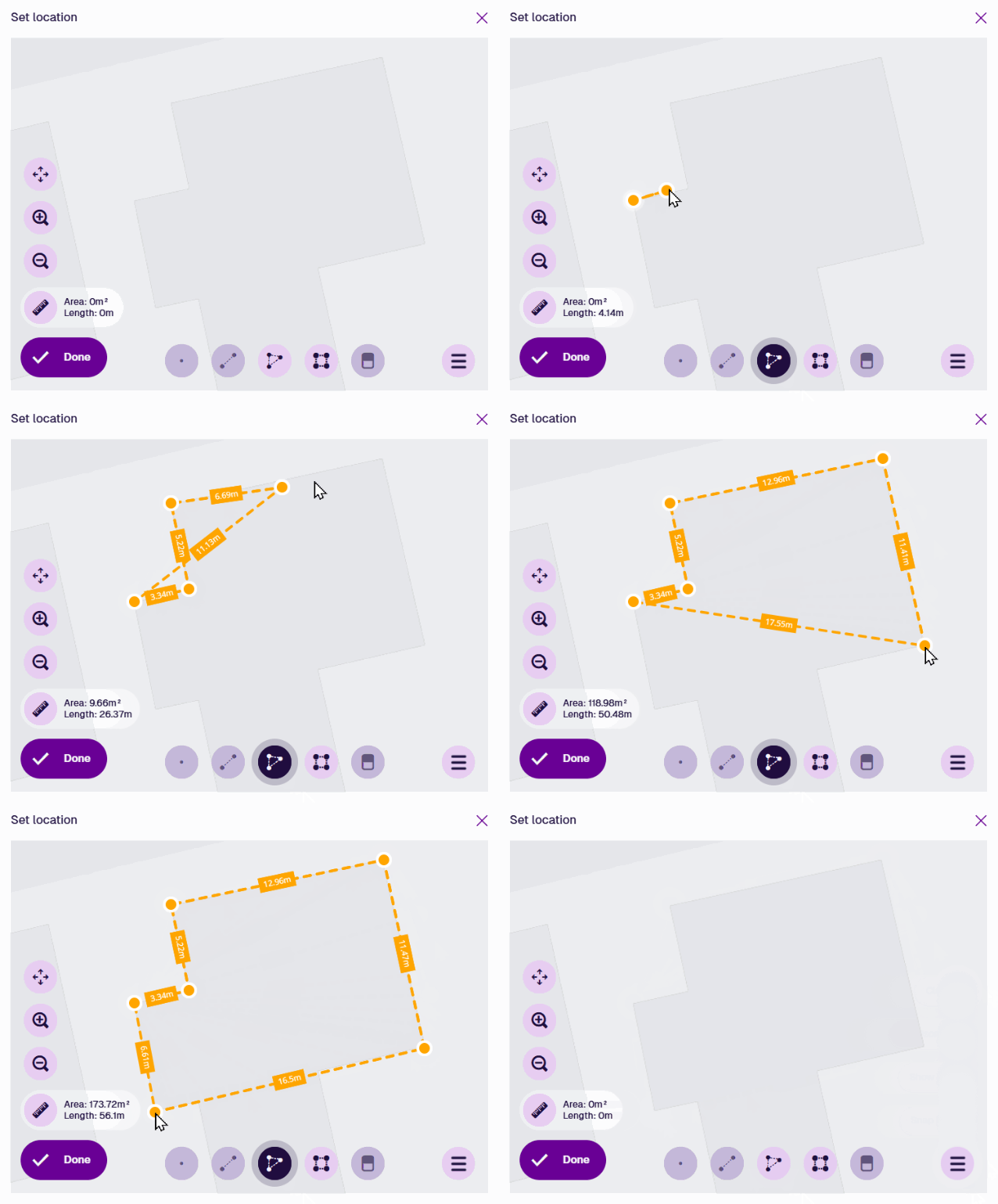
Once a polygon is finished, the **Polygon** tool becomes dimmed to indicate that no further polygons can be added.
To edit the polygon, select an existing point (your mouse will snap to it) and drag it to a different position. To add a new point, select and hold anywhere along an edge, and then drag the new point into position! Use the **Erase** tool to remove points as needed.
Select **Done** to save your changes.
[](/img-cw1/shared/geometry/types/polygon-editor-change.gif)
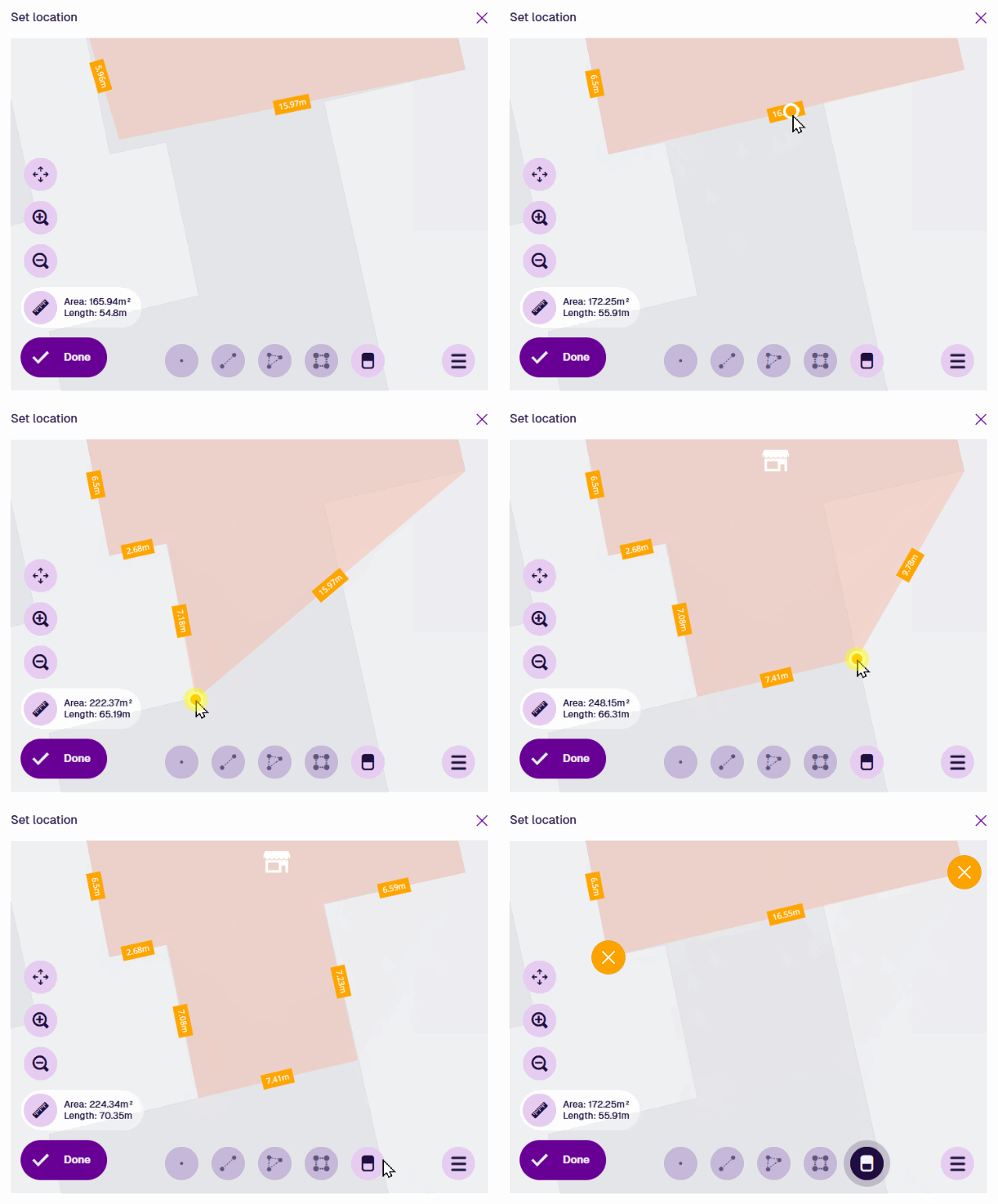
### Example GeoJSON[](#example-geojson "Direct link to Example GeoJSON")
To access the underlying code of the current geometry, select **Menu** in the Geometry Editor and choose **GeoJson view**.
```
{
"type": "GeometryCollection",
"geometries": [
{
"type": "MultiPoint",
"coordinates": [
[-1.511249, 52.279328],
[-1.511247, 52.279406],
[-1.511249, 52.279249]
]
},
{
"type": "LineString",
"coordinates": [
[-1.511277, 52.279449],
[-1.510952, 52.279445],
[-1.510783, 52.279233]
]
},
{
"type": "MultiPolygon",
"coordinates": [
[
[
[-1.511178, 52.279337],
[-1.511074, 52.27936],
[-1.511033, 52.279289],
[-1.510985, 52.2793],
[-1.510935, 52.279218],
[-1.511114, 52.279177],
[-1.51117, 52.279274],
[-1.511143, 52.279279],
[-1.511178, 52.279337]
]
],
[
[
[-1.510832, 52.27942],
[-1.510756, 52.27944],
[-1.510643, 52.279273],
[-1.51072, 52.279254],
[-1.510832, 52.27942]
]
]
]
}
]
}
```
---
# Line geometry
### Define a line of connected points[](#define-a-line-of-connected-points "Direct link to Define a line of connected points")
This geometry type defines multiple points that form a single line. Use it to describe linear assets, e.g. *streets, fences, railways*.
[](/img-cw1/shared/geometry/types/line-example.png)
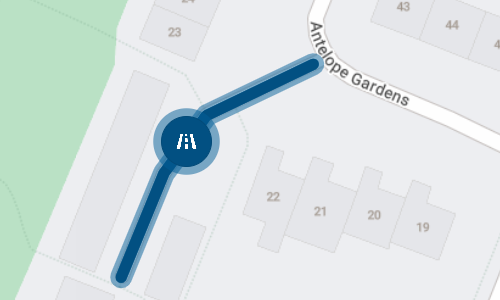
### How to draw[](#how-to-draw "Direct link to How to draw")
When you're [editing item geometry](/apps/items/view-item/item-details/map-section.md#edit-item-geometry), or another geometry data field, the Geometry Editor appears. The row of draw tools indicates which geometry types are [allowed](/apps/designer/dodis/edit-dodi/details.md) by the item's design (or the source of the field).
[](/img-cw1/shared/geometry/types/draw-tools-line.png)
Select the **Line** tool and then select a starting point on the map. Continue selecting points along your desired line. If you need to track a fine curve, select as many points as possible along it! To finish drawing, double-select the final point.
[](/img-cw1/shared/geometry/types/line-editor.gif)

Once a line is finished, the **Line** tool becomes dimmed to indicate that no further lines can be added.
To edit the line, select an existing point (your mouse will snap to it) and drag it to a different position. To add a new point, select and hold anywhere along the line, and then drag the new point into position! Use the **Erase** tool to remove points as needed.
Select **Done** to save your changes.
[](/img-cw1/shared/geometry/types/line-editor-change.gif)

### Example GeoJSON[](#example-geojson "Direct link to Example GeoJSON")
To access the underlying code of the current geometry, select **Menu** in the Geometry Editor and choose **GeoJson view**.
```
{
"type": "LineString",
"coordinates": [
[-1.599784, 52.288733],
[-1.59969, 52.288873],
[-1.599596, 52.288951],
[-1.599361, 52.28902]
]
}
```
---
# Multi-line geometry
### Define multiple lines[](#define-multiple-lines "Direct link to Define multiple lines")
This geometry type defines multiple points that form multiple distinct lines. Use it to describe assets composed of multiple linear objects, e.g. *roads that intersect other roads, hedgerows with gaps*.
[](/img-cw1/shared/geometry/types/multi-line-example.png)
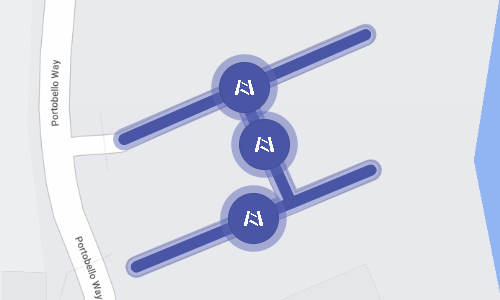
### How to draw[](#how-to-draw "Direct link to How to draw")
When you're [editing item geometry](/apps/items/view-item/item-details/map-section.md#edit-item-geometry), or another geometry data field, the Geometry Editor appears. The row of draw tools indicates which geometry types are [allowed](/apps/designer/dodis/edit-dodi/details.md) by the item's design (or the source of the field).
[](/img-cw1/shared/geometry/types/draw-tools-line.png)

Select the **Line** tool and then select a starting point on the map. Continue selecting points along your desired line. To finish drawing, double-select the final point. The tool will remain active, enabling you to select it again and add more lines as needed.
[](/img-cw1/shared/geometry/types/multi-line-editor.gif)
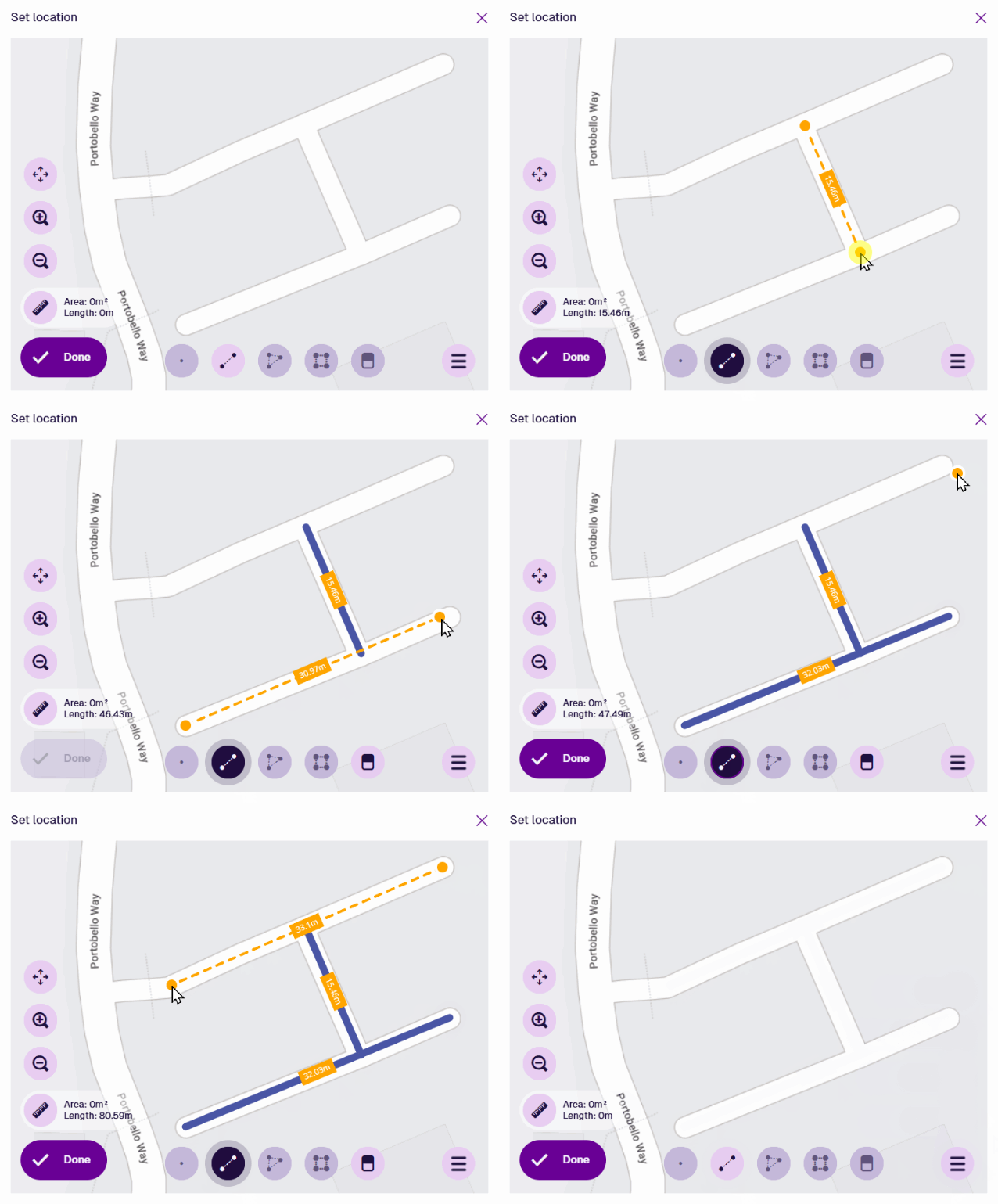
To edit a line, select an existing point (your mouse will snap to it) and drag it to a different position. To add a new point to a line, select and hold anywhere along it, and then drag the new point into position! Use the **Erase** tool to remove points from lines as needed.
Select **Done** to save your changes.
[](/img-cw1/shared/geometry/types/multi-line-editor-change.gif)
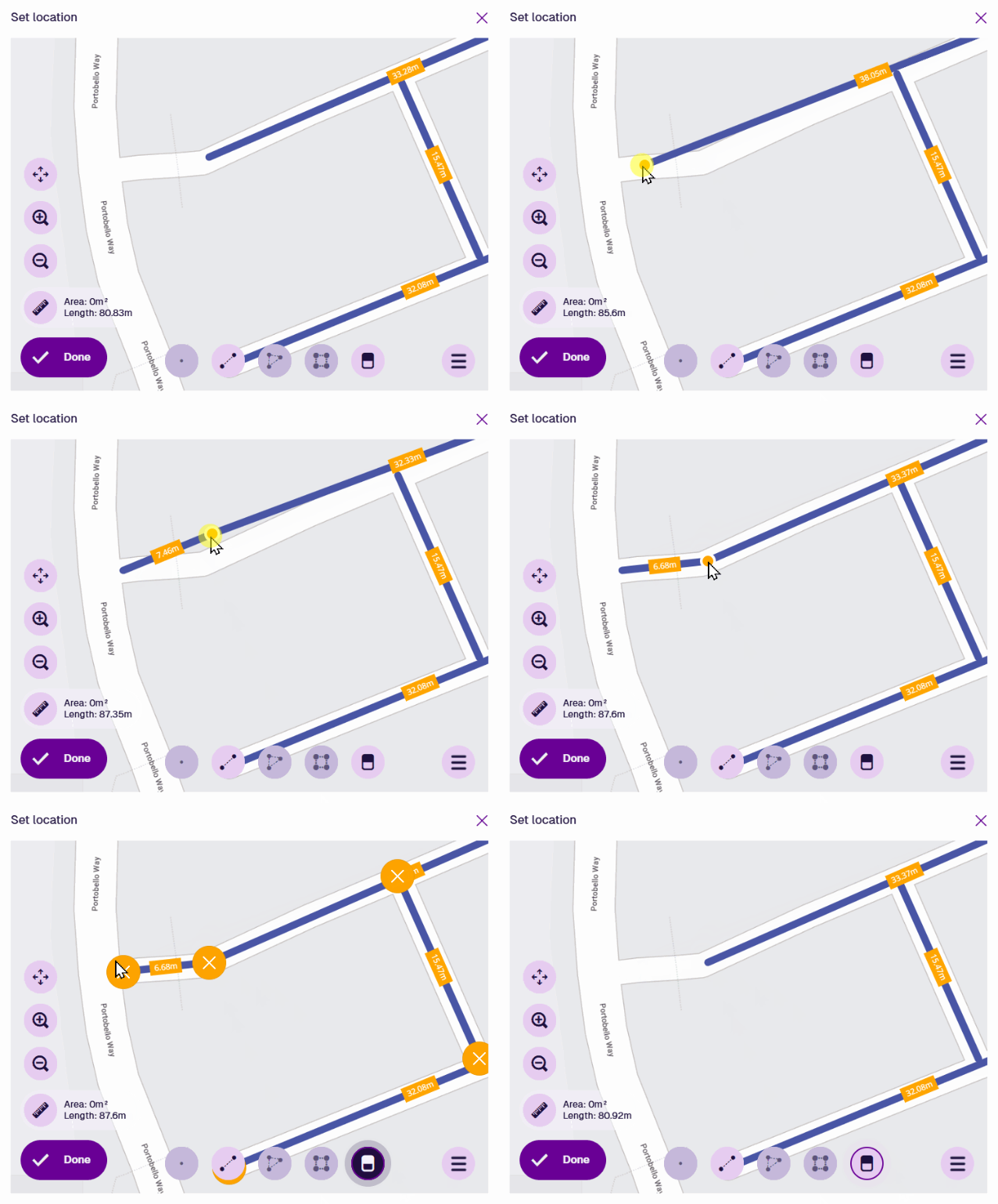
### Example GeoJSON[](#example-geojson "Direct link to Example GeoJSON")
To access the underlying code of the current geometry, select **Menu** in the Geometry Editor and choose **GeoJson view**.
```
{
"type": "MultiLineString",
"coordinates": [
[
[-1.560795, 52.2896],
[-1.560702, 52.289473]
],
[
[-1.560561, 52.289661],
[-1.56101, 52.289542]
],
[
[-1.560551, 52.289507],
[-1.560987, 52.289397]
]
]
}
```
---
# Multi-point geometry
### Define multiple unconnected points[](#define-multiple-unconnected-points "Direct link to Define multiple unconnected points")
This geometry type defines multiple points that exist separately, without being connected to each other. Use it to describe assets composed of multiple distinct objects, e.g. *a set of traffic lights*.
[](/img-cw1/shared/geometry/types/multi-point-example.png)
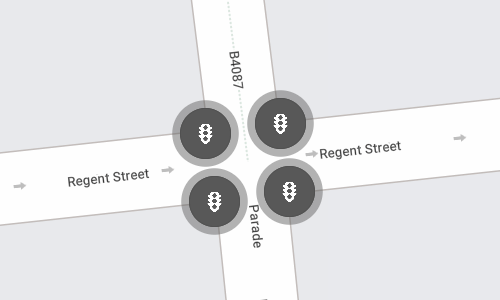
### How to draw[](#how-to-draw "Direct link to How to draw")
When you're [editing item geometry](/apps/items/view-item/item-details/map-section.md#edit-item-geometry), or another geometry data field, the Geometry Editor appears. The row of draw tools indicates which geometry types are [allowed](/apps/designer/dodis/edit-dodi/details.md) by the item's design (or the source of the field).
[](/img-cw1/shared/geometry/types/draw-tools-point.png)
Select the **Point** tool and then select your first desired location on the map. The tool will remain active, enabling you to select it again and add any more points as needed. To reposition the points, drag them to another location, or use the **Erase** tool to remove them and start again.
Select **Done** to save your changes.
[](/img-cw1/shared/geometry/types/multi-point-editor.gif)
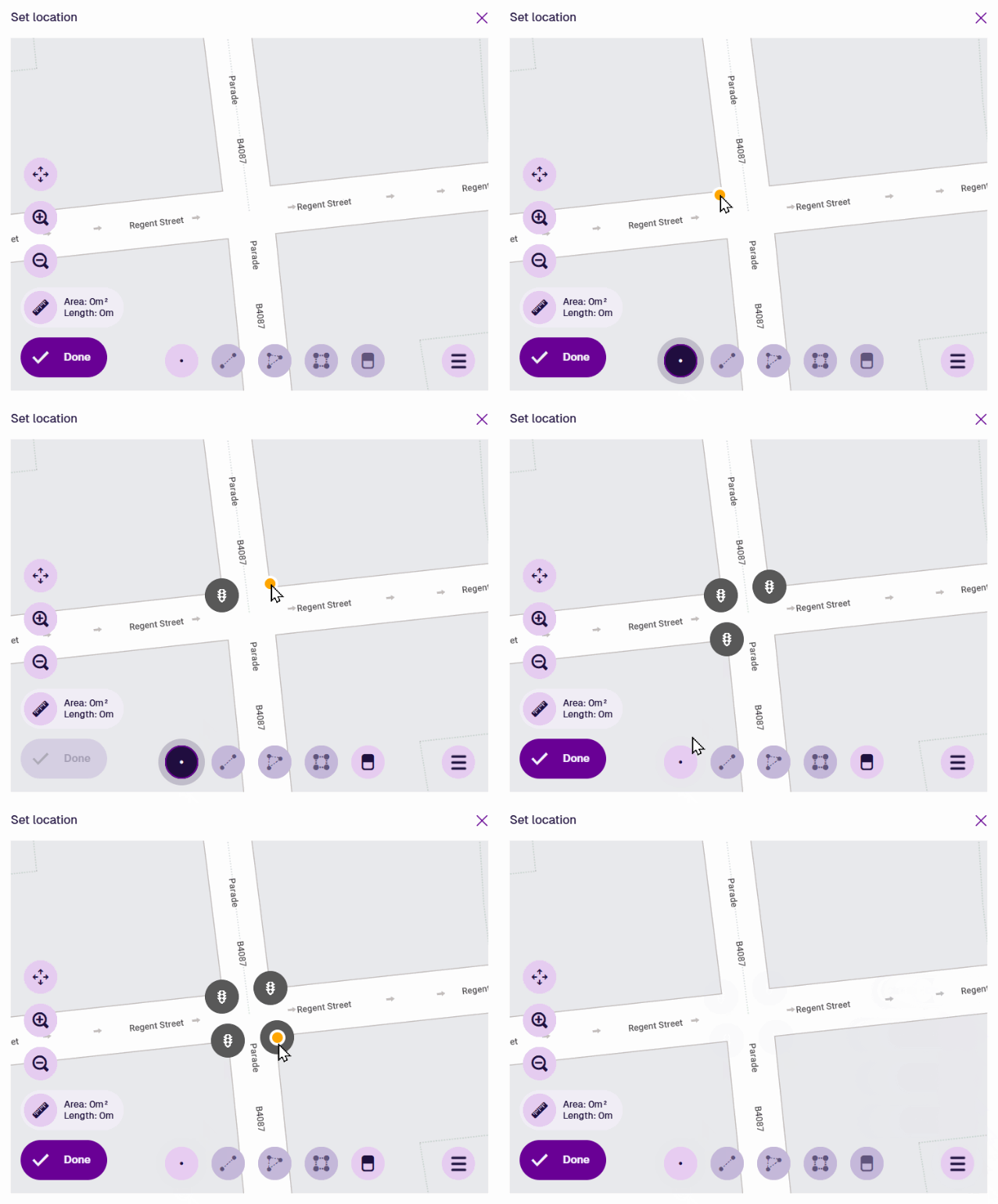
### Example GeoJSON[](#example-geojson "Direct link to Example GeoJSON")
To access the underlying code of the current geometry, select **Menu** in the Geometry Editor and choose **GeoJson view**.
```
{
"type": "MultiPoint",
"coordinates": [
[-1.535549, 52.290357],
[-1.535552, 52.290371],
[-1.535527, 52.290373],
[-1.535524, 52.290359]
]
}
```
---
# Multi-polygon geometry
### Define multiple shapes[](#define-multiple-shapes "Direct link to Define multiple shapes")
This geometry type defines multiple points that form multiple distinct shapes. Use it to describe assets composed of multiple areas, e.g. *sites with multiple buildings, park areas*.
[](/img-cw1/shared/geometry/types/multi-polygon-example.png)
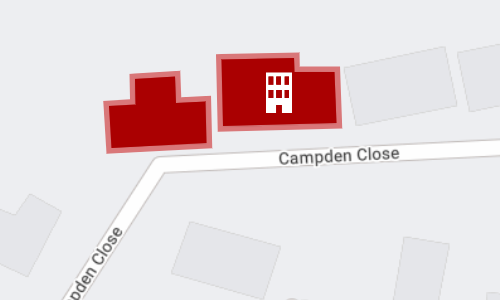
### How to draw[](#how-to-draw "Direct link to How to draw")
When you're [editing item geometry](/apps/items/view-item/item-details/map-section.md#edit-item-geometry), or another geometry data field, the Geometry Editor appears. The row of draw tools indicates which geometry types are [allowed](/apps/designer/dodis/edit-dodi/details.md) by the item's design (or the source of the field).
[](/img-cw1/shared/geometry/types/draw-tools-polygon.png)
Select the **Polygon** tool and then select a starting point on the map. Continue selecting points along your desired shape. To finish drawing, double-select the final point (or select the starting point again). The tool will remain active, enabling you to select it again and add more shapes as needed.
Additionally, you can use the **Box** tool to draw a rectangle between two diagonal points.
[](/img-cw1/shared/geometry/types/multi-polygon-editor.gif)
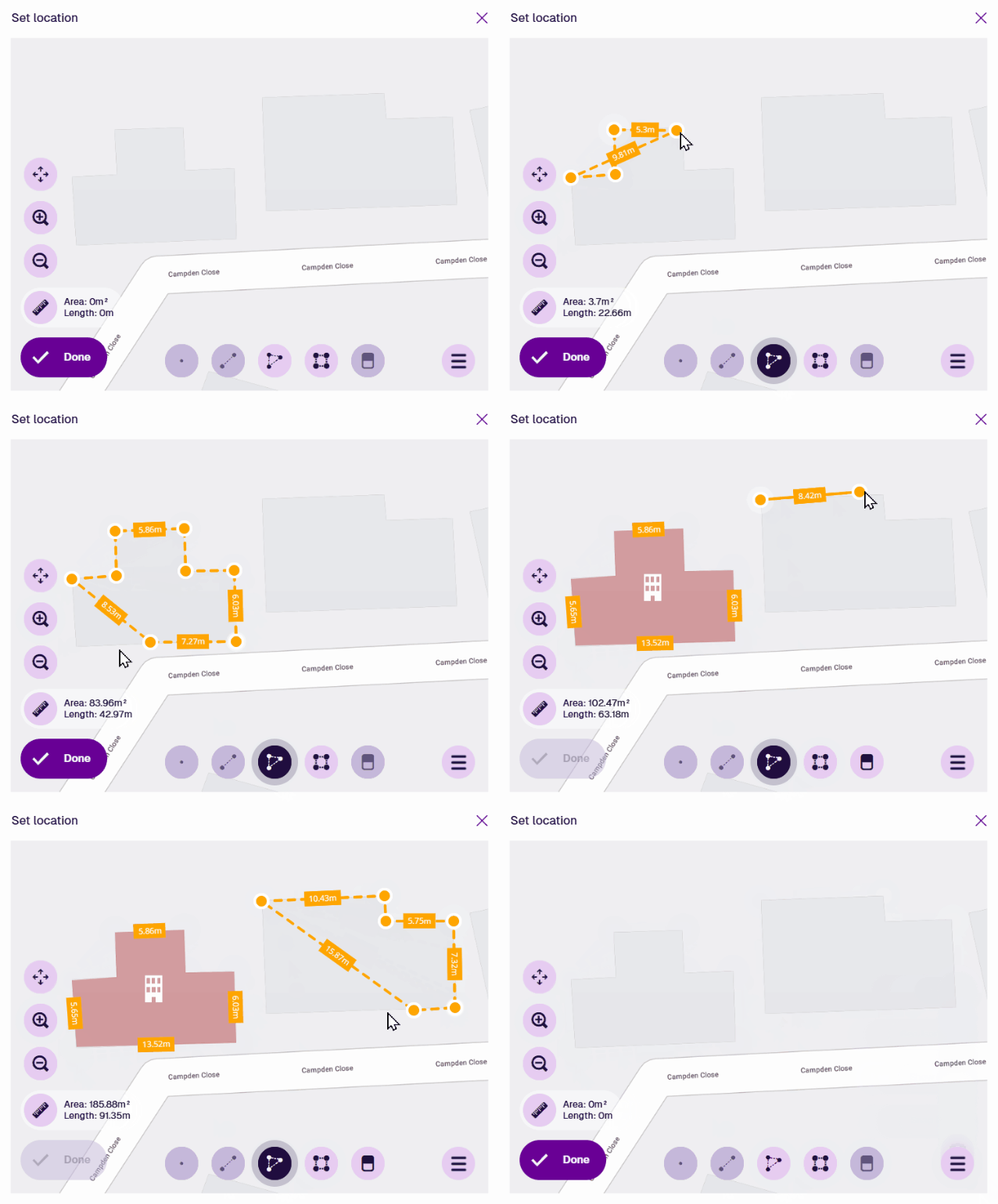
To edit a polygon, select an existing point (your mouse will snap to it) and drag it to a different position. To add a new point to a shape, select and hold anywhere along an edge, and then drag the new point into position! Use the **Erase** tool to remove points from shapes as needed.
Select **Done** to save your changes.
[](/img-cw1/shared/geometry/types/multi-polygon-editor-change.gif)
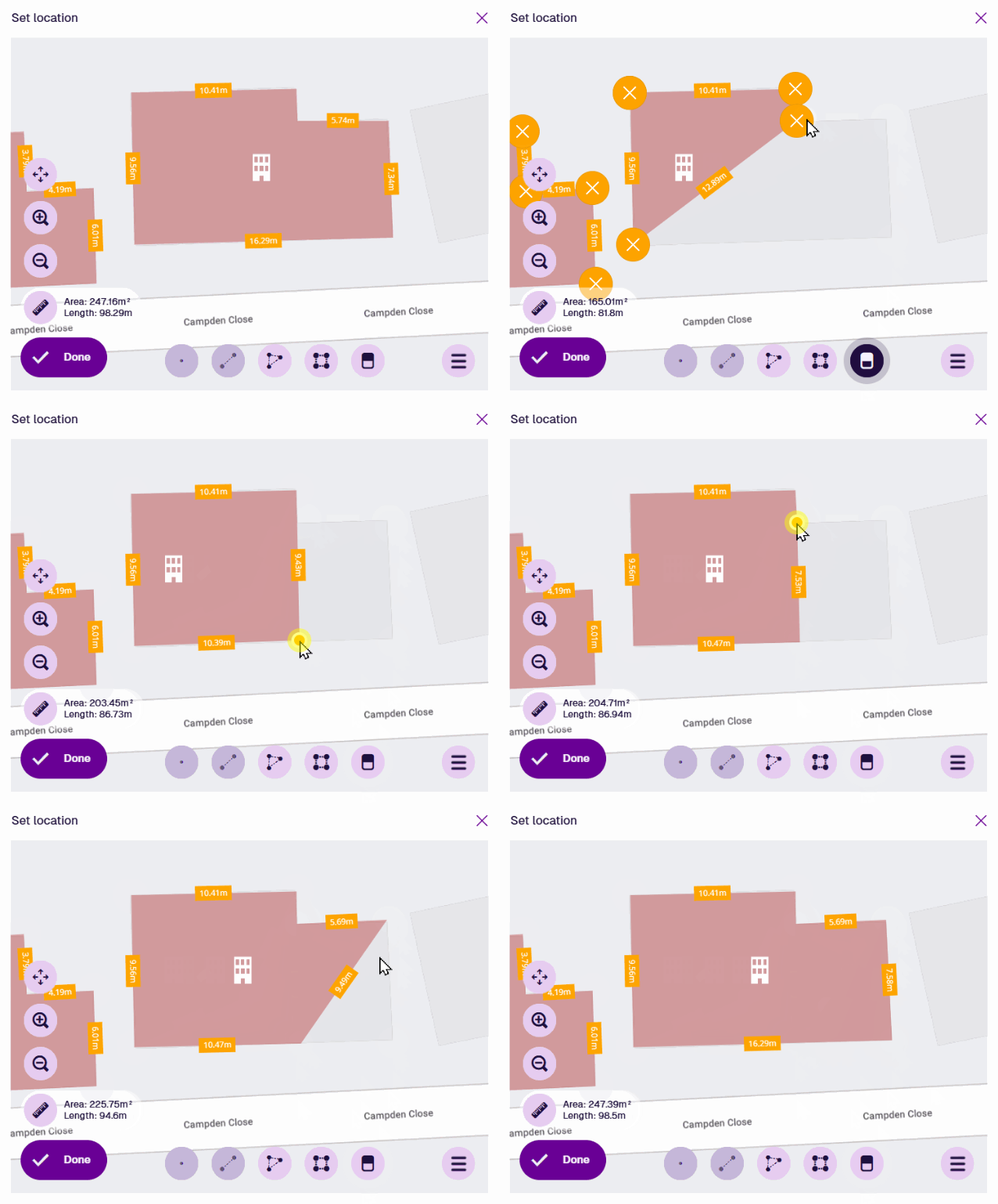
### Example GeoJSON[](#example-geojson "Direct link to Example GeoJSON")
To access the underlying code of the current geometry, select **Menu** in the Geometry Editor and choose **GeoJson view**.
```
{
"type": "MultiPolygon",
"coordinates": [
[
[
[-0.71778, 52.586826],
[-0.717695, 52.586829],
[-0.717692, 52.586795],
[-0.71763, 52.586797],
[-0.717627, 52.586743],
[-0.71783, 52.586737],
[-0.717835, 52.586791],
[-0.717779, 52.586793],
[-0.71778, 52.586826]
]
],
[
[
[-0.717595, 52.586851],
[-0.717441, 52.586853],
[-0.71744, 52.586835],
[-0.717355, 52.586835],
[-0.717351, 52.586769],
[-0.717592, 52.586765],
[-0.717595, 52.586851]
]
]
]
}
```
---
# Point geometry
### Define a single point[](#define-a-single-point "Direct link to Define a single point")
This geometry type defines a single point on the map. Use it to describe the location of assets whose size and shape is unimportant, e.g. *bins, benches, street lights*.
[](/img-cw1/shared/geometry/types/point-example.png)
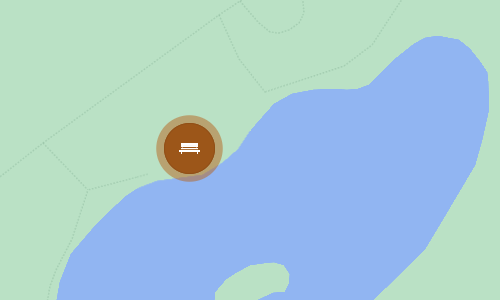
### How to draw[](#how-to-draw "Direct link to How to draw")
When you're [editing item geometry](/apps/items/view-item/item-details/map-section.md#edit-item-geometry), or another geometry data field, the Geometry Editor appears. The row of draw tools indicates which geometry types are [allowed](/apps/designer/dodis/edit-dodi/details.md) by the item's design (or the source of the field).
[](/img-cw1/shared/geometry/types/draw-tools-point.png)

Select the **Point** tool and then select your desired location on the map.
[](/img-cw1/shared/geometry/types/point-editor.gif)

Once a point is selected, the **Point** tool becomes dimmed to indicate that no further points can be added. To reposition the point, drag it to another location, or use the **Erase** tool to remove it and start again.
Select **Done** to save your changes.
### Example GeoJSON[](#example-geojson "Direct link to Example GeoJSON")
To access the underlying code of the current geometry, select **Menu** in the Geometry Editor and choose **GeoJson view**.
```
{
"type": "Point",
"coordinates": [-1.532528, 52.287515]
}
```
---
# Polygon geometry
### Define a shape using connected points[](#define-a-shape-using-connected-points "Direct link to Define a shape using connected points")
This geometry type defines multiple points that form a single closed shape. Use it to describe assets that occupy a significant area, e.g. *buildings, playgrounds, zones*.
[](/img-cw1/shared/geometry/types/polygon-example.png)
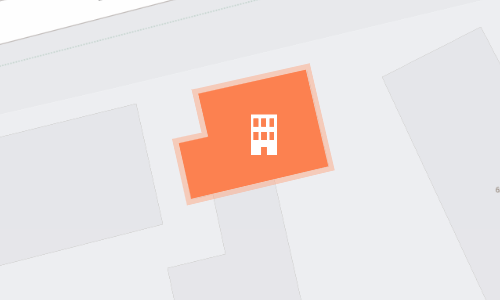
### How to draw[](#how-to-draw "Direct link to How to draw")
When you're [editing item geometry](/apps/items/view-item/item-details/map-section.md#edit-item-geometry), or another geometry data field, the Geometry Editor appears. The row of draw tools indicates which geometry types are [allowed](/apps/designer/dodis/edit-dodi/details.md) by the item's design (or the source of the field).
[](/img-cw1/shared/geometry/types/draw-tools-polygon.png)

Select the **Polygon** tool and then select a starting point on the map. Continue selecting points along your desired shape. If you need to track a fine curve, select as many points as possible along it! To finish drawing, double-select the last point (or select the starting point again).
Alternatively, you can use the **Box** tool to draw a rectangle between two diagonal points.
[](/img-cw1/shared/geometry/types/polygon-editor.gif)

Once a polygon is finished, the **Polygon** tool becomes dimmed to indicate that no further polygons can be added.
To edit the polygon, select an existing point (your mouse will snap to it) and drag it to a different position. To add a new point, select and hold anywhere along an edge, and then drag the new point into position! Use the **Erase** tool to remove points as needed.
Select **Done** to save your changes.
[](/img-cw1/shared/geometry/types/polygon-editor-change.gif)

### Example GeoJSON[](#example-geojson "Direct link to Example GeoJSON")
To access the underlying code of the current geometry, select **Menu** in the Geometry Editor and choose **GeoJson view**.
```
{
"type": "Polygon",
"coordinates": [
[
[-1.529036, 52.290931],
[-1.528988, 52.290938],
[-1.529004, 52.290984],
[-1.528819, 52.291008],
[-1.528781, 52.290908],
[-1.529018, 52.290874],
[-1.529036, 52.290931]
]
]
}
```
---
# Implementing interfaces
### Extend a design by implementing an interface[](#extend-a-design-by-implementing-an-interface "Direct link to Extend a design by implementing an interface")
While interfaces are similar to designs, you can't create items directly from an interface! Instead, the purpose of an interface is to be implemented by one or more related designs. This applies a set of common attributes to those designs and provides a single reference point for targeting all items of those designs at once.
Interfaces can also be implemented by other interfaces, making it possible to create complex data structures that provide maximum flexibility with minimum redundancy.
info
An item of a design is also an item of any interface implemented by that design.
#### Share attributes[](#share-attributes "Direct link to Share attributes")
An interface typically contains generic attributes that are relevant to multiple designs. By implementing the interface, those designs will inherit the interface's attributes alongside their own. Much quicker and easier than redefining the same attribute on each design! In this way, an interface lets you standardise parts of your data model by defining a set of common attributes that can be shared across multiple designs (and other interfaces).
In the diagram below, the **Example Custom** design directly inherits the black attributes from the default **Items** interface, plus the orange attributes defined on the **Asset Heads** interface. However, it also inherits the attributes of all the interfaces that **Asset Heads** implements, the interfaces they implement, and so on!
[](/img-cw1/apps/designer/interfaces/interface-attribute-inheritance-big.png)
#### Group related designs[](#group-related-designs "Direct link to Group related designs")
An interface also provides a way to group related designs together, making it possible to reference them all at once. When using a feature of CausewayOne Asset Management, you're often prompted to choose a design for the feature to focus on or apply to. By choosing an interface instead, you can target the items of all designs that implement it!
*For example, imagine a **Playground Assets** interface that's implemented by three designs: **Swings**, **Seesaws** and **Roundabouts**. To display items from all those designs on the map, you can define a single [layer](/basics/fundamentals/layers.md) that queries the **Playground Assets** interface.*
Targeting a single interface can save time and avoid repetition. It also provides flexibility, as any future designs can be incorporated by simply implementing the interface.
info
When targeting an interface, be aware that only the interface's attributes will be exposed (e.g. *if you perform an [AQS query](/basics/fundamentals/aqs.md) on the **Defects** interface to fetch all defect items, it won't include data for attributes defined in your **Tree Defects** design*).
#### Add functionality[](#add-functionality "Direct link to Add functionality")
In some cases, implementing a system interface can provide extra functionality to a design. This works by inheriting one or more system attributes used by a feature.
*For example, the **Files Attachable** interface contains a [Link attribute](/apps/designer/dodis/attributes/link-attribute.md) named **Attachments**, which can store items of the **Files** design. By implementing this interface, it becomes possible to upload and attach files to items of the design! To learn more, see the [Gallery section](/apps/items/view-item/item-details/gallery-section.md).*
### Implement an interface[](#implement-an-interface "Direct link to Implement an interface")
To add an interface to the design/interface you're currently editing, scroll to the **Interfaces** section, select **Add interface** and choose one from the list.
To remove an interface, select its button and answer *Yes* to the confirmation. This is only possible if no existing items contain values for the interface's attributes.
For more information, see [Edit the design or interface](/apps/designer/dodis/edit-dodi/interfaces.md).
[](/img-cw1/apps/designer/edit-dodi/interfaces-section.png)

---
# Create or open a design
### Load a new or existing design[](#load-a-new-or-existing-design "Direct link to Load a new or existing design")
To get started, create a new design or open an existing one. The loaded design will appear in the app area. Feel free to create or open another at any time. If the current design has any unsaved changes, you'll be prompted to save before continuing.
You can create any number of designs for your company project.
### Create a design[](#create-a-design "Direct link to Create a design")
On the [start screen](/apps/designer.md#navigation), select **Create design**. If one is already open, select **Create design** in the top-right corner instead.
#### Choose a type[](#choose-a-type "Direct link to Choose a type")
First, choose the type of design you want to create. This will determine the new design's initial configuration and attributes:
* [**Asset**](/apps/designer/dodis/load-design/asset-design.md) - the design represents a type of physical asset. e.g. *Street Lights, Gullies, Benches*
* [**Component**](/apps/designer/dodis/load-design/component-design.md) - the design represents a type of component, typically installed within a parent asset (or another component). e.g. *Bulb, Lamp Housing, Bin Sensor*
* [**Defect**](/apps/designer/dodis/load-design/defect-design.md) - the design represents a type of defect. e.g. *Playground Defects, Traffic Signal Faults, Potholes*
* [**Inspection**](/apps/designer/dodis/load-design/inspection-design.md) - the design represents a type of inspection. e.g. *Highway Inspections, Service Enquiries, Electric Safety Tests*
* [**Item lookup**](/apps/designer/dodis/load-design/lookup-design.md) - the design represents a set of multiple choices, which can be presented when populating a Link Attribute. e.g. *Task Priorities, Material Types*
* [**Job**](/apps/designer/dodis/load-design/job-design.md) - the design represents a type of job. e.g. *Grass Cutting Jobs, Street Light Replacement, Pothole Repairs*
* [**Network**](/apps/designer/dodis/load-design/network-design.md) - the design represents a network of geometries with links to related assets. e.g. *Road Networks, Rail Networks, Pipe Networks*
* **Custom** - a blank design with no initial configuration.
#### Enter details[](#enter-details "Direct link to Enter details")
Next, complete the following fields as needed:
* **Name** \* - enter a distinct name for the design.
* **Description** - describe what the design represents. What data is stored? How is it intended to be used? This helps users and AI agents to understand the purpose of the design. If you're not sure yet, you can update it later.
* **Icon** - use the [icon picker](/apps/tools/selection/selecting-icons.md) to change the design's icon. If left blank, it can be inherited from an interface, or will default to .
* **Colour** - use the [colour picker](/apps/tools/selection/selecting-colours.md) to change the design's colour. If left blank, it can be inherited from an interface, or will default to .
Select **Create design** to finish. You can then [edit the design](/apps/designer/dodis/edit-dodi/.md) to manage its attributes, links and other properties.
[](/img-cw1/apps/designer/designs/create-design.png)
info
If you're unable to create a design, your user account may lack the required [permissions](/apps/permissions/explorer/.md).
### Open a design[](#open-a-design "Direct link to Open a design")
To open an existing design, select **Designs** on the [start screen](/apps/designer.md#navigation). If one is already open, select **Open Design** in the top-left corner, or select **Search** in the app bar.
By default, the Search window displays all designs available to you. Depending on your last search, you may need to select the button beside the search box and choose the **Designs** category. To search the available designs, enter one or more terms into the search box, then press the `Enter` key.
Browse the following search tabs:
* **Results** - designs that match your search terms and settings.
* **Recent** - things you've recently viewed across the Asset Management Apps, including designs, items and other features.
* **Favourites** - things you've added to your personal list of favourites.
Select a result to open it. To open it in a new browser tab, use middle-click or `Ctrl`-click.
[](/img-cw1/apps/designer/designs/search-designs.png)
info
To learn more about searching for designs and other things, see [Search](/apps/home/search.md).
#### Advanced search[](#advanced-search "Direct link to Advanced search")
To refine your search results, select **Advanced search** beside the search box. Use these settings to filter the resulting designs.
Only show designs which:
* **Child design or interface** - have a [Link attribute](/apps/designer/dodis/attributes/link-attribute.md) that points to the selected design, or a design that implements the selected interface.
* **Implements interface** - [implement](/apps/designer/dodis/implement-interfaces.md) the selected interface.
* **User group** - are accessible to the selected [group](/apps/permissions/explorer/.md#-2--groups).
Select **Apply** to filter the results according to your settings. To clear these settings (but not the search box), select **Reset**.
[](/img-cw1/apps/designer/designs/search-filter.png)
---
# Asset designs
### Represent your physical assets[](#represent-your-physical-assets "Direct link to Represent your physical assets")
CausewayOne Asset Management provides the tools you need to monitor and maintain assets across all service areas. Visualise your assets on the [map](/apps/maps.md), use [activities](/basics/fundamentals/activities.md) to plan and perform maintenance, and generate [reports](/basics/fundamentals/reports.md) to capture snapshots of asset data.
To get started, you need to represent your assets in CausewayOne Asset Management:
1. Create a design for each type of asset that you manage.
2. On each asset design, add attributes for the data points you want to record for that asset type. This may involve implementing [interfaces](/apps/designer/dodis/implement-interfaces.md) to inherit their attributes alongside the ones on the design.
3. Create items of asset designs to represent actual assets.
### Create an asset design[](#create-an-asset-design "Direct link to Create an asset design")
To create a design that represents a type of asset:
1. On the [start screen](/apps/designer.md#navigation), select **Create design**. If one is already open, select **Create design** in the top-right corner instead.
2. Choose the **Asset** design type.
3. Fill in the details and then select **Create design**.
You can then [edit the design](/apps/designer/dodis/edit-dodi/.md) to manage its attributes, links and other properties.
info
If you're unable to create a design, your user account may lack the required [permissions](/apps/permissions/explorer/.md).
### Standard asset design details[](#standard-asset-design-details "Direct link to Standard asset design details")
All asset designs [implement](/apps/designer/dodis/implement-interfaces.md) the **Asset Heads** interface. Therefore, all asset items inherit a standard set of properties and attributes. Required attributes are marked with an **\*** asterisk.
#### Details[](#details "Direct link to Details")
If left blank or unchanged, the asset design will inherit the following properties:
* **Collections** - asset items can belong to the *Live* or *Archive* [collections](/basics/fundamentals/collections.md).
* **Geometry** - is optional and all [geometry types](/apps/designer/dodis/geometry-types/.md) are allowed.
* **Icon** - `icon-structure-base`
* **Colour** - `#690095`
#### Attributes[](#attributes "Direct link to Attributes")
The following attributes are inherited from the implemented interfaces:
* **Notes** - miscellaneous information about the asset.
* **Installed Date** - when the asset was installed at its location and entered into service.
#### Link attributes[](#link-attributes "Direct link to Link attributes")
The following [Link attributes](/apps/designer/dodis/attributes/link-attribute.md) are inherited from the implemented interfaces:
* **Reports** - links to any generated [reports](/basics/fundamentals/reports.md) involving the asset.
* **Tasks** - links to any [inspections](/basics/fundamentals/activities.md) or [jobs](/basics/fundamentals/activities.md) involving the asset.
* **Network References** - links the asset to one or more positions within a [network](/web/maps/networks/.md) via network reference items.
* **Default Team** - links to the team directly responsible for the asset.
* **Defects** - links to any [defects](/basics/fundamentals/activities.md) involving the asset.
#### Interfaces[](#interfaces "Direct link to Interfaces")
The following interfaces are inherited directly:
* **Asset Heads**
The following interfaces are inherited indirectly via the above interfaces:
* **Assets**
* **Items with Reports**
* **Tasks Assignable**
* **Network Referenceable**
* **Default Teams**
* **Defects Assignable**
Diagram
[](/img-cw1/apps/designer/designs/asset-design-diagram.png)
### Asset Groups[](#asset-groups "Direct link to Asset Groups")
There are various ways of working with multiple assets in CausewayOne Asset Management. You can [select them](/apps/maps/items/select-items.md) in the Maps app, or in an [item picker](/apps/tools/selection/selecting-items.md), or [create a query](/apps/explorer/load-query.md) in the Data Explorer that lists assets matching certain criteria.
However, an **asset group** lets you define a specific set of asset items. This provides a handy reference point that you can use throughout CausewayOne Asset Management to address those assets collectively, e.g. *creating a [layer](/basics/fundamentals/layers.md) or [activity](/basics/fundamentals/activities.md) that pinpoints just those assets*.
[](/img/assets/asset-groups.png)
#### Create an asset group design[](#create-an-asset-group-design "Direct link to Create an asset group design")
To create an asset group, you need at least one design that implements the **Asset Groups** interface. Some [modules](/basics/fundamentals/modules.md) contain pre-made ones, e.g. *the **Waste** module contains a **Waste Groups** design*.
If necessary, create one:
1. On the [start screen](/apps/designer.md#navigation), select **Create design**. If one is already open, select **Create design** in the top-right corner instead.
2. Choose the **Custom** design type. Fill in the details and then select **Create design**.
3. When the new design opens, scroll to the **Interfaces** section and select **Add interface**.
4. Choose the **Asset Groups** interface from the list.
Your custom design now implements the **Asset Groups** interface, and by extension the **Tasks Assignable** interface, inheriting attributes from both.
[](/img-cw1/apps/designer/designs/asset-group-design.png)
#### Create an asset group item[](#create-an-asset-group-item "Direct link to Create an asset group item")
To define an asset group, create an item of an asset group design:
1. On the [start screen](/apps/designer.md#navigation), select **Designs** and open an asset group design.
2. Select **Create item** in the top-right corner and choose the asset group design.
3. Fill in the following fields, along with any others the design has:
* **Name** \* - enter a distinct name that clearly identifies the new asset group.
* **Assets** - use the [item picker](/apps/tools/selection/selecting-items.md) or [map picker](/apps/tools/selection/selecting-map.md) to select the assets you want to group together.
* **Tasks** - select any existing inspections/jobs that apply to your new asset group.
4. Consider populating **Location**, so that the asset group can be represented on the map.
5. Select **Create** to finish.
#### View an asset group item[](#view-an-asset-group-item "Direct link to View an asset group item")
When [viewing](/apps/items/view-item/item-details/.md) an asset group item, you can display its assets in multiple ways.
In the **General** section, find the **Assets** attribute and select its **Data Explorer** button to list the grouped asset items in the [Data Explorer](/apps/explorer.md) app.
If available, the **Graph View** section can also provide an interactive visual representation of the grouped asset items.
[](/img-cw1/apps/designer/designs/asset-group-graph.png)
### Asset Components[](#asset-components "Direct link to Asset Components")
Many types of asset have component parts that require their own management and maintenance. You can represent these in CausewayOne Asset Management too, by creating distinct [component designs](/apps/designer/dodis/load-design/component-design.md) and items.
---
# Component designs
### Represent component parts[](#represent-component-parts "Direct link to Represent component parts")
If some of your assets are made up of distinct component parts, it's important to keep track of them too! CausewayOne Asset Management lets you manage components in the same way as regular assets, helping you to maximise performance and reliability across your inventory.
Assets and components can be linked together in parent/child relationships. These can be visualised using item graphs, making it easy to browse connected items and add/remove components as needed.
[](/img-cw1/apps/designer/designs/component-graph.png)
To get started, you need to represent your components in CausewayOne Asset Management:
1. Create a design for each type of component.
2. On each component design, add attributes for the data points you want to record about that component type. This may include implementing one or more interfaces to inherit their attributes alongside the ones on the design.
3. To associate a component type with a parent asset type (or another component), add a [Link attribute](/apps/designer/dodis/attributes/link-attribute.md) on the asset design that points to the component design.
4. Create items of component designs to represent actual components.
5. To connect a component item to a parent asset item (or other component), add it to the corresponding Link attribute on the parent item.
### Create a component design[](#create-a-component-design "Direct link to Create a component design")
To create a design that represents a type of component:
1. On the [start screen](/apps/designer.md#navigation), select **Create design**. If one is already open, select **Create design** in the top-right corner instead.
2. Choose the **Component** design type.
3. Fill in the details and then select **Create design**.
You can then [edit the design](/apps/designer/dodis/edit-dodi/.md) to manage its attributes, links and other properties.
info
If you're unable to create a design, your user account may lack the required [permissions](/apps/permissions/explorer/.md).
### Standard component design details[](#standard-component-design-details "Direct link to Standard component design details")
All component designs [implement](/apps/designer/dodis/implement-interfaces.md) the **Asset Component** interface. Therefore, all component items inherit a standard set of properties and attributes. Required attributes are marked with an **\*** asterisk.
#### Details[](#details "Direct link to Details")
If left blank or unchanged, the component design will inherit the following properties:
* **Collections** - component items can belong to any [collection](/basics/fundamentals/collections.md).
* **Geometry** - is optional and all [geometry types](/apps/designer/dodis/geometry-types/.md) are allowed.
* **Icon** - `icon-structure-component`
* **Colour** - `#3d8fbd`
#### Attributes[](#attributes "Direct link to Attributes")
The following attributes are inherited from the implemented interfaces:
* **Installed Date** - when the component was installed at its location and entered into service.
#### Link attributes[](#link-attributes "Direct link to Link attributes")
The following [Link attributes](/apps/designer/dodis/attributes/link-attribute.md) are inherited from the implemented interfaces:
* **Reports** - links to any generated [reports](/basics/fundamentals/reports.md) involving the component.
#### Interfaces[](#interfaces "Direct link to Interfaces")
The following interfaces are inherited directly:
* **Asset Components**
The following interfaces are inherited indirectly via the above interfaces:
* **Assets**
* **Items With Reports**
Diagram
[](/img-cw1/apps/designer/designs/component-design-diagram.png)
### Link other designs to the component design[](#link-other-designs-to-the-component-design "Direct link to Link other designs to the component design")
For each design that needs to reference a component type:
1. On the [start screen](/apps/designer.md#navigation), select **Designs** and open the relevant design.
2. Scroll to the **Link attributes** section and select **Add attribute**.
3. Fill in at least the following fields and then select **Save**:
* **Name** \* - enter a distinct name that clearly identifies the new attribute.
* **Design or interface** \* - choose the relevant component design.
* **Graph** \* - choose the *Component* graph.
For details about the other fields, see [Link attribute](/apps/designer/dodis/attributes/link-attribute.md).
[](/img-cw1/apps/designer/designs/component-design-link.png)
### Create component items[](#create-component-items "Direct link to Create component items")
Once you have a design that describes a particular type of component, you can create items of that design to represent actual components.
To create an item of a component design:
1. On the [start screen](/apps/designer.md#navigation), select **Designs** and open the component design.
2. Select **Create item** in the top-right corner:
* 1 **Select a design** - choose the component design.
* 2 **Item details** - fill in the component's attribute fields as needed.
* 3 **Parents** - select **Add parent** to link the new component to a parent asset (or another component):
* **Design** \* - choose the design of the parent item (only compatible ones are listed).
* **Attribute** \* - after choosing the design, specify the Link attribute to use.
* **Item** \* - after choosing the design, specify which of its items should link to the new component.
Select **Add** to continue.
[](/img-cw1/apps/designer/designs/component-item-parent.png)
3. Select **Create** to finish.
info
To link an existing component item to a parent, select the item to [view its details](/apps/items/view-item/item-details/.md). In the **Parents** section, select **Add parent**.
### View an item's component graph[](#view-an-items-component-graph "Direct link to View an item's component graph")
When [viewing](/apps/items/view-item/item-details/.md) an asset or component item, the **Graph View** section may be available. It can provide an interactive visual representation of the component hierarchy.
Select a component item in the graph to view its details, where you can edit or remove the item if needed.
[](/img-cw1/apps/designer/designs/component-item-graph.png)
#### Add a new component[](#add-a-new-component "Direct link to Add a new component")
To create a new component item that's automatically linked to the selected item on the graph:
1. Select **Menu** (bottom-right) and choose **Add item**.
2. Choose a compatible Link attribute on the selected item to add the new component to.
[](/img-cw1/apps/designer/designs/component-item-graph-add.png)
3. If the chosen Link attribute applies to an interface, the designs that implement it will be listed. Choose the design of the new component.
4. The [Create Item process](/apps/items/create-item.md#the-create-item-process) will appear. Fill in the fields as needed and select **Create item** to finish.
---
# Defect designs
### Represent a type of defect[](#represent-a-type-of-defect "Direct link to Represent a type of defect")
CausewayOne Asset Management lets you report possible issues and faults affecting your organisation's assets and operational areas. A defect may be noticed by a worker during a visit, reported by a member of the public, or triggered automatically by sensor readings. You can then decide whether to [inspect](/apps/designer/dodis/load-design/inspection-design.md) the defect or go straight ahead with a [job](/apps/designer/dodis/load-design/job-design.md) to fix it!
To get started, you need to represent those defects in CausewayOne Asset Management:
1. Create a design for each defect type you want to monitor.
2. On each defect design, add attributes for any extra data points you want to record about that defect type. This may include implementing one or more interfaces to inherit their attributes alongside the ones on the design.
3. Create items of defect designs to represent reported defects.
### Create a defect design[](#create-a-defect-design "Direct link to Create a defect design")
To create a design that represents a type of defect:
1. On the [start screen](/apps/designer.md#navigation), select **Create design**. If one is already open, select **Create design** in the top-right corner instead.
2. Choose the **Defect** design type.
3. Fill in the details and then select **Create design**.
You can then [edit the design](/apps/designer/dodis/edit-dodi/.md) to manage its attributes, links and other properties.
info
If you're unable to create a design, your user account may lack the required [permissions](/apps/permissions/explorer/.md).
### Standard defect design details[](#standard-defect-design-details "Direct link to Standard defect design details")
All defect designs [implement](/apps/designer/dodis/implement-interfaces.md) the **Defects** interface. Therefore, all defect items inherit a standard set of properties and attributes. Required attributes are marked with an **\*** asterisk.
#### Details[](#details "Direct link to Details")
If left blank or unchanged, the defect design will inherit the following properties:
* **Applies to** - to be usable, a defect design must be applicable to one or more designs. This makes it selectable when creating defects for items of those designs. If an interface is added to this list, the defect design will apply to all designs that [implement](/apps/designer/dodis/implement-interfaces.md) it.
*For example, a **Bench Defects** design could apply to a **Benches** design.*
To add one to the list, select **Add applies to** and choose a compatible design/interface. To remove one from the list, select its button.
* **Collections** - defect items can belong to any [collection](/basics/fundamentals/collections.md) except for *Inventory*.
* **Geometry** - is optional and all [geometry types](/apps/designer/dodis/geometry-types/.md) are allowed.
* **Icon** - `icon-defect`
* **Colour** - `#690095`
* **Title** - `DEF-X` where X is the value of the **Defect Number** attribute.
#### Attributes[](#attributes "Direct link to Attributes")
The following attributes are inherited from the implemented interfaces:
* **Defect Number** \* - a unique ID number. This is automatically incremented, so the field isn't shown when creating/editing a defect. By default, it's displayed in the [title](/apps/designer/dodis/titles-subtitles.md) of defect items for easy identification.
info
You can configure any [Number attribute](/apps/designer/dodis/attributes/number-attribute.md#auto-increment) to automatically increment in this way.
* **Reported Date** - when the defect was created.
* **Remedied Date** - when the defect was considered closed, with no further attention required.
* **Description** - text that typically describes any details of the defect not covered by its other attributes.
#### Link attributes[](#link-attributes "Direct link to Link attributes")
The following [Link attributes](/apps/designer/dodis/attributes/link-attribute.md) are inherited from the implemented interfaces:
* **Status** \* - links to a defect status indicating which stage the defect is currently at, e.g. *Reported, Completed*.
* **Reporters** - links to the contact details of the person(s) who reported the defect.
* **Related Defects** - links to any other defects related to the defect.
* **Attachments** - links to any [uploaded files](/basics/fundamentals/items.md#file-attachments) related to the defect.
* **Raised Jobs** - links to any jobs arising from the defect.
* **Defect Inspections** - links to any inspections of the defect.
#### Interfaces[](#interfaces "Direct link to Interfaces")
The following interfaces are inherited directly:
* **Defects**
The following interfaces are inherited indirectly via the above interfaces:
* **Files Attachable**
* **Defects Raising Jobs**
* **Defects With Inspections**
Diagram
[](/img-cw1/apps/designer/designs/defect-design-diagram.png)
---
# Inspection designs
### Represent a type of inspection[](#represent-a-type-of-inspection "Direct link to Represent a type of inspection")
CausewayOne Asset Management lets you plan and perform investigations of your organisation's assets and operational areas. Record the state of an asset's condition by filling in data fields, answering yes/no to pre-defined questions and attaching photos.
To get started, you need to represent those inspections in CausewayOne Asset Management:
1. Create a design for each inspection type.
2. On each inspection design, add attributes for any extra data points you want to record about that inspection type. This may include implementing one or more interfaces to inherit their attributes alongside the ones on the design.
3. Create items of inspection designs to represent inspection tasks.
### Create an inspection design[](#create-an-inspection-design "Direct link to Create an inspection design")
To create a design that represents a type of inspection:
1. On the [start screen](/apps/designer.md#navigation), select **Create design**. If one is already open, select **Create design** in the top-right corner instead.
2. Choose the **Inspection** design type.
3. Fill in the details and then select **Create design**.
You can then [edit the design](/apps/designer/dodis/edit-dodi/.md) to manage its attributes, links and other properties.
info
If you're unable to create a design, your user account may lack the required [permissions](/apps/permissions/explorer/.md).
### Standard inspection design details[](#standard-inspection-design-details "Direct link to Standard inspection design details")
All inspection designs [implement](/apps/designer/dodis/implement-interfaces.md) the **Inspections** interface. Therefore, all inspection items inherit a standard set of properties and attributes. Required attributes are marked with an **\*** asterisk.
#### Details[](#details "Direct link to Details")
If left blank or unchanged, the inspection design will inherit the following properties:
* **Applies to** - to be usable, an inspection design must be applicable to one or more designs. This makes it selectable when creating inspections for items of those designs. If an interface is added to this list, the inspection design will apply to all designs that [implement](/apps/designer/dodis/implement-interfaces.md) it.
*For example, a **Car Park Inspections** design could apply to a **Car Parks** design.*
To add one to the list, select **Add applies to** and choose a compatible design/interface. To remove one from the list, select its button.
* **Collections** - inspection items can belong to any [collection](/basics/fundamentals/collections.md) except for *Inventory*.
* **Geometry** - is optional and all [geometry types](/apps/designer/dodis/geometry-types/.md) are allowed.
* **Icon** - `icon-inspection`
* **Colour** - `#e9225b`
* **Title** - `INS-X` where X is the value of the **Inspection Number** attribute.
#### Attributes[](#attributes "Direct link to Attributes")
The following attributes are inherited from the implemented interfaces:
* **Inspection Number** \* - a unique ID number. This is automatically incremented, so the field isn't shown when creating/editing an inspection. By default, it's displayed in the [title](/apps/designer/dodis/titles-subtitles.md) of inspection items for easy identification.
info
You can configure any [Number attribute](/apps/designer/dodis/attributes/number-attribute.md#auto-increment) to automatically increment in this way.
* **Description** - text that typically describes any details of the inspection not covered by its other attributes.
* **Raised Time** - when the inspection was created.
* **Target Time** - when the inspection is planned to be completed.
* **Issued Time** - when the inspection was assigned to a team or team member.
* **Estimated Start/End Time** - when the inspection is expected to be started or ended.
* **Start Time** - when work on the inspection began and its status was changed to *In Progress*.
* **Completion Time** - when work on the inspection finished and its status was changed to *Completed*.
* **Cancelled Time** - when the inspection was closed prematurely and its status was changed to *Cancelled*.
#### Link attributes[](#link-attributes "Direct link to Link attributes")
The following [Link attributes](/apps/designer/dodis/attributes/link-attribute.md) are inherited from the implemented interfaces:
* **Related Inspections** - links to any other inspections related to the inspection.
* **Attachments** - links to any [uploaded files](/basics/fundamentals/items.md#file-attachments) related to the inspection.
* **Status** \* - links to a [task status](/web/activities/tasks/customise-task-status.md) indicating which stage the inspection is currently at, e.g. *Proposed, Completed*.
* **Priority** - links to a [task priority](/web/activities/tasks/customise-task-priority.md) indicating how urgently the inspection needs to be completed.
* **Team** - links to the team assigned to perform the inspection.
* **Team Member** - links to the team member assigned to perform the inspection.
* **Raised Jobs** - links to any jobs arising from the inspection.
* **Raised Defects** - links to any defects arising from the inspection.
#### Interfaces[](#interfaces "Direct link to Interfaces")
The following interfaces are inherited directly:
* **Inspections**
The following interfaces are inherited indirectly via the above interfaces:
* **Files Attachable**
* **Tasks**
* **Inspections Raising Jobs**
* **Inspections Raising Defects**
Diagram
[](/img-cw1/apps/designer/designs/inspection-design-diagram.png)
---
# Job designs
### Represent a type of job[](#represent-a-type-of-job "Direct link to Represent a type of job")
CausewayOne Asset Management lets you plan and perform any kind of work that needs doing. Maintain your organisation's assets and fix reported defects as they arise. Attach photos to record completed work.
To get started, you need to represent those jobs in CausewayOne Asset Management:
1. Create a design for each job type.
2. On each job design, add attributes for any extra data points you want to record about that job type. This may include implementing one or more interfaces to inherit their attributes alongside the ones on the design.
3. Create items of job designs to represent work tasks.
info
If you want to quantify and cost job requirements:
* Create [work items](/web/activities/tasks/jobs/work-units/work-items/.md) to represent individual units of work that any job may require, e.g. *billable time, materials, equipment, staff*.
* On each job item, add [job work items](/web/activities/tasks/jobs/work-units/job-work-items.md) to represent the requirements of that particular job.
### Create a job design[](#create-a-job-design "Direct link to Create a job design")
To create a design that represents a type of job:
1. On the [start screen](/apps/designer.md#navigation), select **Create design**. If one is already open, select **Create design** in the top-right corner instead.
2. Choose the **Job** design type.
3. Fill in the details and then select **Create design**.
You can then [edit the design](/apps/designer/dodis/edit-dodi/.md) to manage its attributes, links and other properties.
### Standard job design details[](#standard-job-design-details "Direct link to Standard job design details")
All job designs [implement](/apps/designer/dodis/implement-interfaces.md) the **Jobs** interface. Therefore, all job items inherit a standard set of properties and attributes. Required attributes are marked with an **\*** asterisk.
#### Details[](#details "Direct link to Details")
If left blank or unchanged, the job design will inherit the following properties:
* **Applies to** - to be usable, a job design must be applicable to one or more designs. This makes it selectable when creating jobs for items of those designs. If an interface is added to this list, the job design will apply to all designs that [implement](/apps/designer/dodis/implement-interfaces.md) it.
*For example, a **Tree Surgery Jobs** design could apply to a **Trees** design*.
To add one to the list, select **Add applies to** and choose a compatible design/interface. To remove one from the list, select its button.
* **Collections** - job items can belong to any [collection](/basics/fundamentals/collections.md) except for *Inventory*.
* **Geometry** - is optional and all [geometry types](/apps/designer/dodis/geometry-types/.md) are allowed.
* **Icon** - `icon-job`
* **Colour** - `#e9225b`
* **Title** - `JOB-X` where X is the value of the **Job Number** attribute.
#### Attributes[](#attributes "Direct link to Attributes")
The following attributes are inherited from the implemented interfaces:
* **Job Number** \* - a unique ID number. This is automatically incremented, so the field isn't shown when creating/editing a job. By default, it's displayed in the [title](/apps/designer/dodis/titles-subtitles.md) of job items for easy identification.
info
You can configure any [Number attribute](/apps/designer/dodis/attributes/number-attribute.md#auto-increment) to automatically increment in this way.
* **Total Estimated/Actual Cost** - the sum of the **Estimated Cost** or **Actual Cost** attributes on all [job work items](/web/activities/tasks/jobs/work-units/job-work-items.md) belonging to the job. These totals are automatically computed whenever a job work item is added, removed or edited. They aren't shown when creating/editing a job, or when the job has no job work items.
* **Description** - text that typically describes any details of the job not covered by its other attributes.
* **Raised Time** - when the job was created.
* **Target Time** - when the job is planned to be completed.
* **Issued Time** - when the job was assigned to a team or team member.
* **Estimated Start/End Time** - when the job is expected to be started or ended.
* **Start Time** - when work on the job began and its status was changed to *In Progress*.
* **Completion Time** - when work on the job finished and its status was changed to *Completed*.
* **Cancelled Time** - when the job was closed prematurely and its status was changed to *Cancelled*.
* **Price Multiplier** - a percentage adjustment to the calculated job cost, where `1.0` represents 100%, e.g. *a value of `0.8` will decrease the job cost by 20%*.
* **Price Adjustment** - a numerical adjustment to the calculated job cost, e.g. *a value of `-100.50` will decrease the job cost by that amount*.
#### Link attributes[](#link-attributes "Direct link to Link attributes")
The following [Link attributes](/apps/designer/dodis/attributes/link-attribute.md) are inherited from the implemented interfaces:
* **Job Work Items** - formalised units of work required for the job, which can be quantified and costed. Created from defined work items. To learn more, see [Job work items](/web/activities/tasks/jobs/work-units/job-work-items.md) on Asset Classic.
* **Related Jobs** - links to any other jobs related to the job.
* **Budget** - links to a [budget](/web/financial-accounts/budgets/.md). When set or unset, it will overwrite the **Budget** attribute on all job work items belonging to the job. The **Estimated Cost** or **Actual Cost** of each job work item is then deducted from the value of the relevant budget period (if defined), based on the job's most relevant Date Time attribute.
Details
The budget period is determined by one of these job attributes, in descending order of priority:
* **Issued Time**
* **Raised Time**
* **Estimated Start Time**
* **Start Time**
* **Completed Time**
* **Estimated End Time**
* **Target Time**
* the current date and time
* **Attachments** - links to any [uploaded files](/basics/fundamentals/items.md#file-attachments) related to the job.
* **Status** \* - links to a [task status](/web/activities/tasks/customise-task-status.md) indicating which stage the job is currently at, e.g. *Proposed, Completed*.
* **Priority** - links to a [task priority](/web/activities/tasks/customise-task-priority.md) indicating how urgently the job needs to be completed.
* **Team** - links to the team assigned to perform the job.
* **Team Member** - links to the team member assigned to perform the job.
* **Reports** - links to any generated [reports](/basics/fundamentals/reports.md) involving the job.
* **Jobs Inspections** - links to any inspections examining the output of the job.
* **Fixed Defects** - links to any defects fixed by the job.
#### Interfaces[](#interfaces "Direct link to Interfaces")
The following interfaces are inherited directly:
* **Jobs**
The following interfaces are inherited indirectly via the above interfaces:
* **Files Attachable**
* **Tasks**
* **Uplift**
* **Items with Reports**
* **Jobs With Inspections**
* **Jobs Fixing Defects**
Diagram
[](/img-cw1/apps/designer/designs/inspection-design-diagram.png)
---
# Item lookup designs
### Represent a set of predefined choices[](#represent-a-set-of-predefined-choices "Direct link to Represent a set of predefined choices")
Link attributes can function as lookup lists. By pointing a Link attribute to a lookup design, a list of item choices will be displayed when populating that Link attribute on items, e.g. *imagine a **Material Types** design with items to represent "Metal", "Wood", "Plastic" etc*.
Compared to a basic Text attribute, lookup items provide several benefits:
* users are limited to a consistent set of choices
* icons and colours can convey meaning
* editing a lookup item will update it everywhere
* lookup items can have their own attributes
To provide a lookup list:
1. Create a lookup design with one or more attributes.
2. Create items of that design to represent each possible choice.
3. On relevant designs, add a Link attribute to the lookup design.
This is demonstrated by the **Tasks** interface. Its **Status** attribute links to items of the **Task Statuses** design.
[](/img-cw1/apps/designer/designs/lookup-design-statuses.png)
### Create a lookup design[](#create-a-lookup-design "Direct link to Create a lookup design")
To create a design that represents an item lookup:
1. On the [start screen](/apps/designer.md#navigation), select **Create design**. If one is already open, select **Create design** in the top-right corner instead.
2. Choose the **Item lookup** design type.
3. Fill in the details and then select **Create design**.
info
If you're unable to create a design, your user account may lack the required [permissions](/apps/permissions/explorer/.md).
### Standard lookup design details[](#standard-lookup-design-details "Direct link to Standard lookup design details")
Lookup designs only [implement](/apps/designer/dodis/implement-interfaces.md) the standard **Items** interface. Therefore, lookup items only inherit the standard set of properties and attributes. This provides a blank canvas for you to customise the lookup design and add the attributes you want.
#### Details[](#details "Direct link to Details")
If left blank or unchanged, the lookup design will inherit the following properties:
* **Collections** - lookup items can belong to the *Live* or *Archive* [collections](/basics/fundamentals/collections.md).
* **Geometry** - is optional and all [geometry types](/apps/designer/dodis/geometry-types/.md) are allowed.
* **Icon** - `icon-shape-circle`
* **Colour** - `#690095`
#### Attributes[](#attributes "Direct link to Attributes")
The following standard attributes are inherited from the **Items** interface:
* **Geometry** - coordinates describing the lookup item's location and shape.
* **Title** - standard primary text label.
* **Subtitle** - standard secondary text label.
---
# Network designs
### Represent a geographic network[](#represent-a-geographic-network "Direct link to Represent a geographic network")
CausewayOne Asset Management lets you define networks of connected things. A network is comprised of network items with geometry, which each represent a part of the overall network geometry, e.g. *road sections within a road network*. You can associate assets with parts of the network by linking them to the relevant network item.
Networks can be visualised as layers on the map, enabling you to select anywhere within the network and see the relevant assets for the selected part, e.g. *selecting a road to list the street lights on it*.
To get started, you need to represent the network in CausewayOne Asset Management:
1. Create a design for the network.
2. Add attributes for any extra data points you want to record about each part of the network, e.g. *a **Street Name** attribute for a road network*. This may include implementing one or more interfaces to inherit their attributes alongside the ones on the design.
3. Create items of the network design to represent parts of the network.
4. Link asset items with network items via network references.
To learn more, see [Networks](/web/maps/networks/.md).
[](/img-cw1/apps/designer/designs/network-design-concept.png)
info
If you import NSG/NLPG data, it will create all the necessary network designs and items for you! To learn more, see [Gateway](/web/gateway.md) in Asset Classic.
### Create a network design[](#create-a-network-design "Direct link to Create a network design")
To create a design that represents a network:
1. On the [start screen](/apps/designer.md#navigation), select **Create design**. If one is already open, select **Create design** in the top-right corner instead.
2. Choose the **Network** design type.
3. Fill in the details and then select **Create design**.
info
If you're unable to create a design, your user account may lack the required [permissions](/apps/permissions/explorer/.md).
### Standard network design details[](#standard-network-design-details "Direct link to Standard network design details")
All network designs [implement](/apps/designer/dodis/implement-interfaces.md) the **Networks** interface. Therefore, all network items inherit a standard set of properties and attributes. Required attributes are marked with an **\*** asterisk.
#### Details[](#details "Direct link to Details")
If left blank or unchanged, the network design will inherit the following properties:
* **Collections** - network items can belong to the *Live* or *Archive* [collections](/basics/fundamentals/collections.md).
* **Geometry** - is optional and all [geometry types](/apps/designer/dodis/geometry-types/.md) are allowed. You may want to make geometry required and/or limit the allowed types, e.g. *only "Line" geometry for a road network*.
* **Icon** - `icon-network`
* **Colour** - `#690095`
#### Link attributes[](#link-attributes "Direct link to Link attributes")
The following [Link attributes](/apps/designer/dodis/attributes/link-attribute.md) are inherited from the implemented interfaces:
* **Network References** - links the network item to one or more assets via network reference items.
* **Reports** - links to any generated [reports](/basics/fundamentals/reports.md) involving the network item.
#### Interfaces[](#interfaces "Direct link to Interfaces")
The following interfaces are inherited directly:
* **Networks**
The following interfaces are inherited indirectly via the above interfaces:
* **Items With Reports**
Diagram
[](/img-cw1/apps/designer/designs/network-design-diagram.png)
### Create network items[](#create-network-items "Direct link to Create network items")
Once you have a design that describes a network, you can create items of that design to represent each part of the network's overall geometry.
To create an item of a network design:
1. On the [start screen](/apps/designer.md#navigation), select **Designs** and open the network design.
2. Select **Create item** in the top-right corner:
* 1 **Select a design** - choose the network design.
* 2 **Item details** - you don't need to populate the **Reports** and **Network References** fields at this point. Fill in other fields as needed.
* 4 **Item location** - use the [Geometry Editor](/apps/tools/geometry-editor.md) to define the network item's geometry.
[](/img-cw1/apps/designer/designs/network-design-create-location.png)
3. Select **Create** to finish. To keep creating network items, enable **Create another** first.
---
# Create or open an interface
### Load a new or existing interface[](#load-a-new-or-existing-interface "Direct link to Load a new or existing interface")
To get started, create a new interface or open an existing one. The loaded interface will appear in the app area. Feel free to create or open another at any time. If the current interface has any unsaved changes, you'll be prompted to save before continuing.
You can create any number of interfaces for your company project.
### Create an interface[](#create-an-interface "Direct link to Create an interface")
On the [start screen](/apps/designer.md#navigation), select **Create interface**. If one is already open, select **Create interface** in the top-right corner instead.
Complete the following fields as needed:
* **Name** \* - enter a distinct name for the interface.
* **Description** - describe what the interface represents. What data is stored? How is it intended to be used? This helps users and AI agents to understand the purpose of the interface. If you're not sure yet, you can update it later.
* **Icon** - use the [icon picker](/apps/tools/selection/selecting-icons.md) to change the interface's icon. The default is .
* **Colour** - use the [colour picker](/apps/tools/selection/selecting-colours.md) to change the interface's colour. The default is .
Select **Create interface** to finish. You can then [edit the interface](/apps/designer/dodis/edit-dodi/.md) to manage its attributes, links and other properties.
[](/img-cw1/apps/designer/interfaces/create-interface.png)
info
If you're unable to create a interface, your user account may lack the required [permissions](/apps/permissions/explorer/.md).
### Open an interface[](#open-an-interface "Direct link to Open an interface")
To open an existing interface, select **Interfaces** on the [start screen](/apps/designer.md#navigation). If one is already open, select **Open Interface** in the top-left corner, or select **Search** in the app bar.
By default, the Search window displays all interfaces available to you. Depending on your last search, you may need to select the button beside the search box and choose the **Interfaces** category. To search the available interfaces, enter one or more terms into the search box, then press the `Enter` key.
Browse the following search tabs:
* **Results** - interfaces that match your search terms and settings.
* **Recent** - things you've recently viewed across the Asset Management Apps, including interfaces, items and other features.
* **Favourites** - things you've added to your personal list of favourites.
Select a result to open it. To open it in a new browser tab, use middle-click or `Ctrl`-click.
[](/img-cw1/apps/designer/interfaces/search-interfaces.png)
info
To learn more about searching for interfaces and other things, see [Search](/apps/home/search.md).
#### Advanced search[](#advanced-search "Direct link to Advanced search")
To refine your search results, select **Advanced search** beside the search box. Use these settings to filter the resulting interfaces.
Only show interfaces which:
* **Child design or interface** - have a [Link attribute](/apps/designer/dodis/attributes/link-attribute.md) that points to the selected design, or a design that implements the selected interface.
* **Implemented by design or interface** - are implemented by the selected design or interface.
* **Implements interface** - [implement](/apps/designer/dodis/implement-interfaces.md) the selected interface.
* **User group** - are accessible to the selected [group](/apps/permissions/explorer/.md#-2--groups).
Select **Apply** to filter the results according to your settings. To clear these settings (but not the search box), select **Reset**.
[](/img-cw1/apps/designer/interfaces/search-filter.png)
---
# Titles and subtitles
### Configure the primary and secondary labels of items[](#configure-the-primary-and-secondary-labels-of-items "Direct link to Configure the primary and secondary labels of items")
All designs/interfaces have **Title** and **Subtitle** properties. These act as templates that determine the primary and secondary labels of the items created from each design. They're fully customisable, letting you define exactly how items are identified and what data is surfaced.
#### Default labels[](#default-labels "Direct link to Default labels")
If **Title** and **Subtitle** are left blank on a design (and on any interfaces it [implements](/apps/designer/dodis/implement-interfaces.md)), items of that design will display their [Item ID](/apps/items/item-id.md) as their title and the design name as their subtitle.
[](/img-cw1/apps/designer/titles-subtitles/example-blank.png)
#### Fixed labels[](#fixed-labels "Direct link to Fixed labels")
If you enter text for both properties, all items created from the design will have the same title/subtitle. This may be preferable for some scenarios. In the example below:
* **Title** is set to `Traffic Bollard`
* **Subtitle** is set to `Type 2 Solar`
[](/img-cw1/apps/designer/titles-subtitles/example-fixed.png)
#### Variable labels[](#variable-labels "Direct link to Variable labels")
The magic starts when you include variables in these properties! Using the Title/Subtitle Editor, you can configure both properties to include specific item attributes and display their values.
In the example below:
* **Title** is set to `{{attributes_streetLightingUnitsUnitNumber}}`
* **Subtitle** is set to `{{Type: attributes_streetLightingUnitsUnitType}}`
All items of the design will have a unique title and a varying subtitle. This makes it easy to identify an item and see key attributes at a glance, without having to open it.
[](/img-cw1/apps/designer/titles-subtitles/example-variable.png)
### Using the Title/Subtitle Editor[](#using-the-titlesubtitle-editor "Direct link to Using the Title/Subtitle Editor")
When [editing](/apps/designer/dodis/edit-dodi/.md) a design/interface, select **Title** or **Subtitle** in the **Details** section to open the Title/Subtitle Editor, and then type within the relevant template.
[](/img-cw1/apps/designer/titles-subtitles/title-subtitle-editor.png)
info
**Title** and **Subtitle** are technically attributes inherited from the default **Items** interface.
#### Attribute variables[](#attribute-variables "Direct link to Attribute variables")
To include attribute values in the title/subtitle, type two curly brackets `{{` into the relevant template. The editor will display a list of available attributes on the current design. Keep typing to narrow down the name. Select an attribute to add its code to the template.
[](/img-cw1/apps/designer/titles-subtitles/variable-select-attribute.png)
Due to their nature, [Link attributes](/apps/designer/dodis/attributes/link-attribute.md) can behave differently depending on their contents.
Link attributes
If you select a Link attribute in the list, its appearance will vary. For items with one item stored in that Link attribute, the variable will display the stored item's title. Otherwise, the variable will display the number of stored items.
*For example, if we add the **Jobs** attribute to the subtitle template of the **Street Lights** design, see how it can appear on different items.*
[](/img-cw1/apps/designer/titles-subtitles/variable-link-attribute.png)
Parent Link attributes
Further down the list, you'll see parent Link attributes that either connect to the current design, or to an interface it [implements](/apps/designer/dodis/implement-interfaces.md). A parent Link attribute may be located on a single design, or on an interface that's implemented by multiple designs.
[](/img-cw1/apps/designer/titles-subtitles/variable-parent-select.png)
If you select a parent Link attribute, its appearance will vary. If an item has one parent item linking to it via that attribute, the variable will display the parent item's title. Otherwise, the variable will display the number of parent items.
*For example, the **Bridge Deck** design has a **Lights** attribute that links to the **Street Lights** design. See how adding it to the title template of the **Street Lights** design can affect its items.*
[](/img-cw1/apps/designer/titles-subtitles/variable-parent-attribute.png)
#### The format of a variable[](#the-format-of-a-variable "Direct link to The format of a variable")
The editor accepts variables written in [Mustache template](https://en.wikipedia.org/wiki/Mustache_\(template_system\)) format. A typical variable consists of an attribute code enclosed in double curly brackets:
* a system attribute: `{{attributes_streetLightingUnitsUnitNumber}}`
* a custom attribute: `{{attributes_bollardType1BollardType1_5caef948ff5c130f7075f0e5}}`
You can include a mixture of text and variables:
`Type: {{attributes_streetLightingUnitsUnitType}} / {{attributes_colouredStreetLightsColour}}`
#### Conditional statements[](#conditional-statements "Direct link to Conditional statements")
Conditional statements let you include variables/text only if certain conditions are true.
There are three types of condition that can be checked:
* Does the specified attribute have data? `{{#if attributes_exampleDesignName}}`
* If the specified attribute is a boolean type, is it *Yes* rather than *No*? `{{#if attributes_exampleDesignYesNo}}`
* Does the item belong to the specified [collection](/basics/fundamentals/collections.md)? `{{#if collection_archive}}`
There are three types of statement that you can use to check those conditions.
IF statements
An IF statement lets you say: "If this condition is true, output this".
1. Type the condition (what to check): `{{#if attributes_exampleDesignName}}`
2. Type the statement (what to output if true): `The Name is: {{attributes_exampleDesignName}}`
3. Type `{{/if}}` to close the statement.
*If the **Name** attribute has data, output 'The Name is: **Name**'.*
[](/img-cw1/apps/designer/titles-subtitles/title-editor-if.png)
ELSE statements
An ELSE statement lets you say: "If this condition is true, output this. Otherwise, output this."
To do this, add an `#else` statement before the final `{{/if}}`: `{{#else}}{{attributes_exampleDesignText}}`
*If the **Name** attribute has data, output 'The Name is: **Name**'. Otherwise, output the **Description** attribute*.
[](/img-cw1/apps/designer/titles-subtitles/title-editor-else.png)
ELSEIF statements
An ELSEIF statement lets you chain IF statements together.
To do this, add an `#elif` statement after the first `#if` statement: `{{#elif collection_template}}` `I am a template`
*If the **Name** attribute has data, output 'The Date is: **Name**'. Or if the item is in the **Template** collection, output 'I am a template'. Otherwise, output the **Description** attribute*.
[](/img-cw1/apps/designer/titles-subtitles/title-editor-elseif.png)
### Preview your changes[](#preview-your-changes "Direct link to Preview your changes")
To preview how items will look, select **Item to preview**, and then choose an existing item of the current design. Any changes you make to the title/subtitle templates will be reflected in the preview beneath.
[](/img-cw1/apps/designer/titles-subtitles/variable-select-preview.png)
### Update existing items[](#update-existing-items "Direct link to Update existing items")
Select **Save** to finish. Your changes will apply to all new items created from the design.
Existing items will be updated the next time they're edited, either by a person or a system process. To update them all immediately, you can perform a [bulk action](/apps/explorer/actions/bulk-actions.md) to **Touch** them (resave them with no changes).
---
# Item canvas
### Customise how item details are displayed[](#customise-how-item-details-are-displayed "Direct link to Customise how item details are displayed")
When [viewing](/apps/items/view-item/item-details/.md) an item's details, the data is displayed across multiple **item canvas sections**.
Each section displays a set of item data (e.g. *attribute values*, *map location*) or a list of related items (e.g. *activities, reports, file attachments*). Most sections are interactive, letting you edit the data or perform an action. Some sections provide specific functionality (e.g. *apply for a work permit*).
By default, all sections are displayed. Create custom views to tailor the information shown for specific designs/interfaces.
### What is a canvas view?[](#what-is-a-canvas-view "Direct link to What is a canvas view?")
A **canvas view** is a custom layout of sections. Choose which sections are included and the order to display them in. Each section has a set of configurable properties that determine its size, appearance and behaviour.
You can [create](/apps/designer/item-canvas/load-views.md) canvas views for any design/interface. Keep them for your personal use, or [share](/apps/designer/item-canvas/actions/share.md) them with other users in your company project to provide a consistent view.
When viewing an item's details, you can [switch views](/apps/items/view-item/item-details/.md#item-actions) at any time.
[](/img-cw1/apps/designer/canvas-views/item-canvas-example.png)
### Why use canvas views?[](#why-use-canvas-views "Direct link to Why use canvas views?")
One layout rarely fits all users. Canvas views let you adapt item details to the role someone has and the device they use.
#### Target audiences[](#target-audiences "Direct link to Target audiences")
Different audiences have different needs and priorities. Not every section is relevant to every role, and some may contain information that's better kept out of view.
*For example, a maintenance crew wants to see an asset's location and outstanding jobs at the top. An asset manager is more interested in its condition history, related infrastructure and lifecycle costs.*
Create canvas views for specific roles that:
* include only the sections that matter to them
* exclude sections that are irrelevant or inappropriate
* reorder sections to put the most important information first
This makes information easier to absorb and provides another way to control data visibility.
info
To control which items are visible to specific user groups (including related items shown in sections), see [Permissions](/apps/permissions/explorer/.md).
#### Target devices[](#target-devices "Direct link to Target devices")
While the default canvas can adapt to different screen sizes, a tailored layout usually works better. For smaller screens, create canvas views with fewer, more compact sections to make best use of limited space. For larger desktop screens, include more sections and show more in each one.
#### Target apps[](#target-apps "Direct link to Target apps")
Some Asset Management Apps work best with purpose-built canvas views, tailored to how items are reached and used within them.
*For example, an item opened in the Maps app doesn't need a Map section at the top. Replace it with sections that users need next, such as Defects or Jobs.*
Create canvas views for specific apps that use **Screen tags** to control where they appear.
#### Add custom item lists[](#add-custom-item-lists "Direct link to Add custom item lists")
By default, items show **AQS list** sections for items commonly related to them, e.g. *Defects, Jobs, Reports*. These appear depending on the item's design and implemented interfaces.
In a canvas view, you can add any number of extra [**AQS list**](/apps/designer/item-canvas/edit-view/canvas-sections.md) sections, each with its own custom query. A query can fetch items of any design/interface, whether they're related to the current item or not, e.g. *in the image above, the item has extra sections for linked Waste Containers and live Events*.
An **AQS list** section includes buttons to open its results in other apps (such as [Data Explorer](/apps/explorer.md)) or to create a new item of the relevant design.
---
# Canvas view actions
### Choose an action from the menu[](#choose-an-action-from-the-menu "Direct link to Choose an action from the menu")
To perform an action with the [current canvas view](/apps/designer/item-canvas/load-views.md), open the **Canvas Menu** in the app bar (top-right):
* **Edit** - change the canvas view's name, appearance and other [properties](/apps/designer/item-canvas/edit-view/.md#-6--edit-properties).
* **Add to favourites** - add the canvas view to your [favourites](/apps/home/search.md#favourites) for quick access.
* **Remove from favourites** - remove the canvas view from your favourites.
* **Share with** - [share](/apps/designer/item-canvas/actions/share.md) the canvas view with other users.
* **Copy link to view** - copy the canvas view's URL to your device's clipboard, so you can send it to other users.
* **Clone** - create an identical copy of the canvas view and open it for editing. Its name will be suffixed with *(Copy)*.
* **Archive view** - [remove](/apps/designer/item-canvas/actions/delete.md) the canvas view from active service.
* **Unarchive view** - if the canvas view is archived, restore it to active service.
* **Delete view** - if the canvas view is archived, [remove](/apps/designer/item-canvas/actions/delete.md) it permanently.
* **Make template** - convert the canvas view into a reusable template that new canvas views can be [created from](/apps/designer/item-canvas/load-views.md#from-template). If it's already a template, this action won't appear.
* **Lock** - if you're an admin, lock the canvas view to prevent it being edited by anyone.
* **Unlock** - if you're an admin, unlock the canvas view to allow editing again.
---
# Remove the canvas view
### Discard canvas views that are no longer needed[](#discard-canvas-views-that-are-no-longer-needed "Direct link to Discard canvas views that are no longer needed")
If the [current canvas view](/apps/designer/item-canvas/load-views.md) is no longer needed, consider removing it to save space and reduce clutter. It can be archived for future reference or permanently deleted from your [company](/apps/home/navigation.md#-1--causewayone-sidebar--header).
You can remove any canvas views that you've created. You can also remove canvas views that are [shared](/apps/designer/item-canvas/actions/share.md) with you, providing that you're included in their **Editors** list. Admins can remove any canvas view they want!
### Archive[](#archive "Direct link to Archive")
To archive the canvas view, open the **Canvas Menu** and choose **Archive view** .
The canvas view will be moved to the *Archive* [collection](/basics/fundamentals/collections.md), which is excluded from day-to-day operations. This lets you preserve its data and relationships in case they need to be referenced in future, without it appearing alongside your other canvas views.
Archived items display a red strip in the top-left corner of their icon and don't appear in searches or pickers by default.
### Unarchive[](#unarchive "Direct link to Unarchive")
To bring an archived canvas view back, open the **Canvas Menu** and choose **Unarchive view** .
The canvas view will be moved from the *Archive* collection to another of your choice. Choose the *Live* collection to make the canvas view available in day-to-day operations again.
info
To browse archived items, use the [Data Explorer](/apps/explorer.md) or [Lists](/apps/lists.md) apps (or the [Search](/apps/home/search.md#advanced-search) window) to fetch items in the *Archive* collection.
### Delete[](#delete "Direct link to Delete")
To permanently delete the canvas view:
1. Open the **Canvas Menu** and choose **Archive view** if available.
2. Open the **Canvas Menu** again, choose **Delete view** and answer *Yes* to the confirmation.
If you're unable to delete the canvas view, your user account may lack the required [permissions](/apps/permissions/explorer/.md).
Important
Deletions can't be undone, so please think carefully before doing so!
---
# Share the canvas view
### Give other users access to the canvas view[](#give-other-users-access-to-the-canvas-view "Direct link to Give other users access to the canvas view")
To share the [current canvas view](/apps/designer/item-canvas/load-views.md) with other users in your company project:
1. Open the **Canvas Menu** in the app bar (top-right) and choose **Share with** .
2. Fill in the following fields as needed:
* **Viewers** - give read-only access to specific users. They can open and use the canvas view.
* **Editors** - give full access to specific users. They can open, edit and delete the canvas view. They can also edit its sharing settings.
* **Public** - give read-only access to all users in the company project.
3. Select **Save** to finish.
The current canvas view will now appear in the **Shared** tab of the Search window for the specified users, or in the **Public** tab for everyone.
[](/img-cw1/apps/share-with.png)
info
Admins can view and edit all canvas views within the company project.
---
# Edit the canvas view
### Manage sections and configure their properties[](#manage-sections-and-configure-their-properties "Direct link to Manage sections and configure their properties")
After you [create or open](/apps/designer/item-canvas/load-views.md) a canvas view, the **Item Canvas Builder** will appear. Use it to specify which sections are displayed on the canvas, adjust their size and layout, and configure their properties.
Each section displays a set of data or a list of related items. Most are interactive and let you edit the data they display.
[](/img-cw1/apps/designer/canvas-views/section-examples.png)
Canvas views have a grid layout that can adapt to different screen sizes. Add any number of sections to the layout and drag them into the desired order. Main sections go in the left column, side sections go in the right column.
You can create multiple canvas views for the same design/interface, tailoring the number, size and position of sections for different audiences, device types and more.
info
If you've opened a [shared](/apps/designer/item-canvas/actions/share.md) canvas view, you must be in its **Editors** list to save any changes to it!
### Using the Item Canvas Builder[](#using-the-item-canvas-builder "Direct link to Using the Item Canvas Builder")
[](/img-cw1/apps/designer/canvas-views/canvas-builder-overview.png)
#### 1 Main section column[](#-1--main-section-column "Direct link to -1--main-section-column")
Main sections are wider. They span two-thirds of the canvas width and display first on mobile devices.
To add a main section, select **Add** in the **left column** and choose a section type from the list. Drag sections to reorder them or move them between columns.
#### 2 Side section column[](#-2--side-section-column "Direct link to -2--side-section-column")
Side sections are narrower. They span one-third of the canvas width and are usually displayed alongside the main sections. However, on mobile devices where there isn't enough space, they appear beneath the last main section.
To add a side section, select **Add** in the **right column** and choose a section type from the list. Drag sections to reorder them or move them between columns.
#### 3 Configure section[](#-3--configure-section "Direct link to -3--configure-section")
Select a section to display its properties on the right. All sections have the following properties:
* **Title** - customise the primary label of the section header.
* **Description** - customise the secondary label of the section header.
* **Icon** - customise the icon of the section header.
Use these to provide a clear explanation of the data or items displayed by the section. This is particularly important for [AQS list](/apps/designer/item-canvas/edit-view/canvas-sections.md) sections with custom queries!
For other properties, see [Canvas sections](/apps/designer/item-canvas/edit-view/canvas-sections.md).
[](/img-cw1/apps/designer/canvas-views/section-header.png)
#### 4 Preview[](#-4--preview "Direct link to -4--preview")
To try out the canvas view, select **Preview** in the app bar. After selecting an existing item to test with, you can see how the canvas looks at different screen sizes and interact with its sections.
To learn more, see [Preview the canvas view](/apps/designer/item-canvas/edit-view/preview-view.md)
#### 5 Create[](#-5--create "Direct link to -5--create")
To create a canvas view, select **Create** in the app bar. Choose whether to create a blank canvas view or copy an existing template. You'll be prompted to save any changes to the current canvas view before continuing.
To learn more, see [Create or open a canvas view](/apps/designer/item-canvas/load-views.md#create-a-canvas-view).
[](/img-cw1/apps/designer/canvas-views/create-view-menu.png)
#### 6 Edit properties[](#-6--edit-properties "Direct link to -6--edit-properties")
To edit the properties of the canvas view, open the **Canvas Menu** in the app bar and choose **Edit** . For other actions like sharing or deleting, see [Canvas actions](/apps/designer/item-canvas/actions/.md).
Details
Edit any of the following properties and select **Save** to finish:
* **Name** \* - enter a distinct name for the canvas view.
* **Design or interface** \* - choose the design/interface that the canvas view will apply to.
* **Icon** - use the [icon picker](/apps/tools/selection/selecting-icons.md) to change the canvas view's icon. By default, the icon of the chosen design/interface is used.
* **Colour** - use the [colour picker](/apps/tools/selection/selecting-colours.md) to change the canvas view's colour. By default, the colour of the chosen design/interface is used.
* **Screen tags** - select at least one screen tag. These represent scenarios that the canvas view can be used in. You can create different canvas views for different use cases.
*For example, you could have one canvas view that targets the [Boards app](/apps/boards.md) (WEB/BOARDS/\*), one that targets [Alloy Mobile](/mobile.md) (MOBILE/ALLOYMOB/\*) and one that targets [Asset Classic](/web.md) (Application on web platform).*
Custom tags
Select **Add custom tag** to define your own. Use the format `platform/application/screen` as follows:
* `platform` - target `WEB` or `MOBILE` (*Android/iOS*).
* `application` - target an individual app, e.g. `BOARDS`, `DATA-EXPLORER`, `ALLOYWEB` (*Asset Classic*).
* `screen` - target a specific view or process within an app, e.g. `CreateJobDetails` (*the Create Job process in Asset Classic*).
Use the `*` wildcard to include everything, e.g. `*/*/*` (*all platforms, all apps, all screens*).
Alternatively, select *All platforms, applications and screens* to use it everywhere.
[](/img-cw1/apps/designer/canvas-views/edit-view.png)
#### 7 Save button[](#-7--save-button "Direct link to -7--save-button")
When you're finished, select **Save** in the bottom-left corner to save your changes. To leave without saving, select **Designer** in the top-left corner to return to the [start screen](/apps/designer.md#navigation).
---
# Canvas sections
### Manage the sections of a canvas view[](#manage-the-sections-of-a-canvas-view "Direct link to Manage the sections of a canvas view")
When [editing](/apps/designer/item-canvas/edit-view/.md) a canvas view, you can add any number of sections to the layout. Each type of section displays a set of data or a list of related items.
To add a main section, select **Add** at the bottom of the **left column**. To add a narrower side section, select **Add** in the **right column**. Choose an available section type from the list.
Drag sections around to reorder them and move them between columns. To remove a section, select it, then select Remove section at the bottom of its properties.
### Common section types[](#common-section-types "Direct link to Common section types")
Select a section to show its properties on the right. They determine the section's appearance and behaviour. Fields with an asterisk **\*** are required.
**AQS list** - display related items
#### Description
This section displays the item results of an AQS query, typically fetching items related to the one being viewed. Many of the default sections on items are actually AQS lists!
When adding an **AQS list** section to a canvas view, choose a ready-made query from the list, or select *Custom query* to build your own. Different queries are available depending on the design/interface targeted by the canvas view.
*For example, if the canvas view targets any design/interface that [implements](/apps/designer/dodis/implement-interfaces.md) the **Items with Reports** interface, you can choose the "Reports" query. It will fetch all generated report items that either involve the current item as a data source, or that were run directly from it.*
Sections that are AQS lists
Due to their flexibility, multiple **AQS list** sections often appear on items by default. Their appearance varies depending on the related items being listed. To learn more, see:
* [Defects section](/apps/items/view-item/item-details/activity/defects-section.md)
* [Inspections section](/apps/items/view-item/item-details/activity/inspections-section.md)
* [Jobs section](/apps/items/view-item/item-details/activity/jobs-section.md)
* [Reports section](/apps/items/view-item/item-details/reports-section.md)
* [Routes section](/apps/items/view-item/item-details/activity/routes-section.md)
[](/img-cw1/apps/items/details/reports/reports-view.png)
#### Properties
When editing a canvas view, an **AQS list** section has the following properties:
* **Title** - customise the primary label of the section header.
* **Description** - customise the secondary label of the section header.
* **Icon** - customise the icon of the section header.
- **Height** - choose a fixed height for the section, regardless of its contents:
* *Small* - display up to three lines without scrolling.
* *Medium* (default) - display up to six lines without scrolling.
* *Large* - display up to ten lines without scrolling.
* **Query** \* - edit the section's query. Use the [AQS Builder](/apps/tools/aqs/aqs-builder.md) to define one or more conditions that items must fulfil to be displayed in the section. To sort the listed items by an attribute or property, select the query root node.
Default AQS parameters
In this scenario, the AQS Builder provides two built-in parameters. A parameter is a placeholder that is substituted with a value when the query runs. If you include a parameter in your query, it becomes dynamic and can produce different results depending on the context:
* **currentItemId** - represents the ID of the opened item. It can be used to fetch items related specifically to that item, e.g. *activities, reports, attachments*.
* **Current user ID** - represents the ID of the user who has opened the item. It can be used to fetch items related specifically to that user.
To learn more, see [AQS parameters](/apps/tools/aqs/aqs-parameters.md).
* **Hide create item button** - if enabled, hides the **Create item** button at the bottom of the section. Not offered for queries that use a different action button, e.g. *Reports (Run report), Project routes (Create route), Team members/leaders (Add team members/leaders)*.
**Audit** - display the item's history of changes
#### Description
This section displays the editing history of the current item, including the full details of each change and who made it. By default, this section appears for items of all designs. To learn more, see the [Audit section](/apps/items/view-item/item-details/audit-section.md).
[](/img-cw1/apps/items/details/audit/audit-view.png)
#### Properties
When editing a canvas view, an **Audit** section has the following properties:
* **Title** - customise the primary label of the section header.
* **Description** - customise the secondary label of the section header.
* **Icon** - customise the icon of the section header.
- **Height** - choose a fixed height for the section, regardless of its contents:
* *Small* - display up to three lines without scrolling.
* *Medium* (default) - display up to six lines without scrolling.
* *Large* - display up to ten lines without scrolling.
**Comments** - post messages for other users to read
#### Description
This section displays formatted comments about the current item and lets you post your own. Comments can include links to other items, URLs and emojis! By default, this section appears for items of all designs. To learn more, see the [Comments section](/apps/items/view-item/item-details/comments-section.md).
[](/img-cw1/apps/items/details/comments/comments-view.png)
#### Properties
When editing a canvas view, a **Comments** section has the following properties:
* **Title** - customise the primary label of the section header.
* **Description** - customise the secondary label of the section header.
* **Icon** - customise the icon of the section header.
- **Height** - choose a fixed height for the section, regardless of its contents:
* *Small* - display up to three lines without scrolling.
* *Medium* (default) - display up to six lines without scrolling.
* *Large* - display up to ten lines without scrolling.
**General** - view and edit item attributes
#### Description
This section displays the current item's attributes (as defined by its design), with the ability to edit any values stored for each attribute. By default, this section appears for items of all designs. To learn more, see the [General section](/apps/items/view-item/item-details/general-section.md).
[](/img-cw1/apps/items/details/general/general-view.png)
#### Properties
When editing a canvas view, a **General** section has the following properties:
* **Title** - customise the primary label of the section header.
* **Description** - customise the secondary label of the section header.
* **Icon** - customise the icon of the section header.
- **Minimum/Maximum Height** - limit the section's height. It will be the minimum by default. If you specify a maximum, it will be that height if there are more lines to display:
* *Small* - display up to three lines without scrolling.
* *Medium* (default) - display up to six lines without scrolling.
* *Large* - display up to ten lines without scrolling.
* *Dynamic* - the section's height will automatically match the number of lines, so everything can be displayed without scrolling. This could make it very short or very tall!
* **Default mode** \* - choose one of the following:
* *View* (default) - initially display the section in read-only mode. The order and visibility of attributes is defined by a corresponding item form (if one exists with **Applies to view** enabled) or by the design's [stencil](/web/designer/stencil-editor/.md). By default, all attributes appear in the order they were added.
* *Edit* - initially display the section in edit mode. The order and visibility of attributes is defined by a corresponding [item form](/apps/designer/item-forms/.md) (if one exists with **Applies to edit** enabled). If no item form exists for the item's design, all attributes appear in the order they were added.
**Manual workflows** - display trigger buttons for specific workflows
#### Description
This section displays buttons for workflows that can be triggered against the current item. To learn more, see the [Manual workflows section](/apps/items/view-item/item-details/manual-workflows-section.md).
[](/img-cw1/apps/items/details/workflows/workflows-view.png)
#### Properties
When editing a canvas view, a **Manual workflows** section has the following properties:
* **Title** - customise the primary label of the section header.
* **Description** - customise the secondary label of the section header.
* **Icon** - customise the icon of the section header.
- **Minimum/Maximum Height** - limit the section's height. It will be the minimum by default. If you specify a maximum, it will be that height if there are more lines to display:
* *Small* - display up to three lines without scrolling.
* *Medium* (default) - display up to six lines without scrolling.
* *Large* - display up to ten lines without scrolling.
* *Dynamic* - the section's height will automatically match the number of lines, so everything can be displayed without scrolling. This could make it very short or very tall!
To add a trigger button to the section, select **Add trigger** and fill in the following fields:
* **Workflow** \* - choose from a list of manual workflows that are compatible with the design/interface that the canvas view applies to.
* **Name** \* - enter a distinct button label that describes what the workflow does.
* **Icon** - use the [icon picker](/apps/tools/selection/selecting-icons.md) to add an icon to the button label.
* **Colour** - use the [colour picker](/apps/tools/selection/selecting-colours.md) to change the colour of the button. by default.
To remove a trigger button, select its **Remove** button.
**Map** - display item location and geometry
#### Description
This section displays the current item's location on a mini map, with the ability to expand to full screen and edit the item's geometry coordinates. By default, this section appears for items of all designs, unless they're configured to prevent all geometry types (see the [Details section](/apps/designer/dodis/edit-dodi/details.md) in the Designer app). To learn more, see the [Map section](/apps/items/view-item/item-details/map-section.md).
[](/img-cw1/apps/items/details/map/map-view.png)
#### Properties
When editing a canvas view, a **Map** section has the following properties:
* **Title** - customise the primary label of the section header.
* **Description** - customise the secondary label of the section header.
* **Icon** - customise the icon of the section header.
- **GeoJson attribute code** \* - by default, the item's standard **Geometry** attribute is used. To visualise another Geometry attribute on the item instead, choose it here.
- **Show information** - if enabled, the centroid, extents and area of the item's geometry will be calculated and displayed beneath the map.
- **Layers** - to display other sets of items on the map, select one or more [layers](/apps/maps/layers/.md) from the list.
- **Basemap** - to specify the background imagery of the map, choose a [basemap](/apps/maps/basemaps/.md) from the list. This ensures it will look the same to all users. If left blank, the user's active basemap will be used.
**Parents** - display items that link to the current one
#### Description
This section displays parent items, which store references to the current item in one of their Link attributes. Remove existing parent links and add new ones as needed. By default, this section appears for items of all designs. To learn more, see the [Parents section](/apps/items/view-item/item-details/parents-section.md).
[](/img-cw1/apps/items/details/parents/parents-view.png)
#### Properties
When editing a canvas view, a **Parents** section has the following properties:
* **Title** - customise the primary label of the section header.
* **Description** - customise the secondary label of the section header.
* **Icon** - customise the icon of the section header.
- **Height** - choose a fixed height for the section, regardless of its contents:
* *Small* - display up to three lines without scrolling.
* *Medium* (default) - display up to six lines without scrolling.
* *Large* - display up to ten lines without scrolling.
* **Filter by attribute** - only display parent items that link to the current item through the chosen Link attribute. If that attribute is on an interface, the filtered parent items may be of different designs.
* **Filter by graph code** - only display parent items that link to the current item through Link attributes that use the chosen item graph type. To learn more, see [Link attribute](/apps/designer/dodis/attributes/link-attribute.md).
**Settings** - display and override item properties
#### Description
This section displays the current item's properties, such as its design and context. Some can be overridden, including its icon and colour. To learn more, see the [Settings section](/apps/items/view-item/item-details/settings-section.md).
[](/img-cw1/apps/items/details/settings/settings-view.png)
#### Properties
When editing a canvas view, a **Settings** section has the following properties:
* **Title** - customise the primary label of the section header.
* **Description** - customise the secondary label of the section header.
* **Icon** - customise the icon of the section header.
- **Minimum/Maximum Height** - limit the section's height. It will be the minimum by default. If you specify a maximum, it will be that height if there are more lines to display:
* *Small* - display up to three lines without scrolling.
* *Medium* (default) - display up to six lines without scrolling.
* *Large* - display up to ten lines without scrolling.
* *Dynamic* - the section's height will automatically match the number of lines, so everything can be displayed without scrolling. This could make it very short or very tall!
* **Default mode** \* - choose one of the following:
* *Edit* - initially display the section in edit mode.
* *Info* (default) - initially display the section in read-only mode.
### Other section types[](#other-section-types "Direct link to Other section types")
The availability of these sections depends on the configuration of the item's design.
**Applies to** - manage the applicable job types of a work item
#### Description
This section lets you manage the job designs and job interfaces that the current work item applies to. This defines which job types the work item can be added to. This section is only available for items of the **Work Units** and **Work Items** interfaces. To learn more, see the [Applies To section](/apps/items/view-item/item-details/activity/applies-to-section.md).
[](/img-cw1/apps/items/details/applies-to/applies-to.png)
#### Properties
When editing a canvas view, an **Applies to** section has the following properties:
* **Title** - customise the primary label of the section header.
* **Description** - customise the secondary label of the section header.
* **Icon** - customise the icon of the section header.
- **Height** - choose a fixed height for the section, regardless of its contents:
* *Small* - display up to three lines without scrolling.
* *Medium* (default) - display up to six lines without scrolling.
* *Large* - display up to ten lines without scrolling.
**Gallery** - manage item attachments
#### Description
This section lets you manage the file attachments of the current item. It includes the ability to preview images, download files and add new attachments. This section is only available for designs that implement the **Files Attachable** interface. To learn more, see the [Gallery section](/apps/items/view-item/item-details/gallery-section.md).
[](/img-cw1/apps/items/details/gallery/files-view.png)
#### Properties
When editing a canvas view, a **Gallery** section has the following properties:
* **Title** - customise the primary label of the section header.
* **Description** - customise the secondary label of the section header.
* **Icon** - customise the icon of the section header.
- **Height** - choose a fixed height for the section, regardless of its contents:
* *Small* - display up to three lines without scrolling.
* *Medium* (default) - display up to six lines without scrolling.
* *Large* - display up to ten lines without scrolling.
* **Query** \* - edit the section's query. By default, it fetches items of the **Files** interface that have the current item as a parent. In other words, the files in the current item's **Attachments** attribute!
Use the [AQS Builder](/apps/tools/aqs/aqs-builder.md) to define one or more conditions that those items must fulfil to be displayed in the section. To sort the listed items by an attribute or property, select the query root node.
Default AQS parameters
In this scenario, the AQS Builder provides two built-in parameters. A parameter is a placeholder that is substituted with a value when the query runs. If you include a parameter in your query, it becomes dynamic and can produce different results depending on the context:
* **currentItemId** - represents the ID of the opened item. It can be used to fetch items related specifically to that item, e.g. *activities, reports, attachments*.
* **Current user ID** - represents the ID of the user who has opened the item. It can be used to fetch items related specifically to that user.
To learn more, see [AQS parameters](/apps/tools/aqs/aqs-parameters.md).
**Job work items** - manage the individual work units of a job item
#### Description
This section lets you manage the job work items of the current job. It includes the ability to add and remove work items, and specify their quantities. This section is only available for designs that implement the **Jobs** interface. To learn more, see the [Job work items section](/apps/items/view-item/item-details/activity/jwi-section.md).
[](/img-cw1/apps/items/details/jwi/jwi-view.png)
#### Properties
When editing a canvas view, a **Job work items** section has the following properties:
* **Title** - customise the primary label of the section header.
* **Description** - customise the secondary label of the section header.
* **Icon** - customise the icon of the section header.
- **Height** - choose a fixed height for the section, regardless of its contents:
* *Small* - display up to three lines without scrolling.
* *Medium* (default) - display up to six lines without scrolling.
* *Large* - display up to ten lines without scrolling.
* **Show costs** - if enabled and the **Description** is left blank, the total estimated/actual job cost will be displayed in the section header.
**Permits** - manage the permit status of a job item
#### Description
This section lets you manage the permit of the current job, if one is required. It includes the ability to apply for a new permit, check permit status, and log when the works start/stop. This section is only available for designs that implement the **Street Manager Works Reference Assignable** interface. To learn more, see the [Permits section](/apps/items/view-item/item-details/activity/permits-section.md).
[](/img-cw1/apps/items/details/permits/permits-view.png)
#### Properties
When editing a canvas view, a **Permits** section has the following properties:
* **Title** - customise the primary label of the section header.
* **Description** - customise the secondary label of the section header.
* **Icon** - customise the icon of the section header.
- **Height** - choose a fixed height for the section, regardless of its contents:
* *Small* - display up to three lines without scrolling.
* *Medium* (default) - display up to six lines without scrolling.
* *Large* - display up to ten lines without scrolling.
---
# Preview the canvas view
### Test how the canvas view looks and performs[](#test-how-the-canvas-view-looks-and-performs "Direct link to Test how the canvas view looks and performs")
When [editing a canvas view](/apps/designer/item-canvas/edit-view/.md), you can preview it at any time. This lets you see how the canvas view will look to users at various screen sizes, with real item data loaded in each section.
In some apps, such as [Data Explorer](/apps/explorer/open-item/.md) and [Maps](/apps/maps.md), item details are displayed in a side panel at the *Small* size by default.
To preview the canvas view:
1. Select **Preview** in the app bar.
2. Select **Select item** in the app bar and choose one from the item picker.
3. To switch screen sizes, select the current size in the app bar and choose another from the list.
4. To resume editing, select **Close** in the top-right corner.
[](/img-cw1/apps/designer/canvas-views/preview-toggle.gif)
---
# Create or open a canvas view
### Load a new or existing canvas view[](#load-a-new-or-existing-canvas-view "Direct link to Load a new or existing canvas view")
To get started, create a new canvas view or open an existing one. The loaded canvas view will appear in the app area. Feel free to create or open another at any time. If the current canvas view has any unsaved changes, you'll be prompted to save before continuing.
You can create any number of canvas views for yourself. However, be aware that your organisation's subscription may limit the total number of new canvas views that can be created. You can also [share](/apps/designer/item-canvas/actions/share.md) your canvas views with other users in your company project.
### Create a canvas view[](#create-a-canvas-view "Direct link to Create a canvas view")
On the [start screen](/apps/designer.md#navigation), select **Create item canvas**. If one is already open, select **Create** in the top-right corner instead. Choose one of the following options.
[](/img-cw1/apps/designer/canvas-views/create-view-menu.png)
#### Create new[](#create-new "Direct link to Create new")
To create a new canvas view, choose **Create new**. Fill in the following fields as needed:
* **Name** \* - enter a distinct name for the canvas view.
* **Design or interface** \* - choose the design/interface that the canvas view will apply to.
* **Icon** - use the [icon picker](/apps/tools/selection/selecting-icons.md) to change the canvas view's icon. By default, the icon of the chosen design/interface is used.
* **Colour** - use the [colour picker](/apps/tools/selection/selecting-colours.md) to change the canvas view's colour. By default, the colour of the chosen design/interface is used.
* **Screen tags** - select at least one screen tag. These represent scenarios that the canvas view can be used in. You can create different canvas views for different use cases.
*For example, you could have one canvas view that targets the [Boards app](/apps/boards.md) (WEB/BOARDS/\*), one that targets [Alloy Mobile](/mobile.md) (MOBILE/ALLOYMOB/\*) and one that targets [Asset Classic](/web.md) (Application on web platform).*
Custom tags
Select **Add custom tag** to define your own. Use the format `platform/application/screen` as follows:
* `platform` - target `WEB` or `MOBILE` (*Android/iOS*).
* `application` - target an individual app, e.g. `BOARDS`, `DATA-EXPLORER`, `ALLOYWEB` (*Asset Classic*).
* `screen` - target a specific view or process within an app, e.g. `CreateJobDetails` (*the Create Job process in Asset Classic*).
Use the `*` wildcard to include everything, e.g. `*/*/*` (*all platforms, all apps, all screens*).
Alternatively, select *All platforms, applications and screens* to use it everywhere.
Select **Create** to finish. You can then [edit the canvas view](/apps/designer/item-canvas/edit-view/.md) to configure its layout and add data sections.
[](/img-cw1/apps/designer/canvas-views/create-view.png)
info
If you're unable to create a canvas view, your subscription may have reached its limit. Consider [deleting](/apps/designer/item-canvas/actions/delete.md) canvas views that are no longer needed or [contact Support](https://www.causeway.com/support/asset-management/support/) for assistance.
#### From template[](#from-template "Direct link to From template")
To create a canvas view from an initial template, choose **From template** and select one. Some of the available templates may be created by your organisation. Others may be included with optional [modules](/basics/fundamentals/modules.md) that are installed for your company project.
This creates a canvas view with the same configuration as the chosen template, ready for you to edit. Any changes you make are saved to the copy, not the template. This makes it easy to reuse established layouts and quickly produce canvas views for related designs/interfaces.
*For example, you could create a canvas view for the **Jobs** interface, which would apply to all job items. You could then use it as a template for creating similar canvas views, tailored to specific job designs.*
info
To manage template canvas views, see [Template items](/apps/items/template-items.md#manage-templates).
### Open a canvas view[](#open-a-canvas-view "Direct link to Open a canvas view")
To open an existing canvas view, select **Item canvas** on the [start screen](/apps/designer.md#navigation). If one is already open, select **Open Canvas** in the top-left corner, or select **Search** in the app bar.
By default, the Search window displays all canvas views available to you. Depending on your last search, you may need to select the button beside the search box and choose the **Item canvases** category. To search the available canvas views, enter one or more terms into the search box, then press the `Enter` key.
Browse the following search tabs:
* **Results** - canvas views that match your search terms and settings.
* **Recent** - things you've recently viewed across the Asset Management Apps, including canvas views, items and other features.
* **Favourites** - things you've added to your personal list of favourites.
Select a result to open it. To open it in a new browser tab, use middle-click or `Ctrl`-click.
[](/img-cw1/apps/designer/canvas-views/search-canvas-views.png)
info
To learn more about searching for canvas views and other things, see [Search](/apps/home/search.md).
#### Advanced search[](#advanced-search "Direct link to Advanced search")
To refine your search results, select **Advanced search** beside the search box. Use these settings to filter the resulting canvas views.
Only show item canvas views which:
* **Design or interface** - apply to the selected design, or a design that implements the selected interface.
* **Collection** - belong to one of the selected item [collections](/apps/items/item-collections.md).
* **Mine** - were created by you.
* **Shared** - are shared specifically with you.
* **Public** - are shared with everyone in your company project.
Select **Apply** to filter the results according to your settings. To clear these settings (but not the search box), select **Reset**.
[](/img-cw1/apps/designer/canvas-views/search-filter.png)
---
# Item forms
### Customise how item attribute fields are displayed[](#customise-how-item-attribute-fields-are-displayed "Direct link to Customise how item attribute fields are displayed")
By default, when users create, edit or view an item, they see all of its attributes in the order they were added to its design.
An **item form** lets you customise the order, visibility and behaviour of item attribute fields, and which controls are used for data input. Each item form applies to a specific design or interface and can be used in one or more scenarios:
* [creating an item](/apps/items/create-item.md)
* editing the [General section](/apps/items/view-item/item-details/general-section.md) of an item
* viewing the [General section](/apps/items/view-item/item-details/general-section.md) of an item
Item forms have a simple grid layout. Each attribute can be represented with a single control on the form. The control type determines how data can be entered for that attribute. Each control has configurable properties that determine its appearance and behaviour. See [Edit the item form](/apps/designer/item-forms/edit-forms/.md).
[](/img-cw1/apps/designer/item-forms/item-form-landing.png)
info
If you're unable to view or manage item forms, your user account may lack the required [permissions](/apps/permissions/explorer/.md).
### Why use item forms?[](#why-use-item-forms "Direct link to Why use item forms?")
Item forms provide ways to control how item data is viewed and entered:
* show or hide attributes
* reorder attributes
* make an attribute read-only
* make an optional attribute required
* override an attribute's default value
* sort and filter items in the lookup list of a [Link attribute](/apps/designer/dodis/attributes/link-attribute.md)
For advanced use cases, these behaviours can be configured to happen dynamically, based on the output of an [item form expression](/apps/designer/item-forms/edit-forms/expressions/.md). This makes it possible to create item forms that react to user input!
Using [Permissions](/apps/permissions/explorer/.md), different item forms can be made available to different user groups as needed. Item forms can also be targeted to specific apps and platforms (e.g. *Classic, Mobile*) using screen tags.
### Item forms vs stencils[](#item-forms-vs-stencils "Direct link to Item forms vs stencils")
If you're a veteran user, you may be familiar with **stencils**. They are the precursor to item forms and can only customise the attribute fields shown when viewing an item's details.
Stencil functionality is now provided by item forms. Therefore, it isn't possible to edit a design's stencil within the Asset Management Apps. If you still need to do this, see [Stencils](/web/designer/stencil-editor/.md) in Asset Classic.
When viewing an item in the Asset Management Apps, the [General section](/apps/items/view-item/item-details/general-section.md) will respect a previously defined stencil by default. However, if an applicable item form exists with **Applies to view** enabled, it will be used instead.
---
# Item form actions
### Choose an action from the menu[](#choose-an-action-from-the-menu "Direct link to Choose an action from the menu")
To perform an action with the [current item form](/apps/designer/item-forms/load-forms.md), open the **Item Form Menu** in the app bar (top-right):
* **Edit** - change the item form's name and other [properties](/apps/designer/item-forms/edit-forms/.md#-8--edit-properties).
* **Add to favourites** - add the item form to your [favourites](/apps/home/search.md#favourites) for quick access.
* **Remove from favourites** - remove the item form from your favourites.
* **Delete** - permanently delete the item form.
---
# Delete the item form
### Discard item forms that are no longer needed[](#discard-item-forms-that-are-no-longer-needed "Direct link to Discard item forms that are no longer needed")
If an item form is no longer needed, consider deleting it to save space and reduce clutter.
To delete the [current item form](/apps/designer/item-forms/load-forms.md), open the **Item Form Menu** in the top-right corner, choose **Delete** and answer yes to the confirmation.
Important
Deletions can't be undone, so please think carefully before doing so!
---
# Edit the item form
### Configure its attributes and expressions[](#configure-its-attributes-and-expressions "Direct link to Configure its attributes and expressions")
After you [create or open](/apps/designer/item-forms/load-forms.md) an item form, the **Item Form Builder** appears. Use it to add controls to the item form's layout and configure their properties.
Controls are the building blocks of your item form. There are three types:
* [**Attribute controls**](/apps/designer/item-forms/edit-forms/attribute-controls.md) - input fields for setting the value of attributes on the item being created/edited.
* [**Label controls**](/apps/designer/item-forms/edit-forms/other-controls.md#label-controls) - read-only fields to display static or dynamic values.
* [**Layout controls**](/apps/designer/item-forms/edit-forms/other-controls.md#layout-controls) - cosmetic elements to give your item form structure.
Item forms have a [grid layout](/apps/designer/item-forms/edit-forms/form-layout.md), which helps them adapt to different screen sizes. When you add a control, it fills a new row. You can then resize and drag the control to different places in the grid. Up to six minimum-width controls can fit on a single row.
### Using the Item Form Builder[](#using-the-item-form-builder "Direct link to Using the Item Form Builder")
[](/img-cw1/apps/designer/item-forms/item-form-builder.png)
#### 1 Attributes[](#-1--attributes "Direct link to -1--attributes")
An item form applies to a specific design/interface. The attributes of that design/interface appear on the left.
For each attribute, the item form can contain:
* one [attribute control](/apps/designer/item-forms/edit-forms/attribute-controls.md)
* multiple [label controls](/apps/designer/item-forms/edit-forms/other-controls.md)
A green badge indicates that an attribute is referenced by one or more controls on the item form. Select it to flash each control's location.
To add an attribute to the item form, select its **Add** button, then choose a suitable control type.
#### 2 Configure properties[](#-2--configure-properties "Direct link to -2--configure-properties")
Select a control on the item form to display its properties on the right. They determine the control's appearance, behaviour and initial value.
Properties can be set dynamically, based on the output of a computed [expression](/apps/designer/item-forms/edit-forms/expressions/.md). To target an expression, select a property's **Target** button and choose from a list of compatible expressions (their Final node output matches the property type).
For full details, see [Attribute controls](/apps/designer/item-forms/edit-forms/attribute-controls.md#control-properties) and [Other controls](/apps/designer/item-forms/edit-forms/other-controls.md).
#### 3 Layout actions[](#-3--layout-actions "Direct link to -3--layout-actions")
Select an action at the bottom:
* **Add all default controls** - automatically add controls for all missing attributes to the item form.
* **Add control** - add [other controls](/apps/designer/item-forms/edit-forms/other-controls.md) to the item form.
* **Clear controls** - remove all controls from the item form.
#### 4 Expressions[](#-4--expressions "Direct link to -4--expressions")
To manage the item form's expressions, select **Expressions** . This advanced feature provides a powerful way to make item forms dynamic and reactive to user input.
An expression is a sequence of values and functions that outputs a final value. Using our handy builder, you can create an expression that reads and reacts to the properties of any control on the form (or a variable like the current time).
If you configure a control property to target an expression, it will be set according to the expression's output, which can change as the item form is used (e.g. *a control becomes required if another control is populated*).
To learn more, see [Item form expressions](/apps/designer/item-forms/edit-forms/expressions/.md).
#### 5 Show grid[](#-5--show-grid "Direct link to -5--show-grid")
To display a grid overlay on the item form, select **Show grid** in the app bar. This can be helpful when resizing controls and moving them between rows. Select **Hide grid** to remove the overlay.
[](/img-cw1/apps/designer/item-forms/grid-toggle.gif)
#### 6 Define screens[](#-6--define-screens "Direct link to -6--define-screens")
To manage the item form's screen tags, select **Define screens** in the app bar. Each screen tag represents a scenario that the item form can be used in. This lets you create different item forms for different use cases.
*For example, you could have one item form that targets the [Boards app](/apps/boards.md) (WEB/BOARDS/\*), one that targets [Alloy Mobile](/mobile.md) (MOBILE/ALLOYMOB/\*) and one that targets [Asset Classic](/web.md) (Application on web platform).*
Custom tags
Select **Add custom tag** to define your own. Use the format `platform/application/screen` as follows:
* `platform` - target `WEB` or `MOBILE` (*Android/iOS*).
* `application` - target an individual app, e.g. `BOARDS`, `DATA-EXPLORER`, `ALLOYWEB` (*Asset Classic*).
* `screen` - target a specific view or process within an app, e.g. `CreateJobDetails` (*the Create Job process in Asset Classic*).
Use the `*` wildcard to include everything, e.g. `*/*/*` (*all platforms, all apps, all screens*).
Alternatively, select *All platforms, applications and screens* to use it everywhere.
To review the selected screen tags, open the **X selected** tab. To deselect tags, you can then select **Remove** or use the **Remove all** button.
[](/img-cw1/apps/designer/item-forms/screen-tags.png)
#### 7 Preview[](#-7--preview "Direct link to -7--preview")
To test the item form, select **Preview** in the app bar. After selecting an existing item to test with, you can see how the item form looks at different screen sizes and interact with its controls.
To learn more, see [Preview the item form](/apps/designer/item-forms/edit-forms/preview-form.md).
#### 8 Edit properties[](#-8--edit-properties "Direct link to -8--edit-properties")
To edit the item form's properties, open the **Item Form Menu** in the app bar and choose **Edit** . The **Design or interface** can't be changed after the item form is created.
[](/img-cw1/apps/designer/item-forms/edit-form.png)
#### 9 Save button[](#-9--save-button "Direct link to -9--save-button")
When you're finished, select **Save** in the bottom-left corner to save your changes. To leave without saving, select **Designer** in the top-left corner to return to the [start screen](/apps/designer.md#navigation).
---
# Attribute controls
### Configure the attributes on the item form[](#configure-the-attributes-on-the-item-form "Direct link to Configure the attributes on the item form")
When [editing an item form](/apps/designer/item-forms/edit-forms/.md), select **Attributes** in the app bar to manage its attribute controls.
An item form applies to a specific design/interface. The attributes of that design/interface appear on the left. For each attribute, you can add **one attribute control** to serve as its input field. The attribute can also be referenced by multiple [label controls](/apps/designer/item-forms/edit-forms/other-controls.md).
A green badge indicates that an attribute is referenced by one or more controls on the item form. Select it to flash each control's location.
[](/img-cw1/apps/designer/item-forms/attributes-list.png)
### Add attribute controls[](#add-attribute-controls "Direct link to Add attribute controls")
To add an attribute to the item form, select its **Add** button, then choose a suitable control type. Each one provides a different way to input a value. If the attribute has any [tags](/apps/tools/tags.md), they appear above the list to help you choose.
If the **Add** button is dimmed, the item form already has a control for that attribute (select it to flash the location). Generated attributes can't be added, though they can be referenced by a [label control](/apps/designer/item-forms/edit-forms/other-controls.md), e.g. *Title, Subtitle, Job Number*.
To automatically add controls for all missing attributes, select **Add all default controls** at the bottom. Each attribute type has a default control type, e.g. *a Text attribute defaults to a **Text input** control*.
Important
If the item form applies to creating items, a warning appears for any **Required** attribute that has neither an attribute control nor a **Default value**.
### Control types[](#control-types "Direct link to Control types")
When adding an attribute, only the compatible control types for that attribute type are listed.
#### For Text attributes[](#for-text-attributes "Direct link to For Text attributes")
| Control Type | Attribute Type | Description | Preview (select to zoom) | Alloy Mobile |
| ------------------------------ | --------------------------------------------------------- | ------------------------------------------------------------------------------------ | ------------------------------------------------------------------------------------------------------------------------------------------- | --------------- |
| **Collection code picker** | [Text](/apps/designer/dodis/attributes/text-attribute.md) | Users can pick a [collection](/basics/fundamentals/collections.md) to store as text. | [](/img-cw1/apps/designer/item-forms/controls/collection-ctrl.png) | As a Text input |
| **Colour picker** | [Text](/apps/designer/dodis/attributes/text-attribute.md) | Users can pick a colour to store as text (hex code). | [](/img-cw1/apps/designer/item-forms/controls/colour-ctrl.png) | As a Text input |
| **Design or interface picker** | [Text](/apps/designer/dodis/attributes/text-attribute.md) | Users can pick a design or interface to store as text (Guc code). | [](/img-cw1/apps/designer/item-forms/controls/design-ctrl.png) | As a Text input |
| **Feature picker** | [Text](/apps/designer/dodis/attributes/text-attribute.md) | Users can pick an Asset Management feature to store as text (Guc code). | [](/img-cw1/apps/designer/item-forms/controls/feature-ctrl.png) | As a Text input |
| **Icon code picker** | [Text](/apps/designer/dodis/attributes/text-attribute.md) | Users can pick a Causeway icon to store as text (icon code). | [](/img-cw1/apps/designer/item-forms/controls/icon-ctrl.png) | As a Text input |
| **Mesh picker** | [Text](/apps/designer/dodis/attributes/text-attribute.md) | Users can pick a Mesh item to store as text (Guc code). | [](/img-cw1/apps/designer/item-forms/controls/mesh-ctrl.png) | As a Text input |
| **Multiline text input** | [Text](/apps/designer/dodis/attributes/text-attribute.md) | Users can type text with line breaks into a large box. | [](/img-cw1/apps/designer/item-forms/controls/multiline-ctrl.png) | As a Text input |
| **Text input** | [Text](/apps/designer/dodis/attributes/text-attribute.md) | Users can type text into a single line field. |  | |
#### For other attributes[](#for-other-attributes "Direct link to For other attributes")
| Control Type | Attribute Type | Description | Preview (select to zoom) | Alloy Mobile |
| -------------------- | ------------------------------------------------------------------- | ----------------------------------------------------------------------------------------------------------------------- | ----------------------------------------------------------------------------------------------------------------------------------------- | ------------ |
| **AQS editor** | [AQS](/apps/designer/dodis/attributes/aqs-attribute.md) | Users can build and submit a query with the [AQS Builder](/apps/tools/aqs/aqs-builder.md). | [](/img-cw1/apps/designer/item-forms/controls/aqs-ctrl.png) | |
| **Checkbox** | [Yes/No](/apps/designer/dodis/attributes/yes-no-attribute.md) | Users can toggle the attribute between *true* and *false*. |  | |
| **Date picker** | [Date](/apps/designer/dodis/attributes/date-attribute.md) | Users can pick a date with the [calendar picker](/apps/tools/selection/selecting-dates.md). | [](/img-cw1/apps/designer/item-forms/controls/date-ctrl.png) | |
| **Date time picker** | [Date Time](/apps/designer/dodis/attributes/date-time-attribute.md) | Users can pick a date and time with the [calendar picker](/apps/tools/selection/selecting-dates.md). | [](/img-cw1/apps/designer/item-forms/controls/datetime-ctrl.gif) | |
| **File picker** | [Link](/apps/designer/dodis/attributes/link-attribute.md) | Users can pick a file stored in CausewayOne Asset Management or upload one directly. | [](/img-cw1/apps/designer/item-forms/controls/file-ctrl.png) | |
| **Geometry editor** | [Geometry](/apps/designer/dodis/attributes/geometry-attribute.md) | Users can draw points, lines or polygons with the [Geometry Editor](/apps/tools/geometry-editor.md). | [](/img-cw1/apps/designer/item-forms/controls/geo-ctrl.png) | |
| **Item picker** | [Link](/apps/designer/dodis/attributes/link-attribute.md) | Users can pick items from the attribute's lookup list with the [item picker](/apps/tools/selection/selecting-items.md). | [](/img-cw1/apps/designer/item-forms/controls/item-ctrl.png) | |
| **JSON picker** | [Json](/apps/designer/dodis/attributes/json-attribute.md) | Users can input JSON code. | [](/img-cw1/apps/designer/item-forms/controls/json-ctrl.png) | |
| **JSON form editor** | [Json](/apps/designer/dodis/attributes/json-attribute.md) | Users can input or choose values for each property defined by the attribute's schema. | [](/img-cw1/apps/designer/item-forms/controls/json-form-ctrl.png) | |
| **Number input** | [Number](/apps/designer/dodis/attributes/number-attribute.md) | Users can type a number into the field. |  | |
| **Seasonal picker** | [Seasonal](/apps/designer/dodis/attributes/seasonal-attribute.md) | Users can pick a day of the year with the [calendar picker](/apps/tools/selection/selecting-dates.md). | [](/img-cw1/apps/designer/item-forms/controls/season-ctrl.png) | |
| **Time picker** | [Time](/apps/designer/dodis/attributes/time-attribute.md) | Users can pick a time with the [calendar picker](/apps/tools/selection/selecting-dates.md). | [](/img-cw1/apps/designer/item-forms/controls/time-ctrl.png) | |
### Control properties[](#control-properties "Direct link to Control properties")
Every attribute control has a set of properties that determine its appearance, behaviour and initial value. They vary depending on the control type but all are explained below.
For advanced customisation, control properties can be set dynamically, based on the output of an [expression](/apps/designer/item-forms/edit-forms/expressions/.md). To do this, select the property's **Target** button.
[](/img-cw1/apps/designer/item-forms/configure-properties.png)
Select a control to configure its properties:
* **Label** - set a display name for the control. Otherwise, the attribute's name will be used.
* **Read-only** - the control won't be editable. It can only be populated with a default value (set by the control or the attribute itself).
* **Required** - the control must have a value set. It won't be possible to leave it blank!
* **Hidden** - the control won't be visible. However, it can still be populated by a default value (set by the control or the attribute itself), or the output of a targeted [expression](/apps/designer/item-forms/edit-forms/expressions/.md).
Important
If the attribute itself is **Read-only** or **Required** by the item's design/interface, this can't be overridden by an item form. You can make a writeable attribute read-only, or an optional attribute required, but not vice versa!
***
* **Unset default value** - if the attribute itself has a default value (defined by the item's design/interface), it will be ignored.
or
* **Default value** - the control will automatically be populated with this, unless another value is set (by a user or a targeted [expression](/apps/designer/item-forms/edit-forms/expressions/.md)). If the attribute itself has a default value, this will override it.
***
* **Unset Value** - clears the current value when triggered by a targeted [expression](/apps/designer/item-forms/edit-forms/expressions/.md). If set here, the control is guaranteed to be empty initially.
or
* **Value** - the control will initially be populated with this (overriding any default value). But unlike a default value, the control won't be repopulated with this if left blank.
***
* **Query** - this only appears for [Link attributes](/apps/designer/dodis/attributes/link-attribute.md). It lets you customise the attribute's lookup list on the form. Use the [AQS Builder](/apps/tools/aqs/aqs-builder.md) to define one or more conditions that items must fulfil to be included in the list. To sort the listed items by an attribute or property, select the query root node.
Default AQS parameters
In this scenario, the AQS Builder provides two built-in parameters. A parameter is a placeholder that is substituted with a value when the query runs. If you include a parameter in your query, it becomes dynamic and can produce different results depending on the context:
* **Current item ID** - represents the ID of the item being viewed or edited. It can be used to fetch items related specifically to that item, enabling fields on the form to display context-sensitive lookup results.
* **Current user ID** - represents the ID of the user who is creating, editing or viewing the item. It can be used to fetch items related specifically to that user.
To learn more, see [AQS parameters](/apps/tools/aqs/aqs-parameters.md).
### Remove controls[](#remove-controls "Direct link to Remove controls")
To remove a control, select it, then select Remove at the bottom of the **Configure properties** panel.
To remove all controls from the item form, select **Clear controls** at the bottom.
---
# Item form expressions
### Make item forms context-sensitive[](#make-item-forms-context-sensitive "Direct link to Make item forms context-sensitive")
An **expression** is a sequence of values, inputs and functions that outputs a final value.
[](/img-cw1/apps/designer/item-forms/expressions/expression-diagram-simple.png)
Each control on an item form has properties, e.g. *Read-only, Required, Value*. If a control property targets an expression, the property becomes context-sensitive and changes depending on the expression's output. Expressions can read the properties of other controls on the form and are continually recalculated. This lets you create dynamic item forms that respond to user input.
Use an expression to:
* make an optional control required if another is populated
* unlock a read-only control if a Checkbox control is checked
* limit the values accepted by a control e.g. *limit an **End Date** control to 30 days after the **Start Date** control's value*
* filter the item lookup list of a Link attribute control e.g. *filter a **Team Member** control based on the **Team** control's value*
* set the default value of a control e.g. *if a **Priority** control is set to "High", the **Target Date** control defaults to 7 days after the **Start Date** control's value*
Important
Expressions are currently **unsupported on Alloy Mobile** and will go unprocessed if present.
### Manage a form's expressions[](#manage-a-forms-expressions "Direct link to Manage a form's expressions")
When [editing an item form](/apps/designer/item-forms/edit-forms/.md), select **Expressions** in the app bar. Any expressions defined in the item form are listed on the left.
Select an expression to edit it or select **Add** to create one. See [Item Form Expression Builder](/apps/designer/item-forms/edit-forms/expressions/expression-builder.md). To delete an expression, select its **Remove** button.
[](/img-cw1/apps/designer/item-forms/expressions/expressions-list.png)
info
Developers can define an `expressions` array when using the [Alloy API](https://developer.alloyapp.io/dev/alloy-api/examples/item-forms) to create/edit an item form.
### Target an expression[](#target-an-expression "Direct link to Target an expression")
When [editing an item form](/apps/designer/item-forms/edit-forms/.md), select a control to display its properties on the right.
To make a control property target an expression, select its **Target** button and choose a saved expression. That property now depends on the output of the expression, which may change as a user interacts with the item form.
To stop targeting an expression, select **Remove**.
### Examples[](#examples "Direct link to Examples")
Follow these step-by-step examples to build different expressions:
1. [Example 1 - Simple boolean check](/apps/designer/item-forms/edit-forms/expressions/exp-example-1.md)
2. [Example 2 - Cascading lookup list](/apps/designer/item-forms/edit-forms/expressions/exp-example-2.md)
---
# Example 1 - Simple boolean check
### Introduction[](#introduction "Direct link to Introduction")
This example demonstrates a simple scenario:
*I want to enable/disable a control property based on a Checkbox control*.
Let's imagine an example of this:
*My item form has controls for a Yes/No attribute named **Dangerous** and a Text attribute named **Description***.
*If **Dangerous** is enabled, **Description** should be required. I can create an expression that exposes the **Value** property of the **Dangerous** control to other controls. I can then set the **Required** property of the **Description** control to target the expression*.
### 1 Create the expression[](#-1--create-the-expression "Direct link to -1--create-the-expression")
When [editing an item form](/apps/designer/item-forms/edit-forms/.md), select **Expressions** in the app bar. On the left, select **Add** to create an expression.
[](/img-cw1/apps/designer/item-forms/expressions/expressions-bar.png)
In the Item Form Expression Builder, select **Edit** at the top. Enter a descriptive name and select **Save**.
[](/img-cw1/apps/designer/item-forms/expressions/example1/01-name.png)
### 2 Add a global Boolean[](#-2--add-a-global-boolean "Direct link to -2--add-a-global-boolean")
Select **Globals** in the app bar and choose **Boolean** to add a node to the canvas.
Select the node's **Edit** button. Select **Global value**, choose **Dangerous Value** and then select **Save**.
[](/img-cw1/apps/designer/item-forms/expressions/example1/03-node.png)
[](/img-cw1/apps/designer/item-forms/expressions/example1/04-global-values.png)
### 3 Add a final Boolean[](#-3--add-a-final-boolean "Direct link to -3--add-a-final-boolean")
Select **Finals** in the app bar and choose **Boolean** to add a node to the canvas.
[](/img-cw1/apps/designer/item-forms/expressions/example1/06-node.png)
### 4 Link the nodes together[](#-4--link-the-nodes-together "Direct link to -4--link-the-nodes-together")
Select the right circle of the global Boolean node and the left circle of the final Boolean node. This links them together.
Select **Save** to finish.
[](/img-cw1/apps/designer/item-forms/expressions/example1/07-link.png)
### 5 Target the expression[](#-5--target-the-expression "Direct link to -5--target-the-expression")
Back in the Item Form Builder, select the **Description** control. For its **Required** property, select **Target** and choose your saved expression.
Select **Save** to finish.
[](/img-cw1/apps/designer/item-forms/expressions/example1/08-target.png)
---
# Example 2 - Cascading lookup list
### Introduction[](#introduction "Direct link to Introduction")
This example demonstrates the following scenario:
*I want to filter a lookup list based on the value chosen in another lookup list*.
Let's imagine an example of this:
*My item form has controls for two Link attributes named **Team** and **Team Member***.
*If a value is chosen in the **Team** control, the **Team Member** control should only list members of that team. I can create an expression that:*
* *uses an AQS query to fetch items of **Team Members** with a parent whose [Item ID](/apps/items/item-id.md) matches a parameter*
* *reads the **Value** property of the **Team** control (the Item ID of the chosen team)*
* *injects that value into the AQS query to populate the parameter*
### 1 Create the expression[](#-1--create-the-expression "Direct link to -1--create-the-expression")
When [editing an item form](/apps/designer/item-forms/edit-forms/.md), select **Expressions** in the app bar. On the left, select **Add** to create an expression.
[](/img-cw1/apps/designer/item-forms/expressions/expressions-bar.png)
In the Item Form Expression Builder, select **Edit** at the top. Enter a descriptive name and select **Save**.
[](/img-cw1/apps/designer/item-forms/expressions/example2/01-name.png)
### 2 Add a literal AQS[](#-2--add-a-literal-aqs "Direct link to -2--add-a-literal-aqs")
Select **Literals** in the app bar and choose **AQS** to add a node to the canvas.
Select the node's **Edit** button. Select **Value** to open the [AQS Builder](/apps/tools/aqs/aqs-builder.md). Build your query and then select **Save**.
Build the AQS query
This query fetches items of the **Team Members** design, with a parent whose Item ID matches a parameter.
1. In the AQS Builder, select **Add** in the left **Parameters** box. Configure as shown below and select **Save**.
[](/img-cw1/apps/designer/item-forms/expressions/example2/03-aqs-parameter.png)
2. Select the root node and set its **Design or interface** to *Team Members*.
[](/img-cw1/apps/designer/item-forms/expressions/example2/03-aqs-root.png)
3. Select **Add** and choose the **Equals** node.
[](/img-cw1/apps/designer/item-forms/expressions/example2/03-aqs-equals.png)
4. Select the left segment, select the **Property** node and then **Item id**.
[](/img-cw1/apps/designer/item-forms/expressions/example2/03-aqs-equals-left-property.png)
5. Select to open the [Pathfinder](/apps/tools/pathfinder/.md). On the left, select **Navigate** > **Teams** > **Via Members** > **Select this**. Select **Done** to finish.
[](/img-cw1/apps/designer/item-forms/expressions/example2/03-aqs-equals-left-path.png)
6. Select the right segment, select **Item**, select **Parameter** and then choose your parameter.
[](/img-cw1/apps/designer/item-forms/expressions/example2/03-aqs-equals-right.png)
7. Select **Done** to finish and close the AQS Builder.
[](/img-cw1/apps/designer/item-forms/expressions/example2/02-literal-aqs.png)
### 3 Add a literal String[](#-3--add-a-literal-string "Direct link to -3--add-a-literal-string")
Select **Literals** in the app bar and choose **String** to add a node to the canvas.
Select the node's **Edit** button. Enter the exact name of your AQS parameter and select **Save**.
[](/img-cw1/apps/designer/item-forms/expressions/example2/05-literal-string.png)
### 4 Add a global Alloy ID Array[](#-4--add-a-global-alloy-id-array "Direct link to -4--add-a-global-alloy-id-array")
Select **Global** in the app bar and choose **Alloy ID Array** to add a node to the canvas.
Select the node's **Edit** button. Select **Global value**, choose **Team Value** and then select **Save**.
[](/img-cw1/apps/designer/item-forms/expressions/example2/07-global-alloyids.png)
[](/img-cw1/apps/designer/item-forms/expressions/example2/07-global-alloyids-value.png)
### 5 Add an AQS Set Parameter[](#-5--add-an-aqs-set-parameter "Direct link to -5--add-an-aqs-set-parameter")
Select **Transforms** in the app bar and choose **AQS Set Parameter** to add a node to the canvas.
[](/img-cw1/apps/designer/item-forms/expressions/example2/09-transform-setparam.png)
### 6 Add a final AQS[](#-6--add-a-final-aqs "Direct link to -6--add-a-final-aqs")
Select **Finals** in the app bar and choose **AQS** to add a node to the canvas.
[](/img-cw1/apps/designer/item-forms/expressions/example2/10-final-aqs.png)
### 7 Link the nodes together[](#-7--link-the-nodes-together "Direct link to -7--link-the-nodes-together")
For the first three nodes, select their right circle and then select the relevant left circle on the AQS Set Parameter node. Repeat to link the AQS Set Parameter node to the final AQS node.
Select **Save** to finish.
[](/img-cw1/apps/designer/item-forms/expressions/example2/11-link.png)
### 8 Target the expression[](#-8--target-the-expression "Direct link to -8--target-the-expression")
Back in the Item Form Builder, select the **Team Member** control. For its **Query** property, select **Target** and choose your saved expression.
Select **Save** to finish.
[](/img-cw1/apps/designer/item-forms/expressions/example2/13-target.png)
---
# Build an expression
### Using the Item Form Expression Builder[](#using-the-item-form-expression-builder "Direct link to Using the Item Form Expression Builder")
When you create or edit an expression, the Item Form Expression Builder appears. Drag the canvas to pan around and scroll to zoom.
[](/img-cw1/apps/designer/item-forms/expressions/expression-builder-overview.png)
#### 1 Name[](#-1--name "Direct link to -1--name")
To set the name of the expression, select **Edit**. We recommend making it a concise description of what the expression does, so it can be clearly identified in a list.
#### 2 Node types[](#-2--node-types "Direct link to -2--node-types")
Nodes are the building blocks of your expression. Each node represents a function or a value. Values can be static, dynamically linked to a [control property](/apps/designer/item-forms/edit-forms/.md#-2--configure-properties), or dynamically linked to a global variable, e.g. *the current user's name*.
To add a node to the canvas, select a type in the app bar:
* **Conditionals** - logical functions that test inputs from other nodes and produce corresponding output.
* **Finals** - the expression's output, which will be applied to any control property that targets it.
* **Globals** - references to the dynamic value of a control property or a global variable.
* **Literals** - static values that you input yourself.
* **Transforms** - functions that modify an input value, producing a new value.
* **Dates** - functions for creating or manipulating date values.
* **Date Times** - functions for creating or manipulating date and time values.
For the full list, see [Expression nodes](/apps/designer/item-forms/edit-forms/expressions/expression-nodes.md).
#### 3 Tools[](#-3--tools "Direct link to -3--tools")
Select a tool in the app bar:
* **Delete** - delete the currently selected node or link.
* **Organise** - automatically arrange nodes into formation based on how they're linked.
#### 4 Added nodes[](#-4--added-nodes "Direct link to -4--added-nodes")
Nodes appear on the canvas as purple boxes, displaying their type and a description of what they do. Drag each node into position and use its bottom-right corner to resize it. To set the value of a node, select its **Edit** button.
[](/img-cw1/apps/designer/item-forms/expressions/expression-node.png)
For a **Global** node, select the field to show compatible control properties and global variables. Choose one to use as a dynamic value.
List of global variables
| Global Variable | Description | Global Node Type |
| --------------------- | ---------------------------------------------------------------------------------------------- | ---------------- |
| **User Alloy ID** | The ID of the current user | Alloy ID Array |
| **Item ID** | The ID of the item being create/edited | Alloy ID Array |
| **Parent item ID** | The IDs of any parent items that link to the item being created/edited | Alloy ID Array |
| **Create mode** | Is the item form being used to create an item? | Boolean |
| **Edit mode** | Is the item form being used to edit an item? | Boolean |
| **Date Now** | The current date | Date |
| **Date Time Now** | The current date and time | Date Time |
| **Username** | The username of the current user | String |
| **First name** | The first name of the current user | String |
| **Last name** | The last name of the current user | String |
| **Email** | The email address of the current user | String |
| **Customer name** | The name of your [company](/apps/home/navigation.md#-1--causewayone-sidebar--header) | String |
| **Item form name** | The name of the current item form | String |
| **Item form context** | The [context](/basics/fundamentals/items.md#context) of the current item form | String |
| **Design name** | The design name of the item being created/edited | String |
| **Design context** | The design [context](/basics/fundamentals/designs.md#context) of the item being created/edited | String |
| **Item icon** | The icon code of the item being created/edited | String |
| **Item signature** | The signature of the item being edited (changes with every edit) | String |
| **Item collection** | The Guc of the collection of the item being created/edited | IsTriggering |
| **Item form code** | The Guc of the current item form | IsTriggering |
| **Design code** | The Guc of the design of the item being created/edited | IsTriggering |
[](/img-cw1/apps/designer/item-forms/expressions/expression-node-set-global.png)
For a **Literal** node, enter a value. Depending on the node type, either type directly into the field, choose a value from a picker, use the [AQS Builder](/apps/tools/aqs/aqs-builder.md), or toggle the field to indicate `true` or `false`.
[](/img-cw1/apps/designer/item-forms/expressions/expression-node-set-literal.png)
#### 5 Links[](#-5--links "Direct link to -5--links")
Define your expression by linking the inputs and outputs of different nodes on the canvas:
* Each node has one or more **input** circles on their **left** side. They're labelled to help you understand the type of input expected.
* Each node has one **output** circle on their **right** side (except for final nodes).
To join two nodes together, select an output circle on the first node, and then select an input circle on the second node. When you select a circle, only compatible circles will remain undimmed, so only valid links can be made.
[](/img-cw1/apps/designer/item-forms/expressions/expression-node-circles.png)
info
All possible execution paths within the expression should end with a **final** node.
#### 6 Save button[](#-6--save-button "Direct link to -6--save-button")
When you're finished, select **Save** to save your expression and return to the Item Form Builder. To leave without saving, select **Close** in the top-right corner.
---
# Expression nodes
### The building blocks of an expression[](#the-building-blocks-of-an-expression "Direct link to The building blocks of an expression")
When using the [Item Form Expression Builder](/apps/designer/item-forms/edit-forms/expressions/expression-builder.md), you can add various nodes to the canvas. Each node represents a value or a function. By connecting the inputs and outputs of added nodes, you can build an expression that outputs a final value.
[](/img-cw1/apps/designer/item-forms/expressions/toolbar-nodes.png)
### Value nodes[](#value-nodes "Direct link to Value nodes")
The following node types can store a static or dynamic value.
#### Literals[](#-literals "Direct link to -literals")
Use literal nodes to store static values that you enter yourself. They can't take input from other nodes or be referenced outside of the expression. You can connect their output circle to one or more other nodes.
| Icon | Name | Description | Input type | Output type |
| ---- | ------------------ | ------------------------------------------------------------------------------------------------------------------------------------- | ---------- | ----------- |
| | **Alloy ID** | Store a single [Item ID](/basics/fundamentals/items.md#item-id) code, e.g. *64c00830822ba1843892951b* | None | `AlloyId` |
| | **AQS** | Store an [AQS query](/basics/fundamentals/aqs.md), which fetches qualifying items and attribute data | None | `AqsJson` |
| | **Alloy ID Array** | Store multiple [Item ID](/basics/fundamentals/items.md#item-id) codes, e.g. \[*64c00830822ba1843892951b*, *645e38ab2c320b06983ec02e*] | None | `AlloyId[]` |
| | **Boolean** | Store a value that's *true* or *false* | None | `boolean` |
| | **Date** | Store a date, e.g. *02 July 2023* | None | `date` |
| | **Date Time** | Store a date and time, e.g. *02 July 2023 13:30:00 PM* | None | `datetime` |
| | **Number** | Store an integer or decimal number, e.g. *230*, *3.1415* | None | `number` |
| | **String** | Store a string of text, e.g. *Hasta la vista, baby!* | None | `string` |
#### Globals[](#-globals "Direct link to -globals")
Use global nodes to reference dynamic values. They can link to the value of a control property on the item form, or a global Alloy variable (e.g. *the current time*). They can't take input from other nodes. You can connect their output circle to one or more other nodes.
| Icon | Name | Description | Input type | Output type |
| ---- | ------------------ | ----------------------------------------------------------------------------------------- | ---------- | ----------- |
| | **AQS** | Store a reference to an [AQS query](/basics/fundamentals/aqs.md) | None | `AqsJson` |
| | **Alloy ID Array** | Store a reference to an array of [Item ID](/basics/fundamentals/items.md#item-id) codes | None | `AlloyId[]` |
| | **Boolean** | Store a reference to a value that's *true* or *false* | None | `boolean` |
| | **Date** | Store a reference to a date | None | `date` |
| | **Date Time** | Store a reference to a date and time | None | `datetime` |
| | **Is Triggering** | Outputs *true* if the referenced value is what caused the expression to be (re)calculated | None | `boolean` |
| | **Number** | Store a reference to an integer or decimal number | None | `number` |
| | **String** | Store a reference to a string of text | None | `string` |
#### Finals[](#-finals "Direct link to -finals")
Use a final node to represent the output of the expression. If there are multiple possible branches of execution, they should all end with a final node. The outputted value will be applied to any control property that targets the expression, whenever the expression is (re)calculated.
| Icon | Name | Description | Input type | Output type |
| ---- | ------------------ | ---------------------------------------------------------------------- | ----------- | ----------- |
| | **Alloy ID** | Output a single [Item ID](/basics/fundamentals/items.md#item-id) code | `AlloyId` | None |
| | **AQS** | Output an [AQS query](/basics/fundamentals/aqs.md) | `AqsJson` | None |
| | **Alloy ID Array** | Output multiple [Item ID](/basics/fundamentals/items.md#item-id) codes | `AlloyId[]` | None |
| | **Boolean** | Output a value that's *true* or *false* | `boolean` | None |
| | **Date** | Output a date | `date` | None |
| | **Date Time** | Output a date and time | `datetime` | None |
| | **Number** | Output an integer or decimal number | `number` | None |
| | **String** | Output a string of text | `string` | None |
### Function nodes[](#function-nodes "Direct link to Function nodes")
The following node types receive input from other nodes, perform a function, and then produce an output.
#### Conditionals[](#-conditionals "Direct link to -conditionals")
Use conditional nodes to test one or more inputs and produce a corresponding output:
Output *true* if the condition is fulfilled and *false* if it isn't
| Icon | Name | Description | Input types | Output type |
| ---- | -------------------------- | ----------------------------------------------------------------------------------------------------------------------------------------------- | ----------------------------------------------------------------- | ----------- |
| | **Equals** | If the two input values are equal, output *true* | All except `AqsJson` | `boolean` |
| | **Not Equals** | If the two input values are not equal, output *true* | All except `AqsJson` | `boolean` |
| | **AND** | If both input values are *true*, output *true* | `boolean` | `boolean` |
| | **Contains** | If input A contains a character sequence matching input B, output *true* | A: `AlloyId[]`, `string` B: `AlloyId`, `AlloyId[]`, `string` | `boolean` |
| | **Greater Than** | If input A is greater than input B, output *true* | `date`, `datetime`, `number` | `boolean` |
| | **Greater Than Inclusive** | if input A is greater than or equal to input B, output *true* | `date`, `datetime`, `number` | `boolean` |
| | **Is Null** | If the input is null (no value received), output *true* | All | `boolean` |
| | **Less Than** | If input A is less than input B, output *true* | `date`, `datetime`, `number` | `boolean` |
| | **Less Than Inclusive** | If input A is less than or equal to input B, output *true* | `date`, `datetime`, `number` | `boolean` |
| | **Match** | If input A contains any matches for the [regular expression](https://en.wikipedia.org/wiki/Regular_expression) stored in input B, output *true* | `string` | `boolean` |
| | **OR** | If at least one input value is *true*, output *true* | `boolean` | `boolean` |
Output one of two inputs, depending on whether the condition is *true* or *false*
| Icon | Name | Description | Input types | Output type |
| ---- | ------------------ | ------------------------------------------------------------------- | --------------------------------------------- | ----------- |
| | **Alloy ID** | Output one of two Alloy IDs, depending on the input condition | Inputs: `AlloyId` Condition: `boolean` | `AlloyId` |
| | **Alloy ID Array** | Output one of two Alloy ID Arrays, depending on the input condition | Inputs: `AlloyId[]` Condition: `boolean` | `AlloyId[]` |
| | **AQS** | Output one of two AQS queries, depending on the input condition | Inputs: `AqsJson` Condition: `boolean` | `AqsJson` |
| | **Boolean** | Output one of two booleans, depending on the input condition | Inputs: `boolean` Condition: `boolean` | `boolean` |
| | **Date** | Output one of two dates, depending on the input condition | Inputs: `date` Condition: `boolean` | `date` |
| | **Date Time** | Output one of two date and times, depending on the input condition | Inputs: `datetime` Condition: `boolean` | `datetime` |
| | **Number** | Output one of two numbers, depending on the input condition | Inputs: `number` Condition: `boolean` | `number` |
| | **String** | Output one of two strings, depending on the input condition | Inputs: `string` Condition: `boolean` | `string` |
#### Transforms[](#-transforms "Direct link to -transforms")
Use transform nodes to modify an input value and output the new value.
| Icon | Name | Description | Input types | Output type |
| ---- | --------------------- | ---------------------------------------------------------------------------------------------- | --------------------------------------------------------------------------------------------------------------------------------- | ----------- |
| | **AQS Set Parameter** | Modify an AQS query by assigning a value to the named parameter (useful for cascading lookups) | Input: `AqsJson` ParameterName: `string` ParameterValue: `AlloyId[]`, `boolean`, `date`, `datetime`, `number`, `string` | `AqsJson` |
#### Dates[](#-dates "Direct link to -dates")
Use date nodes to create or manipulate a date value.
| Icon | Name | Description | Input types | Output type |
| ---- | ------------------- | -------------------------------------------------------------------------- | ---------------------------------- | ----------- |
| | **Add** | Add one or more input units (years, months, days) to the input date | Input: `date` Units: `number` | `date` |
| | **Create** | Create a date from the input units (year, month, day) | `number` | `date` |
| | **Day** | Get the day of the input date, e.g. *1 to 31* | `date` | `number` |
| | **Days Difference** | Calculate the number of days between the two input dates | `date` | `number` |
| | **Month** | Get the month of the input date, e.g. *1 to 12* | `date` | `number` |
| | **Subtract** | Subtract one or more input units (years, months, days) from the input date | Input: `date` Units: `number` | `date` |
| | **Year** | Get the year of the input date | Input: `date` Units: `number` | `date` |
#### Date Times[](#-date-times "Direct link to -date-times")
Use date time nodes to create or manipulate a date and time value.
| Icon | Name | Description | Input types | Output type |
| ---- | --------------------------- | -------------------------------------------------------------------------------------------------------------------------- | -------------------------------------- | ----------- |
| | **Add** | Add one or more input units (years, months, days, hours, minutes, seconds, milliseconds) to the input date and time | Input: `datetime` Units: `number` | `datetime` |
| | **Create** | Create a date and time from the input units (years, months, days, hours, minutes, seconds, milliseconds) | `number` | `datetime` |
| | **Milliseconds Difference** | Calculate the number of milliseconds between the two input date and times | `datetime` | `number` |
| | **Hour** | Get the hour of the input date and time, e.g. *0 to 23* | `datetime` | `number` |
| | **Minute** | Get the minutes of the input date and time, e.g. *0 to 59* | `datetime` | `number` |
| | **Second** | Get the seconds of the input date and time, e.g. *0 to 59* | `datetime` | `number` |
| | **Millisecond** | Get the milliseconds of the input date and time, e.g. *0 to 999* | `datetime` | `number` |
| | **Subtract** | Subtract one or more input units (years, months, days, hours, minutes, seconds, milliseconds) from the input date and time | Input: `datetime` Units: `number` | `datetime` |
---
# Item form layout
### Resize and arrange controls[](#resize-and-arrange-controls "Direct link to Resize and arrange controls")
The controls on an item form are automatically arranged into a neat grid formation.
When you add a control, it initially occupies a new row at the bottom (or beneath the currently selected control). You can then resize its width and move it to another row according to your needs. Up to six minimum-width controls can fit on a single row.
### Move a row[](#move-a-row "Direct link to Move a row")
To move a row up or down, hover over it, and then drag its handle to the gap above or below an existing row. Available spaces are outlined in purple as you pass over them.
[](/img-cw1/apps/designer/item-forms/control-drag-row.gif)
### Resize a control[](#resize-a-control "Direct link to Resize a control")
To resize the width of a control, drag its sides left or right. If a row has multiple controls, they will shrink accordingly. If you want to space things out, you can leave gaps between the controls in a row.
[](/img-cw1/apps/designer/item-forms/control-resize.gif)
### Move a control[](#move-a-control "Direct link to Move a control")
To move a control, drag it to the desired location (highlighted in purple while dragging). You can drag it beside any another control, whether there's a gap or not! To move a control into its own new row, drag it above or below an existing row.
[](/img-cw1/apps/designer/item-forms/control-drag.gif)
---
# Other controls
### Configure label and layout controls[](#configure-label-and-layout-controls "Direct link to Configure label and layout controls")
When [editing an item form](/apps/designer/item-forms/edit-forms/.md), you can add other controls to provide structure and display extra information.
Select **Add control** at the bottom and choose one of the following control types. Select the new control to configure its properties on the right.
### Layout controls[](#layout-controls "Direct link to Layout controls")
Use these cosmetic controls to improve the readability of your item form:
* **Separator** - divide your item form into sections.
* **Title** - name the sections in your item form.
Both have a **Hidden** property. If enabled, the control won't be visible when the item form is used.
[](/img-cw1/apps/designer/item-forms/title-separator.png)
### Label controls[](#label-controls "Direct link to Label controls")
Use these controls to display read-only data values. They can be dynamic or static. Unlike attribute controls, their values are not submitted when the item form is saved. They're informational, not functional.
All label controls have these properties:
* **Attribute** - display the value of a compatible attribute. For some label controls, only attributes with the relevant [tag](/apps/tools/tags.md) are selectable.
or
* **Value** - display a static value entered by you. Alternatively, select **Target** to display a dynamic value from a targeted [expression](/apps/designer/item-forms/edit-forms/expressions/.md).
***
* **Label** - set a display name for the control. If left blank, the attribute's name will be used (if set).
Some label controls have extra properties that affect how data is displayed. If a label control has nothing to display, it appears empty when creating or editing an item, but is hidden when viewing one.
[](/img-cw1/apps/designer/item-forms/configure-label-properties.png)
#### Text labels[](#text-labels "Direct link to Text labels")
These label controls can display text values in different ways. Use a [Text](/apps/designer/dodis/attributes/text-attribute.md) attribute or enter a static value. Some controls only accept attributes with the relevant tag.
| Control Type | Description | Extra Properties | Attribute Tag | Example Value |
| ----------------------------- | ---------------------------------------------------------------------------------------------- | ---------------------------------------------------------------------------- | ------------------------------ | ------------------------------------------------------------------------------------------------------------------------------------------ |
| **Collection code label** | Display an [item collection](/basics/fundamentals/collections.md). | - | *Collection* | *Template* |
| **Colour label** | Display a hexadecimal colour code and sample square. | - | *Colour* | *#df412c* |
| **Design or interface label** | Display the name of a design or interface. | - | *DodiCode* or *ReportDodiCode* | `designs_taskStatuses` or `designInterfaces_assets` |
| **Feature label** | Display the name of an Asset Management feature (Basemap, Design, Interface, Layer, Workflow). | - | *FeatureCode* | `workflows_closeProject` |
| **Icon code label** | Display an icon and its code. | - | *Icon* | *icon-element-fire* |
| **Image SVG label** | Display a graphic rendered from SVG code. | - | *Svg* | ` or **Value** - populate this with JSON code and set a **Schema** that defines its structure. | [Json](/apps/designer/dodis/attributes/json-attribute.md) |  |
| **Json label** | Display read-only JSON code. | - | [Json](/apps/designer/dodis/attributes/json-attribute.md) | `{"is_monday": true}` |
| **Number label** | Display a numerical value. | **Currency** - display the number in your local currency. **Format** - see [Text and Number Formatting](/unlisted/text-num-format.md). | [Number](/apps/designer/dodis/attributes/number-attribute.md) | *12.9* or *£12.90* |
| **Seasonal label** | Display a date without a year. | - | [Seasonal](/apps/designer/dodis/attributes/seasonal-attribute.md) | *2 July* |
| **Time label** | Display a time value. | **Precision** - set to *Minutes*, *Seconds* or *Milliseconds*. | [Time](/apps/designer/dodis/attributes/time-attribute.md) | *16:20:00* |
### Remove controls[](#remove-controls "Direct link to Remove controls")
To remove a control, select it, then select Remove at the bottom of the **Configure properties** panel.
To remove all controls from the item form, select **Clear controls** at the bottom.
---
# Preview the item form
### Test how the item form looks and performs[](#test-how-the-item-form-looks-and-performs "Direct link to Test how the item form looks and performs")
When [editing an item form](/apps/designer/item-forms/edit-forms/.md), you can preview how it will look to users at various screen sizes. You can interact with its controls, populate fields with values, and make sure that any targeted [expressions](/apps/designer/item-forms/edit-forms/expressions/.md) are performing as expected.
To preview the item form:
1. Select **Preview** in the app bar.
2. Select **Select item** in the app bar and choose one from the item picker.
3. To switch screen sizes, select the current size in the app bar and choose another from the list.
4. To resume editing, select **Close** in the top-right corner.
[](/img-cw1/apps/designer/item-forms/preview-toggle.gif)
---
# Item forms in action
### When item forms get used[](#when-item-forms-get-used "Direct link to When item forms get used")
By default, all item attributes are shown, in the order they were added to its design. Attributes with an asterisk **\*** require a value to continue.
If an item form exists for a design, it will automatically be used when someone creates, edits or views an item of that design (depending on the item form's configuration). If multiple item forms are available, the most appropriate one for the situation will be used, based on its [screen tags](/apps/designer/item-forms/edit-forms/.md#-6--define-screens).
When [creating an item](/apps/designer/dodis/edit-dodi/create-item.md#-2--item-details), you can switch between available item forms in the 2 **Item details** step.
info
If an item form doesn't appear for a user, they may lack [permission](/apps/permissions/explorer/.md) to read it.
### Item forms for interfaces[](#item-forms-for-interfaces "Direct link to Item forms for interfaces")
If an item form exists for an interface, it applies to every design that implements the interface, unless overridden by a design-specific item form. This can be useful if you want to create an item form for multiple similar designs at once.
However, the item form can only contain controls for the interface's own attributes. It can't contain any design-specific attributes. Therefore, item forms are only suitable for interfaces containing many attributes common to the designs that implement them.
*For example, an item form for the **Assets** interface would have too few attributes to be useful. By contrast, a custom **Playground Equipment** interface implemented by custom **Slides**, **Roundabouts** and **Swings** designs could be a good fit.*
### What if the design/interface changes?[](#what-if-the-designinterface-changes "Direct link to What if the design/interface changes?")
If attributes are changed on a design or interface, any item forms based on it may be affected.
| Design/interface change | Effect on item forms | Action to take |
| --------------------------- | -------------------------------------------------------------------------------------- | ---------------------------------------------------------------- |
| Attribute is added | None | Consider adding a control for the new attribute to the item form |
| Attribute is removed | The missing attribute is hidden and skipped | Remove the attribute's control from the item form |
| Attribute becomes required | If the item form is submitted **without** a value for this attribute, it will **fail** | Edit the attribute control's properties to make it required too |
| Attribute becomes read-only | If the item form is submitted **with** a value for this attribute, it will **fail** | Edit the attribute control's properties to make it read-only too |
| Attribute is renamed | None | None |
### Item forms on Alloy Mobile[](#item-forms-on-alloy-mobile "Direct link to Item forms on Alloy Mobile")
If an item form exists for a design/interface, it will automatically be used when someone creates, edits or views a corresponding item. Users will only see attributes that have a control on the item form, displayed in the defined order.
If multiple item forms are available, the one most relevant to the user's situation will be used, e.g. *an item form tagged as "Mobile" will be prioritised over one tagged "All platforms"*.
[](/img-cw1/apps/designer/item-forms/mobile-item-form.png)
Important
Item forms currently have these **limitations** on Alloy Mobile:
* [Expressions](/apps/designer/item-forms/edit-forms/expressions/.md) aren't yet supported and will go unprocessed if present.
* Some control types aren't visible on Alloy Mobile. Please refer to the **Control types** table on [Attribute controls](/apps/designer/item-forms/edit-forms/attribute-controls.md#control-types).
---
# Create or open an item form
### Load a new or existing item form[](#load-a-new-or-existing-item-form "Direct link to Load a new or existing item form")
To get started, create a new item form or open an existing one. The loaded item form will appear in the app area. Feel free to create or open another at any time. If the current item form has any unsaved changes, you'll be prompted to save before continuing.
You can create any number of item forms for your company project.
### Create an item form[](#create-an-item-form "Direct link to Create an item form")
On the [start screen](/apps/designer.md#navigation), select **Create item form**. If one is already open, select **Create item form** in the top-right corner instead.
Fill in the following fields as needed:
* **Name** - enter a distinct name for the item form.
* **Design or interface** - choose the design/interface that the item form will apply to.
* **Applies to create** - display the item form when creating an item of the chosen design/interface.
* **Applies to edit** - display the item form when editing an item of the chosen design/interface.
* **Applies to view** - display the item form when viewing an item of the chosen design/interface.
* **Tags** - select at least one screen tag. These represent scenarios that the item form can be used in. You can create different item forms for different use cases.
*For example, you could have one item form that targets the [Boards app](/apps/boards.md) (WEB/BOARDS/\*), one that targets [Alloy Mobile](/mobile.md) (MOBILE/ALLOYMOB/\*) and one that targets [Asset Classic](/web.md) (Application on web platform).*
Custom tags
Select **Add custom tag** to define your own. Use the format `platform/application/screen` as follows:
* `platform` - target `WEB` or `MOBILE` (*Android/iOS*).
* `application` - target an individual app, e.g. `BOARDS`, `DATA-EXPLORER`, `ALLOYWEB` (*Asset Classic*).
* `screen` - target a specific view or process within an app, e.g. `CreateJobDetails` (*the Create Job process in Asset Classic*).
Use the `*` wildcard to include everything, e.g. `*/*/*` (*all platforms, all apps, all screens*).
Alternatively, select *All platforms, applications and screens* to use it everywhere.
Select **Create** to finish. You can then [edit the item form](/apps/designer/item-forms/edit-forms/.md) to add attribute controls to the layout.
[](/img-cw1/apps/designer/item-forms/create-form.png)
info
By default, your new item form is only accessible to you. To make it available to other users, use the [Permissions](/apps/permissions/explorer/.md) app to give at least **Read only** permission to the groups that need it.
### Open an item form[](#open-an-item-form "Direct link to Open an item form")
To open an existing item form, select **Item forms** on the [start screen](/apps/designer.md#navigation). If one is already open, select its name in the top-left corner, or select **Search** in the app bar.
By default, the Search window displays all item forms available to you. Depending on your last search, you may need to select the button beside the search box and choose the **Item forms** category. To search the available item forms, enter one or more terms into the search box, then press the `Enter` key.
Browse the following search tabs:
* **Results** - item forms that match your search terms and settings.
* **Recent** - things you've recently viewed across the Asset Management Apps, including item forms, items and other features.
* **Favourites** - things you've added to your personal list of favourites.
Select a result to open it. To open it in a new browser tab, use middle-click or `Ctrl`-click.
[](/img-cw1/apps/designer/item-forms/search-item-forms.png)
info
To learn more about searching for item forms and other things, see [Search](/apps/home/search.md).
#### Advanced search[](#advanced-search "Direct link to Advanced search")
To refine your search results, select **Advanced search** beside the search box. Use these settings to filter the resulting item forms.
Only show item forms which:
* **Design or interface** - apply to the selected design, or a design that implements the selected interface.
* **User group** - are accessible to the selected [group](/apps/permissions/explorer/.md#-2--groups).
* **Actions** - can be used when performing any of the selected item actions (*create, edit, view*).
* **Tags** - have any of the specified screen tags set.
Select **Apply** to filter the results according to your settings. To clear these settings (but not the search box), select **Reset**.
[](/img-cw1/apps/designer/item-forms/search-filter.png)
---
# Data Explorer
### Query your data and view the results as a table[](#query-your-data-and-view-the-results-as-a-table "Direct link to Query your data and view the results as a table")
Use the **Data Explorer** app to fetch items of specific designs/interfaces, view their attribute data and perform actions on them.
Create or open [multiple queries](/apps/explorer/load-query.md) at once. Choose a design/interface and [select the attributes](/apps/explorer/attribute-columns.md) you want to see. The resulting data is presented as a table, with the attributes as columns and the item results as rows of values. [Refine](/apps/explorer/refine-query.md) your query by filtering and sorting items by their attribute values, or use the full power of AQS to pinpoint items that meet your criteria!
Perform powerful [bulk actions](/apps/explorer/actions/bulk-actions.md) on multiple items at once, open items in other Asset Management Apps (such as Maps) and [export](/apps/explorer/actions/export-query.md) item data for use in other software.
[](/img-cw1/apps/explorer/explorer-landing.png)
info
To capture a snapshot of data at a point in time, see [Reporting](/web/reporting.md) in Asset Classic.
### How to access[](#how-to-access "Direct link to How to access")
To open the Data Explorer app:
1. [Sign in](/apps/home/sign-in.md) to CausewayOne.
2. If necessary, use the Company Switch in the CausewayOne header.
3. Select **Asset Management** in the CausewayOne sidebar.
4. Select **Data Explorer** in the left panel or the [Overview](/apps/home/app-overview.md) page.
### Access from other places[](#access-from-other-places "Direct link to Access from other places")
When you're working with a set of items in another Asset App, it's often possible to open those items in the Data Explorer app. Want to see the details of all jobs performed on an asset? Or perform a bulk action on a set of search results? Just look for the **Data Explorer** button!
#### Hubs[](#hubs "Direct link to Hubs")
To open a set of items from the Hubs app, select the **Menu** button beside the relevant [data point](/apps/hubs/edit-hub/data-points.md) and choose **Data Explorer**.
[](/img-cw1/apps/hubs/view-hub-data-point-actions.png)
#### Maps[](#maps "Direct link to Maps")
To open a set of items from the Maps app, select **Layers** in the right toolbar. Select the relevant layer and then the relevant style. Finally, select **Data Explorer** in the style's header.
[](/img-cw1/apps/maps/layers/styles/style-actions.png)
#### Search[](#search "Direct link to Search")
To open a set of [search results](/apps/home/search.md#open-a-result) that are items, select **Data Explorer** at the top of the **Results** tab. When searching for designs/interfaces, select the **Data Explorer** button beside a result to open its corresponding items.
[](/img-cw1/apps/search/search-data-explorer.png)
#### Item details[](#item-details "Direct link to Item details")
When viewing the [General section](/apps/explorer/open-item/item-details/general-section.md) of an item's details, select **Data Explorer** beside a Link attribute to open the set of items stored in that attribute.
[](/img-cw1/apps/items/details/general/general-view.png)
Additionally, you can open the contents of any canvas section that lists items related to the current item (e.g. *Jobs, Reports*). Select the section's **Open with** button and choose **Data Explorer** .
---
# Toolbar actions
### Perform actions on queries and their results[](#perform-actions-on-queries-and-their-results "Direct link to Perform actions on queries and their results")
Use the bottom toolbar to perform various actions with the active query and its item results.
[](/img-cw1/apps/explorer/toolbar-full.png)
If the toolbar is too wide for your browser window, it will compact to fit the available space. To access any hidden actions, open the **Overflow Menu**.
[](/img-cw1/apps/explorer/toolbar-overflow.png)
### Item actions[](#item-actions "Direct link to Item actions")
By default, these actions are performed on **all items** in the active query tab. To target specific items instead, select them in the query results. The toolbar indicates how many items are currently selected. Select to clear your selection.
The following item actions are available:
* **Bulk action** - perform a [bulk action](/apps/explorer/actions/bulk-actions.md) on some or all of the items, e.g. *Edit, Delete*.
* **Open in**:
* **New data explorer tab** - display some or all of the items in a new query tab.
* **Map** - display some or all of the items in a [temporary map layer](/apps/explorer/actions/show-on-map.md).
[](/img-cw1/apps/explorer/selected-items.png)
### Query actions[](#query-actions "Direct link to Query actions")
The following query actions are available:
* **Filter with AQS** - edit the query in the [AQS Builder](/apps/tools/aqs/aqs-builder.md), where you can use the full power of AQS to filter and sort the item results.
* **Create item** - create a [new item](/apps/explorer/actions/create-item.md) of a design targeted by the query.
* **Collection** - include items in other [collections](/apps/explorer/actions/change-collections.md) besides *Live*.
* **Refresh data** - rerun the query to update its results.
* **AQS parameters** - if the query has any [AQS parameters](/apps/tools/aqs/aqs-parameters.md), you can change their values at any time. This lets you customise the query for your current session (parameters aren't saved).
* **Export results** - [export](/apps/explorer/actions/export-query.md) the query's full results in a standard format.
* **Save**:
* **Save query** - overwrite the current saved query with your changes.
* **Save as new query** - create a new saved query.
* **Delete saved query** - if the active tab is a saved query, delete it. The tab will remain open until you close it.
Important
Deletions can't be undone, so please think carefully before doing so!
---
# Bulk actions
### Perform actions on multiple items[](#perform-actions-on-multiple-items "Direct link to Perform actions on multiple items")
After [creating](/apps/explorer/load-query.md) a query in the Data Explorer app, you can perform a **bulk action** on the results of that query. This makes it possible to edit or delete multiple items at once. You can also trigger workflows and create activities in bulk.
### Select items[](#select-items "Direct link to Select items")
By default, bulk actions are performed on **all items** in the active query tab. To target specific items instead, select them in the query results. The toolbar indicates how many items are currently selected. Select to clear your selection.
When you're ready, select **Bulk action** in the bottom toolbar.
[](/img-cw1/apps/explorer/selected-bulk.png)
### Bulk actions[](#bulk-actions "Direct link to Bulk actions")
The following bulk actions are available:
* **Edit X items** - update selected items with changes to their appearance, collection, attribute values and geometry (see below).
* **Touch** - resave the selected items with no changes. This is useful for updating items after their design has been changed, e.g. *to regenerate their [titles and subtitles](/apps/designer/dodis/titles-subtitles.md)*.
* **Trigger workflow** - trigger a [manual workflow](/web/workflows/trigger-workflow.md) on the selected items. Choose an available workflow and enter any parameter values as needed.
* **Delete** - permanently delete the selected items.
Important
Deletions can't be undone, so please think carefully before doing so!
#### For assets and activities[](#for-assets-and-activities "Direct link to For assets and activities")
If the design/interface being queried is an asset type or activity type, extra bulk actions are available. Use them to create new activities for the selected items:
* **Create jobs** - for each selected item, create a new [job](/web/activities/tasks/jobs/.md) with that item as its parent.
* **Create inspections** - for each selected item, create a new [inspection](/web/activities/tasks/inspections/.md) with that item as its parent.
* **Create defects** - for each selected item, create a new [defect](/web/activities/defects/.md) with that item as its parent.
Details
Follow the usual [Create Item](/apps/items/create-item.md#the-create-item-process) process:
* 1 **Select a design** - choose the design of the new activity items.
* 2 **Item details** - fill in the attribute fields as needed. Be aware that each new activity item will receive the same values.
* 3 **Parents** - this step is disabled, since each new activity item will be linked to a selected item automatically.
* 4 **Item location** - if left blank, each new activity item will inherit the geometry of its parent. To set the same geometry on all the new activity items, supply it here.
Select **Create** to perform the bulk action.
### Edit items[](#edit-items "Direct link to Edit items")
To edit various aspects of the selected items, select **Bulk action** in the bottom toolbar and choose **Edit X items**.
#### 1 Configure properties[](#-1--configure-properties "Direct link to -1--configure-properties")
Select a property to overwrite it with a new value on all selected items:
* **Icon** - use the [icon picker](/web/getting-started/selection/selecting-icons.md) to set a new icon, or select **Unset icon** to revert the items to their design's icon.
* **Colour** - use the [colour picker](/web/getting-started/selection/selecting-colours.md) to set a new colour, or select **Unset colour** to revert the items to their design's colour.
* **Collection** - move the items to another [collection](/apps/items/item-collections.md), if allowed by their design.
* **Locked** - lock or unlock the items. Locked items can't be edited. Only admin users can do this!
Select another step or select **Bulk edit** to finish.
[](/img-cw1/apps/explorer/bulk-edit-properties.png)
#### 2 Configure attributes[](#-2--configure-attributes "Direct link to -2--configure-attributes")
To overwrite a particular attribute value on all selected items, select **Add attribute** and choose it from the list. Provide a new value or select **Unset** to clear the current one. Repeat for each attribute you want to overwrite.
Select another step or select **Bulk edit** to finish.
[](/img-cw1/apps/explorer/bulk-edit-attributes.png)
#### 3 Configure geometry[](#-3--configure-geometry "Direct link to -3--configure-geometry")
Select one of the following to overwrite the geometry of all selected items:
* **Unset** - clear existing geometry.
* **Set location** - use the [Geometry Editor](/apps/tools/geometry-editor.md) to set new geometry by drawing points, lines or polygons on the map. This is only possible if the designs of all selected items have the same [allowed geometry](/apps/designer/dodis/edit-dodi/details.md) types.
Select another step or select **Bulk edit** to finish.
[](/img-cw1/apps/explorer/bulk-edit-geometry.png)
### Confirmation[](#confirmation "Direct link to Confirmation")
Bulk actions can potentially make sweeping changes to lots of data, which may be difficult to revert. Therefore, before any bulk action is performed, a confirmation window will appear.
Type the displayed text and select **Yes** to confirm that you want to proceed. When the bulk action finishes, a notification will appear to indicate success or failure. Select the notification for error details.
Why approximately?
The confirmation window states the **approximate** number of items to be edited. Why?
Because the items in the query results may have changed since the query was last performed. During this time, other users may have edited, deleted or created items that you were intending to edit.
Select **Refresh data** in the bottom toolbar to update the active query tab.
[](/img-cw1/shared/explorer/bulk-confirmation.png)
---
# Change collections
### View items in other collections[](#view-items-in-other-collections "Direct link to View items in other collections")
Items are stored in separate [collections](/basics/fundamentals/collections.md) according to their usage. The *Live* collection stores items that are actively being used. Therefore, it's usually the only collection displayed throughout CausewayOne Asset Management by default.
Use the Data Explorer app to browse and examine items stored in other collections. This is particularly useful for managing archived items and item templates.
info
To move multiple items between collections, perform a [bulk action](/apps/explorer/actions/bulk-actions.md) to edit their **Collection** property.
### Search collections[](#search-collections "Direct link to Search collections")
When you [create a query](/apps/explorer/load-query.md), only items of the *Live* collection are included by default.
[](/img-cw1/apps/explorer/collection-live.png)
To change which collections are searched by the active query tab, select **Collection** in the bottom toolbar. If the button is hidden, select it in the **Overflow Menu**. Select one or more collections in the list and then select **Save**.
[](/img-cw1/apps/explorer/collection-list.png)
The query will refresh to display new results from the selected collection(s).
[](/img-cw1/apps/explorer/collection-archive.png)
### Identify an item's collection[](#identify-an-items-collection "Direct link to Identify an item's collection")
The coloured corner of an item's icon indicates which collection the item belongs to.
| Icon | Description |
| ---- | ------------------------------------- |
| | An item in the *Live* collection |
| | An item in the *Archive* collection |
| | An item in the *Inventory* collection |
| | An item in the *Template* collection |
---
# Create an item
### Store a set of attribute values[](#store-a-set-of-attribute-values "Direct link to Store a set of attribute values")
After [creating](/apps/explorer/load-query.md) a query in the Data Explorer app, the item results and their attributes are displayed as a table. To store a new row of attribute values for that table, select **Create item** in the bottom toolbar. If the button is hidden, open the **Overflow Menu**.
Depending on the current query, this lets you:
* create an item of the targeted design, or
* create an item of a design implementing the targeted interface
Afterwards, select **Refresh data** in the bottom toolbar to update the query tab.
info
Alternatively, use a [bulk action](/apps/explorer/actions/bulk-actions.md) to create several activity items at once, against multiple selected items.
[](/img-cw1/apps/items/create/from-explorer.png)
### The Create Item process[](#the-create-item-process "Direct link to The Create Item process")
Select a step to show its settings. Some fields are populated automatically, depending on where you started from, e.g. *starting from the Designer app automatically selects the design you have open.*
To proceed, complete all required steps and fields marked with an asterisk **\***.
#### 1 Select a design[](#-1--select-a-design "Direct link to -1--select-a-design")
Fill in these fields:
* **Design** \* - select the [design](/basics/fundamentals/designs.md) of the new item. This determines the next steps: the attributes you can fill in, the parents you can link, and the geometry you can set.
The available designs depend on where you started from. If you were working with an interface, only designs that implement the interface are listed.
* **Collection** \* - select the [collection](/basics/fundamentals/collections.md) the new item will belong to (usually *Live* by default). The selected design determines which are available. If set to *Template*, required attributes can be left blank on the new [template item](/apps/items/template-items.md).
Alternatively, choose an item under **From recently created** to reuse its configuration. The new item will use the same design, collection, attribute values and geometry by default (but not parents). You can change any of these before selecting **Create**.
[](/img-cw1/apps/items/create/create-item-01.png)
#### 2 Item details[](#-2--item-details "Direct link to -2--item-details")
By default, item attributes are displayed in the order they were added to the selected design. Read-only and calculated attributes (e.g. *Job Number*) are hidden.
Alternatively, the layout and visibility of attributes are determined by an [item form](/apps/designer/item-forms/.md), which can also show read-only data. If any item forms exist for the selected design, the most suitable one is used. To use another, select the **Item form** button.
Some attributes may be populated with a default value. Required attributes are marked with an asterisk **\*** and must have a value to continue. The only exception is creating a template item (those attributes will be required when creating a new item from it).
Select an attribute field to edit its value. Depending on the attribute type, enter a value directly into the field, or use the specialised picker to choose one or more values.
Attribute types
| Icon | Type | Description | Input Method |
| ---- | ----------------------------------------------------------------------- | ------------------------------------------------------------------------------- | ------------------------------------------------------------------------------------------------------------------------------------------------- |
| | [**AQS**](/apps/designer/dodis/attributes/aqs-attribute.md) | Store an AQS query in JSON format | Build a query in the [AQS Builder](/apps/tools/aqs/aqs-builder.md) |
| | [**Date**](/apps/designer/dodis/attributes/date-attribute.md) | Store a date value, e.g. *30 April 2024* | Select a value with the [calendar picker](/apps/tools/selection/selecting-dates.md) |
| | [**Date Time**](/apps/designer/dodis/attributes/date-time-attribute.md) | Store a date and time value, e.g. *2 July 2025 13:30:00* | Select a value with the [calendar picker](/apps/tools/selection/selecting-dates.md#date-time-picker) |
| | [**Geometry**](/apps/designer/dodis/attributes/geometry-attribute.md) | Store geometry coordinates in GeoJSON format | Draw points, lines or polygons using the [Geometry Editor](/apps/tools/geometry-editor.md) |
| | [**JSON**](/apps/designer/dodis/attributes/json-attribute.md) | Store JSON code | Type into a fullscreen JSON Editor |
| | [**Link**](/apps/designer/dodis/attributes/link-attribute.md) | Store the [IDs](/apps/items/item-id.md) of items of a specific design/interface | Select one or more items with the [item picker](/apps/tools/selection/selecting-items.md) or [map picker](/apps/tools/selection/selecting-map.md) |
| | [**Number**](/apps/designer/dodis/attributes/number-attribute.md) | Store a number value, e.g. *256*, *3.1415* | Type directly into the field |
| | [**Seasonal**](/apps/designer/dodis/attributes/seasonal-attribute.md) | Store a date without a year, e.g. *25th December* | Select a value with the [calendar picker](/apps/tools/selection/selecting-dates.md#seasonal-picker) |
| | [**Text**](/apps/designer/dodis/attributes/text-attribute.md) | Store a text value, e.g. *I love managing my assets with Causeway* | Type directly into the field |
| | [**Time**](/apps/designer/dodis/attributes/time-attribute.md) | Store a time value e.g. *14:20:55* | Select a value with the [calendar picker](/apps/tools/selection/selecting-dates.md#date-time-picker) |
| | [**Yes/No**](/apps/designer/dodis/attributes/yes-no-attribute.md) | Store a boolean value, e.g. *true* or *false* | Toggle the field to enable or disable it |
[](/img-cw1/apps/items/create/create-item-02.png)
info
If the item form includes any attributes covered by other steps (e.g. *Geometry*), their controls are read-only. This stops you accidentally setting two values and shows if the attribute has a default value.
#### 3 Parents[](#-3--parents "Direct link to -3--parents")
You can link the new item to any number of parent items. This works by adding the new item to a compatible [Link attribute](/apps/designer/dodis/attributes/link-attribute.md) on the parent.
*For example, you're creating a bin item. It's located at the Jephson Gardens site. The **Grounds Site** design has a Link attribute pointing to the **Assets** interface, which is implemented by the **Litter Bin** design. Therefore, you can add a parent-to-child relationship from the site item to the bin item, via that attribute.*
Select **Add parent** and fill in these fields:
* **Design** \* - choose from the list of designs containing a compatible Link attribute.
* **Attribute** \* - choose a Link attribute on the design.
* **Item** \* - choose an item of the design to be the parent, using the [item picker](/apps/tools/selection/selecting-items.md) or [map picker](/apps/tools/selection/selecting-map.md).
Select **Add** to finish.
If you start the process from an existing item, that item is automatically added as a parent, e.g. *creating a job from an asset*.
Select an existing parent to edit its relationship. To remove a parent, select its **Remove** button.
[](/img-cw1/apps/items/create/create-item-03.png)
info
When creating an [activity](/basics/fundamentals/activities.md), if you add another activity as a parent, its parent asset will automatically be added as a second parent.
*For example, you're creating a job to resolve a defect. If you add the defect as a parent, the new job will automatically get the defect's asset as another parent.*
#### 4 Item location[](#-4--item-location "Direct link to -4--item-location")
To set the new item's geometry, select **Set location**. Use the [Geometry Editor](/apps/tools/geometry-editor.md) to draw the geometry on the map or supply coordinates. This may be a point, line or polygon, depending on what the selected design allows.
If the field has an asterisk **\***, the selected design (or an interface it implements) has the **Requires geometry** [property](/apps/designer/dodis/edit-dodi/details.md) enabled. Therefore, a value must be supplied, unless **Collection** is set to *Template* or *Inventory*.
[](/img-cw1/apps/items/create/create-item-04.png)
info
When creating an [activity](/basics/fundamentals/activities.md), if you leave this step blank, the activity will automatically inherit the geometry of its parent.
#### Finish the process[](#finish-the-process "Direct link to Finish the process")
After completing the relevant steps for your item, select **Create** to finish. A notification indicates whether the item was created successfully or failed due to an error.
The new [item's details](/apps/items/view-item/item-details/.md) are displayed. To open the item in a new browser tab, select **Open item** in the notification. Every setting you've configured can be changed later, except for the item's design.
[](/img-cw1/apps/items/create/notification.png)
---
# Export query results
### Download item data in a standard format[](#download-item-data-in-a-standard-format "Direct link to Download item data in a standard format")
After [creating](/apps/explorer/load-query.md) a query in the Data Explorer app, you can export the results in a standard data format, enabling you to store and process the data in other software.
Before you start, make sure the query includes all the [attribute columns](/apps/explorer/attribute-columns.md) you want to export.
[](/img-cw1/apps/explorer/export-csv.png)
info
To import data into CausewayOne Asset Management, see [Gateway](/web/gateway.md) in Asset Classic.
### Export a query[](#export-a-query "Direct link to Export a query")
To export the results of the active query tab:
1. Select **Export results** in the bottom toolbar. If the button is hidden, open the **Overflow Menu**.
2. In the window that appears, select **Export file type** and choose one:
* *CSV* - a widely compatible format that stores table data as lines of comma-separated values.
* *SHP* - a popular format for storing geospatial data. It describes the location of geographic features as points, lines and polygons, with custom attribute data. To learn more, see [Shapefile](https://en.wikipedia.org/wiki/Shapefile) on Wikipedia.
3. If *CSV* is chosen, select **Export attribute header type** and choose one:
* *Name* (default) - attribute columns will be labelled by name, e.g. *Installed Date*
* *Code* - attribute columns will be labelled by code, e.g. *attributes_assetsInstalledDate*
4. If the query fetches geometry data, select **Coordinate system** and choose one:
* *OSGB36 / British National Grid* - [view on epsg.io](https://epsg.io/27700)
* *WGS84 Metres* - [view on epsg.io](https://epsg.io/3857)
* *WGS84 Lat/Lng* (default) - [view on epsg.io](https://epsg.io/4326)
* *NZGD2000 / New Zealand Transverse Mercator* - [view on epsg.io](https://epsg.io/2193)
5. **Export dates/times in system local time** - if enabled, dates and times are converted to the time zone of your company project. If disabled, dates and times are exported in `UTC+00:00`.
6. Select **Save** to start the export. When it's ready, your browser will download a zip file containing your exported files.
[](/img-cw1/shared/explorer/export-dialog.png)
info
While exports typically process in minutes, queries with lots of data can take longer. You can work on other things without interrupting the processing. When the export is ready, the download link is emailed to you.
### Linked data[](#linked-data "Direct link to Linked data")
If the exported query fetches values for any [join attributes](/apps/explorer/attribute-columns.md), they are stored in a separate CSV file (one per linked design/interface). Each linked CSV contains **Predecessor** data to help you reconstruct the relationships between the linked items.
*For example, imagine a query that fetches street lights and their defects. For each parent **Street Lights** item, the query fetches any child items stored in their **Defects** attribute. For each stored **Defects** item, the query fetches the value of their **Defect Number** attribute.*
*The exported zip file contains two CSV files: one for items of the queried **Street Lights** design, one for items of the linked **Defects** interface. Each item in the **Defects** CSV can be matched to the Item ID of its parent **Street Lights** item, and vice versa*.
Important
Due to the limitations of the shapefile format, exporting to **SHP** only stores data for attributes on the queried design/interface. Any linked attribute data will be excluded!
---
# Show results on the map
### Display query results in a temporary map layer[](#display-query-results-in-a-temporary-map-layer "Direct link to Display query results in a temporary map layer")
After [creating](/apps/explorer/load-query.md) a query in the Data Explorer app, you can open its results in the Maps app. The results appear as a temporary [layer](/apps/maps/layers/.md), which is only visible to you and remains available until your session ends. This provides a convenient way to view the results in a geographic context.
### Select items[](#select-items "Direct link to Select items")
By default, this includes **all items** in the active query tab. To target specific items instead, select them in the query results. The toolbar indicates how many items are currently selected. Select to clear your selection.
When you're ready, select **Open in** in the bottom toolbar and choose **Map**.
[](/img-cw1/apps/explorer/selected-map.png)
### Open in Maps[](#open-in-maps "Direct link to Open in Maps")
The Maps app will open in a new browser tab, displaying the selected items from your query as a temporary layer. Depending on the number of items and how far apart they are, you may need to pan and zoom the map to locate them. To learn more, see [Navigation](/apps/maps/map-tools.md) in the Maps app.
Temporary layers are always turned on. They disappear automatically when you sign out of CausewayOne Asset Management or close the browser tab. To remove a specific temporary layer, select **Layers** in the right toolbar, and then select its **Remove** button.
[](/img-cw1/apps/explorer/show-on-map.png)
info
If you select **More** and choose **Turn off all layers**, any temporary layers will be lost.
---
# Attribute columns
### View the attribute data of queried items[](#view-the-attribute-data-of-queried-items "Direct link to View the attribute data of queried items")
To view the data stored within the items of a query tab, you need to select the attributes you want to see. This can include:
* **Root attributes** - on the queried design/interface.
* **Join attributes** - on connected designs/interfaces, which can be navigated to from the queried design/interface via [Link attributes](/apps/designer/dodis/attributes/link-attribute.md).
* **Standard paths** - shortcuts to specific join attributes.
The attributes you select will appear as columns in the query's table. For each item in the results, the columns will display any values the item has for those attributes.
info
Admins can [define standard paths](/apps/designer/dodis/edit-dodi/standard-paths.md) on designs/interfaces using the Designer app.
### Configure attributes[](#configure-attributes "Direct link to Configure attributes")
To configure the attribute columns of the active query tab:
1. Select **Configure attributes** in the top-right corner to list the available attributes for the queried design/interface.
2. Select one or more attributes to include them in the query. Deselect attributes that you want to hide. Scroll the list or use the search box to find the ones you want.
3. To include a join attribute that isn't listed, select in the popover to open the [Pathfinder](/apps/tools/pathfinder/.md). Use it to navigate to another design/interface that is a parent or child of the one being queried, by "hopping" through one or more Link attributes. Select **Done** to finish.
Example
*In the following screenshot, a path has been navigated from the queried **Street Lights** design to the child **Bracket Types** design, by following two [Link attributes](/apps/designer/dodis/attributes/link-attribute.md) named **Brackets** and then **Bracket Type**.*
*The **Projection (m)** attribute on the **Bracket Types** design has then been selected for inclusion in the query.*
[](/img-cw1/apps/explorer/attributes-configure-join.png)
4. Select **Save** in the popover to finish.
[](/img-cw1/apps/explorer/attributes-configure.png)
info
If the query is being filtered by any attributes you've deselected, you will be given the option to clear their filters.
### Reorder attribute columns[](#reorder-attribute-columns "Direct link to Reorder attribute columns")
Reorder attributes by dragging their column header to another position. This ordering is remembered if the query is [saved](#save-query)!
[](/img-cw1/apps/explorer/attributes-reorder.gif)
### View attribute data[](#view-attribute-data "Direct link to View attribute data")
Most attribute columns display their item values directly. If a long value is truncated, hover over it to see the full value in a tooltip. Scroll horizontally to see more attribute columns and scroll vertically to see more item rows (if more are available).
In some attribute columns, you can select an item's value to get more information.
#### Geometry[](#geometry "Direct link to Geometry")
If a [Geometry attribute](/apps/designer/dodis/attributes/geometry-attribute.md) column contains a value, it will display the type of geometry stored. To preview the item's geometry on the map, select its **Geometry** button.
[](/img-cw1/apps/explorer/attributes-view-geo.png)
#### Linked items[](#linked-items "Direct link to Linked items")
If a [Link attribute](/apps/designer/dodis/attributes/link-attribute.md) column contains a single value for an item, the cell will display the linked item's icon and title. Select the linked item to [view its details](/apps/explorer/open-item/.md) on the right.
[](/img-cw1/apps/explorer/attributes-view-link-single.png)
If a cell contains multiple values, it will display an **X results** button. Select this to display the linked items in a separate popover. You can then select a linked item to [view its details](/apps/explorer/open-item/.md) or select in the popover to open the linked items in a new query tab.
[](/img-cw1/apps/explorer/attributes-view-link.png)
### Save query[](#save-query "Direct link to Save query")
To save your configured query for future reuse, select **Save** in the bottom toolbar.
---
# Create or open queries
### Perform multiple queries in separate tabs[](#perform-multiple-queries-in-separate-tabs "Direct link to Perform multiple queries in separate tabs")
A query fetches qualifying items of a design/interface and displays their attribute values.
You can perform any number of queries in the Data Explorer app. The results of each query are displayed in separate tabs, which you can switch between to compare multiple sets of items.
[](/img-cw1/apps/explorer/tabs-overview.png)
### New query[](#new-query "Direct link to New query")
To create a new query:
1. Select **Add query** in the top-left corner and choose **From design or interface**.
2. In the Search window, choose the design you want to query. Alternatively, choose an interface to query all the designs that implement it. Scroll the list or use the search box to find the one you want.
Advanced search
To refine your search results, select **Advanced search** beside the search box. Use these settings to filter the resulting designs and interfaces.
Only show designs and interfaces which:
* **Child design or interface** - have a [Link attribute](/apps/designer/dodis/attributes/link-attribute.md) that points to the selected design, or a design that implements the selected interface.
* **Implements interface** - [implement](/apps/designer/dodis/implement-interfaces.md) the selected interface.
* **User group** - are accessible to the selected [group](/apps/permissions/explorer/.md#-2--groups).
Select **Apply** to filter the results according to your settings. To clear these settings (but not the search box), select **Reset**.
3. Select the [attributes](/apps/explorer/attribute-columns.md) you want to see data for. Each attribute will appear as a column in the table, displaying the values stored in each item.
4. [Refine](/apps/explorer/refine-query.md) your query by filtering and sorting its results.
[](/img-cw1/apps/explorer/tabs-add-dodi.png)
### Open a saved query[](#open-a-saved-query "Direct link to Open a saved query")
To open a previously saved query:
1. Select **Add query** in the top-left corner and choose **From saved query**:
2. In the Search window, choose the saved query you want to open. Scroll the list or use the search box to find the one you want.
[](/img-cw1/apps/explorer/add-saved-query.png)
3. If the chosen query has any [AQS parameters](/apps/tools/aqs/aqs-parameters.md), enter values for them when prompted. Some may have a default value. This lets you customise the query for your current session (parameters aren't saved). To change these inputs when the query is open, select **AQS parameters** in the bottom toolbar.
[](/img-cw1/apps/explorer/add-aqs-parameters.png)
### Load from code[](#load-from-code "Direct link to Load from code")
To load an AQS query written in JSON code format:
1. Select **Add query** in the top-left corner and choose either option.
2. In the Search window, choose any design/interface or saved query temporarily, and then select **Filter with AQS** in the bottom toolbar.
3. In the [AQS Builder](/apps/tools/aqs/aqs-builder.md), select **Open JSON Editor** in the bottom-right corner. Paste your code into the editor and select **Done**.
4. Select **Done** again to return to the Data Explorer and see the results of your query.
[](/img-cw1/apps/explorer/add-from-code.png)
---
# Open an item
### View an item's details[](#view-an-items-details "Direct link to View an item's details")
Each query tab in the Data Explorer displays a set of item results. To open an item, select its **Open** button. The item will open in a resizeable side panel, so you can [view its details](/apps/explorer/open-item/item-details/.md) without interrupting what you're doing.
[](/img-cw1/apps/explorer/item-panel-open.png)
### Item panel controls[](#item-panel-controls "Direct link to Item panel controls")
When viewing an item's details in the side panel, extra controls appear along the top of the item header.
[](/img-cw1/apps/explorer/item-panel-controls.png)
Use these controls to resize and minimise the item panel:
* **Container width** - make the item panel narrower or wider. Choose a size and the item's canvas layout will adjust itself accordingly. Alternatively, select anywhere within the panel and press a number key from `1` and `5` to switch sizes.
* **Open in new tab** - open the item in a new browser tab, where you can view its details at full size.
* **Minimise** - hide the item panel without closing it, so it doesn't cover the app. To show the item panel again, select **Expand** in the top-right corner. To close the item, select **Close**.
[](/img-cw1/apps/explorer/item-panel-minimised.png)
---
# Clone the item
### Create an exact copy or make changes[](#create-an-exact-copy-or-make-changes "Direct link to Create an exact copy or make changes")
To create a copy of the [current item](/apps/explorer/open-item/.md), you can clone it. This provides a quick way to create multiple items with similar data.
During the item clone process, you can choose to override any aspect of the new item, including its properties, attribute values and geographical location. You can also choose how any linked items will be processed.
*For example, the following diagram shows an item of the **Street Lights** design. It links to several [component](/apps/designer/dodis/load-design/component-design.md) items (directly and indirectly). When cloning this street light, one of the following behaviours can be chosen.*
[](/img-cw1/apps/items/clone/clone-diagram-01.png)
*Example - Keep links*
The clone will link to the same component items as the original.
[](/img-cw1/apps/items/clone/clone-diagram-02.png)
*Example - Clone links*
The entire chain of component items will also be cloned (regardless of whether each Link attribute is *Strong* or *Weak*) and the clone will link to them.
[](/img-cw1/apps/items/clone/clone-diagram-03.png)
*Example - Ignore links*
The clone won't link to any components.
[](/img-cw1/apps/items/clone/clone-diagram-04.png)
info
If you need to clone an item regularly, consider making it a reusable [template](/apps/explorer/open-item/make-template.md) instead!
### Start the process[](#start-the-process "Direct link to Start the process")
To clone an item, your user account must have [permission](/apps/permissions/explorer/.md) to create items of the relevant design. To start the process, select **Clone item** in the item header.
To create an exact copy of the item, select **Clone** immediately. If the original item links to any child items, they will also be cloned (except for [activities](/basics/fundamentals/activities.md)). Each clone will have a unique [Item ID](/apps/items/item-id.md) but otherwise be identical to the original.
Alternatively, select any of the following steps to customise how the item is cloned.
#### 1 Configure properties[](#-1--configure-properties "Direct link to -1--configure-properties")
These values are copied from the original item's properties. Select a property to override it with a new value:
* **Collection** - move the clone to another [collection](/apps/items/item-collections.md), if allowed by its design.
* **Icon** - use the [icon picker](/apps/tools/selection/selecting-icons.md) to set the clone's icon. Deselect the current icon to use the design's icon.
* **Colour** - use the [colour picker](/apps/tools/selection/selecting-colours.md) to change the clone's colour. Deselect the current colour to use the design's colour.
Select another step or select **Clone** to finish.
[](/img-cw1/apps/items/clone/configure-properties.png)
#### 2 Configure attributes[](#-2--configure-attributes "Direct link to -2--configure-attributes")
By default, all attribute values are copied from the original item.
To override a particular attribute value, select **Add attribute** and choose it from the list. Provide a new value or select **Unset** to clear the current one. Repeat for each attribute you want to override.
Select another step or select **Clone** to finish.
[](/img-cw1/apps/items/clone/configure-attributes.png)
#### 3 Configure child links[](#-3--configure-child-links "Direct link to -3--configure-child-links")
By default, the clone will link to the same child items as the original. If any child items are [templates](/apps/items/template-items.md), the clone will link to clones of them instead. However, you can selectively override this behaviour as needed.
Each [Link attribute](/apps/designer/dodis/attributes/link-attribute.md) on the original item has a **Graph** property, which determines the [graph type](/web/items/item-graphs.md) that its linked items appear on. For each graph type, you can specify what happens to the Link Attributes that use it (some are pre-populated with suggestions):
* *Ignore* - the Link attributes on the clone will be empty.
* *Keep* - the Link attributes on the clone will link to the same items as the original.
* *Clone* - the Link attributes on the clone will link to clones of the original linked items.
Select another step or select **Clone** to finish.
[](/img-cw1/apps/items/clone/configure-child-links.png)
#### 4 Configure parent links[](#-4--configure-parent-links "Direct link to -4--configure-parent-links")
There may be parent items that link to the original item (it appears in *their* Link attributes). By default, parent items won't link to the clone, unless the original item is a [template](/apps/items/template-items.md) (and the parents themselves are not).
However, you can selectively override this behaviour as needed. Like the previous step, this is set per graph type, but on the parent items instead:
* *Ignore* - the Link attributes on parent items won't link to the clone.
* *Reparent* - the Link attributes on parent items will link to the clone.
Select another step or select **Clone** to finish.
[](/img-cw1/apps/items/clone/configure-parent-links.png)
#### 5 Configure location[](#-5--configure-location "Direct link to -5--configure-location")
By default, the clone will use the same geometry as the original item (if available). To override this, select **Set location** to open the [Geometry Editor](/apps/tools/geometry-editor.md) and use it to draw a point, line or polygon on the map.
Select another step or select **Clone** to finish.
[](/img-cw1/apps/items/clone/configure-location.png)
#### Finish the process[](#finish-the-process "Direct link to Finish the process")
After completing the relevant steps as needed, select **Clone** to finish. A notification indicates whether the item was cloned successfully or failed due to an error.
The details of the new clone item will be displayed.
[](/img-cw1/apps/items/clone/notification.png)
### Scheduled cloning[](#scheduled-cloning "Direct link to Scheduled cloning")
You can create a schedule that automatically clones an item on certain dates or at repeated intervals. This is particularly useful for [activity](/basics/fundamentals/activities.md) items, e.g. *clone an inspection item for a particular asset every month*.
To learn more, see [Schedules](/web/workflows/creating-workflows/schedules.md) in Asset Classic.
---
# Item details
### View and edit an item's data and relationships[](#view-and-edit-an-items-data-and-relationships "Direct link to View and edit an item's data and relationships")
When you select an item in an Asset App, its details are displayed. Depending on the situation, it may appear full screen, as a central overlay, or as a side panel.
The item header displays its title and subtitle, along with various actions that you can perform. At the top, the **Last activity** field indicates when the item was last modified.
The item canvas is displayed below, which displays the item's data and relationships in multiple interactive sections.
[](/img-cw1/apps/items/details/item-details.png)
### Item actions[](#item-actions "Direct link to Item actions")
The following actions are available in the item header:
* **Copy link to item** - copy the item's URL to your device's clipboard, so you can share it with other users in your [company](/apps/home/navigation.md#-1--causewayone-sidebar--header).
* **Clone item** - [create a copy](/apps/explorer/open-item/clone-item.md) of the item, with or without changes.
* **Add to favourites** - add the item to your [favourites](/apps/home/search.md#favourites) for quick access. Select to remove the item from your favourites.
* **Item Menu**:
* **Switch view** - for a different perspective, choose another view from the list (if available). This changes the order and visibility of the item's [canvas sections](#canvas-sections).
* **Make template** - convert the item into a reusable [template](/apps/explorer/open-item/make-template.md), if allowed by its design.
* **Attach** - link one or more [uploaded files](/apps/items/item-attachments.md) to the current item.
* **Archive** - [remove](/apps/explorer/open-item/remove-items.md) the item from active service, if allowed by its design.
* **Unarchive** - restore the archived item to active service.
* **Delete** - remove the item permanently.
Action availability depends on the current item. Items typically need to be archived before they can be deleted. You can only attach files to items whose design implements the **Files Attachable** interface.
info
At smaller widths, all actions appear within the **Item Menu** to save space.
### Navigation[](#navigation "Direct link to Navigation")
Items often have [Link attributes](/apps/designer/dodis/attributes/link-attribute.md) that store references to other items. These are typically displayed in the **General** section (unless hidden by an [item form](/apps/designer/item-forms/.md)). Select **Data Explorer** beside a Link attribute to open the set of items stored in that attribute.
By default, the contents of important Link attributes are displayed in separate sections on the item canvas, such as **Defects**, **Jobs** and **Reports**. The **Parents** section also displays other items with Link attributes that reference the current item! Select an item in these sections to view its details.
As you move from item to item, a breadcrumb trail appears above the item header to illustrate the path you've taken. Select any item along the path to return to it. Alternatively, use your browser's back button.
[](/img-cw1/apps/items/details/canvas-breadcrumbs.png)
If the breadcrumb path gets too long, it shortens itself to save space. To return to a previous item that's hidden, select ... and choose it from the list.
[](/img-cw1/apps/items/details/canvas-breadcrumbs-short.png)
### Canvas sections[](#canvas-sections "Direct link to Canvas sections")
Item data is displayed across multiple sections on the item canvas. Each section displays a set of data or a list of related items. Most are interactive and let you edit the data they display or perform a related action (if you have [permission](/apps/permissions/explorer/.md)).
By default, all sections relevant to the current item are displayed.
However, one or more [canvas views](/apps/designer/item-canvas/.md) may be available for the item's design (or an interface it implements), which can display the item's data in different ways. These are either created by yourself or shared with you by other users. To switch to another canvas view, open the **Item Menu** in the item header and choose **Switch view** .
To hide the contents of a section, select the button in its header to collapse it.
info
To create canvas views with custom section layouts, see the [Designer](/apps/designer.md) app.
## [📄️General](/apps/explorer/open-item/item-details/general-section.md)
[View and edit item information](/apps/explorer/open-item/item-details/general-section.md)
## [🗃Activities](/apps/explorer/open-item/item-details/activity/.md)
[Defects, Inspections, Jobs](/apps/explorer/open-item/item-details/activity/.md)
## [📄️Audit](/apps/explorer/open-item/item-details/audit-section.md)
[Track every change](/apps/explorer/open-item/item-details/audit-section.md)
## [📄️Comments](/apps/explorer/open-item/item-details/comments-section.md)
[Post messages for other users to read](/apps/explorer/open-item/item-details/comments-section.md)
## [📄️Gallery](/apps/explorer/open-item/item-details/gallery-section.md)
[Manage file attachments](/apps/explorer/open-item/item-details/gallery-section.md)
## [📄️Manual workflows](/apps/explorer/open-item/item-details/manual-workflows-section.md)
[Trigger a workflow](/apps/explorer/open-item/item-details/manual-workflows-section.md)
## [📄️Map](/apps/explorer/open-item/item-details/map-section.md)
[Visualise item location and geometry](/apps/explorer/open-item/item-details/map-section.md)
## [📄️Parents](/apps/explorer/open-item/item-details/parents-section.md)
[Manage parent item links](/apps/explorer/open-item/item-details/parents-section.md)
## [📄️Reports](/apps/explorer/open-item/item-details/reports-section.md)
[View generated report items](/apps/explorer/open-item/item-details/reports-section.md)
## [📄️Settings](/apps/explorer/open-item/item-details/settings-section.md)
[View and override the item's properties](/apps/explorer/open-item/item-details/settings-section.md)
---
# Activity sections
### View activity items related to the current item
By default, the following canvas sections are displayed for relevant items.
When viewing an asset item, you can see any defects, inspections and jobs related to it. When viewing an activity item, you can see other activity items related to it, e.g. *defects arising from an inspection*.
Some sections only appear on specific item types, e.g. *the **Job work items** section only appears on job items*.
## [📄️Defects](/apps/explorer/open-item/item-details/activity/defects-section.md)
[Registered faults](/apps/explorer/open-item/item-details/activity/defects-section.md)
## [📄️Inspections](/apps/explorer/open-item/item-details/activity/inspections-section.md)
[Condition assessments](/apps/explorer/open-item/item-details/activity/inspections-section.md)
## [📄️Jobs](/apps/explorer/open-item/item-details/activity/jobs-section.md)
[Related work assignments](/apps/explorer/open-item/item-details/activity/jobs-section.md)
## [📄️Job work items](/apps/explorer/open-item/item-details/activity/jwi-section.md)
[The individual work units of a job](/apps/explorer/open-item/item-details/activity/jwi-section.md)
## [📄️Applies To](/apps/explorer/open-item/item-details/activity/applies-to-section.md)
[The applicable job types of a work item](/apps/explorer/open-item/item-details/activity/applies-to-section.md)
## [📄️Permits](/apps/explorer/open-item/item-details/activity/permits-section.md)
[Manage the permit status of a job](/apps/explorer/open-item/item-details/activity/permits-section.md)
## [📄️Routes](/apps/explorer/open-item/item-details/activity/routes-section.md)
[Optimise travel between tasks in a project](/apps/explorer/open-item/item-details/activity/routes-section.md)
info
If a section seems to be missing, you may be using a [custom canvas view](/apps/designer/item-canvas/.md) that doesn't include it.
---
# Applies To section
### The applicable job types of a work item[](#the-applicable-job-types-of-a-work-item "Direct link to The applicable job types of a work item")
Work items are discrete units of work that can be quantified and costed, e.g. *a length of billable time, a quantity of materials, replacement of a component*. To formalise the requirements of a job, you can add work items to it. This creates corresponding job work items containing values for that specific job, e.g. *5 hours of billable time at £30 per hour*. To learn more, see [Work units](/web/activities/tasks/jobs/work-units/.md) in Asset Classic.
A work item must apply to one or more job designs or job interfaces. When creating job work items for those jobs, this ensures that only suitable work items are available to choose from, e.g. *"Contractor A" work items can only be added to "Contractor A" jobs*.
When viewing a [work item's details](/apps/explorer/open-item/item-details/.md), the **Applies to** section lists the job designs/interfaces that the work item is applicable to.
Select a design/interface to open it in the Designer app. To return to the work item, use your browser's back button. Alternatively, use middle-click or `Ctrl`-click to open the design/interface in a new browser tab.
[](/img-cw1/apps/items/details/applies-to/applies-to.png)
info
The **Applies to** section only appears for work items.
### Remove applicable types[](#remove-applicable-types "Direct link to Remove applicable types")
To remove an applicable job type from the work item:
1. Select **Edit**.
2. Select beside each job design or job interface you want to remove.
3. Select **Save** to finish.
It will no longer be possible to add this work item to any of the removed jobs. However, any existing job work items created from this work item will remain on those jobs.
### Add applicable types[](#add-applicable-types "Direct link to Add applicable types")
To add an applicable job type to the work item:
1. Select **Add applies to**.
2. Select one or more job designs or job interfaces from the list.
3. Select **Save** to finish.
The work item can now be added to any of the applicable jobs using the [**Job work items**](/apps/explorer/open-item/item-details/activity/jwi-section.md) section.
---
# Defects section
### Registered faults[](#registered-faults "Direct link to Registered faults")
Use defects to record possible issues with your organisation's assets. These may be noticed by a worker during a visit, reported by a member of the public, or triggered automatically by sensor readings. Defects can be examined with inspections and fixed with jobs. To learn more, see [Defects](/web/activities/defects/.md) in Asset Classic.
While defects are typically registered against asset items, they can also be registered against other activity items. A defect may be discovered during an inspection or arise during a job.
When viewing an [item's details](/apps/explorer/open-item/item-details/.md), the **Defects** section lists any defects registered against it.
Select a defect item to open it and view its details. To return to the original item, use the breadcrumbs to [navigate](/apps/explorer/open-item/item-details/.md#navigation) backwards, or use your browser's back button.
[](/img-cw1/apps/items/details/defects/defects-view.png)
tip
In the Designer app, this section is an **[AQS list](/apps/designer/item-canvas/edit-view/canvas-sections.md)** section. When adding it to a canvas view, choose the ready-made **Defects** query. There's also an option to hide the **Create item** button.
### Section actions[](#section-actions "Direct link to Section actions")
To open the listed defects in another Asset App, select **Open with** at the bottom and choose one of the following:
* **Data Explorer** - list the defects in the [Data Explorer](/apps/explorer.md) app, where you can view their attribute values, filter and sort them, and perform bulk actions on them.
* **Maps** - display the defects within a temporary layer in the [Maps](/web/maps.md) app.
To refresh the section's contents, select **Refresh**.
### Create[](#create "Direct link to Create")
To start creating a new defect, select **Create item** at the bottom of the section. Follow the [usual process](/apps/items/create-item.md#the-create-item-process):
* 1 **Select a design** - select from a list of compatible designs.
* 2 **Item details** - fill in the attribute fields as needed.
* 3 **Parents** - by default, the current item is a parent of the new defect.
* 4 **Item location** - by default, the new defect has the same geometry as the current item (if allowed by the selected design). If left blank, it may be inherited again automatically, depending on the design's configuration.
Select **Create** to finish.
---
# Inspections section
### Condition assessments[](#condition-assessments "Direct link to Condition assessments")
Use inspections to plan and perform investigations of your organisation's assets. Record the state of an asset's condition by filling in data fields, answering yes/no to pre-defined questions and attaching photos from your device. Inspections can discover defects, which can then be fixed with jobs. To learn more, see [Inspections](/web/activities/tasks/inspections/.md) in Asset Classic.
While inspections are typically registered against asset items, they can also be registered against other activity items. An inspection may be needed to confirm a defect or verify that a job was completed satisfactorily.
When viewing an [item's details](/apps/explorer/open-item/item-details/.md), the **Inspections** section lists any past, present and future inspections related to it.
Select an inspection item to open it and view its details. To return to the original item, use the breadcrumbs to [navigate](/apps/explorer/open-item/item-details/.md#navigation) backwards, or use your browser's back button.
[](/img-cw1/apps/items/details/inspections/inspections-view.png)
tip
In the Designer app, this section is an **[AQS list](/apps/designer/item-canvas/edit-view/canvas-sections.md)** section. When adding it to a canvas view, choose the ready-made **Inspections** query. There's also an option to hide the **Create item** button.
### Section actions[](#section-actions "Direct link to Section actions")
To open the listed inspections in another Asset App, select **Open with** at the bottom and choose one of the following:
* **Data Explorer** - list the inspections in the [Data Explorer](/apps/explorer.md) app, where you can view their attribute values, filter and sort them, and perform bulk actions on them.
* **Maps** - display the inspections within a temporary layer in the [Maps](/web/maps.md) app.
To refresh the section's contents, select **Refresh**.
### Create[](#create "Direct link to Create")
To start creating a new inspection, select **Create item** at the bottom of the section. Follow the [usual process](/apps/items/create-item.md#the-create-item-process):
* 1 **Select a design** - select from a list of compatible designs.
* 2 **Item details** - fill in the attribute fields as needed.
* 3 **Parents** - by default, the current item is a parent of the new inspection.
* 4 **Item location** - by default, the new inspection has the same geometry as the current item (if allowed by the selected design). If left blank, it may be inherited again automatically, depending on the design's configuration.
Select **Create** to finish.
---
# Jobs section
### Related work assignments[](#related-work-assignments "Direct link to Related work assignments")
Use jobs to plan and perform any kind of work that needs doing. Maintain your organisation's assets and fix reported defects as they arise, or schedule preventative work. Use work units to quantify and cost a job's requirements. Attach photos from your device to record completed work. To learn more, see [Jobs](/web/activities/tasks/jobs/.md) in Asset Classic.
While jobs are typically registered against asset items, they can also be registered against other activity items. A job may arise from an inspection or directly from a confirmed defect.
When viewing an [item's details](/apps/explorer/open-item/item-details/.md), the **Jobs** section lists any past, present and future jobs related to it.
Select a job item to open it and view its details. To return to the original item, use the breadcrumbs to [navigate](/apps/explorer/open-item/item-details/.md#navigation) backwards, or use your browser's back button.
[](/img-cw1/apps/items/details/jobs/jobs-view.png)
tip
In the Designer app, this section is an **[AQS list](/apps/designer/item-canvas/edit-view/canvas-sections.md)** section. When adding it to a canvas view, choose the ready-made **Jobs** query. There's also an option to hide the **Create item** button.
### Section actions[](#section-actions "Direct link to Section actions")
To open the listed jobs in another Asset App, select **Open with** at the bottom and choose one of the following:
* **Data Explorer** - list the jobs in the [Data Explorer](/apps/explorer.md) app, where you can view their attribute values, filter and sort them, and perform bulk actions on them.
* **Maps** - display the jobs within a temporary layer in the [Maps](/web/maps.md) app.
To refresh the section's contents, select **Refresh**.
### Create[](#create "Direct link to Create")
To start creating a new job, select **Create item** at the bottom of the section. Follow the [usual process](/apps/items/create-item.md#the-create-item-process):
* 1 **Select a design** - select from a list of compatible designs.
* 2 **Item details** - fill in the attribute fields as needed.
* 3 **Parents** - by default, the current item is a parent of the new job.
* 4 **Item location** - by default, the new job has the same geometry as the current item (if allowed by the selected design). If left blank, it may be inherited again automatically, depending on the design's configuration.
Select **Create** to finish.
---
# Job work items section
### The individual work units of a job[](#the-individual-work-units-of-a-job "Direct link to The individual work units of a job")
Use job work items to specify any measurements or quantities required for different aspects of the current job, e.g. *materials, labour, equipment*. They make it clear what is needed to perform the job and are used to calculate the job's total cost. To learn more, see [Work units](/web/activities/tasks/jobs/work-units/.md) in Asset Classic.
When viewing a [job's details](/apps/explorer/open-item/item-details/.md), the **Job work items** section lists any job work items that have been added to it. These are created from generic work items and contain specific values for the current job.
Each job work item will display its estimated/actual cost, depending on the quantities entered for it. The total costs of the job may also be visible in the section header (depending on the chosen canvas view).
Select a job work item to open it and view its details. To return to the job, use the breadcrumbs to [navigate](/apps/explorer/open-item/item-details/.md#navigation) backwards, or use your browser's back button.
[](/img-cw1/apps/items/details/jwi/jwi-view.png)
info
The **Job work items** section only appears for job items.
### Edit quantities[](#edit-quantities "Direct link to Edit quantities")
To specify the **Estimated** or **Actual** quantity of a job work item, select the cell in the relevant column. Type in the value and then press the `Enter` key (or select anywhere else). The cell will become orange to indicate the changed value.
To remove a job work item, select its button. The row will become red to indicate that it's marked for deletion.
Select **Save** to finish. Alternatively, select **Refresh** to discard your changes.
[](/img-cw1/apps/items/details/jwi/jwi-edit.png)
### Add work items[](#add-work-items "Direct link to Add work items")
To add work items to the job, select **Add work items**. Only work items that [apply to](/apps/explorer/open-item/item-details/activity/applies-to-section.md) the current job's design will be listed. Select one or more and then select **Save**.
[](/img-cw1/apps/items/details/jwi/jwi-add.png)
For each selected work item, a new job work item will be created and linked to the job.
If a row appears red, it indicates that the job work item has one or more required attributes that are missing values. To address this, select the row, and then enter values for the displayed attributes. The row will then become green to indicate that it can be added successfully.
Select **Save** to finish. Alternatively, select **Refresh** to discard your changes.
[](/img-cw1/apps/items/details/jwi/jwi-new.png)
Important
It isn't currently possible to add **Change component** work items from this section. To do this, select the button to open the full [Job Work Unit Editor](/web/activities/tasks/jobs/work-units/job-work-items/configuring-job-work-items.md) in Asset Classic.
---
# Permits section
### Manage the permit status of a job[](#manage-the-permit-status-of-a-job "Direct link to Manage the permit status of a job")
Jobs affecting public streets and roads typically require formal permission before works can begin. In England and Wales, statutory undertakers (e.g. *local authorities, utility companies, subcontractors*) must use the government's **Street Manager** service to apply for permits. For official information and guidance, see the [GOV.UK](https://www.gov.uk/government/collections/street-works) website.
Our optional Street Works [module](/basics/fundamentals/modules.md) provides Street Manager integration! This enables us to communicate with the service on your behalf. If a job requires a works permit, you can use CausewayOne Asset Management to apply for one, and to log when the works start and stop.
When viewing a [job's details](/apps/explorer/open-item/item-details/.md), the **Permits** section displays the current permit application for the job, if one exists. You can see the permit's reference, category and status at a glance.
Select the permit to view its details. To open the full application details on the Street Manager website, select **View in Street Manager** (opens in a new browser tab).
[](/img-cw1/apps/items/details/permits/permits-view.png)
info
The **Permits** section only appears for items of job designs that implement the **Street Manager Works Reference Assignable** interface.
### Section actions[](#section-actions "Direct link to Section actions")
You can perform the following actions in this section:
* **Link works** - if the job has no permit, link it to an existing one by entering the works reference, e.g. *GE20027194824*.
* **Unlink works** - unlink the job from the current permit. This won't affect the application or works record stored in Street Manager.
* **Log works start** - use the [calendar picker](/apps/tools/selection/selecting-dates.md) to record the date and time when the works started. In Street Manager, the works status will change to *In progress*.
* **Log works stop** - use the [calendar picker](/apps/tools/selection/selecting-dates.md) to record the date and time when the works ended. In Street Manager, the works status will change to *Completed* and the permit application status will change to *Closed*.
* **View works** - open the full works record on the Street Manager website (opens in a new browser tab).
Important
**Log works start/stop** can only be performed once each, unless reverted on the Street Manager website.
### Apply for a permit[](#apply-for-a-permit "Direct link to Apply for a permit")
If the job has no permit, you can submit a new permit application. Select **Apply** to start the process.
The process is split into numbered stages. Some require the previous stage to be completed first. Each stage contains standard data fields for you to fill in. Fields marked with an asterisk **\*** require a value to continue. Where possible, fields are pre-populated with values for your convenience! Select **Done** to complete a stage.
To add permit conditions in the 5 **Conditions** stage, use the bottom-right **Menu**.
The **Attachments** stage lets you include any supporting files that are attached to the job (see the [Gallery](/apps/explorer/open-item/item-details/gallery-section.md) section).
Once all stages are completed, select **Submit** to finish. A notification indicates whether your application was submitted successfully or failed due to an error. Select the notification for details.
Pre-populated fields
#### 1 Location details
* **USRN** - the unique street reference number. Taken from the **USRN** attribute of the **NSG Type 11 Street Records** item linked to the job's parent asset via a [Network Reference](/web/maps/networks/referencing-network.md). `attributes_nsgType11StreetRecordsUsrn`
* **Works location** - taken from the job's **Geometry** attribute. `attributes_itemsGeometry`
* **Works location types** - aspects of the location that will be affected by the works. Taken from the job's **Location Types** attribute (if it implements the **Street Manager Location Assignable** interface). `attributes_streetManagerLocationAssignableLocationTypes`
* **Works location description** - taken from the job's **Location Description** attribute (if it implements the **Street Manager Location Assignable** interface). `attributes_streetManagerLocationAssignableLocationDescription`
#### 2 Organisation details
* **Highways authority** - the authority responsible for the selected USRN, retrieved from Street Manager.
* **Promoter organisation** - the organisation associated with the account credentials used to access Street Manager.
* **Workstream** - the operational category or division associated with the account credentials used to access Street Manager (if assigned to one only).
* **Secondary contact** - supplementary contact details for the selected workstream, retrieved from Street Manager.
#### 3 Works activity
* **Works description** - taken from the job's **Description** attribute.
`attributes_tasksDescription`
#### 4 Timings
* **Start date/time** - taken from the job's **Start Time** or **Estimated Start Time** attribute. `attributes_tasksStartTime` or `attributes_tasksEstimatedStartTime`
* **End date/time** - taken from the job's **End Time** or **Estimated End Time** attribute. `attributes_tasksEndTime` or `attributes_tasksEstimatedEndTime`
#### 5 Conditions
* **Permit conditions** - NCT01a, NCT01b, NCT11a are always mandatory.
[](/img-cw1/apps/items/details/permits/apply-permit-stage-03.png)
info
For information about the data fields in permit applications, see the official [Street Manager documentation](https://department-for-transport-streetmanager.github.io/street-manager-docs/articles/business-rules-home.html). Select the current release and then **2.1. Works submissions and applications**.
### Street Manager credentials[](#street-manager-credentials "Direct link to Street Manager credentials")
CausewayOne Asset Management automatically uses a set of stored credentials to communicate with Street Manager on your behalf. If there's a problem with this, an error notification will appear:
* E1631003995: Unauthorised. The credentials allocated to you are invalid.
* E1631017244: No credentials have been allocated to you.
If you're an admin, you can manage the Street Manager credentials stored for your company and allocate them to specific users:
Details
1. Open the [Data Explorer](/apps/explorer.md#how-to-access) app.
2. Select **Add query** in the app bar and choose **From design or interface**. In the [Search](/apps/home/search.md) window, use the search box to find and select the **Street Manager Credentials** design.
3. Any existing items will be listed. To view and edit an existing set of credentials, select an item's button to view its details.
4. To create a new set of credentials:
1. Select **Create item** in the bottom toolbar.
2. Choose the **Street Manager Credentials** design.
3. Fill in the following fields:
* **Password** \* - the password of your Street Manager account.
* **Api Url** \* - `https://api.manage-roadworks.service.gov.uk` is typically used.
* **Ui Url** \* - `https://www.manage-roadworks.service.gov.uk` is typically used.
* **Users** - select one or more users in your company. When they view a job with a **Permits** section, these credentials will automatically be used to communicate with Street Manager behind-the-scenes.
* **Email address** \* - the email address of your Street Manager account.
4. Select **Create** to finish.
For information about creating a Street Manager account, see the [GOV.UK](https://www.gov.uk/guidance/plan-and-manage-roadworks) website.
---
# Routes section
### Optimise travel between tasks in a project[](#optimise-travel-between-tasks-in-a-project "Direct link to Optimise travel between tasks in a project")
If you have a batch of related inspections or jobs (e.g. *waste collections for a given area*), consider adding them to a **project** for easier task management. The entire project can be assigned to a team and closing the project will automatically close all the tasks within it. To learn more, see [Projects](/web/activities/projects/.md) in Asset Classic.
This gives you the ability to plan optimised routes between the locations of the project's tasks! Set the desired task order and the fastest/shortest route between them will be calculated. Workers using [Alloy Mobile](/mobile.md) can receive the route and use it to navigate, optimising their time and fuel efficiency.
When viewing a [project's details](/apps/explorer/open-item/item-details/.md), the **Routes** section lists any routes that have been created for it.
Select a route item to open it and view its details. To return to the original item, use the breadcrumbs to [navigate](/apps/explorer/open-item/item-details/.md#navigation) backwards, or use your browser's back button.
[](/img-cw1/apps/items/details/routes/routes-view.png)
info
The **Routes** section only appears for project items.
tip
In the Designer app, this section is an **[AQS list](/apps/designer/item-canvas/edit-view/canvas-sections.md)** section. When adding it to a canvas view, choose the ready-made **Routes** query.
### Section actions[](#section-actions "Direct link to Section actions")
To open an existing route in the [Routing Editor](/web/activities/routing/route-manager.md), select the route's **Open with** button. This provides a visualisation of the route in a new browser tab, where you also edit the route as needed.
To open the listed routes in another Asset App, select **Open with** at the bottom and choose one of the following:
* **Data Explorer** - list the routes in the [Data Explorer](/apps/explorer.md) app, where you can view their attribute values, filter and sort them, and perform bulk actions on them.
* **Maps** - display the routes within a temporary layer in the [Maps](/web/maps.md) app.
To refresh the section's contents, select **Refresh**.
### Create a route[](#create-a-route "Direct link to Create a route")
To create a new route for the project:
1. Select **Create route** at the bottom of the section.
2. Enter a distinct **Name** that clearly identifies the route and select **Next**.
3. Use the [Routing Editor](/web/activities/routing/route-manager.md) to select the project tasks you want to visit. You can also add any other location waypoints or rest stops along the way.
4. To plot an optimised route between the selected waypoints, open the bottom-right **Menu** and choose one of the following:
* **Optimise fastest** - find the quickest path between the waypoints in their current order, based on road data.
* **Optimise shortest** - reorder the waypoints to minimise overall travel distance.
5. Select **Save** to finish and close the Routing Editor. Alternatively, select to discard the new route.
[](/img-cw1/apps/items/details/routes/routes-editor.png)
---
# Audit section
### Track every change[](#track-every-change "Direct link to Track every change")
When viewing an [item's details](/apps/explorer/open-item/item-details/.md), the **Audit** section displays the item's history of changes.
See how the item was created and view the details of every subsequent edit. Each event in the log provides a visual depiction of the changes, when the changes were made, and who made them.
[](/img-cw1/apps/items/details/audit/audit-view.png)
### View event details[](#view-event-details "Direct link to View event details")
Select an event to see a side-by-side comparison of the item's attributes before and after the event. This lets you see which attribute values were populated, edited or cleared, and exactly when it happened.
Hover over truncated attributes to see the full value in a tooltip. Select code-based attributes (e.g. *Geometry, JSON*) to see their full values in a separate window. Double-select any attribute to copy its value to your device's clipboard, so you can paste it elsewhere.
Use the arrow buttons to cycle between events. To close the event view, select **Close** in the top-right corner.
[](/img-cw1/apps/items/details/audit/audit-visual.png)
### System events[](#system-events "Direct link to System events")
The audit log also records when the item was created or edited by system processes:
* **Auto increment** - one or more Number attributes were set automatically, based on an incrementing [counter](/apps/designer/dodis/attributes/number-attribute.md#auto-increment).
* **Clone** - the item was created by cloning another item. The subsequent edit event records any changes that were specified during the cloning process.
* **Engine script** - the item was modified by a background engine process, e.g. *copy geometry from parent asset during defect creation, populate empty **Completion Time** during job completion*.
* **Import** - the item was created or edited during a [data import](/web/gateway.md).
* **Workflow** - the item was created or edited by the actions of a workflow. To see the details of what happened during that workflow, select the event, select in the bottom-right corner and choose **Open workflow log**. To learn more, see [Workflow logs](/web/workflows/workflow-logs.md).
### Retention period[](#retention-period "Direct link to Retention period")
By default, all audit log events are stored indefinitely (this may change in future).
However, you may prefer to set a rolling retention period, where events are deleted automatically after a number of days. This can be useful for saving storage space.
To set your audit log retention period, please [contact Support](https://www.causeway.com/support/) to request the change.
---
# Comments section
### Post messages for other users to read[](#post-messages-for-other-users-to-read "Direct link to Post messages for other users to read")
When viewing an [item's details](/apps/explorer/open-item/item-details/.md), the **Comments** section lets you see comments from other users and add your own! Use comments to record observations, provide instructions or leave notes for future users.
The section header displays the total number of comments. They are listed in chronological order, from oldest to newest. Each comment bears the author's name and when it was added.
[](/img-cw1/apps/items/details/comments/comments-view.png)
info
If you're unable to add or edit comments, the item may be [locked](/web/items/editing-items/locking-items.md).
### Add a comment[](#add-a-comment "Direct link to Add a comment")
This works like most comment systems you've used before! Type any amount of text in the comment box. You can also copy and paste text from elsewhere.
Comments can include formatted text, bulleted/numbered lists and basic Markdown. Images are not supported. However, you can use the [Gallery section](/apps/explorer/open-item/item-details/gallery-section.md) to attach images and other files to the item instead.
Select **Add comment** to post your message.
[](/img-cw1/apps/items/details/comments/comments-post.png)
#### Writing tools[](#writing-tools "Direct link to Writing tools")
When writing a comment, use these tools to format new or selected text:
* **Bold** - use for **strong** emphasis.
* **Italics** - use for *moderate* emphasis.
* **Underline** - typically indicates a *hyperlink*.
* **Link** - add a link to open a website URL in a new browser tab. Alternatively, link to another item by entering its [Item ID](/apps/items/item-id.md). Select **Unlink** to remove an existing link from selected text. You can also type or paste a URL directly into the comment box.
[](/img-cw1/apps/items/details/comments/comments-link-duo.png)
* **Mention** - tag a specific user. Type `@` or select this tool, start typing their name and choose it when it appears.
[](/img-cw1/apps/items/details/comments/comments-tag.png)
* **Emoji** - display a searchable list of emoji. Adding one to your comment can help set the tone, emphasise a point, or simply brighten the reader's day!
### Edit a comment[](#edit-a-comment "Direct link to Edit a comment")
You can select **Edit** or **Delete** beneath any of your own comments. You can't perform these actions on other people's comments, unless you are an admin.
[](/img-cw1/apps/items/details/comments/comments-edit.png)
---
# Gallery section
### Manage file attachments[](#manage-file-attachments "Direct link to Manage file attachments")
When viewing an [item's details](/apps/explorer/open-item/item-details/.md), the **Gallery** section lists any linked file attachments.
You can upload files to CausewayOne Asset Management and attach them to items for easy reference. Image files display their thumbnails and can be viewed directly, e.g. *JPG*, *PNG*, *BMP*, *GIF*. This provides a great way to record an asset's condition, especially when reporting a defect or performing an inspection.
It's not just images though! Most types of file can be uploaded and attached, e.g. *PDF*, *CSV*, *ZIP*. These must be downloaded and opened on your device. For security purposes, we block the same file extensions as [Microsoft Outlook](https://support.microsoft.com/office/blocked-attachments-in-outlook-434752e1-02d3-4e90-9124-8b81e49a8519).
[](/img-cw1/apps/items/details/gallery/files-view.png)
info
To support attachments, the item's design must implement the **Files Attachable** interface.
### Preview[](#preview "Direct link to Preview")
Select an attachment to open the preview. Use the arrow buttons to cycle through all of the item's attachments. Images are displayed at full size. To download an attachment, select the **Download** button in its bottom-right corner.
[](/img-cw1/apps/items/details/gallery/files-gallery.png)
In the preview's bottom-right corner, open the **Menu** and choose an action:
* **Open item** - open the corresponding item of the **Files** design that represents the attached file.
* **Rotate clockwise** - temporarily rotate the image 90° to the right.
* **Rotate counterclockwise** - temporarily rotate the image 90° to the left.
To close the preview, select in the top-right corner.
### Section actions[](#section-actions "Direct link to Section actions")
To perform an action on one or more attachments, select at the bottom of the section. Select the attachments and then choose an action:
* **Cancel** - stop selecting attachments.
* **Download** - download a single zip file containing the selected attachment files.
* **Menu**:
* **Move** - if one attachment is selected, move the corresponding file to a different folder in your online storage. It will remain attached to the current item.
* **Unlink** - remove the selected attachments from the item. The files themselves will remain in your online storage.
* **Archive** / **Unarchive** - move the selected attachments to the *Archive* or *Live* [collection](/basics/fundamentals/collections.md). They will remain attached to the current item.
* **Delete** - permanently delete the selected attachments from your online storage.
[](/img-cw1/apps/items/details/gallery/files-select.png)
### Add attachments[](#add-attachments "Direct link to Add attachments")
Select **Attach** at the bottom of the section or open the top-right **Item Menu** and choose **Attach** .
To attach files already stored in CausewayOne Asset Management, browse the folder structure of your company project. Everyone has their own user folder to store their uploaded files. There may be other folders created by your organisation. Keep scrolling to see files that don't belong to any folder! Select to enter a folder and select **Home** to go back.
To filter the current list of files and folders, type in the search bar and press the `Enter` key.
Select one or more files (they can be in different folders) and then select **Save**. When prompted, select **Refresh** at the top of the item canvas to update the **Gallery** section.
[](/img-cw1/apps/items/details/gallery/files-attach.png)
#### Drag and drop[](#drag-and-drop "Direct link to Drag and drop")
If your device supports dragging and dropping files, use this method to quickly upload and attach a file to the current item:
1. Open your device's file manager. Browse to the folder containing your file.
2. Drag the file over the CausewayOne Asset Management area in your web browser.
3. Two drop zones will appear:
* To **upload** the file without attaching it to anything, release it over the **first** drop zone.
* To **upload and attach** the file to the current item, release it over the **second** drop zone (which mentions the item's title).
A notification will appear to indicate when the upload has succeeded or failed.
[](/img-cw1/apps/items/details/gallery/attachments-drag-drop.png)
info
This doesn't work on the [Overview](/apps/home/app-overview.md) page.
---
# General section
### View and edit item information[](#view-and-edit-item-information "Direct link to View and edit item information")
An item stores a set of values for the [attributes](/apps/designer/dodis/attributes/.md) defined by its design. When viewing an [item's details](/apps/explorer/open-item/item-details/.md), the **General** section lets you view and edit these attribute values.
By default, all attribute fields are displayed when viewing or editing an item. However, if an [item form](/apps/designer/item-forms/.md) has been created for the item's design, it will affect the order and visibility of attributes, and how they can be populated with values.
[Link attributes](/apps/designer/dodis/attributes/link-attribute.md) store references to other items. To see the contents of a Link attribute, select its button to open the linked items in the [Data Explorer](/apps/explorer.md) app.
[](/img-cw1/apps/items/details/general/general-view.png)
### Edit item attributes[](#edit-item-attributes "Direct link to Edit item attributes")
To edit the item's attribute values, select **Edit** at the bottom of the **General** section.
If an [item form](/apps/designer/item-forms/.md) has been created for the item's design, the order and visibility of attributes may change while editing. Calculated attributes such as **Job Number** are never displayed. Read-only attributes are not displayed by default but may be included on an item form.
Select an attribute field to edit its value. Depending on the attribute type, enter a value directly into the field, or use the specialised picker to choose one or more values.
Attribute types
| Icon | Type | Description | Input Method |
| ---- | ----------------------------------------------------------------------- | ------------------------------------------------------------------------------- | ------------------------------------------------------------------------------------------------------------------------------------------------- |
| | [**AQS**](/apps/designer/dodis/attributes/aqs-attribute.md) | Store an AQS query in JSON format | Build a query in the [AQS Builder](/apps/tools/aqs/aqs-builder.md) |
| | [**Date**](/apps/designer/dodis/attributes/date-attribute.md) | Store a date value, e.g. *30 April 2024* | Select a value with the [calendar picker](/apps/tools/selection/selecting-dates.md) |
| | [**Date Time**](/apps/designer/dodis/attributes/date-time-attribute.md) | Store a date and time value, e.g. *2 July 2025 13:30:00* | Select a value with the [calendar picker](/apps/tools/selection/selecting-dates.md#date-time-picker) |
| | [**Geometry**](/apps/designer/dodis/attributes/geometry-attribute.md) | Store geometry coordinates in GeoJSON format | Draw points, lines or polygons using the [Geometry Editor](/apps/tools/geometry-editor.md) |
| | [**JSON**](/apps/designer/dodis/attributes/json-attribute.md) | Store JSON code | Type into a fullscreen JSON Editor |
| | [**Link**](/apps/designer/dodis/attributes/link-attribute.md) | Store the [IDs](/apps/items/item-id.md) of items of a specific design/interface | Select one or more items with the [item picker](/apps/tools/selection/selecting-items.md) or [map picker](/apps/tools/selection/selecting-map.md) |
| | [**Number**](/apps/designer/dodis/attributes/number-attribute.md) | Store a number value, e.g. *256*, *3.1415* | Type directly into the field |
| | [**Seasonal**](/apps/designer/dodis/attributes/seasonal-attribute.md) | Store a date without a year, e.g. *25th December* | Select a value with the [calendar picker](/apps/tools/selection/selecting-dates.md#seasonal-picker) |
| | [**Text**](/apps/designer/dodis/attributes/text-attribute.md) | Store a text value, e.g. *I love managing my assets with Causeway* | Type directly into the field |
| | [**Time**](/apps/designer/dodis/attributes/time-attribute.md) | Store a time value e.g. *14:20:55* | Select a value with the [calendar picker](/apps/tools/selection/selecting-dates.md#date-time-picker) |
| | [**Yes/No**](/apps/designer/dodis/attributes/yes-no-attribute.md) | Store a boolean value, e.g. *true* or *false* | Toggle the field to enable or disable it |
To finish, select **Save** at the bottom of the section. Your changes will be recorded in the item's [audit log](/apps/explorer/open-item/item-details/audit-section.md). Alternatively, select to discard your changes.
[](/img-cw1/apps/items/details/general/general-edit.png)
[](/img-cw1/apps/items/details/general/general-edit-attribute.png)
info
If you're unable to edit an item, it may be locked by an admin, or your user account may lack the required [permissions](/apps/permissions/explorer/.md).
---
# Manual workflows section
### Trigger a workflow[](#trigger-a-workflow "Direct link to Trigger a workflow")
When viewing an [item's details](/apps/explorer/open-item/item-details/.md), the **Manual workflows** section provides an easy way to trigger an available workflow.
This section displays a button for any [manual workflow](/web/workflows/creating-workflows/manual-workflows.md) that has been configured to appear in the current item canvas view. To learn more, see [Canvas sections](/apps/designer/item-canvas/edit-view/canvas-sections.md) in the Designer app.
Select a manual workflow to trigger it! The current item will be passed as input to the workflow, if applicable.
[](/img-cw1/apps/items/details/workflows/workflows-view.png)
### Input parameter values[](#input-parameter-values "Direct link to Input parameter values")
Its possible for manual workflows to have one or more [trigger parameters](/web/workflows/creating-workflows/manual-workflows.md#workflow-trigger-parameters). This lets the workflow take input from you to customise the work it performs.
If your chosen workflow has any parameters, the **Workflow parameters** window will appear, so you can populate them with values. Parameters with an asterisk **\*** require a value to continue!
*For example, the **Close Project** workflow is included with CausewayOne Asset Management. When triggered for a [project](/basics/fundamentals/activities.md#projects), it sets the **Status** attribute of all the project's tasks to a single value. The workflow contains one required parameter named **Close Project Status**, which lets you choose the **Task Status** item to be applied.*
[](/img-cw1/classic/workflows/manual-workflow-parameter.png)
---
# Map section
### Visualise item location and geometry[](#visualise-item-location-and-geometry "Direct link to Visualise item location and geometry")
When viewing an [item's details](/apps/explorer/open-item/item-details/.md), the **Map** section lets you view and edit the item's main **Geometry** attribute.
If the item has any geometry set, it will be visualised in the map area. Depending on the item's design, the geometry may be a point, a line of points, a polygon, or a collection of different types! To learn more, see [Geometry Types](/apps/designer/dodis/geometry-types/.md).
Computed dimensions are displayed below the map area by default, such as the item's central point, length and area (where relevant).
To reload the section's contents, select **Refresh** at the bottom.
[](/img-cw1/apps/items/details/map/map-view.png)
info
Defects, inspections and jobs typically inherit the same geometry as their parent asset.
### Expand the map[](#expand-the-map "Direct link to Expand the map")
Select the map area to open an expanded view of the item's geometry and the surrounding environment. Drag the map to pan around and use the tools to **Zoom in** and **Zoom out** (or use the scroll wheel on your mouse).
[](/img-cw1/apps/items/details/map/map-expand.png)
### Edit item geometry[](#edit-item-geometry "Direct link to Edit item geometry")
Select **Edit** at the bottom of the section to open the [Geometry Editor](/apps/tools/geometry-editor.md).
To alter existing geometry, select and hold anywhere along an edge, and then drag the new point to the desired position (illustrated below). To remove points, select the **Remove** tool and then select any orange circle to remove that point. Alternatively, open the bottom-right **Menu** and choose **Clear all**.
[](/img-cw1/apps/items/details/map/map-edit.png)
To add new geometry, select one of the draw tools. If a tool appears dimmed, no additional geometry of that type can be added. Select one or more points on the map to plot your geometry.
Point
Select the **Point** tool and then select your desired location on the map.
[](/img-cw1/shared/geometry/types/point-editor.gif)
Once a point is selected, the **Point** tool becomes dimmed to indicate that no further points can be added. To reposition the point, drag it to another location, or use the **Erase** tool to remove it and start again.
Select **Done** to save your changes.
Line
Select the **Line** tool and then select a starting point on the map. Continue selecting points along your desired line. If you need to track a fine curve, select as many points as possible along it! To finish drawing, double-select the final point.
[](/img-cw1/shared/geometry/types/line-editor.gif)
Once a line is finished, the **Line** tool becomes dimmed to indicate that no further lines can be added.
To edit the line, select an existing point (your mouse will snap to it) and drag it to a different position. To add a new point, select and hold anywhere along the line, and then drag the new point into position! Use the **Erase** tool to remove points as needed.
Select **Done** to save your changes.
[](/img-cw1/shared/geometry/types/line-editor-change.gif)
Polygon
Select the **Polygon** tool and then select a starting point on the map. Continue selecting points along your desired shape. If you need to track a fine curve, select as many points as possible along it! To finish drawing, double-select the last point (or select the starting point again).
Alternatively, you can use the **Box** tool to draw a rectangle between two diagonal points.
[](/img-cw1/shared/geometry/types/polygon-editor.gif)
Once a polygon is finished, the **Polygon** tool becomes dimmed to indicate that no further polygons can be added.
To edit the polygon, select an existing point (your mouse will snap to it) and drag it to a different position. To add a new point, select and hold anywhere along an edge, and then drag the new point into position! Use the **Erase** tool to remove points as needed.
Select **Done** to save your changes.
[](/img-cw1/shared/geometry/types/polygon-editor-change.gif)
To finish, select **Done** in the Geometry Editor, and then **Save** at the bottom of the **Map** section.
info
If you're unable to edit the item, your user account may lack the required [permissions](/apps/permissions/explorer/.md).
---
# Parents section
### Manage parent item links[](#manage-parent-item-links "Direct link to Manage parent item links")
When viewing an [item's details](/apps/explorer/open-item/item-details/.md), the **Parents** section lists any other items that link to it.
A parent is defined as any item with a [Link attribute](/apps/designer/dodis/attributes/link-attribute.md) that references the current item. There are various scenarios where this happens. For example:
* *activities are typically created against a parent asset*
* *inspections and jobs can belong to a parent project*
* *assets can belong to a parent [asset group](/apps/designer/dodis/load-design/asset-design.md#asset-groups)*
* *[components](/apps/designer/dodis/load-design/component-design.md) can be connected to parent components or assets*
* *assets can be located within another parent asset (e.g. street lights on a carriageway) or connected to an NSG/NLPG reference*
[](/img-cw1/apps/items/details/parents/parents-view.png)
### Remove a parent[](#remove-a-parent "Direct link to Remove a parent")
To remove an existing parent link, select its button and answer yes to the confirmation. This deletes the current item from the parent item's Link attribute.
### Add a parent[](#add-a-parent "Direct link to Add a parent")
To add the current item to a Link attribute on a compatible parent item:
1. Select **Add parent** at the bottom of the section.
2. Fill in the following fields as needed:
* **Design** \* - choose from the list of designs containing a compatible Link attribute.
* **Attribute** \* - after choosing the design, specify the Link attribute to use.
* **Item** \* - after choosing the design, specify which of its items should link to the new item. To browse for items on the map, select the button in the search box to use the [map picker](/web/getting-started/selection/selecting-map.md).
3. Select **Add** to finish.
[](/img-cw1/apps/items/details/parents/add-parent.png)
---
# Reports section
### View generated report items[](#view-generated-report-items "Direct link to View generated report items")
Use reports to capture a snapshot of your asset management data and present it in a format that's easy to read and understand. You can create custom report types or use the included system reports, e.g. *Job Ticket Report*. When a report is run, data is collected from its sources and compiled into one or more documents, which can then be downloaded to your device. To learn more, see [Reports](/web/reporting.md) in Asset Classic.
When viewing an [item's details](/apps/explorer/open-item/item-details/.md), the **Reports** section lists any reports involving the current item as a data source, or that were run directly from it.
Select a report item to open it and view its details. You can then use its **Report Documents** section to download its document files. To return to the original item, use the breadcrumbs to [navigate](/apps/explorer/open-item/item-details/.md#navigation) backwards, or use your browser's back button.
[](/img-cw1/apps/items/details/reports/reports-view.png)
info
To support reports, the item's design must implement the **Items with Reports** interface.
tip
In the Designer app, this section is an **[AQS list](/apps/designer/item-canvas/edit-view/canvas-sections.md)** section. When adding it to a canvas view, choose the ready-made **Reports** query.
### Section actions[](#section-actions "Direct link to Section actions")
To open the listed reports in another Asset App, select **Open with** at the bottom and choose one of the following:
* **Data Explorer** - list the reports in the [Data Explorer](/apps/explorer.md) app, where you can view their attribute values, filter and sort them, and perform bulk actions on them.
* **Maps** - display the reports within a temporary layer in the [Maps](/web/maps.md) app.
To refresh the section's contents, select **Refresh**.
### Run report[](#run-report "Direct link to Run report")
To run a report on the current item:
1. Select **Run report** at the bottom of the section.
2. Choose from a list of available report types. These either apply to the item's design or are item-level reports designed to operate on just one item.
[](/img-cw1/apps/items/details/reports/reports-run-type.png)
3. The report's [data sources](/web/reporting/report-builder/data-sources/.md) are displayed. These determine what data is included in the report. Some fields may be pre-populated by the report's author, some may need filling in by you. Those marked with an asterisk **\*** require a value to continue!
Edit the data sources as needed, by entering text or [selecting values](/apps/tools/selection/.md) with a picker. For AQS data sources, select the field to edit the query in the [AQS Builder](/apps/tools/aqs/aqs-builder.md).
Supply a meaningful **Name** for the report item that will be generated.
info
Some data sources may act as a parameter for other data sources. In the example below, the **Installed Date** data source is used to filter the items returned by the **Street Light items** data source above it.
[](/img-cw1/apps/items/details/reports/reports-run-details.png)
4. Select **Create** to start the report. The generated report item appears in the right panel with a **Status** of *Running*. While reports typically process in minutes, complex ones with lots of data can take longer. You can work on other things without interrupting the processing.
5. When the report is processed, its **Status** changes:
* *Completed* - the report was successful. The number of generated documents is shown. See [Downloading report documents](/web/reporting/downloading-reports.md) in Asset Classic.
* *Failed* - the report failed to process. Hover over the **Error** field to see what went wrong.
---
# Settings section
### View and override the item's properties[](#view-and-override-the-items-properties "Direct link to View and override the item's properties")
When viewing an [item's details](/apps/explorer/open-item/item-details/.md), the **Settings** section lets you view and edit its properties.
These determine the item's appearance and placement within the data structure of your company project. They're typically inherited from the item's [design](/apps/designer/dodis/.md). However, you can override some of them on individual items.
[](/img-cw1/apps/items/details/settings/settings-view.png)
### Property descriptions[](#property-descriptions "Direct link to Property descriptions")
All items have the following properties:
* **Title** / **Subtitle** - the item's primary and secondary labels, as defined by the item's design. See [Titles and subtitles](/apps/designer/dodis/titles-subtitles.md) in the Designer app.
* **Icon** - the symbol used to represent the item, especially on maps. Part of the item's visual identity.
* **Colour** - the tint of the item's icon background. Part of the item's visual identity.
* **Design** - the name of the item's design. This determines the item's available attributes. Select the button to [open the design](/apps/designer/dodis/.md) in the Designer app. To open in a new browser tab, use middle-click or `Ctrl`-click.
* **Collection** - the item currently belongs to this [collection](/apps/items/item-collections.md).
* **Context** - the origin of the item. If set to *Customer*, the item was created by your organisation and can be edited freely. Otherwise, it's a protected system item. To learn more, see [Item context](/apps/items/item-context.md).
* **Locked** - has the item been locked by an admin to prevent editing?
### Edit item properties[](#edit-item-properties "Direct link to Edit item properties")
To edit some of the item's properties, select **Edit** at the bottom:
* **Icon** - use the [icon picker](/apps/tools/selection/selecting-icons.md) to change the item's icon. Deselect the current icon to use the design's icon.
* **Colour** - use the [colour picker](/apps/tools/selection/selecting-colours.md) to change the item's colour. Deselect the current colour to use the design's colour.
* **Collection** - move the item to another collection, if allowed by the item's design.
Select **Save** to finish.
info
You can always edit an item's **Colour** and **Icon**, regardless of the item's **Context**.
---
# Make a template item
### Speed up repetitive item creation[](#speed-up-repetitive-item-creation "Direct link to Speed up repetitive item creation")
If you regularly create items with common attribute values, use a **template item** to save time.
Items in the *Template* [collection](/apps/items/item-collections.md) are reusable "drafts" that new items can be based on. A typical template item only includes properties and attribute values likely to be the same on items created from it. This can even include links to other template items!
Templates are useful for items with repetitive data, such as:
* equipment types, e.g. *a litter bin model with a fixed manufacturer and capacity*
* recurring activities, e.g. *a routine inspection with a fixed checklist*
* regular contacts, e.g. *a contractor whose company details stay the same each time*
info
To use templates with items of a particular design, it must be configured to [allow](/apps/items/item-collections.md#set-allowed-collections) the *Template* collection.
### Convert an existing item[](#convert-an-existing-item "Direct link to Convert an existing item")
To convert an existing item to a template:
1. [Open the item](/apps/explorer/open-item/.md) to view its details.
2. In the [**General**](/apps/explorer/open-item/item-details/general-section.md) section, select **Edit** to modify any attribute values that shouldn't be included in the template. Check other sections to add or remove any related items as needed.
3. Open the **Item Menu** in the item header and choose **Make template** .
This moves the item to the *Template* collection. Any [parent links](/apps/explorer/open-item/item-details/parents-section.md) are removed, since they usually reflect the original item's specific relationships, rather than something every new item should inherit. To add parents to a template, [create it from scratch](/apps/items/template-items.md#create-from-scratch) instead.
[Clone](/apps/items/view-item/clone-item.md) this template to create new items with the same configuration.
info
To reverse this, edit the item's [**Settings**](/apps/explorer/open-item/item-details/settings-section.md) section and change the **Collection** back to *Live* (or another allowed collection).
### Manage templates[](#manage-templates "Direct link to Manage templates")
To learn more about templates, including how to create one from scratch and manage existing ones, see [Template items](/apps/items/template-items.md).
---
# Remove the item
### Discard items that are no longer needed[](#discard-items-that-are-no-longer-needed "Direct link to Discard items that are no longer needed")
If the [current item](/apps/explorer/open-item/.md) is no longer needed, consider removing it to save space and reduce clutter. It can be archived for future reference or permanently deleted from your company project.
Be aware, this may also affect linked items! If the current item contains a *Strong* type of [Link attribute](/apps/designer/dodis/attributes/link-attribute.md), any linked items stored in that attribute will also be archived/deleted.
### Archive[](#archive "Direct link to Archive")
To archive the item, open the **Item Menu** and choose **Archive **.
The item will be moved to the *Archive* [collection](/basics/fundamentals/collections.md), which is excluded from day-to-day operations. This lets you preserve its data and relationships in case they need to be referenced in future, without it appearing alongside your other items.
Archived items display a red strip in the top-left corner of their icon and don't appear in searches or pickers by default.
### Unarchive[](#unarchive "Direct link to Unarchive")
To bring an archived item back, open the **Item Menu** and choose **Unarchive **.
The item will be moved from the *Archive* collection to another of your choice. Choose the *Live* collection to make the item available in day-to-day operations again.
info
To browse archived items, use the [Data Explorer](/apps/explorer.md) or [Lists](/apps/lists.md) apps (or the [Search](/apps/home/search.md#advanced-search) window) to fetch items in the *Archive* collection.
### Delete[](#delete "Direct link to Delete")
To permanently delete the item:
1. Open the **Item Menu** and choose **Archive **if available.
2. Open the **Item Menu** again, choose **Delete **and answer *Yes* to the confirmation.
If you're unable to delete the item, your user account may lack the required [permissions](/apps/permissions/explorer/.md).
Important
Deletions can't be undone, so please think carefully before doing so!
---
# Refine a query
### Filter and sort queried items[](#filter-and-sort-queried-items "Direct link to Filter and sort queried items")
You can refine the results of a query by filtering and sorting items according to their attribute data. This lets you exclude irrelevant items, isolate items with specific values and group similar items together, so you can focus on the data that's important to you!
### Filter results[](#filter-results "Direct link to Filter results")
To filter the results of the active query tab:
1. Select **Filter** in the column header of the attribute you want to filter by.
2. Choose the **Filter type**. The attribute type determines which filters are available:
Numerical attributes
If the attribute is a numerical type such as [Number](/apps/designer/dodis/attributes/number-attribute.md) or [Date Time](/apps/designer/dodis/attributes/date-time-attribute.md), only show items with:
* *Equals* - an attribute value matching any of the provided values.
* *Not equals* - an attribute value not matching any of the provided values.
* *Is set* - any attribute value.
* *Is not set* - no attribute value.
- *Greater than* - an attribute value higher than the provided value.
- *Less than* - an attribute value lower than the provided value.
Select the **Value** field to enter a number or pick a date/time value using the [calendar picker](/apps/tools/selection/selecting-dates.md), to compare items against.
[](/img-cw1/apps/explorer/filter-attribute-date.png)
Text attributes
If the attribute is a [Text](/apps/designer/dodis/attributes/text-attribute.md) type, only show items with:
* *Equals* - an attribute value matching any of the provided values.
* *Not equals* - an attribute value not matching any of the provided values.
* *Is set* - any attribute value.
* *Is not set* - no attribute value.
- *Contains word* - an attribute value containing the provided value.
- *Starts with* - an attribute value beginning with the provided value.
Select the **Value** field to enter one or more bits of text to compare items against.
[](/img-cw1/apps/explorer/filter-attribute-text.png)
Geometry attributes
If the attribute is a [Geometry](/apps/designer/dodis/attributes/geometry-attribute.md) type, only show items with:
* *Within* - an attribute value located entirely inside the provided geometry.
* *Intersects* - an attribute value that overlaps any part of the provided geometry.
* *Disjoint* - an attribute value located entirely outside the provided geometry.
Select the **Value** field to open the [Geometry Editor](/apps/tools/geometry-editor.md), where you can specify the geometry to compare items against.
[](/img-cw1/apps/explorer/filter-attribute-geometry.png)
Other attributes
If the attribute is any other type, such as [Link](/apps/designer/dodis/attributes/link-attribute.md) or [Yes/No](/apps/designer/dodis/attributes/yes-no-attribute.md), only show items with:
* *Equals* - an attribute value matching any of the provided values.
* *Not equals* - an attribute value not matching any of the provided values.
* *Is set* - any attribute value.
* *Is not set* - no attribute value.
Select the **Value** field to select one or more values to compare items against.
[](/img-cw1/apps/explorer/filter-attribute-link.png)
3. If the chosen **Filter type** requires it, provide one or more **Values** to compare items against.
4. Select **Save** to finish.
Repeat for any other attributes you wish to filter by. Be aware that filters are cumulative. If multiple filters are set, you will only see items that fulfil all of those conditions.
[](/img-cw1/apps/explorer/filter-toggle.gif)
info
Some attribute types can't be used for filtering, such as [JSON](/apps/designer/dodis/attributes/json-attribute.md) and [AQS](/apps/designer/dodis/attributes/aqs-attribute.md) attributes.
#### Clear the filter[](#clear-the-filter "Direct link to Clear the filter")
To clear the filter, select **Filter** in the column header, set the **Filter type** to *None* and then select **Save**.
[](/img-cw1/apps/explorer/filter-attribute-none.png)
#### Filter with AQS[](#filter-with-aqs "Direct link to Filter with AQS")
To perform advanced filtering on the queried items, select **Filter with AQS** in the bottom toolbar.
This lets you use the full power of AQS to define any number of precise conditions that items must fulfil in order to be included in the results. To learn more, see [AQS Builder](/apps/tools/aqs/aqs-builder.md).
### Sort results[](#sort-results "Direct link to Sort results")
To sort the results of the active query tab by a particular attribute, select the **Sort** button in the attribute's column header to switch between the following:
* **Unsorted**
* **Ascending** - lowest to highest (A -> Z).
* **Descending** - highest to lowest (Z -> A).
The results can only be sorted by one attribute at a time. Some attribute types are too complex to be sorted, such as [Geometry](/apps/designer/dodis/attributes/geometry-attribute.md) or [Link](/apps/designer/dodis/attributes/link-attribute.md) attributes.
[](/img-cw1/apps/explorer/sort-toggle.gif)
### Save query[](#save-query "Direct link to Save query")
To save your refined query for future reuse, select **Save** in the bottom toolbar.
---
# Tab management
### Manage multiple query tabs[](#manage-multiple-query-tabs "Direct link to Manage multiple query tabs")
Each time you [create or open](/apps/explorer/load-query.md) a query, a new tab will appear in the app bar. This lets you work with multiple queries at once and easily switch between different data views.
If there isn't enough space to display all your query tabs at once, use the **Scroll** buttons to move them horizontally.
Select a query tab to show its results. To discard a query tab, select its **Close** button.
[](/img-cw1/apps/explorer/tabs-bar.png)
#### Query tabs popover[](#query-tabs-popover "Direct link to Query tabs popover")
Alternatively, select **Query tabs** in the top-right corner. This lists your queries vertically instead of horizontally, for easier tab management on mobile devices.
Select a query tab to show its results. To discard a query tab, select its **Close** button. You can also reorder queries by dragging them up and down the list.
[](/img-cw1/apps/explorer/tabs-menu.png)
---
# Asset Management Apps
### Streamlined experiences[](#streamlined-experiences "Direct link to Streamlined experiences")
**CausewayOne Asset Management** (formerly Alloy) is an online software solution that lets you manage, monitor and maintain all asset types in one place. Organise your asset inventories and visualise them geographically. Plan and perform day-to-day operations, including defect reporting and job management. Automate complex processes and share connected data. To learn more, see [Why CausewayOne?](/basics/why-causeway.md).
The software is accessed via the CausewayOne platform and consists of multiple [apps](/apps/home/app-guides.md), with a [classic workspace](/web.md) providing additional features.
Each app focuses on a key aspect of asset management, e.g. *show data on the map, track the progress of tasks, explore query results*. Use the apps to view the [data items](/apps/items.md) in your company from different perspectives: see their locations in **Maps**, group them by status in **Boards**, or monitor them on a dashboard in **Hubs**. Items open the same way in every app, with consistent controls for viewing and editing their details.
info
For fieldwork on smartphones and tablets, use the [Alloy Mobile](/mobile.md) app.
[](/img-cw1/apps/home/apps-carousel.gif)
### Get started[](#get-started "Direct link to Get started")
## [📄️Sign in](/apps/home/sign-in.md)
[How to access Asset Management](/apps/home/sign-in.md)
## [📄️Navigation](/apps/home/navigation.md)
[Find your way around](/apps/home/navigation.md)
## [📄️Overview](/apps/home/app-overview.md)
[Personalise your app access](/apps/home/app-overview.md)
## [📄️Standalone access](/apps/home/standalone.md)
[Temporary access for non-CausewayOne users](/apps/home/standalone.md)
---
# App Guides
### Learn about each app[](#learn-about-each-app "Direct link to Learn about each app")
CausewayOne Asset Management includes a range of apps that provide focused experiences for accomplishing different goals. Select an app below to learn what it can do and how to use it.
## [📄️Boards](/apps/boards.md)
[Visualise and manage the status/progress of items](/apps/boards.md)
## [📄️Data Explorer](/apps/explorer.md)
[Query your data and view the results as a table](/apps/explorer.md)
## [📄️Designer](/apps/designer.md)
[Define how your data is stored and represented](/apps/designer.md)
## [📄️Hubs](/apps/hubs.md)
[Stay informed with data dashboards](/apps/hubs.md)
## [📄️Lists](/apps/lists.md)
[Stay organised with item lists](/apps/lists.md)
## [📄️Maps](/apps/maps.md)
[Put your data on the map](/apps/maps.md)
## [📄️Permissions](/apps/permissions.md)
[Give users access to data and features](/apps/permissions.md)
### Classic features[](#classic-features "Direct link to Classic features")
CausewayOne Asset Management also includes a [classic workspace](/web.md), which provides a range of additional features to help you manage your assets. Select a classic feature to learn what it can do and how to use it.
## [📄️Accounts](/web/financial-accounts.md)
[Invoice customers and pay suppliers](/web/financial-accounts.md)
## [📄️Account Pricing](/web/financial-accounts/account-pricing/.md)
[Define work pricing bands for different accounts](/web/financial-accounts/account-pricing/.md)
## [📄️Budgets](/web/financial-accounts/budgets/.md)
[Plan and review your financial strategies](/web/financial-accounts/budgets/.md)
## [📄️Gateway](/web/gateway.md)
[Import data from uploaded files](/web/gateway.md)
## [📄️Report Builder](/web/reporting.md)
[Stay informed about your assets and operations](/web/reporting.md)
## [📄️Task Assignment](/web/activities/tasks/task-assignment.md)
[Visualise and manage the work assigned to teams](/web/activities/tasks/task-assignment.md)
## [📄️Workflows](/web/workflows.md)
[Automate your business processes](/web/workflows.md)
---
# Overview
### Personalise your app access[](#personalise-your-app-access "Direct link to Personalise your app access")
Use the Overview page to access the apps and classic features available to you. It appears by default when starting Asset Management (unless you set a [default app](/apps/home/navigation.md#-2--left-panel) instead). To open this page at any time, select **Overview** in the left panel.
If an app appears dimmed and unavailable, your user account may not have permission to access it, or it isn't enabled for your company. To request access, please contact your IT department or [Causeway Support](https://www.causeway.com/support).
To open an app or classic feature, select its card in the grid. Alternatively, select the card's **Menu** button and choose one of the following:
* **Open in new window** - open the app or feature in a new browser tab.
* **Pin** - move the card to the top for easy access.
* **Unpin** - move the card back to its regular place in the grid.
To quickly open something in a new browser tab, use middle-click or `Ctrl`-click.
[](/img-cw1/apps/home/home-apps-pinned-wide.png)
info
To learn about each app and classic feature, see [App Guides](/apps/home/app-guides.md).
---
## [📄️Items](/apps/items.md)
[Store data for assets, tasks, projects and more](/apps/items.md)
---
# Navigation
### Find your way around[](#find-your-way-around "Direct link to Find your way around")
Asset Management is an application on the CausewayOne platform. It shares the same style and layout as other CausewayOne applications. The user interface has the following key areas.
[](/img-cw1/apps/home/navigation.png)
#### 1 CausewayOne sidebar / header[](#-1--causewayone-sidebar--header "Direct link to -1--causewayone-sidebar--header")
These purple bars let you navigate and control your CausewayOne experience.
Use the sidebar to switch between your workspaces and applications. The **Sidebar Toggle** button lets you collapse it for extra space. The lower buttons let you discover other CausewayOne applications, administer your company (if you have the role) and get help.
Use the top header to access your notifications, switch companies (if you belong to several) and configure your account profile. Each CausewayOne company has its own self-contained database for storing designs, items, layers and other Asset Management data.
info
To learn more, see the [CausewayOne Documentation](https://one.causeway.com/applications/help/getting-started/navigating-causewayone).
#### 2 Left panel[](#-2--left-panel "Direct link to -2--left-panel")
Use the left panel to navigate Asset Management:
* **Overview** - access your [personalised grid](/apps/home/app-overview.md) of apps and classic features.
* Shortcuts to [apps](/apps/home/app-guides.md) (such as **Data Explorer**, **Maps** and **Boards**) and [classic features](/apps/home/app-guides.md#classic-features) (such as **Gateway** and **Workflows**). If a shortcut appears dimmed, it may not be enabled for you or your company.
* **Asset Classic** - access the [classic workspace](/web.md) within CausewayOne.
***
* **Asset Announcements** - stay informed about changes to Asset Management. View release notes, notices and other important updates.
* **Settings** - customise your experience:
* **Default app** - automatically open the chosen app when you start Asset Management. If blank, the [Overview](/apps/home/app-overview.md) appears by default.
* **Default item** (varies by app) - automatically open the chosen item when the default app opens.
* **Asset Help** - learn what Asset Management can do and how to use it effectively. To raise a help request, select **Help** in the CausewayOne sidebar.
#### 3 App bar[](#-3--app-bar "Direct link to -3--app-bar")
Use the white app bar to perform the following actions:
* **Panel Toggle** - hide the left panel for extra space.
* **Search** - [search](/apps/home/search.md) your Asset Management data. Open items and features that you use regularly.
When you open an app, the app bar displays a second row of context-sensitive actions, such as **Open** and **Create**. Select the **Menu** button for more actions. Each [app guide](/apps/home/app-guides.md) documents the available actions and what they do.
[](/img-cw1/apps/home/navigation-header.png)
#### 4 App area[](#-4--app-area "Direct link to -4--app-area")
This area displays the content of whatever is currently selected in the left panel. If **Asset Classic** or a classic feature is selected, the [classic workspace](/web.md) is loaded in this area.
### Browser navigation[](#browser-navigation "Direct link to Browser navigation")
Use your browser's **Back** and **Forward** buttons to move through the sequence of apps, features and items you've opened.
#### Multitasking[](#multitasking "Direct link to Multitasking")
Use multiple browser tabs to multitask. Most links in CausewayOne can be opened in a new tab using right-click, middle-click or `Ctrl`-click. You can also right-click the current tab and choose **Duplicate** or similar.
*For example, imagine you're [creating an item](/apps/items/create-item.md). As you populate its attribute fields, you realise a value is missing from a lookup list. By opening another browser tab, you can resolve this issue without interrupting the current process.*
#### Share and bookmark links[](#share-and-bookmark-links "Direct link to Share and bookmark links")
The URL in your browser's address bar changes when you open apps, features and items. Use your browser bookmarks to save your current place or create specific shortcuts. You can also share links with other Asset Management users (provided they have [permission](/apps/permissions/explorer/.md) to view what it links to).
---
# Search
### Search your Asset Management data[](#search-your-asset-management-data "Direct link to Search your Asset Management data")
CausewayOne Asset Management provides a powerful universal search to help you find the data you're looking for. Search across the Asset Management Apps for any type of item or feature, including [designs](/basics/fundamentals/designs.md), [interfaces](/basics/fundamentals/designs.md), [boards](/apps/boards.md), [layers](/basics/fundamentals/layers.md), [workflows](/basics/fundamentals/workflows.md) and more. Get quick access to things you've opened recently and your list of favourites.
When searching for [items](/basics/fundamentals/items.md) of a specific design/interface, the contents of every attribute on every item are searched. This lets you find items based on their stored data, which may not be included in their title/subtitle. If you're concerned about sensitive data being exposed, it's possible to create [Text attributes](/apps/designer/dodis/attributes/text-attribute.md) that are unsearchable.
Select a search result to open it in the relevant app. To open it in a new browser tab, use middle-click or `Ctrl`-click.
info
Search results will only include things that you have [permission](/apps/permissions/explorer/.md) to view!
### How to search[](#how-to-search "Direct link to How to search")
To start searching at any time:
1. Select **Search** in the app bar to open the Search window.
2. If necessary, select on the left to clear the previous search category and on the right to clear any previous terms from the search box.
[](/img-cw1/apps/search/search-clear.png)
3. Set the context of the search:
Search the features in a suggested category
Select the top-left **Search for** button to show a list of suggested search categories. Choose a category to search all the features within it. To customise this list, see [Search categories](/apps/home/search/suggestions.md).
**Locations** is a special category that lets you search for any address or landmark and locate it on the map. To learn more, see [Location search](/apps/home/search/location-search.md).
Depending on the app you're using, some context-specific categories may be available, e.g. *in the Boards app, you can choose "Items in active board".*
[](/img-cw1/apps/search/search-suggestions.png)
Search the items of a design/interface
In the search box, type the name of the design or interface. As you type, suggestions will appear below the box. Choose the correct suggestion to search all the items of that design/interface.
If you choose an interface, you can search the items of all designs that [implement](/apps/designer/dodis/implement-interfaces.md) it! However, only their interface attributes will be searched.
*For example, you can choose the **Jobs** interface to search the items of all your job designs. The interface attributes they inherit will be searched (e.g. Description, Completion Time). The attributes defined on their design will not.*
[](/img-cw1/apps/search/search-items-dodis.png)
info
If no suggestions appear, the top-left **Search for** button may have a category set. Select to clear it.
Search by item ID
If you have an item's ID code, you can access that item directly. Type or paste the code into the search box and select the suggestion that appears below. You can also search for the Global Unique Code (Guc) of a feature, e.g. *`workflows_invoiceCalculation`*.
[](/img-cw1/apps/search/search-id.png)
The initial results show everything in your chosen search context. In the images below, we're searching all items of the **Street Lights** design.
[](/img-cw1/apps/search/search-items-no-terms.png)
4. To search the results, enter your terms into the search box and press the `Enter` key. You can search for text, numbers, dates or times. All results containing full or partial matches will be displayed. To learn more, see [Flexible search terms](/apps/home/search/search-terms.md).
[](/img-cw1/apps/search/search-items-terms.png)
#### Advanced search[](#advanced-search "Direct link to Advanced search")
If available for your chosen search context, select **Advanced search** (top-right). Use these settings to filter your search results in various ways, e.g. *only show designs that implement the **Assets** interface*.
Select **Apply** to filter the results according to your settings. To clear these settings (but not the search box), select **Reset**.
Advanced search settings
Access Policies
Only show access policies which:
* **Target design or interface** - apply to the selected design, or a design that implements the selected interface.
* **User group** - apply to the selected [group](/apps/permissions/explorer/.md#-2--groups).
* **Tags** - have one or more of the specified tags set.
Boards
Only show boards which:
* **Query** - meet the conditions of a custom query created with the [AQS Builder](/apps/tools/aqs/aqs-builder.md). Configure the root node to filter board items by their [collection](/basics/fundamentals/collections.md). Add any number of logical and conditional nodes to the query to filter the resulting boards accordingly.
* **Mine** - were created by you.
* **Shared** - are shared specifically with you.
* **Public** - are shared with everyone in your company project.
Designs
Only show designs which:
* **Child design or interface** - have a [Link attribute](/apps/designer/dodis/attributes/link-attribute.md) that points to the selected design, or a design that implements the selected interface.
* **Implements interface** - [implement](/apps/designer/dodis/implement-interfaces.md) the selected interface.
* **User group** - are accessible to the selected [group](/apps/permissions/explorer/.md#-2--groups).
Interfaces
Only show interfaces which:
* **Child design or interface** - have a [Link attribute](/apps/designer/dodis/attributes/link-attribute.md) that points to the selected design, or a design that implements the selected interface.
* **Implemented by design or interface** - are implemented by the selected design or interface.
* **Implements interface** - [implement](/apps/designer/dodis/implement-interfaces.md) the selected interface.
* **User group** - are accessible to the selected [group](/apps/permissions/explorer/.md#-2--groups).
Groups
Only show groups which:
* **Role** - belong to the selected [role](/apps/permissions/explorer/roles-groups.md).
* **User** - include the selected user directly or via a role.
Hubs
Only show hubs which:
* **Query** - meet the conditions of a custom query created with the [AQS Builder](/apps/tools/aqs/aqs-builder.md). Configure the root node to filter hub items by their [collection](/basics/fundamentals/collections.md). Add any number of logical and conditional nodes to the query to filter the resulting hubs accordingly.
* **Mine** - were created by you.
* **Shared** - are shared specifically with you.
* **Public** - are shared with everyone in your company project.
Items of a design/interface
Only show items which:
* **Query** - meet the conditions of a custom query created with the [AQS Builder](/apps/tools/aqs/aqs-builder.md).
Configure the query's root node to filter items by their [collection](/basics/fundamentals/collections.md). If you're searching for items of an interface, you can also specify a compatible design/interface (one which implements that interface).
Add any number of logical and conditional nodes to the query. Item results will be filtered accordingly.
Item canvases
Only show item canvas views which:
* **Design or interface** - apply to the selected design, or a design that implements the selected interface.
* **Collection** - belong to one of the selected item [collections](/apps/items/item-collections.md).
* **Mine** - were created by you.
* **Shared** - are shared specifically with you.
* **Public** - are shared with everyone in your company project.
Item forms
Only show item forms which:
* **Design or interface** - apply to the selected design, or a design that implements the selected interface.
* **User group** - are accessible to the selected [group](/apps/permissions/explorer/.md#-2--groups).
* **Actions** - can be used when performing any of the selected item actions (*create, edit, view*).
* **Tags** - have any of the specified screen tags set.
Layers
Only show layers which:
* **User group** - are accessible to the selected [group](/apps/permissions/explorer/.md#-2--groups).
* **Visualisations** - have any of the selected visualisation types enabled.
* **Tags** - have any of the specified tags set.
Lists
Only show lists which:
* **Query** - meet the conditions of a custom query created with the [AQS Builder](/apps/tools/aqs/aqs-builder.md). Configure the root node to filter list items by their [collection](/basics/fundamentals/collections.md). Add any number of logical and conditional nodes to the query to filter the resulting lists accordingly.
* **Mine** - were created by you.
* **Shared** - are shared specifically with you.
* **Public** - are shared with everyone in your company project.
Roles
Only show roles which:
* **User group** - contain the selected [group](/apps/permissions/explorer/roles-groups.md).
* **User** - include the selected user.
Users
Only show users which:
* **User group** - belong to the selected [group](/apps/permissions/users/memberships.md).
* **Role** - belong to the selected [role](/apps/permissions/users/memberships.md).
Workflows
Only show workflows which:
* **Design or interface triggering on** - are triggered by the selected design, or a design that implements the selected interface.
This can include [manual workflows](/web/workflows/creating-workflows/manual-workflows.md) and [event workflows](/web/workflows/creating-workflows/event-workflows.md) triggered by an event (*create, edit, delete*) that happens on any items of the selected design/interface.
* **User group** - are accessible to the selected [group](/apps/permissions/explorer/.md#-2--groups).
* **Is enabled?** - are currently active.
* **Trigger type** - match any of the selected workflow types.
Item collections
If you're searching for items or item-based features (e.g. *[boards](/apps/boards.md), [lists](/apps/lists.md), [hubs](/apps/hubs.md)*), only the *Live* collection is searched by default. This filters out items that aren't in active use.
To search items in other collections:
1. Select **Advanced search** and then select **Query**.
2. In the AQS Builder, select the root node, choose **Collection** and select one or more in the list. Select **Done** to finish building the query.
3. In the Search window, select **Apply** to filter the item results accordingly.
[](/img-cw1/apps/search/search-advanced-query-collection.png)
info
If you're searching for item canvas views, select **Advanced search** and then select **Collection** instead.
[](/img-cw1/apps/designer/designs/search-filter.png)
#### Open a result[](#open-a-result "Direct link to Open a result")
Select an item result to [view its details](/apps/items/view-item/item-details/.md) in a fullscreen item canvas. Select a feature result to open it in the relevant app, e.g. *a board will open in the Boards app*.
To open a result in a new browser tab, use middle-click or `Ctrl`-click.
Open items in Data Explorer
When searching for items or item-based features (e.g. *[boards](/apps/boards.md), [lists](/apps/lists.md), [hubs](/apps/hubs.md)*), you can open your search results in the [Data Explorer](/apps/explorer.md) app. This lets you view their attribute values, perform bulk actions and export data.
Select the **Data Explorer** button at the top of the **Results** tab.
[](/img-cw1/apps/search/search-data-explorer.png)
When searching for designs and interfaces, select the **Data Explorer** button beside a result to open its corresponding items in the Data Explorer app.
[](/img-cw1/apps/search/search-data-explorer-2.png)
Open items in Maps
When searching for items, you can open a search result in the [Maps](/apps/maps.md) app. This lets you view the item's location and geometry within a geographical context.
Select the **Maps** button beside an item result.
[](/img-cw1/apps/search/search-maps.png)
### Recent[](#recent "Direct link to Recent")
To see a list of everything you've opened recently, open the **Recent** tab. It displays all the items and features you've opened across the Asset Management Apps on the current device, including any advanced searches you've made. To remove something from the list, select its button.
[](/img-cw1/apps/search/search-recent.png)
### Favourites[](#favourites "Direct link to Favourites")
For quick and easy access to your favourite items and features, open the **Favourites** tab. Newer favourites are listed at the top. This provides a convenient way to jump directly to the things you use the most. It's also useful for bookmarking things you may need to revisit later, so you don't need to find them again!
Add and remove favourites
To add an item to your favourites, open it in any Asset app, and then select **Add to favourites** in the item's header. Select it again to remove the item from your favourites.
To add a feature to your favourites, open it in the relevant Asset App (e.g. *open a list in the Lists app*). Open the top-right **Menu** and choose **Add to favourites**. Do this again to remove the feature from your favourites.
[](/img-cw1/apps/search/add-favourite.gif)
[](/img-cw1/apps/search/search-favourites.png)
---
# Location search
### Go anywhere in the world[](#go-anywhere-in-the-world "Direct link to Go anywhere in the world")
Use the **Locations** search category to visit any location on the map, from any app. Search for any part of an address, business name, or popular landmark, e.g. *Empire State Building*. If you can find it on Google Maps, you can find it in CausewayOne Asset Management!
info
The Maps app has its own [Location search](/apps/maps/map-tools.md#location-search), which also supports coordinates.
### Search for a location[](#search-for-a-location "Direct link to Search for a location")
To search for an address or point of interest:
1. Select **Search** in the app bar to open the Search window.
2. Select the top-left **Search for** button and choose **Locations**. If it's missing from the list, see [Search suggestions](/apps/home/search/suggestions.md).
[](/img-cw1/apps/search/search-location-01.png)
3. Enter an address or place name in the search box and press the `Enter` key.
[](/img-cw1/apps/search/search-location-02.png)
info
You can also search for latitude and longitude coordinates in the **Decimal Degree** format, e.g. *41.40338, 2.17403*.
4. Select a result to open the Maps app, zoom to the location and view its details.
The details displayed depend on the location. Businesses typically display a phone number and website along with the address. To open the location in Google Maps, select beside the **Url**.
[](/img-cw1/apps/search/search-location-03.png)
---
# Flexible search terms
### Searching item attribute data[](#searching-item-attribute-data "Direct link to Searching item attribute data")
You can search for items based on the data they hold. After entering your search term(s), every attribute value of every item is searched. All items containing full or partial matches will be listed.
By formatting your search term appropriately, you can search for different data types:
* **Alphanumeric** - type three or more characters to search the [Text](/apps/designer/dodis/attributes/text-attribute.md) attributes of items. Matches are case-insensitive and can appear anywhere within an attribute value (e.g. *searching for `baker` will match `221b Baker Street`*). If your search term is under three characters, only exact matches will appear.
* **Numeric** - type three or more digits to search the [Number](/apps/designer/dodis/attributes/number-attribute.md) and [Text](/apps/designer/dodis/attributes/text-attribute.md) attributes of items. Matches can appear anywhere within a Text attribute value (e.g. *searching for `944` will match `Unit 944`*). If your search term is under three characters, only exact matches will appear.
When searching for decimal numbers, it automatically adjusts to your locale, e.g. *searching for `3,14` will match `3.14` and vice versa*.
* **Dates and times**:
* **Dates** - use the format `DD/MM/YYYY` (or `MM/DD/YYYY` where relevant) to search for items containing a matching [Date](/apps/designer/dodis/attributes/date-attribute.md) attribute. The search automatically adjusts to your locale, e.g. *`10/01/2024` is interpreted as "10th January 2024" in day-first locales and "1st October 2024" in month-first locales*.
* **DateTime** - use the format `DD/MM/YYYY hh:mm` (or `MM/DD/YYYY hh:mm` where relevant) to search for items containing a matching [Date Time](/apps/designer/dodis/attributes/date-time-attribute.md) attribute. While all DateTime values are stored as UTC, the search automatically adjusts to your local time zone, e.g. *searching for `22/01/2024 9:00` in New Zealand automatically searches for the UTC equivalent `21/01/2024 20:00`*.
* **Time** - use the format `hh:mm` up to `hh:mm:ss:sss` to find items containing a matching [Time](/apps/designer/dodis/attributes/time-attribute.md) attribute (or a [Date Time](/apps/designer/dodis/attributes/date-time-attribute.md) attribute matching today + your search term), e.g. *`12:40:59`*. You can also include AM/PM in your search, e.g. *`4 PM` or `3:15pm`*. You must include a colon between the hours and minutes, e.g. *`3.15pm` is **not** valid*.
* **Seasonal** - use the format `DD/MM` (or `MM/DD` where relevant) to search for items containing a matching [Seasonal](/apps/designer/dodis/attributes/seasonal-attribute.md) attribute. The search automatically adjusts to your locale, e.g. *`10/01` is interpreted as "10th January" in day-first locales and "1st October" in month-first locales*.
---
# Search categories
### Customise your suggested categories[](#customise-your-suggested-categories "Direct link to Customise your suggested categories")
When [searching](/apps/home/search.md) for things in CausewayOne Asset Management, you can choose to search within a feature category.
The list of suggested categories can be customised to your liking. Disable ones you don't use and enable others that aren't by default. If you regularly search for items of a specific design/interface, add it to your suggestions to speed up future searches.
To get started, select **Configure suggestions** at the bottom of the list.
[](/img-cw1/apps/search/search-suggestions.png)
info
Your suggestions configuration is remembered on your current device for all Asset Management Apps.
### Switch suggestions on/off[](#switch-suggestions-onoff "Direct link to Switch suggestions on/off")
Disabled suggestions appear dimmed out and display a button. Select it to enable the suggestion. To disable a suggestion, select its button. You can also reorder the suggestions by dragging them up and down the list.
To remove a previously added suggestion, select its button.
[](/img-cw1/apps/search/search-suggestions-configure.png)
### Add a custom suggestion[](#add-a-custom-suggestion "Direct link to Add a custom suggestion")
To add a design/interface as a suggestion, select **Add custom suggestion**. Scroll or use the search box to find and select the design/interface you want to add, e.g. *the **Benches** design*.
[](/img-cw1/apps/search/search-suggestions-add.png)
Select **Save** to finish. Your suggestions list will now reflect your changes.
[](/img-cw1/apps/search/search-suggestions-added.png)
---
# Sign in
### How to access Asset Management[](#how-to-access-asset-management "Direct link to How to access Asset Management")
To access this software solution:
* You must have a user account on the CausewayOne platform.
* Your account must belong to a company with an active subscription that includes Asset Management.
* Your account must have an **Asset Management** role at that company.
If you're a new user, your IT department can [invite](https://one.causeway.com/applications/help/getting-started/company-admin) you to join the company on CausewayOne. When you receive the invitation email, follow the link to verify your email address. Follow the on-screen instructions to set up your account and enter a password.
You can access CausewayOne from any device with a modern web browser. For an optimal experience, we recommend using a desktop, laptop or tablet with a screen resolution of 1366 x 768 or higher. Mobile workers can use [Alloy Mobile](/mobile.md) on iOS and Android devices.
Supported web browsers
CausewayOne is supported on the latest two versions of the following web browsers:
* Google Chrome
* Apple Safari
* Microsoft Edge
* Mozilla Firefox
info
If your Alloy account hasn't been migrated to CausewayOne, you still have [standalone access](/apps/home/standalone.md).
### Sign in to CausewayOne[](#sign-in-to-causewayone "Direct link to Sign in to CausewayOne")
To access Asset Management in CausewayOne:
1. Visit [one.causeway.com](https://one.causeway.com) in your web browser.
2. Enter your email address then select **Sign in**.
3. If your company uses a Single Sign-On (SSO) service, you may be signed in automatically, or asked for your SSO password. Otherwise, you'll see one of the following:
Password field
Enter your CausewayOne account password then select **Sign in**. If you don't know your password, select **Forgot your password?** to verify your email address and set a new password.
We need to verify your email address
This is the first time you've used your CausewayOne account. You may have been invited to join a company, or your existing Alloy account was migrated to CausewayOne. Select **Send verification code** and follow the on-screen instructions to set a new account password.
Something went wrong
You may be entering the wrong email address or your CausewayOne account doesn't exist yet. Please contact your IT department for assistance. If you don't have an account, they can [invite](https://one.causeway.com/applications/help/getting-started/company-admin) you to join the company on CausewayOne.
If you have an Alloy account, it may not have been migrated to CausewayOne yet. Try signing into the [standalone apps](/apps/home/standalone.md) instead.
4. Once you're signed in, use the Company Switch in the CausewayOne header if necessary, then select **Asset Management** in the CausewayOne sidebar.
Not visible
If your sidebar is full, check the **More** menu. If **Asset Management** still isn't visible, it may not be included in your company's subscription, or your account is missing the relevant role. Please contact your IT department for assistance.
5. Use the left panel to navigate Asset Management. Select [**Overview**](/apps/home/app-overview.md) to access your personalised grid of apps and classic features. If the apps aren't enabled for your company project, you'll be taken to [**Asset Classic**](/web.md) instead.
[](/img-cw1/apps/home/c1-shell-start.png)
### Sign out[](#sign-out "Direct link to Sign out")
Your session ends automatically after several hours of inactivity, or when you close all CausewayOne tabs in your web browser. This is for security and should cover a typical workday.
To sign out manually, select your initials in the top-right corner:
* **My profile** - change your display language and password.
* **Sign out** - end your CausewayOne session.
---
# Standalone app access
### Temporary access for non-CausewayOne users[](#temporary-access-for-non-causewayone-users "Direct link to Temporary access for non-CausewayOne users")
If your Alloy account hasn't been migrated to CausewayOne, you can access Asset Management on its own:
1. Visit [uk.alloyapp.io/id](https://uk.alloyapp.io/id) in your web browser.
2. Enter your email address then select **Next**.
3. If your Alloy account has been migrated to CausewayOne, you will be redirected (see [Sign in](/apps/home/sign-in.md)). Otherwise, do one of the following:
Sign in with Email
Enter your Alloy account password and select **Sign in**. If you don't know your password, select **Forgot password?** to verify your email address and set a new password.
Sign in with Google
If your Google account has the same email address as your Alloy account, you can use it to prove your identity. Select **Sign in with SSO** and then **Sign in with Google** to display the Google authentication screen.
If your web browser is currently signed into any Google service, just select your account in the list. Otherwise, enter your Google account details to continue.
[](/img-cw1/shared/login/login-using-gmail.png)
Sign in with Microsoft
If your Microsoft account has the same email address as your Alloy account, you can use it to prove your identity. Select **Sign in with SSO** and then **Sign in with Microsoft** to display the Microsoft authentication screen.
If your web browser is currently signed into any Microsoft service, you won't need to re-enter your account details. Otherwise:
1. Enter your Microsoft email address and select **Next**.
2. Enter your Microsoft password and select **Sign in**.
3. If prompted to stay signed in, selecting **Yes** will skip the authentication screen next time (not recommended for shared devices).
4. If prompted, please grant permission to view your email address, so we can use it to sign you in.
[](/img-cw1/shared/login/login-using-ms_04.png)
info
If you're unable to sign in with a workplace Microsoft account, your IT department may need to register Alloy or CausewayOne with Microsoft Entra ID first. To learn more, see this [Microsoft article](https://learn.microsoft.com/en-us/azure/active-directory/manage-apps/add-application-portal-setup-oidc-sso "Add an OpenID Connect-based single sign-on application").
4. When you're signed in, use the [**Overview**](/apps/home/app-overview.md) page to access the apps and classic features available to you. If the apps aren't enabled for your company, you'll be taken to [**Asset Classic**](/web.md) instead.
### App bar[](#app-bar "Direct link to App bar")
When accessing the Asset Management Apps outside of CausewayOne, the app bar appears at the top. Use it to launch apps, search your data, switch customer projects and configure your user profile.
[](/img-cw1/apps/home/app-bar.png)
#### 1 App launcher[](#-1--app-launcher "Direct link to -1--app-launcher")
To open another app, select **Apps** and then choose one in the list. To open the app in a new browser tab, use middle-click or `Ctrl`-click, or select its button.
#### 2 Search[](#-2--search "Direct link to -2--search")
Search for items and features within the current app or across the Asset Management Apps. To learn more, see [Search](/apps/home/search.md).
#### 3 Customer project[](#-3--customer-project "Direct link to -3--customer-project")
A customer project represents a self-contained database that stores all your designs, items, layers and other Asset Management data. In CausewayOne, each company has its own customer project.
The active customer project is shown in the app bar. If you belong to multiple, select the active one to switch between them. If you have multiple Asset Management tabs open in your web browser, refresh them to ensure you're using the correct customer project.
info
Not to be confused with [Projects](/web/activities/projects/.md), which provide a way to manage a group of task items.
#### 4 Notifications[](#-4--notifications "Direct link to -4--notifications")
Stay informed about changes to Asset Management. Select **Notifications** to view release notes, notices and other important updates.
#### 5 Profile[](#-5--profile "Direct link to -5--profile")
To configure your user profile, select your initials in the top-right corner:
* **Change password** - you can change your Alloy account password at any time.
Your new password must be at least 12 characters long and contain at least one uppercase letter, lowercase letter, number and special character `"#@$!%_?&'£=\()_+,-./;:<>[]^\_{}|~`. Old passwords can be reused as no history is retained.
* **User settings** - these are optional:
* **Default app** - change the app that launches automatically after signing in. If blank, the [Overview](/apps/home/app-overview.md) appears by default.
* **Default item** (varies by app) - choose an item to open automatically when the **Default app** launches.
* **Sign out** - this will end your Asset Management session.
---
# Tools
### Included in the Asset Management Apps[](#included-in-the-asset-management-apps "Direct link to Included in the Asset Management Apps")
These tools are available throughout CausewayOne Asset Management and typically appear whenever you need them.
## [🗃Asset Query Syntax (AQS)](/apps/tools/aqs/.md)
[Query your asset management data](/apps/tools/aqs/.md)
## [📄️Geometry Editor](/apps/tools/geometry-editor.md)
[View and edit defined geometry](/apps/tools/geometry-editor.md)
## [🗃Pathfinder](/apps/tools/pathfinder/.md)
[Select attributes on connected designs/interfaces](/apps/tools/pathfinder/.md)
## [🗃Selection pickers](/apps/tools/selection/.md)
[Select values using specialised pickers](/apps/tools/selection/.md)
## [📄️Tag Manager](/apps/tools/tags.md)
[Use tags to identify and group things](/apps/tools/tags.md)
---
# Hubs
### Stay informed with data dashboards[](#stay-informed-with-data-dashboards "Direct link to Stay informed with data dashboards")
Use the **Hubs** app to view and create dashboards that collate data from multiple sources. Display key information at a glance and get quick access to those sources from one convenient place.
A hub contains a number of [widgets](/apps/hubs/edit-hub/widgets.md). Each widget contains a number of data points. A data point represents the items of any query, list, layer or board in your company project. The widget displays the item counts of its data points, along with item locations on an optional mini map. With one click, you can dive into a data point by opening its items in a relevant Asset App.
Along the top, [highlights](/apps/hubs/edit-hub/highlights.md) can draw attention to important numbers or render a widget's data points as a graph.
Hubs can easily be shared with other users in your company project, making it possible to distribute standardised hubs to staff within specific roles or teams.
[](/img-cw1/apps/hubs/example-trees-full.png)
### Use cases[](#use-cases "Direct link to Use cases")
Hubs are for everyone! Due to their flexibility and ease of use, anyone can benefit from having their own data dashboards.
#### Managers[](#managers "Direct link to Managers")
Managers can use hubs to get an overview of the assets, tasks and teams they oversee. The flexibility of widgets and the power of [AQS](/basics/fundamentals/aqs.md) make it possible to display almost any kind of data imaginable.
*Want to see all street lights with active defects? The assigned tasks of each street cleaning team, categorised by status or priority? The number of service enquiries received this month? A graph showing the distribution of carriageway conditions within an operational area?*
Armed with this data, managers can react to developing situations, track progress and KPIs, and develop strategies to help achieve business goals.
#### Workers[](#workers "Direct link to Workers")
Workers can use hubs to access data that's relevant to them, such as their assigned tasks and the assets related to those assets. These can be filtered and categorised according to factors like status, priority and target time. Important items can also be displayed in a customisable map area.
Armed with this data, workers can manage their workload, learn where they need to go, and have easy access to reference data needed to perform their role.
### How to access[](#how-to-access "Direct link to How to access")
To open the Hubs app:
1. [Sign in](/apps/home/sign-in.md) to CausewayOne.
2. If necessary, use the Company Switch in the CausewayOne header.
3. Select **Asset Management** in the CausewayOne sidebar.
4. Select **Hubs** in the left panel or the [Overview](/apps/home/app-overview.md) page.
info
To show Hubs by default when you start Asset Management, select **Settings** in the [left panel](/apps/home/navigation.md#-2--left-panel).
---
# Hub actions
### Choose an action from the menu[](#choose-an-action-from-the-menu "Direct link to Choose an action from the menu")
To perform an action with the [current hub](/apps/hubs/load-hubs.md), open the **Hub Menu** in the app bar (top-right):
* **Edit hub** - change the hub's name and appearance.
* **Add to favourites** - add the hub to your [favourites](/apps/home/search.md#favourites) for quick access.
* **Remove from favourites** - remove the hub from your favourites.
* **Clone hub** - create an identical copy of the hub and open it for editing. Its name will be suffixed with *(Copy)*.
* **Share with** - [share](/apps/hubs/actions/share.md) the hub with other users.
* **Delete hub** - permanently [remove](/apps/hubs/actions/delete.md) the hub.
---
# Remove the hub
### Discard hubs that are no longer needed[](#discard-hubs-that-are-no-longer-needed "Direct link to Discard hubs that are no longer needed")
If an hub is no longer needed, consider deleting it to save space and reduce clutter.
To delete the [current hub](/apps/hubs/load-hubs.md), open the **Hub Menu** in the top-right corner, choose **Delete hub** and answer yes to the confirmation.
Important
Deletions can't be undone, so please think carefully before doing so!
---
# Share the hub
### Give other users access to the hub[](#give-other-users-access-to-the-hub "Direct link to Give other users access to the hub")
To share the [current hub](/apps/hubs/load-hubs.md) with other users in your company project:
1. Open the **Hub Menu** in the app bar (top-right) and choose **Share with** .
2. Fill in the following fields as needed:
* **Viewers** - give read-only access to specific users. They can open and use the hub.
* **Editors** - give full access to specific users. They can open, edit and delete the hub. They can also edit its sharing settings.
* **Public** - give read-only access to all users in the company project.
3. Select **Save** to finish.
The current hub will now appear in the **Shared** tab of the Search window for the specified users, or in the **Public** tab for everyone.
[](/img-cw1/apps/share-with.png)
info
Admins can view and edit all hubs within the company project.
---
# Edit the hub
### Configure widgets and highlights[](#configure-widgets-and-highlights "Direct link to Configure widgets and highlights")
You can edit the [current hub](/apps/hubs/load-hubs.md) at any time. If you've opened a [shared](/apps/hubs/actions/share.md) hub, you must be in its **Editors** list to do so! Any changes you make are saved automatically.
To start editing, select **Viewing** in the app bar and switch to **Editing** mode.
[](/img-cw1/apps/hubs/edit-mode.png)
### Layout[](#layout "Direct link to Layout")
When editing a hub, you can reorder its widgets and highlights.
To move a widget or highlight, hover over it and then drag the handle that appears in its top-left corner. You can move it to any position marked by a purple line.
[](/img-cw1/apps/hubs/edit-layout-highlights.gif)
[](/img-cw1/apps/hubs/edit-layout-widgets.png)
### Edit[](#edit "Direct link to Edit")
## [📄️Widgets](/apps/hubs/edit-hub/widgets.md)
[Create spaces for data points](/apps/hubs/edit-hub/widgets.md)
## [📄️Data points](/apps/hubs/edit-hub/data-points.md)
[Manage the queries of a widget](/apps/hubs/edit-hub/data-points.md)
## [📄️Highlights](/apps/hubs/edit-hub/highlights.md)
[Draw attention to important data](/apps/hubs/edit-hub/highlights.md)
---
# Data points
### Manage the queries of a widget[](#manage-the-queries-of-a-widget "Direct link to Manage the queries of a widget")
When [editing](/apps/hubs/edit-hub/.md) a hub, you can configure the data points of a widget.
A data point represents a query that fetches qualifying items of a particular design/interface, typically filtered by one or more conditions. It's easy to create data points based on existing Asset Management features used by your organisation. You can also build entirely new queries to get the information you need.
Select a data point to load its items in the default Asset App. As you hover over it, the app icon will appear to indicate which app will be opened.
info
Standard widgets can display a mixture of data points from different sources.
#### Add a data point[](#add-a-data-point "Direct link to Add a data point")
To add a data point to a widget:
1. Select in the widget's header and choose one of the following:
Standard widgets
* **From a saved query** - use an existing query that was saved by you or another user.
* **From a list** - use the query from a list created with the [Lists](/apps/lists.md) app.
* **From a layer style** - use the query from a layer style created with the [Maps](/apps/maps.md) app. Find a layer in the list, select its button, and then select one of its styles.
* **Create a query** - build a new query with the [AQS Builder](/apps/tools/aqs/aqs-builder.md).
Board widgets
* **From a board's column** - use the query from an existing column in the widget's configured board.
2. Fill in the following fields. They may be populated automatically based on your previous choice but can be changed:
* **Query** / **List** / **Layer style** / **Board** \* - specify the source of the data.
* **Name** \* - enter a distinct name that clearly identifies the items queried by the data point.
* **Icon** - use the [icon picker](/apps/tools/selection/selecting-icons.md) to set the data point's icon.
* **Colour** - use the [colour picker](/apps/tools/selection/selecting-colours.md) to set the colour of the data point. This determines the colour of its icon and its appearance in any [highlights](/apps/hubs/edit-hub/highlights.md).
3. Select **Create** to finish.
[](/img-cw1/apps/hubs/create-data-point.png)
#### Reorder data points[](#reorder-data-points "Direct link to Reorder data points")
To move a data point up or down within its widget, hover over it and then drag the handle that appears. You can drag the data point to any position marked by a purple line.
[](/img-cw1/apps/hubs/reorder-data-points.png)
#### Data point actions[](#data-point-actions "Direct link to Data point actions")
To perform an action with a data point, select its **Menu** button:
* **Edit** - change the data point's name, appearance and other [properties](#add-a-data-point).
- **Open in** - load the data point's items in another app.
- **Create item** - create a new item that fits the data point's query. Follow the [usual process](/apps/items/create-item.md#the-create-item-process):
* 1 **Select a design** - if the query targets a design, this is set automatically. If the query targets an interface, select from a list of designs that implement it.
* 2 **Item details** - attributes are populated with values matching the query's conditions.
* **Delete** - permanently discard the data point.
---
# Highlights
### Draw attention to important data[](#draw-attention-to-important-data "Direct link to Draw attention to important data")
When [editing](/apps/hubs/edit-hub/.md) a hub, you can configure its highlights to display key information at a glance.
A highlight gives focus to one or more data points from an existing widget. It can be used to draw attention to an important number or render a widget's data points as a graph. Selecting a data point within a highlight will flash its position in the widget it belongs to.
info
If the highlights area isn't visible, select **Editing** in the app bar and switch to **Viewing** mode. Turn on **Show highlights** and then switch back.
### Add highlight[](#add-highlight "Direct link to Add highlight")
You can add a maximum of **eight** highlights to a hub. Select **Add highlight** in the top area, or select beside the last highlight, and then choose a highlight type.
#### Number[](#number "Direct link to Number")
To surface an important number from a widget, choose **Number**. Fill in the following fields:
* **Widget** \* - choose the widget containing the data you want to highlight.
* **Data point** \* - choose one of the widget's data points to display.
Select **Create** to finish.
[](/img-cw1/apps/hubs/edit-highlight-number.png)
#### Bar[](#bar "Direct link to Bar")
To render a widget's data as a bar graph, choose **Bar**. Fill in the following fields as needed:
* **Widget** \* - choose the widget containing the data you want to highlight.
* **Data points** \* - select some or all of the widget's data points.
Select **Create** to finish. To reorder data points in the rendered graph, reorder them in the widget.
[](/img-cw1/apps/hubs/edit-highlight-bar.png)
info
If column labels appear truncated, consider spreading the data points across multiple bar highlights.
#### Donut[](#donut "Direct link to Donut")
To render a widget's data as a donut graph, choose **Donut**. Fill in the following fields:
* **Widget** \* - choose the widget containing the data you want to highlight.
* **Data points** \* - select some or all of the widget's data points.
* **Show values** - if enabled, each segment of the donut will display its item count.
* **Show percentages** - if enabled, each segment of the donut will display its percentage.
* **Use widget total for percentages** - if enabled, percentages will be calculated based on the total item count of the widget, rather than the highlight (which may not include all data points).
Select **Create** to finish. To reorder data points in the rendered graph, reorder them in the widget.
[](/img-cw1/apps/hubs/edit-highlight-donut.png)
### Highlight actions[](#highlight-actions "Direct link to Highlight actions")
To perform an action with a highlight, select its **Menu** button:
* **Edit** - change the highlight's properties.
* **Delete** - permanently remove the highlight.
---
# Widgets
### Create spaces for data points[](#create-spaces-for-data-points "Direct link to Create spaces for data points")
When [editing](/apps/hubs/edit-hub/.md) a hub, you can customise its widgets and the data they display.
A widget can have any number of [data point](/apps/hubs/edit-hub/data-points.md) queries. For each data point, the widget displays the item count and the location of those items within an optional map area. It also provides a convenient way to open those items within a relevant Asset App.
[](/img-cw1/apps/hubs/edit-widget-standard.png)
[](/img-cw1/apps/hubs/edit-widget-board.png)
info
If a data point query fails, it will display a button. Select it for more details.
### Add a widget[](#add-a-widget "Direct link to Add a widget")
You can add any number of widgets to a hub. Select **Add widget** in the app bar, or select beside the last widget, and then choose a widget type.
[](/img-cw1/apps/hubs/add-widget-menu.png)
#### New[](#new "Direct link to New")
To create a new widget, choose **New**. Fill in the following fields as needed:
* **Type** \* - choose one of the following:
* *Standard* - the widget can display data points added from various sources.
* *Board* - the widget can display data points representing the columns of a board created with the [Boards](/apps/boards.md) app. The widget's name, icon and colour will be populated automatically with the board's values (but can still be changed).
* **Name** \* - enter a distinct name that clearly identifies the data displayed by the widget.
* **Icon** \* - use the [icon picker](/apps/tools/selection/selecting-icons.md) to change the icon in the widget's header.
* **Colour** \* - use the [colour picker](/apps/tools/selection/selecting-colours.md) to change the colour of the icon in the widget's header.
* **Show percentage bars** - if enabled, each data point will display a filled bar to indicate its item count as a percentage of the widget's total.
* **Default App** - when a data point is selected, open its items in the specified Asset App. If left blank, each data point will open in the most suitable app for its type.
* **Show map** - display an interactive map area in the widget:
* **Basemap** \* - customise the map's appearance with the chosen [basemap](/apps/maps/basemaps/.md) imagery.
* **Layers** - to display other sets of items on the map, select one or more [layer styles](/apps/maps/layers/styles/.md) from the list.
* **Define bounding box** - use the [Geometry Editor](/apps/tools/geometry-editor.md) to draw a box to define the initial area displayed by the map. This ensures that the widget is always focused on what's important when the hub is opened. Users can then zoom and pan around as needed.
Select **Save** to finish.
#### From template[](#from-template "Direct link to From template")
To create a widget from an initial template, choose **From template** and then select one. Some of the available templates may be created by your organisation. Others may be included with optional [modules](/basics/fundamentals/modules.md) that are installed for your company project.
This adds a widget with the same configuration as the chosen template. To edit the new widget's properties, select its **Menu** button and choose **Edit**. Any changes you make are saved to the copy, not the template. This makes it easy to reuse established sets of data points across multiple hubs.
info
To manage template widgets, see [Template items](/apps/items/template-items.md#manage-templates).
### Widget actions[](#widget-actions "Direct link to Widget actions")
To perform an action with a widget, select the **Menu** button in its header:
* **Edit** - change the widget's name, appearance and other [properties](#new).
* **Percentage bars** - if enabled, each data point will display a filled bar to indicate its item count as a percentage of the widget's total.
* **Make template** - save the widget's current configuration as a reusable template that new widgets can be created from.
* **Archive** - remove the widget from active service.
- **Unarchive** - if the widget is archived, restore it to active service.
- **Delete** - if the widget is archived, remove it permanently, along with any [highlights](/apps/hubs/edit-hub/highlights.md) that reference it.
---
# Create or open a hub
### Load a new or existing hub[](#load-a-new-or-existing-hub "Direct link to Load a new or existing hub")
To get started, create a new hub or open an existing one. The loaded hub will appear in the app area. Feel free to create or open another at any time. If the current hub has any unsaved changes, you'll be prompted to save before continuing.
You can create any number of hubs for yourself. However, be aware that your organisation's subscription may limit the total number of new hubs that can be created. You can also [share](/apps/hubs/actions/share.md) your hubs with other users in your company project.
info
To set a default hub that opens automatically when the app opens, select **Settings** in the [left panel](/apps/home/navigation.md#-2--left-panel).
### Create a hub[](#create-a-hub "Direct link to Create a hub")
Select **+ Create hub** in the top-right corner. Fill in the following fields as needed:
* **Name** \* - enter a distinct name for the workflow.
* **Icon** - use the [icon picker](/apps/tools/selection/selecting-icons.md) to change the hub's icon. The default is `icon-display-grid` .
* **Colour** - use the [colour picker](/apps/tools/selection/selecting-colours.md) to change the hub's colour. The default is `#1d2125` .
Select **Create** to finish. You can then [edit the hub](/apps/hubs/edit-hub/.md) to add widgets and configure its layout.
[](/img-cw1/apps/hubs/create-hub.png)
### Open a hub[](#open-a-hub "Direct link to Open a hub")
To open an existing hub, select **Open Hub** in the top-left corner. Alternatively, select **Search** in the app bar.
By default, the Search window displays all hubs available to you. Depending on your last search, you may need to select the button beside the search box and choose the **Hubs** category. To search the available hubs, enter one or more terms into the search box, then press the `Enter` key.
Browse the following search tabs:
* **Results** - hubs that match your search terms and settings.
* **Recent** - things you've recently viewed across the Asset Management Apps, including hubs, items and other features.
* **Favourites** - things you've added to your personal list of favourites.
Select a result to open it. To open it in a new browser tab, use middle-click or `Ctrl`-click.
[](/img-cw1/apps/hubs/search-hubs.png)
info
To learn more about searching for hubs and other things, see [Search](/apps/home/search.md).
#### Advanced search[](#advanced-search "Direct link to Advanced search")
To refine your search results, select **Advanced search** beside the search box. Use these settings to filter the resulting hubs.
Only show hubs which:
* **Query** - meet the conditions of a custom query created with the [AQS Builder](/apps/tools/aqs/aqs-builder.md). Configure the root node to filter hub items by their [collection](/basics/fundamentals/collections.md). Add any number of logical and conditional nodes to the query to filter the resulting hubs accordingly.
* **Mine** - were created by you.
* **Shared** - are shared specifically with you.
* **Public** - are shared with everyone in your company project.
Select **Apply** to filter the results according to your settings. To clear these settings (but not the search box), select **Reset**.
[](/img-cw1/apps/hubs/search-filter.png)
---
# View the hub
### Access multiple data streams in one place[](#access-multiple-data-streams-in-one-place "Direct link to Access multiple data streams in one place")
When you [load](/apps/hubs/load-hubs.md) a hub, it always starts in **Viewing** mode. This lets you see and interact with the data points displayed by each widget in the hub. They are typically collated from various sources throughout your company project.
To configure the hub's widgets and highlights, see [Edit the hub](/apps/hubs/edit-hub/.md).
[](/img-cw1/apps/hubs/example-trees-lite.png)
info
If a data point query fails, it will display a button. Select it for more details.
### Widgets[](#widgets "Direct link to Widgets")
Each widget displays a set of data point queries. The current item count of each data point is shown and the total item count appears in the widget's header. If the widget contains many data points, scroll down to see more.
You won't see data points for things that you don't have [permission](/apps/permissions/explorer/.md) to view.
[](/img-cw1/apps/hubs/view-hub-widgets.png)
Some widgets provide a mini map that displays the locations of each data point's items. Drag the map to pan around it. To zoom in and out, scroll your mouse wheel or perform a pinch gesture.
Select an item on the map to [view its details](/apps/items/view-item/item-details/.md) in a pop-up. To open the item in a new browser tab, select **Open** in the corner of the pop-up. Otherwise, select **Close** to return to the hub.
[](/img-cw1/apps/hubs/view-hub-map.png)
### Data point actions[](#data-point-actions "Direct link to Data point actions")
Select a data point to open its items in the default Asset App. As you hover over it, an icon will appear to indicate which app will be opened.
To perform an action with a data point, select its **Menu** button:
* **Open in** - load the data point's items in another app.
* **Create item** - create a new item that fits the data point's query. Follow the [usual process](/apps/items/create-item.md#the-create-item-process):
* 1 **Select a design** - if the query targets a design, this is set automatically. If the query targets an interface, select from a list of designs that implement it.
* 2 **Item details** - attributes are populated with values matching the query's conditions.
[](/img-cw1/apps/hubs/view-hub-data-point-actions.png)
### Highlights[](#highlights "Direct link to Highlights")
By default, highlights are displayed along the top of the hub. They provide a way to surface important numbers from widgets and render their data points as graphs.
Select a data point within a highlight to flash its position in the corresponding widget. For dense graphs where selecting individual data points is tricky, select in the top-right corner of the highlight and then choose one from the list.
Donut highlights display a scrollable legend on the left. Hover over a slice to highlight the corresponding data point in the legend and vice versa.
To hide the highlights, turn off **Show highlights** in the app bar. This provides more space for the widgets, so you can see more at once.
[](/img-cw1/apps/hubs/view-hub-highlights.png)
### Hub actions[](#hub-actions "Direct link to Hub actions")
To perform an action with the hub, open the **Hub Menu** in the app bar (top-right):
* **Edit hub** - change the hub's name and appearance.
* **Add to favourites** - add the hub to your [favourites](/apps/home/search.md#favourites) for quick access.
* **Remove from favourites** - remove the hub from your favourites.
* **Clone hub** - create an identical copy of the hub and open it for editing. Its name will be suffixed with *(Copy)*.
* **Share with** - [share](/apps/hubs/actions/share.md) the hub with other users.
* **Delete hub** - permanently [remove](/apps/hubs/actions/delete.md) the hub.
---
# Items
### Store data for assets, tasks, projects and more[](#store-data-for-assets-tasks-projects-and-more "Direct link to Store data for assets, tasks, projects and more")
Items store data and are created from designs.
A design defines the [attributes](/apps/designer/dodis/attributes/.md) that you want to record about something. An item of that design represents a set of values for those attributes. In other words, the design is the concept, and any items created from it are implementations of that concept. This makes it possible to define a data model for any type of thing!
For example, items can represent:
* physical assets and their components (*bins, car parks, street lights*)
* maintenance activities (*defects, inspections, jobs*)
* lookup options (*statuses, priority levels, material types*)
* people (*teams*, *contacts*, *owners*)
* network references (*roads*, *sites*, *boundaries*)
* finances (*accounts*, *invoices*, *payments*)
* uploaded files
info
If you're new to CausewayOne Asset Management, we recommend reading the [Items](/basics/fundamentals/items.md) concept article first, which provides a simplified overview.
### View items[](#view-items "Direct link to View items")
Use the Asset Management Apps to explore the items in your company project. [Open an item](/apps/items/view-item/.md) to view its details. You can see a wide variety of information about an item, including:
* the [attribute values](/apps/items/view-item/item-details/general-section.md) it holds
* its [location](/apps/items/view-item/item-details/map-section.md) on the map
* any [defects](/apps/items/view-item/item-details/activity/defects-section.md), [inspections](/apps/items/view-item/item-details/activity/inspections-section.md) and [jobs](/apps/items/view-item/item-details/activity/jobs-section.md) related to it
* any associated [file attachments](/apps/items/view-item/item-details/gallery-section.md)
* any [comments](/apps/items/view-item/item-details/comments-section.md) posted about it
You can also see the item's properties, which affect its appearance and behaviour. Its [context](/apps/items/item-context.md) determines the extent to which it can be edited. Its [collection](/apps/items/item-collections.md) determines whether it appears in search results and map layers by default.
[](/img-cw1/apps/items/item-example.png)
info
To customise the order and visibility of item data sections, see [Item canvas](/apps/designer/item-canvas/.md) in the Designer app.
### Create items[](#create-items "Direct link to Create items")
Add data to your company project by [creating items](/apps/items/create-item.md) of designs. To speed up regular data entry, you can [clone](/apps/items/view-item/clone-item.md) existing items, or base new items on [template items](/apps/items/template-items.md).
[](/img-cw1/apps/items/create/create-item-02.png)
info
To customise the order and visibility of item attribute fields, see [Item forms](/apps/designer/item-forms/.md) in the Designer app.
### Edit items[](#edit-items "Direct link to Edit items")
Edit items to change the values of their [attributes](/apps/items/view-item/item-details/general-section.md) and [properties](/apps/items/view-item/item-details/settings-section.md). All changes are recorded in the item's [audit log](/apps/items/view-item/item-details/audit-section.md). At any time, you can look back and see what was changed, who changed it, and when the change happened.
[](/img-cw1/apps/items/item-edit.png)
Most items have [geometry](/apps/items/view-item/item-details/map-section.md), which you can define by drawing points, lines and polygons on the map. You can also import existing coordinate data.
[](/img-cw1/apps/items/item-geometry.png)
### Remove items[](#remove-items "Direct link to Remove items")
When items are no longer useful, you can [remove](/apps/items/view-item/remove-items.md) them from service. To retain an item's data and relationships without it cluttering up your day-to-day operations, you can archive it for future reference.
Alternatively, you can permanently delete the item from your company project!
---
# Create an item
### Create items to store data[](#create-items-to-store-data "Direct link to Create items to store data")
In CausewayOne Asset Management, data is stored as items.
Creating an item lets you store a set of values for the attributes defined by its [design](/basics/fundamentals/designs.md). In other words, the design is the concept, and the items created from it are implementations of that concept.
*For example, the **Litter Bin** design below has attributes that define the characteristics of bins in general. The item beside it contains values for those attributes, which describe an actual bin*.
[](/img-cw1/apps/items/create/design-vs-item.png)
info
You can't create items directly from an [interface](/basics/fundamentals/interfaces.md). Instead, you can create items of designs that implement it.
### Start the process[](#start-the-process "Direct link to Start the process")
Most apps provide a quick way to create an item, whatever you're working on:
Boards app
To create a new item directly from the [current board](/apps/boards/load-boards.md), select a column's **Menu** button and choose **Create item** .
Depending on the board, this lets you:
* create an item of the targeted design, or
* create an item of a design implementing the targeted interface
The **Column attribute** tracked by the board will be populated on the new item with the value represented by the column.
*For example, the new job created below will have its **Priority** attribute set to "Medium"*.
[](/img-cw1/apps/items/create/from-boards.png)
Designer app
When editing a design or interface, select **Create item** in the app bar.
This lets you:
* create an item of the current design, or
* create an item of a design implementing the current interface
[](/img-cw1/apps/items/create/from-designer.png)
Data Explorer app
After [creating](/apps/explorer/load-query.md) a query in the Data Explorer app, the item results and their attributes are displayed as a table. To store a new row of attribute values for that table, select **Create item** in the bottom toolbar. If the button is hidden, open the **Overflow Menu**.
Depending on the current query, this lets you:
* create an item of the targeted design, or
* create an item of a design implementing the targeted interface
Afterwards, select **Refresh data** in the bottom toolbar to update the query tab.
info
Alternatively, use a [bulk action](/apps/explorer/actions/bulk-actions.md) to create several activity items at once, against multiple selected items.
[](/img-cw1/apps/items/create/from-explorer.png)
Hubs app
To create a new item from the [current hub](/apps/hubs/load-hubs.md), select the **Menu** button beside a widget data point and choose **Create item**.
Depending on the data point's query, this lets you:
* create an item of the targeted design, or
* create an item of a design implementing the targeted interface
Where applicable, attributes are populated with values matching the query's conditions.
[](/img-cw1/apps/items/create/from-hub.png)
Lists app
To create a new item directly from the [current list](/apps/lists/load-lists.md), open the **List Menu** in the app bar and choose **Create item**.
Depending on the list's query, this lets you:
* create an item of the targeted design, or
* create an item of a design implementing the targeted interface
[](/img-cw1/apps/items/create/from-lists.png)
Maps app
To create a new item while navigating the map, select **Create item** in the bottom-left corner. You can choose any design, regardless of which layers are turned on in the [Layers panel](/apps/maps/layers/layers-panel.md).
Once the item is created, its details appear in a side panel. If it has geometry, the map also zooms to its location.
[](/img-cw1/apps/items/create/from-maps.png)
Item details
When viewing an item's details in any app, select **Create item** in a canvas section.
Depending on the section's query, this lets you:
* create an item of the targeted design, or
* create an item of a design implementing the targeted interface
Where applicable, some aspects of the new item may be set automatically.
*For example, in the **Jobs** section below, select **Create item** to start creating a job for the current grass area. By default, the new job has the grass area as a parent and the same geometry. You can change both in the 3 **Parents** and 4 **Item location** steps of the Create Item process.*
[](/img-cw1/apps/items/create/from-item.png)
### The Create Item process[](#the-create-item-process "Direct link to The Create Item process")
Select a step to show its settings. Some fields are populated automatically, depending on where you started from, e.g. *starting from the Designer app automatically selects the design you have open.*
To proceed, complete all required steps and fields marked with an asterisk **\***.
#### 1 Select a design[](#-1--select-a-design "Direct link to -1--select-a-design")
Fill in these fields:
* **Design** \* - select the [design](/basics/fundamentals/designs.md) of the new item. This determines the next steps: the attributes you can fill in, the parents you can link, and the geometry you can set.
The available designs depend on where you started from. If you were working with an interface, only designs that implement the interface are listed.
* **Collection** \* - select the [collection](/basics/fundamentals/collections.md) the new item will belong to (usually *Live* by default). The selected design determines which are available. If set to *Template*, required attributes can be left blank on the new [template item](/apps/items/template-items.md).
Alternatively, choose an item under **From recently created** to reuse its configuration. The new item will use the same design, collection, attribute values and geometry by default (but not parents). You can change any of these before selecting **Create**.
[](/img-cw1/apps/items/create/create-item-01.png)
#### 2 Item details[](#-2--item-details "Direct link to -2--item-details")
By default, item attributes are displayed in the order they were added to the selected design. Read-only and calculated attributes (e.g. *Job Number*) are hidden.
Alternatively, the layout and visibility of attributes are determined by an [item form](/apps/designer/item-forms/.md), which can also show read-only data. If any item forms exist for the selected design, the most suitable one is used. To use another, select the **Item form** button.
Some attributes may be populated with a default value. Required attributes are marked with an asterisk **\*** and must have a value to continue. The only exception is creating a template item (those attributes will be required when creating a new item from it).
Select an attribute field to edit its value. Depending on the attribute type, enter a value directly into the field, or use the specialised picker to choose one or more values.
Attribute types
| Icon | Type | Description | Input Method |
| ---- | ----------------------------------------------------------------------- | ------------------------------------------------------------------------------- | ------------------------------------------------------------------------------------------------------------------------------------------------- |
| | [**AQS**](/apps/designer/dodis/attributes/aqs-attribute.md) | Store an AQS query in JSON format | Build a query in the [AQS Builder](/apps/tools/aqs/aqs-builder.md) |
| | [**Date**](/apps/designer/dodis/attributes/date-attribute.md) | Store a date value, e.g. *30 April 2024* | Select a value with the [calendar picker](/apps/tools/selection/selecting-dates.md) |
| | [**Date Time**](/apps/designer/dodis/attributes/date-time-attribute.md) | Store a date and time value, e.g. *2 July 2025 13:30:00* | Select a value with the [calendar picker](/apps/tools/selection/selecting-dates.md#date-time-picker) |
| | [**Geometry**](/apps/designer/dodis/attributes/geometry-attribute.md) | Store geometry coordinates in GeoJSON format | Draw points, lines or polygons using the [Geometry Editor](/apps/tools/geometry-editor.md) |
| | [**JSON**](/apps/designer/dodis/attributes/json-attribute.md) | Store JSON code | Type into a fullscreen JSON Editor |
| | [**Link**](/apps/designer/dodis/attributes/link-attribute.md) | Store the [IDs](/apps/items/item-id.md) of items of a specific design/interface | Select one or more items with the [item picker](/apps/tools/selection/selecting-items.md) or [map picker](/apps/tools/selection/selecting-map.md) |
| | [**Number**](/apps/designer/dodis/attributes/number-attribute.md) | Store a number value, e.g. *256*, *3.1415* | Type directly into the field |
| | [**Seasonal**](/apps/designer/dodis/attributes/seasonal-attribute.md) | Store a date without a year, e.g. *25th December* | Select a value with the [calendar picker](/apps/tools/selection/selecting-dates.md#seasonal-picker) |
| | [**Text**](/apps/designer/dodis/attributes/text-attribute.md) | Store a text value, e.g. *I love managing my assets with Causeway* | Type directly into the field |
| | [**Time**](/apps/designer/dodis/attributes/time-attribute.md) | Store a time value e.g. *14:20:55* | Select a value with the [calendar picker](/apps/tools/selection/selecting-dates.md#date-time-picker) |
| | [**Yes/No**](/apps/designer/dodis/attributes/yes-no-attribute.md) | Store a boolean value, e.g. *true* or *false* | Toggle the field to enable or disable it |
[](/img-cw1/apps/items/create/create-item-02.png)
info
If the item form includes any attributes covered by other steps (e.g. *Geometry*), their controls are read-only. This stops you accidentally setting two values and shows if the attribute has a default value.
#### 3 Parents[](#-3--parents "Direct link to -3--parents")
You can link the new item to any number of parent items. This works by adding the new item to a compatible [Link attribute](/apps/designer/dodis/attributes/link-attribute.md) on the parent.
*For example, you're creating a bin item. It's located at the Jephson Gardens site. The **Grounds Site** design has a Link attribute pointing to the **Assets** interface, which is implemented by the **Litter Bin** design. Therefore, you can add a parent-to-child relationship from the site item to the bin item, via that attribute.*
Select **Add parent** and fill in these fields:
* **Design** \* - choose from the list of designs containing a compatible Link attribute.
* **Attribute** \* - choose a Link attribute on the design.
* **Item** \* - choose an item of the design to be the parent, using the [item picker](/apps/tools/selection/selecting-items.md) or [map picker](/apps/tools/selection/selecting-map.md).
Select **Add** to finish.
If you start the process from an existing item, that item is automatically added as a parent, e.g. *creating a job from an asset*.
Select an existing parent to edit its relationship. To remove a parent, select its **Remove** button.
[](/img-cw1/apps/items/create/create-item-03.png)
info
When creating an [activity](/basics/fundamentals/activities.md), if you add another activity as a parent, its parent asset will automatically be added as a second parent.
*For example, you're creating a job to resolve a defect. If you add the defect as a parent, the new job will automatically get the defect's asset as another parent.*
#### 4 Item location[](#-4--item-location "Direct link to -4--item-location")
To set the new item's geometry, select **Set location**. Use the [Geometry Editor](/apps/tools/geometry-editor.md) to draw the geometry on the map or supply coordinates. This may be a point, line or polygon, depending on what the selected design allows.
If the field has an asterisk **\***, the selected design (or an interface it implements) has the **Requires geometry** [property](/apps/designer/dodis/edit-dodi/details.md) enabled. Therefore, a value must be supplied, unless **Collection** is set to *Template* or *Inventory*.
[](/img-cw1/apps/items/create/create-item-04.png)
info
When creating an [activity](/basics/fundamentals/activities.md), if you leave this step blank, the activity will automatically inherit the geometry of its parent.
#### Finish the process[](#finish-the-process "Direct link to Finish the process")
After completing the relevant steps for your item, select **Create** to finish. A notification indicates whether the item was created successfully or failed due to an error.
The new [item's details](/apps/items/view-item/item-details/.md) are displayed. To open the item in a new browser tab, select **Open item** in the notification. Every setting you've configured can be changed later, except for the item's design.
[](/img-cw1/apps/items/create/notification.png)
### Create multiple items[](#create-multiple-items "Direct link to Create multiple items")
To keep creating similar items, enable **Create another** before selecting **Create**. The process remains open, letting you adjust the current configuration as needed for the next item.
There are several other ways to create multiple items:
* To create activity items for multiple existing items, perform a [bulk action](/apps/explorer/actions/bulk-actions.md) in the Data Explorer app.
* For more complex scenarios, you can build workflows that perform **Create** actions according to various conditions. These can be triggered automatically or on demand. See [Workflows](/web/workflows.md) in Asset Classic.
* If you need to create lots of items, consider storing the attribute data in a CSV file and importing it. See [Gateway](/web/gateway.md) in Asset Classic.
---
# Item attachments
### Attach supporting files to items[](#attach-supporting-files-to-items "Direct link to Attach supporting files to items")
You can upload files to CausewayOne Asset Management and attach them to items for easy reference. Image files display their thumbnails and can be viewed directly, e.g. *JPG*, *PNG*, *BMP*, *GIF*. This provides a great way to record an asset's condition, especially when reporting a defect or performing an inspection.
It's not just images though! Most types of file can be uploaded and attached, e.g. *PDF*, *CSV*, *ZIP*. These must be downloaded and opened on your device. For security purposes, we block the same file extensions as [Microsoft Outlook](https://support.microsoft.com/office/blocked-attachments-in-outlook-434752e1-02d3-4e90-9124-8b81e49a8519).
To add, view and remove an item's attachments, open the item in any Asset App to [view its details](/apps/items/view-item/.md).
info
To support attachments, the item's design must implement the **Files Attachable** interface.
### Add attachments[](#add-attachments "Direct link to Add attachments")
To attach files to the current item, open the **Item Menu** in the item header and choose **Attach** .
#### Existing files[](#existing-files "Direct link to Existing files")
To attach files already stored in CausewayOne Asset Management, browse the folder structure of your company project. Everyone has their own user folder to store their uploaded files. There may be other folders created by your organisation. Keep scrolling to see files that don't belong to any folder! Select to enter a folder and select **Home** to go back.
To filter the current list of files and folders, type in the search bar and press the `Enter` key.
Select one or more files (they can be in different folders) and then select **Save**. When prompted, select **Refresh** at the top of the item canvas to update the **Gallery** section.
#### Upload new files[](#upload-new-files "Direct link to Upload new files")
To upload new files to CausewayOne Asset Management, select **Upload** beside the search bar. Browse your device, select one or more files and then select **Open** (or similar). The files will be uploaded to your user folder. When prompted, select **Refresh** at the top of the item canvas to update the **Gallery** section.
[](/img-cw1/apps/items/attachments-picker.png)
### Drag and drop[](#drag-and-drop "Direct link to Drag and drop")
If your device supports dragging and dropping files, use this method to quickly upload and attach a file to the current item:
1. Open your device's file manager. Browse to the folder containing your file.
2. Drag the file over the CausewayOne Asset Management area in your web browser.
3. Two drop zones will appear:
* To **upload** the file without attaching it to anything, release it over the **first** drop zone.
* To **upload and attach** the file to the current item, release it over the **second** drop zone (which mentions the item's title).
A notification will appear to indicate when the upload has succeeded or failed.
[](/img-cw1/apps/items/details/gallery/attachments-drag-drop.png)
info
This doesn't work on the [Overview](/apps/home/app-overview.md) page.
### Gallery preview[](#gallery-preview "Direct link to Gallery preview")
An item's attachments are displayed in its **Gallery** section.
Select an attachment to open the preview. Use the arrow buttons to cycle through all of the item's attachments. Images are displayed at full size. To download an attachment, select the **Download** button in its bottom-right corner.
[](/img-cw1/apps/items/details/gallery/files-gallery.png)
In the preview's bottom-right corner, open the **Menu** and choose an action:
* **Open item** - open the corresponding item of the **Files** design that represents the attached file.
* **Rotate clockwise** - temporarily rotate the image 90° to the right.
* **Rotate counterclockwise** - temporarily rotate the image 90° to the left.
To close the preview, select in the top-right corner.
info
If the current item doesn't have a **Gallery** section, try a different view. Open the **Item Menu** in the item header and choose **Switch view** .
### Manage attachments[](#manage-attachments "Direct link to Manage attachments")
Use the item's **Gallery** section to manage its attachments.
To perform an action on one or more attachments, select at the bottom of the section. Select the attachments and then choose an action:
* **Cancel** - stop selecting attachments.
* **Download** - download a single zip file containing the selected attachment files.
* **Menu**:
* **Move** - if one attachment is selected, move the corresponding file to a different folder in your online storage. It will remain attached to the current item.
* **Unlink** - remove the selected attachments from the item. The files themselves will remain in your online storage.
* **Archive** / **Unarchive** - move the selected attachments to the *Archive* or *Live* [collection](/basics/fundamentals/collections.md). They will remain attached to the current item.
* **Delete** - permanently delete the selected attachments from your online storage.
[](/img-cw1/apps/items/details/gallery/files-select.png)
---
# Item collections
### Organise items by collection[](#organise-items-by-collection "Direct link to Organise items by collection")
**Collections** provide a way to segregate items according to their usage.
The items inside each collection are isolated from the others. Therefore, each collection can be thought of as a separate dataset within your company project. In most areas of CausewayOne Asset Management, you can filter items based on their collection, so you're only dealing with the ones you want.
An item must always belong to a single collection. When you [create an item](/apps/items/create-item.md), you must choose one of the collections allowed by its design (usually *Live* by default).
### Collection types[](#collection-types "Direct link to Collection types")
There are four collection types:
* *Live* - items in active use. The default for most items.
* *Archive* - items no longer in use. [Archiving](/apps/items/view-item/remove-items.md) items is often preferable to deleting them, as their data and relationships are retained. They can be unarchived later if needed again! Items in this collection are excluded from day-to-day operations by default.
* *Inventory* - items that will be used. They can be physical assets (e.g. *spare parts in a warehouse*) or activities to be performed in future.
* *Template* - reusable "draft" items that you can base new items on. See [Template items](/apps/items/template-items.md).
### Identify an item's collection[](#identify-an-items-collection "Direct link to Identify an item's collection")
The coloured corner of an item's icon indicates which collection the item belongs to.
| Icon | Description |
| ---- | ------------------------------------- |
| | An item in the *Live* collection |
| | An item in the *Archive* collection |
| | An item in the *Inventory* collection |
| | An item in the *Template* collection |
To move an item to a different collection, use the [**Settings**](/apps/items/view-item/item-details/settings-section.md) section to edit its **Collection** property.
### Set allowed collections[](#set-allowed-collections "Direct link to Set allowed collections")
All designs and interfaces allow the *Live* and *Archive* collections. To change which other collections are allowed for a design/interface:
1. Open the [Designer](/apps/designer.md#how-to-access) app.
2. At the start screen, select **Designs** or **Interfaces**. In the [Search](/apps/home/search.md) window, scroll the list or use the search box to find the design/interface, and then select it.
3. In the **Details** section of the design/interface, open the **Collections** dropdown. Enable **Set collection** and select the collections you want to allow. Select **Save** to finish.
[](/img-cw1/apps/items/design-edit-collection.png)
4. If the design/interface inherits its **Collection** property from an [implemented](/apps/designer/dodis/implement-interfaces.md) interface, select the displayed **Go to...** link to edit the property on that interface instead.
[](/img-cw1/apps/designer/edit-dodi/dodi-props-warnings.png)
---
# Item context
### Identify protected items[](#identify-protected-items "Direct link to Identify protected items")
Items have a **Context** property to help you differentiate between blueprinted system items (protected) and those created by your organisation (which you can edit freely).
To check the context of an item, open the item to [view its details](/apps/items/view-item/.md) and then scroll to the **Settings** section.
[](/img-cw1/apps/items/context.png)
### Context types[](#context-types "Direct link to Context types")
The possible context types are:
* *Core* - the item is included with CausewayOne Asset Management. It is required for system functionality, so it can't be deleted. You can edit its **Colour** and **Icon** properties, and the values of any custom attributes your organisation has added to the item's design.
* *Module* - the item belongs to an optional [module](/basics/fundamentals/modules.md). Same restrictions as *Core* items.
* *Package* - the item was created by our system architects as part of a custom solution for your organisation. Same restrictions as *Core* items.
* *Customer* - the item was created by your organisation. Therefore, you can freely edit or delete it, providing your user account has [permission](/apps/permissions/explorer/.md) to do so.
info
Some modules provide *Customer* context items as pre-made examples (e.g. *the **Grounds** module contains thousands of **Species** items*). They aren't essential to the module's functionality, so you are free to use, modify or discard them!
---
# Item ID
### A unique identifier[](#a-unique-identifier "Direct link to A unique identifier")
Every item in CausewayOne Asset Management has a unique, automatically generated **Item ID** number for identification. While it's mainly for internal system use, there are some ways it can be useful to you.
When viewing an item's details, select **ID** in the item's header. This copies the Item ID to your clipboard, so you can paste it elsewhere.
[](/img-cw1/apps/items/id.png)
### Examples[](#examples "Direct link to Examples")
Item IDs are a long alphanumeric code:
```
5f6b9c0e8163400065eae35f
```
The system features included with CausewayOne Asset Management (e.g. *designs*, *interfaces*, *groups*, *workflows*) are identified by an alphabetic Global Unique Code (Guc):
```
designs_teamMembers
designInterfaces_defects
userGroups_workflowManagers
```
Custom features created by your organisation are a combination - an alphabetic code suffixed with an alphanumeric code:
```
designs_bollardType3_5caf1493ff5c130f70760bd4
workflows_updateMeteoSensor_5ec51ec29effd8005682cd00
```
### Uses[](#uses "Direct link to Uses")
Here are some ways you can use an Item ID.
#### Search[](#search "Direct link to Search")
You can paste an Item ID into the [Search](/apps/home/search.md) window to quickly find an item and view its details.
[](/img-cw1/apps/search/search-id.png)
#### AQS queries[](#aqs-queries "Direct link to AQS queries")
You can use Item IDs in [AQS queries](/apps/tools/aqs/.md). They're particularly useful when used as [parameters](/apps/tools/aqs/aqs-parameters.md).
[](/img-cw1/shared/itemid/item-id-aqs.png)
#### Reports[](#reports "Direct link to Reports")
A [report](/web/reporting.md) can contain an **Alloy Id** type of [constant data source](/web/reporting/report-builder/data-sources/create-constant-data-source.md). You can use this to specify the item to be reported on (or as a parameter for an AQS data source).
[](/img-cw1/shared/itemid/item-id-report.png)
---
# Template items
### Speed up repetitive item creation[](#speed-up-repetitive-item-creation "Direct link to Speed up repetitive item creation")
If you regularly create items with common attribute values, use a **template item** to save time.
Items in the *Template* [collection](/apps/items/item-collections.md) are reusable "drafts" that new items can be based on. A typical template item only includes properties and attribute values likely to be the same on items created from it. This can even include links to other template items!
Templates are useful for items with repetitive data, such as:
* equipment types, e.g. *a litter bin model with a fixed manufacturer and capacity*
* recurring activities, e.g. *a routine inspection with a fixed checklist*
* regular contacts, e.g. *a contractor whose company details stay the same each time*
info
To use templates with items of a particular design, it must be configured to [allow](/apps/items/item-collections.md#set-allowed-collections) the *Template* collection.
### Create a template[](#create-a-template "Direct link to Create a template")
There are two ways to create a template item.
#### Create from scratch[](#create-from-scratch "Direct link to Create from scratch")
To create a new template item:
1. Open the [Designer](/apps/designer.md#how-to-access) app.
2. At the start screen, choose **Designs**. Use the [Search](/apps/home/search.md) window to find and open the design you want to use.
3. Select **Create item** in the app bar to start the [Create Item](/apps/items/create-item.md) process:
* 1 **Select a design** - set **Collection** to *Template*.
* 2 **Item details** - fill in the attributes you want to include on new items created from this template. While required attributes (marked with an asterisk **\***) normally require a value to continue, they can be left blank on template items.
* 3 **Parents** - new items will inherit any parents you add, unless the parent is also a template. By contrast, [converting an item](#convert-an-existing-item) to a template removes existing parent links, since they're usually specific to the original item.
* 4 **Item location** - leave this blank, unless you want new items to have the same geometry.
4. Select **Create** to finish.
[](/img-cw1/apps/items/create/settings-collection-template.png)
#### Convert an existing item[](#convert-an-existing-item "Direct link to Convert an existing item")
To convert an existing item to a template:
1. [Open the item](/apps/items/view-item/.md) to view its details.
2. In the [**General**](/apps/items/view-item/item-details/general-section.md) section, select **Edit** to modify any attribute values that shouldn't be included in the template. Check the other sections to add or remove any related items as needed.
3. Open the **Item Menu** in the item header and choose **Make template** .
This moves the item to the *Template* collection. Any [parent links](/apps/items/view-item/item-details/parents-section.md) are removed, since they usually reflect the original item's specific relationships, rather than something every new item should inherit. To add parents to a template, [create it from scratch](#create-from-scratch) instead.
info
To reverse this, edit the item's [**Settings**](/apps/items/view-item/item-details/settings-section.md) section and change the **Collection** back to *Live* (or another allowed collection).
### Create from template[](#create-from-template "Direct link to Create from template")
To create an item from an existing template, [clone](/apps/items/view-item/clone-item.md) it and set the **Collection** to *Live* (or another allowed collection). Otherwise, the clone will also be a template.
#### Item canvas views[](#item-canvas-views "Direct link to Item canvas views")
To create a canvas view from an initial template, choose **From template** and select one in the list. You can also make a template from an existing canvas view via the **Canvas Menu**. See [Create or open a canvas view](/apps/designer/item-canvas/load-views.md#from-template).
#### Hub widgets[](#hub-widgets "Direct link to Hub widgets")
To create a widget from an initial template, choose **From template** and select one in the list. You can also make a template from an existing widget via its **Menu** button. See [Widgets](/apps/hubs/edit-hub/widgets.md#from-template).
### Manage templates[](#manage-templates "Direct link to Manage templates")
Items of the *Template* collection don't normally appear in searches, lists or map layers by default.
#### Find templates[](#find-templates "Direct link to Find templates")
To list the templates of a design/interface or category (e.g. *Boards*):
1. Select **Search** in the app bar.
2. In the [Search](/apps/home/search.md) window, type the name of a design/interface in the search box, or use the nearby button to browse a category instead.
3. When the relevant items are listed, select **Data Explorer** at the top of the **Results** tab.
4. In the Data Explorer app, use the [bottom toolbar](/apps/explorer/actions/change-collections.md) to only show items of the *Template* collection.
5. Continue using the Data Explorer to manage the template items.
#### Convert templates in bulk[](#convert-templates-in-bulk "Direct link to Convert templates in bulk")
To move multiple items in or out of the *Template* collection:
1. [Create a query](/apps/explorer/load-query.md) in the Data Explorer app.
2. Select **Bulk action** in the bottom toolbar and choose **Edit X items**.
3. In the first step of the [Bulk Edit](/apps/explorer/actions/bulk-actions.md#edit-items) process, set **Collection** to *Template* (to move items in) or *Live* (to move them back out).
4. Complete any other steps as needed. Select **Bulk edit** to finish.
---
# Open an item
### View item details in any app[](#view-item-details-in-any-app "Direct link to View item details in any app")
When using the Asset Management Apps, you can select items to open them and view their details. This lets you examine and edit the attribute values they hold, with any changes recorded in their [audit log](/apps/items/view-item/item-details/audit-section.md).
It also lets you view an item's relationships and understand how it links to other items in your company project. For example, you can see:
* *the [defects](/apps/items/view-item/item-details/activity/defects-section.md) registered against an asset item*
* *the [parent](/apps/items/view-item/item-details/parents-section.md) asset of a scheduled inspection item*
* *the [job work items](/web/activities/tasks/jobs/work-units/job-work-items.md) that make up a job item*
### Select an item[](#select-an-item "Direct link to Select an item")
Typically, whenever you see items displayed in a list or as icons on a background, you can select one to view its details (except when using the [item picker](/apps/tools/selection/selecting-items.md) to populate a data field).
Here are some of the ways you can encounter items in Asset Management.
#### Boards[](#boards "Direct link to Boards")
The [Boards](/apps/boards.md) app displays items of a particular design/interface, separated into different columns depending on the value they hold for a specific attribute. It provides a great way to track the status or progress of things!
When viewing a board, select an item within a column to [view its details](/apps/items/view-item/item-details/.md) in a popup. To open the item in a new browser tab, select **Open** in the item header. Otherwise, select **Close** to return to the board.
[](/img-cw1/apps/boards/boards-select-item.png)
#### Data Explorer[](#data-explorer "Direct link to Data Explorer")
The [Data Explorer](/apps/explorer.md) app displays items of a particular design/interface in a table format, with selected attributes as columns and the item results as rows of values. You can filter and sort items by their attribute values, perform bulk actions on them, and even export the data for use elsewhere!
When viewing the results of a query, select an item's button to [view its details](/apps/items/view-item/item-details/.md) in a side panel.
Use the buttons in the item header to control the item panel. Select to change the panel's width, to open the item in a new browser tab and to hide the panel without closing it.
[](/img-cw1/apps/explorer/item-panel-open.png)
#### Hubs[](#hubs "Direct link to Hubs")
The [Hubs](/apps/hubs.md) app displays widgets containing data points. Each data point represents a query that fetches qualifying items of a specific design/interface. Some widgets display an interactive map alongside their data points, showing the location of each item result (that has geometry).
Select an item on the map to [view its details](/apps/items/view-item/item-details/.md) in a popup. Alternatively, select a data point to open its items in another Asset App.
[](/img-cw1/apps/hubs/view-hub-map.png)
#### Lists[](#lists "Direct link to Lists")
The [Lists](/apps/lists.md) app displays items of a particular design/interface in a vertical list, according to the conditions set in its query. It provides a quick and convenient way to access sets of items that you regularly need to work with.
When viewing a list, select an item to [view its details](/apps/items/view-item/item-details/.md) alongside the list.
[](/img-cw1/apps/lists/lists-select-item.png)
#### Maps[](#maps "Direct link to Maps")
The [Maps](/apps/maps.md) app displays items of various designs/interfaces on top of basemap imagery. Use the Layers panel to control which items are shown. This lets you browse items by location and visualise their geometries in a geographical context.
Select an item on the map to [view its details](/apps/items/view-item/item-details/.md) in a side panel.
Use the buttons in the item header to control the item panel. Select to change the panel's width, to open the item in a new browser tab and to hide the panel without closing it.
[](/img-cw1/apps/maps/select-item.png)
#### Search[](#search "Direct link to Search")
The [Search](/apps/home/search.md) is always accessible from the app bar. Among other things, it lets you search for items of a particular design/interface with values that match your search terms. You can search for text, numbers, dates or times. All results containing full or partial matches will be displayed.
Select a result to [view its details](/apps/items/view-item/item-details/.md). To open it in a new browser tab, use middle-click or `Ctrl`-click.
[](/img-cw1/apps/search/search-items-terms.png)
---
# Clone the item
### Create an exact copy or make changes[](#create-an-exact-copy-or-make-changes "Direct link to Create an exact copy or make changes")
To create a copy of the [current item](/apps/items/view-item/.md), you can clone it. This provides a quick way to create multiple items with similar data.
During the item clone process, you can choose to override any aspect of the new item, including its properties, attribute values and geographical location. You can also choose how any linked items will be processed.
*For example, the following diagram shows an item of the **Street Lights** design. It links to several [component](/apps/designer/dodis/load-design/component-design.md) items (directly and indirectly). When cloning this street light, one of the following behaviours can be chosen.*
[](/img-cw1/apps/items/clone/clone-diagram-01.png)
*Example - Keep links*
The clone will link to the same component items as the original.
[](/img-cw1/apps/items/clone/clone-diagram-02.png)
*Example - Clone links*
The entire chain of component items will also be cloned (regardless of whether each Link attribute is *Strong* or *Weak*) and the clone will link to them.
[](/img-cw1/apps/items/clone/clone-diagram-03.png)
*Example - Ignore links*
The clone won't link to any components.
[](/img-cw1/apps/items/clone/clone-diagram-04.png)
info
If you need to clone an item regularly, consider making it a reusable [template](/apps/items/view-item/make-template.md) instead!
### Start the process[](#start-the-process "Direct link to Start the process")
To clone an item, your user account must have [permission](/apps/permissions/explorer/.md) to create items of the relevant design. To start the process, select **Clone item** in the item header.
To create an exact copy of the item, select **Clone** immediately. If the original item links to any child items, they will also be cloned (except for [activities](/basics/fundamentals/activities.md)). Each clone will have a unique [Item ID](/apps/items/item-id.md) but otherwise be identical to the original.
Alternatively, select any of the following steps to customise how the item is cloned.
#### 1 Configure properties[](#-1--configure-properties "Direct link to -1--configure-properties")
These values are copied from the original item's properties. Select a property to override it with a new value:
* **Collection** - move the clone to another [collection](/apps/items/item-collections.md), if allowed by its design.
* **Icon** - use the [icon picker](/apps/tools/selection/selecting-icons.md) to set the clone's icon. Deselect the current icon to use the design's icon.
* **Colour** - use the [colour picker](/apps/tools/selection/selecting-colours.md) to change the clone's colour. Deselect the current colour to use the design's colour.
Select another step or select **Clone** to finish.
[](/img-cw1/apps/items/clone/configure-properties.png)
#### 2 Configure attributes[](#-2--configure-attributes "Direct link to -2--configure-attributes")
By default, all attribute values are copied from the original item.
To override a particular attribute value, select **Add attribute** and choose it from the list. Provide a new value or select **Unset** to clear the current one. Repeat for each attribute you want to override.
Select another step or select **Clone** to finish.
[](/img-cw1/apps/items/clone/configure-attributes.png)
#### 3 Configure child links[](#-3--configure-child-links "Direct link to -3--configure-child-links")
By default, the clone will link to the same child items as the original. If any child items are [templates](/apps/items/template-items.md), the clone will link to clones of them instead. However, you can selectively override this behaviour as needed.
Each [Link attribute](/apps/designer/dodis/attributes/link-attribute.md) on the original item has a **Graph** property, which determines the [graph type](/web/items/item-graphs.md) that its linked items appear on. For each graph type, you can specify what happens to the Link Attributes that use it (some are pre-populated with suggestions):
* *Ignore* - the Link attributes on the clone will be empty.
* *Keep* - the Link attributes on the clone will link to the same items as the original.
* *Clone* - the Link attributes on the clone will link to clones of the original linked items.
Select another step or select **Clone** to finish.
[](/img-cw1/apps/items/clone/configure-child-links.png)
#### 4 Configure parent links[](#-4--configure-parent-links "Direct link to -4--configure-parent-links")
There may be parent items that link to the original item (it appears in *their* Link attributes). By default, parent items won't link to the clone, unless the original item is a [template](/apps/items/template-items.md) (and the parents themselves are not).
However, you can selectively override this behaviour as needed. Like the previous step, this is set per graph type, but on the parent items instead:
* *Ignore* - the Link attributes on parent items won't link to the clone.
* *Reparent* - the Link attributes on parent items will link to the clone.
Select another step or select **Clone** to finish.
[](/img-cw1/apps/items/clone/configure-parent-links.png)
#### 5 Configure location[](#-5--configure-location "Direct link to -5--configure-location")
By default, the clone will use the same geometry as the original item (if available). To override this, select **Set location** to open the [Geometry Editor](/apps/tools/geometry-editor.md) and use it to draw a point, line or polygon on the map.
Select another step or select **Clone** to finish.
[](/img-cw1/apps/items/clone/configure-location.png)
#### Finish the process[](#finish-the-process "Direct link to Finish the process")
After completing the relevant steps as needed, select **Clone** to finish. A notification indicates whether the item was cloned successfully or failed due to an error.
The details of the new clone item will be displayed.
[](/img-cw1/apps/items/clone/notification.png)
### Scheduled cloning[](#scheduled-cloning "Direct link to Scheduled cloning")
You can create a schedule that automatically clones an item on certain dates or at repeated intervals. This is particularly useful for [activity](/basics/fundamentals/activities.md) items, e.g. *clone an inspection item for a particular asset every month*.
To learn more, see [Schedules](/web/workflows/creating-workflows/schedules.md) in Asset Classic.
---
# Item details
### View and edit an item's data and relationships[](#view-and-edit-an-items-data-and-relationships "Direct link to View and edit an item's data and relationships")
When you select an item in an Asset App, its details are displayed. Depending on the situation, it may appear full screen, as a central overlay, or as a side panel.
The item header displays its title and subtitle, along with various actions that you can perform. At the top, the **Last activity** field indicates when the item was last modified.
The item canvas is displayed below, which displays the item's data and relationships in multiple interactive sections.
[](/img-cw1/apps/items/details/item-details.png)
### Item actions[](#item-actions "Direct link to Item actions")
The following actions are available in the item header:
* **Copy link to item** - copy the item's URL to your device's clipboard, so you can share it with other users in your [company](/apps/home/navigation.md#-1--causewayone-sidebar--header).
* **Clone item** - [create a copy](/apps/items/view-item/clone-item.md) of the item, with or without changes.
* **Add to favourites** - add the item to your [favourites](/apps/home/search.md#favourites) for quick access. Select to remove the item from your favourites.
* **Item Menu**:
* **Switch view** - for a different perspective, choose another view from the list (if available). This changes the order and visibility of the item's [canvas sections](#canvas-sections).
* **Make template** - convert the item into a reusable [template](/apps/items/view-item/make-template.md), if allowed by its design.
* **Attach** - link one or more [uploaded files](/apps/items/item-attachments.md) to the current item.
* **Archive** - [remove](/apps/items/view-item/remove-items.md) the item from active service, if allowed by its design.
* **Unarchive** - restore the archived item to active service.
* **Delete** - remove the item permanently.
Action availability depends on the current item. Items typically need to be archived before they can be deleted. You can only attach files to items whose design implements the **Files Attachable** interface.
info
At smaller widths, all actions appear within the **Item Menu** to save space.
### Navigation[](#navigation "Direct link to Navigation")
Items often have [Link attributes](/apps/designer/dodis/attributes/link-attribute.md) that store references to other items. These are typically displayed in the **General** section (unless hidden by an [item form](/apps/designer/item-forms/.md)). Select **Data Explorer** beside a Link attribute to open the set of items stored in that attribute.
By default, the contents of important Link attributes are displayed in separate sections on the item canvas, such as **Defects**, **Jobs** and **Reports**. The **Parents** section also displays other items with Link attributes that reference the current item! Select an item in these sections to view its details.
As you move from item to item, a breadcrumb trail appears above the item header to illustrate the path you've taken. Select any item along the path to return to it. Alternatively, use your browser's back button.
[](/img-cw1/apps/items/details/canvas-breadcrumbs.png)
If the breadcrumb path gets too long, it shortens itself to save space. To return to a previous item that's hidden, select ... and choose it from the list.
[](/img-cw1/apps/items/details/canvas-breadcrumbs-short.png)
### Canvas sections[](#canvas-sections "Direct link to Canvas sections")
Item data is displayed across multiple sections on the item canvas. Each section displays a set of data or a list of related items. Most are interactive and let you edit the data they display or perform a related action (if you have [permission](/apps/permissions/explorer/.md)).
By default, all sections relevant to the current item are displayed.
However, one or more [canvas views](/apps/designer/item-canvas/.md) may be available for the item's design (or an interface it implements), which can display the item's data in different ways. These are either created by yourself or shared with you by other users. To switch to another canvas view, open the **Item Menu** in the item header and choose **Switch view** .
To hide the contents of a section, select the button in its header to collapse it.
info
To create canvas views with custom section layouts, see the [Designer](/apps/designer.md) app.
## [📄️General](/apps/items/view-item/item-details/general-section.md)
[View and edit item information](/apps/items/view-item/item-details/general-section.md)
## [🗃Activities](/apps/items/view-item/item-details/activity/.md)
[Defects, Inspections, Jobs](/apps/items/view-item/item-details/activity/.md)
## [📄️Audit](/apps/items/view-item/item-details/audit-section.md)
[Track every change](/apps/items/view-item/item-details/audit-section.md)
## [📄️Comments](/apps/items/view-item/item-details/comments-section.md)
[Post messages for other users to read](/apps/items/view-item/item-details/comments-section.md)
## [📄️Gallery](/apps/items/view-item/item-details/gallery-section.md)
[Manage file attachments](/apps/items/view-item/item-details/gallery-section.md)
## [📄️Manual workflows](/apps/items/view-item/item-details/manual-workflows-section.md)
[Trigger a workflow](/apps/items/view-item/item-details/manual-workflows-section.md)
## [📄️Map](/apps/items/view-item/item-details/map-section.md)
[Visualise item location and geometry](/apps/items/view-item/item-details/map-section.md)
## [📄️Parents](/apps/items/view-item/item-details/parents-section.md)
[Manage parent item links](/apps/items/view-item/item-details/parents-section.md)
## [📄️Reports](/apps/items/view-item/item-details/reports-section.md)
[View generated report items](/apps/items/view-item/item-details/reports-section.md)
## [📄️Settings](/apps/items/view-item/item-details/settings-section.md)
[View and override the item's properties](/apps/items/view-item/item-details/settings-section.md)
---
# Activity sections
### View activity items related to the current item
By default, the following canvas sections are displayed for relevant items.
When viewing an asset item, you can see any defects, inspections and jobs related to it. When viewing an activity item, you can see other activity items related to it, e.g. *defects arising from an inspection*.
Some sections only appear on specific item types, e.g. *the **Job work items** section only appears on job items*.
## [📄️Defects](/apps/items/view-item/item-details/activity/defects-section.md)
[Registered faults](/apps/items/view-item/item-details/activity/defects-section.md)
## [📄️Inspections](/apps/items/view-item/item-details/activity/inspections-section.md)
[Condition assessments](/apps/items/view-item/item-details/activity/inspections-section.md)
## [📄️Jobs](/apps/items/view-item/item-details/activity/jobs-section.md)
[Related work assignments](/apps/items/view-item/item-details/activity/jobs-section.md)
## [📄️Job work items](/apps/items/view-item/item-details/activity/jwi-section.md)
[The individual work units of a job](/apps/items/view-item/item-details/activity/jwi-section.md)
## [📄️Applies To](/apps/items/view-item/item-details/activity/applies-to-section.md)
[The applicable job types of a work item](/apps/items/view-item/item-details/activity/applies-to-section.md)
## [📄️Permits](/apps/items/view-item/item-details/activity/permits-section.md)
[Manage the permit status of a job](/apps/items/view-item/item-details/activity/permits-section.md)
## [📄️Routes](/apps/items/view-item/item-details/activity/routes-section.md)
[Optimise travel between tasks in a project](/apps/items/view-item/item-details/activity/routes-section.md)
info
If a section seems to be missing, you may be using a [custom canvas view](/apps/designer/item-canvas/.md) that doesn't include it.
---
# Applies To section
### The applicable job types of a work item[](#the-applicable-job-types-of-a-work-item "Direct link to The applicable job types of a work item")
Work items are discrete units of work that can be quantified and costed, e.g. *a length of billable time, a quantity of materials, replacement of a component*. To formalise the requirements of a job, you can add work items to it. This creates corresponding job work items containing values for that specific job, e.g. *5 hours of billable time at £30 per hour*. To learn more, see [Work units](/web/activities/tasks/jobs/work-units/.md) in Asset Classic.
A work item must apply to one or more job designs or job interfaces. When creating job work items for those jobs, this ensures that only suitable work items are available to choose from, e.g. *"Contractor A" work items can only be added to "Contractor A" jobs*.
When viewing a [work item's details](/apps/items/view-item/item-details/.md), the **Applies to** section lists the job designs/interfaces that the work item is applicable to.
Select a design/interface to open it in the Designer app. To return to the work item, use your browser's back button. Alternatively, use middle-click or `Ctrl`-click to open the design/interface in a new browser tab.
[](/img-cw1/apps/items/details/applies-to/applies-to.png)
info
The **Applies to** section only appears for work items.
### Remove applicable types[](#remove-applicable-types "Direct link to Remove applicable types")
To remove an applicable job type from the work item:
1. Select **Edit**.
2. Select beside each job design or job interface you want to remove.
3. Select **Save** to finish.
It will no longer be possible to add this work item to any of the removed jobs. However, any existing job work items created from this work item will remain on those jobs.
### Add applicable types[](#add-applicable-types "Direct link to Add applicable types")
To add an applicable job type to the work item:
1. Select **Add applies to**.
2. Select one or more job designs or job interfaces from the list.
3. Select **Save** to finish.
The work item can now be added to any of the applicable jobs using the [**Job work items**](/apps/items/view-item/item-details/activity/jwi-section.md) section.
---
# Defects section
### Registered faults[](#registered-faults "Direct link to Registered faults")
Use defects to record possible issues with your organisation's assets. These may be noticed by a worker during a visit, reported by a member of the public, or triggered automatically by sensor readings. Defects can be examined with inspections and fixed with jobs. To learn more, see [Defects](/web/activities/defects/.md) in Asset Classic.
While defects are typically registered against asset items, they can also be registered against other activity items. A defect may be discovered during an inspection or arise during a job.
When viewing an [item's details](/apps/items/view-item/item-details/.md), the **Defects** section lists any defects registered against it.
Select a defect item to open it and view its details. To return to the original item, use the breadcrumbs to [navigate](/apps/items/view-item/item-details/.md#navigation) backwards, or use your browser's back button.
[](/img-cw1/apps/items/details/defects/defects-view.png)
tip
In the Designer app, this section is an **[AQS list](/apps/designer/item-canvas/edit-view/canvas-sections.md)** section. When adding it to a canvas view, choose the ready-made **Defects** query. There's also an option to hide the **Create item** button.
### Section actions[](#section-actions "Direct link to Section actions")
To open the listed defects in another Asset App, select **Open with** at the bottom and choose one of the following:
* **Data Explorer** - list the defects in the [Data Explorer](/apps/explorer.md) app, where you can view their attribute values, filter and sort them, and perform bulk actions on them.
* **Maps** - display the defects within a temporary layer in the [Maps](/web/maps.md) app.
To refresh the section's contents, select **Refresh**.
### Create[](#create "Direct link to Create")
To start creating a new defect, select **Create item** at the bottom of the section. Follow the [usual process](/apps/items/create-item.md#the-create-item-process):
* 1 **Select a design** - select from a list of compatible designs.
* 2 **Item details** - fill in the attribute fields as needed.
* 3 **Parents** - by default, the current item is a parent of the new defect.
* 4 **Item location** - by default, the new defect has the same geometry as the current item (if allowed by the selected design). If left blank, it may be inherited again automatically, depending on the design's configuration.
Select **Create** to finish.
---
# Inspections section
### Condition assessments[](#condition-assessments "Direct link to Condition assessments")
Use inspections to plan and perform investigations of your organisation's assets. Record the state of an asset's condition by filling in data fields, answering yes/no to pre-defined questions and attaching photos from your device. Inspections can discover defects, which can then be fixed with jobs. To learn more, see [Inspections](/web/activities/tasks/inspections/.md) in Asset Classic.
While inspections are typically registered against asset items, they can also be registered against other activity items. An inspection may be needed to confirm a defect or verify that a job was completed satisfactorily.
When viewing an [item's details](/apps/items/view-item/item-details/.md), the **Inspections** section lists any past, present and future inspections related to it.
Select an inspection item to open it and view its details. To return to the original item, use the breadcrumbs to [navigate](/apps/items/view-item/item-details/.md#navigation) backwards, or use your browser's back button.
[](/img-cw1/apps/items/details/inspections/inspections-view.png)
tip
In the Designer app, this section is an **[AQS list](/apps/designer/item-canvas/edit-view/canvas-sections.md)** section. When adding it to a canvas view, choose the ready-made **Inspections** query. There's also an option to hide the **Create item** button.
### Section actions[](#section-actions "Direct link to Section actions")
To open the listed inspections in another Asset App, select **Open with** at the bottom and choose one of the following:
* **Data Explorer** - list the inspections in the [Data Explorer](/apps/explorer.md) app, where you can view their attribute values, filter and sort them, and perform bulk actions on them.
* **Maps** - display the inspections within a temporary layer in the [Maps](/web/maps.md) app.
To refresh the section's contents, select **Refresh**.
### Create[](#create "Direct link to Create")
To start creating a new inspection, select **Create item** at the bottom of the section. Follow the [usual process](/apps/items/create-item.md#the-create-item-process):
* 1 **Select a design** - select from a list of compatible designs.
* 2 **Item details** - fill in the attribute fields as needed.
* 3 **Parents** - by default, the current item is a parent of the new inspection.
* 4 **Item location** - by default, the new inspection has the same geometry as the current item (if allowed by the selected design). If left blank, it may be inherited again automatically, depending on the design's configuration.
Select **Create** to finish.
---
# Jobs section
### Related work assignments[](#related-work-assignments "Direct link to Related work assignments")
Use jobs to plan and perform any kind of work that needs doing. Maintain your organisation's assets and fix reported defects as they arise, or schedule preventative work. Use work units to quantify and cost a job's requirements. Attach photos from your device to record completed work. To learn more, see [Jobs](/web/activities/tasks/jobs/.md) in Asset Classic.
While jobs are typically registered against asset items, they can also be registered against other activity items. A job may arise from an inspection or directly from a confirmed defect.
When viewing an [item's details](/apps/items/view-item/item-details/.md), the **Jobs** section lists any past, present and future jobs related to it.
Select a job item to open it and view its details. To return to the original item, use the breadcrumbs to [navigate](/apps/items/view-item/item-details/.md#navigation) backwards, or use your browser's back button.
[](/img-cw1/apps/items/details/jobs/jobs-view.png)
tip
In the Designer app, this section is an **[AQS list](/apps/designer/item-canvas/edit-view/canvas-sections.md)** section. When adding it to a canvas view, choose the ready-made **Jobs** query. There's also an option to hide the **Create item** button.
### Section actions[](#section-actions "Direct link to Section actions")
To open the listed jobs in another Asset App, select **Open with** at the bottom and choose one of the following:
* **Data Explorer** - list the jobs in the [Data Explorer](/apps/explorer.md) app, where you can view their attribute values, filter and sort them, and perform bulk actions on them.
* **Maps** - display the jobs within a temporary layer in the [Maps](/web/maps.md) app.
To refresh the section's contents, select **Refresh**.
### Create[](#create "Direct link to Create")
To start creating a new job, select **Create item** at the bottom of the section. Follow the [usual process](/apps/items/create-item.md#the-create-item-process):
* 1 **Select a design** - select from a list of compatible designs.
* 2 **Item details** - fill in the attribute fields as needed.
* 3 **Parents** - by default, the current item is a parent of the new job.
* 4 **Item location** - by default, the new job has the same geometry as the current item (if allowed by the selected design). If left blank, it may be inherited again automatically, depending on the design's configuration.
Select **Create** to finish.
---
# Job work items section
### The individual work units of a job[](#the-individual-work-units-of-a-job "Direct link to The individual work units of a job")
Use job work items to specify any measurements or quantities required for different aspects of the current job, e.g. *materials, labour, equipment*. They make it clear what is needed to perform the job and are used to calculate the job's total cost. To learn more, see [Work units](/web/activities/tasks/jobs/work-units/.md) in Asset Classic.
When viewing a [job's details](/apps/items/view-item/item-details/.md), the **Job work items** section lists any job work items that have been added to it. These are created from generic work items and contain specific values for the current job.
Each job work item will display its estimated/actual cost, depending on the quantities entered for it. The total costs of the job may also be visible in the section header (depending on the chosen canvas view).
Select a job work item to open it and view its details. To return to the job, use the breadcrumbs to [navigate](/apps/items/view-item/item-details/.md#navigation) backwards, or use your browser's back button.
[](/img-cw1/apps/items/details/jwi/jwi-view.png)
info
The **Job work items** section only appears for job items.
### Edit quantities[](#edit-quantities "Direct link to Edit quantities")
To specify the **Estimated** or **Actual** quantity of a job work item, select the cell in the relevant column. Type in the value and then press the `Enter` key (or select anywhere else). The cell will become orange to indicate the changed value.
To remove a job work item, select its button. The row will become red to indicate that it's marked for deletion.
Select **Save** to finish. Alternatively, select **Refresh** to discard your changes.
[](/img-cw1/apps/items/details/jwi/jwi-edit.png)
### Add work items[](#add-work-items "Direct link to Add work items")
To add work items to the job, select **Add work items**. Only work items that [apply to](/apps/items/view-item/item-details/activity/applies-to-section.md) the current job's design will be listed. Select one or more and then select **Save**.
[](/img-cw1/apps/items/details/jwi/jwi-add.png)
For each selected work item, a new job work item will be created and linked to the job.
If a row appears red, it indicates that the job work item has one or more required attributes that are missing values. To address this, select the row, and then enter values for the displayed attributes. The row will then become green to indicate that it can be added successfully.
Select **Save** to finish. Alternatively, select **Refresh** to discard your changes.
[](/img-cw1/apps/items/details/jwi/jwi-new.png)
Important
It isn't currently possible to add **Change component** work items from this section. To do this, select the button to open the full [Job Work Unit Editor](/web/activities/tasks/jobs/work-units/job-work-items/configuring-job-work-items.md) in Asset Classic.
---
# Permits section
### Manage the permit status of a job[](#manage-the-permit-status-of-a-job "Direct link to Manage the permit status of a job")
Jobs affecting public streets and roads typically require formal permission before works can begin. In England and Wales, statutory undertakers (e.g. *local authorities, utility companies, subcontractors*) must use the government's **Street Manager** service to apply for permits. For official information and guidance, see the [GOV.UK](https://www.gov.uk/government/collections/street-works) website.
Our optional Street Works [module](/basics/fundamentals/modules.md) provides Street Manager integration! This enables us to communicate with the service on your behalf. If a job requires a works permit, you can use CausewayOne Asset Management to apply for one, and to log when the works start and stop.
When viewing a [job's details](/apps/items/view-item/item-details/.md), the **Permits** section displays the current permit application for the job, if one exists. You can see the permit's reference, category and status at a glance.
Select the permit to view its details. To open the full application details on the Street Manager website, select **View in Street Manager** (opens in a new browser tab).
[](/img-cw1/apps/items/details/permits/permits-view.png)
info
The **Permits** section only appears for items of job designs that implement the **Street Manager Works Reference Assignable** interface.
### Section actions[](#section-actions "Direct link to Section actions")
You can perform the following actions in this section:
* **Link works** - if the job has no permit, link it to an existing one by entering the works reference, e.g. *GE20027194824*.
* **Unlink works** - unlink the job from the current permit. This won't affect the application or works record stored in Street Manager.
* **Log works start** - use the [calendar picker](/apps/tools/selection/selecting-dates.md) to record the date and time when the works started. In Street Manager, the works status will change to *In progress*.
* **Log works stop** - use the [calendar picker](/apps/tools/selection/selecting-dates.md) to record the date and time when the works ended. In Street Manager, the works status will change to *Completed* and the permit application status will change to *Closed*.
* **View works** - open the full works record on the Street Manager website (opens in a new browser tab).
Important
**Log works start/stop** can only be performed once each, unless reverted on the Street Manager website.
### Apply for a permit[](#apply-for-a-permit "Direct link to Apply for a permit")
If the job has no permit, you can submit a new permit application. Select **Apply** to start the process.
The process is split into numbered stages. Some require the previous stage to be completed first. Each stage contains standard data fields for you to fill in. Fields marked with an asterisk **\*** require a value to continue. Where possible, fields are pre-populated with values for your convenience! Select **Done** to complete a stage.
To add permit conditions in the 5 **Conditions** stage, use the bottom-right **Menu**.
The **Attachments** stage lets you include any supporting files that are attached to the job (see the [Gallery](/apps/items/view-item/item-details/gallery-section.md) section).
Once all stages are completed, select **Submit** to finish. A notification indicates whether your application was submitted successfully or failed due to an error. Select the notification for details.
Pre-populated fields
#### 1 Location details
* **USRN** - the unique street reference number. Taken from the **USRN** attribute of the **NSG Type 11 Street Records** item linked to the job's parent asset via a [Network Reference](/web/maps/networks/referencing-network.md). `attributes_nsgType11StreetRecordsUsrn`
* **Works location** - taken from the job's **Geometry** attribute. `attributes_itemsGeometry`
* **Works location types** - aspects of the location that will be affected by the works. Taken from the job's **Location Types** attribute (if it implements the **Street Manager Location Assignable** interface). `attributes_streetManagerLocationAssignableLocationTypes`
* **Works location description** - taken from the job's **Location Description** attribute (if it implements the **Street Manager Location Assignable** interface). `attributes_streetManagerLocationAssignableLocationDescription`
#### 2 Organisation details
* **Highways authority** - the authority responsible for the selected USRN, retrieved from Street Manager.
* **Promoter organisation** - the organisation associated with the account credentials used to access Street Manager.
* **Workstream** - the operational category or division associated with the account credentials used to access Street Manager (if assigned to one only).
* **Secondary contact** - supplementary contact details for the selected workstream, retrieved from Street Manager.
#### 3 Works activity
* **Works description** - taken from the job's **Description** attribute.
`attributes_tasksDescription`
#### 4 Timings
* **Start date/time** - taken from the job's **Start Time** or **Estimated Start Time** attribute. `attributes_tasksStartTime` or `attributes_tasksEstimatedStartTime`
* **End date/time** - taken from the job's **End Time** or **Estimated End Time** attribute. `attributes_tasksEndTime` or `attributes_tasksEstimatedEndTime`
#### 5 Conditions
* **Permit conditions** - NCT01a, NCT01b, NCT11a are always mandatory.
[](/img-cw1/apps/items/details/permits/apply-permit-stage-03.png)
info
For information about the data fields in permit applications, see the official [Street Manager documentation](https://department-for-transport-streetmanager.github.io/street-manager-docs/articles/business-rules-home.html). Select the current release and then **2.1. Works submissions and applications**.
### Street Manager credentials[](#street-manager-credentials "Direct link to Street Manager credentials")
CausewayOne Asset Management automatically uses a set of stored credentials to communicate with Street Manager on your behalf. If there's a problem with this, an error notification will appear:
* E1631003995: Unauthorised. The credentials allocated to you are invalid.
* E1631017244: No credentials have been allocated to you.
If you're an admin, you can manage the Street Manager credentials stored for your company and allocate them to specific users:
Details
1. Open the [Data Explorer](/apps/explorer.md#how-to-access) app.
2. Select **Add query** in the app bar and choose **From design or interface**. In the [Search](/apps/home/search.md) window, use the search box to find and select the **Street Manager Credentials** design.
3. Any existing items will be listed. To view and edit an existing set of credentials, select an item's button to view its details.
4. To create a new set of credentials:
1. Select **Create item** in the bottom toolbar.
2. Choose the **Street Manager Credentials** design.
3. Fill in the following fields:
* **Password** \* - the password of your Street Manager account.
* **Api Url** \* - `https://api.manage-roadworks.service.gov.uk` is typically used.
* **Ui Url** \* - `https://www.manage-roadworks.service.gov.uk` is typically used.
* **Users** - select one or more users in your company. When they view a job with a **Permits** section, these credentials will automatically be used to communicate with Street Manager behind-the-scenes.
* **Email address** \* - the email address of your Street Manager account.
4. Select **Create** to finish.
For information about creating a Street Manager account, see the [GOV.UK](https://www.gov.uk/guidance/plan-and-manage-roadworks) website.
---
# Routes section
### Optimise travel between tasks in a project[](#optimise-travel-between-tasks-in-a-project "Direct link to Optimise travel between tasks in a project")
If you have a batch of related inspections or jobs (e.g. *waste collections for a given area*), consider adding them to a **project** for easier task management. The entire project can be assigned to a team and closing the project will automatically close all the tasks within it. To learn more, see [Projects](/web/activities/projects/.md) in Asset Classic.
This gives you the ability to plan optimised routes between the locations of the project's tasks! Set the desired task order and the fastest/shortest route between them will be calculated. Workers using [Alloy Mobile](/mobile.md) can receive the route and use it to navigate, optimising their time and fuel efficiency.
When viewing a [project's details](/apps/items/view-item/item-details/.md), the **Routes** section lists any routes that have been created for it.
Select a route item to open it and view its details. To return to the original item, use the breadcrumbs to [navigate](/apps/items/view-item/item-details/.md#navigation) backwards, or use your browser's back button.
[](/img-cw1/apps/items/details/routes/routes-view.png)
info
The **Routes** section only appears for project items.
tip
In the Designer app, this section is an **[AQS list](/apps/designer/item-canvas/edit-view/canvas-sections.md)** section. When adding it to a canvas view, choose the ready-made **Routes** query.
### Section actions[](#section-actions "Direct link to Section actions")
To open an existing route in the [Routing Editor](/web/activities/routing/route-manager.md), select the route's **Open with** button. This provides a visualisation of the route in a new browser tab, where you also edit the route as needed.
To open the listed routes in another Asset App, select **Open with** at the bottom and choose one of the following:
* **Data Explorer** - list the routes in the [Data Explorer](/apps/explorer.md) app, where you can view their attribute values, filter and sort them, and perform bulk actions on them.
* **Maps** - display the routes within a temporary layer in the [Maps](/web/maps.md) app.
To refresh the section's contents, select **Refresh**.
### Create a route[](#create-a-route "Direct link to Create a route")
To create a new route for the project:
1. Select **Create route** at the bottom of the section.
2. Enter a distinct **Name** that clearly identifies the route and select **Next**.
3. Use the [Routing Editor](/web/activities/routing/route-manager.md) to select the project tasks you want to visit. You can also add any other location waypoints or rest stops along the way.
4. To plot an optimised route between the selected waypoints, open the bottom-right **Menu** and choose one of the following:
* **Optimise fastest** - find the quickest path between the waypoints in their current order, based on road data.
* **Optimise shortest** - reorder the waypoints to minimise overall travel distance.
5. Select **Save** to finish and close the Routing Editor. Alternatively, select to discard the new route.
[](/img-cw1/apps/items/details/routes/routes-editor.png)
---
# Audit section
### Track every change[](#track-every-change "Direct link to Track every change")
When viewing an [item's details](/apps/items/view-item/item-details/.md), the **Audit** section displays the item's history of changes.
See how the item was created and view the details of every subsequent edit. Each event in the log provides a visual depiction of the changes, when the changes were made, and who made them.
[](/img-cw1/apps/items/details/audit/audit-view.png)
### View event details[](#view-event-details "Direct link to View event details")
Select an event to see a side-by-side comparison of the item's attributes before and after the event. This lets you see which attribute values were populated, edited or cleared, and exactly when it happened.
Hover over truncated attributes to see the full value in a tooltip. Select code-based attributes (e.g. *Geometry, JSON*) to see their full values in a separate window. Double-select any attribute to copy its value to your device's clipboard, so you can paste it elsewhere.
Use the arrow buttons to cycle between events. To close the event view, select **Close** in the top-right corner.
[](/img-cw1/apps/items/details/audit/audit-visual.png)
### System events[](#system-events "Direct link to System events")
The audit log also records when the item was created or edited by system processes:
* **Auto increment** - one or more Number attributes were set automatically, based on an incrementing [counter](/apps/designer/dodis/attributes/number-attribute.md#auto-increment).
* **Clone** - the item was created by cloning another item. The subsequent edit event records any changes that were specified during the cloning process.
* **Engine script** - the item was modified by a background engine process, e.g. *copy geometry from parent asset during defect creation, populate empty **Completion Time** during job completion*.
* **Import** - the item was created or edited during a [data import](/web/gateway.md).
* **Workflow** - the item was created or edited by the actions of a workflow. To see the details of what happened during that workflow, select the event, select in the bottom-right corner and choose **Open workflow log**. To learn more, see [Workflow logs](/web/workflows/workflow-logs.md).
### Retention period[](#retention-period "Direct link to Retention period")
By default, all audit log events are stored indefinitely (this may change in future).
However, you may prefer to set a rolling retention period, where events are deleted automatically after a number of days. This can be useful for saving storage space.
To set your audit log retention period, please [contact Support](https://www.causeway.com/support/) to request the change.
---
# Comments section
### Post messages for other users to read[](#post-messages-for-other-users-to-read "Direct link to Post messages for other users to read")
When viewing an [item's details](/apps/items/view-item/item-details/.md), the **Comments** section lets you see comments from other users and add your own! Use comments to record observations, provide instructions or leave notes for future users.
The section header displays the total number of comments. They are listed in chronological order, from oldest to newest. Each comment bears the author's name and when it was added.
[](/img-cw1/apps/items/details/comments/comments-view.png)
info
If you're unable to add or edit comments, the item may be [locked](/web/items/editing-items/locking-items.md).
### Add a comment[](#add-a-comment "Direct link to Add a comment")
This works like most comment systems you've used before! Type any amount of text in the comment box. You can also copy and paste text from elsewhere.
Comments can include formatted text, bulleted/numbered lists and basic Markdown. Images are not supported. However, you can use the [Gallery section](/apps/items/view-item/item-details/gallery-section.md) to attach images and other files to the item instead.
Select **Add comment** to post your message.
[](/img-cw1/apps/items/details/comments/comments-post.png)
#### Writing tools[](#writing-tools "Direct link to Writing tools")
When writing a comment, use these tools to format new or selected text:
* **Bold** - use for **strong** emphasis.
* **Italics** - use for *moderate* emphasis.
* **Underline** - typically indicates a *hyperlink*.
* **Link** - add a link to open a website URL in a new browser tab. Alternatively, link to another item by entering its [Item ID](/apps/items/item-id.md). Select **Unlink** to remove an existing link from selected text. You can also type or paste a URL directly into the comment box.
[](/img-cw1/apps/items/details/comments/comments-link-duo.png)
* **Mention** - tag a specific user. Type `@` or select this tool, start typing their name and choose it when it appears.
[](/img-cw1/apps/items/details/comments/comments-tag.png)
* **Emoji** - display a searchable list of emoji. Adding one to your comment can help set the tone, emphasise a point, or simply brighten the reader's day!
### Edit a comment[](#edit-a-comment "Direct link to Edit a comment")
You can select **Edit** or **Delete** beneath any of your own comments. You can't perform these actions on other people's comments, unless you are an admin.
[](/img-cw1/apps/items/details/comments/comments-edit.png)
---
# Gallery section
### Manage file attachments[](#manage-file-attachments "Direct link to Manage file attachments")
When viewing an [item's details](/apps/items/view-item/item-details/.md), the **Gallery** section lists any linked file attachments.
You can upload files to CausewayOne Asset Management and attach them to items for easy reference. Image files display their thumbnails and can be viewed directly, e.g. *JPG*, *PNG*, *BMP*, *GIF*. This provides a great way to record an asset's condition, especially when reporting a defect or performing an inspection.
It's not just images though! Most types of file can be uploaded and attached, e.g. *PDF*, *CSV*, *ZIP*. These must be downloaded and opened on your device. For security purposes, we block the same file extensions as [Microsoft Outlook](https://support.microsoft.com/office/blocked-attachments-in-outlook-434752e1-02d3-4e90-9124-8b81e49a8519).
[](/img-cw1/apps/items/details/gallery/files-view.png)
info
To support attachments, the item's design must implement the **Files Attachable** interface.
### Preview[](#preview "Direct link to Preview")
Select an attachment to open the preview. Use the arrow buttons to cycle through all of the item's attachments. Images are displayed at full size. To download an attachment, select the **Download** button in its bottom-right corner.
[](/img-cw1/apps/items/details/gallery/files-gallery.png)
In the preview's bottom-right corner, open the **Menu** and choose an action:
* **Open item** - open the corresponding item of the **Files** design that represents the attached file.
* **Rotate clockwise** - temporarily rotate the image 90° to the right.
* **Rotate counterclockwise** - temporarily rotate the image 90° to the left.
To close the preview, select in the top-right corner.
### Section actions[](#section-actions "Direct link to Section actions")
To perform an action on one or more attachments, select at the bottom of the section. Select the attachments and then choose an action:
* **Cancel** - stop selecting attachments.
* **Download** - download a single zip file containing the selected attachment files.
* **Menu**:
* **Move** - if one attachment is selected, move the corresponding file to a different folder in your online storage. It will remain attached to the current item.
* **Unlink** - remove the selected attachments from the item. The files themselves will remain in your online storage.
* **Archive** / **Unarchive** - move the selected attachments to the *Archive* or *Live* [collection](/basics/fundamentals/collections.md). They will remain attached to the current item.
* **Delete** - permanently delete the selected attachments from your online storage.
[](/img-cw1/apps/items/details/gallery/files-select.png)
### Add attachments[](#add-attachments "Direct link to Add attachments")
Select **Attach** at the bottom of the section or open the top-right **Item Menu** and choose **Attach** .
To attach files already stored in CausewayOne Asset Management, browse the folder structure of your company project. Everyone has their own user folder to store their uploaded files. There may be other folders created by your organisation. Keep scrolling to see files that don't belong to any folder! Select to enter a folder and select **Home** to go back.
To filter the current list of files and folders, type in the search bar and press the `Enter` key.
Select one or more files (they can be in different folders) and then select **Save**. When prompted, select **Refresh** at the top of the item canvas to update the **Gallery** section.
[](/img-cw1/apps/items/details/gallery/files-attach.png)
#### Drag and drop[](#drag-and-drop "Direct link to Drag and drop")
If your device supports dragging and dropping files, use this method to quickly upload and attach a file to the current item:
1. Open your device's file manager. Browse to the folder containing your file.
2. Drag the file over the CausewayOne Asset Management area in your web browser.
3. Two drop zones will appear:
* To **upload** the file without attaching it to anything, release it over the **first** drop zone.
* To **upload and attach** the file to the current item, release it over the **second** drop zone (which mentions the item's title).
A notification will appear to indicate when the upload has succeeded or failed.
[](/img-cw1/apps/items/details/gallery/attachments-drag-drop.png)
info
This doesn't work on the [Overview](/apps/home/app-overview.md) page.
---
# General section
### View and edit item information[](#view-and-edit-item-information "Direct link to View and edit item information")
An item stores a set of values for the [attributes](/apps/designer/dodis/attributes/.md) defined by its design. When viewing an [item's details](/apps/items/view-item/item-details/.md), the **General** section lets you view and edit these attribute values.
By default, all attribute fields are displayed when viewing or editing an item. However, if an [item form](/apps/designer/item-forms/.md) has been created for the item's design, it will affect the order and visibility of attributes, and how they can be populated with values.
[Link attributes](/apps/designer/dodis/attributes/link-attribute.md) store references to other items. To see the contents of a Link attribute, select its button to open the linked items in the [Data Explorer](/apps/explorer.md) app.
[](/img-cw1/apps/items/details/general/general-view.png)
### Edit item attributes[](#edit-item-attributes "Direct link to Edit item attributes")
To edit the item's attribute values, select **Edit** at the bottom of the **General** section.
If an [item form](/apps/designer/item-forms/.md) has been created for the item's design, the order and visibility of attributes may change while editing. Calculated attributes such as **Job Number** are never displayed. Read-only attributes are not displayed by default but may be included on an item form.
Select an attribute field to edit its value. Depending on the attribute type, enter a value directly into the field, or use the specialised picker to choose one or more values.
Attribute types
| Icon | Type | Description | Input Method |
| ---- | ----------------------------------------------------------------------- | ------------------------------------------------------------------------------- | ------------------------------------------------------------------------------------------------------------------------------------------------- |
| | [**AQS**](/apps/designer/dodis/attributes/aqs-attribute.md) | Store an AQS query in JSON format | Build a query in the [AQS Builder](/apps/tools/aqs/aqs-builder.md) |
| | [**Date**](/apps/designer/dodis/attributes/date-attribute.md) | Store a date value, e.g. *30 April 2024* | Select a value with the [calendar picker](/apps/tools/selection/selecting-dates.md) |
| | [**Date Time**](/apps/designer/dodis/attributes/date-time-attribute.md) | Store a date and time value, e.g. *2 July 2025 13:30:00* | Select a value with the [calendar picker](/apps/tools/selection/selecting-dates.md#date-time-picker) |
| | [**Geometry**](/apps/designer/dodis/attributes/geometry-attribute.md) | Store geometry coordinates in GeoJSON format | Draw points, lines or polygons using the [Geometry Editor](/apps/tools/geometry-editor.md) |
| | [**JSON**](/apps/designer/dodis/attributes/json-attribute.md) | Store JSON code | Type into a fullscreen JSON Editor |
| | [**Link**](/apps/designer/dodis/attributes/link-attribute.md) | Store the [IDs](/apps/items/item-id.md) of items of a specific design/interface | Select one or more items with the [item picker](/apps/tools/selection/selecting-items.md) or [map picker](/apps/tools/selection/selecting-map.md) |
| | [**Number**](/apps/designer/dodis/attributes/number-attribute.md) | Store a number value, e.g. *256*, *3.1415* | Type directly into the field |
| | [**Seasonal**](/apps/designer/dodis/attributes/seasonal-attribute.md) | Store a date without a year, e.g. *25th December* | Select a value with the [calendar picker](/apps/tools/selection/selecting-dates.md#seasonal-picker) |
| | [**Text**](/apps/designer/dodis/attributes/text-attribute.md) | Store a text value, e.g. *I love managing my assets with Causeway* | Type directly into the field |
| | [**Time**](/apps/designer/dodis/attributes/time-attribute.md) | Store a time value e.g. *14:20:55* | Select a value with the [calendar picker](/apps/tools/selection/selecting-dates.md#date-time-picker) |
| | [**Yes/No**](/apps/designer/dodis/attributes/yes-no-attribute.md) | Store a boolean value, e.g. *true* or *false* | Toggle the field to enable or disable it |
To finish, select **Save** at the bottom of the section. Your changes will be recorded in the item's [audit log](/apps/items/view-item/item-details/audit-section.md). Alternatively, select to discard your changes.
[](/img-cw1/apps/items/details/general/general-edit.png)
[](/img-cw1/apps/items/details/general/general-edit-attribute.png)
info
If you're unable to edit an item, it may be locked by an admin, or your user account may lack the required [permissions](/apps/permissions/explorer/.md).
---
# Manual workflows section
### Trigger a workflow[](#trigger-a-workflow "Direct link to Trigger a workflow")
When viewing an [item's details](/apps/items/view-item/item-details/.md), the **Manual workflows** section provides an easy way to trigger an available workflow.
This section displays a button for any [manual workflow](/web/workflows/creating-workflows/manual-workflows.md) that has been configured to appear in the current item canvas view. To learn more, see [Canvas sections](/apps/designer/item-canvas/edit-view/canvas-sections.md) in the Designer app.
Select a manual workflow to trigger it! The current item will be passed as input to the workflow, if applicable.
[](/img-cw1/apps/items/details/workflows/workflows-view.png)
### Input parameter values[](#input-parameter-values "Direct link to Input parameter values")
Its possible for manual workflows to have one or more [trigger parameters](/web/workflows/creating-workflows/manual-workflows.md#workflow-trigger-parameters). This lets the workflow take input from you to customise the work it performs.
If your chosen workflow has any parameters, the **Workflow parameters** window will appear, so you can populate them with values. Parameters with an asterisk **\*** require a value to continue!
*For example, the **Close Project** workflow is included with CausewayOne Asset Management. When triggered for a [project](/basics/fundamentals/activities.md#projects), it sets the **Status** attribute of all the project's tasks to a single value. The workflow contains one required parameter named **Close Project Status**, which lets you choose the **Task Status** item to be applied.*
[](/img-cw1/classic/workflows/manual-workflow-parameter.png)
---
# Map section
### Visualise item location and geometry[](#visualise-item-location-and-geometry "Direct link to Visualise item location and geometry")
When viewing an [item's details](/apps/items/view-item/item-details/.md), the **Map** section lets you view and edit the item's main **Geometry** attribute.
If the item has any geometry set, it will be visualised in the map area. Depending on the item's design, the geometry may be a point, a line of points, a polygon, or a collection of different types! To learn more, see [Geometry Types](/apps/designer/dodis/geometry-types/.md).
Computed dimensions are displayed below the map area by default, such as the item's central point, length and area (where relevant).
To reload the section's contents, select **Refresh** at the bottom.
[](/img-cw1/apps/items/details/map/map-view.png)
info
Defects, inspections and jobs typically inherit the same geometry as their parent asset.
### Expand the map[](#expand-the-map "Direct link to Expand the map")
Select the map area to open an expanded view of the item's geometry and the surrounding environment. Drag the map to pan around and use the tools to **Zoom in** and **Zoom out** (or use the scroll wheel on your mouse).
[](/img-cw1/apps/items/details/map/map-expand.png)
### Edit item geometry[](#edit-item-geometry "Direct link to Edit item geometry")
Select **Edit** at the bottom of the section to open the [Geometry Editor](/apps/tools/geometry-editor.md).
To alter existing geometry, select and hold anywhere along an edge, and then drag the new point to the desired position (illustrated below). To remove points, select the **Remove** tool and then select any orange circle to remove that point. Alternatively, open the bottom-right **Menu** and choose **Clear all**.
[](/img-cw1/apps/items/details/map/map-edit.png)
To add new geometry, select one of the draw tools. If a tool appears dimmed, no additional geometry of that type can be added. Select one or more points on the map to plot your geometry.
Point
Select the **Point** tool and then select your desired location on the map.
[](/img-cw1/shared/geometry/types/point-editor.gif)
Once a point is selected, the **Point** tool becomes dimmed to indicate that no further points can be added. To reposition the point, drag it to another location, or use the **Erase** tool to remove it and start again.
Select **Done** to save your changes.
Line
Select the **Line** tool and then select a starting point on the map. Continue selecting points along your desired line. If you need to track a fine curve, select as many points as possible along it! To finish drawing, double-select the final point.
[](/img-cw1/shared/geometry/types/line-editor.gif)
Once a line is finished, the **Line** tool becomes dimmed to indicate that no further lines can be added.
To edit the line, select an existing point (your mouse will snap to it) and drag it to a different position. To add a new point, select and hold anywhere along the line, and then drag the new point into position! Use the **Erase** tool to remove points as needed.
Select **Done** to save your changes.
[](/img-cw1/shared/geometry/types/line-editor-change.gif)
Polygon
Select the **Polygon** tool and then select a starting point on the map. Continue selecting points along your desired shape. If you need to track a fine curve, select as many points as possible along it! To finish drawing, double-select the last point (or select the starting point again).
Alternatively, you can use the **Box** tool to draw a rectangle between two diagonal points.
[](/img-cw1/shared/geometry/types/polygon-editor.gif)
Once a polygon is finished, the **Polygon** tool becomes dimmed to indicate that no further polygons can be added.
To edit the polygon, select an existing point (your mouse will snap to it) and drag it to a different position. To add a new point, select and hold anywhere along an edge, and then drag the new point into position! Use the **Erase** tool to remove points as needed.
Select **Done** to save your changes.
[](/img-cw1/shared/geometry/types/polygon-editor-change.gif)
To finish, select **Done** in the Geometry Editor, and then **Save** at the bottom of the **Map** section.
info
If you're unable to edit the item, your user account may lack the required [permissions](/apps/permissions/explorer/.md).
---
# Parents section
### Manage parent item links[](#manage-parent-item-links "Direct link to Manage parent item links")
When viewing an [item's details](/apps/items/view-item/item-details/.md), the **Parents** section lists any other items that link to it.
A parent is defined as any item with a [Link attribute](/apps/designer/dodis/attributes/link-attribute.md) that references the current item. There are various scenarios where this happens. For example:
* *activities are typically created against a parent asset*
* *inspections and jobs can belong to a parent project*
* *assets can belong to a parent [asset group](/apps/designer/dodis/load-design/asset-design.md#asset-groups)*
* *[components](/apps/designer/dodis/load-design/component-design.md) can be connected to parent components or assets*
* *assets can be located within another parent asset (e.g. street lights on a carriageway) or connected to an NSG/NLPG reference*
[](/img-cw1/apps/items/details/parents/parents-view.png)
### Remove a parent[](#remove-a-parent "Direct link to Remove a parent")
To remove an existing parent link, select its button and answer yes to the confirmation. This deletes the current item from the parent item's Link attribute.
### Add a parent[](#add-a-parent "Direct link to Add a parent")
To add the current item to a Link attribute on a compatible parent item:
1. Select **Add parent** at the bottom of the section.
2. Fill in the following fields as needed:
* **Design** \* - choose from the list of designs containing a compatible Link attribute.
* **Attribute** \* - after choosing the design, specify the Link attribute to use.
* **Item** \* - after choosing the design, specify which of its items should link to the new item. To browse for items on the map, select the button in the search box to use the [map picker](/web/getting-started/selection/selecting-map.md).
3. Select **Add** to finish.
[](/img-cw1/apps/items/details/parents/add-parent.png)
---
# Reports section
### View generated report items[](#view-generated-report-items "Direct link to View generated report items")
Use reports to capture a snapshot of your asset management data and present it in a format that's easy to read and understand. You can create custom report types or use the included system reports, e.g. *Job Ticket Report*. When a report is run, data is collected from its sources and compiled into one or more documents, which can then be downloaded to your device. To learn more, see [Reports](/web/reporting.md) in Asset Classic.
When viewing an [item's details](/apps/items/view-item/item-details/.md), the **Reports** section lists any reports involving the current item as a data source, or that were run directly from it.
Select a report item to open it and view its details. You can then use its **Report Documents** section to download its document files. To return to the original item, use the breadcrumbs to [navigate](/apps/items/view-item/item-details/.md#navigation) backwards, or use your browser's back button.
[](/img-cw1/apps/items/details/reports/reports-view.png)
info
To support reports, the item's design must implement the **Items with Reports** interface.
tip
In the Designer app, this section is an **[AQS list](/apps/designer/item-canvas/edit-view/canvas-sections.md)** section. When adding it to a canvas view, choose the ready-made **Reports** query.
### Section actions[](#section-actions "Direct link to Section actions")
To open the listed reports in another Asset App, select **Open with** at the bottom and choose one of the following:
* **Data Explorer** - list the reports in the [Data Explorer](/apps/explorer.md) app, where you can view their attribute values, filter and sort them, and perform bulk actions on them.
* **Maps** - display the reports within a temporary layer in the [Maps](/web/maps.md) app.
To refresh the section's contents, select **Refresh**.
### Run report[](#run-report "Direct link to Run report")
To run a report on the current item:
1. Select **Run report** at the bottom of the section.
2. Choose from a list of available report types. These either apply to the item's design or are item-level reports designed to operate on just one item.
[](/img-cw1/apps/items/details/reports/reports-run-type.png)
3. The report's [data sources](/web/reporting/report-builder/data-sources/.md) are displayed. These determine what data is included in the report. Some fields may be pre-populated by the report's author, some may need filling in by you. Those marked with an asterisk **\*** require a value to continue!
Edit the data sources as needed, by entering text or [selecting values](/apps/tools/selection/.md) with a picker. For AQS data sources, select the field to edit the query in the [AQS Builder](/apps/tools/aqs/aqs-builder.md).
Supply a meaningful **Name** for the report item that will be generated.
info
Some data sources may act as a parameter for other data sources. In the example below, the **Installed Date** data source is used to filter the items returned by the **Street Light items** data source above it.
[](/img-cw1/apps/items/details/reports/reports-run-details.png)
4. Select **Create** to start the report. The generated report item appears in the right panel with a **Status** of *Running*. While reports typically process in minutes, complex ones with lots of data can take longer. You can work on other things without interrupting the processing.
5. When the report is processed, its **Status** changes:
* *Completed* - the report was successful. The number of generated documents is shown. See [Downloading report documents](/web/reporting/downloading-reports.md) in Asset Classic.
* *Failed* - the report failed to process. Hover over the **Error** field to see what went wrong.
---
# Settings section
### View and override the item's properties[](#view-and-override-the-items-properties "Direct link to View and override the item's properties")
When viewing an [item's details](/apps/items/view-item/item-details/.md), the **Settings** section lets you view and edit its properties.
These determine the item's appearance and placement within the data structure of your company project. They're typically inherited from the item's [design](/apps/designer/dodis/.md). However, you can override some of them on individual items.
[](/img-cw1/apps/items/details/settings/settings-view.png)
### Property descriptions[](#property-descriptions "Direct link to Property descriptions")
All items have the following properties:
* **Title** / **Subtitle** - the item's primary and secondary labels, as defined by the item's design. See [Titles and subtitles](/apps/designer/dodis/titles-subtitles.md) in the Designer app.
* **Icon** - the symbol used to represent the item, especially on maps. Part of the item's visual identity.
* **Colour** - the tint of the item's icon background. Part of the item's visual identity.
* **Design** - the name of the item's design. This determines the item's available attributes. Select the button to [open the design](/apps/designer/dodis/.md) in the Designer app. To open in a new browser tab, use middle-click or `Ctrl`-click.
* **Collection** - the item currently belongs to this [collection](/apps/items/item-collections.md).
* **Context** - the origin of the item. If set to *Customer*, the item was created by your organisation and can be edited freely. Otherwise, it's a protected system item. To learn more, see [Item context](/apps/items/item-context.md).
* **Locked** - has the item been locked by an admin to prevent editing?
### Edit item properties[](#edit-item-properties "Direct link to Edit item properties")
To edit some of the item's properties, select **Edit** at the bottom:
* **Icon** - use the [icon picker](/apps/tools/selection/selecting-icons.md) to change the item's icon. Deselect the current icon to use the design's icon.
* **Colour** - use the [colour picker](/apps/tools/selection/selecting-colours.md) to change the item's colour. Deselect the current colour to use the design's colour.
* **Collection** - move the item to another collection, if allowed by the item's design.
Select **Save** to finish.
info
You can always edit an item's **Colour** and **Icon**, regardless of the item's **Context**.
---
# Make a template item
### Speed up repetitive item creation[](#speed-up-repetitive-item-creation "Direct link to Speed up repetitive item creation")
If you regularly create items with common attribute values, use a **template item** to save time.
Items in the *Template* [collection](/apps/items/item-collections.md) are reusable "drafts" that new items can be based on. A typical template item only includes properties and attribute values likely to be the same on items created from it. This can even include links to other template items!
Templates are useful for items with repetitive data, such as:
* equipment types, e.g. *a litter bin model with a fixed manufacturer and capacity*
* recurring activities, e.g. *a routine inspection with a fixed checklist*
* regular contacts, e.g. *a contractor whose company details stay the same each time*
info
To use templates with items of a particular design, it must be configured to [allow](/apps/items/item-collections.md#set-allowed-collections) the *Template* collection.
### Convert an existing item[](#convert-an-existing-item "Direct link to Convert an existing item")
To convert an existing item to a template:
1. [Open the item](/apps/items/view-item/.md) to view its details.
2. In the [**General**](/apps/items/view-item/item-details/general-section.md) section, select **Edit** to modify any attribute values that shouldn't be included in the template. Check other sections to add or remove any related items as needed.
3. Open the **Item Menu** in the item header and choose **Make template** .
This moves the item to the *Template* collection. Any [parent links](/apps/items/view-item/item-details/parents-section.md) are removed, since they usually reflect the original item's specific relationships, rather than something every new item should inherit. To add parents to a template, [create it from scratch](/apps/items/template-items.md#create-from-scratch) instead.
[Clone](/apps/items/view-item/clone-item.md) this template to create new items with the same configuration.
info
To reverse this, edit the item's [**Settings**](/apps/items/view-item/item-details/settings-section.md) section and change the **Collection** back to *Live* (or another allowed collection).
### Manage templates[](#manage-templates "Direct link to Manage templates")
To learn more about templates, including how to create one from scratch and manage existing ones, see [Template items](/apps/items/template-items.md).
---
# Remove the item
### Discard items that are no longer needed[](#discard-items-that-are-no-longer-needed "Direct link to Discard items that are no longer needed")
If the [current item](/apps/items/view-item/.md) is no longer needed, consider removing it to save space and reduce clutter. It can be archived for future reference or permanently deleted from your company project.
Be aware, this may also affect linked items! If the current item contains a *Strong* type of [Link attribute](/apps/designer/dodis/attributes/link-attribute.md), any linked items stored in that attribute will also be archived/deleted.
### Archive[](#archive "Direct link to Archive")
To archive the item, open the **Item Menu** and choose **Archive **.
The item will be moved to the *Archive* [collection](/basics/fundamentals/collections.md), which is excluded from day-to-day operations. This lets you preserve its data and relationships in case they need to be referenced in future, without it appearing alongside your other items.
Archived items display a red strip in the top-left corner of their icon and don't appear in searches or pickers by default.
### Unarchive[](#unarchive "Direct link to Unarchive")
To bring an archived item back, open the **Item Menu** and choose **Unarchive **.
The item will be moved from the *Archive* collection to another of your choice. Choose the *Live* collection to make the item available in day-to-day operations again.
info
To browse archived items, use the [Data Explorer](/apps/explorer.md) or [Lists](/apps/lists.md) apps (or the [Search](/apps/home/search.md#advanced-search) window) to fetch items in the *Archive* collection.
### Delete[](#delete "Direct link to Delete")
To permanently delete the item:
1. Open the **Item Menu** and choose **Archive **if available.
2. Open the **Item Menu** again, choose **Delete **and answer *Yes* to the confirmation.
If you're unable to delete the item, your user account may lack the required [permissions](/apps/permissions/explorer/.md).
Important
Deletions can't be undone, so please think carefully before doing so!
---
# Lists
### Stay organised with item lists[](#stay-organised-with-item-lists "Direct link to Stay organised with item lists")
Use the **Lists** app to create dynamic item lists and switch between them with ease.
Each list represents a custom query that fetches items of a particular [design](/basics/fundamentals/designs.md) or [interface](/basics/fundamentals/interfaces.md), according to the conditions you set. Using our powerful AQS Builder, you can define lists that range from simple (e.g. *street lights with defects*) to complex (e.g. *street lights in a specific area taller than 6m with unresolved defects reported over a year ago*).
The items of the active list appear on the left. Select an item in the list to view its details on the right.
Lists can easily be shared with other users in your company project, making it possible to distribute standardised lists to staff within specific roles or teams.
### Use cases[](#use-cases "Direct link to Use cases")
Lists are effectively saved database queries. You can therefore create lists to represent sets of items that you need regular and convenient access to (e.g. *drains in sector 7G, street cleaning jobs assigned to me*). This makes it quick and easy to access those items when you want them, without having to build a query each time!
However, the dynamic nature of lists also makes them ideal for monitoring operations and performing regular data entry. For example, you could use the Lists app to:
* *observe and react to newly reported defects*
* *view jobs in progress within a defined area*
* *manage the tasks assigned to teams*
* *discover assets with missing data*
* *flag Internet of Things (IoT) devices with sensor readings above or below a threshold*
[](/img-cw1/apps/lists/lists-overview.png)
### Add to hubs[](#add-to-hubs "Direct link to Add to hubs")
Include lists within [hubs](/apps/hubs.md) by adding them as data points! This lets you view their item counts in one place and visualise those numbers alongside other data points in bar/donut graphs. It also provides a handy shortcut for opening a list's items, either in the Lists app, or another compatible Asset App such as the [Data Explorer](/apps/explorer.md).
[](/img-cw1/apps/hubs/edit-widget-standard.png)
### How to access[](#how-to-access "Direct link to How to access")
To open the Lists app:
1. [Sign in](/apps/home/sign-in.md) to CausewayOne.
2. If necessary, use the Company Switch in the CausewayOne header.
3. Select **Asset Management** in the CausewayOne sidebar.
4. Select **Lists** in the left panel or the [Overview](/apps/home/app-overview.md) page.
info
To show Lists by default when you start Asset Management, select **Settings** in the [left panel](/apps/home/navigation.md#-2--left-panel).
---
# List actions
### Choose an action from the menu[](#choose-an-action-from-the-menu "Direct link to Choose an action from the menu")
To perform an action with the [current list](/apps/lists/load-lists.md), open the **List Menu** in the app bar (top-right):
* **Create item** - create a [new item](/apps/lists/actions/create-item.md) of a design targeted by the list's query.
* **Share with** - [share](/apps/lists/actions/share.md) the list with other users.
* **Edit list** - [edit](/apps/lists/edit-lists.md) the list's name and query.
* **Add to favourites** - add the list to your [favourites](/apps/home/search.md#favourites) for quick access.
* **Remove from favourites** - remove the list from your favourites.
* **Delete list** - permanently [delete](/apps/lists/actions/delete.md) the list.
---
# Create an item
### Add a new item to the list[](#add-a-new-item-to-the-list "Direct link to Add a new item to the list")
To create a new item directly from the [current list](/apps/lists/load-lists.md), open the **List Menu** in the app bar and choose **Create item**.
Depending on the list's query, this lets you:
* create an item of the targeted design, or
* create an item of a design implementing the targeted interface
[](/img-cw1/apps/items/create/from-lists.png)
### The Create Item process[](#the-create-item-process "Direct link to The Create Item process")
Select a step to show its settings. Some fields are populated automatically, depending on where you started from, e.g. *starting from the Designer app automatically selects the design you have open.*
To proceed, complete all required steps and fields marked with an asterisk **\***.
#### 1 Select a design[](#-1--select-a-design "Direct link to -1--select-a-design")
Fill in these fields:
* **Design** \* - select the [design](/basics/fundamentals/designs.md) of the new item. This determines the next steps: the attributes you can fill in, the parents you can link, and the geometry you can set.
The available designs depend on where you started from. If you were working with an interface, only designs that implement the interface are listed.
* **Collection** \* - select the [collection](/basics/fundamentals/collections.md) the new item will belong to (usually *Live* by default). The selected design determines which are available. If set to *Template*, required attributes can be left blank on the new [template item](/apps/items/template-items.md).
Alternatively, choose an item under **From recently created** to reuse its configuration. The new item will use the same design, collection, attribute values and geometry by default (but not parents). You can change any of these before selecting **Create**.
[](/img-cw1/apps/items/create/create-item-01.png)
#### 2 Item details[](#-2--item-details "Direct link to -2--item-details")
By default, item attributes are displayed in the order they were added to the selected design. Read-only and calculated attributes (e.g. *Job Number*) are hidden.
Alternatively, the layout and visibility of attributes are determined by an [item form](/apps/designer/item-forms/.md), which can also show read-only data. If any item forms exist for the selected design, the most suitable one is used. To use another, select the **Item form** button.
Some attributes may be populated with a default value. Required attributes are marked with an asterisk **\*** and must have a value to continue. The only exception is creating a template item (those attributes will be required when creating a new item from it).
Select an attribute field to edit its value. Depending on the attribute type, enter a value directly into the field, or use the specialised picker to choose one or more values.
Attribute types
| Icon | Type | Description | Input Method |
| ---- | ----------------------------------------------------------------------- | ------------------------------------------------------------------------------- | ------------------------------------------------------------------------------------------------------------------------------------------------- |
| | [**AQS**](/apps/designer/dodis/attributes/aqs-attribute.md) | Store an AQS query in JSON format | Build a query in the [AQS Builder](/apps/tools/aqs/aqs-builder.md) |
| | [**Date**](/apps/designer/dodis/attributes/date-attribute.md) | Store a date value, e.g. *30 April 2024* | Select a value with the [calendar picker](/apps/tools/selection/selecting-dates.md) |
| | [**Date Time**](/apps/designer/dodis/attributes/date-time-attribute.md) | Store a date and time value, e.g. *2 July 2025 13:30:00* | Select a value with the [calendar picker](/apps/tools/selection/selecting-dates.md#date-time-picker) |
| | [**Geometry**](/apps/designer/dodis/attributes/geometry-attribute.md) | Store geometry coordinates in GeoJSON format | Draw points, lines or polygons using the [Geometry Editor](/apps/tools/geometry-editor.md) |
| | [**JSON**](/apps/designer/dodis/attributes/json-attribute.md) | Store JSON code | Type into a fullscreen JSON Editor |
| | [**Link**](/apps/designer/dodis/attributes/link-attribute.md) | Store the [IDs](/apps/items/item-id.md) of items of a specific design/interface | Select one or more items with the [item picker](/apps/tools/selection/selecting-items.md) or [map picker](/apps/tools/selection/selecting-map.md) |
| | [**Number**](/apps/designer/dodis/attributes/number-attribute.md) | Store a number value, e.g. *256*, *3.1415* | Type directly into the field |
| | [**Seasonal**](/apps/designer/dodis/attributes/seasonal-attribute.md) | Store a date without a year, e.g. *25th December* | Select a value with the [calendar picker](/apps/tools/selection/selecting-dates.md#seasonal-picker) |
| | [**Text**](/apps/designer/dodis/attributes/text-attribute.md) | Store a text value, e.g. *I love managing my assets with Causeway* | Type directly into the field |
| | [**Time**](/apps/designer/dodis/attributes/time-attribute.md) | Store a time value e.g. *14:20:55* | Select a value with the [calendar picker](/apps/tools/selection/selecting-dates.md#date-time-picker) |
| | [**Yes/No**](/apps/designer/dodis/attributes/yes-no-attribute.md) | Store a boolean value, e.g. *true* or *false* | Toggle the field to enable or disable it |
[](/img-cw1/apps/items/create/create-item-02.png)
info
If the item form includes any attributes covered by other steps (e.g. *Geometry*), their controls are read-only. This stops you accidentally setting two values and shows if the attribute has a default value.
#### 3 Parents[](#-3--parents "Direct link to -3--parents")
You can link the new item to any number of parent items. This works by adding the new item to a compatible [Link attribute](/apps/designer/dodis/attributes/link-attribute.md) on the parent.
*For example, you're creating a bin item. It's located at the Jephson Gardens site. The **Grounds Site** design has a Link attribute pointing to the **Assets** interface, which is implemented by the **Litter Bin** design. Therefore, you can add a parent-to-child relationship from the site item to the bin item, via that attribute.*
Select **Add parent** and fill in these fields:
* **Design** \* - choose from the list of designs containing a compatible Link attribute.
* **Attribute** \* - choose a Link attribute on the design.
* **Item** \* - choose an item of the design to be the parent, using the [item picker](/apps/tools/selection/selecting-items.md) or [map picker](/apps/tools/selection/selecting-map.md).
Select **Add** to finish.
If you start the process from an existing item, that item is automatically added as a parent, e.g. *creating a job from an asset*.
Select an existing parent to edit its relationship. To remove a parent, select its **Remove** button.
[](/img-cw1/apps/items/create/create-item-03.png)
info
When creating an [activity](/basics/fundamentals/activities.md), if you add another activity as a parent, its parent asset will automatically be added as a second parent.
*For example, you're creating a job to resolve a defect. If you add the defect as a parent, the new job will automatically get the defect's asset as another parent.*
#### 4 Item location[](#-4--item-location "Direct link to -4--item-location")
To set the new item's geometry, select **Set location**. Use the [Geometry Editor](/apps/tools/geometry-editor.md) to draw the geometry on the map or supply coordinates. This may be a point, line or polygon, depending on what the selected design allows.
If the field has an asterisk **\***, the selected design (or an interface it implements) has the **Requires geometry** [property](/apps/designer/dodis/edit-dodi/details.md) enabled. Therefore, a value must be supplied, unless **Collection** is set to *Template* or *Inventory*.
[](/img-cw1/apps/items/create/create-item-04.png)
info
When creating an [activity](/basics/fundamentals/activities.md), if you leave this step blank, the activity will automatically inherit the geometry of its parent.
#### Finish the process[](#finish-the-process "Direct link to Finish the process")
After completing the relevant steps for your item, select **Create** to finish. A notification indicates whether the item was created successfully or failed due to an error.
The new [item's details](/apps/items/view-item/item-details/.md) are displayed. To open the item in a new browser tab, select **Open item** in the notification. Every setting you've configured can be changed later, except for the item's design.
[](/img-cw1/apps/items/create/notification.png)
---
# Delete the list
### Discard lists that are no longer needed[](#discard-lists-that-are-no-longer-needed "Direct link to Discard lists that are no longer needed")
If the [current list](/apps/lists/load-lists.md) is no longer needed, consider deleting it to save space and reduce clutter.
You can delete any lists that you've created. You can also delete lists that are [shared](/apps/lists/actions/share.md) with you, providing that you're included in its **Editors** list. Admins can remove any list they want!
To delete the list, open the **List Menu** in the app bar (top-right), choose **Delete list** and answer *Yes* to the confirmation.
Important
Deletions can't be undone, so please think carefully before doing so!
---
# Share the list
### Give other users access to the list[](#give-other-users-access-to-the-list "Direct link to Give other users access to the list")
To share the [current list](/apps/lists/load-lists.md) with other users in your company project:
1. Open the **List Menu** in the app bar (top-right) and choose **Share with** .
2. Fill in the following fields as needed:
* **Viewers** - give read-only access to specific users. They can open and use the list.
* **Editors** - give full access to specific users. They can open, edit and delete the list. They can also edit its sharing settings.
* **Public** - give read-only access to all users in the company project.
3. Select **Save** to finish.
The current list will now appear in the **Shared** tab of the Search window for the specified users, or in the **Public** tab for everyone.
[](/img-cw1/apps/share-with.png)
info
Admins can view and edit all lists within the company project.
---
# Edit the list
### Change the list's query[](#change-the-lists-query "Direct link to Change the list's query")
You can edit the [current list](/apps/lists/load-lists.md) at any time. If you've opened a [shared](/apps/lists/actions/share.md) list, you must be in its **Editors** list to do so! Any changes you make are saved automatically.
Open the **List Menu** in the app bar (top-right) and choose **Edit list** :
* **Name** \* - enter a distinct name that describes what the list searches for.
* **Query** \* - use the [AQS Builder](/apps/tools/aqs/aqs-builder.md) to build a query that fetches items meeting specific conditions.
Select **Save** to finish and list the item results of the query.
[](/img-cw1/apps/lists/edit-list.png)
#### AQS parameters[](#aqs-parameters "Direct link to AQS parameters")
For a more flexible list, use [AQS parameters](/apps/tools/aqs/aqs-parameters.md) in its query. Whenever the list is opened, you'll be prompted to enter parameter values for your current session, e.g. *choose which **Priority** to filter task items by, draw the **Geometry** area to fetch asset items from*. To change these inputs when the list is open, select **AQS parameters** in the app bar.
---
# Create or open a list
### Load a new or existing list[](#load-a-new-or-existing-list "Direct link to Load a new or existing list")
To get started, create a new list or open an existing one. The loaded list will appear in the app area. Feel free to create or open another at any time. If the current list has any unsaved changes, you'll be prompted to save before continuing.
You can create any number of lists for yourself. However, be aware that your organisation's subscription may limit the total number of new lists that can be created. You can also [share](/apps/lists/actions/share.md) your lists with other users in your company project.
info
To set a default list that opens automatically when the app opens, select **Settings** in the [left panel](/apps/home/navigation.md#-2--left-panel).
### Create a list[](#create-a-list "Direct link to Create a list")
Select **Create List** in the top-right corner. Fill in the following fields as needed:
* **Name** \* - enter a distinct name that describes what the list searches for.
* **Query** \* - use the [AQS Builder](/apps/tools/aqs/aqs-builder.md) to build a query that fetches items meeting specific conditions.
Select **Save** to finish and list the item results of the query.
[](/img-cw1/apps/lists/create-list.png)
info
If you're unable to create a list, your subscription may have reached its limit. Consider [deleting](/apps/lists/actions/delete.md) lists that are no longer needed or [contact Support](https://www.causeway.com/support/asset-management/support/) for assistance.
### Open a list[](#open-a-list "Direct link to Open a list")
To open an existing list, select **Open List** in the top-left corner. Alternatively, select **Search** in the app bar.
By default, the Search window displays all lists available to you. Depending on your last search, you may need to select the button beside the search box and choose the **Lists** category. To search the available lists, enter one or more terms into the search box, then press the `Enter` key.
Browse the following search tabs:
* **Results** - lists that match your search terms and settings.
* **Recent** - things you've recently viewed across the Asset Management Apps, including lists, items and other features.
* **Favourites** - things you've added to your personal list of favourites.
Select a result to open it. To open it in a new browser tab, use middle-click or `Ctrl`-click.
[](/img-cw1/apps/lists/search-lists.png)
info
To learn more about searching for lists and other things, see [Search](/apps/home/search.md).
#### Advanced search[](#advanced-search "Direct link to Advanced search")
To refine your search results, select **Advanced search** beside the search box. Use these settings to filter the resulting lists.
Only show lists which:
* **Query** - meet the conditions of a custom query created with the [AQS Builder](/apps/tools/aqs/aqs-builder.md). Configure the root node to filter list items by their [collection](/basics/fundamentals/collections.md). Add any number of logical and conditional nodes to the query to filter the resulting lists accordingly.
* **Mine** - were created by you.
* **Shared** - are shared specifically with you.
* **Public** - are shared with everyone in your company project.
Select **Apply** to filter the results according to your settings. To clear these settings (but not the search box), select **Reset**.
[](/img-cw1/apps/lists/search-filter.png)
#### Set parameters[](#set-parameters "Direct link to Set parameters")
If the chosen list has any [AQS parameters](/apps/tools/aqs/aqs-parameters.md), enter values for them when prompted. Some may have a default value. This lets you customise the list for your current session (parameters aren't saved). To change these inputs when the list is open, select **AQS parameters** in the app bar.
[](/img-cw1/apps/explorer/add-aqs-parameters.png)
---
# Open an item
### View an item's details[](#view-an-items-details "Direct link to View an item's details")
Select an item in the [current list](/apps/lists/load-lists.md) to open it. Alternatively, [search the list](/apps/lists/search-list-items.md) by keyword and select an item in the results.
The item will open alongside the list, so you can [view its details](/apps/lists/open-item/item-details/.md) without interrupting what you're doing.
[](/img-cw1/apps/lists/lists-select-item.png)
Appearance on mobile
The item will appear in a pop-up instead, so it can fit on the screen. To open the item in a new browser tab, select **Open** in the corner of the pop-up. Otherwise, select **Close** to return to the list.
[](/img-cw1/apps/lists/lists-select-item-mobile.png)
---
# Clone the item
### Create an exact copy or make changes[](#create-an-exact-copy-or-make-changes "Direct link to Create an exact copy or make changes")
To create a copy of the [current item](/apps/lists/open-item/.md), you can clone it. This provides a quick way to create multiple items with similar data.
During the item clone process, you can choose to override any aspect of the new item, including its properties, attribute values and geographical location. You can also choose how any linked items will be processed.
*For example, the following diagram shows an item of the **Street Lights** design. It links to several [component](/apps/designer/dodis/load-design/component-design.md) items (directly and indirectly). When cloning this street light, one of the following behaviours can be chosen.*
[](/img-cw1/apps/items/clone/clone-diagram-01.png)
*Example - Keep links*
The clone will link to the same component items as the original.
[](/img-cw1/apps/items/clone/clone-diagram-02.png)
*Example - Clone links*
The entire chain of component items will also be cloned (regardless of whether each Link attribute is *Strong* or *Weak*) and the clone will link to them.
[](/img-cw1/apps/items/clone/clone-diagram-03.png)
*Example - Ignore links*
The clone won't link to any components.
[](/img-cw1/apps/items/clone/clone-diagram-04.png)
info
If you need to clone an item regularly, consider making it a reusable [template](/apps/lists/open-item/make-template.md) instead!
### Start the process[](#start-the-process "Direct link to Start the process")
To clone an item, your user account must have [permission](/apps/permissions/explorer/.md) to create items of the relevant design. To start the process, select **Clone item** in the item header.
To create an exact copy of the item, select **Clone** immediately. If the original item links to any child items, they will also be cloned (except for [activities](/basics/fundamentals/activities.md)). Each clone will have a unique [Item ID](/apps/items/item-id.md) but otherwise be identical to the original.
Alternatively, select any of the following steps to customise how the item is cloned.
#### 1 Configure properties[](#-1--configure-properties "Direct link to -1--configure-properties")
These values are copied from the original item's properties. Select a property to override it with a new value:
* **Collection** - move the clone to another [collection](/apps/items/item-collections.md), if allowed by its design.
* **Icon** - use the [icon picker](/apps/tools/selection/selecting-icons.md) to set the clone's icon. Deselect the current icon to use the design's icon.
* **Colour** - use the [colour picker](/apps/tools/selection/selecting-colours.md) to change the clone's colour. Deselect the current colour to use the design's colour.
Select another step or select **Clone** to finish.
[](/img-cw1/apps/items/clone/configure-properties.png)
#### 2 Configure attributes[](#-2--configure-attributes "Direct link to -2--configure-attributes")
By default, all attribute values are copied from the original item.
To override a particular attribute value, select **Add attribute** and choose it from the list. Provide a new value or select **Unset** to clear the current one. Repeat for each attribute you want to override.
Select another step or select **Clone** to finish.
[](/img-cw1/apps/items/clone/configure-attributes.png)
#### 3 Configure child links[](#-3--configure-child-links "Direct link to -3--configure-child-links")
By default, the clone will link to the same child items as the original. If any child items are [templates](/apps/items/template-items.md), the clone will link to clones of them instead. However, you can selectively override this behaviour as needed.
Each [Link attribute](/apps/designer/dodis/attributes/link-attribute.md) on the original item has a **Graph** property, which determines the [graph type](/web/items/item-graphs.md) that its linked items appear on. For each graph type, you can specify what happens to the Link Attributes that use it (some are pre-populated with suggestions):
* *Ignore* - the Link attributes on the clone will be empty.
* *Keep* - the Link attributes on the clone will link to the same items as the original.
* *Clone* - the Link attributes on the clone will link to clones of the original linked items.
Select another step or select **Clone** to finish.
[](/img-cw1/apps/items/clone/configure-child-links.png)
#### 4 Configure parent links[](#-4--configure-parent-links "Direct link to -4--configure-parent-links")
There may be parent items that link to the original item (it appears in *their* Link attributes). By default, parent items won't link to the clone, unless the original item is a [template](/apps/items/template-items.md) (and the parents themselves are not).
However, you can selectively override this behaviour as needed. Like the previous step, this is set per graph type, but on the parent items instead:
* *Ignore* - the Link attributes on parent items won't link to the clone.
* *Reparent* - the Link attributes on parent items will link to the clone.
Select another step or select **Clone** to finish.
[](/img-cw1/apps/items/clone/configure-parent-links.png)
#### 5 Configure location[](#-5--configure-location "Direct link to -5--configure-location")
By default, the clone will use the same geometry as the original item (if available). To override this, select **Set location** to open the [Geometry Editor](/apps/tools/geometry-editor.md) and use it to draw a point, line or polygon on the map.
Select another step or select **Clone** to finish.
[](/img-cw1/apps/items/clone/configure-location.png)
#### Finish the process[](#finish-the-process "Direct link to Finish the process")
After completing the relevant steps as needed, select **Clone** to finish. A notification indicates whether the item was cloned successfully or failed due to an error.
The details of the new clone item will be displayed.
[](/img-cw1/apps/items/clone/notification.png)
### Scheduled cloning[](#scheduled-cloning "Direct link to Scheduled cloning")
You can create a schedule that automatically clones an item on certain dates or at repeated intervals. This is particularly useful for [activity](/basics/fundamentals/activities.md) items, e.g. *clone an inspection item for a particular asset every month*.
To learn more, see [Schedules](/web/workflows/creating-workflows/schedules.md) in Asset Classic.
---
# Item details
### View and edit an item's data and relationships[](#view-and-edit-an-items-data-and-relationships "Direct link to View and edit an item's data and relationships")
When you select an item in an Asset App, its details are displayed. Depending on the situation, it may appear full screen, as a central overlay, or as a side panel.
The item header displays its title and subtitle, along with various actions that you can perform. At the top, the **Last activity** field indicates when the item was last modified.
The item canvas is displayed below, which displays the item's data and relationships in multiple interactive sections.
[](/img-cw1/apps/items/details/item-details.png)
### Item actions[](#item-actions "Direct link to Item actions")
The following actions are available in the item header:
* **Copy link to item** - copy the item's URL to your device's clipboard, so you can share it with other users in your [company](/apps/home/navigation.md#-1--causewayone-sidebar--header).
* **Clone item** - [create a copy](/apps/lists/open-item/clone-item.md) of the item, with or without changes.
* **Add to favourites** - add the item to your [favourites](/apps/home/search.md#favourites) for quick access. Select to remove the item from your favourites.
* **Item Menu**:
* **Switch view** - for a different perspective, choose another view from the list (if available). This changes the order and visibility of the item's [canvas sections](#canvas-sections).
* **Make template** - convert the item into a reusable [template](/apps/lists/open-item/make-template.md), if allowed by its design.
* **Attach** - link one or more [uploaded files](/apps/items/item-attachments.md) to the current item.
* **Archive** - [remove](/apps/lists/open-item/remove-items.md) the item from active service, if allowed by its design.
* **Unarchive** - restore the archived item to active service.
* **Delete** - remove the item permanently.
Action availability depends on the current item. Items typically need to be archived before they can be deleted. You can only attach files to items whose design implements the **Files Attachable** interface.
info
At smaller widths, all actions appear within the **Item Menu** to save space.
### Navigation[](#navigation "Direct link to Navigation")
Items often have [Link attributes](/apps/designer/dodis/attributes/link-attribute.md) that store references to other items. These are typically displayed in the **General** section (unless hidden by an [item form](/apps/designer/item-forms/.md)). Select **Data Explorer** beside a Link attribute to open the set of items stored in that attribute.
By default, the contents of important Link attributes are displayed in separate sections on the item canvas, such as **Defects**, **Jobs** and **Reports**. The **Parents** section also displays other items with Link attributes that reference the current item! Select an item in these sections to view its details.
As you move from item to item, a breadcrumb trail appears above the item header to illustrate the path you've taken. Select any item along the path to return to it. Alternatively, use your browser's back button.
[](/img-cw1/apps/items/details/canvas-breadcrumbs.png)
If the breadcrumb path gets too long, it shortens itself to save space. To return to a previous item that's hidden, select ... and choose it from the list.
[](/img-cw1/apps/items/details/canvas-breadcrumbs-short.png)
### Canvas sections[](#canvas-sections "Direct link to Canvas sections")
Item data is displayed across multiple sections on the item canvas. Each section displays a set of data or a list of related items. Most are interactive and let you edit the data they display or perform a related action (if you have [permission](/apps/permissions/explorer/.md)).
By default, all sections relevant to the current item are displayed.
However, one or more [canvas views](/apps/designer/item-canvas/.md) may be available for the item's design (or an interface it implements), which can display the item's data in different ways. These are either created by yourself or shared with you by other users. To switch to another canvas view, open the **Item Menu** in the item header and choose **Switch view** .
To hide the contents of a section, select the button in its header to collapse it.
info
To create canvas views with custom section layouts, see the [Designer](/apps/designer.md) app.
## [📄️General](/apps/lists/open-item/item-details/general-section.md)
[View and edit item information](/apps/lists/open-item/item-details/general-section.md)
## [🗃Activities](/apps/lists/open-item/item-details/activity/.md)
[Defects, Inspections, Jobs](/apps/lists/open-item/item-details/activity/.md)
## [📄️Audit](/apps/lists/open-item/item-details/audit-section.md)
[Track every change](/apps/lists/open-item/item-details/audit-section.md)
## [📄️Comments](/apps/lists/open-item/item-details/comments-section.md)
[Post messages for other users to read](/apps/lists/open-item/item-details/comments-section.md)
## [📄️Gallery](/apps/lists/open-item/item-details/gallery-section.md)
[Manage file attachments](/apps/lists/open-item/item-details/gallery-section.md)
## [📄️Manual workflows](/apps/lists/open-item/item-details/manual-workflows-section.md)
[Trigger a workflow](/apps/lists/open-item/item-details/manual-workflows-section.md)
## [📄️Map](/apps/lists/open-item/item-details/map-section.md)
[Visualise item location and geometry](/apps/lists/open-item/item-details/map-section.md)
## [📄️Parents](/apps/lists/open-item/item-details/parents-section.md)
[Manage parent item links](/apps/lists/open-item/item-details/parents-section.md)
## [📄️Reports](/apps/lists/open-item/item-details/reports-section.md)
[View generated report items](/apps/lists/open-item/item-details/reports-section.md)
## [📄️Settings](/apps/lists/open-item/item-details/settings-section.md)
[View and override the item's properties](/apps/lists/open-item/item-details/settings-section.md)
---
# Activity sections
### View activity items related to the current item
By default, the following canvas sections are displayed for relevant items.
When viewing an asset item, you can see any defects, inspections and jobs related to it. When viewing an activity item, you can see other activity items related to it, e.g. *defects arising from an inspection*.
Some sections only appear on specific item types, e.g. *the **Job work items** section only appears on job items*.
## [📄️Defects](/apps/lists/open-item/item-details/activity/defects-section.md)
[Registered faults](/apps/lists/open-item/item-details/activity/defects-section.md)
## [📄️Inspections](/apps/lists/open-item/item-details/activity/inspections-section.md)
[Condition assessments](/apps/lists/open-item/item-details/activity/inspections-section.md)
## [📄️Jobs](/apps/lists/open-item/item-details/activity/jobs-section.md)
[Related work assignments](/apps/lists/open-item/item-details/activity/jobs-section.md)
## [📄️Job work items](/apps/lists/open-item/item-details/activity/jwi-section.md)
[The individual work units of a job](/apps/lists/open-item/item-details/activity/jwi-section.md)
## [📄️Applies To](/apps/lists/open-item/item-details/activity/applies-to-section.md)
[The applicable job types of a work item](/apps/lists/open-item/item-details/activity/applies-to-section.md)
## [📄️Permits](/apps/lists/open-item/item-details/activity/permits-section.md)
[Manage the permit status of a job](/apps/lists/open-item/item-details/activity/permits-section.md)
## [📄️Routes](/apps/lists/open-item/item-details/activity/routes-section.md)
[Optimise travel between tasks in a project](/apps/lists/open-item/item-details/activity/routes-section.md)
info
If a section seems to be missing, you may be using a [custom canvas view](/apps/designer/item-canvas/.md) that doesn't include it.
---
# Applies To section
### The applicable job types of a work item[](#the-applicable-job-types-of-a-work-item "Direct link to The applicable job types of a work item")
Work items are discrete units of work that can be quantified and costed, e.g. *a length of billable time, a quantity of materials, replacement of a component*. To formalise the requirements of a job, you can add work items to it. This creates corresponding job work items containing values for that specific job, e.g. *5 hours of billable time at £30 per hour*. To learn more, see [Work units](/web/activities/tasks/jobs/work-units/.md) in Asset Classic.
A work item must apply to one or more job designs or job interfaces. When creating job work items for those jobs, this ensures that only suitable work items are available to choose from, e.g. *"Contractor A" work items can only be added to "Contractor A" jobs*.
When viewing a [work item's details](/apps/lists/open-item/item-details/.md), the **Applies to** section lists the job designs/interfaces that the work item is applicable to.
Select a design/interface to open it in the Designer app. To return to the work item, use your browser's back button. Alternatively, use middle-click or `Ctrl`-click to open the design/interface in a new browser tab.
[](/img-cw1/apps/items/details/applies-to/applies-to.png)
info
The **Applies to** section only appears for work items.
### Remove applicable types[](#remove-applicable-types "Direct link to Remove applicable types")
To remove an applicable job type from the work item:
1. Select **Edit**.
2. Select beside each job design or job interface you want to remove.
3. Select **Save** to finish.
It will no longer be possible to add this work item to any of the removed jobs. However, any existing job work items created from this work item will remain on those jobs.
### Add applicable types[](#add-applicable-types "Direct link to Add applicable types")
To add an applicable job type to the work item:
1. Select **Add applies to**.
2. Select one or more job designs or job interfaces from the list.
3. Select **Save** to finish.
The work item can now be added to any of the applicable jobs using the [**Job work items**](/apps/lists/open-item/item-details/activity/jwi-section.md) section.
---
# Defects section
### Registered faults[](#registered-faults "Direct link to Registered faults")
Use defects to record possible issues with your organisation's assets. These may be noticed by a worker during a visit, reported by a member of the public, or triggered automatically by sensor readings. Defects can be examined with inspections and fixed with jobs. To learn more, see [Defects](/web/activities/defects/.md) in Asset Classic.
While defects are typically registered against asset items, they can also be registered against other activity items. A defect may be discovered during an inspection or arise during a job.
When viewing an [item's details](/apps/lists/open-item/item-details/.md), the **Defects** section lists any defects registered against it.
Select a defect item to open it and view its details. To return to the original item, use the breadcrumbs to [navigate](/apps/lists/open-item/item-details/.md#navigation) backwards, or use your browser's back button.
[](/img-cw1/apps/items/details/defects/defects-view.png)
tip
In the Designer app, this section is an **[AQS list](/apps/designer/item-canvas/edit-view/canvas-sections.md)** section. When adding it to a canvas view, choose the ready-made **Defects** query. There's also an option to hide the **Create item** button.
### Section actions[](#section-actions "Direct link to Section actions")
To open the listed defects in another Asset App, select **Open with** at the bottom and choose one of the following:
* **Data Explorer** - list the defects in the [Data Explorer](/apps/explorer.md) app, where you can view their attribute values, filter and sort them, and perform bulk actions on them.
* **Maps** - display the defects within a temporary layer in the [Maps](/web/maps.md) app.
To refresh the section's contents, select **Refresh**.
### Create[](#create "Direct link to Create")
To start creating a new defect, select **Create item** at the bottom of the section. Follow the [usual process](/apps/items/create-item.md#the-create-item-process):
* 1 **Select a design** - select from a list of compatible designs.
* 2 **Item details** - fill in the attribute fields as needed.
* 3 **Parents** - by default, the current item is a parent of the new defect.
* 4 **Item location** - by default, the new defect has the same geometry as the current item (if allowed by the selected design). If left blank, it may be inherited again automatically, depending on the design's configuration.
Select **Create** to finish.
---
# Inspections section
### Condition assessments[](#condition-assessments "Direct link to Condition assessments")
Use inspections to plan and perform investigations of your organisation's assets. Record the state of an asset's condition by filling in data fields, answering yes/no to pre-defined questions and attaching photos from your device. Inspections can discover defects, which can then be fixed with jobs. To learn more, see [Inspections](/web/activities/tasks/inspections/.md) in Asset Classic.
While inspections are typically registered against asset items, they can also be registered against other activity items. An inspection may be needed to confirm a defect or verify that a job was completed satisfactorily.
When viewing an [item's details](/apps/lists/open-item/item-details/.md), the **Inspections** section lists any past, present and future inspections related to it.
Select an inspection item to open it and view its details. To return to the original item, use the breadcrumbs to [navigate](/apps/lists/open-item/item-details/.md#navigation) backwards, or use your browser's back button.
[](/img-cw1/apps/items/details/inspections/inspections-view.png)
tip
In the Designer app, this section is an **[AQS list](/apps/designer/item-canvas/edit-view/canvas-sections.md)** section. When adding it to a canvas view, choose the ready-made **Inspections** query. There's also an option to hide the **Create item** button.
### Section actions[](#section-actions "Direct link to Section actions")
To open the listed inspections in another Asset App, select **Open with** at the bottom and choose one of the following:
* **Data Explorer** - list the inspections in the [Data Explorer](/apps/explorer.md) app, where you can view their attribute values, filter and sort them, and perform bulk actions on them.
* **Maps** - display the inspections within a temporary layer in the [Maps](/web/maps.md) app.
To refresh the section's contents, select **Refresh**.
### Create[](#create "Direct link to Create")
To start creating a new inspection, select **Create item** at the bottom of the section. Follow the [usual process](/apps/items/create-item.md#the-create-item-process):
* 1 **Select a design** - select from a list of compatible designs.
* 2 **Item details** - fill in the attribute fields as needed.
* 3 **Parents** - by default, the current item is a parent of the new inspection.
* 4 **Item location** - by default, the new inspection has the same geometry as the current item (if allowed by the selected design). If left blank, it may be inherited again automatically, depending on the design's configuration.
Select **Create** to finish.
---
# Jobs section
### Related work assignments[](#related-work-assignments "Direct link to Related work assignments")
Use jobs to plan and perform any kind of work that needs doing. Maintain your organisation's assets and fix reported defects as they arise, or schedule preventative work. Use work units to quantify and cost a job's requirements. Attach photos from your device to record completed work. To learn more, see [Jobs](/web/activities/tasks/jobs/.md) in Asset Classic.
While jobs are typically registered against asset items, they can also be registered against other activity items. A job may arise from an inspection or directly from a confirmed defect.
When viewing an [item's details](/apps/lists/open-item/item-details/.md), the **Jobs** section lists any past, present and future jobs related to it.
Select a job item to open it and view its details. To return to the original item, use the breadcrumbs to [navigate](/apps/lists/open-item/item-details/.md#navigation) backwards, or use your browser's back button.
[](/img-cw1/apps/items/details/jobs/jobs-view.png)
tip
In the Designer app, this section is an **[AQS list](/apps/designer/item-canvas/edit-view/canvas-sections.md)** section. When adding it to a canvas view, choose the ready-made **Jobs** query. There's also an option to hide the **Create item** button.
### Section actions[](#section-actions "Direct link to Section actions")
To open the listed jobs in another Asset App, select **Open with** at the bottom and choose one of the following:
* **Data Explorer** - list the jobs in the [Data Explorer](/apps/explorer.md) app, where you can view their attribute values, filter and sort them, and perform bulk actions on them.
* **Maps** - display the jobs within a temporary layer in the [Maps](/web/maps.md) app.
To refresh the section's contents, select **Refresh**.
### Create[](#create "Direct link to Create")
To start creating a new job, select **Create item** at the bottom of the section. Follow the [usual process](/apps/items/create-item.md#the-create-item-process):
* 1 **Select a design** - select from a list of compatible designs.
* 2 **Item details** - fill in the attribute fields as needed.
* 3 **Parents** - by default, the current item is a parent of the new job.
* 4 **Item location** - by default, the new job has the same geometry as the current item (if allowed by the selected design). If left blank, it may be inherited again automatically, depending on the design's configuration.
Select **Create** to finish.
---
# Job work items section
### The individual work units of a job[](#the-individual-work-units-of-a-job "Direct link to The individual work units of a job")
Use job work items to specify any measurements or quantities required for different aspects of the current job, e.g. *materials, labour, equipment*. They make it clear what is needed to perform the job and are used to calculate the job's total cost. To learn more, see [Work units](/web/activities/tasks/jobs/work-units/.md) in Asset Classic.
When viewing a [job's details](/apps/lists/open-item/item-details/.md), the **Job work items** section lists any job work items that have been added to it. These are created from generic work items and contain specific values for the current job.
Each job work item will display its estimated/actual cost, depending on the quantities entered for it. The total costs of the job may also be visible in the section header (depending on the chosen canvas view).
Select a job work item to open it and view its details. To return to the job, use the breadcrumbs to [navigate](/apps/lists/open-item/item-details/.md#navigation) backwards, or use your browser's back button.
[](/img-cw1/apps/items/details/jwi/jwi-view.png)
info
The **Job work items** section only appears for job items.
### Edit quantities[](#edit-quantities "Direct link to Edit quantities")
To specify the **Estimated** or **Actual** quantity of a job work item, select the cell in the relevant column. Type in the value and then press the `Enter` key (or select anywhere else). The cell will become orange to indicate the changed value.
To remove a job work item, select its button. The row will become red to indicate that it's marked for deletion.
Select **Save** to finish. Alternatively, select **Refresh** to discard your changes.
[](/img-cw1/apps/items/details/jwi/jwi-edit.png)
### Add work items[](#add-work-items "Direct link to Add work items")
To add work items to the job, select **Add work items**. Only work items that [apply to](/apps/lists/open-item/item-details/activity/applies-to-section.md) the current job's design will be listed. Select one or more and then select **Save**.
[](/img-cw1/apps/items/details/jwi/jwi-add.png)
For each selected work item, a new job work item will be created and linked to the job.
If a row appears red, it indicates that the job work item has one or more required attributes that are missing values. To address this, select the row, and then enter values for the displayed attributes. The row will then become green to indicate that it can be added successfully.
Select **Save** to finish. Alternatively, select **Refresh** to discard your changes.
[](/img-cw1/apps/items/details/jwi/jwi-new.png)
Important
It isn't currently possible to add **Change component** work items from this section. To do this, select the button to open the full [Job Work Unit Editor](/web/activities/tasks/jobs/work-units/job-work-items/configuring-job-work-items.md) in Asset Classic.
---
# Permits section
### Manage the permit status of a job[](#manage-the-permit-status-of-a-job "Direct link to Manage the permit status of a job")
Jobs affecting public streets and roads typically require formal permission before works can begin. In England and Wales, statutory undertakers (e.g. *local authorities, utility companies, subcontractors*) must use the government's **Street Manager** service to apply for permits. For official information and guidance, see the [GOV.UK](https://www.gov.uk/government/collections/street-works) website.
Our optional Street Works [module](/basics/fundamentals/modules.md) provides Street Manager integration! This enables us to communicate with the service on your behalf. If a job requires a works permit, you can use CausewayOne Asset Management to apply for one, and to log when the works start and stop.
When viewing a [job's details](/apps/lists/open-item/item-details/.md), the **Permits** section displays the current permit application for the job, if one exists. You can see the permit's reference, category and status at a glance.
Select the permit to view its details. To open the full application details on the Street Manager website, select **View in Street Manager** (opens in a new browser tab).
[](/img-cw1/apps/items/details/permits/permits-view.png)
info
The **Permits** section only appears for items of job designs that implement the **Street Manager Works Reference Assignable** interface.
### Section actions[](#section-actions "Direct link to Section actions")
You can perform the following actions in this section:
* **Link works** - if the job has no permit, link it to an existing one by entering the works reference, e.g. *GE20027194824*.
* **Unlink works** - unlink the job from the current permit. This won't affect the application or works record stored in Street Manager.
* **Log works start** - use the [calendar picker](/apps/tools/selection/selecting-dates.md) to record the date and time when the works started. In Street Manager, the works status will change to *In progress*.
* **Log works stop** - use the [calendar picker](/apps/tools/selection/selecting-dates.md) to record the date and time when the works ended. In Street Manager, the works status will change to *Completed* and the permit application status will change to *Closed*.
* **View works** - open the full works record on the Street Manager website (opens in a new browser tab).
Important
**Log works start/stop** can only be performed once each, unless reverted on the Street Manager website.
### Apply for a permit[](#apply-for-a-permit "Direct link to Apply for a permit")
If the job has no permit, you can submit a new permit application. Select **Apply** to start the process.
The process is split into numbered stages. Some require the previous stage to be completed first. Each stage contains standard data fields for you to fill in. Fields marked with an asterisk **\*** require a value to continue. Where possible, fields are pre-populated with values for your convenience! Select **Done** to complete a stage.
To add permit conditions in the 5 **Conditions** stage, use the bottom-right **Menu**.
The **Attachments** stage lets you include any supporting files that are attached to the job (see the [Gallery](/apps/lists/open-item/item-details/gallery-section.md) section).
Once all stages are completed, select **Submit** to finish. A notification indicates whether your application was submitted successfully or failed due to an error. Select the notification for details.
Pre-populated fields
#### 1 Location details
* **USRN** - the unique street reference number. Taken from the **USRN** attribute of the **NSG Type 11 Street Records** item linked to the job's parent asset via a [Network Reference](/web/maps/networks/referencing-network.md). `attributes_nsgType11StreetRecordsUsrn`
* **Works location** - taken from the job's **Geometry** attribute. `attributes_itemsGeometry`
* **Works location types** - aspects of the location that will be affected by the works. Taken from the job's **Location Types** attribute (if it implements the **Street Manager Location Assignable** interface). `attributes_streetManagerLocationAssignableLocationTypes`
* **Works location description** - taken from the job's **Location Description** attribute (if it implements the **Street Manager Location Assignable** interface). `attributes_streetManagerLocationAssignableLocationDescription`
#### 2 Organisation details
* **Highways authority** - the authority responsible for the selected USRN, retrieved from Street Manager.
* **Promoter organisation** - the organisation associated with the account credentials used to access Street Manager.
* **Workstream** - the operational category or division associated with the account credentials used to access Street Manager (if assigned to one only).
* **Secondary contact** - supplementary contact details for the selected workstream, retrieved from Street Manager.
#### 3 Works activity
* **Works description** - taken from the job's **Description** attribute.
`attributes_tasksDescription`
#### 4 Timings
* **Start date/time** - taken from the job's **Start Time** or **Estimated Start Time** attribute. `attributes_tasksStartTime` or `attributes_tasksEstimatedStartTime`
* **End date/time** - taken from the job's **End Time** or **Estimated End Time** attribute. `attributes_tasksEndTime` or `attributes_tasksEstimatedEndTime`
#### 5 Conditions
* **Permit conditions** - NCT01a, NCT01b, NCT11a are always mandatory.
[](/img-cw1/apps/items/details/permits/apply-permit-stage-03.png)
info
For information about the data fields in permit applications, see the official [Street Manager documentation](https://department-for-transport-streetmanager.github.io/street-manager-docs/articles/business-rules-home.html). Select the current release and then **2.1. Works submissions and applications**.
### Street Manager credentials[](#street-manager-credentials "Direct link to Street Manager credentials")
CausewayOne Asset Management automatically uses a set of stored credentials to communicate with Street Manager on your behalf. If there's a problem with this, an error notification will appear:
* E1631003995: Unauthorised. The credentials allocated to you are invalid.
* E1631017244: No credentials have been allocated to you.
If you're an admin, you can manage the Street Manager credentials stored for your company and allocate them to specific users:
Details
1. Open the [Data Explorer](/apps/explorer.md#how-to-access) app.
2. Select **Add query** in the app bar and choose **From design or interface**. In the [Search](/apps/home/search.md) window, use the search box to find and select the **Street Manager Credentials** design.
3. Any existing items will be listed. To view and edit an existing set of credentials, select an item's button to view its details.
4. To create a new set of credentials:
1. Select **Create item** in the bottom toolbar.
2. Choose the **Street Manager Credentials** design.
3. Fill in the following fields:
* **Password** \* - the password of your Street Manager account.
* **Api Url** \* - `https://api.manage-roadworks.service.gov.uk` is typically used.
* **Ui Url** \* - `https://www.manage-roadworks.service.gov.uk` is typically used.
* **Users** - select one or more users in your company. When they view a job with a **Permits** section, these credentials will automatically be used to communicate with Street Manager behind-the-scenes.
* **Email address** \* - the email address of your Street Manager account.
4. Select **Create** to finish.
For information about creating a Street Manager account, see the [GOV.UK](https://www.gov.uk/guidance/plan-and-manage-roadworks) website.
---
# Routes section
### Optimise travel between tasks in a project[](#optimise-travel-between-tasks-in-a-project "Direct link to Optimise travel between tasks in a project")
If you have a batch of related inspections or jobs (e.g. *waste collections for a given area*), consider adding them to a **project** for easier task management. The entire project can be assigned to a team and closing the project will automatically close all the tasks within it. To learn more, see [Projects](/web/activities/projects/.md) in Asset Classic.
This gives you the ability to plan optimised routes between the locations of the project's tasks! Set the desired task order and the fastest/shortest route between them will be calculated. Workers using [Alloy Mobile](/mobile.md) can receive the route and use it to navigate, optimising their time and fuel efficiency.
When viewing a [project's details](/apps/lists/open-item/item-details/.md), the **Routes** section lists any routes that have been created for it.
Select a route item to open it and view its details. To return to the original item, use the breadcrumbs to [navigate](/apps/lists/open-item/item-details/.md#navigation) backwards, or use your browser's back button.
[](/img-cw1/apps/items/details/routes/routes-view.png)
info
The **Routes** section only appears for project items.
tip
In the Designer app, this section is an **[AQS list](/apps/designer/item-canvas/edit-view/canvas-sections.md)** section. When adding it to a canvas view, choose the ready-made **Routes** query.
### Section actions[](#section-actions "Direct link to Section actions")
To open an existing route in the [Routing Editor](/web/activities/routing/route-manager.md), select the route's **Open with** button. This provides a visualisation of the route in a new browser tab, where you also edit the route as needed.
To open the listed routes in another Asset App, select **Open with** at the bottom and choose one of the following:
* **Data Explorer** - list the routes in the [Data Explorer](/apps/explorer.md) app, where you can view their attribute values, filter and sort them, and perform bulk actions on them.
* **Maps** - display the routes within a temporary layer in the [Maps](/web/maps.md) app.
To refresh the section's contents, select **Refresh**.
### Create a route[](#create-a-route "Direct link to Create a route")
To create a new route for the project:
1. Select **Create route** at the bottom of the section.
2. Enter a distinct **Name** that clearly identifies the route and select **Next**.
3. Use the [Routing Editor](/web/activities/routing/route-manager.md) to select the project tasks you want to visit. You can also add any other location waypoints or rest stops along the way.
4. To plot an optimised route between the selected waypoints, open the bottom-right **Menu** and choose one of the following:
* **Optimise fastest** - find the quickest path between the waypoints in their current order, based on road data.
* **Optimise shortest** - reorder the waypoints to minimise overall travel distance.
5. Select **Save** to finish and close the Routing Editor. Alternatively, select to discard the new route.
[](/img-cw1/apps/items/details/routes/routes-editor.png)
---
# Audit section
### Track every change[](#track-every-change "Direct link to Track every change")
When viewing an [item's details](/apps/lists/open-item/item-details/.md), the **Audit** section displays the item's history of changes.
See how the item was created and view the details of every subsequent edit. Each event in the log provides a visual depiction of the changes, when the changes were made, and who made them.
[](/img-cw1/apps/items/details/audit/audit-view.png)
### View event details[](#view-event-details "Direct link to View event details")
Select an event to see a side-by-side comparison of the item's attributes before and after the event. This lets you see which attribute values were populated, edited or cleared, and exactly when it happened.
Hover over truncated attributes to see the full value in a tooltip. Select code-based attributes (e.g. *Geometry, JSON*) to see their full values in a separate window. Double-select any attribute to copy its value to your device's clipboard, so you can paste it elsewhere.
Use the arrow buttons to cycle between events. To close the event view, select **Close** in the top-right corner.
[](/img-cw1/apps/items/details/audit/audit-visual.png)
### System events[](#system-events "Direct link to System events")
The audit log also records when the item was created or edited by system processes:
* **Auto increment** - one or more Number attributes were set automatically, based on an incrementing [counter](/apps/designer/dodis/attributes/number-attribute.md#auto-increment).
* **Clone** - the item was created by cloning another item. The subsequent edit event records any changes that were specified during the cloning process.
* **Engine script** - the item was modified by a background engine process, e.g. *copy geometry from parent asset during defect creation, populate empty **Completion Time** during job completion*.
* **Import** - the item was created or edited during a [data import](/web/gateway.md).
* **Workflow** - the item was created or edited by the actions of a workflow. To see the details of what happened during that workflow, select the event, select in the bottom-right corner and choose **Open workflow log**. To learn more, see [Workflow logs](/web/workflows/workflow-logs.md).
### Retention period[](#retention-period "Direct link to Retention period")
By default, all audit log events are stored indefinitely (this may change in future).
However, you may prefer to set a rolling retention period, where events are deleted automatically after a number of days. This can be useful for saving storage space.
To set your audit log retention period, please [contact Support](https://www.causeway.com/support/) to request the change.
---
# Comments section
### Post messages for other users to read[](#post-messages-for-other-users-to-read "Direct link to Post messages for other users to read")
When viewing an [item's details](/apps/lists/open-item/item-details/.md), the **Comments** section lets you see comments from other users and add your own! Use comments to record observations, provide instructions or leave notes for future users.
The section header displays the total number of comments. They are listed in chronological order, from oldest to newest. Each comment bears the author's name and when it was added.
[](/img-cw1/apps/items/details/comments/comments-view.png)
info
If you're unable to add or edit comments, the item may be [locked](/web/items/editing-items/locking-items.md).
### Add a comment[](#add-a-comment "Direct link to Add a comment")
This works like most comment systems you've used before! Type any amount of text in the comment box. You can also copy and paste text from elsewhere.
Comments can include formatted text, bulleted/numbered lists and basic Markdown. Images are not supported. However, you can use the [Gallery section](/apps/lists/open-item/item-details/gallery-section.md) to attach images and other files to the item instead.
Select **Add comment** to post your message.
[](/img-cw1/apps/items/details/comments/comments-post.png)
#### Writing tools[](#writing-tools "Direct link to Writing tools")
When writing a comment, use these tools to format new or selected text:
* **Bold** - use for **strong** emphasis.
* **Italics** - use for *moderate* emphasis.
* **Underline** - typically indicates a *hyperlink*.
* **Link** - add a link to open a website URL in a new browser tab. Alternatively, link to another item by entering its [Item ID](/apps/items/item-id.md). Select **Unlink** to remove an existing link from selected text. You can also type or paste a URL directly into the comment box.
[](/img-cw1/apps/items/details/comments/comments-link-duo.png)
* **Mention** - tag a specific user. Type `@` or select this tool, start typing their name and choose it when it appears.
[](/img-cw1/apps/items/details/comments/comments-tag.png)
* **Emoji** - display a searchable list of emoji. Adding one to your comment can help set the tone, emphasise a point, or simply brighten the reader's day!
### Edit a comment[](#edit-a-comment "Direct link to Edit a comment")
You can select **Edit** or **Delete** beneath any of your own comments. You can't perform these actions on other people's comments, unless you are an admin.
[](/img-cw1/apps/items/details/comments/comments-edit.png)
---
# Gallery section
### Manage file attachments[](#manage-file-attachments "Direct link to Manage file attachments")
When viewing an [item's details](/apps/lists/open-item/item-details/.md), the **Gallery** section lists any linked file attachments.
You can upload files to CausewayOne Asset Management and attach them to items for easy reference. Image files display their thumbnails and can be viewed directly, e.g. *JPG*, *PNG*, *BMP*, *GIF*. This provides a great way to record an asset's condition, especially when reporting a defect or performing an inspection.
It's not just images though! Most types of file can be uploaded and attached, e.g. *PDF*, *CSV*, *ZIP*. These must be downloaded and opened on your device. For security purposes, we block the same file extensions as [Microsoft Outlook](https://support.microsoft.com/office/blocked-attachments-in-outlook-434752e1-02d3-4e90-9124-8b81e49a8519).
[](/img-cw1/apps/items/details/gallery/files-view.png)
info
To support attachments, the item's design must implement the **Files Attachable** interface.
### Preview[](#preview "Direct link to Preview")
Select an attachment to open the preview. Use the arrow buttons to cycle through all of the item's attachments. Images are displayed at full size. To download an attachment, select the **Download** button in its bottom-right corner.
[](/img-cw1/apps/items/details/gallery/files-gallery.png)
In the preview's bottom-right corner, open the **Menu** and choose an action:
* **Open item** - open the corresponding item of the **Files** design that represents the attached file.
* **Rotate clockwise** - temporarily rotate the image 90° to the right.
* **Rotate counterclockwise** - temporarily rotate the image 90° to the left.
To close the preview, select in the top-right corner.
### Section actions[](#section-actions "Direct link to Section actions")
To perform an action on one or more attachments, select at the bottom of the section. Select the attachments and then choose an action:
* **Cancel** - stop selecting attachments.
* **Download** - download a single zip file containing the selected attachment files.
* **Menu**:
* **Move** - if one attachment is selected, move the corresponding file to a different folder in your online storage. It will remain attached to the current item.
* **Unlink** - remove the selected attachments from the item. The files themselves will remain in your online storage.
* **Archive** / **Unarchive** - move the selected attachments to the *Archive* or *Live* [collection](/basics/fundamentals/collections.md). They will remain attached to the current item.
* **Delete** - permanently delete the selected attachments from your online storage.
[](/img-cw1/apps/items/details/gallery/files-select.png)
### Add attachments[](#add-attachments "Direct link to Add attachments")
Select **Attach** at the bottom of the section or open the top-right **Item Menu** and choose **Attach** .
To attach files already stored in CausewayOne Asset Management, browse the folder structure of your company project. Everyone has their own user folder to store their uploaded files. There may be other folders created by your organisation. Keep scrolling to see files that don't belong to any folder! Select to enter a folder and select **Home** to go back.
To filter the current list of files and folders, type in the search bar and press the `Enter` key.
Select one or more files (they can be in different folders) and then select **Save**. When prompted, select **Refresh** at the top of the item canvas to update the **Gallery** section.
[](/img-cw1/apps/items/details/gallery/files-attach.png)
#### Drag and drop[](#drag-and-drop "Direct link to Drag and drop")
If your device supports dragging and dropping files, use this method to quickly upload and attach a file to the current item:
1. Open your device's file manager. Browse to the folder containing your file.
2. Drag the file over the CausewayOne Asset Management area in your web browser.
3. Two drop zones will appear:
* To **upload** the file without attaching it to anything, release it over the **first** drop zone.
* To **upload and attach** the file to the current item, release it over the **second** drop zone (which mentions the item's title).
A notification will appear to indicate when the upload has succeeded or failed.
[](/img-cw1/apps/items/details/gallery/attachments-drag-drop.png)
info
This doesn't work on the [Overview](/apps/home/app-overview.md) page.
---
# General section
### View and edit item information[](#view-and-edit-item-information "Direct link to View and edit item information")
An item stores a set of values for the [attributes](/apps/designer/dodis/attributes/.md) defined by its design. When viewing an [item's details](/apps/lists/open-item/item-details/.md), the **General** section lets you view and edit these attribute values.
By default, all attribute fields are displayed when viewing or editing an item. However, if an [item form](/apps/designer/item-forms/.md) has been created for the item's design, it will affect the order and visibility of attributes, and how they can be populated with values.
[Link attributes](/apps/designer/dodis/attributes/link-attribute.md) store references to other items. To see the contents of a Link attribute, select its button to open the linked items in the [Data Explorer](/apps/explorer.md) app.
[](/img-cw1/apps/items/details/general/general-view.png)
### Edit item attributes[](#edit-item-attributes "Direct link to Edit item attributes")
To edit the item's attribute values, select **Edit** at the bottom of the **General** section.
If an [item form](/apps/designer/item-forms/.md) has been created for the item's design, the order and visibility of attributes may change while editing. Calculated attributes such as **Job Number** are never displayed. Read-only attributes are not displayed by default but may be included on an item form.
Select an attribute field to edit its value. Depending on the attribute type, enter a value directly into the field, or use the specialised picker to choose one or more values.
Attribute types
| Icon | Type | Description | Input Method |
| ---- | ----------------------------------------------------------------------- | ------------------------------------------------------------------------------- | ------------------------------------------------------------------------------------------------------------------------------------------------- |
| | [**AQS**](/apps/designer/dodis/attributes/aqs-attribute.md) | Store an AQS query in JSON format | Build a query in the [AQS Builder](/apps/tools/aqs/aqs-builder.md) |
| | [**Date**](/apps/designer/dodis/attributes/date-attribute.md) | Store a date value, e.g. *30 April 2024* | Select a value with the [calendar picker](/apps/tools/selection/selecting-dates.md) |
| | [**Date Time**](/apps/designer/dodis/attributes/date-time-attribute.md) | Store a date and time value, e.g. *2 July 2025 13:30:00* | Select a value with the [calendar picker](/apps/tools/selection/selecting-dates.md#date-time-picker) |
| | [**Geometry**](/apps/designer/dodis/attributes/geometry-attribute.md) | Store geometry coordinates in GeoJSON format | Draw points, lines or polygons using the [Geometry Editor](/apps/tools/geometry-editor.md) |
| | [**JSON**](/apps/designer/dodis/attributes/json-attribute.md) | Store JSON code | Type into a fullscreen JSON Editor |
| | [**Link**](/apps/designer/dodis/attributes/link-attribute.md) | Store the [IDs](/apps/items/item-id.md) of items of a specific design/interface | Select one or more items with the [item picker](/apps/tools/selection/selecting-items.md) or [map picker](/apps/tools/selection/selecting-map.md) |
| | [**Number**](/apps/designer/dodis/attributes/number-attribute.md) | Store a number value, e.g. *256*, *3.1415* | Type directly into the field |
| | [**Seasonal**](/apps/designer/dodis/attributes/seasonal-attribute.md) | Store a date without a year, e.g. *25th December* | Select a value with the [calendar picker](/apps/tools/selection/selecting-dates.md#seasonal-picker) |
| | [**Text**](/apps/designer/dodis/attributes/text-attribute.md) | Store a text value, e.g. *I love managing my assets with Causeway* | Type directly into the field |
| | [**Time**](/apps/designer/dodis/attributes/time-attribute.md) | Store a time value e.g. *14:20:55* | Select a value with the [calendar picker](/apps/tools/selection/selecting-dates.md#date-time-picker) |
| | [**Yes/No**](/apps/designer/dodis/attributes/yes-no-attribute.md) | Store a boolean value, e.g. *true* or *false* | Toggle the field to enable or disable it |
To finish, select **Save** at the bottom of the section. Your changes will be recorded in the item's [audit log](/apps/lists/open-item/item-details/audit-section.md). Alternatively, select to discard your changes.
[](/img-cw1/apps/items/details/general/general-edit.png)
[](/img-cw1/apps/items/details/general/general-edit-attribute.png)
info
If you're unable to edit an item, it may be locked by an admin, or your user account may lack the required [permissions](/apps/permissions/explorer/.md).
---
# Manual workflows section
### Trigger a workflow[](#trigger-a-workflow "Direct link to Trigger a workflow")
When viewing an [item's details](/apps/lists/open-item/item-details/.md), the **Manual workflows** section provides an easy way to trigger an available workflow.
This section displays a button for any [manual workflow](/web/workflows/creating-workflows/manual-workflows.md) that has been configured to appear in the current item canvas view. To learn more, see [Canvas sections](/apps/designer/item-canvas/edit-view/canvas-sections.md) in the Designer app.
Select a manual workflow to trigger it! The current item will be passed as input to the workflow, if applicable.
[](/img-cw1/apps/items/details/workflows/workflows-view.png)
### Input parameter values[](#input-parameter-values "Direct link to Input parameter values")
Its possible for manual workflows to have one or more [trigger parameters](/web/workflows/creating-workflows/manual-workflows.md#workflow-trigger-parameters). This lets the workflow take input from you to customise the work it performs.
If your chosen workflow has any parameters, the **Workflow parameters** window will appear, so you can populate them with values. Parameters with an asterisk **\*** require a value to continue!
*For example, the **Close Project** workflow is included with CausewayOne Asset Management. When triggered for a [project](/basics/fundamentals/activities.md#projects), it sets the **Status** attribute of all the project's tasks to a single value. The workflow contains one required parameter named **Close Project Status**, which lets you choose the **Task Status** item to be applied.*
[](/img-cw1/classic/workflows/manual-workflow-parameter.png)
---
# Map section
### Visualise item location and geometry[](#visualise-item-location-and-geometry "Direct link to Visualise item location and geometry")
When viewing an [item's details](/apps/lists/open-item/item-details/.md), the **Map** section lets you view and edit the item's main **Geometry** attribute.
If the item has any geometry set, it will be visualised in the map area. Depending on the item's design, the geometry may be a point, a line of points, a polygon, or a collection of different types! To learn more, see [Geometry Types](/apps/designer/dodis/geometry-types/.md).
Computed dimensions are displayed below the map area by default, such as the item's central point, length and area (where relevant).
To reload the section's contents, select **Refresh** at the bottom.
[](/img-cw1/apps/items/details/map/map-view.png)
info
Defects, inspections and jobs typically inherit the same geometry as their parent asset.
### Expand the map[](#expand-the-map "Direct link to Expand the map")
Select the map area to open an expanded view of the item's geometry and the surrounding environment. Drag the map to pan around and use the tools to **Zoom in** and **Zoom out** (or use the scroll wheel on your mouse).
[](/img-cw1/apps/items/details/map/map-expand.png)
### Edit item geometry[](#edit-item-geometry "Direct link to Edit item geometry")
Select **Edit** at the bottom of the section to open the [Geometry Editor](/apps/tools/geometry-editor.md).
To alter existing geometry, select and hold anywhere along an edge, and then drag the new point to the desired position (illustrated below). To remove points, select the **Remove** tool and then select any orange circle to remove that point. Alternatively, open the bottom-right **Menu** and choose **Clear all**.
[](/img-cw1/apps/items/details/map/map-edit.png)
To add new geometry, select one of the draw tools. If a tool appears dimmed, no additional geometry of that type can be added. Select one or more points on the map to plot your geometry.
Point
Select the **Point** tool and then select your desired location on the map.
[](/img-cw1/shared/geometry/types/point-editor.gif)
Once a point is selected, the **Point** tool becomes dimmed to indicate that no further points can be added. To reposition the point, drag it to another location, or use the **Erase** tool to remove it and start again.
Select **Done** to save your changes.
Line
Select the **Line** tool and then select a starting point on the map. Continue selecting points along your desired line. If you need to track a fine curve, select as many points as possible along it! To finish drawing, double-select the final point.
[](/img-cw1/shared/geometry/types/line-editor.gif)
Once a line is finished, the **Line** tool becomes dimmed to indicate that no further lines can be added.
To edit the line, select an existing point (your mouse will snap to it) and drag it to a different position. To add a new point, select and hold anywhere along the line, and then drag the new point into position! Use the **Erase** tool to remove points as needed.
Select **Done** to save your changes.
[](/img-cw1/shared/geometry/types/line-editor-change.gif)
Polygon
Select the **Polygon** tool and then select a starting point on the map. Continue selecting points along your desired shape. If you need to track a fine curve, select as many points as possible along it! To finish drawing, double-select the last point (or select the starting point again).
Alternatively, you can use the **Box** tool to draw a rectangle between two diagonal points.
[](/img-cw1/shared/geometry/types/polygon-editor.gif)
Once a polygon is finished, the **Polygon** tool becomes dimmed to indicate that no further polygons can be added.
To edit the polygon, select an existing point (your mouse will snap to it) and drag it to a different position. To add a new point, select and hold anywhere along an edge, and then drag the new point into position! Use the **Erase** tool to remove points as needed.
Select **Done** to save your changes.
[](/img-cw1/shared/geometry/types/polygon-editor-change.gif)
To finish, select **Done** in the Geometry Editor, and then **Save** at the bottom of the **Map** section.
info
If you're unable to edit the item, your user account may lack the required [permissions](/apps/permissions/explorer/.md).
---
# Parents section
### Manage parent item links[](#manage-parent-item-links "Direct link to Manage parent item links")
When viewing an [item's details](/apps/lists/open-item/item-details/.md), the **Parents** section lists any other items that link to it.
A parent is defined as any item with a [Link attribute](/apps/designer/dodis/attributes/link-attribute.md) that references the current item. There are various scenarios where this happens. For example:
* *activities are typically created against a parent asset*
* *inspections and jobs can belong to a parent project*
* *assets can belong to a parent [asset group](/apps/designer/dodis/load-design/asset-design.md#asset-groups)*
* *[components](/apps/designer/dodis/load-design/component-design.md) can be connected to parent components or assets*
* *assets can be located within another parent asset (e.g. street lights on a carriageway) or connected to an NSG/NLPG reference*
[](/img-cw1/apps/items/details/parents/parents-view.png)
### Remove a parent[](#remove-a-parent "Direct link to Remove a parent")
To remove an existing parent link, select its button and answer yes to the confirmation. This deletes the current item from the parent item's Link attribute.
### Add a parent[](#add-a-parent "Direct link to Add a parent")
To add the current item to a Link attribute on a compatible parent item:
1. Select **Add parent** at the bottom of the section.
2. Fill in the following fields as needed:
* **Design** \* - choose from the list of designs containing a compatible Link attribute.
* **Attribute** \* - after choosing the design, specify the Link attribute to use.
* **Item** \* - after choosing the design, specify which of its items should link to the new item. To browse for items on the map, select the button in the search box to use the [map picker](/web/getting-started/selection/selecting-map.md).
3. Select **Add** to finish.
[](/img-cw1/apps/items/details/parents/add-parent.png)
---
# Reports section
### View generated report items[](#view-generated-report-items "Direct link to View generated report items")
Use reports to capture a snapshot of your asset management data and present it in a format that's easy to read and understand. You can create custom report types or use the included system reports, e.g. *Job Ticket Report*. When a report is run, data is collected from its sources and compiled into one or more documents, which can then be downloaded to your device. To learn more, see [Reports](/web/reporting.md) in Asset Classic.
When viewing an [item's details](/apps/lists/open-item/item-details/.md), the **Reports** section lists any reports involving the current item as a data source, or that were run directly from it.
Select a report item to open it and view its details. You can then use its **Report Documents** section to download its document files. To return to the original item, use the breadcrumbs to [navigate](/apps/lists/open-item/item-details/.md#navigation) backwards, or use your browser's back button.
[](/img-cw1/apps/items/details/reports/reports-view.png)
info
To support reports, the item's design must implement the **Items with Reports** interface.
tip
In the Designer app, this section is an **[AQS list](/apps/designer/item-canvas/edit-view/canvas-sections.md)** section. When adding it to a canvas view, choose the ready-made **Reports** query.
### Section actions[](#section-actions "Direct link to Section actions")
To open the listed reports in another Asset App, select **Open with** at the bottom and choose one of the following:
* **Data Explorer** - list the reports in the [Data Explorer](/apps/explorer.md) app, where you can view their attribute values, filter and sort them, and perform bulk actions on them.
* **Maps** - display the reports within a temporary layer in the [Maps](/web/maps.md) app.
To refresh the section's contents, select **Refresh**.
### Run report[](#run-report "Direct link to Run report")
To run a report on the current item:
1. Select **Run report** at the bottom of the section.
2. Choose from a list of available report types. These either apply to the item's design or are item-level reports designed to operate on just one item.
[](/img-cw1/apps/items/details/reports/reports-run-type.png)
3. The report's [data sources](/web/reporting/report-builder/data-sources/.md) are displayed. These determine what data is included in the report. Some fields may be pre-populated by the report's author, some may need filling in by you. Those marked with an asterisk **\*** require a value to continue!
Edit the data sources as needed, by entering text or [selecting values](/apps/tools/selection/.md) with a picker. For AQS data sources, select the field to edit the query in the [AQS Builder](/apps/tools/aqs/aqs-builder.md).
Supply a meaningful **Name** for the report item that will be generated.
info
Some data sources may act as a parameter for other data sources. In the example below, the **Installed Date** data source is used to filter the items returned by the **Street Light items** data source above it.
[](/img-cw1/apps/items/details/reports/reports-run-details.png)
4. Select **Create** to start the report. The generated report item appears in the right panel with a **Status** of *Running*. While reports typically process in minutes, complex ones with lots of data can take longer. You can work on other things without interrupting the processing.
5. When the report is processed, its **Status** changes:
* *Completed* - the report was successful. The number of generated documents is shown. See [Downloading report documents](/web/reporting/downloading-reports.md) in Asset Classic.
* *Failed* - the report failed to process. Hover over the **Error** field to see what went wrong.
---
# Settings section
### View and override the item's properties[](#view-and-override-the-items-properties "Direct link to View and override the item's properties")
When viewing an [item's details](/apps/lists/open-item/item-details/.md), the **Settings** section lets you view and edit its properties.
These determine the item's appearance and placement within the data structure of your company project. They're typically inherited from the item's [design](/apps/designer/dodis/.md). However, you can override some of them on individual items.
[](/img-cw1/apps/items/details/settings/settings-view.png)
### Property descriptions[](#property-descriptions "Direct link to Property descriptions")
All items have the following properties:
* **Title** / **Subtitle** - the item's primary and secondary labels, as defined by the item's design. See [Titles and subtitles](/apps/designer/dodis/titles-subtitles.md) in the Designer app.
* **Icon** - the symbol used to represent the item, especially on maps. Part of the item's visual identity.
* **Colour** - the tint of the item's icon background. Part of the item's visual identity.
* **Design** - the name of the item's design. This determines the item's available attributes. Select the button to [open the design](/apps/designer/dodis/.md) in the Designer app. To open in a new browser tab, use middle-click or `Ctrl`-click.
* **Collection** - the item currently belongs to this [collection](/apps/items/item-collections.md).
* **Context** - the origin of the item. If set to *Customer*, the item was created by your organisation and can be edited freely. Otherwise, it's a protected system item. To learn more, see [Item context](/apps/items/item-context.md).
* **Locked** - has the item been locked by an admin to prevent editing?
### Edit item properties[](#edit-item-properties "Direct link to Edit item properties")
To edit some of the item's properties, select **Edit** at the bottom:
* **Icon** - use the [icon picker](/apps/tools/selection/selecting-icons.md) to change the item's icon. Deselect the current icon to use the design's icon.
* **Colour** - use the [colour picker](/apps/tools/selection/selecting-colours.md) to change the item's colour. Deselect the current colour to use the design's colour.
* **Collection** - move the item to another collection, if allowed by the item's design.
Select **Save** to finish.
info
You can always edit an item's **Colour** and **Icon**, regardless of the item's **Context**.
---
# Make a template item
### Speed up repetitive item creation[](#speed-up-repetitive-item-creation "Direct link to Speed up repetitive item creation")
If you regularly create items with common attribute values, use a **template item** to save time.
Items in the *Template* [collection](/apps/items/item-collections.md) are reusable "drafts" that new items can be based on. A typical template item only includes properties and attribute values likely to be the same on items created from it. This can even include links to other template items!
Templates are useful for items with repetitive data, such as:
* equipment types, e.g. *a litter bin model with a fixed manufacturer and capacity*
* recurring activities, e.g. *a routine inspection with a fixed checklist*
* regular contacts, e.g. *a contractor whose company details stay the same each time*
info
To use templates with items of a particular design, it must be configured to [allow](/apps/items/item-collections.md#set-allowed-collections) the *Template* collection.
### Convert an existing item[](#convert-an-existing-item "Direct link to Convert an existing item")
To convert an existing item to a template:
1. [Open the item](/apps/lists/open-item/.md) to view its details.
2. In the [**General**](/apps/lists/open-item/item-details/general-section.md) section, select **Edit** to modify any attribute values that shouldn't be included in the template. Check other sections to add or remove any related items as needed.
3. Open the **Item Menu** in the item header and choose **Make template** .
This moves the item to the *Template* collection. Any [parent links](/apps/lists/open-item/item-details/parents-section.md) are removed, since they usually reflect the original item's specific relationships, rather than something every new item should inherit. To add parents to a template, [create it from scratch](/apps/items/template-items.md#create-from-scratch) instead.
[Clone](/apps/items/view-item/clone-item.md) this template to create new items with the same configuration.
info
To reverse this, edit the item's [**Settings**](/apps/lists/open-item/item-details/settings-section.md) section and change the **Collection** back to *Live* (or another allowed collection).
### Manage templates[](#manage-templates "Direct link to Manage templates")
To learn more about templates, including how to create one from scratch and manage existing ones, see [Template items](/apps/items/template-items.md).
---
# Remove the item
### Discard items that are no longer needed[](#discard-items-that-are-no-longer-needed "Direct link to Discard items that are no longer needed")
If the [current item](/apps/lists/open-item/.md) is no longer needed, consider removing it to save space and reduce clutter. It can be archived for future reference or permanently deleted from your company project.
Be aware, this may also affect linked items! If the current item contains a *Strong* type of [Link attribute](/apps/designer/dodis/attributes/link-attribute.md), any linked items stored in that attribute will also be archived/deleted.
### Archive[](#archive "Direct link to Archive")
To archive the item, open the **Item Menu** and choose **Archive **.
The item will be moved to the *Archive* [collection](/basics/fundamentals/collections.md), which is excluded from day-to-day operations. This lets you preserve its data and relationships in case they need to be referenced in future, without it appearing alongside your other items.
Archived items display a red strip in the top-left corner of their icon and don't appear in searches or pickers by default.
### Unarchive[](#unarchive "Direct link to Unarchive")
To bring an archived item back, open the **Item Menu** and choose **Unarchive **.
The item will be moved from the *Archive* collection to another of your choice. Choose the *Live* collection to make the item available in day-to-day operations again.
info
To browse archived items, use the [Data Explorer](/apps/explorer.md) or [Lists](/apps/lists.md) apps (or the [Search](/apps/home/search.md#advanced-search) window) to fetch items in the *Archive* collection.
### Delete[](#delete "Direct link to Delete")
To permanently delete the item:
1. Open the **Item Menu** and choose **Archive **if available.
2. Open the **Item Menu** again, choose **Delete **and answer *Yes* to the confirmation.
If you're unable to delete the item, your user account may lack the required [permissions](/apps/permissions/explorer/.md).
Important
Deletions can't be undone, so please think carefully before doing so!
---
# Browse and search the list
### Find items in the active list[](#find-items-in-the-active-list "Direct link to Find items in the active list")
Items in the [current list](/apps/lists/load-lists.md) are displayed in the left pane. The header displays the total number of items found when the list was loaded. To update the contents of the list, select **Refresh** to re-run its query.
To filter the items in the list, enter one or more terms into its search box, then press the `Enter` key.
Select an item to [view its details](/apps/lists/open-item/.md) in the right pane, without losing your place in the list.
[](/img-cw1/apps/lists/search-in-list.png)
Appearance on mobile
Lists appear full screen on mobile devices. Select an item to view its details in a pop-up.
[](/img-cw1/apps/lists/lists-mobile.png)
### Full item search[](#full-item-search "Direct link to Full item search")
Alternatively, select **Search** in the app bar. Select the button beside the search box and choose **Items in active list**. Enter one or more terms in the search box and then press the `Enter` key.
Select an item in the results to [view its details](/apps/lists/open-item/item-details/.md).
To open your search results in the [Data Explorer](/apps/explorer.md) app, select the **Data Explorer** button. This lets you view their attribute values, perform bulk actions and export their data.
[](/img-cw1/apps/lists/search-in-list-bar.png)
info
To learn more about searching for items and other things, see [Search](/apps/home/search.md).
#### Recent items[](#recent-items "Direct link to Recent items")
For a list of recently viewed items and lists, switch to the **Recent** tab. To remove an item from the list, select its button.
[](/img-cw1/apps/lists/search-recent.png)
info
The contents of the **Recent** tab are affected by the search box.
---
# Maps
### Put your data on the map[](#put-your-data-on-the-map "Direct link to Put your data on the map")
Use the **Maps** app to view item locations and geometry, superimposed over basemap imagery.
Control the data you see with [layers](/apps/maps/layers/.md) and [layer styles](/apps/maps/layers/styles/.md). The Layers panel makes it easy to turn layers and individual styles on/off as needed, enabling you to change your view and shift focus between different datasets at any time. [Open items](/apps/maps/items/open-item/.md) to view their details in a side panel, which can be resized and minimised to accommodate different situations and screen sizes.
Switch [basemaps](/apps/maps/basemaps/.md) to change the background imagery and see your items in new contexts. Use the supplied basemaps or create your own by connecting to various online map services, e.g. *Google Maps, OpenStreetMaps*.
[Navigate](/apps/maps/map-tools.md) the map by mouse, keyboard or touch. Use the provided map tools to select items and accurately measure dimensions in real-time.
[](/img-cw1/apps/maps/maps-landing.gif)
### How to access[](#how-to-access "Direct link to How to access")
To open the Maps app:
1. [Sign in](/apps/home/sign-in.md) to CausewayOne.
2. If necessary, use the Company Switch in the CausewayOne header.
3. Select **Asset Management** in the CausewayOne sidebar.
4. Select **Maps** in the left panel or the [Overview](/apps/home/app-overview.md) page.
### Access from other places[](#access-from-other-places "Direct link to Access from other places")
When you're working with a set of items in another Asset App, it's often possible to open those items in the Maps app. Want to see all jobs in progress? All street lights maintained by a particular team? All defects reported within an operational zone in the last 12 months? No problem!
#### Data Explorer[](#data-explorer "Direct link to Data Explorer")
To open the results of a query from the Data Explorer app, select **Open with** in the bottom toolbar and choose **Map**.
[](/img-cw1/apps/explorer/selected-map.png)
#### Hubs[](#hubs "Direct link to Hubs")
To open a set of items from the Hubs app, select the **Menu** button beside the relevant [data point](/apps/hubs/edit-hub/data-points.md) and choose **Maps**.
[](/img-cw1/apps/hubs/view-hub-data-point-actions.png)
#### Search[](#search "Direct link to Search")
To open an item from some [search results](/apps/home/search.md#open-a-result), select the **Maps** button beside the result.
[](/img-cw1/apps/search/search-maps.png)
#### Item details[](#item-details "Direct link to Item details")
To open the contents of any [canvas section](/apps/maps/items/open-item/item-details/.md#canvas-sections) that lists items related to the current item (e.g. *Jobs, Reports*), select the section's **Open with** button and choose **Maps**.
[](/img-cw1/apps/items/details/jobs/jobs-view.png)
---
# Basemaps
### Visualise your data in different contexts[](#visualise-your-data-in-different-contexts "Direct link to Visualise your data in different contexts")
A **basemap** provides the map imagery displayed in the map area and the [Geometry Editor](/apps/tools/geometry-editor.md).
Use [layers](/apps/maps/layers/.md) to display sets of items on the basemap, according to their **Geometry** attribute values. You can [change the basemap](/apps/maps/basemaps/change-basemap.md) at any time, enabling you to view your organisation's item data in different geographic contexts.
Two system basemaps are included to help you get started. Most online map services can be added as extra basemaps, making a wide variety of visualisations possible! For instructions and examples, see [Add a basemap](/apps/maps/basemaps/add-basemap/.md).
info
If you're unable to view or manage basemaps, your user account may lack the required [permissions](/apps/permissions/explorer/.md).
### System basemaps[](#system-basemaps "Direct link to System basemaps")
#### Primary[](#primary "Direct link to Primary")
A beautifully coloured map with a hierarchical road structure, building footprints and geographical features. Roads display their numbers, street names and directional arrows where relevant. Labelled points of interest are also shown, including businesses, amenities and landmarks.
[](/img-cw1/apps/maps/basemaps/system-primary.png)
#### Satellite[](#satellite "Direct link to Satellite")
Detailed photo imagery with road numbers, street names and labelled points of interest.
[](/img-cw1/apps/maps/basemaps/system-satellite.png)
---
# Basemap actions
### Choose an action[](#choose-an-action "Direct link to Choose an action")
To perform an action with the current basemap, select a button in its header:
* **Add to favourites** - add the basemap to your [favourites](/apps/home/search.md#favourites) for quick access.
* **Remove from favourites** - remove the basemap from your favourites.
* **Delete basemap** - permanently [delete](/apps/maps/basemaps/delete-basemap.md) the basemap.
---
# Add a basemap
### Use any map service as a basemap[](#use-any-map-service-as-a-basemap "Direct link to Use any map service as a basemap")
CausewayOne Asset Management supports most types of online map service. By adding a basemap, you can connect to one of these map services and display its imagery!
You can add any number of basemaps to your [company](/apps/home/navigation.md#-1--causewayone-sidebar--header). However, please ensure you abide by the licensing of each map service you connect to. Some may restrict licensing for commercial use. Others may require the provider to be credited in a watermark, which is possible in CausewayOne Asset Management.
If necessary, admins can use [permissions](/apps/permissions/explorer/.md) to restrict access to individual basemaps for different groups of users.
To begin, select **Basemaps** in the right toolbar, select **Add basemap** and choose one of the following.
## [📄️WMS](/apps/maps/basemaps/add-basemap/wms-basemap.md)
[Use a standard image map service](/apps/maps/basemaps/add-basemap/wms-basemap.md)
## [📄️WMTS](/apps/maps/basemaps/add-basemap/wmts-basemap.md)
[Use a standard tiled map service](/apps/maps/basemaps/add-basemap/wmts-basemap.md)
## [📄️XYZ](/apps/maps/basemaps/add-basemap/xyz-basemap.md)
[Use a generic tiled map service](/apps/maps/basemaps/add-basemap/xyz-basemap.md)
[](/img-cw1/apps/maps/basemaps/add-basemap.png)
### Coordinate systems[](#coordinate-systems "Direct link to Coordinate systems")
In CausewayOne Asset Management, all geometry is saved using the **WGS84 Lat/Lng** ([EPSG:4326](https://epsg.io/4326)) coordinate system.
While you can add basemaps with different coordinate systems, note that item geometry will be automatically transformed (by us or the map service) while being displayed. As a result, item geometry may appear slightly misaligned with the basemap.
---
# Add a WMS basemap
### Use a standard image map service[](#use-a-standard-image-map-service "Direct link to Use a standard image map service")
When [adding a basemap](/apps/maps/basemaps/add-basemap/.md), choose **Add WMS basemap** to connect to a Web Map Service.
WMS is an international protocol for serving georeferenced map images over the internet. WMS typically serves one large image per request, instead of multiple smaller tiles. It can provide multiple data layers with different styles, which can be combined to produce the desired basemap imagery. Choose this if the map service's url contains `wms`.
#### 1 Enter URL[](#-1--enter-url "Direct link to -1--enter-url")
This step is required. Enter the **URL** of the WMS map service you want to use. A variety of URL formats are accepted, such as:
```
https://example.com/services/MapServer/WMS/1.0.0/WMSCapabilities.xml
https://example.com/services/MapServer/WmsServer?
```
Ensure the URL isn't suffixed with any parameters. If the service fails to load, try using `https:` instead of `http:` and vice versa.
Select **Next** to continue.
[](/img-cw1/apps/maps/basemaps/wms-1.png)
#### 2 Set WMS layers[](#-2--set-wms-layers "Direct link to -2--set-wms-layers")
This step is required. Select the **Select layers** field to list the available data layers provided by the map service. If you select multiple layers, the map service will combine them into a single image, in the order you select them. Select one or more layers and then select **Save**.
Select **Next** to continue.
[](/img-cw1/apps/maps/basemaps/wms-2.png)
#### 3 Set WMS layer styles[](#-3--set-wms-layer-styles "Direct link to -3--set-wms-layer-styles")
This step is required. For each previously selected layer, choose an available style provided by the map service. A layer may have multiple styles or a single default one. If no styles are available, you can leave the field blank.
Select **Next** to continue.
[](/img-cw1/apps/maps/basemaps/wms-3.png)
#### 4 Details[](#-4--details "Direct link to -4--details")
This step is required. Fill in the following fields as needed:
* **Name** \* - enter a distinct name that clearly identifies the basemap.
* **Colour** - use the [colour picker](/web/getting-started/selection/selecting-colours.md) to set the initial colour of the map area while the map is being drawn (white by default).
- **Coordinate system** - choose one from the list offered by the map service. If left blank, *EPSG:4326* will be used. This is the WGS84 Lat/Lng system used internally throughout CausewayOne Asset Management ([view on epsg.io](https://epsg.io/4326)).
* **Image WMS** - if enabled, the map service is requested to send the entire map as a single image.
- **Watermark** - enter text to be superimposed in the bottom-right corner of the basemap. To comply with the map service's licensing, it may be necessary to credit the provider here.
Select **Create** to finish.
[](/img-cw1/apps/maps/basemaps/wms-4.png)
### Example[](#example "Direct link to Example")
The WMS basemap illustrated below was created using the following URL:
`https://ows.terrestris.de/osm/service?`
[](/img-cw1/apps/maps/basemaps/wms-example.png)
info
The availability of this example map service may change over time!
---
# Add a WMTS basemap
### Use a standard tiled map service[](#use-a-standard-tiled-map-service "Direct link to Use a standard tiled map service")
When [adding a basemap](/apps/maps/basemaps/add-basemap/.md), choose **Add WMTS basemap** to connect to a Web Map Tile Service.
WMTS is an international protocol for serving georeferenced map tiles over the internet, which are pre-rendered or computed on demand. It can be considered a standardised form of XYZ. WMTS can provide multiple data layers to choose from. Choose this if the map service's URL contains `wmts`.
#### 1 Enter URL[](#-1--enter-url "Direct link to -1--enter-url")
This step is required. Enter the **URL** of the WMTS map service you want to use. A variety of URL formats are accepted, such as
```
https://example.com/service/wmts/1.0.0/WMTSCapabilities.xml
https://example.com/service/wmts
https://example.com/service/wmts/request?
```
Ensure the URL isn't suffixed with any parameters. If the service fails to load, try using `https:` instead of `http:` and vice versa.
Select **Next** to continue.
[](/img-cw1/apps/maps/basemaps/wmts-1.png)
#### 2 Set WMTS layer[](#-2--set-wmts-layer "Direct link to -2--set-wmts-layer")
This step is required. Select the **Layer** field to list the available data layers provided by the map service. Choose the one you want to use.
Select **Next** to continue.
[](/img-cw1/apps/maps/basemaps/wmts-2.png)
#### 3 Set WMTS layer style[](#-3--set-wmts-layer-style "Direct link to -3--set-wmts-layer-style")
This step is required. Select the **Style** field to list the available styles provided by the map service for your chosen layer. If in doubt, choose the one named *default* or similar!
Select **Next** to continue.
[](/img-cw1/apps/maps/basemaps/wmts-3.png)
#### 4 Details[](#-4--details "Direct link to -4--details")
This step is required. Fill in the following fields as needed:
* **Name** \* - enter a distinct name that clearly identifies the basemap.
* **Colour** - use the [colour picker](/web/getting-started/selection/selecting-colours.md) to set the initial colour of the map area while the map is being drawn (white by default).
- **Coordinate system** - choose one from the list offered by the map service. If left blank, *EPSG:4326* will be used. This is the WGS84 Lat/Lng system used internally throughout CausewayOne Asset Management ([view on epsg.io](https://epsg.io/4326)).
* **High DPI tiles** - if enabled, the map service is requested to send high resolution tiles (512 x 512) if available, instead of standard resolution (256 x 256).
- **Watermark** - enter text to be superimposed in the bottom-right corner of the basemap. To comply with the map service's licensing, it may be necessary to credit the provider here.
Select **Create** to finish.
[](/img-cw1/apps/maps/basemaps/wmts-4.png)
### Example[](#example "Direct link to Example")
The WMTS basemap illustrated below was created using the following URL:
`https://gis.sinica.edu.tw/worldmap/wmts/WMTSCapabilities.xml`
[](/img-cw1/apps/maps/basemaps/wmts-example.png)
info
The availability of this example map service may change over time!
---
# Add an XYZ basemap
### Use a generic tiled map service[](#use-a-generic-tiled-map-service "Direct link to Use a generic tiled map service")
When [adding a basemap](/apps/maps/basemaps/add-basemap/.md), choose **Add XYZ basemap** to connect to a generic tiled map service.
A tiled map (or "slippy map" in OpenStreetMap terminology) is displayed by requesting multiple smaller images or vector graphics from the service and seamlessly joining them together. Choose this if the map service's URL contains `{x}`, `{y}` and `{z}`.
#### 1 Enter URL[](#-1--enter-url "Direct link to -1--enter-url")
This step is required. Enter the **URL** of the XYZ map service you want to use. A variety of URL formats are accepted, such as:
```
https://example.com/service/{z}/{x}/{y}
https://example.com/service?z={z}&x={x}&y={y}
https://example.com/service/{x}/{y}/{z}.png
```
If the service fails to load, try using `https:` instead of `http:` and vice versa.
Select **Next** to continue.
[](/img-cw1/apps/maps/basemaps/xyz-1.png)
#### 2 Details[](#-2--details "Direct link to -2--details")
This step is required. Fill in the following fields as needed:
* **Name** \* - enter a distinct name that clearly identifies the basemap.
* **Colour** - use the [colour picker](/web/getting-started/selection/selecting-colours.md) to set the initial colour of the map area while the map is being drawn (white by default).
- **High DPI tiles** - if enabled, the map service is requested to send high resolution tiles (512 x 512) if available, instead of standard resolution (256 x 256).
* **Watermark** - enter text to be superimposed in the bottom-right corner of the basemap. To comply with the map service's licensing, it may be necessary to credit the provider here.
Select **Create** to finish.
[](/img-cw1/apps/maps/basemaps/xyz-2.png)
### Example[](#example "Direct link to Example")
The XYZ basemap illustrated below was created using the following URL:
`https://mt0.google.com/vt/lyrs=m&hl=en&x={x}&y={y}&z={z}`
[](/img-cw1/apps/maps/basemaps/xyz-example.png)
info
The availability of this example map service may change over time!
---
# Change the basemap
### Set the map's background imagery[](#set-the-maps-background-imagery "Direct link to Set the map's background imagery")
You can change the active basemap at any time. This affects the background imagery used for maps throughout CausewayOne Asset Management on your device, including the Maps app, the [Geometry Editor](/apps/tools/geometry-editor.md), and the [map picker](/apps/tools/selection/selecting-map.md).
To change the basemap, select **Basemaps** in the right toolbar and enable the basemap you want.
[](/img-cw1/apps/maps/basemaps/change-basemap.png)
### Basemap alignment[](#basemap-alignment "Direct link to Basemap alignment")
In CausewayOne Asset Management, all geometry is saved using the **WGS84 Lat/Lng** ([EPSG:4326](https://epsg.io/4326)) coordinate system.
If the active basemap uses another coordinate system, item geometry is automatically transformed (by us or the map service) to keep things in proportion. As a result, item geometry may appear slightly misaligned with the basemap.
Therefore, switch to the most relevant basemap before editing an item's geometry, so you can draw directly over the basemap's features as needed.
---
# Delete a basemap
### Discard basemaps that are no longer needed[](#discard-basemaps-that-are-no-longer-needed "Direct link to Discard basemaps that are no longer needed")
If a custom basemap is no longer needed, consider deleting it to save space and reduce clutter.
You can delete any custom basemap [added](/apps/maps/basemaps/add-basemap/.md) by your organisation. Be aware, this will affect all users in your company project! However, if the **Context** of a basemap is not *Customer*, then it's a protected system basemap that cannot be deleted.
To delete a basemap:
1. Select **Basemaps** in the right toolbar.
2. Select the relevant basemap in the list.
3. Select **Delete** in the basemap's header and answer *Yes* to the confirmation.
Important
Deletions can't be undone, so please think carefully before doing so!
[](/img-cw1/apps/maps/basemaps/delete-basemap.png)
---
# Edit a basemap
### Change the properties of a basemap[](#change-the-properties-of-a-basemap "Direct link to Change the properties of a basemap")
You can edit any custom basemap [added](/apps/maps/basemaps/add-basemap/.md) by your organisation. If the **Context** of a basemap is not *Customer*, it's a protected system basemap, though you can still edit its **Name** and **Colour**!
To edit a basemap:
1. Select **Basemaps** in the right toolbar and then select the basemap.
2. Select **Edit** in the relevant section and make your changes.
3. Select **Save** to finish or to cancel.
Basemap properties are organised into the following sections.
[](/img-cw1/apps/maps/basemaps/edit-basemap-general.png)
#### General[](#general "Direct link to General")
This section contains the basemap's main properties:
* **Name** \* - enter a distinct name that clearly identifies the basemap.
* **Colour** - use the [colour picker](/web/getting-started/selection/selecting-colours.md) to set the initial colour of the map area while the map is being drawn (white by default).
- **Watermark** - enter text to be superimposed in the bottom-right corner of the basemap. To comply with the map service's licensing, it may be necessary to credit the provider here.
* **API key** - if the map service requires an API key, enter it here.
#### Settings[](#settings "Direct link to Settings")
The section contains different properties depending on the basemap type.
WMS basemap
* **URL** \* - update the URL of the map service. This will clear all selected WMS layers.
* **WMS layers** \* - select one or more data layers provided by the map service. Multiple layers will be combined into a single image, in the order you select them. For each selected layer, choose a style (if any are available).
- **Coordinate system** - choose one from the list offered by the map service. If left blank, *EPSG:4326* will be used. This is the WGS84 Lat/Lng system used internally throughout CausewayOne Asset Management ([view on epsg.io](https://epsg.io/4326)).
* **Image WMS** - if enabled, the map service is requested to send the entire map as a single image.
WMTS basemap
* **URL** \* - update the URL of the map service. This will clear the selected WMTS layer.
* **WMTS layers** \* - choose one of the data layers provided by the map service.
* **WMTS style** \* - choose the style of the chosen layer.
- **Coordinate system** - choose one from the list offered by the map service. If left blank, *EPSG:4326* will be used. This is the WGS84 Lat/Lng system used internally throughout CausewayOne Asset Management ([view on epsg.io](https://epsg.io/4326)).
* **High DPI tiles** - if enabled, the map service is requested to send high resolution tiles (512 x 512) if available, instead of standard resolution (256 x 256).
XYZ basemap
* **URL** \* - update the URL of the map service.
- **High DPI tiles** - if enabled, the map service is requested to send high resolution tiles (512 x 512) if available, instead of standard resolution (256 x 256).
---
## [🗃Open an item](/apps/maps/items/open-item/.md)
[4 items](/apps/maps/items/open-item/.md)
---
# Create an item
### Create items of any design[](#create-items-of-any-design "Direct link to Create items of any design")
To create a new item while navigating the map, select **Create item** in the bottom-left corner. You can choose any design, regardless of which layers are turned on in the [Layers panel](/apps/maps/layers/layers-panel.md).
Once the item is created, its details appear in a side panel. If it has geometry, the map also zooms to its location.
[](/img-cw1/apps/items/create/from-maps.png)
### The Create Item process[](#the-create-item-process "Direct link to The Create Item process")
Select a step to show its settings. Some fields are populated automatically, depending on where you started from, e.g. *starting from the Designer app automatically selects the design you have open.*
To proceed, complete all required steps and fields marked with an asterisk **\***.
#### 1 Select a design[](#-1--select-a-design "Direct link to -1--select-a-design")
Fill in these fields:
* **Design** \* - select the [design](/basics/fundamentals/designs.md) of the new item. This determines the next steps: the attributes you can fill in, the parents you can link, and the geometry you can set.
The available designs depend on where you started from. If you were working with an interface, only designs that implement the interface are listed.
* **Collection** \* - select the [collection](/basics/fundamentals/collections.md) the new item will belong to (usually *Live* by default). The selected design determines which are available. If set to *Template*, required attributes can be left blank on the new [template item](/apps/items/template-items.md).
Alternatively, choose an item under **From recently created** to reuse its configuration. The new item will use the same design, collection, attribute values and geometry by default (but not parents). You can change any of these before selecting **Create**.
[](/img-cw1/apps/items/create/create-item-01.png)
#### 2 Item details[](#-2--item-details "Direct link to -2--item-details")
By default, item attributes are displayed in the order they were added to the selected design. Read-only and calculated attributes (e.g. *Job Number*) are hidden.
Alternatively, the layout and visibility of attributes are determined by an [item form](/apps/designer/item-forms/.md), which can also show read-only data. If any item forms exist for the selected design, the most suitable one is used. To use another, select the **Item form** button.
Some attributes may be populated with a default value. Required attributes are marked with an asterisk **\*** and must have a value to continue. The only exception is creating a template item (those attributes will be required when creating a new item from it).
Select an attribute field to edit its value. Depending on the attribute type, enter a value directly into the field, or use the specialised picker to choose one or more values.
Attribute types
| Icon | Type | Description | Input Method |
| ---- | ----------------------------------------------------------------------- | ------------------------------------------------------------------------------- | ------------------------------------------------------------------------------------------------------------------------------------------------- |
| | [**AQS**](/apps/designer/dodis/attributes/aqs-attribute.md) | Store an AQS query in JSON format | Build a query in the [AQS Builder](/apps/tools/aqs/aqs-builder.md) |
| | [**Date**](/apps/designer/dodis/attributes/date-attribute.md) | Store a date value, e.g. *30 April 2024* | Select a value with the [calendar picker](/apps/tools/selection/selecting-dates.md) |
| | [**Date Time**](/apps/designer/dodis/attributes/date-time-attribute.md) | Store a date and time value, e.g. *2 July 2025 13:30:00* | Select a value with the [calendar picker](/apps/tools/selection/selecting-dates.md#date-time-picker) |
| | [**Geometry**](/apps/designer/dodis/attributes/geometry-attribute.md) | Store geometry coordinates in GeoJSON format | Draw points, lines or polygons using the [Geometry Editor](/apps/tools/geometry-editor.md) |
| | [**JSON**](/apps/designer/dodis/attributes/json-attribute.md) | Store JSON code | Type into a fullscreen JSON Editor |
| | [**Link**](/apps/designer/dodis/attributes/link-attribute.md) | Store the [IDs](/apps/items/item-id.md) of items of a specific design/interface | Select one or more items with the [item picker](/apps/tools/selection/selecting-items.md) or [map picker](/apps/tools/selection/selecting-map.md) |
| | [**Number**](/apps/designer/dodis/attributes/number-attribute.md) | Store a number value, e.g. *256*, *3.1415* | Type directly into the field |
| | [**Seasonal**](/apps/designer/dodis/attributes/seasonal-attribute.md) | Store a date without a year, e.g. *25th December* | Select a value with the [calendar picker](/apps/tools/selection/selecting-dates.md#seasonal-picker) |
| | [**Text**](/apps/designer/dodis/attributes/text-attribute.md) | Store a text value, e.g. *I love managing my assets with Causeway* | Type directly into the field |
| | [**Time**](/apps/designer/dodis/attributes/time-attribute.md) | Store a time value e.g. *14:20:55* | Select a value with the [calendar picker](/apps/tools/selection/selecting-dates.md#date-time-picker) |
| | [**Yes/No**](/apps/designer/dodis/attributes/yes-no-attribute.md) | Store a boolean value, e.g. *true* or *false* | Toggle the field to enable or disable it |
[](/img-cw1/apps/items/create/create-item-02.png)
info
If the item form includes any attributes covered by other steps (e.g. *Geometry*), their controls are read-only. This stops you accidentally setting two values and shows if the attribute has a default value.
#### 3 Parents[](#-3--parents "Direct link to -3--parents")
You can link the new item to any number of parent items. This works by adding the new item to a compatible [Link attribute](/apps/designer/dodis/attributes/link-attribute.md) on the parent.
*For example, you're creating a bin item. It's located at the Jephson Gardens site. The **Grounds Site** design has a Link attribute pointing to the **Assets** interface, which is implemented by the **Litter Bin** design. Therefore, you can add a parent-to-child relationship from the site item to the bin item, via that attribute.*
Select **Add parent** and fill in these fields:
* **Design** \* - choose from the list of designs containing a compatible Link attribute.
* **Attribute** \* - choose a Link attribute on the design.
* **Item** \* - choose an item of the design to be the parent, using the [item picker](/apps/tools/selection/selecting-items.md) or [map picker](/apps/tools/selection/selecting-map.md).
Select **Add** to finish.
If you start the process from an existing item, that item is automatically added as a parent, e.g. *creating a job from an asset*.
Select an existing parent to edit its relationship. To remove a parent, select its **Remove** button.
[](/img-cw1/apps/items/create/create-item-03.png)
info
When creating an [activity](/basics/fundamentals/activities.md), if you add another activity as a parent, its parent asset will automatically be added as a second parent.
*For example, you're creating a job to resolve a defect. If you add the defect as a parent, the new job will automatically get the defect's asset as another parent.*
#### 4 Item location[](#-4--item-location "Direct link to -4--item-location")
To set the new item's geometry, select **Set location**. Use the [Geometry Editor](/apps/tools/geometry-editor.md) to draw the geometry on the map or supply coordinates. This may be a point, line or polygon, depending on what the selected design allows.
If the field has an asterisk **\***, the selected design (or an interface it implements) has the **Requires geometry** [property](/apps/designer/dodis/edit-dodi/details.md) enabled. Therefore, a value must be supplied, unless **Collection** is set to *Template* or *Inventory*.
[](/img-cw1/apps/items/create/create-item-04.png)
info
When creating an [activity](/basics/fundamentals/activities.md), if you leave this step blank, the activity will automatically inherit the geometry of its parent.
#### Finish the process[](#finish-the-process "Direct link to Finish the process")
After completing the relevant steps for your item, select **Create** to finish. A notification indicates whether the item was created successfully or failed due to an error.
The new [item's details](/apps/items/view-item/item-details/.md) are displayed. To open the item in a new browser tab, select **Open item** in the notification. Every setting you've configured can be changed later, except for the item's design.
[](/img-cw1/apps/items/create/notification.png)
---
# Open an item
### View an item's details[](#view-an-items-details "Direct link to View an item's details")
As you [navigate](/apps/maps/map-tools.md) around the map, you'll see points, lines and polygons displayed at various locations, on top of the basemap imagery. These represent the items in your company project.
For items to appear on the map:
* they must have [geometry](//apps/designer/dodis/geometry-types.mdx)
* you must turn on at least one [layer style](/apps/maps/layers/styles/.md) that either targets their design or an implemented interface
* you must have [permission](/apps/permissions/explorer/.md) to view their design
Select an item to view its details in a resizeable [side panel](#item-panel-controls), without interrupting what you're doing.
[](/img-cw1/apps/maps/select-item.png)
#### Clustered items[](#clustered-items "Direct link to Clustered items")
By default, layer styles have their **Active visualisation** set to *Cluster*.
When items in these layer styles get too close, they become clustered together into a single icon for neatness. The further out you zoom the map, the more items become clustered together. The number inside the icon represents the number of clustered items.
[](/img-cw1/apps/maps/item-cluster-select.png)
Select a cluster to zoom into its location. The cluster will separate into smaller clusters or individual items, which you can then select to view their details.
[](/img-cw1/apps/maps/items-selected-from-cluster.png)
#### Overlapping items[](#overlapping-items "Direct link to Overlapping items")
It's possible for multiple items to occupy the same location on the map, e.g. *an asset with multiple defects, jobs or inspections registered against it*. When this happens, you can only see the topmost icon. If you select it, that item's details will appear in the side panel.
However, any other items at that location will also be listed (subject to layer visibility). Select one to view its details. If there are more than five, scroll the list to see the rest.
[](/img-cw1/apps/maps/select-item-overlap.png)
If you move your pointer over an item with [polygon geometry](/apps/designer/dodis/geometry-types/design-polygon-geometry-type.md), it will be highlighted, obscuring any items underneath. To prevent this, hold the `Alt` key as you move the pointer.
[](/img-cw1/apps/maps/alt-select.png)
### Item panel controls[](#item-panel-controls "Direct link to Item panel controls")
When viewing an item's details in the side panel, extra controls appear along the top of the item header.
[](/img-cw1/apps/maps/item-panel-controls.png)
Use these controls to resize and minimise the item panel:
* **Container width** - make the item panel narrower or wider. Choose a size and the item's canvas layout will adjust itself accordingly. Alternatively, select anywhere within the panel and press a number key from `1` and `5` to switch sizes.
* **Open in new tab** - open the item in a new browser tab, where you can view its details at full size.
* **Minimise** - hide the item panel without closing it, so it doesn't cover the app. To show the item panel again, select **Expand** in the top-right corner. To close the item, select **Close**.
[](/img-cw1/apps/maps/item-panel-minimised.png)
---
# Clone the item
### Create an exact copy or make changes[](#create-an-exact-copy-or-make-changes "Direct link to Create an exact copy or make changes")
To create a copy of the [current item](/apps/maps/items/open-item/.md), you can clone it. This provides a quick way to create multiple items with similar data.
During the item clone process, you can choose to override any aspect of the new item, including its properties, attribute values and geographical location. You can also choose how any linked items will be processed.
*For example, the following diagram shows an item of the **Street Lights** design. It links to several [component](/apps/designer/dodis/load-design/component-design.md) items (directly and indirectly). When cloning this street light, one of the following behaviours can be chosen.*
[](/img-cw1/apps/items/clone/clone-diagram-01.png)
*Example - Keep links*
The clone will link to the same component items as the original.
[](/img-cw1/apps/items/clone/clone-diagram-02.png)
*Example - Clone links*
The entire chain of component items will also be cloned (regardless of whether each Link attribute is *Strong* or *Weak*) and the clone will link to them.
[](/img-cw1/apps/items/clone/clone-diagram-03.png)
*Example - Ignore links*
The clone won't link to any components.
[](/img-cw1/apps/items/clone/clone-diagram-04.png)
info
If you need to clone an item regularly, consider making it a reusable [template](/apps/maps/items/open-item/make-template.md) instead!
### Start the process[](#start-the-process "Direct link to Start the process")
To clone an item, your user account must have [permission](/apps/permissions/explorer/.md) to create items of the relevant design. To start the process, select **Clone item** in the item header.
To create an exact copy of the item, select **Clone** immediately. If the original item links to any child items, they will also be cloned (except for [activities](/basics/fundamentals/activities.md)). Each clone will have a unique [Item ID](/apps/items/item-id.md) but otherwise be identical to the original.
Alternatively, select any of the following steps to customise how the item is cloned.
#### 1 Configure properties[](#-1--configure-properties "Direct link to -1--configure-properties")
These values are copied from the original item's properties. Select a property to override it with a new value:
* **Collection** - move the clone to another [collection](/apps/items/item-collections.md), if allowed by its design.
* **Icon** - use the [icon picker](/apps/tools/selection/selecting-icons.md) to set the clone's icon. Deselect the current icon to use the design's icon.
* **Colour** - use the [colour picker](/apps/tools/selection/selecting-colours.md) to change the clone's colour. Deselect the current colour to use the design's colour.
Select another step or select **Clone** to finish.
[](/img-cw1/apps/items/clone/configure-properties.png)
#### 2 Configure attributes[](#-2--configure-attributes "Direct link to -2--configure-attributes")
By default, all attribute values are copied from the original item.
To override a particular attribute value, select **Add attribute** and choose it from the list. Provide a new value or select **Unset** to clear the current one. Repeat for each attribute you want to override.
Select another step or select **Clone** to finish.
[](/img-cw1/apps/items/clone/configure-attributes.png)
#### 3 Configure child links[](#-3--configure-child-links "Direct link to -3--configure-child-links")
By default, the clone will link to the same child items as the original. If any child items are [templates](/apps/items/template-items.md), the clone will link to clones of them instead. However, you can selectively override this behaviour as needed.
Each [Link attribute](/apps/designer/dodis/attributes/link-attribute.md) on the original item has a **Graph** property, which determines the [graph type](/web/items/item-graphs.md) that its linked items appear on. For each graph type, you can specify what happens to the Link Attributes that use it (some are pre-populated with suggestions):
* *Ignore* - the Link attributes on the clone will be empty.
* *Keep* - the Link attributes on the clone will link to the same items as the original.
* *Clone* - the Link attributes on the clone will link to clones of the original linked items.
Select another step or select **Clone** to finish.
[](/img-cw1/apps/items/clone/configure-child-links.png)
#### 4 Configure parent links[](#-4--configure-parent-links "Direct link to -4--configure-parent-links")
There may be parent items that link to the original item (it appears in *their* Link attributes). By default, parent items won't link to the clone, unless the original item is a [template](/apps/items/template-items.md) (and the parents themselves are not).
However, you can selectively override this behaviour as needed. Like the previous step, this is set per graph type, but on the parent items instead:
* *Ignore* - the Link attributes on parent items won't link to the clone.
* *Reparent* - the Link attributes on parent items will link to the clone.
Select another step or select **Clone** to finish.
[](/img-cw1/apps/items/clone/configure-parent-links.png)
#### 5 Configure location[](#-5--configure-location "Direct link to -5--configure-location")
By default, the clone will use the same geometry as the original item (if available). To override this, select **Set location** to open the [Geometry Editor](/apps/tools/geometry-editor.md) and use it to draw a point, line or polygon on the map.
Select another step or select **Clone** to finish.
[](/img-cw1/apps/items/clone/configure-location.png)
#### Finish the process[](#finish-the-process "Direct link to Finish the process")
After completing the relevant steps as needed, select **Clone** to finish. A notification indicates whether the item was cloned successfully or failed due to an error.
The details of the new clone item will be displayed.
[](/img-cw1/apps/items/clone/notification.png)
### Scheduled cloning[](#scheduled-cloning "Direct link to Scheduled cloning")
You can create a schedule that automatically clones an item on certain dates or at repeated intervals. This is particularly useful for [activity](/basics/fundamentals/activities.md) items, e.g. *clone an inspection item for a particular asset every month*.
To learn more, see [Schedules](/web/workflows/creating-workflows/schedules.md) in Asset Classic.
---
# Item details
### View and edit an item's data and relationships[](#view-and-edit-an-items-data-and-relationships "Direct link to View and edit an item's data and relationships")
When you select an item in an Asset App, its details are displayed. Depending on the situation, it may appear full screen, as a central overlay, or as a side panel.
The item header displays its title and subtitle, along with various actions that you can perform. At the top, the **Last activity** field indicates when the item was last modified.
The item canvas is displayed below, which displays the item's data and relationships in multiple interactive sections.
[](/img-cw1/apps/items/details/item-details.png)
### Item actions[](#item-actions "Direct link to Item actions")
The following actions are available in the item header:
* **Copy link to item** - copy the item's URL to your device's clipboard, so you can share it with other users in your [company](/apps/home/navigation.md#-1--causewayone-sidebar--header).
* **Clone item** - [create a copy](/apps/maps/items/open-item/clone-item.md) of the item, with or without changes.
* **Add to favourites** - add the item to your [favourites](/apps/home/search.md#favourites) for quick access. Select to remove the item from your favourites.
* **Item Menu**:
* **Switch view** - for a different perspective, choose another view from the list (if available). This changes the order and visibility of the item's [canvas sections](#canvas-sections).
* **Make template** - convert the item into a reusable [template](/apps/maps/items/open-item/make-template.md), if allowed by its design.
* **Attach** - link one or more [uploaded files](/apps/items/item-attachments.md) to the current item.
* **Archive** - [remove](/apps/maps/items/open-item/remove-items.md) the item from active service, if allowed by its design.
* **Unarchive** - restore the archived item to active service.
* **Delete** - remove the item permanently.
Action availability depends on the current item. Items typically need to be archived before they can be deleted. You can only attach files to items whose design implements the **Files Attachable** interface.
info
At smaller widths, all actions appear within the **Item Menu** to save space.
### Navigation[](#navigation "Direct link to Navigation")
Items often have [Link attributes](/apps/designer/dodis/attributes/link-attribute.md) that store references to other items. These are typically displayed in the **General** section (unless hidden by an [item form](/apps/designer/item-forms/.md)). Select **Data Explorer** beside a Link attribute to open the set of items stored in that attribute.
By default, the contents of important Link attributes are displayed in separate sections on the item canvas, such as **Defects**, **Jobs** and **Reports**. The **Parents** section also displays other items with Link attributes that reference the current item! Select an item in these sections to view its details.
As you move from item to item, a breadcrumb trail appears above the item header to illustrate the path you've taken. Select any item along the path to return to it. Alternatively, use your browser's back button.
[](/img-cw1/apps/items/details/canvas-breadcrumbs.png)
If the breadcrumb path gets too long, it shortens itself to save space. To return to a previous item that's hidden, select ... and choose it from the list.
[](/img-cw1/apps/items/details/canvas-breadcrumbs-short.png)
### Canvas sections[](#canvas-sections "Direct link to Canvas sections")
Item data is displayed across multiple sections on the item canvas. Each section displays a set of data or a list of related items. Most are interactive and let you edit the data they display or perform a related action (if you have [permission](/apps/permissions/explorer/.md)).
By default, all sections relevant to the current item are displayed.
However, one or more [canvas views](/apps/designer/item-canvas/.md) may be available for the item's design (or an interface it implements), which can display the item's data in different ways. These are either created by yourself or shared with you by other users. To switch to another canvas view, open the **Item Menu** in the item header and choose **Switch view** .
To hide the contents of a section, select the button in its header to collapse it.
info
To create canvas views with custom section layouts, see the [Designer](/apps/designer.md) app.
## [📄️General](/apps/maps/items/open-item/item-details/general-section.md)
[View and edit item information](/apps/maps/items/open-item/item-details/general-section.md)
## [🗃Activities](/apps/maps/items/open-item/item-details/activity/.md)
[Defects, Inspections, Jobs](/apps/maps/items/open-item/item-details/activity/.md)
## [📄️Audit](/apps/maps/items/open-item/item-details/audit-section.md)
[Track every change](/apps/maps/items/open-item/item-details/audit-section.md)
## [📄️Comments](/apps/maps/items/open-item/item-details/comments-section.md)
[Post messages for other users to read](/apps/maps/items/open-item/item-details/comments-section.md)
## [📄️Gallery](/apps/maps/items/open-item/item-details/gallery-section.md)
[Manage file attachments](/apps/maps/items/open-item/item-details/gallery-section.md)
## [📄️Manual workflows](/apps/maps/items/open-item/item-details/manual-workflows-section.md)
[Trigger a workflow](/apps/maps/items/open-item/item-details/manual-workflows-section.md)
## [📄️Map](/apps/maps/items/open-item/item-details/map-section.md)
[Visualise item location and geometry](/apps/maps/items/open-item/item-details/map-section.md)
## [📄️Parents](/apps/maps/items/open-item/item-details/parents-section.md)
[Manage parent item links](/apps/maps/items/open-item/item-details/parents-section.md)
## [📄️Reports](/apps/maps/items/open-item/item-details/reports-section.md)
[View generated report items](/apps/maps/items/open-item/item-details/reports-section.md)
## [📄️Settings](/apps/maps/items/open-item/item-details/settings-section.md)
[View and override the item's properties](/apps/maps/items/open-item/item-details/settings-section.md)
---
# Activity sections
### View activity items related to the current item
By default, the following canvas sections are displayed for relevant items.
When viewing an asset item, you can see any defects, inspections and jobs related to it. When viewing an activity item, you can see other activity items related to it, e.g. *defects arising from an inspection*.
Some sections only appear on specific item types, e.g. *the **Job work items** section only appears on job items*.
## [📄️Defects](/apps/maps/items/open-item/item-details/activity/defects-section.md)
[Registered faults](/apps/maps/items/open-item/item-details/activity/defects-section.md)
## [📄️Inspections](/apps/maps/items/open-item/item-details/activity/inspections-section.md)
[Condition assessments](/apps/maps/items/open-item/item-details/activity/inspections-section.md)
## [📄️Jobs](/apps/maps/items/open-item/item-details/activity/jobs-section.md)
[Related work assignments](/apps/maps/items/open-item/item-details/activity/jobs-section.md)
## [📄️Job work items](/apps/maps/items/open-item/item-details/activity/jwi-section.md)
[The individual work units of a job](/apps/maps/items/open-item/item-details/activity/jwi-section.md)
## [📄️Applies To](/apps/maps/items/open-item/item-details/activity/applies-to-section.md)
[The applicable job types of a work item](/apps/maps/items/open-item/item-details/activity/applies-to-section.md)
## [📄️Permits](/apps/maps/items/open-item/item-details/activity/permits-section.md)
[Manage the permit status of a job](/apps/maps/items/open-item/item-details/activity/permits-section.md)
## [📄️Routes](/apps/maps/items/open-item/item-details/activity/routes-section.md)
[Optimise travel between tasks in a project](/apps/maps/items/open-item/item-details/activity/routes-section.md)
info
If a section seems to be missing, you may be using a [custom canvas view](/apps/designer/item-canvas/.md) that doesn't include it.
---
# Applies To section
### The applicable job types of a work item[](#the-applicable-job-types-of-a-work-item "Direct link to The applicable job types of a work item")
Work items are discrete units of work that can be quantified and costed, e.g. *a length of billable time, a quantity of materials, replacement of a component*. To formalise the requirements of a job, you can add work items to it. This creates corresponding job work items containing values for that specific job, e.g. *5 hours of billable time at £30 per hour*. To learn more, see [Work units](/web/activities/tasks/jobs/work-units/.md) in Asset Classic.
A work item must apply to one or more job designs or job interfaces. When creating job work items for those jobs, this ensures that only suitable work items are available to choose from, e.g. *"Contractor A" work items can only be added to "Contractor A" jobs*.
When viewing a [work item's details](/apps/maps/items/open-item/item-details/.md), the **Applies to** section lists the job designs/interfaces that the work item is applicable to.
Select a design/interface to open it in the Designer app. To return to the work item, use your browser's back button. Alternatively, use middle-click or `Ctrl`-click to open the design/interface in a new browser tab.
[](/img-cw1/apps/items/details/applies-to/applies-to.png)
info
The **Applies to** section only appears for work items.
### Remove applicable types[](#remove-applicable-types "Direct link to Remove applicable types")
To remove an applicable job type from the work item:
1. Select **Edit**.
2. Select beside each job design or job interface you want to remove.
3. Select **Save** to finish.
It will no longer be possible to add this work item to any of the removed jobs. However, any existing job work items created from this work item will remain on those jobs.
### Add applicable types[](#add-applicable-types "Direct link to Add applicable types")
To add an applicable job type to the work item:
1. Select **Add applies to**.
2. Select one or more job designs or job interfaces from the list.
3. Select **Save** to finish.
The work item can now be added to any of the applicable jobs using the [**Job work items**](/apps/maps/items/open-item/item-details/activity/jwi-section.md) section.
---
# Defects section
### Registered faults[](#registered-faults "Direct link to Registered faults")
Use defects to record possible issues with your organisation's assets. These may be noticed by a worker during a visit, reported by a member of the public, or triggered automatically by sensor readings. Defects can be examined with inspections and fixed with jobs. To learn more, see [Defects](/web/activities/defects/.md) in Asset Classic.
While defects are typically registered against asset items, they can also be registered against other activity items. A defect may be discovered during an inspection or arise during a job.
When viewing an [item's details](/apps/maps/items/open-item/item-details/.md), the **Defects** section lists any defects registered against it.
Select a defect item to open it and view its details. To return to the original item, use the breadcrumbs to [navigate](/apps/maps/items/open-item/item-details/.md#navigation) backwards, or use your browser's back button.
[](/img-cw1/apps/items/details/defects/defects-view.png)
tip
In the Designer app, this section is an **[AQS list](/apps/designer/item-canvas/edit-view/canvas-sections.md)** section. When adding it to a canvas view, choose the ready-made **Defects** query. There's also an option to hide the **Create item** button.
### Section actions[](#section-actions "Direct link to Section actions")
To open the listed defects in another Asset App, select **Open with** at the bottom and choose one of the following:
* **Data Explorer** - list the defects in the [Data Explorer](/apps/explorer.md) app, where you can view their attribute values, filter and sort them, and perform bulk actions on them.
* **Maps** - display the defects within a temporary layer in the [Maps](/web/maps.md) app.
To refresh the section's contents, select **Refresh**.
### Create[](#create "Direct link to Create")
To start creating a new defect, select **Create item** at the bottom of the section. Follow the [usual process](/apps/items/create-item.md#the-create-item-process):
* 1 **Select a design** - select from a list of compatible designs.
* 2 **Item details** - fill in the attribute fields as needed.
* 3 **Parents** - by default, the current item is a parent of the new defect.
* 4 **Item location** - by default, the new defect has the same geometry as the current item (if allowed by the selected design). If left blank, it may be inherited again automatically, depending on the design's configuration.
Select **Create** to finish.
---
# Inspections section
### Condition assessments[](#condition-assessments "Direct link to Condition assessments")
Use inspections to plan and perform investigations of your organisation's assets. Record the state of an asset's condition by filling in data fields, answering yes/no to pre-defined questions and attaching photos from your device. Inspections can discover defects, which can then be fixed with jobs. To learn more, see [Inspections](/web/activities/tasks/inspections/.md) in Asset Classic.
While inspections are typically registered against asset items, they can also be registered against other activity items. An inspection may be needed to confirm a defect or verify that a job was completed satisfactorily.
When viewing an [item's details](/apps/maps/items/open-item/item-details/.md), the **Inspections** section lists any past, present and future inspections related to it.
Select an inspection item to open it and view its details. To return to the original item, use the breadcrumbs to [navigate](/apps/maps/items/open-item/item-details/.md#navigation) backwards, or use your browser's back button.
[](/img-cw1/apps/items/details/inspections/inspections-view.png)
tip
In the Designer app, this section is an **[AQS list](/apps/designer/item-canvas/edit-view/canvas-sections.md)** section. When adding it to a canvas view, choose the ready-made **Inspections** query. There's also an option to hide the **Create item** button.
### Section actions[](#section-actions "Direct link to Section actions")
To open the listed inspections in another Asset App, select **Open with** at the bottom and choose one of the following:
* **Data Explorer** - list the inspections in the [Data Explorer](/apps/explorer.md) app, where you can view their attribute values, filter and sort them, and perform bulk actions on them.
* **Maps** - display the inspections within a temporary layer in the [Maps](/web/maps.md) app.
To refresh the section's contents, select **Refresh**.
### Create[](#create "Direct link to Create")
To start creating a new inspection, select **Create item** at the bottom of the section. Follow the [usual process](/apps/items/create-item.md#the-create-item-process):
* 1 **Select a design** - select from a list of compatible designs.
* 2 **Item details** - fill in the attribute fields as needed.
* 3 **Parents** - by default, the current item is a parent of the new inspection.
* 4 **Item location** - by default, the new inspection has the same geometry as the current item (if allowed by the selected design). If left blank, it may be inherited again automatically, depending on the design's configuration.
Select **Create** to finish.
---
# Jobs section
### Related work assignments[](#related-work-assignments "Direct link to Related work assignments")
Use jobs to plan and perform any kind of work that needs doing. Maintain your organisation's assets and fix reported defects as they arise, or schedule preventative work. Use work units to quantify and cost a job's requirements. Attach photos from your device to record completed work. To learn more, see [Jobs](/web/activities/tasks/jobs/.md) in Asset Classic.
While jobs are typically registered against asset items, they can also be registered against other activity items. A job may arise from an inspection or directly from a confirmed defect.
When viewing an [item's details](/apps/maps/items/open-item/item-details/.md), the **Jobs** section lists any past, present and future jobs related to it.
Select a job item to open it and view its details. To return to the original item, use the breadcrumbs to [navigate](/apps/maps/items/open-item/item-details/.md#navigation) backwards, or use your browser's back button.
[](/img-cw1/apps/items/details/jobs/jobs-view.png)
tip
In the Designer app, this section is an **[AQS list](/apps/designer/item-canvas/edit-view/canvas-sections.md)** section. When adding it to a canvas view, choose the ready-made **Jobs** query. There's also an option to hide the **Create item** button.
### Section actions[](#section-actions "Direct link to Section actions")
To open the listed jobs in another Asset App, select **Open with** at the bottom and choose one of the following:
* **Data Explorer** - list the jobs in the [Data Explorer](/apps/explorer.md) app, where you can view their attribute values, filter and sort them, and perform bulk actions on them.
* **Maps** - display the jobs within a temporary layer in the [Maps](/web/maps.md) app.
To refresh the section's contents, select **Refresh**.
### Create[](#create "Direct link to Create")
To start creating a new job, select **Create item** at the bottom of the section. Follow the [usual process](/apps/items/create-item.md#the-create-item-process):
* 1 **Select a design** - select from a list of compatible designs.
* 2 **Item details** - fill in the attribute fields as needed.
* 3 **Parents** - by default, the current item is a parent of the new job.
* 4 **Item location** - by default, the new job has the same geometry as the current item (if allowed by the selected design). If left blank, it may be inherited again automatically, depending on the design's configuration.
Select **Create** to finish.
---
# Job work items section
### The individual work units of a job[](#the-individual-work-units-of-a-job "Direct link to The individual work units of a job")
Use job work items to specify any measurements or quantities required for different aspects of the current job, e.g. *materials, labour, equipment*. They make it clear what is needed to perform the job and are used to calculate the job's total cost. To learn more, see [Work units](/web/activities/tasks/jobs/work-units/.md) in Asset Classic.
When viewing a [job's details](/apps/maps/items/open-item/item-details/.md), the **Job work items** section lists any job work items that have been added to it. These are created from generic work items and contain specific values for the current job.
Each job work item will display its estimated/actual cost, depending on the quantities entered for it. The total costs of the job may also be visible in the section header (depending on the chosen canvas view).
Select a job work item to open it and view its details. To return to the job, use the breadcrumbs to [navigate](/apps/maps/items/open-item/item-details/.md#navigation) backwards, or use your browser's back button.
[](/img-cw1/apps/items/details/jwi/jwi-view.png)
info
The **Job work items** section only appears for job items.
### Edit quantities[](#edit-quantities "Direct link to Edit quantities")
To specify the **Estimated** or **Actual** quantity of a job work item, select the cell in the relevant column. Type in the value and then press the `Enter` key (or select anywhere else). The cell will become orange to indicate the changed value.
To remove a job work item, select its button. The row will become red to indicate that it's marked for deletion.
Select **Save** to finish. Alternatively, select **Refresh** to discard your changes.
[](/img-cw1/apps/items/details/jwi/jwi-edit.png)
### Add work items[](#add-work-items "Direct link to Add work items")
To add work items to the job, select **Add work items**. Only work items that [apply to](/apps/maps/items/open-item/item-details/activity/applies-to-section.md) the current job's design will be listed. Select one or more and then select **Save**.
[](/img-cw1/apps/items/details/jwi/jwi-add.png)
For each selected work item, a new job work item will be created and linked to the job.
If a row appears red, it indicates that the job work item has one or more required attributes that are missing values. To address this, select the row, and then enter values for the displayed attributes. The row will then become green to indicate that it can be added successfully.
Select **Save** to finish. Alternatively, select **Refresh** to discard your changes.
[](/img-cw1/apps/items/details/jwi/jwi-new.png)
Important
It isn't currently possible to add **Change component** work items from this section. To do this, select the button to open the full [Job Work Unit Editor](/web/activities/tasks/jobs/work-units/job-work-items/configuring-job-work-items.md) in Asset Classic.
---
# Permits section
### Manage the permit status of a job[](#manage-the-permit-status-of-a-job "Direct link to Manage the permit status of a job")
Jobs affecting public streets and roads typically require formal permission before works can begin. In England and Wales, statutory undertakers (e.g. *local authorities, utility companies, subcontractors*) must use the government's **Street Manager** service to apply for permits. For official information and guidance, see the [GOV.UK](https://www.gov.uk/government/collections/street-works) website.
Our optional Street Works [module](/basics/fundamentals/modules.md) provides Street Manager integration! This enables us to communicate with the service on your behalf. If a job requires a works permit, you can use CausewayOne Asset Management to apply for one, and to log when the works start and stop.
When viewing a [job's details](/apps/maps/items/open-item/item-details/.md), the **Permits** section displays the current permit application for the job, if one exists. You can see the permit's reference, category and status at a glance.
Select the permit to view its details. To open the full application details on the Street Manager website, select **View in Street Manager** (opens in a new browser tab).
[](/img-cw1/apps/items/details/permits/permits-view.png)
info
The **Permits** section only appears for items of job designs that implement the **Street Manager Works Reference Assignable** interface.
### Section actions[](#section-actions "Direct link to Section actions")
You can perform the following actions in this section:
* **Link works** - if the job has no permit, link it to an existing one by entering the works reference, e.g. *GE20027194824*.
* **Unlink works** - unlink the job from the current permit. This won't affect the application or works record stored in Street Manager.
* **Log works start** - use the [calendar picker](/apps/tools/selection/selecting-dates.md) to record the date and time when the works started. In Street Manager, the works status will change to *In progress*.
* **Log works stop** - use the [calendar picker](/apps/tools/selection/selecting-dates.md) to record the date and time when the works ended. In Street Manager, the works status will change to *Completed* and the permit application status will change to *Closed*.
* **View works** - open the full works record on the Street Manager website (opens in a new browser tab).
Important
**Log works start/stop** can only be performed once each, unless reverted on the Street Manager website.
### Apply for a permit[](#apply-for-a-permit "Direct link to Apply for a permit")
If the job has no permit, you can submit a new permit application. Select **Apply** to start the process.
The process is split into numbered stages. Some require the previous stage to be completed first. Each stage contains standard data fields for you to fill in. Fields marked with an asterisk **\*** require a value to continue. Where possible, fields are pre-populated with values for your convenience! Select **Done** to complete a stage.
To add permit conditions in the 5 **Conditions** stage, use the bottom-right **Menu**.
The **Attachments** stage lets you include any supporting files that are attached to the job (see the [Gallery](/apps/maps/items/open-item/item-details/gallery-section.md) section).
Once all stages are completed, select **Submit** to finish. A notification indicates whether your application was submitted successfully or failed due to an error. Select the notification for details.
Pre-populated fields
#### 1 Location details
* **USRN** - the unique street reference number. Taken from the **USRN** attribute of the **NSG Type 11 Street Records** item linked to the job's parent asset via a [Network Reference](/web/maps/networks/referencing-network.md). `attributes_nsgType11StreetRecordsUsrn`
* **Works location** - taken from the job's **Geometry** attribute. `attributes_itemsGeometry`
* **Works location types** - aspects of the location that will be affected by the works. Taken from the job's **Location Types** attribute (if it implements the **Street Manager Location Assignable** interface). `attributes_streetManagerLocationAssignableLocationTypes`
* **Works location description** - taken from the job's **Location Description** attribute (if it implements the **Street Manager Location Assignable** interface). `attributes_streetManagerLocationAssignableLocationDescription`
#### 2 Organisation details
* **Highways authority** - the authority responsible for the selected USRN, retrieved from Street Manager.
* **Promoter organisation** - the organisation associated with the account credentials used to access Street Manager.
* **Workstream** - the operational category or division associated with the account credentials used to access Street Manager (if assigned to one only).
* **Secondary contact** - supplementary contact details for the selected workstream, retrieved from Street Manager.
#### 3 Works activity
* **Works description** - taken from the job's **Description** attribute.
`attributes_tasksDescription`
#### 4 Timings
* **Start date/time** - taken from the job's **Start Time** or **Estimated Start Time** attribute. `attributes_tasksStartTime` or `attributes_tasksEstimatedStartTime`
* **End date/time** - taken from the job's **End Time** or **Estimated End Time** attribute. `attributes_tasksEndTime` or `attributes_tasksEstimatedEndTime`
#### 5 Conditions
* **Permit conditions** - NCT01a, NCT01b, NCT11a are always mandatory.
[](/img-cw1/apps/items/details/permits/apply-permit-stage-03.png)
info
For information about the data fields in permit applications, see the official [Street Manager documentation](https://department-for-transport-streetmanager.github.io/street-manager-docs/articles/business-rules-home.html). Select the current release and then **2.1. Works submissions and applications**.
### Street Manager credentials[](#street-manager-credentials "Direct link to Street Manager credentials")
CausewayOne Asset Management automatically uses a set of stored credentials to communicate with Street Manager on your behalf. If there's a problem with this, an error notification will appear:
* E1631003995: Unauthorised. The credentials allocated to you are invalid.
* E1631017244: No credentials have been allocated to you.
If you're an admin, you can manage the Street Manager credentials stored for your company and allocate them to specific users:
Details
1. Open the [Data Explorer](/apps/explorer.md#how-to-access) app.
2. Select **Add query** in the app bar and choose **From design or interface**. In the [Search](/apps/home/search.md) window, use the search box to find and select the **Street Manager Credentials** design.
3. Any existing items will be listed. To view and edit an existing set of credentials, select an item's button to view its details.
4. To create a new set of credentials:
1. Select **Create item** in the bottom toolbar.
2. Choose the **Street Manager Credentials** design.
3. Fill in the following fields:
* **Password** \* - the password of your Street Manager account.
* **Api Url** \* - `https://api.manage-roadworks.service.gov.uk` is typically used.
* **Ui Url** \* - `https://www.manage-roadworks.service.gov.uk` is typically used.
* **Users** - select one or more users in your company. When they view a job with a **Permits** section, these credentials will automatically be used to communicate with Street Manager behind-the-scenes.
* **Email address** \* - the email address of your Street Manager account.
4. Select **Create** to finish.
For information about creating a Street Manager account, see the [GOV.UK](https://www.gov.uk/guidance/plan-and-manage-roadworks) website.
---
# Routes section
### Optimise travel between tasks in a project[](#optimise-travel-between-tasks-in-a-project "Direct link to Optimise travel between tasks in a project")
If you have a batch of related inspections or jobs (e.g. *waste collections for a given area*), consider adding them to a **project** for easier task management. The entire project can be assigned to a team and closing the project will automatically close all the tasks within it. To learn more, see [Projects](/web/activities/projects/.md) in Asset Classic.
This gives you the ability to plan optimised routes between the locations of the project's tasks! Set the desired task order and the fastest/shortest route between them will be calculated. Workers using [Alloy Mobile](/mobile.md) can receive the route and use it to navigate, optimising their time and fuel efficiency.
When viewing a [project's details](/apps/maps/items/open-item/item-details/.md), the **Routes** section lists any routes that have been created for it.
Select a route item to open it and view its details. To return to the original item, use the breadcrumbs to [navigate](/apps/maps/items/open-item/item-details/.md#navigation) backwards, or use your browser's back button.
[](/img-cw1/apps/items/details/routes/routes-view.png)
info
The **Routes** section only appears for project items.
tip
In the Designer app, this section is an **[AQS list](/apps/designer/item-canvas/edit-view/canvas-sections.md)** section. When adding it to a canvas view, choose the ready-made **Routes** query.
### Section actions[](#section-actions "Direct link to Section actions")
To open an existing route in the [Routing Editor](/web/activities/routing/route-manager.md), select the route's **Open with** button. This provides a visualisation of the route in a new browser tab, where you also edit the route as needed.
To open the listed routes in another Asset App, select **Open with** at the bottom and choose one of the following:
* **Data Explorer** - list the routes in the [Data Explorer](/apps/explorer.md) app, where you can view their attribute values, filter and sort them, and perform bulk actions on them.
* **Maps** - display the routes within a temporary layer in the [Maps](/web/maps.md) app.
To refresh the section's contents, select **Refresh**.
### Create a route[](#create-a-route "Direct link to Create a route")
To create a new route for the project:
1. Select **Create route** at the bottom of the section.
2. Enter a distinct **Name** that clearly identifies the route and select **Next**.
3. Use the [Routing Editor](/web/activities/routing/route-manager.md) to select the project tasks you want to visit. You can also add any other location waypoints or rest stops along the way.
4. To plot an optimised route between the selected waypoints, open the bottom-right **Menu** and choose one of the following:
* **Optimise fastest** - find the quickest path between the waypoints in their current order, based on road data.
* **Optimise shortest** - reorder the waypoints to minimise overall travel distance.
5. Select **Save** to finish and close the Routing Editor. Alternatively, select to discard the new route.
[](/img-cw1/apps/items/details/routes/routes-editor.png)
---
# Audit section
### Track every change[](#track-every-change "Direct link to Track every change")
When viewing an [item's details](/apps/maps/items/open-item/item-details/.md), the **Audit** section displays the item's history of changes.
See how the item was created and view the details of every subsequent edit. Each event in the log provides a visual depiction of the changes, when the changes were made, and who made them.
[](/img-cw1/apps/items/details/audit/audit-view.png)
### View event details[](#view-event-details "Direct link to View event details")
Select an event to see a side-by-side comparison of the item's attributes before and after the event. This lets you see which attribute values were populated, edited or cleared, and exactly when it happened.
Hover over truncated attributes to see the full value in a tooltip. Select code-based attributes (e.g. *Geometry, JSON*) to see their full values in a separate window. Double-select any attribute to copy its value to your device's clipboard, so you can paste it elsewhere.
Use the arrow buttons to cycle between events. To close the event view, select **Close** in the top-right corner.
[](/img-cw1/apps/items/details/audit/audit-visual.png)
### System events[](#system-events "Direct link to System events")
The audit log also records when the item was created or edited by system processes:
* **Auto increment** - one or more Number attributes were set automatically, based on an incrementing [counter](/apps/designer/dodis/attributes/number-attribute.md#auto-increment).
* **Clone** - the item was created by cloning another item. The subsequent edit event records any changes that were specified during the cloning process.
* **Engine script** - the item was modified by a background engine process, e.g. *copy geometry from parent asset during defect creation, populate empty **Completion Time** during job completion*.
* **Import** - the item was created or edited during a [data import](/web/gateway.md).
* **Workflow** - the item was created or edited by the actions of a workflow. To see the details of what happened during that workflow, select the event, select in the bottom-right corner and choose **Open workflow log**. To learn more, see [Workflow logs](/web/workflows/workflow-logs.md).
### Retention period[](#retention-period "Direct link to Retention period")
By default, all audit log events are stored indefinitely (this may change in future).
However, you may prefer to set a rolling retention period, where events are deleted automatically after a number of days. This can be useful for saving storage space.
To set your audit log retention period, please [contact Support](https://www.causeway.com/support/) to request the change.
---
# Comments section
### Post messages for other users to read[](#post-messages-for-other-users-to-read "Direct link to Post messages for other users to read")
When viewing an [item's details](/apps/maps/items/open-item/item-details/.md), the **Comments** section lets you see comments from other users and add your own! Use comments to record observations, provide instructions or leave notes for future users.
The section header displays the total number of comments. They are listed in chronological order, from oldest to newest. Each comment bears the author's name and when it was added.
[](/img-cw1/apps/items/details/comments/comments-view.png)
info
If you're unable to add or edit comments, the item may be [locked](/web/items/editing-items/locking-items.md).
### Add a comment[](#add-a-comment "Direct link to Add a comment")
This works like most comment systems you've used before! Type any amount of text in the comment box. You can also copy and paste text from elsewhere.
Comments can include formatted text, bulleted/numbered lists and basic Markdown. Images are not supported. However, you can use the [Gallery section](/apps/maps/items/open-item/item-details/gallery-section.md) to attach images and other files to the item instead.
Select **Add comment** to post your message.
[](/img-cw1/apps/items/details/comments/comments-post.png)
#### Writing tools[](#writing-tools "Direct link to Writing tools")
When writing a comment, use these tools to format new or selected text:
* **Bold** - use for **strong** emphasis.
* **Italics** - use for *moderate* emphasis.
* **Underline** - typically indicates a *hyperlink*.
* **Link** - add a link to open a website URL in a new browser tab. Alternatively, link to another item by entering its [Item ID](/apps/items/item-id.md). Select **Unlink** to remove an existing link from selected text. You can also type or paste a URL directly into the comment box.
[](/img-cw1/apps/items/details/comments/comments-link-duo.png)
* **Mention** - tag a specific user. Type `@` or select this tool, start typing their name and choose it when it appears.
[](/img-cw1/apps/items/details/comments/comments-tag.png)
* **Emoji** - display a searchable list of emoji. Adding one to your comment can help set the tone, emphasise a point, or simply brighten the reader's day!
### Edit a comment[](#edit-a-comment "Direct link to Edit a comment")
You can select **Edit** or **Delete** beneath any of your own comments. You can't perform these actions on other people's comments, unless you are an admin.
[](/img-cw1/apps/items/details/comments/comments-edit.png)
---
# Gallery section
### Manage file attachments[](#manage-file-attachments "Direct link to Manage file attachments")
When viewing an [item's details](/apps/maps/items/open-item/item-details/.md), the **Gallery** section lists any linked file attachments.
You can upload files to CausewayOne Asset Management and attach them to items for easy reference. Image files display their thumbnails and can be viewed directly, e.g. *JPG*, *PNG*, *BMP*, *GIF*. This provides a great way to record an asset's condition, especially when reporting a defect or performing an inspection.
It's not just images though! Most types of file can be uploaded and attached, e.g. *PDF*, *CSV*, *ZIP*. These must be downloaded and opened on your device. For security purposes, we block the same file extensions as [Microsoft Outlook](https://support.microsoft.com/office/blocked-attachments-in-outlook-434752e1-02d3-4e90-9124-8b81e49a8519).
[](/img-cw1/apps/items/details/gallery/files-view.png)
info
To support attachments, the item's design must implement the **Files Attachable** interface.
### Preview[](#preview "Direct link to Preview")
Select an attachment to open the preview. Use the arrow buttons to cycle through all of the item's attachments. Images are displayed at full size. To download an attachment, select the **Download** button in its bottom-right corner.
[](/img-cw1/apps/items/details/gallery/files-gallery.png)
In the preview's bottom-right corner, open the **Menu** and choose an action:
* **Open item** - open the corresponding item of the **Files** design that represents the attached file.
* **Rotate clockwise** - temporarily rotate the image 90° to the right.
* **Rotate counterclockwise** - temporarily rotate the image 90° to the left.
To close the preview, select in the top-right corner.
### Section actions[](#section-actions "Direct link to Section actions")
To perform an action on one or more attachments, select at the bottom of the section. Select the attachments and then choose an action:
* **Cancel** - stop selecting attachments.
* **Download** - download a single zip file containing the selected attachment files.
* **Menu**:
* **Move** - if one attachment is selected, move the corresponding file to a different folder in your online storage. It will remain attached to the current item.
* **Unlink** - remove the selected attachments from the item. The files themselves will remain in your online storage.
* **Archive** / **Unarchive** - move the selected attachments to the *Archive* or *Live* [collection](/basics/fundamentals/collections.md). They will remain attached to the current item.
* **Delete** - permanently delete the selected attachments from your online storage.
[](/img-cw1/apps/items/details/gallery/files-select.png)
### Add attachments[](#add-attachments "Direct link to Add attachments")
Select **Attach** at the bottom of the section or open the top-right **Item Menu** and choose **Attach** .
To attach files already stored in CausewayOne Asset Management, browse the folder structure of your company project. Everyone has their own user folder to store their uploaded files. There may be other folders created by your organisation. Keep scrolling to see files that don't belong to any folder! Select to enter a folder and select **Home** to go back.
To filter the current list of files and folders, type in the search bar and press the `Enter` key.
Select one or more files (they can be in different folders) and then select **Save**. When prompted, select **Refresh** at the top of the item canvas to update the **Gallery** section.
[](/img-cw1/apps/items/details/gallery/files-attach.png)
#### Drag and drop[](#drag-and-drop "Direct link to Drag and drop")
If your device supports dragging and dropping files, use this method to quickly upload and attach a file to the current item:
1. Open your device's file manager. Browse to the folder containing your file.
2. Drag the file over the CausewayOne Asset Management area in your web browser.
3. Two drop zones will appear:
* To **upload** the file without attaching it to anything, release it over the **first** drop zone.
* To **upload and attach** the file to the current item, release it over the **second** drop zone (which mentions the item's title).
A notification will appear to indicate when the upload has succeeded or failed.
[](/img-cw1/apps/items/details/gallery/attachments-drag-drop.png)
info
This doesn't work on the [Overview](/apps/home/app-overview.md) page.
---
# General section
### View and edit item information[](#view-and-edit-item-information "Direct link to View and edit item information")
An item stores a set of values for the [attributes](/apps/designer/dodis/attributes/.md) defined by its design. When viewing an [item's details](/apps/maps/items/open-item/item-details/.md), the **General** section lets you view and edit these attribute values.
By default, all attribute fields are displayed when viewing or editing an item. However, if an [item form](/apps/designer/item-forms/.md) has been created for the item's design, it will affect the order and visibility of attributes, and how they can be populated with values.
[Link attributes](/apps/designer/dodis/attributes/link-attribute.md) store references to other items. To see the contents of a Link attribute, select its button to open the linked items in the [Data Explorer](/apps/explorer.md) app.
[](/img-cw1/apps/items/details/general/general-view.png)
### Edit item attributes[](#edit-item-attributes "Direct link to Edit item attributes")
To edit the item's attribute values, select **Edit** at the bottom of the **General** section.
If an [item form](/apps/designer/item-forms/.md) has been created for the item's design, the order and visibility of attributes may change while editing. Calculated attributes such as **Job Number** are never displayed. Read-only attributes are not displayed by default but may be included on an item form.
Select an attribute field to edit its value. Depending on the attribute type, enter a value directly into the field, or use the specialised picker to choose one or more values.
Attribute types
| Icon | Type | Description | Input Method |
| ---- | ----------------------------------------------------------------------- | ------------------------------------------------------------------------------- | ------------------------------------------------------------------------------------------------------------------------------------------------- |
| | [**AQS**](/apps/designer/dodis/attributes/aqs-attribute.md) | Store an AQS query in JSON format | Build a query in the [AQS Builder](/apps/tools/aqs/aqs-builder.md) |
| | [**Date**](/apps/designer/dodis/attributes/date-attribute.md) | Store a date value, e.g. *30 April 2024* | Select a value with the [calendar picker](/apps/tools/selection/selecting-dates.md) |
| | [**Date Time**](/apps/designer/dodis/attributes/date-time-attribute.md) | Store a date and time value, e.g. *2 July 2025 13:30:00* | Select a value with the [calendar picker](/apps/tools/selection/selecting-dates.md#date-time-picker) |
| | [**Geometry**](/apps/designer/dodis/attributes/geometry-attribute.md) | Store geometry coordinates in GeoJSON format | Draw points, lines or polygons using the [Geometry Editor](/apps/tools/geometry-editor.md) |
| | [**JSON**](/apps/designer/dodis/attributes/json-attribute.md) | Store JSON code | Type into a fullscreen JSON Editor |
| | [**Link**](/apps/designer/dodis/attributes/link-attribute.md) | Store the [IDs](/apps/items/item-id.md) of items of a specific design/interface | Select one or more items with the [item picker](/apps/tools/selection/selecting-items.md) or [map picker](/apps/tools/selection/selecting-map.md) |
| | [**Number**](/apps/designer/dodis/attributes/number-attribute.md) | Store a number value, e.g. *256*, *3.1415* | Type directly into the field |
| | [**Seasonal**](/apps/designer/dodis/attributes/seasonal-attribute.md) | Store a date without a year, e.g. *25th December* | Select a value with the [calendar picker](/apps/tools/selection/selecting-dates.md#seasonal-picker) |
| | [**Text**](/apps/designer/dodis/attributes/text-attribute.md) | Store a text value, e.g. *I love managing my assets with Causeway* | Type directly into the field |
| | [**Time**](/apps/designer/dodis/attributes/time-attribute.md) | Store a time value e.g. *14:20:55* | Select a value with the [calendar picker](/apps/tools/selection/selecting-dates.md#date-time-picker) |
| | [**Yes/No**](/apps/designer/dodis/attributes/yes-no-attribute.md) | Store a boolean value, e.g. *true* or *false* | Toggle the field to enable or disable it |
To finish, select **Save** at the bottom of the section. Your changes will be recorded in the item's [audit log](/apps/maps/items/open-item/item-details/audit-section.md). Alternatively, select to discard your changes.
[](/img-cw1/apps/items/details/general/general-edit.png)
[](/img-cw1/apps/items/details/general/general-edit-attribute.png)
info
If you're unable to edit an item, it may be locked by an admin, or your user account may lack the required [permissions](/apps/permissions/explorer/.md).
---
# Manual workflows section
### Trigger a workflow[](#trigger-a-workflow "Direct link to Trigger a workflow")
When viewing an [item's details](/apps/maps/items/open-item/item-details/.md), the **Manual workflows** section provides an easy way to trigger an available workflow.
This section displays a button for any [manual workflow](/web/workflows/creating-workflows/manual-workflows.md) that has been configured to appear in the current item canvas view. To learn more, see [Canvas sections](/apps/designer/item-canvas/edit-view/canvas-sections.md) in the Designer app.
Select a manual workflow to trigger it! The current item will be passed as input to the workflow, if applicable.
[](/img-cw1/apps/items/details/workflows/workflows-view.png)
### Input parameter values[](#input-parameter-values "Direct link to Input parameter values")
Its possible for manual workflows to have one or more [trigger parameters](/web/workflows/creating-workflows/manual-workflows.md#workflow-trigger-parameters). This lets the workflow take input from you to customise the work it performs.
If your chosen workflow has any parameters, the **Workflow parameters** window will appear, so you can populate them with values. Parameters with an asterisk **\*** require a value to continue!
*For example, the **Close Project** workflow is included with CausewayOne Asset Management. When triggered for a [project](/basics/fundamentals/activities.md#projects), it sets the **Status** attribute of all the project's tasks to a single value. The workflow contains one required parameter named **Close Project Status**, which lets you choose the **Task Status** item to be applied.*
[](/img-cw1/classic/workflows/manual-workflow-parameter.png)
---
# Map section
### Visualise item location and geometry[](#visualise-item-location-and-geometry "Direct link to Visualise item location and geometry")
When viewing an [item's details](/apps/maps/items/open-item/item-details/.md), the **Map** section lets you view and edit the item's main **Geometry** attribute.
If the item has any geometry set, it will be visualised in the map area. Depending on the item's design, the geometry may be a point, a line of points, a polygon, or a collection of different types! To learn more, see [Geometry Types](/apps/designer/dodis/geometry-types/.md).
Computed dimensions are displayed below the map area by default, such as the item's central point, length and area (where relevant).
To reload the section's contents, select **Refresh** at the bottom.
[](/img-cw1/apps/items/details/map/map-view.png)
info
Defects, inspections and jobs typically inherit the same geometry as their parent asset.
### Expand the map[](#expand-the-map "Direct link to Expand the map")
Select the map area to open an expanded view of the item's geometry and the surrounding environment. Drag the map to pan around and use the tools to **Zoom in** and **Zoom out** (or use the scroll wheel on your mouse).
[](/img-cw1/apps/items/details/map/map-expand.png)
### Edit item geometry[](#edit-item-geometry "Direct link to Edit item geometry")
Select **Edit** at the bottom of the section to open the [Geometry Editor](/apps/tools/geometry-editor.md).
To alter existing geometry, select and hold anywhere along an edge, and then drag the new point to the desired position (illustrated below). To remove points, select the **Remove** tool and then select any orange circle to remove that point. Alternatively, open the bottom-right **Menu** and choose **Clear all**.
[](/img-cw1/apps/items/details/map/map-edit.png)
To add new geometry, select one of the draw tools. If a tool appears dimmed, no additional geometry of that type can be added. Select one or more points on the map to plot your geometry.
Point
Select the **Point** tool and then select your desired location on the map.
[](/img-cw1/shared/geometry/types/point-editor.gif)
Once a point is selected, the **Point** tool becomes dimmed to indicate that no further points can be added. To reposition the point, drag it to another location, or use the **Erase** tool to remove it and start again.
Select **Done** to save your changes.
Line
Select the **Line** tool and then select a starting point on the map. Continue selecting points along your desired line. If you need to track a fine curve, select as many points as possible along it! To finish drawing, double-select the final point.
[](/img-cw1/shared/geometry/types/line-editor.gif)
Once a line is finished, the **Line** tool becomes dimmed to indicate that no further lines can be added.
To edit the line, select an existing point (your mouse will snap to it) and drag it to a different position. To add a new point, select and hold anywhere along the line, and then drag the new point into position! Use the **Erase** tool to remove points as needed.
Select **Done** to save your changes.
[](/img-cw1/shared/geometry/types/line-editor-change.gif)
Polygon
Select the **Polygon** tool and then select a starting point on the map. Continue selecting points along your desired shape. If you need to track a fine curve, select as many points as possible along it! To finish drawing, double-select the last point (or select the starting point again).
Alternatively, you can use the **Box** tool to draw a rectangle between two diagonal points.
[](/img-cw1/shared/geometry/types/polygon-editor.gif)
Once a polygon is finished, the **Polygon** tool becomes dimmed to indicate that no further polygons can be added.
To edit the polygon, select an existing point (your mouse will snap to it) and drag it to a different position. To add a new point, select and hold anywhere along an edge, and then drag the new point into position! Use the **Erase** tool to remove points as needed.
Select **Done** to save your changes.
[](/img-cw1/shared/geometry/types/polygon-editor-change.gif)
To finish, select **Done** in the Geometry Editor, and then **Save** at the bottom of the **Map** section.
info
If you're unable to edit the item, your user account may lack the required [permissions](/apps/permissions/explorer/.md).
---
# Parents section
### Manage parent item links[](#manage-parent-item-links "Direct link to Manage parent item links")
When viewing an [item's details](/apps/maps/items/open-item/item-details/.md), the **Parents** section lists any other items that link to it.
A parent is defined as any item with a [Link attribute](/apps/designer/dodis/attributes/link-attribute.md) that references the current item. There are various scenarios where this happens. For example:
* *activities are typically created against a parent asset*
* *inspections and jobs can belong to a parent project*
* *assets can belong to a parent [asset group](/apps/designer/dodis/load-design/asset-design.md#asset-groups)*
* *[components](/apps/designer/dodis/load-design/component-design.md) can be connected to parent components or assets*
* *assets can be located within another parent asset (e.g. street lights on a carriageway) or connected to an NSG/NLPG reference*
[](/img-cw1/apps/items/details/parents/parents-view.png)
### Remove a parent[](#remove-a-parent "Direct link to Remove a parent")
To remove an existing parent link, select its button and answer yes to the confirmation. This deletes the current item from the parent item's Link attribute.
### Add a parent[](#add-a-parent "Direct link to Add a parent")
To add the current item to a Link attribute on a compatible parent item:
1. Select **Add parent** at the bottom of the section.
2. Fill in the following fields as needed:
* **Design** \* - choose from the list of designs containing a compatible Link attribute.
* **Attribute** \* - after choosing the design, specify the Link attribute to use.
* **Item** \* - after choosing the design, specify which of its items should link to the new item. To browse for items on the map, select the button in the search box to use the [map picker](/web/getting-started/selection/selecting-map.md).
3. Select **Add** to finish.
[](/img-cw1/apps/items/details/parents/add-parent.png)
---
# Reports section
### View generated report items[](#view-generated-report-items "Direct link to View generated report items")
Use reports to capture a snapshot of your asset management data and present it in a format that's easy to read and understand. You can create custom report types or use the included system reports, e.g. *Job Ticket Report*. When a report is run, data is collected from its sources and compiled into one or more documents, which can then be downloaded to your device. To learn more, see [Reports](/web/reporting.md) in Asset Classic.
When viewing an [item's details](/apps/maps/items/open-item/item-details/.md), the **Reports** section lists any reports involving the current item as a data source, or that were run directly from it.
Select a report item to open it and view its details. You can then use its **Report Documents** section to download its document files. To return to the original item, use the breadcrumbs to [navigate](/apps/maps/items/open-item/item-details/.md#navigation) backwards, or use your browser's back button.
[](/img-cw1/apps/items/details/reports/reports-view.png)
info
To support reports, the item's design must implement the **Items with Reports** interface.
tip
In the Designer app, this section is an **[AQS list](/apps/designer/item-canvas/edit-view/canvas-sections.md)** section. When adding it to a canvas view, choose the ready-made **Reports** query.
### Section actions[](#section-actions "Direct link to Section actions")
To open the listed reports in another Asset App, select **Open with** at the bottom and choose one of the following:
* **Data Explorer** - list the reports in the [Data Explorer](/apps/explorer.md) app, where you can view their attribute values, filter and sort them, and perform bulk actions on them.
* **Maps** - display the reports within a temporary layer in the [Maps](/web/maps.md) app.
To refresh the section's contents, select **Refresh**.
### Run report[](#run-report "Direct link to Run report")
To run a report on the current item:
1. Select **Run report** at the bottom of the section.
2. Choose from a list of available report types. These either apply to the item's design or are item-level reports designed to operate on just one item.
[](/img-cw1/apps/items/details/reports/reports-run-type.png)
3. The report's [data sources](/web/reporting/report-builder/data-sources/.md) are displayed. These determine what data is included in the report. Some fields may be pre-populated by the report's author, some may need filling in by you. Those marked with an asterisk **\*** require a value to continue!
Edit the data sources as needed, by entering text or [selecting values](/apps/tools/selection/.md) with a picker. For AQS data sources, select the field to edit the query in the [AQS Builder](/apps/tools/aqs/aqs-builder.md).
Supply a meaningful **Name** for the report item that will be generated.
info
Some data sources may act as a parameter for other data sources. In the example below, the **Installed Date** data source is used to filter the items returned by the **Street Light items** data source above it.
[](/img-cw1/apps/items/details/reports/reports-run-details.png)
4. Select **Create** to start the report. The generated report item appears in the right panel with a **Status** of *Running*. While reports typically process in minutes, complex ones with lots of data can take longer. You can work on other things without interrupting the processing.
5. When the report is processed, its **Status** changes:
* *Completed* - the report was successful. The number of generated documents is shown. See [Downloading report documents](/web/reporting/downloading-reports.md) in Asset Classic.
* *Failed* - the report failed to process. Hover over the **Error** field to see what went wrong.
---
# Settings section
### View and override the item's properties[](#view-and-override-the-items-properties "Direct link to View and override the item's properties")
When viewing an [item's details](/apps/maps/items/open-item/item-details/.md), the **Settings** section lets you view and edit its properties.
These determine the item's appearance and placement within the data structure of your company project. They're typically inherited from the item's [design](/apps/designer/dodis/.md). However, you can override some of them on individual items.
[](/img-cw1/apps/items/details/settings/settings-view.png)
### Property descriptions[](#property-descriptions "Direct link to Property descriptions")
All items have the following properties:
* **Title** / **Subtitle** - the item's primary and secondary labels, as defined by the item's design. See [Titles and subtitles](/apps/designer/dodis/titles-subtitles.md) in the Designer app.
* **Icon** - the symbol used to represent the item, especially on maps. Part of the item's visual identity.
* **Colour** - the tint of the item's icon background. Part of the item's visual identity.
* **Design** - the name of the item's design. This determines the item's available attributes. Select the button to [open the design](/apps/designer/dodis/.md) in the Designer app. To open in a new browser tab, use middle-click or `Ctrl`-click.
* **Collection** - the item currently belongs to this [collection](/apps/items/item-collections.md).
* **Context** - the origin of the item. If set to *Customer*, the item was created by your organisation and can be edited freely. Otherwise, it's a protected system item. To learn more, see [Item context](/apps/items/item-context.md).
* **Locked** - has the item been locked by an admin to prevent editing?
### Edit item properties[](#edit-item-properties "Direct link to Edit item properties")
To edit some of the item's properties, select **Edit** at the bottom:
* **Icon** - use the [icon picker](/apps/tools/selection/selecting-icons.md) to change the item's icon. Deselect the current icon to use the design's icon.
* **Colour** - use the [colour picker](/apps/tools/selection/selecting-colours.md) to change the item's colour. Deselect the current colour to use the design's colour.
* **Collection** - move the item to another collection, if allowed by the item's design.
Select **Save** to finish.
info
You can always edit an item's **Colour** and **Icon**, regardless of the item's **Context**.
---
# Make a template item
### Speed up repetitive item creation[](#speed-up-repetitive-item-creation "Direct link to Speed up repetitive item creation")
If you regularly create items with common attribute values, use a **template item** to save time.
Items in the *Template* [collection](/apps/items/item-collections.md) are reusable "drafts" that new items can be based on. A typical template item only includes properties and attribute values likely to be the same on items created from it. This can even include links to other template items!
Templates are useful for items with repetitive data, such as:
* equipment types, e.g. *a litter bin model with a fixed manufacturer and capacity*
* recurring activities, e.g. *a routine inspection with a fixed checklist*
* regular contacts, e.g. *a contractor whose company details stay the same each time*
info
To use templates with items of a particular design, it must be configured to [allow](/apps/items/item-collections.md#set-allowed-collections) the *Template* collection.
### Convert an existing item[](#convert-an-existing-item "Direct link to Convert an existing item")
To convert an existing item to a template:
1. [Open the item](/apps/maps/items/open-item/.md) to view its details.
2. In the [**General**](/apps/maps/items/open-item/item-details/general-section.md) section, select **Edit** to modify any attribute values that shouldn't be included in the template. Check other sections to add or remove any related items as needed.
3. Open the **Item Menu** in the item header and choose **Make template** .
This moves the item to the *Template* collection. Any [parent links](/apps/maps/items/open-item/item-details/parents-section.md) are removed, since they usually reflect the original item's specific relationships, rather than something every new item should inherit. To add parents to a template, [create it from scratch](/apps/items/template-items.md#create-from-scratch) instead.
[Clone](/apps/items/view-item/clone-item.md) this template to create new items with the same configuration.
info
To reverse this, edit the item's [**Settings**](/apps/maps/items/open-item/item-details/settings-section.md) section and change the **Collection** back to *Live* (or another allowed collection).
### Manage templates[](#manage-templates "Direct link to Manage templates")
To learn more about templates, including how to create one from scratch and manage existing ones, see [Template items](/apps/items/template-items.md).
---
# Remove the item
### Discard items that are no longer needed[](#discard-items-that-are-no-longer-needed "Direct link to Discard items that are no longer needed")
If the [current item](/apps/maps/items/open-item/.md) is no longer needed, consider removing it to save space and reduce clutter. It can be archived for future reference or permanently deleted from your company project.
Be aware, this may also affect linked items! If the current item contains a *Strong* type of [Link attribute](/apps/designer/dodis/attributes/link-attribute.md), any linked items stored in that attribute will also be archived/deleted.
### Archive[](#archive "Direct link to Archive")
To archive the item, open the **Item Menu** and choose **Archive **.
The item will be moved to the *Archive* [collection](/basics/fundamentals/collections.md), which is excluded from day-to-day operations. This lets you preserve its data and relationships in case they need to be referenced in future, without it appearing alongside your other items.
Archived items display a red strip in the top-left corner of their icon and don't appear in searches or pickers by default.
### Unarchive[](#unarchive "Direct link to Unarchive")
To bring an archived item back, open the **Item Menu** and choose **Unarchive **.
The item will be moved from the *Archive* collection to another of your choice. Choose the *Live* collection to make the item available in day-to-day operations again.
info
To browse archived items, use the [Data Explorer](/apps/explorer.md) or [Lists](/apps/lists.md) apps (or the [Search](/apps/home/search.md#advanced-search) window) to fetch items in the *Archive* collection.
### Delete[](#delete "Direct link to Delete")
To permanently delete the item:
1. Open the **Item Menu** and choose **Archive **if available.
2. Open the **Item Menu** again, choose **Delete **and answer *Yes* to the confirmation.
If you're unable to delete the item, your user account may lack the required [permissions](/apps/permissions/explorer/.md).
Important
Deletions can't be undone, so please think carefully before doing so!
---
# Select multiple items
### Open selected items in Data Explorer[](#open-selected-items-in-data-explorer "Direct link to Open selected items in Data Explorer")
As you [navigate](/apps/maps/map-tools.md) around the map, you can select multiple items and open them in the [Data Explorer](/apps/explorer.md) app. This lets you view their attribute data in a table layout, perform bulk actions, and export their data for use elsewhere.
#### Select individual items[](#select-individual-items "Direct link to Select individual items")
To select items one by one:
1. Select the **Toggle selection** tool on the left (or just hold the `Shift` key).
2. Select each item you want to add to your selection.
3. Select the tool again (or release `Shift`) to disable it.
#### Select items by area[](#select-items-by-area "Direct link to Select items by area")
To select multiple items at once:
1. Select the **Draw selection area** tool on the left.
2. Select points around the items to draw a polygon.
3. Select the last point twice to complete the polygon and select all items within it.
[](/img-cw1/apps/maps/select-items-draw.png)
#### Manage your selection[](#manage-your-selection "Direct link to Manage your selection")
Your selected items are listed on the right. You can continue to navigate the map and select more items as needed. If the list disappears, select **Selected items** in the right toolbar to show it again.
To remove an item from the list, select its **Remove** button or deselect it on the map. To clear your selection, select **Close** in the top-right corner.
When you're ready, select **Open data explorer** to work with your selected items in a new browser tab.
[](/img-cw1/apps/maps/select-items-list.png)
---
# Layers
### Overlay data items on the map[](#overlay-data-items-on-the-map "Direct link to Overlay data items on the map")
A **layer** represents a defined set of items that can be displayed on the map. You can create any number of layers and easily turn them on or off as needed, giving you a clear picture of the assets and activities you're interested in at any given time.
When you turn on a layer, its items appear as a map overlay, providing a visualisation of their locations and proximity to each other. You can [open items](/apps/maps/items/open-item/.md) to view their details and [select multiple items](/apps/maps/items/select-items.md) for processing in the Data Explorer app.
[](/img-cw1/apps/maps/layers/layers-diagram-01.png)
There are three types of layers:
* **System** - layers included with CausewayOne Asset Management (e.g. *Defect Status*) or in optional [modules](/basics/fundamentals/modules.md) (e.g. *Street Lighting*).
* **Custom** - layers created by you or other users in your organisation
* **Network** - special layers that display network items beneath other active layers. To learn more, see [Network](/web/maps/networks/.md) in Asset Classic.
The layer structure of your company project can be as simple or complex as you want it to be. With large data sets, it can be challenging to keep track of all items, especially if small ones get hidden under large ones.
Fortunately, the [Layers panel](/apps/maps/layers/layers-panel.md) makes it easy to show, hide and change the appearance of items on the map.
[](/img-cw1/apps/maps/layers/layers-diagram-02.png)
info
Developers can use the Alloy API to extract layer data for external use! See the [Developer Docs](https://developer.alloyapp.io/dev/alloy-api/examples/use-alloy-layers).
### Layer styles[](#layer-styles "Direct link to Layer styles")
Each layer has one or more **layer styles**, which collectively determine the data displayed by the layer. Each style acts as a separate database query, fetching items that meet its defined criteria.
You can turn styles on/off individually or all at once by turning the layer on/off. This makes it easy to compare different sets of data visually, giving you more contexts for making decisions.
To learn more, see [Layer styles](/apps/maps/layers/styles/.md).
---
# Layer actions
### Choose an action[](#choose-an-action "Direct link to Choose an action")
To perform an action with the current layer, select one in the layer's header:
* **Add to favourites** - add the layer to your [favourites](/apps/home/search.md#favourites) for quick access.
* **Remove from favourites** - remove the layer from your favourites.
* **Delete layer** - permanently [delete](/apps/maps/layers/delete-layer.md) the layer.
---
# Delete a layer
### Discard layers that are no longer needed[](#discard-layers-that-are-no-longer-needed "Direct link to Discard layers that are no longer needed")
If a custom layer is no longer needed, consider deleting it to save space and reduce clutter.
You can delete any custom layer [added](/apps/maps/layers/layers-panel.md#add-a-layer) by your organisation. Be aware, this will affect all users in your company project! However, if the **Context** of a layer is not *Customer*, then it's a protected system layer that cannot be deleted.
To delete a layer:
1. Select **Layers** in the right toolbar.
2. Select the relevant layer in the list.
3. Select **Delete** in the layer's header and answer *Yes* to the confirmation.
Important
Deletions can't be undone, so please think carefully before doing so!
[](/img-cw1/apps/maps/layers/delete-layer.png)
---
# Edit a layer
### Change the properties of a layer[](#change-the-properties-of-a-layer "Direct link to Change the properties of a layer")
You can edit any custom layer added by your organisation. If the **Context** of a layer is not *Customer*, it's a protected system layer. This means you can't add or remove any of its layer styles, though you can still [edit](/apps/maps/layers/styles/edit-style.md) their appearance and behaviour.
To edit a layer:
1. Select **Layers** in the right toolbar and then select the layer.
2. Select **Edit** in the relevant section and make your changes.
3. Select **Save** to finish or to cancel.
Layer properties are organised into the following sections.
[](/img-cw1/apps/maps/layers/edit-layer.png)
#### Layer styles[](#layer-styles "Direct link to Layer styles")
This section lists the layer's styles. Each layer style represents a set of items to display on the map. The order of this list determines the order of items on the map. Items of higher styles will appear above items of lower styles.
After selecting **Edit**, you can drag the layer styles to reorder them. To delete a style, select its **Remove** button.
To learn more, see [Layer styles](/apps/maps/layers/styles/.md).
#### General[](#general "Direct link to General")
This section contains the layer's main properties:
* **Name** \* - enter a distinct name that clearly identifies the layer.
* **Disabled** - if this property is enabled, the layer will remain in the list but can't be turned on. This prevents usage but keeps the layer ready for future use.
* **Tags** - select any number of available [tags](/apps/tools/tags.md) that apply to the layer. This makes it possible to [filter](/apps/maps/layers/layers-panel.md#filter-by-tag) the contents of the Layers panel.
* **Build frequency minutes** - control how often the layer is rebuilt. The query of each layer style will silently rerun and its items will update accordingly. The default interval is *30 minutes*. However, if you don't expect the underlying data to change that often, you can improve performance by increasing this interval. To change the default build frequency for your organisation, please [contact Support](https://www.causeway.com/support).
---
# Layers panel
### Manage your visible layers[](#manage-your-visible-layers "Direct link to Manage your visible layers")
To use and manage the layers in your company project, select **Layers** in the right toolbar to open the **Layers panel**.
Turn layers on or off to control the visibility of items on the map. Find specific layers with the search box or by filtering layers with tags. Add custom layers to display specific sets of items or third-party data from Web Feature Services (WFS).
[](/img-cw1/apps/maps/layers/layers-panel.png)
info
If you're unable to view or manage layers, your user account may lack the required [permissions](/apps/permissions/explorer/.md).
### Turn layers on/off[](#turn-layers-onoff "Direct link to Turn layers on/off")
Turn layers on or off using their switches. The order that layers are turned on determines the order of items on the map. Items of layers activated later will appear above items of layers activated earlier.
When you turn a layer on/off, all of its layer styles are also turned on/off, causing items targeted by those styles to appear/disappear on the map. The layer's icon and subtitle indicate the number and order of its styles.
[](/img-cw1/apps/maps/layers/layer-switch.png)
To turn individual layer styles on/off, select the layer to open it, and then use the switches in its **Layer styles** section. The order of this list determines the order of items on the map. Items of higher styles will appear above items of lower styles.
[](/img-cw1/apps/maps/layers/layer-style-switches.png)
info
If you can't turn on a layer, it may be [disabled](/apps/maps/layers/edit-layer.md).
#### Temporary layers[](#temporary-layers "Direct link to Temporary layers")
In the [Data Explorer](/apps/explorer/actions/show-on-map.md) app, the **Open in** action lets you view the results of a query in the Maps app. The results appear as a temporary layer, which is only visible to you and remains available until your session ends.
Temporary layers are always turned on. They disappear automatically when you sign out of CausewayOne Asset Management or close the browser tab. To remove a specific temporary layer, select its **Remove** button.
[](/img-cw1/apps/maps/layers/layers-panel-temporary.png)
#### Clear the map[](#clear-the-map "Direct link to Clear the map")
To quickly turn off all visible layers and clear the map of all items, select **More** and choose **Turn off all layers**.
Important
This will remove any temporary layers from the list!
[](/img-cw1/apps/maps/layers/layers-panel-clear.png)
### Find layers[](#find-layers "Direct link to Find layers")
Use the top search box to find layers matching one or more terms.
[](/img-cw1/apps/maps/layers/layers-panel-search.png)
#### Filter by tag[](#filter-by-tag "Direct link to Filter by tag")
When you add or [edit](/apps/maps/layers/edit-layer.md) a layer, you can populate its **Tags** property with one or more [tags](/apps/tools/tags.md). This provides a way to categorise your layers however you like, e.g. *by asset class, activity type, service area*. You can then filter the Layers panel to only show layers with specific tags.
To filter layers by tag, select **Filter** (top-right) and fill in the following fields:
* **Tags** - select one or more available tags.
* **Tags filter type** - choose one:
* *And* - only show layers with all of these tags.
* *Or* - only show layers with at least one of these tags.
* *Not* - only show layers without any of these tags
Select **Save** to finish. To clear the filter, select **Filter**, deselect all tags and select **Save**.
[](/img-cw1/apps/maps/layers/layer-tag-filter.png)
### Add a layer[](#add-a-layer "Direct link to Add a layer")
To add a custom layer, select **Add layer** at the bottom of the Layers panel and fill in the following fields:
* **Title** \* - enter a distinct name that clearly identifies the layer.
* **Tags** - select any available tags that apply to the layer.
Select **Save** to finish. You can then proceed to [edit](/apps/maps/layers/edit-layer.md) the new layer's properties and [add layer styles](/apps/maps/layers/styles/add-style/.md).
---
# Layer styles
### Define the data items shown by a layer[](#define-the-data-items-shown-by-a-layer "Direct link to Define the data items shown by a layer")
A layer needs one or more **layer styles** to display data on the map.
Each layer style performs its own query, fetching items of a design/interface that meet specific criteria. When a layer is turned on, each layer style can then be turned on or off individually, enabling you to visualise different subsets of the data represented by that layer.
[](/img-cw1/apps/maps/layers/styles/layer-styles-diagram.png)
When viewing a layer's details, you can manage its styles in the **Layer styles** section. Use the switches to turn specific styles on or off as needed, so that their corresponding items appear on the map. You can [edit existing styles](/apps/maps/layers/styles/edit-style.md) to change their appearance and behaviour. For custom layers, you can [add styles](/apps/maps/layers/styles/add-style/.md) to display the data that's important to your organisation.
*For example, the layer shown below contains five layer styles. Each style displays items of the **Carriageway Inspections** design with a specific value for their **Status** attribute.*
[](/img-cw1/apps/maps/layers/styles/layer-styles-list.png)
info
When you turn a layer on/off, all of its styles are also turned on/off.
### Visualisations[](#visualisations "Direct link to Visualisations")
By default, if a layer style displays multiple items close together, they gradually merge into numbered clusters as the map zooms out. This reduces clutter on the map, while still indicating the number of items in the vicinity. As you zoom in, the clusters gradually separate into individual items. This can be disabled as needed.
To learn more, see the **General** section in [Edit a layer style](/apps/maps/layers/styles/edit-style.md#general).
[](/img-cw1/apps/maps/item-cluster-select.png)
---
# Layer style actions
### Choose an action from the menu[](#choose-an-action-from-the-menu "Direct link to Choose an action from the menu")
To perform an action with the [current layer style](/apps/maps/layers/styles/edit-style.md), select one of the following buttons in its header:
* **Open in Data Explorer** - open the layer style's items in the [Data Explorer](/apps/explorer.md) app, where you can do things like view their attribute data, perform bulk actions on them, and even export their data for use elsewhere!
* **Layer Style Menu**:
* **Run report** - [run a report](/web/reporting/run-reports.md) on the layer style's items.
* **Clone layer style** - create a new layer style with the same properties as the current one. Depending on the style type, the [Add Design](/apps/maps/layers/styles/add-style/add-design-style.md) or [Add WFS](/apps/maps/layers/styles/add-style/add-wfs-style.md) process will appear, where you can change any of the cloned properties before selecting **Create**.
* **Reset** - rebuild the layer style.
* **Delete** - permanently delete the layer style.
Important
Deletions can't be undone, so please think carefully before doing so!
[](/img-cw1/apps/maps/layers/styles/style-actions.png)
info
[WFS layer styles](/apps/maps/layers/styles/add-style/add-wfs-style.md) can't be opened in the Data Explorer or used to run reports.
---
# Add a layer style
### Create a style for a layer[](#create-a-style-for-a-layer "Direct link to Create a style for a layer")
You can add any number of styles to a custom layer created by your organisation. In fact, new layers require at least one style to show any data at all!
If the **Context** of a layer is not *Customer*, it's a protected system layer. This means you can't add or remove any of its styles, though you can still [edit](/apps/maps/layers/styles/edit-style.md) their appearance and behaviour.
To begin, select **Layers** in the right toolbar and select a layer. Select **Add layer style** and choose one of the following:
## [📄️Design](/apps/maps/layers/styles/add-style/add-design-style.md)
[Define a style that displays items](/apps/maps/layers/styles/add-style/add-design-style.md)
## [📄️WFS](/apps/maps/layers/styles/add-style/add-wfs-style.md)
[Define a style that displays third-party data](/apps/maps/layers/styles/add-style/add-wfs-style.md)
[](/img-cw1/apps/maps/layers/styles/add-style.png)
---
# Add a design style
### Define a style that displays items[](#define-a-style-that-displays-items "Direct link to Define a style that displays items")
When [adding a layer style](/apps/maps/layers/styles/.md), choose **Create design layer style** to display items of a particular design or interface in your company project.
#### 1 Configure AQS[](#-1--configure-aqs "Direct link to -1--configure-aqs")
This step is required. Fill in the following fields:
* **Design or interface** \* - choose a design to display its items. Alternatively, choose an interface to display items of all designs that [implement](/apps/designer/dodis/implement-interfaces.md) it.
* **AQS** \* - this is initially populated with a basic query to fetch all *Live* items of the chosen design/interface. To filter these items, select this to open the [AQS Builder](/apps/tools/aqs/aqs-builder.md), where you can add any number of conditions, e.g. *fetch items of the **Benches** design whose **Default Team** attribute equals "Bench Squad B"*.
Select **Next** to continue.
[](/img-cw1/apps/maps/layers/styles/design-1.png)
#### 2 Details[](#-2--details "Direct link to -2--details")
This step is required. The following fields are populated automatically based on the chosen design/interface but can be changed:
* **Name** \* - enter a distinct name that clearly identifies the layer style.
* **Colour** \* - use the [colour picker](/web/getting-started/selection/selecting-colours.md) to set the colour of all items displayed by the layer style.
* **Icon** \* - use the [icon picker](/web/getting-started/selection/selecting-icons.md) to set the icon of all items displayed by the layer style.
- **Active visualisation** \* - choose one of the following:
* *Cluster* (default) - nearby items are grouped into numbered clusters when zoomed out far enough, to avoid cluttering the map. Select a cluster to zoom into it and see its individual items.
* *Network* - intended for network layers displaying items with line geometry. Items initially appear more simplified and can't be selected until you zoom in close enough. To learn more, see [Networks](/web/maps/networks/.md) in Asset Classic.
* *Basic* - items are always rendered as individual icons, regardless of zoom level. To ensure safe performance, this visualisation is limited to **500 items**. If the layer style exceeds this limit, it will fail to build.
Select **Create** to finish.
[](/img-cw1/apps/maps/layers/styles/design-2.png)
### Example[](#example "Direct link to Example")
The design layer style illustrated below shows items of the **Benches** design on the map.
[](/img-cw1/apps/maps/layers/styles/design-example.png)
---
# Add a WFS style
### Define a style that displays third-party data[](#define-a-style-that-displays-third-party-data "Direct link to Define a style that displays third-party data")
When [adding a layer style](/apps/maps/layers/styles/.md), choose **Create WFS style** to display data from a Web Feature Service.
WFS is an international protocol for serving vector graphics of geographical features, e.g. *places, buildings, rivers, zones*. Unlike other map services, WFS provides the data associated with each geographical feature instead of map images. This data can be used to represent those geographical features as items on the map, which display their full data when selected.
#### 1 Enter URL[](#-1--enter-url "Direct link to -1--enter-url")
This step is required. Fill in the following fields as needed:
* **URL** - enter the address of the WFS map service you want to use. A variety of URL formats are accepted, such as:
```
https://example.com/services/WFSServer
https://example.com/services/wfs?
https://example.com/services/wfs?request=GetCapabilities
```
* **Version** - the version of the WFS protocol used by the service. This can usually be left blank.
Select **Next** to continue.
[](/img-cw1/apps/maps/layers/styles/wfs-1.png)
#### 2 Set WFS parameters[](#-2--set-wfs-parameters "Direct link to -2--set-wfs-parameters")
This step is required. Fill in the following fields as needed:
* **WFS Feature Type** \* - choose one of the available feature datasets provided by the service.
- **ESPG Code** \* - the coordinate system used to plot the chosen feature's geometry. If undetected, it will default to *4326*, which is the WGS84 Lat/Lng system used internally throughout CausewayOne Asset Management ([view on epsg.io](https://epsg.io/4326)).
* **Output Format** - choose the data format of the chosen feature. If you're unsure, experiment and use the preview button until the expected data appears:
* *GML 3*
* *GML 2*
* *JSON* (default)
* *ESRIJSON*
* *KML*
* **Load All Items Strategy** - if enabled, all available data items will be loaded at once. Otherwise, only the data items located within the visible map area will be loaded.
To check your configuration and see how the data will look on the map, select **Preview WFS layer style**. When you're done, select the bottom button to return to the process.
Select **Next** to continue.
[](/img-cw1/apps/maps/layers/styles/wfs-2.png)
#### 3 Details[](#-3--details "Direct link to -3--details")
This step is required. Fill in the following fields as needed:
* **Name** \* - enter a distinct name that clearly identifies the layer style.
* **Colour** \* - use the [colour picker](/web/getting-started/selection/selecting-colours.md) to set the colour of all items displayed by the layer style.
* **Icon** \* - use the [icon picker](/web/getting-started/selection/selecting-icons.md) to set the icon of all items displayed by the layer style.
[](/img-cw1/apps/maps/layers/styles/wfs-3.png)
### Example[](#example "Direct link to Example")
The WFS layer style illustrated below was created using the following URL:
`https://sampleserver6.arcgisonline.com/arcgis/services/SampleWorldCities/MapServer/WFSServer`
[](/img-cw1/apps/maps/layers/styles/wfs-example.png)
info
The availability of this example WFS service may change over time!
---
# Delete a layer style
### Discard layer styles that are no longer needed[](#discard-layer-styles-that-are-no-longer-needed "Direct link to Discard layer styles that are no longer needed")
If a layer style is no longer needed, consider deleting it to save space and reduce clutter.
You can delete any custom layer style [added](/apps/maps/layers/styles/add-style/.md) by your organisation. Be aware, this will affect all users in your company project! However, if the **Context** of a layer style is not *Customer*, then it's a protected system style that cannot be deleted.
To delete a layer style:
1. Select **Layers** in the right toolbar and select the relevant layer.
2. Select **Edit** in the **Layer styles** section.
3. Select beside one or more layer styles.
4. Select **Save** to finish or to cancel.
Important
Deletions can't be undone, so please think carefully before doing so!
[](/img-cw1/apps/maps/layers/styles/delete-style.png)
info
Alternatively, perform a [delete action](/apps/maps/layers/styles/actions.md) on the layer style.
---
# Edit a layer style
### Change the properties of a layer style[](#change-the-properties-of-a-layer-style "Direct link to Change the properties of a layer style")
You can edit any custom layer style [added](/apps/maps/layers/styles/add-style/.md) by your organisation. If the **Context** of a layer style is not *Customer*, it's a protected system style. This means its query can't be changed, though you can still edit its appearance and behaviour.
To edit a layer style:
1. Select **Layers** in the right toolbar, select the layer, and then select the layer style.
2. Select **Edit** in the relevant section and make your changes.
3. Select **Save** to finish or to cancel.
Layer style properties are organised into the following sections.
[](/img-cw1/apps/maps/layers/styles/edit-style-general.png)
info
To return to the layer, select its name in the style's header, or use your browser's Back button.
#### General[](#general "Direct link to General")
This section contains the layer style's main properties:
* **Name** \* - enter a distinct name that clearly identifies the layer style.
* **Colour** \* - use the [colour picker](/web/getting-started/selection/selecting-colours.md) to set the colour of all items displayed by the layer style.
* **Icon** \* - use the [icon picker](/web/getting-started/selection/selecting-icons.md) to set the icon of all items displayed by the layer style.
- **Visualisations** \* - select one or more possible visualisations for the layer style, depending on its type:
Design (AQS)
Design layer styles can use the following:
* *Cluster* (default) - nearby items are grouped into numbered clusters when zoomed out far enough, to avoid cluttering the map. Select a cluster to zoom into it and see its individual items.
* *Network* - intended for network layers displaying items with line geometry. Items initially appear more simplified and can't be selected until you zoom in close enough. To learn more, see [Networks](/web/maps/networks/.md) in Asset Classic.
* *Basic* - items are always rendered as individual icons, regardless of zoom level. To ensure safe performance, this visualisation is limited to **500 items**. If the layer style exceeds this limit, it will fail to build.
WFS
WFS layer styles can use the following:
* *WFS* - enables the display of custom title/subtitles. Items are always rendered as individual icons, regardless of zoom level.
- **Active visualisation** \* - apply one of the possible visualisations to the layer style.
#### Layer style rule[](#layer-style-rule "Direct link to Layer style rule")
This section contains the properties of the layer style's data source.
Design (AQS)
Design layer styles have the following property:
* **Query** - use the [AQS Builder](/apps/tools/aqs/aqs-builder.md) to modify the query that fetches items to be displayed. This lets you do things like add more conditions, switch collections, or change the target design/interface.
WFS
WFS layer styles have the following properties:
* **URL** \* - update the URL of the WFS service.
- **ESPG Code** \* - the coordinate system used to plot the chosen feature's geometry. If undetected, it will default to *4326*, which is the WGS84 Lat/Lng system used internally throughout CausewayOne Asset Management ([view on epsg.io](https://epsg.io/4326)).
* **WFS Feature Type** \* - choose one of the available feature datasets provided by the service.
- **Output Format** - choose the data format of the chosen feature. If you're unsure, experiment and use the preview button until the expected data appears:
* *GML 3*
* *GML 2*
* *JSON* (default)
* *ESRIJSON*
* *KML*
- **Load All Items Strategy** - if enabled, all available data items will be loaded at once. Otherwise, only the data items located within the visible map area will be loaded.
* **Version** - the version of the WFS protocol used by the service.
#### Visualisations[](#visualisations "Direct link to Visualisations")
A section is displayed for each possible visualisation. Each section contains properties that control the visualisation's appearance.
Cluster visualisations
* **Scale** - control the size of item icons and the thickness of line geometry.
* **Show icons** - if disabled, items will appear as empty coloured circles.
* **Alpha** - control the transparency of items by setting a value between `1` (opaque) and `0.001` (almost invisible). If left blank, a value of `1` will be used.
- **Label mode** - display a label for each item containing its *Title* or *Title and subtitle*. If left blank, a value of *None* will be used.
[](/img-cw1/apps/maps/layers/styles/visualisation-labels.png)
* **Centroids only** - depending on the zoom level, an item with big line/polygon geometry may overlap multiple cluster regions. By default, the single item will be counted multiple times. If this is enabled, the item will only be counted in a single cluster that overlaps the item's central point.
[](/img-cw1/apps/maps/layers/styles/cluster-centroids.gif)
Network and Basic visualisations
* **Scale** - control the size of item icons and the thickness of line geometry.
* **Show icons** - if disabled, items will appear as empty coloured circles.
* **Alpha** - control the transparency of items by setting a value between `1` (opaque) and `0.001` (almost invisible). If left blank, a value of `1` will be used.
- **Label mode** - display a label for each item containing its *Title* or *Title and subtitle*. If left blank, a value of *None* will be used.
[](/img-cw1/apps/maps/layers/styles/visualisation-labels.png)
WFS visualisations
* **Title** / **Subtitle** - select either field and choose a variable in the feature dataset to display that data within each item's label. If **Title** is left blank, no label will be shown.
[](/img-cw1/apps/maps/layers/styles/wfs-title-subtitle.png)
- **Scale** - control the size of item icons and the thickness of line geometry.
- **Show icons** - if disabled, items will appear as empty coloured circles.
- **Alpha** - control the transparency of items by setting a value between `1` (opaque) and `0.001` (almost invisible). If left blank, a value of `1` will be used.
---
# Locations of Interest
### Maintain a list of commonly used places[](#maintain-a-list-of-commonly-used-places "Direct link to Maintain a list of commonly used places")
If a particular place or area is often used by your organisation, you can save it as a **Locations of Interest** item, which can then be referenced elsewhere in CausewayOne Asset Management.
To display these items on the map, [add a layer style](/apps/maps/layers/styles/add-style/add-design-style.md) that targets the **Locations of Interest** design.
info
Not to be confused with [Locations](/apps/home/search/location-search.md), which represent addresses or landmarks obtained from Google Maps.
#### Use in Alloy Mobile[](#use-in-alloy-mobile "Direct link to Use in Alloy Mobile")
Locations of Interest are especially useful for defining buildings that mobile users travel to regularly as part of their [assigned work](/mobile/menu/assigned-work.md), e.g. *depots, warehouses, offices*.
Although projects can have defined routes, it can be counterproductive to include a "return to base" waypoint if workers perform several routes a day.
Therefore, Locations of Interest can serve as handy shortcuts for workers to change their navigation on the fly, which are easily accessible from the [Main menu](/mobile/menu/.md) of the app.
[](/img-cw1/apps/maps/locations-of-interest-mobile.png)
#### Use in AQS queries[](#use-in-aqs-queries "Direct link to Use in AQS queries")
As Locations of Interest can include any [geometry type](/apps/designer/dodis/geometry-types/.md), you can also use them to define polygonal areas, e.g. *districts, zones, counties*. This makes them useful for performing AQS queries that fetch item data based on geographic location.
When building an AQS query that contains a [geographic comparison](/apps/tools/aqs/child-node-types/comparison-nodes/geographic-comparisons.md) node (Within, Intersects, Disjoint), you can point it to a **Locations of Interest** item instead of supplying a constant value.
[](/img-cw1/apps/maps/locations-of-interest-geometry.png)
This helps to ensure that data collection is accurate and consistent across different AQS queries. It also makes future maintenance easier, as you can simply edit the **Locations of Interest** item, rather than having to edit all the related AQS queries individually (some of which may reside within [reports](/web/reporting.md) or [workflows](/web/workflows.md)).
### Create a Location of Interest[](#create-a-location-of-interest "Direct link to Create a Location of Interest")
To create a new **Locations of Interest** item:
1. Open the [Designer](/apps/designer.md#how-to-access) app.
2. At the start screen, choose **Designs**. In the [Search](/apps/home/search.md) window, use the search box to find and select the **Locations of Interest** design.
[](/img-cw1/apps/maps/locations-of-interest-search.png)
3. Select **Create item** in the app bar:
* 1 **Select design** - select the **Locations of Interest** design.
* 2 **Item details** - enter a distinct **Name** \* that clearly identifies the location.
* 4 **Item location** - use the [Geometry Editor](/apps/tools/geometry-editor.md) to draw points, lines or polygons to represent the location you're interested in.
[](/img-cw1/apps/maps/locations-of-interest-create.png)
4. Select **Create** to finish.
---
# Navigation
### Find your way around the map[](#find-your-way-around-the-map "Direct link to Find your way around the map")
The map gives you a spatial view of your assets and their data, placing everything in its geographic location.
Jump straight to an address or set of coordinates. Or pan, zoom and rotate to focus on what matters. You can select items individually or in groups, measure dimensions and save screenshots of any view.
### Location search[](#location-search "Direct link to Location search")
To zoom to a specific location on the map, select **Location search** in the right toolbar, then choose a method:
* **Address** - enter any part of an address, business name or landmark. Press `Enter` to see the results, ranked by proximity to your current position.
* **Lat/Long** - enter latitude and longitude coordinates in decimal degree format ([WGS84](https://epsg.io/4326)).
* **E/N** *(UK only)* - enter easting and northing coordinates ([OSGB36 / British National Grid](https://epsg.io/27700)).
Select an address result to zoom to its location, or select **Go to location** after entering coordinates.
[](/img-cw1/apps/maps/location-search.gif)
### Map controls[](#map-controls "Direct link to Map controls")
The map supports mouse, keyboard and touch controls for navigation.
| Action | Mouse | Keyboard | Touch |
| ------------ | ---------------------------------------------- | -------------------------- | ------------------ |
| Pan | Drag in any direction | `Up` `Down` `Left` `Right` | Single-finger drag |
| Zoom in | Scroll up or double-click | `Plus` | Pinch open |
| Zoom out | Scroll down or hold `Shift` and double-click | `Minus` | Pinch close |
| Zoom to area | Hold `Shift` and drag diagonally to draw a box | — | — |
| Rotate | Hold `Shift` + `Alt` and drag sideways | — | — |
### Map tools[](#map-tools "Direct link to Map tools")
Use the tools in the bottom-left corner to interact with the map and any items on it.
| Tool | Name | Description |
| ---- | ----------------------- | --------------------------------------------------------------------------------------------------------------------------------------------------------------------------------------------------------------------------------------------------------------------------------------------------------------------------------------------------------------------------------------------------------------------------------------------------------------------------------------- |
| | **Save map image** | Download a JPG screenshot of the current map area, including all visible [layers](/apps/maps/layers/.md) and [networks](/web/maps/networks/.md). If the screenshot is blank, the map service of the active basemap may forbid image exports (due to its [cross-origin](https://developer.mozilla.org/en-US/docs/Web/HTML/CORS_enabled_image) configuration). Contact the map service provider for assistance or [change the basemap](/apps/maps/basemaps/change-basemap.md). |
| | **Toggle selection** | Select multiple items on the map. Select the tool, then select each item in succession. |
| | **Draw selection area** | Select multiple items on the map. Select the tool, then select multiple points around the items to draw your selection. Select the last point twice to finish.  |
| | **Pan controls** | Select the tool to reveal four direction buttons. Use them to move the map up, down, left and right. |
| | **Zoom in** | Zoom into the centre to see more detail. |
| | **Zoom out** | Zoom out from the centre to show a wider area. |
| | **Measure** | Draw lines or polygons on the map to [measure length and area](/apps/maps/measure-tool.md). |
---
# Measure length and area
### Draw on things to measure their dimensions[](#draw-on-things-to-measure-their-dimensions "Direct link to Draw on things to measure their dimensions")
You can accurately measure the length between two points on the map, the total length between multiple points, and the area of a polygon (closed shape). This reduces the need to visit sites and perform physical measurements on location, saving you time and reducing your costs and emissions!
To measure things on the map:
1. Select the **Measure** tool in the bottom-left corner.
2. Select two points on the map to draw a line between them.
3. Continue selecting points to draw more lines.
4. To finish the initial drawing, select the last point twice. If you're drawing a polygon, do this over the first point to close the shape.
5. If necessary, adjust your drawing by dragging any of its existing points, or adding new points along any of its lines.
The length of each line is calculated and displayed in real-time, along with the total **Length** and **Area** (if applicable) displayed in the bottom-left corner. To stop measuring and clear your drawing, select .
[](/img-cw1/apps/maps/measuring-tool.png)
---
# Permissions
### Give users access to data and features[](#give-users-access-to-data-and-features "Direct link to Give users access to data and features")
Use the **Permissions** app to control who can access your data and features. Restricting access to sensitive information is essential. Front-line workers rarely need the data their managers rely on, and external contractors shouldn't have access to internal records or the data of other contractors. New users have no permissions by default, so they can only access what you allow.
Permissions aren't only about security. By limiting a user's access to certain data and features, you can streamline their experience, removing clutter and distractions so they can focus on the tasks that matter to them.
Use the Permissions Explorer to create roles and groups that align with your organisation's structure and operations. For each group, you can grant varying levels of access to objects across a range of categories, including map layers, item forms, workflows and items of specific designs/interfaces.
Manage the users in your company: create, disable and delete accounts as needed. Add users to roles and groups to grant them permissions. Add them to teams so they can receive assigned tasks.
Create access policies to filter the items available to groups based on each item's attribute values.
info
The Permissions app is primarily intended for **admin users**.
### Navigation[](#navigation "Direct link to Navigation")
The app's start screen displays the areas you can manage:
* [**Permissions**](/apps/permissions/explorer/.md) - use the Permissions Explorer to manage group access to features and items of designs/interfaces.
* [**User management**](/apps/permissions/users/.md) - manage user accounts and their membership of roles, groups and teams.
* [**Access policies**](/apps/permissions/access-policies/.md) - extend your permissions by restricting access to items based on their data.
To return to this screen at any time, select **Permissions** in the left panel or the [Overview](/apps/home/app-overview.md) page.
[](/img-cw1/apps/permissions/permissions-landing.png)
### How to access[](#how-to-access "Direct link to How to access")
To open the Permissions app:
1. [Sign in](/apps/home/sign-in.md) to CausewayOne.
2. If necessary, use the Company Switch in the CausewayOne header.
3. Select **Asset Management** in the CausewayOne sidebar.
4. Select **Permissions** in the left panel or the [Overview](/apps/home/app-overview.md) page.
---
# Access policies
### Control access to items based on their data[](#control-access-to-items-based-on-their-data "Direct link to Control access to items based on their data")
As an admin, [permissions](/apps/permissions/explorer/.md) let you specify which user groups have read or write access to *all* items of a particular design/interface. For more granular per-item access control, you can extend your permissions configuration with **access policies**.
An access policy lets you control *which* items of a design/interface are accessible to users, based on each item's attribute values.
Each rule in the policy targets a set of user groups and has one or more expressions. Each expression defines a condition that items of the targeted design/interface must fulfil to be accessible to those user groups. A rule may require all or any of its expressions to be fulfilled before access is granted.
*For example, imagine an access policy that targets the **Street Cleaning Jobs** design. It has a rule stating that Group A users can only see items whose **Geometry** attribute is located within a specific area*.
Important
Access policies don't work on their own! If a user group doesn't have the **Read** permission enabled for a design/interface, the group can't access any of those items, regardless of any access policies.
### Interfaces[](#interfaces "Direct link to Interfaces")
If you create an access policy for an interface, it will apply to all designs/interfaces that implement it.
*For example, imagine an access policy that targets the **Jobs** interface. It has a rule stating that Group B users can only see items of designs that implement the interface, whose **Team** attribute equals "Street Cleaning Team B"*.
However, be aware that those designs/interfaces may have their own access policies, which could affect the overall item results.
### Multiple access policies[](#multiple-access-policies "Direct link to Multiple access policies")
In situations where multiple access policies apply, access is granted to any item that fulfils at least one of those policies.
*For example, imagine a user that belongs to Group A and Group B in the examples above. If they search the **Street Cleaning Jobs** design, they will only see items located within the specific area, or assigned to "Street Cleaning Team B", or both!*
### Access policies in action[](#access-policies-in-action "Direct link to Access policies in action")
Like permissions, access policies are enforced throughout CausewayOne Asset Management, whenever item data is fetched. This includes:
* [searching](/apps/home/search.md) for items or performing a query in the [Data Explorer](/apps/explorer.md) app
* [viewing](/apps/items/view-item/.md) an item's details and the contents of any Link attributes or canvas sections
* [selecting items](/apps/tools/selection/selecting-items.md) from pickers
* running a [report](/web/reporting.md)
If any access policies exist for a given design/interface, the items shown to users will be filtered, according to the groups a user belongs to (directly or via a role).
info
[Layers](/apps/maps/layers/.md) and [workflows](/web/workflows.md) aren't affected by access policies because they run under a system user (even when manually triggered). However, you can use [permissions](/apps/permissions/explorer/.md) to restrict access to individual layers and workflows as needed.
---
# Access policy expressions
### Manage the conditions of an access policy rule[](#manage-the-conditions-of-an-access-policy-rule "Direct link to Manage the conditions of an access policy rule")
When [editing](/apps/permissions/access-policies/ap-expressions.md) an access policy, you can add any number of expressions to the current rule. Each expression defines a condition that items of the targeted design/interface must fulfil to be accessible to the rule's user groups.
Depending on how the rule is configured, **All** or **Any** of the expressions must be fulfilled for access to be granted!
To add an expression to the current rule, select **Add expression**. Choose an expression type from the list and then configure its columns as needed. To delete an existing expression, select its button.
### Conditional expressions[](#conditional-expressions "Direct link to Conditional expressions")
Grant access to items by checking their attribute values and comparing them against supplied values.
**Has Access**
This conditional expression checks if the current user has access to the feature object referenced by a [Text attribute](/apps/designer/dodis/attributes/text-attribute.md) on the current item, e.g. *basemap, card, design, interface, layer or workflow*.
* **Current user**:
* *Current user* - the ID of the user trying to access the item.
* **Object** - choose a Text attribute on the design/interface targeted by the access policy. Only attributes that are tagged with *FeatureCode* will be listed.
[](/img-cw1/apps/permissions/access-policies/expression-has-access.png)
**Yes/No**
This conditional expression compares the value of a [Yes/No attribute](/apps/designer/dodis/attributes/yes-no-attribute.md) on the current item against the supplied boolean value.
* **Attribute** - choose a Yes/No attribute on the design/interface targeted by the access policy.
* **Condition**:
* *Equals* - is the attribute value the same as the supplied value?
* **Value** - select the checkbox to switch between *Yes* and *No*.
[](/img-cw1/apps/permissions/access-policies/expression-yes-no.png)
**Geometry**
This conditional expression compares the value of a [Geometry attribute](/apps/designer/dodis/attributes/geometry-attribute.md) on the current item against the supplied geometry value.
* **Attribute** - choose a Geometry attribute on the design/interface targeted by the access policy.
* **Condition** - choose one of the following:
* *Intersects* - does the attribute's geometry overlap any part of the supplied geometry?
* *Within* - is the attribute's geometry located entirely within the supplied geometry?
* **Value** - select **Geometry** \* to open the [Geometry Editor](/apps/tools/geometry-editor.md), where you can specify a geometry value by drawing points, lines or polygons. Alternatively, select **Location of interest** to choose a [predefined geometry](/apps/maps/locations-of-interest.md) value.
[](/img-cw1/apps/permissions/access-policies/expression-geo.png)
[](/img-cw1/apps/permissions/access-policies/expression-geo-2.png)
**Link**
This conditional expression compares the contents of a [Link attribute](/apps/designer/dodis/attributes/link-attribute.md) on the current item against one or more supplied item IDs.
* **Attribute** - choose a Link attribute on the design/interface targeted by the access policy. Alternatively, choose *Current item* to compare the item's own ID instead!
* **Condition**:
* *Intersect* - are any of the supplied item IDs stored in the Link attribute?
* **Value** - use the [item picker](/apps/tools/selection/selecting-items.md) to select one or more items of the design/interface that the Link attribute points to. Alternatively, if comparing the *Current item*, choose from items of the same design/interface as that item.
[](/img-cw1/apps/permissions/access-policies/expression-link.png)
**Text**
This conditional expression compares the value of a [Text attribute](/apps/designer/dodis/attributes/text-attribute.md) on the current item against one or more supplied text values.
* **Attribute** - choose a Text attribute on the design/interface targeted by the access policy.
* **Condition**:
* *Equals* - is the attribute value the same as any of the supplied text values?
* **Value** - enter a text value and select **Add**. Repeat as needed and then select **Save**.
[](/img-cw1/apps/permissions/access-policies/expression-text.png)
[](/img-cw1/apps/permissions/access-policies/expression-text-2.png)
**User**
This conditional expression compares the contents of a [Link attribute](/apps/designer/dodis/attributes/link-attribute.md) on the current item against the current user's ID.
* **Attribute** - choose a Link attribute on the design/interface targeted by the access policy. Only attributes that point to the **Users** design will be listed.
* **Condition**:
* *Equals* - is the current user's ID stored in the Link attribute?
* **Value**:
* *Current user* - the ID of the user trying to access the item.
[](/img-cw1/apps/permissions/access-policies/expression-user.png)
### Relational expressions[](#relational-expressions "Direct link to Relational expressions")
Fetch items related to the current item and evaluate them with a conditional expression, e.g. *the child tasks of a project, the parent asset of a defect*.
**Child**
This relational expression performs a single "hop" to any child items stored in a [Link attribute](/apps/designer/dodis/attributes/link-attribute.md) on the current item. A conditional expression is then evaluated against each of those child items.
* **Any children linked via** - choose a Link attribute on the design/interface targeted by the access policy.
* **Add a rule to this child** - choose a conditional expression type and then configure its columns as needed. If this expression is fulfilled by any child item, the relational expression is also fulfilled.
[](/img-cw1/apps/permissions/access-policies/expression-child.png)
**Parent**
This relational expression performs a single "hop" to any parent items that reference the current item via one of their [Link attributes](/apps/designer/dodis/attributes/link-attribute.md). A conditional expression is then evaluated against each of those parent items.
* **Any parents linked via** - fill in the following fields:
* **Parent design or interface** \* - choose one from the list. Only compatible designs/interfaces are listed (ones with a Link attribute pointing to the design/interface targeted by the access policy).
* **Attribute** \* - choose a Link attribute on the chosen design/interface.
* **Add a rule to this parent** - choose a conditional expression type and then configure its columns as needed. If this expression is fulfilled by any parent item, the relational expression is also fulfilled.
[](/img-cw1/apps/permissions/access-policies/expression-parent.png)
---
# Delete the access policy
### Discard policies that are no longer needed[](#discard-policies-that-are-no-longer-needed "Direct link to Discard policies that are no longer needed")
If an access policy is no longer needed, consider deleting it to save space and reduce clutter.
To delete the [current access policy](/apps/permissions/access-policies/load-policy.md), open the **Access Policy Menu** in the top-right corner, choose **Delete access policy** and answer yes to the confirmation.
Important
Deletions can't be undone, so please think carefully before doing so!
---
# Edit the access policy
### Configure its conditions and user groups[](#configure-its-conditions-and-user-groups "Direct link to Configure its conditions and user groups")
After you [create or open](/apps/permissions/access-policies/load-policy.md) an access policy, the **Access Policy Builder** will appear. Use this tool to define the rules of the policy and the user groups they apply to. Don't forget to select **Save** when you're done!
Remember, access policies are supplementary to pol
### Using the Access Policy Builder[](#using-the-access-policy-builder "Direct link to Using the Access Policy Builder")
[](/img-cw1/apps/permissions/access-policies/access-policy-builder-overview.png)
#### 1 Rules[](#-1--rules "Direct link to -1--rules")
An access policy can have one or more rules. All rules must be fulfilled for read access to be granted to an item of the targeted design/interface. If the policy has multiple rules, use the top tabs to switch between them and view their details.
Each rule targets a set of user groups and has one or more expressions that define its conditions. Choose one of the following behaviours:
* **All** - each and every expression must be fulfilled to fulfil the rule.
* **Any** - at least one expression must be fulfilled to fulfil the rule.
#### 2 Expressions[](#-2--expressions "Direct link to -2--expressions")
Use expressions to define the conditions of the current rule. An expression compares an item attribute against one or more values. If the expression is fulfilled for a particular item of the targeted design/interface, read access will be granted to that item (unless the rule requires **All** expressions to be fulfilled).
*For example, to restrict access to items based on their location, you can add an expression that checks if their Geometry attribute value is located within the specified polygon. This will grant access to items in the area and deny access to items outside the area.*
[](/img-cw1/apps/permissions/access-policies/expression-geo.png)
To add an expression to the current rule, select **Add expression**. Choose an expression type from the list and then configure its columns as needed. To delete an existing expression, select its button.
To learn more, see [Access policy expressions](/apps/permissions/access-policies/ap-expressions.md).
#### 3 User groups[](#-3--user-groups "Direct link to -3--user-groups")
Apply the current rule to one or more [groups](/apps/permissions/explorer/.md#-2--groups). This will affect users belonging to those groups directly and indirectly (via a [role](/apps/permissions/explorer/.md#-1--roles)). They will receive read access to some items of the targeted design/interface, according to the conditions defined by the rule's expressions. They will be denied access to the remaining items (unless granted by another rule or access policy).
To add user groups to the rule, select **Select groups** and choose one or more from the list. To remove a user group from the list, select its button.
Important
Ensure the selected groups have the **Read** permission enabled for the target design/interface. Otherwise, they won't be able to access any of its items, regardless of any access policies! See [Permissions Explorer](/apps/permissions/explorer/.md).
#### 4 Inactive / Active[](#-4--inactive--active "Direct link to -4--inactive--active")
Use the switch in the app bar to enable or disable the access policy. New access policies are **Inactive** by default. When switched to **Active**, the access policy is enforced with immediate effect.
Be aware, enabling an access policy can potentially block access to many items the user groups could access before. Therefore, we recommend testing beforehand and informing users of changes as needed.
#### 5 Create[](#-5--create "Direct link to -5--create")
To create a new policy, select **Create access policy** in the app bar. You'll be prompted to save any changes to the current one before continuing.
To learn more, see [Create or open an access policy](/apps/permissions/access-policies/load-policy.md#create-an-access-policy).
#### 6 Access policy actions[](#-6--access-policy-actions "Direct link to -6--access-policy-actions")
To edit the policy's properties, open the **Access Policy Menu** in the app bar and choose **Edit access policy** :
* **Name** \* - enter a distinct name for the access policy.
* **Description** - enter a description of how the access policy works. This will be displayed in its subtitle for easy identification.
* ~~**Design or interface** \* - choose the design/interface that the access policy will target.~~ This can't be changed after creation!
* **Enabled** - make the access policy active. We recommend leaving this disabled until you're happy with its configuration!
* **Tags** - use the [Tag Manager](/apps/tools/tags.md) to select or define any custom tags that are relevant to the access policy. This provides a way to [filter](/apps/permissions/access-policies/load-policy.md#advanced-search) available access policies when searching for them.
Select **Save** to finish.
[](/img-cw1/apps/permissions/access-policies/edit-policy.png)
To delete the access policy, open the **Access Policy Menu** in the app bar, choose **Delete access policy** and answer yes to the confirmation.
Important
Deletions can't be undone, so please think carefully before doing so!
#### 7 Save button[](#-7--save-button "Direct link to -7--save-button")
When you're finished, select **Save** in the bottom-left corner to save your changes. To leave without saving, select **Permissions** in the top-left corner to return to the [start screen](/apps/permissions.md#navigation).
---
# Create or load an access policy
### Load a new or existing policy[](#load-a-new-or-existing-policy "Direct link to Load a new or existing policy")
To get started, create a new access policy or open an existing one. The loaded access policy will appear in the app area. Feel free to create or open another at any time. If the current access policy has any unsaved changes, you'll be prompted to save before continuing.
You can create any number of access policies for your company project.
### Create an access policy[](#create-an-access-policy "Direct link to Create an access policy")
On the [start screen](/apps/designer.md#navigation), select **Create access policy**. If one is already open, select **Create access policy** in the top-right corner instead.
Fill in the following fields as needed:
* **Name** \* - enter a distinct name for the access policy.
* **Description** - enter a description of how the access policy works. This will be displayed in its subtitle for easy identification.
* **Design or interface** \* - choose the design/interface that the access policy will target.
* **Enabled** - make the access policy active. We recommend leaving this disabled until you're happy with its configuration!
* **Tags** - use the [Tag Manager](/apps/tools/tags.md) to select or define any custom tags that are relevant to the access policy. This provides a way to [filter](#advanced-search) available access policies when searching for them.
Select **Create** to finish. You can then [edit the access policy](/apps/permissions/access-policies/edit-policy.md) to define its rules and the user groups it applies to.
[](/img-cw1/apps/permissions/access-policies/create-policy.png)
### Open an access policy[](#open-an-access-policy "Direct link to Open an access policy")
To open an existing access policy, select **Access policies** on the [start screen](/apps/designer.md#navigation). If one is already open, select its name in the top-left corner, or select **Search** in the app bar.
By default, the Search window displays all access policies available to you. Depending on your last search, you may need to select the button beside the search box and choose the **Access policies** category. To search the available access policies, enter one or more terms into the search box, then press the `Enter` key.
Browse the following search tabs:
* **Results** - access policies that match your search terms and settings.
* **Recent** - things you've recently viewed across the Asset Management Apps, including access policies, items and other features.
* **Favourites** - things you've added to your personal list of favourites.
Select a result to open it. To open it in a new browser tab, use middle-click or `Ctrl`-click.
[](/img-cw1/apps/permissions/access-policies/search-access-policies.png)
info
To learn more about searching for access policies and other things, see [Search](/apps/home/search.md).
#### Advanced search[](#advanced-search "Direct link to Advanced search")
To refine your search results, select **Advanced search** beside the search box. Use these settings to filter the resulting access policies.
Only show access policies which:
* **Target design or interface** - apply to the selected design, or a design that implements the selected interface.
* **User group** - apply to the selected [group](/apps/permissions/explorer/.md#-2--groups).
* **Tags** - have one or more of the specified tags set.
Select **Apply** to filter the results according to your settings. To clear these settings (but not the search box), select **Reset**.
[](/img-cw1/apps/permissions/access-policies/search-filter.png)
---
# Permissions Explorer
### Control access to data and features[](#control-access-to-data-and-features "Direct link to Control access to data and features")
The **Permissions Explorer** lets admins control what groups can see and do across CausewayOne Asset Management. Use it to:
* manage [roles and groups](/apps/permissions/explorer/roles-groups.md)
* select a group and configure its permissions across various categories
* see how roles, groups and category objects relate to each other
To get started, select **Permissions** on the [start screen](/apps/permissions.md#navigation).
[](/img-cw1/apps/permissions/explorer/explorer-overview.png)
### Key features[](#key-features "Direct link to Key features")
The Permissions Explorer is organised into columns.
#### 1 Roles[](#-1--roles "Direct link to -1--roles")
The roles in your company project. A **role** is a bundle of groups that provides a combined set of permissions.
Roles let you define access by position, persona or responsibility. This is simpler than adding a user to multiple groups. Future maintenance is also easier, as adding or updating groups will affect all users with the role.
When permissions are combined, the highest level on each category object wins. Access is cumulative; a lower level can't remove access that a higher one grants, e.g. *Group A (**No access**) + Group B (**Read-only**) = Role AB (**Read-only**)*.
Select a role to highlight the groups it contains and the categories they configure. With **no group** selected, select a highlighted category to view the winning permissions inherited by the role.
To learn more, see [Manage roles and groups](/apps/permissions/explorer/roles-groups.md).
info
*For example, a **Highways Inspector** role could include the **Carriageway Viewers**, **Defect Managers** and **Mobile Users** groups.*
#### 2 Groups[](#-2--groups "Direct link to -2--groups")
The groups in your company project. A **group** is a set of permissions for specific objects in various categories.
Where possible, keep each group small and focused on one set of related permissions. Narrow groups are easier to understand, reuse across roles, and audit when access needs to change.
Select a group to highlight the roles it belongs to and the categories it configures. Select a category and then an object to open its permissions.
To learn more, see [Manage roles and groups](/apps/permissions/explorer/roles-groups.md).
info
*For example, a **Carriageway Viewers** group could grant read access to the **Carriageways** design, along with related layers, lists and hubs.*
#### 3 Categories[](#-3--categories "Direct link to -3--categories")
Your Asset Management features are organised into categories. Each category contains objects that you can control access to.
Select a category to list its objects in the next column.
List of categories
| Icon | Category | What it controls access to | Permission style |
| ---- | --------------------------------------------------- | ------------------------------------------------------------------------------- | ---------------------------------------------------------- |
| | **[Designs](/apps/designer/dodis/.md)** | Items of specific designs and their attributes | [Granular](/apps/permissions/explorer/dodi-permissions.md) |
| | **[Interfaces](/apps/designer/dodis/.md)** | Items of designs that implement specific interfaces and inherit permissions | [Granular](/apps/permissions/explorer/dodi-permissions.md) |
| | **[Layers](/apps/maps/layers/.md)** | Map data layers | 3-level |
| | **[Basemaps](/apps/maps/basemaps/.md)** | Map background imagery | 3-level |
| | **[Boards](/apps/boards.md)** | Kanban boards for tracking item status/progress | 3-level |
| | **[Hubs](/apps/hubs.md)** | Data dashboards with item counts and graphs | 3-level |
| | **[Item canvases](/apps/designer/item-canvas/.md)** | Item section layouts | 3-level |
| | **[Item forms](/apps/designer/item-forms/.md)** | Item attribute layouts | 3-level |
| | **[Lists](/apps/lists.md)** | Dynamic item lists | 3-level |
| | **Meshes** | 3rd party integrations included with [modules](/basics/fundamentals/modules.md) | 3-level |
| | **[Workflows](/web/workflows.md)** | Automated action sequences | 3-level |
#### 4 Objects[](#-4--objects "Direct link to -4--objects")
This column appears when a category is selected. It lists the corresponding objects in your company project. To filter the list, use the top search box.
Select an object to highlight groups with permissions configured for it (and the roles containing them).
With a **role** or **group** selected, each of its configured objects is highlighted with a coloured lock badge to indicate its permission level. Select an object to open its permissions in the Permissions panel.
#### 5 Permissions panel[](#-5--permissions-panel "Direct link to -5--permissions-panel")
This panel appears when a role/group and object are both selected:
* With only a **role** selected, the panel is read-only and shows the combined permissions inherited from its groups.
* With a **group** selected, the panel is editable and shows that group's permissions.
The options in the panel depend on the selected category:
* Most categories have three levels: **No access**, **Read-only** or **Read and write**. See [Set permissions](/apps/permissions/explorer/set-permissions.md).
* Designs and interfaces have more granular permissions: **Create**, **Read**, **Edit** and **Delete**. Individual attributes are also configurable. See [Set DoDI permissions](/apps/permissions/explorer/dodi-permissions.md).
Select **Save** at the bottom to finish.
info
If a role or system group is selected, this panel is read-only and its controls are disabled.
#### 6 App bar[](#-6--app-bar "Direct link to -6--app-bar")
The following actions are available in the app bar:
* **Related access policies** - with a group, design or interface selected, list any [access policies](/apps/permissions/access-policies/.md) targeting the current selection. If both a group and design/interface are selected, only policies that target both are shown. Select a policy to open it.
* **Deselect all** - clear your current selections across all columns.
### Navigation[](#navigation "Direct link to Navigation")
Select up to one thing in each column:
* **Role <-> Group** - select a role to manage its groups, or a group to see its linked roles.
* **Role -> Category -> Object** - view the combined permissions inherited by the role from its groups (*read-only*).
* **(Role ->) Group -> Category -> Object** - view and configure the group's permissions.
* **Category -> Object** - highlight groups with permissions configured for the object (and the roles containing them).
To start over, select **Deselect all**.
### Connections[](#connections "Direct link to Connections")
When you select something, related things in other columns are raised and highlighted with badges:
* **Link badge** - this role contains the selected group, this group belongs to the selected role, or this category contains an object the selected group/role has permissions for.
* **Lock badge** *(purple)* - this role or group contains permissions for the selected object.
* **Lock badge** *(coloured)* - this object has permissions configured for the selected group. The colour indicates the level: red for **No access**, yellow for **Read-only**, green for **Read and write**.
---
# Set DoDI permissions
### Configure group access to designs and interfaces[](#configure-group-access-to-designs-and-interfaces "Direct link to Configure group access to designs and interfaces")
**Designs** and **Interfaces** offer more granular permissions than [other categories](/apps/permissions/explorer/set-permissions.md).
A [design](/basics/fundamentals/designs.md) defines a type of item. Its permissions apply to all items of that design. You can control whether a group is able to create and delete those items, as well as read and edit. You can also control access to item attributes. Set the default level and then override individual attributes as needed.
*For example, let a group read items of the **Pothole Jobs** design but hide the **Total Cost** attribute.*
An [interface](/basics/fundamentals/interfaces.md) can be implemented by designs (directly or via other interfaces). Its permissions apply to all items of those designs, [combining](#how-permissions-combine) with any permissions set on the designs themselves. This makes interfaces a powerful way to set permissions across many designs.
*For example, set read access on the **Jobs** interface to grant it across all job designs. You can then grant additional permissions on individual designs as needed.*
info
To limit access to *specific* items based on their attribute values, combine permissions with [access policies](/apps/permissions/access-policies/.md).
### Set permissions[](#set-permissions "Direct link to Set permissions")
In the [Permissions Explorer](/apps/permissions/explorer/.md), select a group, then the **Designs** or **Interfaces** category, then an object within it.
The Permissions panel shows two tabs:
* **Permissions for design / interface** - object-level permissions and a default for attributes.
* **Permissions for attributes** - per-attribute overrides.
Make your changes on either tab, then select **Save** at the bottom to finish.
### Design / interface[](#design--interface "Direct link to Design / interface")
#### Design permissions[](#design-permissions "Direct link to Design permissions")
Turn each permission on or off for items of the selected design, or items of designs that implement the selected interface:
* **Create** - the group can [create items](/apps/items/create-item.md).
* **Read** - the group can [view items](/apps/items/view-item/.md).
* **Edit** - the group can modify items, including their [properties](/apps/items/view-item/item-details/settings-section.md) and [attribute values](/apps/items/view-item/item-details/general-section.md#edit-item-attributes) (subject to further permissions).
* **Delete** - the group can [delete items](/apps/items/view-item/remove-items.md) permanently.
If a permission is **Not set**, it isn't granted on this design/interface. However, it may be inherited from an implemented interface. Users may also gain it from another group they belong to (directly or via a role).
Therefore, all permissions being **Not set** doesn't necessarily mean "no access". To explicitly prevent the group from reading or writing item data, set the default attribute permissions below to **No access**.
Important
To create or edit items, required attributes must have **Read and write** permission set (directly or via an interface).
#### Default attribute permissions[](#default-attribute-permissions "Direct link to Default attribute permissions")
Set the default permission level for all attributes on the selected design/interface:
* **Disabled** - no level is selected. No default is set but one may be inherited from an implemented interface.
* **No access** - the group cannot see the attributes or their values.
* **Read-only** - the group can see the attributes and their values, but cannot edit them.
* **Read and write** - the group can see the attributes and edit their values.
To reset this to **Disabled**, deselect the current selection.
When a default is set on an interface, it applies to all attributes on designs that implement the interface - not just the inherited ones. If a design also sets its own default, the [highest level wins](#how-permissions-combine).
*For example, if **Read-only** is set on the **Jobs** interface, all attributes on the **Bench Jobs** design will be read-only by default, including its own.*
[](/img-cw1/apps/permissions/explorer/dodi-permissions.png)
### Attributes[](#attributes "Direct link to Attributes")
Use this tab to override the default permission for individual attributes:
* **Attribute list** *(left)* - every attribute on the design/interface. Use the top search box to filter by name or code.
* **Permission sections** *(right)* - the permission settings of the selected attribute.
#### Default attribute permissions[](#default-attribute-permissions-1 "Direct link to Default attribute permissions")
A reminder of the [default](#default-attribute-permissions) permission level and how it applies to the selected attribute:
* **Default** - the attribute has the default permission.
* **Overridden** - the attribute has its own permission set.
* **Not applicable** - the attribute is inherited from an interface, so the default doesn't apply.
#### Inherited attribute permissions[](#inherited-attribute-permissions "Direct link to Inherited attribute permissions")
This section only appears if the selected attribute is inherited from an interface (directly or via another interface). It shows the attribute's current permission level and a link to that interface.
To change the permission at its source:
1. Select the link to open the attribute on that interface.
2. Select a different level in its **Override attribute permissions** section, then select **Save**.
3. Select **Back to design/interface** in the bottom-left corner.
Important
If you change the attribute permission at its source, it will affect all designs/interfaces that implement the interface.
[](/img-cw1/apps/permissions/explorer/attribute-inherit.png)
#### Override attribute permissions[](#override-attribute-permissions "Direct link to Override attribute permissions")
Set an explicit permission level for the selected attribute:
* **Disabled** - no level is selected. No override is set.
* **No access** - the group cannot see the attribute or its value.
* **Read-only** - the group can see the attribute and its value, but cannot edit it.
* **Read and write** - the group can see the attribute and edit its value.
To reset this to **Disabled**, deselect the current selection.
info
You cannot override an inherited attribute.
[](/img-cw1/apps/permissions/explorer/attribute-override.png)
#### Link attributes[](#link-attributes "Direct link to Link attributes")
[Link attributes](/apps/designer/dodis/attributes/link-attribute.md) store references to items of a design, or items of designs implementing an interface.
Therefore, when granting access to a Link attribute, make sure the group can also access the linked design/interface. Otherwise, the linked items will fail to load for the group's users.
### How permissions combine[](#how-permissions-combine "Direct link to How permissions combine")
A user receives a set of permissions combined from every source:
* the design itself
* every interface the design implements (directly or via another interface)
* other groups the user belongs to (directly or via a role)
The two permission types combine differently:
* **Design permissions** are independent operations. The user can perform one if any source grants it. No source can remove what another grants.
* *Interface (**Read**) + Design (**Edit**) = User (**Read**, **Edit**)*
* *Group A (**Create**) + Group B (**Delete**) = User (**Create**, **Delete**)*
* **Attribute permissions** are a single level per attribute. The user gets the highest level any source grants. A design cannot override an attribute inherited from an interface.
* *Interface (**Read-only**) + Design (cannot override) = User (**Read-only**)*
* *Group A (**No access**) + Group B (**Read and write**) = User (**Read and write**)*
---
# Mobile permissions
### Permissions required for Alloy Mobile[](#permissions-required-for-alloy-mobile "Direct link to Permissions required for Alloy Mobile")
To use [Alloy Mobile](/mobile.md) on phones and tablets, users require permissions to view, edit and create items as needed. While the exact permissions are different for each organisation, this is a summary of what's typically required. For tailored advice, please [contact Support](https://www.causeway.com/support/asset-management/support/).
If a user experiences sync errors, the first thing to troubleshoot is their permissions.
info
Alloy Mobile users cannot delete items.
### View activities[](#view-activities "Direct link to View activities")
To download and view activities, users must belong to the relevant system groups and module groups:
* Core Viewers
* Defect Viewers
* Inspection Viewers
* Job Viewers
* Project Viewers
* Budget Viewers
* File System Viewers (for viewing [attachments](/apps/items/item-attachments.md))
* Event Viewers
* Notification Viewers
* Street Manager Viewers
* Waste Viewers
The simplest way to do this:
1. [Create a role](/apps/permissions/explorer/roles-groups.md).
2. Add the relevant groups to it.
3. Add one or more custom groups that grant:
* read access to the **Tasks** and **Tasks Assignable** interfaces
* read access to any asset designs/interfaces related to your activity type, e.g. *a **Trees** design for pruning jobs*.
4. Assign users to the role.
info
Users must also belong to at least one [team](/web/activities/teams/.md).
### Create and edit activities[](#create-and-edit-activities "Direct link to Create and edit activities")
To create and edit activity items, users must belong to the relevant groups listed below, and to custom groups that grant read/write access to the listed designs and attributes.
To do this, create another role as described above. While you can add all the "view" and "create/edit" groups to one role, we recommend splitting them across two roles for more flexibility.
Large organisations may benefit from having multiple roles that govern access to different activity types.
#### Assets[](#assets "Direct link to Assets")
* Read/write access to the relevant asset designs, including any required attributes
#### Defects[](#defects "Direct link to Defects")
* Defect Managers
* Project Managers
* Read/write access to any custom defect designs, including any required attributes
* Write access to the **Defects** attribute on the **Defects Assignable** interface
#### Jobs[](#jobs "Direct link to Jobs")
* Job Managers
* Project Managers
* Read/write access to any custom job designs, including any required attributes
* Write access to the **Tasks** attribute on the **Tasks Assignable** interface
#### Inspections[](#inspections "Direct link to Inspections")
* Inspection Managers
* Project Managers
* Read/write access to any custom inspection designs, including any required attributes
* Write access to the **Tasks** attribute on the **Tasks Assignable** interface
#### Events[](#events "Direct link to Events")
* Event Managers
* Read access to the **Event Filter Applicable Types** design
* Read access to the **Event Filters** design
* Read/write access to any custom event designs, including any required attributes
### Downloaded designs[](#downloaded-designs "Direct link to Downloaded designs")
During [mobile synchronisation](/mobile/sync.md), items of the following designs are downloaded at the **Required Lookups** stage. Users therefore require at least read access to these designs. This can be accomplished using the system groups as described above, or by creating custom groups that grant access to the necessary designs.
* `designs_users`
* `designs_teams`
* `designs_teamMembers`
* `designs_taskStatuses`
* `designs_taskStatusTypes`
If the **Notifications** module is installed:
* `designInterfaces_notificationTypes`
* `designs_notificationResponseTypes`
If the **Waste** module is installed:
* `designs_wasteEventTypes`
If the **Risk Assessment** module is installed:
* `designs_riskLikelihoodLevels`
* `designs_riskConsequenceLevels`
* `designs_riskSeverityLevels`
If the **DEFRA Categories** module is installed:
* `designs_defraActionTypes`
* `designs_defraLandTypes`
* `designs_defraSizes`
* `designs_defraWasteTypes`
If the **Street Works Street Manager** module is installed:
* `designs_streetManagerTrafficManagementCarriagewayRestrictionTypes`
* `designs_streetManagerPermitConditionTypes`
* `designs_streetManagerWorksActivityTypes`
* `designs_streetManagerLocationTypes`
* `designs_streetManagerWorksCategories`
* `designs_streetManagerWorksStatuses`
* `designs_streetManagerPermitStatuses`
If the **Trails** module is installed:
* `designs_locationTrails`
---
# Planning permissions
### Tips for a maintainable structure[](#tips-for-a-maintainable-structure "Direct link to Tips for a maintainable structure")
A well-planned permissions structure is easier to understand, reuse and adapt as your organisation grows. The [Permissions Explorer](/apps/permissions/explorer/.md) gives you the flexibility to build one that fits your needs. The tips below will help you get there.
For bespoke advice on setting up permissions, contact [Causeway Support](https://www.causeway.com/support).
### Start with system groups[](#start-with-system-groups "Direct link to Start with system groups")
If your organisation is new to CausewayOne Asset Management, use the preconfigured system groups to get going. Add users to these groups to grant them access to the features they need, without any setup.
The system groups provide two access levels: **Viewers** (read) and **Managers** (create, read, edit, delete). As you grow, you can create [custom groups](/apps/permissions/explorer/roles-groups.md#create-a-role-or-group) with levels in between.
*For example, an **Editors** group that lets users read and edit items, but not create or delete them.*
Custom groups also let you narrow the scope of access. As your organisation develops its own designs and interfaces, you can create variations for each of your asset or activity types.
*For example, replace the broad **Defect Managers** group with focused ones like **Bollard Defect Managers** and **Postbox Defect Managers**.*
### Use interfaces to target many designs[](#use-interfaces-to-target-many-designs "Direct link to Use interfaces to target many designs")
Set permissions on an [interface](/basics/fundamentals/interfaces.md) to apply them to every design that implements it. This keeps access consistent across related designs as you add more. You can still grant extra permissions on individual designs where needed.
*For example, grant an **Asset Viewers** group read access to the **Asset Heads** interface, implemented by all asset designs.*
See [Set DoDI permissions](/apps/permissions/explorer/dodi-permissions.md) for how design and interface permissions combine.
info
[Link attributes](/apps/designer/dodis/attributes/link-attribute.md) often store items of other designs/interfaces. Make sure groups can access those too, or the linked items won't load.
### Hide sensitive data[](#hide-sensitive-data "Direct link to Hide sensitive data")
You may want a group to access items while hiding sensitive attributes.
* To hide attributes for all items of a design/interface, set their permission to **No access**. See [Set DoDI permissions](/apps/permissions/explorer/dodi-permissions.md#attributes).
* To restrict access to specific items based on their data, use [access policies](/apps/permissions/access-policies/.md).
*For example, let a contractor group view jobs but hide the **Actual Cost** attribute. Then use an access policy so they only see jobs for their team.*
info
[Item forms](/apps/designer/item-forms/.md) can also hide attributes, and you can grant different forms to different groups. However, this only affects how data is displayed, not who can access it. For genuine restriction, use permissions and access policies.
### Recommended approach[](#recommended-approach "Direct link to Recommended approach")
For a new permissions setup:
1. **Identify the job roles** in your organisation, e.g. *Highways Inspector, Waste Operative, Street Light Engineer*.
2. **Identify the permission groups** needed for each role. Keep each group small and focused on one set of related permissions. This makes them easy to understand, audit and reuse across multiple roles, e.g. *update highway assets, view waste routes, perform street light jobs.*
3. **Create groups first** and set their permissions.
4. **Create roles next** and link the necessary groups to each.
5. **Assign users to roles** instead of multiple groups. Roles are easier to maintain as access requirements change over time.
---
# Manage roles and groups
### Organise your permissions structure[](#organise-your-permissions-structure "Direct link to Organise your permissions structure")
The first two columns of the [Permissions Explorer](/apps/permissions/explorer/.md) list the roles and groups in your company project, including those created by your organisation and preconfigured system ones.
**Groups** define permissions for specific category objects. **Roles** bundle groups to provide a combined set of permissions. Together, they form the structure of your permissions in CausewayOne Asset Management.
[](/img-cw1/apps/permissions/explorer/roles-groups-categories.png)
### Filter and search[](#filter-and-search "Direct link to Filter and search")
To filter the contents of a column, select **Filter** in its header:
* **Display context** - to hide system roles or groups, set to *Customer Only*.
* **Tags** - only show roles or groups with any of the selected [tags](/apps/tools/tags.md).
Select **Apply** to finish. To clear the filter, select **Filter** again and reset the fields.
To filter a column by keyword, use its top search box.
### Select a role or group[](#select-a-role-or-group "Direct link to Select a role or group")
Select up to one thing in each column:
* **Roles** - select one to highlight the groups it contains and the categories they configure. With **no group** selected, select a highlighted category to view the winning permissions inherited by the role (*read-only*).
* **Groups** - select one to highlight the roles it belongs to and the categories it configures. Select a category and then an object to [set its permissions](/apps/permissions/explorer/set-permissions.md).
When you select something, related things in other columns are raised and highlighted with **Link** badges.
To start over, select **Deselect all** in the top-right corner.
#### Link groups to a role[](#link-groups-to-a-role "Direct link to Link groups to a role")
Select a role to manage its groups:
* **Unlink from role** - appears beside groups that currently belong to the role.
* **Link to role** - appears beside groups outside the role.
Changes are saved automatically and instantly affect users with the role.
[](/img-cw1/apps/permissions/explorer/role-links.png)
#### Edit or delete[](#edit-or-delete "Direct link to Edit or delete")
Select a role or group, then select **More** at the bottom:
* **Edit** - open the role or group in the side panel. Select **Edit** in the relevant section to change its name, user memberships and linked groups/roles.
* **Delete** - permanently delete the role or group. Users will lose any access granted through it.
System roles and groups cannot be renamed or deleted.
### Create a role or group[](#create-a-role-or-group "Direct link to Create a role or group")
To start the process, select **Create** at the bottom of the relevant column:
* 1 **Details** *(required)* - enter a distinct name that describes the new role or group.
* 2 **Groups / Roles** *(optional)* - for a role, select the groups it should contain. For a group, select any roles it should belong to.
* 3 **Users** *(optional)* - add users to the new role or group.
Select **Create** at any step to finish. Optional steps can be done later.
info
For tips on structuring your roles and groups, see [Planning permissions](/apps/permissions/explorer/planning-permissions.md).
---
# Set permissions
### Configure group access to features[](#configure-group-access-to-features "Direct link to Configure group access to features")
Use the [Permissions Explorer](/apps/permissions/explorer/.md) to control which groups can access specific features. Select a group and a feature category, then choose an object within that category to view and edit the group's permissions for it.
Most categories have a single permission with three levels. **Designs** and **Interfaces** offer more granular control, including per-attribute overrides.
| Icon | Category | What it controls access to | Permission style |
| ---- | --------------------------------------------------- | ------------------------------------------------------------------------------- | ---------------------------------------------------------- |
| | **[Designs](/apps/designer/dodis/.md)** | Items of specific designs and their attributes | [Granular](/apps/permissions/explorer/dodi-permissions.md) |
| | **[Interfaces](/apps/designer/dodis/.md)** | Items of designs that implement specific interfaces and inherit permissions | [Granular](/apps/permissions/explorer/dodi-permissions.md) |
| | **[Layers](/apps/maps/layers/.md)** | Map data layers | 3-level |
| | **[Basemaps](/apps/maps/basemaps/.md)** | Map background imagery | 3-level |
| | **[Boards](/apps/boards.md)** | Kanban boards for tracking item status/progress | 3-level |
| | **[Hubs](/apps/hubs.md)** | Data dashboards with item counts and graphs | 3-level |
| | **[Item canvases](/apps/designer/item-canvas/.md)** | Item section layouts | 3-level |
| | **[Item forms](/apps/designer/item-forms/.md)** | Item attribute layouts | 3-level |
| | **[Lists](/apps/lists.md)** | Dynamic item lists | 3-level |
| | **Meshes** | 3rd party integrations included with [modules](/basics/fundamentals/modules.md) | 3-level |
| | **[Workflows](/web/workflows.md)** | Automated action sequences | 3-level |
info
There is no Apps category. Instead, app access is granted through [system groups](/apps/permissions/users/memberships.md#groups).
Some apps provide a **Share with** action, letting users share [Boards](/apps/boards/actions/share.md), [Lists](/apps/lists/actions/share.md), [Hubs](/apps/hubs/actions/share.md) and [Item canvases](/apps/designer/item-canvas/actions/share.md) with other users. Setting permissions here works the same way, but for groups rather than individuals.
### Set a permission level[](#set-a-permission-level "Direct link to Set a permission level")
For most categories:
1. If it helps, select a role to highlight its groups.
2. Select a group and then a category, e.g. *Layers*.
3. Select a category object in the next column, e.g. *a specific layer*. To filter the column by keyword, use its top search box.
4. In the Permissions panel, choose one:
* **No access** *(default)* - the group cannot see or use the object.
* **Read-only** - the group can see and use the object, but cannot edit it.
* **Read and write** - the group can see, use and edit the object.
5. Select **Save** at the bottom to finish.
Each object with configured permissions is raised and highlighted with a coloured **Lock** badge that indicates its permission level. This lets you see at a glance what permissions the group has in the selected category.
[](/img-cw1/apps/permissions/explorer/non-dodi-permissions.png)
### When permissions aren't editable[](#when-permissions-arent-editable "Direct link to When permissions aren't editable")
You can only change permissions on groups your organisation has created.
If you select a system group, or a role on its own, the permissions are shown but the controls are disabled. This is because system groups have fixed permissions, and roles inherit the winning permission from their groups.
### How permissions combine[](#how-permissions-combine "Direct link to How permissions combine")
When a user belongs to multiple groups (directly or via roles), the highest permission level wins:
* *Group A (**No access**) + Group B (**Read-only**) = User (**Read-only**)*
* *Group X (**Read-only**) + Group Y (**Read and write**) = User (**Read and write**)*
This means you can't remove access by adding a more restrictive group. If a user shouldn't have access to something, they shouldn't belong to any group that grants it.
info
Designs and interfaces combine a little differently, as permissions can be inherited from interfaces. See [How permissions combine](/apps/permissions/explorer/dodi-permissions.md#how-permissions-combine).
---
# Overview
### Concepts at a glance[](#concepts-at-a-glance "Direct link to Concepts at a glance")
The Permissions app lets admins control what users can see and do in CausewayOne Asset Management. To get started, familiarise yourself with these concepts.
**Users** belong to roles and groups
A user with no memberships has no permissions. To grant them access to features and data, add them to roles (or directly to groups).
Users can also belong to teams, so they can receive assigned tasks.
Manage users and their memberships in [User management](/apps/permissions/users/.md).
**Groups** carry the actual permissions
A group is a set of [permissions](/apps/permissions/explorer/.md) for objects across various categories, e.g. *Designs, Interfaces, Layers, Basemaps, Item forms*.
You can configure a group to have **No access**, **Read-only** or **Read and write** access to specific category objects. Designs and interfaces have separate **Create / Read / Edit / Delete** permissions and per-attribute overrides.
*For example, a **Bench Editors** group could grant edit access to items of the **Benches** design, but with only specific attributes editable.*
Roles, users and access policies all rely on groups for permissions. They don't store any themselves.
**Roles** bundle groups together
A role is a bundle of groups. If you add a user to a role, they inherit the combined permissions of those groups. This avoids the hassle of adding users to multiple groups. Future maintenance is also easier, as any changes to those groups apply instantly to users with the role.
*For example, a **Highways Inspector** role could include the **Carriageway Viewers**, **Defect Managers** and **Mobile Users** groups.*
Use roles to grant access to positions or personas in your organisation.
**Access policies** filter items by their data
Group permissions apply to all items of a design or interface. An [access policy](/apps/permissions/access-policies/.md) narrows that down by attribute value.
*For example, an **A1 Contractors** group could have access to items of the **Street Lights** design, but only within a specific area.*
Access policies refine permissions; they don't replace them. If a group doesn't have **Read** permission for a design or interface, an access policy has no effect.
[](/img-cw1/apps/permissions/explorer/permissions-structure.png)
---
# User management
### Add, remove and configure user accounts[](#add-remove-and-configure-user-accounts "Direct link to Add, remove and configure user accounts")
Everyone needs a user account to access CausewayOne Asset Management! As an admin, you can manage the users in your organisation's company project and what they're allowed to access.
Users are listed in a table, letting you see all of their properties at a glance. The bottom toolbar makes it easy to add multiple users to the groups, roles and teams required for them to access the data they need and receive assigned tasks. Creating user accounts is simple - just enter their name and email address! When a user no longer requires access to CausewayOne Asset Management, you can disable their account or permanently delete it.
To get started, select **User management** on the [start screen](/apps/permissions.md#navigation).
[](/img-cw1/apps/permissions/user-management/users-overview.png)
info
Each user has a [corresponding item](/apps/permissions/users/open-user.md#user-actions) of the **Users** design (so they can join teams). If a user icon shows a [coloured cutout](/apps/items/item-collections.md#identify-an-items-collection), their item was moved from the *Live* collection. A red cutout can also mean the item is missing. Hover over it to see if the tooltip says **Unknown**.
### Filter users[](#filter-users "Direct link to Filter users")
To filter the list of users:
1. Select **Filter** in the column header you want to filter by.
2. Depending on the column, do the following:
Users / Email
Select **Value** and enter a search term. Only users that contain this term anywhere in their name or email address will be shown.
[](/img-cw1/apps/permissions/user-management/filter-column-email.png)
User type
Select **User type** and choose one of the following:
* *Full access* - can sign into CausewayOne Asset Management using a web browser on any device, plus Alloy Mobile.
* *Mobile* - can only sign into [Alloy Mobile](/mobile.md) on an iPhone, iPad or Android device.
Only users that match the chosen type will be shown.
[](/img-cw1/apps/permissions/user-management/filter-column-type.png)
Enabled
Turn on **Enabled** to only show users that are enabled for active use. Turn it off to only show users who have been disabled and can no longer use their accounts to sign into CausewayOne Asset Management.
[](/img-cw1/apps/permissions/user-management/filter-column-enabled.png)
Groups / Roles / Teams
Select **Filter type** and choose one of the following:
* *Contains word* - select the **Value** field and enter a search term. Only users that contain this term anywhere in any of their linked groups, roles or teams will be shown.
[](/img-cw1/apps/permissions/user-management/filter-column-item-contains.png)
* *Equals* - select the **Group**, **Role** or **Team** field and then choose one from the list. Only users that belong to your choice will be shown.
[](/img-cw1/apps/permissions/user-management/filter-column-item-equals.png)
3. Select **Save** to finish.
Repeat for any other columns you wish to filter by. Be aware that filters are cumulative! If multiple filters are set, you will only see users that fulfil all of those conditions.
To clear a filter, select **Filter** in the column header and then select **Reset**.
[](/img-cw1/apps/permissions/user-management/filter-toggle.gif)
### Sort users[](#sort-users "Direct link to Sort users")
To sort users by their email address or user type, select the **Sort** button in the column header to switch between the following:
* **Unsorted**
* **Ascending** - lowest to highest (A -> Z).
* **Descending** - highest to lowest (Z -> A).
The results can only be sorted by one column at a time.
[](/img-cw1/apps/permissions/user-management/sort-toggle.gif)
### User login report[](#user-login-report "Direct link to User login report")
For a log of all user sessions, including login times and IP addresses, run the [standard report](/web/reporting/run-reports.md) named **User Login Reports**. If unavailable, [contact Support](https://www.causeway.com/support) to install the relevant module for your company project.
---
# Create a user
### Give someone access to Asset Management[](#give-someone-access-to-asset-management "Direct link to Give someone access to Asset Management")
If a new user requires access to CausewayOne Asset Management, an admin can create an account for them without having to contact us. This is a quick process that only requires the user's name and a valid email address. Afterwards, the user will need to verify their new account and set a password before they can sign in.
info
The number of users you can create depends on your organisation's subscription. For more information, [contact Support](https://www.causeway.com/support/).
### Create user[](#create-user "Direct link to Create user")
On the [start screen](/apps/permissions.md#navigation), select **User management** and then select **Create user** in the top-right corner. Fields with an asterisk **\*** require a value to continue.
#### 1 Details[](#-1--details "Direct link to -1--details")
This step is required. Fill in the following fields:
* **Username** \* - enter a unique username. It can contain lowercase letters, numbers, hyphens and underscores.
* **Email** \* - enter a unique and valid email address. The user will need to open a verification email.
* **First name** \*
* **Last name** \*
* **Mobile only** - if enabled, the user will only be able to sign into [Alloy Mobile](/mobile.md) on an iPhone, iPad or Android device. If disabled, they can also sign into CausewayOne Asset Management using a web browser on any device.
Select **Next** to continue. Alternatively, select **Create** to finish without setting up any permissions for the new user (you can [do this later](/apps/permissions/users/memberships.md#bulk-actions)).
[](/img-cw1/apps/permissions/user-management/create-user-01.png)
#### 2 Select setup type[](#-2--select-setup-type "Direct link to -2--select-setup-type")
This step is optional. Choose how to set up the new user's permissions:
* **Set custom** - add the user to specific roles and groups.
* **Copy from existing user** - add the user to the same roles/groups as another user.
Select **Next** to continue. Alternatively, select **Create** to finish without setting up any permissions for the new user (you can [do this later](/apps/permissions/users/memberships.md#bulk-actions)).
[](/img-cw1/apps/permissions/user-management/create-user-02.png)
#### 3 Set up permissions[](#-3--set-up-permissions "Direct link to -3--set-up-permissions")
This step is optional. Do one of the following, according to your previous choice:
Groups and roles
Fill in the following fields:
* **Roles** - select any roles that the user should belong to. Each role provides the combined permissions and access policies of all the groups that are linked to it.
* **Groups** - select any groups that the user should belong to. Each group defines a set of [permissions](/apps/permissions/explorer/.md) that grant read/write access to specific Asset Management features. One or more [access policies](/apps/permissions/access-policies/.md) may also apply to the group. They define which items of a specific design/interface are visible to the group, based on each item's attribute values.
We recommend adding users to roles where possible (even if it means having a role with just one group). This builds in flexibility that will make permissions management easier going forward.
[](/img-cw1/apps/permissions/user-management/create-user-03.png)
Select user
Fill in the following field:
* **User** - choose the user you want to copy from. The new user will be added to the same roles and groups as them.
[](/img-cw1/apps/permissions/user-management/create-user-03b.png)
Select **Create** to finish. The new user's details will [open in the side panel](/apps/permissions/users/open-user.md).
### User verification[](#user-verification "Direct link to User verification")
Before the new user can sign in, they must verify their email address. When a user is created, an email is sent to the supplied address. It contains a link for them to follow, which will validate their account and let them set a password.
---
# Manage memberships
### View and edit user memberships[](#view-and-edit-user-memberships "Direct link to View and edit user memberships")
The last few columns in the table display the groups, roles and teams each user belongs to. These memberships determine what the user can access. If a membership column only contains a single object for a user, the cell will display the object's icon and title. Select the object to view its details in the side panel.
If a cell contains multiple objects, it will display an **X results** button. Select this to display the objects in a separate popover. You can then select one to view its details.
[](/img-cw1/apps/permissions/user-management/membership-popover.png)
info
For Team and Team Member items, select in the popover to open those items in the [Data Explorer](/apps/explorer.md) app.
#### Groups[](#groups "Direct link to Groups")
A group is a set of [permissions](/apps/permissions/explorer/.md) that grant read/write access to specific Asset Management features, e.g. *layers, workflows, items of a specific design/interface*. These permissions can be extended with [access policies](/apps/permissions/access-policies/.md) that restrict access to items based on their data. By keeping groups minimal and modular, you can reuse them across multiple roles.
Some system groups grant access to a specific app, e.g. **Apps Boards Viewers**. A user must belong to the relevant group (directly or via a role) to open the app. Otherwise, it will be dimmed and inaccessible in the [left panel](/apps/home/navigation.md). Members of the **Admins** group can access all apps.
If a user belongs to a group, they inherit its permissions directly.
Open a group
Select a group to view its details in the side panel. This displays the following sections:
* **General** - the properties of the current group.
* **Users** - the direct members of the current group.
* **Roles** - each of these inherits the permissions of the current group.
Use the buttons in each section to **Edit** their contents and **Add** more to the list.
To delete the current group, select **Delete** in the top-right corner. This is only possible if the group's **Context** is *Customer*.
[](/img-cw1/apps/permissions/edit-group.png)
#### Roles[](#roles "Direct link to Roles")
A role is a bundle of groups that provides a combined set of permissions. It typically represents a position, persona or responsibility within your organisation. This is simpler than adding users to multiple groups and makes future maintenance easier.
If a user belongs to a role, they inherit the winning permissions of all its groups.
Open a role
Select a role to view its details in the side panel. This displays the following sections:
* **General** - the properties of the current role.
* **Users** - the direct members of the current role.
* **Groups** - the current role inherits the combined permissions of all these.
Use the buttons in each section to **Edit** their contents and **Add** more to the list.
To delete the current role, select **Delete** in the top-right corner.
[](/img-cw1/apps/permissions/edit-role.png)
#### Teams[](#teams "Direct link to Teams")
Teams are used for task assignment. A team determines which jobs and inspections are presented to a user for them to perform. Unlike groups and roles, teams are actually items of the **Teams** design! When you add a user to a team, an item of the **Team Members** design is automatically created to represent them. It links the user and team items together.
Open a team
Select a team to view its details in the side panel. This displays many sections, including:
* **General** - the attributes of the current team. Select **Edit** to rename it.
* **Parents** - every item that links to the team, including assigned tasks and assets the team is responsible for.
* **Team Leaders** - items representing each user that belongs to the team. While there are no practical differences between leaders and members, the distinction can be useful when assigning work or creating reports.
* **Team Members** - items representing each user that belongs to the team.
To add one or more users to the team, select **Add team leaders** or **Add team members**.
To learn more about managing teams, see [Teams](/web/activities/teams/.md) in Asset Classic.
[](/img-cw1/apps/permissions/edit-team.png)
### Bulk actions[](#bulk-actions "Direct link to Bulk actions")
Use the bottom toolbar to manage your user memberships:
1. Select one or more users in the table. The bottom toolbar will appear, displaying the number of selected users on the left.
2. Choose one of the following:
* **Add users to** - any of the roles, groups or teams in your company project.
* **Remove users from** - any of the roles, groups or teams that the selected users currently belong to.
3. Select one or more objects in the list and then select **Save**. A notification will appear to indicate success or failure.
4. Repeat as needed and then select on the left to clear your selection.
[](/img-cw1/apps/permissions/user-management/select-users-toolbar.png)
---
# Open a user
### Configure user details and memberships[](#configure-user-details-and-memberships "Direct link to Configure user details and memberships")
You can open an individual user to manage their memberships and perform various actions with their account. Select the **Open** button beside a user to view their details in the side panel, without interrupting what you're doing.
User properties are organised into the following sections.
[](/img-cw1/apps/permissions/user-management/open-user.png)
#### General[](#general "Direct link to General")
This section contains the user's main properties:
* **Username** - set during user creation.
* **Email** - set during user creation.
* **First / Last name** - to change either of these, select **Edit**.
* **Verified?** - has the user opened the link in their verification email and set a password?
* **Enabled** - if disabled, the user cannot sign into CausewayOne Asset Management. To change this, open the top-right **User Menu**.
* **Mobile only** - if enabled, the user can only sign into [Alloy Mobile](/mobile.md) on an iPhone, iPad or Android device. If disabled, they can also sign into CausewayOne Asset Management using a web browser on any device. To change this, select **Edit**.
info
Users are responsible for setting their own password! It happens the first time they sign in. To change it, they can select their initials in the top-right corner. If a user doesn't know their password, they can reset it themselves, or use Single Sign-On (SSO). To learn more, see [Sign in](/apps/home/sign-in.md).
#### Groups[](#groups "Direct link to Groups")
This section lists the groups the current user belongs to.
A group is a set of [permissions](/apps/permissions/explorer/.md) that grant read/write access to specific Asset Management features, e.g. *layers, workflows, items of a specific design/interface*. These permissions can be extended with [access policies](/apps/permissions/access-policies/.md) that restrict access to items based on their data. By keeping groups minimal and modular, you can reuse them across multiple roles.
Some system groups grant access to a specific app, e.g. **Apps Boards Viewers**. A user must belong to the relevant group (directly or via a role) to open the app. Otherwise, it will be dimmed and inaccessible in the [left panel](/apps/home/navigation.md). Members of the **Admins** group can access all apps.
If a user belongs to a group, they inherit its permissions directly.
To add the user to more groups, select **Add to groups** and then select one or more in the list. To remove a user from one or more groups, select **Edit** and then select beside each group. Select **Save** to finish.
[](/img-cw1/apps/permissions/user-management/open-user-groups.png)
#### Roles[](#roles "Direct link to Roles")
This section lists the roles the current user belongs to.
A role is a bundle of groups that provides a combined set of permissions. It typically represents a position, persona or responsibility within your organisation. This is simpler than adding users to multiple groups and makes future maintenance easier.
If a user belongs to a role, they inherit the winning permissions of all its groups.
To add the user to more roles, select **Add to roles** and then select one or more in the list. To remove a user from one or more roles, select **Edit** and then select beside each role. Select **Save** to finish.
[](/img-cw1/apps/permissions/user-management/open-user-roles.png)
### User actions[](#user-actions "Direct link to User actions")
To perform an action with the current user, open the top-right **User Menu** and choose one of the following:
* **Open user item** - switch to the corresponding item of the **Users** design. This displays extra data about the user, including when their account was created and by whom.
Details
As with all items, data is displayed across multiple canvas sections. This includes any reports that reference the user, any parent items that link to the user, and the user's audit history. To learn more, see [Item details](/apps/items/view-item/item-details/.md).
To edit the following attributes, select **Edit** in the **General** section:
* **Track User** - when enabled, the user's location can be displayed in the Maps app. To see this, [turn on a layer](/apps/maps/layers/layers-panel.md) that includes items of the **Users** design. The user's location is updated whenever they use [Alloy Mobile](/mobile.md) on an Android or iOS device (after giving permission to do so).
* **Team Members** - this Link attribute stores an item of the **Team Members** design for each [team](/web/activities/teams/.md) that the user belongs to.
To return to the user, open the top-right **Item Menu** and choose **Open user feature** .
* **Disable user** - prevent the user from signing into CausewayOne Asset Management. This is often preferable to outright deletion, as it ensures the work they did for the organisation remains visible and usable. To re-enable their account, select **Enable user** .
* **Delete user** - permanently delete the user's account.
Important
Deletions can't be undone, so please think carefully before doing so!
---
# Remove a user
### Remove someone's access to Asset Management[](#remove-someones-access-to-asset-management "Direct link to Remove someone's access to Asset Management")
If a user no longer requires access to CausewayOne Asset Management, an admin can remove them from your organisation's company project without having to contact us. User accounts can be temporarily disabled or permanently deleted.
[](/img-cw1/apps/permissions/user-management/user-actions.png)
### Disable a user[](#disable-a-user "Direct link to Disable a user")
To prevent a user from signing into CausewayOne Asset Management on any platform, you can disable their account. This is often preferable to outright deletion, as it ensures the work they did for the organisation remains visible and usable.
To disable a user:
1. On the [start screen](/apps/permissions.md#navigation), select **User management**.
2. Select the user's button to view their details in the side panel.
3. Open the top-right **User Menu**, choose **Disable user** and answer **Yes** to the confirmation.
The user's **Enabled** property will change to and they will no longer be able to sign in. To re-enable the user's account, repeat these actions and choose **Enable user** .
info
Disabled users don't count towards your subscription's user limit.
### Delete a user[](#delete-a-user "Direct link to Delete a user")
While user accounts can be deleted, please note that doing so may cause issues with anything the user is linked to, e.g. *any tasks that have been assigned to them*.
To permanently delete a user's account:
1. On the [start screen](/apps/permissions.md#navigation), select **User management**.
2. Select the user's button to view their details in the side panel.
3. Open the top-right **User Menu**, choose **Delete user** and answer **Yes** to the confirmation.
Important
Deletions can't be undone, so please think carefully before doing so!
---
# Asset Query Syntax (AQS)
### Query your asset management data[](#query-your-asset-management-data "Direct link to Query your asset management data")
**Asset Query Syntax (AQS)** is the query language of CausewayOne Asset Management. You'll come across it whenever you configure a feature that needs to fetch specific items, e.g. *building a report, styling a map layer, filtering a workflow*.
You can also use the [Data Explorer](/apps/explorer.md) to run any query, view the item results as a table, browse their attribute data and perform bulk actions.
### What can a query do?[](#what-can-a-query-do "Direct link to What can a query do?")
An AQS query can:
* fetch items of a design/interface and return their attribute data
* filter queried items based on one or more conditions:
* *Is the value of this attribute less than X?*
* *Do any attributes contain this text?*
* *Is the item located within this geographical area?*
* follow [Link attributes](/apps/designer/dodis/attributes/link-attribute.md) to read data about connected items:
* *What defects does each **Benches** item have?*
* *What jobs were raised from each **Highway Inspections** item?*
* *What team is responsible for each **Litter Bin** item?*
* count items and calculate statistics for specific attributes:
* *What's the total number of **Street Cleaning Jobs** raised this month?*
* *How many **Trees** items in this area have root damage?*
* *What's the maximum column height of all **Street Lights** items?*
Job query ideas
For example, consider the **Jobs** interface. Here are some queries that are possible:
* fetch jobs that are *High* priority and *In Progress*
* fetch jobs that were raised between *15 March 2026* and *30 April 2026*
* fetch jobs that are estimated to end in *the next 14 days*
* fetch jobs that fix registered defects
* fetch jobs with long descriptions or that contain a keyword
* see which teams jobs are assigned to (including those with none set)
* count the jobs in a specific area
### Build visually[](#build-visually "Direct link to Build visually")
No need to write any code! The [AQS Builder](/apps/tools/aqs/aqs-builder.md) lets you assemble a query visually, one piece at a time.
Every query starts with a [root node](/apps/tools/aqs/root-node-types.md), which fetches an initial set of items. To narrow down the results, add [child nodes](/apps/tools/aqs/child-node-types/.md) that define conditions for items to satisfy. You can combine multiple conditions in logical branches, requiring items to meet any or all of them.
At each step, the builder only offers node types that fit what you're building, so you don't end up with an invalid query.
[](/img-cw1/basics/aqs.png)
### Contents[](#contents "Direct link to Contents")
## [📄️AQS Builder](/apps/tools/aqs/aqs-builder.md)
[A visual query editor](/apps/tools/aqs/aqs-builder.md)
## [📄️Build a query](/apps/tools/aqs/building-aqs-query.md)
[How to use the AQS Builder](/apps/tools/aqs/building-aqs-query.md)
## [📄️Root node](/apps/tools/aqs/root-node-types.md)
[Configure query properties](/apps/tools/aqs/root-node-types.md)
## [🗃Child node types](/apps/tools/aqs/child-node-types/.md)
[Filter query results](/apps/tools/aqs/child-node-types/.md)
## [📄️AQS parameters](/apps/tools/aqs/aqs-parameters.md)
[Define placeholders for future values](/apps/tools/aqs/aqs-parameters.md)
## [🗃Examples](/apps/tools/aqs/examples/.md)
[Follow step-by-step instructions](/apps/tools/aqs/examples/.md)
info
Prefer to write code? You can write AQS queries in JSON and run them via the Alloy API. See the [Developer Docs](https://developer.alloyapp.io/dev/alloy-query-syntax/).
---
# AQS Builder
### A visual query editor[](#a-visual-query-editor "Direct link to A visual query editor")
The **AQS Builder** is a visual editor for [AQS](/apps/tools/aqs/.md) queries. Create your query by configuring the root node and then adding child nodes, until they collectively describe the items and data you want to work with.
While no coding is required, the underlying JSON is always there to view or edit directly. You can switch between the two views at any time - changes in one are reflected in the other.
### Open the AQS Builder[](#open-the-aqs-builder "Direct link to Open the AQS Builder")
The AQS Builder appears whenever a feature needs you to specify a query. This ranges from report data sources and layer styles to Boards, Hubs and Lists.
[AQS Statistics](/apps/tools/aqs/root-node-types.md#aqs-statistics) queries return calculations instead of items, so not every location supports them.
See all locations
| Where | What the query does | Supports AQS Statistics? |
| -------------------------------------------------------------------------------------- | -------------------------------------------------------------------------------- | ------------------------ |
| [Advanced search](/apps/home/search.md) | Filters the items of a specific design/interface | No |
| [AQS attribute](/apps/designer/dodis/attributes/aqs-attribute.md) | Stored as a value on an item, or as a default on the design/interface | Configurable |
| [Boards](/apps/boards/edit-boards.md) | Filters the items shown on a board | No |
| [Hubs](/apps/hubs/edit-hub/data-points.md) | Populates a widget data point with items and an item count | No |
| [Item canvas sections](/apps/designer/item-canvas/edit-view/canvas-sections.md) | Populates an **AQS list** section with related items | No |
| [Item form controls](/apps/designer/item-forms/edit-forms/attribute-controls.md) | Customises a Link attribute's lookup list, or displays a query's code or results | No |
| [Item form expressions](/apps/designer/item-forms/edit-forms/expressions/.md) | Provides an AQS value inside an expression | Yes |
| [Layer styles](/apps/maps/layers/styles/add-style/add-design-style.md) | Determines which items are included in a **design** style | No |
| [Lists](/apps/lists/edit-lists.md) | Populates a list with items meeting specific conditions | No |
| [Report Builder](/web/reporting/report-builder/data-sources/.md) | Populates a report data source with items or a statistic | Yes |
| [Workflow actions](/web/workflows/building-workflow/actions/action-relation-filter.md) | Narrows or fetches the items a [workflow](/web/workflows.md) acts on | No |
info
In some contexts, certain properties or the entire query may be read-only, e.g. *an AQS attribute's configuration can lock the query to a specific **Design or interface**.*
#### From the Data Explorer[](#from-the-data-explorer "Direct link to From the Data Explorer")
You can also open the AQS Builder from the [Data Explorer](/apps/explorer.md) to run your query straight away. The results appear as a table, with items as rows and your chosen attributes as columns. The instant feedback makes it a great place to learn AQS!
To build a query and see its results:
1. Select **Data Explorer** in the left panel or the [Overview](/apps/home/app-overview.md) page.
2. Select **Add query** , choose **From design or interface**, then select one in the Search window.
3. Select **Filter with AQS** in the bottom toolbar.
4. Build your query. Select **Done** to finish.
info
The Data Explorer silently runs **AQS Statistics** queries as **AQS Join**, showing the items and attributes instead of calculations.
### Key features[](#key-features "Direct link to Key features")
[](/img-cw1/shared/tools/aqs/builder-workspace.png)
#### 1 Root node[](#-1--root-node "Direct link to -1--root-node")
Every query starts with a **root node**, which fetches an initial set of items. The icon indicates the design/interface being queried. Select it to configure properties such as:
* the AQS type (*Query, Join, Statistics*)
* which design/interface to query
* the attributes you want to fetch
* how results are sorted and grouped
To learn more, see [Root node](/apps/tools/aqs/root-node-types.md).
#### 2 Child nodes[](#-2--child-nodes "Direct link to -2--child-nodes")
To filter the items fetched by the root node, add any number of **child nodes**. By connecting nodes together, you can build anything from a simple filter to a complex, multi-branch query.
Select the **Add node** button extending from a previous node, then choose one:
* **Logical nodes** - chain conditions together (all/any).
* **Comparison nodes** - impose a condition that items must satisfy.
Select a segment on a comparison node to fill it with an input:
* **Reference nodes** - read the value of an item attribute or property.
* **Value nodes** - store a value provided by you, e.g. *number, date, text*.
* **Arithmetic nodes** - calculate a number from one or two inputs.
To learn more, see [Build a query](/apps/tools/aqs/building-aqs-query.md#add-child-nodes).
#### 3 Parameters[](#-3--parameters "Direct link to -3--parameters")
A **parameter** is a placeholder for a value that gets provided when the query runs. It lets you build a valid query without setting the value upfront. The same parameter can be used by multiple nodes in the query.
To learn more, see [AQS Parameters](/apps/tools/aqs/aqs-parameters.md).
#### 4 Save query[](#-4--save-query "Direct link to -4--save-query")
Save the query for future use. Select **Overwrite query** and choose one from the list. Alternatively, enable **Save as new query**.
Enter a **Name** and select **Save** to finish.
#### 5 Load query[](#-5--load-query "Direct link to -5--load-query")
Load a previously saved query. It replaces whatever you're working on, so save your current query first if you want to keep it.
#### 6 Open JSON editor[](#-6--open-json-editor "Direct link to -6--open-json-editor")
This displays the underlying JSON code of your query, which you can edit directly. Select **Done** and the builder reloads to match, providing your changes are valid. It's a good way to get familiar with the underlying syntax, especially if you plan to perform queries via the [Alloy API](https://developer.alloyapp.io/dev/alloy-query-syntax/).
#### 7 Done[](#-7--done "Direct link to -7--done")
Select **Done** to finish building your query and close the AQS Builder. To leave without saving, select **Close** in the top-right corner.
If you selected a field to open the AQS Builder, it will be populated with your query.
[](/img-cw1/shared/tools/aqs/field-filled.png)
If you're using the Data Explorer, the query is performed and the results are displayed.
[](/img-cw1/shared/tools/aqs/builder-results.png)
---
# AQS parameters
### Define placeholders for future values[](#define-placeholders-for-future-values "Direct link to Define placeholders for future values")
An **AQS parameter** is a placeholder for a value that is provided when the query runs, either by the person running it, or by a system process such as a [workflow](/web/workflows.md).
The same parameter can be used in multiple query nodes, providing one value in several places at once.
*For example, you want to fetch all jobs assigned to a team. Instead of targeting one specific team, build the query with a **TeamName** parameter, so whoever runs it can provide the team they're interested in.*
[](/img-cw1/shared/tools/aqs/example-04/example04-12.png)
info
To build this step-by-step, see [Example 4 - Parameters and AQS Join](/apps/tools/aqs/examples/aqs-example-4.md).
### Add a parameter[](#add-a-parameter "Direct link to Add a parameter")
To define a parameter in a query:
1. In the [AQS Builder](/apps/tools/aqs/aqs-builder.md), select **Add parameter** in the top-left corner.
2. Fill in the fields:
* **Name** \* - enter a distinct name for the parameter.
* **Display name** - a friendlier label, shown when users are prompted for a value. If left blank, the **Name** is shown.
* **Type** \* - the kind of value the parameter holds. This determines which nodes can use it.
* **Default value** - used if no value is provided at run time.
3. Select **Save** to finish.
[](/img-cw1/shared/tools/aqs/parameters-add.png)
### Use a parameter[](#use-a-parameter "Direct link to Use a parameter")
Once a segment is filled with a [value node](/apps/tools/aqs/child-node-types/value-nodes/.md), select it and choose **Parameter**. Only compatible parameters of the same value type are listed.
The segment gains an icon to indicate that the displayed value is a parameter.
[](/img-cw1/shared/tools/aqs/parameters-use.png)
### Built-in parameters[](#built-in-parameters "Direct link to Built-in parameters")
The builder offers these ready-made parameters where they make sense. They let one query return different data depending on who runs it, or where it runs:
* **Current user ID** - the ID of the signed-in user, detected automatically. Use it to fetch items related to the current user.
* **Current item ID** - the ID of the item being viewed or edited, available wherever the query is tied to a specific item, e.g. *an [item form](/apps/designer/item-forms/.md) control*. Use it to fetch items relating to the current item.
*For example, the query below fetches jobs assigned to teams the current user belongs to. It navigates from each job to its team, then to that team's members, then to their user records, and compares each one against the **Current user ID** parameter.*
[](/img-cw1/shared/tools/aqs/default-parameter-example.png)
See JSON code
This code may reference designs, interfaces, attributes or items that don't exist in your company project.
```
{
"type": "Query",
"properties": {
"collectionCode": "Live",
"dodiCode": "designInterfaces_jobs",
"parameters": [
{
"name": "currentItemId",
"type": "AlloyId",
"title": "Current item ID"
},
{
"name": "currentUserId",
"type": "AlloyId",
"title": "Current user ID"
}
]
},
"children": [
{
"type": "And",
"children": [
{
"type": "Exists",
"children": [
{
"type": "Attribute",
"properties": {
"attributeCode": "attributes_tasksTeam"
}
}
]
},
{
"type": "Equals",
"children": [
{
"type": "ItemProperty",
"properties": {
"itemPropertyName": "itemId",
"path": "root.attributes_tasksTeam.attributes_teamsMembers^attributes_usersTeamMembers"
}
},
{
"type": "AlloyId",
"properties": {
"parameterName": "currentUserId"
}
}
]
}
]
}
]
}
```
---
# Build a query
### How to use the AQS Builder[](#how-to-use-the-aqs-builder "Direct link to How to use the AQS Builder")
This walkthrough explains the process of creating a query using the [AQS Builder](/apps/tools/aqs/aqs-builder.md). While every query is different, it covers the main steps and how the different node types can fit together.
For more specific guidance, check out the [Examples](/apps/tools/aqs/examples/.md).
### Configure the root node[](#configure-the-root-node "Direct link to Configure the root node")
The root node lets you control the target of the query and which attributes are fetched. Select it to configure its properties:
* **AQS type** - choose the output:
* *AQS Query* - fetch qualifying items and data from their attributes.
* *AQS Join* - as above, plus data from attributes on linked designs/interfaces.
* *AQS Statistics* - calculate statistics for a single attribute on qualifying items.
* **Design or interface** - target items of a design, or items of designs implementing an interface.
* **Collection** - target items from one or more [collections](/apps/items/item-collections.md). Only *Live* by default.
* **Attributes** - use the [Pathfinder](/apps/tools/pathfinder/.md) to select the attributes you want to fetch. If the type is *AQS Join*, you can perform one or more "hops" to visit linked designs/interfaces, then select attributes on them too.
Example
*Imagine an AQS Join query that targets the **Jobs** interface.*
*You want to see the **Raised Time** and **Team Name** of qualifying items. Select the first two attributes, then follow the **Team** Link attribute to the **Teams** design. You can then select its **Team Name** attribute.*
To build this step-by-step, see [Example 4 - Parameters and AQS Join](/apps/tools/aqs/examples/aqs-example-4.md).
[](/img-cw1/shared/tools/aqs/join-results.png)
Other properties vary depending on the selected **AQS type**. To learn more, see [Root node](/apps/tools/aqs/root-node-types.md).
[](/img-cw1/shared/tools/aqs/build-query-root.png)
info
The more attributes you select, the more data is fetched. For optimal performance, only select the attributes that your query needs.
### Add child nodes[](#add-child-nodes "Direct link to Add child nodes")
To filter the items fetched by the root node, select **Add node** at the end of a branch and choose one. The list only offers child nodes that are currently valid, so it changes as you build. For the full list, see [Child node types](/apps/tools/aqs/child-node-types/.md).
#### Comparison nodes[](#comparison-nodes "Direct link to Comparison nodes")
[Comparison nodes](/apps/tools/aqs/child-node-types/comparison-nodes/.md) define a condition that items must satisfy. They have one or two segments that must be populated.
Select a segment and choose another child node to fill it. This is typically an [input](/apps/tools/aqs/child-node-types/.md#inputs) that represents a value provided by you, or the value of an item attribute or property.
Compatibility
A few rules govern what fits where, once both segments hold matching value types:
* One segment must read from the queried items.
* Filling one segment restricts what the other can hold, so the order you build in changes what the builder offers.
* To compare two attributes against each other, they must be the same type on the same item.
[](/img-cw1/shared/tools/aqs/builder-add-node-01.png)
[](/img-cw1/shared/tools/aqs/builder-add-node-02.png)
#### Functions[](#functions "Direct link to Functions")
A segment can also hold a [function](/apps/tools/aqs/child-node-types/.md#functions) that calculates a number, such as **Add**. Functions have segments of their own, so you can nest one inside another for complex calculations.
[](/img-cw1/shared/tools/aqs/builder-add-node-03.png)
#### Logical nodes[](#logical-nodes "Direct link to Logical nodes")
A [logical node](/apps/tools/aqs/child-node-types/logical-nodes.md) splits the query into branches, so you can apply several conditions at once:
* **All** - items must satisfy every branch.
* **Any** - items must satisfy at least one branch.
[](/img-cw1/shared/tools/aqs/example-03/example03-12.png)
Branches can hold logical nodes of their own, so you can nest one inside another for precise combinations.
See screenshot
[](/img-cw1/shared/tools/aqs/example-03/example03-13.png)
### Edit a condition[](#edit-a-condition "Direct link to Edit a condition")
Select a logical or comparison node to access its options:
* **Swap** - use another node of the same type. If any segments are populated, only compatible nodes are listed.
* **Delete** - remove the node and anything after it.
* **Inclusive** - on a **Less than** or **Greater than** node, makes the condition "or equal to".
* **Link negated** - inverts the condition (see below).
[](/img-cw1/shared/tools/aqs/builder-options-condition.png)
#### Link negated[](#link-negated "Direct link to Link negated")
This is only available if a segment reads an attribute or property on a **linked** design/interface, not the one being queried.
If enabled, the query fetches items that are **not** linked to anything satisfying the condition. Crucially, that includes items with nothing linked at all.
*For example, querying **Jobs** for a linked team whose **Team Name** equals "Highways" normally fetches jobs assigned to that team. Negate the link and you get every job that isn't assigned to a team called "Highways", including jobs with no team set.*
info
This is why **Link negated** isn't the same as swapping to the opposite comparison node.
*For example, **Not equals** fetches items with a linked item that doesn't hold the specified value. A negated **Equals** also fetches items where the Link attribute is empty.*
### Edit a segment[](#edit-a-segment "Direct link to Edit a segment")
Select a filled segment to access the node's options:
* **Open in Pathfinder** - use the [Pathfinder](/apps/tools/pathfinder/.md) to change the selected attribute or property. You can perform one or more "hops" to visit a linked design/interface, then choose one there. Only appears for these nodes:
* [**Attribute**](/apps/tools/aqs/child-node-types/reference-nodes/attribute-node.md)
* [**Property**](/apps/tools/aqs/child-node-types/reference-nodes/property-node.md)
* [**Count**](/apps/tools/aqs/child-node-types/count-node.md)
* [**Item**](/apps/tools/aqs/child-node-types/comparison-nodes/connected-to-node.md)
* **Delete** - remove the node from the segment.
* The node's own settings, such as the value it holds or the property it reads.
[](/img-cw1/shared/tools/aqs/builder-options-segment.png)
---
# Child node types
### Filter query results[](#filter-query-results "Direct link to Filter query results")
After configuring the [root node](/apps/tools/aqs/root-node-types.md) of your query, you can refine the results with child nodes. Each belongs to one of three groups.
### Conditions[](#conditions "Direct link to Conditions")
These nodes define conditions that items must satisfy. They can be added to any query branch. Fill their segments with inputs or functions.
[](/img-cw1/shared/tools/aqs/child-nodes-01.png)
| **Node Type** | **Description** | **Accepts** |
| ------------------------------------------------------------------------- | ---------------------------------------------------------------------------- | ------------------- |
| [Logical nodes](/apps/tools/aqs/child-node-types/logical-nodes.md) | Combines multiple comparison nodes into branches, using **All** or **Any** | Logical, Comparison |
| [Comparison nodes](/apps/tools/aqs/child-node-types/comparison-nodes/.md) | Checks a condition against one or two inputs, e.g. **Equals**, **Less than** | Inputs, Functions |
See all conditions
| Node | Segments | Accepted Value Type |
| --------------------------------------------------------------------------------------------------------------------------------------------------------------------------------------------------------------------------------------------------------------------------------------- | -------- | ---------------------------------------- |
| [**All**](/apps/tools/aqs/child-node-types/logical-nodes.md) / [**Any**](/apps/tools/aqs/child-node-types/logical-nodes.md) | Branches | Conditions |
| [**Equals**](/apps/tools/aqs/child-node-types/comparison-nodes/equals-node.md) / [**Not equals**](/apps/tools/aqs/child-node-types/comparison-nodes/equals-node.md) | 2 | Any except Geometry |
| [**Less than**](/apps/tools/aqs/child-node-types/comparison-nodes/less-than-node.md) / [**Greater than**](/apps/tools/aqs/child-node-types/comparison-nodes/less-than-node.md) | 2 | Number, Date, Date Time, Time, Seasonal |
| [**Is set**](/apps/tools/aqs/child-node-types/comparison-nodes/is-set-node.md) / [**Is not set**](/apps/tools/aqs/child-node-types/comparison-nodes/is-set-node.md) | 1 | Any except Geometry, on a reference node |
| [**Starts with**](/apps/tools/aqs/child-node-types/comparison-nodes/text-comparisons.md) / [**Contains word**](/apps/tools/aqs/child-node-types/comparison-nodes/text-comparisons.md) | 2 | Text |
| [**Attribute search**](/apps/tools/aqs/child-node-types/comparison-nodes/text-comparisons.md) | 1 | Text, as a fixed value |
| [**Within**](/apps/tools/aqs/child-node-types/comparison-nodes/geographic-comparisons.md) / [**Intersects**](/apps/tools/aqs/child-node-types/comparison-nodes/geographic-comparisons.md) / [**Disjoint**](/apps/tools/aqs/child-node-types/comparison-nodes/geographic-comparisons.md) | 2 | Geometry |
| [**Connected to**](/apps/tools/aqs/child-node-types/comparison-nodes/connected-to-node.md) / [**Not connected to**](/apps/tools/aqs/child-node-types/comparison-nodes/connected-to-node.md) | 1 | Item Id, on a Link attribute |
### Inputs[](#inputs "Direct link to Inputs")
These nodes provide a value to a condition. They fill the segments of comparison nodes and functions, and hold no nodes of their own.
[](/img-cw1/shared/tools/aqs/child-nodes-02.png)
| **Node Type** | **Description** |
| ----------------------------------------------------------------------- | --------------------------------------------------------------------------------- |
| [**Count**](/apps/tools/aqs/child-node-types/count-node.md) | Counts the number of items referenced by a chosen Link attribute |
| [Reference nodes](/apps/tools/aqs/child-node-types/reference-nodes/.md) | References an attribute or property value, on the queried item or a linked item |
| [Value nodes](/apps/tools/aqs/child-node-types/value-nodes/.md) | Provides a fixed, dynamic or looked-up value, e.g. **Text**, **Number**, **Date** |
See all inputs
| Node | Category | Value Type |
| -------------------------------------------------------------------------------------------------------------------------------------------------------------------------------------- | ----------- | --------------------- |
| [**Count**](/apps/tools/aqs/child-node-types/count-node.md) | Aggregation | Number |
| [**Attribute**](/apps/tools/aqs/child-node-types/reference-nodes/attribute-node.md) | Reference | Same as the attribute |
| [**Property**](/apps/tools/aqs/child-node-types/reference-nodes/property-node.md) | Reference | Design code, Item Id |
| [**Property**](/apps/tools/aqs/child-node-types/reference-nodes/property-node.md) (Last edit date) | Reference | Date Time |
| [**Number**](/apps/tools/aqs/child-node-types/value-nodes/number-node.md) | Value | Number |
| [**Text**](/apps/tools/aqs/child-node-types/value-nodes/text-node.md) | Value | Text |
| [**Yes/No**](/apps/tools/aqs/child-node-types/value-nodes/yesno-node.md) | Value | Yes/No |
| [**Date**](/apps/tools/aqs/child-node-types/value-nodes/date-time-node.md) / [**Date Time**](/apps/tools/aqs/child-node-types/value-nodes/date-time-node.md) | Value | Date, Date Time |
| [**Seasonal**](/apps/tools/aqs/child-node-types/value-nodes/date-time-node.md) | Value | Seasonal |
| [**Time**](/apps/tools/aqs/child-node-types/value-nodes/date-time-node.md) | Value | Time |
| [**Relative Date**](/apps/tools/aqs/child-node-types/value-nodes/rel-date-time-node.md) / [**Relative Date Time**](/apps/tools/aqs/child-node-types/value-nodes/rel-date-time-node.md) | Value | Date, Date Time |
| [**GeoJSON**](/apps/tools/aqs/child-node-types/value-nodes/geometry-node.md) | Value | Geometry |
| [**Item**](/apps/tools/aqs/child-node-types/value-nodes/item-node.md) | Value | Item Id |
| [**Global Unique Code**](/apps/tools/aqs/child-node-types/value-nodes/item-node.md) | Value | Design code |
| [**Value From Item Attribute**](/apps/tools/aqs/child-node-types/value-nodes/value-from-item-attribute.md) | Value | Same as the attribute |
### Functions[](#functions "Direct link to Functions")
These nodes calculate a number from segments of their own. They fill the segments of comparison nodes and other functions.
[](/img-cw1/shared/tools/aqs/child-nodes-03.png)
| **Node Type** | **Description** | **Accepts** |
| ------------------------------------------------------------------------ | ------------------------------------------------------------------------------------- | ----------------- |
| [**Length**](/apps/tools/aqs/child-node-types/length-function.md) | Counts the characters in a text value | Inputs |
| [Arithmetic nodes](/apps/tools/aqs/child-node-types/arithmetic-nodes.md) | Calculates a number from the inputs you supply, e.g. **Add**, **Divide**, **Ceiling** | Inputs, Functions |
See all functions
| Node | Category | Value Type | Segments |
| ----------------------------------------------------------------------------------------------------------------------------------------- | --------------- | ---------- | ---------- |
| [**Length**](/apps/tools/aqs/child-node-types/length-function.md) | String operator | Number | 1 (Text) |
| [**Add**](/apps/tools/aqs/child-node-types/arithmetic-nodes.md) / [**Subtract**](/apps/tools/aqs/child-node-types/arithmetic-nodes.md) | Arithmetic | Number | 2 (Number) |
| [**Multiply**](/apps/tools/aqs/child-node-types/arithmetic-nodes.md) / [**Divide**](/apps/tools/aqs/child-node-types/arithmetic-nodes.md) | Arithmetic | Number | 2 (Number) |
| [**Power**](/apps/tools/aqs/child-node-types/arithmetic-nodes.md) / [**Root**](/apps/tools/aqs/child-node-types/arithmetic-nodes.md) | Arithmetic | Number | 2 (Number) |
| [**Ceiling**](/apps/tools/aqs/child-node-types/arithmetic-nodes.md) / [**Floor**](/apps/tools/aqs/child-node-types/arithmetic-nodes.md) | Arithmetic | Number | 1 (Number) |
### Compatibility[](#compatibility "Direct link to Compatibility")
Two nodes can be compared when their value types match, subject to a few rules.
See all rules
1. One segment must read from the queried items.
2. Filling one segment restricts what the other can hold, so the order you build in changes what the builder offers.
3. Two attributes can only be compared if they're the same type on the same item. Test Link attributes with [**Connected to**](/apps/tools/aqs/child-node-types/comparison-nodes/connected-to-node.md), and Geometry attributes with [**Within** / **Intersects** / **Disjoint**](/apps/tools/aqs/child-node-types/comparison-nodes/geographic-comparisons.md).
4. **Attribute** and **Property** can't be compared with each other.
5. The **Last edit date** property only works with **Less than** / **Greater than**.
---
# Arithmetic nodes
### Calculate a number from one or two inputs[](#calculate-a-number-from-one-or-two-inputs "Direct link to Calculate a number from one or two inputs")
Each node calculates a number from the inputs you supply:
* **Add** - adds two numbers together, e.g. *2 + 2 = 4*
* **Ceiling** - rounds one number up to the next whole number, e.g. *10.08 becomes 11*
* **Divide** - divides the first of two numbers by the second, e.g. *10 ÷ 2 = 5*
* **Floor** - rounds one number down to the previous whole number, e.g. *9.98 becomes 9*
* **Multiply** - multiplies two numbers together, e.g. *8 x 8 = 64*
* **Power** - raises the first of two numbers to the power of the second, e.g. *9² = 81*
* **Root** - calculates the root of the first of two numbers, using the second as the index, e.g. *the cube root of 8 (∛8) = 2*
* **Subtract** - subtracts the second of two numbers from the first, e.g. *8 - 6 = 2*
### Usage[](#usage "Direct link to Usage")
These nodes are **functions**, so you can add them to the segments of these comparison nodes:
* [**Equals**](/apps/tools/aqs/child-node-types/comparison-nodes/equals-node.md) / [**Not equals**](/apps/tools/aqs/child-node-types/comparison-nodes/equals-node.md)
* [**Less than**](/apps/tools/aqs/child-node-types/comparison-nodes/less-than-node.md) / [**Greater than**](/apps/tools/aqs/child-node-types/comparison-nodes/less-than-node.md)
as well as the segments of other arithmetic nodes.
[](/img-cw1/shared/tools/aqs/child-nodes-03.png)
#### Compatibility[](#compatibility "Direct link to Compatibility")
Each node's own segments must hold a matching value type. **Ceiling** and **Floor** take one input, the rest take two. Unlike comparisons, both inputs can be fixed numbers.
| Node | Accepted Value Type |
| ---------------------------------------------------------------------------------------------------------- | ------------------- |
| Other **Arithmetic nodes** | Number |
| [**Attribute**](/apps/tools/aqs/child-node-types/reference-nodes/attribute-node.md) | Number |
| [**Count**](/apps/tools/aqs/child-node-types/count-node.md) | Number |
| [**Number**](/apps/tools/aqs/child-node-types/value-nodes/number-node.md) | Number |
| [**Value From Item Attribute**](/apps/tools/aqs/child-node-types/value-nodes/value-from-item-attribute.md) | Number |
| [**Length**](/apps/tools/aqs/child-node-types/length-function.md) | Number |
#### Options[](#options "Direct link to Options")
Select the node to access its options:
* **Swap** - use another function. If any segments are populated, only compatible nodes are listed.
* **Delete** - remove the node from the segment.
### Examples[](#examples "Direct link to Examples")
#### Add[](#-add "Direct link to -add")
*Fetch all street lights with a column 2 metres taller than this particular one.*
In AQS terms:
*Fetch items of the **Street Lights** design where their **Column Height** attribute is greater than the **Column Height** attribute of a particular Street Light item plus **2**.*
[](/img-cw1/shared/tools/aqs/arithmetic/add-node-example.png)
See JSON code
This code may reference designs, interfaces, attributes or items that don't exist in your company project.
```
{
"type": "Query",
"properties": {
"collectionCode": "Live",
"dodiCode": "designs_streetLights"
},
"children": [
{
"type": "GreaterThan",
"children": [
{
"type": "Attribute",
"properties": {
"attributeCode": "attributes_streetLightsColumnHeight_5e1db714ca31500ad87c5d18"
}
},
{
"type": "Add",
"children": [
{
"type": "ValueFromItemAttribute",
"properties": {
"attributeCode": "attributes_streetLightsColumnHeight_5e1db714ca31500ad87c5d18",
"dodiCode": "designs_streetLights",
"value": ["5d95cc05ca314f0a302da717"]
}
},
{
"type": "Number",
"properties": {
"value": [2]
}
}
]
}
]
}
]
}
```
#### Ceiling and Floor[](#-ceiling-and--floor "Direct link to -ceiling-and--floor")
*Fetch all Trees with a crown base of 2 metres when rounded up or down.*
In AQS terms:
*Fetch items of the **Trees** design where the ceiling of their **Crown Base (m)** attribute equals **2** OR the floor of their **Crown Base (m)** attribute equals **2**.*
[](/img-cw1/shared/tools/aqs/arithmetic/ceilingfloor-node-example.png)
See JSON code
This code may reference designs, interfaces, attributes or items that don't exist in your company project.
```
{
"type": "Query",
"properties": {
"collectionCode": "Live",
"dodiCode": "designs_trees"
},
"children": [
{
"type": "Or",
"children": [
{
"type": "Equals",
"children": [
{
"type": "Number",
"properties": {
"value": [2]
}
},
{
"type": "Ceiling",
"children": [
{
"type": "Attribute",
"properties": {
"attributeCode": "attributes_treesCrownBase"
}
}
]
}
]
},
{
"type": "Equals",
"children": [
{
"type": "Number",
"properties": {
"value": [2]
}
},
{
"type": "Floor",
"children": [
{
"type": "Attribute",
"properties": {
"attributeCode": "attributes_treesCrownBase"
}
}
]
}
]
}
]
}
]
}
```
#### Divide[](#-divide "Direct link to -divide")
*Fetch all street lights with a column that's (16 ÷ 2) metres.*
In AQS terms:
*Fetch items of the **Street Lights** design where their **Column Height** attribute is equal to **16** divided by **2**.*
[](/img-cw1/shared/tools/aqs/arithmetic/divide-node-example.png)
See JSON code
This code may reference designs, interfaces, attributes or items that don't exist in your company project.
```
{
"type": "Query",
"properties": {
"collectionCode": "Live",
"dodiCode": "designs_streetLights"
},
"children": [
{
"type": "Equals",
"children": [
{
"type": "Attribute",
"properties": {
"attributeCode": "attributes_streetLightsColumnHeight_5e1db714ca31500ad87c5d18"
}
},
{
"type": "Divide",
"children": [
{
"type": "Number",
"properties": {
"value": [16]
}
},
{
"type": "Number",
"properties": {
"value": [2]
}
}
]
}
]
}
]
}
```
#### Multiply[](#-multiply "Direct link to -multiply")
*Fetch all street lights with a column that's (4 x 2) metres.*
In AQS terms:
*Fetch items of the **Street Lights** design where their **Column Height** attribute is equal to **4** multiplied by **2**.*
[](/img-cw1/shared/tools/aqs/arithmetic/multiply-node-example.png)
See JSON code
This code may reference designs, interfaces, attributes or items that don't exist in your company project.
```
{
"type": "Query",
"properties": {
"collectionCode": "Live",
"dodiCode": "designs_streetLights"
},
"children": [
{
"type": "Equals",
"children": [
{
"type": "Attribute",
"properties": {
"attributeCode": "attributes_streetLightsColumnHeight_5e1db714ca31500ad87c5d18"
}
},
{
"type": "Multiply",
"children": [
{
"type": "Number",
"properties": {
"value": [4]
}
},
{
"type": "Number",
"properties": {
"value": [2]
}
}
]
}
]
}
]
}
```
#### Power[](#-power "Direct link to -power")
*Fetch all street lights with a column that's 2³ metres.*
In AQS terms:
*Fetch items of the **Street Lights** design where their **Column Height** attribute is equal to **2** to the power of **3**.*
[](/img-cw1/shared/tools/aqs/arithmetic/power-node-example.png)
See JSON code
This code may reference designs, interfaces, attributes or items that don't exist in your company project.
```
{
"type": "Query",
"properties": {
"collectionCode": "Live",
"dodiCode": "designs_streetLights"
},
"children": [
{
"type": "Equals",
"children": [
{
"type": "Attribute",
"properties": {
"attributeCode": "attributes_streetLightsColumnHeight_5e1db714ca31500ad87c5d18"
}
},
{
"type": "Power",
"children": [
{
"type": "Number",
"properties": {
"value": [2]
}
},
{
"type": "Number",
"properties": {
"value": [3]
}
}
]
}
]
}
]
}
```
#### Root[](#-root "Direct link to -root")
*Fetch all street lights with a column that's √64 metres.*
In AQS terms:
*Fetch items of the **Street Lights** design where their **Column Height** attribute is equal to the square root of **64**.*
[](/img-cw1/shared/tools/aqs/arithmetic/root-node-example.png)
See JSON code
This code may reference designs, interfaces, attributes or items that don't exist in your company project.
```
{
"type": "Query",
"properties": {
"collectionCode": "Live",
"dodiCode": "designs_streetLights"
},
"children": [
{
"type": "Equals",
"children": [
{
"type": "Attribute",
"properties": {
"attributeCode": "attributes_streetLightsColumnHeight_5e1db714ca31500ad87c5d18"
}
},
{
"type": "Root",
"children": [
{
"type": "Number",
"properties": {
"value": [64]
}
},
{
"type": "Number",
"properties": {
"value": [2]
}
}
]
}
]
}
]
}
```
#### Subtract[](#-subtract "Direct link to -subtract")
*Fetch all street lights with a column 4 metres shorter than this particular one.*
In AQS terms:
*Fetch items of the **Street Lights** design where their **Column Height** attribute is less than the **Column Height** attribute of a particular Street Light item minus **4**.*
[](/img-cw1/shared/tools/aqs/arithmetic/subtract-node-example.png)
See JSON code
This code may reference designs, interfaces, attributes or items that don't exist in your company project.
```
{
"type": "Query",
"properties": {
"collectionCode": "Live",
"dodiCode": "designs_streetLights"
},
"children": [
{
"type": "LessThan",
"children": [
{
"type": "Attribute",
"properties": {
"attributeCode": "attributes_streetLightsColumnHeight_5e1db714ca31500ad87c5d18"
}
},
{
"type": "Subtract",
"children": [
{
"type": "ValueFromItemAttribute",
"properties": {
"attributeCode": "attributes_streetLightsColumnHeight_5e1db714ca31500ad87c5d18",
"dodiCode": "designs_streetLights",
"value": ["5d95cc05ca314f0a302da717"]
}
},
{
"type": "Number",
"properties": {
"value": [4]
}
}
]
}
]
}
]
}
```
---
# Comparison nodes
### Overview[](#overview "Direct link to Overview")
These nodes define conditions that items must satisfy. They can be added to any query branch. Fill their segments with inputs or functions.
[](/img-cw1/shared/tools/aqs/child-nodes-01.png)
## [📄️Is Set](/apps/tools/aqs/child-node-types/comparison-nodes/is-set-node.md)
[Check whether an attribute holds a value](/apps/tools/aqs/child-node-types/comparison-nodes/is-set-node.md)
## [📄️Equals](/apps/tools/aqs/child-node-types/comparison-nodes/equals-node.md)
[Check whether two values match](/apps/tools/aqs/child-node-types/comparison-nodes/equals-node.md)
## [📄️Less Than / Greater Than](/apps/tools/aqs/child-node-types/comparison-nodes/less-than-node.md)
[Check whether one value exceeds another](/apps/tools/aqs/child-node-types/comparison-nodes/less-than-node.md)
## [📄️Connected To](/apps/tools/aqs/child-node-types/comparison-nodes/connected-to-node.md)
[Check whether items are linked together](/apps/tools/aqs/child-node-types/comparison-nodes/connected-to-node.md)
## [📄️Geographic comparisons](/apps/tools/aqs/child-node-types/comparison-nodes/geographic-comparisons.md)
[Check how two areas overlap](/apps/tools/aqs/child-node-types/comparison-nodes/geographic-comparisons.md)
## [📄️Text comparisons](/apps/tools/aqs/child-node-types/comparison-nodes/text-comparisons.md)
[Search attributes for text](/apps/tools/aqs/child-node-types/comparison-nodes/text-comparisons.md)
---
# Connected To
### Check whether items are linked together[](#check-whether-items-are-linked-together "Direct link to Check whether items are linked together")
Each node takes a single input to filter the queried items.
* **Connected to** - items qualify if they're linked to at least one matching item.
* **Not connected to** - items qualify if they're not linked to any matching item.
### Usage[](#usage "Direct link to Usage")
These nodes are **conditions**, so you can add them directly after the [root node](/apps/tools/aqs/root-node-types.md) or a [logical node](/apps/tools/aqs/child-node-types/logical-nodes.md).
[](/img-cw1/shared/tools/aqs/comparison/connected-to.png)
#### Compatibility[](#compatibility "Direct link to Compatibility")
The single segment must hold an **Item** node, referencing the [Link attribute](/apps/designer/dodis/attributes/link-attribute.md) to check.
Select the node and then **Open in Pathfinder**. Use the [Pathfinder](/apps/tools/pathfinder/.md) to perform one or more "hops" to visit a linked design/interface, then choose the Link attribute to check there.
info
This **Item** node is different to the [value node](/apps/tools/aqs/child-node-types/value-nodes/item-node.md) variant, despite sharing its name and icon.
#### Options[](#options "Direct link to Options")
Select the node to access its options:
* **Swap** - use another comparison node. If any segments are populated, only compatible nodes are listed.
* **Delete** - remove the node from the query branch.
### Examples[](#examples "Direct link to Examples")
#### Connected to[](#-connected-to "Direct link to -connected-to")
*Fetch all defects that have reporters.*
In AQS terms:
*Fetch items of the **Defects** interface where their **Reporters** Link attribute is populated by at least one item of the **Contacts** design.*
[](/img-cw1/shared/tools/aqs/comparison/connected-node-example.png)
See JSON code
This code may reference designs, interfaces, attributes or items that don't exist in your company project.
```
{
"type": "Query",
"properties": {
"collectionCode": "Live",
"dodiCode": "designInterfaces_defects"
},
"children": [
{
"type": "ConnectedTo",
"children": [
{
"type": "Item",
"properties": {
"path": "root.attributes_defectsReporters"
}
}
]
}
]
}
```
#### Not connected to[](#-not-connected-to "Direct link to -not-connected-to")
*Fetch all inspections with no raised jobs.*
In AQS terms:
*Fetch items of the **Inspections** interface where their **Raised Jobs** Link attribute is not populated with any items of the **Jobs** interface.*
[](/img-cw1/shared/tools/aqs/comparison/notconnected-node-example.png)
See JSON code
This code may reference designs, interfaces, attributes or items that don't exist in your company project.
```
{
"type": "Query",
"properties": {
"collectionCode": "Live",
"dodiCode": "designInterfaces_inspections"
},
"children": [
{
"type": "NotConnectedTo",
"children": [
{
"type": "Item",
"properties": {
"path": "root.attributes_inspectionsRaisingJobsRaisedJobs"
}
}
]
}
]
}
```
---
# Equals
### Check whether two values match[](#check-whether-two-values-match "Direct link to Check whether two values match")
Each node takes two inputs to filter the queried items.
* **Equals** - items qualify if both inputs match.
* **Not equals** - items qualify if both inputs differ.
### Usage[](#usage "Direct link to Usage")
These nodes are **conditions**, so you can add them directly after the [root node](/apps/tools/aqs/root-node-types.md) or a [logical node](/apps/tools/aqs/child-node-types/logical-nodes.md).
[](/img-cw1/shared/tools/aqs/comparison/equals.png)
#### Compatibility[](#compatibility "Direct link to Compatibility")
Both segments must hold the same value type. One reads from the queried items, the other provides the value to compare against. **Attribute** and **Property** can't be paired.
| Node | Accepted Value Type | Notes |
| ----------------------------------------------------------------------------------- | -------------------------- | -------------------------------------------------------------------------------------------------------------- |
| [**Attribute**](/apps/tools/aqs/child-node-types/reference-nodes/attribute-node.md) | Any except Geometry | Use the Pathfinder to choose an attribute, on the queried item or a linked item |
| [**Property**](/apps/tools/aqs/child-node-types/reference-nodes/property-node.md) | Design code, Item Id | Not compatible with **Last edit date**. Use the Pathfinder to choose one, on the queried item or a linked item |
| [**Count**](/apps/tools/aqs/child-node-types/count-node.md) | Number | |
| [**Length**](/apps/tools/aqs/child-node-types/length-function.md) | Number | |
| [Value nodes](/apps/tools/aqs/child-node-types/value-nodes/.md) | Same type, except Geometry | If the node holds multiple values: **Equals** matches any of them, **Not equals** matches none |
| [Arithmetic nodes](/apps/tools/aqs/child-node-types/arithmetic-nodes.md) | Number | |
info
To compare Geometry values, see [Geographic comparisons](/apps/tools/aqs/child-node-types/comparison-nodes/geographic-comparisons.md).
#### Options[](#options "Direct link to Options")
Select the node to access its options:
* **Swap** - use another comparison node. If any segments are populated, only compatible nodes are listed.
* **Delete** - remove the node from the query branch.
* [**Link negated**](/apps/tools/aqs/building-aqs-query.md#link-negated) - invert the condition. Different from swapping to the opposite node. Only available when a segment references a linked design/interface.
### Examples[](#examples "Direct link to Examples")
#### Equals[](#-equals "Direct link to -equals")
*Fetch all defects that are awaiting inspection.*
In AQS terms:
*Fetch items of the **Defects** interface where their **Status** attribute equals **Awaiting Inspection**.*
To build this step-by-step, see [Example 1 - Check an attribute](/apps/tools/aqs/examples/aqs-example-1.md).
[](/img-cw1/shared/tools/aqs/example-01/example01-10.png)
See JSON code
This code may reference designs, interfaces, attributes or items that don't exist in your company project.
```
{
"type": "Query",
"properties": {
"attributes": ["attributes_itemsTitle", "attributes_itemsSubtitle", "attributes_defectsStatus"],
"collectionCode": "Live",
"dodiCode": "designInterfaces_defects"
},
"children": [
{
"type": "Equals",
"children": [
{
"type": "Attribute",
"properties": {
"attributeCode": "attributes_defectsStatus"
}
},
{
"type": "AlloyId",
"properties": {
"value": ["5c8bdfb58ae862230019dc1f"]
}
}
]
}
]
}
```
#### Not equals[](#-not-equals "Direct link to -not-equals")
*Fetch all jobs that aren't completed.*
In AQS terms:
*Fetch items of the **Jobs** interface where their **Status** attribute does not equal **Completed**.*
[](/img-cw1/shared/tools/aqs/comparison/notequals-node-example.png)
See JSON code
This code may reference designs, interfaces, attributes or items that don't exist in your company project.
```
{
"type": "Query",
"properties": {
"collectionCode": "Live",
"dodiCode": "designInterfaces_jobs"
},
"children": [
{
"type": "NotEquals",
"children": [
{
"type": "Attribute",
"properties": {
"attributeCode": "attributes_tasksStatus"
}
},
{
"type": "AlloyId",
"properties": {
"value": ["5bc5bdd281d088d177342c76"]
}
}
]
}
]
}
```
---
# Geographic comparisons
### Check how two areas overlap[](#check-how-two-areas-overlap "Direct link to Check how two areas overlap")
Each node takes two geometry inputs to filter the queried items.
* **Within** - items qualify if the first area is completely inside the second.
* **Intersects** - items qualify if the first area overlaps the second (or is inside it).
* **Disjoint** - items qualify if the first area is completely outside the second.
### Usage[](#usage "Direct link to Usage")
These nodes are **conditions**, so you can add them directly after the [root node](/apps/tools/aqs/root-node-types.md) or a [logical node](/apps/tools/aqs/child-node-types/logical-nodes.md).
[](/img-cw1/shared/tools/aqs/comparison/geographic-comparisons.png)
#### Compatibility[](#compatibility "Direct link to Compatibility")
Both segments must hold geometry. One must be an **Attribute**, the other a fixed value.
| Node | Accepted Value Type | Notes |
| ---------------------------------------------------------------------------------------------------------- | ------------------- | ----------------------------------------------------------------------------------------------------------------------------- |
| [**Attribute**](/apps/tools/aqs/child-node-types/reference-nodes/attribute-node.md) | Geometry | Use the Pathfinder to choose a Geometry attribute, on the queried item or a linked item |
| [**GeoJSON**](/apps/tools/aqs/child-node-types/value-nodes/geometry-node.md) | Geometry | A fixed area you draw or enter as code |
| [**Value From Item Attribute**](/apps/tools/aqs/child-node-types/value-nodes/value-from-item-attribute.md) | Geometry | The Geometry attribute of a specific item - see [Locations of Interest](/apps/maps/locations-of-interest.md) for a common use |
#### Options[](#options "Direct link to Options")
Select the node to access its options:
* **Swap** - use another comparison node. If any segments are populated, only compatible nodes are listed.
* **Delete** - remove the node from the query branch.
* [**Link negated**](/apps/tools/aqs/building-aqs-query.md#link-negated) - invert the condition. Different from swapping to the opposite node. Only available when a segment references a linked design/interface.
info
Enabling this on **Within** or **Intersects** isn't the same as swapping to **Disjoint** (or vice versa) - see [Link negated](/apps/tools/aqs/building-aqs-query.md#link-negated) for why.
### Examples[](#examples "Direct link to Examples")
#### Within[](#-within "Direct link to -within")
*Fetch all bollards within this area.*
In AQS terms:
*Fetch items of the **Bollards** interface where their **Geometry** attribute falls completely within the defined area.*
To build this step-by-step, see [Example 2 - Geographic](/apps/tools/aqs/examples/aqs-example-2.md).
[](/img-cw1/shared/tools/aqs/example-02/example02-09.png)
See JSON code
This code may reference designs, interfaces, attributes or items that don't exist in your company project.
```
{
"type": "Query",
"properties": {
"collectionCode": "Live",
"dodiCode": "designs_bollards"
},
"children": [
{
"type": "GeomWithin",
"children": [
{
"type": "Attribute",
"properties": {
"attributeCode": "attributes_itemsGeometry"
}
},
{
"type": "Geometry",
"properties": {
"value": {
"type": "Polygon",
"coordinates": [
[
[-1.528451, 52.291276],
[-1.532371, 52.290544],
[-1.535095, 52.288647],
[-1.534088, 52.28752],
[-1.527428, 52.290062],
[-1.528451, 52.291276]
]
]
}
}
}
]
}
]
}
```
#### Intersects[](#-intersects "Direct link to -intersects")
*Fetch all assets whose geometry overlaps with this area.*
In AQS terms:
*Fetch items of the **Assets** interface where their **Geometry** attribute intersects the defined area.*
[](/img-cw1/shared/tools/aqs/comparison/intersects-node-example.png)
See JSON code
This code may reference designs, interfaces, attributes or items that don't exist in your company project.
```
{
"type": "Query",
"properties": {
"collectionCode": "Live",
"dodiCode": "designInterfaces_assets"
},
"children": [
{
"type": "GeomIntersects",
"children": [
{
"type": "Attribute",
"properties": {
"attributeCode": "attributes_itemsGeometry"
}
},
{
"type": "Geometry",
"properties": {
"value": {
"type": "Polygon",
"coordinates": [
[
[-1.528451, 52.291276],
[-1.532371, 52.290544],
[-1.535095, 52.288647],
[-1.534088, 52.28752],
[-1.527428, 52.290062],
[-1.528451, 52.291276]
]
]
}
}
}
]
}
]
}
```
#### Disjoint[](#-disjoint "Direct link to -disjoint")
*Fetch all inspections outside of this area.*
In AQS terms:
*Fetch items of the **Inspections** interface where their **Geometry** attribute falls completely outside the defined area.*
[](/img-cw1/shared/tools/aqs/comparison/disjoint-node-example.png)
See JSON code
This code may reference designs, interfaces, attributes or items that don't exist in your company project.
```
{
"type": "Query",
"properties": {
"collectionCode": "Live",
"dodiCode": "designInterfaces_inspections"
},
"children": [
{
"type": "GeomDisjoint",
"children": [
{
"type": "Attribute",
"properties": {
"attributeCode": "attributes_itemsGeometry"
}
},
{
"type": "Geometry",
"properties": {
"value": {
"type": "Polygon",
"coordinates": [
[
[-1.528451, 52.291276],
[-1.532371, 52.290544],
[-1.535095, 52.288647],
[-1.534088, 52.28752],
[-1.527428, 52.290062],
[-1.528451, 52.291276]
]
]
}
}
}
]
}
]
}
```
---
# Is Set
### Check whether an attribute holds a value[](#check-whether-an-attribute-holds-a-value "Direct link to Check whether an attribute holds a value")
Each node takes a single input to filter the queried items.
* **Is set** - items qualify if the input holds a value.
* **Is not set** - items qualify if the input is empty.
### Usage[](#usage "Direct link to Usage")
These nodes are **conditions**, so you can add them directly after the [root node](/apps/tools/aqs/root-node-types.md) or a [logical node](/apps/tools/aqs/child-node-types/logical-nodes.md).
[](/img-cw1/shared/tools/aqs/comparison/is-set.png)
#### Compatibility[](#compatibility "Direct link to Compatibility")
The single segment must hold an **Attribute** or **Property**.
| Node | Accepted Value Type | Notes |
| ----------------------------------------------------------------------------------- | ------------------- | --------------------------------------------------------------------------------------------------- |
| [**Attribute**](/apps/tools/aqs/child-node-types/reference-nodes/attribute-node.md) | Any except Geometry | Use the Pathfinder to choose an attribute, on the queried item or a linked item |
| [**Property**](/apps/tools/aqs/child-node-types/reference-nodes/property-node.md) | Any | Items always have these properties, so **Is set** is always true and **Is not set** is always false |
#### Options[](#options "Direct link to Options")
Select the node to access its options:
* **Swap** - use another comparison node. If any segments are populated, only compatible nodes are listed.
* **Delete** - remove the node from the query branch.
* [**Link negated**](/apps/tools/aqs/building-aqs-query.md#link-negated) - invert the condition. Different from swapping to the opposite node. Only available when a segment references a linked design/interface.
### Examples[](#examples "Direct link to Examples")
#### Is set[](#-is-set "Direct link to -is-set")
*Fetch all defects with attachments.*
In AQS terms:
*Fetch items of the **Defects** interface where their **Attachments** attribute is set.*
[](/img-cw1/shared/tools/aqs/comparison/isset-node-example.png)
See JSON code
This code may reference designs, interfaces, attributes or items that don't exist in your company project.
```
{
"type": "Query",
"properties": {
"collectionCode": "Live",
"dodiCode": "designInterfaces_defects"
},
"children": [
{
"type": "Exists",
"children": [
{
"type": "Attribute",
"properties": {
"attributeCode": "attributes_filesAttachableAttachments"
}
}
]
}
]
}
```
#### Is not set[](#-is-not-set "Direct link to -is-not-set")
*Fetch all jobs without an assigned team or team member.*
In AQS terms:
*Fetch items of the **Jobs** interface where their **Teams** attribute is not set AND their **Team Member** attribute is not set.*
[](/img-cw1/shared/tools/aqs/comparison/notset-node-example.png)
See JSON code
This code may reference designs, interfaces, attributes or items that don't exist in your company project.
```
{
"type": "Query",
"properties": {
"collectionCode": "Live",
"dodiCode": "designInterfaces_jobs"
},
"children": [
{
"type": "And",
"children": [
{
"type": "NotExists",
"children": [
{
"type": "Attribute",
"properties": {
"attributeCode": "attributes_tasksTeam"
}
}
]
},
{
"type": "NotExists",
"children": [
{
"type": "Attribute",
"properties": {
"attributeCode": "attributes_tasksTeamMember"
}
}
]
}
]
}
]
}
```
---
# Less Than / Greater Than
### Check whether one value exceeds another[](#check-whether-one-value-exceeds-another "Direct link to Check whether one value exceeds another")
Each node takes two inputs to filter the queried items.
* **Less than** - items qualify if the first input is smaller than the second.
* **Greater than** - items qualify if the first input exceeds the second.
### Usage[](#usage "Direct link to Usage")
These nodes are **conditions**, so you can add them directly after the [root node](/apps/tools/aqs/root-node-types.md) or a [logical node](/apps/tools/aqs/child-node-types/logical-nodes.md).
[](/img-cw1/shared/tools/aqs/comparison/less-than.png)
#### Compatibility[](#compatibility "Direct link to Compatibility")
Both segments must hold the same value type (a number, date or time). One reads from the queried items, the other provides the value to compare against. **Attribute** and **Property** can't be paired.
| Node | Accepted Value Type | Notes |
| -------------------------------------------------------------------------------------------------------------------------------------------------------------------------------------------------------------------------------------------------------------------------------------------------------------------------- | --------------------------------------- | ------------------------------------------------------------------------------------------------------------------------- |
| [**Attribute**](/apps/tools/aqs/child-node-types/reference-nodes/attribute-node.md) | Number, Date, Date Time, Time, Seasonal | Use the Pathfinder to choose one, on the queried item or a linked item |
| [**Property**](/apps/tools/aqs/child-node-types/reference-nodes/property-node.md) | Date Time | Only the **Last edit date** property is compatible. Use the Pathfinder to choose it, on the queried item or a linked item |
| [**Count**](/apps/tools/aqs/child-node-types/count-node.md) | Number | |
| [**Number**](/apps/tools/aqs/child-node-types/value-nodes/number-node.md) | Number | |
| [**Date**](/apps/tools/aqs/child-node-types/value-nodes/date-time-node.md) / [**Date Time**](/apps/tools/aqs/child-node-types/value-nodes/date-time-node.md) / [**Seasonal**](/apps/tools/aqs/child-node-types/value-nodes/date-time-node.md) / [**Time**](/apps/tools/aqs/child-node-types/value-nodes/date-time-node.md) | Date, Date Time, Seasonal, Time | **Seasonal** ignores the year, **Time** ignores the date |
| [**Relative Date**](/apps/tools/aqs/child-node-types/value-nodes/rel-date-time-node.md) / [**Relative Date Time**](/apps/tools/aqs/child-node-types/value-nodes/rel-date-time-node.md) | Date, Date Time | Derived each time the query runs |
| [**Value From Item Attribute**](/apps/tools/aqs/child-node-types/value-nodes/value-from-item-attribute.md) | Same as its referenced attribute | From one or more items of any design/interface |
| [**Length**](/apps/tools/aqs/child-node-types/length-function.md) | Number | |
| [Arithmetic nodes](/apps/tools/aqs/child-node-types/arithmetic-nodes.md) | Number | |
#### Options[](#options "Direct link to Options")
Select the node to access its options:
* **Swap** - use another comparison node. If any segments are populated, only compatible nodes are listed.
* **Delete** - remove the node from the query branch.
* **Inclusive** - enable this to make the condition "or equal to".
* [**Link negated**](/apps/tools/aqs/building-aqs-query.md#link-negated) - invert the condition. Different from swapping to the opposite node. Only available when a segment references a linked design/interface.
### Examples[](#examples "Direct link to Examples")
#### Less than[](#-less-than "Direct link to -less-than")
*Fetch all inspections completed before 2026.*
In AQS terms:
*Fetch items of the **Inspections** interface where their **Completion Time** attribute is less than **1 January 2026**.*
[](/img-cw1/shared/tools/aqs/comparison/less-node-example.png)
See JSON code
This code may reference designs, interfaces, attributes or items that don't exist in your company project.
```
{
"type": "Query",
"properties": {
"collectionCode": "Live",
"dodiCode": "designInterfaces_inspections"
},
"children": [
{
"type": "LessThan",
"children": [
{
"type": "Attribute",
"properties": {
"attributeCode": "attributes_tasksCompletionTime"
}
},
{
"type": "DateTime",
"properties": {
"value": ["2026-01-01T00:00:00.000Z"]
}
}
]
}
]
}
```
#### Greater than[](#-greater-than "Direct link to -greater-than")
*Fetch all jobs with over 4 job work items.*
In AQS terms:
*Fetch items of the **Jobs** interface where the count of their **Job Work Items** attribute is greater than **4**.*
[](/img-cw1/shared/tools/aqs/comparison/greater-node-example.png)
See JSON code
This code may reference designs, interfaces, attributes or items that don't exist in your company project.
```
{
"type": "Query",
"properties": {
"attributes": ["attributes_itemsTitle", "attributes_itemsSubtitle"],
"collectionCode": "Live",
"dodiCode": "designInterfaces_jobs"
},
"children": [
{
"type": "GreaterThan",
"children": [
{
"type": "Count",
"properties": {
"groupBy": "attributes_jobsJobWorkItems"
}
},
{
"type": "Number",
"properties": {
"value": [4]
}
}
]
}
]
}
```
---
# Text comparisons
### Search attributes for text[](#search-attributes-for-text "Direct link to Search attributes for text")
Each node takes one or two inputs to filter the queried items.
* **Starts with** - items qualify if a **specific** attribute starts with the input text.
* **Contains word** - items qualify if a **specific** attribute contains the input word.
* **Attribute search** - items qualify if **any** attribute matches the input value.
### Usage[](#usage "Direct link to Usage")
These nodes are **conditions**, so you can add them directly after the [root node](/apps/tools/aqs/root-node-types.md) or a [logical node](/apps/tools/aqs/child-node-types/logical-nodes.md).
[](/img-cw1/shared/tools/aqs/comparison/text-comparisons.png)
#### Compatibility[](#compatibility "Direct link to Compatibility")
**Starts with** and **Contains word** have two segments: the attribute to search, and the text to match.
| Node | Accepted Value Type | Notes |
| ---------------------------------------------------------------------------------------------------------- | ------------------- | ------------------------------------------------------------------------------- |
| [**Attribute**](/apps/tools/aqs/child-node-types/reference-nodes/attribute-node.md) | Text | Use the Pathfinder to choose an attribute, on the queried item or a linked item |
| [**Text**](/apps/tools/aqs/child-node-types/value-nodes/text-node.md) | Text | A fixed line of text you enter |
| [**Value From Item Attribute**](/apps/tools/aqs/child-node-types/value-nodes/value-from-item-attribute.md) | Text | From one or more items of any design/interface |
**Attribute search** has one segment: the fixed search term to look for.
Most attributes are searched automatically. Text attributes match whole words anywhere in their value. Other attribute types only match when the search term parses as an exact value of that type.
| Node | Attribute Type | Searched? | Matches | Example |
| --------------------------------------------------------------------- | ------------------------------------------------------------------- | ---------------------------------------------------------------------------------- | --------------------------------------------------------------------------------------------------------------------------------------------------------------------------------------------------------------------------------------------------------------------------------------------------- | --------------------- |
| [**Text**](/apps/tools/aqs/child-node-types/value-nodes/text-node.md) | [Text](/apps/designer/dodis/attributes/text-attribute.md) | Unless [Searchable](/apps/designer/dodis/attributes/text-attribute.md) is disabled | Every word (any order), or exact value if under three chars | *drain blocked* |
| ↳ | [Number](/apps/designer/dodis/attributes/number-attribute.md) | Always | Exact value | *42* |
| ↳ | [Date](/apps/designer/dodis/attributes/date-attribute.md) | Always | Exact value | *15 March 2026* |
| ↳ | [Date Time](/apps/designer/dodis/attributes/date-time-attribute.md) | Always | Exact value | *15 March 2026 14:30* |
| ↳ | [Time](/apps/designer/dodis/attributes/time-attribute.md) | Always | Exact value | *14:30* |
| ↳ | [Seasonal](/apps/designer/dodis/attributes/seasonal-attribute.md) | Always | Exact value | *17 August* |
| ↳ | [Link](/apps/designer/dodis/attributes/link-attribute.md) | Never | Use [**Connected to**](/apps/tools/aqs/child-node-types/comparison-nodes/connected-to-node.md) instead | |
| ↳ | [Geometry](/apps/designer/dodis/attributes/geometry-attribute.md) | Never | Use [**Within**](/apps/tools/aqs/child-node-types/comparison-nodes/geographic-comparisons.md) / [**Intersects**](/apps/tools/aqs/child-node-types/comparison-nodes/geographic-comparisons.md) / [**Disjoint**](/apps/tools/aqs/child-node-types/comparison-nodes/geographic-comparisons.md) instead | |
| ↳ | [Yes/No](/apps/designer/dodis/attributes/yes-no-attribute.md) | Never | Use [**Equals**](/apps/tools/aqs/child-node-types/comparison-nodes/equals-node.md) instead | |
info
For accepted date, time, and number formats, see [Flexible search terms](/apps/home/search/search-terms.md).
#### Options[](#options "Direct link to Options")
Select the node to access its options:
* **Swap** - use another comparison node. If any segments are populated, only compatible nodes are listed.
* **Delete** - remove the node from the query branch.
* [**Link negated**](/apps/tools/aqs/building-aqs-query.md#link-negated) - invert the condition. Only available when a segment references a linked design/interface.
### Examples[](#examples "Direct link to Examples")
#### Starts with[](#-starts-with "Direct link to -starts-with")
*Fetch all street lights with a unit number starting with SL/002.*
In AQS terms:
*Fetch items of the **Street Lights** design where their **Unit Number** attribute starts with **SL/002**.*
[](/img-cw1/shared/tools/aqs/comparison/startswith-node-example.png)
See JSON code
This code may reference designs, interfaces, attributes or items that don't exist in your company project.
```
{
"type": "Query",
"properties": {
"collectionCode": "Live",
"dodiCode": "designs_streetLights"
},
"children": [
{
"type": "StartsWith",
"children": [
{
"type": "Attribute",
"properties": {
"attributeCode": "attributes_streetLightingUnitsUnitNumber"
}
},
{
"type": "String",
"properties": {
"value": ["SL/002"]
}
}
]
}
]
}
```
#### Contains word[](#-contains-word "Direct link to -contains-word")
*Fetch all inspections that mention graffiti in the description.*
In AQS terms:
*Fetch items of the **Inspections** interface where their **Description** attribute contains the word **graffiti**.*
[](/img-cw1/shared/tools/aqs/comparison/contains-node-example.png)
See JSON code
This code may reference designs, interfaces, attributes or items that don't exist in your company project.
```
{
"type": "Query",
"properties": {
"collectionCode": "Live",
"dodiCode": "designInterfaces_inspections"
},
"children": [
{
"type": "WordSearch",
"children": [
{
"type": "Attribute",
"properties": {
"attributeCode": "attributes_tasksDescription"
}
},
{
"type": "String",
"properties": {
"value": ["graffiti"]
}
}
]
}
]
}
```
#### Attribute search[](#-attribute-search "Direct link to -attribute-search")
*Fetch all inspections that involve graffiti.*
In AQS terms:
*Fetch items of the **Inspections** interface where any of their attributes contain the word **graffiti**.*
[](/img-cw1/shared/tools/aqs/comparison/attributesearch-node-example.png)
See JSON code
This code may reference designs, interfaces, attributes or items that don't exist in your company project.
```
{
"type": "Query",
"properties": {
"collectionCode": "Live",
"dodiCode": "designInterfaces_inspections"
},
"children": [
{
"type": "GlobalAttributeSearch",
"children": [
{
"type": "String",
"properties": {
"value": ["graffiti"]
}
}
]
}
]
}
```
---
# Count node
### Count linked items[](#count-linked-items "Direct link to Count linked items")
The **Count** node represents the number of items referenced by a chosen [Link attribute](/apps/designer/dodis/attributes/link-attribute.md).
It's the only node in the **Aggregation** category.
### Usage[](#usage "Direct link to Usage")
This node is an **input**, so you can add it to the segments of:
* these comparison nodes:
* [**Equals**](/apps/tools/aqs/child-node-types/comparison-nodes/equals-node.md) / [**Not equals**](/apps/tools/aqs/child-node-types/comparison-nodes/equals-node.md)
* [**Less than**](/apps/tools/aqs/child-node-types/comparison-nodes/less-than-node.md) / [**Greater than**](/apps/tools/aqs/child-node-types/comparison-nodes/less-than-node.md)
* all [**Arithmetic**](/apps/tools/aqs/child-node-types/arithmetic-nodes.md) nodes
[](/img-cw1/shared/tools/aqs/segments-2.png)
#### Compatibility[](#compatibility "Direct link to Compatibility")
The node fills one segment. The other must also hold a number.
| Node | Accepted Value Type | Notes |
| ---------------------------------------------------------------------------------------------------------- | ------------------- | ------------------------ |
| Another **Count** | Number | Always a whole number |
| [**Attribute**](/apps/tools/aqs/child-node-types/reference-nodes/attribute-node.md) | Number | |
| [**Number**](/apps/tools/aqs/child-node-types/value-nodes/number-node.md) | Number | A fixed number you enter |
| [**Value From Item Attribute**](/apps/tools/aqs/child-node-types/value-nodes/value-from-item-attribute.md) | Number | |
| [**Length**](/apps/tools/aqs/child-node-types/length-function.md) | Number | |
| [Arithmetic nodes](/apps/tools/aqs/child-node-types/arithmetic-nodes.md) | Number | |
#### Options[](#options "Direct link to Options")
Select the node to access its options:
* **Open in Pathfinder** - use the [Pathfinder](/apps/tools/pathfinder/.md) to change the selected Link attribute. You can perform one or more "hops" to visit a linked design/interface, then choose one there.
* **Delete** - remove the node from the segment.
### Example[](#example "Direct link to Example")
*Fetch all street lights with more than 3 defects.*
In AQS terms:
*Fetch items of the **Street Lights** design where the count of their **Defects** Link attribute is greater than **3**.*
[](/img-cw1/shared/tools/aqs/count-node-example.png)
See JSON code
This code may reference designs, interfaces, attributes or items that don't exist in your company project.
```
{
"type": "Query",
"properties": {
"collectionCode": "Live",
"dodiCode": "designs_streetLights"
},
"children": [
{
"type": "GreaterThan",
"children": [
{
"type": "Count",
"properties": {
"groupBy": "attributes_defectsAssignableDefects"
}
},
{
"type": "Number",
"properties": {
"value": [3]
}
}
]
}
]
}
```
---
# Length node
### Count the characters in a text value[](#count-the-characters-in-a-text-value "Direct link to Count the characters in a text value")
The **Length** node takes one input and counts the number of characters in it, e.g. *hello = 4*.
It's the only node in the **String operator** category.
### Usage[](#usage "Direct link to Usage")
This node is a **function**, so you can add it to the segments of these comparison nodes:
* [**Equals**](/apps/tools/aqs/child-node-types/comparison-nodes/equals-node.md) / [**Not equals**](/apps/tools/aqs/child-node-types/comparison-nodes/equals-node.md)
* [**Less than**](/apps/tools/aqs/child-node-types/comparison-nodes/less-than-node.md) / [**Greater than**](/apps/tools/aqs/child-node-types/comparison-nodes/less-than-node.md)
as well as the segments of [**Arithmetic**](/apps/tools/aqs/child-node-types/arithmetic-nodes.md) nodes.
[](/img-cw1/shared/tools/aqs/arithmetic/length-node-usage.png)
#### Compatibility[](#compatibility "Direct link to Compatibility")
The node's own segment must hold a Text value.
| Node | Accepted Value Type |
| ---------------------------------------------------------------------------------------------------------- | ------------------- |
| [**Attribute**](/apps/tools/aqs/child-node-types/reference-nodes/attribute-node.md) | Text |
| [**Text**](/apps/tools/aqs/child-node-types/value-nodes/text-node.md) | Text |
| [**Value From Item Attribute**](/apps/tools/aqs/child-node-types/value-nodes/value-from-item-attribute.md) | Text |
When comparing **Length**, the other segment must hold a Number value.
| Node | Accepted Value Type |
| ---------------------------------------------------------------------------------------------------------- | ------------------- |
| Another **Length** | Number |
| [**Attribute**](/apps/tools/aqs/child-node-types/reference-nodes/attribute-node.md) | Number |
| [**Count**](/apps/tools/aqs/child-node-types/count-node.md) | Number |
| [**Number**](/apps/tools/aqs/child-node-types/value-nodes/number-node.md) | Number |
| [**Value From Item Attribute**](/apps/tools/aqs/child-node-types/value-nodes/value-from-item-attribute.md) | Number |
| [Arithmetic nodes](/apps/tools/aqs/child-node-types/arithmetic-nodes.md) | Number |
#### Options[](#options "Direct link to Options")
Select the node to access its options:
* **Swap** - use another function. If any segments are populated, only compatible nodes are listed.
* **Delete** - remove the node from the segment.
### Example[](#example "Direct link to Example")
*Fetch all defects with a description longer than 200 characters.*
In AQS terms:
*Fetch items of the **Defects** interface where the length of their **Description** attribute is greater than **200**.*
[](/img-cw1/shared/tools/aqs/arithmetic/length-node-example.png)
See JSON code
This code may reference designs, interfaces, attributes or items that don't exist in your company project.
```
{
"type": "Query",
"properties": {
"collectionCode": "Live",
"dodiCode": "designInterfaces_defects"
},
"children": [
{
"type": "GreaterThan",
"children": [
{
"type": "Length",
"children": [
{
"type": "Attribute",
"properties": {
"attributeCode": "attributes_defectsDescription"
}
}
]
},
{
"type": "Number",
"properties": {
"value": [200]
}
}
]
}
]
}
```
---
# Logical nodes
### Combine multiple conditions[](#combine-multiple-conditions "Direct link to Combine multiple conditions")
Logical nodes let you combine multiple [comparison nodes](/apps/tools/aqs/child-node-types/comparison-nodes/.md) by splitting the query into multiple branches. You can also chain logical nodes together to build more complex queries.
There are two types:
* **All** - items must satisfy every branch.
* **Any** - items must satisfy at least one branch.
### Usage[](#usage "Direct link to Usage")
Logical nodes are **conditions**, so you can add them directly after the [root node](/apps/tools/aqs/root-node-types.md) or another logical node.
[](/img-cw1/shared/tools/aqs/logical/all-any-usage.png)
tip
Always add a logical node first! This gives you flexibility to add more conditions later, without rebuilding the query.
#### Options[](#options "Direct link to Options")
Select a logical node to access its options:
* **Swap** - use a different logical node.
* **Delete** - remove the node and everything after it.
### Examples[](#examples "Direct link to Examples")
#### All[](#-all "Direct link to -all")
*Fetch all jobs created between 15 March 2026 and 30 April 2026, sorted by priority.*
In AQS terms:
*Fetch items of the **Jobs** interface where their **Raised Time** attribute is greater than **15 March 2026** AND less than **30 April 2026**, sorted by their **Priority** attribute.*
[](/img-cw1/shared/tools/aqs/example-03/example03-12.png)
To build this step-by-step, see [Example 3 - Logical branches](/apps/tools/aqs/examples/aqs-example-3.md).
See JSON code
This code may reference designs, interfaces, attributes or items that don't exist in your company project.
```
{
"type": "Query",
"properties": {
"attributes": ["attributes_itemsTitle", "attributes_itemsSubtitle", "attributes_tasksRaisedTime", "attributes_tasksPriority"],
"collectionCode": "Live",
"dodiCode": "designInterfaces_jobs",
"sortInfo": {
"attributeCode": "attributes_tasksPriority",
"sortOrder": "Descending"
}
},
"children": [
{
"type": "And",
"children": [
{
"type": "GreaterThan",
"children": [
{
"type": "Attribute",
"properties": {
"attributeCode": "attributes_tasksRaisedTime"
}
},
{
"type": "DateTime",
"properties": {
"value": ["2026-03-15T00:00:00.000Z"]
}
}
]
},
{
"type": "LessThan",
"children": [
{
"type": "Attribute",
"properties": {
"attributeCode": "attributes_tasksRaisedTime"
}
},
{
"type": "DateTime",
"properties": {
"value": ["2026-04-29T23:00:00.000Z"]
}
}
]
}
]
}
]
}
```
#### All + Any[](#-all--any "Direct link to -all--any")
*Fetch all defects remedied after 2 July 2024 that have related inspections or jobs.*
In AQS terms:
*Fetch items of the **Defects** interface where their **Remedied Date** attribute is greater than **2 July 2024**, AND where either their **Defect Inspections** attribute is set OR their **Raised Jobs** attribute is set.*
[](/img-cw1/shared/tools/aqs/logical/all-any-example.png)
See JSON code
This code may reference designs, interfaces, attributes or items that don't exist in your company project.
```
{
"type": "Query",
"properties": {
"collectionCode": "Live",
"dodiCode": "designInterfaces_defects"
},
"children": [
{
"type": "And",
"children": [
{
"type": "GreaterThan",
"children": [
{
"type": "Attribute",
"properties": {
"attributeCode": "attributes_defectsRemediedDate"
}
},
{
"type": "DateTime",
"properties": {
"value": ["2024-07-02T00:00:00.000Z"]
}
}
]
},
{
"type": "Or",
"children": [
{
"type": "Exists",
"children": [
{
"type": "Attribute",
"properties": {
"attributeCode": "attributes_defectsWithInspectionsDefectInspection"
}
}
]
},
{
"type": "Exists",
"children": [
{
"type": "Attribute",
"properties": {
"attributeCode": "attributes_defectsRaisingJobsRaisedJobs"
}
}
]
}
]
}
]
}
]
}
```
---
# Reference nodes
### Overview[](#overview "Direct link to Overview")
These nodes provide a value to a condition. They fill the segments of comparison nodes and functions, and hold no nodes of their own.
[](/img-cw1/shared/tools/aqs/child-nodes-02.png)
## [📄️Attribute](/apps/tools/aqs/child-node-types/reference-nodes/attribute-node.md)
[Reference an item's attribute value](/apps/tools/aqs/child-node-types/reference-nodes/attribute-node.md)
## [📄️Property](/apps/tools/aqs/child-node-types/reference-nodes/property-node.md)
[Reference an item's property value](/apps/tools/aqs/child-node-types/reference-nodes/property-node.md)
---
# Attribute node
### Reference an item's attribute value[](#reference-an-items-attribute-value "Direct link to Reference an item's attribute value")
The **Attribute** node references the value of a specific attribute for each queried item, which can be on:
* the design/interface being queried
* a linked design/interface reached via one or more [Link attributes](/apps/designer/dodis/attributes/link-attribute.md), e.g. *the **Teams** design → its **Members** attribute → the **Team Members** design*
It's similar to a [**Value from item attribute**](/apps/tools/aqs/child-node-types/value-nodes/value-from-item-attribute.md) node but has a narrower scope.
See comparison
| | Attribute Node | Value From Item Attribute Node |
| ------------------------------------------------- | ------------------------------ | ------------------------------------------ |
| What items can be accessed? | Each item fetched by the query | Any items from a specific design/interface |
| Can you access specific items? | No | Yes |
| Can you access items outside the query's results? | No | Yes |
| Does the value change per queried item? | Yes - it's a live reference | No - it's a fixed value |
### Usage[](#usage "Direct link to Usage")
This node is an **input**, so you can add it to the segments of:
* these comparison nodes:
* [**Is set**](/apps/tools/aqs/child-node-types/comparison-nodes/is-set-node.md) / [**Is not set**](/apps/tools/aqs/child-node-types/comparison-nodes/is-set-node.md)
* [**Equals**](/apps/tools/aqs/child-node-types/comparison-nodes/equals-node.md) / [**Not equals**](/apps/tools/aqs/child-node-types/comparison-nodes/equals-node.md)
* [**Less than**](/apps/tools/aqs/child-node-types/comparison-nodes/less-than-node.md) / [**Greater than**](/apps/tools/aqs/child-node-types/comparison-nodes/less-than-node.md)
* [**Starts with**](/apps/tools/aqs/child-node-types/comparison-nodes/text-comparisons.md) / [**Contains word**](/apps/tools/aqs/child-node-types/comparison-nodes/text-comparisons.md)
* [**Within**](/apps/tools/aqs/child-node-types/comparison-nodes/geographic-comparisons.md) / [**Intersects**](/apps/tools/aqs/child-node-types/comparison-nodes/geographic-comparisons.md) / [**Disjoint**](/apps/tools/aqs/child-node-types/comparison-nodes/geographic-comparisons.md)
* [**Length**](/apps/tools/aqs/child-node-types/length-function.md)
* all [**Arithmetic**](/apps/tools/aqs/child-node-types/arithmetic-nodes.md) nodes
[](/img-cw1/shared/tools/aqs/segments-2.png)
#### Compatibility[](#compatibility "Direct link to Compatibility")
This node fills one segment. A second segment must hold a matching value type, but not a **Property** node.
| Node | Accepted Value Type | Notes |
| -------------------------------------------------------------------------------------------------------------------------------------------------------------------------------------------------------------------------------------------------------------------------------------------------------------------------- | ------------------------------- | ------------------------------------------------------------------------------------------------------- |
| Another **Attribute** | Same type | Compare two attributes of the same type, on the same item. Not possible for Link or Geometry attributes |
| [**Count**](/apps/tools/aqs/child-node-types/count-node.md) | Number | |
| [**Yes/No**](/apps/tools/aqs/child-node-types/value-nodes/yesno-node.md) | Yes/No | |
| [**Number**](/apps/tools/aqs/child-node-types/value-nodes/number-node.md) | Number | |
| [**Date**](/apps/tools/aqs/child-node-types/value-nodes/date-time-node.md) / [**Date Time**](/apps/tools/aqs/child-node-types/value-nodes/date-time-node.md) / [**Seasonal**](/apps/tools/aqs/child-node-types/value-nodes/date-time-node.md) / [**Time**](/apps/tools/aqs/child-node-types/value-nodes/date-time-node.md) | Date, Date Time, Seasonal, Time | **Seasonal** ignores the year, **Time** ignores the date |
| [**Relative Date**](/apps/tools/aqs/child-node-types/value-nodes/rel-date-time-node.md) / [**Relative Date Time**](/apps/tools/aqs/child-node-types/value-nodes/rel-date-time-node.md) | Date, Date Time | Derived each time the query runs |
| [**Text**](/apps/tools/aqs/child-node-types/value-nodes/text-node.md) | Text | |
| [**GeoJSON**](/apps/tools/aqs/child-node-types/value-nodes/geometry-node.md) | Geometry | |
| [**Item**](/apps/tools/aqs/child-node-types/value-nodes/item-node.md) | Item Id | Only Link attributes are compatible |
| [**Value From Item Attribute**](/apps/tools/aqs/child-node-types/value-nodes/value-from-item-attribute.md) | Same type | From one or more items of any design/interface |
| [**Length**](/apps/tools/aqs/child-node-types/length-function.md) | Number | |
| [Arithmetic nodes](/apps/tools/aqs/child-node-types/arithmetic-nodes.md) | Number | |
#### Options[](#options "Direct link to Options")
Select the node to access its options:
* **Open in Pathfinder** - use the [Pathfinder](/apps/tools/pathfinder/.md) to change the selected attribute. You can perform one or more "hops" to visit a linked design/interface, then choose one there.
* **Delete** - remove the node from the segment.
### Example[](#example "Direct link to Example")
*Fetch all defects that are awaiting inspection.*
In AQS terms:
*Fetch items of the **Defects** interface where their **Status** attribute equals **Awaiting Inspection**.*
To build this step-by-step, see [Example 1 - Check an attribute](/apps/tools/aqs/examples/aqs-example-1.md).
[](/img-cw1/shared/tools/aqs/example-01/example01-10.png)
See JSON code
This code may reference designs, interfaces, attributes or items that don't exist in your company project.
```
{
"type": "Query",
"properties": {
"collectionCode": "Live",
"dodiCode": "designInterfaces_defects"
},
"children": [
{
"type": "Equals",
"children": [
{
"type": "Attribute",
"properties": {
"attributeCode": "attributes_defectsStatus"
}
},
{
"type": "AlloyId",
"properties": {
"value": ["5c8bdfb58ae862230019dc1f"]
}
}
]
}
]
}
```
---
# Property node
### Reference an item's property value[](#reference-an-items-property-value "Direct link to Reference an item's property value")
The **Property** node references the value of the chosen property, which can be read from:
* the item being queried
* a linked item, reached via one or more [Link attributes](/apps/designer/dodis/attributes/link-attribute.md), e.g. *the **Teams** item → its **Members** attribute → a **Team Member** item*
### Usage[](#usage "Direct link to Usage")
This node is an **input**, so you can add it to the segments of these comparison nodes:
* [**Is set**](/apps/tools/aqs/child-node-types/comparison-nodes/is-set-node.md) / [**Is not set**](/apps/tools/aqs/child-node-types/comparison-nodes/is-set-node.md)
* [**Equals**](/apps/tools/aqs/child-node-types/comparison-nodes/equals-node.md) / [**Not equals**](/apps/tools/aqs/child-node-types/comparison-nodes/equals-node.md)
* [**Less than**](/apps/tools/aqs/child-node-types/comparison-nodes/less-than-node.md) / [**Greater than**](/apps/tools/aqs/child-node-types/comparison-nodes/less-than-node.md) (only **Last edit date**)
[](/img-cw1/shared/tools/aqs/segments-2.png)
#### Compatibility[](#compatibility "Direct link to Compatibility")
This node fills one segment. A second segment must hold a value compatible with the chosen property, but not an **Attribute** node.
| Property | Description | Example | Node |
| ------------------ | ---------------------------------------------- | -------------------------- | ----------------------------------------------------------------------------------------------------------------------------------------------------------------------------------------------------------------------------------------------------------------------------------------- |
| **Design code** | The unique name of the item's design/interface | *designs_streetLights* | [**Global Unique Code**](/apps/tools/aqs/child-node-types/value-nodes/item-node.md) |
| **Item Id** | The unique number of the item | *5c8bdfb58ae862230019dc1f* | [**Item**](/apps/tools/aqs/child-node-types/value-nodes/item-node.md), [**Value From Item Attribute**](/apps/tools/aqs/child-node-types/value-nodes/value-from-item-attribute.md) |
| **Last edit date** | The date and time the item was last modified | *15 March 2024 14:10* | [**Date Time**](/apps/tools/aqs/child-node-types/value-nodes/date-time-node.md), [**Relative Date Time**](/apps/tools/aqs/child-node-types/value-nodes/rel-date-time-node.md), [**Value From Item Attribute**](/apps/tools/aqs/child-node-types/value-nodes/value-from-item-attribute.md) |
#### Options[](#options "Direct link to Options")
Select the node to access its options:
* **Open in Pathfinder** - use the [Pathfinder](/apps/tools/pathfinder/.md) to examine the chosen property on a linked design/interface, by performing one or more "hops".
* **Delete** - remove the node from the segment.
* Choose the property to examine.
### Example[](#example "Direct link to Example")
*Fetch all assets that were edited today.*
In AQS terms:
*Fetch items of the **Assets** interface where their **Last edit date** property is greater than **0 seconds from Start of Day**.*
[](/img-cw1/shared/tools/aqs/value/rel-datetime-node-example.png)
See JSON code
This code may reference designs, interfaces, attributes or items that don't exist in your company project.
```
{
"type": "Query",
"properties": {
"collectionCode": "Live",
"dodiCode": "designInterfaces_assets"
},
"children": [
{
"type": "GreaterThan",
"children": [
{
"type": "ItemProperty",
"properties": {
"itemPropertyName": "lastEditDate"
}
},
{
"type": "RelativeDateTime",
"properties": {
"relativeTo": "Now",
"value": ["0.00:00:00.000"]
}
}
]
}
]
}
```
---
# Value nodes
### Overview[](#overview "Direct link to Overview")
These nodes provide a value to a condition. They fill the segments of comparison nodes and functions, and hold no nodes of their own.
[](/img-cw1/shared/tools/aqs/child-nodes-02.png)
## [📄️Yes/No](/apps/tools/aqs/child-node-types/value-nodes/yesno-node.md)
[Provide a true or false value](/apps/tools/aqs/child-node-types/value-nodes/yesno-node.md)
## [📄️Number](/apps/tools/aqs/child-node-types/value-nodes/number-node.md)
[Provide a fixed number](/apps/tools/aqs/child-node-types/value-nodes/number-node.md)
## [📄️Text](/apps/tools/aqs/child-node-types/value-nodes/text-node.md)
[Provide a fixed text value](/apps/tools/aqs/child-node-types/value-nodes/text-node.md)
## [📄️GeoJSON](/apps/tools/aqs/child-node-types/value-nodes/geometry-node.md)
[Provide a fixed geometry value](/apps/tools/aqs/child-node-types/value-nodes/geometry-node.md)
## [📄️Date and time](/apps/tools/aqs/child-node-types/value-nodes/date-time-node.md)
[Provide a fixed date or time](/apps/tools/aqs/child-node-types/value-nodes/date-time-node.md)
## [📄️Relative date and time](/apps/tools/aqs/child-node-types/value-nodes/rel-date-time-node.md)
[Provide a dynamic date or time](/apps/tools/aqs/child-node-types/value-nodes/rel-date-time-node.md)
## [📄️Item and Guc](/apps/tools/aqs/child-node-types/value-nodes/item-node.md)
[Choose specific items or designs](/apps/tools/aqs/child-node-types/value-nodes/item-node.md)
## [📄️Value From Item Attribute](/apps/tools/aqs/child-node-types/value-nodes/value-from-item-attribute.md)
[Read an attribute value from other items](/apps/tools/aqs/child-node-types/value-nodes/value-from-item-attribute.md)
---
# Date and time values
### Provide a fixed date or time[](#provide-a-fixed-date-or-time "Direct link to Provide a fixed date or time")
Each node represents one or more fixed values:
* **Date** - a calendar date, e.g. *14 July 2026*
* **Date Time** - a calendar date and time, e.g. *14 July 2026 15:21:34*
* **Seasonal** - a date that recurs every year, ignoring the year itself, e.g. *17 August*
* **Time** - a 24-hr time of day, ignoring the date itself, e.g. *09:00, 16:20*
### Usage[](#usage "Direct link to Usage")
These nodes are **inputs**, so you can add them to the segments of these comparison nodes:
* [**Equals**](/apps/tools/aqs/child-node-types/comparison-nodes/equals-node.md) / [**Not equals**](/apps/tools/aqs/child-node-types/comparison-nodes/equals-node.md)
* [**Less than**](/apps/tools/aqs/child-node-types/comparison-nodes/less-than-node.md) / [**Greater than**](/apps/tools/aqs/child-node-types/comparison-nodes/less-than-node.md)
[](/img-cw1/shared/tools/aqs/segments-2.png)
#### Compatibility[](#compatibility "Direct link to Compatibility")
These nodes each fill one segment. The other must hold a reference node of the same value type.
| Node | Accepted Value Type | Notes |
| ----------------------------------------------------------------------------------- | ---------------------- | -------------------------------------------------------------------------------------------- |
| [**Attribute**](/apps/tools/aqs/child-node-types/reference-nodes/attribute-node.md) | Same as the Value node | Use the Pathfinder to choose an attribute, on the queried item or a linked item |
| [**Property**](/apps/tools/aqs/child-node-types/reference-nodes/property-node.md) | Date Time | Only if **Last edit date** is chosen and the comparison is **Less than** or **Greater than** |
#### Options[](#options "Direct link to Options")
Select a node to access its options:
* **Delete** - remove the node from the segment.
* **Parameter** - select a compatible [parameter](/apps/tools/aqs/aqs-parameters.md) to use as a placeholder. The value is provided when the query runs.
Alternatively, select the relevant field. Set one or more fixed values with the [calendar picker](/apps/tools/selection/selecting-dates.md):
* **Date** - defaults to today's date.
* **Date Time** - defaults to the current date and time.
* **Seasonal** - defaults to today.
* **Time** - defaults to the current time.
### Examples[](#examples "Direct link to Examples")
#### Date[](#-date "Direct link to -date")
*Fetch holidays that start after 14 July 2026.*
In AQS terms:
*Fetch all items of the **Holiday** design where their **Start Date** attribute is greater than **14 July 2026**.*
[](/img-cw1/shared/tools/aqs/value/date-node-example.png)
See JSON code
This code may reference designs, interfaces, attributes or items that don't exist in your company project.
```
{
"type": "Query",
"properties": {
"collectionCode": "Live",
"dodiCode": "designs_holidays"
},
"children": [
{
"type": "GreaterThan",
"children": [
{
"type": "Attribute",
"properties": {
"attributeCode": "attributes_holidaysStartDate"
}
},
{
"type": "Date",
"properties": {
"value": ["2026-07-14T00:00:00.000Z"]
}
}
]
}
]
}
```
#### Date Time[](#-date-time "Direct link to -date-time")
*Fetch all defects raised between 1 July 2026 and 30 September 2026.*
In AQS terms:
*Fetch items of the **Defects** interface where their **Reported Date** attribute is greater than **1 July 2026** and less than **30 September 2026**.*
[](/img-cw1/shared/tools/aqs/value/datetime-node-example.png)
See JSON code
This code may reference designs, interfaces, attributes or items that don't exist in your company project.
```
{
"type": "Query",
"properties": {
"collectionCode": "Live",
"dodiCode": "designInterfaces_defects"
},
"children": [
{
"type": "And",
"children": [
{
"type": "GreaterThan",
"children": [
{
"type": "Attribute",
"properties": {
"attributeCode": "attributes_defectsReportedDate"
}
},
{
"type": "DateTime",
"properties": {
"value": ["2026-06-30T23:00:00.000Z"]
}
}
]
},
{
"type": "LessThan",
"children": [
{
"type": "Attribute",
"properties": {
"attributeCode": "attributes_defectsReportedDate"
}
},
{
"type": "DateTime",
"properties": {
"value": ["2026-09-29T23:00:00.000Z"]
}
}
]
}
]
}
]
}
```
#### Seasonal[](#-seasonal "Direct link to -seasonal")
*Fetch all seasonal date intervals that start before 14 February.*
In AQS terms:
*Fetch items of the **Seasonal Date Intervals** design where their **Start Date** is less than **14 February**.*
[](/img-cw1/shared/tools/aqs/value/seasonal-node-example.png)
See JSON code
This code may reference designs, interfaces, attributes or items that don't exist in your company project.
```
{
"type": "Query",
"properties": {
"collectionCode": "Live",
"dodiCode": "designs_seasonalDateIntervals"
},
"children": [
{
"type": "LessThan",
"children": [
{
"type": "Attribute",
"properties": {
"attributeCode": "attributes_seasonalDateIntervalsStartDate"
}
},
{
"type": "Seasonal",
"properties": {
"value": ["1972-02-14T00:00:00.000Z"]
}
}
]
}
]
}
```
#### Time[](#-time "Direct link to -time")
*Fetch all working hours that end after 17:30.*
In AQS terms:
*Fetch items of the **Working Hours** design where their **End Time** attribute is greater than **17:30:00**.*
[](/img-cw1/shared/tools/aqs/value/time-node-example.png)
See JSON code
This code may reference designs, interfaces, attributes or items that don't exist in your company project.
```
{
"type": "Query",
"properties": {
"collectionCode": "Live",
"dodiCode": "designs_hoursOfOperation_62fe229ade52b60342bd15cc"
},
"children": [
{
"type": "GreaterThan",
"children": [
{
"type": "Attribute",
"properties": {
"attributeCode": "attributes_hoursOfOperationEndTime_62fe22e1de52b60342bd1a2e"
}
},
{
"type": "Time",
"properties": {
"value": ["1970-01-01T17:30:00.000Z"]
}
}
]
}
]
}
```
---
# GeoJSON node
### Provide a fixed geometry value[](#provide-a-fixed-geometry-value "Direct link to Provide a fixed geometry value")
The **GeoJSON** node represents [geometry](/apps/designer/dodis/geometry-types/.md) that describes a place or shape, e.g. *an asset location, a site boundary*.
### Usage[](#usage "Direct link to Usage")
This node is an **input**, so you can add it to the segments of these comparison nodes:
* [**Within**](/apps/tools/aqs/child-node-types/comparison-nodes/geographic-comparisons.md) / [**Intersects**](/apps/tools/aqs/child-node-types/comparison-nodes/geographic-comparisons.md) / [**Disjoint**](/apps/tools/aqs/child-node-types/comparison-nodes/geographic-comparisons.md)
[](/img-cw1/shared/tools/aqs/value/geo-node-usage.png)
#### Compatibility[](#compatibility "Direct link to Compatibility")
This node fills one segment. The other must hold a Geometry **Attribute**.
| Node | Accepted Value Type | Notes |
| ----------------------------------------------------------------------------------- | ------------------- | ------------------------------------------------------------------------------- |
| [**Attribute**](/apps/tools/aqs/child-node-types/reference-nodes/attribute-node.md) | Geometry | Use the Pathfinder to choose an attribute, on the queried item or a linked item |
### Options[](#options "Direct link to Options")
Select the node to access its options:
* **Delete** - remove the node from the segment.
* **Parameter** - select a compatible [parameter](/apps/tools/aqs/aqs-parameters.md) to use as a placeholder. The value is provided when the query runs.
Alternatively, set the value directly:
* **Geometry** - select one of the following:
* **Locations of interest** - choose from a list of [predefined locations](/apps/maps/locations-of-interest.md).
* **Set Geometry** - use the [Geometry Editor](/apps/tools/geometry-editor.md) to define a point, line or polygon, then select **Save**.
[](/img-cw1/shared/tools/aqs/example-02/example02-07.png)
### Example[](#example "Direct link to Example")
*Fetch all assets within this area.*
In AQS terms:
*Fetch items of the **Assets** interface where their **Geometry** attribute is within a defined area.*
[](/img-cw1/shared/tools/aqs/value/geo-node-example.png)
See JSON code
This code may reference designs, interfaces, attributes or items that don't exist in your company project.
```
{
"type": "Query",
"properties": {
"collectionCode": "Live",
"dodiCode": "designInterfaces_assets"
},
"children": [
{
"type": "GeomWithin",
"children": [
{
"type": "Attribute",
"properties": {
"attributeCode": "attributes_itemsGeometry"
}
},
{
"type": "Geometry",
"properties": {
"value": {
"type": "Polygon",
"coordinates": [
[
[-1.528451, 52.291276],
[-1.532371, 52.290544],
[-1.535095, 52.288647],
[-1.534088, 52.28752],
[-1.527428, 52.290062],
[-1.528451, 52.291276]
]
]
}
}
}
]
}
]
}
```
---
# Item and Global Unique Code
### Choose specific items or designs[](#choose-specific-items-or-designs "Direct link to Choose specific items or designs")
Each node represents specific entities by storing their unique identifiers:
* **Item** - one or more items, using their **Item id** property, e.g. `5c8bdfb58ae862230019dc1f`
* **Global Unique Code** - one or more designs, using their **Design code** property, e.g. `designs_streetLights`
You can use **Item** to check whether a [Link attribute](/apps/designer/dodis/attributes/link-attribute.md) references specific items.
If your query targets an interface, it probably fetches items from multiple designs. Use **Global Unique Code** to filter those items down to specific designs.
### Usage[](#usage "Direct link to Usage")
These nodes are **inputs**, so you can add them to the segments of:
* [**Equals**](/apps/tools/aqs/child-node-types/comparison-nodes/equals-node.md) / [**Not equals**](/apps/tools/aqs/child-node-types/comparison-nodes/equals-node.md)
[](/img-cw1/shared/tools/aqs/segments-2.png)
#### Compatibility[](#compatibility "Direct link to Compatibility")
These nodes each fill one segment. The other must hold a reference node of the same value type.
| Node | Accepted Value Type | Notes |
| ----------------------------------------------------------------------------------- | -------------------- | ----------------------------------------------------------------------------------- |
| [**Attribute**](/apps/tools/aqs/child-node-types/reference-nodes/attribute-node.md) | Item Id | Use the Pathfinder to choose a Link attribute, on the queried item or a linked item |
| [**Property**](/apps/tools/aqs/child-node-types/reference-nodes/property-node.md) | Item Id, Design code | Use the Pathfinder to choose a property, on the queried item or a linked item |
#### Options[](#options "Direct link to Options")
Select a node to access its options:
* **Delete** - remove the node from the segment.
* **Parameter** - select a compatible [parameter](/apps/tools/aqs/aqs-parameters.md) to use as a placeholder. The value is provided when the query runs.
Alternatively, select the relevant field:
* **Items** - select one or more items to compare. Defaults to the queried design/interface. If compared with a node that references a linked item, only items of its design can be selected.
* **Choose your Designs** - select one or more designs to compare.
### Examples[](#examples "Direct link to Examples")
#### Item[](#-item "Direct link to -item")
*Fetch all teams except for these three.*
In AQS terms:
*Fetch items of the **Teams** design where their **Item id** property does not equal the **Item id** of these three **Team** items.*
[](/img-cw1/shared/tools/aqs/value/item-node-example.png)
See JSON code
This code may reference designs, interfaces, attributes or items that don't exist in your company project.
```
{
"type": "Query",
"properties": {
"collectionCode": "Live",
"dodiCode": "designs_teams"
},
"children": [
{
"type": "NotEquals",
"children": [
{
"type": "ItemProperty",
"properties": {
"itemPropertyName": "itemId"
}
},
{
"type": "AlloyId",
"properties": {
"value": ["5e1da8cbca31500dc4af3b1e", "5e1da8d7ca315011c0f2b05c", "5e1da8e1ca31500a709142eb"]
}
}
]
}
]
}
```
#### Global Unique Code[](#-global-unique-code "Direct link to -global-unique-code")
*Fetch all assets in this area except for street lights and bollards.*
In AQS terms:
*Fetch items of the **Assets** interface where their **Geometry** attribute is within a defined area, AND where their **Design code** property isn't **Street Lights** or **Bollards**.*
[](/img-cw1/shared/tools/aqs/value/guc-node-example.png)
See JSON code
This code may reference designs, interfaces, attributes or items that don't exist in your company project.
```
{
"type": "Query",
"properties": {
"collectionCode": "Live",
"dodiCode": "designInterfaces_assets"
},
"children": [
{
"type": "And",
"children": [
{
"type": "GeomWithin",
"children": [
{
"type": "Attribute",
"properties": {
"attributeCode": "attributes_itemsGeometry"
}
},
{
"type": "Geometry",
"properties": {
"value": {
"type": "Polygon",
"coordinates": [
[
[-1.528451, 52.291276],
[-1.532371, 52.290544],
[-1.535095, 52.288647],
[-1.534088, 52.28752],
[-1.527428, 52.290062],
[-1.528451, 52.291276]
]
]
}
}
}
]
},
{
"type": "NotEquals",
"children": [
{
"type": "ItemProperty",
"properties": {
"itemPropertyName": "designCode"
}
},
{
"type": "Guc",
"properties": {
"value": ["designs_streetLights", "designs_bollards"]
}
}
]
}
]
}
]
}
```
---
# Number node
### Provide a fixed number[](#provide-a-fixed-number "Direct link to Provide a fixed number")
The **Number** node represents one or more numbers, which can be:
* whole or decimal, e.g. *42*, *3.1415*
* positive or negative, e.g. *8*, *-690.22*
### Usage[](#usage "Direct link to Usage")
This node is an **input**, so you can add it to the segments of:
* these comparison nodes:
* [**Equals**](/apps/tools/aqs/child-node-types/comparison-nodes/equals-node.md) / [**Not equals**](/apps/tools/aqs/child-node-types/comparison-nodes/equals-node.md)
* [**Greater than**](/apps/tools/aqs/child-node-types/comparison-nodes/less-than-node.md) / [**Less than**](/apps/tools/aqs/child-node-types/comparison-nodes/less-than-node.md)
* all [**Arithmetic**](/apps/tools/aqs/child-node-types/arithmetic-nodes.md) nodes
[](/img-cw1/shared/tools/aqs/segments-2.png)
#### Compatibility[](#compatibility "Direct link to Compatibility")
This node fills one segment. The other must produce a number from the queried items.
| Node | Accepted Value Type | Notes |
| ----------------------------------------------------------------------------------- | ------------------- | ------------------------------------------------------------------------------- |
| [**Attribute**](/apps/tools/aqs/child-node-types/reference-nodes/attribute-node.md) | Number | Use the Pathfinder to choose an attribute, on the queried item or a linked item |
| [**Count**](/apps/tools/aqs/child-node-types/count-node.md) | Number | |
| [**Length**](/apps/tools/aqs/child-node-types/length-function.md) | Number | |
| [Arithmetic nodes](/apps/tools/aqs/child-node-types/arithmetic-nodes.md) | Number | |
### Options[](#options "Direct link to Options")
Select the node to access its options:
* **Delete** - remove the node from the segment.
* **Parameter** - select a compatible [parameter](/apps/tools/aqs/aqs-parameters.md) to use as a placeholder. The value is provided when the query runs.
Alternatively, set the value directly:
* **Value** - enter a number.
* **Add** - add another **Value** to the node. Select to remove. Multiple values only apply to **Equals** / **Not equals**.
### Example[](#example "Direct link to Example")
*Fetch all street lights with a column over 8 metres tall.*
In AQS terms:
*Fetch items of the **Street Lights** design where their **Column Height** attribute is greater than **8**.*
[](/img-cw1/shared/tools/aqs/value/number-node-example.png)
See JSON code
This code may reference designs, interfaces, attributes or items that don't exist in your company project.
```
{
"type": "Query",
"properties": {
"collectionCode": "Live",
"dodiCode": "designs_streetLights"
},
"children": [
{
"type": "GreaterThan",
"children": [
{
"type": "Attribute",
"properties": {
"attributeCode": "attributes_streetLightsColumnHeight_5e1db714ca31500ad87c5d18"
}
},
{
"type": "Number",
"properties": {
"value": [8]
}
}
]
}
]
}
```
---
# Relative date and time values
### Provide a dynamic date or time[](#provide-a-dynamic-date-or-time "Direct link to Provide a dynamic date or time")
Each node represents a single dynamic value, calculated from a chosen point in time:
* **Relative Date** - offset by a number of days, e.g. *2 days before end of week, 5 days from today*
* **Relative Date Time** - offset by a number of time units, e.g. *1 hour 30 minutes before end of day, 2 days 8 hours from now*
### Usage[](#usage "Direct link to Usage")
These nodes are **inputs**, so you can add them to the segments of these comparison nodes:
* [**Equals**](/apps/tools/aqs/child-node-types/comparison-nodes/equals-node.md) / [**Not equals**](/apps/tools/aqs/child-node-types/comparison-nodes/equals-node.md)
* [**Less than**](/apps/tools/aqs/child-node-types/comparison-nodes/less-than-node.md) / [**Greater than**](/apps/tools/aqs/child-node-types/comparison-nodes/less-than-node.md)
[](/img-cw1/shared/tools/aqs/segments-2.png)
#### Compatibility[](#compatibility "Direct link to Compatibility")
These nodes each fill one segment. The other must hold a reference node of the same value type.
| Node | Accepted Value Type | Notes |
| ----------------------------------------------------------------------------------- | ---------------------- | -------------------------------------------------------------------------------------------- |
| [**Attribute**](/apps/tools/aqs/child-node-types/reference-nodes/attribute-node.md) | Same as the Value node | Use the Pathfinder to choose an attribute, on the queried item or a linked item |
| [**Property**](/apps/tools/aqs/child-node-types/reference-nodes/property-node.md) | Date Time | Only if **Last edit date** is chosen and the comparison is **Less than** or **Greater than** |
#### Options[](#options "Direct link to Options")
Select a node to access its options:
* **Delete** - remove the node from the segment.
* **Parameter** - select a compatible [parameter](/apps/tools/aqs/aqs-parameters.md) to use as a placeholder. The value is provided when the query runs.
- **Relative to** - choose a dynamic starting point from the list. Defaults to *Now*.
[](/img-cw1/shared/tools/aqs/value/rel-date-node-config-02.png)
Instead of a parameter, select the relevant field and set the offset directly:
* **Relative Date** - enable **Before** if required, then enter the desired number of days.
* **Relative Date Time** - enable **Before** if required, then enter the desired number of time units.
[](/img-cw1/shared/tools/aqs/value/rel-datetime-node-config-02.png)
### Examples[](#examples "Direct link to Examples")
#### Relative Date[](#-relative-date "Direct link to -relative-date")
*Fetch defects reported in the last 30 days.*
In AQS terms:
*Fetch items of the **Defects** interface where their **Reported Date** attribute is greater than 30 days before now.*
[](/img-cw1/shared/tools/aqs/value/rel-date-node-example.png)
See JSON code
This code may reference designs, interfaces, attributes or items that don't exist in your company project.
```
{
"type": "Query",
"properties": {
"collectionCode": "Live",
"dodiCode": "designInterfaces_defects"
},
"children": [
{
"type": "GreaterThan",
"children": [
{
"type": "Attribute",
"properties": {
"attributeCode": "attributes_defectsReportedDate"
}
},
{
"type": "RelativeDate",
"properties": {
"relativeTo": "Now",
"value": ["-30.00:00:00.000"]
}
}
]
}
]
}
```
#### Relative Date Time[](#-relative-date-time "Direct link to -relative-date-time")
*Fetch all assets that were edited today.*
In AQS terms:
*Fetch items of the **Assets** interface where their **Last edit date** property is greater than **0 seconds from Start of Day**.*
[](/img-cw1/shared/tools/aqs/value/rel-datetime-node-example.png)
See JSON code
This code may reference designs, interfaces, attributes or items that don't exist in your company project.
```
{
"type": "Query",
"properties": {
"collectionCode": "Live",
"dodiCode": "designInterfaces_assets"
},
"children": [
{
"type": "GreaterThan",
"children": [
{
"type": "ItemProperty",
"properties": {
"itemPropertyName": "lastEditDate"
}
},
{
"type": "RelativeDateTime",
"properties": {
"relativeTo": "StartOfDay",
"value": ["0.00:00:00.000"]
}
}
]
}
]
}
```
---
# Text node
### Provide a fixed text value[](#provide-a-fixed-text-value "Direct link to Provide a fixed text value")
The **Text** node represents a section of text. It can contain accented characters, scientific symbols, and even emojis!
### Usage[](#usage "Direct link to Usage")
This node is an **input**, so you can add it to the segments of:
* these comparison nodes:
* [**Equals**](/apps/tools/aqs/child-node-types/comparison-nodes/equals-node.md) / [**Not equals**](/apps/tools/aqs/child-node-types/comparison-nodes/equals-node.md)
* [**Starts with**](/apps/tools/aqs/child-node-types/comparison-nodes/text-comparisons.md) / [**Contains word**](/apps/tools/aqs/child-node-types/comparison-nodes/text-comparisons.md)
* [**Attribute search**](/apps/tools/aqs/child-node-types/comparison-nodes/text-comparisons.md)
* [**Length**](/apps/tools/aqs/child-node-types/length-function.md)
[](/img-cw1/shared/tools/aqs/segments-2.png)
#### Compatibility[](#compatibility "Direct link to Compatibility")
This node fills one segment. A second segment must hold a Text **Attribute**.
| Node | Accepted Value Type | Notes |
| ----------------------------------------------------------------------------------- | ------------------- | ------------------------------------------------------------------------------- |
| [**Attribute**](/apps/tools/aqs/child-node-types/reference-nodes/attribute-node.md) | Text | Use the Pathfinder to choose an attribute, on the queried item or a linked item |
### Options[](#options "Direct link to Options")
Select the node to access its options:
* **Delete** - remove the node from the segment.
* **Parameter** - select a compatible [parameter](/apps/tools/aqs/aqs-parameters.md) to use as a placeholder. The value is provided when the query runs.
Alternatively, set the value directly:
* **Value** - enter a string of text.
* **Add** - add another **Value** to the node. Select to remove. Multiple values only apply to **Equals** / **Not equals**.
### Example[](#example "Direct link to Example")
*Find all Street Lights with a unit number beginning **SL/002**.*
In AQS terms:
*Find items of the **Street Lights** design where their **Unit Number** attribute starts with **SL/002**.*
[](/img-cw1/shared/tools/aqs/value/text-node-example.png)
See JSON code
This code may reference designs, interfaces, attributes or items that don't exist in your company project.
```
{
"type": "Query",
"properties": {
"collectionCode": "Live",
"dodiCode": "designs_streetLights"
},
"children": [
{
"type": "StartsWith",
"children": [
{
"type": "Attribute",
"properties": {
"attributeCode": "attributes_streetLightingUnitsUnitNumber"
}
},
{
"type": "String",
"properties": {
"value": ["SL/002"]
}
}
]
}
]
}
```
---
# Value From Item Attribute node
### Read an attribute value from other items[](#read-an-attribute-value-from-other-items "Direct link to Read an attribute value from other items")
The **Value from item attribute** node represents the value of a specific attribute on one or more items from any design/interface you choose.
It's similar to an [**Attribute**](/apps/tools/aqs/child-node-types/reference-nodes/attribute-node.md) node but has a wider scope. It represents an actual value, not a reference - it stays fixed to whichever item(s) you choose, regardless of which item is being evaluated.
See comparison
| | Attribute Node | Value From Item Attribute Node |
| ------------------------------------------------- | ------------------------------ | ------------------------------------------ |
| What items can be accessed? | Each item fetched by the query | Any items from a specific design/interface |
| Can you access specific items? | No | Yes |
| Can you access items outside the query's results? | No | Yes |
| Does the value change per queried item? | Yes - it's a live reference | No - it's a fixed value |
### Usage[](#usage "Direct link to Usage")
This node is an **input**, so you can add it to the segments of:
* these comparison nodes:
* [**Equals**](/apps/tools/aqs/child-node-types/comparison-nodes/equals-node.md) / [**Not equals**](/apps/tools/aqs/child-node-types/comparison-nodes/equals-node.md)
* [**Greater than**](/apps/tools/aqs/child-node-types/comparison-nodes/less-than-node.md) / [**Less than**](/apps/tools/aqs/child-node-types/comparison-nodes/less-than-node.md)
* [**Starts with**](/apps/tools/aqs/child-node-types/comparison-nodes/text-comparisons.md) / [**Contains word**](/apps/tools/aqs/child-node-types/comparison-nodes/text-comparisons.md)
* [**Within**](/apps/tools/aqs/child-node-types/comparison-nodes/geographic-comparisons.md) / [**Intersects**](/apps/tools/aqs/child-node-types/comparison-nodes/geographic-comparisons.md) / [**Disjoint**](/apps/tools/aqs/child-node-types/comparison-nodes/geographic-comparisons.md)
* [**Length**](/apps/tools/aqs/child-node-types/length-function.md)
* all [**Arithmetic**](/apps/tools/aqs/child-node-types/arithmetic-nodes.md) nodes
[](/img-cw1/shared/tools/aqs/segments-2.png)
#### Compatibility[](#compatibility "Direct link to Compatibility")
This node fills one segment. The other must produce a matching value from the queried items.
| Node | Accepted Value Type | Notes |
| ------------------------------------------------------------------------------------------------------- | ------------------- | --------------------------------------------------------------------------------------------------------------------------------- |
| [**Attribute**](/apps/tools/aqs/child-node-types/reference-nodes/attribute-node.md) | Any except Geometry | Use the Pathfinder to choose an attribute, on the queried item or a linked item |
| [**Attribute**](/apps/tools/aqs/child-node-types/reference-nodes/attribute-node.md) (Geometry) | Geometry | Only compatible with **Within** / **Intersects** / **Disjoint** |
| [**Property**](/apps/tools/aqs/child-node-types/reference-nodes/property-node.md) (Item Id) | Item Id | Only compatible with **Equals** / **Not equals**. Use the Pathfinder to choose the property, on the queried item or a linked item |
| [**Property**](/apps/tools/aqs/child-node-types/reference-nodes/property-node.md) (Last edit date) | Date Time | Only compatible with **Less than** / **Greater than** |
| [**Count**](/apps/tools/aqs/child-node-types/count-node.md) | Number | |
| [**Length**](/apps/tools/aqs/child-node-types/length-function.md) | Number | |
| [Arithmetic nodes](/apps/tools/aqs/child-node-types/arithmetic-nodes.md) | Number | |
### Options[](#options "Direct link to Options")
Select the node to access its options:
* **Delete** - remove the node from the segment.
* **Parameter** - select a compatible [parameter](/apps/tools/aqs/aqs-parameters.md) to use as a placeholder. The value is provided when the query runs.
Alternatively, set the value directly:
* **Design or interface** - target items of a design, or items of designs implementing an interface. Defaults to the one being queried.
* **Items** - select one or more items of the chosen design/interface. Multiple values only apply to **Equals** / **Not equals**.
* **Attribute** - choose the attribute you want to read on each selected item. Defaults to the first.
### Example[](#example "Direct link to Example")
*Fetch all assets within a particular depot's grounds.*
In AQS terms:
*Fetch items of the **Assets** interface where their **Geometry** attribute intersects with the **Geometry** attribute of a specific [**Locations of Interest**](/apps/maps/locations-of-interest.md) item.*
[](/img-cw1/shared/tools/aqs/value/valuefromattribute-node-example.png)
See JSON code
This code may reference designs, interfaces, attributes or items that don't exist in your company project.
```
{
"type": "Query",
"properties": {
"collectionCode": "Live",
"dodiCode": "designInterfaces_assets"
},
"children": [
{
"type": "GeomIntersects",
"children": [
{
"type": "Attribute",
"properties": {
"attributeCode": "attributes_itemsGeometry"
}
},
{
"type": "ValueFromItemAttribute",
"properties": {
"attributeCode": "attributes_itemsGeometry",
"dodiCode": "designs_locationsOfInterest",
"value": ["62444aed8b3eaf015886b3ca"]
}
}
]
}
]
}
```
---
# Yes/No node
### Provide a true or false value[](#provide-a-true-or-false-value "Direct link to Provide a true or false value")
The **Yes/No** node represents a boolean value that can be *true* or *false*.
### Usage[](#usage "Direct link to Usage")
This node is an **input**, so you can add it to the segments of these comparison nodes:
* [**Equals**](/apps/tools/aqs/child-node-types/comparison-nodes/equals-node.md) / [**Not equals**](/apps/tools/aqs/child-node-types/comparison-nodes/equals-node.md)
[](/img-cw1/shared/tools/aqs/segments-2.png)
#### Compatibility[](#compatibility "Direct link to Compatibility")
This node fills one segment. The other must hold a Yes/No **Attribute**.
| Node | Accepted Value Type | Notes |
| ----------------------------------------------------------------------------------- | ------------------- | ------------------------------------------------------------------------------- |
| [**Attribute**](/apps/tools/aqs/child-node-types/reference-nodes/attribute-node.md) | Yes/No | Use the Pathfinder to choose an attribute, on the queried item or a linked item |
### Options[](#options "Direct link to Options")
Select the node to access its options:
* **Delete** - remove the node from the segment.
* **Parameter** - select a compatible [parameter](/apps/tools/aqs/aqs-parameters.md) to use as a placeholder. The value is provided when the query runs.
Otherwise, set the value directly:
* **Value** - enable for *true*, disable for *false*.
### Example[](#example "Direct link to Example")
*Fetch all protected trees.*
In AQS terms:
*Fetch items of the **Trees** design where their **Tree Protection Order** attribute equals **true**.*
[](/img-cw1/shared/tools/aqs/value/yesno-node-example.png)
See JSON code
This code may reference designs, interfaces, attributes or items that don't exist in your company project.
```
{
"type": "Query",
"properties": {
"collectionCode": "Live",
"dodiCode": "designs_trees"
},
"children": [
{
"type": "Equals",
"children": [
{
"type": "Attribute",
"properties": {
"attributeCode": "attributes_treesTreeProtectionOrder"
}
},
{
"type": "Boolean",
"properties": {
"value": true
}
}
]
}
]
}
```
---
# Examples
### Follow step-by-step instructions[](#follow-step-by-step-instructions "Direct link to Follow step-by-step instructions")
The quickest way to get comfortable with the [AQS Builder](/apps/tools/aqs/aqs-builder.md) is to build something. These four examples start simple and add a technique each time, so working through them in order covers most of what you'll need.
| Example | Builds | Introduces |
| ------------------------------------------------------------------------ | ----------------------------------------------------------- | --------------------------------------------- |
| [1 - Check an attribute](/apps/tools/aqs/examples/aqs-example-1.md) | Defects awaiting inspection | Comparisons, **Attribute** and **Item** nodes |
| [2 - Geographic](/apps/tools/aqs/examples/aqs-example-2.md) | Bollards inside an area you draw | Geographic comparisons, sorting |
| [3 - Logical branches](/apps/tools/aqs/examples/aqs-example-3.md) | Jobs raised between two dates | **Any** and **All** nodes, testing a range |
| [4 - Parameters and AQS Join](/apps/tools/aqs/examples/aqs-example-4.md) | Inspections assigned to a team you name when the query runs | Parameters, linked attribute data |
tip
Follow along in the [Data Explorer](/apps/explorer.md) if you can. It runs your query as soon as you finish, so you see the effect of every change.
---
# Example 1 - Check an attribute
### Compare an attribute to a fixed value[](#compare-an-attribute-to-a-fixed-value "Direct link to Compare an attribute to a fixed value")
This example demonstrates how to build the following query in the [AQS Builder](/apps/tools/aqs/aqs-builder.md):
*Fetch all defects that are awaiting inspection.*
In AQS terms:
*Fetch items of the **Defects** interface where their **Status** attribute equals **Awaiting Inspection**.*
#### 1 Configure the root node[](#-1--configure-the-root-node "Direct link to -1--configure-the-root-node")
Select the root node and set:
* **AQS type** - *AQS Query*
* **Design or interface** - *Defects*
* **Collection** - *Live*
* **Attributes** - *Title*, *Subtitle*, *Status*
[](/img-cw1/shared/tools/aqs/example-01/example01-01.png)
#### 2 Add the comparison[](#-2--add-the-comparison "Direct link to -2--add-the-comparison")
Select **Add node** and choose **Equals**.
[](/img-cw1/shared/tools/aqs/example-01/example01-02.png)
[](/img-cw1/shared/tools/aqs/example-01/example01-03.png)
#### 3 Read the Status attribute[](#-3--read-the-status-attribute "Direct link to -3--read-the-status-attribute")
Select the left segment and choose **Attribute**. It defaults to the first suitable attribute on the design/interface being queried.
[](/img-cw1/shared/tools/aqs/example-01/example01-04.png)
[](/img-cw1/shared/tools/aqs/example-01/example01-05.png)
Select to open the [Pathfinder](/apps/tools/pathfinder/.md). As **Status** is a Link attribute, select its arrow and then **Select this**.
[](/img-cw1/shared/tools/aqs/example-01/example01-06.png)
[](/img-cw1/shared/tools/aqs/example-01/example01-07.png)
#### 4 Choose the status to match[](#-4--choose-the-status-to-match "Direct link to -4--choose-the-status-to-match")
Select the right segment, choose **Item**, then **Choose your Items**.
[](/img-cw1/shared/tools/aqs/example-01/example01-08.png)
Choose **Awaiting Inspection** from the list of **Defect Statuses** items.
[](/img-cw1/shared/tools/aqs/example-01/example01-09.png)
info
You can select more than one **Defect Statuses** item. The query will fetch any **Defects** item with any of your selected statuses.
#### 5 Finish[](#-5--finish "Direct link to -5--finish")
Select **Done** (bottom-left) to finish.
[](/img-cw1/shared/tools/aqs/example-01/example01-10.png)
See JSON code
This code may reference designs, interfaces, attributes or items that don't exist in your company project.
```
{
"type": "Query",
"properties": {
"attributes": ["attributes_itemsTitle", "attributes_itemsSubtitle", "attributes_defectsStatus"],
"collectionCode": "Live",
"dodiCode": "designInterfaces_defects"
},
"children": [
{
"type": "Equals",
"children": [
{
"type": "Attribute",
"properties": {
"attributeCode": "attributes_defectsStatus"
}
},
{
"type": "AlloyId",
"properties": {
"value": ["5c8bdfb58ae862230019dc1f"]
}
}
]
}
]
}
```
---
# Example 2 - Geographic
### Filter by location and sort the results[](#filter-by-location-and-sort-the-results "Direct link to Filter by location and sort the results")
This example demonstrates how to build the following query in the [AQS Builder](/apps/tools/aqs/aqs-builder.md):
*Fetch all bollards within this area, sorted by unit number.*
In AQS terms:
*Fetch items of the **Bollards** design where their **Geometry** attribute is within a defined area, sorted by their **Unit Number** attribute in **Ascending** order.*
#### 1 Configure the root node[](#-1--configure-the-root-node "Direct link to -1--configure-the-root-node")
Select the root node and set:
* **AQS Type** - *AQS Query*
* **Design or interface** - *Bollards*
* **Collection** - *Live*
* **Sorting** - *Ascending*
* **Sort attribute** - *Unit Number*
* **Attributes** - *Title*, *Subtitle*, *Unit Number*
[](/img-cw1/shared/tools/aqs/example-02/example02-01.png)
#### 2 Add the comparison[](#-2--add-the-comparison "Direct link to -2--add-the-comparison")
Select **Add node** and choose **Within**.
[](/img-cw1/shared/tools/aqs/example-02/example02-02.png)
[](/img-cw1/shared/tools/aqs/example-02/example02-03.png)
info
To include items that only partly overlap your area, use **Intersects** instead. To find everything outside it, use **Disjoint**. See [Geographic comparisons](/apps/tools/aqs/child-node-types/comparison-nodes/geographic-comparisons.md).
#### 3 Read the item geometry[](#-3--read-the-item-geometry "Direct link to -3--read-the-item-geometry")
Select the left segment and choose **Attribute**. It defaults to the standard **Geometry** attribute, which is what we want here.
[](/img-cw1/shared/tools/aqs/example-02/example02-04.png)
[](/img-cw1/shared/tools/aqs/example-02/example02-05.png)
#### 4 Define the area[](#-4--define-the-area "Direct link to -4--define-the-area")
Select the right segment, choose **GeoJSON**, then **No geometry**.
[](/img-cw1/shared/tools/aqs/example-02/example02-06.png)
Select **Set geometry** to open the [Geometry Editor](/apps/tools/geometry-editor.md) and draw your area, or select **Locations of interest** to use a [predefined area](/apps/maps/locations-of-interest.md). Select **Save**.
[](/img-cw1/shared/tools/aqs/example-02/example02-08.png)
#### 5 Finish[](#-5--finish "Direct link to -5--finish")
Select **Done** (bottom-left) to finish.
[](/img-cw1/shared/tools/aqs/example-02/example02-09.png)
See JSON code
This code may reference designs, interfaces, attributes or items that don't exist in your company project.
```
{
"type": "Query",
"properties": {
"attributes": ["attributes_itemsTitle", "attributes_itemsSubtitle", "attributes_streetLightingUnitsUnitNumber"],
"collectionCode": ["Live"],
"dodiCode": "designs_bollards",
"sortInfo": {
"attributeCode": "attributes_streetLightingUnitsUnitNumber",
"sortOrder": "Ascending"
}
},
"children": [
{
"type": "GeomWithin",
"children": [
{
"type": "Attribute",
"properties": {
"attributeCode": "attributes_itemsGeometry"
}
},
{
"type": "Geometry",
"properties": {
"value": {
"type": "Polygon",
"coordinates": [
[
[-1.528451, 52.291276],
[-1.532371, 52.290544],
[-1.535095, 52.288647],
[-1.534088, 52.28752],
[-1.527428, 52.290062],
[-1.528451, 52.291276]
]
]
}
}
}
]
}
]
}
```
---
# Example 3 - Logical branches
### Combine conditions to test a range[](#combine-conditions-to-test-a-range "Direct link to Combine conditions to test a range")
This example demonstrates how to build the following query in the [AQS Builder](/apps/tools/aqs/aqs-builder.md):
*Fetch all jobs created between 15 March 2026 and 30 April 2026, sorted by priority.*
In AQS terms:
*Fetch items of the **Jobs** interface where their **Raised Time** attribute is greater than **15 March 2026** AND less than **30 April 2026**, sorted by their **Priority** attribute in **Descending** order.*
#### 1 Configure the root node[](#-1--configure-the-root-node "Direct link to -1--configure-the-root-node")
Select the root node and set:
* **AQS Type** - *AQS Query*
* **Design or interface** - *Jobs*
* **Collection** - *Live*
* **Sorting** - *Descending*
* **Sort attribute** - *Priority*
* **Attributes** - *Title*, *Subtitle*, *Raised Time*, *Priority*
[](/img-cw1/shared/tools/aqs/example-03/example03-01.png)
#### 2 Add the logical node[](#-2--add-the-logical-node "Direct link to -2--add-the-logical-node")
A date range is two conditions at once. Select **Add node** and choose **All** to hold them both, so items must pass every condition.
[](/img-cw1/shared/tools/aqs/example-03/example03-02.png)
[](/img-cw1/shared/tools/aqs/example-03/example03-03.png)
#### 3 Add the first comparison[](#-3--add-the-first-comparison "Direct link to -3--add-the-first-comparison")
Select **Add node** and choose **Greater than**. The query splits into two branches.
[](/img-cw1/shared/tools/aqs/example-03/example03-04.png)
[](/img-cw1/shared/tools/aqs/example-03/example03-05.png)
#### 4 Read the Raised Time attribute[](#-4--read-the-raised-time-attribute "Direct link to -4--read-the-raised-time-attribute")
Select the left segment and choose **Attribute**.
[](/img-cw1/shared/tools/aqs/example-03/example03-06.png)
Select to open the [Pathfinder](/apps/tools/pathfinder/.md) and choose **Raised Time**.
[](/img-cw1/shared/tools/aqs/example-03/example03-07.png)
[](/img-cw1/shared/tools/aqs/example-03/example03-08.png)
#### 5 Set the start date[](#-5--set-the-start-date "Direct link to -5--set-the-start-date")
Select the right segment and choose **Date Time**. It defaults to today.
[](/img-cw1/shared/tools/aqs/example-03/example03-10.png)
Select the date to open the [calendar picker](/apps/tools/selection/selecting-dates.md) and change it to **15 March 2026**.
[](/img-cw1/shared/tools/aqs/example-03/example03-11.png)
#### 6 Add the second comparison[](#-6--add-the-second-comparison "Direct link to -6--add-the-second-comparison")
Repeat steps 3 to 5 on the other branch, this time using **Less than** and **30 April 2026**.
#### 7 Finish[](#-7--finish "Direct link to -7--finish")
Select **Done** (bottom-left) to finish.
[](/img-cw1/shared/tools/aqs/example-03/example03-12.png)
info
You can attach any number of comparison nodes to a logical node, and nest logical nodes inside each other. See [Logical nodes](/apps/tools/aqs/child-node-types/logical-nodes.md).
See JSON code
This code may reference designs, interfaces, attributes or items that don't exist in your company project.
```
{
"type": "Query",
"properties": {
"attributes": ["attributes_itemsTitle", "attributes_itemsSubtitle", "attributes_tasksRaisedTime", "attributes_tasksPriority"],
"collectionCode": "Live",
"dodiCode": "designInterfaces_jobs",
"sortInfo": {
"attributeCode": "attributes_tasksPriority",
"sortOrder": "Descending"
}
},
"children": [
{
"type": "And",
"children": [
{
"type": "GreaterThan",
"children": [
{
"type": "Attribute",
"properties": {
"attributeCode": "attributes_tasksRaisedTime"
}
},
{
"type": "DateTime",
"properties": {
"value": ["2026-03-15T00:00:00.000Z"]
}
}
]
},
{
"type": "LessThan",
"children": [
{
"type": "Attribute",
"properties": {
"attributeCode": "attributes_tasksRaisedTime"
}
},
{
"type": "DateTime",
"properties": {
"value": ["2026-04-29T23:00:00.000Z"]
}
}
]
}
]
}
]
}
```
---
# Example 4 - Parameters and AQS Join
### Reuse a parameter across linked data[](#reuse-a-parameter-across-linked-data "Direct link to Reuse a parameter across linked data")
This example demonstrates how to build the following query in the [AQS Builder](/apps/tools/aqs/aqs-builder.md):
*Fetch all inspections assigned to a particular team.*
In AQS terms:
*Fetch items of the **Inspections** interface with a Link attribute that references a **Teams** item, which has a **Team Name** attribute equal to some text.*
We'll use a **TeamName** parameter as a placeholder for "some text".
#### 1 Configure the root node[](#-1--configure-the-root-node "Direct link to -1--configure-the-root-node")
Select the root node and set:
* **AQS Type** - *AQS Join*
* **Design or interface** - *Inspections*
* **Collection** - *Live*
* **Attributes** - *Title*, *Subtitle*, *Team Name*
This query uses [**AQS Join**](/apps/tools/aqs/root-node-types.md#aqs-join) because it returns data from the **Teams** items that the inspections link to, not just from the inspections themselves.
[](/img-cw1/shared/tools/aqs/example-04/example04-01.png)
When selecting attributes in the [Pathfinder](/apps/tools/pathfinder/.md), select to follow the **Team** Link attribute to the **Teams** design, then select its **Team Name** attribute.
[](/img-cw1/shared/tools/aqs/example-04/example04-02.png)
#### 2 Add the parameter[](#-2--add-the-parameter "Direct link to -2--add-the-parameter")
Select **Add parameter** and fill in the parameter's fields.
[](/img-cw1/shared/tools/aqs/example-04/example04-03.png)
[](/img-cw1/shared/tools/aqs/example-04/example04-04.png)
info
Enter a **Display Name** to change how the parameter is labelled. The underlying AQS code will still use **Name**.
#### 3 Add the comparison[](#-3--add-the-comparison "Direct link to -3--add-the-comparison")
Select **Add node** and choose **Equals**.
[](/img-cw1/shared/tools/aqs/example-04/example04-05.png)
[](/img-cw1/shared/tools/aqs/example-04/example04-06.png)
#### 4 Read the linked Team Name[](#-4--read-the-linked-team-name "Direct link to -4--read-the-linked-team-name")
Select the left segment and choose **Attribute**.
[](/img-cw1/shared/tools/aqs/example-04/example04-07.png)
[](/img-cw1/shared/tools/aqs/example-04/example04-08.png)
Select and use the [Pathfinder](/apps/tools/pathfinder/.md) to reach the **Teams** design and select **Team Name**, as in step 1.
[](/img-cw1/shared/tools/aqs/example-04/example04-09.png)
info
The shows that the attribute belongs to a connected design/interface rather than the one being queried.
#### 5 Use the parameter[](#-5--use-the-parameter "Direct link to -5--use-the-parameter")
Select the right segment and choose **Text**. Select **Parameter** and choose **TeamName**.
[](/img-cw1/shared/tools/aqs/example-04/example04-11.png)
#### 6 Finish[](#-6--finish "Direct link to -6--finish")
Select **Done** (bottom-left) to finish.
[](/img-cw1/shared/tools/aqs/example-04/example04-12.png)
See JSON code
This code may reference designs, interfaces, attributes or items that don't exist in your company project.
```
{
"type": "Join",
"properties": {
"attributes": ["attributes_itemsTitle", "attributes_itemsSubtitle"],
"collectionCode": "Live",
"dodiCode": "designInterfaces_inspections",
"joinAttributes": ["root.attributes_tasksTeam.attributes_teamsTeamName"],
"parameters": [
{
"name": "TeamName",
"type": "String"
}
]
},
"children": [
{
"type": "Equals",
"children": [
{
"type": "Attribute",
"properties": {
"attributeCode": "attributes_teamsTeamName",
"path": "root.attributes_tasksTeam"
}
},
{
"type": "String",
"properties": {
"parameterName": "TeamName"
}
}
]
}
]
}
```
### Running the query[](#running-the-query "Direct link to Running the query")
Whenever someone runs the query, they will be prompted to provide a value for the parameter.
[](/img-cw1/shared/tools/aqs/example-04/example04-13.png)
[](/img-cw1/shared/tools/aqs/example-04/example04-14.png)
info
You can supply more than one value. The query will fetch inspections linked to a team matching any of them.
---
# Root node
### Configure query properties[](#configure-query-properties "Direct link to Configure query properties")
Every [AQS](/apps/tools/aqs/.md) query starts with a **root node**. It lets you control the target of the query and which attributes are fetched, producing an initial set of results that are filtered by the [child nodes](/apps/tools/aqs/child-node-types/.md) following it.
The root node's icon matches the design/interface being queried.
[](/img-cw1/shared/tools/aqs/root/root-node-usage.png)
### Shared properties[](#shared-properties "Direct link to Shared properties")
Select the root node to configure its properties. All three types share these:
* **AQS type** - choose the output:
* [AQS Query](#aqs-query) - fetch items and their attribute data.
* [AQS Join](#aqs-join) - fetch items, their attribute data, the attributes of linked items.
* [AQS Statistics](#aqs-statistics) - calculate a statistic instead of returning items.
* **Design or interface** - target items of a design, or items of designs implementing an interface.
* **Collection** - target items from one or more [collections](/apps/items/item-collections.md). Only *Live* by default.
### AQS Query[](#aqs-query "Direct link to AQS Query")
The standard query type. It fetches items of a design/interface along with data from the attributes you select.
[](/img-cw1/shared/tools/aqs/builder-results.png)
#### Properties[](#properties "Direct link to Properties")
* **Sort order** - sort results in *Ascending* (A to Z) or *Descending* (Z to A) order.
* **Sort attribute** - sort results by their values of this attribute.
* **Sort item property** - sort results by this property instead, e.g. *Last edit date*.
* **Attributes** - use the [Pathfinder](/apps/tools/pathfinder/.md) to select the attributes you want to fetch.
tip
The more attributes you select, the more data is fetched. For optimal performance, only select the attributes that your query needs.
#### Example[](#example "Direct link to Example")
*Fetch all defects that are awaiting inspection.*
In AQS terms:
*Fetch items of the **Defects** interface whose **Status** attribute equals **Awaiting Inspection**.*
[](/img-cw1/shared/tools/aqs/example-01/example01-10.png)
To build this step-by-step, see [Example 1 - Check an attribute](/apps/tools/aqs/examples/aqs-example-1.md).
JSON code
This code may reference designs, interfaces, attributes or items that don't exist in your company project.
```
{
"type": "Query",
"properties": {
"attributes": ["attributes_itemsTitle", "attributes_itemsSubtitle", "attributes_defectsStatus"],
"collectionCode": "Live",
"dodiCode": "designInterfaces_defects"
},
"children": [
{
"type": "Equals",
"children": [
{
"type": "Attribute",
"properties": {
"attributeCode": "attributes_defectsStatus"
}
},
{
"type": "AlloyId",
"properties": {
"value": ["5c8bdfb58ae862230019dc1f"]
}
}
]
}
]
}
```
### AQS Join[](#aqs-join "Direct link to AQS Join")
The same as [AQS Query](#aqs-query), plus it fetches attribute data from items linked to the ones being queried.
*For example, when querying **Street Lights** items, each one has a **Defects** [Link attribute](/apps/designer/dodis/attributes/link-attribute.md) that references any number of **Defects** items. An AQS Join can return data from those **Defects** items alongside the **Street Lights** data.*
[](/img-cw1/shared/tools/aqs/root/join-node-desc-01.png)
*You can go further. Each linked **Defects** item has a **Reporters** attribute referencing a **Contacts** item. The AQS Join can fetch data from those too.*
[](/img-cw1/shared/tools/aqs/root/join-node-desc-02.png)
#### Properties[](#properties-1 "Direct link to Properties")
* **Sort order** - sort results in *Ascending* (A to Z) or *Descending* (Z to A) order.
* **Sort attribute** - sort results by their values of this attribute.
* **Sort item property** - sort results by this property instead, e.g. *Last edit date*.
* **Attributes** - use the [Pathfinder](/apps/tools/pathfinder/.md) to select the attributes you want to fetch.
info
The same as [AQS Query](#aqs-query), with one key difference. When you select **Attributes**, you can perform one or more "hops" to visit linked designs/interfaces, then select attributes on them too.
#### Example[](#example-1 "Direct link to Example")
*Fetch all inspections assigned to a particular team and show its name.*
In AQS terms:
*Fetch items of the **Inspections** interface that link to a **Teams** item whose **Team Name** attribute matches some text, and return the **Team Name** alongside each inspection.*
[](/img-cw1/shared/tools/aqs/example-04/example04-12.png)
To build this step-by-step, see [Example 4 - Parameters and AQS Join](/apps/tools/aqs/examples/aqs-example-4.md).
See JSON code
This code may reference designs, interfaces, attributes or items that don't exist in your company project.
```
{
"type": "Join",
"properties": {
"attributes": ["attributes_itemsTitle", "attributes_itemsSubtitle"],
"collectionCode": "Live",
"dodiCode": "designInterfaces_inspections",
"joinAttributes": ["root.attributes_tasksTeam.attributes_teamsTeamName"],
"parameters": [
{
"name": "TeamName",
"type": "String"
}
]
},
"children": [
{
"type": "Equals",
"children": [
{
"type": "Attribute",
"properties": {
"attributeCode": "attributes_teamsTeamName",
"path": "root.attributes_tasksTeam"
}
},
{
"type": "String",
"properties": {
"parameterName": "TeamName"
}
}
]
}
]
}
```
### AQS Statistics[](#aqs-statistics "Direct link to AQS Statistics")
Instead of returning items, this query type aggregates the values of one attribute across all qualifying items and calculates a single statistic from them.
*For example, the maximum **Column Height** of the queried **Street Lights** items = 12*.
If you choose a **Group by** attribute, the statistic is calculated for each group, in addition to all queried items.
info
This query type can be used in a [report data source](/web/reporting/report-builder/data-sources/create-aqs-statistic-data-source.md), an [AQS attribute](/apps/designer/dodis/attributes/aqs-attribute.md), and queries performed via the [Alloy API](https://developer.alloyapp.io/dev/alloy-query-syntax).
#### Properties[](#properties-2 "Direct link to Properties")
* **Aggregation type** - the statistic to calculate:
* *Count* - how many items the query fetched.
* *Sum* - all the values added together.
* *Average* - the mean value (*Sum* divided by *Count*).
* *Maximum* - the largest value.
* *Minimum* - the smallest value.
* *Standard deviation population* - how far values spread from the *Average*. For queries that fetch all items of the design/interface.
* *Standard deviation sample* - how far values spread from the *Average*. For queries that only fetch some items.
* *Bounding box* - the coordinates of a rectangle enclosing all values of a [Geometry attribute](/apps/designer/dodis/attributes/geometry-attribute.md).
* **Attribute** - the target attribute to calculate the statistic from (hidden for *Count*, which counts items rather than values).
* **Group by** - split queried items into groups, according to their values for this attribute. The statistic is calculated for each group.
info
While the **Attributes** property is still available, it has no effect on AQS Statistics.
#### Example[](#example-2 "Direct link to Example")
*Compare the average column height of street lights near and away from railways.*
In AQS terms:
*Fetch items of the **Street Lights** design, group them by their **Near railway line?** attribute, and calculate the average **Column Height** for each group, in addition to all queried items.*
See JSON code
This code may reference designs, interfaces, attributes or items that don't exist in your company project.
```
{
"type": "StatisticsAggregation",
"properties": {
"aggregationType": "Average",
"attributeCode": "attributes_streetLightsColumnHeight_5e1db714ca31500ad87c5d18",
"collectionCode": "Live",
"dodiCode": "designs_streetLights",
"groupBy": "attributes_streetLightsNearRailwayLine_602ba97b56a33800665a0895"
},
"children": []
}
```
See sample results
```
{
"page": 1,
"pageSize": 20,
"results": [
{
"key": true,
"value": {
"attributeCode": "attributes_fake",
"value": 10 // Average Column Height of Street Lights near a railway
}
},
{
"key": false,
"value": {
"attributeCode": "attributes_fake",
"value": 7.76923076923 // Average Column Height of Street Lights not near a railway
}
},
{
"value": {
"attributeCode": "attributes_fake",
"value": 8.39361702127 // Average Column Height of all queried Street Lights
}
}
]
}
```
---
# Geometry Editor
### View and edit defined geometry[](#view-and-edit-defined-geometry "Direct link to View and edit defined geometry")
A core feature of CausewayOne Asset Management is the ability to define and store geometry coordinates. This makes it possible to visualise items [on the map](/apps/maps/layers/.md) and filter them in various scenarios, based on their location.
The **Geometry Editor** lets you draw points, lines and polygons directly onto the map to represent an item's location and shape. Alternatively, you can import coordinate data from elsewhere. The item's design determines which geometry types are [allowed](/apps/designer/dodis/edit-dodi/details.md) to be set.
You can also use the Geometry Editor to specify the boundaries of mini map areas in [hubs](/apps/hubs.md) and [reports](/web/reporting.md).
### Open the Geometry Editor[](#open-the-geometry-editor "Direct link to Open the Geometry Editor")
The Geometry Editor appears whenever you select a geometry data field. This includes:
* [creating](/apps/items/create-item.md#-4--item-location) and [cloning](/apps/items/view-item/clone-item.md#-5--configure-location) items
* using the [Map section](/apps/items/view-item/item-details/map-section.md) to view and edit an item's geometry
* filtering items by their geometry:
* in a query tab of the [Data Explorer](/apps/explorer/refine-query.md) app
* in an [AQS query](/apps/tools/aqs/child-node-types/value-nodes/geometry-node.md)
* in an [access policy](/apps/permissions/access-policies/ap-expressions.md)
* defining the bounding box:
* of a [hub widget](/apps/hubs/edit-hub/widgets.md#new) with **Show map** enabled
* of a [Map control](/web/reporting/report-builder/report-documents/flow-controls/flow-map-control.md) in a report flow document
* configuring and populating a [constant data source](/web/reporting/report-builder/data-sources/create-constant-data-source.md) in a custom report
### Key features[](#key-features "Direct link to Key features")
[](/img-cw1/shared/tools/geometry-editor/geo-overview.gif)
#### 1 Map[](#-1--map "Direct link to -1--map")
The Geometry Editor displays a map area, similar to the Maps app and [classic workspace](/web/getting-started/workspace.md). By default, it uses the same basemap imagery and doesn't show any layer data.
If the item or data field you selected contains any existing geometry, the map will automatically centre on its location. The distance between each connected point of geometry is shown for scale.
#### 2 Map tools[](#-2--map-tools "Direct link to -2--map-tools")
Use these tools to pan and zoom the map. The **Measure** tool shows the total area and length of all polygons and lines in the current geometry.
To learn more, see [Navigation](/apps/maps/map-tools.md#map-controls) in the Maps app.
#### 3 Draw tools[](#-3--draw-tools "Direct link to -3--draw-tools")
Use these tools to draw different types of geometry on the map:
* **Point** - select a single location.
* **Line** - select multiple points to draw a line through them all. Select the last point twice to finish.
* **Polygon** - select multiple points to draw a closed shape. Select the last point twice to finish.
* **Box** - select two points to draw a box shape between them.
* **Erase** - when this tool is selected, all geometry points will appear as orange circles . Select a point to remove it from the current geometry. Deselect the tool to finish.
The availability of these tools depends on the [allowed geometry](/apps/designer/dodis/edit-dodi/details.md) of the item's design. If they aren't displayed at all, the Geometry Editor is in read-only mode.
#### 4 Menu actions[](#-4--menu-actions "Direct link to -4--menu-actions")
For more actions, select **Menu** in the bottom-right corner:
* **Clear all** - remove all geometry points.
* **GeoJson view** - edit the current geometry's underlying GeoJSON code. This lets you tweak the coordinates or paste in code from elsewhere. The editor will highlight any errors in the modified code.
* **Show/hide basemap panel** - select a different [basemap](/apps/maps/basemaps/.md) to change the background imagery of the map. This is only temporary and doesn't affect the active basemap used throughout CausewayOne Asset Management.
* **Show/hide GeoJSON** - view the current geometry's GeoJSON code alongside the map.
* **Show/hide layers** - show the items of any layers that are currently [enabled](/apps/maps/layers/layers-panel.md) in the Maps app.
* **Snap layers** - choose one of the shown layers to act as the snap layer. As you draw geometry, your pointer will automatically snap to the nearest point or line on the snap layer as you approach it. This makes it easy to plot geometry precisely alongside another item's geometry, e.g. *a building connected to another building, a road branching off from another*.
[](/img-cw1/shared/tools/geometry-editor/snap-layer.gif)
#### 5 Basemap / GeoJSON panel[](#-5--basemap--geojson-panel "Direct link to -5--basemap--geojson-panel")
If **Show basemap panel** is selected in the menu, this side panel displays a list of available basemaps. Select one to temporarily change the background imagery of the map.
If **Show GeoJSON** is selected in the menu, this side panel displays the GeoJSON code of the current geometry. This makes it easy to copy the code for use elsewhere. To edit the code, select **GeoJson view** instead.
To hide the side panel, open the **Menu** and select the relevant **Hide** action.
info
To always use a specific basemap when viewing items of a specific design/interface, create an [item canvas view](/apps/designer/item-canvas/.md) with a configured Map section.
#### 6 Done button[](#-6--done-button "Direct link to -6--done-button")
When you're finished, select **Done** to save your changes. To leave without saving, select **Close** in the top-right corner.
### How to draw[](#how-to-draw "Direct link to How to draw")
Use the draw tools to plot different types of geometry. If a tool appears dimmed, no additional geometry of that type can be added. To learn more, see [Geometry types](/apps/designer/dodis/geometry-types/.md).
Point
Select the **Point** tool and then select your desired location on the map.
[](/img-cw1/shared/geometry/types/point-editor.gif)
Once a point is selected, the **Point** tool becomes dimmed to indicate that no further points can be added. To reposition the point, drag it to another location, or use the **Erase** tool to remove it and start again.
Select **Done** to save your changes.
Line
Select the **Line** tool and then select a starting point on the map. Continue selecting points along your desired line. If you need to track a fine curve, select as many points as possible along it! To finish drawing, double-select the final point.
[](/img-cw1/shared/geometry/types/line-editor.gif)
Once a line is finished, the **Line** tool becomes dimmed to indicate that no further lines can be added.
To edit the line, select an existing point (your mouse will snap to it) and drag it to a different position. To add a new point, select and hold anywhere along the line, and then drag the new point into position! Use the **Erase** tool to remove points as needed.
Select **Done** to save your changes.
[](/img-cw1/shared/geometry/types/line-editor-change.gif)
Polygon
Select the **Polygon** tool and then select a starting point on the map. Continue selecting points along your desired shape. If you need to track a fine curve, select as many points as possible along it! To finish drawing, double-select the last point (or select the starting point again).
Alternatively, you can use the **Box** tool to draw a rectangle between two diagonal points.
[](/img-cw1/shared/geometry/types/polygon-editor.gif)
Once a polygon is finished, the **Polygon** tool becomes dimmed to indicate that no further polygons can be added.
To edit the polygon, select an existing point (your mouse will snap to it) and drag it to a different position. To add a new point, select and hold anywhere along an edge, and then drag the new point into position! Use the **Erase** tool to remove points as needed.
Select **Done** to save your changes.
[](/img-cw1/shared/geometry/types/polygon-editor-change.gif)
### Edit a line or polygon[](#edit-a-line-or-polygon "Direct link to Edit a line or polygon")
Lines and polygons are comprised of multiple connected points. Your mouse pointer will "snap" to a nearby point if it gets close. To move an existing point within a line or polygon, simply drag it to a new position.
#### Remove points[](#remove-points "Direct link to Remove points")
To start removing points, select the **Erase** tool. All points in the current geometry will appear as orange circles .
[](/img-cw1/shared/tools/geometry-editor/geo-edit-01.png)
Select any orange circle to remove that point from the current geometry. When you're done, deselect **Erase** to finish.
[](/img-cw1/shared/tools/geometry-editor/geo-edit-02.png)
#### Add points[](#add-points "Direct link to Add points")
To add a point to an existing line or polygon, select and hold anywhere along one of its edges, and then drag the new point to the desired position.
[](/img-cw1/shared/tools/geometry-editor/geo-edit-03.png)
---
# Pathfinder
### Select attributes on connected designs/interfaces[](#select-attributes-on-connected-designsinterfaces "Direct link to Select attributes on connected designs/interfaces")
When configuring a query, use the Pathfinder to explore available attributes and select which ones to include in the results.
Browse the attributes of the queried design/interface. You can also visit any designs/interfaces linked to it:
* [Follow](/apps/tools/pathfinder/quick-path.md) a Link attribute to visit a **child** design/interface.
* [Navigate](/apps/tools/pathfinder/navigate-to-path.md) to a **parent** design/interface with a Link attribute that points to the current one.
You can repeat this in either direction for any number of possible "hops". This lets you select multiple attributes across multiple connected designs/interfaces.
### Open the Pathfinder[](#open-the-pathfinder "Direct link to Open the Pathfinder")
The Pathfinder appears whenever you need to specify an attribute path. For example:
* adding [attribute columns](/apps/explorer/attribute-columns.md) to a query in the Data Explorer
* selecting which attributes are fetched by an [AQS data source](/web/reporting/report-builder/data-sources/create-aqs-data-source.md) in the Report Builder
* defining the path of a [Relation action](/web/workflows/building-workflow/actions/action-relation-relation.md) in a workflow
* using the AQS builder:
* selecting which attributes are fetched by the [root node](/apps/tools/aqs/building-aqs-query.md) of a query
* configuring an [Attribute](/apps/tools/aqs/child-node-types/reference-nodes/attribute-node.md), [Property](/apps/tools/aqs/child-node-types/reference-nodes/property-node.md) or [Count](/apps/tools/aqs/child-node-types/count-node.md) node
### Key features[](#key-features "Direct link to Key features")
[](/img-cw1/shared/tools/pathfinder/pathfinder-overview.png)
#### 1 Attributes[](#-1--attributes "Direct link to -1--attributes")
By default, the left-hand list shows the attributes of the current design/interface. When you hop to a linked design/interface, the list updates to show the new set of attributes. Use the top search box to filter the list by keyword.
Select any attributes you want to include in the query results. For Link attributes, [see below](#-4--link-attributes).
info
In the two contexts below, this list shows linked designs/interfaces or standard paths instead.
#### 2 Navigate[](#-2--navigate "Direct link to -2--navigate")
To hop to a parent or child design/interface, select **Navigate** in the left-hand list. Choose a design/interface, then choose a Link attribute that connects it to the current design/interface. To learn more, see [Navigating paths](/apps/tools/pathfinder/navigate-to-path.md).
#### 3 Standard paths[](#-3--standard-paths "Direct link to -3--standard-paths")
For a list of predefined shortcuts to attributes on connected designs/interfaces, select **Standard paths** in the left-hand list. Select a standard path to include the target attribute in the query, without leaving the current design/interface. To learn more, see [Using standard paths](/apps/tools/pathfinder/navigate-std-path.md).
#### 4 Link attributes[](#-4--link-attributes "Direct link to -4--link-attributes")
Select a Link attribute's arrow to hop to the corresponding child design/interface. The left-hand list will update to show the attributes of that design/interface. To learn more, see [Quick path selection](/apps/tools/pathfinder/quick-path.md).
To include a Link attribute itself in the query results, select its arrow and then **Select this**. When the query runs, this returns any [Item IDs](/apps/items/item-id.md) stored in the attribute. In the Data Explorer, the attribute value appears as a single item or an **X results** link.
[](/img-cw1/shared/tools/pathfinder/pathfinder-link-select-this.gif)
info
Selecting a Link attribute does not automatically select any attributes on the child design/interface, and vice versa.
#### 5 Path graph[](#-5--path-graph "Direct link to -5--path-graph")
As you hop between designs/interfaces, the path graph provides a visualisation of the path you've taken. Select a previous design/interface to return to it. The initial design/interface always appears at the top.
#### 6 Selected attribute paths[](#-6--selected-attribute-paths "Direct link to -6--selected-attribute-paths")
As you select attributes in the left-hand list, they appear in the right-hand list, grouped by design/interface. This helps you keep track of which attributes are included in the query and their processing order. To deselect an attribute, select its **Remove** button.
#### 7 Menu actions[](#-7--menu-actions "Direct link to -7--menu-actions")
To perform an action, select **Menu** at the bottom:
* **Copy current path** - copy the path visualised in the path graph to your device's clipboard.
* **Copy selected paths** - copy the paths of all the selected attributes to your device's clipboard.
These can be useful when using the Alloy API. Define paths visually with the Pathfinder, then copy them into the relevant part of an AQS query.
Example outputs
Based on the following image:
* **Copy current path**
```
root.attributes_defectsAssignableDefects.attributes_defectsRaisingJobsRaisedJobs
```
* **Copy selected paths**
```
root.attributes_groundsAssetsReferenceNumber
root.attributes_treesLocationDescription_5dfa13c5ca31500cec413ec9
root.attributes_treesTreeProtectionOrder
root.attributes_assetsInstalledDate
root.attributes_defectsAssignableDefects.attributes_defectsDefectNumber
root.attributes_defectsAssignableDefects.attributes_defectsReportedDate
root.attributes_defectsAssignableDefects.attributes_defectsDescription
root.attributes_defectsAssignableDefects.attributes_defectsRaisingJobsRaisedJobs.attributes_jobsJobNumber
```
[](/img-cw1/shared/tools/pathfinder/pathfinder-copy-path-example.png)
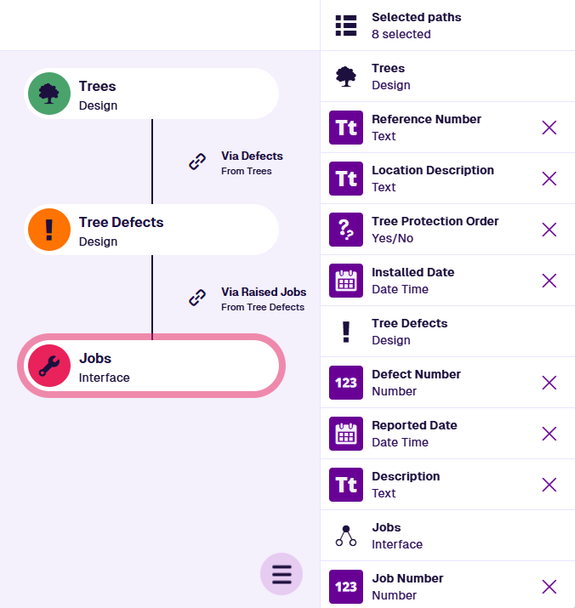
#### 8 Done button[](#-8--done-button "Direct link to -8--done-button")
When you're finished, select **Done** to save your changes. To leave without saving, select **Close** in the top-right corner.
---
# Using standard paths
### Predefined shortcuts to attributes[](#predefined-shortcuts-to-attributes "Direct link to Predefined shortcuts to attributes")
A design/interface can have any number of **standard paths**. Each one is a predefined shortcut to an attribute on a connected design/interface, which can otherwise be reached in the Pathfinder by [following Link attributes](/apps/tools/pathfinder/quick-path.md) or manually [navigating a path](/apps/tools/pathfinder/navigate-to-path.md).
Standard paths provide a quick way to select specific attributes, without having to navigate to them yourself!
*For example, imagine your organisation stores [National Street Gazetteer (NSG)](https://en.wikipedia.org/wiki/National_Street_Gazetteer) data in CausewayOne Asset Management for all streets within a region of England/Wales (we can provide a [module](/basics/fundamentals/modules.md) for this). NSG data is highly structured and includes reference values for each street, e.g. USRN, DfT Code, Street Type.*
*Now, imagine viewing items of the **Street Lighting Jobs** interface in the Data Explorer. You want to see the street name of each job's location. Using [network references](/web/maps/networks/referencing-network.md), it's possible to navigate a path from that interface to the relevant NSG design, as illustrated below. By defining this as a standard path, the **Primary Descriptor** attribute can be selected in one go, without having to perform four manual hops to reach it.*
info
A design/interface can have standard paths to its own attributes! This can be useful for surfacing key attributes in a long list.
### Select a standard path[](#select-a-standard-path "Direct link to Select a standard path")
To include the target attribute of a standard path in the query:
1. Select **Standard paths** in the left-hand list. This is only available on the design/interface being queried.
[](/img-cw1/shared/tools/pathfinder/standard-paths-example-1.png)
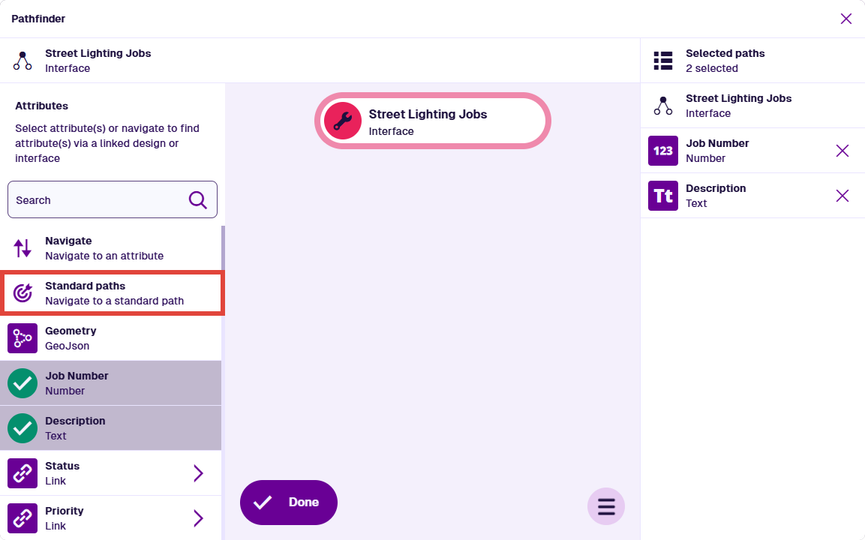
2. The left-hand list now shows any standard paths defined on the current design/interface (or inherited via an interface). Related paths may be grouped together. Choose the standard path you want to include. Alternatively, select at the top to go back.
[](/img-cw1/shared/tools/pathfinder/standard-paths-example-2.png)
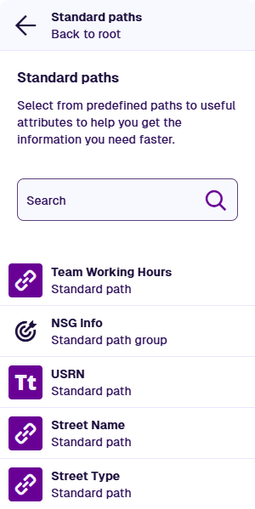
3. The target attribute for the selected standard path appears in the right-hand list, under the design/interface it belongs to. You can continue selecting standard paths in the left-hand list, without leaving the current design/interface.
[](/img-cw1/shared/tools/pathfinder/standard-paths-example-3.png)
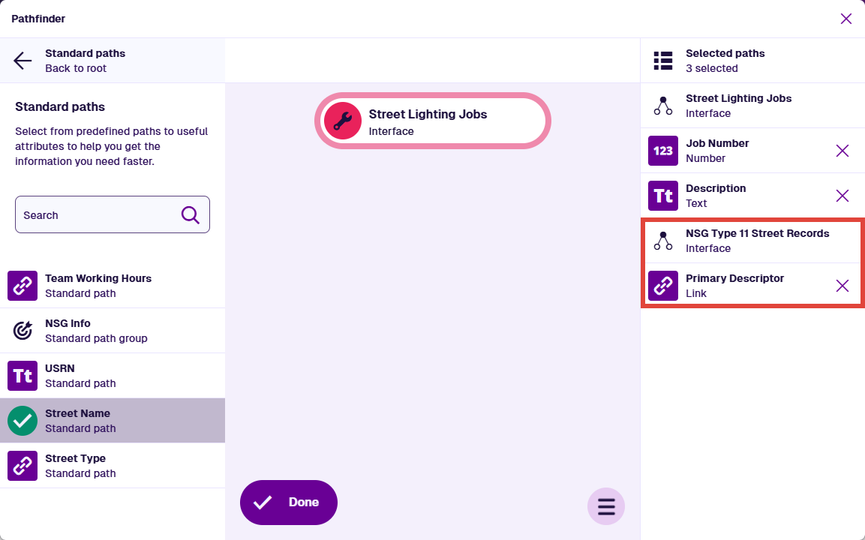
4. To visualise the path to the target attribute, select it in the right-hand list. The Pathfinder will hop to the corresponding design/interface and the left-hand list will update to show its attributes.
To return to a previous design/interface, select it in the path graph. Select **Done** to finish.
[](/img-cw1/shared/tools/pathfinder/standard-paths-example-4.png)
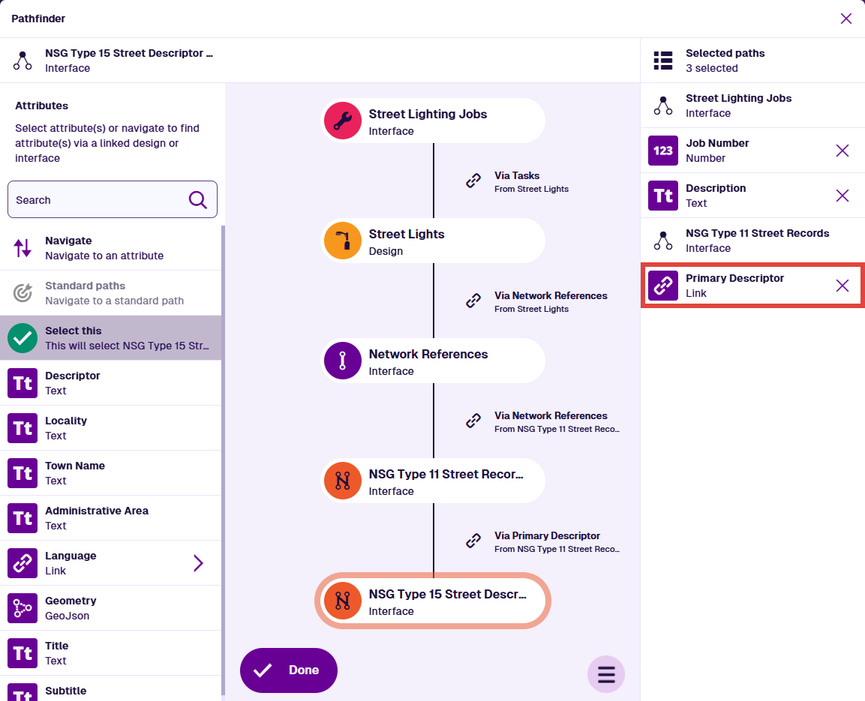
info
Use the Designer app to create and edit the [standard paths](/apps/designer/dodis/edit-dodi/standard-paths.md) of a design/interface.
---
# Navigating paths
### Hop to a parent or child design/interface[](#hop-to-a-parent-or-child-designinterface "Direct link to Hop to a parent or child design/interface")
The [Pathfinder](/apps/tools/pathfinder/.md) lets you browse the attributes of a design/interface and "hop" to any others that are linked to it.
While following a Link attribute is the simplest way to hop, navigating manually gives you more control. This is particularly useful when a Link attribute points to an interface rather than a design.
*For example, imagine querying a **Carriageways** design. If you follow its **Tasks** attribute, you'll hop to the **Tasks Assignable** interface, which only has generic task attributes. Alternatively, you could navigate to a **Carriageways Jobs** design that implements that interface and contains both generic and design-specific attributes.*
Navigating also lets you hop to a **parent** design/interface, which has a Link attribute pointing to the current one.
info
[Following Link attributes](/apps/tools/pathfinder/quick-path.md) is preferable if:
* you're unsure which designs/interfaces can be navigated to
* you only want to hop to **child** designs/interfaces
### Navigate to a design/interface[](#navigate-to-a-designinterface "Direct link to Navigate to a design/interface")
To browse the attributes of a linked design/interface:
1. Select **Navigate** in the left-hand list.
[](/img-cw1/shared/tools/pathfinder/navigate-path-01.png)
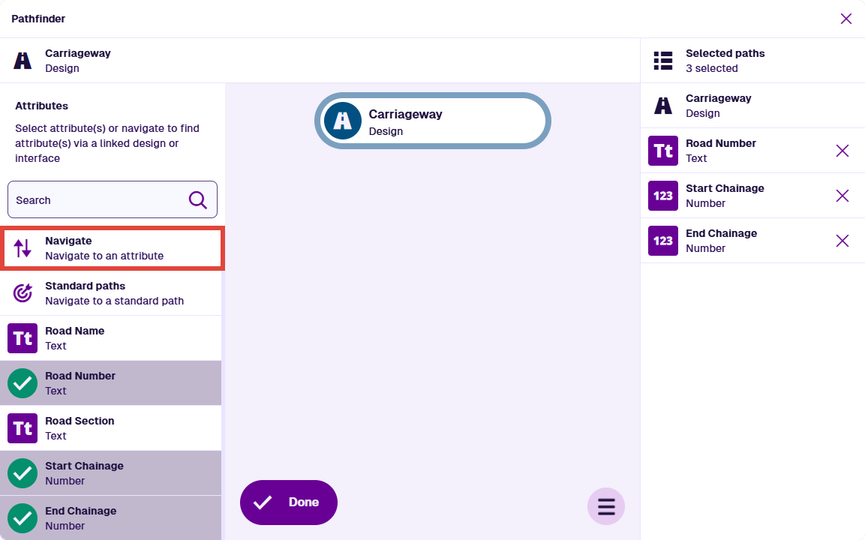
2. The left-hand list now shows all the designs/interfaces in your company project. Use the top search box to filter the list by keyword. Choose the design/interface you want to hop to.
[](/img-cw1/shared/tools/pathfinder/navigate-path-02.png)
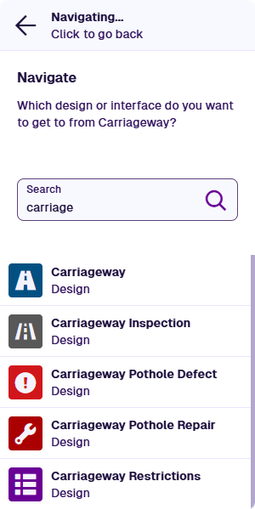
3. The left-hand list now shows any Link attributes connecting the current design/interface and your chosen one. They can be located on either. Choose the Link attribute you want to travel via. If there aren't any, select at the top to choose another design/interface.
[](/img-cw1/shared/tools/pathfinder/navigate-path-03.png)
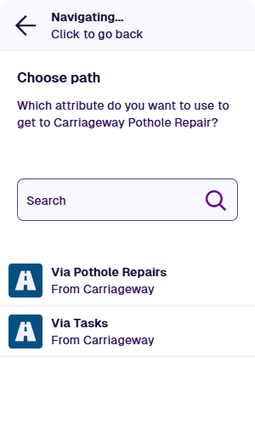
4. The left-hand list now shows the attributes of your chosen design/interface. Select any you want to include in the query. The path graph visualises the path you've taken.
[](/img-cw1/shared/tools/pathfinder/navigate-path-04.png)
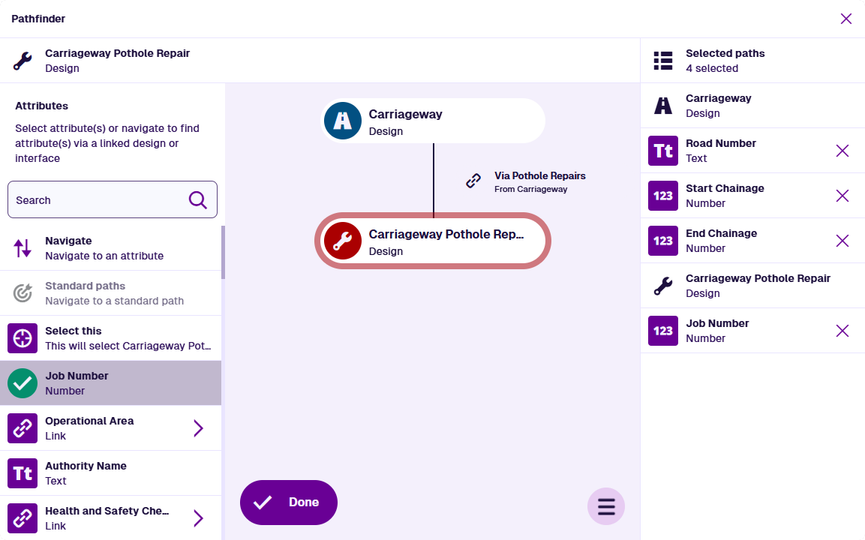
5. You can repeat this process according to your needs. At each stage, the attributes you select appear in the right-hand list, in the order you selected them. To deselect an attribute, select its **Remove** button.
To return to a previous design/interface, select it in the path graph. Select **Done** to finish.
[](/img-cw1/shared/tools/pathfinder/navigate-path-05.png)
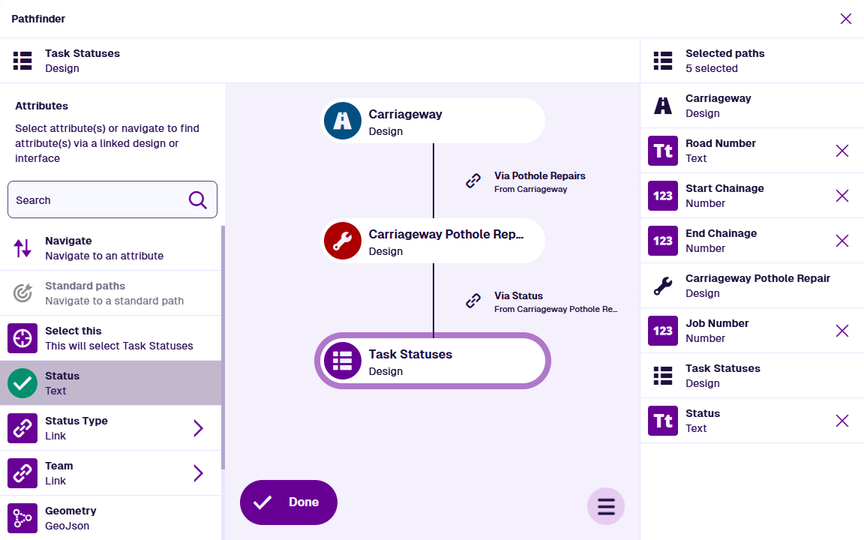
---
# Quick path selection
### Hop to a child design/interface[](#hop-to-a-child-designinterface "Direct link to Hop to a child design/interface")
The [Pathfinder](/apps/tools/pathfinder/.md) lets you browse the attributes of a design/interface and "hop" to any others that are linked to it.
The simplest way to do this is to follow a [Link attribute](/apps/designer/dodis/attributes/link-attribute.md) to the design/interface it points to. From there, browse the attributes and repeat as needed.
*For example, imagine querying a **Street Lights** design. Select the attributes on it you want to see data for. Follow its **Defects** attribute to browse and select attributes on the **Defects** interface (e.g. Reported Date, Status). Then select the **Reporters** attribute on that to browse attributes on the **Contacts** design.*
info
[Navigating a path](/apps/tools/pathfinder/navigate-to-path.md) is preferable if you want to:
* hop to a compatible design instead of following a Link attribute to an interface
* hop to a **parent** design/interface with a Link attribute pointing to the current one
### Follow a Link attribute[](#follow-a-link-attribute "Direct link to Follow a Link attribute")
To follow a Link attribute to a child design/interface:
1. Select the arrow beside the Link attribute to "step into" it.
[](/img-cw1/shared/tools/pathfinder/quick-path-01.png)
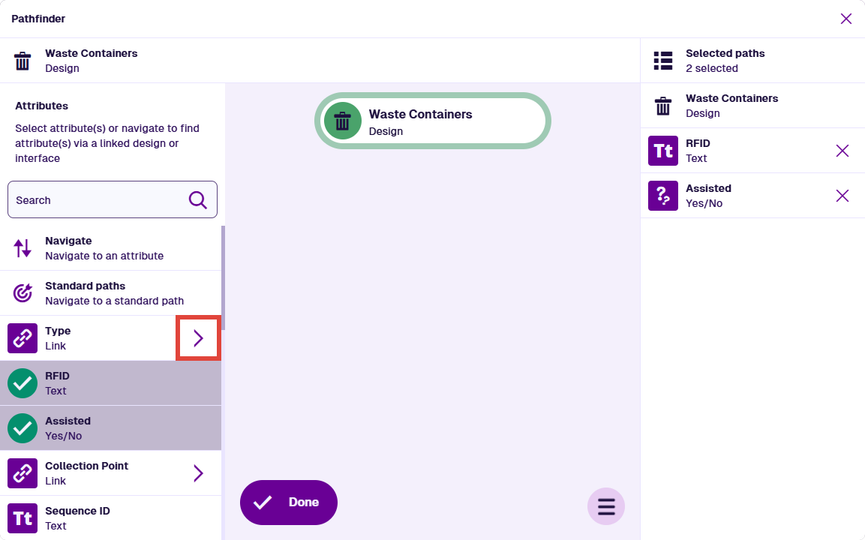
2. The left-hand list now shows the attributes of the child design/interface. Select any you want to include in the query. The path graph visualises the path you've taken.
If the child design/interface has any Link attributes, select the arrow beside one to visit the next child design/interface.
[](/img-cw1/shared/tools/pathfinder/quick-path-02.png)
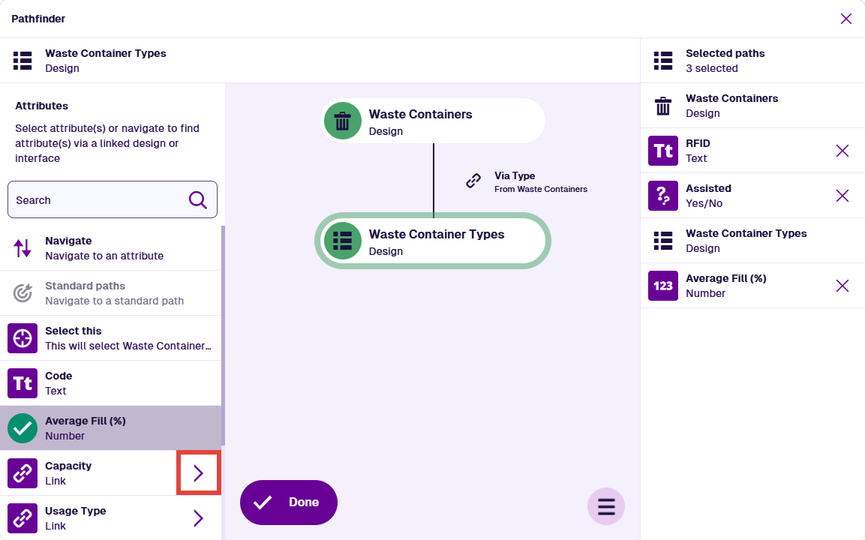
3. You can repeat this process across multiple Link attributes. At each stage, the attributes you select appear in the right-hand list, in the order you selected them. To deselect an attribute, select its **Remove** button.
To return to a previous design/interface, select it in the path graph. Select **Done** to finish.
[](/img-cw1/shared/tools/pathfinder/quick-path-03.png)
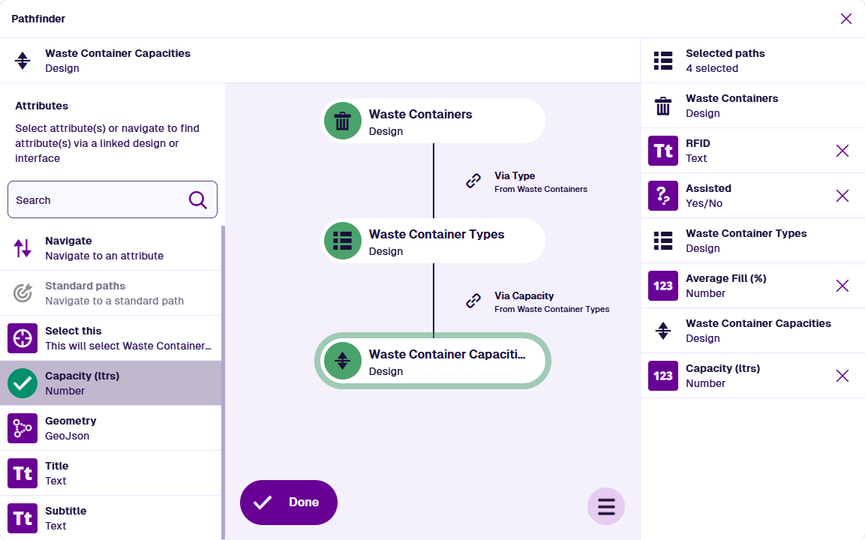
### Select a Link attribute[](#select-a-link-attribute "Direct link to Select a Link attribute")
To include a Link attribute itself in the query results, select its arrow and then **Select this**. When the query runs, this returns any [Item IDs](/apps/items/item-id.md) stored in the attribute. In the Data Explorer, the attribute value appears as a single item or an **X results** link.
[](/img-cw1/shared/tools/pathfinder/pathfinder-link-select-this.gif)
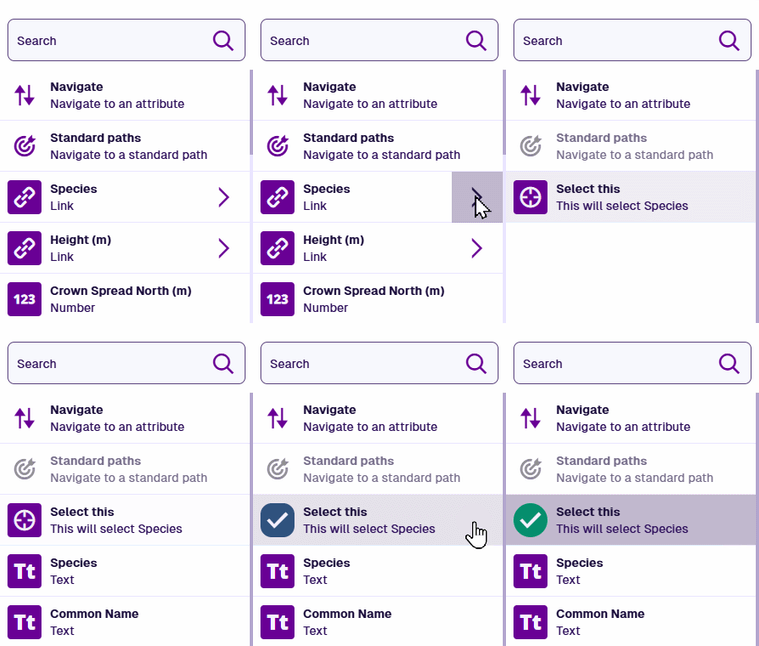
info
Selecting a Link attribute does not automatically select any attributes on the child design/interface, and vice versa.
---
# Selection pickers
CausewayOne Asset Management often presents you with data fields to fill in. Depending on the data type, you can either type in the field directly, or select from a set of values using a specialised picker.
## [📄️Colour picker](/apps/tools/selection/selecting-colours.md)
[Select a colour value](/apps/tools/selection/selecting-colours.md)
## [📄️Calendar picker](/apps/tools/selection/selecting-dates.md)
[Select date and time values](/apps/tools/selection/selecting-dates.md)
## [📄️Icon picker](/apps/tools/selection/selecting-icons.md)
[Select an icon value](/apps/tools/selection/selecting-icons.md)
## [📄️Item picker](/apps/tools/selection/selecting-items.md)
[Select items from a list](/apps/tools/selection/selecting-items.md)
## [📄️Map picker](/apps/tools/selection/selecting-map.md)
[Select items based on their location](/apps/tools/selection/selecting-map.md)
---
# Colour picker
### Select a colour value[](#select-a-colour-value "Direct link to Select a colour value")
The **colour picker** lets you choose from a library of colours. Use colour to help identify and classify your assets and activities, so users can process information more efficiently, e.g. *yellow shades for street lighting, grey shades for highways, green shades for trees*.
When you select a colour field, the colour picker appears. Scroll through the available colours and choose the one you want.
[](/img-cw1/apps/tools/selection/colour-picker.png)
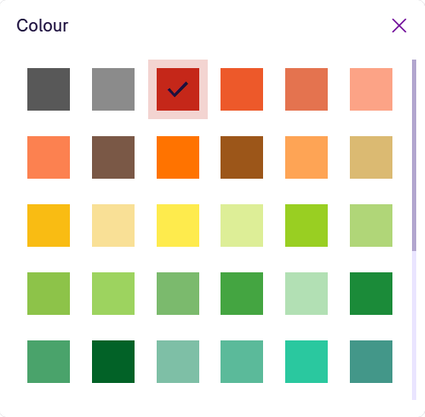
The colour field is populated with the chosen colour's hexadecimal value and a small sample.
[](/img-cw1/apps/tools/selection/colour-field.png)
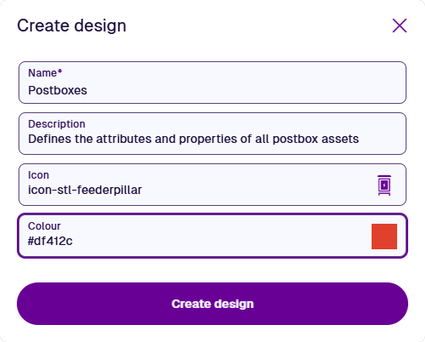
---
# Calendar picker
### Select date and time values[](#select-date-and-time-values "Direct link to Select date and time values")
The **calendar picker** provides a familiar way to enter dates and times. When you select a relevant field, the corresponding picker appears.
| Picker | Appears when | Key features |
| -------------------------------- | ------------------------------------------------------------------------------------- | --------------------------------------------------------- |
| [Date](#date-picker) | Selecting a [Date](/apps/designer/dodis/attributes/date-attribute.md) field | Calendar grid with month and year selection |
| [Date Time](#date-time-picker) | Selecting a [Date Time](/apps/designer/dodis/attributes/date-time-attribute.md) field | Calendar grid plus time input boxes |
| [Multi-Date](#multi-date-picker) | Adding multiple dates or date times to a field | **Add** and **Add many** buttons for single or bulk entry |
| [Seasonal](#seasonal-picker) | Selecting a [Seasonal](/apps/designer/dodis/attributes/seasonal-attribute.md) field | Month and day only (no year) for annual recurring dates |
### Date picker[](#date-picker "Direct link to Date picker")
This picker lets you select a year, month and day. By default, the current month in the current year is shown, with today's date highlighted.
Use the top arrows to move between months. To specify the month or year, select it in the picker bar, then choose a new value (use the arrows to move between years).
Select the date you want, then select **Save** to finish.
[](/img-cw1/apps/tools/selection/date-picker.png)
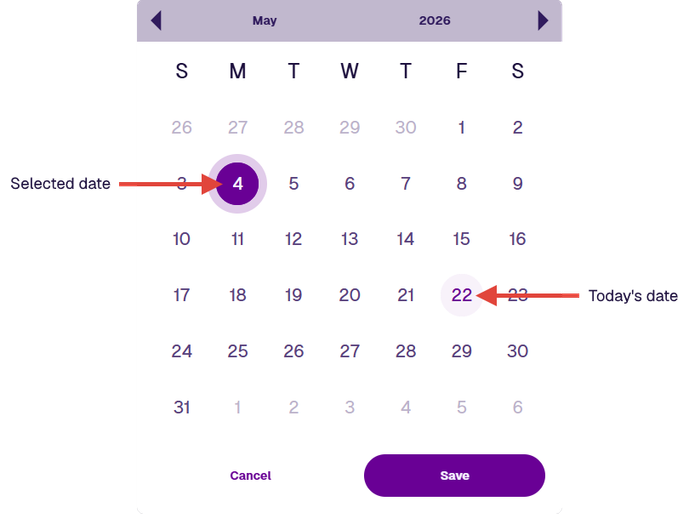
### Date Time picker[](#date-time-picker "Direct link to Date Time picker")
This picker works similarly to the Date picker but also requires a time to be set.
Select the time in the picker bar, then enter numbers in the boxes. Depending on the field being edited, the **Second** box may not appear.
Specify the date and time you want, then select **Save** to finish.
[](/img-cw1/apps/tools/selection/datetime-picker-02.png)
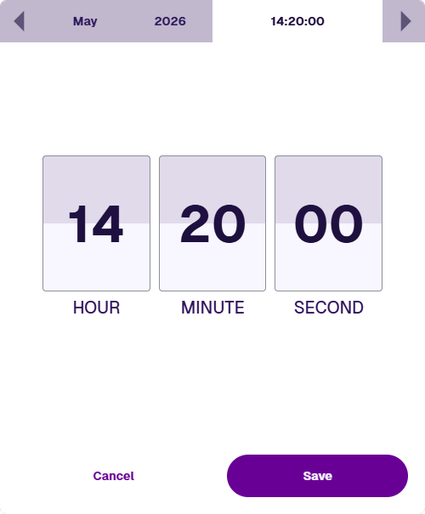
### Multi-Date picker[](#multi-date-picker "Direct link to Multi-Date picker")
This picker lets you add multiple dates to a single field, e.g. *when creating a [scheduled workflow](/web/workflows/creating-workflows/scheduled-workflows.md)*. Depending on the field, you may add dates only or dates with times. The method of entry matches the Date or Date Time picker described above.
The main window lists everything you've added. Use these buttons to build up your list:
* **Add** - add a single date or date time, as described above. Use this multiple times to enter different dates (with different times, if applicable).
* **Add many** - add multiple dates at once. For date time fields, all dates share a single time. You'll be prompted to set it when saving, if you haven't already.
To remove an entry, select its **Remove** button. Select **Save** to finish.
[](/img-cw1/apps/tools/selection/multi-date-selection-dialog.png)
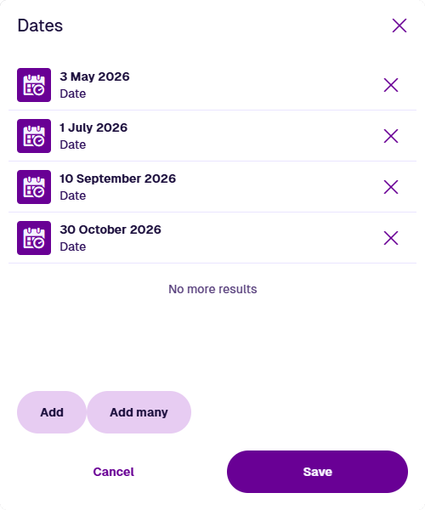
### Seasonal picker[](#seasonal-picker "Direct link to Seasonal picker")
This picker lets you select a month and day to represent an annually recurring date. By default, the current month is shown.
Use the top arrows to move between months. Alternatively, select the month in the picker bar, then choose one from the list.
Select the date you want to repeat each year, then select **Save** to finish.
[](/img-cw1/apps/tools/selection/seasonal-picker.png)
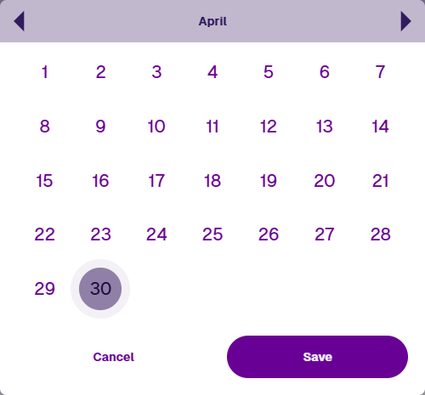
---
# Icon picker
### Select an icon value[](#select-an-icon-value "Direct link to Select an icon value")
The **icon picker** lets you choose from a library of icons. Use icons to help identify and classify your assets and activities, so users can process information more efficiently.
When you select an icon field, the icon picker appears. Scroll through the available icons and choose the one you want.
[](/img-cw1/apps/tools/selection/icon-picker.png)
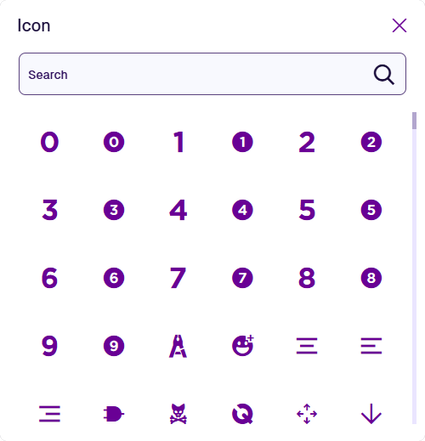
Use the search box to filter the available icons.
[](/img-cw1/apps/tools/selection/icon-picker-search.png)
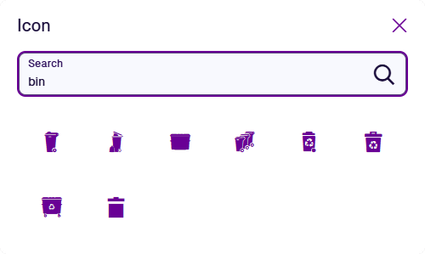
The icon field is populated with the chosen icon and its name.
[](/img-cw1/apps/tools/selection/icon-field.png)
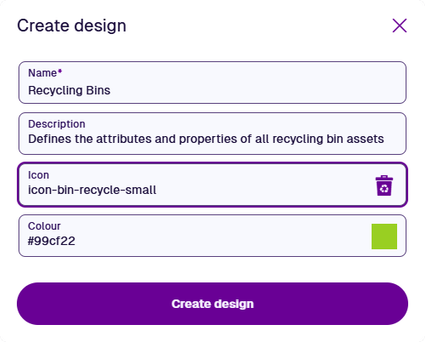
---
# Item picker
### Select items from a list[](#select-items-from-a-list "Direct link to Select items from a list")
The **item picker** displays a searchable list of items for easy selection.
When you select a field that requires you to pick one or more items, the item picker appears. By default, it lists items in alphabetical and numerical order. Scroll through the list and select the items you want (select again to deselect).
[](/img-cw1/apps/tools/selection/item-picker_01.png)
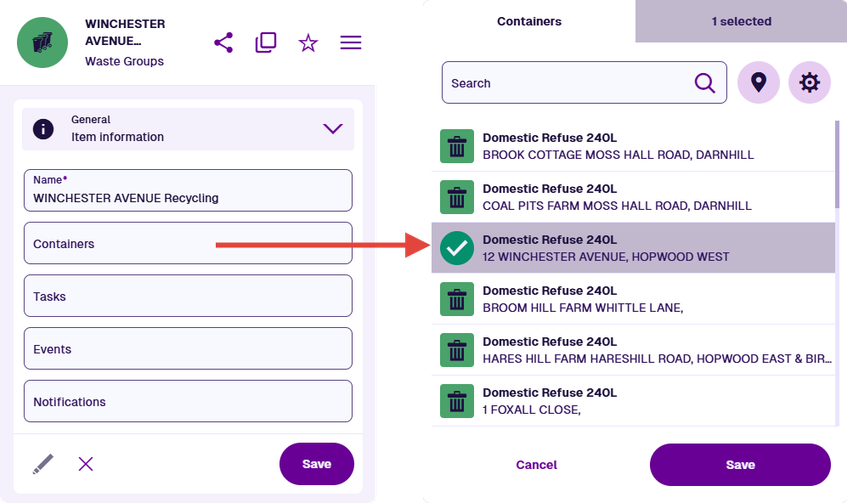
#### Search the list[](#search-the-list "Direct link to Search the list")
Use the search box to filter the items in the list. By default, items are searched according to their title and subtitle. Therefore, you can potentially search by name, design type, location, serial number and so on, depending on the design/interface being searched.
Searches can be partial. In the image below, searching for `winches` located items on *Winchester Close* and *Winchester Avenue*.
[](/img-cw1/apps/tools/selection/item-picker_04.png)
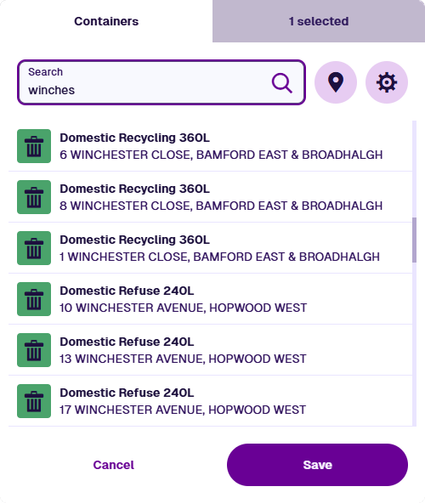
#### View selected[](#view-selected "Direct link to View selected")
The number of selected items appears in the top-right corner. Select it to view them separately. When you're working with a long list, this can be helpful for checking what you've selected.
To deselect items here, select their **Deselect** buttons, or select **Remove all**. Select the top-left corner to return to the full list.
[](/img-cw1/apps/tools/selection/item-picker_03.png)
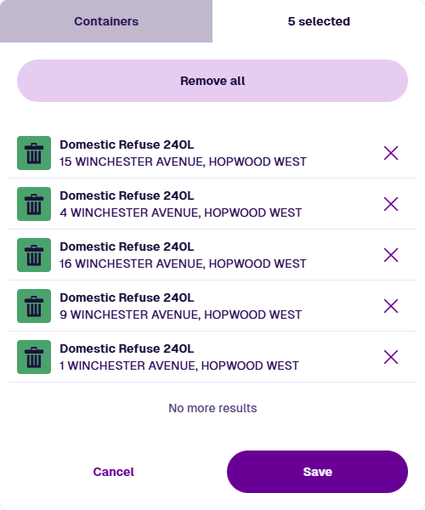
#### Save[](#save "Direct link to Save")
Select **Save** to finish. The field displays the number of items you selected.
[](/img-cw1/apps/tools/selection/item-picker_05.png)
### Custom search settings[](#custom-search-settings "Direct link to Custom search settings")
You can customise how items of the current design/interface appear within item pickers. Choose how their attributes are searched, which collections are searched and how items are sorted.
To do this, select **Search settings** beside the search box:
* **Search type** - find items with:
* *All attributes* - any searchable attribute that contains all words in the query (Text, Number, Date, Time).
* *Exact match* - a title/subtitle that's identical to the query (case sensitive).
* *Starts with* - a title/subtitle that begins with the query (case sensitive).
* *Word match* - a title/subtitle that contains all words in the query.
* **Search in collection** - select one or more [item collections](/apps/items/item-collections.md) to search in.
* **Sort by** - choose how the resulting item list is sorted (deselect all for *No sorting*):
* *Title*
* *Subtitle*
* *Created time*
* *Last edited time*
* **Sort order** - sort the results in *Ascending* (A -> Z) or *Descending* (Z -> A) order.
Select **Save** to finish.
info
Search settings are saved per design/interface and stored in your web browser. If you clear your browsing history or use a different browser, they will revert to default.
---
# Map picker
### Select items based on their location[](#select-items-based-on-their-location "Direct link to Select items based on their location")
The **map picker** provides a visual way to locate and select items with [geometry](/apps/designer/dodis/geometry-types/.md), by displaying them on a map. It's an alternative to the [item picker](/apps/tools/selection/selecting-items.md), which lists items in a searchable text list.
To select items on the map, select **Open map picker** in the item picker's search box.
[](/img-cw1/apps/tools/selection/item-picker-map-01.png)
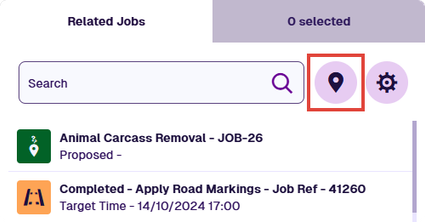
### Using the map picker[](#using-the-map-picker "Direct link to Using the map picker")
[](/img-cw1/apps/tools/selection/map-picker-overview.png)
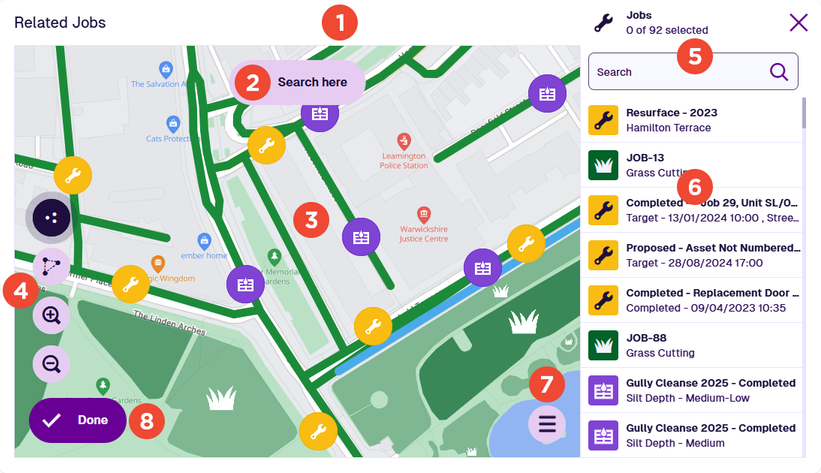
#### 1 Title bar[](#-1--title-bar "Direct link to -1--title-bar")
The title bar shows the name of the field you're editing. On the right, it shows the design/interface that items must match to appear in the picker.
#### 2 Search here button[](#-2--search-here-button "Direct link to -2--search-here-button")
The map picker only loads matching items located within the current area. If you pan or zoom the map, use this button to refresh the loaded items for the new map area.
#### 3 Map[](#-3--map "Direct link to -3--map")
This uses the same [basemap](/apps/maps/basemaps/.md) as the Maps app and initially shows the same area. All matching items within the area are displayed by default (if you have [permission](/apps/permissions/explorer/.md) to view them). If any layers are enabled in the Maps app, their items aren't shown here - only items that match the design/interface in the title bar.
To examine a different area, pan and zoom the map with the tools below, then select **Search here** to refresh the displayed items.
#### 4 Map tools[](#-4--map-tools "Direct link to -4--map-tools")
These are the same tools as in the [Maps](/apps/maps/map-tools.md) app:
* **Toggle selection** - on by default. Select multiple items on the map in succession.
* **Draw selection area** - select this, then select multiple points around items to draw your selection. Select the last point twice to finish.
* **Pan controls** - select this to reveal four direction buttons.
* **Zoom in**
* **Zoom out**
Items selected on the map are also selected in the items panel and vice versa.
#### 5 Items panel[](#-5--items-panel "Direct link to -5--items-panel")
By default, the items panel lists all the items on the map. The list changes if **Show selected items** is selected or the **Search settings** are configured ([see below](#-7--menu)). Scroll through the list and select the items you want (select again to deselect).
Items selected in the panel are also selected on the map and vice versa.
[](/img-cw1/apps/tools/selection/map-picker-select-asset.png)
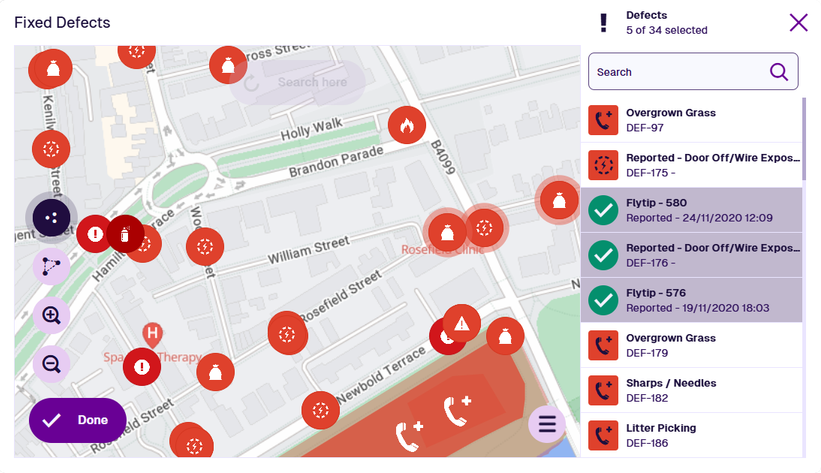
#### 6 Search box[](#-6--search-box "Direct link to -6--search-box")
Use the search box to filter the items displayed on the map and in the items panel. By default, all item attributes are searched. Therefore, you can potentially search by name, serial number, location and so on, depending on the design/interface being searched.
Searches can be partial. In the image below, searching for `lit` located items in the area containing the word *litter*.
[](/img-cw1/apps/tools/selection/map-picker-filter.png)
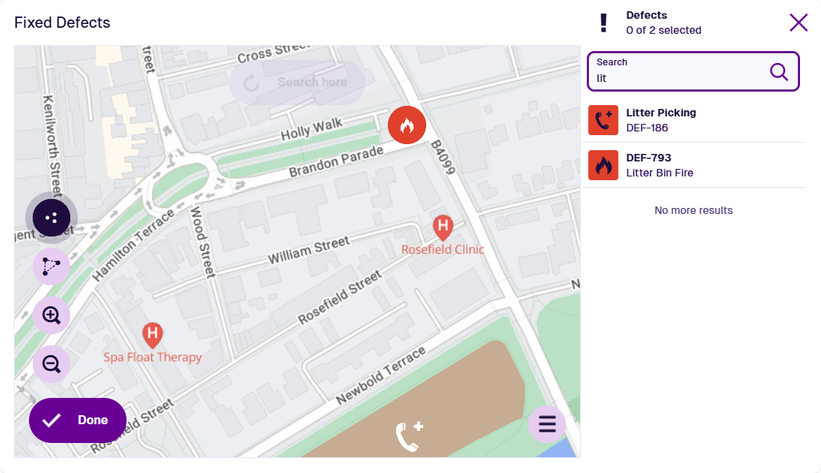
info
Searching doesn't affect item selection. Selected items remain selected, even if they don't appear in the search results.
#### 7 Menu[](#-7--menu "Direct link to -7--menu")
To perform these actions, select **Menu** in the bottom-right corner:
* **Back to picker** - close the map picker and return to the [item picker](/apps/tools/selection/selecting-items.md). Selected items are remembered between both pickers.
* **Clear selection** - deselect all selected items.
* **Filter designs** - only show items of the selected design(s).
* **Search settings** - [customise](/apps/tools/selection/selecting-items.md#custom-search-settings) how items are searched and sorted.
* **Show all items** - list all available items in the items panel. The list is still affected by **Filter designs** or the search box.
* **Show selected items** - list only selected items in the items panel. To deselect an item, select its **Deselect** button.
* **Zoom to selection** - zoom the map to the centre of the selected item(s).
#### 8 Done button[](#-8--done-button "Direct link to -8--done-button")
Select **Done** to finish. The field you're editing is populated with your selected items.
---
# Tag Manager
### Use tags to identify and group things[](#use-tags-to-identify-and-group-things "Direct link to Use tags to identify and group things")
Throughout CausewayOne Asset Management, you can mark things with **tags**. A tag can be any keyword or phrase, often describing a category or shared characteristic, e.g. *Street furniture, Highways Department, Zone D*.
By assigning the same tag to multiple things, you define a relationship between them while keeping them separate. Each one can have multiple tags, so you can create overlapping relationships without conflict. This provides a way to filter lists and narrow down searches.
For some things, you can assign system tags to change how they're treated or acted upon, e.g. *tag a Number attribute as "Currency"*.
### Where can I use tags?[](#where-can-i-use-tags "Direct link to Where can I use tags?")
You can tag the following:
* [**Item forms**](/apps/designer/item-forms/load-forms.md) and [**canvas views**](/apps/designer/item-canvas/load-views.md) - assign at least one **screen tag** to determine where they can be used (platform, application and screen). Select an existing screen tag or add your own.
* [**Layers**](/apps/maps/layers/layers-panel.md) - assign custom tags to categorise your layers, so you can filter the contents of the Layers panel.
* [**Access policies**](/apps/permissions/access-policies/edit-policy.md) - assign custom tags to categorise your access policies.
* [**Report data sources**](/web/reporting/report-builder/data-sources/.md) - assign system tags to capture contextual data:
* [Item](/web/reporting/report-builder/data-sources/create-item-data-source.md) - if tagged with *Incoming item id*, it will default to the current item's ID when running the report [from an item](/web/reporting/run-reports.md#run-a-report-from-an-item).
* [AQS](/web/reporting/report-builder/data-sources/create-aqs-data-source.md) - if tagged with *Incoming AQS query*, it will default to the query configured in the [Run Report](/web/workflows/building-workflow/actions/action-run-report.md) workflow action.
* [**Attributes**](/apps/designer/dodis/attributes/.md) - assign system tags to change how an attribute is treated or acted upon:
* [Number](/apps/designer/dodis/attributes/number-attribute.md)
* [Text](/apps/designer/dodis/attributes/text-attribute.md)
* [Link](/apps/designer/dodis/attributes/link-attribute.md)
* [Geometry](/apps/designer/dodis/attributes/geometry-attribute.md)
### Using the Tag Manager[](#using-the-tag-manager "Direct link to Using the Tag Manager")
To manage the tags of something you're creating or editing:
1. Select the **Tags** field to show the Tag Manager.
[](/img-cw1/shared/tools/tags/tag-manager-01a.png)

info
When editing an item form, select **Define screens** in the app bar. To learn more, see [Edit the item form](/apps/designer/item-forms/edit-forms/.md#-6--define-screens).
2. The Tag Manager lists any system tags that are relevant to what you're doing, plus any recently used custom tags. Select the tags you want.
[](/img-cw1/shared/tools/tags/tag-manager-02.png)
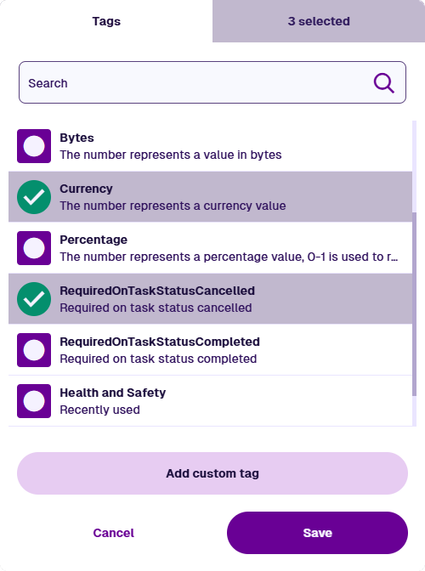
3. To create a new tag, select **Add custom tag**. Enter your text and select **Add**. Your new tag will be available to everyone in your company project.
4. To review the selected tags, open the **X selected** tab. To deselect tags, you can then select **Remove** or use the **Remove all** button.
[](/img-cw1/shared/tools/tags/tag-manager-05.png)
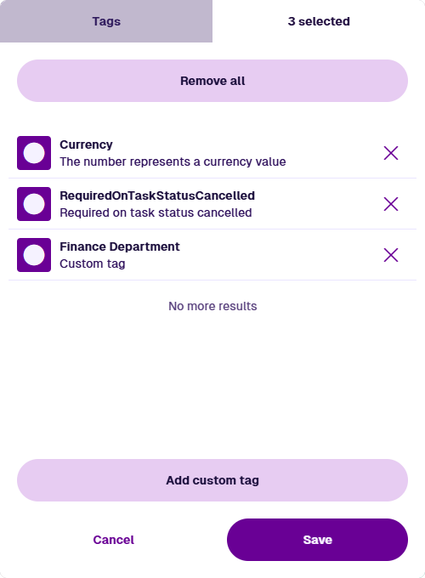
5. Select **Save** to finish.
---
## [📄️Designs](/basics/fundamentals/designs.md)
[A set of attributes that describe a type of thing](/basics/fundamentals/designs.md)
---
# Activities
### What are activities?[](#what-are-activities "Direct link to What are activities?")
CausewayOne Asset Management is much more than a simple inventory system! Your assets require a mixture of scheduled and reactive maintenance to keep them performing optimally and extend their lifespan. This application can help you to plan and perform that maintenance. Using **activities**, you can respond to events, record observations and allocate work to teams or individuals.
There are three types of activity:
* **Defects** - an issue to be remedied (e.g. *a faulty lamp*, *a blocked drain*, *a vandalised bench*). It may have been noticed by a worker during a visit, reported by a member of the public, or triggered automatically by sensor readings.
* **Tasks** - a collective term for:
* **Inspections** - an instruction to observe and record the condition of an asset, typically by visiting its location. There may be a checklist of steps to follow or questions to answer.
* **Jobs** - an instruction to perform work of some description.
All activities have a **Status** attribute (e.g. *Reported*, *Completed*) and tasks also have a **Priority** attribute (e.g. *Low*, *Critical*). Workers can attach photos to record the condition of an asset or the results of completed work.
#### Work items[](#work-items "Direct link to Work items")
To formalise the requirements of your jobs, you can create **work items**. A work item defines a discrete unit of work that can be quantified, costed and linked to a budget. It represents an abstract requirement that can be relevant to one or more job types.
*For example, you could use several work items to measure different aspects of pothole repair jobs:*
* *the **Duration** of billable working time*
* *the **Quantity** of workers needed for the repair*
* *the **Area** of square road surface to be excavated*
* *the **Volume** of asphalt used to fill the hole*
Work items can contain default values (e.g. *2 hours, 2 workers*). However, they are not used directly. When you add a work item to a job, a corresponding job work item is created from it (see below).
Two system [designs](/basics/fundamentals/designs.md) are included for you to create work items from. Feel free to extend these designs with extra attributes or create your own!
[](/img-cw1/basics/activities-work-items.png)
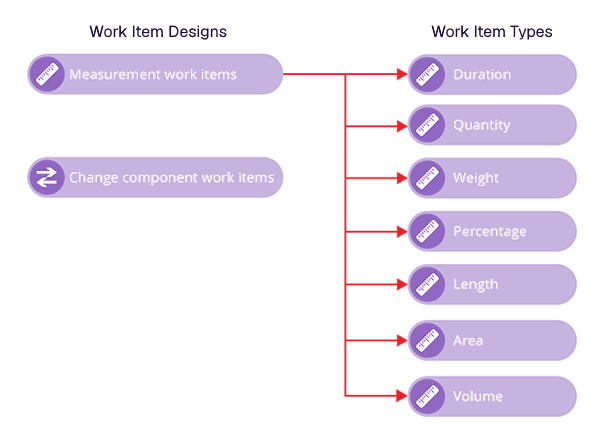
#### Job work items[](#job-work-items "Direct link to Job work items")
A job can have one or more **job work items**. These are specific instances of work items that contain values relating to that specific job. This makes it clear to workers what equipment and materials are required to perform the job and the costs associated with them.
*For example, the following table demonstrates how the work items described above could be added to specific pothole repair job.*
| Job Work Item | Linked Work Item | Actual Value | Actual Cost Per Unit |
| ------------- | --------------------------------------------------- | ------------ | -------------------- |
| 1 | The **Duration** of billable working time | 1.5 (hours) | - |
| 2 | The **Quantity** of workers needed for the repair | 3 (workers) | 75 |
| 3 | The **Area** of square road surface to be excavated | 1.1 (m2) | 70 |
| 4 | The **Volume** of asphalt required to fill the hole | 0.15 (m3) | 235 |
The Total Actual Cost is calculated automatically and deducted from the budgets linked to each job work item. With the [**Financial Accounts**](/web/financial-accounts.md) module installed, job work items can even be used to generate invoices!
### Design your own activities[](#design-your-own-activities "Direct link to Design your own activities")
These three activity types are provided as system [interfaces](/basics/fundamentals/interfaces.md). They can't be used directly, as [items](/basics/fundamentals/items.md) can't be created from interfaces. Instead, they serve as starter templates for designing your own activity types.
To create a new activity type, create a [design](/basics/fundamentals/designs.md) that implements one of the following interfaces: **Defects**, **Inspections** or **Jobs**. The design will inherit the necessary attributes from the interface, alongside any attributes you add to the design itself. You can then create items of that design.
*For example, you could create a design named **Tree Pruning Jobs** that implements the **Jobs** interface. It will inherit the standard job attributes alongside its own. To create a new pruning job, create an item of the design. An item of the **Tree Pruning Jobs** design can also be considered an item of the **Jobs** interface.*
#### Applies to[](#applies-to "Direct link to Applies to")
To be useful, an activity design must apply to one or more asset designs. This ensures that relevant activities can only be created for relevant asset types. To configure this, see the [Details section](/apps/designer/dodis/edit-dodi/details.md) in the Designer app.
*For example, if you configure your **Tree Pruning Jobs** design to apply to the **Trees** design, it will enable pruning jobs to be created for trees but nothing else. It won't be possible to create a pruning job for a street light!*
Similarly, a work item must apply to one or more job designs or job interfaces. When creating job work items for those jobs, this ensures that only suitable work items are available to choose from. To learn more, see the [Applies To section](/apps/items/view-item/item-details/activity/applies-to-section.md).
info
Optional [modules](/basics/fundamentals/modules.md) are available that include ready-made activity designs for various service areas, including Highways, Street Lighting and Waste.
### Task management[](#task-management "Direct link to Task management")
Inspections and jobs are collectively known as **tasks**. Tasks can be scheduled ahead of time or created on the spot. All tasks have attributes for logging key milestones in their lifespan (e.g. *Raised Time, Start Time, Completed Time*). Some of these get populated automatically when the task's status changes.
#### Projects[](#projects "Direct link to Projects")
To organise multiple related tasks, you can add them to a **project**. This lets you see overall progress at a glance, makes it easier to manage their statuses and assignments, and lets you plot a route between each task's location.
[](/img-cw1/basics/project-item.png)

#### Teams[](#teams "Direct link to Teams")
Tasks and projects can be assigned to **teams** or individual **team members**. A user can belong to any number of teams. This determines the assigned work they see by default.
There are several ways to assign work to teams, including a dedicated planner that lets you visualise the timelines of your teams and drag tasks directly into available timeslots.
[](/img-cw1/basics/task-planner.png)
### Activities on the go[](#activities-on-the-go "Direct link to Activities on the go")
Workers can take Causeway with them by installing [Alloy Mobile](/mobile.md) on their iPhone, iPad or Android device. This enables them to receive and complete assigned tasks, and register any defects they notice while out in the field.
### Learn more[](#learn-more "Direct link to Learn more")
* To learn more about activities, projects and teams, see [Activities](/web/activities.md) in Asset Classic.
* To create new activity designs, see [Create a design](/apps/designer/dodis/load-design/.md) in the Designer app.
* To manage the activities for an item, see the [Activity sections](/apps/items/view-item/item-details/activity/.md) of the item canvas.
---
# AQS
### What is AQS?[](#what-is-aqs "Direct link to What is AQS?")
CausewayOne Asset Management is built upon a non-relational database. This provides great performance and flexibility but isn't compatible with standard query languages like SQL. No problem, we made our own to use instead!
**AQS** stands for **Asset Query Syntax**. It lets you query your asset management data. It makes it possible to fetch [items](/basics/fundamentals/items.md) that meet specific conditions, view their attribute data and calculate numerical statistics.
Use our AQS Builder to construct your queries visually, one stage at a time. No coding required! For those who do like to code, you can write AQS queries in `JSON` format (see the [Developer Docs](https://developer.alloyapp.io/dev/alloy-query-syntax/)).
[](/img-cw1/shared/tools/aqs/example-03/example03-12.png)
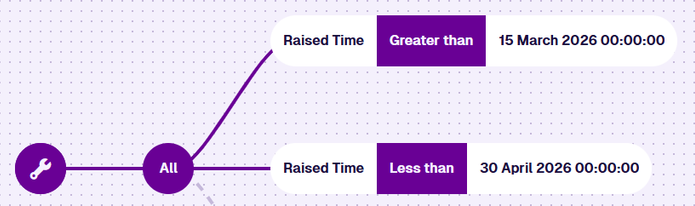
info
CausewayOne Asset Management itself uses AQS to fetch data behind the scenes.
### Learn more[](#learn-more "Direct link to Learn more")
To learn more about building queries, see [Asset Query Syntax (AQS)](/apps/tools/aqs/.md) in the Apps guide.
---
# Collections
### What are collections?[](#what-are-collections "Direct link to What are collections?")
To keep things organised, [items](/basics/fundamentals/items.md) are placed into one of four **collections**.
Each collection can be thought of as a separate dataset within the same database, as the items inside are isolated from the rest. In most areas of CausewayOne Asset Management, you can filter items based on their collection, so you're only dealing with the ones you want.
An item can only belong to one collection at a time, though you can usually move it to another (depending on its [design](/basics/fundamentals/designs.md)).
*Continuing our toy example, the illustration below shows items of the **Minifigures** design. Items in active use are kept in the Live collection. Items no longer in use are kept in the Archive collection.*
[](/img-cw1/basics/basics_collections.png)
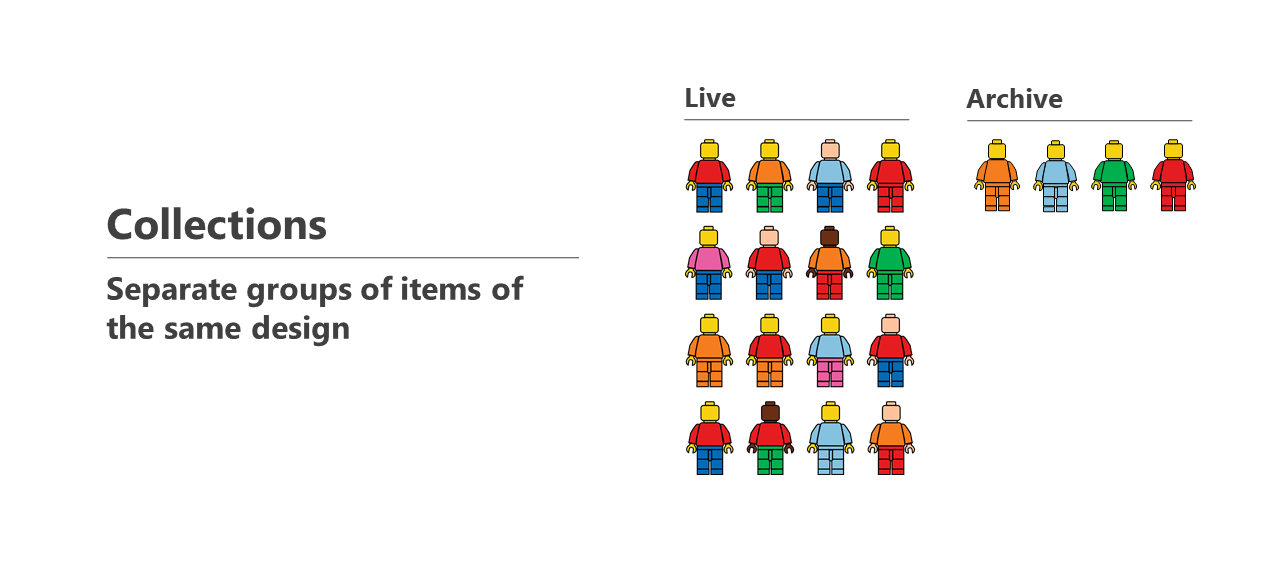
### Collection types[](#collection-types "Direct link to Collection types")
#### Live[](#live "Direct link to Live")
The *Live* collection holds items that are in active use. New items typically go in here by default.
#### Archive[](#archive "Direct link to Archive")
If an item is no longer needed, you can move it to the *Archive* collection. This is often preferable to deleting it, as the item's data and relationships are retained. Live items can remain linked to archived items and vice versa.
Items in this collection are excluded from searches and [map layers](/basics/fundamentals/layers.md) (unless you specify otherwise). Therefore, it provides a convenient way to shelve old data without it getting in the way of current data!
#### Inventory[](#inventory "Direct link to Inventory")
The *Inventory* collection holds items that will be used in future. They can be physical assets (e.g. *spare parts in a warehouse*) or activities to be performed at a later date.
#### Template[](#template "Direct link to Template")
The *Template* collection holds reusable "draft" items that new items can be based on. This is handy if you need to regularly create items with common attribute values.
### Identify an item's collection[](#identify-an-items-collection "Direct link to Identify an item's collection")
The coloured corner of an item's icon indicates which collection the item belongs to.
| Icon | Description |
| ---- | ------------------------------------- |
| | An item in the *Live* collection |
| | An item in the *Archive* collection |
| | An item in the *Inventory* collection |
| | An item in the *Template* collection |
### Learn more[](#learn-more "Direct link to Learn more")
To learn more about configuring collections, see [Item collections](/apps/items/item-collections.md) in the Apps guide.
---
# Designs
### What is a design?[](#what-is-a-design "Direct link to What is a design?")
**Designs** are fundamental to the data structure of CausewayOne Asset Management. A design is a set of attributes that collectively describe a type of thing, such as an asset type (e.g. *Street Lights*) or an [activity](/basics/fundamentals/activities.md) type (e.g. *Highway Inspections*). To store data about an actual thing (e.g. *a specific street light*), you can create an [item](/basics/fundamentals/items.md) of the design, which stores one set of values for those attributes.
If you're familiar with conventional databases, you can think of a design as the schema that defines the columns of a table. Each item of the design is a row of values.
*For example, the design illustrated below describes a minifigure. It contains colour attributes for the Head, Body, Hands and Legs. The design contains no values, it just defines the possible data variables that can be stored about minifigures.*
[](/img-cw1/basics/basics_design.png)
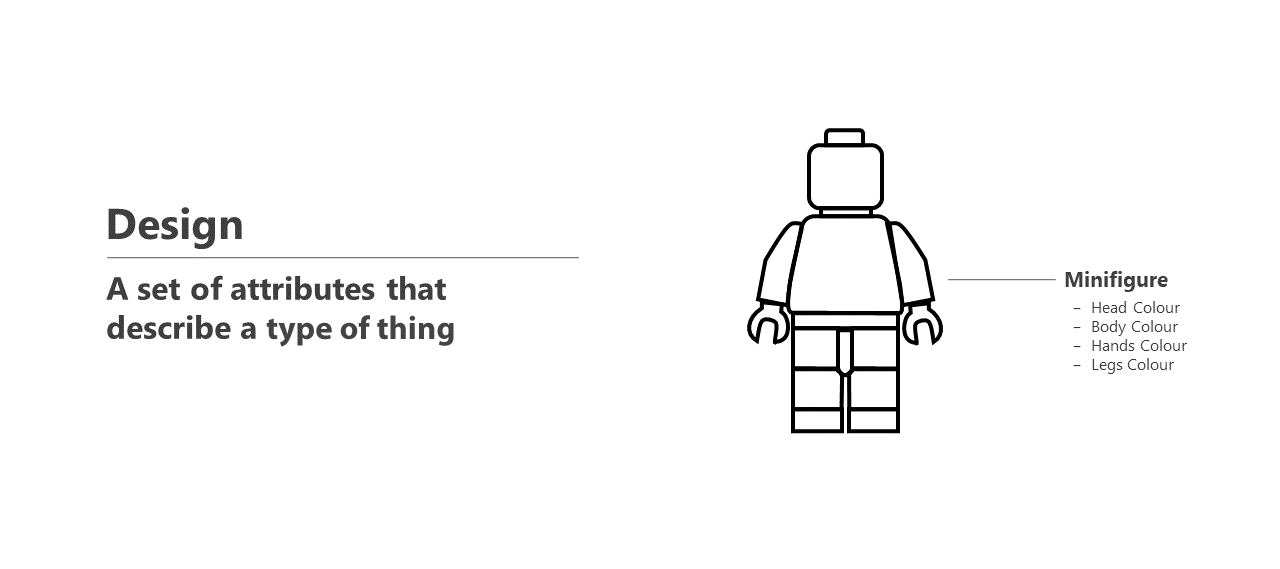
info
Due to their similarities, designs and interfaces are sometimes referred to as **DoDIs**. This stands for **D**esign **o**r **D**esign **I**nterface.
### Attributes[](#attributes "Direct link to Attributes")
A design can have any number of defined attributes. It can also inherit attributes from [interfaces](/basics/fundamentals/interfaces.md).
An attribute is a data field that represents a single characteristic of the concept described by the design. The characteristic can be physical (e.g. *dimensions, location*) or abstract (e.g. *unit number, installed date*).
Link attributes are a special type that can reference items of a particular design/interface (e.g. *the **Teams** design has a **Members** attribute that links to the **Team Members** design*). This makes it possible for items to link to other items!
Attributes can be configured as **Required**, so that a value must be entered when creating or editing an item of the design. Attributes can also be configured with a default value, which gets set automatically on items but can be edited as needed.
To learn more, see [Attributes](/apps/designer/dodis/attributes/.md) in the Designer app.
info
To customise the order and visibility of item attributes in different scenarios, see [Item forms](/apps/designer/item-forms/.md) in the Designer app.
### Appearance[](#appearance "Direct link to Appearance")
Every design has **Icon** and **Colour** properties. They define the visual identity of the design and its items. This makes items more recognisable when displayed in a list or on the map. They can be overridden on individual items as needed.
[](/img-cw1/basics/design-appearance.png)
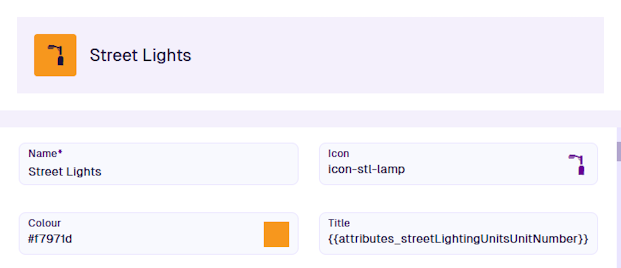
Additionally, every design has **Title** and **Subtitle** properties. They define how the primary and secondary labels of each item are generated. They can include text, attribute values, and even conditional logic to display context-sensitive information!
*For example, asset designs typically display a unique attribute in the title and the design's name in the subtitle.*
[](/img-cw1/basics/design-appearance-item.png)
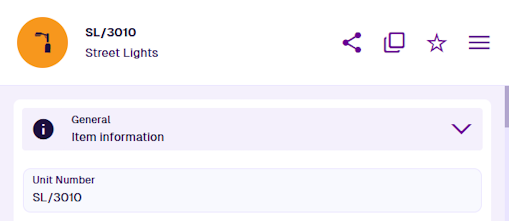
To learn more, see [Titles and subtitles](/apps/designer/dodis/titles-subtitles.md) in the Designer app.
### Geometry types[](#geometry-types "Direct link to Geometry types")
Every design has a **Geometry** attribute that can store coordinate data. This lets you record an item's location and shape. By default, the attribute is optional and accepts all geometry types (e.g. *point, line, polygon*).
Alternatively, you can configure a design's properties to make geometry **Required**, so that a value must be entered when creating/editing items of the design. You can also limit the types of geometry that can be stored, including none at all!
To learn more, see the [Details section](/apps/designer/dodis/edit-dodi/details.md) in the Designer app.
[](/img-cw1/basics/design-geometry.png)
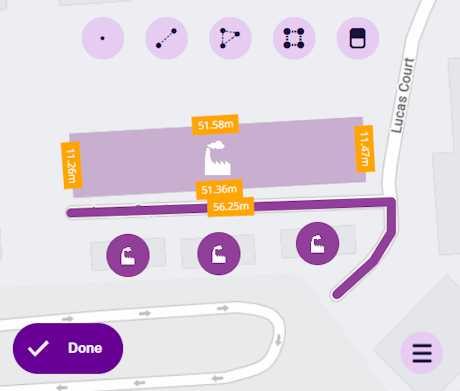
### Context[](#context "Direct link to Context")
Every design has a **Context** property that indicates its origin. If set to *Customer*, it was created by your organisation and can be edited freely. Otherwise, it's a protected system design.
System designs are included to provide core functionality and help you get started (e.g. *the **Teams** and **Team Members** designs*). While system designs can't be edited or deleted, they can be extended with extra attributes.
Details
The possible context types are:
* *Core* - the design is included with CausewayOne Asset Management. It is required for system functionality, so it can't be deleted. However, you can:
* edit these properties: **Name**, **Icon**, **Colour**, **Title**, **Subtitle**
* add, edit or remove any custom attributes
* implement or remove any extra interfaces
* *Module* - the design belongs to an optional [module](/basics/fundamentals/modules.md). Same restrictions as *Core*.
* *Package* - the design was created by our system architects as part of a custom solution for your organisation. Same restrictions as *Core*.
* *Customer* - the design was created by your organisation. Therefore, you can freely edit or delete it, providing your user account has [permission](/apps/permissions/explorer/.md) to do so.
info
If you create an item of a *Core*, *Module* or *Package* design, the item's context will be *Customer*!
### Learn more[](#learn-more "Direct link to Learn more")
To learn more about creating and configuring designs, see [Designs and interfaces](/apps/designer/dodis/.md) in the Designer app.
---
# Interfaces
### What is an interface?[](#what-is-an-interface "Direct link to What is an interface?")
**Interfaces** are similar to [designs](/basics/fundamentals/designs.md). However, [items](/basics/fundamentals/items.md) can't be created from interfaces! An interface is a set of generic attributes that can be shared by multiple designs.
A design can implement any number of interfaces. This lets it inherit the attributes of each interface alongside its own. An item of the design can therefore store values for all those attributes together. If a new attribute is added to an interface, it automatically becomes available on designs that implement it, and on items of those designs.
Use interfaces to standardise parts of your data models. This avoids redefining common attributes on multiple designs and provides greater flexibility going forward. Interfaces can even implement other interfaces!
*Continuing our toy example, the **Minifigure** design below implements the **Toy** and **Lego** interfaces to inherit their attributes. Want to add a "Piece Count" attribute to all Lego products, including minifigures? Add it to the **Lego** interface! Similarly, if you create a **Barbie** design in future, it can implement the **Toy** interface to inherit those common attributes.*
*An item of the **Minifigure** design is also considered an item of the **Toy** and **Lego** interfaces.*
[](/img-cw1/basics/basics_interface.png)
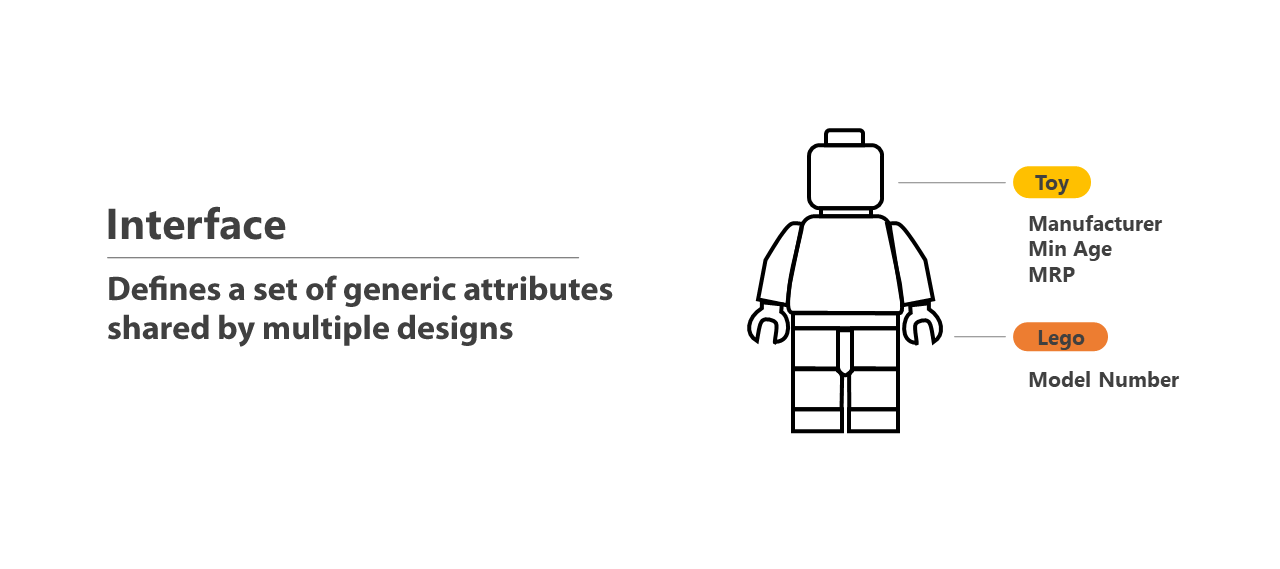
info
Due to their similarities, designs and interfaces are sometimes referred to as **DoDIs**. This stands for **D**esign **o**r **D**esign **I**nterface.
### Target multiple designs[](#target-multiple-designs "Direct link to Target multiple designs")
An interface also provides a way to target multiple designs at once. In many areas of CausewayOne Asset Management, you can choose a design to focus on its items. If you choose an interface, you can target the items of all the designs that implement it.
*For example, imagine a **Playground Assets** interface that is implemented by three designs: **Swings**, **Seesaws** and **Roundabouts**. To display items from all those designs on the map, you can define a single [layer](/basics/fundamentals/layers.md) that queries the **Playground Assets** interface.*
Targeting a single interface can save time and avoid repetition. It also provides extra flexibility, as any future designs can be incorporated into existing queries by simply implementing the interface.
info
If you target an interface, only the interface's attributes will be exposed.
*For example, in the Data Explorer app, you can query the **Defects** interface to fetch all defect items. The results will include item data for all defect attributes. However, any attributes defined on individual defect designs won't be included.*
### Attributes[](#attributes "Direct link to Attributes")
Like designs, an interface can have any number of defined attributes.
An attribute is a data field that represents a single characteristic of the concept described by the interface (e.g. *dimensions, unit number*). Link attributes are a special type that can reference items of a specific design/interface (e.g. *the **Jobs** interface has a **Fixed Defects** attribute that links to the **Defects** interface*).
When a design/interface implements an interface, it inherits all of the interface's attributes. This includes any attributes the interface itself has inherited from other interfaces!
*In the following diagram, the **Example Custom** design directly inherits the black attributes from the **Items** interface and the green attributes from the **Assets** interface. However, it also indirectly inherits the red attribute from the **Items With Reports** interface.*
[](/img-cw1/basics/interface-attribute-inheritance.png)
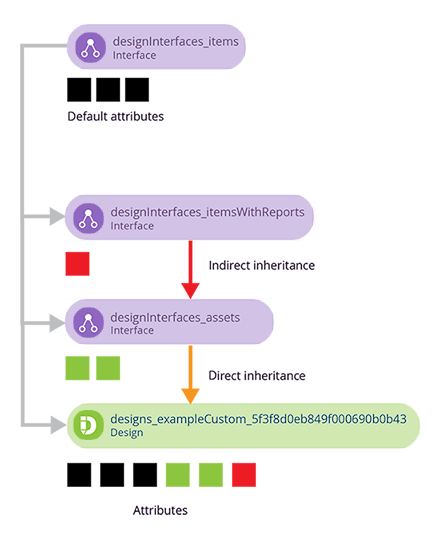
### Appearance[](#appearance "Direct link to Appearance")
Like designs, every interface has the following properties:
* **Icon** and **Colour** - these can affect the appearance of designs that implement the interface, and their items.
* **Title** and **Subtitle** - these can affect how the items of those designs are labelled.
These properties are inherited by designs that implement the interface, unless they are configured on the design itself.
[](/img-cw1/basics/interface-appearance.png)
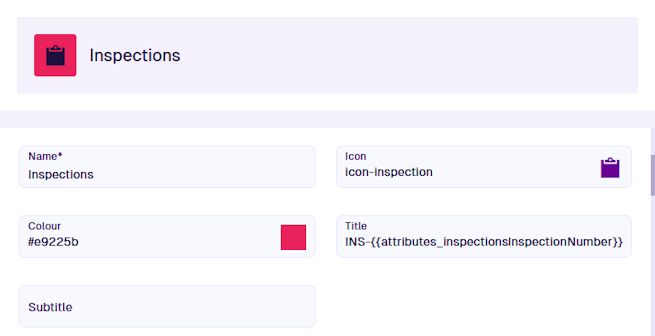
*For example, the **Generic Inspections** design implements the **Inspections** interface. The design has no appearance properties set, so it inherits them from the interface. Therefore, an item of the design looks like this.*
[](/img-cw1/basics/interface-appearance-item-01.png)

*The **Tree Visual Inspections** design also implements the **Inspections** interface. However, the design has all of its appearance properties configured. Therefore, an item of the design looks like this.*
[](/img-cw1/basics/interface-appearance-item-02.png)
### Geometry types[](#geometry-types "Direct link to Geometry types")
Like designs, every interface has a **Geometry** attribute that can store coordinate data. This lets you record an item's location and shape. By default, the attribute is optional and accepts any geometry types (e.g. *point, line, polygon*).
Alternatively, you can configure an interface's properties to make geometry **Required**, so that a value must be entered when creating/editing items of any design that implements the interface. You can also limit the types of geometry that can be stored in those items.
If any geometry properties are blank on a design/interface that implements the interface, they will be inherited.
### Context[](#context "Direct link to Context")
Every interface has a **Context** property that indicates the interface's origin. If set to *Customer*, it was created by your organisation and can be edited freely. Otherwise, it's a protected system interface.
System interfaces are included to provide core functionality and help you get started (e.g. *the **Defects** and **Tasks** interfaces*). While system interfaces can't be edited or deleted, they can be extended with extra attributes.
Details
The possible context types are:
* *Core* - the interface is included with CausewayOne Asset Management and required for system functionality. It can't be deleted but you can:
* edit these properties: **Name**, **Icon**, **Colour**, **Title**, **Subtitle**
* add, edit or remove any custom attributes
* implement or remove any extra interfaces
* *Module* - the interface belongs to an optional [module](/basics/fundamentals/modules.md) that was installed. Same restrictions as *Core*.
* *Package* - the interface was created by our system architects as part of a custom solution for your organisation. Same restrictions as *Core*.
* *Customer* - the interface was created by your organisation. Therefore, you can freely edit or delete it, providing your user account has [permission](/apps/permissions/explorer/.md) to do so.
### Learn more[](#learn-more "Direct link to Learn more")
To learn more about creating and configuring interfaces, see [Designs and interfaces](/apps/designer/dodis/.md) in the Designer app.
---
# Items
### What are items?[](#what-are-items "Direct link to What are items?")
**Items** let you store data. An item is a specific instance of a [design](/basics/fundamentals/designs.md). The design (and any [interfaces](/basics/fundamentals/interfaces.md) it implements) defines a set of attributes that collectively describe a type of thing (e.g. **_Street Lights_**). An item stores a single set of values for those attributes, which describe an actual thing (e.g. *a specific street light*).
If you're familiar with conventional databases, you can think of a design as the schema that defines the columns of a table. Each item of the design is a row of values.
*Continuing our toy example, the item illustrated below is a specific instance of the **Minifigure** design. It contains a value for each colour attribute defined by the design. The item represents an actual configuration of the minifigure.*
[](/img-cw1/basics/basics_item.png)
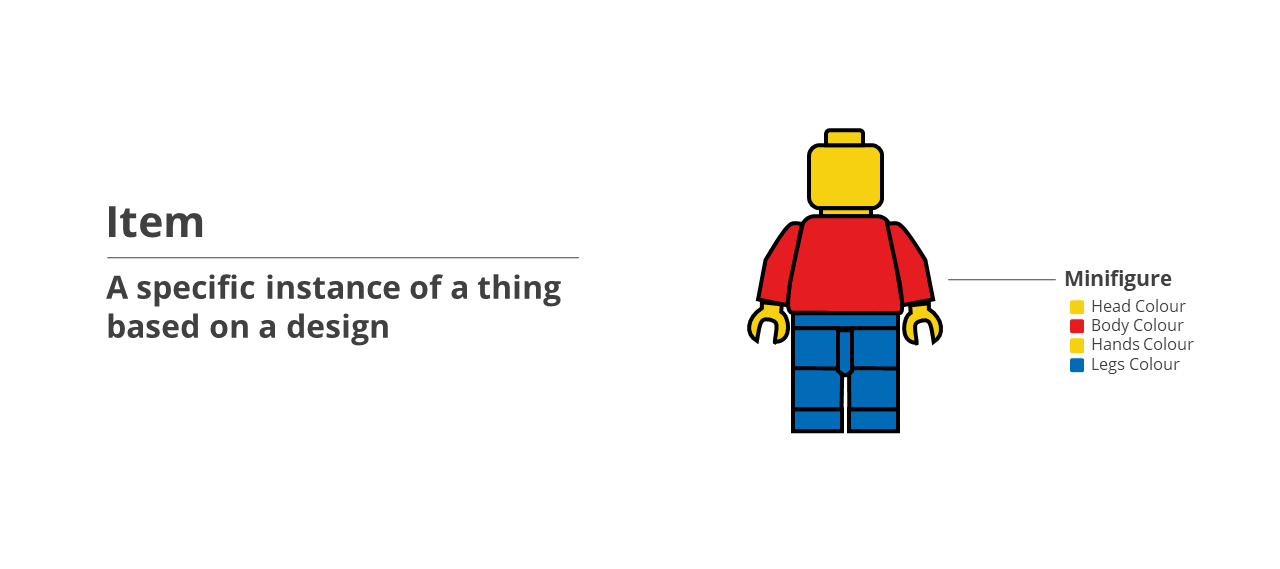
info
Items can't be created from interfaces. However, an item of a design can also be considered an item of any interfaces it implements.
### Item ID[](#item-id "Direct link to Item ID")
Every item has a unique identifier known as an **Item ID**, e.g. `6006bf7b3159a30066ab2754`. This lets you reference a specific item in various situations, such as performing an AQS query or defining a report data source.
Details
Item IDs are a long alphanumeric code:
```
5f6b9c0e8163400065eae35f
```
The system features included with CausewayOne Asset Management (e.g. *designs*, *interfaces*, *groups*, *workflows*) are identified by an alphabetic Global Unique Code (Guc):
```
designs_teamMembers
designInterfaces_defects
userGroups_workflowManagers
```
Custom features created by your organisation are a combination - an alphabetic code suffixed with an alphanumeric code:
```
designs_bollardType3_5caf1493ff5c130f70760bd4
workflows_updateMeteoSensor_5ec51ec29effd8005682cd00
```
### Title and subtitle[](#title-and-subtitle "Direct link to Title and subtitle")
Every item has **Title** and **Subtitle** attributes, which are defined by its design and generated automatically. They serve as primary and secondary labels that describe the item. This makes it easier to search for and identify what the item represents.
*For example, asset items typically display their unit number and design name*.
[](/img-cw1/basics/item-title-subtitle.png)
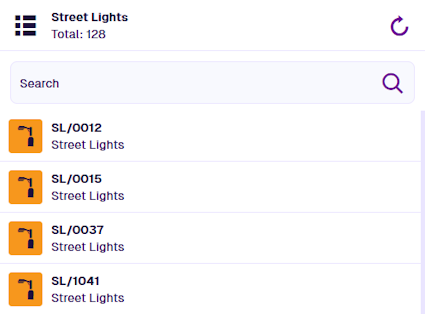
### Geometry[](#geometry "Direct link to Geometry")
Every item has a **Geometry** attribute that can store coordinate data. This represents the item's location and shape. The item's design defines which types of geometry can be stored (e.g. *point, line, polygon*) and whether it's optional or required.
To learn more, see the [Map section](/apps/items/view-item/item-details/map-section.md) of the item canvas.
[](/img-cw1/basics/item-geometry.png)
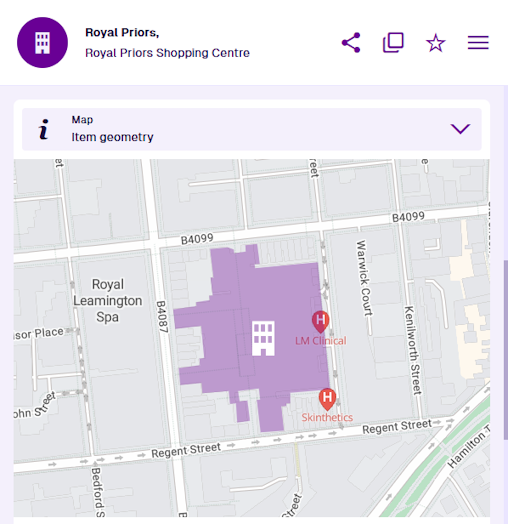
### Links[](#links "Direct link to Links")
Depending on its design, an item may have Link attributes that store references to other items. The item containing the Link attribute is considered the **parent** and any stored items are its **children**.
This lets you link items together to represent their relationships in the real world. For example, you can:
* link an asset item to its constituent component items
* link an asset item to related [activity](/basics/fundamentals/activities.md) items (e.g. *an inspection of the asset*)
* link related activity items together (e.g. *a job that fixes a defect*)
With the power of [AQS](/basics/fundamentals/aqs.md), you can perform queries that fetch qualifying items and their attribute data, plus attribute data from their linked items, plus attribute data from *their* linked items, and so on!
#### File attachments[](#file-attachments "Direct link to File attachments")
Some items have an **Attachments** Link attribute that can store references to uploaded files. When viewing an item, you can easily upload and attach new files from your device. Image attachments can be previewed directly and are a great way to record an asset's condition or the results of a completed task!
To learn more, see [Item attachments](/apps/items/item-attachments.md) in the Apps guide.
[](/img-cw1/basics/attach-download-01.png)
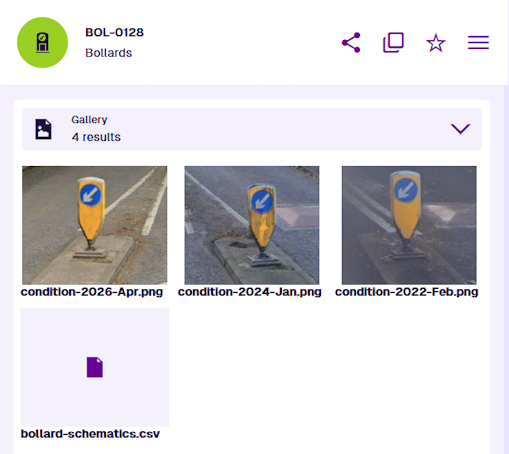
#### Item graphs[](#item-graphs "Direct link to Item graphs")
You can visualise an item's relationships by viewing them as graphs. Each graph type displays the hierarchy of items referenced by each Link attribute of that type on the item (e.g. *the **Components** graph shows the contents of Link attributes that have their **Graph** property set to "Component"*).
To learn more, see [Item graphs](/web/items/item-graphs.md) in Asset Classic.
[](/img-cw1/basics/item-graph.png)
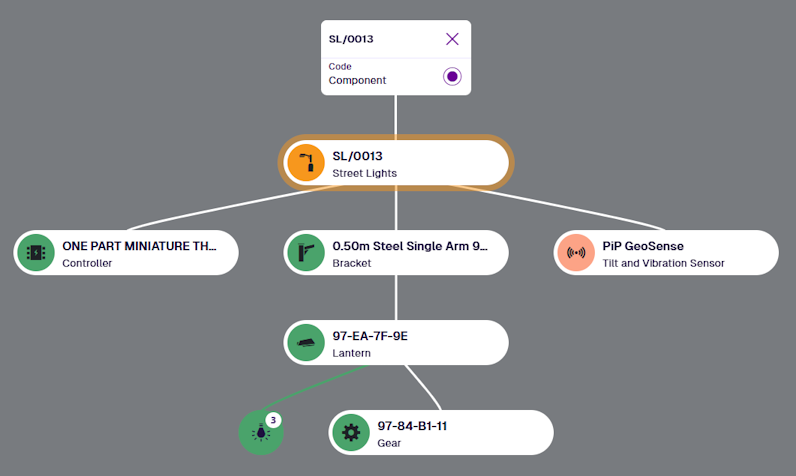
### Context[](#context "Direct link to Context")
Every item has a **Context** property that indicates its origin. If set to *Customer*, it was created by your organisation and can be edited freely. Otherwise, it's a protected system item.
System items are included to provide core functionality and help you get started, e.g. *eight items of the **Task Statuses** design are included*. While system items can't be edited or deleted, they can be extended with extra attributes. You can also customise their icon and colour.
Details
The possible context types are:
* *Core* - the item is included with CausewayOne Asset Management. It is required for system functionality, so it can't be deleted. You can edit its **Colour** and **Icon** properties, and the values of any custom attributes your organisation has added to the item's design.
* *Module* - the item belongs to an optional [module](/basics/fundamentals/modules.md). Same restrictions as *Core* items.
* *Package* - the item was created by our system architects as part of a custom solution for your organisation. Same restrictions as *Core* items.
* *Customer* - the item was created by your organisation. Therefore, you can freely edit or delete it, providing your user account has [permission](/apps/permissions/explorer/.md) to do so.
info
Some modules provide *Customer* context items as pre-made examples (e.g. *the **Grounds** module contains thousands of **Species** items*). They aren't essential to the module's functionality, so you are free to use, modify or discard them!
### Canvas views[](#canvas-views "Direct link to Canvas views")
When you view an item's details in the [Asset Management Apps](/apps/home.md), the item canvas is displayed. What you see depends on the active **canvas view**, which determines the order and visibility of different data sections.
Multiple canvas views can be created for any design/interface. When viewing an item of that design/interface, users can switch views according to their preference or circumstance (e.g. *a comprehensive view for desktops, a concise view for mobile devices*).
Using [permissions](/apps/permissions/explorer/.md), you can control who has access to individual canvas views. This provides a way to limit the data and features available to certain user groups or roles (e.g. *an external contractor view that only displays sections relevant to them*).
To learn more, see [Item canvas](/apps/designer/item-canvas/.md) in the Designer app.
### Learn more[](#learn-more "Direct link to Learn more")
To learn more about viewing items and editing their data, see [Items](/apps/items.md) in the Apps guide.
---
# Layers
### What is a layer?[](#what-is-a-layer "Direct link to What is a layer?")
[Items](/basics/fundamentals/items.md) can have geometry that describes their location and shape. This can be projected onto a basemap of your choice, enabling you to visualise physical assets, [activities](/basics/fundamentals/activities.md), service areas and more, within a geographical context.
Each set of item geometries is known as a **layer**. You can create any number of layers and easily turn them on or off as needed, making it possible to view multiple datasets alongside each other on the map.
### Layer styles[](#layer-styles "Direct link to Layer styles")
Each layer consists of one or more **layer styles**. Each style uses an [AQS query](/basics/fundamentals/aqs.md) to fetch a set of qualifying items and display them on the map (e.g. *all residential Waste Containers with unresolved defects*).
You can define the colour, icon and query of each layer style. To determine how items are arranged and presented on the map, you can also configure the layer style's visualisation type.
You can enabled layer styles on an individual basis. Turning the layer on or off will show/hide its enabled layer styles accordingly.
[](/img/layers/layers-example_03.png)
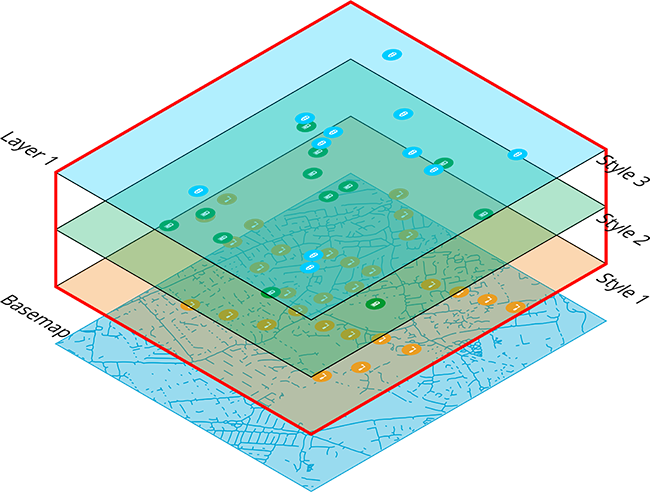
### Learn more[](#learn-more "Direct link to Learn more")
To learn more about viewing and managing layers, see [Layers](/apps/maps/layers/.md) in the Maps app.
---
# Modules
### What are modules?[](#what-are-modules "Direct link to What are modules?")
The flexible data structure in CausewayOne Asset Management can support a wide variety of asset classes and industry standards.
A **module** is a bundle of features built for a specific purpose or service area. We provide them separately so that CausewayOne Asset Management can be tailored to your unique business requirements. While module contents are protected from direct modification, they can still be customised and extended to suit your needs.
Modules come in several flavours, including:
* basic data structures for common service areas, e.g. *Grounds, Waste*
* industry data structures, e.g. *DEFRA Categories, NSG + NLPG*
* additional functionality, e.g. *Finance, Street Works*
* additional report types, e.g. *Activity by Street, Job Ticket*
* mesh endpoints for third-party integrations, e.g. *Enevo, Telensa*
### Packages[](#packages "Direct link to Packages")
Packages are more sophisticated and built to work together. A **package** might add data structures for scheduling and carrying out work, or build upon the foundations of an existing module to provide more advanced functionality.
Unlike modules, packages are versioned. That makes it easier to update a package in place, without affecting any customisations your organisation builds on top.
A **Solution** package is ready-made for a specific service area, e.g. *Highways, Street Lighting*. It pulls in a whole chain of dependent packages and modules, alongside any data structures of its own, giving your organisation everything it needs to get started.
### Learn more[](#learn-more "Direct link to Learn more")
Not sure what's installed for your organisation? [Contact Support](https://www.causeway.com/support) to discuss which modules and packages are enabled.
For detailed information on what's included in each module or package, see **Blueprints** in the [Developer Docs](https://developer.alloyapp.io/blueprints).
---
# Reports
### What is a report?[](#what-is-a-report "Direct link to What is a report?")
A **report** is a template that defines various data sources and one or more document layouts.
Each data source can represent the attribute data of an [item](/basics/fundamentals/items.md), the resulting data of an [AQS query](/basics/fundamentals/aqs.md), or a simple static value. Each document layout determines how that data will be presented across one or more document files (PDF, HTML, CSV).
When you run a report, data is collected from those sources and used to populate the document layout(s). A new report item is created with the generated document file(s) attached, which can then be downloaded.
Reports let you capture a snapshot of data and compile it into a human-readable, universal format that can be viewed and shared outside of CausewayOne Asset Management. Use the included system reports or create your own!
[](/img-cw1/basics/flow-example.png)
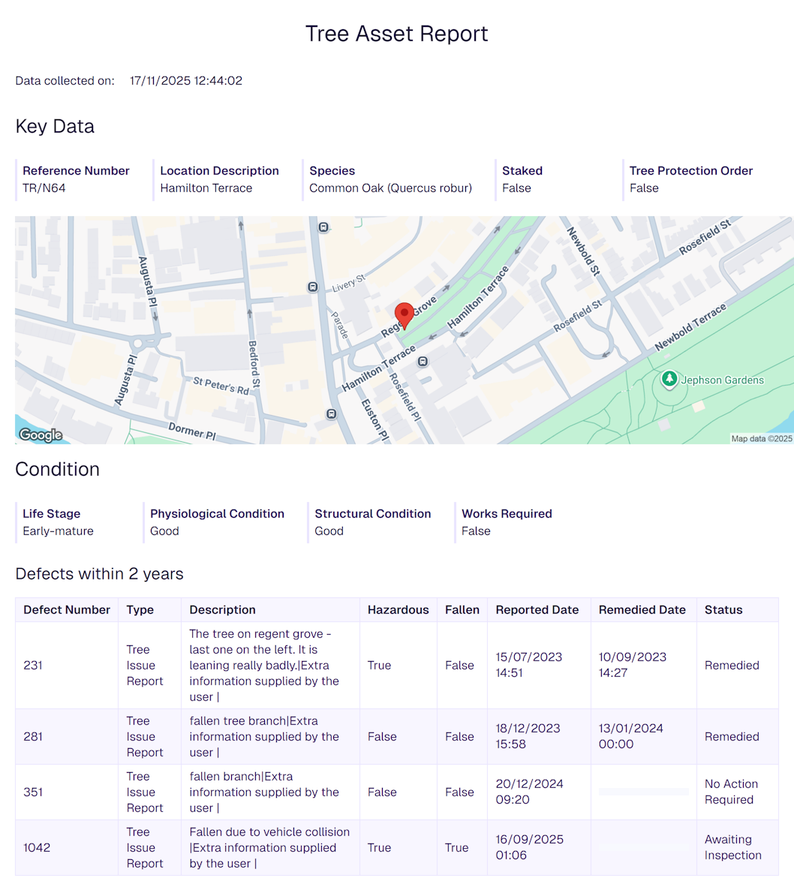
### Learn more[](#learn-more "Direct link to Learn more")
To learn more about running and creating reports, see [Reporting](/web/reporting.md) in Asset Classic.
---
# Workflows
### What is a workflow?[](#what-is-a-workflow "Direct link to What is a workflow?")
A workflow is a series of programmed actions that can be triggered automatically or on demand.
The action sequence can be linear or have multiple branches. This enables a single trigger to spark multiple actions at once. You can also use **Filter** actions to enforce conditional logic, so that certain branches are only performed for certain items.
[](/img-cw1/basics/workflow-branches.png)
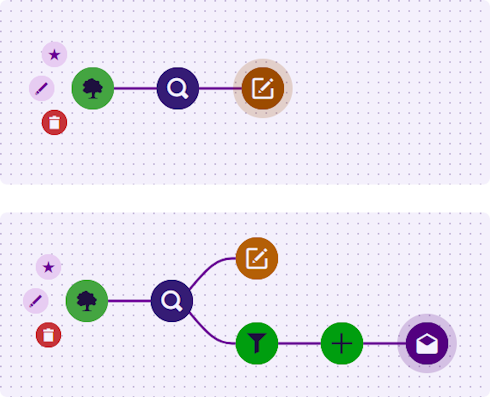
A workflow targets items of a specific [design](/basics/fundamentals/designs.md). Alternatively, a workflow can target an [interface](/basics/fundamentals/interfaces.md), in order to target items of all the designs that implement the interface.
There are three types of workflow:
* **Event** - a workflow that's triggered by an event related to one or more items, e.g. when an item is created, updated, or deleted.
* **Manual** - a workflow that a user can trigger on demand.
* **Schedule** - a workflow that's scheduled to trigger at specific dates or regular intervals.
### Learn more[](#learn-more "Direct link to Learn more")
To learn more about building and managing workflows, see [Workflows](/web/workflows.md) in Asset Classic.
---
# Why CausewayOne?
### What do people use Asset Management for?[](#what-do-people-use-asset-management-for "Direct link to What do people use Asset Management for?")
To manage the physical assets in the world around us.
Previously, this required using multiple separate systems to hold different types of information for different types of asset (even if those assets were managed in largely the same way).
CausewayOne Asset Management provides a completely flexible data structure for asset management, enabling you to manage all asset types within a single system! Our unique model of [designs](/basics/fundamentals/designs.md) and [interfaces](/basics/fundamentals/interfaces.md) lets you define your own asset classes, which can inherit attributes from shared classes. This makes it possible to group asset types in various scenarios, while still keeping them distinct from each other.
#### Inventory[](#inventory "Direct link to Inventory")
CausewayOne Asset Management is an excellent tool for maintaining an asset inventory. It can store all kinds of information about each asset, including both physical characteristics (e.g. *dimensions*, *location*, *condition*) and abstract characteristics (e.g. *unit number*, *installed date*, *owner*).
Assets can be placed in different [collections](/basics/fundamentals/collections.md), allowing you to distinguish between those that are in live service, in storage, or are retired.
#### Activities[](#activities "Direct link to Activities")
To extend the lifespan of your assets and ensure they perform optimally, a mixture of scheduled and reactive maintenance is essential.
CausewayOne Asset Management can help you to plan, perform and record [activities](/basics/fundamentals/activities.md) for inspecting an asset's condition, reporting defects and performing work.
### Automate and Connect[](#automate-and-connect "Direct link to Automate and Connect")
We know that our customers are unique, each with a different way of working to meet their goals. This might be through specific defined processes, or by harnessing the power of a connected world through multiple systems that need to work seamlessly with one another.
#### Workflows[](#workflows "Direct link to Workflows")
CausewayOne Asset Management's powerful workflow engine offers almost unlimited possibilities for automating your business processes. [Workflows](/basics/fundamentals/workflows.md) can be triggered manually or automatically, and can use branching logic to perform different actions under different conditions.
Create and allocate tasks, flag high-risk defects, send email/SMS notifications and so much more!
#### Open API[](#open-api "Direct link to Open API")
Our API-first approach means you can connect CausewayOne Asset Management to almost anything online. Several [modules](/basics/fundamentals/modules.md) are available that provide integrations to various sensor types, IoT platforms, CRMs, third-party services and more.
We welcome and support customers in creating their own integrations! Consult our [Developer Docs](https://developer.alloyapp.io) for information about how the API works.
### Service areas[](#service-areas "Direct link to Service areas")
Today, people are using CausewayOne Asset Management to manage assets across a wide range of service areas, including Highways, Street Lighting, Drainage, Waste Management, Grounds and Street Cleaning.
Thanks to the flexibility of the data model, there's no limit to the things you can maintain with CausewayOne Asset Management, and new applications are being identified all the time.
---
# Alloy Mobile
### Update inventory and track your work on the go[](#update-inventory-and-track-your-work-on-the-go "Direct link to Update inventory and track your work on the go")
Alloy Mobile brings you your jobs and inspections so you can focus on one task at a time. It offers detailed and interactive task descriptions so you can travel to your worksite with the team members and equipment you need to get your work done.
The app is designed to work on iPhones, iPads and Android devices.
info
If you experience sync errors, ask your administrator to check if your account has all the [necessary permissions](/apps/permissions/explorer/mobile-permissions.md) enabled.
### Features[](#features "Direct link to Features")
#### Getting assigned work[](#getting-assigned-work "Direct link to Getting assigned work")
You can view a list of your [jobs and inspections](/mobile/menu/assigned-work.md), and see each task's location on the map. Adjust your map view with filters and [basemaps](/mobile/menu/change-basemap.md). Search for your tasks in offline mode to gather details quickly.
#### Looking up inventory[](#looking-up-inventory "Direct link to Looking up inventory")
Look up your asset inventory near you. You can view each asset's details and make updates if you notice a change.
#### Completing tasks[](#completing-tasks "Direct link to Completing tasks")
You can view the details for each job or inspection assigned to you. You can view and edit task details, and get directions to the worksite.
Log your progress and actions taken, as well as the dates you start and finish work. Finally, mark the job or inspection complete when you have finished.
#### Reporting issues[](#reporting-issues "Direct link to Reporting issues")
When you notice an unexpected issue, you can create a defect to notify the back-office of any assets you encounter that may need attention. You can also create an inspection to complete right away, or assign to another team.
#### Working offline[](#working-offline "Direct link to Working offline")
Once your Alloy Mobile data has finished [synchronising](/mobile/sync.md), you can take your mobile device and work anywhere, whether you have an internet connection or not. You can [download maps](/mobile/menu/offline-maps.md) for offline use.
### Get started[](#get-started "Direct link to Get started")
## [📄️Device requirements](/mobile/requirements.md)
[Hardware specification and OS support](/mobile/requirements.md)
## [📄️Sign in](/mobile/sign-in.md)
[How to access Asset Management on mobile](/mobile/sign-in.md)
## [📄️Synchronisation](/mobile/sync.md)
[Sync your data to download new items and submit your work](/mobile/sync.md)
## [📄️The mobile workspace](/mobile/workspace.md)
[Understanding the Alloy Mobile workspace](/mobile/workspace.md)
## [🗃Main menu](/mobile/menu/.md)
[Access your tasks and other app features](/mobile/menu/.md)
---
# Main menu
### Access your tasks and other app features[](#access-your-tasks-and-other-app-features "Direct link to Access your tasks and other app features")
Use the main menu to access your assigned tasks and Alloy Mobile's features. To open the menu, select in the top-left corner. Swipe the menu up and down to view all of its options.
[](/img/mobile/workspace-main-menu.png)
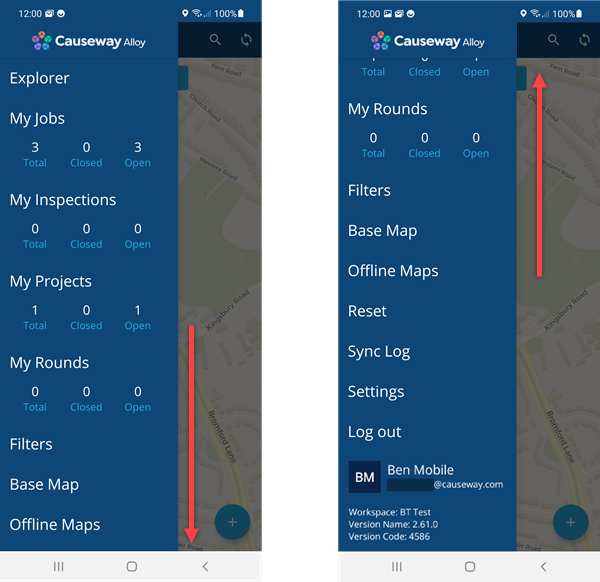
### Menu options[](#menu-options "Direct link to Menu options")
The main menu provides the following options:
* **Explorer** - clear your [workspace](/mobile/workspace.md), so you can explore the map and search for tasks/assets.
* The following menu options display the activities in your organisation which are assigned to you or your team:
* **My Jobs**
* **My Inspections**
* **My Projects**
* **My Rounds** - only available on Android. Your organisation must have the **Waste** [module](/basics/fundamentals/modules.md) installed.
You can see at a glance how many open tasks require work and how closed tasks have been done. Select an option to show the list of tasks and their location on the map. To learn more, see [Assigned work](/mobile/menu/assigned-work.md).
* **Locations of Interest** - access a list of [locations](/web/maps/locations-of-interest.md) defined by your organisation, which can be easily shared to your device's navigation app.
* **Filters** - choose which [task and asset types](/mobile/menu/filters.md) are displayed on the map.
* **Base Map** - change the background of the map to a different [basemap](/mobile/menu/change-basemap.md).
* **Offline Maps** - download basemap data to your device for [offline use](/mobile/menu/offline-maps.md).
* **Reset** - clear any unsaved data and perform a fresh [synchronisation](/mobile/sync.md). While this can help resolve issues, any changes you've made since the last sync will be lost. Therefore, a warning is shown that requires confirmation.
[](/img/mobile/mobile-reset-option.png)
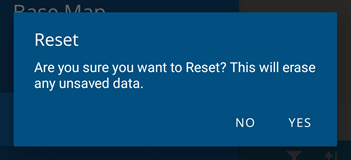
* **Sync Log** - view the details of previous synchronisation attempts. Useful for troubleshooting!
* **Settings** - customise your app experience by changing various [settings](/mobile/menu/app-settings.md).
* **Workspaces** - if your organisation has multiple workspaces, you can switch to a [different one](/mobile/menu/change-workspace.md).
* **Log out** - return to the [login screen](/mobile/sign-in.md).
### Initial synchronisation[](#initial-synchronisation "Direct link to Initial synchronisation")
After logging in, the app automatically performs a [synchronisation](/mobile/sync.md) (if your device is online). This ensures your data is up-to-date and uploads any changes you've made to CausewayOne Asset Management. The sync progress is displayed in the main menu. If any errors occur, select **Sync failure** to see a detailed breakdown.
[](/img/mobile/synchronising-menu.png)
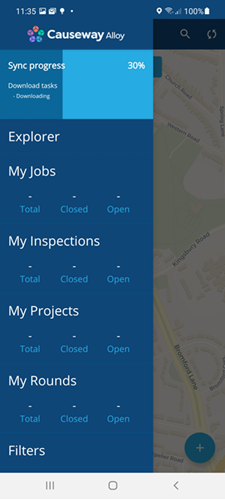
---
# App settings
### Customise your app experience[](#customise-your-app-experience "Direct link to Customise your app experience")
Alloy Mobile has various settings that you can change to suit your preferences.
To access the settings, open the [Main menu](/mobile/menu/.md) , scroll down and select **Settings**.
[](/img/mobile/workspace-settings.png)
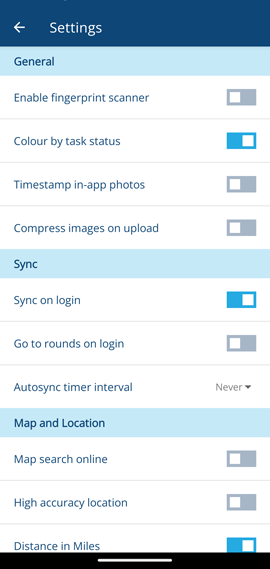
info
App settings are per-device. They don't synchronise with your user account.
#### General[](#general "Direct link to General")
* **Enable fingerprint scanner** - use your device's fingerprint scanner to [log in](/mobile/sign-in.md), if it has one! Disabled by default.
* **Colour by task status** - colour tasks according to their status, instead of their design colour. Enabled by default.
* **Timestamp in-app photos** - imprint a timestamp on photos taken directly with Alloy Mobile (not added from Files or Gallery). The format is *YYYY-MM-DD hh:mm:ss*. Disabled by default.
* **Compress images on upload** - any JPEG images you attach to tasks/assets will be compressed to 85% quality before being uploaded. Disabled by default.
#### Sync[](#sync "Direct link to Sync")
* **Sync on login** - automatically [synchronise](/mobile/sync.md) after logging into Alloy Mobile. Enabled by default.
* **Go to rounds on login** - automatically show the **Rounds** panel immediately after logging into Alloy Mobile. Ideal for vehicle-based users! Disabled by default.
* **Autosync timer interval** - automatically [synchronise](/mobile/sync.md) at regular intervals. Disabled by default.
info
Syncing frequently will increase your data usage and may incur additional carrier costs.
#### Map and Location[](#map-and-location "Direct link to Map and Location")
* **Map search online** - the **Search Here** button will show all assets/tasks in the displayed map area, not just the ones you've got [synchronised](/mobile/sync.md). Disabled by default.
* **High accuracy location** - use GPS in addition to Wi-Fi, Bluetooth and phone towers to improve your location accuracy. Disabled by default.
info
Using GPS will drain your device's battery faster.
* **Distance in miles** - use miles for distance units instead of kilometres. Enabled by default.
#### Support[](#support "Direct link to Support")
* **Share logs** - if you're experiencing issues, select to download and share a zip archive of the app's log files. To email this to us for analysis, share it with your device's email app.
---
# Assigned work
### View the tasks assigned to you[](#view-the-tasks-assigned-to-you "Direct link to View the tasks assigned to you")
### Overview[](#overview "Direct link to Overview")
View your allocated jobs and inspections. Select a task to view its details and get directions to a job site.
To help coordinate between team members, your assigned tasks display in the list with a user icon . This indicates the task is assigned only to you, and not to any other team members.
Need to come back to a task later? Search for it by description or ID while your mobile device is offline.
### Getting your assigned work[](#getting-your-assigned-work "Direct link to Getting your assigned work")
1. Open Alloy Mobile.
2. Select on the menu in the upper left corner. Your dashboard opens with an overview of your allocated jobs and inspections.
3. Select **Jobs** or **Inspections** to view a list of tasks assigned to your team. bruno.
4. Select and hold a task to centre it on the map.
5. Select a task to view or update its details. Make sure you load your assigned work while your device has a signal. Once your tasks are loaded, you can still view them in no-signal areas.
info
Any tasks that display the user icon are assigned to you, rather than to other team members.
### Viewing your work on the map[](#viewing-your-work-on-the-map "Direct link to Viewing your work on the map")
1. Select on the menu in the upper left corner. Your dashboard opens.
2. Select on **Setup Filters**. A list of filters opens.
3. Select the toggle switch next to a filter name to turn it on or off. When a filter is active, each task or asset type included in the filter shows on the map as an icon.
### Searching for a task[](#searching-for-a-task "Direct link to Searching for a task")
1. Select on the *Search* icon in the upper right corner.
2. Start typing the job or inspection description (e.g. *"Gully cleanse"*).
3. Select the task from the list of results. You can also search for a job or inspection ID number. However, searching for an ID is available only when your device is offline.
### Getting directions to a job[](#getting-directions-to-a-job "Direct link to Getting directions to a job")
1. Follow steps 1-4 of *Getting your assigned work* above, selecting a job.
2. In the *Job details* page, go to the *Location* card.
3. Select the navigation icon. Google Maps opens with the recommended route from your location.
4. Select **Start** to begin turn-by-turn navigation to the worksite. You can get directions only when location services are enabled on your device.
---
# Basemaps
### Set the map's background imagery[](#set-the-maps-background-imagery "Direct link to Set the map's background imagery")
The map is central to Alloy Mobile. It provides a convenient way to locate and interact with your assigned tasks and company assets. You can see where things are in relation to each other and where you need to be, enabling you to plan and perform your work accordingly.
A **basemap** provides the background imagery of the map. Switch between multiple basemaps to view your company's data items in different geographical contexts. Choose from system basemaps, company basemaps, or add your own!
info
Alloy Mobile supports [XYZ](/apps/maps/basemaps/add-basemap/xyz-basemap.md) basemaps. [WMS](/apps/maps/basemaps/add-basemap/wms-basemap.md) or [WMTS](/apps/maps/basemaps/add-basemap/wmts-basemap.md) basemaps are not currently supported.
### System basemaps[](#system-basemaps "Direct link to System basemaps")
The following basemaps are included with Alloy Mobile:
OpenStreetMap
A popular open-source map provided and maintained by a global community of volunteers. Displays outlined roads, building footprints, geographical features and points of interest.
[](/img/mobile/mobile-openstreet-map.png)
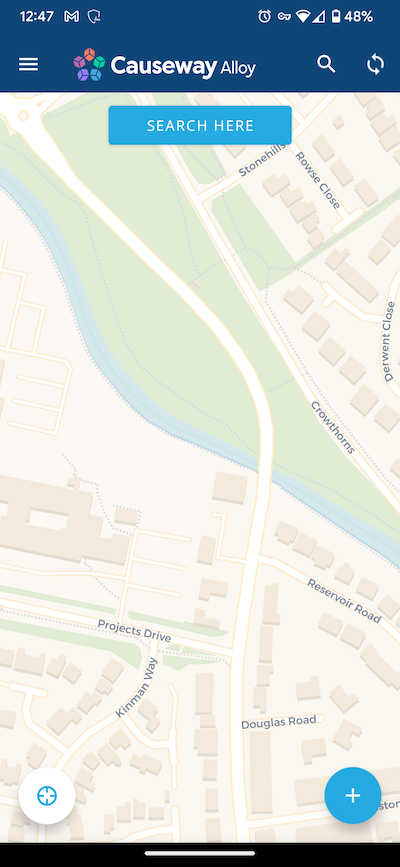
Primary
A beautifully coloured map with a hierarchical road structure, building footprints and geographical features. Roads display their numbers, street names and directional arrows where relevant. Labelled points of interest are also shown, including businesses, amenities and landmarks.
[](/img/mobile/mobile-primary-map.png)
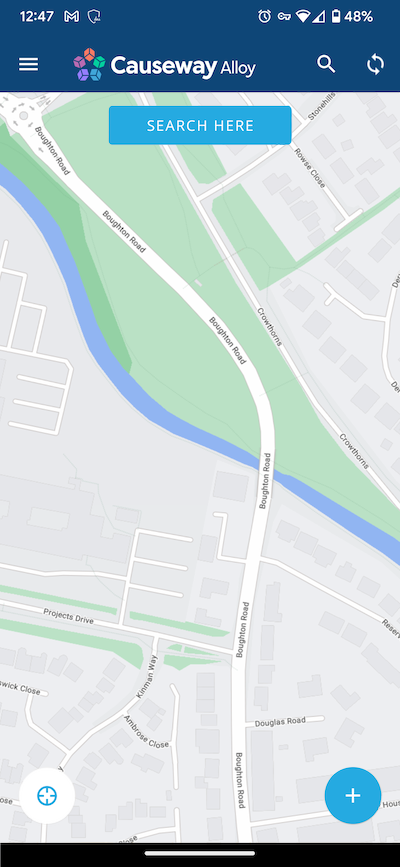
Satellite
Detailed photo imagery with road numbers, street names and labelled points of interest.
[](/img/mobile/mobile-satellite-map.png)
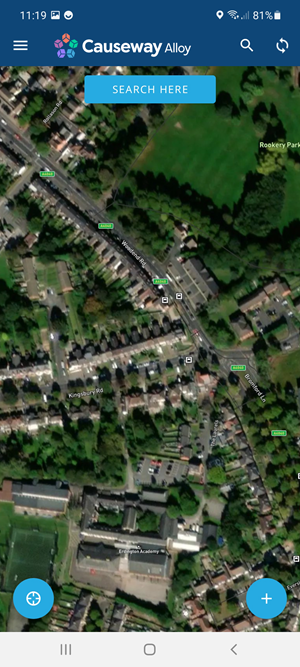
Skyward
A light-blue themed map with simplified roads, building footprints and minimal clutter. Focus on your tasks and assets with minimal distractions!
[](/img/mobile/mobile-skyward-map.png)
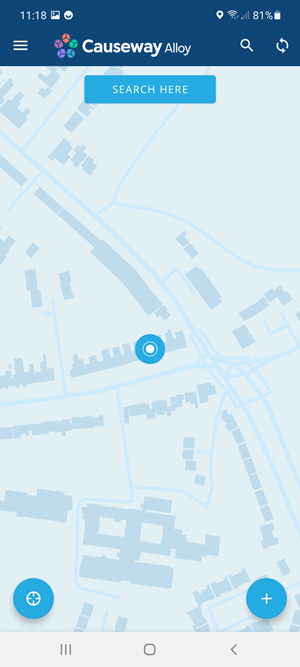
Nightscape
A dark-blue version of Skyward optimised for night-time use. Focus on your tasks and assets with minimal distractions!
[](/img/mobile/mobile-nightscape-map.png)
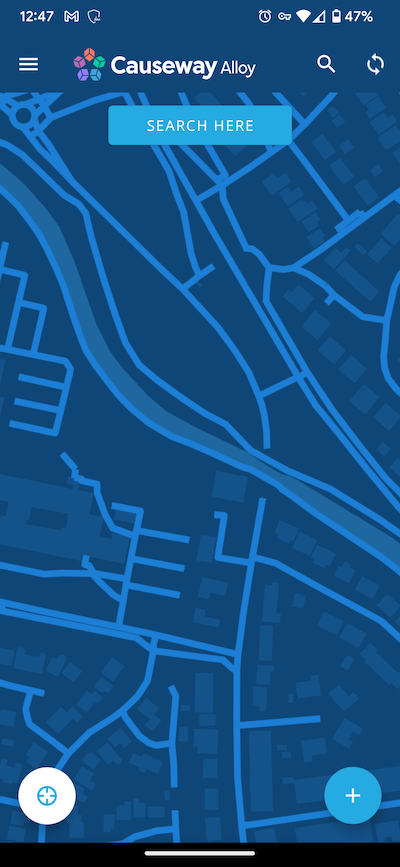
### Change the basemap[](#change-the-basemap "Direct link to Change the basemap")
To change the basemap at any time, open the [**Main menu**](/mobile/menu/.md) and choose **Base Map**. The list includes:
* system basemaps
* company basemaps fetched during [synchronisation](/mobile/sync.md)
* any basemaps added to your device
Each basemap displays a thumbnail preview. Some basemaps are listed twice because they have online and [offline](/mobile/menu/offline-maps.md) variants, as indicated in the bottom-left corner of their thumbnail.
Select a basemap to use it. If your device is offline, the map may display an empty grid until the basemap can be loaded from the internet.
[](/img/mobile/basemaps-list.png)
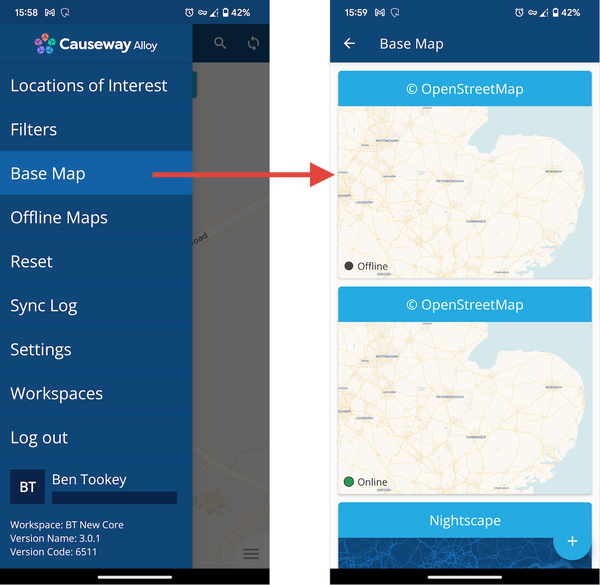
### Add a basemap[](#add-a-basemap "Direct link to Add a basemap")
To add a basemap to your device:
1. Open the [**Main menu**](/mobile/menu/.md) and choose **Base Map**.
2. Select **Add** in the bottom-right corner.
3. Fill in the following fields:
* **Title** - enter a distinct name for the basemap.
* **URL** - enter the URL of the XYZ map service you want to use. A variety of URL formats are accepted, such as:
```
https://example.com/service/{z}/{x}/{y}
https://example.com/service?z={z}&x={x}&y={y}
https://example.com/service/{x}/{y}/{z}.png
```
4. Select **OK** to finish.
The basemap will now be available in the list. To delete a basemap from your device, select in the top-right corner of its thumbnail.
[](/img/mobile/basemaps-add.png)
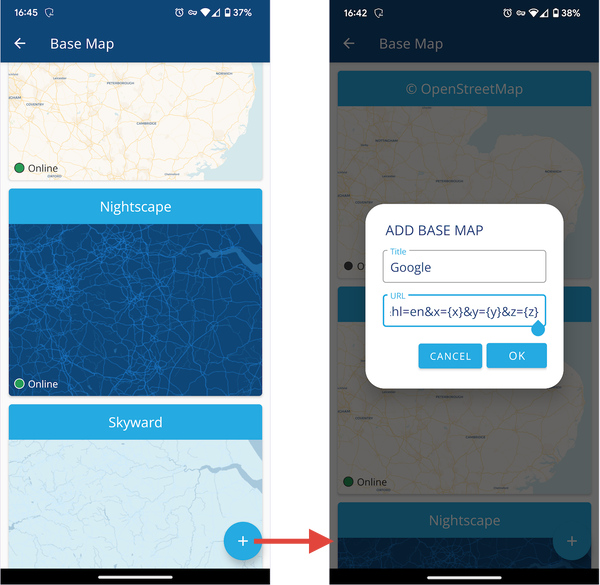
info
Basemaps added to your device are not synchronised with your company project.
---
# Switching workspaces
### Open the customer dataset of your choice[](#open-the-customer-dataset-of-your-choice "Direct link to Open the customer dataset of your choice")
### Switching customers in Alloy Mobile[](#switching-customers-in-alloy-mobile "Direct link to Switching customers in Alloy Mobile")
If you have permission to access more than one customer dataset, you can switch between different customer projects in Alloy Mobile.
1. Go to the menu and select **Projects**.
2. Select a project and select **Yes** in the confirmation dialog. Your map centres on the selected customer's network.
---
# Filters
### How to filter the display[](#how-to-filter-the-display "Direct link to How to filter the display")
### Overview[](#overview "Direct link to Overview")
Alloy Mobile allows you manage the display of assets, jobs, inspections or defects. You can filter the display by individual designs using the **Filter** menu option.
### Filtering the workspace[](#filtering-the-workspace "Direct link to Filtering the workspace")
To filter the display use the following procedure:
1. Open the [Main menu](/mobile/menu/.md), then select **Filters**. The *Filters* page is displayed.
[](/img/mobile/filters.png)
2. By default all the designs are selected to be displayed. Designs are grouped by type:
* Jobs
* Inspections
* Defects
* Assets
* Other tasks
You can select the group heading to reduce the list displayed.
[](/img/mobile/workspace-filter-01.png)
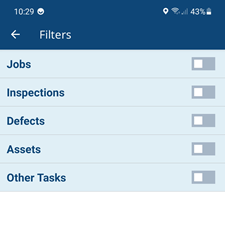
Each group heading has a switch that allows you to filter all the designs within the group.
[](/img/mobile/workspace-filter-03.png)
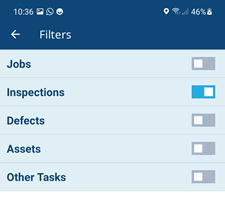
Select a group heading to expand the list and select individual designs to be displayed.
[](/img/mobile/workspace-filter-02.png)
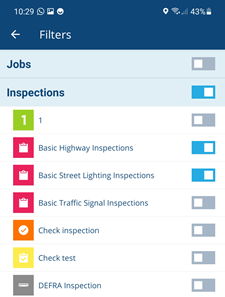
---
# Offline maps
### Download maps for offline use[](#download-maps-for-offline-use "Direct link to Download maps for offline use")
You can download specific map regions to your device. This ensures the map is always available to you, even if you're somewhere with unreliable internet access! Remember to [synchronise](/mobile/sync.md) regularly, so you can continue working with current data in low signal areas.
To download one or more maps:
1. Open the [**Main menu**](/mobile/menu/.md) and choose **Offline Maps**.
2. Select **Download map** or **Download new region**.
[](/img/mobile/offline-maps-01.png)
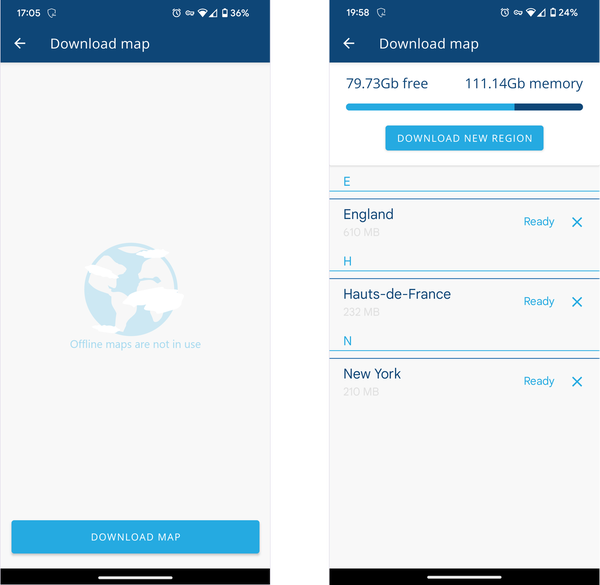
3. Choose the relevant continent.
[](/img/mobile/offline-maps-02.png)
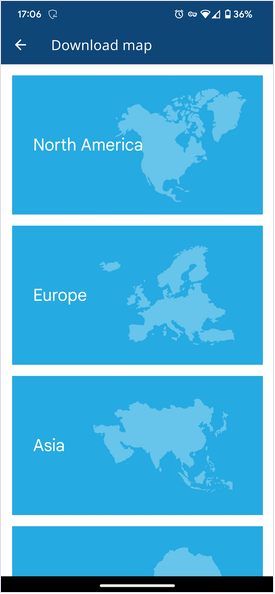
4. Find the relevant region in the list. Use the top search bar to filter the list as needed.
[](/img/mobile/offline-maps-03.png)
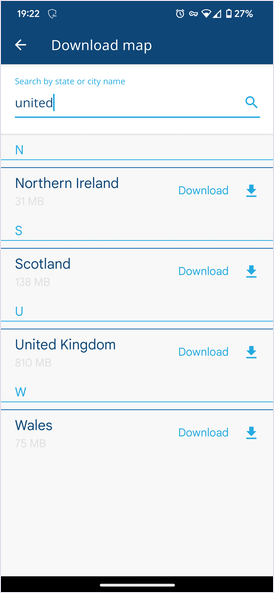
5. Select a region's **Download** button to start downloading the map. Feel free to continue using Alloy Mobile while it downloads in the background! Downloaded maps are labelled as **Ready**.
[](/img/mobile/offline-maps-04.png)
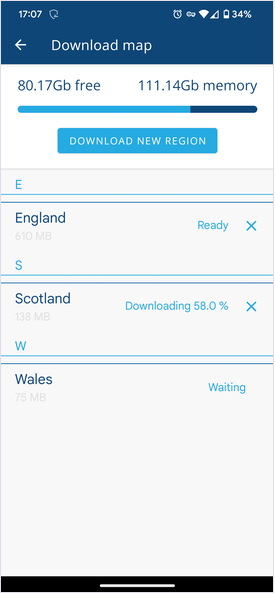
### Remove downloads[](#remove-downloads "Direct link to Remove downloads")
To remove downloaded maps from your device:
1. Open the [**Main menu**](/mobile/menu/.md) and choose **Offline Maps**.
2. Select the button beside each map you want to delete.
---
# Device requirements
### Hardware specification and OS support[](#hardware-specification-and-os-support "Direct link to Hardware specification and OS support")
Alloy Mobile runs on a wide range of mobile devices and is a free download on Apple's App Store and the Google Play Store. This page lists the minimum hardware requirements and explains how we manage OS version support and deprecation.
#### Android[](#android "Direct link to Android")
Alloy Mobile is designed for use on Android tablets and smartphones that meet the following requirements.
| Minimum Requirements | |
| -------------------- | ------------------------------------------------------------------------------------------------------------------------------------------------------------------------ |
| Screen size | 5 inches and above |
| RAM | 4 GB and above |
| OS | See our [OS support policy](#os-support-policy):- Android 14 - Android 15 - Android 16 |
| Processing power | 1.5 GHz quad-core and above, using any of these architectures:- ARM 32-bit - ARM 64-bit (Android OS 32-bit or 64-bit) - Intel/AMD x64 (Android OS 64-bit only) |
| Storage | 32 GB and above |
| Connectivity | Wi-Fi or mobile data (4G or above), required for remote working |
| Camera | 5 MP rear-facing |
| Location services | GPS / GLONASS |
#### Apple[](#apple "Direct link to Apple")
Alloy Mobile is designed for use on iPhones and iPads that meet the following requirements. As Apple hardware is more standardised, the RAM, storage and processor requirements are met by all devices that can run the supported OS versions.
| Minimum Requirements | |
| -------------------- | --------------------------------------------------------------------------------------------------------------- |
| Screen size | 5 inches and above |
| OS | See our [OS support policy](#os-support-policy):- iOS / iPadOS 16 - iOS / iPadOS 17 - iOS / iPadOS 18 |
| Connectivity | Wi-Fi or mobile data (4G or above), required for remote working |
| Camera | 5 MP rear-facing |
| Location services | GPS / GLONASS |
### OS support policy[](#os-support-policy "Direct link to OS support policy")
Google typically releases a major Android version each year. However, your device manufacturer is responsible for making it available on your device. The eligibility and timescales for Android updates vary greatly. Most Android devices are sold with the promise of software updates for a set number of years.
Apple typically releases a major iOS version each year, which immediately becomes available on all supported iPhones and iPads. Each model receives software updates for a minimum of five years, with many still receiving updates several years later.
Once a device is no longer supported, it will remain on the same OS version for the rest of its lifespan.
#### Supporting the latest OS[](#supporting-the-latest-os "Direct link to Supporting the latest OS")
Before a major new OS version is released, a beta version is made available for app developers to test. The development required to support the latest OS version depends on the nature of the changes it introduces. For example, UI changes may be fairly straightforward to adopt, but storage or communication changes may require significant architectural rework.
When a beta OS version is made available, we will assess the required development and indicate when the new OS will be supported by Alloy Mobile.
#### Deprecating older OS versions[](#deprecating-older-os-versions "Direct link to Deprecating older OS versions")
As we provide support for new operating systems, it's important that we phase out support for older versions. Supporting older OS versions not only carries security risks, it can sometimes block development on newer OS versions, inhibiting our ability to deliver a high-quality experience on modern devices.
Therefore, along with our expected timeline for new OS support, we'll also announce when we intend to deprecate older versions.
Google typically provides security updates for the latest three Android versions. Therefore, we also aim to support those three Android versions, e.g. *when we announce support for Android 17, we will deprecate Android 14*.
On Apple devices, the upgrade path to the latest iOS is much easier. Apple typically supports the latest two iOS versions. We aim to support the latest three.
info
Alloy Mobile won't immediately stop working on a deprecated OS version! However, we'll no longer be able to provide support for any technical issues you may encounter, which become more likely over time.
---
# Sign in
### How to access Asset Management on mobile[](#how-to-access-asset-management-on-mobile "Direct link to How to access Asset Management on mobile")
To access your company's Asset Management data on a mobile device, first install **Alloy Mobile** from the App Store (iPhones/iPads) or the Google Play Store (Android devices). When you launch Alloy Mobile, you can sign in with your CausewayOne account or a legacy Alloy account.
If you're a new user, your IT department can [invite](https://one.causeway.com/applications/help/getting-started/company-admin) you to join the company on CausewayOne. When you receive the invitation email, open the link inside to verify your email address. Follow the on-screen instructions to set up your account and set a password.
[](/img/mobile/login.png)
Select server
Multiple sign-in servers are available. This is set automatically, so most users will never need to change it! However, if you're having trouble signing in, select in the bottom-left corner and select the correct server for your situation.
A warning message will state that all data related to the current workspace will be lost. Therefore, ensure your current data has been [synchronised](/mobile/sync.md) before changing servers.
[](/img/mobile/mobile-server-selection.png)
### Sign in with CausewayOne[](#sign-in-with-causewayone "Direct link to Sign in with CausewayOne")
To access your company data in Alloy Mobile:
1. Launch the app. Enter your email address and select **Next**.
2. The CausewayOne sign-in page will appear. Enter your email address and select **Sign in**.
3. If your company uses a Single Sign-On (SSO) service, you may be signed in automatically or asked for your SSO password. Otherwise, you will see one of the following:
Password field
Enter your CausewayOne account password and select **Sign in**. If you don't know your password, select **Forgot your password?** to verify your email address and set a new password.
We need to verify your email address
This is the first time you've used your CausewayOne account. You may have been invited to join a company, or your existing Alloy account was migrated to CausewayOne. Select **Send verification code** and follow the on-screen instructions to set a new account password.
4. When you're signed in, your [mobile workspace](/mobile/workspace.md) will appear. If you belong to multiple [customer projects](/web/getting-started/choosing-project.md), choose one to work with.
[](/img/mobile/login-causeway.png)
### Log in to Alloy[](#log-in-to-alloy "Direct link to Log in to Alloy")
If your Alloy account hasn't been migrated to CausewayOne, you can still log in to Alloy Mobile:
1. Launch the app. Enter your email address and select **Next**.
2. If your Alloy account *has* been migrated, the CausewayOne sign-in page will appear as above. Otherwise, do one of the following:
Login with Google
If your Google account has the same email address as your Alloy account, you can use it to prove your identity. Select **Login with SSO** and then **Login with Google** to display the Google authentication screen.
If your mobile device is currently signed into any Google service, just select your account in the list. Otherwise, enter your Google account details to continue.
[](/img-cw1/shared/login/login-using-gmail.png)
Login with Microsoft
If your Microsoft account has the same email address as your Alloy account, you can use it to prove your identity. Select **Login with SSO** and then **Login with Microsoft** to display the Microsoft authentication screen.
If your mobile device is currently signed into any Microsoft service, you won't need to re-enter your account details. Otherwise:
1. Enter your Microsoft email address and select **Next**.
2. Enter your Microsoft password and select **Sign in**.
3. If prompted to stay signed in, selecting **Yes** will skip the authentication screen next time (not recommended for shared devices).
4. If prompted, please grant permission for **Android_native** (your device) to view your email address, so you can be signed in.
Login with Email
Enter your Alloy account password and select **Login**. If you don't know your password, select **Trouble logging in?** to verify your email address and set a new password.
3. When you're signed in, your [mobile workspace](/mobile/workspace.md) will appear. If you belong to multiple [customer projects](/web/getting-started/choosing-project.md), choose one to work with.
[](/img/mobile/login-alloy.png)
### Fingerprint login[](#fingerprint-login "Direct link to Fingerprint login")
If your mobile device has a fingerprint scanner, you can use it to sign in to Alloy Mobile:
1. Sign in to Alloy Mobile using one of the methods described above.
2. Open the [**Main menu**](/mobile/menu/.md) and choose **Settings**.
3. Turn on the **Enable fingerprint scanner** setting.
Whenever you launch Alloy Mobile, a fingerprint prompt will now appear. Use it to sign in without entering your account details again.
[](/img/mobile/login-fingerprint.png)
### Reset your password[](#reset-your-password "Direct link to Reset your password")
To change the password of your CausewayOne or Alloy account, select **Forgot your password?** or **Trouble signing in?** after entering your email address. Follow the on-screen instructions to verify your email address to reset your password.
---
# Synchronisation
### Sync your data to download new items and submit your work[](#sync-your-data-to-download-new-items-and-submit-your-work "Direct link to Sync your data to download new items and submit your work")
### Overview[](#overview "Direct link to Overview")
When using a mobile device out in the field, you don't always have internet access. Therefore, we designed Alloy Mobile to work offline, giving you the freedom to complete tasks and report defects wherever and whenever you need to!
This is made possible by syncing Alloy Mobile when you do have internet access. Syncing downloads updates from your customer project and uploads any changes you've made.
By default, Alloy Mobile syncs automatically when you log in. To configure the app to sync at regular intervals, see [App settings](/mobile/menu/app-settings.md). You can also sync manually.
### Syncing your data[](#syncing-your-data "Direct link to Syncing your data")
To sync manually, ensure you're connected to the internet, and then select **Sync** (top-right). The icon will start rotating to indicate syncing is in progress.
To check the sync status, open the [Main menu](/mobile/menu/.md) .
[](/img/mobile/mobile-sync-progress.png)
When the sync has completed, the results will be shown.
[](/img/mobile/mobile-sync-complete.png)
info
If you experience sync errors, ask your administrator to check if your account has all the [necessary permissions](/apps/permissions/explorer/mobile-permissions.md) enabled.
### Sync log[](#sync-log "Direct link to Sync log")
To view detailed sync information, open the [Main menu](/mobile/menu/.md) , scroll down and select **Sync Log**.
[](/img/mobile/mobile-sync-log.png)
You can expand individual log items to view the results of individual stages of the sync process. This can help diagnose any errors that have occurred.
### What gets synced?[](#what-gets-synced "Direct link to What gets synced?")
Syncing does the following:
* uploads data from your device to your customer project:
* changes you've made to existing items
* new items you've created
* downloads data from your customer project to your device:
* changes by others to your previously synced items
* new items created by others that are relevant to you
* design changes by your administrator
### When to reset[](#when-to-reset "Direct link to When to reset")
Resetting the app will clear its data and trigger a full database download. However, please note that any **unsynced changes will be lost**.
Therefore, we generally recommend resetting only when instructed to by your administrator, or technical issues prevent you from syncing.
To reset, open the [Main menu](/mobile/menu/.md) , scroll down and select **Reset**.
[](/img/mobile/mobile-reset-option.png)
---
# The mobile workspace
### Understanding the Alloy Mobile workspace[](#understanding-the-alloy-mobile-workspace "Direct link to Understanding the Alloy Mobile workspace")
### Overview[](#overview "Direct link to Overview")
When you log into an Alloy Mobile device, your workspace is displayed.
### Understanding the workspace[](#understanding-the-workspace "Direct link to Understanding the workspace")
[](/img/mobile/mobile-workspace.png)
#### 1 Map[](#-1--map "Direct link to -1--map")
Alloy Mobile features a beautiful map in its centre. The map lets you explore your network and assets. You can navigate the map using standard touch screen gestures to pan, zoom, tilt and rotate. You can change the way your map looks with different [basemaps](/mobile/menu/change-basemap.md).
#### 2 Main menu[](#-2--main-menu "Direct link to -2--main-menu")
This icon allows you to display the [Main menu](/mobile/menu/.md) and access all the mobile tools.
#### 3 Synchronize data[](#-3--synchronize-data "Direct link to -3--synchronize-data")
This icon allows you to [synchronise](/mobile/sync.md) the mobile device with CausewayOne Asset Management.
#### 4 Search tool[](#-4--search-tool "Direct link to -4--search-tool")
The search tool allows you to search for assets, jobs, inspections.
#### 5 Search here[](#-5--search-here "Direct link to -5--search-here")
The search here button, searches for all assets, jobs, defects and inspections within the map area displayed on the screen.
#### 6 My Location[](#-6--my-location "Direct link to -6--my-location")
The My location tool allows you to display your location on the map. The map is centred on your location and a blue dot indicates you location.
[](/img/mobile/mobile-location.png)
#### 7 Add asset[](#-7--add-asset "Direct link to -7--add-asset")
The Add asset tool allows you to add assets to the map, as well as add job work items to the asset.
---
# Text and Number formatting
### How to format text and number fields[](#how-to-format-text-and-number-fields "Direct link to How to format text and number fields")
Text and number controls include a **Format** field that allows you to use a *sprintf* formatting string to manage the display of the output of these controls.
The format string is composed of zero or more directives: ordinary characters (not %), which are copied unchanged to the output string and conversion specification.
### Using the conversion specification[](#using-the-conversion-specification "Direct link to Using the conversion specification")
The conversion specification is introduced by the character %, and ends with a conversion specifier. In between there may be (in this order) zero or more flags, an optional minimum field width and an optional precision.
For example: `%0.2f` would produce an output in the style `ddd.dd` where the precision is specified to 2 decimal places.
The syntax is: `ConversionSpecification = "%" { Flags } [ MinimumFieldWidth ] [ Precision ] ConversionSpecifier`, where curly braces denote repetition and square brackets \[ ] optionality.
In addition to the conversion specifier you can include any alphanumeric characters before or after the specifier including spaces to additionally change the content displayed.
For example, to add currency symbols or units of measurement: `£%0.2f` would produce an output in the style `£ddd.dd` or `%0.2f litres` produces an output in the style `ddd.dd litres`
#### The flags[](#the-flags "Direct link to The flags")
The character `%` is followed by zero or more of the following flags:
| Flag | Description |
| ---- | ----------------------------------------------------------------------------------------------------------------------------------------------- |
| `+` | A `+` or `-` sign should always be placed before a number produced by a signed conversion. By default a sign is used only for negative numbers. |
| `0` | The value should be zero padded. This works in conjunction with the minimum field width. |
| `␣` | (a space) The value should be space padded. |
| `'` | Indicates alternate padding character, specified by prefixing it with a single quote '. |
| `-` | The converted value is to be left adjusted on the field boundary (the default is right justification). |
#### The minimum field width[](#the-minimum-field-width "Direct link to The minimum field width")
You can use an optional decimal digit string (with non-zero first digit) to specify a minimum field width. If the converted value has fewer characters than the field width, it will be padded with spaces on the left (or right, if the left-adjustment flag has been given).
#### The precision[](#the-precision "Direct link to The precision")
You can define an optional precision, in the form of a period `.` followed by an optional decimal digit string.
This gives the number of digits to appear after the radix character for `e`, `E`, `f` and `F` conversions, the maximum number of significant digits for `g` and `G` conversions or the maximum number of characters to be printed from a string for `s` conversion.
### The conversion specifier[](#the-conversion-specifier "Direct link to The conversion specifier")
The following table lists the specifier available to define what type the output should be treated as:
| Specifier | Description |
| --------- | ----------------------------------------------------------------------------------------------------------------------------------------------------------------------------------------------------------------------------------------------------------------------------------------------------------------------------------------------------------------------------------------------------------------------------------------------------------------------------------------------- |
| `s` | The string argument is treated as and presented as a string. |
| `d i` | The integer argument is converted to signed decimal notation. |
| `b` | The unsigned integer argument is converted to unsigned binary. |
| `c` | The unsigned integer argument is converted to an ASCII character with that number. |
| `o` | The unsigned integer argument is converted to unsigned octal. |
| `u` | The unsigned integer argument is converted to unsigned decimal. |
| `x X` | The unsigned integer argument is converted to unsigned hexadecimal. The letters abcdef are used for x conversions; the letters ABCDEF are used for X conversions. |
| `f` | The float argument is rounded and converted to decimal notation in the style \[-]ddd.ddd, where the number of digits after the decimal-point character is equal to the precision specification. If the precision is missing, it is taken as 6; if the precision is explicitly zero, no decimal-point character appears. If a decimal point appears, at least one digit appears before it. |
| `e E` | The float argument is rounded and converted in the style \[-]d.ddde±dd, where there is one digit before the decimal-point character and the number of digits after it is equal to the precision. If the precision is missing, it is taken as 6; if the precision is zero, no decimal-point character appears. An E conversion uses the letter E (rather than e) to introduce the exponent. |
| `g G` | The float argument is converted in style f or e (or F or E for G conversions). The precision specifies the number of significant digits. If the precision is missing, 6 digits are given; if the precision is zero, it is treated as 1. Style e is used if the exponent from its conversion is less than -6 or greater than or equal to the precision. Trailing zeros are removed from the fractional part of the result; a decimal point appears only if it is followed by at least one digit. |
| `%` | A literal % is written. No argument is converted. The complete conversion specification is %%. |
Examples of conversion specifiers
*Output:* Hello World *Specifier:* `%s!` *Field display:* Hello World!
*Output:* Fugita arum ipsae net harcia is aut quo velis dolor aut. *Specifier:* `Content: %s` *Field display:* Content: Fugita arum ipsae net harcia is aut quo velis dolor aut.
*Output:* 50 *Specifier:* `Works price £%d` *Field display:* Works price £50
*Output:* Work *Specifier:* `% 6s` *Field display:* ␣␣Work (two spaces are added in front to pad the display to 6 characters)
*Output:* Work *Specifier:* `% -6s` *Field display:* Work␣␣ (two spaces are added at the end to pad the display to 6 characters)
*Output:* Work *Specifier:* `%'*6s` *Field display:* \*\*Work (two alternate characters are added to pad the display to 6 characters)
*Output:* Work *Specifier:* `%'*-6s` *Field display:* Work\*\* (two alternate characters are added to pad the display to 6 characters)
*Output:* 15 *Specifier:* `%06d` *Field display:* 000015
*Output:* 10.469 *Specifier:* `%.2f` *Field display:* 10.47
---
# Asset Management Classic
### Use the classic web interface[](#use-the-classic-web-interface "Direct link to Use the classic web interface")
**CausewayOne Asset Management** (formerly Alloy) is an online software solution that lets you manage, monitor and maintain all asset types in one place. Organise your asset inventories and visualise them geographically. Plan and perform day-to-day operations, including defect reporting and job management. Automate complex processes and share connected data. To learn more, see [Why CausewayOne?](/basics/why-causeway.md).
The software is accessed via the CausewayOne platform and consists of multiple [apps](/apps/home.md), with a classic workspace providing additional features.
The **Asset Classic** page offers an all-in-one experience, with all asset management features presented in the same user interface. While some features have been superseded by a corresponding app (e.g. *Data Explorer, Designer*), others are currently only available via Asset Classic (e.g. *Reports, Workflows*).
For the most part, you can use Asset Classic and the Asset Management Apps interchangeably. However, the newer apps offer improved usability and extra functionality!
info
For fieldwork on smartphones and tablets, use the [Alloy Mobile](/mobile.md) app.
[](/img-cw1/classic/classic-landing.png)
### Get started[](#get-started "Direct link to Get started")
## [📄️Sign in](/web/getting-started/logging-in.md)
[How to access the classic workspace](/web/getting-started/logging-in.md)
## [🗃The classic workspace](/web/getting-started/workspace.md)
[Learn about the key areas](/web/getting-started/workspace.md)
## [🗃Selecting field values](/web/getting-started/selection.md)
[Using specialised pickers](/web/getting-started/selection.md)
## [🗃Standalone access](/web/getting-started/standalone.md)
[Temporary access for non-CausewayOne users](/web/getting-started/standalone.md)
---
# Activities
### Plan, perform and record asset maintenance[](#plan-perform-and-record-asset-maintenance "Direct link to Plan, perform and record asset maintenance")
CausewayOne Asset Management is much more than a simple inventory system! Your assets will require a mixture of scheduled and reactive maintenance to keep them performing optimally throughout their lifespan.
Causeway can help you to plan and perform this maintenance. Through the use of **activities**, you can respond to events, record observations and allocate work.
There are three types of activity:
* **Defects** - when an asset's condition rating falls below a set standard, register a [defect](/web/activities/defects/creating-defects.md) against it.
* **Inspections** - create an [inspection](/web/activities/tasks/inspections/creating-inspections.md) to observe an asset's condition and verify any defects registered against it.
* **Jobs** - create [jobs](/web/activities/tasks/jobs/creating-jobs.md) for work that needs doing, which can be formalised into discrete [work units](/web/activities/tasks/jobs/work-units/.md).
### Tools[](#tools "Direct link to Tools")
In addition, the following coordination tools are provided:
* **Projects** - create a [project](/web/activities/projects/.md) to bundle multiple tasks together and define [routes](/web/activities/routing/.md) between them.
* **Teams** - create [teams](/web/activities/teams/creating-teams.md) consisting of one or more people that you can allocate work to.
* **Account pricing** - create [account pricing](/web/financial-accounts/account-pricing/configuring-account-pricing.md) tables for work units and the teams associated with each asset.
---
# Defects
### Flag potentially faulty assets[](#flag-potentially-faulty-assets "Direct link to Flag potentially faulty assets")
Use **defects** to record any possible issues with your organisation's [assets](/web/assets.md). An issue may be noticed by a worker during a visit, reported by a member of the public, or triggered automatically by sensor readings.
It's easy to [view defects](/web/activities/defects/viewing-defects.md) as items on the map, which can be filtered according to their status. For a more detailed examination, perform a query in the Data Explorer to view a curated list of defects and their attribute data.
Defects are one of three customisable [activity types](/web/activities.md) that are available to optimise your asset maintenance.
info
If you're unable to view or manage defects, your user account may lack the required [permissions](/web/permissions.md).
### Define your defect types[](#define-your-defect-types "Direct link to Define your defect types")
Before you can create defects, your organisation must first create [defect designs](/web/designer/creating-designs/creating-defect-designs.md) to represent each defect type.
Defect designs automatically inherit [standard attributes](/web/activities/defects/standard-defect-details.md) from the **Defects** interface, e.g. *Status*, *Reported Date*. You can add any number of [custom attributes](/web/designer/attributes/adding-custom-attributes.md) as needed.
[](/img/defects/defects-landing-design.png)
info
Some [modules](/basics/fundamentals/modules.md) include ready-made defect designs for common service areas.
### Create defects[](#create-defects "Direct link to Create defects")
Once your defect types are defined, you can start [creating defect items](/web/activities/defects/creating-defects.md)!
By default, new defects are created for a chosen parent asset. Alternatively, you can choose a parent activity instead (e.g. *to record a defect arising from an inspection*), or create an isolated defect with no parent at all.
You can use [workflows](/web/workflows.md) to automate the creation of defects in response to [events](/web/workflows/creating-workflows/event-workflows.md).
### Acting on defects[](#acting-on-defects "Direct link to Acting on defects")
After a defect has been created, you can examine its data and decide what to do next. If details are scarce, you may wish to schedule an [inspection](/web/activities/tasks/inspections/.md) to verify the asset's condition. Alternatively, if there's sufficient evidence (e.g. *photos are attached*), you could instead create a [job](/web/activities/tasks/jobs/creating-jobs.md) to perform any work that needs doing.
You can also use [workflows](/web/workflows.md) to automate what happens next, e.g. *send an email when a defect is created*.
### Defects on the go[](#defects-on-the-go "Direct link to Defects on the go")
Workers out in the field can use [Alloy Mobile](/mobile.md) to report new defects from their mobile device.
---
# Creating defects
### Identify assets with defects[](#identify-assets-with-defects "Direct link to Identify assets with defects")
Create defects to keep track of issues that require attention.
You can create a defect against an asset to represent a reported fault or flaw. Defects can then be checked with [inspections](/web/activities/tasks/inspections/.md) and remedied with [jobs](/web/activities/tasks/jobs/.md) as needed.
Alloy Mobile users can also create new defects while in the field.
info
Before starting, ensure that a design exists which defines the type of defect you're about to create. Use the defect designs provided with installed [modules](/basics/fundamentals/modules.md) or [create your own](/web/designer/creating-designs/creating-defect-designs.md).
### Start the process[](#start-the-process "Direct link to Start the process")
There are several ways to start creating a defect:
Start from the dashboard
Open the **Activities** [dashboard card](/web/getting-started/dashboard.md) and select **Create defect**.
[](/img/defects/create-activity-dashboard.png)
Start from an asset or activity item
To create a defect for the item you're [viewing](/web/items/viewing-items.md), switch to the **Defects** tab, select **More** in the action bar and choose **Create defect**. The creation process will start with steps 1 and 2 configured automatically.
[](/img/defects/create-defect-from-item.png)
Perform a bulk action
When using Search or the Data Explorer to find asset or activity items, you can perform a **Create defect** action on some or all of the item results. The creation process will start with steps 1 and 2 configured automatically.
To learn more, see [Bulk actions](/web/data-explorer/bulk-action-function.md).
[](/img/explorer/bulk-select.png)
### The defect creation process[](#the-defect-creation-process "Direct link to The defect creation process")
The key steps of this process will appear in the dashboard panel:
* 1 [**Defect relationship**](#-1--defect-relationship) - required
* 2 [**Select parent item(s)**](#-2--select-parent-items) - required, unless the relationship is *None*
* 3 [**Select defect type**](#-3--select-defect-type) - required
* 4 [**Enter defect details**](#-4--enter-defect-details) - required
* 5 [**Defect location**](#-5--defect-location) - optional
* 6 [**Add reporters**](#-6--add-reporters) - optional
You don't necessarily have to enter all of the defect's details upfront! Fields marked with an asterisk **\*** are required. Other fields can be [edited](/web/activities/defects/editing-defects.md) later.
#### 1 Defect relationship[](#-1--defect-relationship "Direct link to -1--defect-relationship")
Choose the type of item you want to create a new defect for. This is usually set automatically, according to how you started the process. However, you can change it as needed:
* **Assets** - record the condition of one or more assets.
* **Jobs** - record a defect discovered during (or caused by) a job.
* **Inspections** - record a defect discovered during an inspection.
* **Defects** - record a defect caused by another defect.
* **None** - record an isolated defect, e.g. *a fly tipping incident*.
#### 2 Select parent item(s)[](#-2--select-parent-items "Direct link to -2--select-parent-items")
Select one or more **Defective items** of the type chosen in step 1. A new defect will be created for each one. To select items visually based on their location, select in the item picker's search box to switch to the [map picker](/web/getting-started/selection/selecting-map.md).
Select **Done** to choose the next step.
[](/img/defects/create-defect-02.png)
[](/img/defects/create-defect-02a.png)
#### 3 Select defect type[](#-3--select-defect-type "Direct link to -3--select-defect-type")
Choose the type of defect to create:
* **Defect** \* - choose from a list of defect designs that [apply to](/web/activities/defects/standard-defect-details.md#applies-to) the item(s) selected in step 2.
* **Template** - pre-populate the new defect(s) with values from an existing [template item](/web/items/creating-items/template-items.md).
Select **Done** to choose the next step.
[](/img/defects/create-defect-03.png)
#### 4 Enter defect details[](#-4--enter-defect-details "Direct link to -4--enter-defect-details")
Enter values for the attributes of the defect design chosen in step 3. Any required attributes **\*** must contain a value to continue. Some attributes may be populated with a default value, such as:
* **Status** \* - is set to *Reported* by default but can be changed.
* **Reported Date** - if left blank, it will be set to the current date and time.
* **Defect Number** - an automatically generated unique number (not shown in this step).
Select **Done** to choose the next step.
[](/img/defects/create-defect-04.png)
#### 5 Defect location[](#-5--defect-location "Direct link to -5--defect-location")
Depending on the defect design chosen in step 3, this step may show as:
* *Optional* - if left blank, the new defect(s) will **inherit the geometry** of the parent item(s) selected in step 2 (providing the parent's geometry type is allowed on the defect design). Alternatively, you can set a new geometry value! This is handy for situations where the shape/location of a defect should be represented differently, e.g. *to record a pothole on a carriageway*.
* *Required* - you must set the new defect's geometry. It won't be inherited from the parent item(s). This happens if the **Requires geometry** property is enabled on the defect design.
* *No Geometry* - the defect can't store any geometry. This happens if the **Allowed geometry** property is active but empty on the defect design.
* *Set from template* - the new defect's geometry will match the template item chosen in step 3.
To explicitly set the geometry of the new defect(s), select this step and then **Set location**. Use the [Geometry Editor](/web/items/editing-items/editing-geometry.md) to define the geometry and then select **Save**. By default, you can draw any [geometry type](/web/designer/geometry-types/.md), though this may be limited by the defect design.
Select **Next** to choose the next step.
info
To specify which geometry types are allowed on a design, see [Editing general design details](/web/designer/editing-design-general-details.md).
[](/img/defects/create-defect-05.png)
#### 6 Add reporters[](#-6--add-reporters "Direct link to -6--add-reporters")
This is an optional step. To record who reported the defect (e.g. *a member of the public*), select **Reporters**, and then select one or more items of the **Contacts** design.
To create a new contact, select at the bottom. Fill in the fields as needed and then select **Confirm consent**.
Select **Done** to continue.
Important
Always get consent from new reporter(s) before storing their contact details!
[](/img/defects/create-defect-06.png)
### Finish the process[](#finish-the-process "Direct link to Finish the process")
After completing the relevant steps, select **Create** to finish. A notification indicates whether the defect item was created successfully or an error occurred.
[](/img/defects/create-defect-finish.png)
### Create more defects[](#create-more-defects "Direct link to Create more defects")
To quickly create more defects, select **Create another** in the notification before it disappears. The defect creation process will restart with the previous values intact, which you can then change as appropriate for subsequent new defects.
For more complex scenarios, you can build [workflows](/web/workflows.md) that perform [Create Item](/web/workflows/building-workflow/actions/action-create.md) actions according to various conditions, which can be triggered automatically or on demand.
---
# Defect statuses
### Customise a system status or create your own[](#customise-a-system-status-or-create-your-own "Direct link to Customise a system status or create your own")
In CausewayOne Asset Management, defect statuses are defined by the **Defect Statuses** design. Several pre-made items of this design are included, which cover a range of scenarios. When someone creates/edits an inspection or job, they can set its **Status** attribute by choosing one of those items from a list.
Of course, you're free to create more items to define new defect statuses according to your organisation's needs!
### System defect statuses[](#system-defect-statuses "Direct link to System defect statuses")
The following **Defect Statuses** items are included:
* **Reported** - the default status for new defects.
* **Awaiting Inspection** - an inspection will be performed to assess the reported defect.
* **Confirmed** - the defect has been inspected and confirmed to exist.
* **Job Raised** - a job will be performed to fix the defect.
* **Remedied** - the defect has been fixed.
* **Forwarded** - the defect has been referred to a third party.
* **No Action Required** - the defect exists but requires no action.
* **Superseded** - the defect has been made irrelevant by another defect.
System statuses are protected [*Core*](/web/items/item-context.md) items, so they can't be edited or deleted. However, you can customise their icon and colour.
### Create a defect status[](#create-a-defect-status "Direct link to Create a defect status")
To create a new defect status item:
1. Open the **Designer** [dashboard card](/web/getting-started/dashboard.md) and select **Create item** to start the [item creation](/web/items/creating-items/.md) process.
2. For the 1 **Select design** step, choose the **Defect Statuses** design and the *Live* collection.
3. For the 2 **Enter item details** step, populate the following attributes:
* **Status** - a distinct name that describes the current state of the defect, e.g. *Confirmed (Partial)*
* **Code** - a unique identifier, e.g. *9*.
4. Select **Create** to finish.
[](/img/tasks/priority-create-01.png)
### Edit a defect status[](#edit-a-defect-status "Direct link to Edit a defect status")
To change the appearance of a defect status:
1. Select **Search** in the [right panel menu](/web/getting-started/right-panel-menu.md) to open the Search panel.
2. If necessary, select to clear the previous search. Start typing *defect statuses* and select the design when it appears.
[](/img/defects/status-search-01.png)
3. Select the desired item in the results to view its details.
[](/img/defects/status-search-02.png)
4. Use the [tab bar](/web/getting-started/tab-bar.md) to switch to the **Settings** tab and select **Edit** at the bottom. Edit the following properties as needed and then select **Save**:
* **Icon** - use the [icon picker](/web/getting-started/selection/selecting-icons.md) to change the icon of the status.
* **Colour** - use the [colour picker](/web/getting-started/selection/selecting-colours.md) to change the colour of the status.
5. If it's a custom defect status (its [context](/web/items/item-context.md) is *Customer*), you can also edit its attributes on the **General** tab.
[](/img/defects/status-customise-02.png)
---
# Removing defects
### Discard defects that are no longer needed[](#discard-defects-that-are-no-longer-needed "Direct link to Discard defects that are no longer needed")
Over time, you may want to get rid of some defects. Your organisation may have a retention policy where data is discarded after a period of time, or perhaps you want to delete a defect that was created accidentally!
In such cases, you can choose to archive the defect for future reference (if allowed by its design) or delete it permanently. But be careful! This can potentially also affect any child items that the defect links to!
For more detail, see [Removing items](/web/items/removing-items.md).
### Remove a defect[](#remove-a-defect "Direct link to Remove a defect")
To remove a single defect:
1. Select the defect to [view its details](/web/activities/defects/viewing-defects.md) in the right panel.
2. On the **General** tab, select **Archive** in the [action bar](/web/getting-started/action-bar.md) to remove the defect from active service. It will no longer appear in lists or searches but its data and item links will be preserved.
[](/img/defects/defects-delete-defect.png)
3. After the action bar updates, you have the ability to **Unarchive** the defect again or **Delete** it permanently.
[](/img/items/item-archive-02.png)
Important
Deletions can't be undone, so please think carefully before doing so!
### Remove multiple defects[](#remove-multiple-defects "Direct link to Remove multiple defects")
Using the Data Explorer, you can perform a bulk delete action on multiple defect items. Alternatively, if you want to archive them, you can perform a bulk edit action that sets their **Collection** property to *Archive*. To learn more, see [Editing items](/web/items/editing-items/.md#edit-multiple-items).
---
# Editing defects
### Record observations or edit other details[](#record-observations-or-edit-other-details "Direct link to Record observations or edit other details")
You can edit the details of a defect at any time. This means you can record data about a defect at the point of observation, with the ability to add further details when you're back at the office!
Update the defect's **Status** attribute to indicate whether it's awaiting inspection, confirmed to exist, or has been remedied.
info
To see the editing history of a defect, consult its [audit log](/web/items/audit-log.md).
### Edit defect attributes[](#edit-defect-attributes "Direct link to Edit defect attributes")
To edit a defect:
1. Select the defect to [view its details](/web/activities/defects/viewing-defects.md) in the right panel.
2. At the bottom of the **General** tab, select **Edit** button in the [action bar](/web/getting-started/action-bar.md).
3. Select an attribute field to edit its value. Repeat as needed and then select **Save** to finish.
To learn more, including how to perform bulk edits, see [Editing items](/web/items/editing-items/.md).
info
If an [item form](/web/designer/item-forms/.md) exists for the defect's design, the order and visibility of attribute fields may be different when editing.
[](/img/defects/defects-edit-details.png)
---
# Risk assessment
### Determine the risks posed by defects[](#determine-the-risks-posed-by-defects "Direct link to Determine the risks posed by defects")
Use CausewayOne Asset Management to adopt a risk-based approach to asset management and maintenance.
By assessing the level of risk posed by a defect, it can help to determine whether an asset requires reactive maintenance, or can continue operating until its next planned maintenance.
*For example, if a deep pothole poses a high risk to drivers, it requires an emergency repair to make it safe. Conversely, it may be safe for a low-risk pothole to remain until the road is next resurfaced.*
A common method of calculating risk involves two parameters:
* Risk likelihood
* Risk consequences
By assigning each parameter a set of possible values, and then mapping them against each other, you can calculate the severity of the risk. The following table illustrates a basic risk assessment scenario, where multiplying the likelihood score by the consequence score produces an overall risk score.
[](/img/defects/risk-calculation.png)
While the possible values of the risk likelihood and the risk consequence can vary, the general principle is common to most methods of calculating risk.
### Risk Assessment module[](#risk-assessment-module "Direct link to Risk Assessment module")
To get started with risk assessment, the corresponding [module](/basics/fundamentals/modules.md) must be installed for your organisation. The module consists of a risk interface, three risk designs and a risk calculation workflow.
#### Risk interface[](#risk-interface "Direct link to Risk interface")
The risk interface contains four attributes. The first three are [Link attributes](/web/designer/attributes/types/link-attribute.md), which each store an item of the corresponding risk design. The fourth attribute stores the calculated risk score.
To add risk assessment to one of your defect designs, configure it to [implement](/web/activities/defects/risk-assessment/add-risk-interface.md) the **Risk Assessment** interface.
[](/img/defects/risk-assessment-module.png)
#### Risk designs[](#risk-designs "Direct link to Risk designs")
There are three risk designs. Create items of the **Risk Likelihood** and **Risk Consequences** designs to represent the possible values of each one, e.g. *Rare: 1, Moderate: 4*.
The **Risk Severity** design represents the severity of the calculated risk score. Create items of the design to represent each level of severity and its risk score range, e.g. *Cat 2 (High): 10.5 to 16.5*.
To learn more, see [Using risk designs](/web/activities/defects/risk-assessment/using-risk-designs.md).
[](/img/defects/risk-designs.png)
#### Risk calculation workflow[](#risk-calculation-workflow "Direct link to Risk calculation workflow")
The risk calculation workflow triggers automatically when a defect (that implements the risk interface) is created or edited.
The workflow reads the defect's **Risk Likelihood** and **Risk Consequences** attributes and passes them to a mesh. The mesh responds with the calculated **Risk Score**, which then determines the defect's **Risk Severity**.
[](/img/defects/risk-assessment-workflow.png)
info
You can [create a workflow](/web/workflows/creating-workflows.md) that triggers when the defect's **Status** changes, which performs different actions based on the defect's **Risk Severity**.
---
# Implement the risk interface
### Incorporate risk into a defect design[](#incorporate-risk-into-a-defect-design "Direct link to Incorporate risk into a defect design")
If your organisation uses the optional [Risk Assessment](/web/activities/defects/risk-assessment/.md) module, you can incorporate risk data into your defects.
By configuring a defect design to implement the **Risk Assessment** interface, the design will inherit a set of risk attributes. These can be used to calculate a risk severity score, which can inform your maintenance decisions.
info
While the **Risk Assessment** interface can be implemented by any design, it's primarily intended for defect designs.
### Add the risk interface[](#add-the-risk-interface "Direct link to Add the risk interface")
To add the risk interface to a defect design:
1. Select the design to [view its details](/web/designer/viewing-designs.md) in the right panel.
2. Use the [tab bar](/web/getting-started/tab-bar.md) to switch to the **Interfaces** tab. Select **More** in the [action bar](/web/getting-started/action-bar.md) and choose **Add interface**.
[](/img/defects/risk-defect-design_01.png)
3. Type `risk` in the search bar and press the Enter key. Choose the **Risk Assessment** interface to finish.
[](/img/defects/risk-defect-design_02.png)
The risk attributes are now visible on the **Attributes** tab of the defect design.
Users can now set the value of the **Risk Likelihood** and **Risk Consequences** attributes when creating/editing items of the defect design. The other two attributes are set automatically by the [risk calculation workflow](/web/activities/defects/risk-assessment/.md#risk-calculation-workflow).
[](/img/defects/risk-defect-design_03.png)
### Remove the risk interface[](#remove-the-risk-interface "Direct link to Remove the risk interface")
To remove the risk interface from a defect design after it's been added:
1. Select the design to [view its details](/web/designer/viewing-designs.md) in the right panel.
2. Use the [tab bar](/web/getting-started/tab-bar.md) to switch to the **Interfaces** tab and then select **Edit** in the [action bar](/web/getting-started/action-bar.md).
3. Select beside the **Risk Assessment** interface and then select **Save** to finish.
If the interface can't be removed, items of the defect design may exist that contain values for any of the inherited risk attributes. Either edit the items to clear those attribute values or delete the items entirely (see [Bulk actions](/web/data-explorer/bulk-action-function.md)).
---
# Using risk designs
### Define your risk assessment model[](#define-your-risk-assessment-model "Direct link to Define your risk assessment model")
If your organisation uses the optional [Risk Assessment](/web/activities/defects/risk-assessment/.md) module, you can incorporate risk data into your defects.
The module includes three risk designs:
* **Risk Likelihood** - a numeric rating scale of how likely something bad may happen.
* **Risk Consequences** - a numeric rating scale of how bad the impact could be.
* **Risk Severity** - the level of risk, determined by the risk score.
By creating items of these designs, you can define a risk assessment model that's suitable for your organisation.
info
A defect's **Risk Score** attribute is calculated by multiplying its **Risk Likelihood** and **Risk Consequences** values.
### Example models[](#example-models "Direct link to Example models")
The following tables illustrate two examples of risk assessment models.
[](/img/defects/risk-calculation-types.png)
### Create items to define the scales[](#create-items-to-define-the-scales "Direct link to Create items to define the scales")
For the **Risk Likelihood** and **Risk Consequences** designs, create items to represent the possible number values of each scale. When someone creates or edits a defect, they can set the corresponding attributes by choosing an item from each list.
[](/img/defects/risk-create-defect.png)
For the **Risk Severity** design, create items to represent the possible levels of severity. Each level must have a minimum and maximum value to represent a risk score range. When someone creates or edits a defect, its **Risk Score** attribute will be calculated automatically and the **Risk Severity** attribute will be set accordingly.
### Example model with items[](#example-model-with-items "Direct link to Example model with items")
This illustrates the relationship between risk designs and their associated items within an example risk assessment model.
[](/img/defects/risk-calculation-designs.png)
---
# Standard defect details
### Attributes common to all defects[](#attributes-common-to-all-defects "Direct link to Attributes common to all defects")
All defects have a standard set of details. They're defined as system attributes in the **Defects** interface, which is [implemented](/web/designer/managing-interfaces.md) by all defect designs. Therefore, all defect items inherit the following attributes as standard.
### Required attributes[](#required-attributes "Direct link to Required attributes")
These attributes are required on all defect designs. A value must be set when creating/editing any defect item:
* **Defect Number** - a unique ID number. This is automatically incremented, so the field isn't shown when creating/editing a defect. By default, it's displayed in the [title](/web/designer/titles-subtitles/.md) of defect items for easy identification.
[](/img/defects/defect-number-title.png)
info
You can configure any [Number attribute](/web/designer/attributes/types/number-attribute.md#auto-increment) to automatically increment in this way.
* **Status** - indicates the stage that the defect is currently at. Choose from a list of defined [defect statuses](/web/activities/defects/customise-defect-status.md).
[](/img/defects/defects-status-options.png)
### Optional attributes[](#optional-attributes "Direct link to Optional attributes")
These attributes are optional on all defect designs. They can be left blank when creating/editing a defect item. While you can't make these system attributes required, you can use [item forms](/web/designer/item-forms/.md) to make their input fields require a value.
* **Attachments** - any [uploaded files](/web/gateway/attach-files.md) associated with the defect.
* **Description** - text that typically describes any details of the defect not covered by its other attributes.
* **Reporters** - the contact details of the person(s) who reported the defect. Typically members of the public.
* **Reported Date** - when the defect was created. If left blank, it'll be populated automatically on creation.
* **Remedied Date** - when the defect was considered closed, with no further attention required.
* **Related Defects** - any other defects that have this one as their parent (see step 2 of [defect creation](/web/activities/defects/creating-defects.md#-2--select-parent-items)).
* **Defect Inspections** - any inspections of the defect, which have it as their parent (see step 2 of [inspection creation](/web/activities/tasks/inspections/creating-inspections.md#-2--select-parent-items)).
* **Raised Jobs** - any jobs arising from the defect, which have it as their parent (see step 2 of [job creation](/web/activities/tasks/jobs/creating-jobs.md#-2--select-parent-items)).
### Applies To[](#applies-to "Direct link to Applies To")
To be usable, a defect design must be set as applicable to one or more designs. This makes it selectable when [creating a defect](/web/activities/defects/creating-defects.md) for items of those designs. If a defect design is applied to an interface, it will apply to all designs that [implement](/web/designer/managing-interfaces.md) the interface.
To apply a defect design:
1. Select the design to [view its details](/web/designer/viewing-designs.md).
2. Use the [tab bar](/web/getting-started/tab-bar.md) to switch to the **Applies to** tab.
3. Select **More** in the [action bar](/web/getting-started/action-bar.md) and choose **Add**.
4. Select one or more designs/interfaces and then select **Save** to finish.
[](/img/defects/defect-design-applies.png)
---
# Viewing defects
### Find defects and view their details[](#find-defects-and-view-their-details "Direct link to Find defects and view their details")
There are several ways for you to discover and access the defect items in your [company project](/web/getting-started/choosing-project.md).
#### Locate defects on the map[](#locate-defects-on-the-map "Direct link to Locate defects on the map")
Need to get an idea of where your defects are? Use map layers to see their locations:
1. Select **Layers** in the right panel menu to open the [Layers panel](/web/maps/layers/layer-panel.md).
2. Scroll or search to find the **Defect Status** system layer and switch it on. By default, all defects will appear on the map. Use the [Map tools](/web/maps/map-tools.md) to navigate around and interact with the displayed items.
[](/img/defects/defects-view-layers-map.png)
3. To filter the displayed defects by status, select the layer in the list, and then switch its individual styles on/off as needed.
[](/img/defects/defects-layer-status.png)
info
You can [create new layers](/web/maps/layers/creating-layers.md) to filter defects by other attributes (e.g. ***Reported Date***) or target defects of a specific design.
#### Search for defects[](#search-for-defects "Direct link to Search for defects")
To browse or search the defects of a specific design/interface:
1. Select **Search** in the right panel menu to open the [Search panel](/web/search.md).
2. If necessary, select to clear the previous search. Type the name of the desired defect design/interface and select it when it appears.
[](/img/defects/viewing-defects-search-00.png)
3. To filter the list by keyword, enter one or more search terms in the top box and press the **Enter** key.
[](/img/defects/viewing-defects-search-02.png)
info
To see all defects, search within the **Defects** interface.
#### Load defects in the Data Explorer[](#load-defects-in-the-data-explorer "Direct link to Load defects in the Data Explorer")
For a detailed look at your defects, [create a query](/web/data-explorer/creating-query.md) in the Data Explorer that targets a defect design/interface.
You can view the attribute data of defect items and sort/filter them according to their data values. It's possible to perform bulk actions on selected defects and export their data. By switching collections, you can also view archived defects that are usually hidden from active service. To learn more, see [Data Explorer](/web/data-explorer.md).
[](/img/defects/viewing-defects-explorer.png)
### View a defect's details[](#view-a-defects-details "Direct link to View a defect's details")
Whichever method you use, you can select a defect to view its details in the right panel.
By default, you'll see the defect's [standard details](/web/activities/defects/standard-defect-details.md), along with any custom attributes defined by the defect's design. You can view the defect's history of changes and any relationships it has with other items. To learn more, see [Viewing items](/web/items/viewing-items.md).
[](/img/defects/defect-details-view.png)
---
# Projects
### Organise tasks into a manageable batches[](#organise-tasks-into-a-manageable-batches "Direct link to Organise tasks into a manageable batches")
Use **projects** to store a set of closely related [inspections](/web/activities/tasks/inspections/.md) and/or [jobs](/web/activities/tasks/jobs/.md) for more effective working.
*For example, a project could help you to manage multiple lamp inspections along a particular street, or multiple waste collection jobs for a given area*.
It's easy to [view projects](/web/activities/projects/viewing-projects.md) and track their progress at a glance. See which tasks have been completed, which tasks are still open, and which teams are assigned to work on them. Or complete all tasks simultaneously by [closing the project](/web/activities/projects/completing-projects.md) itself.
[](/img/projects/projects-landing.png)
info
If you're unable to view or manage projects, your user account may lack the required [permissions](/web/permissions.md).
### Create projects[](#create-projects "Direct link to Create projects")
You can [create](/web/activities/projects/creating-projects.md) as many projects as you need. Use the standard **Projects** design, extend it with custom attributes, or create your own! Create an empty project to start with, or create an ad-hoc project during the task creation process.
### Manage project tasks[](#manage-project-tasks "Direct link to Manage project tasks")
Add and remove [tasks](/web/activities/projects/editing-projects/editing-project-tasks.md) at any time. Select tasks from a filtered list or use the map picker to select tasks according to their geographical location. If you need to start afresh, it's easy to clear all tasks from the project at once.
### Manage project routes[](#manage-project-routes "Direct link to Manage project routes")
Add one or more [routes](/web/activities/projects/editing-projects/managing-project-routes.md) to a project. Set the order of tasks (plus any custom waypoints) and the fastest/shortest route between them will be calculated. Workers using [Alloy Mobile](/mobile.md) can receive the route and use it to navigate, optimising their time and fuel efficiency.
### Projects on the go[](#projects-on-the-go "Direct link to Projects on the go")
Workers out in the field can use [Alloy Mobile](/mobile.md) to receive projects (and the tasks they contain) on their mobile device.
---
# Closing a project
### Close all tasks within a project[](#close-all-tasks-within-a-project "Direct link to Close all tasks within a project")
Another benefit of storing tasks in a project is being able to close them all at once!
A project typically contains a set of closely related inspections/jobs, which get completed sequentially in one batch (e.g. *bin collections in given area*). Instead of having to close each task, you can simply close the project itself! This applies your chosen [task status](/web/activities/tasks/customise-task-status.md) to all tasks in the project.
Closed projects and tasks remain visible in searches, so you can review their data and generate [reports](/web/reporting.md) from them. If you prefer to exclude a closed project and its tasks from day-to-day operations, you can [archive](/web/activities/projects/removing-projects.md) the project.
info
If preferred, you can always close tasks individually. See [Closing an inspection](/web/activities/tasks/inspections/editing-inspections/completing-inspection.md) and [Closing a job](/web/activities/tasks/jobs/editing-jobs/completing-job.md).
### Close a project[](#close-a-project "Direct link to Close a project")
To set the **Status** attribute of all the tasks in a project:
1. Select the project to [view its details](/web/activities/projects/viewing-projects.md) in the right panel.
2. Select **More** in the [action bar](/web/getting-started/action-bar.md) and choose **Close project**.
3. Choose the relevant task status from the list.
[](/img/projects/project-close-reasons.png)
info
To expand this list, you can create new [task statuses](/web/activities/tasks/customise-task-status.md#create-a-task-status) with their **Status Type** set to *Completed*.
---
# Creating a project
### Store tasks in a new project[](#store-tasks-in-a-new-project "Direct link to Store tasks in a new project")
If you have a bunch of related inspections and/or jobs, you can group them together by creating a new project to store them in. This makes it easier to track their progress and provides the ability to plan routes between their locations!
### Create a project[](#create-a-project "Direct link to Create a project")
To create a new project item:
1. Open the **Activities** dashboard card and select **Create project**.
2. In the dashboard panel, select the **Design** field and choose from a list of available project designs. These are typically included with [modules](/basics/fundamentals/modules.md) or created by your organisation ([see below](#custom-project-designs)). If in doubt, select the standard **Projects** design!
Select **Next** to continue.
[](/img/projects/creating-projects-01.png)
3. To assign tasks to the project, select the **Tasks** field and use the [item picker](/web/getting-started/selection/selecting-items.md) to search and select the ones you want. Use the button to switch to the [map picker](/web/getting-started/selection/selecting-map.md), where you can select tasks according to their geographical location. If you select tasks that are already assigned to a project, a warning will appear with the option to reassign them.
Alternatively, leave this blank for now and [add tasks later](/web/activities/projects/editing-projects/editing-project-tasks.md).
Select **Next** to continue.
[](/img/projects/creating-projects-02.png)
4. Fill in the following attributes as needed, along with any extra attributes defined by your chosen project design:
* **Name** \* - enter a distinct name that clearly identifies the project.
* **Team** - assign a team to the project (or leave it blank and [add a team later](/web/activities/projects/editing-projects/managing-project-teams.md)).
Select **Done** to finish.
[](/img/projects/creating-projects-04.png)
info
You can also create a project during the [job](/web/activities/tasks/jobs/creating-jobs.md#-6--assign-job) or [inspection](/web/activities/tasks/inspections/creating-inspections.md#-6--assign-inspection) creation processes.
### Custom project designs[](#custom-project-designs "Direct link to Custom project designs")
The standard **Projects** design included with CausewayOne Asset Management provides all the necessary functionality to get started. Depending on which [modules](/basics/fundamentals/modules.md) are installed for your organisation, other project designs may also be included, e.g. ***Waste Rounds***. Like all system designs, you can [edit](/web/designer/editing-design-general-details.md) their appearance (name, icon, colour) and [add attributes](/web/designer/attributes/adding-custom-attributes.md) to record extra project data as needed.
If you require multiple distinct project types, you can [create new designs](/web/designer/creating-designs/.md) and make them [implement](/web/designer/managing-interfaces.md) the **Projects** interface.
---
# Editing projects
### Manage a project's tasks, routes and team[](#manage-a-projects-tasks-routes-and-team "Direct link to Manage a project's tasks, routes and team")
You can edit the details of a project at any time, by editing its attributes directly or switching to the corresponding tab.
To see the editing history of a project, consult its [audit log](/web/items/audit-log.md).
### Edit project attributes[](#edit-project-attributes "Direct link to Edit project attributes")
To edit the attributes of a project:
1. Select the project to [view its details](/web/activities/projects/viewing-projects.md) in the right panel.
2. At the bottom of the **General** tab, select **Edit** button in the [action bar](/web/getting-started/action-bar.md).
3. Select an attribute field to edit its value. Repeat as needed and then select **Save** to finish.
[](/img/projects/editing-projects-general.png)
### Project management[](#project-management "Direct link to Project management")
## [📄️Managing project tasks](/web/activities/projects/editing-projects/editing-project-tasks.md)
[Add or remove tasks associated with a project](/web/activities/projects/editing-projects/editing-project-tasks.md)
## [📄️Managing project routes](/web/activities/projects/editing-projects/managing-project-routes.md)
[Add or remove routes associated with a project](/web/activities/projects/editing-projects/managing-project-routes.md)
## [📄️Managing a project's team](/web/activities/projects/editing-projects/managing-project-teams.md)
[Change the team associated with a project](/web/activities/projects/editing-projects/managing-project-teams.md)
---
# Managing project tasks
### Add or remove tasks associated with a project[](#add-or-remove-tasks-associated-with-a-project "Direct link to Add or remove tasks associated with a project")
There are several ways to manage the task items stored in a project. You can add or remove tasks from a list, select tasks on the map, or assign tasks during their creation.
### Edit the Tasks attribute[](#edit-the-tasks-attribute "Direct link to Edit the Tasks attribute")
To edit the tasks of a project:
1. Select the project to [view its details](/web/activities/projects/viewing-projects.md) in the right panel.
2. At the bottom of the **General** tab, select **Edit** button in the [action bar](/web/getting-started/action-bar.md).
3. Select the **Tasks** attribute to edit its contents:
Use the item picker
Use the [item picker](/web/getting-started/selection/selecting-items.md) to select the tasks you want to include in the project. To filter the list, enter one or more keywords in the top search box, and then press the Enter key.
[](/img/projects/managing-tasks-01.png)
To easily remove tasks, open the **X selected** tab. You can then remove individual tasks by selecting their button or select **Remove all** to clear the list.
[](/img/projects/managing-tasks-02.png)
Select **Save** to finish.
Use the map picker
In the item picker, select to switch to the [map picker](/web/getting-started/selection/selecting-map.md). This lets you select tasks according to their geographical location. By default, all task items are loaded. To only show tasks of specific designs, open the **Menu** and choose **Filter designs**. Pan and zoom the map to the relevant area and then select **Search here** to load the tasks in that area. Use the top-right search box to filter the results by keyword.
Select the relevant tasks in the right panel or directly on the map.
[](/img/projects/managing-tasks-03.png)
To easily remove tasks, open the **Menu** and choose **Show selected items**. You can then remove individual tasks by selecting their button in the right panel. Alternatively, choose **Clear selection** from the menu to remove all selected tasks.
[](/img/projects/managing-tasks-04.png)
Select **Done** to finish.
If you select tasks that are already assigned to a project, a warning will appear with the option to reassign them.
4. Select **Save** in the [action bar](/web/getting-started/action-bar.md) to finish.
[](/img/projects/editing-projects-general.png)
### Use the Tasks tab[](#use-the-tasks-tab "Direct link to Use the Tasks tab")
When viewing a project's details, switch to the **Tasks** tab to see the project's assigned tasks, which are grouped according to whether they're considered *Open* or *Closed*. To load a task group in the Data Explorer, select its button. You can then do things like perform [bulk actions](/web/data-explorer/bulk-action-function.md) on those tasks or [export their data](/web/data-explorer/export-query-results.md).
To remove tasks from the project, select **Edit** button in the [action bar](/web/getting-started/action-bar.md). Select beside each task you want to remove and then select **Save** to finish.
[](/img/projects/managing-tasks-tab.png)
### Other methods[](#other-methods "Direct link to Other methods")
Tasks can be assigned to a project as they're being created. When you're [creating inspections](/web/activities/tasks/inspections/creating-inspections.md#-6--assign-inspection) or [creating jobs](/web/activities/tasks/jobs/creating-jobs.md#-6--assign-job), step 6 lets you optionally assign the new task(s) to a new or existing project.
Additionally, when viewing the details of a task, it's possible to [assign the inspection](/web/activities/tasks/inspections/editing-inspections/assigning-inspection.md) or [assign the job](/web/activities/tasks/jobs/editing-jobs/assigning-job.md) to an existing project.
---
# Managing project routes
### Add or remove routes associated with a project[](#add-or-remove-routes-associated-with-a-project "Direct link to Add or remove routes associated with a project")
There are several ways to manage the route items stored in a project. You can add or remove existing routes using the map picker, preview assigned routes, and create new routes that are automatically assigned to the project.
### Edit the Routes attribute[](#edit-the-routes-attribute "Direct link to Edit the Routes attribute")
To edit the routes of a project:
1. Select the project to [view its details](/web/activities/projects/viewing-projects.md) in the right panel.
2. At the bottom of the **General** tab, select **Edit** button in the [action bar](/web/getting-started/action-bar.md).
3. Select the **Routes** attribute to edit its contents in the [map picker](/web/getting-started/selection/selecting-map.md). Pan and zoom the map to the relevant area and then select **Search here** to load all routes in that area. Use the top-right search box to filter the results by keyword. Select one or more routes in the right panel or directly on the map. Select **Done** to finish.
[](/img/projects/managing-routes-01.png)
4. Select **Save** in the [action bar](/web/getting-started/action-bar.md) to finish.
[](/img/projects/managing-routes-02.png)
info
Unlike task items, route items can belong to multiple projects.
### Use the Routes tab[](#use-the-routes-tab "Direct link to Use the Routes tab")
When viewing a project's details, switch to the **Routes** tab to see the project's assigned routes. Select a route to view its details in the right panel. This displays a preview of the route on the map, including numbered waypoints and the direction of travel (when zoomed in enough). To return to the project item, use your browser's Back button, or access your [recently viewed list](/web/search.md#recently-viewed).
Route preview
[](/img/projects/managing-routes-tab-01.png)
To remove routes from the project, select **Edit** button in the [action bar](/web/getting-started/action-bar.md). Select beside each route you want to remove and then select **Save** to finish.
[](/img/projects/managing-routes-tab-02.png)
#### Create a route[](#create-a-route "Direct link to Create a route")
To create a new route that's assigned to the project, select **More** at the bottom of the **Routes** tab and choose **Create route**. To learn more, see [Creating routes](/web/activities/routing/creating-routes.md) and [Editing routes](/web/activities/routing/editing-routes.md).
---
# Managing a project's team
### Change the team associated with a project[](#change-the-team-associated-with-a-project "Direct link to Change the team associated with a project")
A single [team](/web/activities/teams/.md) can be assigned to a project as a whole, to indicate responsibility for its management and completion. The project will also appear on [Alloy Mobile](/mobile.md) for members of that team. As with other project details, you can change this at any time.
To assign a team to a project:
1. Select the project to [view its details](/web/activities/projects/viewing-projects.md) in the right panel.
2. At the bottom of the **General** tab, select **Edit** button in the [action bar](/web/getting-started/action-bar.md).
3. Select the **Team** attribute and choose a team from the list. To filter the available teams, type one or more keywords in the top search box, and then press the Enter key.
[](/img/projects/managing-teams-01.png)
4. Select **Save** in the [action bar](/web/getting-started/action-bar.md) to finish.
[](/img/projects/managing-teams-02.png)
info
To assign teams to individual tasks within a project, see [Assigning an inspection](/web/activities/tasks/inspections/editing-inspections/assigning-inspection.md) or [Assigning a job](/web/activities/tasks/jobs/editing-jobs/assigning-job.md).
---
# Removing projects
### Discard projects that are no longer needed[](#discard-projects-that-are-no-longer-needed "Direct link to Discard projects that are no longer needed")
Over time, you may want to get rid of some projects. Your organisation may have a retention policy where data is discarded after a period of time, or perhaps you want to delete a project that was created accidentally!
In such cases, you can choose to archive the project for future reference (if allowed by its design) or delete it permanently. But be careful! This will also affect any items stored in the project's **Tasks** and **Routes** attributes.
For more detail, see [Removing items](/web/items/removing-items.md).
### Remove a project[](#remove-a-project "Direct link to Remove a project")
To remove a single project:
1. Select the project to [view its details](/web/activities/projects/viewing-projects.md) in the right panel.
2. On the **General** tab, select **Archive** in the [action bar](/web/getting-started/action-bar.md) to remove the project from active service. It will no longer appear in lists or searches but its data and item links will be preserved.
[](/img/projects/closing-project-01.png)
3. After the action bar updates, you have the ability to **Unarchive** the project again or **Delete** it permanently.
[](/img/items/item-archive-02.png)
Important
Deletions can't be undone, so please think carefully before doing so!
### Remove multiple projects[](#remove-multiple-projects "Direct link to Remove multiple projects")
Using the Data Explorer, you can perform a bulk delete action on multiple project items. Alternatively, if you want to archive them, you can perform a bulk edit action that sets their **Collection** property to *Archive*. To learn more, see [Editing items](/web/items/editing-items/.md#edit-multiple-items).
---
# Viewing projects
### Find projects and track their progress[](#find-projects-and-track-their-progress "Direct link to Find projects and track their progress")
To display all live projects, open the **Activities** [dashboard card](/web/getting-started/dashboard.md) and select **Projects** to list them in the [Search panel](/web/getting-started/right-panel-menu/alloy-search.md).
[](/img/projects/dashboard-projects.png)
Alternatively, to display a filtered list of projects:
1. Select **Search** in the right panel menu.
2. If necessary, select to clear the previous search. Start typing the name of a project design and select it when it appears, e.g. *the standard **Projects** design*. To search all project items, select the **Projects** interface.
[](/img/projects/viewing-projects-search.png)
3. To filter the listed projects by keyword, type one or more search terms in the top box and press the Enter key.
[](/img/projects/viewing-projects-search-02.png)
Each listed project displays a progress bar and the number of completed tasks, making it easy to assess the status of each project at a glance.
[](/img/projects/viewing-projects-progress.png)
### Load projects in the Data Explorer[](#load-projects-in-the-data-explorer "Direct link to Load projects in the Data Explorer")
For a detailed look at your projects, [create a query](/web/data-explorer/creating-query.md) in the Data Explorer that targets either a project design or the **Projects** interface.
You can view the attribute data of project items and sort/filter them according to their data values. It's possible to perform bulk actions on selected projects and export their data. By switching collections, you can also view archived projects that are usually hidden from active service. To learn more, see [Data Explorer](/web/data-explorer.md).
[](/img/projects/viewing-projects-explorer.png)
### View a project's details[](#view-a-projects-details "Direct link to View a project's details")
Select a project to view its details in the right panel. The **General** tab displays the following standard attributes, along with any extra attributes defined by the project's design:
* **Tasks** - any [task items](/web/activities/projects/editing-projects/editing-project-tasks.md) that are assigned to the project.
* **Routes** - any [route items](/web/activities/projects/editing-projects/managing-project-routes.md) that are assigned to the project.
* **Team** - the [team](/web/activities/projects/editing-projects/managing-project-teams.md) that's assigned to the project.
To view the contents of these Link attributes, select their button to load them in the [Data Explorer](/web/data-explorer.md), or use the [tab bar](/web/getting-started/tab-bar.md) to switch to the corresponding tab.
For information about what each tab shows, see [Viewing items](/web/items/viewing-items.md#item-tabs).
[](/img/projects/viewing-projects-details.png)
#### Tasks[](#tasks "Direct link to Tasks")
Switch to the **Tasks** tab to see the project's assigned tasks, which are grouped according to whether they're considered *Open* or *Closed*.
[](/img/projects/viewing-projects-tasks.png)
#### Routes[](#routes "Direct link to Routes")
Switch to the **Routes** tab to see the project's assigned routes. Select a route to view its details in the right panel. This displays a preview of the route on the map, including numbered waypoints and the direction of travel (when zoomed in enough). To return to the project item, use your browser's Back button, or access your [recently viewed list](/web/search.md#recently-viewed).
Route preview
[](/img/projects/viewing-projects-routes.png)
[](/img/projects/viewing-projects-routes-02.png)
#### Teams on tasks[](#teams-on-tasks "Direct link to Teams on tasks")
Switch to the **Teams on tasks** tab to see a combined list of teams that are assigned to the project's tasks.
[](/img/projects/viewing-projects-teams.png)
### Project graphs[](#project-graphs "Direct link to Project graphs")
Projects have a unique graph type that can help to visualise a project's tasks and routes. To access it:
1. Select a project to view its details in the right panel.
2. Select the graph button that appears at the top of the map area.
3. Select the **Code** box and choose *Project* from the list.
To learn more, see [Item graphs](/web/items/item-graphs.md).
[](/img/projects/viewing-projects-graph.png)
---
# Routing
### Optimise travel between task locations[](#optimise-travel-between-task-locations "Direct link to Optimise travel between task locations")
### Overview[](#overview "Direct link to Overview")
A route is the specified order for completing jobs within a project. Include a stop at the tip between bin collections, or choose waypoints along a line of cables.
[](/img/routes/routes-example.png)
The Routing Editor allows you to set up a route manually. You can add any number of locations and custom waypoints and then calculate the optimal route between them. After you create a route, you can [specify the order](/web/activities/routing/editing-routes.md) of waypoints within the route.
### Route optimisation[](#route-optimisation "Direct link to Route optimisation")
You can optimise a route to travel the shortest distance or the fastest route when [editing](/web/activities/routing/editing-routes.md) route waypoints.
---
# Creating routes
### Define the order of travel between project tasks[](#define-the-order-of-travel-between-project-tasks "Direct link to Define the order of travel between project tasks")
### Overview[](#overview "Direct link to Overview")
Routing is part of the [creating projects](/web/activities/projects/creating-projects.md) process as routes are associated with projects and any tasks within the project. In order to create a route you need to [create a project](/web/activities/projects/creating-projects.md) and assign a series of tasks to the project, for example inspections or jobs.
### Creating a route[](#creating-a-route "Direct link to Creating a route")
1. Select a [project](/web/activities/projects/viewing-projects.md) to view its details.
2. Use the [tab bar](/web/getting-started/tab-bar.md) to switch to the **Routes** tab.
3. Select **More** in the [action bar](/web/getting-started/action-bar.md) and choose **Create route**.
4. In the dashboard panel, enter a distinct **Name** that describes the route.
5. Select **Create** to open the Routing Editor. The project's tasks are displayed in its map area:
1. Add the [tasks](/web/activities/routing/route-add-tasks.md) you want to include in the route.
2. Add any other [locations](/web/activities/routing/route-add-location.md) or [custom waypoints](/web/activities/routing/route-add-stop.md) along the route.
3. Use the [routing tools](/web/activities/routing/routing-tools.md) to optimise the route for distance or time.
6. Select **Save** in the Routing Editor to finish creating the route.
[](/img/routes/route-manager-window.png)
---
# Removing routes
### Discard routes that are no longer needed[](#discard-routes-that-are-no-longer-needed "Direct link to Discard routes that are no longer needed")
To remove routes from a project:
1. Select a project to [view its details](/web/activities/projects/viewing-projects.md).
2. Use the [tab bar](/web/getting-started/tab-bar.md) to switch to the **Routes** tab.
3. Select **Edit** in the [action bar](/web/getting-started/action-bar.md). Select beside each route you want to remove from the project.
4. Select **Save** to finish.
[](/img/routes/route-delete-route.png)
info
Removing routes does not delete them. They remain as items of the **Managed Routes** design.
---
# Editing routes
### Edit a route's waypoints manually or optimise automatically[](#edit-a-routes-waypoints-manually-or-optimise-automatically "Direct link to Edit a route's waypoints manually or optimise automatically")
### Overview[](#overview "Direct link to Overview")
You can access and edit existing routes within any project.
### Editing route details[](#editing-route-details "Direct link to Editing route details")
1. Select a route to [view its details](/web/activities/routing/viewing-routes.md).
2. In the *Item details* panel, the **General** page is displayed by default.
3. Select the button on the [action bar](/web/getting-started/action-bar.md).
You can now edit the fields displayed in the **General** tab.
### Editing tasks, locations and custom waypoints[](#editing-tasks-locations-and-custom-waypoints "Direct link to Editing tasks, locations and custom waypoints")
1. Select a route to [view its details](/web/activities/routing/viewing-routes.md).
2. In the *Item details* panel, the **General** page is displayed by default.
3. Select the button on the [action bar](/web/getting-started/action-bar.md).
4. Select the **Open routing** button to display the Routing Editor:
* You can delete waypoints by selecting the icon for the waypoint that you want to remove.
* You can change the order of the waypoints by selecting and dragging a waypoint to another position within the list.
* You can add or remove [tasks](/web/activities/routing/route-add-tasks.md), [locations](/web/activities/routing/route-add-location.md) and [custom waypoints](/web/activities/routing/route-add-stop.md).
5. When you have finished editing the waypoints, select **Save**.
Any changes you make to the waypoints are reflected on the map and we recommend that you optimise the route as well.
---
# Adding a route location
### Adding locations to a route[](#adding-locations-to-a-route "Direct link to Adding locations to a route")
### Overview[](#overview "Direct link to Overview")
You can add location waypoints to your routes based on a Google map search. This allows you to search for a place or type of place using addresses, postal codes and coordinates and the result appears as a location waypoint.
### Placing a location on the route[](#placing-a-location-on-the-route "Direct link to Placing a location on the route")
1. To place a custom location, access the routing tools.
2. Select the **Add location** button. A dialog displays the list of tasks within the project.
3. Enter the search criteria in the dialog and select **Enter**, the result of the search appears in the dialog box. Select the location result.
[](/img/routes/route-add-location-dialog.png)
4. The location appears as a custom waypoint on the display map. By default it appears at the end of the list of waypoints within the waypoint list, you can move it to the required position within the list.
### Removing a location waypoint[](#removing-a-location-waypoint "Direct link to Removing a location waypoint")
The button alongside each location waypoint in the Waypoint list allows you to remove the location from the route.
[](/img/routes/route-remove-task.png)
---
# Adding a route stop
### Adding stops to a route[](#adding-stops-to-a-route "Direct link to Adding stops to a route")
### Overview[](#overview "Direct link to Overview")
You can add stop waypoints to your routes that can represent any required break within a planned route. For example where a waste collection requires a visit to a waste site to deposit collected waste, before returning to the collection.
### Placing a stop in the route[](#placing-a-stop-in-the-route "Direct link to Placing a stop in the route")
1. To place a custom waypoint access the routing tools.
2. Select the **Add stop** button. A placing icon appears that allows you to place a custom waypoint on the map.
[](/img/routes/route-add-stop-waypoint.png)
The stop waypoint is added to the waypoint list, by default it appears at the end of the route, you can move it to the required position within the list.
[](/img/routes/route-waypoint-list-stop.png)
### Removing a stop waypoint[](#removing-a-stop-waypoint "Direct link to Removing a stop waypoint")
The button alongside each stop waypoint in the Waypoint list allows you to remove the stop from the route.
[](/img/routes/route-remove-task.png)
---
# Adding tasks
### Adding tasks to a route[](#adding-tasks-to-a-route "Direct link to Adding tasks to a route")
### Overview[](#overview "Direct link to Overview")
The first stage of creating a route requires you to add one or more tasks within the project.
### Selecting tasks[](#selecting-tasks "Direct link to Selecting tasks")
There are two ways of adding tasks to the route:
* Adding tasks from a list
* Selecting tasks from the map
When you add tasks using either method, they are used to generate the route. The first task you select is always used as the start of the route and the last task selected is used as the end of the route. When you add individual tasks they are always added to the end of the route list.
info
Only tasks with **point** geometry can be added to a route. Tasks with other [geometry types](/web/designer/geometry-types/.md) appear on the map but can't be added as waypoints.
#### Adding tasks[](#adding-tasks "Direct link to Adding tasks")
To add tasks from the list of tasks within the project, use the routing tools, select the **Add task** option, a dialog displays the list of tasks within the project. Select the tasks you want to include in the route, then select **Save**.
The selected tasks are displayed in the [Waypoint list](/web/activities/routing/route-manager.md) and are displayed on the map.
[](/img/routes/route-add-tasks.png)
#### Selecting tasks[](#selecting-tasks-1 "Direct link to Selecting tasks")
You can select one or more tasks directly from the route map. Click on the first task, then hold the **Shift** key down and select the next task you require. Repeat the procedure until you have selected all the tasks you require, the selected tasks appear highlighted on the map.
[](/img/routes/route-add-selected-tasks.png)
To add the selected tasks from the map, select and choose **Add selected tasks to route**. The selected tasks are displayed in the [Waypoint list](/web/activities/routing/route-manager.md) and are displayed on the map.
### Removing tasks[](#removing-tasks "Direct link to Removing tasks")
The button alongside each task in the Waypoint list allows you to remove the task from the route.
[](/img/routes/route-remove-task.png)
---
# Display mode
### Using the Display mode in routes[](#using-the-display-mode-in-routes "Direct link to Using the Display mode in routes")
### Overview[](#overview "Direct link to Overview")
The Display mode tool allows you to change the type of tasks that are displayed.
### Changing the displayed tasks[](#changing-the-displayed-tasks "Direct link to Changing the displayed tasks")
1. Select in the bottom-right corner.
2. Select the **Display mode** button, a dialog displays the tasks types that are displayed.
The following options are available:
* **Assigned tasks** - this allows you to view only the tasks that are assigned to the route.
* **Unassigned tasks** - this allows you to view only the tasks that are associated with the project but not assigned to the current route.
* **Custom waypoints** - this allows you to view only the custom waypoints (stops, locations) that are assigned to the current route.
By default all three options are selected. Deselect the options you do not require.
---
# Routing Editor
### How to manage routes within a project[](#how-to-manage-routes-within-a-project "Direct link to How to manage routes within a project")
### Overview[](#overview "Direct link to Overview")
The Routing Editor allows you to manage routes between tasks in projects.
### Understanding the Routing Editor[](#understanding-the-routing-editor "Direct link to Understanding the Routing Editor")
When you work with routes within a project you are presented with the Routing Editor in the centre of your workspace. The editor provides you with the tools to create a route and a graphical view of your route for the selected project.
[](/img/routes/route-manager.png)
#### 1 Waypoint list[](#-1--waypoint-list "Direct link to -1--waypoint-list")
The waypoint panel on the left displays a list of all the tasks as waypoints that you add to the route. The waypoints are listed in the order that they are planned along the route. The first and last waypoint icons indicate the start and end of the route.
You can click and drag waypoints within the list to change the order of the waypoints within the route. The route is automatically updated on the map.
You can select a task waypoint in the list and the point is highlighted on the map.
#### 2 Route summary[](#-2--route-summary "Direct link to -2--route-summary")
The route summary is displayed at the top of the route map and indicates the length of the route and the time taken to travel it. The summary displayed depends on the whether it is the shortest, fastest or original route.
#### 3 Route map[](#-3--route-map "Direct link to -3--route-map")
The route map initially displays the tasks associated with the project. When you create the route, the sequence of waypoints included in the route and the associated tasks are displayed on the map.
You can select a task on the map and it is selected, indicated by a tick, in the waypoint list.
#### 4 Route start point[](#-4--route-start-point "Direct link to -4--route-start-point")
The start point of a route on the map is indicated by the icon and appears as at the top of the waypoint list.
#### 5 Route end point[](#-5--route-end-point "Direct link to -5--route-end-point")
The end point of a route on the map is indicated by the icon and appears as icon at the end of the waypoint list.
#### 6 Routing tools[](#-6--routing-tools "Direct link to -6--routing-tools")
The routing tools that you use to create and edit a route are accessed using the icon in the bottom right hand corner or the map display, see [Routing tools](/web/activities/routing/routing-tools.md) for details on how to use the tools.
#### 7 Save button[](#-7--save-button "Direct link to -7--save-button")
When you have finished configuring the route for the selected project use the **Save** button to apply the settings.
---
# Optimising a route
### Optimising your route[](#optimising-your-route "Direct link to Optimising your route")
### Overview[](#overview "Direct link to Overview")
CausewayOne Asset Management provides you with tools to optimise your route when you have established the list of waypoints within the route.
### Optimising your route[](#optimising-your-route-1 "Direct link to Optimising your route")
You can optimise a route in one of two ways:
* **Shortest route** - this allows you to display the shortest route for the list of waypoints
* **Quickest route** - this allows you to display the quickest route for the list of waypoints
The optimising tools can be selected within the [routing tools](/web/activities/routing/routing-tools.md).
---
# Routing tools
### The routing screen tools[](#the-routing-screen-tools "Direct link to The routing screen tools")
### Overview[](#overview "Direct link to Overview")
The Routing Editor provides you with a set of tools that allow you to create and edit routes within your projects. Use the icon in the bottom right hand corner of the map display to access the routing tools.
* **Add location** - this allows you to add a location to the route, see [Add location](/web/activities/routing/route-add-location.md).
* **Add stop** - this allows you add a stop waypoint to the route, see [Add location](/web/activities/routing/route-add-stop.md).
* **Add task** - you can use this to add tasks from a list of tasks associated with the project, see [Add tasks](/web/activities/routing/route-add-tasks.md).
* **Add selected tasks to route** - you can select one or more tasks from the map display to add them to the waypoint list, see [Add tasks](/web/activities/routing/route-add-tasks.md).
* **Display mode** - this allows you to select whether you want to display assigned, unassigned tasks and custom waypoints, see [Display mode](/web/activities/routing/route-display-mode.md).
* **Optimise fastest** - you can use this option to display the fastest route, this may not necessarily be the shortest route, see [Optimise route](/web/activities/routing/route-optimise-route.md).
* **Optimise shortest** - you can use this option to display the shortest route, this may not necessarily be the fastest route, see [Optimise route](/web/activities/routing/route-optimise-route.md).
* **Show original route** - you can use this option to display the original route calculated for the route, see [Optimise route](/web/activities/routing/route-optimise-route.md).
---
# Viewing routes
### View your project's active routes[](#view-your-projects-active-routes "Direct link to View your project's active routes")
Every route is defined within a project. To view a route, you need to first select the project it belongs to.
1. Select a project to [view its details](/web/activities/projects/viewing-projects.md).
2. Use the [tab bar](/web/getting-started/tab-bar.md) to switch to the **Routes** tab.
[](/img/routes/routes-list-routes.png)
3. Select a route to view its details and visualise it on the map. To [edit the route](/web/activities/routing/editing-routes.md), select **More** in the [action bar](/web/getting-started/action-bar.md) and choose **Open routing**.
[](/img/routes/routes-view-details.png)
#### Using the route graph to view tasks[](#using-the-route-graph-to-view-tasks "Direct link to Using the route graph to view tasks")
1. Select a project to [view its details](/web/activities/projects/viewing-projects.md).
2. In the *Item details* panel, select the *Routes* page.
3. Select the route that you want to view, a graph button is displayed at the top of the map.
4. Select the graph open button at the top of the screen.
5. A graph opens with an icon for for the waypoints and tasks within the route, the number on the icon indicates the number of waypoints and tasks. Selecting either icon allows you to access a list of waypoints or tasks and select one for more details, see [Item graphs](/web/items/item-graphs.md).
When you select a task or waypoint from the displayed list, the details are displayed in the *Item details* panel.
[](/img/routes/route-graph-view.png)
---
## [🗃Inspections](/web/activities/tasks/inspections/.md)
[5 items](/web/activities/tasks/inspections/.md)
---
# Task priorities
### Define your priority levels[](#define-your-priority-levels "Direct link to Define your priority levels")
In CausewayOne Asset Management, priorities are defined by the **Task Priorities** design. Create items of this design to define the available priority levels for tasks within your organisation, e.g. *High, Medium, Low*.
When someone creates/edits an inspection or job, they can set its **Priority** attribute by choosing one of these items from a list.
### Create a task priority[](#create-a-task-priority "Direct link to Create a task priority")
To create a new task priority item:
1. Open the **Designer** [dashboard card](/web/getting-started/dashboard.md) and select **Create item** to start the [item creation](/web/items/creating-items/.md) process.
2. For the 1 **Select design** step, choose the **Task Priorities** design and the *Live* collection.
3. For the 2 **Enter item details** step, populate the following attributes:
* **Priority** - a distinct name that describes the level of urgency, e.g. *Critical, P0*.
* **Description** - a longer explanation of the priority, e.g. *example scenarios, target time frames*.
4. Select **Create** to finish.
[](/img/tasks/priority-create-01.png)
### Edit a task priority[](#edit-a-task-priority "Direct link to Edit a task priority")
To edit an existing task priority item:
1. Select **Search** in the [right panel menu](/web/getting-started/right-panel-menu.md) to open the Search panel.
2. If necessary, select to clear the previous search. Start typing *task priorities* and select the design when it appears.
[](/img/tasks/priority-edit-01.png)
3. Select the desired item in the results to view its details.
[](/img/tasks/priority-edit-02.png)
4. To edit the priority's text, select **Edit** beneath the **General** tab. Edit its attributes as needed and then select **Save**.
[](/img/tasks/priority-edit-03.png)
5. To edit the priority's appearance, use the [tab bar](/web/getting-started/tab-bar.md) to switch to the **Settings** tab and select **Edit** at the bottom. Edit the following properties as needed and then select **Save**:
* **Icon** - use the [icon picker](/web/getting-started/selection/selecting-icons.md) to change the priority's icon.
* **Colour** - use the [colour picker](/web/getting-started/selection/selecting-colours.md) to change the priority's colour.
---
# Task statuses
### Customise a system status or create your own[](#customise-a-system-status-or-create-your-own "Direct link to Customise a system status or create your own")
In CausewayOne Asset Management, task statuses are defined by the **Task Statuses** design. Several pre-made items of this design are included, which cover a range of scenarios. Create more to define new task statuses, according to your organisation's needs.
When someone creates/edits an inspection or job, they can set its **Status** attribute by choosing one of these items from a list.
### System task statuses[](#system-task-statuses "Direct link to System task statuses")
The following **Task Statuses** items are included:
* **Proposed** - the default status for new tasks.
* **Issued** - the task has been assigned to a [team](/web/activities/teams/.md) or team member.
* **In Progress** - the task is currently being worked on.
* **On Hold** - work on the task is temporarily paused.
* **Completed** - work on the task has finished.
* **To Invoice** - the completed task requires [invoicing](/web/financial-accounts/invoices/.md).
* **Invoiced** - the completed task has been invoiced.
* **Cancelled** - work on the task is permanently halted.
System statuses are protected [*Core*](/web/items/item-context.md) items, so they can't be edited or deleted. However, you can customise their icon and colour.
### Create a task status[](#create-a-task-status "Direct link to Create a task status")
To create a new task status item:
1. Open the **Designer** [dashboard card](/web/getting-started/dashboard.md) and select **Create item** to start the [item creation](/web/items/creating-items/.md) process.
2. For the 1 **Select design** step, choose the **Task Statuses** design and the *Live* collection.
3. For the 2 **Enter item details** step, populate the following attributes:
* **Status** - a distinct name that describes the current state of the task, e.g. *Paused (Illness)*
* **Status type** - choose the type that corresponds to your new task status, e.g. *On Hold*.
4. Select **Create** to finish.
[](/img/tasks/priority-create-01.png)
### Edit a task status[](#edit-a-task-status "Direct link to Edit a task status")
To change the appearance of a task status:
1. Select **Search** in the [right panel menu](/web/getting-started/right-panel-menu.md) to open the Search panel.
2. If necessary, select to clear the previous search. Start typing *task statuses* and select the design when it appears.
[](/img/tasks/status-search-01.png)
3. Select the desired item in the results to view its details.
[](/img/tasks/status-search-02.png)
4. Use the [tab bar](/web/getting-started/tab-bar.md) to switch to the **Settings** tab and select **Edit** at the bottom. Edit the following properties as needed and then select **Save**:
* **Icon** - use the [icon picker](/web/getting-started/selection/selecting-icons.md) to change the icon of the status.
* **Colour** - use the [colour picker](/web/getting-started/selection/selecting-colours.md) to change the colour of the status.
5. If it's a custom task status (its [context](/web/items/item-context.md) is *Customer*), you can also edit its attributes on the **General** tab.
[](/img/tasks/status-customise-02.png)
---
# Inspections
### Observe and record the condition of assets[](#observe-and-record-the-condition-of-assets "Direct link to Observe and record the condition of assets")
Use **inspections** to plan and perform investigations of your organisation's [assets](/web/assets.md). Record the state of an asset's condition by filling in data fields, answering yes/no to pre-defined questions and attaching photos from your device.
It's easy to [view inspections](/web/activities/tasks/inspections/viewing-inspections.md) as items on the map, which can be filtered according to their status. For a more detailed examination, perform a query in the Data Explorer to view a curated list of inspections and their attribute data.
Inspections are one of three [activity types](/web/activities.md) that are available to optimise your asset maintenance. They're entirely customisable and can be scheduled automatically as needed.
info
If you're unable to view or manage inspections, your user account may lack the required [permissions](/web/permissions.md).
[](/img/inspections/inspections-landing.png)
### Inspections are tasks[](#inspections-are-tasks "Direct link to Inspections are tasks")
Inspections and [jobs](/web/activities/tasks/jobs/.md) are collectively known as **tasks**, as they typically involve travelling somewhere to perform work.
However, inspections are solely focused on gathering data about an asset's condition. By contrast, jobs can represent any type of work that needs doing (and can even be formalised into discrete [work units](/web/activities/tasks/jobs/work-units/.md)).
#### Task assignment[](#task-assignment "Direct link to Task assignment")
You can [assign an inspection](/web/activities/tasks/inspections/editing-inspections/assigning-inspection.md) to a team of your choice and/or an individual team member. There's also the [Task Assignment](/web/activities/tasks/task-assignment.md) planner that displays unassigned tasks alongside a map and team calendar, letting you assign tasks by drag and drop!
Team members can access their assigned tasks from the **Activities** dashboard card. It's also possible to create [custom cards](/web/dash-cards/creating-cards.md) that display task counts for the current user.
[](/img/tasks/activities-mytasks.png)
#### Close inspections[](#close-inspections "Direct link to Close inspections")
You can [close inspections](/web/activities/tasks/inspections/editing-inspections/completing-inspection.md) to mark them as finished. Choose from a variety of [task statuses](/web/activities/tasks/customise-task-status.md) (e.g. *Completed, Cancelled*) or create new ones to fit your organisation's operations.
#### Add inspections to a project[](#add-inspections-to-a-project "Direct link to Add inspections to a project")
If you have a batch of related inspections (e.g. *inspect each street light along a road*), consider adding them to a [project](/web/activities/projects/.md) for easier task management. The entire project can be assigned to a team and closing the project automatically closes the tasks within it.
You can also create [routes](/web/activities/routing/.md) between the tasks in a project! Set the order of tasks and the fastest/shortest route between them will be calculated. Workers using [Alloy Mobile](/mobile.md) can receive the route and use it to navigate, optimising their time and fuel efficiency.
### Define your inspection types[](#define-your-inspection-types "Direct link to Define your inspection types")
Before you can create inspections, your organisation must first create [inspection designs](/web/designer/creating-designs/creating-inspection-designs.md) to represent each inspection type.
Inspection designs automatically inherit [standard attributes](/web/activities/tasks/inspections/standard-inspection-details.md) from the **Inspections** interface (e.g. *Status*, *Raised Time*). You can add any number of [custom attributes](/web/designer/attributes/adding-custom-attributes.md) as needed. Typically, inspections include questions for inspectors to answer, in the form of Yes/No attributes.
[](/img/inspections/inspections-landing-design.png)
info
Some [modules](/basics/fundamentals/modules.md) include ready-made inspection designs for common service areas.
### Create inspections[](#create-inspections "Direct link to Create inspections")
Once your inspection types are defined, you can start [creating inspection items](/web/activities/tasks/inspections/creating-inspections.md)!
By default, new inspections are linked to a chosen parent asset. Alternatively, you can choose a parent activity (e.g. *to inspect a raised defect*), or create an isolated inspection with no parent at all.
You can use [workflows](/web/workflows.md) to automate the creation of inspections in response to [events](/web/workflows/creating-workflows/event-workflows.md) or according to a [schedule](/web/workflows/creating-workflows/schedules.md).
### Acting on inspection results[](#acting-on-inspection-results "Direct link to Acting on inspection results")
After an inspection has been completed, you can act on the condition data that was gathered. You may wish to register a new [defect](/web/activities/defects/.md) that was discovered, or a create a [job](/web/activities/tasks/jobs/creating-jobs.md) to perform any work that needs doing.
You can also use [workflows](/web/workflows.md) to automate what happens next, e.g. *send an SMS when an inspection's **Status** is set to "Completed"*.
### Inspections on the go[](#inspections-on-the-go "Direct link to Inspections on the go")
Workers out in the field can use [Alloy Mobile](/mobile.md) to receive and complete inspections on their mobile device.
---
# Creating inspections
### Examine and record asset condition data[](#examine-and-record-asset-condition-data "Direct link to Examine and record asset condition data")
Create inspections to check on the condition of assets, investigate possible [defects](/web/activities/defects/.md), or verify [completed jobs](/web/activities/tasks/jobs/editing-jobs/completing-job.md).
You can create a single inspection against one asset or a batch of inspections against multiple assets. You can add one-off inspections where needed, or set up a recurring schedule.
Alloy Mobile users can create and complete inspections while in the field.
info
Before starting, ensure that a design exists which defines the type of inspection you're about to create. Use the inspection designs provided with installed [modules](/basics/fundamentals/modules.md) or [create your own](/web/designer/creating-designs/creating-inspection-designs.md).
### Start the process[](#start-the-process "Direct link to Start the process")
There are several ways to start creating an inspection:
Start from the dashboard
Open the **Activities** [dashboard card](/web/getting-started/dashboard.md) and select **Create inspection**.
[](/img/defects/create-activity-dashboard.png)
Start from an asset or activity item
To create an inspection for the item you're [viewing](/web/items/viewing-items.md), switch to the **Inspections** tab, select **More** in the action bar and choose **Create inspection**. The creation process will start with steps 1 and 2 configured automatically.
[](/img/inspections/create-inspection-from-item.png)
Perform a bulk action
When using Search or the Data Explorer to find asset or activity items, you can perform a **Create inspection** action on some or all of the item results. The creation process will start with steps 1 and 2 configured automatically.
To learn more, see [Bulk actions](/web/data-explorer/bulk-action-function.md).
[](/img/explorer/bulk-select.png)
### The inspection creation process[](#the-inspection-creation-process "Direct link to The inspection creation process")
The key steps of this process will appear in the dashboard panel:
* 1 [**Inspection relationship**](#-1--inspection-relationship) - required
* 2 [**Select parent item(s)**](#-2--select-parent-items) - required, unless the relationship is *None*
* 3 [**Select inspection type**](#-3--select-inspection-type) - required
* 4 [**Enter inspection details**](#-4--enter-inspection-details) - required
* 5 [**Inspection location**](#-5--inspection-location) - optional
* 6 [**Assign inspection**](#-6--assign-inspection) - optional
You don't necessarily have to enter all of the inspection's details upfront! Fields marked with an asterisk **\*** are required. Other fields can be [edited](/web/activities/tasks/inspections/editing-inspections/.md) later.
#### 1 Inspection relationship[](#-1--inspection-relationship "Direct link to -1--inspection-relationship")
Choose the type of item you want to create a new inspection for. This is usually set automatically, according to how you started the process. However, you can change it as needed:
* **Assets** - inspect the condition of one or more assets.
* **Jobs** - inspect the work output of a job.
* **Inspections** - follow up a prior inspection.
* **Defects** - investigate a reported defect.
* **None** - perform an isolated inspection.
#### 2 Select parent item(s)[](#-2--select-parent-items "Direct link to -2--select-parent-items")
Select one or more **Inspection items** of the type chosen in step 1. A new inspection will be created for each one. To select items visually based on their location, select in the item picker's search box to switch to the [map picker](/web/getting-started/selection/selecting-map.md).
Select **Done** to choose the next step.
[](/img/inspections/create-inspection-02.png)
[](/img/inspections/create-inspection-02a.png)
#### 3 Select inspection type[](#-3--select-inspection-type "Direct link to -3--select-inspection-type")
Choose the type of inspection to create:
* **Inspection** \* - choose from a list of inspection designs that [apply to](/web/activities/tasks/inspections/standard-inspection-details.md#applies-to) the item(s) selected in step 2.
* **Template** - pre-populate the new inspection(s) with values from an existing [template item](/web/items/creating-items/template-items.md).
Select **Done** to choose the next step.
[](/img/inspections/create-inspection-03.png)
#### 4 Enter inspection details[](#-4--enter-inspection-details "Direct link to -4--enter-inspection-details")
Enter values for the attributes of the inspection design chosen in step 3. Any required attributes **\*** must contain a value to continue. Some attributes may be populated with a default value, such as:
* **Status** \* - is set to *Proposed* by default but can be changed.
* **Raised Time** - if left blank, it will be set to the current date and time.
* **Inspection Number** - an automatically generated unique number (not shown in this step).
Statuses and times
If you set **Status** to one of the following, the corresponding **Time** attribute will also be set to the current date and time (if left blank):
* *In Progress* ➞ **Start Time**
* *Completed* ➞ **Completion Time**
* *Cancelled* ➞ **Cancelled Time**
Select **Done** to choose the next step.
[](/img/inspections/create-inspection-04.png)
#### 5 Inspection location[](#-5--inspection-location "Direct link to -5--inspection-location")
Depending on the inspection design chosen in step 3, this step may show as:
* *Optional* - if left blank, the new inspection(s) will **inherit the geometry** of the parent item(s) selected in step 2 (providing the parent's geometry type is allowed on the inspection design). Alternatively, you can set a new geometry value! This is handy for situations where the shape/location of a inspection should be represented differently, e.g. *to examine a pothole on a carriageway*.
* *Required* - you must set the new inspection's geometry. It won't be inherited from the parent item(s). This happens if the **Requires geometry** property is enabled on the inspection design.
* *No Geometry* - the inspection can't store any geometry. This happens if the **Allowed geometry** property is active but empty on the inspection design.
* *Set from template* - the new inspection's geometry will match the template item chosen in step 3.
To explicitly set the geometry of the new inspection(s), select this step and then **Set location**. Use the [Geometry Editor](/web/items/editing-items/editing-geometry.md) to define the geometry and then select **Save**. By default, you can draw any [geometry type](/web/designer/geometry-types/.md), though this may be limited by the inspection design.
Select **Next** to choose the next step.
info
To specify which geometry types are allowed on a design, see [Editing general design details](/web/designer/editing-design-general-details.md).
[](/img/inspections/create-inspection-05.png)
#### 6 Assign inspection[](#-6--assign-inspection "Direct link to -6--assign-inspection")
You can optionally assign the new inspection(s) to a [project](/web/activities/projects/.md). By default, this is set to *Skip*.
[](/img/inspections/create-inspection-06.png)
Assign to an existing project
Select **Choose an option** and choose *Existing Project*.
Select the **Project** field that appears and choose an existing project item.
[](/img/jobs/create-job-06-existing.png)
Assign to a new project
Select **Choose an option** and choose *New Project*.
Select the **Design** field that appears and choose a project design, e.g *the standard **Projects** design included with CausewayOne Asset Management*.
Attributes for the chosen design will appear. Fill in the required fields **\*** and any others as needed.
[](/img/jobs/create-job-06-new.png)
You can also optionally assign the new inspection(s) to a [team](/web/activities/teams/.md).
Select **Done** to choose the next step.
[](/img/inspections/create-inspection-06a.png)
Assign to a team
Select **Teams** and choose one from the list. You can then optionally select **Team Member** and choose one from that team.
[](/img/inspections/create-inspection-06-team.png)
Assign directly to any team member
Select **Team Member** and choose any team member, regardless of their team.
[](/img/inspections/create-inspection-06-member.png)
### Finish the process[](#finish-the-process "Direct link to Finish the process")
After completing the relevant steps, select **Create** to finish. A notification indicates whether the inspection item was created successfully or an error occurred.
[](/img/inspections/create-inspection-finish.png)
### Create more inspections[](#create-more-inspections "Direct link to Create more inspections")
To quickly create more inspections, select **Create another** in the notification before it disappears. The inspection creation process will restart with the previous values intact, which you can then change as appropriate for subsequent new inspections.
For more complex scenarios, you can build [workflows](/web/workflows.md) that perform [Create Item](/web/workflows/building-workflow/actions/action-create.md) actions according to various conditions, which can be triggered automatically or on demand.
---
# Removing inspections
### Discard inspections that are no longer needed[](#discard-inspections-that-are-no-longer-needed "Direct link to Discard inspections that are no longer needed")
Over time, you may want to get rid of some inspections. Your organisation may have a retention policy where data is discarded after a period of time, or perhaps you want to delete an inspection that was created accidentally!
In such cases, you can choose to archive the inspection for future reference (if allowed by its design) or delete it permanently. But be careful! This can potentially also affect any child items that the inspection links to!
For more detail, see [Removing items](/web/items/removing-items.md).
### Remove an inspection[](#remove-an-inspection "Direct link to Remove an inspection")
To remove a single inspection:
1. Select the inspection to [view its details](/web/activities/tasks/inspections/viewing-inspections.md) in the right panel.
2. On the **General** tab, select **Archive** in the [action bar](/web/getting-started/action-bar.md) to remove the inspection from active service. It will no longer appear in lists or searches but its data and item links will be preserved.
[](/img/inspections/inspections-delete-inspection.png)
3. After the action bar updates, you have the ability to **Unarchive** the inspection again or **Delete** it permanently.
[](/img/items/item-archive-02.png)
Important
Deletions can't be undone, so please think carefully before doing so!
### Remove multiple inspections[](#remove-multiple-inspections "Direct link to Remove multiple inspections")
Using the Data Explorer, you can perform a bulk delete action on multiple inspection items. Alternatively, if you want to archive them, you can perform a bulk edit action that sets their **Collection** property to *Archive*. To learn more, see [Editing items](/web/items/editing-items/.md#edit-multiple-items).
If you delete or archive a [project](/web/activities/projects/.md), all the inspections within it will also be deleted or archived.
---
# Editing inspections
### Enter inspection results or edit other details[](#enter-inspection-results-or-edit-other-details "Direct link to Enter inspection results or edit other details")
You can edit the details of an inspection at any time. This gives you the flexibility to enter attribute values and answer questions as the inspection is being performed, or fill them in later when you're back at the office!
Update the inspection's **Status** attribute to indicate whether it's [assigned](/web/activities/tasks/inspections/editing-inspections/assigning-inspection.md) to a team, currently in progress, or has been [completed](/web/activities/tasks/inspections/editing-inspections/completing-inspection.md).
info
To see the editing history of an inspection, consult its [audit log](/web/items/audit-log.md).
### Edit inspection attributes[](#edit-inspection-attributes "Direct link to Edit inspection attributes")
To edit an inspection:
1. Select the inspection to [view its details](/web/activities/tasks/inspections/viewing-inspections.md) in the right panel.
2. At the bottom of the **General** tab, select **Edit** button in the [action bar](/web/getting-started/action-bar.md).
3. Select an attribute field to edit its value. Repeat as needed and then select **Save** to finish.
To learn more, including how to perform bulk edits, see [Editing items](/web/items/editing-items/.md).
info
If an [item form](/web/designer/item-forms/.md) exists for the inspection's design, the order and visibility of attribute fields may be different when editing.
[](/img/inspections/inspections-edit-details.png)
---
# Assigning an inspection
### Assign to a project and/or team[](#assign-to-a-project-andor-team "Direct link to Assign to a project and/or team")
Inspections can be assigned to [projects](/web/activities/projects/.md), for optimal scheduling and route planning between inspection locations. They can also be assigned directly to teams or individual team members for actioning.
When [creating an inspection](/web/activities/tasks/inspections/creating-inspections.md#-6--assign-inspection), you can optionally assign it to a project and/or a team in step 6. Existing inspections can be reassigned at any time.
### Reassign to a project[](#reassign-to-a-project "Direct link to Reassign to a project")
To reassign an existing inspection to a project:
1. Select the inspection to [view its details](/web/activities/tasks/inspections/viewing-inspections.md) in the right panel.
2. Select **More** in the [action bar](/web/getting-started/action-bar.md) and choose **Reassign project**.
3. Choose the desired project from the list.
[](/img/tasks/assign-project.png)
### Reassign to a team[](#reassign-to-a-team "Direct link to Reassign to a team")
To reassign an existing inspection to a team or team member:
1. Select the inspection to [view its details](/web/activities/tasks/inspections/viewing-inspections.md) in the right panel.
2. Select **More** in the [action bar](/web/getting-started/action-bar.md) and choose **Reassign team**.
3. Choose the desired team from the list. Alternatively, select beside a team, and then choose a member of that team. Or simply choose **No team**.
[](/img/tasks/assign-team.png)
info
Alternatively, use the [Task Assignment](/web/activities/tasks/task-assignment.md) planner to drag unassigned inspections onto a team's calendar.
---
# Closing an inspection
### Update an inspection's status when it's finished[](#update-an-inspections-status-when-its-finished "Direct link to Update an inspection's status when it's finished")
When an inspection requires no further work, you can close the inspection to indicate its finished status. Don't worry, you can still [edit the details](/web/activities/tasks/inspections/editing-inspections/.md) of an inspection after closing it!
Closed inspections remain visible in searches and map layers, so you can review their data and generate [reports](/web/reporting.md) from them. If you prefer to exclude a closed inspection from day-to-day operations, you can [archive](/web/activities/tasks/inspections/deleting-inspections.md) it.
### Close an inspection[](#close-an-inspection "Direct link to Close an inspection")
To set the **Status** attribute of a finished inspection:
1. Select the inspection to [view its details](/web/activities/tasks/inspections/viewing-inspections.md) in the right panel.
2. Select **More** in the [action bar](/web/getting-started/action-bar.md) and choose **Close inspection**.
3. Choose the relevant task status from the list.
[](/img/tasks/task-close-reasons.png)
info
To expand this list, you can create new [task statuses](/web/activities/tasks/customise-task-status.md#create-a-task-status) with their **Status Type** set to *Completed*.
### Close multiple inspections[](#close-multiple-inspections "Direct link to Close multiple inspections")
Using the Data Explorer, you can perform a bulk edit action on multiple inspection items that sets their **Status** attribute to one of the above values. To learn more, see [Editing items](/web/items/editing-items/.md#edit-multiple-items).
To close all the inspections within a project, see [Closing a project](/web/activities/projects/completing-projects.md).
---
# Standard inspection details
### Attributes common to all inspections[](#attributes-common-to-all-inspections "Direct link to Attributes common to all inspections")
All inspections have a standard set of details. They're defined as system attributes in the **Inspections** interface, which is [implemented](/web/designer/managing-interfaces.md) by all inspection designs. Therefore, all inspection items inherit the following attributes as standard.
### Required attributes[](#required-attributes "Direct link to Required attributes")
These attributes are required on all inspection designs. A value must be set when creating/editing any inspection item:
* **Inspection Number** - a unique ID number. This is automatically incremented, so the field isn't shown when creating/editing an inspection. By default, it's displayed in the [title](/web/designer/titles-subtitles/.md) of inspection items for easy identification.
[](/img/inspections/inspection-number-title.png)
info
You can configure any [Number attribute](/web/designer/attributes/types/number-attribute.md#auto-increment) to automatically increment in this way.
* **Status** - indicates the stage that the inspection is currently at. Choose from a list of [task statuses](/web/activities/tasks/customise-task-status.md). Some will automatically populate a corresponding DateTime attribute if it's blank ([see below](#automatic-population)).
[](/img/tasks/status-examples-picker.png)
### Optional attributes[](#optional-attributes "Direct link to Optional attributes")
These attributes are optional on all inspection designs. They can be left blank when creating/editing an inspection item. While you can't make these system attributes required, you can use [item forms](/web/designer/item-forms/.md) to make their input fields require a value.
* **Attachments** - any [uploaded files](/web/gateway/attach-files.md) associated with the inspection.
* **Description** - text that typically describes any details of the inspection not covered by its other attributes.
* **Priority** - how urgently the inspection needs to be completed. Choose from a list of defined [task priorities](/web/activities/tasks/customise-task-priority.md).
* **Team** - the team the inspection is [assigned](/web/activities/tasks/inspections/editing-inspections/assigning-inspection.md) to.
* **Team Member** - the team member the inspection is [assigned](/web/activities/tasks/inspections/editing-inspections/assigning-inspection.md) to.
* **Issued Time** - when the inspection was assigned to a team or team member.
* **Estimated Start/End Time** - when the inspection is expected to be started or ended.
* **Target Time** - when the inspection is planned to be completed.
* **Raised Defects** - any defects discovered during the inspection, which have it as their parent (see step 2 of [defect creation](/web/activities/defects/creating-defects.md#-2--select-parent-items)).
* **Related Inspections** - any other inspections that have this one as their parent (see step 2 of [inspection creation](/web/activities/tasks/inspections/creating-inspections.md#-2--select-parent-items)).
* **Raised Jobs** - any jobs arising from the inspection, which have it as their parent (see step 2 of [job creation](/web/activities/tasks/jobs/creating-jobs.md#-2--select-parent-items)).
#### Automatic population[](#automatic-population "Direct link to Automatic population")
These attributes are optional on all inspection designs. If left blank, they'll be populated automatically when the **Status** attribute changes on an inspection item:
* **Raised Time** - when the inspection was created (regardless of its initial status).
* **Start Time** - when work on the inspection began and its status was changed to *In Progress*.
* **Completion Time** - when work on the inspection finished and its status was changed to *Completed*.
* **Cancelled Time** - when the inspection was cancelled, if its status was changed to *Cancelled*.
### Applies To[](#applies-to "Direct link to Applies To")
To be usable, an inspection design must be set as applicable to one or more designs. This makes it selectable when [creating an inspection](/web/activities/tasks/inspections/creating-inspections.md) for items of those designs. If an inspection design is applied to an interface, it will apply to all designs that [implement](/web/designer/managing-interfaces.md) the interface.
To apply an inspection design:
1. Select the design to [view its details](/web/designer/viewing-designs.md).
2. Use the [tab bar](/web/getting-started/tab-bar.md) to switch to the **Applies to** tab.
3. Select **More** in the [action bar](/web/getting-started/action-bar.md) and choose **Add**.
4. Select one or more designs/interfaces and then select **Save** to finish.
[](/img/inspections/inspection-design-applies.png)
---
# Viewing inspections
### Find inspections and view their details[](#find-inspections-and-view-their-details "Direct link to Find inspections and view their details")
There are several ways for you to discover and access the inspection items in your [company project](/web/getting-started/choosing-project.md).
#### Locate inspections on the map[](#locate-inspections-on-the-map "Direct link to Locate inspections on the map")
Need to get an idea of where your inspections are? Use map layers to see their locations:
1. Select **Layers** in the right panel menu to open the [Layers panel](/web/maps/layers/layer-panel.md).
2. Scroll or search to find the **Inspection Status** system layer and switch it on. By default, all inspections will appear on the map. Use the [Map tools](/web/maps/map-tools.md) to navigate around and interact with the displayed items.
[](/img/inspections/inspections-view-layers-map.png)
3. To filter the displayed inspections by status, select the layer in the list, and then switch its individual styles on/off as needed.
[](/img/inspections/inspections-layer-status.png)
info
You can [create new layers](/web/maps/layers/creating-layers.md) to filter inspections by other attributes (e.g. ***Priority***) or target inspections of a specific design.
#### Search for inspections[](#search-for-inspections "Direct link to Search for inspections")
To browse or search the inspections of a specific design/interface:
1. Select **Search** in the right panel menu to open the [Search panel](/web/search.md).
2. If necessary, select to clear the previous search. Type the name of the desired inspection design/interface and select it when it appears.
[](/img/inspections/viewing-inspections-search-00.png)
3. To filter the list by keyword, enter one or more search terms in the top box and press the **Enter** key.
[](/img/inspections/viewing-inspections-search-02.png)
info
To see all inspections, search within the **Inspections** interface.
#### Load inspections in the Data Explorer[](#load-inspections-in-the-data-explorer "Direct link to Load inspections in the Data Explorer")
For a detailed look at your inspections, [create a query](/web/data-explorer/creating-query.md) in the Data Explorer that targets an inspection design/interface.
You can view the attribute data of inspection items and sort/filter them according to their data values. It's possible to perform bulk actions on selected inspections and export their data. By switching collections, you can also view archived inspections that are usually hidden from active service. To learn more, see [Data Explorer](/web/data-explorer.md).
[](/img/inspections/viewing-inspections-explorer.png)
### View an inspection's details[](#view-an-inspections-details "Direct link to View an inspection's details")
Whichever method you use, you can select an inspection to view its details in the right panel.
By default, you'll see the inspection's [standard details](/web/activities/tasks/inspections/standard-inspection-details.md), along with any custom attributes defined by the inspection's design. You can view the inspection's history of changes and any relationships it has with other items. To learn more, see [Viewing items](/web/items/viewing-items.md).
[](/img/inspections/inspection-details-view.png)
---
# Jobs
### Get work done\
Use **jobs** to plan and perform any kind of work that needs doing. Maintain your organisation's [assets](/web/assets.md) and fix reported defects as they arise. Use work units to quantify and cost a job's requirements. Attach photos from your device to record completed work.
It's easy to [view jobs](/web/activities/tasks/jobs/viewing-jobs.md) as items on the map, which can be filtered according to their status. For a more detailed examination, perform a query in the Data Explorer to view a curated list of jobs and their attribute data.
Jobs are one of three [activity types](/web/activities.md) that are available to optimise your asset maintenance. They're entirely customisable and can be scheduled automatically as needed.
info
If you're unable to view or manage jobs, your user account may lack the required [permissions](/web/permissions.md).
[](/img/jobs/jobs-landing.png)
### Jobs are tasks[](#jobs-are-tasks "Direct link to Jobs are tasks")
[Inspections](/web/activities/tasks/inspections/.md) and jobs are collectively known as **tasks**, as they typically involve travelling somewhere to perform work.
However, inspections are solely focused on gathering data about an asset's condition. By contrast, jobs can represent any type of work that needs doing, and can therefore be formalised into discrete [work units](/web/activities/tasks/jobs/work-units/.md).
#### Task assignment[](#task-assignment "Direct link to Task assignment")
You can [assign a job](/web/activities/tasks/jobs/editing-jobs/assigning-job.md) to a team of your choice and/or an individual team member. There's also the [Task Assignment](/web/activities/tasks/task-assignment.md) planner that displays unassigned tasks alongside a map and team calendar, letting you assign tasks by drag and drop!
Team members can access their assigned tasks from the **Activities** dashboard card. It's also possible to create [custom cards](/web/dash-cards/creating-cards.md) that display task counts for the current user.
[](/img/tasks/activities-mytasks.png)
#### Close jobs[](#close-jobs "Direct link to Close jobs")
You can [close jobs](/web/activities/tasks/jobs/editing-jobs/completing-job.md) to mark them as finished. Choose from a variety of [task statuses](/web/activities/tasks/customise-task-status.md) (e.g. *Completed, Cancelled*) or create new ones to fit your organisation's operations.
#### Add jobs to a project[](#add-jobs-to-a-project "Direct link to Add jobs to a project")
If you have a batch of related jobs (e.g. *empty each bin along a street*), consider adding them to a [project](/web/activities/projects/.md) for easier task management. The entire project can be assigned to a team and closing the project automatically closes the tasks within it.
You can also create [routes](/web/activities/routing/.md) between the tasks in a project! Set the order of tasks and the fastest/shortest route between them will be calculated. Workers using [Alloy Mobile](/mobile.md) can receive the route and use it to navigate, optimising their time and fuel efficiency.
### Define your job types[](#define-your-job-types "Direct link to Define your job types")
Before you can create jobs, your organisation must first create [job designs](/web/designer/creating-designs/creating-job-designs.md) to represent each job type.
Job designs automatically inherit [standard attributes](/web/activities/tasks/jobs/standard-job-details.md) from the **Jobs** interface (e.g. *Status*, *Raised Time*) and you can add any number of [custom attributes](/web/designer/attributes/adding-custom-attributes.md) as needed.
[](/img/jobs/jobs-landing-design.png)
info
Some [modules](/basics/fundamentals/modules.md) include ready-made job designs for common service areas.
### Work units[](#work-units "Direct link to Work units")
Jobs can be formalised with the use of discrete **work items**. These act as templates for defining units of work that can be quantified, costed and linked to a [budget](/web/financial-accounts/budgets/.md). It's possible to set default values as needed, which can be overwritten when the work item is applied to a specific job.
A specific job can have one or more **job work items**. These are specific instances of work items that contain values relating to that job. This makes it clear to workers what equipment and materials are required to perform the job and the costs associated with them.
To learn more, see [Work units](/web/activities/tasks/jobs/work-units/.md).
### Create jobs[](#create-jobs "Direct link to Create jobs")
Once your job types are defined, you can start [creating job items](/web/activities/tasks/jobs/creating-jobs.md)!
By default, new jobs are linked to a chosen parent asset. Alternatively, you can choose a parent activity (e.g. *to fix a reported defect*), or create an isolated job with no parent at all.
You can use [workflows](/web/workflows.md) to automate the creation of jobs in response to [events](/web/workflows/creating-workflows/event-workflows.md) or according to a [schedule](/web/workflows/creating-workflows/schedules.md).
### Jobs on the go[](#jobs-on-the-go "Direct link to Jobs on the go")
Workers out in the field can use [Alloy Mobile](/mobile.md) to receive and complete jobs on their mobile device.
---
# Creating a job report
### Summarise a job's key details[](#summarise-a-jobs-key-details "Direct link to Summarise a job's key details")
CausewayOne Asset Management is capable of generating [report documents](/web/reporting.md) that are populated with data from your company project. A standard job ticket report is included, which you can run to generate a summary of a job's data.
Example job report
[](/img/jobs/job-report-document_01.png)
### Create a job report[](#create-a-job-report "Direct link to Create a job report")
To generate a report for a particular job:
1. Select a job to [view its details](/web/activities/tasks/jobs/viewing-jobs.md) in the right panel.
2. Use the [tab bar](/web/getting-started/tab-bar.md) to switch to the **Reports** tab.
3. Select **More** in the [action bar](/web/getting-started/action-bar.md) and choose **Run report**.
4. In the dashboard panel, choose **Job Report Tickets** from the list of available report types. Enter a distinct **Name** for the generated report item and then select **Create**.
[](/img/jobs/job-report-04.png)
5. The new report item will appear in the right panel. When the report has generated, select the yellow notification to reload its details.
[](/img/jobs/job-report-05.png)
6. Select **More** in the [action bar](/web/getting-started/action-bar.md) and choose **Download**. Your web browser will begin downloading a single zip file containing two document files:
* **HTML** - compatible with all web browsers.
* **PDF** - compatible with PDF software (e.g. *Adobe Acrobat Reader*) and most web browsers.
---
# Creating jobs
### Define and assign work[](#define-and-assign-work "Direct link to Define and assign work")
Create jobs to get work done!
You can create a single job against one asset or a batch of jobs against multiple assets. You can add one-off jobs where needed, or set up a recurring schedule. You can also create a job directly from a verified defect or a completed inspection.
Alloy Mobile users can create and complete jobs while in the field.
info
Before starting, ensure that a design exists which defines the type of job you're about to create. Use the job designs provided with installed [modules](/basics/fundamentals/modules.md) or [create your own](/web/designer/creating-designs/creating-job-designs.md).
### Start the process[](#start-the-process "Direct link to Start the process")
There are several ways to start creating a job:
Start from the dashboard
Open the **Activities** [dashboard card](/web/getting-started/dashboard.md) and select **Create job**.
[](/img/defects/create-activity-dashboard.png)
Start from an asset or activity item
To create a job for the item you're [viewing](/web/items/viewing-items.md), switch to the **Jobs** tab, select **More** in the action bar and choose **Create job**. The creation process will start with steps 1 and 2 configured automatically.
[](/img/jobs/create-job-from-item.png)
Perform a bulk action
When using Search or the Data Explorer to find asset or activity items, you can perform a **Create job** action on some or all of the item results. The creation process will start with steps 1 and 2 configured automatically.
[](/img/explorer/bulk-select.png)
### The job creation process[](#the-job-creation-process "Direct link to The job creation process")
The key steps of this process will appear in the dashboard panel:
* 1 [**Job relationship**](#-1--job-relationship) - required
* 2 [**Select parent item(s)**](#-2--select-parent-items) - required, unless the relationship is *None*
* 3 [**Select job type**](#-3--select-job-type) - required
* 4 [**Enter job details**](#-4--enter-job-details) - required
* 5 [**Job location**](#-5--job-location) - optional
* 6 [**Assign job**](#-6--assign-job) - optional
* 7 [**Work items**](#-7--work-items) - optional
* 8 [**Bill items**](#-8--bill-items) - optional
You don't necessarily have to enter all of the job's details upfront! Fields marked with an asterisk **\*** are required. Other fields can be [edited](/web/activities/tasks/jobs/editing-jobs/.md) later.
#### 1 Job relationship[](#-1--job-relationship "Direct link to -1--job-relationship")
Choose the type of item you want to create a new job for. This is usually set automatically, according to how you started the process. However, you can change it as needed:
* **Assets** - define work to be done on one or more assets.
* **Jobs** - define work arising from another job.
* **Inspections** - define work arising from an inspection.
* **Defects** - define work arising directly from a defect.
* **None** - define some isolated work.
#### 2 Select parent item(s)[](#-2--select-parent-items "Direct link to -2--select-parent-items")
Select one or more **Job items** of the type chosen in step 1. A new job will be created for each one. To select items visually based on their location, select in the item picker's search box to switch to the [map picker](/web/getting-started/selection/selecting-map.md).
Select **Done** to choose the next step.
[](/img/jobs/create-job-02.png)
[](/img/jobs/create-job-02a.png)
#### 3 Select job type[](#-3--select-job-type "Direct link to -3--select-job-type")
Choose the type of job to create:
* **Job** \* - choose from a list of job designs that [apply to](/web/activities/tasks/jobs/standard-job-details.md#applies-to) the item(s) selected in step 2.
* **Template** - pre-populate the new job(s) with values from an existing [template item](/web/items/creating-items/template-items.md).
Select **Done** to choose the next step.
[](/img/jobs/create-job-03.png)
#### 4 Enter job details[](#-4--enter-job-details "Direct link to -4--enter-job-details")
Enter values for the attributes of the job design chosen in step 3. Any required attributes **\*** must contain a value to continue. Some attributes may be populated with a default value, such as:
* **Status** \* - is set to *Proposed* by default but can be changed.
* **Raised Time** - if left blank, it will be set to the current date and time.
* **Job Number** - an automatically generated unique number (not shown in this step).
Statuses and times
If you set **Status** to one of the following, the corresponding **Time** attribute will also be set to the current date and time (if left blank):
* *In Progress* ➞ **Start Time**
* *Completed* ➞ **Completion Time**
* *Cancelled* ➞ **Cancelled Time**
Select **Done** to choose the next step.
[](/img/jobs/create-job-04.png)
#### 5 Job location[](#-5--job-location "Direct link to -5--job-location")
Depending on the job design chosen in step 3, this step may show as:
* *Optional* - if left blank, the new job(s) will **inherit the geometry** of the parent item(s) selected in step 2 (providing the parent's geometry type is allowed on the job design). Alternatively, you can set a new geometry value! This is handy for situations where the shape/location of a job should be represented differently, e.g. *to repair a pothole on a carriageway*.
* *Required* - you must set the new job's geometry. It won't be inherited from the parent item(s). This happens if the **Requires geometry** property is enabled on the job design.
* *No Geometry* - the job can't store any geometry. This happens if the **Allowed geometry** property is active but empty on the job design.
* *Set from template* - the new job's geometry will match the template item chosen in step 3.
To explicitly set the geometry of the new job(s), select this step and then **Set location**. Use the [Geometry Editor](/web/items/editing-items/editing-geometry.md) to define the geometry and then select **Save**. By default, you can draw any [geometry type](/web/designer/geometry-types/.md), though this may be limited by the job design.
Select **Next** to choose the next step.
info
To specify which geometry types are allowed on a design, see [Editing general design details](/web/designer/editing-design-general-details.md).
[](/img/jobs/create-job-05.png)
#### 6 Assign job[](#-6--assign-job "Direct link to -6--assign-job")
You can optionally assign the new job(s) to a [project](/web/activities/projects/.md). By default, this is set to *Skip*.
[](/img/jobs/create-job-06.png)
Assign to an existing project
Select **Choose an option** and choose *Existing Project*.
Select the **Project** field that appears and choose an existing project item.
[](/img/jobs/create-job-06-existing.png)
Assign to a new project
Select **Choose an option** and choose *New Project*.
Select the **Design** field that appears and choose a project design, e.g *the standard **Projects** design included with CausewayOne Asset Management*.
Attributes for the chosen design will appear. Fill in the required fields **\*** and any others as needed.
[](/img/jobs/create-job-06-new.png)
You can also optionally assign the new job(s) to a [team](/web/activities/teams/.md).
Select **Done** to choose the next step.
[](/img/jobs/create-job-06a.png)
Assign to a team
Select **Teams** and choose one from the list. You can then optionally select **Team Member** and choose one from that team.
[](/img/jobs/create-job-06-team.png)
Assign directly to any team member
Select **Team Member** and choose any team member, regardless of their team.
[](/img/jobs/create-job-06-member.png)
#### 7 Work items[](#-7--work-items "Direct link to -7--work-items")
This is an optional step. Work items let you define a unit of work, e.g. *an amount of material required for a job*. Select this step to open the [Job Work Units Editor](/web/activities/tasks/jobs/work-units/job-work-items/job-work-unit-editor.md), where you can add and configure work items that apply to the job design chosen in step 3.
To learn more, see [Work units](/web/activities/tasks/jobs/work-units/.md).
[](/img/jobs/create-job-07.png)
#### 8 Bill items[](#-8--bill-items "Direct link to -8--bill-items")
This is an optional step. Bill items let you define a unit of work that's billable to a customer, e.g. *hours of labour*. Select this step to open the [Job Work Units Editor](/web/activities/tasks/jobs/work-units/job-work-items/job-work-unit-editor.md), where you can add and configure bill items that apply to the job design chosen in step 3.
To learn more, see [Work units](/web/activities/tasks/jobs/work-units/.md).
[](/img/jobs/create-job-08.png)
### Finish the process[](#finish-the-process "Direct link to Finish the process")
After completing the relevant steps, select **Create** to finish. A notification indicates whether the job item was created successfully or an error occurred.
[](/img/jobs/create-job-finish.png)
### Create more jobs[](#create-more-jobs "Direct link to Create more jobs")
To quickly create more jobs, select **Create another** in the notification before it disappears. The job creation process will restart with the previous values intact, which you can then change as appropriate for subsequent new jobs.
For more complex scenarios, you can build [workflows](/web/workflows.md) that perform [Create Item](/web/workflows/building-workflow/actions/action-create.md) actions according to various conditions, which can be triggered automatically or on demand.
---
# Removing jobs
### Discard jobs that are no longer needed[](#discard-jobs-that-are-no-longer-needed "Direct link to Discard jobs that are no longer needed")
Over time, you may want to get rid of some jobs. Your organisation may have a retention policy where data is discarded after a period of time, or perhaps you want to delete a job that was created accidentally!
In such cases, you can choose to archive the job for future reference (if allowed by its design) or delete it permanently. But be careful! This will also affect any [job work items](/web/activities/tasks/jobs/work-units/job-work-items.md) stored in the job, and potentially any other child items that the job links to!
For more detail, see [Removing items](/web/items/removing-items.md).
### Remove a job[](#remove-a-job "Direct link to Remove a job")
To remove a single job:
1. Select the job to [view its details](/web/activities/tasks/jobs/viewing-jobs.md) in the right panel.
2. On the **General** tab, select **Archive** in the [action bar](/web/getting-started/action-bar.md) to remove the job from active service. It will no longer appear in lists or searches but its data and item links will be preserved.
[](/img/jobs/jobs-delete-job.png)
3. After the action bar updates, you have the ability to **Unarchive** the job again or **Delete** it permanently.
[](/img/items/item-archive-02.png)
Important
Deletions can't be undone, so please think carefully before doing so!
### Remove multiple jobs[](#remove-multiple-jobs "Direct link to Remove multiple jobs")
Using the Data Explorer, you can perform a bulk delete action on multiple job items. Alternatively, if you want to archive them, you can perform a bulk edit action that sets their **Collection** property to *Archive*. To learn more, see [Editing items](/web/items/editing-items/.md#edit-multiple-items).
If you delete or archive a [project](/web/activities/projects/.md), all the jobs within it will also be deleted or archived.
---
# Editing jobs
### Specify job requirements or edit other details[](#specify-job-requirements-or-edit-other-details "Direct link to Specify job requirements or edit other details")
You can edit the details of a job at any time. This means you can enter an initial job specification, with the option to add further details later on if the requirements change.
Update the job's **Status** attribute to indicate whether it's [assigned](/web/activities/tasks/jobs/editing-jobs/assigning-job.md) to a team, currently in progress, or has been [completed](/web/activities/tasks/jobs/editing-jobs/completing-job.md).
info
To see the editing history of a job, consult its [audit log](/web/items/audit-log.md).
### Edit job attributes[](#edit-job-attributes "Direct link to Edit job attributes")
To edit a job:
1. Select the job to [view its details](/web/activities/tasks/jobs/viewing-jobs.md) in the right panel.
2. At the bottom of the **General** tab, select **Edit** button in the [action bar](/web/getting-started/action-bar.md).
3. Select an attribute field to edit its value. Repeat as needed and then select **Save** to finish.
To learn more, including how to perform bulk edits, see [Editing items](/web/items/editing-items/.md).
info
If an [item form](/web/designer/item-forms/.md) exists for the job's design, the order and visibility of attribute fields may be different when editing.
[](/img/jobs/jobs-edit-details.png)
### Edit job work items[](#edit-job-work-items "Direct link to Edit job work items")
Job work items are formalised units of work, which let you quantify and cost various requirements of the current job, e.g. *billable time, equipment, raw materials*.
To learn more, see [Adding job work items](/web/activities/tasks/jobs/work-units/job-work-items/configuring-job-work-items.md) and [Editing job work items](/web/activities/tasks/jobs/work-units/job-work-items/edit-job-works-item.md).
---
# Assigning a job
### Assign to a project and/or team[](#assign-to-a-project-andor-team "Direct link to Assign to a project and/or team")
Jobs can be assigned to [projects](/web/activities/projects/.md), for optimal scheduling and route planning between job locations. They can also be assigned directly to teams or individual team members for actioning.
When [creating a job](/web/activities/tasks/jobs/creating-jobs.md#-6--assign-job), you can optionally assign it to a project and/or a team in step 6. Existing jobs can be reassigned at any time.
### Reassign to a project[](#reassign-to-a-project "Direct link to Reassign to a project")
To reassign an existing job to a project:
1. Select the job to [view its details](/web/activities/tasks/jobs/viewing-jobs.md) in the right panel.
2. Select **More** in the [action bar](/web/getting-started/action-bar.md) and choose **Reassign project**.
3. Choose the desired project from the list.
[](/img/jobs/job-assign-project.png)
### Reassign to a team[](#reassign-to-a-team "Direct link to Reassign to a team")
To reassign an existing job to a team or team member:
1. Select the job to [view its details](/web/activities/tasks/jobs/viewing-jobs.md) in the right panel.
2. Select **More** in the [action bar](/web/getting-started/action-bar.md) and choose **Reassign team**.
3. Choose the desired team from the list. Alternatively, select beside a team, and then choose a member of that team. Or simply choose **No team**.
[](/img/jobs/job-assign-team.png)
info
Alternatively, use the [Task Assignment](/web/activities/tasks/task-assignment.md) planner to drag unassigned jobs onto a team's calendar.
---
# Closing a job
### Update a job's status when it's finished[](#update-a-jobs-status-when-its-finished "Direct link to Update a job's status when it's finished")
When a job requires no further work, you can close the job to indicate its finished status. Don't worry, you can still [edit the details](/web/activities/tasks/jobs/editing-jobs/.md) of a job after closing it!
Closed jobs remain visible in searches and map layers, so you can review their data and generate [reports](/web/reporting.md) from them. If you prefer to exclude a closed job from day-to-day operations, you can [archive](/web/activities/tasks/jobs/deleting-jobs.md) it.
info
It's possible to generate [invoices](/web/financial-accounts/invoices/.md) from completed jobs.
### Close a job[](#close-a-job "Direct link to Close a job")
To set the **Status** attribute of a finished job:
1. Select the job to [view its details](/web/activities/tasks/jobs/viewing-jobs.md) in the right panel.
2. Select **More** in the [action bar](/web/getting-started/action-bar.md) and choose **Close job**.
3. Choose the relevant task status from the list.
[](/img/tasks/task-close-reasons.png)
info
To expand this list, you can create new [task statuses](/web/activities/tasks/customise-task-status.md#create-a-task-status) with their **Status Type** set to *Completed*.
### Close multiple jobs[](#close-multiple-jobs "Direct link to Close multiple jobs")
Using the Data Explorer, you can perform a bulk edit action on multiple job items that sets their **Status** attribute to one of the above values. To learn more, see [Editing items](/web/items/editing-items/.md#edit-multiple-items).
To close all the jobs within a project, see [Closing a project](/web/activities/projects/completing-projects.md).
---
# Standard job details
### Attributes common to all jobs[](#attributes-common-to-all-jobs "Direct link to Attributes common to all jobs")
All jobs have a standard set of details. They're defined as system attributes in the **Jobs** interface, which is [implemented](/web/designer/managing-interfaces.md) by all job designs. Therefore, all job items inherit the following attributes as standard.
### Required attributes[](#required-attributes "Direct link to Required attributes")
These attributes are required on all job designs. A value must be set when creating/editing any job item:
* **Job Number** - a unique ID number. This is automatically incremented, so the field isn't shown when creating/editing a job. By default, it's displayed in the [title](/web/designer/titles-subtitles/.md) of job items for easy identification.
[](/img/jobs/job-number-title.png)
info
You can configure any [Number attribute](/web/designer/attributes/types/number-attribute.md#auto-increment) to automatically increment in this way.
* **Status** - indicates the current state of the job. Choose from a list of defined [task statuses](/web/activities/tasks/customise-task-status.md). Some will automatically populate a corresponding DateTime attribute if it's blank ([see below](#automatic-population)).
[](/img/tasks/status-examples-picker.png)
### Optional attributes[](#optional-attributes "Direct link to Optional attributes")
These attributes are optional on all job designs. They can be left blank when creating/editing a job item. While you can't make these system attributes required, you can use [item forms](/web/designer/item-forms/.md) to make their input fields require a value.
* **Attachments** - any [uploaded files](/web/gateway/attach-files.md) associated with the job.
* **Description** - text that typically describes any details of the job not covered by its other attributes.
* **Job Work Items** - formalised units of work required for this particular job, which can be quantified and costed e.g. *billable time, equipment, raw materials*. To learn more, see [Work units](/web/activities/tasks/jobs/work-units/.md).
* **Priority** - how urgently the job needs to be completed. Choose from a list of defined [task priorities](/web/activities/tasks/customise-task-priority.md).
* **Team** - the team the job is [assigned](/web/activities/tasks/jobs/editing-jobs/assigning-job.md) to.
* **Team Member** - the team member the job is [assigned](/web/activities/tasks/jobs/editing-jobs/assigning-job.md) to.
* **Issued Time** - when the job was assigned to a team or team member.
* **Estimated Start/End Time** - when the job is expected to be started or ended.
* **Target Time** - when the job is planned to be completed.
* **Price Multiplier** - apply a percentage adjustment to the calculated job cost. Enter a decimal value, e.g. *a value of `0.8` will decrease the job cost by 20%*.
* **Price Adjustment** - apply an adjustment to the calculated job cost, e.g. *a value of `-100.50` will decrease the job cost by that amount*.
* **Total Estimated/Actual Cost** - the sum of the **Estimated Cost** or **Actual Cost** attributes on all [job work items](/web/activities/tasks/jobs/work-units/job-work-items.md) belonging to the job. These totals are automatically computed whenever a job work item is added, removed or edited. They aren't shown when creating/editing a job, or when the job has no job work items.
* **Budget** - links to a [budget](/web/financial-accounts/budgets/.md). When set or unset, it will overwrite the **Budget** attribute on all job work items belonging to the job. The **Estimated Cost** or **Actual Cost** of each job work item is then deducted from the value of the relevant budget period (if defined), based on the job's most relevant Date Time attribute.
Details
The budget period is determined by one of these job attributes, in descending order of priority:
* **Issued Time**
* **Raised Time**
* **Estimated Start Time**
* **Start Time**
* **Completed Time**
* **Estimated End Time**
* **Target Time**
* the current date and time
* **Reports** - any generated [report items](/web/reporting.md) that reference this job. See [Creating a job report](/web/activities/tasks/jobs/creating-job-report.md).
* **Fixed Defects** - any defects that are fixed by the job and have it as their parent (see step 2 of [defect creation](/web/activities/defects/creating-defects.md#-2--select-parent-items)).
* **Job Inspections** - any inspections of the job, which have it as their parent (see step 2 of [inspection creation](/web/activities/tasks/inspections/creating-inspections.md#-2--select-parent-items)).
* **Related Jobs** - any other jobs that have this one as their parent (see step 2 of [job creation](/web/activities/tasks/jobs/creating-jobs.md#-2--select-parent-items)).
#### Automatic population[](#automatic-population "Direct link to Automatic population")
These attributes are optional on all job designs. If left blank, they'll be populated automatically when the **Status** attribute changes on a job item:
* **Raised Time** - when the job was created (regardless of its initial status).
* **Start Time** - when work on the job began and its status was changed to *In Progress*.
* **Completion Time** - when work on the job finished and its status was changed to *Completed*.
* **Cancelled Time** - when the job was cancelled, if its status was changed to *Cancelled*.
### Applies To[](#applies-to "Direct link to Applies To")
To be usable, a job design must be set as applicable to one or more designs. This makes it selectable when [creating a job](/web/activities/tasks/jobs/creating-jobs.md) for items of those designs. If a job design is applied to an interface, it will apply to all designs that [implement](/web/designer/managing-interfaces.md) the interface.
To apply a job design:
1. Select the design to [view its details](/web/designer/viewing-designs.md).
2. Use the [tab bar](/web/getting-started/tab-bar.md) to switch to the **Applies to** tab.
3. Select **More** in the [action bar](/web/getting-started/action-bar.md) and choose **Add**.
4. Select one or more designs/interfaces and then select **Save** to finish.
[](/img/jobs/job-design-applies.png)
---
# Viewing jobs
### Find jobs and view their details[](#find-jobs-and-view-their-details "Direct link to Find jobs and view their details")
There are several ways for you to discover and access the job items in your [company project](/web/getting-started/choosing-project.md).
#### Locate jobs on the map[](#locate-jobs-on-the-map "Direct link to Locate jobs on the map")
Need to get an idea of where your jobs are? Use map layers to see their locations:
1. Select **Layers** in the right panel menu to open the [Layers panel](/web/maps/layers/layer-panel.md).
2. Scroll or search to find the **Job Status** system layer and switch it on. By default, all jobs will appear on the map. Use the [Map tools](/web/maps/map-tools.md) to navigate around and interact with the displayed items.
[](/img/jobs/jobs-view-layers-map.png)
3. To filter the displayed jobs by status, select the layer in the list, and then switch its individual styles on/off as needed.
[](/img/jobs/jobs-layer-status.png)
info
You can [create new layers](/web/maps/layers/creating-layers.md) to filter jobs by other attributes (e.g. ***Priority***) or target jobs of a specific design.
#### Search for jobs[](#search-for-jobs "Direct link to Search for jobs")
To browse or search the jobs of a specific design/interface:
1. Select **Search** in the right panel menu to open the [Search panel](/web/search.md).
2. If necessary, select to clear the previous search. Type the name of the desired job design/interface and select it when it appears.
[](/img/jobs/viewing-jobs-search-00.png)
3. To filter the list by keyword, enter one or more search terms in the top box and press the **Enter** key.
[](/img/jobs/viewing-jobs-search-02.png)
info
To see all jobs, search within the **Jobs** interface.
#### Load jobs in the Data Explorer[](#load-jobs-in-the-data-explorer "Direct link to Load jobs in the Data Explorer")
For a detailed look at your jobs, [create a query](/web/data-explorer/creating-query.md) in the Data Explorer that targets a job design/interface.
You can view the attribute data of job items and sort/filter them according to their data values. It's possible to perform bulk actions on selected jobs and export their data. By switching collections, you can also view archived jobs that are usually hidden from active service. To learn more, see [Data Explorer](/web/data-explorer.md).
[](/img/jobs/viewing-jobs-explorer.png)
### View a job's details[](#view-a-jobs-details "Direct link to View a job's details")
Whichever method you use, you can select a job to view its details in the right panel.
By default, you'll see the job's [standard details](/web/activities/tasks/jobs/standard-job-details.md), along with any custom attributes defined by the job's design. You can view the job's history of changes and any relationships it has with other items. To learn more, see [Viewing items](/web/items/viewing-items.md).
[](/img/jobs/job-details-view.png)
### View job work items[](#view-job-work-items "Direct link to View job work items")
Job work items are formalised units of work, which let you quantify and cost various requirements of the current job, e.g. *billable time, equipment, raw materials*.
To learn more, see [Viewing job work items](/web/activities/tasks/jobs/work-units/job-work-items/viewing-job-work-items.md).
---
# Work units
### Understanding work units[](#understanding-work-units "Direct link to Understanding work units")
### Overview[](#overview "Direct link to Overview")
Work units are the individual units of work that make up a job. There are two types of work units:
* **[Work items](/web/activities/tasks/jobs/work-units/work-items/.md)** - these allow you to define an item of work carried out by a supplier, there are two types of Work item designs:
* Change component work items
* Measurement work items
* **Bill items** - these refer to items of work that can be invoiced for a customer, they are used to create billing items.
The following diagram illustrates the relationship between Work units and Jobs:
[](/img/workitems/work-unit-relationship.png)
---
# Bill Items
### Understanding bill items and how to use them[](#understanding-bill-items-and-how-to-use-them "Direct link to Understanding bill items and how to use them")
### Overview[](#overview "Direct link to Overview")
Use bill items to define billable units of work. You can then use job bill items to create invoices for work carried out for customer accounts.
info
The Finance module and associated accounts modules need to be installed to allow you to manage accounts and generate invoices.
The following diagram illustrates the relationship between Work units, Jobs and Bill items:
[](/img/workitems/work-unit-relationship.png)
---
# Creating bill items
### How to create bill items[](#how-to-create-bill-items "Direct link to How to create bill items")
### Overview[](#overview "Direct link to Overview")
You should perform an analysis of jobs carried out within your organisation that can be invoiced to customers accounts and break them down into bill items that occur in each job.
### Creating a bill item[](#creating-a-bill-item "Direct link to Creating a bill item")
To create a bill item, use the following procedure:
1. Go to the *Activities* module.
2. In dashboard panel, select **Create bill item**. The *Create Bill Items* page is displayed in the dashboard panel.
[](/img/bill-items/create-bill-item-01.png)
There are 5 steps listed, steps 1 and 2 are mandatory and step 4 is optional. The remaining steps are not applicable to bill items. By default step one is shown already complete, the default **Bill items** design is selected.
#### Enter bill item details[](#enter-bill-item-details "Direct link to Enter bill item details")
You can enter the details for the selected bill item type.
1. Select step 2, the bill item details page is displayed. The details displayed depend on the design you previously selected.
The following are the mandatory fields:
* **Name** - this allows you to give the bill item a meaningful name.
* **Exclude from invoicing** - this allows you to flag the bill item to be excluded from invoicing. By default the bill item is included in invoicing.
The following are optional fields:
* **Default Value** - this allows to enter a value, which is used in conjunction with the **Default Rate** when the system calculates estimated and actual costs.
* **Budget** - this allows you to select a Budget that you want to associate this bill item with.
* **Default Rate** - this allows you to specify a default rate (currency) for the **Default Value**.
* **Pricing** - this allows you to select an account pricing table that is used to calculate costs based on the table.
* **Tax rate** - this allows you to select a tax rate that is applied to the bill item.
2. When you have completed all the required fields select **Next** to accept your selection and move onto to the next step.
3. The second step of the process indicates that it is complete. The remaining steps are optional and not commonly used in the configuration of Bill items.
4. You can finish creating the bill item by selecting **Create**.
---
## [📄️Adding job work items](/web/activities/tasks/jobs/work-units/job-work-items/configuring-job-work-items.md)
[How to add job work items within a job](/web/activities/tasks/jobs/work-units/job-work-items/configuring-job-work-items.md)
---
# Adding job work items
### How to add job work items within a job[](#how-to-add-job-work-items-within-a-job "Direct link to How to add job work items within a job")
### Adding a job work item to a job[](#adding-a-job-work-item-to-a-job "Direct link to Adding a job work item to a job")
By default there is no works item associated with the job you have created. To add a works item to the job use the following procedure:
1. When you are creating a job you can select step 7 (Work items), and the *Job Work Unit Editor* is displayed. Alternatively, you can [edit an existing job](/web/activities/tasks/jobs/work-units/job-work-items/edit-job-works-item.md) and add job work items.
2. Select **Add job item**, a dialog is displayed allowing you to select a job work item type.
[](/img/jobs/job-work-item-add-01.png)
3. When you have selected the job work item the *Details* page for the work item is displayed. Select the **Work Items** field and choose one from the list.
[](/img/jobs/job-work-item-add-03.png)
4. Configure any of the following optional fields:
* **Estimated value** - This allows you to enter an estimated value for the quantity of work, for example 10 light bulbs to change or lay 5 cubic metres of asphalt. This value is then used in conjunction with the **Default Rate** to give you an **Estimated cost**.
If you leave this field blank for a measurement work item then the **Default value** that the work item is based on is used.
* **Actual value** - This allows you to enter an actual value for the quantity of work. This value is then used in conjunction with the **Default Rate** to give you an **Actual cost**. If you leave this field blank then the **Estimated value** is used to calculate the cost.
If you leave this field blank for a measurement work item then the **Default value** that the work item is based on is used.
* **Estimated cost** - You can enter an estimated cost for the job. If you leave this field blank then it is calculated based on the **Estimated value** multiplied by the **Default Rate**.
* **Actual cost** - You can enter the actual cost for the job. If you leave this field blank then it is calculated based on the **Actual value** multiplied by the **Default Rate**.
info
If you have Teams and account pricing configured for work items then the **Default rate** and **Default value** may be replaced by the values in the account pricing tables.
* **Budget** - Link the job work item to a [budget](/web/financial-accounts/budgets/.md). The **Estimated Cost** or **Actual Cost** of the job work item is then deducted from the value of the relevant budget period (if defined), based on the job's most relevant Date Time attribute.
Details
The budget period is determined by one of these job attributes, in descending order of priority:
* **Issued Time**
* **Raised Time**
* **Estimated Start Time**
* **Start Time**
* **Completed Time**
* **Estimated End Time**
* **Target Time**
* the current date and time
Important
Whenever the **Budget** attribute is set or unset on a job, it will overwrite the **Budget** attribute on all the job work items belonging to it.
* **Price multiplier** - This allows you to enter a percentage price multiplier (between 0 and 100) for the job work item. For example, where the job work item cost is calculated to be £100, a multiplier of 15 makes the final cost of the item to be £115.
* **Price adjustment** - This allows you to enter a price adjustment to the final cost of the job work item within the job, for example, you can apply a discount to the price.
5. When you have completed the work item, select **Done**. You are returned to the *Job Work Unit Editor* page. The work item you added is listed in the display area.
[](/img/jobs/job-work-item-add-07.png)
6. You can repeat the procedure to add more work items required for this job.
7. When you have completed adding work items select **Save**.
---
# Editing job work items
### How to edit a job work item[](#how-to-edit-a-job-work-item "Direct link to How to edit a job work item")
### Overview[](#overview "Direct link to Overview")
You can edit the the job work items within a job. This allows you to remove existing job work items and add new job work items within a job. You can also the edit the details within a selected job work item.
#### Editing job work items[](#editing-job-work-items "Direct link to Editing job work items")
1. Select a job to [view its details](/web/activities/tasks/jobs/viewing-jobs.md).
2. In the *Item details* panel, the **General** page is displayed by default, select the **Job work items** [tab](/web/getting-started/tab-bar.md).
3. Select **More** in the [action bar](/web/getting-started/action-bar.md).
4. Select the **Job Work Unit Editor** button, the editor is displayed and lists all the job work items associated with the job.
This allows you to add job work items as well as editing details within any job work item within an existing job.
[](/img/jobs/job-work-item-edit-02.png)
5. Select the job work item that you want to edit to display all the attributes.
[](/img/jobs/job-work-item-edit-01.png)
6. When you have finished editing the details select **Done**. The details of the job work item are closed. Any attribute that has been edited is highlighted within the editor.
[](/img/jobs/job-work-item-edit-03.png)
7. When you have finished select the **Save** button to update the editor.
---
# Job Work Unit Editor
### Understanding the Job Work Unit Editor[](#understanding-the-job-work-unit-editor "Direct link to Understanding the Job Work Unit Editor")
### Overview[](#overview "Direct link to Overview")
The Job Work Unit Editor allows you to manage work items within one or more jobs.
### Understanding the Job Work Unit Editor[](#understanding-the-job-work-unit-editor-1 "Direct link to Understanding the Job Work Unit Editor")
The Job Work Unit Editor can be accessed from the [Data Explorer](/web/data-explorer.md) or when managing work items within jobs.
[](/img/jobs/job-work-item-editor.png)
#### 1 Job list[](#-1--job-list "Direct link to -1--job-list")
The left hand side of the editor displays a list of one or more jobs. Only one job is displayed when you work with a selected job from a search result. When you use the [Data Explorer](/web/data-explorer.md), you can select multiple jobs, which are listed in the editor.
#### 2 Selected job[](#-2--selected-job "Direct link to -2--selected-job")
By default the first or only job is shown selected. If the Job list contains multiple jobs you can click on one or more jobs to manage work items for multiple jobs at the same time.
#### 3 Editor tools[](#-3--editor-tools "Direct link to -3--editor-tools")
When you select the button the editor tools are displayed.
* **Add Job Work Item(s) to all jobs** - this allows you add work items to all the jobs in the Job list.
* **Delete selected** - this allows you to delete selected work items.
#### 4 Work item attribute headers[](#-4--work-item-attribute-headers "Direct link to -4--work-item-attribute-headers")
The attribute headers associated with the work items are listed at the top of the work item display area.
#### 5 Add work item[](#-5--add-work-item "Direct link to -5--add-work-item")
The work item button allows you to add a work item to the selected job, see [Configuring job work items](/web/activities/tasks/jobs/work-units/job-work-items/configuring-job-work-items.md).
#### 6 Work item display area[](#-6--work-item-display-area "Direct link to -6--work-item-display-area")
The list of work items for a selected job are shown in the display area.
#### 7 Save button[](#-7--save-button "Direct link to -7--save-button")
When you have finished configuring the work items for the selected job(s) use the **Save** button to apply the settings.
---
# Working with multiple jobs
### How to add job work items within to multiple jobs[](#how-to-add-job-work-items-within-to-multiple-jobs "Direct link to How to add job work items within to multiple jobs")
### Overview[](#overview "Direct link to Overview")
You can add a job work item to more than one job. You need to use [Data Explorer](/web/data-explorer.md) to list the jobs that you want to manage. You can select any individual job and [add a job work item](/web/activities/tasks/jobs/work-units/job-work-items/configuring-job-work-items.md) in the normal way or you can add a job work item to all the jobs in one operation.
### Adding a job work item to all jobs[](#adding-a-job-work-item-to-all-jobs "Direct link to Adding a job work item to all jobs")
To add job work items to all the jobs use the following procedure:
1. Select all the jobs that you want to work with in the Data Explorer, then select the **Edit job work items** tool to access the [Job Work Unit Editor](/web/activities/tasks/jobs/work-units/job-work-items/job-work-unit-editor.md).
[](/img/jobs/job-work-item-multiple-00.png)
2. Select the **Add job work item(s) to all jobs** tool.
[](/img/jobs/job-work-item-multiple-01.png)
3. The *Details* page for the work item is displayed. See [Adding job work items](/web/activities/tasks/jobs/work-units/job-work-items/configuring-job-work-items.md) for details of the fields.
[](/img/jobs/job-work-item-multiple-02.png)
4. When you have completed the job work item, select the **Done** button to close the *Details* page. The job work item is added to all the jobs and the editor indicates this in the *Added to* column.
[](/img/jobs/job-work-item-multiple-03.png)
5. When you have completed adding work items select **Save**.
info
If you delete a job work item that has been added to all jobs it is also removed from all jobs.
---
# Viewing job work items
### How to view job work items in a job[](#how-to-view-job-work-items-in-a-job "Direct link to How to view job work items in a job")
### Overview[](#overview "Direct link to Overview")
Selecting any job items allows you to access and view the job work items associated with it.
### Viewing job work items[](#viewing-job-work-items "Direct link to Viewing job work items")
1. Select a job to view its details.
2. Select the **Job work items** tab, a list of job work items is listed.
[](/img/jobs/jobs-viewing-jwi.png)
3. You can also use the graph button at the top of the map for the selected job. Select the graph open button at the top of the screen, ensure the job graph is selected.
4. An [item graph](/web/items/item-graphs.md) opens with an icon for each job work item. You can also view and manage job work items in the *Item details* panel. Selecting a job work item icon displays the details in the *Item details* panel.
[](/img/jobs/jobs-view-graph-view.png)
info
The graph does allow you to add, Job work items, Related jobs and Job inspections, however, we recommend you create Job work items from a job or when creating a job from the *Activities* module. Jobs and Inspections we also recommend you create from the *Activities* module.
---
# Work Items
### Understanding work items and how to use them[](#understanding-work-items-and-how-to-use-them "Direct link to Understanding work items and how to use them")
### Overview[](#overview "Direct link to Overview")
Use work items to define units of work, e.g. *the time to perform a job, the amount of material required*. You can then use job work items to construct all the requirements to complete a job. For example, repairing a pothole would use several work items to measure different parts of the job.
* **Duration** - time required to carry out the repair
* **Area** - square area of material removed
* **Volume** - amount of asphalt used to repair the hole.
Where as the replacement of a street light bulb would be based on a single work item.
There are two work item designs you can create work items with:
* **Measurement** - this design allows you to create work items that involve the measurement of things like time, material or quantity.
* **Change component** - this design allows you to create work items where a component item is supplied or replaced.
[](/img/workitems/wi-basic-components.png)
You can use these designs to create work items, which in turn are used within jobs as templates to [create job work items](/web/activities/tasks/jobs/work-units/job-work-items/configuring-job-work-items.md). The following diagrams illustrate relationships between the two types of work items, job work item, jobs and assets that they are applied to.
[](/img/workitems/wi-relationship_01.png)
[](/img/workitems/wi-relationship_02.png)
---
# Applying work items
### How to apply work items to designs[](#how-to-apply-work-items-to-designs "Direct link to How to apply work items to designs")
### Overview[](#overview "Direct link to Overview")
When you create a work item you need set which job designs or interfaces it is applicable to. This allows you to create job work items for jobs based on those designs.
[](/img/workitems/wi-applied-to-design.png)
### Applying a work item[](#applying-a-work-item "Direct link to Applying a work item")
To apply a work item to a design use the following procedure:
1. Select a work item to [view its details](/web/activities/tasks/jobs/work-units/work-items/viewing-work-items.md).
2. Use the [tab bar](/web/getting-started/tab-bar.md) to select the **Applies to** page.
[](/img/workitems/wi-applies-to-page_01.png)
3. To add job designs that you want to apply the work item to, select **More** in the action bar.
4. Select **Add applies to**, the *Applies to* page is displayed on the left hand side.
[](/img/workitems/wi-applies-to-page_03.png)
5. Select the **Applies to** field, this provides you with a dialog that displays available job designs and interfaces and allows you to select one or more designs or interfaces.
[](/img/workitems/wi-applies-to-page_04.png)
info
When you select a job interface all job designs associated with the interface will also be selected.
6. Select **Save** when you have completed your selections.
7. Select **Add**, the designs or interfaces are listed in the *Item details* on the right hand side.
[](/img/workitems/wi-applies-to-page_05.png)
### Removing designs or interfaces[](#removing-designs-or-interfaces "Direct link to Removing designs or interfaces")
To remove a design or interface from the list:
1. Select a work item to [view its details](/web/activities/tasks/jobs/work-units/work-items/viewing-work-items.md).
2. Use the [tab bar](/web/getting-started/tab-bar.md) to select the **Applies to** page.
3. Select the button on the [action bar](/web/getting-started/action-bar.md). This allows you to remove designs or interfaces from the work item by selecting the alongside the design or interface.
[](/img/workitems/wi-applies-to-page_07.png)
5. Select **Save** when you have completed your selections.
---
# Creating work items
### How to create work items[](#how-to-create-work-items "Direct link to How to create work items")
### Overview[](#overview "Direct link to Overview")
You should perform an analysis of jobs carried out within your organization and break them down into work items that occur in each job. This will help in preparing costs, whether teams are used and any account pricing that can be configured.
### Creating a work item[](#creating-a-work-item "Direct link to Creating a work item")
To create a work item use the following procedure:
1. Go to the *Activities* module.
2. In dashboard panel, select **Create Work item**. The *Create Work Items* page is displayed in the dashboard panel.
[](/img/workitems/wi-create-work-item_01.png)
There are 5 steps listed, steps 1 and 2 are mandatory and step 4 is optional. The remaining steps are not applicable to work items.
3. Select step 1, the *Design* page is displayed.
[](/img/workitems/wi-create-work-item_02.png)
4. You need to select the **Design** field, this displays the dialog that allows you to select the type of work item you are creating.
[](/img/workitems/wi-create-work-item_03.png)
5. Select the design that you require. The design is displayed in the left hand panel.
6. Select **Next** to accept your selection and move onto to the next step.
7. The first step of the process indicates that it is complete.
#### Enter Work item details[](#enter-work-item-details "Direct link to Enter Work item details")
When you have selected the work item type you can enter the details for the selected work item type.
1. Select step 2, the work item details page is displayed. The details displayed depend on the which of the two design you previously selected.
[](/img/workitems/wi-details-types.png)
The following fields are only applicable to a *Measurement Work Item*:
* **Type** - the field allows you to select the type of measurement this work item relates to:
* Duration
* Quantity
* Weight
* Percentage
* Length
* Area
* Volume
* **Default Value** - this allows to enter a value, for example 1 cubic metre, 1 kilogram, etc. This value is used in conjunction with the **Default Rate** when the system calculates estimated and actual costs in a [Job Work item](/web/activities/tasks/jobs/work-units/job-work-items/configuring-job-work-items.md).
The following fields are common to both Work item types:
* **Name** - this allows you to give the work item a meaningful name.
* **Budget** - any future job work items created from the work item will be linked to this [budget](/web/financial-accounts/budgets/.md) by default. However, it may be overridden by their job's own **Budget** attribute (if set).
* **Default Rate** - this allows you to specify a default rate (currency) for the **Default Value**.
* **Account pricing** - this allows you to link the work item to a Team and the account pricing tables that will be applied to this work item and the job work items that you create based on this work item, see [Configuring account-pricing](/web/financial-accounts/account-pricing/configuring-account-pricing.md).
info
If you configure account pricing tables for a work item then the default rate is replaced by the account pricing default rate, see [Configuring Account-pricing](/web/financial-accounts/account-pricing/configuring-account-pricing.md).
2. When you have completed all the required fields select **Next** to accept your selection and move onto to the next step.
3. The second step of the process indicates that it is complete.
The remaining steps are optional and not commonly used in the configuration of Work items.
4. You can finish creating the work item by selecting **Create**.
info
Before you can create job work items based on the work item, you must define which job designs or interfaces the work item applies to.
---
# Editing work items
### Editing work item details[](#editing-work-item-details "Direct link to Editing work item details")
You can edit work item details and change the settings to ensure that the work item can be used with jobs to create job work items.
1. Select a work item to [view its details](/web/activities/tasks/jobs/work-units/work-items/viewing-work-items.md).
2. In the *Item details* panel, the **General** page is displayed by default.
3. Select one of the following [tabs](/web/getting-started/tab-bar.md) to view and edit different parts of the work item:
* **General** - this tab displays and allows you to edit the key attributes for the selected work item, see [item details](/web/items/viewing-items.md).
* **Applies to** - this provides you with a list of job designs that the work item is applied to, you can add or remove designs or interfaces, see [Applying work items](/web/activities/tasks/jobs/work-units/work-items/applying-work-items.md).
* **Audit** - this provides you with a timeline of all edits made to the work item, there are no actions available.
* **Parents** - this provides you with a list of parent links that the work item is connected to, there are no actions available.
* **Replaces components** - this tab is only available for component work item types, and this displays a list of replacement component designs related to this work item, you can add or remove designs or interfaces for items that replace components.
* **Schedule** - a list of all schedules related to the work item, if applicable, see [Schedules](/web/workflows/creating-workflows/schedules.md).
* **Account pricing** - this provides you with a list of all [Account pricing](/web/financial-accounts/account-pricing/configuring-account-pricing.md) tables associated with the work item.
* **Settings** - this tab displays the properties of the work item, see [Editing items](/web/items/editing-items/.md).
[](/img/workitems/edit-wi-general.png)
### General[](#general "Direct link to General")
The **General** tab displays the configured attributes for the work item you have selected. The action bar provides you with the following actions:
* **Edit** - this action allows you to edit the key attributes.
The following fields are only applicable to a *Measurement Work Item*:
* **Default Value** - this is only applicable to measurement work items and allows you to enter a value, for example 1 cubic metre, 1 kilogram, etc. This value is used in conjunction with the **Default Rate** when the system calculates estimated and actual costs in a [Job Work item](/web/activities/tasks/jobs/work-units/job-work-items/configuring-job-work-items.md).
The following fields are common to both Work item types:
* **Name** - this allows you to edit the work item name.
* **Budget** - any future job work items created from the work item will be linked to this [budget](/web/financial-accounts/budgets/.md) by default. However, it may be overridden by their job's own **Budget** attribute (if set).
* **Default Rate** - this allows you to specify or change a default rate (currency) that is used with the **Default Value**.
* **Account pricing** - this allows you to link the work item to a team and the account pricing tables that will be applied to this work item and the job work items that you create based on this work item, see [Configuring account-pricing](/web/financial-accounts/account-pricing/configuring-account-pricing.md).
* **Archive** - see [Archiving and deleting items](/web/items/removing-items/deleting-items.md)
* **Favourite** - see [Favourites](/web/getting-started/right-panel-menu/favourites.md)
* **More actions** - this provides you with the **Clone item** action, see [Cloning items](/web/items/creating-items/cloning-items.md).
[](/img/workitems/edit-wi-general_01b.png)
### Settings[](#settings "Direct link to Settings")
The **Settings** tab displays the configured properties for the work item you have selected. The action bar provides you with **Edit** action for these properties that allows you to change some of the properties, see [Editing items](/web/items/editing-items/.md).
### Deleting work items[](#deleting-work-items "Direct link to Deleting work items")
Work items are used as templates for job work items. When you remove a work item, you will not be able to create any more job work items of that type, see [Archiving and deleting items](/web/items/removing-items/deleting-items.md).
---
# Replacing components
### How to configure the replacement of components[](#how-to-configure-the-replacement-of-components "Direct link to How to configure the replacement of components")
### Overview[](#overview "Direct link to Overview")
A change component work item is used for jobs where components are either supplied or changed, for example a lamp in a street light. In these situations an item usually has to be supplied from inventory and replaces an existing item.
Configuring the replacement of components only applies to Change component work items and identifies the type of components that the work item can be used for.
### Configuring the replacement of components[](#configuring-the-replacement-of-components "Direct link to Configuring the replacement of components")
To apply a work item to a design use the following procedure:
1. Select a change component work item to [view its details](/web/activities/tasks/jobs/work-units/work-items/viewing-work-items.md).
2. In the *Item details* panel, the **General** page is displayed by default.
3. Use the [tab bar](/web/getting-started/tab-bar.md) to select the **Replaces components** page.
[](/img/workitems/wi-replace-items_01.png)
4. To add component designs that you want the work item to be used with, select **More** in the action bar. Select **Set replaceable components**, the *Work item replaces* page is displayed on the left hand side.
[](/img/workitems/wi-replace-items_03.png)
5. Select the **Replaces** field, this provides you with a dialog that displays available job designs and interfaces and allows you to select component designs or interfaces.
You can only select one design, which means the work item can only be used with the components based on that design. If you select an interface, this can link to more than one component interface allowing the work item to be used for more general job work items.
[](/img/workitems/wi-replace-items_04.png)
6. Select **Set** when you have completed your selection.
The difference between the two types of selection are illustrated below.
[](/img/workitems/wi-replace-items_06.png)
### Removing a design or interface[](#removing-a-design-or-interface "Direct link to Removing a design or interface")
To remove a design or interface from the list:
1. Select a work item to [view its details](/web/activities/tasks/jobs/work-units/work-items/viewing-work-items.md).
2. Use the [tab bar](/web/getting-started/tab-bar.md) to select the **Replaces components** page.
3. Select the button on the [action bar](/web/getting-started/action-bar.md). This allows you to remove designs or interfaces from the work item by selecting the alongside the design or interface.
4. Select **Save** when you have completed your selections.
When you remove an interface all the designs listed under the interface are also removed.
[](/img/workitems/wi-replace-items_07.png)
---
# Viewing work items
### View your work items and their setup at a glance[](#view-your-work-items-and-their-setup-at-a-glance "Direct link to View your work items and their setup at a glance")
### Overview[](#overview "Direct link to Overview")
View work item properties to ensure each work item is configured for more efficient working. View work item details such as associated assets and contractor pricing.
### Viewing work items in the *Activities* module[](#viewing-work-items-in-the-activities-module "Direct link to viewing-work-items-in-the-activities-module")
1. In your Dashboard, go to the *Activities* module.
2. In the dashboard panel, select **Work items**. The right panel opens a list of work items.
3. Select a work item to view its details.
[](/img/workitems/viewing-work-items_01.png)
### Searching for a work item[](#searching-for-a-work-item "Direct link to Searching for a work item")
1. Go to *Search* and enter `work items`. Your search returns a list of work item designs and interfaces.
[](/img/workitems/viewing-work-items_03.png)
2. Select a design or interface to list all the work items based on your selection. Scroll through the search results or start typing a work item name to locate the item you need.
3. Select a work item to select it. You can now view its details.
[](/img/workitems/viewing-work-items_02.png)
### Viewing work item details[](#viewing-work-item-details "Direct link to Viewing work item details")
When you select a work item, you can view its details in the *Item details* panel. Here you can access the following pages:
* **General** - attribute [item details](/web/items/viewing-items.md).
* **Applies to** - a list of job designs that the work item is applied to, see [Applying work items](/web/activities/tasks/jobs/work-units/work-items/applying-work-items.md).
* **Audit** - timeline of all edits made to the work item.
* **Parents** - a list of parent links that the work item is connected to.
* **Replaces components** - for component work item types this displays a list of replacement component designs this relates to, see [Replacing components](/web/activities/tasks/jobs/work-units/work-items/replacing-components.md).
* **Schedule** - a list of all schedules related to the work item, if applicable, see [Schedules](/web/workflows/creating-workflows/schedules.md).
* **Account pricing** - a list of all [Account pricing](/web/financial-accounts/account-pricing/configuring-account-pricing.md) tables associated with the work item.
* **Settings** - properties of the work item, see [item details](/web/items/viewing-items.md).
The [action bar](/web/getting-started/action-bar.md) provides you with tools for each page.
---
# Task assignment
### Visualise and manage the work assigned to teams[](#visualise-and-manage-the-work-assigned-to-teams "Direct link to Visualise and manage the work assigned to teams")
Use the **Task Assignment** planner to see which tasks are assigned to which teams over a period, assign tasks as needed, and easily adjust their estimated start/end times.
To open the planner, open the **Activities** [dashboard card](/web/getting-started/dashboard.md) and select **Task assignment**.
[](/img/task-assign/activities-card.png)
### Key features[](#key-features "Direct link to Key features")
[](/img/task-assign/task-assign-overview.png)
info
To commit any unsaved changes, select **Menu** (bottom-right) and choose **Save**.
#### 1 Unassigned tasks[](#-1--unassigned-tasks "Direct link to -1--unassigned-tasks")
By default, all tasks with a blank **Team** attribute are listed on the left (even if their **Team Member** attribute is populated). To narrow the list down to tasks of a certain type, select **Menu** (bottom-right) and choose **Filter tasks**.
Select a task to locate it on the map and [view its details](/web/items/viewing-items.md) in the right panel.
To assign a task to a team, simply drag it to the desired timeslot for that team and release when the correct time is displayed. Its **Estimated Start/End Time** attributes will be set accordingly.
[](/img/task-assign/task-drag.gif)
#### 2 Map[](#-2--map "Direct link to -2--map")
All task items (assigned and unassigned) are displayed on the map. Drag the map to pan around and use the scroll wheel on your mouse to zoom in and out.
Select a task on the map to zoom in on its location and [view its details](/web/items/viewing-items.md) in the right panel.
#### 3 Planner[](#-3--planner "Direct link to -3--planner")
The planner lists the teams in your [company project](/web/getting-started/choosing-project.md) and visualises their assigned tasks as blocks, which are sized according to their estimated duration. To see more teams at once, drag the divider upwards to show more of the planner.
By default, each column represents a day, with the current date highlighted. To change the time interval of the columns, select **Menu** (bottom-right) and choose **Change resolution**.
Drag the planner left/right to see more columns. Drag the planner up/down to see more rows (or use your scroll wheel).
info
To unassign a task, drag it from the planner back into the **Unassigned tasks** list.
#### 4 Drag to adjust[](#-4--drag-to-adjust "Direct link to -4--drag-to-adjust")
You can drag an assigned task to a different timeslot (in the same row or another team's). This will change its **Estimated Start Time** to the indicated value. Additionally, you can drag the right edge of the block to set its **Estimated End Time** accordingly.
[](/img/task-assign/task-adjust.gif)
#### 5 Menu actions[](#-5--menu-actions "Direct link to -5--menu-actions")
To perform an action, select **Menu** and choose one of the following:
* **Change resolution** - decrease or increase the time intervals. Values range from *Quarter hourly* to *Weekly*.
* **Filter tasks** - use the [AQS Builder](/web/aqs/aqs-builder.md) to filter the tasks shown, e.g. *only show tasks of a specific design/interface*, *only show tasks with a **Raised Time** greater than 2 weeks ago*.
* **Filter teams** - use the [AQS Builder](/web/aqs/aqs-builder.md) to filter the teams shown, e.g. *only show teams whose **Team Name** contains "lighting".*
* **Jump to date** - reload the planner at the chosen date.
* **Save** - commit any unsaved changes (indicated at the top). To leave without saving, select **Close** in the top-right corner.
---
# Teams
### Allocate work to teams to get stuff done[](#allocate-work-to-teams-to-get-stuff-done "Direct link to Allocate work to teams to get stuff done")
In CausewayOne Asset Management, a **team** is a set of users that work can be allocated to.
Tasks can be assigned to an entire team or an individual team member. Users must belong to at least one team in order to receive work and use the [Alloy Mobile](/mobile.md) app.
If your organisation uses the **Financial Accounts** [module](/basics/fundamentals/modules.md), it's possible to implement customised [account pricing](/web/financial-accounts/account-pricing/.md) to the work performed by a given team.
info
Teams are different from [Groups](/web/permissions/groups/.md). Members of a team share allocated tasks, users in a group have permission to access specific resources.
### Manage your teams[](#manage-your-teams "Direct link to Manage your teams")
It's easy to [view](/web/activities/teams/viewing-teams.md) the existing teams in your organisation and who belongs to them.
You're free to [create](/web/activities/teams/creating-teams.md) as many teams as you want, with users able to belong to multiple teams at once. You can limit users to viewing and modifying data associated with their assigned work.
At any time, you can [edit](/web/activities/teams/editing-teams.md) a team to add new members or remove existing ones.
info
If you're unable to view or manage teams, your user account may lack the required [permissions](/web/permissions.md).
### Assign tasks[](#assign-tasks "Direct link to Assign tasks")
You can assign work to a team when you:
* create an [inspection](/web/activities/tasks/inspections/creating-inspections.md) or [job](/web/activities/tasks/jobs/creating-jobs.md)
* edit the **Team** or **Team Member** attribute of an existing [inspection](/web/activities/tasks/inspections/editing-inspections/.md) or [job](/web/activities/tasks/jobs/editing-jobs/.md)
* set up a [project](/web/activities/projects/.md) containing multiple tasks
* use the [Task Assignment](/web/activities/tasks/task-assignment.md) planner
* perform a [bulk action](/web/data-explorer/bulk-action-function.md) to create or edit tasks
If a team works regularly with a group of assets, you can set the **Default Team** attribute on each asset, so that new tasks are automatically assigned to that team (the asset design must [implement](/web/designer/managing-interfaces.md) the **Default Teams** interface).
---
# Creating teams
### Form a new team[](#form-a-new-team "Direct link to Form a new team")
You can create any number of teams, which can have any number of team members. A user can belong to multiple teams!
To create a new team:
1. Open the **Activities** [dashboard card](/web/getting-started/dashboard.md) and select **Create team**.
2. In the dashboard panel, select **Team Name**. Enter a distinct name that clearly identifies the team.
3. Select **Create**.
Your new **Teams** item will appear in the right panel. To configure your new team and add members, see [Editing teams](/web/activities/teams/editing-teams.md).
[](/img/teams/create-team-02.png)
---
# Removing teams
### Disband a team that's no longer in use[](#disband-a-team-thats-no-longer-in-use "Direct link to Disband a team that's no longer in use")
When a team is no longer needed, it can be archived or permanently deleted. This will also affect the **Team Members** items stored in the team's **Members** attribute. For more detail, see [Removing items](/web/items/removing-items.md).
To remove a team and its members:
1. Select the team to [view its details](/web/activities/teams/viewing-teams.md) in the right panel.
2. On the **General** tab, select **Archive** in the [action bar](/web/getting-started/action-bar.md) to remove the team from active service. It will no longer appear in lists or searches but its stored items and links will remain.
[](/img/teams/removing-team-01.png)
3. After the action bar updates, you have the ability to **Unarchive** the team again or **Delete** it permanently.
[](/img/items/item-archive-02.png)
Important
Deletions can't be undone, so please think carefully before doing so!
---
# Editing teams
### Need to reorganise your teams?[](#need-to-reorganise-your-teams "Direct link to Need to reorganise your teams?")
You can change a team's name and add/remove team members at any time.
### Add team members[](#add-team-members "Direct link to Add team members")
A user can belong to any number of teams. You can add them as a standard member or designate them as a leader.
While there are no practical differences between members and leaders, the distinction can be useful when allocating work or creating [reports](/web/reporting/custom-reports.md).
Add leaders
To add one or more users as team leaders:
1. Select the team to [view its details](/web/activities/teams/viewing-teams.md).
2. Use the [tab bar](/web/getting-started/tab-bar.md) to switch to the **Leaders** tab.
[](/img/teams/leaders-tab.png)
3. Select **More** in the [action bar](/web/getting-started/action-bar.md) and choose **Add leaders**.
4. In the dashboard panel, select **Users** and choose the one(s) you want to add. Select **Next** to continue.
[](/img/teams/add-leader.png)
5. By default, there are no extra fields to complete. However, if your organisation has added any custom attributes, fill them in as needed. Select **Add** to finish.
Add members
To add one or more users as team members:
1. Select the team to [view its details](/web/activities/teams/viewing-teams.md).
2. Use the [tab bar](/web/getting-started/tab-bar.md) to switch to the **Members** tab.
[](/img/teams/members-tab.png)
3. Select **More** in the [action bar](/web/getting-started/action-bar.md) and choose **Add members**.
4. In the dashboard panel, select **Users** and choose the one(s) you want to add. Select **Next** to continue.
[](/img/teams/add-member.png)
5. By default, there are no extra fields to complete. However, if your organisation has added any custom attributes, fill them in as needed. Select **Add** to finish.
This creates an item of the **Team Members** design for the user and stores it in the **Members** attribute of the team.
### Change a role[](#change-a-role "Direct link to Change a role")
To promote or demote a team member:
1. Select the leader/member to view their details.
2. On the **General** tab, select **Edit** in the [action bar](/web/getting-started/action-bar.md).
3. Select **Role**, choose a different one from the list, and then select **Save**.
[](/img/teams/edit-role-02.png)
### Remove team members[](#remove-team-members "Direct link to Remove team members")
To remove one or more users from a team:
1. Select the team to [view its details](/web/activities/teams/viewing-teams.md).
2. Use the [tab bar](/web/getting-started/tab-bar.md) to switch to the **Leaders** or **Members** tab.
3. Select **Edit** in the [action bar](/web/getting-started/action-bar.md). Select beside each leader/member you want to remove and then select **Save**.
This deletes the user's **Team Members** item for that team.
[](/img/teams/delete-member.png)
### Edit team details[](#edit-team-details "Direct link to Edit team details")
Depending on the [modules](/basics/fundamentals/modules.md) your organisation has installed, a team can have several editable attributes:
1. Select the team to [view its details](/web/activities/teams/viewing-teams.md).
2. On the **General** tab, select **Edit** in the [action bar](/web/getting-started/action-bar.md).
3. Edit the following fields as needed:
* **Team name** - enter a distinct name that clearly identifies the team.
* **Members** - items of the **Team Members** design that belong to this team. We don't recommended editing this directly!
* **Reports** - generated [report items](/web/reporting/viewing-reports.md#see-an-items-linked-reports) that specifically reference this team.
* **Team Pricing** - if applicable, select any [account pricing](/web/financial-accounts/account-pricing/.md) that should apply to jobs performed by this team.
* **Supplier Account** - if applicable, select the [supplier](/web/financial-accounts/creating-accounts.md) that this team belongs to.
4. Select **Save** to finish.
info
As with all items, you can edit a team's icon and colour on the **Settings** tab. See [Editing items](/web/items/editing-items/.md#edit-item-properties).
---
# Viewing teams
### Look up teams and their members[](#look-up-teams-and-their-members "Direct link to Look up teams and their members")
You can browse the teams in your [company project](/web/getting-started/choosing-project.md) or search for a team by name. Select a team to view its details and team members, as a list or in a diagram.
### Browse and search for teams[](#browse-and-search-for-teams "Direct link to Browse and search for teams")
To list available teams in the Search panel, open the **Activities** [dashboard card](/web/getting-started/dashboard.md) and select **Teams**.
[](/img/teams/activities-card-teams.png)
Alternatively, select **Search** in the right panel menu. In the search box, select to clear the previous search if necessary, and then type `teams`. Choose the **Teams** design from the suggestions list.
[](/img/teams/search-teams-design.png)
You can then scroll the list of available teams and use the search box to filter them by keyword.
[](/img/teams/search-teams.png)
### View a team's members[](#view-a-teams-members "Direct link to View a team's members")
Select a team to view its details in the right panel.
Use the [tab bar](/web/getting-started/tab-bar.md) to switch to the **Leaders** or **Members** tabs. To add or remove members, see [Editing teams](/web/activities/teams/editing-teams.md).
[](/img/teams/leaders-members-tabs.png)
#### Data Explorer[](#data-explorer "Direct link to Data Explorer")
To load the team's leaders and members in the [Data Explorer](/web/data-explorer.md), switch to the **General** tab and select beside **Members**.
[](/img/teams/members-data-explorer.png)
#### Graph view[](#graph-view "Direct link to Graph view")
To view the team structure as a diagram, select the button at the top of the map area. Select a team member to view its details in the right panel.
[](/img/teams/graph-view.png)
For other visualisations, select **Menu** (bottom-right) and choose **Swap visualisation** . To learn more, see [Item graphs](/web/items/item-graphs.md).
---
# Working days and holidays
### Configure your organisation's working days[](#configure-your-organisations-working-days "Direct link to Configure your organisation's working days")
CausewayOne Asset Management uses a calendar system to determine which dates count as working days. This matters wherever the system reasons about dates, e.g. *offsetting a task's due date by a number of working days in a [workflow](/web/workflows.md)*.
This working days calendar comprises two parts:
* A single item of the **Working Days** design that defines which days of the week are working days. The default is *Monday to Friday*.
* Items of the **Holidays** design, each marking a single day or block of days to exclude from the calendar, e.g. *a public holiday or a seasonal shutdown*.
Edit the **Working Days** item to match your organisation's standard week, then add **Holidays** items as needed throughout the year.
info
Keep to one **Working Days** item. If more than one exists, one is used and the rest are ignored.
### Configuring working days[](#configuring-working-days "Direct link to Configuring working days")
To configure your organisation's working days, follow this procedure:
1. Select **Search** in the [right panel menu](/web/getting-started/right-panel-menu.md). Start typing `working days` and select the design when it appears.
[](/img/workflow/working-days_01.png)
2. Select the item in the results to view its details.
3. Select **Edit** in the [action bar](/web/getting-started/action-bar.md), then enable the days you want to include in the working week.
4. Select **Save** to finish.
[](/img/workflow/working-days_04.png)
### Configuring holidays[](#configuring-holidays "Direct link to Configuring holidays")
Use the **Holidays** design to record the dates excluded from your working calendar. Create one item for each holiday, covering either a single day or a block of consecutive days.
To create a holiday item, follow the standard [item creation process](/web/items/creating-items/.md). The following steps describe the choices specific to holidays.
#### 1 Select design[](#-1--select-design "Direct link to -1--select-design")
This is a required step. Use these fields to define the holiday item you are creating:
* **Design** \* - choose the **Holidays** design.
* **Collection** - the **Live** [collection](/web/items/item-collections.md) is selected by default.
* **Template** - not applicable to this design.
Select **Next** to choose the next step.
[](/img/workflow/holiday-create-item_02.png)
#### 2 Enter item details[](#-2--enter-item-details "Direct link to -2--enter-item-details")
This is a required step. Enter values for the holiday's attributes:
* **Name** \* - a name that identifies the holiday item.
* **Start date** \* - the start date of the holiday period. A dialog displays a calendar that lets you select a date.
* **End date** - the end date of the holiday period. A dialog displays a calendar that lets you select one or more dates. If the holiday lasts a single day, you don't need to enter an end date.
Select **Next** to choose the next step.
[](/img/workflow/holiday-create-item_03.png)
### Finish the process[](#finish-the-process "Direct link to Finish the process")
After completing steps 1 and 2, select **Create** to finish. A notification indicates whether the item was created successfully or an error occurred.
[](/img/workflow/holiday-create-item_04.png)
Repeat this procedure to create all the relevant holidays in a calendar year. Each one is excluded from your working calendar and treated as a non-working day.
[](/img/workflow/holiday-items.png)
---
# Asset Query Syntax (AQS)
### Query your asset management data[](#query-your-asset-management-data "Direct link to Query your asset management data")
**Asset Query Syntax (AQS)** is the query language of CausewayOne Asset Management. You'll come across it whenever you configure a feature that needs to fetch specific items, e.g. *building a report, styling a map layer, filtering a workflow*.
You can also use the [Data Explorer](/web/data-explorer.md) to run any query, view the item results as a table, browse their attribute data and perform bulk actions.
### What can a query do?[](#what-can-a-query-do "Direct link to What can a query do?")
An AQS query can:
* fetch items of a design/interface and return their attribute data
* filter queried items based on one or more conditions:
* *Is the value of this attribute less than X?*
* *Do any attributes contain this text?*
* *Is the item located within this geographical area?*
* follow [Link attributes](/web/designer/attributes/types/link-attribute.md) to read data about connected items:
* *What defects does each **Benches** item have?*
* *What jobs were raised from each **Highway Inspections** item?*
* *What team is responsible for each **Litter Bin** item?*
* count items and calculate statistics for specific attributes:
* *What's the total number of **Street Cleaning Jobs** raised this month?*
* *How many **Trees** items in this area have root damage?*
* *What's the maximum column height of all **Street Lights** items?*
Job query ideas
For example, consider the **Jobs** interface. Here are some queries that are possible:
* fetch jobs that are *High* priority and *In Progress*
* fetch jobs that were raised between *15 March 2026* and *30 April 2026*
* fetch jobs that are estimated to end in *the next 14 days*
* fetch jobs that fix registered defects
* fetch jobs with long descriptions or that contain a keyword
* see which teams jobs are assigned to (including those with none set)
* count the jobs in a specific area
### Build visually[](#build-visually "Direct link to Build visually")
No need to write any code! The [AQS Builder](/web/aqs/aqs-builder.md) lets you assemble a query visually, one piece at a time.
Every query starts with a [root node](/web/aqs/root-node-types.md), which fetches an initial set of items. To narrow down the results, add [child nodes](/web/aqs/child-node-types/.md) that define conditions for items to satisfy. You can combine multiple conditions in logical branches, requiring items to meet any or all of them.
At each step, the builder only offers node types that fit what you're building, so you don't end up with an invalid query.
[](/img-cw1/basics/aqs.png)
### Contents[](#contents "Direct link to Contents")
## [📄️AQS Builder](/web/aqs/aqs-builder.md)
[A visual query editor](/web/aqs/aqs-builder.md)
## [📄️Build a query](/web/aqs/building-aqs-query.md)
[How to use the AQS Builder](/web/aqs/building-aqs-query.md)
## [📄️Root node](/web/aqs/root-node-types.md)
[Configure query properties](/web/aqs/root-node-types.md)
## [🗃Child node types](/web/aqs/child-node-types/.md)
[Filter query results](/web/aqs/child-node-types/.md)
## [📄️AQS parameters](/web/aqs/aqs-parameters.md)
[Define placeholders for future values](/web/aqs/aqs-parameters.md)
## [🗃Examples](/web/aqs/examples/.md)
[Follow step-by-step instructions](/web/aqs/examples/.md)
info
Prefer to write code? You can write AQS queries in JSON and run them via the Alloy API. See the [Developer Docs](https://developer.alloyapp.io/dev/alloy-query-syntax/).
---
# AQS Builder
### A visual query editor[](#a-visual-query-editor "Direct link to A visual query editor")
The **AQS Builder** is a visual editor for [AQS](/web/aqs.md) queries. Create your query by configuring the root node and then adding child nodes, until they collectively describe the items and data you want to work with.
While no coding is required, the underlying JSON is always there to view or edit directly. You can switch between the two views at any time - changes in one are reflected in the other.
### Open the AQS Builder[](#open-the-aqs-builder "Direct link to Open the AQS Builder")
The AQS Builder appears whenever a feature needs you to specify a query. This ranges from report data sources and layer styles to search filters and workflow actions.
[AQS Statistics](/web/aqs/root-node-types.md#aqs-statistics) queries return calculations instead of items, so not every location supports them.
See all locations
| Where | What the query does | Supports AQS Statistics? |
| -------------------------------------------------------------------------------------- | -------------------------------------------------------------------------------- | ------------------------ |
| [Advanced search](/web/search.md) | Filters the items of a specific design/interface | No |
| [AQS attribute](/web/designer/attributes/types/aqs-attribute.md) | Stored as a value on an item, or as a default on the design/interface | Configurable |
| [Dashboard cards](/web/dash-cards/managing-card-queries.md) | Populates a card with items or a statistic | Yes |
| [Item form controls](/web/designer/item-forms/item-form-controls.md) | Customises a Link attribute's lookup list, or displays a query's code or results | No |
| [Item form expressions](/web/designer/item-forms/expressions/.md) | Provides an AQS value inside an expression | Yes |
| [Layer styles](/web/maps/layers/adding-layer-styles.md) | Determines which items are included in a **Custom Query** style | No |
| [Report Builder](/web/reporting/report-builder/data-sources/.md) | Populates a report data source with items or a statistic | Yes |
| [Task assignment](/web/activities/tasks/task-assignment.md) | Filters the tasks and teams listed for assignment | No |
| [Workflow actions](/web/workflows/building-workflow/actions/action-relation-filter.md) | Narrows or fetches the items a [workflow](/web/workflows.md) acts on | No |
info
In some contexts, certain properties or the entire query may be read-only, e.g. *an AQS attribute's configuration can lock the query to a specific **Design or interface**.*
#### From the Data Explorer[](#from-the-data-explorer "Direct link to From the Data Explorer")
You can also open the AQS Builder from the [Data Explorer](/web/data-explorer.md) to run your query straight away. The results appear as a table, with items as rows and your chosen attributes as columns. The instant feedback makes it a great place to learn AQS!
To build a query and see its results:
1. Select **Data Explorer** in the right panel menu.
2. Select in the top-right corner.
3. Choose the design or interface you want to query.
4. Select **Menu** (bottom-right) and choose **AQS Builder**.
5. Build your query. Select **Done** to finish.
info
The Data Explorer silently runs **AQS Statistics** queries as **AQS Join**, showing the items and attributes instead of calculations.
### Key features[](#key-features "Direct link to Key features")
[](/img-cw1/shared/tools/aqs/builder-workspace.png)
#### 1 Root node[](#-1--root-node "Direct link to -1--root-node")
Every query starts with a **root node**, which fetches an initial set of items. The icon indicates the design/interface being queried. Select it to configure properties such as:
* the AQS type (*Query, Join, Statistics*)
* which design/interface to query
* the attributes you want to fetch
* how results are sorted and grouped
To learn more, see [Root node](/web/aqs/root-node-types.md).
#### 2 Child nodes[](#-2--child-nodes "Direct link to -2--child-nodes")
To filter the items fetched by the root node, add any number of **child nodes**. By connecting nodes together, you can build anything from a simple filter to a complex, multi-branch query.
Select the **Add node** button extending from a previous node, then choose one:
* **Logical nodes** - chain conditions together (all/any).
* **Comparison nodes** - impose a condition that items must satisfy.
Select a segment on a comparison node to fill it with an input:
* **Reference nodes** - read the value of an item attribute or property.
* **Value nodes** - store a value provided by you, e.g. *number, date, text*.
* **Arithmetic nodes** - calculate a number from one or two inputs.
To learn more, see [Build a query](/web/aqs/building-aqs-query.md#add-child-nodes).
#### 3 Parameters[](#-3--parameters "Direct link to -3--parameters")
A **parameter** is a placeholder for a value that gets provided when the query runs. It lets you build a valid query without setting the value upfront. The same parameter can be used by multiple nodes in the query.
To learn more, see [AQS Parameters](/web/aqs/aqs-parameters.md).
#### 4 Save query[](#-4--save-query "Direct link to -4--save-query")
Save the query for future use. Select **Overwrite query** and choose one from the list. Alternatively, enable **Save as new query**.
Enter a **Name** and select **Save** to finish.
#### 5 Load query[](#-5--load-query "Direct link to -5--load-query")
Load a previously saved query. It replaces whatever you're working on, so save your current query first if you want to keep it.
#### 6 Open JSON editor[](#-6--open-json-editor "Direct link to -6--open-json-editor")
This displays the underlying JSON code of your query, which you can edit directly. Select **Done** and the builder reloads to match, providing your changes are valid. It's a good way to get familiar with the underlying syntax, especially if you plan to perform queries via the [Alloy API](https://developer.alloyapp.io/dev/alloy-query-syntax/).
#### 7 Done[](#-7--done "Direct link to -7--done")
Select **Done** to finish building your query and close the AQS Builder. To leave without saving, select **Close** in the top-right corner.
If you selected a field to open the AQS Builder, it will be populated with your query.
[](/img-cw1/shared/tools/aqs/field-filled.png)
If you're using the Data Explorer, the query is performed and the results are displayed.
[](/img-cw1/shared/tools/aqs/builder-results.png)
---
# AQS parameters
### Define placeholders for future values[](#define-placeholders-for-future-values "Direct link to Define placeholders for future values")
An **AQS parameter** is a placeholder for a value that is provided when the query runs, either by the person running it, or by a system process such as a [workflow](/web/workflows.md).
The same parameter can be used in multiple query nodes, providing one value in several places at once.
*For example, you want to fetch all jobs assigned to a team. Instead of targeting one specific team, build the query with a **TeamName** parameter, so whoever runs it can provide the team they're interested in.*
[](/img-cw1/shared/tools/aqs/example-04/example04-12.png)
info
To build this step-by-step, see [Example 4 - Parameters and AQS Join](/web/aqs/examples/aqs-example-4.md).
### Add a parameter[](#add-a-parameter "Direct link to Add a parameter")
To define a parameter in a query:
1. In the [AQS Builder](/web/aqs/aqs-builder.md), select **Add parameter** in the top-left corner.
2. Fill in the fields:
* **Name** \* - enter a distinct name for the parameter.
* **Display name** - a friendlier label, shown when users are prompted for a value. If left blank, the **Name** is shown.
* **Type** \* - the kind of value the parameter holds. This determines which nodes can use it.
* **Default value** - used if no value is provided at run time.
3. Select **Save** to finish.
[](/img-cw1/shared/tools/aqs/parameters-add.png)
### Use a parameter[](#use-a-parameter "Direct link to Use a parameter")
Once a segment is filled with a [value node](/web/aqs/child-node-types/value-nodes/.md), select it and choose **Parameter**. Only compatible parameters of the same value type are listed.
The segment gains an icon to indicate that the displayed value is a parameter.
[](/img-cw1/shared/tools/aqs/parameters-use.png)
### Built-in parameters[](#built-in-parameters "Direct link to Built-in parameters")
The builder offers these ready-made parameters where they make sense. They let one query return different data depending on who runs it, or where it runs:
* **Current user ID** - the ID of the signed-in user, detected automatically. Use it to fetch items related to the current user.
* **Current item ID** - the ID of the item being viewed or edited, available wherever the query is tied to a specific item, e.g. *an [item form](/web/designer/item-forms/.md) control*. Use it to fetch items relating to the current item.
*For example, the query below fetches jobs assigned to teams the current user belongs to. It navigates from each job to its team, then to that team's members, then to their user records, and compares each one against the **Current user ID** parameter.*
[](/img-cw1/shared/tools/aqs/default-parameter-example.png)
See JSON code
This code may reference designs, interfaces, attributes or items that don't exist in your company project.
```
{
"type": "Query",
"properties": {
"collectionCode": "Live",
"dodiCode": "designInterfaces_jobs",
"parameters": [
{
"name": "currentItemId",
"type": "AlloyId",
"title": "Current item ID"
},
{
"name": "currentUserId",
"type": "AlloyId",
"title": "Current user ID"
}
]
},
"children": [
{
"type": "And",
"children": [
{
"type": "Exists",
"children": [
{
"type": "Attribute",
"properties": {
"attributeCode": "attributes_tasksTeam"
}
}
]
},
{
"type": "Equals",
"children": [
{
"type": "ItemProperty",
"properties": {
"itemPropertyName": "itemId",
"path": "root.attributes_tasksTeam.attributes_teamsMembers^attributes_usersTeamMembers"
}
},
{
"type": "AlloyId",
"properties": {
"parameterName": "currentUserId"
}
}
]
}
]
}
]
}
```
---
# Build a query
### How to use the AQS Builder[](#how-to-use-the-aqs-builder "Direct link to How to use the AQS Builder")
This walkthrough explains the process of creating a query using the [AQS Builder](/web/aqs/aqs-builder.md). While every query is different, it covers the main steps and how the different node types can fit together.
For more specific guidance, check out the [Examples](/web/aqs/examples/.md).
### Configure the root node[](#configure-the-root-node "Direct link to Configure the root node")
The root node lets you control the target of the query and which attributes are fetched. Select it to configure its properties:
* **AQS type** - choose the output:
* *AQS Query* - fetch qualifying items and data from their attributes.
* *AQS Join* - as above, plus data from attributes on linked designs/interfaces.
* *AQS Statistics* - calculate statistics for a single attribute on qualifying items.
* **Design or interface** - target items of a design, or items of designs implementing an interface.
* **Collection** - target items from one or more [collections](/web/items/item-collections.md). Only *Live* by default.
* **Attributes** - use the [Pathfinder](/web/pathfinder.md) to select the attributes you want to fetch. If the type is *AQS Join*, you can perform one or more "hops" to visit linked designs/interfaces, then select attributes on them too.
Example
*Imagine an AQS Join query that targets the **Jobs** interface.*
*You want to see the **Raised Time** and **Team Name** of qualifying items. Select the first two attributes, then follow the **Team** Link attribute to the **Teams** design. You can then select its **Team Name** attribute.*
To build this step-by-step, see [Example 4 - Parameters and AQS Join](/web/aqs/examples/aqs-example-4.md).
[](/img-cw1/shared/tools/aqs/join-results.png)
Other properties vary depending on the selected **AQS type**. To learn more, see [Root node](/web/aqs/root-node-types.md).
[](/img-cw1/shared/tools/aqs/build-query-root.png)
info
The more attributes you select, the more data is fetched. For optimal performance, only select the attributes that your query needs.
### Add child nodes[](#add-child-nodes "Direct link to Add child nodes")
To filter the items fetched by the root node, select **Add node** at the end of a branch and choose one. The list only offers child nodes that are currently valid, so it changes as you build. For the full list, see [Child node types](/web/aqs/child-node-types/.md).
#### Comparison nodes[](#comparison-nodes "Direct link to Comparison nodes")
[Comparison nodes](/web/aqs/child-node-types/comparison-nodes/.md) define a condition that items must satisfy. They have one or two segments that must be populated.
Select a segment and choose another child node to fill it. This is typically an [input](/web/aqs/child-node-types/.md#inputs) that represents a value provided by you, or the value of an item attribute or property.
Compatibility
A few rules govern what fits where, once both segments hold matching value types:
* One segment must read from the queried items.
* Filling one segment restricts what the other can hold, so the order you build in changes what the builder offers.
* To compare two attributes against each other, they must be the same type on the same item.
[](/img-cw1/shared/tools/aqs/builder-add-node-01.png)
[](/img-cw1/shared/tools/aqs/builder-add-node-02.png)
#### Functions[](#functions "Direct link to Functions")
A segment can also hold a [function](/web/aqs/child-node-types/.md#functions) that calculates a number, such as **Add**. Functions have segments of their own, so you can nest one inside another for complex calculations.
[](/img-cw1/shared/tools/aqs/builder-add-node-03.png)
#### Logical nodes[](#logical-nodes "Direct link to Logical nodes")
A [logical node](/web/aqs/child-node-types/logical-nodes.md) splits the query into branches, so you can apply several conditions at once:
* **All** - items must satisfy every branch.
* **Any** - items must satisfy at least one branch.
[](/img-cw1/shared/tools/aqs/example-03/example03-12.png)
Branches can hold logical nodes of their own, so you can nest one inside another for precise combinations.
See screenshot
[](/img-cw1/shared/tools/aqs/example-03/example03-13.png)
### Edit a condition[](#edit-a-condition "Direct link to Edit a condition")
Select a logical or comparison node to access its options:
* **Swap** - use another node of the same type. If any segments are populated, only compatible nodes are listed.
* **Delete** - remove the node and anything after it.
* **Inclusive** - on a **Less than** or **Greater than** node, makes the condition "or equal to".
* **Link negated** - inverts the condition (see below).
[](/img-cw1/shared/tools/aqs/builder-options-condition.png)
#### Link negated[](#link-negated "Direct link to Link negated")
This is only available if a segment reads an attribute or property on a **linked** design/interface, not the one being queried.
If enabled, the query fetches items that are **not** linked to anything satisfying the condition. Crucially, that includes items with nothing linked at all.
*For example, querying **Jobs** for a linked team whose **Team Name** equals "Highways" normally fetches jobs assigned to that team. Negate the link and you get every job that isn't assigned to a team called "Highways", including jobs with no team set.*
info
This is why **Link negated** isn't the same as swapping to the opposite comparison node.
*For example, **Not equals** fetches items with a linked item that doesn't hold the specified value. A negated **Equals** also fetches items where the Link attribute is empty.*
### Edit a segment[](#edit-a-segment "Direct link to Edit a segment")
Select a filled segment to access the node's options:
* **Open in Pathfinder** - use the [Pathfinder](/web/pathfinder.md) to change the selected attribute or property. You can perform one or more "hops" to visit a linked design/interface, then choose one there. Only appears for these nodes:
* [**Attribute**](/web/aqs/child-node-types/reference-nodes/attribute-node.md)
* [**Property**](/web/aqs/child-node-types/reference-nodes/property-node.md)
* [**Count**](/web/aqs/child-node-types/count-node.md)
* [**Item**](/web/aqs/child-node-types/comparison-nodes/connected-to-node.md)
* **Delete** - remove the node from the segment.
* The node's own settings, such as the value it holds or the property it reads.
[](/img-cw1/shared/tools/aqs/builder-options-segment.png)
---
# Child node types
### Filter query results[](#filter-query-results "Direct link to Filter query results")
After configuring the [root node](/web/aqs/root-node-types.md) of your query, you can refine the results with child nodes. Each belongs to one of three groups.
### Conditions[](#conditions "Direct link to Conditions")
These nodes define conditions that items must satisfy. They can be added to any query branch. Fill their segments with inputs or functions.
[](/img-cw1/shared/tools/aqs/child-nodes-01.png)
| **Node Type** | **Description** | **Accepts** |
| ------------------------------------------------------------------ | ---------------------------------------------------------------------------- | ------------------- |
| [Logical nodes](/web/aqs/child-node-types/logical-nodes.md) | Combines multiple comparison nodes into branches, using **All** or **Any** | Logical, Comparison |
| [Comparison nodes](/web/aqs/child-node-types/comparison-nodes/.md) | Checks a condition against one or two inputs, e.g. **Equals**, **Less than** | Inputs, Functions |
See all conditions
| Node | Segments | Accepted Value Type |
| ------------------------------------------------------------------------------------------------------------------------------------------------------------------------------------------------------------------------------------------------------------------ | -------- | ---------------------------------------- |
| [**All**](/web/aqs/child-node-types/logical-nodes.md) / [**Any**](/web/aqs/child-node-types/logical-nodes.md) | Branches | Conditions |
| [**Equals**](/web/aqs/child-node-types/comparison-nodes/equals-node.md) / [**Not equals**](/web/aqs/child-node-types/comparison-nodes/equals-node.md) | 2 | Any except Geometry |
| [**Less than**](/web/aqs/child-node-types/comparison-nodes/less-than-node.md) / [**Greater than**](/web/aqs/child-node-types/comparison-nodes/less-than-node.md) | 2 | Number, Date, Date Time, Time, Seasonal |
| [**Is set**](/web/aqs/child-node-types/comparison-nodes/is-set-node.md) / [**Is not set**](/web/aqs/child-node-types/comparison-nodes/is-set-node.md) | 1 | Any except Geometry, on a reference node |
| [**Starts with**](/web/aqs/child-node-types/comparison-nodes/text-comparisons.md) / [**Contains word**](/web/aqs/child-node-types/comparison-nodes/text-comparisons.md) | 2 | Text |
| [**Attribute search**](/web/aqs/child-node-types/comparison-nodes/text-comparisons.md) | 1 | Text, as a fixed value |
| [**Within**](/web/aqs/child-node-types/comparison-nodes/geographic-comparisons.md) / [**Intersects**](/web/aqs/child-node-types/comparison-nodes/geographic-comparisons.md) / [**Disjoint**](/web/aqs/child-node-types/comparison-nodes/geographic-comparisons.md) | 2 | Geometry |
| [**Connected to**](/web/aqs/child-node-types/comparison-nodes/connected-to-node.md) / [**Not connected to**](/web/aqs/child-node-types/comparison-nodes/connected-to-node.md) | 1 | Item Id, on a Link attribute |
### Inputs[](#inputs "Direct link to Inputs")
These nodes provide a value to a condition. They fill the segments of comparison nodes and functions, and hold no nodes of their own.
[](/img-cw1/shared/tools/aqs/child-nodes-02.png)
| **Node Type** | **Description** |
| ---------------------------------------------------------------- | --------------------------------------------------------------------------------- |
| [**Count**](/web/aqs/child-node-types/count-node.md) | Counts the number of items referenced by a chosen Link attribute |
| [Reference nodes](/web/aqs/child-node-types/reference-nodes/.md) | References an attribute or property value, on the queried item or a linked item |
| [Value nodes](/web/aqs/child-node-types/value-nodes/.md) | Provides a fixed, dynamic or looked-up value, e.g. **Text**, **Number**, **Date** |
See all inputs
| Node | Category | Value Type |
| ------------------------------------------------------------------------------------------------------------------------------------------------------------------------ | ----------- | --------------------- |
| [**Count**](/web/aqs/child-node-types/count-node.md) | Aggregation | Number |
| [**Attribute**](/web/aqs/child-node-types/reference-nodes/attribute-node.md) | Reference | Same as the attribute |
| [**Property**](/web/aqs/child-node-types/reference-nodes/property-node.md) | Reference | Design code, Item Id |
| [**Property**](/web/aqs/child-node-types/reference-nodes/property-node.md) (Last edit date) | Reference | Date Time |
| [**Number**](/web/aqs/child-node-types/value-nodes/number-node.md) | Value | Number |
| [**Text**](/web/aqs/child-node-types/value-nodes/text-node.md) | Value | Text |
| [**Yes/No**](/web/aqs/child-node-types/value-nodes/yesno-node.md) | Value | Yes/No |
| [**Date**](/web/aqs/child-node-types/value-nodes/date-time-node.md) / [**Date Time**](/web/aqs/child-node-types/value-nodes/date-time-node.md) | Value | Date, Date Time |
| [**Seasonal**](/web/aqs/child-node-types/value-nodes/date-time-node.md) | Value | Seasonal |
| [**Time**](/web/aqs/child-node-types/value-nodes/date-time-node.md) | Value | Time |
| [**Relative Date**](/web/aqs/child-node-types/value-nodes/rel-date-time-node.md) / [**Relative Date Time**](/web/aqs/child-node-types/value-nodes/rel-date-time-node.md) | Value | Date, Date Time |
| [**GeoJSON**](/web/aqs/child-node-types/value-nodes/geometry-node.md) | Value | Geometry |
| [**Item**](/web/aqs/child-node-types/value-nodes/item-node.md) | Value | Item Id |
| [**Global Unique Code**](/web/aqs/child-node-types/value-nodes/item-node.md) | Value | Design code |
| [**Value From Item Attribute**](/web/aqs/child-node-types/value-nodes/value-from-item-attribute.md) | Value | Same as the attribute |
### Functions[](#functions "Direct link to Functions")
These nodes calculate a number from segments of their own. They fill the segments of comparison nodes and other functions.
[](/img-cw1/shared/tools/aqs/child-nodes-03.png)
| **Node Type** | **Description** | **Accepts** |
| ----------------------------------------------------------------- | ------------------------------------------------------------------------------------- | ----------------- |
| [**Length**](/web/aqs/child-node-types/length-function.md) | Counts the characters in a text value | Inputs |
| [Arithmetic nodes](/web/aqs/child-node-types/arithmetic-nodes.md) | Calculates a number from the inputs you supply, e.g. **Add**, **Divide**, **Ceiling** | Inputs, Functions |
See all functions
| Node | Category | Value Type | Segments |
| --------------------------------------------------------------------------------------------------------------------------- | --------------- | ---------- | ---------- |
| [**Length**](/web/aqs/child-node-types/length-function.md) | String operator | Number | 1 (Text) |
| [**Add**](/web/aqs/child-node-types/arithmetic-nodes.md) / [**Subtract**](/web/aqs/child-node-types/arithmetic-nodes.md) | Arithmetic | Number | 2 (Number) |
| [**Multiply**](/web/aqs/child-node-types/arithmetic-nodes.md) / [**Divide**](/web/aqs/child-node-types/arithmetic-nodes.md) | Arithmetic | Number | 2 (Number) |
| [**Power**](/web/aqs/child-node-types/arithmetic-nodes.md) / [**Root**](/web/aqs/child-node-types/arithmetic-nodes.md) | Arithmetic | Number | 2 (Number) |
| [**Ceiling**](/web/aqs/child-node-types/arithmetic-nodes.md) / [**Floor**](/web/aqs/child-node-types/arithmetic-nodes.md) | Arithmetic | Number | 1 (Number) |
### Compatibility[](#compatibility "Direct link to Compatibility")
Two nodes can be compared when their value types match, subject to a few rules.
See all rules
1. One segment must read from the queried items.
2. Filling one segment restricts what the other can hold, so the order you build in changes what the builder offers.
3. Two attributes can only be compared if they're the same type on the same item. Test Link attributes with [**Connected to**](/web/aqs/child-node-types/comparison-nodes/connected-to-node.md), and Geometry attributes with [**Within** / **Intersects** / **Disjoint**](/web/aqs/child-node-types/comparison-nodes/geographic-comparisons.md).
4. **Attribute** and **Property** can't be compared with each other.
5. The **Last edit date** property only works with **Less than** / **Greater than**.
---
# Arithmetic nodes
### Calculate a number from one or two inputs[](#calculate-a-number-from-one-or-two-inputs "Direct link to Calculate a number from one or two inputs")
Each node calculates a number from the inputs you supply:
* **Add** - adds two numbers together, e.g. *2 + 2 = 4*
* **Ceiling** - rounds one number up to the next whole number, e.g. *10.08 becomes 11*
* **Divide** - divides the first of two numbers by the second, e.g. *10 ÷ 2 = 5*
* **Floor** - rounds one number down to the previous whole number, e.g. *9.98 becomes 9*
* **Multiply** - multiplies two numbers together, e.g. *8 x 8 = 64*
* **Power** - raises the first of two numbers to the power of the second, e.g. *9² = 81*
* **Root** - calculates the root of the first of two numbers, using the second as the index, e.g. *the cube root of 8 (∛8) = 2*
* **Subtract** - subtracts the second of two numbers from the first, e.g. *8 - 6 = 2*
### Usage[](#usage "Direct link to Usage")
These nodes are **functions**, so you can add them to the segments of these comparison nodes:
* [**Equals**](/web/aqs/child-node-types/comparison-nodes/equals-node.md) / [**Not equals**](/web/aqs/child-node-types/comparison-nodes/equals-node.md)
* [**Less than**](/web/aqs/child-node-types/comparison-nodes/less-than-node.md) / [**Greater than**](/web/aqs/child-node-types/comparison-nodes/less-than-node.md)
as well as the segments of other arithmetic nodes.
[](/img-cw1/shared/tools/aqs/child-nodes-03.png)
#### Compatibility[](#compatibility "Direct link to Compatibility")
Each node's own segments must hold a matching value type. **Ceiling** and **Floor** take one input, the rest take two. Unlike comparisons, both inputs can be fixed numbers.
| Node | Accepted Value Type |
| --------------------------------------------------------------------------------------------------- | ------------------- |
| Other **Arithmetic nodes** | Number |
| [**Attribute**](/web/aqs/child-node-types/reference-nodes/attribute-node.md) | Number |
| [**Count**](/web/aqs/child-node-types/count-node.md) | Number |
| [**Number**](/web/aqs/child-node-types/value-nodes/number-node.md) | Number |
| [**Value From Item Attribute**](/web/aqs/child-node-types/value-nodes/value-from-item-attribute.md) | Number |
| [**Length**](/web/aqs/child-node-types/length-function.md) | Number |
#### Options[](#options "Direct link to Options")
Select the node to access its options:
* **Swap** - use another function. If any segments are populated, only compatible nodes are listed.
* **Delete** - remove the node from the segment.
### Examples[](#examples "Direct link to Examples")
#### Add[](#-add "Direct link to -add")
*Fetch all street lights with a column 2 metres taller than this particular one.*
In AQS terms:
*Fetch items of the **Street Lights** design where their **Column Height** attribute is greater than the **Column Height** attribute of a particular Street Light item plus **2**.*
[](/img-cw1/shared/tools/aqs/arithmetic/add-node-example.png)
See JSON code
This code may reference designs, interfaces, attributes or items that don't exist in your company project.
```
{
"type": "Query",
"properties": {
"collectionCode": "Live",
"dodiCode": "designs_streetLights"
},
"children": [
{
"type": "GreaterThan",
"children": [
{
"type": "Attribute",
"properties": {
"attributeCode": "attributes_streetLightsColumnHeight_5e1db714ca31500ad87c5d18"
}
},
{
"type": "Add",
"children": [
{
"type": "ValueFromItemAttribute",
"properties": {
"attributeCode": "attributes_streetLightsColumnHeight_5e1db714ca31500ad87c5d18",
"dodiCode": "designs_streetLights",
"value": ["5d95cc05ca314f0a302da717"]
}
},
{
"type": "Number",
"properties": {
"value": [2]
}
}
]
}
]
}
]
}
```
#### Ceiling and Floor[](#-ceiling-and--floor "Direct link to -ceiling-and--floor")
*Fetch all Trees with a crown base of 2 metres when rounded up or down.*
In AQS terms:
*Fetch items of the **Trees** design where the ceiling of their **Crown Base (m)** attribute equals **2** OR the floor of their **Crown Base (m)** attribute equals **2**.*
[](/img-cw1/shared/tools/aqs/arithmetic/ceilingfloor-node-example.png)
See JSON code
This code may reference designs, interfaces, attributes or items that don't exist in your company project.
```
{
"type": "Query",
"properties": {
"collectionCode": "Live",
"dodiCode": "designs_trees"
},
"children": [
{
"type": "Or",
"children": [
{
"type": "Equals",
"children": [
{
"type": "Number",
"properties": {
"value": [2]
}
},
{
"type": "Ceiling",
"children": [
{
"type": "Attribute",
"properties": {
"attributeCode": "attributes_treesCrownBase"
}
}
]
}
]
},
{
"type": "Equals",
"children": [
{
"type": "Number",
"properties": {
"value": [2]
}
},
{
"type": "Floor",
"children": [
{
"type": "Attribute",
"properties": {
"attributeCode": "attributes_treesCrownBase"
}
}
]
}
]
}
]
}
]
}
```
#### Divide[](#-divide "Direct link to -divide")
*Fetch all street lights with a column that's (16 ÷ 2) metres.*
In AQS terms:
*Fetch items of the **Street Lights** design where their **Column Height** attribute is equal to **16** divided by **2**.*
[](/img-cw1/shared/tools/aqs/arithmetic/divide-node-example.png)
See JSON code
This code may reference designs, interfaces, attributes or items that don't exist in your company project.
```
{
"type": "Query",
"properties": {
"collectionCode": "Live",
"dodiCode": "designs_streetLights"
},
"children": [
{
"type": "Equals",
"children": [
{
"type": "Attribute",
"properties": {
"attributeCode": "attributes_streetLightsColumnHeight_5e1db714ca31500ad87c5d18"
}
},
{
"type": "Divide",
"children": [
{
"type": "Number",
"properties": {
"value": [16]
}
},
{
"type": "Number",
"properties": {
"value": [2]
}
}
]
}
]
}
]
}
```
#### Multiply[](#-multiply "Direct link to -multiply")
*Fetch all street lights with a column that's (4 x 2) metres.*
In AQS terms:
*Fetch items of the **Street Lights** design where their **Column Height** attribute is equal to **4** multiplied by **2**.*
[](/img-cw1/shared/tools/aqs/arithmetic/multiply-node-example.png)
See JSON code
This code may reference designs, interfaces, attributes or items that don't exist in your company project.
```
{
"type": "Query",
"properties": {
"collectionCode": "Live",
"dodiCode": "designs_streetLights"
},
"children": [
{
"type": "Equals",
"children": [
{
"type": "Attribute",
"properties": {
"attributeCode": "attributes_streetLightsColumnHeight_5e1db714ca31500ad87c5d18"
}
},
{
"type": "Multiply",
"children": [
{
"type": "Number",
"properties": {
"value": [4]
}
},
{
"type": "Number",
"properties": {
"value": [2]
}
}
]
}
]
}
]
}
```
#### Power[](#-power "Direct link to -power")
*Fetch all street lights with a column that's 2³ metres.*
In AQS terms:
*Fetch items of the **Street Lights** design where their **Column Height** attribute is equal to **2** to the power of **3**.*
[](/img-cw1/shared/tools/aqs/arithmetic/power-node-example.png)
See JSON code
This code may reference designs, interfaces, attributes or items that don't exist in your company project.
```
{
"type": "Query",
"properties": {
"collectionCode": "Live",
"dodiCode": "designs_streetLights"
},
"children": [
{
"type": "Equals",
"children": [
{
"type": "Attribute",
"properties": {
"attributeCode": "attributes_streetLightsColumnHeight_5e1db714ca31500ad87c5d18"
}
},
{
"type": "Power",
"children": [
{
"type": "Number",
"properties": {
"value": [2]
}
},
{
"type": "Number",
"properties": {
"value": [3]
}
}
]
}
]
}
]
}
```
#### Root[](#-root "Direct link to -root")
*Fetch all street lights with a column that's √64 metres.*
In AQS terms:
*Fetch items of the **Street Lights** design where their **Column Height** attribute is equal to the square root of **64**.*
[](/img-cw1/shared/tools/aqs/arithmetic/root-node-example.png)
See JSON code
This code may reference designs, interfaces, attributes or items that don't exist in your company project.
```
{
"type": "Query",
"properties": {
"collectionCode": "Live",
"dodiCode": "designs_streetLights"
},
"children": [
{
"type": "Equals",
"children": [
{
"type": "Attribute",
"properties": {
"attributeCode": "attributes_streetLightsColumnHeight_5e1db714ca31500ad87c5d18"
}
},
{
"type": "Root",
"children": [
{
"type": "Number",
"properties": {
"value": [64]
}
},
{
"type": "Number",
"properties": {
"value": [2]
}
}
]
}
]
}
]
}
```
#### Subtract[](#-subtract "Direct link to -subtract")
*Fetch all street lights with a column 4 metres shorter than this particular one.*
In AQS terms:
*Fetch items of the **Street Lights** design where their **Column Height** attribute is less than the **Column Height** attribute of a particular Street Light item minus **4**.*
[](/img-cw1/shared/tools/aqs/arithmetic/subtract-node-example.png)
See JSON code
This code may reference designs, interfaces, attributes or items that don't exist in your company project.
```
{
"type": "Query",
"properties": {
"collectionCode": "Live",
"dodiCode": "designs_streetLights"
},
"children": [
{
"type": "LessThan",
"children": [
{
"type": "Attribute",
"properties": {
"attributeCode": "attributes_streetLightsColumnHeight_5e1db714ca31500ad87c5d18"
}
},
{
"type": "Subtract",
"children": [
{
"type": "ValueFromItemAttribute",
"properties": {
"attributeCode": "attributes_streetLightsColumnHeight_5e1db714ca31500ad87c5d18",
"dodiCode": "designs_streetLights",
"value": ["5d95cc05ca314f0a302da717"]
}
},
{
"type": "Number",
"properties": {
"value": [4]
}
}
]
}
]
}
]
}
```
---
# Comparison nodes
### Overview[](#overview "Direct link to Overview")
These nodes define conditions that items must satisfy. They can be added to any query branch. Fill their segments with inputs or functions.
[](/img-cw1/shared/tools/aqs/child-nodes-01.png)
## [📄️Is Set](/web/aqs/child-node-types/comparison-nodes/is-set-node.md)
[Check whether an attribute holds a value](/web/aqs/child-node-types/comparison-nodes/is-set-node.md)
## [📄️Equals](/web/aqs/child-node-types/comparison-nodes/equals-node.md)
[Check whether two values match](/web/aqs/child-node-types/comparison-nodes/equals-node.md)
## [📄️Less Than / Greater Than](/web/aqs/child-node-types/comparison-nodes/less-than-node.md)
[Check whether one value exceeds another](/web/aqs/child-node-types/comparison-nodes/less-than-node.md)
## [📄️Connected To](/web/aqs/child-node-types/comparison-nodes/connected-to-node.md)
[Check whether items are linked together](/web/aqs/child-node-types/comparison-nodes/connected-to-node.md)
## [📄️Geographic comparisons](/web/aqs/child-node-types/comparison-nodes/geographic-comparisons.md)
[Check how two areas overlap](/web/aqs/child-node-types/comparison-nodes/geographic-comparisons.md)
## [📄️Text comparisons](/web/aqs/child-node-types/comparison-nodes/text-comparisons.md)
[Search attributes for text](/web/aqs/child-node-types/comparison-nodes/text-comparisons.md)
---
# Connected To
### Check whether items are linked together[](#check-whether-items-are-linked-together "Direct link to Check whether items are linked together")
Each node takes a single input to filter the queried items.
* **Connected to** - items qualify if they're linked to at least one matching item.
* **Not connected to** - items qualify if they're not linked to any matching item.
### Usage[](#usage "Direct link to Usage")
These nodes are **conditions**, so you can add them directly after the [root node](/web/aqs/root-node-types.md) or a [logical node](/web/aqs/child-node-types/logical-nodes.md).
[](/img-cw1/shared/tools/aqs/comparison/connected-to.png)
#### Compatibility[](#compatibility "Direct link to Compatibility")
The single segment must hold an **Item** node, referencing the [Link attribute](/web/designer/attributes/types/link-attribute.md) to check.
Select the node and then **Open in Pathfinder**. Use the [Pathfinder](/web/pathfinder.md) to perform one or more "hops" to visit a linked design/interface, then choose the Link attribute to check there.
info
This **Item** node is different to the [value node](/web/aqs/child-node-types/value-nodes/item-node.md) variant, despite sharing its name and icon.
#### Options[](#options "Direct link to Options")
Select the node to access its options:
* **Swap** - use another comparison node. If any segments are populated, only compatible nodes are listed.
* **Delete** - remove the node from the query branch.
### Examples[](#examples "Direct link to Examples")
#### Connected to[](#-connected-to "Direct link to -connected-to")
*Fetch all defects that have reporters.*
In AQS terms:
*Fetch items of the **Defects** interface where their **Reporters** Link attribute is populated by at least one item of the **Contacts** design.*
[](/img-cw1/shared/tools/aqs/comparison/connected-node-example.png)
See JSON code
This code may reference designs, interfaces, attributes or items that don't exist in your company project.
```
{
"type": "Query",
"properties": {
"collectionCode": "Live",
"dodiCode": "designInterfaces_defects"
},
"children": [
{
"type": "ConnectedTo",
"children": [
{
"type": "Item",
"properties": {
"path": "root.attributes_defectsReporters"
}
}
]
}
]
}
```
#### Not connected to[](#-not-connected-to "Direct link to -not-connected-to")
*Fetch all inspections with no raised jobs.*
In AQS terms:
*Fetch items of the **Inspections** interface where their **Raised Jobs** Link attribute is not populated with any items of the **Jobs** interface.*
[](/img-cw1/shared/tools/aqs/comparison/notconnected-node-example.png)
See JSON code
This code may reference designs, interfaces, attributes or items that don't exist in your company project.
```
{
"type": "Query",
"properties": {
"collectionCode": "Live",
"dodiCode": "designInterfaces_inspections"
},
"children": [
{
"type": "NotConnectedTo",
"children": [
{
"type": "Item",
"properties": {
"path": "root.attributes_inspectionsRaisingJobsRaisedJobs"
}
}
]
}
]
}
```
---
# Equals
### Check whether two values match[](#check-whether-two-values-match "Direct link to Check whether two values match")
Each node takes two inputs to filter the queried items.
* **Equals** - items qualify if both inputs match.
* **Not equals** - items qualify if both inputs differ.
### Usage[](#usage "Direct link to Usage")
These nodes are **conditions**, so you can add them directly after the [root node](/web/aqs/root-node-types.md) or a [logical node](/web/aqs/child-node-types/logical-nodes.md).
[](/img-cw1/shared/tools/aqs/comparison/equals.png)
#### Compatibility[](#compatibility "Direct link to Compatibility")
Both segments must hold the same value type. One reads from the queried items, the other provides the value to compare against. **Attribute** and **Property** can't be paired.
| Node | Accepted Value Type | Notes |
| ---------------------------------------------------------------------------- | -------------------------- | -------------------------------------------------------------------------------------------------------------- |
| [**Attribute**](/web/aqs/child-node-types/reference-nodes/attribute-node.md) | Any except Geometry | Use the Pathfinder to choose an attribute, on the queried item or a linked item |
| [**Property**](/web/aqs/child-node-types/reference-nodes/property-node.md) | Design code, Item Id | Not compatible with **Last edit date**. Use the Pathfinder to choose one, on the queried item or a linked item |
| [**Count**](/web/aqs/child-node-types/count-node.md) | Number | |
| [**Length**](/web/aqs/child-node-types/length-function.md) | Number | |
| [Value nodes](/web/aqs/child-node-types/value-nodes/.md) | Same type, except Geometry | If the node holds multiple values: **Equals** matches any of them, **Not equals** matches none |
| [Arithmetic nodes](/web/aqs/child-node-types/arithmetic-nodes.md) | Number | |
info
To compare Geometry values, see [Geographic comparisons](/web/aqs/child-node-types/comparison-nodes/geographic-comparisons.md).
#### Options[](#options "Direct link to Options")
Select the node to access its options:
* **Swap** - use another comparison node. If any segments are populated, only compatible nodes are listed.
* **Delete** - remove the node from the query branch.
* [**Link negated**](/web/aqs/building-aqs-query.md#link-negated) - invert the condition. Different from swapping to the opposite node. Only available when a segment references a linked design/interface.
### Examples[](#examples "Direct link to Examples")
#### Equals[](#-equals "Direct link to -equals")
*Fetch all defects that are awaiting inspection.*
In AQS terms:
*Fetch items of the **Defects** interface where their **Status** attribute equals **Awaiting Inspection**.*
To build this step-by-step, see [Example 1 - Check an attribute](/web/aqs/examples/aqs-example-1.md).
[](/img-cw1/shared/tools/aqs/example-01/example01-10.png)
See JSON code
This code may reference designs, interfaces, attributes or items that don't exist in your company project.
```
{
"type": "Query",
"properties": {
"attributes": ["attributes_itemsTitle", "attributes_itemsSubtitle", "attributes_defectsStatus"],
"collectionCode": "Live",
"dodiCode": "designInterfaces_defects"
},
"children": [
{
"type": "Equals",
"children": [
{
"type": "Attribute",
"properties": {
"attributeCode": "attributes_defectsStatus"
}
},
{
"type": "AlloyId",
"properties": {
"value": ["5c8bdfb58ae862230019dc1f"]
}
}
]
}
]
}
```
#### Not equals[](#-not-equals "Direct link to -not-equals")
*Fetch all jobs that aren't completed.*
In AQS terms:
*Fetch items of the **Jobs** interface where their **Status** attribute does not equal **Completed**.*
[](/img-cw1/shared/tools/aqs/comparison/notequals-node-example.png)
See JSON code
This code may reference designs, interfaces, attributes or items that don't exist in your company project.
```
{
"type": "Query",
"properties": {
"collectionCode": "Live",
"dodiCode": "designInterfaces_jobs"
},
"children": [
{
"type": "NotEquals",
"children": [
{
"type": "Attribute",
"properties": {
"attributeCode": "attributes_tasksStatus"
}
},
{
"type": "AlloyId",
"properties": {
"value": ["5bc5bdd281d088d177342c76"]
}
}
]
}
]
}
```
---
# Geographic comparisons
### Check how two areas overlap[](#check-how-two-areas-overlap "Direct link to Check how two areas overlap")
Each node takes two geometry inputs to filter the queried items.
* **Within** - items qualify if the first area is completely inside the second.
* **Intersects** - items qualify if the first area overlaps the second (or is inside it).
* **Disjoint** - items qualify if the first area is completely outside the second.
### Usage[](#usage "Direct link to Usage")
These nodes are **conditions**, so you can add them directly after the [root node](/web/aqs/root-node-types.md) or a [logical node](/web/aqs/child-node-types/logical-nodes.md).
[](/img-cw1/shared/tools/aqs/comparison/geographic-comparisons.png)
#### Compatibility[](#compatibility "Direct link to Compatibility")
Both segments must hold geometry. One must be an **Attribute**, the other a fixed value.
| Node | Accepted Value Type | Notes |
| --------------------------------------------------------------------------------------------------- | ------------------- | ---------------------------------------------------------------------------------------------------------------------------- |
| [**Attribute**](/web/aqs/child-node-types/reference-nodes/attribute-node.md) | Geometry | Use the Pathfinder to choose a Geometry attribute, on the queried item or a linked item |
| [**GeoJSON**](/web/aqs/child-node-types/value-nodes/geometry-node.md) | Geometry | A fixed area you draw or enter as code |
| [**Value From Item Attribute**](/web/aqs/child-node-types/value-nodes/value-from-item-attribute.md) | Geometry | The Geometry attribute of a specific item - see [Locations of Interest](/web/maps/locations-of-interest.md) for a common use |
#### Options[](#options "Direct link to Options")
Select the node to access its options:
* **Swap** - use another comparison node. If any segments are populated, only compatible nodes are listed.
* **Delete** - remove the node from the query branch.
* [**Link negated**](/web/aqs/building-aqs-query.md#link-negated) - invert the condition. Different from swapping to the opposite node. Only available when a segment references a linked design/interface.
info
Enabling this on **Within** or **Intersects** isn't the same as swapping to **Disjoint** (or vice versa) - see [Link negated](/web/aqs/building-aqs-query.md#link-negated) for why.
### Examples[](#examples "Direct link to Examples")
#### Within[](#-within "Direct link to -within")
*Fetch all bollards within this area.*
In AQS terms:
*Fetch items of the **Bollards** interface where their **Geometry** attribute falls completely within the defined area.*
To build this step-by-step, see [Example 2 - Geographic](/web/aqs/examples/aqs-example-2.md).
[](/img-cw1/shared/tools/aqs/example-02/example02-09.png)
See JSON code
This code may reference designs, interfaces, attributes or items that don't exist in your company project.
```
{
"type": "Query",
"properties": {
"collectionCode": "Live",
"dodiCode": "designs_bollards"
},
"children": [
{
"type": "GeomWithin",
"children": [
{
"type": "Attribute",
"properties": {
"attributeCode": "attributes_itemsGeometry"
}
},
{
"type": "Geometry",
"properties": {
"value": {
"type": "Polygon",
"coordinates": [
[
[-1.528451, 52.291276],
[-1.532371, 52.290544],
[-1.535095, 52.288647],
[-1.534088, 52.28752],
[-1.527428, 52.290062],
[-1.528451, 52.291276]
]
]
}
}
}
]
}
]
}
```
#### Intersects[](#-intersects "Direct link to -intersects")
*Fetch all assets whose geometry overlaps with this area.*
In AQS terms:
*Fetch items of the **Assets** interface where their **Geometry** attribute intersects the defined area.*
[](/img-cw1/shared/tools/aqs/comparison/intersects-node-example.png)
See JSON code
This code may reference designs, interfaces, attributes or items that don't exist in your company project.
```
{
"type": "Query",
"properties": {
"collectionCode": "Live",
"dodiCode": "designInterfaces_assets"
},
"children": [
{
"type": "GeomIntersects",
"children": [
{
"type": "Attribute",
"properties": {
"attributeCode": "attributes_itemsGeometry"
}
},
{
"type": "Geometry",
"properties": {
"value": {
"type": "Polygon",
"coordinates": [
[
[-1.528451, 52.291276],
[-1.532371, 52.290544],
[-1.535095, 52.288647],
[-1.534088, 52.28752],
[-1.527428, 52.290062],
[-1.528451, 52.291276]
]
]
}
}
}
]
}
]
}
```
#### Disjoint[](#-disjoint "Direct link to -disjoint")
*Fetch all inspections outside of this area.*
In AQS terms:
*Fetch items of the **Inspections** interface where their **Geometry** attribute falls completely outside the defined area.*
[](/img-cw1/shared/tools/aqs/comparison/disjoint-node-example.png)
See JSON code
This code may reference designs, interfaces, attributes or items that don't exist in your company project.
```
{
"type": "Query",
"properties": {
"collectionCode": "Live",
"dodiCode": "designInterfaces_inspections"
},
"children": [
{
"type": "GeomDisjoint",
"children": [
{
"type": "Attribute",
"properties": {
"attributeCode": "attributes_itemsGeometry"
}
},
{
"type": "Geometry",
"properties": {
"value": {
"type": "Polygon",
"coordinates": [
[
[-1.528451, 52.291276],
[-1.532371, 52.290544],
[-1.535095, 52.288647],
[-1.534088, 52.28752],
[-1.527428, 52.290062],
[-1.528451, 52.291276]
]
]
}
}
}
]
}
]
}
```
---
# Is Set
### Check whether an attribute holds a value[](#check-whether-an-attribute-holds-a-value "Direct link to Check whether an attribute holds a value")
Each node takes a single input to filter the queried items.
* **Is set** - items qualify if the input holds a value.
* **Is not set** - items qualify if the input is empty.
### Usage[](#usage "Direct link to Usage")
These nodes are **conditions**, so you can add them directly after the [root node](/web/aqs/root-node-types.md) or a [logical node](/web/aqs/child-node-types/logical-nodes.md).
[](/img-cw1/shared/tools/aqs/comparison/is-set.png)
#### Compatibility[](#compatibility "Direct link to Compatibility")
The single segment must hold an **Attribute** or **Property**.
| Node | Accepted Value Type | Notes |
| ---------------------------------------------------------------------------- | ------------------- | --------------------------------------------------------------------------------------------------- |
| [**Attribute**](/web/aqs/child-node-types/reference-nodes/attribute-node.md) | Any except Geometry | Use the Pathfinder to choose an attribute, on the queried item or a linked item |
| [**Property**](/web/aqs/child-node-types/reference-nodes/property-node.md) | Any | Items always have these properties, so **Is set** is always true and **Is not set** is always false |
#### Options[](#options "Direct link to Options")
Select the node to access its options:
* **Swap** - use another comparison node. If any segments are populated, only compatible nodes are listed.
* **Delete** - remove the node from the query branch.
* [**Link negated**](/web/aqs/building-aqs-query.md#link-negated) - invert the condition. Different from swapping to the opposite node. Only available when a segment references a linked design/interface.
### Examples[](#examples "Direct link to Examples")
#### Is set[](#-is-set "Direct link to -is-set")
*Fetch all defects with attachments.*
In AQS terms:
*Fetch items of the **Defects** interface where their **Attachments** attribute is set.*
[](/img-cw1/shared/tools/aqs/comparison/isset-node-example.png)
See JSON code
This code may reference designs, interfaces, attributes or items that don't exist in your company project.
```
{
"type": "Query",
"properties": {
"collectionCode": "Live",
"dodiCode": "designInterfaces_defects"
},
"children": [
{
"type": "Exists",
"children": [
{
"type": "Attribute",
"properties": {
"attributeCode": "attributes_filesAttachableAttachments"
}
}
]
}
]
}
```
#### Is not set[](#-is-not-set "Direct link to -is-not-set")
*Fetch all jobs without an assigned team or team member.*
In AQS terms:
*Fetch items of the **Jobs** interface where their **Teams** attribute is not set AND their **Team Member** attribute is not set.*
[](/img-cw1/shared/tools/aqs/comparison/notset-node-example.png)
See JSON code
This code may reference designs, interfaces, attributes or items that don't exist in your company project.
```
{
"type": "Query",
"properties": {
"collectionCode": "Live",
"dodiCode": "designInterfaces_jobs"
},
"children": [
{
"type": "And",
"children": [
{
"type": "NotExists",
"children": [
{
"type": "Attribute",
"properties": {
"attributeCode": "attributes_tasksTeam"
}
}
]
},
{
"type": "NotExists",
"children": [
{
"type": "Attribute",
"properties": {
"attributeCode": "attributes_tasksTeamMember"
}
}
]
}
]
}
]
}
```
---
# Less Than / Greater Than
### Check whether one value exceeds another[](#check-whether-one-value-exceeds-another "Direct link to Check whether one value exceeds another")
Each node takes two inputs to filter the queried items.
* **Less than** - items qualify if the first input is smaller than the second.
* **Greater than** - items qualify if the first input exceeds the second.
### Usage[](#usage "Direct link to Usage")
These nodes are **conditions**, so you can add them directly after the [root node](/web/aqs/root-node-types.md) or a [logical node](/web/aqs/child-node-types/logical-nodes.md).
[](/img-cw1/shared/tools/aqs/comparison/less-than.png)
#### Compatibility[](#compatibility "Direct link to Compatibility")
Both segments must hold the same value type (a number, date or time). One reads from the queried items, the other provides the value to compare against. **Attribute** and **Property** can't be paired.
| Node | Accepted Value Type | Notes |
| ---------------------------------------------------------------------------------------------------------------------------------------------------------------------------------------------------------------------------------------------------------------------------------------------- | --------------------------------------- | ------------------------------------------------------------------------------------------------------------------------- |
| [**Attribute**](/web/aqs/child-node-types/reference-nodes/attribute-node.md) | Number, Date, Date Time, Time, Seasonal | Use the Pathfinder to choose one, on the queried item or a linked item |
| [**Property**](/web/aqs/child-node-types/reference-nodes/property-node.md) | Date Time | Only the **Last edit date** property is compatible. Use the Pathfinder to choose it, on the queried item or a linked item |
| [**Count**](/web/aqs/child-node-types/count-node.md) | Number | |
| [**Number**](/web/aqs/child-node-types/value-nodes/number-node.md) | Number | |
| [**Date**](/web/aqs/child-node-types/value-nodes/date-time-node.md) / [**Date Time**](/web/aqs/child-node-types/value-nodes/date-time-node.md) / [**Seasonal**](/web/aqs/child-node-types/value-nodes/date-time-node.md) / [**Time**](/web/aqs/child-node-types/value-nodes/date-time-node.md) | Date, Date Time, Seasonal, Time | **Seasonal** ignores the year, **Time** ignores the date |
| [**Relative Date**](/web/aqs/child-node-types/value-nodes/rel-date-time-node.md) / [**Relative Date Time**](/web/aqs/child-node-types/value-nodes/rel-date-time-node.md) | Date, Date Time | Derived each time the query runs |
| [**Value From Item Attribute**](/web/aqs/child-node-types/value-nodes/value-from-item-attribute.md) | Same as its referenced attribute | From one or more items of any design/interface |
| [**Length**](/web/aqs/child-node-types/length-function.md) | Number | |
| [Arithmetic nodes](/web/aqs/child-node-types/arithmetic-nodes.md) | Number | |
#### Options[](#options "Direct link to Options")
Select the node to access its options:
* **Swap** - use another comparison node. If any segments are populated, only compatible nodes are listed.
* **Delete** - remove the node from the query branch.
* **Inclusive** - enable this to make the condition "or equal to".
* [**Link negated**](/web/aqs/building-aqs-query.md#link-negated) - invert the condition. Different from swapping to the opposite node. Only available when a segment references a linked design/interface.
### Examples[](#examples "Direct link to Examples")
#### Less than[](#-less-than "Direct link to -less-than")
*Fetch all inspections completed before 2026.*
In AQS terms:
*Fetch items of the **Inspections** interface where their **Completion Time** attribute is less than **1 January 2026**.*
[](/img-cw1/shared/tools/aqs/comparison/less-node-example.png)
See JSON code
This code may reference designs, interfaces, attributes or items that don't exist in your company project.
```
{
"type": "Query",
"properties": {
"collectionCode": "Live",
"dodiCode": "designInterfaces_inspections"
},
"children": [
{
"type": "LessThan",
"children": [
{
"type": "Attribute",
"properties": {
"attributeCode": "attributes_tasksCompletionTime"
}
},
{
"type": "DateTime",
"properties": {
"value": ["2026-01-01T00:00:00.000Z"]
}
}
]
}
]
}
```
#### Greater than[](#-greater-than "Direct link to -greater-than")
*Fetch all jobs with over 4 job work items.*
In AQS terms:
*Fetch items of the **Jobs** interface where the count of their **Job Work Items** attribute is greater than **4**.*
[](/img-cw1/shared/tools/aqs/comparison/greater-node-example.png)
See JSON code
This code may reference designs, interfaces, attributes or items that don't exist in your company project.
```
{
"type": "Query",
"properties": {
"attributes": ["attributes_itemsTitle", "attributes_itemsSubtitle"],
"collectionCode": "Live",
"dodiCode": "designInterfaces_jobs"
},
"children": [
{
"type": "GreaterThan",
"children": [
{
"type": "Count",
"properties": {
"groupBy": "attributes_jobsJobWorkItems"
}
},
{
"type": "Number",
"properties": {
"value": [4]
}
}
]
}
]
}
```
---
# Text comparisons
### Search attributes for text[](#search-attributes-for-text "Direct link to Search attributes for text")
Each node takes one or two inputs to filter the queried items.
* **Starts with** - items qualify if a **specific** attribute starts with the input text.
* **Contains word** - items qualify if a **specific** attribute contains the input word.
* **Attribute search** - items qualify if **any** attribute matches the input value.
### Usage[](#usage "Direct link to Usage")
These nodes are **conditions**, so you can add them directly after the [root node](/web/aqs/root-node-types.md) or a [logical node](/web/aqs/child-node-types/logical-nodes.md).
[](/img-cw1/shared/tools/aqs/comparison/text-comparisons.png)
#### Compatibility[](#compatibility "Direct link to Compatibility")
**Starts with** and **Contains word** have two segments: the attribute to search, and the text to match.
| Node | Accepted Value Type | Notes |
| --------------------------------------------------------------------------------------------------- | ------------------- | ------------------------------------------------------------------------------- |
| [**Attribute**](/web/aqs/child-node-types/reference-nodes/attribute-node.md) | Text | Use the Pathfinder to choose an attribute, on the queried item or a linked item |
| [**Text**](/web/aqs/child-node-types/value-nodes/text-node.md) | Text | A fixed line of text you enter |
| [**Value From Item Attribute**](/web/aqs/child-node-types/value-nodes/value-from-item-attribute.md) | Text | From one or more items of any design/interface |
**Attribute search** has one segment: the fixed search term to look for.
Most attributes are searched automatically. Text attributes match whole words anywhere in their value. Other attribute types only match when the search term parses as an exact value of that type.
| Node | Attribute Type | Searched? | Matches | Example |
| -------------------------------------------------------------- | ------------------------------------------------------------------ | --------------------------------------------------------------------------------- | ------------------------------------------------------------------------------------------------------------------------------------------------------------------------------------------------------------------------------------------------------------------------------ | --------------------- |
| [**Text**](/web/aqs/child-node-types/value-nodes/text-node.md) | [Text](/web/designer/attributes/types/text-attribute.md) | Unless [Searchable](/web/designer/attributes/types/text-attribute.md) is disabled | Every word (any order), or exact value if under three chars | *drain blocked* |
| ↳ | [Number](/web/designer/attributes/types/number-attribute.md) | Always | Exact value | *42* |
| ↳ | [Date](/web/designer/attributes/types/date-attribute.md) | Always | Exact value | *15 March 2026* |
| ↳ | [Date Time](/web/designer/attributes/types/date-time-attribute.md) | Always | Exact value | *15 March 2026 14:30* |
| ↳ | [Time](/web/designer/attributes/types/time-attribute.md) | Always | Exact value | *14:30* |
| ↳ | [Seasonal](/web/designer/attributes/types/seasonal-attribute.md) | Always | Exact value | *17 August* |
| ↳ | [Link](/web/designer/attributes/types/link-attribute.md) | Never | Use [**Connected to**](/web/aqs/child-node-types/comparison-nodes/connected-to-node.md) instead | |
| ↳ | [Geometry](/web/designer/attributes/types/geometry-attribute.md) | Never | Use [**Within**](/web/aqs/child-node-types/comparison-nodes/geographic-comparisons.md) / [**Intersects**](/web/aqs/child-node-types/comparison-nodes/geographic-comparisons.md) / [**Disjoint**](/web/aqs/child-node-types/comparison-nodes/geographic-comparisons.md) instead | |
| ↳ | [Yes/No](/web/designer/attributes/types/yes-no-attribute.md) | Never | Use [**Equals**](/web/aqs/child-node-types/comparison-nodes/equals-node.md) instead | |
info
For accepted date, time, and number formats, see [Flexible search terms](/web/search.md#flexible-search-terms).
#### Options[](#options "Direct link to Options")
Select the node to access its options:
* **Swap** - use another comparison node. If any segments are populated, only compatible nodes are listed.
* **Delete** - remove the node from the query branch.
* [**Link negated**](/web/aqs/building-aqs-query.md#link-negated) - invert the condition. Only available when a segment references a linked design/interface.
### Examples[](#examples "Direct link to Examples")
#### Starts with[](#-starts-with "Direct link to -starts-with")
*Fetch all street lights with a unit number starting with SL/002.*
In AQS terms:
*Fetch items of the **Street Lights** design where their **Unit Number** attribute starts with **SL/002**.*
[](/img-cw1/shared/tools/aqs/comparison/startswith-node-example.png)
See JSON code
This code may reference designs, interfaces, attributes or items that don't exist in your company project.
```
{
"type": "Query",
"properties": {
"collectionCode": "Live",
"dodiCode": "designs_streetLights"
},
"children": [
{
"type": "StartsWith",
"children": [
{
"type": "Attribute",
"properties": {
"attributeCode": "attributes_streetLightingUnitsUnitNumber"
}
},
{
"type": "String",
"properties": {
"value": ["SL/002"]
}
}
]
}
]
}
```
#### Contains word[](#-contains-word "Direct link to -contains-word")
*Fetch all inspections that mention graffiti in the description.*
In AQS terms:
*Fetch items of the **Inspections** interface where their **Description** attribute contains the word **graffiti**.*
[](/img-cw1/shared/tools/aqs/comparison/contains-node-example.png)
See JSON code
This code may reference designs, interfaces, attributes or items that don't exist in your company project.
```
{
"type": "Query",
"properties": {
"collectionCode": "Live",
"dodiCode": "designInterfaces_inspections"
},
"children": [
{
"type": "WordSearch",
"children": [
{
"type": "Attribute",
"properties": {
"attributeCode": "attributes_tasksDescription"
}
},
{
"type": "String",
"properties": {
"value": ["graffiti"]
}
}
]
}
]
}
```
#### Attribute search[](#-attribute-search "Direct link to -attribute-search")
*Fetch all inspections that involve graffiti.*
In AQS terms:
*Fetch items of the **Inspections** interface where any of their attributes contain the word **graffiti**.*
[](/img-cw1/shared/tools/aqs/comparison/attributesearch-node-example.png)
See JSON code
This code may reference designs, interfaces, attributes or items that don't exist in your company project.
```
{
"type": "Query",
"properties": {
"collectionCode": "Live",
"dodiCode": "designInterfaces_inspections"
},
"children": [
{
"type": "GlobalAttributeSearch",
"children": [
{
"type": "String",
"properties": {
"value": ["graffiti"]
}
}
]
}
]
}
```
---
# Count node
### Count linked items[](#count-linked-items "Direct link to Count linked items")
The **Count** node represents the number of items referenced by a chosen [Link attribute](/web/designer/attributes/types/link-attribute.md).
It's the only node in the **Aggregation** category.
### Usage[](#usage "Direct link to Usage")
This node is an **input**, so you can add it to the segments of:
* these comparison nodes:
* [**Equals**](/web/aqs/child-node-types/comparison-nodes/equals-node.md) / [**Not equals**](/web/aqs/child-node-types/comparison-nodes/equals-node.md)
* [**Less than**](/web/aqs/child-node-types/comparison-nodes/less-than-node.md) / [**Greater than**](/web/aqs/child-node-types/comparison-nodes/less-than-node.md)
* all [**Arithmetic**](/web/aqs/child-node-types/arithmetic-nodes.md) nodes
[](/img-cw1/shared/tools/aqs/segments-2.png)
#### Compatibility[](#compatibility "Direct link to Compatibility")
The node fills one segment. The other must also hold a number.
| Node | Accepted Value Type | Notes |
| --------------------------------------------------------------------------------------------------- | ------------------- | ------------------------ |
| Another **Count** | Number | Always a whole number |
| [**Attribute**](/web/aqs/child-node-types/reference-nodes/attribute-node.md) | Number | |
| [**Number**](/web/aqs/child-node-types/value-nodes/number-node.md) | Number | A fixed number you enter |
| [**Value From Item Attribute**](/web/aqs/child-node-types/value-nodes/value-from-item-attribute.md) | Number | |
| [**Length**](/web/aqs/child-node-types/length-function.md) | Number | |
| [Arithmetic nodes](/web/aqs/child-node-types/arithmetic-nodes.md) | Number | |
#### Options[](#options "Direct link to Options")
Select the node to access its options:
* **Open in Pathfinder** - use the [Pathfinder](/web/pathfinder.md) to change the selected Link attribute. You can perform one or more "hops" to visit a linked design/interface, then choose one there.
* **Delete** - remove the node from the segment.
### Example[](#example "Direct link to Example")
*Fetch all street lights with more than 3 defects.*
In AQS terms:
*Fetch items of the **Street Lights** design where the count of their **Defects** Link attribute is greater than **3**.*
[](/img-cw1/shared/tools/aqs/count-node-example.png)
See JSON code
This code may reference designs, interfaces, attributes or items that don't exist in your company project.
```
{
"type": "Query",
"properties": {
"collectionCode": "Live",
"dodiCode": "designs_streetLights"
},
"children": [
{
"type": "GreaterThan",
"children": [
{
"type": "Count",
"properties": {
"groupBy": "attributes_defectsAssignableDefects"
}
},
{
"type": "Number",
"properties": {
"value": [3]
}
}
]
}
]
}
```
---
# Length node
### Count the characters in a text value[](#count-the-characters-in-a-text-value "Direct link to Count the characters in a text value")
The **Length** node takes one input and counts the number of characters in it, e.g. *hello = 4*.
It's the only node in the **String operator** category.
### Usage[](#usage "Direct link to Usage")
This node is a **function**, so you can add it to the segments of these comparison nodes:
* [**Equals**](/web/aqs/child-node-types/comparison-nodes/equals-node.md) / [**Not equals**](/web/aqs/child-node-types/comparison-nodes/equals-node.md)
* [**Less than**](/web/aqs/child-node-types/comparison-nodes/less-than-node.md) / [**Greater than**](/web/aqs/child-node-types/comparison-nodes/less-than-node.md)
as well as the segments of [**Arithmetic**](/web/aqs/child-node-types/arithmetic-nodes.md) nodes.
[](/img-cw1/shared/tools/aqs/arithmetic/length-node-usage.png)
#### Compatibility[](#compatibility "Direct link to Compatibility")
The node's own segment must hold a Text value.
| Node | Accepted Value Type |
| --------------------------------------------------------------------------------------------------- | ------------------- |
| [**Attribute**](/web/aqs/child-node-types/reference-nodes/attribute-node.md) | Text |
| [**Text**](/web/aqs/child-node-types/value-nodes/text-node.md) | Text |
| [**Value From Item Attribute**](/web/aqs/child-node-types/value-nodes/value-from-item-attribute.md) | Text |
When comparing **Length**, the other segment must hold a Number value.
| Node | Accepted Value Type |
| --------------------------------------------------------------------------------------------------- | ------------------- |
| Another **Length** | Number |
| [**Attribute**](/web/aqs/child-node-types/reference-nodes/attribute-node.md) | Number |
| [**Count**](/web/aqs/child-node-types/count-node.md) | Number |
| [**Number**](/web/aqs/child-node-types/value-nodes/number-node.md) | Number |
| [**Value From Item Attribute**](/web/aqs/child-node-types/value-nodes/value-from-item-attribute.md) | Number |
| [Arithmetic nodes](/web/aqs/child-node-types/arithmetic-nodes.md) | Number |
#### Options[](#options "Direct link to Options")
Select the node to access its options:
* **Swap** - use another function. If any segments are populated, only compatible nodes are listed.
* **Delete** - remove the node from the segment.
### Example[](#example "Direct link to Example")
*Fetch all defects with a description longer than 200 characters.*
In AQS terms:
*Fetch items of the **Defects** interface where the length of their **Description** attribute is greater than **200**.*
[](/img-cw1/shared/tools/aqs/arithmetic/length-node-example.png)
See JSON code
This code may reference designs, interfaces, attributes or items that don't exist in your company project.
```
{
"type": "Query",
"properties": {
"collectionCode": "Live",
"dodiCode": "designInterfaces_defects"
},
"children": [
{
"type": "GreaterThan",
"children": [
{
"type": "Length",
"children": [
{
"type": "Attribute",
"properties": {
"attributeCode": "attributes_defectsDescription"
}
}
]
},
{
"type": "Number",
"properties": {
"value": [200]
}
}
]
}
]
}
```
---
# Logical nodes
### Combine multiple conditions[](#combine-multiple-conditions "Direct link to Combine multiple conditions")
Logical nodes let you combine multiple [comparison nodes](/web/aqs/child-node-types/comparison-nodes/.md) by splitting the query into multiple branches. You can also chain logical nodes together to build more complex queries.
There are two types:
* **All** - items must satisfy every branch.
* **Any** - items must satisfy at least one branch.
### Usage[](#usage "Direct link to Usage")
Logical nodes are **conditions**, so you can add them directly after the [root node](/web/aqs/root-node-types.md) or another logical node.
[](/img-cw1/shared/tools/aqs/logical/all-any-usage.png)
tip
Always add a logical node first! This gives you flexibility to add more conditions later, without rebuilding the query.
#### Options[](#options "Direct link to Options")
Select a logical node to access its options:
* **Swap** - use a different logical node.
* **Delete** - remove the node and everything after it.
### Examples[](#examples "Direct link to Examples")
#### All[](#-all "Direct link to -all")
*Fetch all jobs created between 15 March 2026 and 30 April 2026, sorted by priority.*
In AQS terms:
*Fetch items of the **Jobs** interface where their **Raised Time** attribute is greater than **15 March 2026** AND less than **30 April 2026**, sorted by their **Priority** attribute.*
[](/img-cw1/shared/tools/aqs/example-03/example03-12.png)
To build this step-by-step, see [Example 3 - Logical branches](/web/aqs/examples/aqs-example-3.md).
See JSON code
This code may reference designs, interfaces, attributes or items that don't exist in your company project.
```
{
"type": "Query",
"properties": {
"attributes": ["attributes_itemsTitle", "attributes_itemsSubtitle", "attributes_tasksRaisedTime", "attributes_tasksPriority"],
"collectionCode": "Live",
"dodiCode": "designInterfaces_jobs",
"sortInfo": {
"attributeCode": "attributes_tasksPriority",
"sortOrder": "Descending"
}
},
"children": [
{
"type": "And",
"children": [
{
"type": "GreaterThan",
"children": [
{
"type": "Attribute",
"properties": {
"attributeCode": "attributes_tasksRaisedTime"
}
},
{
"type": "DateTime",
"properties": {
"value": ["2026-03-15T00:00:00.000Z"]
}
}
]
},
{
"type": "LessThan",
"children": [
{
"type": "Attribute",
"properties": {
"attributeCode": "attributes_tasksRaisedTime"
}
},
{
"type": "DateTime",
"properties": {
"value": ["2026-04-29T23:00:00.000Z"]
}
}
]
}
]
}
]
}
```
#### All + Any[](#-all--any "Direct link to -all--any")
*Fetch all defects remedied after 2 July 2024 that have related inspections or jobs.*
In AQS terms:
*Fetch items of the **Defects** interface where their **Remedied Date** attribute is greater than **2 July 2024**, AND where either their **Defect Inspections** attribute is set OR their **Raised Jobs** attribute is set.*
[](/img-cw1/shared/tools/aqs/logical/all-any-example.png)
See JSON code
This code may reference designs, interfaces, attributes or items that don't exist in your company project.
```
{
"type": "Query",
"properties": {
"collectionCode": "Live",
"dodiCode": "designInterfaces_defects"
},
"children": [
{
"type": "And",
"children": [
{
"type": "GreaterThan",
"children": [
{
"type": "Attribute",
"properties": {
"attributeCode": "attributes_defectsRemediedDate"
}
},
{
"type": "DateTime",
"properties": {
"value": ["2024-07-02T00:00:00.000Z"]
}
}
]
},
{
"type": "Or",
"children": [
{
"type": "Exists",
"children": [
{
"type": "Attribute",
"properties": {
"attributeCode": "attributes_defectsWithInspectionsDefectInspection"
}
}
]
},
{
"type": "Exists",
"children": [
{
"type": "Attribute",
"properties": {
"attributeCode": "attributes_defectsRaisingJobsRaisedJobs"
}
}
]
}
]
}
]
}
]
}
```
---
# Reference nodes
### Overview[](#overview "Direct link to Overview")
These nodes provide a value to a condition. They fill the segments of comparison nodes and functions, and hold no nodes of their own.
[](/img-cw1/shared/tools/aqs/child-nodes-02.png)
## [📄️Attribute](/web/aqs/child-node-types/reference-nodes/attribute-node.md)
[Reference an item's attribute value](/web/aqs/child-node-types/reference-nodes/attribute-node.md)
## [📄️Property](/web/aqs/child-node-types/reference-nodes/property-node.md)
[Reference an item's property value](/web/aqs/child-node-types/reference-nodes/property-node.md)
---
# Attribute node
### Reference an item's attribute value[](#reference-an-items-attribute-value "Direct link to Reference an item's attribute value")
The **Attribute** node references the value of a specific attribute for each queried item, which can be on:
* the design/interface being queried
* a linked design/interface reached via one or more [Link attributes](/web/designer/attributes/types/link-attribute.md), e.g. *the **Teams** design → its **Members** attribute → the **Team Members** design*
It's similar to a [**Value from item attribute**](/web/aqs/child-node-types/value-nodes/value-from-item-attribute.md) node but has a narrower scope.
See comparison
| | Attribute Node | Value From Item Attribute Node |
| ------------------------------------------------- | ------------------------------ | ------------------------------------------ |
| What items can be accessed? | Each item fetched by the query | Any items from a specific design/interface |
| Can you access specific items? | No | Yes |
| Can you access items outside the query's results? | No | Yes |
| Does the value change per queried item? | Yes - it's a live reference | No - it's a fixed value |
### Usage[](#usage "Direct link to Usage")
This node is an **input**, so you can add it to the segments of:
* these comparison nodes:
* [**Is set**](/web/aqs/child-node-types/comparison-nodes/is-set-node.md) / [**Is not set**](/web/aqs/child-node-types/comparison-nodes/is-set-node.md)
* [**Equals**](/web/aqs/child-node-types/comparison-nodes/equals-node.md) / [**Not equals**](/web/aqs/child-node-types/comparison-nodes/equals-node.md)
* [**Less than**](/web/aqs/child-node-types/comparison-nodes/less-than-node.md) / [**Greater than**](/web/aqs/child-node-types/comparison-nodes/less-than-node.md)
* [**Starts with**](/web/aqs/child-node-types/comparison-nodes/text-comparisons.md) / [**Contains word**](/web/aqs/child-node-types/comparison-nodes/text-comparisons.md)
* [**Within**](/web/aqs/child-node-types/comparison-nodes/geographic-comparisons.md) / [**Intersects**](/web/aqs/child-node-types/comparison-nodes/geographic-comparisons.md) / [**Disjoint**](/web/aqs/child-node-types/comparison-nodes/geographic-comparisons.md)
* [**Length**](/web/aqs/child-node-types/length-function.md)
* all [**Arithmetic**](/web/aqs/child-node-types/arithmetic-nodes.md) nodes
[](/img-cw1/shared/tools/aqs/segments-2.png)
#### Compatibility[](#compatibility "Direct link to Compatibility")
This node fills one segment. A second segment must hold a matching value type, but not a **Property** node.
| Node | Accepted Value Type | Notes |
| ---------------------------------------------------------------------------------------------------------------------------------------------------------------------------------------------------------------------------------------------------------------------------------------------- | ------------------------------- | ------------------------------------------------------------------------------------------------------- |
| Another **Attribute** | Same type | Compare two attributes of the same type, on the same item. Not possible for Link or Geometry attributes |
| [**Count**](/web/aqs/child-node-types/count-node.md) | Number | |
| [**Yes/No**](/web/aqs/child-node-types/value-nodes/yesno-node.md) | Yes/No | |
| [**Number**](/web/aqs/child-node-types/value-nodes/number-node.md) | Number | |
| [**Date**](/web/aqs/child-node-types/value-nodes/date-time-node.md) / [**Date Time**](/web/aqs/child-node-types/value-nodes/date-time-node.md) / [**Seasonal**](/web/aqs/child-node-types/value-nodes/date-time-node.md) / [**Time**](/web/aqs/child-node-types/value-nodes/date-time-node.md) | Date, Date Time, Seasonal, Time | **Seasonal** ignores the year, **Time** ignores the date |
| [**Relative Date**](/web/aqs/child-node-types/value-nodes/rel-date-time-node.md) / [**Relative Date Time**](/web/aqs/child-node-types/value-nodes/rel-date-time-node.md) | Date, Date Time | Derived each time the query runs |
| [**Text**](/web/aqs/child-node-types/value-nodes/text-node.md) | Text | |
| [**GeoJSON**](/web/aqs/child-node-types/value-nodes/geometry-node.md) | Geometry | |
| [**Item**](/web/aqs/child-node-types/value-nodes/item-node.md) | Item Id | Only Link attributes are compatible |
| [**Value From Item Attribute**](/web/aqs/child-node-types/value-nodes/value-from-item-attribute.md) | Same type | From one or more items of any design/interface |
| [**Length**](/web/aqs/child-node-types/length-function.md) | Number | |
| [Arithmetic nodes](/web/aqs/child-node-types/arithmetic-nodes.md) | Number | |
#### Options[](#options "Direct link to Options")
Select the node to access its options:
* **Open in Pathfinder** - use the [Pathfinder](/web/pathfinder.md) to change the selected attribute. You can perform one or more "hops" to visit a linked design/interface, then choose one there.
* **Delete** - remove the node from the segment.
### Example[](#example "Direct link to Example")
*Fetch all defects that are awaiting inspection.*
In AQS terms:
*Fetch items of the **Defects** interface where their **Status** attribute equals **Awaiting Inspection**.*
To build this step-by-step, see [Example 1 - Check an attribute](/web/aqs/examples/aqs-example-1.md).
[](/img-cw1/shared/tools/aqs/example-01/example01-10.png)
See JSON code
This code may reference designs, interfaces, attributes or items that don't exist in your company project.
```
{
"type": "Query",
"properties": {
"collectionCode": "Live",
"dodiCode": "designInterfaces_defects"
},
"children": [
{
"type": "Equals",
"children": [
{
"type": "Attribute",
"properties": {
"attributeCode": "attributes_defectsStatus"
}
},
{
"type": "AlloyId",
"properties": {
"value": ["5c8bdfb58ae862230019dc1f"]
}
}
]
}
]
}
```
---
# Property node
### Reference an item's property value[](#reference-an-items-property-value "Direct link to Reference an item's property value")
The **Property** node references the value of the chosen property, which can be read from:
* the item being queried
* a linked item, reached via one or more [Link attributes](/web/designer/attributes/types/link-attribute.md), e.g. *the **Teams** item → its **Members** attribute → a **Team Member** item*
### Usage[](#usage "Direct link to Usage")
This node is an **input**, so you can add it to the segments of these comparison nodes:
* [**Is set**](/web/aqs/child-node-types/comparison-nodes/is-set-node.md) / [**Is not set**](/web/aqs/child-node-types/comparison-nodes/is-set-node.md)
* [**Equals**](/web/aqs/child-node-types/comparison-nodes/equals-node.md) / [**Not equals**](/web/aqs/child-node-types/comparison-nodes/equals-node.md)
* [**Less than**](/web/aqs/child-node-types/comparison-nodes/less-than-node.md) / [**Greater than**](/web/aqs/child-node-types/comparison-nodes/less-than-node.md) (only **Last edit date**)
[](/img-cw1/shared/tools/aqs/segments-2.png)
#### Compatibility[](#compatibility "Direct link to Compatibility")
This node fills one segment. A second segment must hold a value compatible with the chosen property, but not an **Attribute** node.
| Property | Description | Example | Node |
| ------------------ | ---------------------------------------------- | -------------------------- | -------------------------------------------------------------------------------------------------------------------------------------------------------------------------------------------------------------------------------------------------------------------- |
| **Design code** | The unique name of the item's design/interface | *designs_streetLights* | [**Global Unique Code**](/web/aqs/child-node-types/value-nodes/item-node.md) |
| **Item Id** | The unique number of the item | *5c8bdfb58ae862230019dc1f* | [**Item**](/web/aqs/child-node-types/value-nodes/item-node.md), [**Value From Item Attribute**](/web/aqs/child-node-types/value-nodes/value-from-item-attribute.md) |
| **Last edit date** | The date and time the item was last modified | *15 March 2024 14:10* | [**Date Time**](/web/aqs/child-node-types/value-nodes/date-time-node.md), [**Relative Date Time**](/web/aqs/child-node-types/value-nodes/rel-date-time-node.md), [**Value From Item Attribute**](/web/aqs/child-node-types/value-nodes/value-from-item-attribute.md) |
#### Options[](#options "Direct link to Options")
Select the node to access its options:
* **Open in Pathfinder** - use the [Pathfinder](/web/pathfinder.md) to examine the chosen property on a linked design/interface, by performing one or more "hops".
* **Delete** - remove the node from the segment.
* Choose the property to examine.
### Example[](#example "Direct link to Example")
*Fetch all assets that were edited today.*
In AQS terms:
*Fetch items of the **Assets** interface where their **Last edit date** property is greater than **0 seconds from Start of Day**.*
[](/img-cw1/shared/tools/aqs/value/rel-datetime-node-example.png)
See JSON code
This code may reference designs, interfaces, attributes or items that don't exist in your company project.
```
{
"type": "Query",
"properties": {
"collectionCode": "Live",
"dodiCode": "designInterfaces_assets"
},
"children": [
{
"type": "GreaterThan",
"children": [
{
"type": "ItemProperty",
"properties": {
"itemPropertyName": "lastEditDate"
}
},
{
"type": "RelativeDateTime",
"properties": {
"relativeTo": "Now",
"value": ["0.00:00:00.000"]
}
}
]
}
]
}
```
---
# Value nodes
### Overview[](#overview "Direct link to Overview")
These nodes provide a value to a condition. They fill the segments of comparison nodes and functions, and hold no nodes of their own.
[](/img-cw1/shared/tools/aqs/child-nodes-02.png)
## [📄️Yes/No](/web/aqs/child-node-types/value-nodes/yesno-node.md)
[Provide a true or false value](/web/aqs/child-node-types/value-nodes/yesno-node.md)
## [📄️Number](/web/aqs/child-node-types/value-nodes/number-node.md)
[Provide a fixed number](/web/aqs/child-node-types/value-nodes/number-node.md)
## [📄️Text](/web/aqs/child-node-types/value-nodes/text-node.md)
[Provide a fixed text value](/web/aqs/child-node-types/value-nodes/text-node.md)
## [📄️GeoJSON](/web/aqs/child-node-types/value-nodes/geometry-node.md)
[Provide a fixed geometry value](/web/aqs/child-node-types/value-nodes/geometry-node.md)
## [📄️Date and time](/web/aqs/child-node-types/value-nodes/date-time-node.md)
[Provide a fixed date or time](/web/aqs/child-node-types/value-nodes/date-time-node.md)
## [📄️Relative date and time](/web/aqs/child-node-types/value-nodes/rel-date-time-node.md)
[Provide a dynamic date or time](/web/aqs/child-node-types/value-nodes/rel-date-time-node.md)
## [📄️Item and Guc](/web/aqs/child-node-types/value-nodes/item-node.md)
[Choose specific items or designs](/web/aqs/child-node-types/value-nodes/item-node.md)
## [📄️Value From Item Attribute](/web/aqs/child-node-types/value-nodes/value-from-item-attribute.md)
[Read an attribute value from other items](/web/aqs/child-node-types/value-nodes/value-from-item-attribute.md)
---
# Date and time values
### Provide a fixed date or time[](#provide-a-fixed-date-or-time "Direct link to Provide a fixed date or time")
Each node represents one or more fixed values:
* **Date** - a calendar date, e.g. *14 July 2026*
* **Date Time** - a calendar date and time, e.g. *14 July 2026 15:21:34*
* **Seasonal** - a date that recurs every year, ignoring the year itself, e.g. *17 August*
* **Time** - a 24-hr time of day, ignoring the date itself, e.g. *09:00, 16:20*
### Usage[](#usage "Direct link to Usage")
These nodes are **inputs**, so you can add them to the segments of these comparison nodes:
* [**Equals**](/web/aqs/child-node-types/comparison-nodes/equals-node.md) / [**Not equals**](/web/aqs/child-node-types/comparison-nodes/equals-node.md)
* [**Less than**](/web/aqs/child-node-types/comparison-nodes/less-than-node.md) / [**Greater than**](/web/aqs/child-node-types/comparison-nodes/less-than-node.md)
[](/img-cw1/shared/tools/aqs/segments-2.png)
#### Compatibility[](#compatibility "Direct link to Compatibility")
These nodes each fill one segment. The other must hold a reference node of the same value type.
| Node | Accepted Value Type | Notes |
| ---------------------------------------------------------------------------- | ---------------------- | -------------------------------------------------------------------------------------------- |
| [**Attribute**](/web/aqs/child-node-types/reference-nodes/attribute-node.md) | Same as the Value node | Use the Pathfinder to choose an attribute, on the queried item or a linked item |
| [**Property**](/web/aqs/child-node-types/reference-nodes/property-node.md) | Date Time | Only if **Last edit date** is chosen and the comparison is **Less than** or **Greater than** |
#### Options[](#options "Direct link to Options")
Select a node to access its options:
* **Delete** - remove the node from the segment.
* **Parameter** - select a compatible [parameter](/web/aqs/aqs-parameters.md) to use as a placeholder. The value is provided when the query runs.
Alternatively, select the relevant field. Set one or more fixed values with the [calendar picker](/web/getting-started/selection/selecting-dates.md):
* **Date** - defaults to today's date.
* **Date Time** - defaults to the current date and time.
* **Seasonal** - defaults to today.
* **Time** - defaults to the current time.
### Examples[](#examples "Direct link to Examples")
#### Date[](#-date "Direct link to -date")
*Fetch holidays that start after 14 July 2026.*
In AQS terms:
*Fetch all items of the **Holiday** design where their **Start Date** attribute is greater than **14 July 2026**.*
[](/img-cw1/shared/tools/aqs/value/date-node-example.png)
See JSON code
This code may reference designs, interfaces, attributes or items that don't exist in your company project.
```
{
"type": "Query",
"properties": {
"collectionCode": "Live",
"dodiCode": "designs_holidays"
},
"children": [
{
"type": "GreaterThan",
"children": [
{
"type": "Attribute",
"properties": {
"attributeCode": "attributes_holidaysStartDate"
}
},
{
"type": "Date",
"properties": {
"value": ["2026-07-14T00:00:00.000Z"]
}
}
]
}
]
}
```
#### Date Time[](#-date-time "Direct link to -date-time")
*Fetch all defects raised between 1 July 2026 and 30 September 2026.*
In AQS terms:
*Fetch items of the **Defects** interface where their **Reported Date** attribute is greater than **1 July 2026** and less than **30 September 2026**.*
[](/img-cw1/shared/tools/aqs/value/datetime-node-example.png)
See JSON code
This code may reference designs, interfaces, attributes or items that don't exist in your company project.
```
{
"type": "Query",
"properties": {
"collectionCode": "Live",
"dodiCode": "designInterfaces_defects"
},
"children": [
{
"type": "And",
"children": [
{
"type": "GreaterThan",
"children": [
{
"type": "Attribute",
"properties": {
"attributeCode": "attributes_defectsReportedDate"
}
},
{
"type": "DateTime",
"properties": {
"value": ["2026-06-30T23:00:00.000Z"]
}
}
]
},
{
"type": "LessThan",
"children": [
{
"type": "Attribute",
"properties": {
"attributeCode": "attributes_defectsReportedDate"
}
},
{
"type": "DateTime",
"properties": {
"value": ["2026-09-29T23:00:00.000Z"]
}
}
]
}
]
}
]
}
```
#### Seasonal[](#-seasonal "Direct link to -seasonal")
*Fetch all seasonal date intervals that start before 14 February.*
In AQS terms:
*Fetch items of the **Seasonal Date Intervals** design where their **Start Date** is less than **14 February**.*
[](/img-cw1/shared/tools/aqs/value/seasonal-node-example.png)
See JSON code
This code may reference designs, interfaces, attributes or items that don't exist in your company project.
```
{
"type": "Query",
"properties": {
"collectionCode": "Live",
"dodiCode": "designs_seasonalDateIntervals"
},
"children": [
{
"type": "LessThan",
"children": [
{
"type": "Attribute",
"properties": {
"attributeCode": "attributes_seasonalDateIntervalsStartDate"
}
},
{
"type": "Seasonal",
"properties": {
"value": ["1972-02-14T00:00:00.000Z"]
}
}
]
}
]
}
```
#### Time[](#-time "Direct link to -time")
*Fetch all working hours that end after 17:30.*
In AQS terms:
*Fetch items of the **Working Hours** design where their **End Time** attribute is greater than **17:30:00**.*
[](/img-cw1/shared/tools/aqs/value/time-node-example.png)
See JSON code
This code may reference designs, interfaces, attributes or items that don't exist in your company project.
```
{
"type": "Query",
"properties": {
"collectionCode": "Live",
"dodiCode": "designs_hoursOfOperation_62fe229ade52b60342bd15cc"
},
"children": [
{
"type": "GreaterThan",
"children": [
{
"type": "Attribute",
"properties": {
"attributeCode": "attributes_hoursOfOperationEndTime_62fe22e1de52b60342bd1a2e"
}
},
{
"type": "Time",
"properties": {
"value": ["1970-01-01T17:30:00.000Z"]
}
}
]
}
]
}
```
---
# GeoJSON node
### Provide a fixed geometry value[](#provide-a-fixed-geometry-value "Direct link to Provide a fixed geometry value")
The **GeoJSON** node represents [geometry](/web/designer/geometry-types/.md) that describes a place or shape, e.g. *an asset location, a site boundary*.
### Usage[](#usage "Direct link to Usage")
This node is an **input**, so you can add it to the segments of these comparison nodes:
* [**Within**](/web/aqs/child-node-types/comparison-nodes/geographic-comparisons.md) / [**Intersects**](/web/aqs/child-node-types/comparison-nodes/geographic-comparisons.md) / [**Disjoint**](/web/aqs/child-node-types/comparison-nodes/geographic-comparisons.md)
[](/img-cw1/shared/tools/aqs/value/geo-node-usage.png)
#### Compatibility[](#compatibility "Direct link to Compatibility")
This node fills one segment. The other must hold a Geometry **Attribute**.
| Node | Accepted Value Type | Notes |
| ---------------------------------------------------------------------------- | ------------------- | ------------------------------------------------------------------------------- |
| [**Attribute**](/web/aqs/child-node-types/reference-nodes/attribute-node.md) | Geometry | Use the Pathfinder to choose an attribute, on the queried item or a linked item |
### Options[](#options "Direct link to Options")
Select the node to access its options:
* **Delete** - remove the node from the segment.
* **Parameter** - select a compatible [parameter](/web/aqs/aqs-parameters.md) to use as a placeholder. The value is provided when the query runs.
Alternatively, set the value directly:
* **Geometry** - select one of the following:
* **Locations of interest** - choose from a list of [predefined locations](/web/maps/locations-of-interest.md).
* **Set Geometry** - use the [Geometry Editor](/web/items/editing-items/editing-geometry.md) to define a point, line or polygon, then select **Save**.
[](/img-cw1/shared/tools/aqs/example-02/example02-07.png)
### Example[](#example "Direct link to Example")
*Fetch all assets within this area.*
In AQS terms:
*Fetch items of the **Assets** interface where their **Geometry** attribute is within a defined area.*
[](/img-cw1/shared/tools/aqs/value/geo-node-example.png)
See JSON code
This code may reference designs, interfaces, attributes or items that don't exist in your company project.
```
{
"type": "Query",
"properties": {
"collectionCode": "Live",
"dodiCode": "designInterfaces_assets"
},
"children": [
{
"type": "GeomWithin",
"children": [
{
"type": "Attribute",
"properties": {
"attributeCode": "attributes_itemsGeometry"
}
},
{
"type": "Geometry",
"properties": {
"value": {
"type": "Polygon",
"coordinates": [
[
[-1.528451, 52.291276],
[-1.532371, 52.290544],
[-1.535095, 52.288647],
[-1.534088, 52.28752],
[-1.527428, 52.290062],
[-1.528451, 52.291276]
]
]
}
}
}
]
}
]
}
```
---
# Item and Global Unique Code
### Choose specific items or designs[](#choose-specific-items-or-designs "Direct link to Choose specific items or designs")
Each node represents specific entities by storing their unique identifiers:
* **Item** - one or more items, using their **Item id** property, e.g. `5c8bdfb58ae862230019dc1f`
* **Global Unique Code** - one or more designs, using their **Design code** property, e.g. `designs_streetLights`
You can use **Item** to check whether a [Link attribute](/web/designer/attributes/types/link-attribute.md) references specific items.
If your query targets an interface, it probably fetches items from multiple designs. Use **Global Unique Code** to filter those items down to specific designs.
### Usage[](#usage "Direct link to Usage")
These nodes are **inputs**, so you can add them to the segments of:
* [**Equals**](/web/aqs/child-node-types/comparison-nodes/equals-node.md) / [**Not equals**](/web/aqs/child-node-types/comparison-nodes/equals-node.md)
[](/img-cw1/shared/tools/aqs/segments-2.png)
#### Compatibility[](#compatibility "Direct link to Compatibility")
These nodes each fill one segment. The other must hold a reference node of the same value type.
| Node | Accepted Value Type | Notes |
| ---------------------------------------------------------------------------- | -------------------- | ----------------------------------------------------------------------------------- |
| [**Attribute**](/web/aqs/child-node-types/reference-nodes/attribute-node.md) | Item Id | Use the Pathfinder to choose a Link attribute, on the queried item or a linked item |
| [**Property**](/web/aqs/child-node-types/reference-nodes/property-node.md) | Item Id, Design code | Use the Pathfinder to choose a property, on the queried item or a linked item |
#### Options[](#options "Direct link to Options")
Select a node to access its options:
* **Delete** - remove the node from the segment.
* **Parameter** - select a compatible [parameter](/web/aqs/aqs-parameters.md) to use as a placeholder. The value is provided when the query runs.
Alternatively, select the relevant field:
* **Items** - select one or more items to compare. Defaults to the queried design/interface. If compared with a node that references a linked item, only items of its design can be selected.
* **Choose your Designs** - select one or more designs to compare.
### Examples[](#examples "Direct link to Examples")
#### Item[](#-item "Direct link to -item")
*Fetch all teams except for these three.*
In AQS terms:
*Fetch items of the **Teams** design where their **Item id** property does not equal the **Item id** of these three **Team** items.*
[](/img-cw1/shared/tools/aqs/value/item-node-example.png)
See JSON code
This code may reference designs, interfaces, attributes or items that don't exist in your company project.
```
{
"type": "Query",
"properties": {
"collectionCode": "Live",
"dodiCode": "designs_teams"
},
"children": [
{
"type": "NotEquals",
"children": [
{
"type": "ItemProperty",
"properties": {
"itemPropertyName": "itemId"
}
},
{
"type": "AlloyId",
"properties": {
"value": ["5e1da8cbca31500dc4af3b1e", "5e1da8d7ca315011c0f2b05c", "5e1da8e1ca31500a709142eb"]
}
}
]
}
]
}
```
#### Global Unique Code[](#-global-unique-code "Direct link to -global-unique-code")
*Fetch all assets in this area except for street lights and bollards.*
In AQS terms:
*Fetch items of the **Assets** interface where their **Geometry** attribute is within a defined area, AND where their **Design code** property isn't **Street Lights** or **Bollards**.*
[](/img-cw1/shared/tools/aqs/value/guc-node-example.png)
See JSON code
This code may reference designs, interfaces, attributes or items that don't exist in your company project.
```
{
"type": "Query",
"properties": {
"collectionCode": "Live",
"dodiCode": "designInterfaces_assets"
},
"children": [
{
"type": "And",
"children": [
{
"type": "GeomWithin",
"children": [
{
"type": "Attribute",
"properties": {
"attributeCode": "attributes_itemsGeometry"
}
},
{
"type": "Geometry",
"properties": {
"value": {
"type": "Polygon",
"coordinates": [
[
[-1.528451, 52.291276],
[-1.532371, 52.290544],
[-1.535095, 52.288647],
[-1.534088, 52.28752],
[-1.527428, 52.290062],
[-1.528451, 52.291276]
]
]
}
}
}
]
},
{
"type": "NotEquals",
"children": [
{
"type": "ItemProperty",
"properties": {
"itemPropertyName": "designCode"
}
},
{
"type": "Guc",
"properties": {
"value": ["designs_streetLights", "designs_bollards"]
}
}
]
}
]
}
]
}
```
---
# Number node
### Provide a fixed number[](#provide-a-fixed-number "Direct link to Provide a fixed number")
The **Number** node represents one or more numbers, which can be:
* whole or decimal, e.g. *42*, *3.1415*
* positive or negative, e.g. *8*, *-690.22*
### Usage[](#usage "Direct link to Usage")
This node is an **input**, so you can add it to the segments of:
* these comparison nodes:
* [**Equals**](/web/aqs/child-node-types/comparison-nodes/equals-node.md) / [**Not equals**](/web/aqs/child-node-types/comparison-nodes/equals-node.md)
* [**Greater than**](/web/aqs/child-node-types/comparison-nodes/less-than-node.md) / [**Less than**](/web/aqs/child-node-types/comparison-nodes/less-than-node.md)
* all [**Arithmetic**](/web/aqs/child-node-types/arithmetic-nodes.md) nodes
[](/img-cw1/shared/tools/aqs/segments-2.png)
#### Compatibility[](#compatibility "Direct link to Compatibility")
This node fills one segment. The other must produce a number from the queried items.
| Node | Accepted Value Type | Notes |
| ---------------------------------------------------------------------------- | ------------------- | ------------------------------------------------------------------------------- |
| [**Attribute**](/web/aqs/child-node-types/reference-nodes/attribute-node.md) | Number | Use the Pathfinder to choose an attribute, on the queried item or a linked item |
| [**Count**](/web/aqs/child-node-types/count-node.md) | Number | |
| [**Length**](/web/aqs/child-node-types/length-function.md) | Number | |
| [Arithmetic nodes](/web/aqs/child-node-types/arithmetic-nodes.md) | Number | |
### Options[](#options "Direct link to Options")
Select the node to access its options:
* **Delete** - remove the node from the segment.
* **Parameter** - select a compatible [parameter](/web/aqs/aqs-parameters.md) to use as a placeholder. The value is provided when the query runs.
Alternatively, set the value directly:
* **Value** - enter a number.
* **Add** - add another **Value** to the node. Select to remove. Multiple values only apply to **Equals** / **Not equals**.
### Example[](#example "Direct link to Example")
*Fetch all street lights with a column over 8 metres tall.*
In AQS terms:
*Fetch items of the **Street Lights** design where their **Column Height** attribute is greater than **8**.*
[](/img-cw1/shared/tools/aqs/value/number-node-example.png)
See JSON code
This code may reference designs, interfaces, attributes or items that don't exist in your company project.
```
{
"type": "Query",
"properties": {
"collectionCode": "Live",
"dodiCode": "designs_streetLights"
},
"children": [
{
"type": "GreaterThan",
"children": [
{
"type": "Attribute",
"properties": {
"attributeCode": "attributes_streetLightsColumnHeight_5e1db714ca31500ad87c5d18"
}
},
{
"type": "Number",
"properties": {
"value": [8]
}
}
]
}
]
}
```
---
# Relative date and time values
### Provide a dynamic date or time[](#provide-a-dynamic-date-or-time "Direct link to Provide a dynamic date or time")
Each node represents a single dynamic value, calculated from a chosen point in time:
* **Relative Date** - offset by a number of days, e.g. *2 days before end of week, 5 days from today*
* **Relative Date Time** - offset by a number of time units, e.g. *1 hour 30 minutes before end of day, 2 days 8 hours from now*
### Usage[](#usage "Direct link to Usage")
These nodes are **inputs**, so you can add them to the segments of these comparison nodes:
* [**Equals**](/web/aqs/child-node-types/comparison-nodes/equals-node.md) / [**Not equals**](/web/aqs/child-node-types/comparison-nodes/equals-node.md)
* [**Less than**](/web/aqs/child-node-types/comparison-nodes/less-than-node.md) / [**Greater than**](/web/aqs/child-node-types/comparison-nodes/less-than-node.md)
[](/img-cw1/shared/tools/aqs/segments-2.png)
#### Compatibility[](#compatibility "Direct link to Compatibility")
These nodes each fill one segment. The other must hold a reference node of the same value type.
| Node | Accepted Value Type | Notes |
| ---------------------------------------------------------------------------- | ---------------------- | -------------------------------------------------------------------------------------------- |
| [**Attribute**](/web/aqs/child-node-types/reference-nodes/attribute-node.md) | Same as the Value node | Use the Pathfinder to choose an attribute, on the queried item or a linked item |
| [**Property**](/web/aqs/child-node-types/reference-nodes/property-node.md) | Date Time | Only if **Last edit date** is chosen and the comparison is **Less than** or **Greater than** |
#### Options[](#options "Direct link to Options")
Select a node to access its options:
* **Delete** - remove the node from the segment.
* **Parameter** - select a compatible [parameter](/web/aqs/aqs-parameters.md) to use as a placeholder. The value is provided when the query runs.
- **Relative to** - choose a dynamic starting point from the list. Defaults to *Now*.
[](/img-cw1/shared/tools/aqs/value/rel-date-node-config-02.png)
Instead of a parameter, select the relevant field and set the offset directly:
* **Relative Date** - enable **Before** if required, then enter the desired number of days.
* **Relative Date Time** - enable **Before** if required, then enter the desired number of time units.
[](/img-cw1/shared/tools/aqs/value/rel-datetime-node-config-02.png)
### Examples[](#examples "Direct link to Examples")
#### Relative Date[](#-relative-date "Direct link to -relative-date")
*Fetch defects reported in the last 30 days.*
In AQS terms:
*Fetch items of the **Defects** interface where their **Reported Date** attribute is greater than 30 days before now.*
[](/img-cw1/shared/tools/aqs/value/rel-date-node-example.png)
See JSON code
This code may reference designs, interfaces, attributes or items that don't exist in your company project.
```
{
"type": "Query",
"properties": {
"collectionCode": "Live",
"dodiCode": "designInterfaces_defects"
},
"children": [
{
"type": "GreaterThan",
"children": [
{
"type": "Attribute",
"properties": {
"attributeCode": "attributes_defectsReportedDate"
}
},
{
"type": "RelativeDate",
"properties": {
"relativeTo": "Now",
"value": ["-30.00:00:00.000"]
}
}
]
}
]
}
```
#### Relative Date Time[](#-relative-date-time "Direct link to -relative-date-time")
*Fetch all assets that were edited today.*
In AQS terms:
*Fetch items of the **Assets** interface where their **Last edit date** property is greater than **0 seconds from Start of Day**.*
[](/img-cw1/shared/tools/aqs/value/rel-datetime-node-example.png)
See JSON code
This code may reference designs, interfaces, attributes or items that don't exist in your company project.
```
{
"type": "Query",
"properties": {
"collectionCode": "Live",
"dodiCode": "designInterfaces_assets"
},
"children": [
{
"type": "GreaterThan",
"children": [
{
"type": "ItemProperty",
"properties": {
"itemPropertyName": "lastEditDate"
}
},
{
"type": "RelativeDateTime",
"properties": {
"relativeTo": "StartOfDay",
"value": ["0.00:00:00.000"]
}
}
]
}
]
}
```
---
# Text node
### Provide a fixed text value[](#provide-a-fixed-text-value "Direct link to Provide a fixed text value")
The **Text** node represents a section of text. It can contain accented characters, scientific symbols, and even emojis!
### Usage[](#usage "Direct link to Usage")
This node is an **input**, so you can add it to the segments of:
* these comparison nodes:
* [**Equals**](/web/aqs/child-node-types/comparison-nodes/equals-node.md) / [**Not equals**](/web/aqs/child-node-types/comparison-nodes/equals-node.md)
* [**Starts with**](/web/aqs/child-node-types/comparison-nodes/text-comparisons.md) / [**Contains word**](/web/aqs/child-node-types/comparison-nodes/text-comparisons.md)
* [**Attribute search**](/web/aqs/child-node-types/comparison-nodes/text-comparisons.md)
* [**Length**](/web/aqs/child-node-types/length-function.md)
[](/img-cw1/shared/tools/aqs/segments-2.png)
#### Compatibility[](#compatibility "Direct link to Compatibility")
This node fills one segment. A second segment must hold a Text **Attribute**.
| Node | Accepted Value Type | Notes |
| ---------------------------------------------------------------------------- | ------------------- | ------------------------------------------------------------------------------- |
| [**Attribute**](/web/aqs/child-node-types/reference-nodes/attribute-node.md) | Text | Use the Pathfinder to choose an attribute, on the queried item or a linked item |
### Options[](#options "Direct link to Options")
Select the node to access its options:
* **Delete** - remove the node from the segment.
* **Parameter** - select a compatible [parameter](/web/aqs/aqs-parameters.md) to use as a placeholder. The value is provided when the query runs.
Alternatively, set the value directly:
* **Value** - enter a string of text.
* **Add** - add another **Value** to the node. Select to remove. Multiple values only apply to **Equals** / **Not equals**.
### Example[](#example "Direct link to Example")
*Find all Street Lights with a unit number beginning **SL/002**.*
In AQS terms:
*Find items of the **Street Lights** design where their **Unit Number** attribute starts with **SL/002**.*
[](/img-cw1/shared/tools/aqs/value/text-node-example.png)
See JSON code
This code may reference designs, interfaces, attributes or items that don't exist in your company project.
```
{
"type": "Query",
"properties": {
"collectionCode": "Live",
"dodiCode": "designs_streetLights"
},
"children": [
{
"type": "StartsWith",
"children": [
{
"type": "Attribute",
"properties": {
"attributeCode": "attributes_streetLightingUnitsUnitNumber"
}
},
{
"type": "String",
"properties": {
"value": ["SL/002"]
}
}
]
}
]
}
```
---
# Value From Item Attribute node
### Read an attribute value from other items[](#read-an-attribute-value-from-other-items "Direct link to Read an attribute value from other items")
The **Value from item attribute** node represents the value of a specific attribute on one or more items from any design/interface you choose.
It's similar to an [**Attribute**](/web/aqs/child-node-types/reference-nodes/attribute-node.md) node but has a wider scope. It represents an actual value, not a reference - it stays fixed to whichever item(s) you choose, regardless of which item is being evaluated.
See comparison
| | Attribute Node | Value From Item Attribute Node |
| ------------------------------------------------- | ------------------------------ | ------------------------------------------ |
| What items can be accessed? | Each item fetched by the query | Any items from a specific design/interface |
| Can you access specific items? | No | Yes |
| Can you access items outside the query's results? | No | Yes |
| Does the value change per queried item? | Yes - it's a live reference | No - it's a fixed value |
### Usage[](#usage "Direct link to Usage")
This node is an **input**, so you can add it to the segments of:
* these comparison nodes:
* [**Equals**](/web/aqs/child-node-types/comparison-nodes/equals-node.md) / [**Not equals**](/web/aqs/child-node-types/comparison-nodes/equals-node.md)
* [**Greater than**](/web/aqs/child-node-types/comparison-nodes/less-than-node.md) / [**Less than**](/web/aqs/child-node-types/comparison-nodes/less-than-node.md)
* [**Starts with**](/web/aqs/child-node-types/comparison-nodes/text-comparisons.md) / [**Contains word**](/web/aqs/child-node-types/comparison-nodes/text-comparisons.md)
* [**Within**](/web/aqs/child-node-types/comparison-nodes/geographic-comparisons.md) / [**Intersects**](/web/aqs/child-node-types/comparison-nodes/geographic-comparisons.md) / [**Disjoint**](/web/aqs/child-node-types/comparison-nodes/geographic-comparisons.md)
* [**Length**](/web/aqs/child-node-types/length-function.md)
* all [**Arithmetic**](/web/aqs/child-node-types/arithmetic-nodes.md) nodes
[](/img-cw1/shared/tools/aqs/segments-2.png)
#### Compatibility[](#compatibility "Direct link to Compatibility")
This node fills one segment. The other must produce a matching value from the queried items.
| Node | Accepted Value Type | Notes |
| ------------------------------------------------------------------------------------------------ | ------------------- | --------------------------------------------------------------------------------------------------------------------------------- |
| [**Attribute**](/web/aqs/child-node-types/reference-nodes/attribute-node.md) | Any except Geometry | Use the Pathfinder to choose an attribute, on the queried item or a linked item |
| [**Attribute**](/web/aqs/child-node-types/reference-nodes/attribute-node.md) (Geometry) | Geometry | Only compatible with **Within** / **Intersects** / **Disjoint** |
| [**Property**](/web/aqs/child-node-types/reference-nodes/property-node.md) (Item Id) | Item Id | Only compatible with **Equals** / **Not equals**. Use the Pathfinder to choose the property, on the queried item or a linked item |
| [**Property**](/web/aqs/child-node-types/reference-nodes/property-node.md) (Last edit date) | Date Time | Only compatible with **Less than** / **Greater than** |
| [**Count**](/web/aqs/child-node-types/count-node.md) | Number | |
| [**Length**](/web/aqs/child-node-types/length-function.md) | Number | |
| [Arithmetic nodes](/web/aqs/child-node-types/arithmetic-nodes.md) | Number | |
### Options[](#options "Direct link to Options")
Select the node to access its options:
* **Delete** - remove the node from the segment.
* **Parameter** - select a compatible [parameter](/web/aqs/aqs-parameters.md) to use as a placeholder. The value is provided when the query runs.
Alternatively, set the value directly:
* **Design or interface** - target items of a design, or items of designs implementing an interface. Defaults to the one being queried.
* **Items** - select one or more items of the chosen design/interface. Multiple values only apply to **Equals** / **Not equals**.
* **Attribute** - choose the attribute you want to read on each selected item. Defaults to the first.
### Example[](#example "Direct link to Example")
*Fetch all assets within a particular depot's grounds.*
In AQS terms:
*Fetch items of the **Assets** interface where their **Geometry** attribute intersects with the **Geometry** attribute of a specific [**Locations of Interest**](/web/maps/locations-of-interest.md) item.*
[](/img-cw1/shared/tools/aqs/value/valuefromattribute-node-example.png)
See JSON code
This code may reference designs, interfaces, attributes or items that don't exist in your company project.
```
{
"type": "Query",
"properties": {
"collectionCode": "Live",
"dodiCode": "designInterfaces_assets"
},
"children": [
{
"type": "GeomIntersects",
"children": [
{
"type": "Attribute",
"properties": {
"attributeCode": "attributes_itemsGeometry"
}
},
{
"type": "ValueFromItemAttribute",
"properties": {
"attributeCode": "attributes_itemsGeometry",
"dodiCode": "designs_locationsOfInterest",
"value": ["62444aed8b3eaf015886b3ca"]
}
}
]
}
]
}
```
---
# Yes/No node
### Provide a true or false value[](#provide-a-true-or-false-value "Direct link to Provide a true or false value")
The **Yes/No** node represents a boolean value that can be *true* or *false*.
### Usage[](#usage "Direct link to Usage")
This node is an **input**, so you can add it to the segments of these comparison nodes:
* [**Equals**](/web/aqs/child-node-types/comparison-nodes/equals-node.md) / [**Not equals**](/web/aqs/child-node-types/comparison-nodes/equals-node.md)
[](/img-cw1/shared/tools/aqs/segments-2.png)
#### Compatibility[](#compatibility "Direct link to Compatibility")
This node fills one segment. The other must hold a Yes/No **Attribute**.
| Node | Accepted Value Type | Notes |
| ---------------------------------------------------------------------------- | ------------------- | ------------------------------------------------------------------------------- |
| [**Attribute**](/web/aqs/child-node-types/reference-nodes/attribute-node.md) | Yes/No | Use the Pathfinder to choose an attribute, on the queried item or a linked item |
### Options[](#options "Direct link to Options")
Select the node to access its options:
* **Delete** - remove the node from the segment.
* **Parameter** - select a compatible [parameter](/web/aqs/aqs-parameters.md) to use as a placeholder. The value is provided when the query runs.
Otherwise, set the value directly:
* **Value** - enable for *true*, disable for *false*.
### Example[](#example "Direct link to Example")
*Fetch all protected trees.*
In AQS terms:
*Fetch items of the **Trees** design where their **Tree Protection Order** attribute equals **true**.*
[](/img-cw1/shared/tools/aqs/value/yesno-node-example.png)
See JSON code
This code may reference designs, interfaces, attributes or items that don't exist in your company project.
```
{
"type": "Query",
"properties": {
"collectionCode": "Live",
"dodiCode": "designs_trees"
},
"children": [
{
"type": "Equals",
"children": [
{
"type": "Attribute",
"properties": {
"attributeCode": "attributes_treesTreeProtectionOrder"
}
},
{
"type": "Boolean",
"properties": {
"value": true
}
}
]
}
]
}
```
---
# Examples
### Follow step-by-step instructions[](#follow-step-by-step-instructions "Direct link to Follow step-by-step instructions")
The quickest way to get comfortable with the [AQS Builder](/web/aqs/aqs-builder.md) is to build something. These four examples start simple and add a technique each time, so working through them in order covers most of what you'll need.
| Example | Builds | Introduces |
| ----------------------------------------------------------------- | ----------------------------------------------------------- | --------------------------------------------- |
| [1 - Check an attribute](/web/aqs/examples/aqs-example-1.md) | Defects awaiting inspection | Comparisons, **Attribute** and **Item** nodes |
| [2 - Geographic](/web/aqs/examples/aqs-example-2.md) | Bollards inside an area you draw | Geographic comparisons, sorting |
| [3 - Logical branches](/web/aqs/examples/aqs-example-3.md) | Jobs raised between two dates | **Any** and **All** nodes, testing a range |
| [4 - Parameters and AQS Join](/web/aqs/examples/aqs-example-4.md) | Inspections assigned to a team you name when the query runs | Parameters, linked attribute data |
tip
Follow along in the [Data Explorer](/web/data-explorer.md) if you can. It runs your query as soon as you finish, so you see the effect of every change.
---
# Example 1 - Check an attribute
### Compare an attribute to a fixed value[](#compare-an-attribute-to-a-fixed-value "Direct link to Compare an attribute to a fixed value")
This example demonstrates how to build the following query in the [AQS Builder](/web/aqs/aqs-builder.md):
*Fetch all defects that are awaiting inspection.*
In AQS terms:
*Fetch items of the **Defects** interface where their **Status** attribute equals **Awaiting Inspection**.*
#### 1 Configure the root node[](#-1--configure-the-root-node "Direct link to -1--configure-the-root-node")
Select the root node and set:
* **AQS type** - *AQS Query*
* **Design or interface** - *Defects*
* **Collection** - *Live*
* **Attributes** - *Title*, *Subtitle*, *Status*
[](/img-cw1/shared/tools/aqs/example-01/example01-01.png)
#### 2 Add the comparison[](#-2--add-the-comparison "Direct link to -2--add-the-comparison")
Select **Add node** and choose **Equals**.
[](/img-cw1/shared/tools/aqs/example-01/example01-02.png)
[](/img-cw1/shared/tools/aqs/example-01/example01-03.png)
#### 3 Read the Status attribute[](#-3--read-the-status-attribute "Direct link to -3--read-the-status-attribute")
Select the left segment and choose **Attribute**. It defaults to the first suitable attribute on the design/interface being queried.
[](/img-cw1/shared/tools/aqs/example-01/example01-04.png)
[](/img-cw1/shared/tools/aqs/example-01/example01-05.png)
Select to open the [Pathfinder](/web/pathfinder.md). As **Status** is a Link attribute, select its arrow and then **Select this**.
[](/img-cw1/shared/tools/aqs/example-01/example01-06.png)
[](/img-cw1/shared/tools/aqs/example-01/example01-07.png)
#### 4 Choose the status to match[](#-4--choose-the-status-to-match "Direct link to -4--choose-the-status-to-match")
Select the right segment, choose **Item**, then **Choose your Items**.
[](/img-cw1/shared/tools/aqs/example-01/example01-08.png)
Choose **Awaiting Inspection** from the list of **Defect Statuses** items.
[](/img-cw1/shared/tools/aqs/example-01/example01-09.png)
info
You can select more than one **Defect Statuses** item. The query will fetch any **Defects** item with any of your selected statuses.
#### 5 Finish[](#-5--finish "Direct link to -5--finish")
Select **Done** (bottom-left) to finish.
[](/img-cw1/shared/tools/aqs/example-01/example01-10.png)
See JSON code
This code may reference designs, interfaces, attributes or items that don't exist in your company project.
```
{
"type": "Query",
"properties": {
"attributes": ["attributes_itemsTitle", "attributes_itemsSubtitle", "attributes_defectsStatus"],
"collectionCode": "Live",
"dodiCode": "designInterfaces_defects"
},
"children": [
{
"type": "Equals",
"children": [
{
"type": "Attribute",
"properties": {
"attributeCode": "attributes_defectsStatus"
}
},
{
"type": "AlloyId",
"properties": {
"value": ["5c8bdfb58ae862230019dc1f"]
}
}
]
}
]
}
```
---
# Example 2 - Geographic
### Filter by location and sort the results[](#filter-by-location-and-sort-the-results "Direct link to Filter by location and sort the results")
This example demonstrates how to build the following query in the [AQS Builder](/web/aqs/aqs-builder.md):
*Fetch all bollards within this area, sorted by unit number.*
In AQS terms:
*Fetch items of the **Bollards** design where their **Geometry** attribute is within a defined area, sorted by their **Unit Number** attribute in **Ascending** order.*
#### 1 Configure the root node[](#-1--configure-the-root-node "Direct link to -1--configure-the-root-node")
Select the root node and set:
* **AQS Type** - *AQS Query*
* **Design or interface** - *Bollards*
* **Collection** - *Live*
* **Sorting** - *Ascending*
* **Sort attribute** - *Unit Number*
* **Attributes** - *Title*, *Subtitle*, *Unit Number*
[](/img-cw1/shared/tools/aqs/example-02/example02-01.png)
#### 2 Add the comparison[](#-2--add-the-comparison "Direct link to -2--add-the-comparison")
Select **Add node** and choose **Within**.
[](/img-cw1/shared/tools/aqs/example-02/example02-02.png)
[](/img-cw1/shared/tools/aqs/example-02/example02-03.png)
info
To include items that only partly overlap your area, use **Intersects** instead. To find everything outside it, use **Disjoint**. See [Geographic comparisons](/web/aqs/child-node-types/comparison-nodes/geographic-comparisons.md).
#### 3 Read the item geometry[](#-3--read-the-item-geometry "Direct link to -3--read-the-item-geometry")
Select the left segment and choose **Attribute**. It defaults to the standard **Geometry** attribute, which is what we want here.
[](/img-cw1/shared/tools/aqs/example-02/example02-04.png)
[](/img-cw1/shared/tools/aqs/example-02/example02-05.png)
#### 4 Define the area[](#-4--define-the-area "Direct link to -4--define-the-area")
Select the right segment, choose **GeoJSON**, then **No geometry**.
[](/img-cw1/shared/tools/aqs/example-02/example02-06.png)
Select **Set geometry** to open the [Geometry Editor](/web/items/editing-items/editing-geometry.md) and draw your area, or select **Locations of interest** to use a [predefined area](/web/maps/locations-of-interest.md). Select **Save**.
[](/img-cw1/shared/tools/aqs/example-02/example02-08.png)
#### 5 Finish[](#-5--finish "Direct link to -5--finish")
Select **Done** (bottom-left) to finish.
[](/img-cw1/shared/tools/aqs/example-02/example02-09.png)
See JSON code
This code may reference designs, interfaces, attributes or items that don't exist in your company project.
```
{
"type": "Query",
"properties": {
"attributes": ["attributes_itemsTitle", "attributes_itemsSubtitle", "attributes_streetLightingUnitsUnitNumber"],
"collectionCode": ["Live"],
"dodiCode": "designs_bollards",
"sortInfo": {
"attributeCode": "attributes_streetLightingUnitsUnitNumber",
"sortOrder": "Ascending"
}
},
"children": [
{
"type": "GeomWithin",
"children": [
{
"type": "Attribute",
"properties": {
"attributeCode": "attributes_itemsGeometry"
}
},
{
"type": "Geometry",
"properties": {
"value": {
"type": "Polygon",
"coordinates": [
[
[-1.528451, 52.291276],
[-1.532371, 52.290544],
[-1.535095, 52.288647],
[-1.534088, 52.28752],
[-1.527428, 52.290062],
[-1.528451, 52.291276]
]
]
}
}
}
]
}
]
}
```
---
# Example 3 - Logical branches
### Combine conditions to test a range[](#combine-conditions-to-test-a-range "Direct link to Combine conditions to test a range")
This example demonstrates how to build the following query in the [AQS Builder](/web/aqs/aqs-builder.md):
*Fetch all jobs created between 15 March 2026 and 30 April 2026, sorted by priority.*
In AQS terms:
*Fetch items of the **Jobs** interface where their **Raised Time** attribute is greater than **15 March 2026** AND less than **30 April 2026**, sorted by their **Priority** attribute in **Descending** order.*
#### 1 Configure the root node[](#-1--configure-the-root-node "Direct link to -1--configure-the-root-node")
Select the root node and set:
* **AQS Type** - *AQS Query*
* **Design or interface** - *Jobs*
* **Collection** - *Live*
* **Sorting** - *Descending*
* **Sort attribute** - *Priority*
* **Attributes** - *Title*, *Subtitle*, *Raised Time*, *Priority*
[](/img-cw1/shared/tools/aqs/example-03/example03-01.png)
#### 2 Add the logical node[](#-2--add-the-logical-node "Direct link to -2--add-the-logical-node")
A date range is two conditions at once. Select **Add node** and choose **All** to hold them both, so items must pass every condition.
[](/img-cw1/shared/tools/aqs/example-03/example03-02.png)
[](/img-cw1/shared/tools/aqs/example-03/example03-03.png)
#### 3 Add the first comparison[](#-3--add-the-first-comparison "Direct link to -3--add-the-first-comparison")
Select **Add node** and choose **Greater than**. The query splits into two branches.
[](/img-cw1/shared/tools/aqs/example-03/example03-04.png)
[](/img-cw1/shared/tools/aqs/example-03/example03-05.png)
#### 4 Read the Raised Time attribute[](#-4--read-the-raised-time-attribute "Direct link to -4--read-the-raised-time-attribute")
Select the left segment and choose **Attribute**.
[](/img-cw1/shared/tools/aqs/example-03/example03-06.png)
Select to open the [Pathfinder](/web/pathfinder.md) and choose **Raised Time**.
[](/img-cw1/shared/tools/aqs/example-03/example03-07.png)
[](/img-cw1/shared/tools/aqs/example-03/example03-08.png)
#### 5 Set the start date[](#-5--set-the-start-date "Direct link to -5--set-the-start-date")
Select the right segment and choose **Date Time**. It defaults to today.
[](/img-cw1/shared/tools/aqs/example-03/example03-10.png)
Select the date to open the [calendar picker](/web/getting-started/selection/selecting-dates.md) and change it to **15 March 2026**.
[](/img-cw1/shared/tools/aqs/example-03/example03-11.png)
#### 6 Add the second comparison[](#-6--add-the-second-comparison "Direct link to -6--add-the-second-comparison")
Repeat steps 3 to 5 on the other branch, this time using **Less than** and **30 April 2026**.
#### 7 Finish[](#-7--finish "Direct link to -7--finish")
Select **Done** (bottom-left) to finish.
[](/img-cw1/shared/tools/aqs/example-03/example03-12.png)
info
You can attach any number of comparison nodes to a logical node, and nest logical nodes inside each other. See [Logical nodes](/web/aqs/child-node-types/logical-nodes.md).
See JSON code
This code may reference designs, interfaces, attributes or items that don't exist in your company project.
```
{
"type": "Query",
"properties": {
"attributes": ["attributes_itemsTitle", "attributes_itemsSubtitle", "attributes_tasksRaisedTime", "attributes_tasksPriority"],
"collectionCode": "Live",
"dodiCode": "designInterfaces_jobs",
"sortInfo": {
"attributeCode": "attributes_tasksPriority",
"sortOrder": "Descending"
}
},
"children": [
{
"type": "And",
"children": [
{
"type": "GreaterThan",
"children": [
{
"type": "Attribute",
"properties": {
"attributeCode": "attributes_tasksRaisedTime"
}
},
{
"type": "DateTime",
"properties": {
"value": ["2026-03-15T00:00:00.000Z"]
}
}
]
},
{
"type": "LessThan",
"children": [
{
"type": "Attribute",
"properties": {
"attributeCode": "attributes_tasksRaisedTime"
}
},
{
"type": "DateTime",
"properties": {
"value": ["2026-04-29T23:00:00.000Z"]
}
}
]
}
]
}
]
}
```
---
# Example 4 - Parameters and AQS Join
### Reuse a parameter across linked data[](#reuse-a-parameter-across-linked-data "Direct link to Reuse a parameter across linked data")
This example demonstrates how to build the following query in the [AQS Builder](/web/aqs/aqs-builder.md):
*Fetch all inspections assigned to a particular team.*
In AQS terms:
*Fetch items of the **Inspections** interface with a Link attribute that references a **Teams** item, which has a **Team Name** attribute equal to some text.*
We'll use a **TeamName** parameter as a placeholder for "some text".
#### 1 Configure the root node[](#-1--configure-the-root-node "Direct link to -1--configure-the-root-node")
Select the root node and set:
* **AQS Type** - *AQS Join*
* **Design or interface** - *Inspections*
* **Collection** - *Live*
* **Attributes** - *Title*, *Subtitle*, *Team Name*
This query uses [**AQS Join**](/web/aqs/root-node-types.md#aqs-join) because it returns data from the **Teams** items that the inspections link to, not just from the inspections themselves.
[](/img-cw1/shared/tools/aqs/example-04/example04-01.png)
When selecting attributes in the [Pathfinder](/web/pathfinder.md), select to follow the **Team** Link attribute to the **Teams** design, then select its **Team Name** attribute.
[](/img-cw1/shared/tools/aqs/example-04/example04-02.png)
#### 2 Add the parameter[](#-2--add-the-parameter "Direct link to -2--add-the-parameter")
Select **Add parameter** and fill in the parameter's fields.
[](/img-cw1/shared/tools/aqs/example-04/example04-03.png)
[](/img-cw1/shared/tools/aqs/example-04/example04-04.png)
info
Enter a **Display Name** to change how the parameter is labelled. The underlying AQS code will still use **Name**.
#### 3 Add the comparison[](#-3--add-the-comparison "Direct link to -3--add-the-comparison")
Select **Add node** and choose **Equals**.
[](/img-cw1/shared/tools/aqs/example-04/example04-05.png)
[](/img-cw1/shared/tools/aqs/example-04/example04-06.png)
#### 4 Read the linked Team Name[](#-4--read-the-linked-team-name "Direct link to -4--read-the-linked-team-name")
Select the left segment and choose **Attribute**.
[](/img-cw1/shared/tools/aqs/example-04/example04-07.png)
[](/img-cw1/shared/tools/aqs/example-04/example04-08.png)
Select and use the [Pathfinder](/web/pathfinder.md) to reach the **Teams** design and select **Team Name**, as in step 1.
[](/img-cw1/shared/tools/aqs/example-04/example04-09.png)
info
The shows that the attribute belongs to a connected design/interface rather than the one being queried.
#### 5 Use the parameter[](#-5--use-the-parameter "Direct link to -5--use-the-parameter")
Select the right segment and choose **Text**. Select **Parameter** and choose **TeamName**.
[](/img-cw1/shared/tools/aqs/example-04/example04-11.png)
#### 6 Finish[](#-6--finish "Direct link to -6--finish")
Select **Done** (bottom-left) to finish.
[](/img-cw1/shared/tools/aqs/example-04/example04-12.png)
See JSON code
This code may reference designs, interfaces, attributes or items that don't exist in your company project.
```
{
"type": "Join",
"properties": {
"attributes": ["attributes_itemsTitle", "attributes_itemsSubtitle"],
"collectionCode": "Live",
"dodiCode": "designInterfaces_inspections",
"joinAttributes": ["root.attributes_tasksTeam.attributes_teamsTeamName"],
"parameters": [
{
"name": "TeamName",
"type": "String"
}
]
},
"children": [
{
"type": "Equals",
"children": [
{
"type": "Attribute",
"properties": {
"attributeCode": "attributes_teamsTeamName",
"path": "root.attributes_tasksTeam"
}
},
{
"type": "String",
"properties": {
"parameterName": "TeamName"
}
}
]
}
]
}
```
### Running the query[](#running-the-query "Direct link to Running the query")
Whenever someone runs the query, they will be prompted to provide a value for the parameter.
[](/img-cw1/shared/tools/aqs/example-04/example04-13.png)
[](/img-cw1/shared/tools/aqs/example-04/example04-14.png)
info
You can supply more than one value. The query will fetch inspections linked to a team matching any of them.
---
# Root node
### Configure query properties[](#configure-query-properties "Direct link to Configure query properties")
Every [AQS](/web/aqs.md) query starts with a **root node**. It lets you control the target of the query and which attributes are fetched, producing an initial set of results that are filtered by the [child nodes](/web/aqs/child-node-types/.md) following it.
The root node's icon matches the design/interface being queried.
[](/img-cw1/shared/tools/aqs/root/root-node-usage.png)
### Shared properties[](#shared-properties "Direct link to Shared properties")
Select the root node to configure its properties. All three types share these:
* **AQS type** - choose the output:
* [AQS Query](#aqs-query) - fetch items and their attribute data.
* [AQS Join](#aqs-join) - fetch items, their attribute data, the attributes of linked items.
* [AQS Statistics](#aqs-statistics) - calculate a statistic instead of returning items.
* **Design or interface** - target items of a design, or items of designs implementing an interface.
* **Collection** - target items from one or more [collections](/web/items/item-collections.md). Only *Live* by default.
### AQS Query[](#aqs-query "Direct link to AQS Query")
The standard query type. It fetches items of a design/interface along with data from the attributes you select.
[](/img-cw1/shared/tools/aqs/builder-results.png)
#### Properties[](#properties "Direct link to Properties")
* **Sort order** - sort results in *Ascending* (A to Z) or *Descending* (Z to A) order.
* **Sort attribute** - sort results by their values of this attribute.
* **Sort item property** - sort results by this property instead, e.g. *Last edit date*.
* **Attributes** - use the [Pathfinder](/web/pathfinder.md) to select the attributes you want to fetch.
tip
The more attributes you select, the more data is fetched. For optimal performance, only select the attributes that your query needs.
#### Example[](#example "Direct link to Example")
*Fetch all defects that are awaiting inspection.*
In AQS terms:
*Fetch items of the **Defects** interface whose **Status** attribute equals **Awaiting Inspection**.*
[](/img-cw1/shared/tools/aqs/example-01/example01-10.png)
To build this step-by-step, see [Example 1 - Check an attribute](/web/aqs/examples/aqs-example-1.md).
JSON code
This code may reference designs, interfaces, attributes or items that don't exist in your company project.
```
{
"type": "Query",
"properties": {
"attributes": ["attributes_itemsTitle", "attributes_itemsSubtitle", "attributes_defectsStatus"],
"collectionCode": "Live",
"dodiCode": "designInterfaces_defects"
},
"children": [
{
"type": "Equals",
"children": [
{
"type": "Attribute",
"properties": {
"attributeCode": "attributes_defectsStatus"
}
},
{
"type": "AlloyId",
"properties": {
"value": ["5c8bdfb58ae862230019dc1f"]
}
}
]
}
]
}
```
### AQS Join[](#aqs-join "Direct link to AQS Join")
The same as [AQS Query](#aqs-query), plus it fetches attribute data from items linked to the ones being queried.
*For example, when querying **Street Lights** items, each one has a **Defects** [Link attribute](/web/designer/attributes/types/link-attribute.md) that references any number of **Defects** items. An AQS Join can return data from those **Defects** items alongside the **Street Lights** data.*
[](/img-cw1/shared/tools/aqs/root/join-node-desc-01.png)
*You can go further. Each linked **Defects** item has a **Reporters** attribute referencing a **Contacts** item. The AQS Join can fetch data from those too.*
[](/img-cw1/shared/tools/aqs/root/join-node-desc-02.png)
#### Properties[](#properties-1 "Direct link to Properties")
* **Sort order** - sort results in *Ascending* (A to Z) or *Descending* (Z to A) order.
* **Sort attribute** - sort results by their values of this attribute.
* **Sort item property** - sort results by this property instead, e.g. *Last edit date*.
* **Attributes** - use the [Pathfinder](/web/pathfinder.md) to select the attributes you want to fetch.
info
The same as [AQS Query](#aqs-query), with one key difference. When you select **Attributes**, you can perform one or more "hops" to visit linked designs/interfaces, then select attributes on them too.
#### Example[](#example-1 "Direct link to Example")
*Fetch all inspections assigned to a particular team and show its name.*
In AQS terms:
*Fetch items of the **Inspections** interface that link to a **Teams** item whose **Team Name** attribute matches some text, and return the **Team Name** alongside each inspection.*
[](/img-cw1/shared/tools/aqs/example-04/example04-12.png)
To build this step-by-step, see [Example 4 - Parameters and AQS Join](/web/aqs/examples/aqs-example-4.md).
See JSON code
This code may reference designs, interfaces, attributes or items that don't exist in your company project.
```
{
"type": "Join",
"properties": {
"attributes": ["attributes_itemsTitle", "attributes_itemsSubtitle"],
"collectionCode": "Live",
"dodiCode": "designInterfaces_inspections",
"joinAttributes": ["root.attributes_tasksTeam.attributes_teamsTeamName"],
"parameters": [
{
"name": "TeamName",
"type": "String"
}
]
},
"children": [
{
"type": "Equals",
"children": [
{
"type": "Attribute",
"properties": {
"attributeCode": "attributes_teamsTeamName",
"path": "root.attributes_tasksTeam"
}
},
{
"type": "String",
"properties": {
"parameterName": "TeamName"
}
}
]
}
]
}
```
### AQS Statistics[](#aqs-statistics "Direct link to AQS Statistics")
Instead of returning items, this query type aggregates the values of one attribute across all qualifying items and calculates a single statistic from them.
*For example, the maximum **Column Height** of the queried **Street Lights** items = 12*.
If you choose a **Group by** attribute, the statistic is calculated for each group, in addition to all queried items.
info
This query type can be used in a [report data source](/web/reporting/report-builder/data-sources/create-aqs-statistic-data-source.md), [dashboard cards](/web/dash-cards/managing-card-queries.md), and queries performed via the [Alloy API](https://developer.alloyapp.io/dev/alloy-query-syntax).
#### Properties[](#properties-2 "Direct link to Properties")
* **Aggregation type** - the statistic to calculate:
* *Count* - how many items the query fetched.
* *Sum* - all the values added together.
* *Average* - the mean value (*Sum* divided by *Count*).
* *Maximum* - the largest value.
* *Minimum* - the smallest value.
* *Standard deviation population* - how far values spread from the *Average*. For queries that fetch all items of the design/interface.
* *Standard deviation sample* - how far values spread from the *Average*. For queries that only fetch some items.
* *Bounding box* - the coordinates of a rectangle enclosing all values of a [Geometry attribute](/web/designer/attributes/types/geometry-attribute.md).
* **Attribute** - the target attribute to calculate the statistic from (hidden for *Count*, which counts items rather than values).
* **Group by** - split queried items into groups, according to their values for this attribute. The statistic is calculated for each group.
info
While the **Attributes** property is still available, it has no effect on AQS Statistics.
#### Example[](#example-2 "Direct link to Example")
*Compare the average column height of street lights near and away from railways.*
In AQS terms:
*Fetch items of the **Street Lights** design, group them by their **Near railway line?** attribute, and calculate the average **Column Height** for each group, in addition to all queried items.*
See JSON code
This code may reference designs, interfaces, attributes or items that don't exist in your company project.
```
{
"type": "StatisticsAggregation",
"properties": {
"aggregationType": "Average",
"attributeCode": "attributes_streetLightsColumnHeight_5e1db714ca31500ad87c5d18",
"collectionCode": "Live",
"dodiCode": "designs_streetLights",
"groupBy": "attributes_streetLightsNearRailwayLine_602ba97b56a33800665a0895"
},
"children": []
}
```
See sample results
```
{
"page": 1,
"pageSize": 20,
"results": [
{
"key": true,
"value": {
"attributeCode": "attributes_fake",
"value": 10 // Average Column Height of Street Lights near a railway
}
},
{
"key": false,
"value": {
"attributeCode": "attributes_fake",
"value": 7.76923076923 // Average Column Height of Street Lights not near a railway
}
},
{
"value": {
"attributeCode": "attributes_fake",
"value": 8.39361702127 // Average Column Height of all queried Street Lights
}
}
]
}
```
---
# Assets
### Manage your assets with CausewayOne[](#manage-your-assets-with-causewayone "Direct link to Manage your assets with CausewayOne")
This is what you're here for! You have assets and you need to manage them. CausewayOne Asset Management provides a range of tools to monitor and control all types of assets across different service areas:
* store any type of [information](/web/designer/attributes/.md) about any type of asset
* optimise asset performance and lifespan by using [activities](/web/activities.md) to report defects, schedule inspections and allocate jobs
* generate detailed [reports](/web/reporting.md) to stay informed about your assets and operations
* automate processes with [workflows](/web/workflows.md)
[](/img/assets/workspace-assets.png)
info
To create and manage assets, your user profile requires the necessary [permissions](/web/permissions.md).
### Represent your assets with designs and items[](#represent-your-assets-with-designs-and-items "Direct link to Represent your assets with designs and items")
To get started, you first need to represent your assets in CausewayOne Asset Management:
1. Create [designs](/web/designer.md) that describe each type of asset you manage.
2. Create [items](/web/items.md) from those designs to represent the assets themselves.
Remember: a design is a set of [attributes](/web/designer/attributes/.md) that collectively describe a category of things. An item of the design represents one set of values for those attributes (*an instance*).
info
Designs can [implement interfaces](/web/designer/managing-interfaces.md) to inherit shared attributes and classifications.
#### Create an asset design[](#create-an-asset-design "Direct link to Create an asset design")
To create a design that represents a type of asset:
1. Open the **Designer** [dashboard card](/web/getting-started/dashboard.md), select **Create design** and choose **Asset**.
2. Fill out the following fields:
* **Name** \* - supply a meaningful name to identify the design.
* **Icon** - use the [icon picker](/web/getting-started/selection/selecting-icons.md) to choose an icon from the library. The default is .
* **Colour** - use the [colour picker](/web/getting-started/selection/selecting-colours.md) to choose a colour from the library. The default is purple.
[](/img/assets/create-asset-design-02.png)
3. Select **Create**. Your new design will appear in the right panel. Add [custom attributes](/web/designer/attributes/adding-custom-attributes.md) for each bit of information you want to record about the asset type. For more customisation, see [Designer](/web/designer/editing-design-general-details.md).
Inherited attributes
Your new design [implements](/web/designer/managing-interfaces.md) the **Asset Heads** interface, which in turn implements several others. This causes your design to inherit a number of key attributes.
| Interface | Implemented | Inherited attribute | Lets you... |
| ------------------------- | -------------------------- | -------------------- | -------------------------------------------------------------------------------------------------------------------------- |
| **Asset Heads** | Directly by the design | *Notes* | Record miscellaneous data about the asset |
| **Assets** | Indirectly via Asset Heads | *Installed Date* | Record when the asset entered service |
| **Default Teams** | Indirectly via Asset Heads | *Default Teams* | Allocate the asset to a [team](/web/activities/teams/.md) |
| **Defects Assignable** | Indirectly via Asset Heads | *Defects* | Register [defects](/web/activities/defects/.md) against the asset |
| **Network Referenceable** | Indirectly via Asset Heads | *Network References* | Register the asset in a [network](/web/maps/networks/.md) |
| **Tasks Assignable** | Indirectly via Asset Heads | *Tasks* | Register [inspections](/web/activities/tasks/inspections/.md) and [jobs](/web/activities/tasks/jobs/.md) against the asset |
| **Items With Reports** | Indirectly via Assets | *Reports* | Link to reports involving the asset |
[](/img/assets/create-asset-design-03a.png)
#### Create asset items[](#create-asset-items "Direct link to Create asset items")
Once you have a design that describes a particular type of asset, you can create items of that design to represent the assets themselves. This involves entering values for the design's attributes, including geographical location.
To learn more, see [Creating items](/web/items/creating-items/.md).
[](/img/assets/asset-item-example.png)
### Asset components[](#asset-components "Direct link to Asset components")
Many types of asset have one or more component parts, which require their own management and maintenance. You can represent these in CausewayOne Asset Management too, by creating distinct component designs and items.
To learn more, see [Asset components](/web/assets/asset-components.md).
### Asset groups[](#asset-groups "Direct link to Asset groups")
While there are several ways of working with multiple assets, creating an asset group lets you define a specific set of asset items, which you can then reference throughout CausewayOne Asset Management.
To learn more, see [Asset groups](/web/assets/asset-groups.md).
---
# Asset components
### Manage your assets at the component level[](#manage-your-assets-at-the-component-level "Direct link to Manage your assets at the component level")
If some of your assets are made up of distinct component parts, it's important to keep track of them too!
You can manage and maintain component parts in the same way as [regular assets](/web/assets.md), helping you to maximise performance and reliability across your inventory.
Assets and components can be linked together in parent/child relationships. These can be visualised using [item graphs](/web/items/item-graphs.md), making it easy to browse connected items and add/remove components as needed.
[](/img/assets/asset-graph.png)
### Represent your components with designs and items[](#represent-your-components-with-designs-and-items "Direct link to Represent your components with designs and items")
To get started, create designs for each of your component types, and then add corresponding Link attributes on any design that needs to reference them.
You can then create items from your component designs and link them to parent items (assets or other components).
#### Create a component design[](#create-a-component-design "Direct link to Create a component design")
To create a design that represents a type of component:
1. Open the **Designer** [dashboard card](/web/getting-started/dashboard.md), select **Create design** and choose **Component**.
2. Fill in the following fields:
* **Name** \* - supply a meaningful name to identify the design.
* **Icon** - use the [icon picker](/web/getting-started/selection/selecting-icons.md) to choose an icon from the library. The default is .
* **Colour** - use the [colour picker](/web/getting-started/selection/selecting-colours.md) to choose a colour from the library. The default is green.
[](/img/assets/create-component-design-02.png)
3. Select **Create**. Your new design will appear in the right panel. Add [custom attributes](/web/designer/attributes/adding-custom-attributes.md) for each bit of information you want to record about the component type. For more customisation, see [Designer](/web/designer/editing-design-general-details.md).
#### Link other designs to the component design[](#link-other-designs-to-the-component-design "Direct link to Link other designs to the component design")
For each design that needs to reference the new component type:
1. Select the design to [view its details](/web/designer/viewing-designs.md) in the right panel.
2. Use the [tab bar](/web/getting-started/tab-bar.md) to switch to the **Attributes** tab.
3. Select **More** in the [action bar](/web/getting-started/action-bar.md) and choose **Add attribute**.
[](/img/assets/link-asset-design-01.png)
4. In the dashboard panel, choose the **Link** type.
5. Fill in at least the following fields and then select **Create**:
* **Name** \* - supply a meaningful name to identify the new attribute.
* **Design or interface** \* - choose the relevant component's design.
* **Graph** \* - choose the *Component* graph.
To learn about the other fields, see [Link attribute](/web/designer/attributes/types/link-attribute.md).
[](/img/assets/link-asset-design-02.png)
info
To visualise links between designs and interfaces, see [Design graphs](/web/designer/design-graphs.md).
#### Create component items[](#create-component-items "Direct link to Create component items")
Once you have a design that describes a particular type of component, you can create items of that design to represent the components themselves. This involves entering values for the design's attributes.
To learn more, see [Creating items](/web/items/creating-items/.md).
#### Link a component item to a parent[](#link-a-component-item-to-a-parent "Direct link to Link a component item to a parent")
To link a component item to a parent item (an asset or another component):
1. Select the component item to [view its details](/web/items/viewing-items.md) in the right panel.
2. Use the [tab bar](/web/getting-started/tab-bar.md) to switch to the **Parents** tab.
3. Select **More** in the [action bar](/web/getting-started/action-bar.md) and choose **Add parent**.
4. In the dashboard panel, select .
[](/img/assets/link-component-parent-02.png)
5. Fill in the following fields and then select **Add**:
* **Design** \* - select the design of the parent item.
* **Attribute** \* - if the parent design contains multiple possible Link attributes, choose one to add the component to.
* **Item** \* - select the parent item to add the component to.
[](/img/assets/link-component-parent-03.png)
6. Select **Add parents** to finish.
### View an item's component graph[](#view-an-items-component-graph "Direct link to View an item's component graph")
When [viewing an item](/web/items/viewing-items.md), a button appears above the [map area](/web/getting-started/workspace.md), which you can select to view the [item's graph](/web/items/item-graphs.md).
[](/img/assets/graph-button-2.png)
Select a component item in the graph to view its details in the right panel, where you can [edit](/web/items/editing-items/.md) or [remove](/web/items/removing-items.md) the item if needed.
[](/img/assets/asset-graph-selected.png)
#### Add a new component[](#add-a-new-component "Direct link to Add a new component")
To create a new component and link it to the selected item on the graph:
1. Select **Menu** (bottom-right) and choose **Add item**.
2. Choose a compatible Link attribute on the selected item. It will point to the new component.
3. If the chosen Link attribute applies to an interface, the designs that implement it are listed. Choose the design of the new component.
4. The *Item creation process* will appear in the dashboard panel with steps 1 and 4 completed. Select the [remaining steps](/web/items/creating-items/.md#the-item-creation-process) to enter any further information. Select **Create** to finish.
---
# Asset groups
### Group related assets together[](#group-related-assets-together "Direct link to Group related assets together")
There are various ways of working with multiple assets in CausewayOne Asset Management . You can select them [on the map](/web/maps/selecting-items.md), or in an [item picker](/web/getting-started/selection/selecting-items.md), or [create a query](/web/data-explorer/creating-query.md) in the Data Explorer that lists assets matching certain criteria.
However, an **asset group** lets you define a specific set of asset items.
This provides a handy reference point that you can use throughout CausewayOne Asset Management to address those assets collectively, e.g. *creating a [layer](/web/maps/layers/.md) to visualise them on the map*, *creating an [activity](/web/activities.md) that applies to them all*.
[](/img/assets/asset-groups.png)
### Create an asset group design[](#create-an-asset-group-design "Direct link to Create an asset group design")
To create an asset group, you need at least one design that implements the **Asset Groups** interface. Some [modules](/basics/fundamentals/modules.md) contain pre-made ones, e.g. *the **Waste** module contains a **Waste Groups** design*.
If necessary, create one:
1. [Create a new custom design](/web/designer/creating-designs/.md). As you finish, the new design will appear in the right panel.
2. In the right panel, use the [tab bar](/web/getting-started/tab-bar.md) to switch to the **Interfaces** tab.
3. Select **More** in the [action bar](/web/getting-started/action-bar.md), select **Add interface**, and then choose **Asset Groups**.
Your custom design now implements the **Asset Groups** interface, and by extension the **Tasks Assignable** interface, inheriting attributes from both.
[](/img/assets/create-asset-group_03.png)
### Create an asset group item[](#create-an-asset-group-item "Direct link to Create an asset group item")
To define an asset group, create an item of an asset group design:
1. Open the **Designer** [dashboard card](/web/getting-started/dashboard.md) and select **Create item**.
2. Select the first step of the process.
[](/img/items/items-basic-steps.png)
3. Fill in the following fields and then select **Next**.
* **Design** \* - choose the asset groups design you want to create an item of.
* **Collection** - choose which [collection](/web/items/item-collections.md) the new item will belong to (usually *Live* by default).
[](/img/assets/asset-group-design-details.png)
4. Select the second step of the process.
5. Fill in the following fields, along with any others your chosen design may have, and then select **Next**.
* **Name** \* - supply a meaningful name to describe your new asset group.
* **Assets** - select the assets you want to group together. Use the search box in the [item picker](/web/getting-started/selection/selecting-items.md) to find assets by keyword, or use the [map picker](/web/getting-started/selection/selecting-map.md) to find assets by location.
* **Tasks** - if any existing inspections/jobs apply to your new asset group, you can select them now.
[](/img/assets/asset-group-item-details.png)
6. Complete the remaining steps as necessary. We recommend adding geometry in the third step, so that the asset group can be represented on the map. To learn more, see [Creating items](/web/items/creating-items/.md).
### View an asset group item[](#view-an-asset-group-item "Direct link to View an asset group item")
As with all items, you can find and select asset groups to [view their details](/web/items/viewing-items.md).
To see the contents of a group's **Assets** attribute, select its icon to list the assets in the [Data Explorer](/web/data-explorer.md).
Alternatively, select the coloured button above the map area to view the group's [item graph](/web/items/item-graphs.md), where you can then select an asset to view its details in the right panel.
[](/img/assets/asset-group-graph.png)
---
# Dashboard Cards
### All about dashboard cards[](#all-about-dashboard-cards "Direct link to All about dashboard cards")
In Asset Classic, the left [dashboard](/web/getting-started/dashboard.md) displays a vertical list of alphabetical cards representing various Asset Management features. Each card displays statistics about the feature it represents, helping you to track the performance of that feature at a glance.
Select a card to [expand its contents](/web/getting-started/dashboard.md#expand-a-card) and access the queries, processes and item lists it contains.
[](/img/workspace/workspace-dashboard.png)
info
If you're unable to manage dashboard cards, your user account may lack the required [permissions](/web/permissions.md). Admins can also use permissions to hide cards for certain user groups/roles.
### Core cards[](#core-cards "Direct link to Core cards")
The following Core cards are provided to everyone:
* [**Activities**](/web/activities.md)
* [**Budgets**](/web/financial-accounts/budgets/.md)
* [**Designer**](/web/designer.md)
* [**Gateway**](/web/gateway.md)
* [**Networks**](/web/maps/networks/.md)
* [**Permissions**](/web/permissions.md)
* [**Reports**](/web/reporting.md)
* [**Settings**](/web/dash-cards.md)
* [**Workflows**](/web/workflows.md)
### Module cards[](#module-cards "Direct link to Module cards")
When extra [modules](/basics/fundamentals/modules.md) are installed to your [company project](/web/getting-started/choosing-project.md), they may introduce new cards to the dashboard. Some examples are:
* **Finance**
* **Street lights**
* **Waste**
[](/img/workspace/workspace-module-75.png)
### Customisation[](#customisation "Direct link to Customisation")
You can edit the appearance of all Core and Module cards (except for **Activities**) and tweak some of the queries they display.
It's also possible to create new cards for the designs/interfaces of your choice.
---
# Creating cards
### Create your own dashboard cards[](#create-your-own-dashboard-cards "Direct link to Create your own dashboard cards")
Admins can create custom dashboard cards that display relevant statistics for your organisation. Using [permissions](/web/permissions.md), it's possible for different cards to be displayed to different users, based on the roles/groups they belong to.
To create a card:
1. Open the **Settings** dashboard card and select **Create card**.
[](/img/getting-started/module-create-01.png)
2. In the dashboard panel, fill in the following fields:
* **Name** \* - enter a distinct name that describes the card's contents. This will be the card's title.
* **Icon** \* - use the [icon picker](/web/getting-started/selection/selecting-icons.md) to select a suitable icon to display alongside the title.
* **Designs and interfaces** \* - select one or more designs/interfaces that the card will apply to. This determines the **Create** processes and search shortcuts that will be provided by the card.
[](/img/getting-started/module-create-02.png)
3. Select **Create** to finish. The new card will be added to the left dashboard but appear empty. See [Managing card queries](/web/dash-cards/managing-card-queries.md).
[](/img/getting-started/module-create-03.png)
---
# Editing cards
### Edit a card's appearance[](#edit-a-cards-appearance "Direct link to Edit a card's appearance")
You can edit the appearance of any system or custom dashboard card, except for the **Activities** card:
1. Open the **Settings** dashboard card and select **Cards** to list them in the [Search panel](/web/getting-started/right-panel-menu/alloy-search.md).
2. Select a card to view its details in the right panel. If its **Context** property is *Customer*, the card can be edited.
[](/img/getting-started/module-edit-01.png)
3. Select **Edit** in the action bar. You can edit the following fields:
* **Name** - change the displayed title.
* **Icon** - use the [icon picker](/web/getting-started/selection/selecting-icons.md) to change the icon displayed beside the title.
4. Select **Save** to finish. Refresh your browser to see your changes represented in the left dashboard.
[](/img/getting-started/module-edit-01a.png)
---
# Managing card queries
### Add and remove queries on cards[](#add-and-remove-queries-on-cards "Direct link to Add and remove queries on cards")
After [creating a card](/web/dash-cards/creating-cards.md), you can add queries to it, so users can see key statistics at a glance. While the included system cards contain queries that can't be changed, you can add new queries alongside them.
A card can display four queries at once and will cycle through the rest at regular intervals.
[](/img/getting-started/module-create-04.png)
### Add a card query[](#add-a-card-query "Direct link to Add a card query")
To add a query to an existing card:
1. Open the **Settings** dashboard card and select **Cards** to list them in the [Search panel](/web/getting-started/right-panel-menu/alloy-search.md).
2. Select a card to view its details in the right panel. If its **Context** property is *Customer*, its queries can be edited. Otherwise, it's a system card, which you can add extra queries to.
3. Use the [tab bar](/web/getting-started/tab-bar.md) to switch to the **Queries** tab. Select **More** in the [action bar](/web/getting-started/action-bar.md) and choose **Add query**.
[](/img/getting-started/module-query-02.png)
4. In the dashboard panel, fill in the following fields, and then select **Create**:
* **Name** \* - enter a distinct name that clearly describes the query. This will be displayed in the card.
* **AQS** \* - use the [AQS Builder](/web/aqs/aqs-builder.md) to create an [AQS Statistics](/web/aqs/root-node-types.md#aqs-statistics) query that returns either the count of qualifying items or the aggregation of values for a selected attribute on those items. The query can target items of any design/interface (not just the ones the card applies to).
[](/img/getting-started/module-query-03.png)
5. The new query's details will appear in the right panel. The **Validity** property indicates whether it can be used. If you need to edit the query, select **Edit** in the [action bar](/web/getting-started/action-bar.md) and select the **AQS** field.
To return to the card's details, select its name in the card query's header, or use your browser's Back button.
[](/img/getting-started/module-query-04.png)
### Edit a card's queries[](#edit-a-cards-queries "Direct link to Edit a card's queries")
When viewing the **Queries** tab of a card, you can reorder and delete its queries:
1. Select **Edit** in the action bar.
2. To reorder the list of queries, select one and drag it up or down the list. This determines the order that queries are displayed on the card.
3. To delete a query, select its **Remove** button.
4. Select **Save** to finish.
---
# Data Explorer
### Query your data and view the results as a table[](#query-your-data-and-view-the-results-as-a-table "Direct link to Query your data and view the results as a table")
Use the **Data Explorer** to view the attribute values of a particular set of items.
You can [create](/web/data-explorer/creating-query.md) or [load](/web/data-explorer/saving-loading-query.md) queries that target a specific design/interface and fetch items that meet your criteria. The resulting data is presented as a table, with the selected attributes as columns and the listed items as rows of values.
Data can be [exported](/web/data-explorer/export-query-results.md) for use in other software and [bulk actions](/web/data-explorer/bulk-action-function.md) can be performed on the listed items.
[](/img/explorer/explorer-overview.png)
info
To capture a snapshot of data at a point in time, see [Reports](/web/reporting.md).
### Show the Data Explorer[](#show-the-data-explorer "Direct link to Show the Data Explorer")
To show or hide the Data Explorer at any time, select **Data Explorer** in the [right panel menu](/web/getting-started/right-panel-menu.md). It slides on top of whatever you're doing, so you can use it without interrupting your work.
The Data Explorer appears empty on first use. To create a new query tab, select at the top.
While hidden, the Data Explorer stays open in the background. Therefore, any queries you've performed will stay open until you deliberately close them, or your CausewayOne Asset Management session ends.
#### Load items from a list[](#load-items-from-a-list "Direct link to Load items from a list")
Whenever you're presented with a list of items, select the **Data Explorer** button to load those items in the Data Explorer, where you can view their attribute data and perform bulk actions.
Search results
When using the [Search panel](/web/getting-started/right-panel-menu/alloy-search.md), select **Data Explorer** at the top to load your search results.
[](/img/explorer/load-list-search.png)
The contents of Link attributes
When [viewing an item](/web/items/viewing-items.md), select **Data Explorer** beside any [Link attribute](/web/designer/attributes/types/link-attribute.md) to load the items referenced by that attribute.
[](/img/explorer/load-list-link.png)
Action bar
When [viewing an item](/web/items/viewing-items.md), if you switch to a [tab](/web/getting-started/tab-bar.md) that lists items (e.g. **Defects*, *Jobs*, *Attachments**), select **More** in the action bar and choose **Open data explorer** to load the tab's items.
[](/img/explorer/load-list-action.png)
Multiple items in graphs or the map
When viewing an [item graph](/web/items/item-graphs.md), if you select a cluster to list its contents, you can select **Data Explorer** to load the cluster's items.
[](/img/explorer/load-list-graph.png)
### Key features[](#key-features "Direct link to Key features")
[](/img/explorer/explorer-interface.png)
#### 1 Query tabs[](#-1--query-tabs "Direct link to -1--query-tabs")
A tab appears for each new query you perform. The tab's title is the design/interface being queried.
You can have multiple tabs open at once and switch between them at will. They'll remain open until you deliberately close them, even if the Data Explorer is hidden.
To create a new query tab, see [Creating a query](/web/data-explorer/creating-query.md).
#### 2 Scroll buttons[](#-2--scroll-buttons "Direct link to -2--scroll-buttons")
If the current query contains more attribute columns than can fit on your screen, use the arrow buttons in the top-right corner to scroll horizontally .
#### 3 Attribute columns[](#-3--attribute-columns "Direct link to -3--attribute-columns")
A column appears for each attribute that's been selected for display. These can be on the design/interface being queried, or any design/interface that's [linked](/web/designer/attributes/types/link-attribute.md) to that one. Linked attributes display their origin as a subtitle (e.g. *the **Owner** column pictured above*).
To add or remove attributes, select **Configure attributes** beside the last column (or choose it from the **Menu**).
You can drag columns to rearrange them and use their **Sort** and **Filter** buttons to [refine the query](/web/data-explorer/refining-query.md).
#### 4 Queried items[](#-4--queried-items "Direct link to -4--queried-items")
A row appears for each item of the queried design/interface that meets the query's criteria. The values of its attributes are displayed in the corresponding columns.
Select an item's **Open** button to [view its details](/web/items/viewing-items.md) in the right panel.
#### 5 Link attributes[](#-5--link-attributes "Direct link to -5--link-attributes")
[Link attributes](/web/designer/attributes/types/link-attribute.md) are special because they can store multiple values (Item IDs).
Therefore, instead of displaying values, Link attributes display an **X results** link instead. Select the link to view the stored items in a new tab (e.g. *the **Defects** column pictured above*).
Link attribute columns can't be sorted, though they can be filtered.
#### 6 Menu actions[](#-6--menu-actions "Direct link to -6--menu-actions")
To perform an action, select **Menu** in the bottom-right corner.
| Icon | Action | Description |
| ---- | --------------------------- | ------------------------------------------------------------------------------------------------------------------------------------------------------------------------------------------------------------------------------------------------ |
| | **AQS builder** | Edit the current query in the [AQS Builder](/web/aqs/aqs-builder.md), where you can define advanced criteria and view the query's underlying JSON code |
| | **AQS parameters** | If the current query has any [AQS parameters](/web/aqs/aqs-parameters.md), change their values at any time to customise the query for your current session (parameters aren't saved) |
| | **Bulk action all items** | Perform a [bulk action](/web/data-explorer/bulk-action-function.md) (e.g. *Delete*, *Edit*) on all the queried items (or just the selected ones) |
| | **Collection** | View items belonging to different [collections](/web/data-explorer/viewing-collections.md) |
| | **Configure attributes** | Use the Pathfinder to select which attribute columns are included in the query, see [Refining a query](/web/data-explorer/refining-query.md) |
| | **Export results** | [Export the results](/web/data-explorer/export-query-results.md) of the current query in a standard format |
| | **Load query** | Load a previously [saved query](/web/data-explorer/saving-loading-query.md) |
| | **Refresh data** | Refresh the results of the current query |
| | **Save query** | [Save](/web/data-explorer/saving-loading-query.md) the current query for reuse |
| | **Show on map** | Display the current query's results in a [temporary map layer](/web/data-explorer/show-results-map.md) |
| | | The following actions are also available when querying job items: |
| | **Edit job bill items** | Edit the [job bill items](/web/activities/tasks/jobs/work-units/bill-items/.md) of all resulting jobs (or just the selected ones) using the [Job Work Unit Editor](/web/activities/tasks/jobs/work-units/job-work-items/job-work-unit-editor.md) |
| | **Edit job work items** | Edit the [job work items](/web/activities/tasks/jobs/work-units/bill-items/.md) of all resulting jobs (or just the selected ones) using the [Job Work Unit Editor](/web/activities/tasks/jobs/work-units/job-work-items/job-work-unit-editor.md) |
| | **Open in Task assignment** | Assign all resulting jobs (or just the selected ones) to specific teams using the Task Assignment Editor |
---
# Bulk actions
### Perform actions on multiple items[](#perform-actions-on-multiple-items "Direct link to Perform actions on multiple items")
When viewing a list of items in the [Search panel](/web/getting-started/right-panel-menu/alloy-search.md) or the [Data Explorer](/web/data-explorer.md), you can perform a **bulk action** (e.g. *Edit*, *Delete*) on all or some of those items simultaneously.
### From Search[](#from-search "Direct link to From Search")
When using the Search panel, you can perform a bulk action on all the item results. Select **More** in the [action bar](/web/getting-started/action-bar.md) and choose **Bulk action**.
[](/img/items/bulk-tool-search-panel.png)
### From the Data Explorer[](#from-the-data-explorer "Direct link to From the Data Explorer")
To perform bulk actions in a more targeted way, [create a query](/web/data-explorer/creating-query.md) in the Data Explorer to list items of a particular design/interface, and then [refine the query](/web/data-explorer/refining-query.md) to sort and filter the item results as needed.
By default, the bulk action is performed on all the listed items. Alternatively, you can select the ones you want to work on.
When you're ready, select **Menu** (bottom-right) and choose **Bulk action X items** .
[](/img/explorer/bulk-select.png)
### Available bulk actions[](#available-bulk-actions "Direct link to Available bulk actions")
After selecting **Bulk action** (from the Search panel or the Data Explorer), a list of available bulk actions will appear in the dashboard panel. They will differ depending on the items you've selected.
| Icon | Action | Description |
| ---- | -------------------- | ----------------------------------------------------------------------------------------------------------------------------------------------------------------------------------------------------------------------------------------------------------------------------------------------------------------------------------------------------------------------------------------------------------------------------------------------------------------------------------------------------------------------------------------------------------------------------------------------------------------------- |
| | **Delete** | Permanently delete the selected items. |
| | **Edit** | Edit any of the following aspects of the selected items: 1 **Configure properties** - change or unset item properties such as icon, colour and [collection](../items/item-collections) type. 2 **Enter item details** - change or unset the value of selected attributes. You can only select attributes that are common to all the selected items. 3 **Item location** - use the [Geometry Editor](../items/editing-items/editing-geometry) to change or unset the geometry of the selected items. Remember, any new values you set will be applied to all selected items! |
| | **Touch** | Resave the selected items with no changes. This is useful for updating items after their design has been changed. For example, to regenerate their [title and subtitle](../designer/titles-subtitles). |
| | **Trigger workflow** | Trigger a [manual workflow](../workflows) on the selected items. You can only choose from workflows that have their **Enabled** attribute ticked. This action won't be shown if no workflows are available. |
#### Asset and activity items[](#asset-and-activity-items "Direct link to Asset and activity items")
If you're querying an [asset](/web/assets.md) or [activity](/web/activities.md) design, extra bulk actions will be available to perform. Selecting one will display the usual creation process in the dashboard panel, with the first two steps completed.
| Icon | Action | Description |
| ---- | --------------------- | ---------------------------------------------------------------------------------------------------------------------------------------- |
| | **Create job** | For each selected item, [create a new job](../activities/jobs/creating-jobs) with that selected item as its parent. |
| | **Create inspection** | For each selected item, [create a new inspection](../activities/inspections/creating-inspections) with that selected item as its parent. |
| | **Create defect** | For each selected item, [create a new defect](../activities/defects/creating-defects) with that selected item as its parent. |
### Confirmation[](#confirmation "Direct link to Confirmation")
Bulk actions can potentially make sweeping changes to lots of data, which may be difficult to revert. Therefore, before any bulk action is performed, a confirmation window will appear.
Type the displayed text and select **Yes** to confirm that you want to proceed. When the bulk action finishes, a notification will appear to indicate success or failure. Select the notification for error details.
Why approximately?
The confirmation window states the **approximate** number of items to be edited. Why?
Because the items in the query results may have changed since the query was last performed. During this time, other users may have edited, deleted or created items that you were intending to edit.
Select **Refresh data** in the bottom toolbar to update the active query tab.
[](/img-cw1/shared/explorer/bulk-confirmation.png)
---
# Creating a query
### Fetch the items of a design/interface[](#fetch-the-items-of-a-designinterface "Direct link to Fetch the items of a design/interface")
You can create multiple queries in the Data Explorer. A tab appears along the top for each new query that's performed, which you can freely switch between.
A query fetches the items of a single design/interface and displays the values they hold for specific attributes.
Once you've created a query, you can [refine](/web/data-explorer/refining-query.md) it to filter the items it fetches and sort the data for better readability.
info
By targeting an interface, a query can target the items of all the designs that [implement](/web/designer/managing-interfaces.md) that interface. However, it can only fetch data for attributes that are on (or [linked](/web/designer/attributes/types/link-attribute.md) to) the interface!
*For example, a query that targets the **Defects Assignable** interface will target all items that can be assigned defects, but can only fetch the value(s) of their **Defects** attribute*.
### Create a new query[](#create-a-new-query "Direct link to Create a new query")
To create a query in the Data Explorer:
1. Select **Add tab** at the top.
2. Choose the design or interface of the items you want to query.
3. The item results appear in a new tab. The total number is shown in the top-left. Select **Add some attributes**.
[](/img/explorer/create-query-attribute-01.png)
4. The [Pathfinder](/web/pathfinder.md) appears, displaying the attributes of the queried design/interface on the left. Select the ones you want to see data for. This adds them to the list on the right.
[](/img/explorer/create-query-attribute-02.png)
5. If you select on a [Link attribute](/web/designer/attributes/types/link-attribute.md), you'll "step through" into the linked design/interface. Its attributes will now be displayed on the left, which you can select to include in your query. You can repeat this for any number of "hops".
To select the Link attribute itself, so its contents are shown in the Data Explorer, use its **Select this** button.
[](/img/explorer/create-query-attribute-03.png)
6. Select **Done** to finish. The values of your selected attributes will now be displayed for each listed item. To sort and filter the data, see [Refining a query](/web/data-explorer/refining-query.md).
[](/img/explorer/create-query-attribute-04.png)
---
# Export query results
### Save data in a standard format[](#save-data-in-a-standard-format "Direct link to Save data in a standard format")
After [creating](/web/data-explorer/creating-query.md) a query in the Data Explorer, you can export the results in a standard data format, enabling you to store and process the data in other software.
Before you start, make sure the query includes all the [attributes](/web/data-explorer/refining-query.md) you want to export.
[](/img/explorer/export-example_01.png)
info
To import data into CausewayOne Asset Management, see [Gateway](/web/gateway.md).
### Export the current query[](#export-the-current-query "Direct link to Export the current query")
To export the results of the current query:
1. In the Data Explorer, select **Menu** (bottom-right) and choose **Export results** .
2. In the window that appears, select **Export file type** and choose one:
* *CSV* - a widely compatible format that stores table data as lines of comma-separated values.
* *SHP* - a popular format for storing geospatial data. It describes the location of geographic features as points, lines and polygons, with custom attribute data. To learn more, see [Shapefile](https://en.wikipedia.org/wiki/Shapefile) on Wikipedia.
3. If *CSV* is chosen, select **Export attribute header type** and choose one:
* *Name* (default) - attribute columns will be labelled by name, e.g. *Installed Date*
* *Code* - attribute columns will be labelled by code, e.g. *attributes_assetsInstalledDate*
4. If the query fetches geometry data, select **Coordinate system** and choose one:
* *OSGB36 / British National Grid* - [view on epsg.io](https://epsg.io/27700)
* *WGS84 Metres* - [view on epsg.io](https://epsg.io/3857)
* *WGS84 Lat/Lng* (default) - [view on epsg.io](https://epsg.io/4326)
* *NZGD2000 / New Zealand Transverse Mercator* - [view on epsg.io](https://epsg.io/2193)
5. **Export dates/times in system local time** - if enabled, dates and times are converted to the time zone of your company project. If disabled, dates and times are exported in `UTC+00:00`.
6. Select **Save** to start the export. When it's ready, your browser will download a zip file containing your exported files.
[](/img-cw1/shared/explorer/export-dialog.png)
info
While exports typically process in minutes, queries with lots of data can take longer. You can work on other things without interrupting the processing. When the export is ready, the download link is emailed to you.
### Linked data[](#linked-data "Direct link to Linked data")
If the exported query fetches values for any [linked attributes](/web/data-explorer.md#-3--attribute-columns), they are stored in a separate CSV file (one per linked design/interface). Each linked CSV contains **Predecessor** data to help you reconstruct the relationships between the linked items.
*For example, imagine a query that fetches street lights and their defects. For each parent **Street Lights** item, the query fetches any child items stored within their **Defects** attribute. For each stored **Defects** item, the query fetches the value of their **Defect Number** attribute.*
*The exported zip file contains two CSV files: one for items of the queried **Street Lights** design, one for items of the linked **Defects** interface. Each item in the **Defects** CSV can be matched to the Item ID of its parent **Street Lights** item, and vice versa*.
Important
Due to the limitations of the shapefile format, exporting to **SHP** only stores data for attributes on the queried design/interface. Any linked attribute data will be excluded!
---
# Refining a query
### Sort and filter queried items[](#sort-and-filter-queried-items "Direct link to Sort and filter queried items")
After [creating](/web/data-explorer/creating-query.md) or [loading](/web/data-explorer/saving-loading-query.md#load-a-query) a query, you can refine the results by sorting and filtering items according to their attribute data. This lets you exclude irrelevant items and focus on the data that's important to you.
### Add or remove attributes[](#add-or-remove-attributes "Direct link to Add or remove attributes")
To change the displayed attributes, select **Configure attributes** beside the last column (or choose it from the **Menu**).
Use the [Pathfinder](/web/pathfinder.md) to select the attributes you want to see. You can select any attribute on the design/interface being queried.
If you select on a [Link attribute](/web/designer/attributes/types/link-attribute.md), you'll "step through" into the linked design/interface. Its attributes will now be displayed on the left, which you can select to include in your query. You can repeat this for any number of "hops".
[](/img/explorer/create-query-attribute-02.png)
### Sort the results[](#sort-the-results "Direct link to Sort the results")
To sort the results of the active query tab by a particular attribute, select the **Sort** button in the attribute's column header to switch between the following:
* **Unsorted**
* **Ascending** - lowest to highest (A -> Z).
* **Descending** - highest to lowest (Z -> A).
The results can only be sorted by one attribute at a time. Some attribute types are too complex to be sorted, such as [Geometry](/apps/designer/dodis/attributes/geometry-attribute.md) or [Link](/apps/designer/dodis/attributes/link-attribute.md) attributes.
[](/img/explorer/refine-sort.gif)
### Filter the results[](#filter-the-results "Direct link to Filter the results")
To filter the query results according to a particular attribute:
1. Select **Filter** in the attribute's column header.
2. Choose a **Filter type** from the list. The filters available depend on the attribute type, e.g. *Equals*, *Is set*, *Greater than*.
3. If the chosen **Filter type** requires it, enter a **Value** to compare against.
4. Select **Save** to finish.
[](/img/explorer/refine-filter.gif)
#### Geometry filtering[](#geometry-filtering "Direct link to Geometry filtering")
If the attribute is a [Geometry type](/web/designer/attributes/types/geometry-attribute.md), the **Filter types** available are:
* *Within* - is the attribute located entirely inside the **Value** geometry?
* *Intersects* - does any part of the attribute's geometry overlap with the **Value** geometry?
* *Disjoint* - is the attribute located entirely outside of the **Value** geometry?
Select the **Value** field to open the [Geometry Editor](/web/items/editing-items/editing-geometry.md#using-the-geometry-editor), where you can specify geometry to compare against.
### Use the AQS Builder[](#use-the-aqs-builder "Direct link to Use the AQS Builder")
To perform advanced filtering on the queried items, select **Menu** (bottom-right) and choose **AQS builder** .
This lets you use the full power of [AQS](/web/aqs.md) to define one or more precise conditions that items must fulfil in order to be included in the results.
info
In the AQS Builder, you can select **Open JSON Editor** to view and edit the query's underlying code.
---
# Saving and loading queries
### Keep a library of common queries[](#keep-a-library-of-common-queries "Direct link to Keep a library of common queries")
After [creating a query](/web/data-explorer/creating-query.md) in the Data Explorer, you can save it for future use. Anyone in your [company project](/web/getting-started/choosing-project.md) can then load your saved query to perform it again.
### Save a query[](#save-a-query "Direct link to Save a query")
To save the current query:
1. Select **Menu** (bottom-right) and choose **Save query** .
2. To overwrite an existing query, disable **Save as new query**, select **Overwrite query** and choose one from the list. Alternatively, enable **Save as new query**.
3. Enter a **Name** and select **Save** to finish.
[](/img/explorer/save-query_01.png)
### Load a query[](#load-a-query "Direct link to Load a query")
To load a saved query at any time, select **Menu** (bottom-right) and choose **Load query** .
When you select a query from the list, it is performed immediately and the results are displayed in a new tab.
[](/img/explorer/load-query_01.png)
### Load from code[](#load-from-code "Direct link to Load from code")
To load an AQS query that's written in JSON code format:
1. In the Data Explorer, select **Add tab** at the top, and choose any design/interface to continue.
2. Select **Menu** (bottom-right) and choose **AQS builder** .
3. In the [AQS Builder](/web/aqs/aqs-builder.md), select **Open JSON Editor** . Paste your code into the editor and then select **Done**.
4. Select **Done** again to return to the Data Explorer and see the results of your query.
You can then save your query using the method [above](#save-a-query).
[](/img/explorer/load-from-code.png)
### AQS parameters[](#aqs-parameters "Direct link to AQS parameters")
If the chosen query has any [AQS parameters](/web/aqs/aqs-parameters.md), enter values for them when prompted. Some may have a default value. This lets you customise the query for your current session (parameters aren't saved).
To change these inputs when the query is open, select **Menu** in the bottom-right corner and choose **AQS parameters**.
[](/img/explorer/aqs-parameters.png)
---
# Viewing results on the map
### Display query results in a temporary map layer[](#display-query-results-in-a-temporary-map-layer "Direct link to Display query results in a temporary map layer")
After [creating](/web/data-explorer/creating-query.md) or [loading](/web/data-explorer/saving-loading-query.md#load-a-query) a query, you can view the item results on the map (providing their **Geometry** attribute is populated). This works by creating a temporary [layer](/web/maps/layers/.md), which is only visible to you and remains available until your login session ends.
You can do this for any number of queries.
### Show on map[](#show-on-map "Direct link to Show on map")
To show the results of the current query on the map, select **Menu** (bottom-right) and choose **Show on map** . The Data Explorer minimises to show the map area. You may need to pan and zoom the map to find the resulting items.
Select **Layers** in the [right panel menu](/web/getting-started/right-panel-menu.md) to open the Layers panel. Temporary layers always appear at the top and are named after their query tab. They disappear automatically when your CausewayOne Asset Management session ends.
To remove a specific temporary layer, select its **Remove** button.
[](/img/explorer/show-on-map-02.png)
info
If you select **More** in the action bar and choose **Turn off all layers**, all temporary layers will be lost.
---
# Viewing collections
### See items belonging to other collections[](#see-items-belonging-to-other-collections "Direct link to See items belonging to other collections")
In CausewayOne Asset Management, items are segregated into [collections](/web/items/item-collections.md) according to their usage. The *Live* collection stores items that are actively being used, so it's often the only collection displayed throughout CausewayOne Asset Management.
The Data Explorer provides a way to browse and examine the items stored in other collections.
info
To move multiple items between collections, you can perform a [bulk action](/web/data-explorer/bulk-action-function.md) to edit their **Collection** property.
### Switch collections[](#switch-collections "Direct link to Switch collections")
When you [create a query](/web/data-explorer/creating-query.md) in the Data Explorer, it only fetches items of the *Live* collection by default.
To change which collections are searched by the current query, select **Menu** (bottom-right), choose **Collection**, and then select one or more of them. The query's tab will refresh to display new results from your chosen collection(s).
[](/img/explorer/view-collection_04.png)
### Identify an item's collection[](#identify-an-items-collection "Direct link to Identify an item's collection")
The coloured corner of an item's icon indicates which collection the item belongs to.
| Icon | Description |
| ---- | ------------------------------------- |
| | An item in the *Live* collection |
| | An item in the *Archive* collection |
| | An item in the *Inventory* collection |
| | An item in the *Template* collection |
---
# Designer
### Define a set of attributes for each type of thing[](#define-a-set-of-attributes-for-each-type-of-thing "Direct link to Define a set of attributes for each type of thing")
A design acts as a template that you use to create assets, inspections, jobs, networks and more to fit your organisation's needs. The **Designer** dashboard card allows you to create and manage designs with their own bespoke set of attributes, and much more.
If you're new to CausewayOne Asset Management, we recommend reading about the fundamentals of [designs](/basics/fundamentals/designs.md) and [interfaces](/basics/fundamentals/interfaces.md).
info
If you're unable to view or manage designs/interfaces, your user account may lack the required [permissions](/web/permissions.md).
### Designs and Interfaces[](#designs-and-interfaces "Direct link to Designs and Interfaces")
An interface defines shared attributes and properties that can be implemented by one or more designs. All designs implement the **Items** interface, which provides three fundamental attributes, **Title**, **Subtitle** and **Geometry**.
Many standard designs are provided that rely on interfaces to define their attributes. Interfaces also have associations with other interfaces. The following example illustrates how the *Defects* interface inherits attributes from other interfaces.
[](/img/designer/interface-to-interface-example.png)
If a design implements an interface, it directly inherits the interface's attributes. If that interface implements any interfaces, the design indirectly inherits their attributes too. The example below illustrates a basic design with directly and indirectly inherited attributes.
[](/img/designer/design_interface_asset_relationship.png)
The following example illustrates how a complex level of associated interfaces can lead to many directly and indirectly inherited attributes from associated interfaces. In this case the *Asset Head* interface has many associated interfaces.
[](/img/designer/design_interface_attibute_relationship.png)
The included system interfaces are predefined, their associations with each other and their attributes have been designed to provide you with a versatile set of tools to reflect your asset management requirements. In addition, specialist modules, for example street lighting, include their own designs and interfaces related to those modules.
You can't edit or delete system designs or interfaces directly. However, they can be customised by [adding attributes](/web/designer/attributes/adding-custom-attributes.md) or other interfaces.
To identify a system design/interface, [view its details](/web/designer/viewing-designs.md), and check whether its **Context** is *Core* or *Module*.
You're free to create your own designs and interfaces. Once you have created a design that you require, the **Designer** dashboard card allows you to create items based on those designs. Items can be an asset, inspection, job or defect that reflect your asset management processes.
---
## [📄️AQS](/web/designer/attributes/types/aqs-attribute.md)
[Store an AQS query](/web/designer/attributes/types/aqs-attribute.md)
---
# Attributes
### What are attributes?[](#what-are-attributes "Direct link to What are attributes?")
CausewayOne Asset Management is a tool for describing the world around us. The assets and tasks within your organisation can be represented as [designs](/basics/fundamentals/designs.md) (or [interfaces](/basics/fundamentals/interfaces.md)) containing attributes.
An attribute is a data field that represents a single characteristic of the concept described by a design/interface.
Attributes can represent physical characteristics (e.g. *dimensions*, *components*, *location*, *condition*) as well as abstract ones (e.g. *unit number*, *installed date*, *owner*). Link attributes are a special type that can reference items of a particular design/interface (e.g. *a **Teams** item can link to multiple **Team Members** items*).
Using the variety of attribute types available, almost anything can be represented as design/interface in CausewayOne Asset Management!
### Populating attributes with values[](#populating-attributes-with-values "Direct link to Populating attributes with values")
When [creating an item](/web/items/creating-items/.md) from a design, or [editing an existing item](/web/items/editing-items/.md), you can populate the item's attributes with values.
If an attribute is configured with a default value, it will populate automatically but can be changed.
Attributes marked with an asterisk **\*** are required, so they must contain a value when the item is saved. They can't be left blank!
info
An attribute's **Required** property can be changed at any time. Therefore, you may encounter items with empty required attributes, which were saved before those attributes were made required. If those items need to be updated, you can use [bulk actions](/web/data-explorer/bulk-action-function.md) to edit them all at once.
[](/img/designer/attribute-design-item.png)
### Adding attributes[](#adding-attributes "Direct link to Adding attributes")
You can add new attributes to any design/interface, providing that you have an admin user account. To learn how, see [Adding custom attributes](/web/designer/attributes/adding-custom-attributes.md).
info
If a design [implements](/web/designer/managing-interfaces.md) one or more interfaces, it will inherit their attributes as if they were its own.
### Editing attributes[](#editing-attributes "Direct link to Editing attributes")
You can edit and remove attributes from a design/interface, providing that:
* the design/interface isn't blueprinted to prevent editing
* no items exist where that attribute is populated with a value
To learn more, see [Editing custom attributes](/web/designer/attributes/editing-design-attributes.md).
### Attribute types[](#attribute-types "Direct link to Attribute types")
| Icon | Type | Description | Input Method |
| ---- | ---------------------------------------------------------------------- | ------------------------------------------------------------------------------ | ------------------------------------------------------------------------------------------------------------------------------------------------------------------- |
| | [**AQS**](/web/designer/attributes/types/aqs-attribute.md) | Store an AQS query in JSON format | Build a query in the [AQS Builder](/web/aqs/aqs-builder.md) |
| | [**Date**](/web/designer/attributes/types/date-attribute.md) | Store a date value, e.g. *30 April 2024* | Select a value with the [calendar picker](/web/getting-started/selection/selecting-dates.md) |
| | [**Date Time**](/web/designer/attributes/types/date-time-attribute.md) | Store a date and time value, e.g. *2 July 2025 13:30:00* | Select a value with the [calendar picker](/web/getting-started/selection/selecting-dates.md#date-and-time-picker) |
| | [**Geometry**](/web/designer/attributes/types/geometry-attribute.md) | Store geometry coordinates in GeoJSON format | Draw points, lines or polygons using the [Geometry Editor](/web/items/editing-items/editing-geometry.md) |
| | [**JSON**](/web/designer/attributes/types/json-attribute.md) | Store JSON code | Type into a fullscreen JSON Editor |
| | [**Link**](/web/designer/attributes/types/link-attribute.md) | Store the [IDs](/web/items/item-id.md) of items of a specific design/interface | Select one or more items with the [item picker](/web/getting-started/selection/selecting-items.md) or [map picker](/web/getting-started/selection/selecting-map.md) |
| | [**Number**](/web/designer/attributes/types/number-attribute.md) | Store a number value, e.g. *256*, *3.1415* | Type directly into the field |
| | [**Seasonal**](/web/designer/attributes/types/seasonal-attribute.md) | Store a date without a year, e.g. *25th December* | Select a value with the [calendar picker](/web/getting-started/selection/selecting-dates.md#seasonal-picker) |
| | [**Text**](/web/designer/attributes/types/text-attribute.md) | Store a text value, e.g. *I love managing my assets with Causeway* | Type directly into the field |
| | [**Time**](/web/designer/attributes/types/time-attribute.md) | Store a time value e.g. *14:20:55* | Select a value with the [calendar picker](/web/getting-started/selection/selecting-dates.md#date-and-time-picker) |
| | [**Yes/No**](/web/designer/attributes/types/yes-no-attribute.md) | Store a boolean value, e.g. *true* or *false* | Toggle the field to enable or disable it |
---
# Adding custom attributes
### Define new data fields in a design/interface[](#define-new-data-fields-in-a-designinterface "Direct link to Define new data fields in a design/interface")
A [design](/basics/fundamentals/designs.md) (or [interface](/basics/fundamentals/interfaces.md)) defines a set of attributes that collectively describe a concept, such as a type of asset or task. An attribute can store data or link to [items](/web/items.md) of a particular design/interface.
You can add new attributes to any design/interface, providing your user profile has [permission](/web/permissions.md) to do so!
### Add a custom attribute[](#add-a-custom-attribute "Direct link to Add a custom attribute")
To add a new attribute to a design/interface:
1. Select the design/interface to [view its details](/web/designer/viewing-designs.md) in the right panel.
2. Use the [tab bar](/web/getting-started/tab-bar.md) to select the **Attributes** tab.
3. Select **More** in the action bar and choose **Add attribute**.
4. In the dashboard panel, choose the type of attribute to add.
[](/img/designer/designs-add-attributes_02.png)
5. Fill in the displayed fields as desired and then select **Create** to finish.
[](/img/designer/attrib-yes-no.png)
### Attribute properties[](#attribute-properties "Direct link to Attribute properties")
These properties are common to all attribute types (\* mandatory):
* **Name** \* - enter a distinct name that clearly identifies the attribute.
- **Code** *(read-only)* - the attribute's Global Unique Code (Guc) identifier.
* **Required** - if enabled, the attribute must be populated before an item can be saved. It can't be left blank!
- **Read-only** - if enabled, the attribute can only be populated when creating items. It can't be edited afterwards!
* **Unique** - if enabled, the attribute only accepts values that aren't already stored in other items of the design/interface.
- **Default value** - the attribute will automatically be populated with this automatically, unless another value is entered (unless **Read-only** is enabled).
Other attribute types have additional properties. For full details, follow the article links below:
| Icon | Type | Description | Input Method |
| ---- | ---------------------------------------------------------------------- | ------------------------------------------------------------------------------ | ------------------------------------------------------------------------------------------------------------------------------------------------------------------- |
| | [**AQS**](/web/designer/attributes/types/aqs-attribute.md) | Store an AQS query in JSON format | Build a query in the [AQS Builder](/web/aqs/aqs-builder.md) |
| | [**Date**](/web/designer/attributes/types/date-attribute.md) | Store a date value, e.g. *30 April 2024* | Select a value with the [calendar picker](/web/getting-started/selection/selecting-dates.md) |
| | [**Date Time**](/web/designer/attributes/types/date-time-attribute.md) | Store a date and time value, e.g. *2 July 2025 13:30:00* | Select a value with the [calendar picker](/web/getting-started/selection/selecting-dates.md#date-and-time-picker) |
| | [**Geometry**](/web/designer/attributes/types/geometry-attribute.md) | Store geometry coordinates in GeoJSON format | Draw points, lines or polygons using the [Geometry Editor](/web/items/editing-items/editing-geometry.md) |
| | [**JSON**](/web/designer/attributes/types/json-attribute.md) | Store JSON code | Type into a fullscreen JSON Editor |
| | [**Link**](/web/designer/attributes/types/link-attribute.md) | Store the [IDs](/web/items/item-id.md) of items of a specific design/interface | Select one or more items with the [item picker](/web/getting-started/selection/selecting-items.md) or [map picker](/web/getting-started/selection/selecting-map.md) |
| | [**Number**](/web/designer/attributes/types/number-attribute.md) | Store a number value, e.g. *256*, *3.1415* | Type directly into the field |
| | [**Seasonal**](/web/designer/attributes/types/seasonal-attribute.md) | Store a date without a year, e.g. *25th December* | Select a value with the [calendar picker](/web/getting-started/selection/selecting-dates.md#seasonal-picker) |
| | [**Text**](/web/designer/attributes/types/text-attribute.md) | Store a text value, e.g. *I love managing my assets with Causeway* | Type directly into the field |
| | [**Time**](/web/designer/attributes/types/time-attribute.md) | Store a time value e.g. *14:20:55* | Select a value with the [calendar picker](/web/getting-started/selection/selecting-dates.md#date-and-time-picker) |
| | [**Yes/No**](/web/designer/attributes/types/yes-no-attribute.md) | Store a boolean value, e.g. *true* or *false* | Toggle the field to enable or disable it |
---
# Editing custom attributes
### How to edit custom attributes on a design/interface[](#how-to-edit-custom-attributes-on-a-designinterface "Direct link to How to edit custom attributes on a design/interface")
Once a custom attribute has been [added](/web/designer/attributes/adding-custom-attributes.md) to a design/interface, you can edit the attribute's properties if needed (e.g. *make it required*, *set a default value*). However, any existing items will need updating for the new properties to take effect.
You can delete a custom attribute if it's no longer needed. However, if any existing items hold a value for that attribute, it must be cleared on all of them first.
info
To update lots of existing items, perform a [bulk action](/web/data-explorer/bulk-action-function.md) to **Touch** (resave without changes) or **Edit** them.
### Edit or delete a custom attribute[](#edit-or-delete-a-custom-attribute "Direct link to Edit or delete a custom attribute")
To edit or delete a custom attribute on a design/interface:
1. Select a design/interface to [view its details](/web/designer/viewing-designs.md) in the right panel.
2. Use the [tab bar](/web/getting-started/tab-bar.md) to switch to the **Attributes** tab. Alternatively, open the [graph view](/web/designer/design-graphs.md).
3. Select an attribute to view its details in the right panel.
4. To edit the attribute's properties, select **Edit** in the action bar. Edit the available fields and select **Save**.
5. To delete the attribute, select **Delete** in the action bar. However, if any items exist with a value for that attribute, an error notification will appear.
[](/img/designer/edit-custom-attribute.png)
### Blueprinted designs/interfaces[](#blueprinted-designsinterfaces "Direct link to Blueprinted designs/interfaces")
The system designs/interfaces included with CausewayOne Asset Management are **blueprinted** to ensure they work consistently (see [Design context](/web/designer/design-context.md)).
This means you can't edit or delete their standard attributes, only custom attributes that have been added by your organisation.
However, you can hide unused attributes through the use of [stencils](/web/designer/stencil-editor/.md) (how an item looks when viewed) and [item forms](/web/designer/item-forms/.md) (how an item looks when being created and/or edited).
---
# AQS attribute
### Store an AQS query[](#store-an-aqs-query "Direct link to Store an AQS query")
An AQS attribute can store a single [AQS query](/web/aqs.md) in JSON format.
### Configuration[](#configuration "Direct link to Configuration")
When [adding](/web/designer/attributes/adding-custom-attributes.md) or [editing](/web/designer/attributes/editing-design-attributes.md) an AQS attribute on a design/interface, you can configure the following properties:
[](/img/designer/attrib-aqs.png)
* **Name** \* - enter a distinct name that clearly identifies the attribute.
- **Code** *(read-only)* - the attribute's Global Unique Code (Guc) identifier.
* **Required** - if enabled, the attribute must be populated before an item can be saved. It can't be left blank!
- **Read-only** - if enabled, the attribute can only be populated when creating items. It can't be edited afterwards!
* **Unique** - if enabled, the attribute only accepts values that aren't already stored in other items of the design/interface.
- **Allowed query types** - the attribute will only accept AQS queries that use one of the selected [root nodes](/web/aqs/root-node-types.md).
- **Design or interface** - the attribute will only accept AQS queries that target the chosen design/interface.
- **Attributes** - use the [Pathfinder](/web/pathfinder.md) to select one or more attributes from the chosen design/interface. The attribute will only accept AQS queries that include these selected attributes.
- **Default value** - use the [AQS Builder](/web/aqs/aqs-builder.md) to create an AQS query. If set, the attribute will automatically be populated with this, unless another value is entered.
- **Tags** - use the [Tag Manager](/web/tags.md) to assign custom tags or a relevant system tag.
Available system tags
* *RequiredOnTaskStatus\[Completed/Cancelled]* - only relevant if the design/interface implements the **Tasks** interface. The attribute becomes required when a task's status changes to *Completed* or *Cancelled*.
* *ActionParameter\[Dynamic]* - for internal use only. Marks the attribute as a configurable parameter on a workflow action.
### Enter a value[](#enter-a-value "Direct link to Enter a value")
When [creating](/web/items/creating-items/.md) or [editing](/web/items/editing-items/.md) an item, select the attribute to build an AQS query using the [AQS Builder](/web/aqs/aqs-builder.md).
[](/img/designer/attrib-aqs-02.png)
[](/img/designer/attrib-aqs-03.png)
---
# Date attribute
### Store a date value[](#store-a-date-value "Direct link to Store a date value")
A Date attribute can store a single date in ISO 8601 format: `yyyy-mm-dd`
### Configuration[](#configuration "Direct link to Configuration")
When [adding](/web/designer/attributes/adding-custom-attributes.md) or [editing](/web/designer/attributes/editing-design-attributes.md) a Date attribute on a design/interface, you can configure the following properties:
[](/img/designer/attrib-date.png)
* **Name** \* - enter a distinct name that clearly identifies the attribute.
- **Code** *(read-only)* - the attribute's Global Unique Code (Guc) identifier.
* **Required** - if enabled, the attribute must be populated before an item can be saved. It can't be left blank!
- **Read-only** - if enabled, the attribute can only be populated when creating items. It can't be edited afterwards!
* **Unique** - if enabled, the attribute only accepts values that aren't already stored in other items of the design/interface.
- **Default value** - if set, the attribute will automatically be populated with this, unless another value is entered.
- **Min** - the attribute won't accept a value occurring before this.
- **Max** - the attribute won't accept a value occurring after this.
- **Tags** - use the [Tag Manager](/web/tags.md) to assign custom tags or a relevant system tag.
Available system tags
* *RequiredOnTaskStatus\[Completed/Cancelled]* - only relevant if the design/interface implements the **Tasks** interface. The attribute becomes required when a task's status changes to *Completed* or *Cancelled*.
* *ActionParameter\[Dynamic]* - for internal use only. Marks the attribute as a configurable parameter on a workflow action.
### Populate the attribute on items[](#populate-the-attribute-on-items "Direct link to Populate the attribute on items")
When [creating](/web/items/creating-items/.md) or [editing](/web/items/editing-items/.md) an item, select the attribute to enter a value using the [calendar picker](/web/getting-started/selection/selecting-dates.md).
[](/img/designer/attrib-date-02.png)
[](/img/designer/attrib-date-03.png)
---
# Date and Time attribute
### Store a date and time value[](#store-a-date-and-time-value "Direct link to Store a date and time value")
A Date and Time attribute can store a single date and time in ISO 8601 format: `yyyy-mm-ddThh:mm:ss.sss`
### Configuration[](#configuration "Direct link to Configuration")
When [adding](/web/designer/attributes/adding-custom-attributes.md) or [editing](/web/designer/attributes/editing-design-attributes.md) a Date and Time attribute on a design/interface, you can configure the following properties:
[](/img/designer/attrib-date-time.png)
* **Name** \* - enter a distinct name that clearly identifies the attribute.
- **Code** *(read-only)* - the attribute's Global Unique Code (Guc) identifier.
* **Required** - if enabled, the attribute must be populated before an item can be saved. It can't be left blank!
- **Read-only** - if enabled, the attribute can only be populated when creating items. It can't be edited afterwards!
* **Unique** - if enabled, the attribute only accepts values that aren't already stored in other items of the design/interface.
- **Default value** - if set, the attribute will automatically be populated with this, unless another value is entered.
- **Min** - the attribute won't accept a value occurring before this.
- **Max** - the attribute won't accept a value occurring after this.
- **Precision** - choose between *Minutes* and *Seconds*.
- **Tags** - use the [Tag Manager](/web/tags.md) to assign custom tags or a relevant system tag.
Available system tags
* *RequiredOnTaskStatus\[Completed/Cancelled]* - only relevant if the design/interface implements the **Tasks** interface. The attribute becomes required when a task's status changes to *Completed* or *Cancelled*.
* *ActionParameter\[Dynamic]* - for internal use only. Marks the attribute as a configurable parameter on a workflow action.
### Populate the attribute on items[](#populate-the-attribute-on-items "Direct link to Populate the attribute on items")
When [creating](/web/items/creating-items/.md) or [editing](/web/items/editing-items/.md) an item, select the attribute to enter a value using the [calendar picker](/web/getting-started/selection/selecting-dates.md#date-and-time-picker).
[](/img/designer/attrib-date-time-02.png)
[](/img/designer/attrib-date-time-03.png)
---
# Geometry attribute
### Store location and geometry coordinates[](#store-location-and-geometry-coordinates "Direct link to Store location and geometry coordinates")
A Geometry attribute can store geometry coordinates in GeoJSON format.
While all designs/interfaces inherit a standard **Geometry** attribute via the **Items** interface, you can add additional Geometry attributes to hold other location information.
info
To configure the standard **Geometry** attribute, see [Editing design general details](/web/designer/editing-design-general-details.md).
### Configuration[](#configuration "Direct link to Configuration")
When [adding](/web/designer/attributes/adding-custom-attributes.md) or [editing](/web/designer/attributes/editing-design-attributes.md) a Geometry attribute on a design/interface, you can configure the following properties:
[](/img/designer/attrib-geometry.png)
* **Name** \* - enter a distinct name that clearly identifies the attribute.
- **Code** *(read-only)* - the attribute's Global Unique Code (Guc) identifier.
* **Required** - if enabled, the attribute must be populated before an item can be saved. It can't be left blank!
- **Read-only** - if enabled, the attribute can only be populated when creating items. It can't be edited afterwards!
* **Unique** - if enabled, the attribute only accepts values that aren't already stored in other items of the design/interface.
- **Allows** - the attribute will only accept the selected [geometry types](/web/designer/geometry-types/.md).
- **Default value** - use the [Geometry Editor](/web/items/editing-items/editing-geometry.md#using-the-geometry-editor) to draw some geometry. The attribute will automatically be populated with these coordinates, unless another value is entered.
- **Tags** - use the [Tag Manager](/web/tags.md) to assign custom tags or a relevant system tag.
Available system tags
Treat the attribute as:
* *GeometryTrail* - a line of points that may be extended over time, rather than a fixed line, e.g. *tracking location history in the **Vehicles** [module](/basics/fundamentals/modules.md)*. The tag doesn't do this automatically. It can be done via a workflow, import, or similar.
***
* *RequiredOnTaskStatus\[Completed/Cancelled]* - only relevant if the design/interface implements the **Tasks** interface. The attribute becomes required when a task's status changes to *Completed* or *Cancelled*.
* *ActionParameter\[Dynamic]* - for internal use only. Marks the attribute as a configurable parameter on a workflow action.
### Populate the attribute on items[](#populate-the-attribute-on-items "Direct link to Populate the attribute on items")
When [creating](/web/items/creating-items/.md) or [editing](/web/items/editing-items/.md) an item, select the attribute to draw the desired geometry with the [Geometry Editor](/web/items/editing-items/editing-geometry.md#using-the-geometry-editor) (or paste in existing GeoJSON coordinates).
[](/img/designer/attrib-geometry-02.png)
[](/img/designer/attrib-geometry-03.png)
info
To populate the standard **Geometry** attribute, see [Editing item geometry](/web/items/editing-items/editing-geometry.md).
---
# JSON attribute
### Store JSON code[](#store-json-code "Direct link to Store JSON code")
A JSON attribute can store code written in JSON or GeoJSON format, which can then be used in [workflow computations](/web/workflows/computations.md).
### Configuration[](#configuration "Direct link to Configuration")
When [adding](/web/designer/attributes/adding-custom-attributes.md) or [editing](/web/designer/attributes/editing-design-attributes.md) a JSON attribute on a design/interface, you can configure the following properties:
[](/img/designer/attrib-json.png)
* **Default value** - use the JSON Editor to input code. If set, the attribute will automatically be populated with this, unless another value is entered.
* **Schema** - supply [JSON Schema](https://json-schema.org/learn) to define the structure of the expected JSON data and validate it against a set of rules and constraints. This gives you total control over what can be stored in the attribute. If someone tries to populate the attribute with code that doesn't conform to the schema, it will fail with an E1731360131 error.
When used with item forms, this makes it possible for users to [enter values directly](#attributes-with-schema). No JSON knowledge required!
* **Tags** - use the [Tag Manager](/web/tags.md) to assign custom tags or a relevant system tag.
Available system tags
* *RequiredOnTaskStatus\[Completed/Cancelled]* - only relevant if the design/interface implements the **Tasks** interface. The attribute becomes required when a task's status changes to *Completed* or *Cancelled*.
* *ActionParameter\[Dynamic]* - for internal use only. Marks the attribute as a configurable parameter on a workflow action.
* **Code** *(read-only)* - the attribute's Global Unique Code (Guc) identifier.
### Populate the attribute on items[](#populate-the-attribute-on-items "Direct link to Populate the attribute on items")
When [creating](/web/items/creating-items/.md) or [editing](/web/items/editing-items/.md) an item, select the attribute to input code with the JSON Editor.
[](/img/designer/attrib-json-02.png)
[](/img/designer/attrib-json-03.png)
#### Attributes with schema[](#attributes-with-schema "Direct link to Attributes with schema")
If the following conditions are met, things happen differently:
* the attribute's **Schema** property is populated
* an [item form](/web/designer/item-forms/.md) exists for the item's design and is being applied
* the item form uses a **Json form editor** control to represent the attribute
In this situation, the attribute is displayed as a dropdown list instead, which displays a field for each property defined by the schema. This lets you enter values directly, without having to supply any JSON code!
Select a field to populate it with a valid value. Depending on the field's configuration, you can either type within it or choose a value from the picker that appears, e.g. *a field that expects a date will open the [calendar picker](/web/getting-started/selection/selecting-dates.md)*.
[](/img/designer/attrib-json-04.png)
If a field accepts multiple values, a window will appear to let you add them.
[](/img/designer/attrib-json-07.png)
### Schema format[](#schema-format "Direct link to Schema format")
For developers, here's a rundown of the expected schema format, the types of properties that can be defined and how their fields will behave.
```
{
"type": "object",
"properties": {
"name": { // a unique identifier
"title": "My Property", // the label of the displayed field
"type": "string" | "number" | "array",
// other property options...
},
// other properties...
},
"required": true | false | [array of property names] // optional - all or none or some of the properties will require values
}
```
To define a property that accepts multiple values, use the `array` type like this:
```
"name": {
"title": "My Multi Property",
"type": "array",
"items": {
"type": "string" | "number",
// other property options...
}
}
```
#### Text[](#text "Direct link to Text")
This property can accept a string value with optional length constraints. Users can type directly into the field.
```
"singleText": {
"title": "Single Text",
"type": "string",
"minLength": 5, // optional - minimum number of characters
"maxLength": 50 // optional - maximum number of characters
}
```
Multi Text
This property can accept multiple string values with optional length constraints.
```
"multiText": {
"title": "Multi Text",
"type": "array",
"items": {
"type": "string",
"minLength": 5, // optional - minimum number of characters
"maxLength": 50 // optional - maximum number of characters
}
}
```
Selecting the field will open an input window, where users can add a number of string values.
[](/img/designer/attrib-json-05.png)
#### Number[](#number "Direct link to Number")
This property can accept a numeric value within an optional min/max range. Users can type directly into the field.
```
"singleNumber": {
"title": "Single Number",
"type": "number",
"minimum": 1000, // optional - smallest possible value
"maximum": 9999 // optional - largest possible value
}
```
Multi Number
This property can accept multiple numeric values within an optional min/max range.
```
"multiNumber": {
"title": "Multi Number",
"type": "array",
"items": {
"type": "number",
"minimum": 1000, // optional - smallest possible value
"maximum": 9999 // optional - largest possible value
}
}
```
Selecting the field will open an input window, where users can add a number of numeric values.
[](/img/designer/attrib-json-06.png)
#### Date[](#date "Direct link to Date")
This property can accept a string value that represents a date. Users can choose a date with the [calendar picker](/web/getting-started/selection/selecting-dates.md).
```
"singleDate": {
"title": "Single Date",
"type": "string",
"format": "date"
}
```
Multi Date
This property can accept multiple string values that represent dates.
```
"multiDate": {
"title": "Multi Date",
"type": "array",
"items": {
"type": "string",
"format": "date"
}
}
```
Selecting the field will open the [multi-date calendar picker](/web/getting-started/selection/selecting-dates.md#multi-date-picker), where users can add a number of date values.
[](/img/designer/attrib-json-07.png)
#### Fixed Choices[](#fixed-choices "Direct link to Fixed Choices")
This property can accept a fixed string value. Users can choose one from the list with a picker.
```
"singleChoice": {
"title": "Single Fixed Choice",
"type": "string",
"enum": ["One", "Two", "Three"]
}
```
Multi Fixed Choice
This property can accept multiple fixed string values.
```
"multiChoice": {
"title": "Multi Fixed Choice",
"type": "array",
"items": {
"minItems": 2,
"maxItems": 3,
"type": "string",
"enum": ["One", "Two", "Three"]
}
}
```
Selecting the field will open a picker, where users can select multiple fixed values in the list. The number of selections can be constrained using `minItems` / `maxItems`.
[](/img/designer/attrib-json-08.png)
### Example schema[](#example-schema "Direct link to Example schema")
This example schema showcases all of the property types documented above and can be easily copied and pasted into CausewayOne Asset Management for you to experiment with!
```
{
"type": "object",
"properties": {
"singleText": {
"title": "Single Text",
"type": "string",
"minLength": 5,
"maxLength": 50
},
"singleNumber": {
"title": "Single Number",
"type": "number",
"minimum": 1000,
"maximum": 9999
},
"singleDate": {
"title": "Single Date",
"type": "string",
"format": "date"
},
"singleChoice": {
"title": "Single Fixed Choice",
"type": "string",
"enum": ["One", "Two", "Three"]
},
"multiText": {
"title": "Multi Text",
"type": "array",
"items": {
"type": "string",
"minLength": 5,
"maxLength": 50
}
},
"multiNumber": {
"title": "Multi Number",
"type": "array",
"items": {
"type": "number",
"minimum": 1000,
"maximum": 9999
}
},
"multiDate": {
"title": "Multi Date",
"type": "array",
"items": {
"type": "string",
"format": "date"
}
},
"multiChoice": {
"title": "Multi Fixed Choice",
"type": "array",
"items": {
"minItems": 1,
"maxItems": 3,
"type": "string",
"enum": ["One", "Two", "Three"]
}
}
},
"required": ["singleText", "singleNumber", "multiDate"]
}
```
---
# Link attribute
### Store links to other items[](#store-links-to-other-items "Direct link to Store links to other items")
A Link attribute can reference one or more items of a single design/interface (by storing their [Item IDs](/web/items/item-id.md)).
This lets you define connections between items. The item containing the attribute is considered the **parent** and the stored items are its **children**.
info
To learn about the ways you can link items, see [Linking items together](/web/items/linking-items.md).
### Configuration[](#configuration "Direct link to Configuration")
When [adding](/web/designer/attributes/adding-custom-attributes.md) or [editing](/web/designer/attributes/editing-design-attributes.md) a Link attribute on a design/interface, you can configure the following properties:
[](/img/designer/attrib-link.png)
* **Name** \* - enter a distinct name that clearly identifies the attribute.
- **Code** *(read-only)* - the attribute's Global Unique Code (Guc) identifier.
* **Required** - if enabled, the attribute must be populated before an item can be saved. It can't be left blank!
- **Read-only** - if enabled, the attribute can only be populated when creating items. It can't be edited afterwards!
* **Unique** - if enabled, the attribute only accepts values that aren't already stored in other items of the design/interface.
- **Design or interface** \* - choose the type of items the attribute will link to.
- **Graph** \* - choose the [item graph type](/web/items/item-graphs.md) that linked items will appear on.
- **Default value** - if set, the attribute will automatically be populated with this, unless another value is entered.
- **Max** - limit the number of items the attribute can link to.
- **Tags** - use the [Tag Manager](/web/tags.md) to assign custom tags or a relevant system tag.
Available system tags
Treat the attribute as:
* *Image* - if the attribute links to an item of the **Files** design that stores an image, its thumbnail is displayed. If multiple items are linked, the count is shown as usual.
***
* *RequiredOnTaskStatus\[Completed/Cancelled]* - only relevant if the design/interface implements the **Tasks** interface. The attribute becomes required when a task's status changes to *Completed* or *Cancelled*.
* *ActionParameter\[Dynamic]* - for internal use only. Marks the attribute as a configurable parameter on a workflow action.
Once a Link attribute is created, there's one more property you can configure:
* **Weak link** - if disabled, the attribute's **Reference Type** will become *Strong*. This means, when an item is [removed](/web/items/removing-items.md), any child items referenced by this attribute will also be removed! However, child items may always be [cloned](/web/items/creating-items/cloning-items.md), regardless of this property.
### Populate the attribute on items[](#populate-the-attribute-on-items "Direct link to Populate the attribute on items")
When [creating](/web/items/creating-items/.md) or [editing](/web/items/editing-items/.md) an item, select the attribute to enter a value using the [item picker](/web/getting-started/selection/selecting-items.md).
[](/img/designer/attrib-link-02.png)
[](/img/designer/attrib-link-03.png)
---
# Number attribute
### Store an integer or decimal number[](#store-an-integer-or-decimal-number "Direct link to Store an integer or decimal number")
A Number attribute can store a single number to any amount of decimal places.
### Configuration[](#configuration "Direct link to Configuration")
When [adding](/web/designer/attributes/adding-custom-attributes.md) or [editing](/web/designer/attributes/editing-design-attributes.md) a Number attribute on a design/interface, you can configure the following properties:
[](/img/designer/attrib-number.png)
* **Name** \* - enter a distinct name that clearly identifies the attribute.
- **Code** *(read-only)* - the attribute's Global Unique Code (Guc) identifier.
* **Required** - if enabled, the attribute must be populated before an item can be saved. It can't be left blank!
- **Read-only** - if enabled, the attribute can only be populated when creating items. It can't be edited afterwards!
* **Unique** - if enabled, the attribute only accepts values that aren't already stored in other items of the design/interface.
- **Default value** - if set, the attribute will be automatically populated with this, unless another value is entered.
- **Min** - the attribute won't accept a value smaller than this.
- **Max** - the attribute won't accept a value larger than this.
- **Decimal places** - enter the desired amount.
- **Tags** - use the [Tag Manager](/web/tags.md) to assign custom tags or a relevant system tag.
Available system tags
Treat the attribute as:
* *Currency* - an amount of local currency, determined by your company project.
* *Percentage* - a decimal between 0 and 1.
* *Bytes* - a size in bytes.
* *AutoIncrement* - a number that increments automatically per item. [See below](#auto-increment) for details.
***
* *RequiredOnTaskStatus\[Completed/Cancelled]* - only relevant if the design/interface implements the **Tasks** interface. The attribute becomes required when a task's status changes to *Completed* or *Cancelled*.
* *ActionParameter\[Dynamic]* - for internal use only. Marks the attribute as a configurable parameter on a workflow action.
### Populate the attribute on items[](#populate-the-attribute-on-items "Direct link to Populate the attribute on items")
When [creating](/web/items/creating-items/.md) or [editing](/web/items/editing-items/.md) an item, select the attribute to type in or paste a numerical value.
[](/img/designer/attrib-number-02.png)
### Auto increment[](#auto-increment "Direct link to Auto increment")
A design may benefit from having an incrementing Number attribute, which is set automatically for each new item. This can be added as a variable in the design's [title/subtitle](/web/designer/titles-subtitles/.md) for easy identification.
*For example, all jobs have an automatic **Job Number** attribute inherited from the standard **Jobs** interface, which is displayed in each job item's title.*
[](/img/designer/attrib-number-auto.png)
To enable this behaviour when [adding](/web/designer/attributes/adding-custom-attributes.md) or [editing](/web/designer/attributes/editing-design-attributes.md) a Number attribute on a design/interface:
1. Select its **Tags** property and assign the *AutoIncrement* tag.
2. Enable **Required** and **Unique** to ensure no items can receive the same number.
3. Set **Decimal places** and **Min** to *0*. Leave **Default value** and **Max** blank.
4. Select **Save** to finish.
Be aware, this attribute won't be visible when creating/editing an item because it's set automatically.
Existing items will receive the attribute when next edited (consider using a [bulk action](/web/data-explorer/bulk-action-function.md) to **Touch** them). If an item already has the attribute with a positive number stored (e.g. *from a [data import](/web/gateway.md)*), that value will remain untouched. [Template items](/web/items/creating-items/template-items.md) never receive a number.
[](/img/designer/attrib-number-auto-props.png)
How it works
When *AutoIncrement* is assigned to an attribute, an item of the **Counters** design is created, with its **Number** attribute set to *1*. If that attribute is on an interface, every design that implements the interface shares the same counter.
During item creation, the *AutoIncrement* attribute is populated with the counter's number. The counter then always increments, even if item creation fails (e.g. *due to lack of permission*). This can result in numbers being skipped.
Counters can be edited. In the [Data Explorer](/web/data-explorer.md), you can query the **Counters** design, and then edit the relevant item's **Number** attribute (or delete the item to restart at *1*).
[](/img/designer/attrib-number-auto-counters.png)
info
The **Counters** items for the **Defects**, **Inspections** and **Jobs** interfaces can't be edited.
Important
If a counter is lowered, and the *AutoIncrement* attribute has **Unique** enabled, subsequent item creation may fail with an error (*E1522096537: DodiAttributeUniqueViolated*) due to clashing with existing items. However, repeated attempts will increment the counter each time, eventually reaching a unique number.
---
# Seasonal attribute
### Store a day of the year[](#store-a-day-of-the-year "Direct link to Store a day of the year")
A Seasonal attribute can store a day of the year, e.g. *25th December*
### Configuration[](#configuration "Direct link to Configuration")
When [adding](/web/designer/attributes/adding-custom-attributes.md) or [editing](/web/designer/attributes/editing-design-attributes.md) a Seasonal attribute on a design/interface, you can configure the following properties:
[](/img/designer/attrib-seasonal.png)
* **Name** \* - enter a distinct name that clearly identifies the attribute.
- **Code** *(read-only)* - the attribute's Global Unique Code (Guc) identifier.
* **Required** - if enabled, the attribute must be populated before an item can be saved. It can't be left blank!
- **Read-only** - if enabled, the attribute can only be populated when creating items. It can't be edited afterwards!
* **Unique** - if enabled, the attribute only accepts values that aren't already stored in other items of the design/interface.
- **Default value** - if set, the attribute will automatically be populated with this, unless another value is entered.
- **Min** - the attribute won't accept a value occurring before this day.
- **Max** - the attribute won't accept a value occurring after this day.
- **Tags** - use the [Tag Manager](/web/tags.md) to assign custom tags or a relevant system tag.
Available system tags
* *RequiredOnTaskStatus\[Completed/Cancelled]* - only relevant if the design/interface implements the **Tasks** interface. The attribute becomes required when a task's status changes to *Completed* or *Cancelled*.
* *ActionParameter\[Dynamic]* - for internal use only. Marks the attribute as a configurable parameter on a workflow action.
### Populate the attribute on items[](#populate-the-attribute-on-items "Direct link to Populate the attribute on items")
When [creating](/web/items/creating-items/.md) or [editing](/web/items/editing-items/.md) an item, select the attribute to enter a value using the [calendar picker](/web/getting-started/selection/selecting-dates.md#seasonal-picker).
[](/img/designer/attrib-seasonal-02.png)
[](/img/getting-started/seasonal-picker.png)
Setting a Seasonal attribute via the API
To populate a Seasonal attribute via the API, the value must be supplied in the correct format.
**Seasonal Date**
When specifying a seasonal date, the value must be supplied in this format:
`1972-[month]-[day]T00:00:00`
* The year must be set to `1972` (because it's a leap year).
* `month` and `day` are the required month and day respectively, e.g. *02-11 equals February 11th*.
* The time must be zeroed out.
**Seasonal Time**
When specifying a seasonal time, the value must be supplied in this format:
`1970-01-01T[hours]:[minutes]:[seconds].[milliseconds]`
* The year must be `1970`, the month must be `01`, and the day must be `01`.
* `hours`, `minutes`, `seconds` are the required time. These may be zeroed depending on the precision required.
* `milliseconds` may be ignored completely, depending on the precision of the attribute.
---
# Text attribute
### Store a string of text[](#store-a-string-of-text "Direct link to Store a string of text")
A Text attribute can store a text string containing any number of characters.
### Configuration[](#configuration "Direct link to Configuration")
When [adding](/web/designer/attributes/adding-custom-attributes.md) or [editing](/web/designer/attributes/editing-design-attributes.md) a Text attribute on a design/interface, you can configure the following properties:
[](/img/designer/attrib-text.png)
* **Name** \* - enter a distinct name that clearly identifies the attribute.
- **Code** *(read-only)* - the attribute's Global Unique Code (Guc) identifier.
* **Required** - if enabled, the attribute must be populated before an item can be saved. It can't be left blank!
- **Read-only** - if enabled, the attribute can only be populated when creating items. It can't be edited afterwards!
* **Unique** - if enabled, the attribute only accepts values that aren't already stored in other items of the design/interface.
- **Default value** - if set, the attribute will always be populated with this, unless another value is entered.
- **Min length** - the attribute won't accept text with fewer characters than this. If left blank, the value is effectively zero.
- **Max length** - the attribute won't accept text with more characters than this. If left blank, text is only constrained by database limitations (roughly 16 million characters).
- **Regular expression** - the attribute will only accept text that matches the supplied [regular expression](https://en.wikipedia.org/wiki/Regular_expression), e.g. *to block special characters, enter `^[A-Za-z0-9\. ]+$`*
- **Searchable** - if disabled, the attribute will be excluded from all [searches](/web/search.md) and [AQS queries](/web/aqs.md). Useful for storing sensitive data!
Important
This can only be disabled when **adding** the attribute. It can't be edited afterwards.
- **Tags** - use the [Tag Manager](/web/tags.md) to assign custom tags or a relevant system tag.
Available system tags
Treat the attribute as:
* *Barcode* - the value is rendered as a scannable barcode in [Alloy Mobile](/mobile.md).
* *Colour* - a hexadecimal colour code, e.g. `#df412c` .
* *Collection* - an [item collection](/basics/fundamentals/collections.md).
* *DodiCode* - the Global Unique Code (Guc) of a design or interface, e.g. `designs_taskStatuses`, `designInterfaces_assets`.
* *Email* - an email address.
* *FeatureCode* - an Asset Management feature code, e.g. `workflows_closeProject`.
* *Icon* - an icon library code, e.g. `icon-element-fire` .
* *Image* - a URL to an image. If valid, the image is displayed.
* *MeshCode* - the Global Unique Code (Guc) of an integration endpoint used to push or pull data, e.g. `meshes_telensaFaultPushAlloy`.
* *Phone* - a phone number.
* *ReportDodiCode* - the Global Unique Code (Guc) of a runnable [report](/basics/fundamentals/reports.md) design, e.g. `designs_jobTicketReport`.
* *Svg* - the SVG markup of a graphic. If valid, the graphic is displayed.
Example
```
```
* *Url* - a URL to a website. Users can select **Open** to view the website in a new browser tab.
* *Username* - an Asset Management username.
***
* *RequiredOnTaskStatus\[Completed/Cancelled]* - only relevant if the design/interface implements the **Tasks** interface. The attribute becomes required when a task's status changes to *Completed* or *Cancelled*.
* *ActionParameter\[Dynamic]* - for internal use only. Marks the attribute as a configurable parameter on a workflow action.
### Populate the attribute on items[](#populate-the-attribute-on-items "Direct link to Populate the attribute on items")
When [creating](/web/items/creating-items/.md) or [editing](/web/items/editing-items/.md) an item, select the attribute to start typing text (or paste in text from elsewhere).
[](/img/designer/attrib-text-02.png)
If a system tag is assigned to the attribute, a picker may appear to let you choose a value instead, e.g. *if the "Colour" tag is assigned, use the colour picker to select one*.
[](/img/getting-started/colour-picker.png)
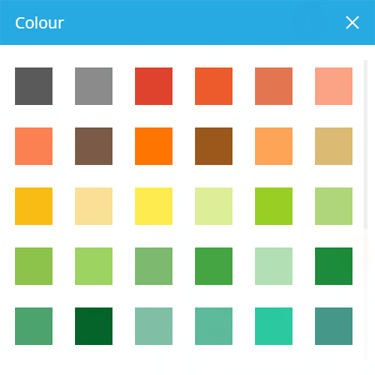
---
# Time attribute
### Store a time value[](#store-a-time-value "Direct link to Store a time value")
A Time attribute can store a single time in ISO 8601 format: `Thh:mm:ss.sss`
### Configuration[](#configuration "Direct link to Configuration")
When [adding](/web/designer/attributes/adding-custom-attributes.md) or [editing](/web/designer/attributes/editing-design-attributes.md) a Time attribute on a design/interface, you can configure the following properties:
[](/img/designer/attrib-time.png)
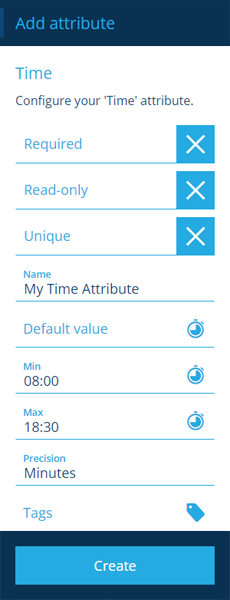
* **Name** \* - enter a distinct name that clearly identifies the attribute.
- **Code** *(read-only)* - the attribute's Global Unique Code (Guc) identifier.
* **Required** - if enabled, the attribute must be populated before an item can be saved. It can't be left blank!
- **Read-only** - if enabled, the attribute can only be populated when creating items. It can't be edited afterwards!
* **Unique** - if enabled, the attribute only accepts values that aren't already stored in other items of the design/interface.
- **Default value** - if set, the attribute will automatically be populated with this, unless another value is entered.
- **Min** - the attribute won't accept a value occurring before this.
- **Max** - the attribute won't accept a value occurring after this.
- **Precision** - choose between *Minutes* and *Seconds*.
- **Tags** - use the [Tag Manager](/web/tags.md) to assign custom tags or a relevant system tag.
Available system tags
* *RequiredOnTaskStatus\[Completed/Cancelled]* - only relevant if the design/interface implements the **Tasks** interface. The attribute becomes required when a task's status changes to *Completed* or *Cancelled*.
* *ActionParameter\[Dynamic]* - for internal use only. Marks the attribute as a configurable parameter on a workflow action.
### Populate the attribute on items[](#populate-the-attribute-on-items "Direct link to Populate the attribute on items")
When [creating](/web/items/creating-items/.md) or [editing](/web/items/editing-items/.md) an item, select the attribute to enter a value using the [calendar picker](/web/getting-started/selection/selecting-dates.md#date-and-time-picker).
[](/img/designer/attrib-time-02.png)
[](/img/designer/attrib-time-03.png)
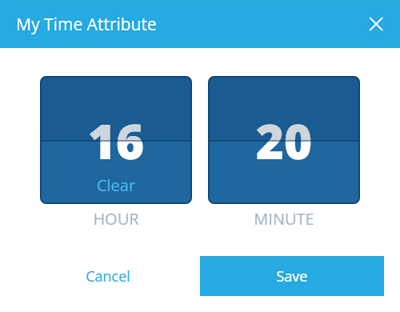
---
# Yes/No attribute
### Store a boolean value[](#store-a-boolean-value "Direct link to Store a boolean value")
A Yes/No value can store a single boolean with a value of `true` or `false`.
### Configuration[](#configuration "Direct link to Configuration")
When [adding](/web/designer/attributes/adding-custom-attributes.md) or [editing](/web/designer/attributes/editing-design-attributes.md) a Yes/No attribute on a design/interface, you can configure the following properties:
[](/img/designer/attrib-yes-no.png)
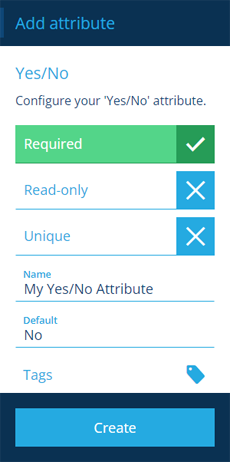
* **Name** \* - enter a distinct name that clearly identifies the attribute.
- **Code** *(read-only)* - the attribute's Global Unique Code (Guc) identifier.
* **Required** - if enabled, the attribute must be populated before an item can be saved. It can't be left blank!
- **Read-only** - if enabled, the attribute can only be populated when creating items. It can't be edited afterwards!
* **Unique** - if enabled, the attribute only accepts values that aren't already stored in other items of the design/interface.
- **Default value** - if set, the attribute will automatically be populated with this, unless another value is entered.
- **Tags** - use the [Tag Manager](/web/tags.md) to assign custom tags or a relevant system tag.
Available system tags
* *RequiredOnTaskStatus\[Completed/Cancelled]* - only relevant if the design/interface implements the **Tasks** interface. The attribute becomes required when a task's status changes to *Completed* or *Cancelled*.
* *ActionParameter\[Dynamic]* - for internal use only. Marks the attribute as a configurable parameter on a workflow action.
### Populate the attribute on items[](#populate-the-attribute-on-items "Direct link to Populate the attribute on items")
When [creating](/web/items/creating-items/.md) or [editing](/web/items/editing-items/.md) an item, select the attribute to toggle between its `true` and `false` states.
[](/img/designer/attrib-yes-no-02.png)

---
# Creating designs
### How to create a new design[](#how-to-create-a-new-design "Direct link to How to create a new design")
A [design](/basics/fundamentals/designs.md) defines a set of attributes that collectively describe a category of items, such as a type of asset or task.
To create a new design at any time:
1. Open the **Designer** [dashboard card](/web/getting-started/dashboard.md) and select **Create design**.
[](/img/designer/designer_editor-basic.png)
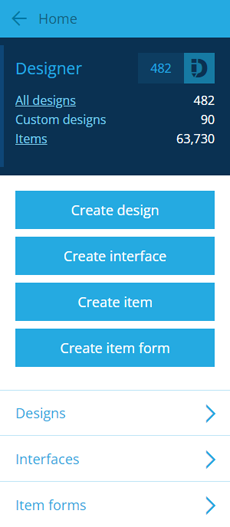
2. Several design types are provided to help you create and manage your data types. Choose one from the list:
* [Asset](/web/designer/creating-designs/creating-asset-designs.md)
* [Component](/web/designer/creating-designs/creating-component-designs.md)
* [Custom](/web/designer/attributes/adding-custom-attributes.md) (blank)
* [Defect](/web/designer/creating-designs/creating-defect-designs.md)
* [Inspection](/web/designer/creating-designs/creating-inspection-designs.md)
* [Item lookup](/web/designer/creating-designs/creating-lookup-designs.md)
* [Job](/web/designer/creating-designs/creating-job-designs.md)
* [Network](/web/designer/creating-designs/creating-network-designs.md)
3. Fill in the following fields (**\*** mandatory):
* **Name** \* - provide a distinct, meaningful name to represent the items this design will define.
* **Icon** - use the [icon picker](/web/getting-started/selection/selecting-icons.md) to choose an icon from the library. It'll apply to all items created from this design. If left blank, the default icon for the chosen design type will be used.
* **Colour** - use the [colour picker](/web/getting-started/selection/selecting-colours.md) to choose a colour from the library. It'll apply to all items created from this design and be the default colour for any [layer styles](/web/maps/layers/layer-styles.md) associated with the design. If left blank, the default colour will be used.
[](/img/designer/designer_basic-design-form.png)
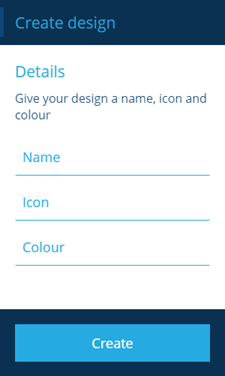
4. Select **Create** to finish. The details of your new design will display in the right panel. To customise the information that you want to record and display for each item of the design, see [Adding custom attributes](/web/designer/attributes/adding-custom-attributes.md).
info
Your account's [permissions](/web/permissions.md) might restrict your access to Designer features. Contact your administrator for assistance.
---
# Creating asset designs
### How to create a basic asset design[](#how-to-create-a-basic-asset-design "Direct link to How to create a basic asset design")
### Overview[](#overview "Direct link to Overview")
When you want to record a new class of assets, you need to create an asset type design that will allow you to create the assets.
The basic asset design includes the following set of interfaces that allow you to perform basic tasks.
[](/img/designer/basic-asset-design-attibutes.png)
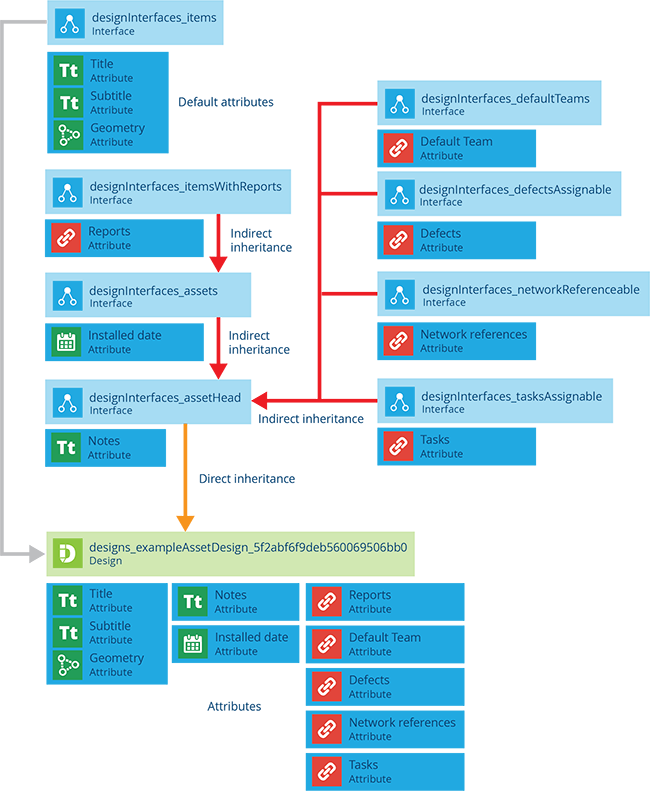
### Creating an asset design[](#creating-an-asset-design "Direct link to Creating an asset design")
To create an asset design use the following procedure:
1. Go to the *Designer* module and select **Create design**.
2. Select the **Asset** type from the list of design types.
3. In the dashboard panel, complete the design form, see [Creating designs](/web/designer/creating-designs/.md).
4. Select **Create**. Your new design is displayed in the right panel. A basic asset design has the following system attributes associated with it. Customise the design by [adding attributes](/web/designer/attributes/adding-custom-attributes.md).
[](/img/designer/basic-asset-attributes.png)
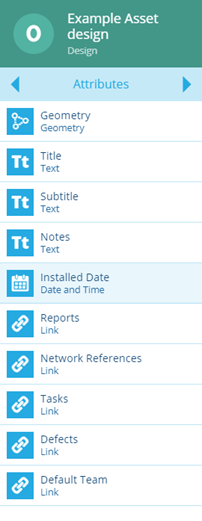
info
Depending on your permission settings, you may not be able to create designs. Contact your administrator for assistance.
---
# Creating component designs
### Create a basic design for your new component type[](#create-a-basic-design-for-your-new-component-type "Direct link to Create a basic design for your new component type")
### Overview[](#overview "Direct link to Overview")
When you want to create component items you need to base the items on a component design.
The basic component design includes the following set of interfaces that allow you to create components.
[](/img/designer/component-design-attibutes.png)
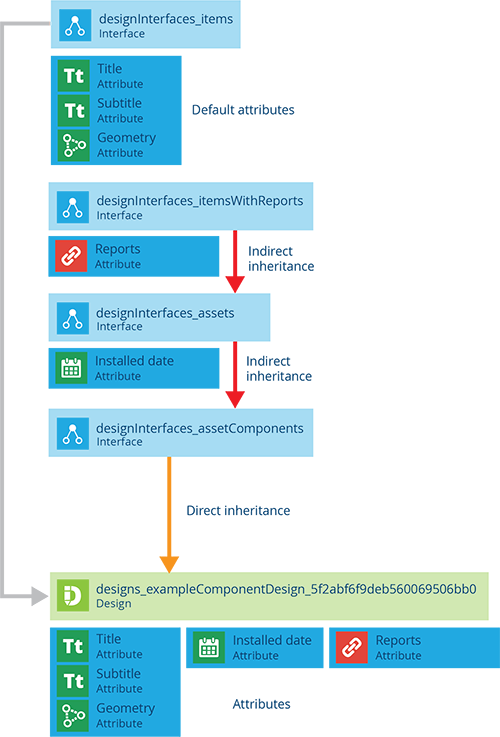
### Creating a component design[](#creating-a-component-design "Direct link to Creating a component design")
To create a component design use the following procedure:
1. Go to the *Designer* module and select **Create design**.
2. Select the **Component** type from the list of design types.
3. In the dashboard panel, complete the design form, see [Creating designs](/web/designer/creating-designs/.md).
4. Select **Create**. Your new design is displayed in the right panel. A basic component design has the following attributes associated with it. Customise the design by [adding attributes](/web/designer/attributes/adding-custom-attributes.md).
[](/img/designer/basic-component-attributes.png)
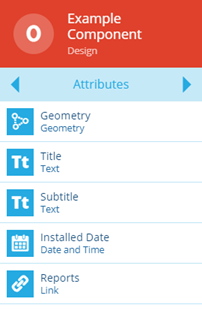
info
Depending on your permission settings, you may not be able to create designs. Contact your administrator for assistance.
---
# Creating defect designs
### Create a design for a new defect type[](#create-a-design-for-a-new-defect-type "Direct link to Create a design for a new defect type")
### Overview[](#overview "Direct link to Overview")
When you have a new defect type that is going to be used within your project you need to create a defect design.
A basic defect design includes the following interfaces and [standard attributes](/web/activities/defects/standard-defect-details.md) that appear on all defect items.
[](/img/designer/defect-design-attibute.png)
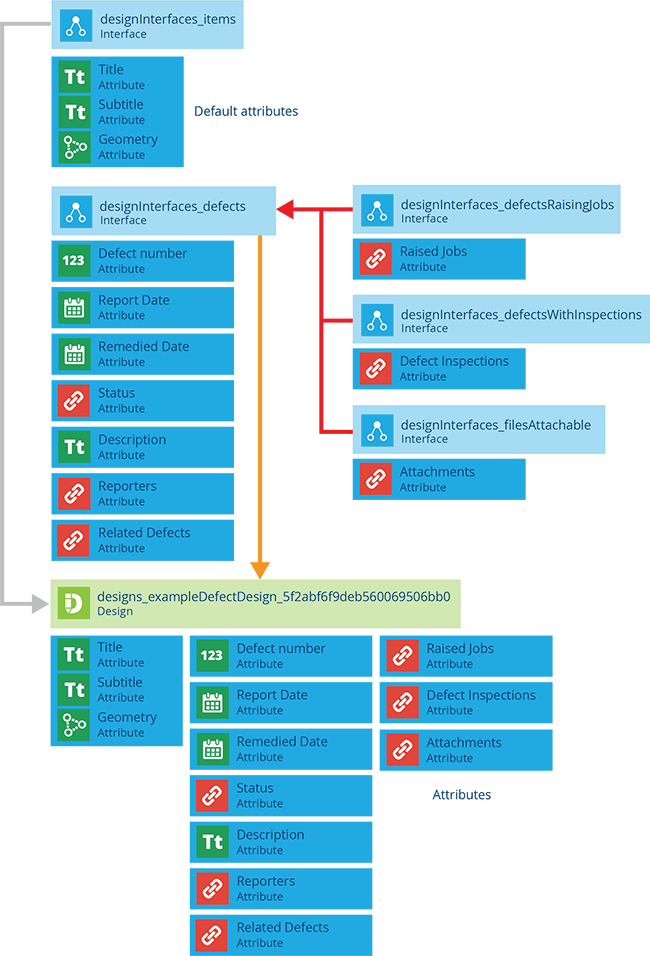
### Creating a defect design[](#creating-a-defect-design "Direct link to Creating a defect design")
To create a defect design use the following procedure:
1. Go to the *Designer* module and select **Create design**.
2. Select the **Defect** type from the list of design types.
3. In the dashboard panel, complete the design form, see [Creating designs](/web/designer/creating-designs/.md).
4. Select **Create**. Your new design is displayed in the right panel. Customise the design by [adding attributes](/web/designer/attributes/adding-custom-attributes.md).
[](/img/designer/designer-basic-defect.png)
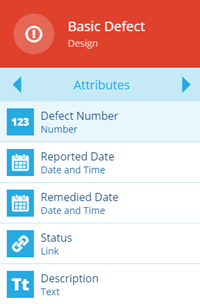
info
Depending on your permission settings, you may not be able to create designs. Contact your administrator for assistance.
---
# Creating inspection designs
### Customise your inspections with the right questions[](#customise-your-inspections-with-the-right-questions "Direct link to Customise your inspections with the right questions")
### Overview[](#overview "Direct link to Overview")
When you need to collect better data through inspections, create a new inspection design with questions tailored to your needs.
A basic inspection design includes the following interfaces and [standard attributes](/web/activities/tasks/inspections/standard-inspection-details.md) that appear in all inspection items.
[](/img/designer/inspection-design-attibute.png)
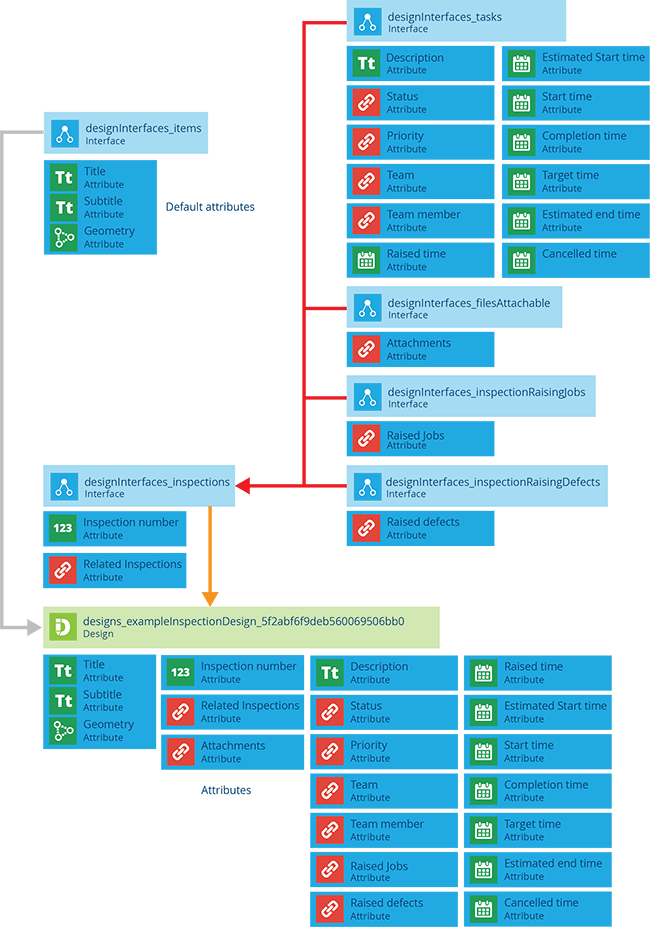
### Creating an inspection design[](#creating-an-inspection-design "Direct link to Creating an inspection design")
To create an inspection design use the following procedure:
1. Go to the *Designer* module and select **Create design**.
2. Select the **Inspection** type from the list of design types.
3. In the dashboard panel, complete the design form, see [Creating designs](/web/designer/creating-designs/.md).
4. Select **Create**. Your new design is displayed in the right panel. Customise the design by [adding attributes](/web/designer/attributes/adding-custom-attributes.md).
[](/img/designer/designer-basic-inspection.png)
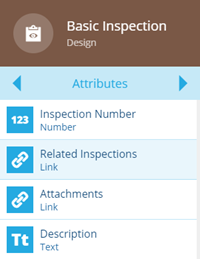
info
Depending on your permission settings, you may not be able to create designs. Contact your administrator for assistance.
---
# Creating job designs
### Create a job type that's right for your asset[](#create-a-job-type-thats-right-for-your-asset "Direct link to Create a job type that's right for your asset")
### Overview[](#overview "Direct link to Overview")
A job is any activity that results in a change to an asset, component or set of assets. Examples include repairs, replacements, removals or cleanings. To manage jobs you can create job designs with forms tailored to your needs. When you have a new job type that is going to be used within your project you need to create a job design.
A basic job design includes the following interfaces and [standard attributes](/web/activities/tasks/jobs/standard-job-details.md) that appear on all job items.
[](/img/designer/jobs-design-attibute.png)
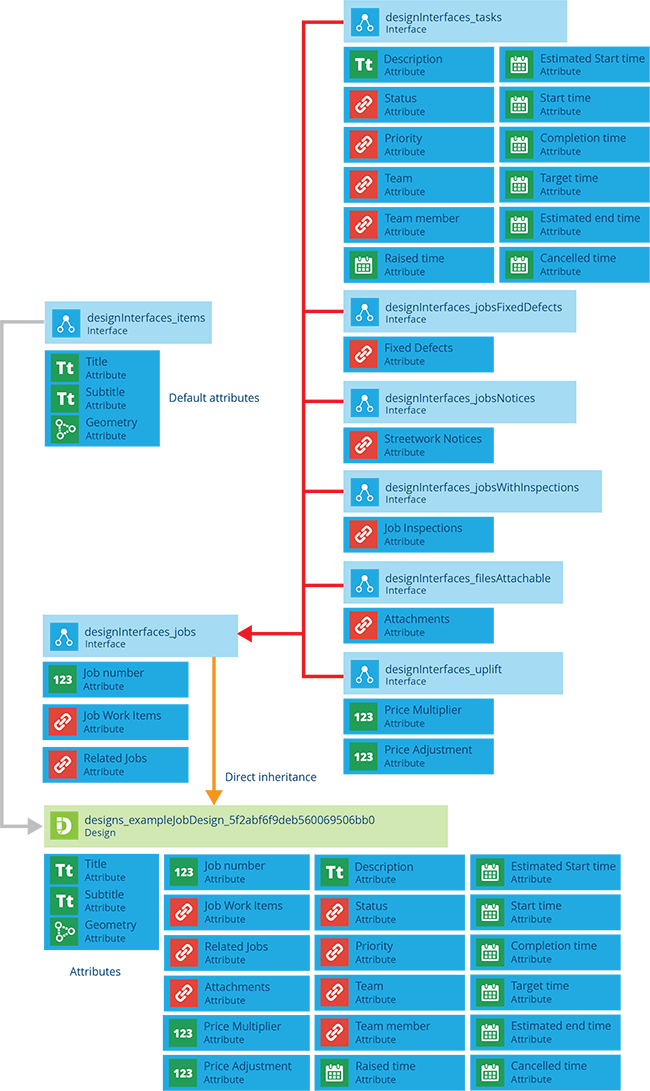
### Creating a job design[](#creating-a-job-design "Direct link to Creating a job design")
To create a job design use the following procedure:
1. Go to the *Designer* module and select **Create design**.
2. Select the **Jobs** type from the list of design types.
3. In the dashboard panel, complete the design form, see [Creating designs](/web/designer/creating-designs/.md).
4. Select **Create**. Your new design is displayed in the right panel. Customise the design by [adding attributes](/web/designer/attributes/adding-custom-attributes.md).
[](/img/designer/designer-basic-jobs.png)
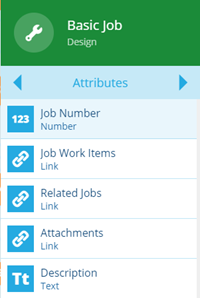
info
Depending on your permission settings, you may not be able to create designs. Contact your administrator for assistance.
---
# Creating lookup designs
### Create a basic lookup design[](#create-a-basic-lookup-design "Direct link to Create a basic lookup design")
### Overview[](#overview "Direct link to Overview")
When you have a new lookup type that is going to be used within your project you can create a new design for it.
The basic lookup design includes the following set of interfaces that allow you to create lookup items.
[](/img/designer/basic-lookup-design.png)
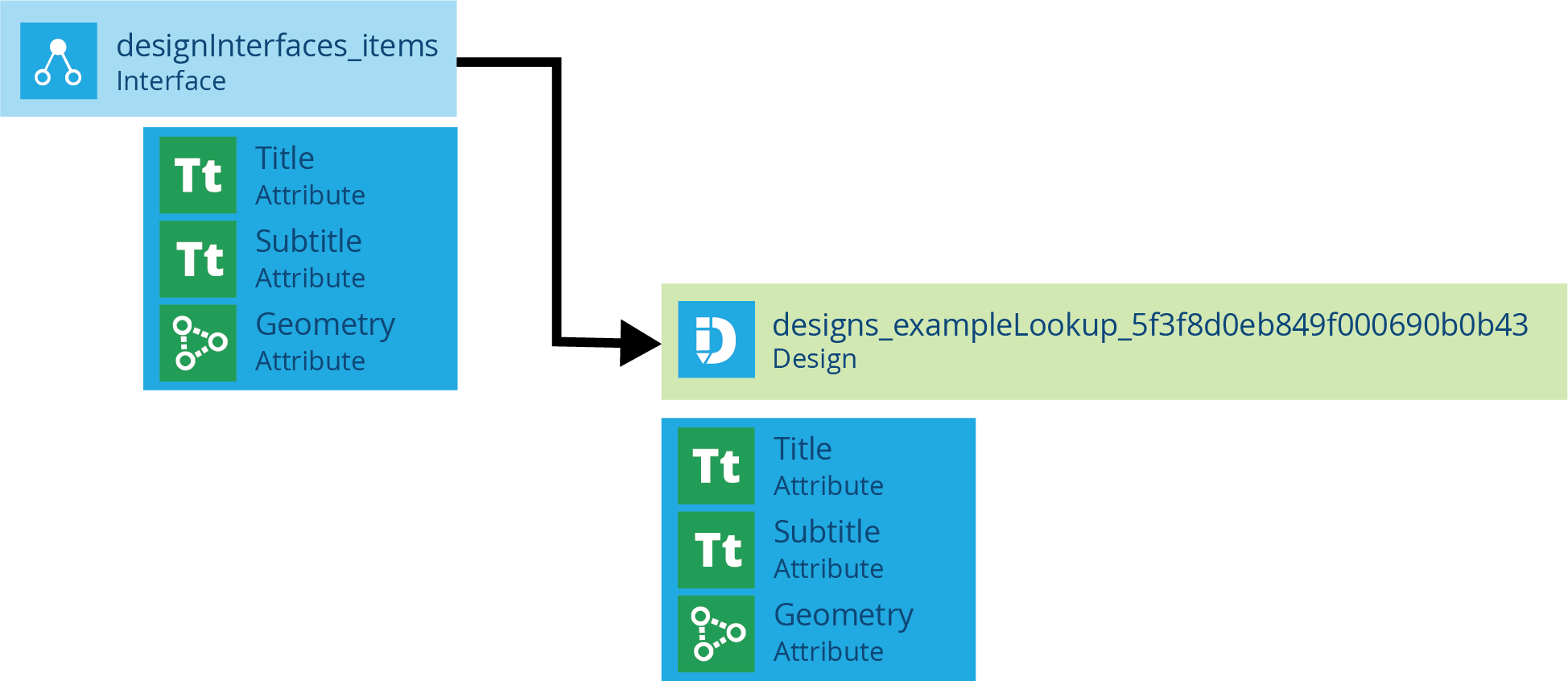
### Creating a lookup design[](#creating-a-lookup-design "Direct link to Creating a lookup design")
To create a lookup design use the following procedure:
1. Go to the *Designer* module and select **Create design**.
2. Select the **Lookup** type from the list of design types.
3. In the dashboard panel, complete the design form, see [Creating designs](/web/designer/creating-designs/.md).
4. Select **Create**. Your new design is displayed in the right panel. A basic lookup design has no system attributes. Customise the design by [adding attributes](/web/designer/attributes/adding-custom-attributes.md).
info
Depending on your permission settings, you may not be able to create designs. Contact your administrator for assistance.
---
# Creating network designs
### Create a design for your new network[](#create-a-design-for-your-new-network "Direct link to Create a design for your new network")
### Overview[](#overview "Direct link to Overview")
In order to create a network you need to create a network design that can then be applied to a network.
The basic network design includes the following set of interfaces that allow you to create networks.
[](/img/designer/network-design-attibutes.png)
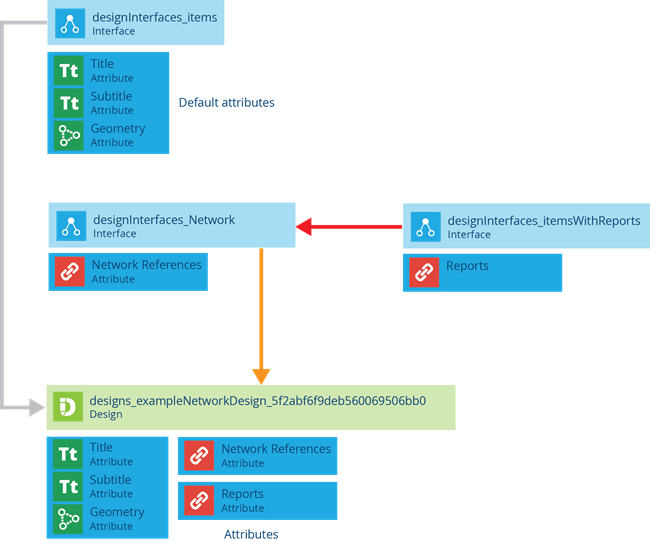
### Creating a network design[](#creating-a-network-design "Direct link to Creating a network design")
To create a network design use the following procedure:
1. Go to the *Designer* module and select **Create design**.
2. Select the **Network** type from the list of design types.
3. In the dashboard panel, complete the design form, see [Creating designs](/web/designer/creating-designs/.md).
4. Select **Create**. Your new design is displayed in the right panel. A basic network design includes a set of default Link attributes, which cannot be edited. Customise the design by [adding attributes](/web/designer/attributes/adding-custom-attributes.md). The design can then be used to create [network items](/web/maps/networks/create-network-item.md).
[](/img/designer/designer-basic-network.png)
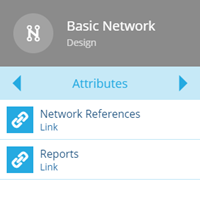
info
Depending on your permission settings, you may not be able to create designs. Contact your administrator for assistance.
---
# Creating interfaces
### How to create a new interface[](#how-to-create-a-new-interface "Direct link to How to create a new interface")
An [interface](/basics/fundamentals/interfaces.md) defines a set of attributes that collectively describe a category of items (such as a type of asset or task). The purpose of an interface is to be implemented by other designs/interfaces.
To create a new interface at any time:
1. Open the **Designer** [dashboard card](/web/getting-started/dashboard.md) and select **Create interface**.
[](/img/designer/designer_editor-basic.png)

2. Fill in the following fields (**\*** mandatory):
* **Name** \* - provide a distinct, meaningful name to identify the interface.
* **Icon** - use the [icon picker](/web/getting-started/selection/selecting-icons.md) to choose an icon from the library.
* **Colour** - use the [colour picker](/web/getting-started/selection/selecting-colours.md) to choose a colour from the library.
[](/img/designer/designer_basic-interface-form.png)
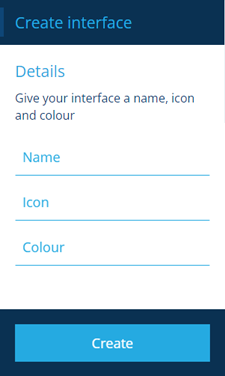
3. Select **Create** to finish. The details of your new interface will display in the right panel. To customise the information that you want to record and display for items of the designs that will implement your new interface, see [Adding custom attributes](/web/designer/attributes/adding-custom-attributes.md).
info
Your account's [permissions](/web/permissions.md) might restrict your access to Designer features. Contact your administrator for assistance.
---
# Deleting designs or interfaces
### How to delete a design/interface[](#how-to-delete-a-designinterface "Direct link to How to delete a design/interface")
If a custom design/interface is no longer needed, you can delete it from your company project.
However, this is only possible if nothing else in your company project depends on it. If there is, you will be warned to address that first.
info
It isn't possible to delete the system designs/interfaces provided with CausewayOne Asset Management.
### Dependencies[](#dependencies "Direct link to Dependencies")
Before you delete a design, ensure that:
* all existing items of that design have been deleted
* any [Link attributes](/web/designer/attributes/types/link-attribute.md) referencing that design have been deleted from other designs/interfaces
Before you delete an interface, ensure that:
* the values of any attributes inherited from that interface are cleared from all existing items
* the interface is [removed](/web/designer/managing-interfaces.md) from all designs
* any [Link attributes](/web/designer/attributes/types/link-attribute.md) referencing that interface have been deleted from other designs/interfaces
### Deleting a design/interface[](#deleting-a-designinterface "Direct link to Deleting a design/interface")
To delete a custom design/interface:
1. Select the design/interface to [view its details](/web/designer/viewing-designs.md) in the right panel.
2. If necessary, use the [tab bar](/web/getting-started/tab-bar.md) to show the **General** page.
3. Select **Delete** in the [action bar](/web/getting-started/action-bar.md) and then answer *Yes* to the confirmation.
A notification indicates whether the deletion succeeded or failed.
info
Depending on your account's [permissions](/web/permissions.md), you may not be able to delete designs/interfaces. Contact your IT department for assistance.
---
# Design context
### Identify protected designs/interfaces[](#identify-protected-designsinterfaces "Direct link to Identify protected designs/interfaces")
Designs and interfaces have a **Context** property to help differentiate between the blueprinted system ones (protected) and those created by your organisation (which you can edit freely).
### Check the context[](#check-the-context "Direct link to Check the context")
To check the context of a design/interface, [view its details](/web/designer/viewing-designs.md) in the right panel.
[](/img/designer/design-context.png)
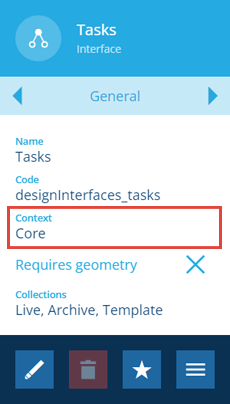
To check the context of an attribute on the design/interface, use the [tab bar](/web/getting-started/tab-bar.md) to switch to the **Attributes** tab, and then select an attribute.
[](/img/designer/attribute-context.png)
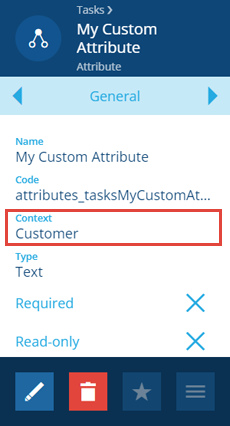
#### Context types[](#context-types "Direct link to Context types")
The possible context types are:
* *Core* - the design/interface is included with CausewayOne Asset Management and required for system functionality, so it can't be [deleted](/web/designer/deleting-designs.md). However, you can:
* edit the **Name**, **Icon**, **Colour**, **Title** and **Subtitle** properties on the **General** tab
* add, edit or remove any [custom attributes](/web/designer/attributes/adding-custom-attributes.md)
* add or remove any extra [interfaces being implemented](/web/designer/managing-interfaces.md)
* *Module* - the design/interface belongs to an optional [module](/basics/fundamentals/modules.md) that was installed. Same restrictions as *Core*.
* *Package* - the design/interface was created by our system architects as part of a custom solution for your organisation. Same restrictions as *Core*.
* *Customer* - the design/interface was created by your organisation. Therefore, you can freely [edit](/web/designer/editing-designs.md) or [delete](/web/designer/deleting-designs.md) it, providing your user account has [permission](/web/permissions.md) to do so.
---
# Design graphs
### What are design graphs?[](#what-are-design-graphs "Direct link to What are design graphs?")
A design graph lets you visualise the overall structure of a design or interface. You can view its attributes, the designs/interfaces it links to, and any parent designs/interfaces that link to it. The graph is divided into several categories:
* **System attributes**
* **Custom attributes** (designs only)
* **Connects to**
* **Parents**
* **Implemented by** (interfaces only)
[](/img/graphs/design-graphs_01.png)
### Displaying the design graph[](#displaying-the-design-graph "Direct link to Displaying the design graph")
To display the graph of a design/interface:
1. Select the design/interface to [view its details](/web/designer/viewing-designs.md) in the right panel.
2. Select the button at the top of the map area.
[](/img/graphs/design-graph-select-button.png)
3. Select any attribute, design or interface within the graph to see its details.
4. Select the **Close** button to close the graph.
### Attributes[](#attributes "Direct link to Attributes")
The **System attributes** section displays the standard attributes of the design/interface that can't be edited or removed. Custom designs may not contain any system attributes.
[](/img/graphs/design-graphs_02.png)
The **Custom attributes** section displays attributes that were added to the design by your organisation. Therefore, they can be edited or removed.
[](/img/graphs/design-graphs_03.png)
The **Connects to** section displays the list of [Link attributes](/web/designer/attributes/types/link-attribute.md). Each Link attribute displays an arrow that points to its destination design/interface. A text description indicates whether the Link attribute is optional or required (must have a value when an item is saved), along with any configured item limit.
[](/img/graphs/design-graphs_04.png)
### Parents[](#parents "Direct link to Parents")
The **Parents** section is displayed next. This lists all the designs and interfaces that link to this design or interface.
[](/img/graphs/design-graphs_05.png)
### Implemented by[](#implemented-by "Direct link to Implemented by")
If you are examining an interface then the **Implemented by** section is displayed at the bottom of the graph. This lists all designs and interfaces that implement the selected interface.
[](/img/graphs/design-graphs_06.png)
---
# Editing general design details
### Overview[](#overview "Direct link to Overview")
You can edit the general details of custom designs and some properties of system designs.
To do this:
1. You can either use the *Designer* module and select **Designs** or use the [search panel](/web/getting-started/right-panel-menu/alloy-search.md) directly.
A list of designs is displayed in the search panel.
2. If the design is shown in the first 20 designs, you can select the design from the list.
Alternatively, the [search panel](/web/getting-started/right-panel-menu/alloy-search.md) allows you to search directly for the design that you require or you can scroll down through the list.
3. When you have selected the required design the details are displayed in the right panel, the **General** tab is displayed by default.
[](/img/designer/designer-general-tab.png)
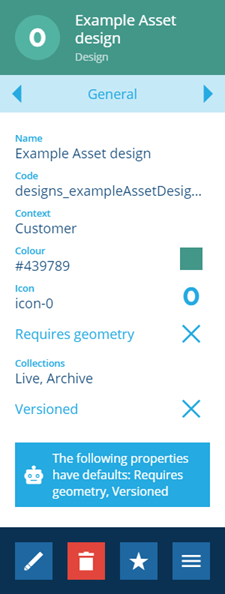
4. Select **Edit** in the [action bar](/web/getting-started/action-bar.md). You can now edit the fields displayed in the **General** tab.
5. Once you're finished, select **Save** to save your changes.
[](/img/designer/designer-edit-general-tab.png)
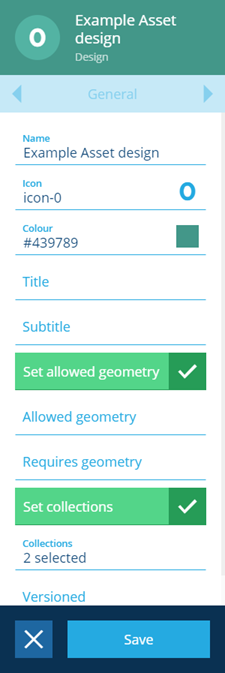
### Design properties[](#design-properties "Direct link to Design properties")
* **Name** \* - You can edit the unique name that can be used when you create items.
* **Icon** - You can edit the icon from the built in library, see [Selecting Icons](/web/getting-started/selection/selecting-icons.md). The icon is inherited by all items that are created using this design.
* **Colour** - You can edit the colour applied to the icon. This colour acts as the default colour for any layer style associated with this design, see [Layer Styles](/web/maps/layers/layer-styles.md).
***
* **Title** - The Title is a name that is used by all items that are created using this design and is displayed whenever. This field is mandatory, however, you can enter a variable that references an attribute within the design. This allows you to generate unique titles each time an item is created, see [Titles and subtitles](/web/designer/titles-subtitles/.md).
* **Subtitle** - The Subtitle is an additional name that is used by all items that are created using this design. This field is mandatory, however, you can enter a variable that references an attribute within the design. This allows you to generate unique sub titles each time an item is created, see [Titles and subtitles](/web/designer/titles-subtitles/.md).
[](/img/designer/designer_item-title.png)
***
The following properties can only be changed on *Customer* designs (see [Design context](/web/designer/design-context.md)):
* **Set allowed geometry** - by default, the **Geometry** attribute of a design is optional and accepts any geometry type. This gives users maximum flexibility when creating/editing items of the design. To customise geometry entry, enable this checkbox and then set the following properties accordingly:
* **Allowed geometry** - select one or more suitable [geometry type(s)](/web/designer/geometry-types/.md) for this design. Users can supply **one** of the allowed types when populating an item's geometry, e.g. *Point *or* Line *or* Polygon*.
However, if the *Geometry Collection* type is allowed, users can supply **one or more** of the other allowed geometry types, e.g. *Point *and* Line *and* Polygon*.
To prevent any geometry being set, leave this blank (with the above checkbox enabled).
* **Requires geometry** - if enabled, geometry must be supplied when creating or editing items of this design. Geometry will not be inherited from parent items. Any existing items without geometry will require it when they're next edited.
* **Set collections** - In custom designs you can set the collections to be editable within a design.
* **Collections** - When you set the collections to be editable this allows you to define which collections can be used when creating items based on the design, see [Item collections](/web/items/item-collections.md). The *Live* and *Archive* collections are included by default.
---
# Editing designs or interfaces
### How to edit a design/interface[](#how-to-edit-a-designinterface "Direct link to How to edit a design/interface")
The designs/interfaces in your company project can be customised to fit your organisation's needs. While you can of course edit any custom designs/interfaces you've created, it's also possible to edit system ones to some degree.
It's important to note that if any items exist for a design/interface, it can restrict your ability to edit it. Some changes won't take effect until those items are edited, e.g. *making an optional attribute required*. Some changes will require the items to be edited first, e.g. *removing a populated attribute*.
info
You can use [Bulk actions](/web/data-explorer/bulk-action-function.md) to edit many items at once.
#### Editing custom designs/interfaces[](#editing-custom-designsinterfaces "Direct link to Editing custom designs/interfaces")
When [viewing the details](/web/designer/viewing-designs.md) of a custom design/interface, you can edit the information in these tabs:
* [General](/web/designer/editing-design-general-details.md)
* [Attributes](/web/designer/attributes/editing-design-attributes.md) - you can **also** [add custom attributes](/web/designer/attributes/adding-custom-attributes.md)
* [Collections](/web/items/item-collections.md)
* [Interfaces](/web/designer/managing-interfaces.md)
#### Editing system designs/interfaces[](#editing-system-designsinterfaces "Direct link to Editing system designs/interfaces")
When [viewing the details](/web/designer/viewing-designs.md) of a system design/interface, you can edit the information in these tabs:
* [General](/web/designer/editing-design-general-details.md)
* Attributes - you can **only** [add custom attributes](/web/designer/attributes/adding-custom-attributes.md)
info
Depending on your account's [permissions](/web/permissions.md), you may not be able to edit designs/interfaces. Contact your administrator for assistance.
---
# Geometry Types
### Define locations and shapes[](#define-locations-and-shapes "Direct link to Define locations and shapes")
A key feature of CausewayOne Asset Management is the ability to visualise your assets and tasks on the map.
Therefore, all items have a standard **Geometry** attribute. It can store coordinate data that describes the item's location and shape. When viewing an item's details, switch to the **Geometry** tab to view and edit its geometry. Use the Geometry Editor to draw the geometry directly on the map or import coordinate data from elsewhere. See [Editing item geometry](/web/items/editing-items/editing-geometry.md).
Several types of geometry data can be stored, ranging from a single point to complex polygons. The item's design determines which of these types are allowed. By default, all geometry types are allowed on custom designs/interfaces created by your organisation.
To limit the allowed geometry types of a design/interface (including none at all), see [Editing general design details](/web/designer/editing-design-general-details.md).
info
You can add extra [Geometry attributes](/web/designer/attributes/types/geometry-attribute.md) to a design/interface.
### Geometry types[](#geometry-types "Direct link to Geometry types")
Learn about the different types of geometry in CausewayOne Asset Management.
## [📄️Point](/web/designer/geometry-types/design-point-geometry-type.md)
[Define a single point](/web/designer/geometry-types/design-point-geometry-type.md)
## [📄️Line](/web/designer/geometry-types/design-line-geometry-type.md)
[Define a line of connected points](/web/designer/geometry-types/design-line-geometry-type.md)
## [📄️Polygon](/web/designer/geometry-types/design-polygon-geometry-type.md)
[Define a shape using connected points](/web/designer/geometry-types/design-polygon-geometry-type.md)
## [📄️Multi-point](/web/designer/geometry-types/design-multipoint-geometry-type.md)
[Define multiple unconnected points](/web/designer/geometry-types/design-multipoint-geometry-type.md)
## [📄️Multi-line](/web/designer/geometry-types/design-multiline-geometry-type.md)
[Define multiple lines](/web/designer/geometry-types/design-multiline-geometry-type.md)
## [📄️Multi-polygon](/web/designer/geometry-types/design-multipolygon-geometry-type.md)
[Define multiple shapes](/web/designer/geometry-types/design-multipolygon-geometry-type.md)
## [📄️Collection](/web/designer/geometry-types/design-collection-geometry-type.md)
[Allow multiple geometry types](/web/designer/geometry-types/design-collection-geometry-type.md)
### Basemap alignment[](#basemap-alignment "Direct link to Basemap alignment")
In CausewayOne Asset Management, all geometry is saved using the **WGS84 Lat/Lng** ([EPSG:4326](https://epsg.io/4326)) coordinate system.
If the [active basemap](/web/maps/basemaps/changing-basemaps.md) uses another coordinate system, item geometry is automatically transformed (by us or the map service) to keep things in proportion. As a result, item geometry may appear slightly misaligned with the basemap.
Therefore, switch to the most relevant basemap before editing an item's geometry, so you can draw directly over the basemap's features as needed.
---
# Geometry Collection
### Allow multiple geometry types[](#allow-multiple-geometry-types "Direct link to Allow multiple geometry types")
This geometry type makes it possible to store a mixture of geometry types.
If a design/interface is [configured](/web/designer/editing-design-general-details.md) to allow certain geometry types, only one type can be set when populating an item's geometry. However, if the allow list includes the *Geometry Collection* type, it's possible to set any combination of the other allowed types!
*For example, if a design allows the "Point" and "Line" geometry types, you can only set one or the other. But if the "Geometry Collection" type is also allowed, you can set both "Point" and "Line" geometry on an item if you want to.*
[](/img-cw1/shared/geometry/types/collection-example.png)

info
If *Geometry Collection* is the only allowed type, it won't be possible to populate items with any geometry!
### How to draw[](#how-to-draw "Direct link to How to draw")
When you're [editing item geometry](/apps/tools/geometry-editor.md), or another geometry data field, the Geometry Editor appears. The row of draw tools indicates which geometry types are [allowed](/web/designer/editing-design-general-details.md) by the item's design (or the source of the field).
[](/img-cw1/shared/geometry/types/draw-tools-collection.png)

Use the draw tools to plot multiple types of geometry. If a tool appears dimmed, no additional geometry of that type can be added.
Point
Select the **Point** tool and then select your desired location on the map.
[](/img-cw1/shared/geometry/types/point-editor.gif)

Once a point is selected, the **Point** tool becomes dimmed to indicate that no further points can be added. To reposition the point, drag it to another location, or use the **Erase** tool to remove it and start again.
Select **Done** to save your changes.
Line
Select the **Line** tool and then select a starting point on the map. Continue selecting points along your desired line. If you need to track a fine curve, select as many points as possible along it! To finish drawing, double-select the final point.
[](/img-cw1/shared/geometry/types/line-editor.gif)

Once a line is finished, the **Line** tool becomes dimmed to indicate that no further lines can be added.
To edit the line, select an existing point (your mouse will snap to it) and drag it to a different position. To add a new point, select and hold anywhere along the line, and then drag the new point into position! Use the **Erase** tool to remove points as needed.
Select **Done** to save your changes.
[](/img-cw1/shared/geometry/types/line-editor-change.gif)

Polygon
Select the **Polygon** tool and then select a starting point on the map. Continue selecting points along your desired shape. If you need to track a fine curve, select as many points as possible along it! To finish drawing, double-select the last point (or select the starting point again).
Alternatively, you can use the **Box** tool to draw a rectangle between two diagonal points.
[](/img-cw1/shared/geometry/types/polygon-editor.gif)

Once a polygon is finished, the **Polygon** tool becomes dimmed to indicate that no further polygons can be added.
To edit the polygon, select an existing point (your mouse will snap to it) and drag it to a different position. To add a new point, select and hold anywhere along an edge, and then drag the new point into position! Use the **Erase** tool to remove points as needed.
Select **Done** to save your changes.
[](/img-cw1/shared/geometry/types/polygon-editor-change.gif)

### Example GeoJSON[](#example-geojson "Direct link to Example GeoJSON")
To access the underlying code of the current geometry, select **Menu** in the Geometry Editor and choose **GeoJson view**.
```
{
"type": "GeometryCollection",
"geometries": [
{
"type": "MultiPoint",
"coordinates": [
[-1.511249, 52.279328],
[-1.511247, 52.279406],
[-1.511249, 52.279249]
]
},
{
"type": "LineString",
"coordinates": [
[-1.511277, 52.279449],
[-1.510952, 52.279445],
[-1.510783, 52.279233]
]
},
{
"type": "MultiPolygon",
"coordinates": [
[
[
[-1.511178, 52.279337],
[-1.511074, 52.27936],
[-1.511033, 52.279289],
[-1.510985, 52.2793],
[-1.510935, 52.279218],
[-1.511114, 52.279177],
[-1.51117, 52.279274],
[-1.511143, 52.279279],
[-1.511178, 52.279337]
]
],
[
[
[-1.510832, 52.27942],
[-1.510756, 52.27944],
[-1.510643, 52.279273],
[-1.51072, 52.279254],
[-1.510832, 52.27942]
]
]
]
}
]
}
```
---
# Line geometry
### Define a line of connected points[](#define-a-line-of-connected-points "Direct link to Define a line of connected points")
This geometry type defines multiple points that form a single line. Use it to describe linear assets, e.g. *streets, fences, railways*.
[](/img-cw1/shared/geometry/types/line-example.png)

### How to draw[](#how-to-draw "Direct link to How to draw")
When you're [editing item geometry](/apps/tools/geometry-editor.md), or another geometry data field, the Geometry Editor appears. The row of draw tools indicates which geometry types are [allowed](/web/designer/editing-design-general-details.md) by the item's design (or the source of the field).
[](/img-cw1/shared/geometry/types/draw-tools-line.png)

Select the **Line** tool and then select a starting point on the map. Continue selecting points along your desired line. If you need to track a fine curve, select as many points as possible along it! To finish drawing, double-select the final point.
[](/img-cw1/shared/geometry/types/line-editor.gif)

Once a line is finished, the **Line** tool becomes dimmed to indicate that no further lines can be added.
To edit the line, select an existing point (your mouse will snap to it) and drag it to a different position. To add a new point, select and hold anywhere along the line, and then drag the new point into position! Use the **Erase** tool to remove points as needed.
Select **Done** to save your changes.
[](/img-cw1/shared/geometry/types/line-editor-change.gif)

### Example GeoJSON[](#example-geojson "Direct link to Example GeoJSON")
To access the underlying code of the current geometry, select **Menu** in the Geometry Editor and choose **GeoJson view**.
```
{
"type": "LineString",
"coordinates": [
[-1.599784, 52.288733],
[-1.59969, 52.288873],
[-1.599596, 52.288951],
[-1.599361, 52.28902]
]
}
```
---
# Multi-line geometry
### Define multiple lines[](#define-multiple-lines "Direct link to Define multiple lines")
This geometry type defines multiple points that form multiple distinct lines. Use it to describe assets composed of multiple linear objects, e.g. *roads that intersect other roads, hedgerows with gaps*.
[](/img-cw1/shared/geometry/types/multi-line-example.png)

### How to draw[](#how-to-draw "Direct link to How to draw")
When you're [editing item geometry](/apps/tools/geometry-editor.md), or another geometry data field, the Geometry Editor appears. The row of draw tools indicates which geometry types are [allowed](/web/designer/editing-design-general-details.md) by the item's design (or the source of the field).
[](/img-cw1/shared/geometry/types/draw-tools-line.png)

Select the **Line** tool and then select a starting point on the map. Continue selecting points along your desired line. To finish drawing, double-select the final point. The tool will remain active, enabling you to select it again and add more lines as needed.
[](/img-cw1/shared/geometry/types/multi-line-editor.gif)

To edit a line, select an existing point (your mouse will snap to it) and drag it to a different position. To add a new point to a line, select and hold anywhere along it, and then drag the new point into position! Use the **Erase** tool to remove points from lines as needed.
Select **Done** to save your changes.
[](/img-cw1/shared/geometry/types/multi-line-editor-change.gif)

### Example GeoJSON[](#example-geojson "Direct link to Example GeoJSON")
To access the underlying code of the current geometry, select **Menu** in the Geometry Editor and choose **GeoJson view**.
```
{
"type": "MultiLineString",
"coordinates": [
[
[-1.560795, 52.2896],
[-1.560702, 52.289473]
],
[
[-1.560561, 52.289661],
[-1.56101, 52.289542]
],
[
[-1.560551, 52.289507],
[-1.560987, 52.289397]
]
]
}
```
---
# Multi-point geometry
### Define multiple unconnected points[](#define-multiple-unconnected-points "Direct link to Define multiple unconnected points")
This geometry type defines multiple points that exist separately, without being connected to each other. Use it to describe assets composed of multiple distinct objects, e.g. *a set of traffic lights*.
[](/img-cw1/shared/geometry/types/multi-point-example.png)

### How to draw[](#how-to-draw "Direct link to How to draw")
When you're [editing item geometry](/apps/tools/geometry-editor.md), or another geometry data field, the Geometry Editor appears. The row of draw tools indicates which geometry types are [allowed](/web/designer/editing-design-general-details.md) by the item's design (or the source of the field).
[](/img-cw1/shared/geometry/types/draw-tools-point.png)

Select the **Point** tool and then select your first desired location on the map. The tool will remain active, enabling you to select it again and add any more points as needed. To reposition the points, drag them to another location, or use the **Erase** tool to remove them and start again.
Select **Done** to save your changes.
[](/img-cw1/shared/geometry/types/multi-point-editor.gif)

### Example GeoJSON[](#example-geojson "Direct link to Example GeoJSON")
To access the underlying code of the current geometry, select **Menu** in the Geometry Editor and choose **GeoJson view**.
```
{
"type": "MultiPoint",
"coordinates": [
[-1.535549, 52.290357],
[-1.535552, 52.290371],
[-1.535527, 52.290373],
[-1.535524, 52.290359]
]
}
```
---
# Multi-polygon geometry
### Define multiple shapes[](#define-multiple-shapes "Direct link to Define multiple shapes")
This geometry type defines multiple points that form multiple distinct shapes. Use it to describe assets composed of multiple areas, e.g. *sites with multiple buildings, park areas*.
[](/img-cw1/shared/geometry/types/multi-polygon-example.png)

### How to draw[](#how-to-draw "Direct link to How to draw")
When you're [editing item geometry](/apps/tools/geometry-editor.md), or another geometry data field, the Geometry Editor appears. The row of draw tools indicates which geometry types are [allowed](/web/designer/editing-design-general-details.md) by the item's design (or the source of the field).
[](/img-cw1/shared/geometry/types/draw-tools-polygon.png)

Select the **Polygon** tool and then select a starting point on the map. Continue selecting points along your desired shape. To finish drawing, double-select the final point (or select the starting point again). The tool will remain active, enabling you to select it again and add more shapes as needed.
Additionally, you can use the **Box** tool to draw a rectangle between two diagonal points.
[](/img-cw1/shared/geometry/types/multi-polygon-editor.gif)

To edit a polygon, select an existing point (your mouse will snap to it) and drag it to a different position. To add a new point to a shape, select and hold anywhere along an edge, and then drag the new point into position! Use the **Erase** tool to remove points from shapes as needed.
Select **Done** to save your changes.
[](/img-cw1/shared/geometry/types/multi-polygon-editor-change.gif)

### Example GeoJSON[](#example-geojson "Direct link to Example GeoJSON")
To access the underlying code of the current geometry, select **Menu** in the Geometry Editor and choose **GeoJson view**.
```
{
"type": "MultiPolygon",
"coordinates": [
[
[
[-0.71778, 52.586826],
[-0.717695, 52.586829],
[-0.717692, 52.586795],
[-0.71763, 52.586797],
[-0.717627, 52.586743],
[-0.71783, 52.586737],
[-0.717835, 52.586791],
[-0.717779, 52.586793],
[-0.71778, 52.586826]
]
],
[
[
[-0.717595, 52.586851],
[-0.717441, 52.586853],
[-0.71744, 52.586835],
[-0.717355, 52.586835],
[-0.717351, 52.586769],
[-0.717592, 52.586765],
[-0.717595, 52.586851]
]
]
]
}
```
---
# Point geometry
### Define a single point[](#define-a-single-point "Direct link to Define a single point")
This geometry type defines a single point on the map. Use it to describe the location of assets whose size and shape is unimportant, e.g. *bins, benches, street lights*.
[](/img-cw1/shared/geometry/types/point-example.png)

### How to draw[](#how-to-draw "Direct link to How to draw")
When you're [editing item geometry](/apps/tools/geometry-editor.md), or another geometry data field, the Geometry Editor appears. The row of draw tools indicates which geometry types are [allowed](/web/designer/editing-design-general-details.md) by the item's design (or the source of the field).
[](/img-cw1/shared/geometry/types/draw-tools-point.png)

Select the **Point** tool and then select your desired location on the map.
[](/img-cw1/shared/geometry/types/point-editor.gif)

Once a point is selected, the **Point** tool becomes dimmed to indicate that no further points can be added. To reposition the point, drag it to another location, or use the **Erase** tool to remove it and start again.
Select **Done** to save your changes.
### Example GeoJSON[](#example-geojson "Direct link to Example GeoJSON")
To access the underlying code of the current geometry, select **Menu** in the Geometry Editor and choose **GeoJson view**.
```
{
"type": "Point",
"coordinates": [-1.532528, 52.287515]
}
```
---
# Polygon geometry
### Define a shape using connected points[](#define-a-shape-using-connected-points "Direct link to Define a shape using connected points")
This geometry type defines multiple points that form a single closed shape. Use it to describe assets that occupy a significant area, e.g. *buildings, playgrounds, zones*.
[](/img-cw1/shared/geometry/types/polygon-example.png)

### How to draw[](#how-to-draw "Direct link to How to draw")
When you're [editing item geometry](/apps/tools/geometry-editor.md), or another geometry data field, the Geometry Editor appears. The row of draw tools indicates which geometry types are [allowed](/web/designer/editing-design-general-details.md) by the item's design (or the source of the field).
[](/img-cw1/shared/geometry/types/draw-tools-polygon.png)

Select the **Polygon** tool and then select a starting point on the map. Continue selecting points along your desired shape. If you need to track a fine curve, select as many points as possible along it! To finish drawing, double-select the last point (or select the starting point again).
Alternatively, you can use the **Box** tool to draw a rectangle between two diagonal points.
[](/img-cw1/shared/geometry/types/polygon-editor.gif)

Once a polygon is finished, the **Polygon** tool becomes dimmed to indicate that no further polygons can be added.
To edit the polygon, select an existing point (your mouse will snap to it) and drag it to a different position. To add a new point, select and hold anywhere along an edge, and then drag the new point into position! Use the **Erase** tool to remove points as needed.
Select **Done** to save your changes.
[](/img-cw1/shared/geometry/types/polygon-editor-change.gif)

### Example GeoJSON[](#example-geojson "Direct link to Example GeoJSON")
To access the underlying code of the current geometry, select **Menu** in the Geometry Editor and choose **GeoJson view**.
```
{
"type": "Polygon",
"coordinates": [
[
[-1.529036, 52.290931],
[-1.528988, 52.290938],
[-1.529004, 52.290984],
[-1.528819, 52.291008],
[-1.528781, 52.290908],
[-1.529018, 52.290874],
[-1.529036, 52.290931]
]
]
}
```
---
# Item forms
### Use item forms to customise how users create/edit items[](#use-item-forms-to-customise-how-users-createedit-items "Direct link to Use item forms to customise how users create/edit items")
To [create](/web/items/creating-items/.md) or [edit](/web/items/editing-items/.md) an item, a user must fill out an **item form**.
The standard item form lists all attributes of the item's design/interface, so the user can input values for each one. Required attributes are indicated with an asterisk **\***.
You can create one or more custom item forms for a design/interface. This powerful feature gives you full control over the form layout, the order and visibility of attributes, and the controls used for input.
[](/img/item-forms/item-form-overview-01.png)
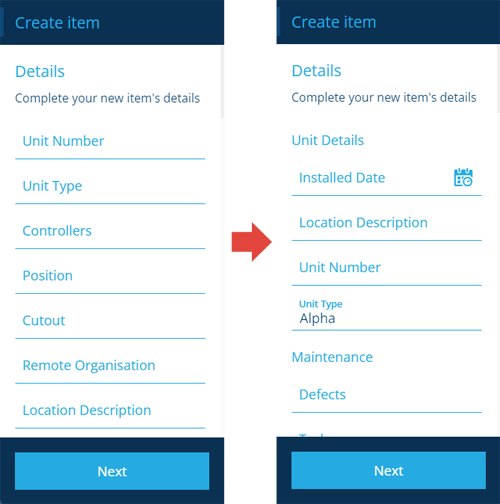
info
If you're unable to view or manage item forms, your user account may lack the required [permissions](/web/permissions.md).
### What is an item form?[](#what-is-an-item-form "Direct link to What is an item form?")
Item forms are a method of data input. They let a user populate an item's attributes with values.
An item form applies to a specific design/interface and can be used when a corresponding item is created, edited, or both.
Using the [Item Form Builder](/web/designer/item-forms/editing-item-forms.md), you can add **attribute controls** to the form. Each control defines the field properties of its specific attribute and how a value can be entered.
[](/img/item-forms/item-form-overview-02.png)
### Why use item forms?[](#why-use-item-forms "Direct link to Why use item forms?")
Item forms provide a wealth of ways to customise data entry. Using them effectively can improve efficiency, save time and increase automation.
Compared to the standard item form, you can:
* show or hide an attribute
* change the order of attributes
* make an attribute read-only
* make an optional attribute required
* override an attribute's default value
* use [AQS](/web/aqs.md) to sort and filter items in the lookup list of a [Link attribute](/web/designer/attributes/types/link-attribute.md)
An attribute control has several properties, which can be configured statically or dynamically based on the output of an [item form expression](/web/designer/item-forms/expressions/.md).
Using [Permissions](/web/permissions.md), different item forms can be made available to different users/groups. Item forms can also be targeted to specific platforms (e.g. Classic or Mobile) through the use of tags.
### Item forms vs stencils[](#item-forms-vs-stencils "Direct link to Item forms vs stencils")
Item forms and [stencils](/web/designer/stencil-editor/.md) both let you customise the order and visibility of an item's attributes.
However, they differ in a few key ways:
| | Item form | Stencil |
| -------------------------------------------------------- | -------------- | ------------------------------ |
| Used for... | Inputting data | Viewing data |
| How many can a design/interface have? | Many | One |
| Can it include multiple controls for a single attribute? | No | Yes |
| Can it pull in non-attribute data? | No | Yes (e.g. Street View control) |
Therefore, item forms and stencils serve different purposes and can be used together without conflict.
---
# Creating item forms
### How to create an item form[](#how-to-create-an-item-form "Direct link to How to create an item form")
To create an item form:
1. Open the **Designer** [dashboard card](/web/getting-started/dashboard.md) and select **Create item form**.
2. Fill in the following fields as needed:
* **Name** - enter a distinct name for the item form.
* **Design or interface** - choose the design/interface that the item form will apply to.
* **Applies to create** - if enabled, the item form will be presented when creating an item of the chosen design/interface.
* **Applies to edit** - if enabled, the item form will be presented when editing an item of the chosen design/interface.
* **Tags** - select one or more [tags](/web/tags.md). These represent scenarios for the item form to be used in. You can target the item form to a particular:
* platform (e.g. *Classic*, *Mobile*)
* application
* screen (e.g. *Edit Item screen on the right panel*, *Create defect details*)
Alternatively, just choose *All platforms, applications and screens*.
3. Select **Create** to finish. Your new item form is now ready for [editing](/web/designer/item-forms/editing-item-forms.md)!
info
If you don't select any **Tags**, your item form won't appear anywhere!
### Grant permissions[](#grant-permissions "Direct link to Grant permissions")
By default, newly created item forms are only accessible to their creators.
To make an item form available to more users, use the [Permissions Manager](/web/permissions/permissions-manager/.md) to give at least **Read-only** permission to the groups that need it.
---
# Editing item forms
### How to edit an item form[](#how-to-edit-an-item-form "Direct link to How to edit an item form")
Once an item form is [created](/web/designer/item-forms/creating-item-forms.md), you can use the **Item Form Builder** to add controls and configure their properties.
To edit an item form:
1. Open the **Designer** [dashboard card](/web/getting-started/dashboard.md) and choose **Item forms**.
2. Select the relevant item form in the search results in the right panel.
3. Select **More** in the [action bar](/web/getting-started/action-bar.md) and choose **Open item form builder**.
A newly created item form will be empty and contain no controls (indicated by an orange warning).
[](/img/item-forms/edit-item-form-01.png)
### What are controls?[](#what-are-controls "Direct link to What are controls?")
Controls are the building blocks of your item form. There are two types:
* **Attribute control** - an input field for setting the value of an attribute on the item being created/edited.
* **Other controls** - cosmetic elements to give your item form structure:
* **Separator** - break up your item form into sections.
* **Title** - label the sections in your item form.
* **Labels** - display different types of read-only data in your item form.
For a full list of controls and what they do, see [Item form controls](/web/designer/item-forms/item-form-controls.md).
[](/img/item-forms/controls/title-separator.png)
### Add controls[](#add-controls "Direct link to Add controls")
#### Attributes[](#attributes "Direct link to Attributes")
To add an attribute control to your item form:
1. Select **Menu** (bottom-right) and choose **Add attribute**.
2. Choose an attribute from the list. If an attribute appears dimmed, the item form already has a control for it.
3. Choose a [control type](/web/designer/item-forms/item-form-controls.md). Only those relevant to the chosen attribute will be listed.
To add controls for all attributes on the design/interface, select **Menu** (bottom-right) and choose **Add all default controls**.
An item form must include controls for attributes that are **Required** by the item's design/interface with no default value set. If you see a warning about this, select **Auto fix issue** to add the default control type for that attribute type.
#### Other[](#other "Direct link to Other")
To add other control types:
1. Select **Menu** (bottom-right) and choose **Add control**.
2. Choose **Separator**, **Title** or one of the **Label** controls.
### Control properties[](#control-properties "Direct link to Control properties")
The properties of a control resemble the properties of the attribute it represents. This enables you to override the attribute's properties when needed, to suit different item forms.
[](/img/item-forms/edit-item-form-03.png)
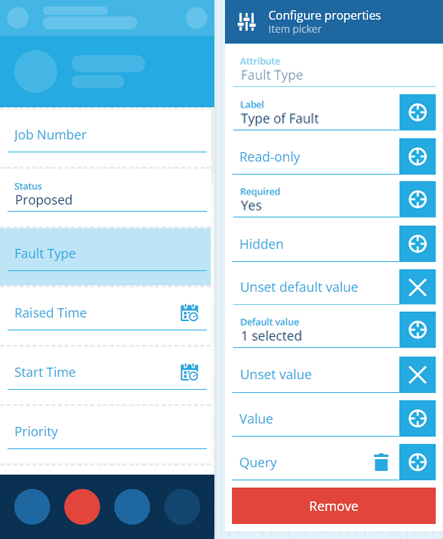
Select a control to view its properties:
* **Label** - set a display name for the control. Otherwise, the attribute's name will be used.
* **Read-only** - the control won't be editable. It can only be populated with a default value (set by the control or the attribute itself).
* **Required** - the control must have a value set. It won't be possible to leave it blank!
* **Hidden** - the control won't be visible. However, it can still be populated by a default value (set by the control or the attribute itself), or the output of a targeted [expression](/web/designer/item-forms/expressions/.md).
Important
If the attribute itself is **Read-only** or **Required** by the item's design/interface, this can't be overridden by an item form. You can make a writeable attribute read-only, or an optional attribute required, but not vice versa!
***
* **Unset default value** - if the attribute itself has a default value (defined by the item's design/interface), it will be ignored.
or
* **Default value** - the control will automatically be populated with this, unless another value is set (by a user or a targeted [expression](/web/designer/item-forms/expressions/.md)). If the attribute itself has a default value, this will override it.
***
* **Unset Value** - clears the current value when triggered by a targeted [expression](/web/designer/item-forms/expressions/.md). If set here, the control is guaranteed to be empty initially.
or
* **Value** - the control will initially be populated with this (overriding any default value). But unlike a default value, the control won't be repopulated with this if left blank.
***
* **Query** - this only appears for [Link attributes](/apps/designer/dodis/attributes/link-attribute.md). It lets you customise the attribute's lookup list on the form. Use the [AQS Builder](/web/aqs/aqs-builder.md) to define one or more conditions that items must fulfil to be included in the list. To sort the listed items by an attribute or property, select the query root node.
Default AQS parameters
In this scenario, the AQS Builder provides two built-in parameters. A parameter is a placeholder that is substituted with a value when the query runs. If you include a parameter in your query, it becomes dynamic and can produce different results depending on the context:
* **Current item ID** - represents the ID of the item being viewed or edited. It can be used to fetch items related specifically to that item, enabling fields on the form to display context-sensitive lookup results.
* **Current user ID** - represents the ID of the user who is creating, editing or viewing the item. It can be used to fetch items related specifically to that user.
To learn more, see [AQS parameters](/web/aqs/aqs-parameters.md).
#### Target an expression[](#target-an-expression "Direct link to Target an expression")
For advanced customisation, the properties of a control can be set dynamically, based on the output of an expression. To learn more, see [Item form expressions](/web/designer/item-forms/expressions/.md).
To make a property target an expression, select the property's icon and choose an available expression from the list.
### Arrange and remove controls[](#arrange-and-remove-controls "Direct link to Arrange and remove controls")
Drag a control to move it up or down the item form.
To remove a control, select it, and then select its red **Remove** button. To remove them all, select **Menu** (bottom-right) and choose **Clear controls**.
### Save your changes[](#save-your-changes "Direct link to Save your changes")
To save any changes to the item form, select **Menu** (bottom-right) and choose **Save Item form**.
We recommend testing an item form's functionality before making it available to users!
---
# Item form expressions
### Make item forms dynamic and reactive to user input[](#make-item-forms-dynamic-and-reactive-to-user-input "Direct link to Make item forms dynamic and reactive to user input")
An **expression** is a sequence of values and functions that outputs a final value.
Each [control](/web/designer/item-forms/editing-item-forms.md#what-are-controls) on an item form has several configurable properties (e.g. *Read-only*, *Required*). By setting a property to target an expression (instead of a static value), that property becomes context-sensitive, and will change depending on the expression's output. As expressions can read and react to the properties of all controls, it's possible to create item forms that are highly flexible and responsive.
For example...
By targeting an expression, you can:
* make an optional control required if another control is populated
* make a read-only control writeable if a Checkbox control is checked
* limit the accepted values of one Date control based on another, e.g. *an **End Date** control that can only be set within 30 days of a **Start Date** control*
* sort and filter items in a Link attribute's lookup list, based on another control's value, e.g. *after choosing a **Team**, the **Team Member** control only shows corresponding users*
* set the default value of a control based on others, e.g. *if a **Priority** control is set to "High", the **Target Date** control defaults to 7 days after the **Start Date** control value*
In this way, you can use expressions to regulate user input, filter the available controls on the form, and set dynamic values.
Important
Expressions are currently **unsupported on Alloy Mobile** and will go unprocessed if present.
### Manage a form's expressions[](#manage-a-forms-expressions "Direct link to Manage a form's expressions")
When [editing an item form](/web/designer/item-forms/editing-item-forms.md), any expressions defined within the form are displayed on the left.
Select an expression to edit it, or select **Add** to create a new one.
[](/img/item-forms/expression-box-02.png)
info
Developers can also include an `expressions` array in their JSON code when using the [Alloy API](https://developer.alloyapp.io/dev/alloy-api) to create/edit an item form.
### The Item Form Expression Builder[](#the-item-form-expression-builder "Direct link to The Item Form Expression Builder")
This appears whenever you create or edit an item form expression.
[](/img/item-forms/expression-builder-overview.png)
#### 1 Name[](#-1--name "Direct link to -1--name")
Select **Edit** to rename the expression. We recommend making it a clear description of what the expression does, so it can be easily picked from a list when someone configures a control property.
#### 2 Node types[](#-2--node-types "Direct link to -2--node-types")
Nodes are the building blocks of your expression. Each type represents a function or a value. Values can be static, or dynamically linked to a [control property](/web/designer/item-forms/editing-item-forms.md#control-properties) on the item form, or dynamically linked to a global Alloy variable, e.g. *the current user's name*.
Select a node type in the top toolbar to add a node to the canvas.
* **Conditionals** - logical functions that test inputs from other nodes and produce corresponding output.
* **Finals** - the expression's output, which will be applied to any control property that targets it.
* **Globals** - references to the dynamic value of a control property or a global Alloy variable.
* **Literals** - static values that you input yourself.
* **Transforms** - functions that modify an input value, producing a new value.
* **Dates** - functions for creating or manipulating date values.
* **Date Times** - functions for creating or manipulating date and time values.
To see the full list of node types, see [Item form expression nodes](/web/designer/item-forms/expressions/expression-nodes.md).
#### 3 Tools[](#-3--tools "Direct link to -3--tools")
Select a tool in the top toolbar:
* **Delete** - delete the currently selected node or link.
* **Organise** - automatically arrange nodes into formation based on how they're linked.
#### 4 Added nodes[](#-4--added-nodes "Direct link to -4--added-nodes")
Nodes appear on the canvas as purple boxes, displaying their type and a helpful description of what they do. You can drag them around and use their bottom-right corner to resize them.
[](/img/item-forms/example1/03-node.png)
To set the value of a node, select its **Edit** button and then its **Value** field.
[](/img/item-forms/expression-node-set.png)
If it's a **Global** node, a list of global variables and compatible control properties will appear. Choose one to link to.
List of global variables
| Global Variable | Description | Global Node Type |
| --------------------- | ---------------------------------------------------------------------------------------------- | ---------------- |
| **User Alloy ID** | The ID of the current user | Alloy ID Array |
| **Item ID** | The ID of the item being create/edited | Alloy ID Array |
| **Parent item ID** | The IDs of any parent items that link to the item being created/edited | Alloy ID Array |
| **Create mode** | Is the item form being used to create an item? | Boolean |
| **Edit mode** | Is the item form being used to edit an item? | Boolean |
| **Date Now** | The current date | Date |
| **Date Time Now** | The current date and time | Date Time |
| **Username** | The username of the current user | String |
| **First name** | The first name of the current user | String |
| **Last name** | The last name of the current user | String |
| **Email** | The email address of the current user | String |
| **Customer name** | The name of your [company](/apps/home/navigation.md#-1--causewayone-sidebar--header) | String |
| **Item form name** | The name of the current item form | String |
| **Item form context** | The [context](/basics/fundamentals/items.md#context) of the current item form | String |
| **Design name** | The design name of the item being created/edited | String |
| **Design context** | The design [context](/basics/fundamentals/designs.md#context) of the item being created/edited | String |
| **Item icon** | The icon code of the item being created/edited | String |
| **Item signature** | The signature of the item being edited (changes with every edit) | String |
| **Item collection** | The Guc of the collection of the item being created/edited | IsTriggering |
| **Item form code** | The Guc of the current item form | IsTriggering |
| **Design code** | The Guc of the design of the item being created/edited | IsTriggering |
[](/img/item-forms/expression-node-set-global.png)
If it's a **Literal** node, you can then provide a value. Depending on the node type, this may involve typing directly into the field, choosing a value from a picker, using the [AQS Builder](/web/aqs/aqs-builder.md), or enabling/disabling the field to indicate `true` or `false`.
[](/img/item-forms/expression-node-set-literal.png)
#### 5 Links[](#-5--links "Direct link to -5--links")
Define your expression by linking the inputs and outputs of different nodes on the canvas.
Each node has one or more **input** circles on their **left** side. They're labelled to help you understand the type of input expected.
Each node has one **output** circle on their **right** side (except for final nodes).
To join two nodes together, select an output circle on the first node, and then select an input circle on the second node. When you select a circle, only compatible circles will remain undimmed, so you can only create valid links!
[](/img/item-forms/expression-node-circles.png)
info
All possible execution branches within the expression should end with a **final** node.
#### 6 Save button[](#-6--save-button "Direct link to -6--save-button")
When you're finished, select **Save** to save your expression and return to the Item Form Builder. To leave without saving, select **Close** in the top-right corner.
### Targeting an expression[](#targeting-an-expression "Direct link to Targeting an expression")
When [editing an item form](/web/designer/item-forms/editing-item-forms.md), selecting a control will display its properties on the right.
To make a property target an expression, select its icon and then choose a saved expression from the list. The value of that property now depends on the output of the expression, which may change as the user interacts with the item form.
### Examples[](#examples "Direct link to Examples")
To learn more about building different types of expression, here are some step-by-step examples:
1. [Example 1 - Simple boolean check](/web/designer/item-forms/expressions/exp-example-1.md)
2. [Example 2 - Cascading lookup list](/web/designer/item-forms/expressions/exp-example-2.md)
---
# Example 1 - Simple boolean check
This example demonstrates a simple scenario:
*I want to enable/disable a control property based on the status of another*.
Let's imagine an example of this:
*My item form has controls for a Yes/No attribute named **"Dangerous?"** and a Text attribute named **"Description"***.
*If a user enables **Dangerous?** I want **Description** to be required. So I'll create an expression to make the **Value** property of the **Dangerous?** control available to the form. I can then set the **Required** property of the **Description** control to target the expression*.
### Create and name the expression[](#create-and-name-the-expression "Direct link to Create and name the expression")
1. While [editing an item form](/web/designer/item-forms/editing-item-forms.md), select **Add** in the **Expressions** box.
[](/img/item-forms/expression-box-01.png)
2. In the Item Form Expression Builder, select at the top to name the expression with a clear description of what it does.
[](/img/item-forms/example1/01-name.png)
### Add a global Boolean node[](#add-a-global-boolean-node "Direct link to Add a global Boolean node")
3. Select **Global** in the top toolbar and choose **Boolean** to add a node to the canvas.
[](/img/item-forms/example1/02-global-boolean.png)
4. Select **Edit** on the node, select **Global value** and then choose **Dangerous? Value**.
[](/img/item-forms/example1/03-node.png)
[](/img/item-forms/example1/04-global-values.png)
### Add a final Boolean node[](#add-a-final-boolean-node "Direct link to Add a final Boolean node")
5. Select **Final** in the top toolbar and choose **Boolean** to add a node to the canvas.
[](/img/item-forms/example1/06-node.png)
### Link them together\
6. Select the right circle of the global Boolean node and the left circle of the final Boolean node to link them together.
[](/img/item-forms/example1/07-link.png)
### Save and target[](#save-and-target "Direct link to Save and target")
7. Select **Save** (bottom-left) to finish.
8. Back in the Item Form Builder, select the **Description** control, select beside its **Required** property and choose your new expression.
[](/img/item-forms/example1/08-target.png)
info
Don't forget to save the item form too!
---
# Example 2 - Cascading lookup list
This example demonstrates the following scenario:
*I want to filter items in a lookup list based on the selected value of a previous lookup list*
Let's imagine an example of this:
*My item form has controls for two Link attributes named **Teams** and **Team Members***.
*After a user selects a value in the **Teams** control, I want the **Team Members** control to only list members of the selected team. So I'll create an expression that:*
* *contains an AQS query that only fetches **Team Members** items with a parent whose Item ID matches a parameter*
* *reads the **Value** property of the **Teams** control*
* *injects that value into the AQS query to populate the parameter*
### Create and name the expression[](#create-and-name-the-expression "Direct link to Create and name the expression")
1. While [editing an item form](/web/designer/item-forms/editing-item-forms.md), select **Add** in the **Expressions** box.
[](/img/item-forms/expression-box-01.png)
2. In the Item Form Expression Builder, select at the top to name the expression with a clear description of what it does.
[](/img/item-forms/example-2/01-name.png)
### Add a literal AQS node[](#add-a-literal-aqs-node "Direct link to Add a literal AQS node")
3. Select **Literal** in the top toolbar and choose **AQS** to add a node to the canvas.
[](/img/item-forms/example-2/02-literal-aqs.png)
4. Select **Edit** on the node to open the [AQS Builder](/web/aqs/aqs-builder.md). Build your query and then select **Save**.
Building the AQS query
This query will only fetch **Team Members** items with a parent whose Item ID matches a parameter.
1. In the AQS Builder, select in the left **Parameters** box. Configure as illustrated below and then select **Save**.
[](/img/item-forms/example-2/03-aqs-parameter.png)
2. Select the root node and set its **Design or interface** to *Team Members*.
[](/img/item-forms/example-2/03-aqs-root.png)
3. Select and choose the **Equals** node.
[](/img/item-forms/example-2/03-aqs-equals.png)
4. Select the left segment, select the **Property** node and then **Item id**.
[](/img/item-forms/example-2/03-aqs-equals-left-property.png)
5. Select to open the [Pathfinder](/web/pathfinder.md). On the left, select **Navigate** > **Teams** > **Via Members** > **Select this** > **Done**.
[](/img/item-forms/example-2/03-aqs-equals-left-path.png)
6. Select the right segment, select **Item**, select **Parameter** and then choose your parameter.
[](/img/item-forms/example-2/03-aqs-equals-right.png)
7. Select **Done** to return to the Item Form Expressions Builder.
### Add a literal String node[](#add-a-literal-string-node "Direct link to Add a literal String node")
5. Select **Literal** in the top toolbar and choose **String** to add a node to the canvas.
[](/img/item-forms/example-2/05-literal-string.png)
6. Select **Edit** on the node, enter the exact name of your AQS parameter, and then select **Save**.
### Add a global Alloy ID Array node[](#add-a-global-alloy-id-array-node "Direct link to Add a global Alloy ID Array node")
7. Select **Global** in the top toolbar and choose **Alloy ID Array** to add a node to the canvas.
[](/img/item-forms/example-2/07-global-alloyids.png)
8. Select **Edit** on the node, select **Global value** and then choose **Team Value**.
[](/img/item-forms/example-2/07-global-alloyids-value.png)
### Add an AQS Set Parameter node[](#add-an-aqs-set-parameter-node "Direct link to Add an AQS Set Parameter node")
9. Select **Transforms** in the top toolbar and choose **AQS Set Parameter** to add a node to the canvas.
[](/img/item-forms/example-2/09-transform-setparam.png)
### Add a final AQS node[](#add-a-final-aqs-node "Direct link to Add a final AQS node")
10. Select **Final** in the top toolbar and choose **AQS** to add a node to the canvas.
[](/img/item-forms/example-2/10-final-aqs.png)
### Link them together\
11. For the first three nodes, select their right circle and then select the relevant left circle on the AQS Set Parameter node. Repeat to link the AQS Set Parameter to the final AQS node.
[](/img/item-forms/example-2/11-link.png)
### Save and target[](#save-and-target "Direct link to Save and target")
12. Select **Save** (bottom-left) to finish.
13. Back in the Item Form Builder, select the **Team Members** control, select beside its **Query** property and choose your new expression.
[](/img/item-forms/example-2/13-target.png)
info
Don't forget to save the item form too!
---
# Item form expression nodes
### Build an expression out of nodes[](#build-an-expression-out-of-nodes "Direct link to Build an expression out of nodes")
The [Item Form Expression Builder](/web/designer/item-forms/expressions/.md#the-item-form-expression-builder) provides various types of expression node that you can add to the canvas. Each node represents a value or a function. By connecting the inputs and outputs of added nodes, you can build an expression that outputs a final value.
[](/img/item-forms/toolbar-nodes.png)
### Value nodes[](#value-nodes "Direct link to Value nodes")
The following node types can store a static or dynamic value.
#### Literals[](#literals "Direct link to Literals")
Use literal nodes to store static values that you enter yourself. They can't take input from other nodes or be referenced outside of the expression. You can connect their output circle to one or more other nodes.
| Icon | Name | Description | Input type | Output type |
| ---- | ------------------ | --------------------------------------------------------------------------------------------------------------------- | ---------- | ----------- |
| | **Alloy ID** | Store a single [Item ID](/web/items/item-id.md) code, e.g. *64c00830822ba1843892951b* | None | `AlloyId` |
| | **AQS** | Store an [AQS query](/web/aqs.md), which fetches qualifying items and attribute data | None | `AqsJson` |
| | **Alloy ID Array** | Store multiple [Item ID](/web/items/item-id.md) codes, e.g. \[*64c00830822ba1843892951b*, *645e38ab2c320b06983ec02e*] | None | `AlloyId[]` |
| | **Boolean** | Store a value that's *true* or *false* | None | `boolean` |
| | **Date** | Store a date, e.g. *02 July 2023* | None | `date` |
| | **Date Time** | Store a date and time, e.g. *02 July 2023 13:30:00 PM* | None | `datetime` |
| | **Number** | Store an integer or decimal number, e.g. *230*, *3.1415* | None | `number` |
| | **String** | Store a string of text, e.g. *Hasta la vista, baby!* | None | `string` |
#### Globals[](#globals "Direct link to Globals")
Use global nodes to reference dynamic values. They can link to the value of a control property on the item form, or a global Alloy variable (e.g. *the current time*). They can't take input from other nodes. You can connect their output circle to one or more other nodes.
| Icon | Name | Description | Input type | Output type |
| ---- | ------------------ | ----------------------------------------------------------------------------------------- | ---------- | ----------- |
| | **AQS** | Store a reference to an [AQS query](/web/aqs.md) | None | `AqsJson` |
| | **Alloy ID Array** | Store a reference to an array of [Item ID](/web/items/item-id.md) codes | None | `AlloyId[]` |
| | **Boolean** | Store a reference to a value that's *true* or *false* | None | `boolean` |
| | **Date** | Store a reference to a date | None | `date` |
| | **Date Time** | Store a reference to a date and time | None | `datetime` |
| | **Is Triggering** | Outputs *true* if the referenced value is what caused the expression to be (re)calculated | None | `boolean` |
| | **Number** | Store a reference to an integer or decimal number | None | `number` |
| | **String** | Store a reference to a string of text | None | `string` |
#### Finals[](#finals "Direct link to Finals")
Use a final node to represent the output of the expression. If there are multiple possible branches of execution, they should all end with a final node. The outputted value will be applied to any control property that targets the expression, whenever the expression is (re)calculated.
| Icon | Name | Description | Input type | Output type |
| ---- | ------------------ | ------------------------------------------------------ | ----------- | ----------- |
| | **Alloy ID** | Output a single [Item ID](/web/items/item-id.md) code | `AlloyId` | None |
| | **AQS** | Output an [AQS query](/web/aqs.md) | `AqsJson` | None |
| | **Alloy ID Array** | Output multiple [Item ID](/web/items/item-id.md) codes | `AlloyId[]` | None |
| | **Boolean** | Output a value that's *true* or *false* | `boolean` | None |
| | **Date** | Output a date | `date` | None |
| | **Date Time** | Output a date and time | `datetime` | None |
| | **Number** | Output an integer or decimal number | `number` | None |
| | **String** | Output a string of text | `string` | None |
### Function nodes[](#function-nodes "Direct link to Function nodes")
The following node types receive input from other nodes, perform a function, and then produce an output.
#### Conditionals[](#conditionals "Direct link to Conditionals")
Use conditional nodes to test one or more inputs and produce a corresponding output:
Output *true* if the condition is fulfilled and *false* if it isn't
| Icon | Name | Description | Input types | Output type |
| ---- | -------------------------- | ----------------------------------------------------------------------------------------------------------------------------------------------- | ----------------------------------------------------------------- | ----------- |
| | **Equals** | If the two input values are equal, output *true* | All except `AqsJson` | `boolean` |
| | **Not Equals** | If the two input values are not equal, output *true* | All except `AqsJson` | `boolean` |
| | **AND** | If both input values are *true*, output *true* | `boolean` | `boolean` |
| | **Contains** | If input A contains a character sequence matching input B, output *true* | A: `AlloyId[]`, `string` B: `AlloyId`, `AlloyId[]`, `string` | `boolean` |
| | **Greater Than** | If input A is greater than input B, output *true* | `date`, `datetime`, `number` | `boolean` |
| | **Greater Than Inclusive** | if input A is greater than or equal to input B, output *true* | `date`, `datetime`, `number` | `boolean` |
| | **Is Null** | If the input is null (no value received), output *true* | All | `boolean` |
| | **Less Than** | If input A is less than input B, output *true* | `date`, `datetime`, `number` | `boolean` |
| | **Less Than Inclusive** | If input A is less than or equal to input B, output *true* | `date`, `datetime`, `number` | `boolean` |
| | **Match** | If input A contains any matches for the [regular expression](https://en.wikipedia.org/wiki/Regular_expression) stored in input B, output *true* | `string` | `boolean` |
| | **OR** | If at least one input value is *true*, output *true* | `boolean` | `boolean` |
Output one of two inputs, depending on whether the condition is *true* or *false*
| Icon | Name | Description | Input types | Output type |
| ---- | ------------------ | ------------------------------------------------------------------- | --------------------------------------------- | ----------- |
| | **Alloy ID** | Output one of two Alloy IDs, depending on the input condition | Inputs: `AlloyId` Condition: `boolean` | `AlloyId` |
| | **Alloy ID Array** | Output one of two Alloy ID Arrays, depending on the input condition | Inputs: `AlloyId[]` Condition: `boolean` | `AlloyId[]` |
| | **AQS** | Output one of two AQS queries, depending on the input condition | Inputs: `AqsJson` Condition: `boolean` | `AqsJson` |
| | **Boolean** | Output one of two booleans, depending on the input condition | Inputs: `boolean` Condition: `boolean` | `boolean` |
| | **Date** | Output one of two dates, depending on the input condition | Inputs: `date` Condition: `boolean` | `date` |
| | **Date Time** | Output one of two date and times, depending on the input condition | Inputs: `datetime` Condition: `boolean` | `datetime` |
| | **Number** | Output one of two numbers, depending on the input condition | Inputs: `number` Condition: `boolean` | `number` |
| | **String** | Output one of two strings, depending on the input condition | Inputs: `string` Condition: `boolean` | `string` |
#### Transforms[](#transforms "Direct link to Transforms")
Use transform nodes to modify an input value and output the new value.
| Icon | Name | Description | Input types | Output type |
| ---- | --------------------- | ---------------------------------------------------------------------------------------------- | --------------------------------------------------------------------------------------------------------------------------------- | ----------- |
| | **AQS Set Parameter** | Modify an AQS query by assigning a value to the named parameter (useful for cascading lookups) | Input: `AqsJson` ParameterName: `string` ParameterValue: `AlloyId[]`, `boolean`, `date`, `datetime`, `number`, `string` | `AqsJson` |
#### Dates[](#dates "Direct link to Dates")
Use date nodes to create or manipulate a date value.
| Icon | Name | Description | Input types | Output type |
| ---- | ------------------- | -------------------------------------------------------------------------- | ---------------------------------- | ----------- |
| | **Add** | Add one or more input units (years, months, days) to the input date | Input: `date` Units: `number` | `date` |
| | **Create** | Create a date from the input units (year, month, day) | `number` | `date` |
| | **Day** | Get the day of the input date, e.g. *1 to 31* | `date` | `number` |
| | **Days Difference** | Calculate the number of days between the two input dates | `date` | `number` |
| | **Month** | Get the month of the input date, e.g. *1 to 12* | `date` | `number` |
| | **Subtract** | Subtract one or more input units (years, months, days) from the input date | Input: `date` Units: `number` | `date` |
| | **Year** | Get the year of the input date | Input: `date` Units: `number` | `date` |
#### Date Times[](#date-times "Direct link to Date Times")
Use date time nodes to create or manipulate a date and time value.
| Icon | Name | Description | Input types | Output type |
| ---- | --------------------------- | -------------------------------------------------------------------------------------------------------------------------- | -------------------------------------- | ----------- |
| | **Add** | Add one or more input units (years, months, days, hours, minutes, seconds, milliseconds) to the input date and time | Input: `datetime` Units: `number` | `datetime` |
| | **Create** | Create a date and time from the input units (years, months, days, hours, minutes, seconds, milliseconds) | `number` | `datetime` |
| | **Milliseconds Difference** | Calculate the number of milliseconds between the two input date and times | `datetime` | `number` |
| | **Hour** | Get the hour of the input date and time, e.g. *0 to 23* | `datetime` | `number` |
| | **Minute** | Get the minutes of the input date and time, e.g. *0 to 59* | `datetime` | `number` |
| | **Second** | Get the seconds of the input date and time, e.g. *0 to 59* | `datetime` | `number` |
| | **Millisecond** | Get the milliseconds of the input date and time, e.g. *0 to 999* | `datetime` | `number` |
| | **Subtract** | Subtract one or more input units (years, months, days, hours, minutes, seconds, milliseconds) from the input date and time | Input: `datetime` Units: `number` | `datetime` |
---
# Item form controls
### Build your item form with controls[](#build-your-item-form-with-controls "Direct link to Build your item form with controls")
**Controls** are the building blocks of your item form. They let users view and edit data on the item being created/edited.
When [editing an item form](/web/designer/item-forms/editing-item-forms.md), you can add controls via the **Menu** button (bottom-right).
### Attribute controls[](#attribute-controls "Direct link to Attribute controls")
Add a control for each attribute that you want the user to view or edit (controls can be read-only). Depending on the attribute, there may be several control types to choose from. Select the one that best fits your needs.
Controls appear as a field on the item form. When the user selects it, they can enter a value directly, or select one from a picker.
[](/img/item-forms/controls/ctrl-field.png)
#### For Text attributes[](#for-text-attributes "Direct link to For Text attributes")
| Control type | Attribute type | Description | Preview | Alloy Mobile |
| ------------------------------ | -------------------------------------------------------- | ------------------------------------------------------------------------------ | ------------------------------------------------------------------------------------------------------- | --------------- |
| **Collection code picker** | [Text](/web/designer/attributes/types/text-attribute.md) | User can pick a [collection](/web/items/item-collections.md) to store as text. | [](/img/item-forms/controls/collection-ctrl.png) | As a Text input |
| **Colour picker** | [Text](/web/designer/attributes/types/text-attribute.md) | User can pick a colour to store as text (hex code). | [](/img/item-forms/controls/colour-ctrl.png) | As a Text input |
| **Design or interface picker** | [Text](/web/designer/attributes/types/text-attribute.md) | User can pick a design or interface to store as text (Guc code). | [](/img/item-forms/controls/design-ctrl.png) | As a Text input |
| **Icon code picker** | [Text](/web/designer/attributes/types/text-attribute.md) | User can pick an icon to store as text (icon code). | [](/img/item-forms/controls/icon-ctrl.png) | As a Text input |
| **Mesh picker** | [Text](/web/designer/attributes/types/text-attribute.md) | User can pick a Mesh item to store as text (Guc code). | [](/img/item-forms/controls/mesh-ctrl.png) | As a Text input |
| **Multiline text input** | [Text](/web/designer/attributes/types/text-attribute.md) | User can type text with line breaks into a large box. | [](/img/item-forms/controls/multiline-ctrl.png) | As a Text input |
| **Text input** | [Text](/web/designer/attributes/types/text-attribute.md) | User can type text into a single line field. |  | |
#### For other attributes[](#for-other-attributes "Direct link to For other attributes")
| Control type | Attribute type | Description | Preview | Alloy Mobile |
| -------------------- | ------------------------------------------------------------------ | ------------------------------------------------------------------------------------------------------------------------------- | ----------------------------------------------------------------------------------------------------- | ------------ |
| **AQS editor** | [AQS](/web/designer/attributes/types/aqs-attribute.md) | User can build and submit a query with the [AQS Builder](/web/aqs/aqs-builder.md). | [](/img/item-forms/controls/aqs-ctrl.png) | |
| **Checkbox** | [Yes/No](/web/designer/attributes/types/yes-no-attribute.md) | User can toggle the attribute between *true* and *false*. |  | |
| **Date picker** | [Date](/web/designer/attributes/types/date-attribute.md) | User can pick a date with the [calendar picker](/web/getting-started/selection/selecting-dates.md). | [](/img/item-forms/controls/date-ctrl.png) | |
| **Date time picker** | [Date Time](/web/designer/attributes/types/date-time-attribute.md) | User can pick a date and time with the [calendar picker](/web/getting-started/selection/selecting-dates.md). | [](/img/item-forms/controls/datetime-ctrl.png) | |
| **File picker** | [Link](/web/designer/attributes/types/link-attribute.md) | User can pick a file stored in CausewayOne Asset Management or upload one directly. | [](/img/item-forms/controls/file-ctrl.png) | |
| **Geometry editor** | [Geometry](/web/designer/attributes/types/geometry-attribute.md) | User can set coordinates with the [Geometry Editor](/web/items/editing-items/editing-geometry.md). | [](/img/item-forms/controls/geo-ctrl.png) | |
| **Item picker** | [Link](/web/designer/attributes/types/link-attribute.md) | User can pick items from the attribute's lookup list with the [item picker](/web/getting-started/selection/selecting-items.md). | [](/img/item-forms/controls/item-ctrl.png) | |
| **JSON picker** | [Json](/web/designer/attributes/types/json-attribute.md) | User can input JSON code. | [](/img/item-forms/controls/json-ctrl.png) | |
| **JSON form editor** | [Json](/web/designer/attributes/types/json-attribute.md) | User can input or choose values for each property defined by the attribute's schema. | [](/img/item-forms/controls/json-form-ctrl.png) | |
| **Number input** | [Number](/web/designer/attributes/types/number-attribute.md) | User can type a number into the field. |  | |
| **Seasonal picker** | [Seasonal](/web/designer/attributes/types/seasonal-attribute.md) | User can pick a day of the year with the [calendar picker](/web/getting-started/selection/selecting-dates.md). | [](/img/item-forms/controls/season-ctrl.png) | |
| **Time picker** | [Time](/web/designer/attributes/types/time-attribute.md) | User can pick a time with the [calendar picker](/web/getting-started/selection/selecting-dates.md). | [](/img/item-forms/controls/time-ctrl.png) | |
### Other controls[](#other-controls "Direct link to Other controls")
These controls are cosmetic and useful for structuring your item form:
* **Separator** - break up your item form into sections.
* **Title** - label the sections in your item form.
* **Labels** - display different types of read-only data in your item form. Unlike attribute controls, their values **aren't submitted** when the form is saved. They can display a static value entered by you, the value of an attribute, or the output of a targeted [expression](/web/designer/item-forms/expressions/.md).
---
# Item forms in action
### When item forms get used[](#when-item-forms-get-used "Direct link to When item forms get used")
If an item form is created for a design, it will automatically be presented to a user when they create/edit an item of that design (depending on how the item form is configured).
If multiple item forms exist for a design, the most appropriate one will be used for the situation, based on its **Tag** values. In a future update, users will be able to choose from a list of available item forms, or opt to use the standard item form instead.
info
If an item form doesn't appear for a user, they may lack [permission](/web/permissions.md) to read it.
### Item forms for interfaces[](#item-forms-for-interfaces "Direct link to Item forms for interfaces")
If an item form is created for an interface, it'll potentially apply to every design that uses that interface (unless overridden by a design-specific item form). This can save you having to create multiple item forms for multiple similar designs.
However, note that an interface item form can only contain controls for its own attributes. Therefore, while the item form can be used with designs that implement the interface, it can't contain any design-specific attributes.
*For example, while an item form for the **Assets** interface could be used to create/edit an item of the **Street Lights** design, it lacks too many attributes to be useful.*
Therefore, item forms are best suited to interfaces that contain many attributes common to the designs that implement them, e.g. *a **Playground Equipment** interface implemented by **Slides**, **Roundabouts** and **Swings** designs.*
### What if the design/interface changes?[](#what-if-the-designinterface-changes "Direct link to What if the design/interface changes?")
If the attributes on a design/interface are changed, any item forms based on it may be affected.
| Design/interface change | Effect on item form(s) | Action to take |
| ------------------------------ | -------------------------------------------------------------------------------------- | ---------------------------------------------------------------- |
| An attribute is added | None | Consider adding a control for the new attribute to the item form |
| An attribute is removed | The missing attribute is hidden and skipped | Remove the attribute's control from the item form |
| An attribute becomes required | If the item form is submitted **without** a value for this attribute, it will **fail** | Edit the attribute's control properties to make it required too |
| An attribute becomes read-only | If the item form is submitted **with** a value for this attribute, it will **fail** | Edit the attribute's control properties to make it read-only too |
| An attribute is renamed | None | None |
### Reverting to the standard item form[](#reverting-to-the-standard-item-form "Direct link to Reverting to the standard item form")
The standard item form will be used in these situations:
* no item forms exist for the design/interface
* the user lacks [permission](/web/permissions.md) to see available item forms for the design/interface
* the user chooses to use the standard item form (coming soon)
The standard item form lists all attributes of the item's design/interface, in the order they were added (or defined in a stencil). Required attributes are indicated with an asterisk **\*** .
### Item forms on Alloy Mobile[](#item-forms-on-alloy-mobile "Direct link to Item forms on Alloy Mobile")
If an item form exists for a design/interface, it'll automatically be displayed to users when creating or editing a corresponding item.
Users will only see attributes that the item form has controls for, displayed in the order defined by the item form.
[](/img/item-forms/mobile-item-form.png)
If multiple item forms are available, the one most relevant to the user's situation will be presented. For example, an item form tagged as *Mobile* will be prioritised over one tagged *All platforms*.
If no item forms are available, the standard item form will be presented, as described above.
info
Item forms currently have these **limitations** on Alloy Mobile:
* [Expressions](/web/designer/item-forms/expressions/.md) aren't yet supported and will go unprocessed if present.
* Some control types aren't shown to Mobile users. See the **Attribute control types** list on [Editing item forms](/web/designer/item-forms/editing-item-forms.md#add-controls).
---
# Implementing interfaces
### Extend a design by implementing an interface[](#extend-a-design-by-implementing-an-interface "Direct link to Extend a design by implementing an interface")
Similar to a design, an interface defines a set of attributes that collectively describe a category of items, such as a type of asset or task.
However, the purpose of an interface is to be implemented by other designs/interfaces, which will inherit those attributes as if they were their own! In this way, an interface lets you standardise parts of your data model by defining a set of generic attributes that can be shared across many designs (and even other interfaces).
*For example, the **exampleCustom** design illustrated below implements the **assetHead** interface, so it directly inherits all the attributes from that interface (orange blocks). Additionally, as **assetHead** implements several interfaces itself, **exampleCustom** indirectly inherits all of their attributes too!*
[](/img/designer/design_interface_attibute_relationship.png)
#### Use interfaces to group designs[](#use-interfaces-to-group-designs "Direct link to Use interfaces to group designs")
An interface can also serve as a single target for addressing the multiple designs/interfaces that implement it. This is useful when working with things like:
* [map layers](/web/maps/layers/.md)
* [AQS queries](/web/aqs.md)
* [workflows](/web/workflows.md)
* [reports](/web/reporting.md)
In these scenarios, you can save time and avoid repetition by targeting a single interface rather than multiple designs. It also makes future maintenance easier, as any new designs can be incorporated by simply implementing the target interface.
*For example, imagine a **Playground Assets** interface implemented by two designs named **Swings** and **Slides**. A [map layer](/web/maps/layers/.md) that targets **Playground Assets** will display both **Swings** and **Slides** items. If a **Roundabouts** design is subsequently created, it can simply implement **Playground Assets** to be included in that layer.*
### Add an interface[](#add-an-interface "Direct link to Add an interface")
To add an interface to any design/interface:
1. Select the design/interface to [view its details](/web/designer/viewing-designs.md) in the right panel.
2. In the right panel, use the [tab bar](/web/getting-started/tab-bar.md) to select the **Interfaces** tab.
3. Select **More** in the [action bar](/web/getting-started/action-bar.md) and choose **Add interface**.
4. Choose the desired interface from the list. Your choice is validated for compatibility. If an error occurs, select the notification for details.
If successful, your chosen interface (and any interfaces it implements) will be added to the **Interfaces** tab.
[](/img/designer/interfaces-added-list.png)
### Remove an added interface[](#remove-an-added-interface "Direct link to Remove an added interface")
To remove an interface that was previously added to a design/interface:
1. Select the design/interface to [view its details](/web/designer/viewing-designs.md) in the right panel.
2. In the right panel, use the [tab bar](/web/getting-started/tab-bar.md) to select the **Interfaces** tab.
3. Select **Edit** in the [action bar](/web/getting-started/action-bar.md). Select an interface's **Remove** button to remove it from the list. Interfaces without one are inherited indirectly, so they can't be removed.
4. Select **Save** to finish. Your removals are validated for compatibility. If an error occurs, select the notification for details.
[](/img/designer/interfaces-removing-selected.png)
info
If an interface can't be removed, two common reasons are:
* The design/interface being edited is [blueprinted](/web/designer/design-context.md) and requires that interface to function.
* Items exist that contain values for one or more attributes inherited from that interface. You'll need to clear those attributes first or delete the items entirely (see [Bulk actions](/web/data-explorer/bulk-action-function.md)).
---
# Stencil Editor
### Customise how items are displayed[](#customise-how-items-are-displayed "Direct link to Customise how items are displayed")
### Overview[](#overview "Direct link to Overview")
An item's attributes are defined by its [design](/web/designer.md) and display in the order they were added. To change the order and visibility of those attributes when viewing items of a particular design, you can edit the design's **stencil**.
This is particularly useful for customising the system designs included with CausewayOne Asset Management. To ensure system designs work consistently for everyone, it isn't possible to remove any of their attributes (though you can add [custom attributes](/web/designer/attributes/adding-custom-attributes.md)). Editing a system design's stencil lets you hide the unwanted attributes instead!
Additionally, a stencil can display multiple representations of the same attribute. For example, an item's Geometry attribute can be displayed as a polygon, in plain text, and as a Google Street View link.
### Accessing the Stencil Editor[](#accessing-the-stencil-editor "Direct link to Accessing the Stencil Editor")
To access the Stencil Editor:
1. Select a design to [view its details](/web/designer/viewing-designs.md) in the right panel.
2. If necessary, use the [tab bar](/web/getting-started/tab-bar.md) to select the **General** page.
3. Select **More** in the [action bar](/web/getting-started/action-bar.md) and choose **Edit stencil**.
### Understanding the Stencil Editor[](#understanding-the-stencil-editor "Direct link to Understanding the Stencil Editor")
A stencil is made up of **controls**. Each control represents a single attribute. By default, a stencil contains one control for each of the design's attributes.
[](/img/stencileditor/stencil-editor-view_02.png)
The image below illustrates the relationship between attributes in the design, controls in the stencil, and how an item of that design is displayed in the right panel.
[](/img/stencileditor/stencil-editor-view_08.png)
Note that **Title**, **Subtitle**, **Icon**, **Colour** and **Collection** are always shown for all items and can't be modified by the Stencil Editor.
For all other attributes in the design, the stencil acts as an overlay that lets you hide individual attributes or change the order they appear in when an item is displayed. You can also add controls to display non-attribute data, such as an online image or a URL.
Editing a stencil doesn't change the design itself and you can always reset it back to default if needed.
#### Menu actions[](#menu-actions "Direct link to Menu actions")
To access these actions, select **Menu** in the bottom-right corner:
* **Add control** - insert a new control beneath the currently selected one.
* **Reset stencil** - revert back to the default list of attributes in the default order.
* **Save stencil** - save your changes. The stencil will be applied when viewing any item of the design.
### Item forms vs stencils[](#item-forms-vs-stencils "Direct link to Item forms vs stencils")
[Item forms](/web/designer/item-forms/.md) and stencils both let you customise the order and visibility of an item's attributes.
However, they differ in a few key ways:
| | Item form | Stencil |
| -------------------------------------------------------- | -------------- | ------------------------------ |
| Used for... | Inputting data | Viewing data |
| How many can a design/interface have? | Many | One |
| Can it include multiple controls for a single attribute? | No | Yes |
| Can it pull in non-attribute data? | No | Yes (e.g. Street View control) |
Therefore, item forms and stencils serve different purposes and can be used together without conflict.
---
## [📄️AQS control](/web/designer/stencil-editor/controls/control-aqs.md)
[How to use the AQS control](/web/designer/stencil-editor/controls/control-aqs.md)
---
# AQS control
### How to use the AQS control[](#how-to-use-the-aqs-control "Direct link to How to use the AQS control")
### Overview[](#overview "Direct link to Overview")
The AQS control allows you to add a control that can be linked to an AQS attribute that allows you to view queries within an item.
[](/img/stencileditor/control-aqs_01.png)
### Adding an AQS control[](#adding-an-aqs-control "Direct link to Adding an AQS control")
To add an AQS control:
1. Access the [Stencil Editor](/web/designer/stencil-editor/.md) for the design you want to change.
2. Select the **Add control** option to display the *Add controls* dialog.
3. Select the **AQS** control from the list of available controls. The control is inserted and the configuration dialog is displayed.
[](/img/stencileditor/control-aqs_02.png)
4. Select the **Attribute** field to display the Attribute dialog that allows you to select the required attribute from the current design. Attributes that are not available are greyed out, only AQS query attributes can be selected.
5. The **Label** field allows you to enter a custom label for the control that appears in the item details.
6. When you have completed adding controls select the **Save stencil** button to update the stencil.
---
# Date and time controls
### How to use date and time controls[](#how-to-use-date-and-time-controls "Direct link to How to use date and time controls")
### Overview[](#overview "Direct link to Overview")
There are four types of control you can use to manage the display of date and time attributes:
* **Time** - hours, minutes, seconds and milliseconds
* **Date** - day, month and year
* **Date and Time** - combines Date and Time format
* **Seasonal** - date and month only.
[](/img/stencileditor/control_date_01a.png)
### Adding a date or time type control[](#adding-a-date-or-time-type-control "Direct link to Adding a date or time type control")
To add a date or time control:
1. Access the [Stencil Editor](/web/designer/stencil-editor/.md) for the design you want to change.
2. Select the **Add control** option to display the *Add controls* dialog.
3. Select the control you require from the list of available controls. The control is inserted and the configuration dialog is displayed.
[](/img/stencileditor/control_date_02.png)
4. Select the **Attribute** field to display the Attribute dialog that allows you to select the required attribute from the current design. Attributes that are not available are greyed out, only date/time attributes can be selected.
5. The **Label** field allows you to enter a custom label for the control that appears in the item details.
6. The **Precision** field lets you choose between *Minutes*, *Seconds* and *Milliseconds*.
7. When you have completed adding controls select the **Save stencil** button to update the stencil.
---
# Dodi controls
### How to use the Dodi controls[](#how-to-use-the-dodi-controls "Direct link to How to use the Dodi controls")
### Overview[](#overview "Direct link to Overview")
There are two types of Dodi (Design or Design Interface) controls:
* **Dodi**
* **Report Dodi**
[](/img/stencileditor/control-dodi_01.png)
The Dodi controls allow you to add a control that can be linked to a text attribute which contains a string value that represents a design or design interface code.
### Adding a Dodi control[](#adding-a-dodi-control "Direct link to Adding a Dodi control")
To add a Dodi control:
1. Access the [Stencil Editor](/web/designer/stencil-editor/.md) for the design you want to change.
2. Select the **Add control** option to display the *Add controls* dialog.
3. Select the **Dodi** or **Report Dodi** control from the list of available controls. The control is inserted and the configuration dialog is displayed.
[](/img/stencileditor/control-dodi_01a.png)
4. Select the **Attribute** field to display the Attribute dialog that allows you to select the required text attribute from the current design. Attributes that are not available are greyed out, only text attributes can be selected.
5. The **Label** field allows you to enter a custom label for the control that appears in the item details.
6. When you have completed adding controls select the **Save stencil** button to update the stencil.
---
# Geometry control
### How to use the geometry control[](#how-to-use-the-geometry-control "Direct link to How to use the geometry control")
### Overview[](#overview "Direct link to Overview")
The Geometry control allows you to add a control that can be linked to a Geometry attribute that allows you to view the geometry of an item.
[](/img/stencileditor/control-geometry_01.png)
### Adding a Geometry control[](#adding-a-geometry-control "Direct link to Adding a Geometry control")
To add a geometry control:
1. Access the [Stencil Editor](/web/designer/stencil-editor/.md) for the design you want to change.
2. Select the **Add control** option to display the *Add controls* dialog.
3. Select the **Geometry** control from the list of available controls. The control is inserted and the configuration dialog is displayed.
[](/img/stencileditor/control-geometry_02.png)
4. Select the **Attribute** field to display the Attribute dialog that allows you to select the required attribute from the current design. Attributes that are not available are greyed out, only GeoJSON attributes can be selected.
5. The **Label** field allows you to enter a custom label for the control that appears in the item details.
6. When you have completed adding controls select the **Save stencil** button to update the stencil.
---
# Title and separator controls
### How to use the title and separator controls[](#how-to-use-the-title-and-separator-controls "Direct link to How to use the title and separator controls")
### Overview[](#overview "Direct link to Overview")
[](/img/stencileditor/control-title_01.png)
The **Title** and **Separator** controls allow you to insert a heading and a separator to format the page displayed for item details.
[](/img/stencileditor/stencil-dividers_01.png)
These two controls do not required any attributes. The title configuration requires only that you enter the text for the title that will appear on the item details.
[](/img/stencileditor/control-title_02.png)
---
# Icon and colour controls
### How to use the Icon and Colour controls[](#how-to-use-the-icon-and-colour-controls "Direct link to How to use the Icon and Colour controls")
### Overview[](#overview "Direct link to Overview")
There are separate **Icon** and **Colour** controls:
[](/img/stencileditor/control-icon_01.png)
Both controls allow you to add a control that can be linked to a text attribute which contains a string value that represents either an icon (icon-explorer) or a colour (#fea455) code.
### Adding an Icon or Colour control[](#adding-an-icon-or-colour-control "Direct link to Adding an Icon or Colour control")
To add an Icon or Colour control:
1. Access the [Stencil Editor](/web/designer/stencil-editor/.md) for the design you want to change.
2. Select the **Add control** option to display the *Add controls* dialog.
3. Select the **Icon** or **Colour** control from the list of available controls. The control is inserted and the configuration dialog is displayed.
[](/img/stencileditor/control-colour_02.png)
4. Select the **Attribute** field to display the Attribute dialog that allows you to select the required text attribute from the current design. Attributes that are not available are greyed out, only text attributes can be selected.
5. The **Label** field allows you to enter a custom label for the control that appears in the item details.
6. When you have completed adding controls select the **Save stencil** button to update the stencil.
---
# Image controls
### How to use various image controls[](#how-to-use-various-image-controls "Direct link to How to use various image controls")
### Overview[](#overview "Direct link to Overview")
There are three types of controls that you can use to manage image attributes:
* **File image**
* **Image URL**
* **SVG**
Image attributes allow you to include images in your item details.
### Adding a File Image control[](#adding-a-file-image-control "Direct link to Adding a File Image control")
The File Image control allows you to add a control that can be linked to an image link attribute that allows you to link images within an item.
[](/img/stencileditor/control-images_01.png)
1. Access the [Stencil Editor](/web/designer/stencil-editor/.md) for the design you want to change.
2. Select the **Add control** option to display the *Add controls* dialog.
3. Select the **File Image** control from the list of available controls. The control is inserted and the configuration dialog is displayed.
4. Select the **Attribute** field to display the Attribute dialog that allows you to select the required link attribute from the current design. Attributes that are not available are greyed out, only link attributes can be selected.
info
For this to work correctly the link you select needs to be configured for images.
5. The **Label** field allows you to enter a custom label for the control that appears in the item details.
6. When you have completed adding controls select the **Save stencil** button to update the stencil.
### Adding an Image URL or SVG[](#adding-an-image-url-or-svg "Direct link to Adding an Image URL or SVG")
The Image URL or SVG control allows you to add a control that can be linked to a text attribute that allows you to link either images or SVG content within an item.
[](/img/stencileditor/control-images_02.png)
1. Access the [Stencil Editor](/web/designer/stencil-editor/.md) for the design you want to change.
2. Select the **Add control** option to display the *Add controls* dialog.
3. Select the **Image URL** or **SVG** control from the list of available controls. The control is inserted and the configuration dialog is displayed.
[](/img/stencileditor/control-images_02a.png)
4. Select the **Attribute** field to display the Attribute dialog that allows you to select the required text attribute from the current design. Attributes that are not available are greyed out, only text attributes can be selected.
5. The **Label** field allows you to enter a custom label for the control that appears in the item details.
6. When you have completed adding controls select the **Save stencil** button to update the stencil.
---
# Item control
### How to use the item control[](#how-to-use-the-item-control "Direct link to How to use the item control")
### Overview[](#overview "Direct link to Overview")
The Item control allows you to add a control that is associated with a link attribute.
[](/img/stencileditor/control-items_01.png)
### Adding an Item control[](#adding-an-item-control "Direct link to Adding an Item control")
To add an Item control:
1. Access the [Stencil Editor](/web/designer/stencil-editor/.md) for the design you want to change.
2. Select the **Add control** option to display the *Add controls* dialog.
3. Select the **Item** control from the list of available controls. The control is inserted and the configuration dialog is displayed.
[](/img/stencileditor/control-items_01a.png)
4. Select the **Attribute** field to display the Attribute dialog that allows you to select the required link attribute from the current design. Attributes that are not available are greyed out, only text attributes can be selected.
5. The **Label** field allows you to enter a custom label for the control that appears in the item details.
6. When you have completed adding controls select the **Save stencil** button to update the stencil.
---
# JSON control
### How to use the JSON control[](#how-to-use-the-json-control "Direct link to How to use the JSON control")
### Overview[](#overview "Direct link to Overview")
The JSON control allows you to add a control that can be linked to a JSON attribute that allows you to view JSON code within an item.
[](/img/stencileditor/control-json_01.png)
### Adding a JSON control[](#adding-a-json-control "Direct link to Adding a JSON control")
To add a JSON control:
1. Access the [Stencil Editor](/web/designer/stencil-editor/.md) for the design you want to change.
2. Select the **Add control** option to display the *Add controls* dialog.
3. Select the **JSON** control from the list of available controls. The control is inserted and the configuration dialog is displayed.
[](/img/stencileditor/control-json_02.png)
4. Select the **Attribute** field to display the Attribute dialog that allows you to select the required attribute from the current design. Attributes that are not available are greyed out, only JSON attributes can be selected.
5. The **Label** field allows you to enter a custom label for the control that appears in the item details.
6. When you have completed adding controls select the **Save stencil** button to update the stencil.
---
# Mesh control
### How to use the Mesh control[](#how-to-use-the-mesh-control "Direct link to How to use the Mesh control")
### Overview[](#overview "Direct link to Overview")
The Mesh control allows you to add a control that is linked to a text attribute, which will contain a string to connect to a mesh.
[](/img/stencileditor/control-mesh_01.png)
### Adding a Mesh control[](#adding-a-mesh-control "Direct link to Adding a Mesh control")
To add a Mesh control:
1. Access the [Stencil Editor](/web/designer/stencil-editor/.md) for the design you want to change.
2. Select the **Add control** option to display the *Add controls* dialog.
3. Select the **Mesh** control from the list of available controls. The control is inserted and the configuration dialog is displayed.
[](/img/stencileditor/control-mesh_01a.png)
4. Select the **Attribute** field to display the Attribute dialog that allows you to select the required text attribute from the current design. Attributes that are not available are greyed out, only text attributes can be selected.
5. The **Label** field allows you to enter a custom label for the control that appears in the item details.
6. When you have completed adding controls select the **Save stencil** button to update the stencil.
---
# Number controls
### How to use the number controls[](#how-to-use-the-number-controls "Direct link to How to use the number controls")
### Overview[](#overview "Direct link to Overview")
There are two types of control you can use to manage the display of number attributes:
* **Number**
* **Number increment**
[](/img/stencileditor/control-number_01.png)
### Adding a number type control[](#adding-a-number-type-control "Direct link to Adding a number type control")
To add a number control:
1. Access the [Stencil Editor](/web/designer/stencil-editor/.md) for the design you want to change.
2. Select the **Add control** option to display the *Add controls* dialog.
3. Select the **Number** or **Number Increment** control you require from the list of available controls. The control is inserted and the configuration dialog, which is the same for either control, is displayed.
[](/img/stencileditor/control-number_01a.png)
4. Select the **Attribute** field to display the Attribute dialog that allows you to select the required attribute from the current design. Attributes that are not available are greyed out, only number attributes can be selected.
5. The **Label** field allows you to enter a custom label for the control that appears in the item details.
6. The **Format** field allows you to use *SprintF* formatting to format the display of the numbers, for example to add currency labels, units of measurement or manage the precision of the number, see [Text and number formatting](/web/designer/stencil-editor/sprintf-formatting.md). When you enter a formatting string you can preview the effect immediately in the control sample visible in the Stencil Editor.
7. When you have completed adding controls select the **Save stencil** button to update the stencil.
---
# Text control
### How to use the text control[](#how-to-use-the-text-control "Direct link to How to use the text control")
### Overview[](#overview "Direct link to Overview")
The text control allows you to add a control that can be linked to a text attribute.
[](/img/stencileditor/control-text_01.png)
### Adding a text control[](#adding-a-text-control "Direct link to Adding a text control")
To add a text control:
1. Access the [Stencil Editor](/web/designer/stencil-editor/.md) for the design you want to change.
2. Select the **Add control** option to display the *Add controls* dialog.
3. Select the **Text** control from the list of available controls. The control is inserted and the configuration dialog is displayed.
[](/img/stencileditor/control-text_02.png)
4. Select the **Attribute** field to display the Attribute dialog that allows you to select the required attribute from the current design. Attributes that are not available are greyed out, only text attributes can be selected.
5. The **Label** field allows you to enter a custom label for the control that appears in the item details.
6. The **Format** field allows you to use *SprintF* formatting to format the display of the text, for example to add additional fixed text or spacing, see [Text and number formatting](/web/designer/stencil-editor/sprintf-formatting.md). When you enter a formatting string you can preview the effect immediately in the control sample visible in the Stencil Editor.
7. The **Multiline** option allows you to display the contents as a multiline field in the item details.
8. When you have completed adding controls select the **Save stencil** button to update the stencil.
---
# Yes/No control
### How to use the Yes/No control[](#how-to-use-the-yesno-control "Direct link to How to use the Yes/No control")
### Overview[](#overview "Direct link to Overview")
The Yes/No control allows you to add a control that can be linked to a boolean attribute.
[](/img/stencileditor/control-yes-no_01.png)
### Adding a Yes/No control[](#adding-a-yesno-control "Direct link to Adding a Yes/No control")
To add a Yes/No control:
1. Access the [Stencil Editor](/web/designer/stencil-editor/.md) for the design you want to change.
2. Select the **Add control** option to display the *Add controls* dialog.
3. Select the **Yes/No** control from the list of available controls. The control is inserted and the configuration dialog is displayed.
[](/img/stencileditor/control-yes-no_03.png)
4. Select the **Attribute** field to display the Attribute dialog that allows you to select the required attribute from the current design. Attributes that are not available are greyed out, only boolean attributes can be selected.
5. The **Label** field allows you to enter a custom label for the control that appears in the item details.
6. When you have completed adding controls select the **Save stencil** button to update the stencil.
---
# Google Street View controls
### How to use the Google Street View control[](#how-to-use-the-google-street-view-control "Direct link to How to use the Google Street View control")
### Overview[](#overview "Direct link to Overview")
The Google Street View control in the Stencil Editor will convert your geometry attribute to a location in Google Street View, allowing you to quickly jump to the location in Street View and take a look around.
### Adding a Google Street View control[](#adding-a-google-street-view-control "Direct link to Adding a Google Street View control")
The Google Street View control allows you to add a control that can be linked to a geometry attribute:
[](/img/stencileditor/google-street-view-control.png)
1. Access the [Stencil Editor](/web/designer/stencil-editor/.md) for the design you want to change.
2. Select the **Add control** option to display the *Add controls* dialog.
3. Select the **Street View** control from the list of available controls. The control is inserted and the configuration dialog is displayed.
4. Select the **Attribute** field to display the Attribute dialog that allows you to select the required geometry attribute from the current design. Attributes that are not available are greyed out, only geometry attributes can be selected.
[](/img/stencileditor/google-street-view-control-settings-02.png)
info
As the Street View control can only be used for point locations, using geometry types that support multiple coordinates such as line strings or polygons will result in the first coordinate of the geometry being used as the Street View location.
5. The **Label** field allows you to enter a custom label for the control that appears in the item details.
6. When you have completed adding controls select the **Save stencil** button to update the stencil.
Once the selected geometry attribute for the control contains a value for a specific item, the item will display the control when viewing the item.
[](/img/stencileditor/google-street-view-control-view.png)
Clicking on the control will open a new tab in the browser taking you directly to the location shown in the thumbnail for you to look around using Google Street View.
---
# Hiding a control
### How to hide controls in the Stencil Editor[](#how-to-hide-controls-in-the-stencil-editor "Direct link to How to hide controls in the Stencil Editor")
### Overview[](#overview "Direct link to Overview")
The Stencil Editor allows you to hide the display of attributes from the display when you view an item.
### Hiding a control[](#hiding-a-control "Direct link to Hiding a control")
Hiding a control removes the view of the attribute from the display when you view item details. To hide a control:
1. Access the [Stencil Editor](/web/designer/stencil-editor/.md) for the design you want to change.
2. Select the control that you want to hide. A dialog appears alongside the stencil that allows you to hide the control.
3. Select the **Hide control** option. The selected control is greyed out and the option is ticked and highlighted green.
4. You can hide one or more controls. When you have finished select the **Save stencil** button to update the stencil.
[](/img/stencileditor/hiding-control_02.png)
The effect of hiding a control in the item details view is illustrated below. In this example the **Raised time** was hidden.
[](/img/stencileditor/hiding-control_03.png)
---
# Moving stencil controls
### How to move controls in the Stencil Editor[](#how-to-move-controls-in-the-stencil-editor "Direct link to How to move controls in the Stencil Editor")
### Overview[](#overview "Direct link to Overview")
The Stencil Editor allows you to move the control within a stencil, you can change the order in which attributes are displayed in an item. Any changes you make in the Stencil Editor are reflected in all items created using the selected design and stencil.
### Moving controls[](#moving-controls "Direct link to Moving controls")
To move a control:
1. Access the [Stencil Editor](/web/designer/stencil-editor/.md) for the design you want to change.
2. Select and drag the control that you want to move. As you move the control up or down a yellow separator appears at an insertion point. When you release the control it is inserted at the highlighted insertion point.
3. When you have finished moving controls, select the **Save stencil** button to finish.
[](/img/stencileditor/stencil-move-control_02.png)
---
# Removing a control
### How to remove controls in the Stencil Editor[](#how-to-remove-controls-in-the-stencil-editor "Direct link to How to remove controls in the Stencil Editor")
### Overview[](#overview "Direct link to Overview")
The Stencil Editor allows you to remove controls from the stencil. This is does not have the effect of hiding an attribute when it is included in an item. Removing a control causes the attribute to be displayed based on the default design settings.
info
Optional attributes are only displayed if they have been used.
### Removing a control[](#removing-a-control "Direct link to Removing a control")
To remove a stencil control:
1. Access the [Stencil Editor](/web/designer/stencil-editor/.md) for the design you want to change.
2. Select the control that you want to hide. A dialog appears alongside the stencil that allows you to hide the control.
3. Select the **Remove** option. The selected control is removed from the list and a notification is displayed that indicates how many default controls are missing from the stencil. To restore the missing controls you can select the notification. All the missing default controls are restored to the stencil list.
4. You can remove one or more controls. When you have finished select the **Save stencil** button to update the stencil.
[](/img/stencileditor/hiding-control_01.png)
---
# Text and Number formatting
### How to format text and number fields[](#how-to-format-text-and-number-fields "Direct link to How to format text and number fields")
Text and number controls include a **Format** field that allows you to use a *sprintf* formatting string to manage the display of the output of these controls.
The format string is composed of zero or more directives: ordinary characters (not %), which are copied unchanged to the output string and conversion specification.
### Using the conversion specification[](#using-the-conversion-specification "Direct link to Using the conversion specification")
The conversion specification is introduced by the character %, and ends with a conversion specifier. In between there may be (in this order) zero or more flags, an optional minimum field width and an optional precision.
For example: `%0.2f` would produce an output in the style `ddd.dd` where the precision is specified to 2 decimal places.
The syntax is: `ConversionSpecification = "%" { Flags } [ MinimumFieldWidth ] [ Precision ] ConversionSpecifier`, where curly braces denote repetition and square brackets \[ ] optionality.
In addition to the conversion specifier you can include any alphanumeric characters before or after the specifier including spaces to additionally change the content displayed.
For example, to add currency symbols or units of measurement: `£%0.2f` would produce an output in the style `£ddd.dd` or `%0.2f litres` produces an output in the style `ddd.dd litres`
#### The flags[](#the-flags "Direct link to The flags")
The character `%` is followed by zero or more of the following flags:
| Flag | Description |
| ---- | ----------------------------------------------------------------------------------------------------------------------------------------------- |
| `+` | A `+` or `-` sign should always be placed before a number produced by a signed conversion. By default a sign is used only for negative numbers. |
| `0` | The value should be zero padded. This works in conjunction with the minimum field width. |
| `␣` | (a space) The value should be space padded. |
| `'` | Indicates alternate padding character, specified by prefixing it with a single quote '. |
| `-` | The converted value is to be left adjusted on the field boundary (the default is right justification). |
#### The minimum field width[](#the-minimum-field-width "Direct link to The minimum field width")
You can use an optional decimal digit string (with non-zero first digit) to specify a minimum field width. If the converted value has fewer characters than the field width, it will be padded with spaces on the left (or right, if the left-adjustment flag has been given).
#### The precision[](#the-precision "Direct link to The precision")
You can define an optional precision, in the form of a period `.` followed by an optional decimal digit string.
This gives the number of digits to appear after the radix character for `e`, `E`, `f` and `F` conversions, the maximum number of significant digits for `g` and `G` conversions or the maximum number of characters to be printed from a string for `s` conversion.
### The conversion specifier[](#the-conversion-specifier "Direct link to The conversion specifier")
The following table lists the specifier available to define what type the output should be treated as:
| Specifier | Description |
| --------- | ----------------------------------------------------------------------------------------------------------------------------------------------------------------------------------------------------------------------------------------------------------------------------------------------------------------------------------------------------------------------------------------------------------------------------------------------------------------------------------------------- |
| `s` | The string argument is treated as and presented as a string. |
| `d i` | The integer argument is converted to signed decimal notation. |
| `b` | The unsigned integer argument is converted to unsigned binary. |
| `c` | The unsigned integer argument is converted to an ASCII character with that number. |
| `o` | The unsigned integer argument is converted to unsigned octal. |
| `u` | The unsigned integer argument is converted to unsigned decimal. |
| `x X` | The unsigned integer argument is converted to unsigned hexadecimal. The letters abcdef are used for x conversions; the letters ABCDEF are used for X conversions. |
| `f` | The float argument is rounded and converted to decimal notation in the style \[-]ddd.ddd, where the number of digits after the decimal-point character is equal to the precision specification. If the precision is missing, it is taken as 6; if the precision is explicitly zero, no decimal-point character appears. If a decimal point appears, at least one digit appears before it. |
| `e E` | The float argument is rounded and converted in the style \[-]d.ddde±dd, where there is one digit before the decimal-point character and the number of digits after it is equal to the precision. If the precision is missing, it is taken as 6; if the precision is zero, no decimal-point character appears. An E conversion uses the letter E (rather than e) to introduce the exponent. |
| `g G` | The float argument is converted in style f or e (or F or E for G conversions). The precision specifies the number of significant digits. If the precision is missing, 6 digits are given; if the precision is zero, it is treated as 1. Style e is used if the exponent from its conversion is less than -6 or greater than or equal to the precision. Trailing zeros are removed from the fractional part of the result; a decimal point appears only if it is followed by at least one digit. |
| `%` | A literal % is written. No argument is converted. The complete conversion specification is %%. |
Examples of conversion specifiers
*Output:* Hello World *Specifier:* `%s!` *Field display:* Hello World!
*Output:* Fugita arum ipsae net harcia is aut quo velis dolor aut. *Specifier:* `Content: %s` *Field display:* Content: Fugita arum ipsae net harcia is aut quo velis dolor aut.
*Output:* 50 *Specifier:* `Works price £%d` *Field display:* Works price £50
*Output:* Work *Specifier:* `% 6s` *Field display:* ␣␣Work (two spaces are added in front to pad the display to 6 characters)
*Output:* Work *Specifier:* `% -6s` *Field display:* Work␣␣ (two spaces are added at the end to pad the display to 6 characters)
*Output:* Work *Specifier:* `%'*6s` *Field display:* \*\*Work (two alternate characters are added to pad the display to 6 characters)
*Output:* Work *Specifier:* `%'*-6s` *Field display:* Work\*\* (two alternate characters are added to pad the display to 6 characters)
*Output:* 15 *Specifier:* `%06d` *Field display:* 000015
*Output:* 10.469 *Specifier:* `%.2f` *Field display:* 10.47
---
# Adding stencil controls
### How to add controls in the Stencil Editor[](#how-to-add-controls-in-the-stencil-editor "Direct link to How to add controls in the Stencil Editor")
### Overview[](#overview "Direct link to Overview")
The Stencil Editor allows you to add controls to the design stencil. Not all controls can be used within every stencil, the controls that you can use are limited by the available attributes within the related design.
### Adding a stencil control[](#adding-a-stencil-control "Direct link to Adding a stencil control")
To add a a stencil control:
1. Select the **More** actions button
2. Select the **Add control** option to display the *Add controls* dialog. When you select a control it is added by default at the bottom of the stencil list. If you select an existing attribute then it is added immediately after the selected attribute.
3. A dialog appears alongside the stencil that allows you to configure the control. Most of the controls include the following fields by default:
* **Attribute** - this allows you to link the control to an attribute within the design.
* **Label** - this allows you to define the label that appears on the stencil for the control.
* **Hide control** - this allows you to hide the control, without removing it from the stencil.
* **Remove** - this allows you to remove the control.
Some controls have additional fields that are required to complete the configuration, you can select the relevant topic from the menu below for additional information for each control type.
[](/img/stencileditor/stencil-editor-view_05.png)
---
# Titles and subtitles
### Configure your designs to ensure clear labelling of items[](#configure-your-designs-to-ensure-clear-labelling-of-items "Direct link to Configure your designs to ensure clear labelling of items")
**Title** and **Subtitle** are mandatory attributes included in all designs and subsequently all items created from those designs. Use them to identify items by displaying key information at a glance.
An item's title/subtitle is defined by its design. When [editing a design](/web/designer/editing-designs.md), there are three ways you can configure its **Title** and **Subtitle** attributes:
* [Leave the fields blank](#leave-the-fields-blank)
* [Enter a fixed title/subtitle](#enter-a-fixed-titlesubtitle)
* [Create a variable title/subtitle](#create-a-variable-titlesubtitle)
### Leave the fields blank[](#leave-the-fields-blank "Direct link to Leave the fields blank")
If left blank, items created from the design will use their **[Item ID](/web/items/item-id.md)** for their title and the design's name for their subtitle.
[](/img/designer/blank-title-design.png)
### Enter a fixed title/subtitle[](#enter-a-fixed-titlesubtitle "Direct link to Enter a fixed title/subtitle")
If you simply enter text in these fields, all items created from the design will have the same title/subtitle.
In the example below, every item created from the **Bollard** design will have **Title** set to *Bollard* and **Subtitle** set to *Type 2 Solar*. This may be preferable for some scenarios.
[](/img/designer/fixed-title-design_01.png)
### Create a variable title/subtitle[](#create-a-variable-titlesubtitle "Direct link to Create a variable title/subtitle")
A variable links to an attribute on the design and displays its content.
If you include variables in these fields using the [Title/Subtitle Editor](/web/designer/titles-subtitles/title-subtitle-editor.md), each item created from the design will have a unique title/subtitle.
In the example below, **Title** contains a variable linking to **Unit Number**, and **Subtitle** contains a variable linking to **Unit Type**. The created item can be clearly identified by its unique title.
[](/img/designer/variable-title-design_01.png)
### Update existing items with changes[](#update-existing-items-with-changes "Direct link to Update existing items with changes")
Once you've saved your changes, they'll apply to new items created from the design.
Existing items will be updated the next time they're edited (by a person or a system process). Alternatively, you can perform a bulk **Touch** action to update them all immediately, see [Bulk actions](/web/data-explorer/bulk-action-function.md).
---
# Using the Title/Subtitle Editor
### Define a template for item titles and subtitles[](#define-a-template-for-item-titles-and-subtitles "Direct link to Define a template for item titles and subtitles")
An item's title/subtitle is determined by its design. When [editing a design](/web/designer/editing-designs.md), select the **Title** or **Subtitle** field to display the editor, and then type within the relevant template box.
[](/img/designer/variable-title-design_03.png)
### Attribute variables[](#attribute-variables "Direct link to Attribute variables")
To display one or more attribute values in the title/subtitle, add them as variables to the relevant template.
[](/img/designer/variable-title-design_04.png)
To add a variable, type the first curly bracket `{`. The editor will display a list of attributes within the current design. When you select one, the editor will autocomplete the variable for you.
[](/img/designer/variable-select-attribute.png)
#### Link attributes[](#link-attributes "Direct link to Link attributes")
If you select a [Link attribute](/web/designer/attributes/types/link-attribute.md), its appearance will vary. For items with exactly one item stored in that Link attribute, the variable will display the stored item's title. Otherwise, the variable will display the number of stored items.
*For example, see how adding the **Defects** attribute to the subtitle template of the **Street Lights** design can affect its items*.
[](/img/designer/variable-link-attribute.png)
#### Parent Link attributes[](#parent-link-attributes "Direct link to Parent Link attributes")
Further down the list, you'll see parent Link attributes that either connect to the current design, or to an interface it [implements](/web/designer/managing-interfaces.md). A parent Link attribute may be located on a single design, or on an interface that's implemented by multiple designs.
[](/img/designer/variable-parent-select.png)
If you select a parent Link attribute, its appearance will vary. If an item has exactly one parent item linking to it via that attribute, the variable will display the parent item's title. Otherwise, the variable will display the number of parent items.
*For example, the **Bridge Deck** design has a **Lights** attribute that links to the **Street Lights** design. See how adding it to the title template of the **Street Lights** design can affect its items.*
[](/img/designer/variable-parent-attribute.png)
### The format of a variable[](#the-format-of-a-variable "Direct link to The format of a variable")
The editor accepts variables written in [Mustache template](https://en.wikipedia.org/wiki/Mustache_\(template_system\)) format. A typical variable consists of an attribute code enclosed in double curly brackets. For example:
* a standard attribute: `{{attributes_streetLightingUnitsUnitNumber}}`
* a custom attribute: `{{attributes_bollardType1BollardType1_5caef948ff5c130f7075f0e5}}`
You can also combine text together with a variable. For example:
`Unit Number: {{attributes_streetLightingUnitsUnitNumber}}`
### Conditional statements[](#conditional-statements "Direct link to Conditional statements")
Conditional statements let you include variables/text only if certain conditions are true.
There are three types of condition:
* Does the specified attribute have data? For example: `{{#if attributes_exampleDesignNameField}}`
* If the specified attribute is a boolean type, is it *Yes* rather than *No*? For example: `{{#if attributes_exampleDesignYesNoField}}`
* Does the item belong to the specified [collection](/basics/fundamentals/collections.md)? For example: `{{#if collection_archive}}`
#### IF statement[](#if-statement "Direct link to IF statement")
An IF statement lets you say: "If this condition is true, output this."
1. Type the condition (what to check). For example: `{{#if attributes_exampleDesignNameField}}`
2. Type the statement (what to output if true). For example: `The Name is: {{attributes_exampleDesignNameField}}`
3. Type `{{/if}}` to close the statement.
*If the **NameField** attribute has data, output 'The Name is: **NameField**'.*
[](/img/designer/title-editor-if.png)
#### ELSE statement[](#else-statement "Direct link to ELSE statement")
An ELSE statement lets you say: "If this condition is true, output this. Otherwise, output this."
To do this, add an `#else` statement before the final `{{/if}}`. For example: `{{#else}}{{attributes_exampleDesignTextField}}`
*If the **NameField** attribute has data, output 'The Name is: **NameField**'. Otherwise, output **TextField***.
[](/img/designer/title-editor-else.png)
#### ELSEIF statement[](#elseif-statement "Direct link to ELSEIF statement")
An ELSEIF statement lets you chain IF statements together.
To do this, add an `#elif` statement after the first `#if` statement. For example: `{{#elif collection_template}}` `Template Name`
*If the **NameField** attribute has data, output 'The Date is: NameField'. Or if the item's in the **Template** collection, output 'Template Name'. Otherwise, output **TextField***.
[](/img/designer/title-editor-elseif.png)
### Preview your changes[](#preview-your-changes "Direct link to Preview your changes")
To preview how items will look, select **Item to preview**, and then choose an existing item of the current design.
Any changes you make to the title/subtitle templates will now be reflected in the preview beneath.
[](/img/designer/variable-select-preview.png)
info
After saving your changes, remember to update existing items by performing a **Touch** on them, see [Bulk actions](/web/data-explorer/bulk-action-function.md).
### Find an attribute code[](#find-an-attribute-code "Direct link to Find an attribute code")
Sometimes, you need to enter an attribute code manually. To find it and copy it to the clipboard:
1. Open the relevant design and [view its details](/web/designer/viewing-designs.md).
2. Use the [tab bar](/web/getting-started/tab-bar.md) to switch to the **Attributes** tab, and then select the relevant attribute.
3. On the attribute's **General** tab, double-select its **Code** field to copy it.
[](/img/designer/variable-title-design_02.png)
You can then return to the design, open the Title/Subtitle Editor as above, and then paste the copied attribute code into the **Title** or **Subtitle** box.
Remember, you must surround the code with curly brackets `{{` `}}` to make it a variable!
---
# Viewing designs
### Overview[](#overview "Direct link to Overview")
You can view a design by selecting it from the [Designer](/web/designer.md) module or [search panel](/web/getting-started/right-panel-menu/alloy-search.md). You can view a design's details in the right panel.
With a design selected you can also view graphical information about the design.
### Viewing a design[](#viewing-a-design "Direct link to Viewing a design")
1. You can either use the *Designer* module and select **Designs** or use the [search panel](/web/getting-started/right-panel-menu/alloy-search.md) to find a design.
A list of designs is displayed in the search panel.
2. If the design is listed in the first 20 designs you can select the design from the right panel.
The [search panel](/web/getting-started/right-panel-menu/alloy-search.md) allows you to search directly for the design that you require.
3. When you have selected the required design the details are displayed in the right panel. The **General** tab is displayed by default, use the [Tab bar](/web/getting-started/tab-bar.md) to view the following details of the design:
* [Attributes](/web/designer/attributes/adding-custom-attributes.md)
* Audit
* [Collections](/web/items/item-collections.md)
* Implements
* Interfaces
4. Select the **Close** button in the upper right panel to close the design editor when finished.
[](/img/designer/designer-design-details.png)
#### Viewing a design details graph[](#viewing-a-design-details-graph "Direct link to Viewing a design details graph")
When you select a design for viewing you are also provided with a graph button at the top of the map area.
[](/img/graphs/design-graph-select-button.png)
Selecting the graph button displays a graphical view of the design. See [Design graphs](/web/designer/design-graphs.md) for more information.
[](/img/graphs/design-graphs_01.png)
---
# Financial Accounts
### Invoice customers and pay suppliers[](#invoice-customers-and-pay-suppliers "Direct link to Invoice customers and pay suppliers")
The optional Finance module lets you manage project costs, customer and supplier accounts, invoicing, payments and reports.
info
Contact your system administrator to install the Financial module.
The Finance module consists of three parts:
* **Finance module** - this module needs to be installed to allow you to install either or both of the accounts modules.
* **Customer accounts module** - this module allows you to configure and manage customer accounts for customers that own assets
* **Supplier accounts module** - this module allows you to configure and manage supplier accounts that work together with teams and pricing.
[](/img/financial-accounts/accounts-types.png)
When the Finance module is installed a Finance card is displayed in the Dashboard, which provides you with the tools to work with accounts.
[](/img/financial-accounts/finance-module-tools.png)
info
You can install the Customer and Supplier accounts modules independently of each other and they are not interdependent. However, the Finance module needs to be installed before you can use either accounts modules.
---
# Account pricing
### Define work pricing bands for different accounts[](#define-work-pricing-bands-for-different-accounts "Direct link to Define work pricing bands for different accounts")
You can configure pricing tables that specify the charges for work units provided by customer and supplier accounts to complete different types of work.
[](/img/financial-accounts/account-pricing.png)
The tables can include multiple rows for each item, with each row representing a different pricing band. Bands can be created to include any text to serve as a label for a pricing option.
### Account Pricing Manager[](#account-pricing-manager "Direct link to Account Pricing Manager")
Account pricing tables can be created using the Account Pricing Manager. From the dashboard, select the *Activities* module and select **Account pricing**.
[](/img/financial-accounts/account-pricing-manager.png)
#### 1 List of work units[](#-1--list-of-work-units "Direct link to -1--list-of-work-units")
The first column displays a list of all work units on the system.
#### 2 List of accounts[](#-2--list-of-accounts "Direct link to -2--list-of-accounts")
The second column displays a list of all the accounts on the system.
#### 3 Pricing information[](#-3--pricing-information "Direct link to -3--pricing-information")
This column allows you to enter pricing information for each account that you associate with a work unit.
#### 4 Done button[](#-4--done-button "Direct link to -4--done-button")
When you have completed an account pricing table, use the **Done** button to save the table.
info
Depending on your permission settings, you may not have access to Account pricing. Contact your administrator for assistance.
---
# Account pricing band dates
### Make pricing bands date-sensitive[](#make-pricing-bands-date-sensitive "Direct link to Make pricing bands date-sensitive")
After [configuring account pricing](/web/financial-accounts/account-pricing/configuring-account-pricing.md), you can configure your pricing bands further by adding dates to them. An **Account Pricing Band** item has optional **Start Date** and **End Date** attributes. Setting these creates a date range when that pricing band is valid.
A pricing band with dates will only apply to job work units that fulfil both of these conditions:
* The **Estimated Value** or **Actual Value** of the job work unit must fall within the pricing band's value range.
* The parent job of the job work unit must have a DateTime attribute that falls within the pricing band's date range. In descending order of priority:
* **Issued Time** (`attributes_tasksIssuedTime`)
* **Raised Time** (`attributes_tasksRaisedTime`)
* **Estimated Start Time** (`attributes_tasksEstimatedStartTime`)
* **Start Time** (`attributes_tasksStartTime`)
* **Completed Time** (`attributes_tasksCompletionTime`)
* **Estimated End Time** (`attributes_tasksEstimatedEndTime`)
* **Target Time** (`attributes_tasksTargetTime`)
* the current date and time
info
If you only set one date, the opposite side of the date range will be open-ended, e.g. *if you only set a **Start Date**, the band will be valid anytime after this date.*
### Add dates to a pricing band[](#add-dates-to-a-pricing-band "Direct link to Add dates to a pricing band")
To set one or both dates on a pricing band:
1. Select in the right panel menu to open the [Search panel](/web/search.md). If necessary, select to clear the previous search.
2. Search for `account pricing bands` and select the result when it appears.
[](/img/financial-accounts/band-dates-01.png)
3. Select a pricing band to view its details.
[](/img/financial-accounts/band-dates-02.png)
4. Select **Edit** in the [action bar](/web/getting-started/action-bar.md).
5. Select **Start Date** or **End Date** and use the [calendar picker](/web/getting-started/selection/selecting-dates.md) to set a value.
6. Select **Save** to finish.
[](/img/financial-accounts/band-dates-03.png)
info
When setting the value and date ranges of a pricing band, ensure they don't overlap with another pricing band.
---
# Importing account pricing default rate
### How to import the account pricing default rate[](#how-to-import-the-account-pricing-default-rate "Direct link to How to import the account pricing default rate")
### Overview[](#overview "Direct link to Overview")
The account pricing default rate can be imported for all work items associated with a team, each import only updates the data for the team identified within the data file. You need to repeat the procedure for each team where you want to import account pricing data.
The are four ways that you can import the account pricing default rate:
* **Insert** - this mode of import assumes that there is no existing default rate. You should import the *Default Rate* data first before you [import the pricing bands](/web/financial-accounts/account-pricing/account-pricing-pricing-bands-import.md).
* **Update** - this mode of import assumes that there are existing default rates associated with a team and that you want to update the existing values.
* **Merge** - this mode is not used with the default rate import.
* **Replace** - this mode is not used with the default rate import as **Update** performs the same task.
We suggest it is simpler to use the [Account Pricing Manager](/web/financial-accounts/account-pricing/configuring-account-pricing.md) to update the default rate.
The following procedure is common for all modes, however, the settings vary for each mode.
#### Create a default rate import[](#create-a-default-rate-import "Direct link to Create a default rate import")
To import the default rate for a team use the following procedure:
1. Upload the files into CausewayOne Asset Management, we recommend you give the files identifiable names, see [Upload files](/web/gateway/attach-files.md) for more information about uploading files.
2. Create an import item for the *Default rate* data file first, see [Importing data](/web/gateway/importing-data/.md), for more information about creating import items.
#### Configuring the import[](#configuring-the-import "Direct link to Configuring the import")
Once you have successfully created the import item you can now configure it, see [Importing data](/web/gateway/importing-data/.md), for more information about the general process of configuration. The following procedure is specific to the configuration of an account pricing import.
1. Select step 1 **Destination** to define the design and how the data is to be imported. Complete all of the following fields:
* **Design** - when you select this field you are prompted to select the design that you want to import the data into, you should select the **Account pricing** design.
* **Collection** - when you select this field you are prompted to select a collection, select the *Live* collection.
* **Mode** - if you are importing data into blank tables select **Insert**, otherwise select **Update**.
* **Item ids header** - when you select this field you are prompted to select the header within the data that you are linking the import with, you should select the **Account pricing ID**.
[](/img/financial-accounts/tp-config-import_01.png)
2. Select **Done** to return to the *Custom configuration* page. Select step 2 **Attributes** to map the data to attributes within the design.
The system detects any attributes that match the data, in this case the **Default rate** is the only attribute that maps to your data, click the yellow notice to apply it. This is common in both import modes.
[](/img/financial-accounts/tp-config-import_03.png)
4. Select **Done** to return to the *Custom configuration* page. Steps 3 and 4 are not relevant to the import of account pricing data. Step 5 should be omitted if you are performing an **Update** mode import.
5. Select step 5 **Parents** to enter the parents links associated with the data that you are importing. This is needed to link the account pricing default rate with the team and work items.
[](/img/financial-accounts/tp-config-import_04.png)
6. Select **Add parent**. For the default rate data import you need to add two parents. For the first parent complete all the fields as follows:
* **Parent design or interface** - select the **Teams** design as the data only applies to a specific team and not all teams.
* **Attribute to add to** - select the **Account pricing** attribute from the dialog.
* **Header to match** - select the **Team ID** header from the dialog as within your data that is used to match to the parent design.
* **Match link by** - select **Item id** to match the link by the team ID value.
[](/img/financial-accounts/tp-config-import_05.png)
7. Select **Add** when you have completed the *Add parent* page.
8. Select Add parent to add the second parent. For the second parent complete all the fields as follows:
* **Parent design or interface** - select the **Work Items** interface, from the dialog as the data applies to all work items associated with the team.
* **Attribute to add to** - select the **Account pricing** attribute from the dialog.
* **Header to match** - select the **Work Item ID** header from the dialog as within your data that is used to match to the parent design.
* **Match link by** - select **Item id** to match the link by the work item ID value.
[](/img/financial-accounts/tp-config-import_06.png)
9. Select **Add** when you have completed the *Add parent* page. The two parents should be listed.
[](/img/financial-accounts/tp-config-import_08.png)
10. Select **Done** to return to the *Custom configuration* page.
[](/img/financial-accounts/tp-config-import_07.png)
#### Validate the import[](#validate-the-import "Direct link to Validate the import")
Once you have completed the configuration you can validate it.
1. Select the **Validate** button on the *Custom configuration* page. A message appears to indicate that the import is being validated.
2. A notification appears at the top of the *Item details* panel to indicate that the import file has been updated if the validation has been successfully completed.
3. Select the notification to reload and refresh the browser. At this stage, the status of the import item is *Validated*.
[](/img/financial-accounts/tp-validate-import_01.png)
info
If the validation is unsuccessful an error message is displayed. A log file is generated that you can download to help you identify the errors and correct them, you will need to upload and re-import the corrected file.
#### Committing the import[](#committing-the-import "Direct link to Committing the import")
If the validation has been successful, without any Warnings or Errors, then you can commit the import.
1. With the import item displayed in the *Item details* panel, select **More** in the action bar.
2. Select the **Commit** button. A message appears to indicate that the import is being processed.
3. Select the notification to reload and refresh the browser. At this stage, the status of the import item is *Processed*.
You should check the data has been imported correctly by examining account pricing affected by the import.
---
# Account pricing export
### How to generate an account pricing export report[](#how-to-generate-an-account-pricing-export-report "Direct link to How to generate an account pricing export report")
### Overview[](#overview "Direct link to Overview")
The account pricing export report allows you produce a report of the account pricing for each account configured for every defined work unit. The report creates template files for each account within your company project that can be used to import account pricing data.
### Creating an account pricing export report[](#creating-an-account-pricing-export-report "Direct link to Creating an account pricing export report")
To create an account pricing export report use the following procedure:
1. In your [Dashboard](/web/getting-started/dashboard.md), select the *Finance* card.
2. In the *Finance* module, select the **Teams** option. The [search panel](/web/getting-started/right-panel-menu/alloy-search.md) opens a search query `Financial accounts` with a resulting list of teams. You can use search queries to filter the list of teams.
[](/img/financial-accounts/tp-export-report_02.png)
3. Select the team you require from the list, you can view the details in the right panel, the **General** [tab](/web/getting-started/tab-bar.md) is displayed by default.
[](/img/financial-accounts/tp-export-report_03.png)
4. Select the **Reports** [tab](/web/getting-started/tab-bar.md).
5. Select **More** in the [action bar](/web/getting-started/action-bar.md) and select the **Create report** button. A list of report types is displayed in the [Dashboard](/web/getting-started/dashboard.md) on the left hand side.
6. Select the **Account Pricing Export Reports**. The *Details* page is displayed for the report.
7. Enter a **Name** to identify the report, then select **Create**.
8. A notification appears at the top of the *Item details* panel to indicate that the report file has been updated.
[](/img/financial-accounts/tp-export-report_07.png)
10. Select the notification to reload and refresh the browser. At this stage, the status of the report item is *Created*. The report produces two documents that you can download as CSV files.
11. Select **More** in the [action bar](/web/getting-started/action-bar.md) and select the **Download** button. This prompts you to save the first of the documents, once you've save the first file you are prompted to save the second file. You can rename the files during the process.
The report is output as standard CSV files that can be edited using a spreadsheet application.
Examples of account pricing export report files
The following are examples of the two CSV files generated by the *Account pricing export* report for a selected account that has not had any account pricing data configured.
[](/img/financial-accounts/account-pricing-export-part1.png)
[](/img/financial-accounts/account-pricing-export-part2.png)
There are no pricing bands associated with the work items.
The following are examples of the two CSV files generated by the *Account pricing export* report for a selected account that has had account pricing data configured.
[](/img/financial-accounts/account-pricing-export-part1b.png)
[](/img/financial-accounts/account-pricing-export-part2b.png)
Where pricing bands are configured, for each work unit there is a row for each band with a unique *Pricing Band ID*.
---
# Importing account pricing data
### How to prepare to import account pricing data[](#how-to-prepare-to-import-account-pricing-data "Direct link to How to prepare to import account pricing data")
### Overview[](#overview "Direct link to Overview")
Account pricing can be configured using the [Account Pricing Manager](/web/financial-accounts/account-pricing/.md). You can also import pricing data that can be used to insert, update, merge or replace account pricing data. This can be a quick method to enter large amounts of pricing data into the system.
info
The following procedure assumes that work items and teams have been created within your project.
### Preparing account pricing data[](#preparing-account-pricing-data "Direct link to Preparing account pricing data")
We recommend you use CSV formatted files to import account pricing data. There are two parts to the account pricing data that you can import:
* [Account pricing default rate](/web/financial-accounts/account-pricing/account-pricing-default-rate-import.md)
* [Account pricing bands](/web/financial-accounts/account-pricing/account-pricing-pricing-bands-import.md)
To facilitate the creation of import files you should use a [**Account pricing export report**](/web/financial-accounts/account-pricing/account-pricing-export-report.md) to create template files for each team within your system. These files include all the team, work item and account pricing IDs that are required for the import. For existing teams that already have account pricing configured the report includes all the pricing data.
Example of how to prepare files for data insertion
The exported files, where no existing account pricing data exists, will look similar to those shown below:
[](/img/financial-accounts/account-pricing-export-part1.png)
[](/img/financial-accounts/account-pricing-export-part2.png)
The account pricing default rate only needs to be added to the first file similar to that shown below:
[](/img/financial-accounts/account-pricing-export-part1a.png)
The account pricing bands need to be added to the second file as shown below:
[](/img/financial-accounts/account-pricing-export-part2a.png)
The **Pricing Band ID** column is left blank as the system will generate these values when the data is inserted. The **Work Item** name and **Account pricing ID** is duplicated within each band.
Example of how to prepare files for data updating
The account pricing default rate export file will contain all the default rates for each work item, you need only update the rate to create the import file.
[](/img/financial-accounts/account-pricing-export-part1a.png)
The exported account pricing band data that exists is similar to that shown below:
[](/img/financial-accounts/tp-update-import.png)
In this example the data in the **Rate** column has been updated. You can change the data within the **Band**, **Min** and **Max** columns as well. You should not add any new bands using this import mode.
Example of how to prepare files for data merging
The exported account pricing band data that exists is similar to that shown below:
[](/img/financial-accounts/tp-merge-import_01.png)
In this example the data in the **Rate** column has been updated. You can change the data within the **Band**, **Min** and **Max** columns as well. You can also add new bands using this import mode.
[](/img/financial-accounts/tp-merge-import_02.png)
The **Pricing Band ID** column is left blank for each new band that you add as the system will generate this value when the data is merged. The **Work Item** name and **Account pricing ID** is duplicated within each new band.
Example of how to prepare files to replace existing data
The exported account pricing band data that exists similar to that shown below:
[](/img/financial-accounts/tp-replace-bands_01.png)
The replacement data needs to be formatted in the same way as for an insertion as the replace mode of import deletes the existing data before inserting the new data.
[](/img/financial-accounts/tp-replace-bands_02.png)
The **Pricing Band ID** column is left blank as the system will generate these values when the data is inserted. The **Work Item** name and **Account pricing ID** is duplicated within each band.
---
# Importing account pricing bands
### How to import account pricing bands[](#how-to-import-account-pricing-bands "Direct link to How to import account pricing bands")
### Overview[](#overview "Direct link to Overview")
The account pricing bands can be imported for all work units associated with an account, each import only updates the data for the account identified within the data file. You need to repeat the procedure for each account where you want to import account pricing data.
The are four ways that you can import account pricing band data:
* **Insert** - this mode of import assumes that there are no existing pricing bands associated with an account. You should import the *Default Rate* data first then you can import the pricing bands.
* **Update** - this mode of import assumes that there are existing tables of pricing bands associated with an account and that you want to update the values in the existing bands.
* **Merge** - this mode of import assumes that there are existing tables of pricing bands associated with an account and that you want to update existing values and add additional bands.
* **Replace** - this mode of import assumes that there are existing tables of pricing bands associated with an account, but that you want to replace them completely with a new set of bands.
The **Update**, **Merge** and *Replace* modes of import for pricing bands can be done independently of the *Default Rate*. We suggest it is simpler to manage the *Default Rate* using the [Account Pricing Manager](/web/financial-accounts/account-pricing/configuring-account-pricing.md).
The following procedure is common for all modes, however, the settings vary for each mode.
#### Create a pricing band import[](#create-a-pricing-band-import "Direct link to Create a pricing band import")
To import pricing bands for an account use the following procedure:
1. Upload the files into CausewayOne Asset Management, we recommend you give the files identifiable names, see [Upload files](/web/gateway/attach-files.md) for more information about uploading files.
2. Create an import item for the *Pricing band* data file first, see [Importing data](/web/gateway/importing-data/.md), for more information about creating import items.
#### Configuring the import[](#configuring-the-import "Direct link to Configuring the import")
Once you have successfully created the import item you can now configure it, see [Importing data](/web/gateway/importing-data/.md), for more information about the general process of configuration. The following procedure is specific to the configuration of an account pricing bands import.
1. Select step 1 **Destination** to define the design and how the data is to be imported. Complete all of the following fields:
* **Design** - when you select this field you are prompted to select the design that you want to import the data into, you should select the **Pricing Band** design. This is common for all modes of import.
* **Collection** - when you select this field you are prompted to select a collection, select the *Live* collection. This is common for all modes of import.
* **Mode** - select the mode of import you require, **Insert**, **Update**, **Merge** or **Replace**.
* **Item ids header** - For the **Insert** and **Replace** modes leave this field blank as the pricing band IDs do not exist within the data and will be generated by the system.
For the **Update** and **Merge** modes you should select the *Pricing Band ID* header from the dialog when prompted as you need to match the data to the existing bands.
[](/img/financial-accounts/tp-config-band-import_01.png)
2. Select **Done** to return to the *Custom configuration* page. Select step 2 **Attributes** to map the data to attributes within the design.
The system detects any attributes that match the data, in this case there should be four attributes, *Band*, *Min Value*, *Max Value* and *Rate*, that map to your data, click the yellow notice to apply them. This is common to all import modes.
[](/img/financial-accounts/tp-config-band-import_03.png)
4. Select **Done** to return to the *Custom configuration* page. Steps 3 and 4 are not relevant to the import of account pricing data for all import modes. Step 5 should be omitted if you are performing an **Update** mode import.
5. Select step 5 **Parents** to enter the parents links associated with the data that you are importing. This is needed to associated the bands with the account pricing default rate and work item.
[](/img/financial-accounts/tp-config-import_04.png)
6. Select **Add parent**. For the pricing band data import you need to add one parent.
[](/img/financial-accounts/tp-config-band-import_05.png)
For the parent complete all the fields as follows:
* **Parent design or interface** - select the **Account pricing** design as the data only applies to a specific account pricing item.
* **Attribute to add to** - select the **Pricing Bands** attribute from the dialog.
* **Header to match** - select the **Account pricing ID** header from the dialog as within your data that is used to match to the parent design.
* **Match link by** - select **Item id** to match the link by the account pricing ID value.
7. Select **Add** when you have completed the *Add parent* page.
8. Select **Done** to return to the *Custom configuration* page.
[](/img/financial-accounts/tp-config-import_07.png)
#### Validate the import[](#validate-the-import "Direct link to Validate the import")
Once you have completed the configuration you can validate it.
1. Select the **Validate** button on the *Custom configuration* page. A message appears to indicate that the import is being validated.
2. A notification appears at the top of the *Item details* panel to indicate that the import file has been updated if the validation has been successfully completed.
3. Select the notification to reload and refresh the browser. At this stage, the status of the import item is *Validated*.
[](/img/financial-accounts/tp-config-band-validate_01.png)
info
If the validation is unsuccessful an error message is displayed. A log file is generated that you can download to help you identify the errors and correct them, you will need to upload and re-import the corrected file.
#### Committing the import[](#committing-the-import "Direct link to Committing the import")
If the validation has been successful, without any *Warnings* or *Errors*, then you can commit the import.
1. With the import item displayed in the *Item details* panel, select **More** in the action bar.
2. Select the **Commit** button. A message appears to indicate that the import is being processed.
3. Select the notification to reload and refresh the browser. At this stage, the status of the import item is *Processed*.
You should check the data has been imported correctly by examining account pricing affected by the import.
---
# Configuring account pricing
### Customise account pricing to show the cost of different work units[](#customise-account-pricing-to-show-the-cost-of-different-work-units "Direct link to Customise account pricing to show the cost of different work units")
### Overview[](#overview "Direct link to Overview")
The Account Pricing Manager provides you with the tools to create pricing tables for each work item and the teams that carry out the work. You can configure a unique pricing table for each account so that it specifies how much the account charges to complete different types of work.
### Configuring account pricing[](#configuring-account-pricing "Direct link to Configuring account pricing")
To create account pricing using the Account Pricing Manager use the following procedure:
1. From the dashboard select the *Activities* module.
2. Select **Account pricing**. The [Account Pricing Manager](/web/financial-accounts/account-pricing/.md) is displayed.
3. In the work items column select the work item that you are creating tables for.
[](/img/financial-accounts/account-work-units.png)
4. Select the first team that could be used to carry out the work.
[](/img/financial-accounts/account-selection.png)
5. A blank table is displayed in the pricing information. The first entry is the **Default rate**. The default rate is used for costing work when you do not select a band.
[](/img/financial-accounts/account-pricing_03.png)
6. You can now enter the first band.
| Column | Description | Example |
| -------------------------------- | -------------------------------------------------------------------------------------- | ----------------------------------------------------------------------------------- |
| **Band** | Band name - this can include any text to serve as a label for the pricing option. | For example:- A, B, or C - *Special Rate 50% off!* |
| **≥ Minimum** **< Maximum** | These two fields allow you to define the range of work items included in a price band. | For example:- 1 - 10 for band 1 - 11 - 20 for band 2 - 21 - 40 for band 3 |
| **Rate** | Monetary value of the band per unit specified | For example:- 95.00 for band 1 - 80.00 for band 2 - 75.00 for band 3 |
7. You can repeat step 6 for each band you want to include in the pricing table. To remove any band you've created, select its button.
[](/img/financial-accounts/account-pricing_05.png)
8. When you have completed a pricing table, use the **Done** button to save the table. A dialog is displayed that indicates the number of changes that have been made to the table and you can confirm that the save should be completed.
9. Select **Yes** to complete the save of the table.
You can repeat the process for each work unit and account.
---
# Budgets
### Plan and review your financial strategies[](#plan-and-review-your-financial-strategies "Direct link to Plan and review your financial strategies")
Use Budgets to specify the funding source for different types of work. View reports to analyse your spending while informing future decisions.
Budgets consist of one or more budget periods, with the budget funds applied against a budget period. This allows you to build either a single period budget or a multi-period budget.
[](/img/budgets/budgets.png)
When you associate job work items with a budget the costs of the items are distributed among the budget periods depending on the jobs start or completion date and time for the job work items. This allows you to analyse your job spend against the budget amounts within each budget period.
[](/img/budgets/allocation-of-costs.png)
---
# Creating budget periods
### Create budgets periods to allocate budget funds[](#create-budgets-periods-to-allocate-budget-funds "Direct link to Create budgets periods to allocate budget funds")
### Overview[](#overview "Direct link to Overview")
You can create one or more budget periods within a budget. This allows you to distribute the budget funds across the periods and provides you with analysis of how and when funds are allocated and used.
### Creating budget periods[](#creating-budget-periods "Direct link to Creating budget periods")
The process of a creating a budget period can be done one of two ways:
* Using the *Budgets* module
* Directly within a selected budget.
#### Using the *Budgets* module[](#using-the-budgets-module "Direct link to using-the-budgets-module")
1. Go to the *Budgets* module.
2. Select the **Create budget period**, the *Create budget period* page is displayed in the dashboard panel.
3. Select the **Budget** field to display a list of the available budgets that you want to create a budget period for.
4. Select **Next**, you can now complete the details of the budget period.
[](/img/budgets/create-budget_08a.png)
#### Directly within a selected budget[](#directly-within-a-selected-budget "Direct link to Directly within a selected budget")
1. Go to the *Budgets* module.
2. Select **Budgets** to display a list of available budgets in the search panel.
[](/img/budgets/create-budget-period_01.png)
3. Select the budget you require from the [search](/web/getting-started/right-panel-menu/alloy-search.md) panel. The *Item details* for the selected budget are displayed.
[](/img/budgets/create-budget_05.png)
4. The **General** details are displayed by default. Select the **Budget periods** tab, any existing budget periods are listed.
[](/img/budgets/create-budget_06a.png)
5. Select **More** in the [action bar](/web/getting-started/action-bar.md) and select **Add budget period**. The *Create budget period* page is displayed in the dashboard panel.
6. The **Budget** field to displays the current budget that you want to create a budget period for.
7. Select **Next**, you can now complete the details of the budget period.
#### Completing budget period details[](#completing-budget-period-details "Direct link to Completing budget period details")
The process of completing the budget period details is the same for both methods when the *Details* page is displayed.
* **Name** - this allows you to enter a unique period name.
* **Start Date** - this allows you to use a date time picker to define the start date and time for the period.
* **End Date** - this allows you to use a date time picker to define the end date and time for the period.
* **Budget Value** - this allows you to enter the budget allocation for the time period within the budget.
When you have completed all the fields select **Create** to add the period to the selected budget.
[](/img/budgets/create-budget_09.png)
---
# Creating budget reports
### Creating a budget report[](#creating-a-budget-report "Direct link to Creating a budget report")
You can create a budget summary report, which can be downloaded and viewed in a spreadsheet application.
info
Depending on your permission settings, you may not be able to create budget reports. Contact your administrator for assistance.
1. Select a budget to [view its details](/web/financial-accounts/budgets/viewing-budgets.md).
2. Select the **Reports** tab of the *Item details* panel.
3. Select **More** in the [action bar](/web/getting-started/action-bar.md) and select **Create report** to generate a report for the selected budget. The *Create report* page is displayed on the left hand side.
[](/img/budgets/edit-budget_07.png)
5. Select **Budget Reports**, the *Details* page is displayed.
[](/img/budgets/budget-report_02.png)
6. Select the **Name** field and enter a name for the report you will create.
7. Select **Create**. An notification confirms that your report is created. When the report is complete it is displayed in the *Item details* panel.
8. Select **More** in the [action bar](/web/getting-started/action-bar.md) and select the **Download** button to retrieve the report document as a CSV file. You are prompted to select a a location for the document.
[](/img/budgets/budget-report_04.png)
10. You can use a spreadsheet application to view the report document, which provides a budget summary report for all the budget periods similar to that illustrated below:
[](/img/budgets/budget-report_05.png)
---
# Creating budgets
### Create budgets to track spending, allocate funds and produce budget reports.[](#create-budgets-to-track-spending-allocate-funds-and-produce-budget-reports "Direct link to Create budgets to track spending, allocate funds and produce budget reports.")
### Overview[](#overview "Direct link to Overview")
You can create a budget to fund [new jobs](/web/activities/tasks/jobs/creating-jobs.md), and analyse budget performance through [budget reports](/web/financial-accounts/budgets/creating-budget-reports.md).
From the dashboard, select the *Budgets* module and select **Create budget**. The *Item creation process* page is displayed on the left.
[](/img/budgets/create-budget_02.png)
There are two key steps to creating a budget:
* 1 **Selecting a design** - this is mandatory
* 2 **Entering item details** - this is mandatory and determined by the design you select
Steps 3 and 5 are not available within this process. Step 4 is optional but not applicable to Budgets.
### Creating a budget[](#creating-a-budget "Direct link to Creating a budget")
Perform the following procedure:
1. Step 1 is completed by default as there is only one standard budget design.
2. Select step 2 the *Details* page is displayed similar to that shown below. There are two mandatory fields:
* **Name** - this allows you to enter a meaningful name for the budget.
* **Code** - this allows you to enter a unique code for the budget.
[](/img/budgets/create-budget_03.png)
5. The design includes additional fields that allows you to configure the budget. Select **Show options** to display the optional fields.
* **Periods** - this allows you to select from a list of configured budget periods to apply to this budget, see [Creating budget periods](/web/financial-accounts/budgets/creating-budget-periods.md).
* **Sub Budget** - this allows you to select from a list of configured sub budgets to include in this budget, see [Working with sub budgets](/web/financial-accounts/budgets/working-sub-budgets.md).
* **Reports** - this allows you to select from a list of available budget reports that you can apply to this budget, see [Creating budget reports](/web/financial-accounts/budgets/creating-budget-reports.md).
[](/img/budgets/create-budget_03a.png)
6. Select **Next** when you have completed all the details that are required.
7. The second step of the process indicates that it is complete.
8. Select **Create** to complete the budget.
---
# Editing budgets
### How to edit existing budgets[](#how-to-edit-existing-budgets "Direct link to How to edit existing budgets")
### Overview[](#overview "Direct link to Overview")
You can edit the details of budgets and change the budget periods if required. The editing history is recorded, so you can review and compare today's data with how it looked before.
info
Depending on your permission settings, you may not be able to edit budgets. Contact your administrator for assistance.
### Editing budget general details[](#editing-budget-general-details "Direct link to Editing budget general details")
1. Select a budget to [view](/web/financial-accounts/budgets/viewing-budgets.md) its details in the *Item details* panel.
2. In the *Item details* panel, the **General** page is displayed by default.
3. Select **Edit** in the [action bar](/web/getting-started/action-bar.md). You can now edit the fields displayed in the **General** tab.
* **Name** - this allows you to change the name of the budget
* **Code** - this allows you to change the code for the budget
* **Periods** - this field indicates how many budget periods are associated with the budget, when you select the field a dialog allows you to add or remove existing budget periods, see [Creating budget periods](/web/financial-accounts/budgets/creating-budget-periods.md)
* **Sub Budget** - this field indicates how many sub budgets are associated with the budget, when you select the field a dialog allows you to add or remove existing sub budgets, see [Working with sub budgets](/web/financial-accounts/budgets/working-sub-budgets.md)
* **Reports** - this field indicates how many reports are associated with the budget, when you select the field a dialog allows you to add or remove existing reports, see [Creating budget reports](/web/financial-accounts/budgets/creating-budget-reports.md)
4. When you have finished editing the details select **Save** to update the system.
[](/img/budgets/edit-budget_01.png)
### Editing budget periods[](#editing-budget-periods "Direct link to Editing budget periods")
You can also manage the budget periods for a budget by using the **Budget periods** [tab](/web/getting-started/tab-bar.md).
1. Select **Edit** in the [action bar](/web/getting-started/action-bar.md).
2. Select beside a period to remove it from the list.
3. When you have finished editing the budget periods select **Save** to update the system.
[](/img/budgets/edit-budget_03.png)
### Adding budget periods[](#adding-budget-periods "Direct link to Adding budget periods")
You can also create and add new budget periods by using the **Budget periods** [tab](/web/getting-started/tab-bar.md).
1. Select **More** in the [action bar](/web/getting-started/action-bar.md).
2. Select the **Add budget period** button to create a new budget period, see [Creating budget periods](/web/financial-accounts/budgets/creating-budget-periods.md) for more information.
3. When you have finished the new budget period is added to the list.
[](/img/budgets/edit-budget_04.png)
### Managing budget reports[](#managing-budget-reports "Direct link to Managing budget reports")
You can create the budget reports for a budget by using the **Reports** [tab](/web/getting-started/tab-bar.md).
1. Select **More** in the [action bar](/web/getting-started/action-bar.md).
2. Select **Create report** to generate another report for the selected budget, see [Creating budget reports](/web/financial-accounts/budgets/creating-budget-reports.md) for more information.
[](/img/budgets/edit-budget_07.png)
---
# Viewing budgets
### View budgets amounts[](#view-budgets-amounts "Direct link to View budgets amounts")
### Overview[](#overview "Direct link to Overview")
In addition to viewing budget details and settings, you can view a budget overview, which provides you with a quick way to examine the status of a budget.
### Viewing budgets[](#viewing-budgets "Direct link to Viewing budgets")
1. Go to the *Budgets* module.
2. Select **Budgets** to display a list of available budgets in the search panel.
[](/img/budgets/view-budget_01.png)
3. Select a budget to view its details in the *Item details* panel. Here you can access the following pages:
* **General** - basic budget details including status, these are displayed by default, see [editing budgets](/web/financial-accounts/budgets/editing-budgets.md).
* **Audit** - timeline of all changes made to the budget.
* **Job work items** - job work items that are associated with the budget are listed and you can view and access their details, see [Configuring job work items](/web/activities/tasks/jobs/work-units/job-work-items/configuring-job-work-items.md).
* **Parents** - Any parent link with the budget is listed.
* **Reports** - where a reports are associated with the budget you can view and access the reports, see [Creating budget reports](/web/financial-accounts/budgets/creating-budget-reports.md).
* **Schedules** - this allows you view any schedules associated with the budget or add schedules to the budget, see [Schedules](/web/workflows/creating-workflows/schedules.md).
* **Settings** - this allows you to change the basic properties for the budget item.
### Searching for a budget[](#searching-for-a-budget "Direct link to Searching for a budget")
1. Go to the search bar and enter `budgets`. This provides you with a list of budget designs and interfaces.
[](/img/budgets/view-budget_02.png)
2. Select the design you require to display all the budgets in the search panel.
3. Select a budget from the list to display the budget in the *Item details* panel, the **General** tab is displayed by default. You can now [edit the budget](/web/financial-accounts/budgets/editing-budgets.md) if necessary.
### Viewing an overview of your budgets[](#viewing-an-overview-of-your-budgets "Direct link to Viewing an overview of your budgets")
When you have selected a budget to view its details you can also display the budget overview.
1. A graph button appears at the top of the map when you select a budget.
[](/img/budgets/view-budget_02a.png)
2. Select the graph open button at the top of the screen.
[](/img/budgets/budget-overview.png)
The budget overview displays in the centre of your workspace. Each budget includes a status bar which shows:
#### 1 Period select[](#-1--period-select "Direct link to -1--period-select")
The first budget period is displayed by default, using the period select button displays a dialog that allows you to select any budget period associated with the budget.
#### 2 Status[](#-2--status "Direct link to -2--status")
The status of the budget is indicated together with the amount spent against the budgeted amount. The amount spent may include estimated costs as well as actual costs.
#### 3 Period dates[](#-3--period-dates "Direct link to -3--period-dates")
The start and end dates for the selected budget period are displayed.
#### 4 Budget distribution graph[](#-4--budget-distribution-graph "Direct link to -4--budget-distribution-graph")
A budget distribution graph illustrates the spend status as a proportion of the total budget, with colours matching each status type.
#### 5 List of status types[](#-5--list-of-status-types "Direct link to -5--list-of-status-types")
Each job work item status type is listed:
* Proposed
* Issued
* In Progress
* On Hold
* Completed
* To Invoice
* Invoiced
info
The colours of each status type can be customised and are reflected in the distribution graph.
#### 6 Job work item costs[](#-6--job-work-item-costs "Direct link to -6--job-work-item-costs")
Job work item costs are listed within each status type. The costs include estimated costs if actual costs are not available, so may only be an estimate of total budget spend.
#### 7 Data Explorer[](#-7--data-explorer "Direct link to -7--data-explorer")
You can use the Data Explorer to display a list of all job work items within each status type and also view estimated and actual costs.
3. To close the *Budget overview*, select **Close** button to close the graph or the *Items detail* panel.
---
# Working with sub budgets
### How to work with sub budgets[](#how-to-work-with-sub-budgets "Direct link to How to work with sub budgets")
### Overview[](#overview "Direct link to Overview")
You can organise budgets to be sub budgets of an overall budget. You can define budget periods in both the main budget and sub budgets.
[](/img/budgets/sub-budgets-layout.png)
Sub-budgets are effectively budgets in their own right. We recommend that you create them first, see [Creating budgets](/web/financial-accounts/budgets/creating-budgets.md). Then create the main budget, use the **Sub Budget** field to display the list of available budgets.
[](/img/budgets/create-sub-budget_01.png)
You can select one or more budgets to be sub budgets with your main budget.
info
You can also add sub budgets from the **General** tab when you view a selected budget.
---
# Creating accounts
### How to create customer and supplier accounts[](#how-to-create-customer-and-supplier-accounts "Direct link to How to create customer and supplier accounts")
### Overview[](#overview "Direct link to Overview")
There are two types of financial accounts:
* **Suppliers** - this type of account is associated with suppliers that you purchase services from, for example a contractor whose teams carry out repairs or maintenance.
* **Customers** - this type of account allows you to define the owner of assets within the system and allow you to allocate costs in more detail, for example departments within regional council or company.
The accounts are based on one of two standard [designs](/web/designer.md) within your system, which determine the details that are required for an account. The standard account designs allow you to start creating financial accounts straight away. The interfaces and attributes associated with each type of account are the same.
You can add custom attributes to the standard designs if you want to [customise](/web/designer/attributes/adding-custom-attributes.md) them.
info
Depending on your permission settings, you may not be able to create accounts. Contact your administrator for assistance.
[](/img/financial-accounts/customer-account-design_attibute_relationship.png)
### Creating an account[](#creating-an-account "Direct link to Creating an account")
The following procedure describes how to create an account from the *Finance* module. This procedure is similar for customer and supplier accounts. When you begin to create an account from the *Finance* module, you are guided through a series of steps customised to ensure you enter data required for the account.
There are four key steps to creating an item from the *Finance* module:
* 1 **Selecting a design** - this is mandatory
* 2 **Entering item details** - this is mandatory and determined by the design you select
* 3 **Selecting a location** - this step is not available for accounts
* 4 **Parents** - this is optional and allows accounts to be linked to parent items.
* 5 **Network references** - this step is not available for accounts.
#### Selecting designs[](#selecting-designs "Direct link to Selecting designs")
The procedure to create a customer or supplier account is the same. The following procedure describes how to create an item from the *Finance* module:
1. From the dashboard select the *Finance* module.
2. Select **Create Financial Accounts**, the *Item creation process* page is displayed on the left.
[](/img/financial-accounts/create-account-01.png)
3. Select step 1, the *Design* selection page is displayed. This allows you to define the type of item that you are creating. Fill in the following fields:
* **Design** - Select this field to display a dialog that allows you to select the account design that defines the account type, either customer or supplier, that you are creating.
* **Collection** - Select this field to display a dialog that allows you to select the collection that the account belongs to. The list of available collections is dependent on the design that you selected and includes one or all of the following [collections](/web/items/item-collections.md):
* Live
* Archive
* **Template** - This field is not available for account designs.
4. When you have completed all the necessary fields, select **Next** and move to the next step.
[](/img/financial-accounts/create-account-02.png)
#### Entering item details[](#entering-item-details "Direct link to Entering item details")
The next step requires you to enter some item details.
1. Select step 2, the *Details* page is displayed similar to that shown below. Mandatory fields are displayed at the top of the *Details* page. These can include custom fields and standard fields that are defined by the design for the account type.
The following are mandatory fields:
* **Name** - this is a mandatory field that allows you to enter the name of the account. You can use any combination of alphanumeric characters and spaces.
* **Account No** - this field allows you to enter an account number for the account. You can use any combination of alphanumeric characters and spaces.
* **Tax applicable** - this selection field is set by default and identifies that taxes are applied to this account when raising invoices.
* **Internal** - this selection field allows you to set the account as an internal type of account.
The following option fields are standard within customer or supplier accounts:
* **Company name** - this allows you to enter a company name.
* **Tax number** - this allows you to enter a tax number, for example a VAT number.
* **Addresses** - this displays a dialog that allows you to select one or more addresses for this account.
* **Pricing** - this displays a dialog that allows you to select a pricing table for this account.
* **Report** - this displays a dialog that allows you to associate one or more reports with this account.
2. Select **Next** when you have completed all the details that are required.
[](/img/financial-accounts/create-account-04.png)
#### Completing the account[](#completing-the-account "Direct link to Completing the account")
When you have completed all the required steps for the account that you are creating select **Next**. A notification is displayed to indicate that the account was created successfully and it is displayed in the *Item details* on the right hand side.
---
# Invoices
### Invoice customers for work done and items supplied[](#invoice-customers-for-work-done-and-items-supplied "Direct link to Invoice customers for work done and items supplied")
### Overview[](#overview "Direct link to Overview")
CausewayOne Asset Management can generate invoices based on the costs associated with performing [jobs](/web/activities/tasks/jobs/.md).
By default, an invoice will include all [work units](/web/activities/tasks/jobs/work-units/.md) (work/bill items) that:
* are set as *Ready* for invoicing
* belong to jobs associated with the chosen [financial account](/web/financial-accounts/creating-accounts.md)
You can exclude certain work units if required and also add manually written ad-hoc lines to the invoice.
Once created, an invoice can then be *[Issued](/web/financial-accounts/invoices/issuing-invoices.md)* to its account and subsequently set as *[Paid](/web/financial-accounts/invoices/paying-invoices.md)*, which will generate an [invoice report](/web/financial-accounts/invoices/viewing-invoice-reports.md).
---
# Creating invoices
### Generate invoices from job work units[](#generate-invoices-from-job-work-units "Direct link to Generate invoices from job work units")
To create an invoice, open the **Finance** [dashboard card](/web/getting-started/dashboard.md) and choose **Create Account Invoices**:
1. In 1 **Select Account**, choose the customer / supplier account you wish to invoice.
2. In 2 **Invoice details**, input the **Number** and **Date** of the invoice, along with any optional details.
3. In 3 **Line items**, the list will be populated with the account's outstanding [work units](/web/activities/tasks/jobs/work-units/.md).
To exclude a line, select its button (select to include it again). For more actions, select **Menu** in the bottom-right corner:
* **Add ad-hoc invoice line** - include a manually written line.
* **Exclude units connected to a job** - hide work unit lines that aren't linked to a specific job.
* **Include units connected to a job** - show work unit lines that are linked to a specific job.
[](/img/financial-accounts/create-invoice-3-lineitems.png)
4. With all three steps complete, select **Done** (bottom-left) to finish.
info
If some work units don't appear under 3 **Line items** as expected:
* Ensure their **Invoicing** field is set to *Ready*.
* Ensure they're linked to the account you've selected:
* Job work items - ensure the job is [assigned](/web/activities/tasks/jobs/editing-jobs/assigning-job.md) to a team that has its **Supplier Account** set accordingly.
* Job bill items - ensure the asset the job is created against has its **Billing Account** set accordingly.
### Bulk invoice workflows[](#bulk-invoice-workflows "Direct link to Bulk invoice workflows")
Two [manual workflows](/web/workflows.md) are included with the optional Finance module, which can automatically generate invoices for multiple **Customer Accounts** or **Supplier Accounts** items.
For each account item, the workflow finds all related job work units with an **Invoicing** status set to *Ready* and processes them all into a single **Account Invoice** item for that account. The invoice's **Status** is left as *Draft*, giving you the opportunity to double-check everything and make any changes before changing it to *Issued*.
For information on using these, see [Triggering a manual workflow](/web/workflows/trigger-workflow.md#as-a-bulk-action).
[](/img/financial-accounts/bulk-invoice-workflows.png)
info
If the **Create Customer Invoice** or **Create Supplier Invoice** workflows don't seem to be available, please [contact Support](https://www.causeway.com/support/asset-management/support).
---
# Issuing invoices
### Mark an invoice as issued and generate its report[](#mark-an-invoice-as-issued-and-generate-its-report "Direct link to Mark an invoice as issued and generate its report")
To issue an invoice:
1. Open the invoice:
Find it by searching invoices
1. Open the **Finance** [dashboard card](/web/getting-started/dashboard.md) and choose **Account Invoices**.
2. Select the relevant invoice from the search results in the right panel.
Find it via the financial account
1. Open the **Finance** [dashboard card](/web/getting-started/dashboard.md) and choose **Financial Accounts**.
2. Select the relevant account from the search results in the right panel.
3. On the account's **Parents** [tab](/web/getting-started/tab-bar.md), select the relevant invoice.
2. On the invoice's **General** [tab](/web/getting-started/tab-bar.md), select **Edit** in the [action bar](/web/getting-started/action-bar.md).
3. Set the **Status** field to *Issued* and then select **Save**.
4. Wait for the **This Item has been updated** message to appear (top-right) and then click it.
The invoice is now *Issued* and its icon has a padlock, indicating the invoice is now locked and can no longer be edited. The invoice's report has also been generated and is now available [to view](/web/financial-accounts/invoices/viewing-invoice-reports.md).
[](/img/financial-accounts/invoice-issued-changes.png)
---
# Paying invoices
### Create a payment to mark an invoice as paid[](#create-a-payment-to-mark-an-invoice-as-paid "Direct link to Create a payment to mark an invoice as paid")
To create a payment against an invoice:
1. Open the **Finance** [dashboard card](/web/getting-started/dashboard.md) and choose **Create Account Payments**.
2. In step 2, input the **Date** and **Amount** of the payment. Set the **Account** field to the [financial account](/web/financial-accounts/creating-accounts.md) receiving the payment.
3. Select **Show optional** and set the **Invoice** field to the relevant invoice.
4. Input any other fields as applicable (a **Reference** is recommended). Select **Next** and then **Create**.
[](/img/financial-accounts/create-payment-step2.png)
Once the payment is created, the invoice's **Status** will be set to *Paid* automatically.
[](/img/financial-accounts/invoice-paid-changes.png)
info
An invoice must be [issued](/web/financial-accounts/invoices/issuing-invoices.md) before a payment can be created against it.
---
# Viewing invoice reports
### Download an invoice's report as a PDF/CSV[](#download-an-invoices-report-as-a-pdfcsv "Direct link to Download an invoice's report as a PDF/CSV")
To download an invoice's report:
1. Open the invoice:
Find it by searching invoices
1. Open the **Finance** [dashboard card](/web/getting-started/dashboard.md) and choose **Account Invoices**.
2. Select the relevant invoice from the search results in the right panel.
Find it via the financial account
1. Open the **Finance** [dashboard card](/web/getting-started/dashboard.md) and choose **Financial Accounts**.
2. Select the relevant account from the search results in the right panel.
3. On the account's **Parents** [tab](/web/getting-started/tab-bar.md), select the relevant invoice.
2. On the invoice's **Reports** [tab](/web/getting-started/tab-bar.md), select the report to open it.
3. Select **More** in the [action bar](/web/getting-started/action-bar.md) and choose **Download**.
4. Your web browser will shortly download a zip archive containing your report in PDF and CSV formats.
[](/img/financial-accounts/sample-invoice-report.png)
info
An invoice must be [issued](/web/financial-accounts/invoices/issuing-invoices.md) before its report can be viewed.
---
# Gateway
### Import data from uploaded files[](#import-data-from-uploaded-files "Direct link to Import data from uploaded files")
Use Gateway to import existing data into your [company project](/web/getting-started/choosing-project.md).
Whether the data is in an industry standard format or entirely custom, Gateway helps you to recreate the data structure in CausewayOne Asset Management and map incoming values to the correct destinations. All imports get validated before being committed, so you can correct any configuration issues before finalising the import.
Before following any import procedure, make sure the files you want to import data from are [uploaded](/web/gateway/attach-files.md) to CausewayOne Asset Management.
[](/img/gateway/gateway-module-select.png)
info
If you're unable to view or manage imports, your user account may lack the required [permissions](/web/permissions.md).
### Supported formats[](#supported-formats "Direct link to Supported formats")
#### NSG and NLPG[](#nsg-and-nlpg "Direct link to NSG and NLPG")
The [National Street Gazetteer](https://en.wikipedia.org/wiki/National_Street_Gazetteer) (NSG) and [National Land and Property Gazetteer](https://en.wikipedia.org/wiki/National_Land_and_Property_Gazetteer) (NLPG) are central repositories for cataloguing all streets and premises within England and Wales. This data can be imported into CausewayOne Asset Management as a [network](/web/maps/networks/.md), which provides a visual representation of the data.
To learn more, see [Importing NSG and NLPG files](/web/gateway/importing-nsg-nlpg-files.md).
#### Shapefile[](#shapefile "Direct link to Shapefile")
[Shapefile](https://en.wikipedia.org/wiki/Shapefile) is a popular format for storing geographic locations. It can describe points, lines and polygons in geographic space, which can represent things like assets, boundaries and areas. This data can be imported into CausewayOne Asset Management and used to generate items of a particular design.
To learn more, see [Importing shapefiles](/web/gateway/importing-shp-files.md).
#### CSV[](#csv "Direct link to CSV")
Custom data can be stored as comma-separated values (CSV). Providing the data is [formatted](/web/gateway/importing-data/import-csv-file-format.md) correctly, it can be imported into CausewayOne Asset Management and used to generate items of a particular design. This provides an effective way to input large amounts of data at once.
To learn more, see [Importing custom data](/web/gateway/importing-data/.md).
---
# Upload files
### Store files in Asset Management[](#store-files-in-asset-management "Direct link to Store files in Asset Management")
Your CausewayOne Asset Management subscription includes online file storage! You can upload most types of files to CausewayOne Asset Management. By default, these get stored in your user folder, which you can browse using the [File Explorer](/web/getting-started/right-panel-menu/file-explorer.md). This is the first step to importing data using [Gateway](/web/gateway.md).
You can also attach files to individual items, so that they appear when viewing the item's details.
For security purposes, we block the same file extensions as [Microsoft Outlook](https://support.microsoft.com/office/blocked-attachments-in-outlook-434752e1-02d3-4e90-9124-8b81e49a8519).
info
If you're unable to upload files, your user account may lack the required [permissions](/web/permissions.md).
### Upload via Drag and Drop[](#upload-via-drag-and-drop "Direct link to Upload via Drag and Drop")
If you're accessing CausewayOne Asset Management from a Windows PC or Mac, this quick method lets you upload a file at any point:
1. Open a Windows Explorer (Mac: Finder) window and browse to your file.
2. Drag the file onto the CausewayOne Asset Management window and release it over the **Upload file** drop zone that appears.
A notification appears to indicate when the upload has succeeded or failed.
[](/img/gateway/items-attached-file_03.png)
### Upload via File Explorer[](#upload-via-file-explorer "Direct link to Upload via File Explorer")
If you're unable to "drag and drop" a file, you can upload it via the File Explorer instead:
1. Select **File Explorer** in the [right panel menu](/web/getting-started/right-panel-menu.md).
2. Select **Menu** (bottom-right) and choose **Upload file** .
3. Browse to the relevant file on your device and select it.
A notification appears to indicate when the upload has succeeded or failed.
info
The file will upload to your user folder (rather than the currently displayed folder) but you can move it afterwards. To learn more, see [File Explorer](/web/getting-started/right-panel-menu/file-explorer.md).
### Attach files to items[](#attach-files-to-items "Direct link to Attach files to items")
You can attach a file directly to an item! This is great for including item-specific supporting files (e.g. *a photo of an asset's condition*), which are easily discoverable when viewing the item's details.
To learn more, see [Item attachments](/web/items/item-attachments.md).
---
# Cloning an import
### Create an exact copy or make changes[](#create-an-exact-copy-or-make-changes "Direct link to Create an exact copy or make changes")
Once an import has been successfully [configured](/web/gateway/importing-data/configuring-import.md) and validated, it can be cloned. This includes imports that have been [committed](/web/gateway/importing-data/committing-import.md). While it isn't possible to commit an import again, you can clone it instead, and then commit the clone.
When cloning an import, you can change any aspect of the new import's configuration, or simply create an exact duplicate.
info
The import's **Status** must be *Validated* or *Processed*.
### Clone an import[](#clone-an-import "Direct link to Clone an import")
To clone an existing import:
1. Open the **Gateway** [dashboard card](/web/getting-started/dashboard.md), choose **Imports**, then select the import item in the [Search panel](/web/search.md) on the right.
2. Select **More** in the [action bar](/web/getting-started/action-bar.md) and choose **Clone import**.
3. In the dashboard panel, the clone import process will appear. Select the 1 **Details** step to rename the clone. If necessary, you can also change the files to be imported (e.g. *to use newer versions of previous files*). However, keep in mind that other steps may then need to be reconfigured!
NSG or NLPG imports
Select each step to view its current configuration values and edit them as needed. Remember, you can only configure the 2 **Destination** step of NSG imports, plus the 7 **NSG to reference** step of NLPG imports.
For full details, see [Importing NSG and NLPG files](/web/gateway/importing-nsg-nlpg-files.md).
[](/img/gateway/clone-import-nsg-nlpg.png)
Other imports
Select each step to view its current configuration values and edit them as needed. For full details, see [Configuring an import](/web/gateway/importing-data/configuring-import.md).
[](/img/gateway/clone-import-config.png)
4. Select **Clone** to finish. The clone's details will appear in the right panel. Once its **Status** changes to *Validated*, it can be [reconfigured](/web/gateway/reconfiguring-import.md) if necessary or [committed](/web/gateway/importing-data/committing-import.md) to your company project.
[](/img/gateway/clone-import-item.png)
---
# Importing custom data
### How to import custom CSV files[](#how-to-import-custom-csv-files "Direct link to How to import custom CSV files")
If you need to create many items of a particular design, one way is to store the attribute data in a CSV file and import it into CausewayOne Asset Management. This is particularly handy for large datasets that require you to create hundreds or even thousands of items!
There are six stages in this procedure:
1. [**Formatting a CSV for import**](/web/gateway/importing-data/import-csv-file-format.md) - make sure the data in your CSV file is presented correctly.
2. [**Upload files**](/web/gateway/attach-files.md) - upload your CSV file(s) to CausewayOne Asset Management.
3. [**Creating an import**](/web/gateway/importing-data/creating-import.md) - create an import item and specify the CSV file(s) to be imported.
4. [**Configuring an import**](/web/gateway/importing-data/configuring-import.md) - map the column headers of the import data to the relevant attributes of your chosen design.
5. [**Validate the import**](/web/gateway/importing-data/configuring-import.md#validate-the-import) - make sure your configuration is valid.
6. [**Commit the import**](/web/gateway/importing-data/committing-import.md) - commit the validated import data to CausewayOne Asset Management.
---
# Committing an import
### Perform a validated import[](#perform-a-validated-import "Direct link to Perform a validated import")
Once an import has been [configured](/web/gateway/importing-data/configuring-import.md) and successfully validated, you can commit the import and apply its data to your company project.
Before doing so, be aware that existing data may be edited or removed to make way for new data, depending on the import's configuration. If in doubt, you can [reconfigure the import](/web/gateway/reconfiguring-import.md) to view its existing configuration and check what's about to happen!
To commit an import:
1. Open the **Gateway** [dashboard card](/web/getting-started/dashboard.md), choose **Imports**, then select the import item in the [Search panel](/web/search.md) on the right.
2. Select **More** in the [action bar](/web/getting-started/action-bar.md) and choose **Commit**.
3. The import's **Status** changes to *Processing*. A notification appears when the import has been processed. Select it to refresh the import's details.
[](/img/gateway/custom-notification.png)
The import's **Status** is now *Processed*. It can no longer be reconfigured or committed again.
[](/img/gateway/custom-commit-02.png)
info
In the unlikely event that processing is unsuccessful, an error message will appear. To troubleshoot, select **More** and choose **Download results**. Use the log file to identify any errors, [upload](/web/gateway/attach-files.md) a revised file if necessary, and then [create a new import](/web/gateway/importing-data/creating-import.md).
---
# Configuring an import
### Specify how the data should be imported[](#specify-how-the-data-should-be-imported "Direct link to Specify how the data should be imported")
Once you've [created](/web/gateway/importing-data/creating-import.md) an import and its **Status** is *Initialised*, you can proceed to configure it. This determines how the data should be interpreted and what to do with it! Specify the destination design and decide whether existing items will be updated, deleted or remain untouched.
### Start the process[](#start-the-process "Direct link to Start the process")
To start configuring an import:
1. Open the **Gateway** [dashboard card](/web/getting-started/dashboard.md) and choose **Imports**.
2. In the [Search panel](/web/search.md), select the import item to view its details.
3. Select **More** in the [action bar](/web/getting-started/action-bar.md) and choose **Configure**.
[](/img/gateway/import-configure_01.png)
### The configure import process[](#the-configure-import-process "Direct link to The configure import process")
The key steps of this process will appear in the dashboard panel:
* 1 [**Destination**](#-1--destination) - required
* 2 [**Attributes**](#-2--attributes) - optional
* 3 [**Geometry**](#-3--geometry) - optional
* 4 [**Network references**](#-4--network-references) - optional
* 5 [**Parents**](#-5--parents) - optional
Fields marked with an asterisk **\*** require a value to continue.
#### 1 Destination[](#-1--destination "Direct link to -1--destination")
This is a required step. Fill in the following fields:
* **Design** \* - choose the design that you wish to update or replace the data on.
* **Collection** \* - choose the [collection](/web/items/item-collections.md) that the created/edited items will belong to.
* **Mode** \* - choose one:
* *Insert* - new items will be created for each import data row. No existing items will be modified.
* *Update* - existing items will be updated with matching import values. No new items will be created.
* *Merge* - existing items will be updated with matching import values. New items will be created where a match isn't found.
* *Replace* - all existing items will be deleted. New items will be created for all import data rows.
Update and Merge mode fields
These modes involve editing existing items, so choosing either will display extra fields. They determine how the import data rows get matched to any existing items of the destination design.
Match by Item ID
* **Match type** \* - choose *Item id*.
* **Match header** \* - choose the column header in your file that contains Item ID values (one per row). When each row is processed, its values will be applied to the item with that ID.
[](/img/gateway/custom-config-01-id.png)
Match by attribute value
* **Match type** \* - choose *Attribute*.
* **Match header** \* - choose the column header in your file that contains the values you want to match on. When each row is processed, any items that contain the row's value for this column in their **Match attribute** will be edited accordingly.
* **Match attribute** \* - choose the attribute in the destination design that you want to match on.
[](/img/gateway/custom-config-01-attribute.png)
Select **Done** to choose the next step.
Important
*Replace* mode will **delete all items** of the chosen design and collection before creating the new items. This is **irreversible**, so please double-check that you want to do this! We recommend contacting [Support](https://www.causeway.com/support) for advice before using this mode.
[](/img/gateway/custom-config-01.png)
#### 2 Attributes[](#-2--attributes "Direct link to -2--attributes")
This is an optional step. It associates the column headers in your file with corresponding attributes on the destination design, so it's clear where each value is supposed to go. Ensure each column header is [formatted](/web/gateway/importing-data/import-csv-file-format.md#attribute-values) correctly for its intended attribute (e.g. *a Number attribute won't accept a text value*).
Gateway tries to create these associations automatically and often succeeds! The closer the names of your column headers and attributes, the more likely they'll be detected. Select the orange box to add them to the list.
[](/img/gateway/custom-config-02-auto.png)
To manually add an attribute, select **Add attribute**. Fill in the following fields and then select **Add**:
* **Header** \* - choose the column header in your file containing the values you want to apply to the **Attribute**.
* **Attribute** \* - choose the attribute on the destination design to receive the **Header** values.
Link attributes
Link attributes have some extra fields:
* **Match link by** \* - choose one:
* *Item Id* - choose this if the **Header** contains Item ID values.
* *Attribute* - choose this if the **Header** contains other values. If any compatible items exist that contain the same value in their **Attribute to match**, the item will be added to the Link attribute on the imported item.
Attribute example
In the screenshot, **MyLinkedJobsHeader** is a column header that contains job number values. **Linked Jobs** is a Link attribute for items of any design that implements the **Jobs** interface. When each import row is processed, any job items with a matching **Job Number** attribute value will be added to the **Linked Jobs** attribute on the imported item.
[](/img/gateway/custom-config-02-link.png)
Geometry attributes
Geography attributes have an extra field:
* **Coordinate System** - specify the system used by the geometry. Either populate the field with a custom [proj-string](https://proj.org/en/latest/usage/quickstart.html) or select and choose one of these:
* *OSGB36 / British National Grid* - [view on epsg.io](https://epsg.io/27700)
* *WGS84 Metres* - [view on epsg.io](https://epsg.io/3857)
* *WGS84 Lat/Lng* (default) - [view on epsg.io](https://epsg.io/4326)
* *NZGD2000 / New Zealand Transverse Mercator* - [view on epsg.io](https://epsg.io/2193)
In CausewayOne Asset Management, all geometry is saved using *WGS84 Lat/Lng*. If your geometry is different, it'll be transformed:
Custom grid shifts
By default, a simple Helmert transformation is used to convert imported geometry to WGS84 Lat/Lng.
To apply a specific transformation instead:
1. [Upload](/web/gateway/attach-files.md) the relevant grid shift file to CausewayOne Asset Management. Supported formats: GSB, LLA, DAT. Max size: 100MB.
2. Populate the **Coordinate System** field as above.
3. Append the string with `+nadgrids=`, where `` is the [Item ID](/web/items/item-id.md) of the uploaded grid shift file.
[](/img/gateway/configure-import-geometry-gridshift.png)
*For example, if your geometry is OSGB36 British National Grid, you may want to supply an OSTN15 grid shift file for the transformation to WGS84 Lat/Lng*.
Do this for custom geometry attributes. For the standard **Geometry** attribute present on all items, refer to the 3 **Geometry** step of the process instead of adding it here.
[](/img/gateway/custom-config-02-geo.png)
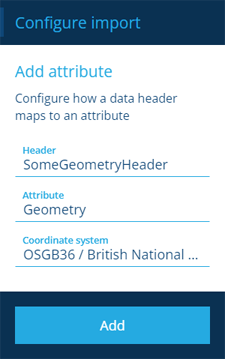
To remove an association from the list, select its button. Select **Done** to choose the next step.
[](/img/gateway/custom-config-02.png)
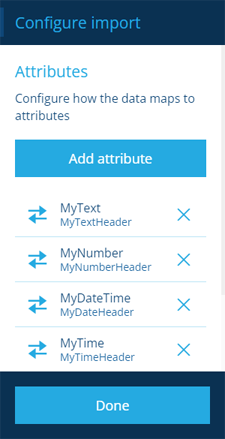
#### 3 Geometry[](#-3--geometry "Direct link to -3--geometry")
This is an optional step. It lets you specify the format of the geometry values that will be applied to the standard **Geometry** attribute of the imported items.
X1, Y1
If your file contains Point geometry values split across two columns, select the **Type** field and choose *X1, Y1*. The following fields will appear:
* **X1** - choose the column header in your file with the X coordinate values.
* **Y1** - choose the column header in your file with the Y coordinate values.
- **Coordinate System** - specify the system used by the geometry. Either populate the field with a custom [proj-string](https://proj.org/en/latest/usage/quickstart.html) or select and choose one of these:
* *OSGB36 / British National Grid* - [view on epsg.io](https://epsg.io/27700)
* *WGS84 Metres* - [view on epsg.io](https://epsg.io/3857)
* *WGS84 Lat/Lng* (default) - [view on epsg.io](https://epsg.io/4326)
* *NZGD2000 / New Zealand Transverse Mercator* - [view on epsg.io](https://epsg.io/2193)
In CausewayOne Asset Management, all geometry is saved using *WGS84 Lat/Lng*. If your geometry is different, it'll be transformed:
Custom grid shifts
By default, a simple Helmert transformation is used to convert imported geometry to WGS84 Lat/Lng.
To apply a specific transformation instead:
1. [Upload](/web/gateway/attach-files.md) the relevant grid shift file to CausewayOne Asset Management. Supported formats: GSB, LLA, DAT. Max size: 100MB.
2. Populate the **Coordinate System** field as above.
3. Append the string with `+nadgrids=`, where `` is the [Item ID](/web/items/item-id.md) of the uploaded grid shift file.
[](/img/gateway/configure-import-geometry-gridshift.png)

*For example, if your geometry is OSGB36 British National Grid, you may want to supply an OSTN15 grid shift file for the transformation to WGS84 Lat/Lng*.
[](/img/gateway/custom-config-03-point.png)
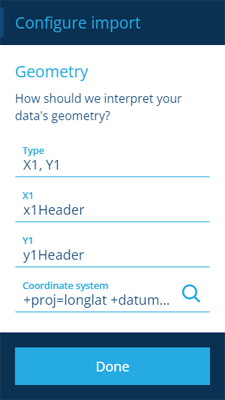
X1, Y1, X2, Y2
If your file contains simple LineString geometry values split across four columns, select the **Type** field and choose *X1, Y1, X2, Y2*. The following fields will appear:
* **X1** - choose the column header in your file with the X coordinate values for the start.
* **Y1** - choose the column header in your file with the Y coordinate values for the start.
* **X2** - choose the column header in your file with the X coordinate values for the end.
* **Y2** - choose the column header in your file with the Y coordinate values for the end.
- **Coordinate System** - specify the system used by the geometry. Either populate the field with a custom [proj-string](https://proj.org/en/latest/usage/quickstart.html) or select and choose one of these:
* *OSGB36 / British National Grid* - [view on epsg.io](https://epsg.io/27700)
* *WGS84 Metres* - [view on epsg.io](https://epsg.io/3857)
* *WGS84 Lat/Lng* (default) - [view on epsg.io](https://epsg.io/4326)
* *NZGD2000 / New Zealand Transverse Mercator* - [view on epsg.io](https://epsg.io/2193)
In CausewayOne Asset Management, all geometry is saved using *WGS84 Lat/Lng*. If your geometry is different, it'll be transformed:
Custom grid shifts
By default, a simple Helmert transformation is used to convert imported geometry to WGS84 Lat/Lng.
To apply a specific transformation instead:
1. [Upload](/web/gateway/attach-files.md) the relevant grid shift file to CausewayOne Asset Management. Supported formats: GSB, LLA, DAT. Max size: 100MB.
2. Populate the **Coordinate System** field as above.
3. Append the string with `+nadgrids=`, where `` is the [Item ID](/web/items/item-id.md) of the uploaded grid shift file.
[](/img/gateway/configure-import-geometry-gridshift.png)

*For example, if your geometry is OSGB36 British National Grid, you may want to supply an OSTN15 grid shift file for the transformation to WGS84 Lat/Lng*.
[](/img/gateway/custom-config-03-line.png)
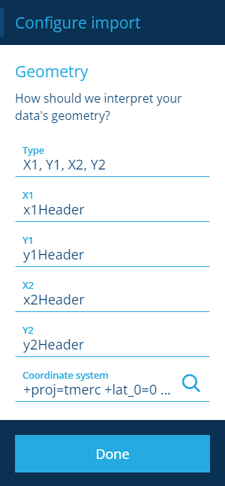
GeoJSON or WKT
If your file contains geometry in either format, select the **Type** field and choose *GeoJSON or WKT*. The following fields will appear:
* **GeoJSON / WKT** - choose the column header in your file with the geometry values.
- **Coordinate System** - specify the system used by the geometry. Either populate the field with a custom [proj-string](https://proj.org/en/latest/usage/quickstart.html) or select and choose one of these:
* *OSGB36 / British National Grid* - [view on epsg.io](https://epsg.io/27700)
* *WGS84 Metres* - [view on epsg.io](https://epsg.io/3857)
* *WGS84 Lat/Lng* (default) - [view on epsg.io](https://epsg.io/4326)
* *NZGD2000 / New Zealand Transverse Mercator* - [view on epsg.io](https://epsg.io/2193)
In CausewayOne Asset Management, all geometry is saved using *WGS84 Lat/Lng*. If your geometry is different, it'll be transformed:
Custom grid shifts
By default, a simple Helmert transformation is used to convert imported geometry to WGS84 Lat/Lng.
To apply a specific transformation instead:
1. [Upload](/web/gateway/attach-files.md) the relevant grid shift file to CausewayOne Asset Management. Supported formats: GSB, LLA, DAT. Max size: 100MB.
2. Populate the **Coordinate System** field as above.
3. Append the string with `+nadgrids=`, where `` is the [Item ID](/web/items/item-id.md) of the uploaded grid shift file.
[](/img/gateway/configure-import-geometry-gridshift.png)

*For example, if your geometry is OSGB36 British National Grid, you may want to supply an OSTN15 grid shift file for the transformation to WGS84 Lat/Lng*.
Select **Done** to choose the next step.
[](/img/gateway/custom-config-03.png)
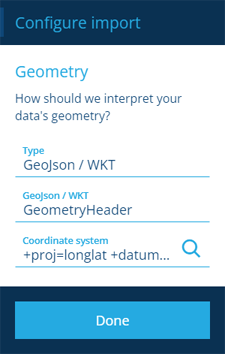
#### 4 Network references[](#-4--network-references "Direct link to -4--network-references")
This is an optional step. To add imported items to an established network, you can define a reference to it here. For each import data row, Gateway will automatically create a **Network References** item that links the imported item to a matching **Networks** item (e.g. *linking imported street lights to a street network*). To learn more, see [Referencing a network](/web/maps/networks/referencing-network.md).
Select **Add reference** and choose a type:
Simple
If your file doesn't contain chainage data, select the **Type** field and choose *Simple*:
* **Network design** \* - choose the design of the network that you want to link imported items to.
* **Reference header** \* - choose the column header in your file containing the matching values for the chosen attribute.
* **Reference attribute** \* - choose the attribute on the network design that serves as a unique identifier for each network item (e.g. *for a street network, this could be the **USRN** of each street*).
[](/img/gateway/custom-config-04-simple.png)
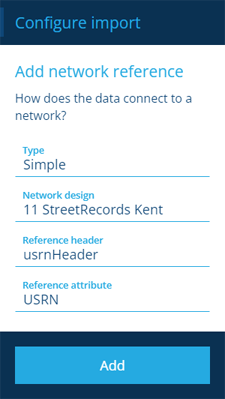
Complex
If your file contains chainage data, select the **Type** field and choose *Complex*:
* **Network design** \* - choose the design of the network that you want to link imported items to.
* **Reference header** \* - choose the column header in your file containing the matching values for the chosen attribute.
* **Reference attribute** \* - choose the attribute on the network design that serves as a unique identifier for each network item (e.g. *for a street network, this could be the **USRN** of each street*).
* **Start chainage header** \* - choose the column header in your file containing these values.
* **End chainage header** \* - choose the column header in your file containing these values.
* **XSP header** - choose the column header in your file containing these values (if supported by your configuration).
[](/img/gateway/custom-config-04-complex.png)
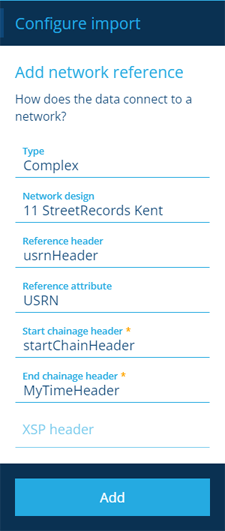
To remove a reference from the list, select its button. Select **Done** to choose the next step.
[](/img/gateway/custom-config-04.png)
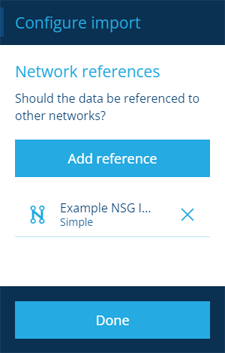
#### 5 Parents[](#-5--parents "Direct link to -5--parents")
This is an optional step. If the imported items are related to existing parent items (e.g. *imported components for parent assets*), you can define their relationship here. For each import data row, parent items can be specified by supplying their Item ID or an attribute value. The imported item will be added to the chosen Link attribute on matching items of the chosen parent design.
Select **Add parent** and fill in the following fields:
* **Parent design or interface** - choose the design of the parent items you want to link from.
* **Attribute to add to** - choose a compatible Link attribute on the parent item.
* **Header to match** - choose the column header in your file that contains the **Match link by** values.
* **Match link by** \* - choose one:
* *Item Id* - choose this if the **Header to match** contains Item ID values. Each imported item will be added to the chosen Link attribute on the corresponding item.
* *Attribute* - choose this if the **Header to match** contains other values. If any compatible items exist that contain the same value in their **Attribute to match**, the imported item will be added to their **Attribute to add to**.
Match link by attribute
In the screenshot, **ParentItemHeader** is a column header that contains number values. For each import data row, one or more items of **My Parent Design** will be considered parents if they contain a matching value in their **Unit Number** attribute. The imported item will be added to the **Linked Items** attribute on those parent items.
[](/img/gateway/custom-config-05-parent.png)
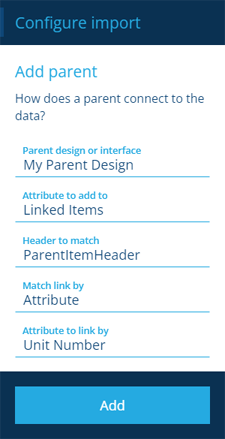
To remove a parent from the list, select its button. Select **Done** to continue.
[](/img/gateway/custom-config-05.png)
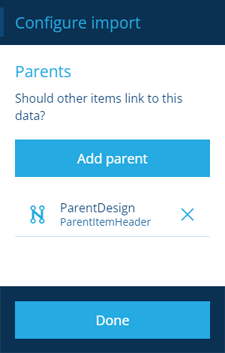
### Validate the import[](#validate-the-import "Direct link to Validate the import")
After completing the relevant steps, select **Validate** to save your configuration.
[](/img/gateway/import-configure_02.png)
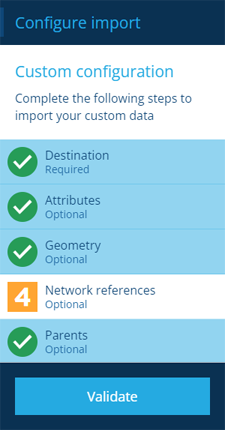
Gateway will silently perform a test run of the import, to verify that all data values can be applied to your chosen destinations. A notification appears when validation has finished. Select it to refresh the import's details.
[](/img/gateway/custom-notification.png)
The import item now displays the number of data rows that were **Successful** and how many had issues.
If no **Errors** were detected, the validation was successful! You can proceed to [commit](/web/gateway/importing-data/committing-import.md) the import when you're ready. While it's typically fine to proceed in spite of **Warnings**, we recommend checking the committed data afterwards, to make sure it's been saved as expected.
Otherwise, [reconfigure the import](/web/gateway/reconfiguring-import.md) and try again! You can download the test results to help troubleshoot any errors/warnings.
[](/img/gateway/custom-config-validated.png)
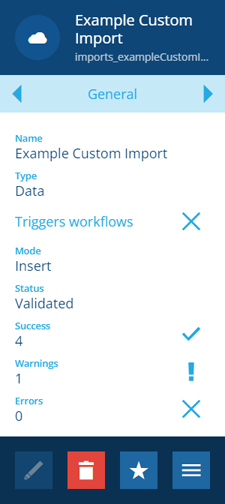
---
# Creating an import
### Specify the files you want to import[](#specify-the-files-you-want-to-import "Direct link to Specify the files you want to import")
Once you've [uploaded](/web/gateway/attach-files.md) your data file(s) to CausewayOne Asset Management, you can create an import item. This lets you specify the file(s) to be imported and performs an initial validation of their contents:
1. Select the **Gateway** [dashboard card](/web/getting-started/dashboard.md) and then **Create import**.
2. Choose the **Custom** option for all imports other than NSG or NLPG data.
3. Fill in the following fields:
* **Name** \* - provide a distinct name that clearly identifies the import.
* **Files** \* - select the uploaded data file(s) you want to import.
* **Triggers workflows** - disable this to prevent the create/edit actions of the import from triggering any [event workflows](/web/workflows.md).
* **Send email notifications** - if enabled, you will be notified by email when the status of the import changes to *Initialised, Validated, Processed* or *Failed*.
[](/img/gateway/custom-create-01.png)
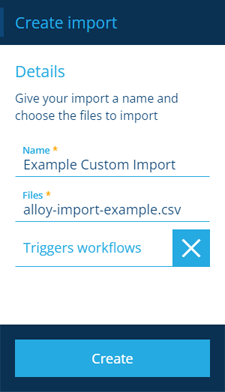
4. Select **Create** to finish. Your new import item will appear in the right panel, with its **Status** set to *Initialising*.
[](/img/gateway/custom-create-02.png)
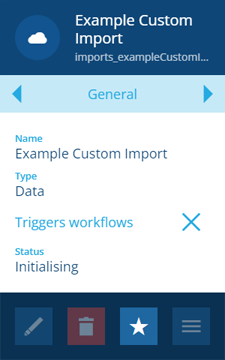
A notification appears when initialisation has finished. Select it to refresh the import's details.
[](/img/gateway/custom-notification.png)

### Initialisation errors[](#initialisation-errors "Direct link to Initialisation errors")
If the initial data import fails, the import item will display a red error box.
[](/img/gateway/import-fail.png)
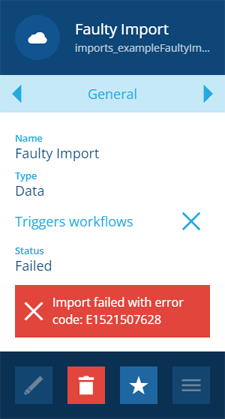
Select the red box to see the error message. Correct the errors in your file(s) before reuploading them and start again.
[](/img/gateway/import-fail-error-message.png)
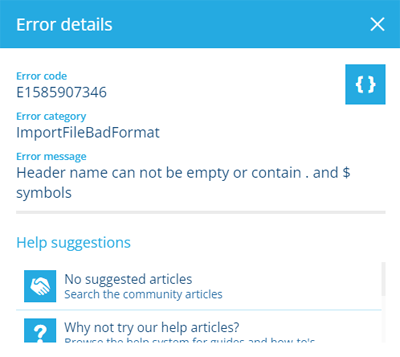
---
# Formatting a CSV for import
### Prepare your data\
To ensure your import data is correctly interpreted and processed, check that your CSV file is formatted correctly before uploading it.
The data can be spread across multiple CSV files if necessary, which can all be selected for a single import. Their combined data will be used to create, update, or replace items of the destination design.
### Headers[](#headers "Direct link to Headers")
The first row in a CSV file is the **header row**. Like the top row of a table, each value acts as a title for its respective column. There should be a column, and therefore a header value, for each of the attributes you want to import.
| AttributeHeader1 | AttributeHeader2 | AttributeHeader3 | AttributeHeader4 |
| ---------------- | ---------------- | ---------------- | ---------------- |
| - | - | - | - |
| - | - | - | - |
| - | - | - | - |
Where possible, the header values should match the attribute names on the destination design. This increases the likelihood of the headers in your CSV file being automatically associated with the correct attributes on the design.
For attributes with similar names, you can use their unique attribute code instead:
```
attributes_myDesignMyAttribute_668ff0552a2b558794880c28
```
### Attribute values[](#attribute-values "Direct link to Attribute values")
The data values in each column will be used to populate the corresponding attribute on items of the destination design. Therefore, make sure those values are valid for that attribute and meet any of its configured constraints.
*For example, a [Date attribute](/web/designer/attributes/types/date-attribute.md) won't accept a date and time value. A [Text attribute](/web/designer/attributes/types/text-attribute.md) may only accept text under a certain length. A [Number attribute](/web/designer/attributes/types/number-attribute.md) may only accept numbers within a min/max range or with two decimal places*.
#### Required attributes[](#required-attributes "Direct link to Required attributes")
If an attribute has its **Required** property enabled, it must have a value. Therefore, make sure each row in the CSV file contains a value in that attribute's column. If this isn't the case, you can [edit the attribute](/web/designer/attributes/editing-design-attributes.md) and set a **Default Value** that it can fall back to.
#### Optional attributes[](#optional-attributes "Direct link to Optional attributes")
If an attribute isn't required, it's fine for rows to not contain a value in that attribute's column. If a row lacks a value, and the attribute doesn't have a **Default Value** set, the attribute will be empty on the corresponding item.
#### Dates and Times[](#dates-and-times "Direct link to Dates and Times")
Gateway only accepts date and time values written in [ISO-8601](https://en.wikipedia.org/wiki/ISO_8601) format. This means:
* [Date attributes](/web/designer/attributes/types/date-attribute.md) must be written as `yyyy-mm-dd`
* [Date and Time attributes](/web/designer/attributes/types/date-time-attribute.md) must be written as `yyyy-mm-ddThh:mm:ss.sss`
* [Time attributes](/web/designer/attributes/types/time-attribute.md) must be written as `hh:mm:ss` or `hh:mm:ss.sss`
* [Seasonal attributes](/web/designer/attributes/types/seasonal-attribute.md) must be written as `mm/dd`
#### Geometry[](#geometry "Direct link to Geometry")
A geometry value can be supplied in three formats. Make sure it only contains geometry types that are [allowed](/web/designer/editing-design-general-details.md) by the destination design (or by a custom [geometry attribute](/web/designer/attributes/types/geometry-attribute.md)).
X1, Y1
Supply Point geometry by splitting its coordinate values into two columns.
| x1 | y1 |
| --------- | --------- |
| -3.642011 | 50.901943 |
X1, Y1, X2, Y2
Supply simple LineString geometry by splitting the start (X1, Y1) and end (X2, Y2) coordinate values into four columns.
| x1 | y1 | x2 | x2 |
| --------- | --------- | ---------- | --------- |
| -0.496304 | 52.653144 | -0.493272, | 52.651342 |
GeoJSON or WKT
Supply complex geometry values in [GeoJSON](https://en.wikipedia.org/wiki/GeoJSON) or [WKT](https://en.wikipedia.org/wiki/Well-known_text_representation_of_geometry) format. The code must be written as a single line.
GeoJSON
```
{"type":"Polygon","coordinates":[[[-0.496427,52.651486],[-0.495687,52.651675],[-0.495486,52.651392],[-0.49622,52.651197],[-0.496427,52.651486]]]}
```
WKT
```
POLYGON ((-0.496427 52.651486, -0.495687 52.651675, -0.495486 52.651392, -0.49622 52.651197, -0.496427 52.651486))
```
#### Links[](#links "Direct link to Links")
[Link attributes](/web/designer/attributes/types/link-attribute.md) store references to items, so make sure the values in the relevant header column are [Item IDs](/web/items/item-id.md). If a Link attribute supports multiple items, a value can include multiple Item IDs separated by a `|` symbol:
```
617685a3b0b6f4dda85d0b5a|617685a3b0b6f4dda85d0b5b|617685a3b0b6f4dda85d0b5e
```
Alternatively, you can populate a Link attribute with compatible items according to the value they hold in a specific attribute. When you [configure the import](/web/gateway/importing-data/configuring-import.md#-5--parents), you can specify the **Attribute to match** in the 2 **Attributes** step of the process.
### Parent links[](#parent-links "Direct link to Parent links")
If an imported item needs linking to an existing parent item (e.g. *a [component](/web/assets/asset-components.md) for a parent asset*), include the parent's Item ID in the corresponding row of a separate column in the CSV file. Alternatively, you can match an imported item to one or more parents, according to the value they hold in a specific attribute.
When you [configure the import](/web/gateway/importing-data/configuring-import.md#-5--parents), you can select this column in the 5 **Parents** step of the process and set **Match link by** to *Item id* or *Attribute*.
### Update specific items[](#update-specific-items "Direct link to Update specific items")
To apply a row of import data to a specific existing item, include its Item ID in a separate column in the CSV file. When you [configure the import](/web/gateway/importing-data/configuring-import.md#-5--parents), you can select this column in the 1 **Destination** step of the process (if **Mode** is set to *Update* or *Merge*).
### Example CSV[](#example-csv "Direct link to Example CSV")
Click below to download a basic example CSV file. It contains a column for each attribute type, plus columns for storing parent IDs and Item IDs as described above. Geometry values are in GeoJSON format. The file demonstrates how data should be formatted.
While it can be used as is, the IDs will need replacing as they don't exist on your company project! We recommend creating a practise design containing the relevant attributes, so you can easily [bulk delete](/web/data-explorer/bulk-action-function.md) imported items when you're done.
[Download example](/assets/files/alloy-import-example-781d4dad9b33f306c89cd2c88cf6724b.csv)
---
# Importing NSG and NLPG files
### How to import Gazetter data[](#how-to-import-gazetter-data "Direct link to How to import Gazetter data")
NSG files contain street data. NLPG files contain land and premises data. When imported into CausewayOne Asset Management, the data is used to generate a [network](/web/maps/networks/.md), providing a visual representation of the data for you to work with.
The following sections explain the five stages of performing a complete import.
### Upload files[](#upload-files "Direct link to Upload files")
First, [upload](/web/gateway/attach-files.md) your data files to CausewayOne Asset Management. To do this quickly, drag them onto the web browser window and release over the drop zone that appears.
* NSG data is stored across two CSV files labelled **LG** and **AD** respectively. Both are required for importing into CausewayOne Asset Management.
* NLPG data can be stored in one or more CSV files. Files labelled **Patch** are incremental and can only build upon existing data. NLPG data is supplementary to NSG data, so it can only be imported if corresponding NSG data already exists in your company project.
### Create the import[](#create-the-import "Direct link to Create the import")
Next, create an import item and specify the file(s) to be imported:
1. Select the **Gateway** [dashboard card](/web/getting-started/dashboard.md) and then **Create import**.
2. Choose **NSG** or **NLPG**. If either isn't shown, the relevant [module](/basics/fundamentals/modules.md) needs enabling for your company project. Please contact your administrator or [Causeway Support](https://www.causeway.com/support).
3. Fill in the following fields:
* **Name** \* - provide a distinct name that clearly identifies the import.
* **Files** \* - select the uploaded data file(s) you want to import.
* **Triggers workflows** - disable this to prevent the create/edit actions of the import from triggering any [event workflows](/web/workflows.md).
* **Send email notifications** - if enabled, you will be notified by email when the status of the import changes to *Initialised, Validated, Processed* or *Failed*.
[](/img/gateway/import-create_01.png)
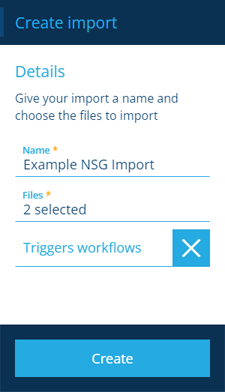
4. Select **Create** to finish. Your new import item will appear in the right panel, with its **Status** set to *Initialising*.
[](/img/gateway/import-create-nsg-01.png)
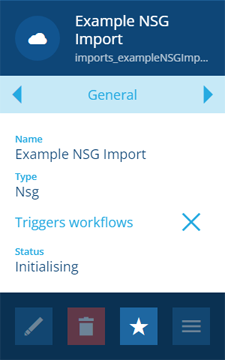
A notification appears when initialisation has finished. Select it to refresh the import's details.
[](/img/gateway/import-create-nsg-02.png)
### Configure the import[](#configure-the-import "Direct link to Configure the import")
When the **Status** of your import item is *Initialised*, you can configure it:
1. Select the import to view its details in the right panel. Select **More** in the [action bar](/web/getting-started/action-bar.md) and choose **Configure**.
[](/img/gateway/import-config-nsg-01.png)
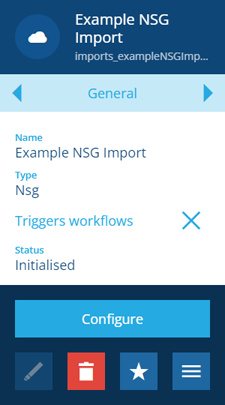
2. In the dashboard panel, select 1 **Destination** (all other steps are configured automatically).
[](/img/gateway/import-config-nsg-02.png)
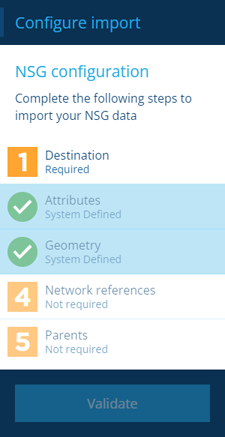
3. Fill in the following fields and then select **Done** to finish:
* **Design** \* - choose the NSG/NLPG design that you wish to update or replace the data on. Alternatively, for NSG imports only, you can choose to create a new NSG design instead. Leave this blank and set **Mode** to *Replace*.
* **Collection** \* - choose the [collection](/web/items/item-collections.md) that the created/edited items will belong to.
* **Mode** \* - choose one:
* *Update* - existing items will be updated with imported values. New items will be created for new import data rows.
* *Replace* - all existing items will be deleted. New items will be created for all import data rows.
Important
*Replace* mode will **delete all items** of the chosen design and collection - including network references - before creating the new items. This is **irreversible**, so please double-check that you want to do this! We recommend contacting [Support](https://www.causeway.com/support) for advice before using this mode.
[](/img/gateway/import-config-nsg-03.png)
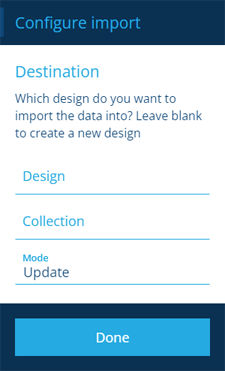
4. If you're importing NLPG data, there's an extra step to complete. Select 6 **NSG to reference** and then choose the existing NSG design that your NLPG data relates to.
[](/img/gateway/import-config-nsg-05.png)
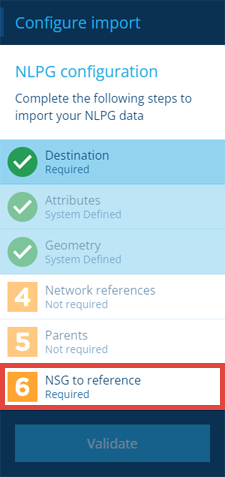
### Validate the import[](#validate-the-import "Direct link to Validate the import")
5. To finish configuring your import, select **Validate** at the bottom of the dashboard panel.
[](/img/gateway/import-config-nsg-04.png)
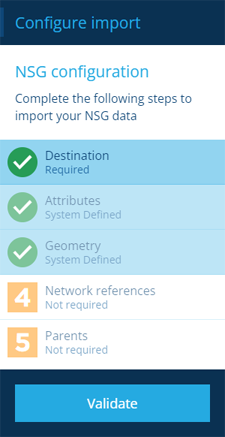
A notification appears when validation has finished. Select it to refresh the import's details.
[](/img/gateway/import-create-nsg-02.png)

If the validation produced any **Errors**, you can study the log file for more detail and try again. See [Reconfiguring an import](/web/gateway/reconfiguring-import.md).
Otherwise, you can proceed to commit the import (even if there are **Warnings**).
[](/img/gateway/import-validate-nsg-01.png)
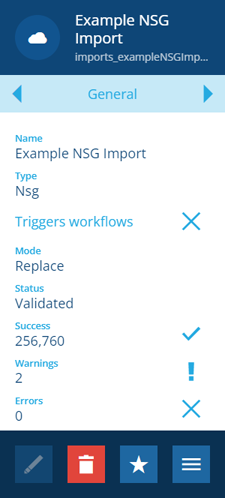
### Commit the import[](#commit-the-import "Direct link to Commit the import")
Once the import has been configured and validated, you can commit the data changes to CausewayOne Asset Management. Select the import to view its details in the right panel. Select **More** in the [action bar](/web/getting-started/action-bar.md) and choose **Commit**.
A notification appears when the commit has finished. Select it to refresh the import's details.
[](/img/gateway/import-create-nsg-02.png)

---
# Importing shapefiles
### How to import a set of shapefiles[](#how-to-import-a-set-of-shapefiles "Direct link to How to import a set of shapefiles")
Shapefile is a geospatial vector data format used in geographic information system (GIS) software. It can define points, lines and polygons to spatially describe features, e.g. *water wells, rivers, lakes*. Features can also have data attributes that provide extra information about them.
The following sections explain the four stages of performing a complete shapefile import.
### Upload shapefiles[](#upload-shapefiles "Direct link to Upload shapefiles")
First, [upload](/web/gateway/attach-files.md) your data files to CausewayOne Asset Management. To do this quickly, drag them onto the web browser window and release over the drop zone that appears.
Shapefile data is spread across multiple file types, some of which are optional. The following file types are required for import:
* `.shp` — the main shape file, which stores the feature geometry itself.
* `.shx` — the shape index file, which stores the positional index of the feature geometry.
* `.dbf` — the dBASE table file, which stores attribute data columns for each shape.
There is a one-to-one relationship between feature geometry and attributes, which is based on record number. Attribute records in the dBASE file must therefore be in the same order as records in the main shape file.
### Create a shapefile import[](#create-a-shapefile-import "Direct link to Create a shapefile import")
Next, create an import item and specify the file(s) to be imported:
1. Select the **Gateway** [dashboard card](/web/getting-started/dashboard.md) and then **Create import**.
2. Choose the **Custom** import type.
3. Fill in the following fields:
* **Name** \* - provide a distinct name that clearly identifies the import.
* **Files** \* - select all three of your uploaded shapefiles.
* **Triggers workflows** - disable this to prevent the create/edit actions of the import from triggering any [event workflows](/web/workflows.md).
* **Send email notifications** - if enabled, you will be notified by email when the status of the import changes to *Initialised, Validated, Processed* or *Failed*.
[](/img/gateway/import-shapfile-02.png)
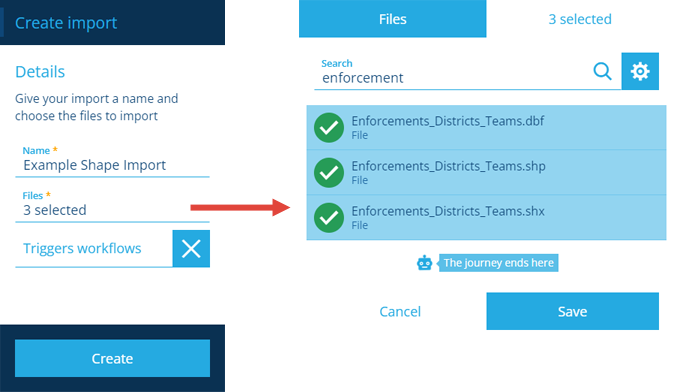
4. Select **Create** to finish. Your new import item will appear in the right panel, with its **Status** set to *Initialising*. A notification appears when initialisation has finished. Select it to refresh the import's details.
[](/img/gateway/import-shapfile-02a.png)
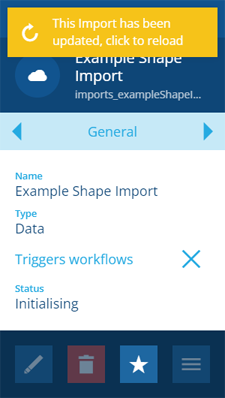
### Configure the import[](#configure-the-import "Direct link to Configure the import")
Once the new import item's **Status** has changed to *Initialised*, you can configure it the same way as any other import. The 4 **Network references** and 5 **Parents** steps aren't usually required to configure a shapefile import.
To learn more, see [Configuring an import](/web/gateway/importing-data/configuring-import.md).
[](/img/gateway/import-shapfile-03.png)
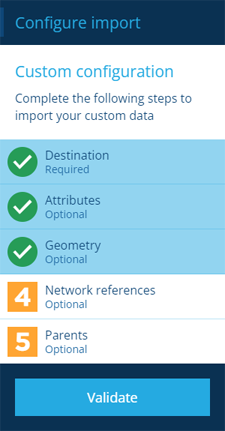
### Commit the import[](#commit-the-import "Direct link to Commit the import")
Once the import item's **Status** as been configured and successfully validated without any errors, you can [commit](/web/gateway/importing-data/committing-import.md) its data to your company project.
To visualise the imported items' geometry on the map, you can create a new [layer](/web/maps/layers/.md). When configuring the layer's style, make sure that its **Active visualisation** is set to *Basic* to view the shapes correctly.
[](/img/gateway/view-import-items.png)
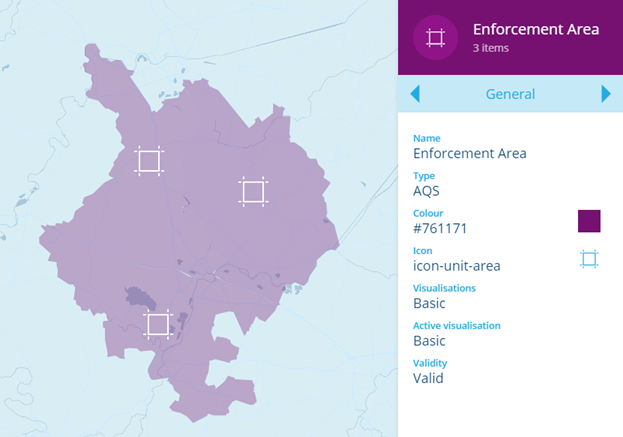
---
# Reconfiguring an import
### Edit an import and fix any errors[](#edit-an-import-and-fix-any-errors "Direct link to Edit an import and fix any errors")
Once an import has been [configured](/web/gateway/importing-data/configuring-import.md), it can be reconfigured as much as you like before [committing](/web/gateway/importing-data/committing-import.md) its data.
If an import fails its validation with any detected errors, it must be reconfigured and revalidated. If any warnings were detected, the data can probably be committed, but may not be interpreted as expected. Therefore, we recommend downloading the test results and checking the details of each warning just in case!
### Download the results[](#download-the-results "Direct link to Download the results")
When an import is validated, it generates log files containing detailed information about any detected errors/warnings.
To download the test results:
1. Open the **Gateway** [dashboard card](/web/getting-started/dashboard.md), choose **Imports**, then select the import item in the [Search panel](/web/search.md) on the right.
2. Select **More** in the [action bar](/web/getting-started/action-bar.md) and choose **Download Results**. Your web browser will download a zip file containing one or more CSV files.
3. Extract the contents of the downloaded zip file and open the CSV file(s) in a spreadsheet application.
[](/img/gateway/import-download-file.png)

### Reconfigure an import[](#reconfigure-an-import "Direct link to Reconfigure an import")
To reconfigure an import item:
1. Open the **Gateway** [dashboard card](/web/getting-started/dashboard.md), choose **Imports**, then select the import item in the [Search panel](/web/search.md) on the right.
2. Select **More** in the [action bar](/web/getting-started/action-bar.md) and choose **Reconfigure**.
3. In the dashboard panel, the clone import process will appear.
NSG or NLPG imports
Select each step to view its current configuration values and edit them as needed. Remember, you can only configure the 1 **Destination** step of NSG imports, plus the 6 **NSG to reference** step of NLPG imports.
For full details, see [Importing NSG and NLPG files](/web/gateway/importing-nsg-nlpg-files.md).
[](/img/gateway/import-config-nsg-04.png)

Other imports
Select each step to view its current configuration values and edit them as needed. For full details, see [Configuring an import](/web/gateway/importing-data/configuring-import.md).
[](/img/gateway/import-configure_02.png)

4. Select **Validate** to finish. Once the import's **Status** changes to *Validated*, it can be reconfigured again if necessary, or [committed](/web/gateway/importing-data/committing-import.md) to your company project.
---
# Action bar
### Perform actions in the right panel[](#perform-actions-in-the-right-panel "Direct link to Perform actions in the right panel")
The **action bar** appears at the bottom of the right panel, when viewing the details of an object (e.g. [*item*](/basics/fundamentals/items.md), [*design*](/basics/fundamentals/designs.md), [*interface*](/basics/fundamentals/interfaces.md), [*layer*](/basics/fundamentals/layers.md), [*workflow*](/basics/fundamentals/workflows.md)) or selecting the upper icons in the [right panel menu](/web/getting-started/right-panel-menu.md).
It provides context-sensitive actions for you to perform.
[](/img/actionbar/action_bar-basic.png)

### Common actions[](#common-actions "Direct link to Common actions")
When viewing the details of an object, the action bar provides the following actions.
| Icon | Action | Description | Learn more |
| ---- | -------------------------- | --------------------------------------------------------------------------------------------------------- | -------------------------------------------------------------------------------------------------------------------------------------------- |
| | **Edit** | Modify the details of the current object | [Editing items](/web/items/editing-items/.md) [Editing designs or interfaces](/web/designer/editing-designs.md) |
| | **Archive** (items only) | Exclude the current item from live operations by moving it into the *Archive* collection | [Archiving items](/web/items/removing-items/archiving-items.md) |
| | **Unarchive** (items only) | Replaces the **Edit** action if the current item is already archived, so you can unarchive it | [Unarchiving items](/web/items/removing-items/unarchive-items.md) |
| | **Delete** | Permanently discard the current object (you may need to **Archive** it first) | [Deleting items](/web/items/removing-items/deleting-items.md) [Deleting designs or interfaces](/web/designer/deleting-designs.md) |
| | **Favourite** | Add the current object to your favourites. Select to remove the object from your favourites | [Favourites](/web/getting-started/right-panel-menu/favourites.md) |
| | **More** | Display more actions relating to the current object, e.g. *Create item*, *Clone item*, *Trigger workflow* | |
When using the right panel menu, the action bar may provide a single context-sensitive action. For example, the following action is only displayed in the [**Basemaps**](/web/maps/basemaps/.md) panel.
[](/img/actionbar/action_bar-basemap.png)
### Action availability[](#action-availability "Direct link to Action availability")
If an action appears dimmed, it's unavailable. This can happen when:
* the action isn't relevant to the current object
* you lack the [permissions](/web/permissions.md) required to perform the action
* the object is [locked](/web/items/editing-items/locking-items.md) to prevent editing
[](/img/actionbar/action_bar-basic-favouritesonly.png)
info
In some circumstances, there are no actions for the action bar to display.
---
# Choose a customer project
### Open the company dataset of your choice[](#open-the-company-dataset-of-your-choice "Direct link to Open the company dataset of your choice")
In Asset Classic, a **customer project** represents a self-contained database that stores all your items, designs, layers and other Asset Management data. Your user account can belong to multiple customer projects.
In CausewayOne, each company has its own customer project. If you use the Company Switch in the CausewayOne header, the active customer project in Asset Classic changes accordingly.
info
Not to be confused with [Projects](/web/activities/projects/.md), which provide a way to manage groups of tasks.
### Standalone access[](#standalone-access "Direct link to Standalone access")
If you have [standalone access](/web/getting-started/standalone.md) and belong to multiple customer projects, you will be asked to choose one after logging in.
[](/img/workspace/workspace-logging-in_03.png)
To switch to another customer project during a standalone session:
1. Select your initials in the bottom-right corner to view your profile details.
2. Select **More** in the action bar and choose **Switch project**.
---
# Dashboard
### Learn about the dashboard[](#learn-about-the-dashboard "Direct link to Learn about the dashboard")
The **dashboard** panel appears on the left. It displays a vertical list of alphabetical cards that represent various Asset Management features.
Each card displays statistics about the feature it represents, helping you to track the performance of that feature at a glance.
[](/img/workspace/workspace-dashboard.png)
### Expand a card[](#expand-a-card "Direct link to Expand a card")
Select a card to expand it and view its contents. To return to the dashboard, select **Home**.
[](/img/workspace/workspace-dashboard-expand-card.png)
#### 1 Queries[](#-1--queries "Direct link to -1--queries")
A card can display one or more statistical queries, which count how many [items](/basics/fundamentals/items.md) of a particular design/interface currently fulfil a set of criteria.
Selecting a query will load its items in the [Data Explorer](/web/data-explorer.md), where you can see their attribute data and perform [bulk actions](/web/data-explorer/bulk-action-function.md) on them if desired.
#### 2 Processes[](#-2--processes "Direct link to -2--processes")
The purple buttons represent processes that you can follow. Typically, these are to create whatever type of object is relevant to the card (e.g. *an item, a design/interface, a workflow*).
Following a process will lead you through several numbered steps within the dashboard. For example, the **Create defect** process within the **Activities** card is illustrated below.
[](/img/workspace/sequence.png)
info
To move backwards in a process, select **Back** above the dashboard panel (rather than your web browser's **Back** button).
#### 3 Search shortcuts[](#-3--search-shortcuts "Direct link to -3--search-shortcuts")
Beneath the purple buttons are the designs, interfaces and other objects related to the card. Select one of these to display a searchable list of them in the right panel.
[](/img/workspace/workspace-dashboard-item-lists.png)
### Custom cards[](#custom-cards "Direct link to Custom cards")
To customise the appearance of existing cards and even create your own, see [Dashboard Cards](/web/dash-cards.md#customisation).
---
# Sign in
### How to access the classic workspace[](#how-to-access-the-classic-workspace "Direct link to How to access the classic workspace")
To open the classic workspace in CausewayOne Asset Management:
1. [Sign in](/apps/home/sign-in.md) to CausewayOne.
2. If necessary, use the Company Switch in the CausewayOne header.
3. Select **Asset Management** in the CausewayOne sidebar.
4. Select **Asset Classic** in the left panel or the [Overview](/apps/home/app-overview.md) page.
The classic workspace will load in the app area.
[](/img-cw1/classic/classic-causewayone.png)
info
If your Alloy account hasn't been migrated to CausewayOne, you still have [standalone access](/web/getting-started/standalone.md).
---
# Right panel menu
### Access different panels and tools[](#access-different-panels-and-tools "Direct link to Access different panels and tools")
The **right panel menu** is always visible along the right edge of the Asset Classic workspace. Use it to search and visualise the data in your [company project](/web/getting-started/choosing-project.md) and access useful tools.
#### Upper section[](#upper-section "Direct link to Upper section")
The upper section of the right panel menu provides Asset Management features. Select a feature to open it in the right panel.
| Icon | Name | Description | Learn more |
| ---- | -------------- | ---------------------------------------------------------------------------------------------------------------------- | ----------------------------------------------------------------------------------------------------------- |
| | **Search** | Choose a category and enter keywords to search the data in your company project | [Search](/web/getting-started/right-panel-menu/alloy-search.md) |
| | **Favourites** | Quick access to your personal list of objects | [Favourites](/web/getting-started/right-panel-menu/favourites.md) |
| | **Layers** | Visualise assets, [activities](/basics/fundamentals/activities.md) and other items on the map with customisable layers | [Layers](/web/maps/layers/.md) |
| | **Networks** | Create connected asset networks that other assets can reference, e.g. *a road network* | [Networks](/web/maps/networks/.md) |
| | **Basemaps** | Change the background imagery of the map | [Basemaps](/web/maps/basemaps/.md) |
| | **Latest** | Show or hide the Details panel for the currently selected object | [Viewing items](/web/items/viewing-items.md) [Viewing designs](/web/designer/viewing-designs.md) |
#### Lower section[](#lower-section "Direct link to Lower section")
The lower section of the right panel menu provides links to fullscreen tools and external resources.
| Icon | Name | Description | Learn More |
| ---- | ----------------- | ------------------------------------------------------------------------------------------------------- | ----------------------------------------------------------------------- |
| | **Data Explorer** | View items and their attributes as a data table and perform bulk actions | [Data Explorer](/web/data-explorer.md) |
| | **File Explorer** | Manage the files your company has uploaded to Asset Management | [File Explorer](/web/getting-started/right-panel-menu/file-explorer.md) |
| | | The following buttons are only available in a [standalone](/web/getting-started/standalone.md) session: | |
| | **Notifications** | Stay informed about recent updates to Asset Management | [Asset Announcements](https://announcements.alloyapp.io) |
| | **Help** | Learn how to use Asset Management effectively | [Asset Help](https://help.alloyapp.io) |
| BT | **User profile** | Switch company projects, change your password and log out | [User profile](/web/getting-started/user-profile.md) |
---
# Search
### Search your asset management data[](#search-your-asset-management-data "Direct link to Search your asset management data")
CausewayOne Asset Management provides a powerful search feature to help you find the data you're looking for. You can search for any type of object (e.g. [*items*](/basics/fundamentals/items.md), [*designs*](/basics/fundamentals/designs.md), [*interfaces*](/basics/fundamentals/interfaces.md), [*workflows*](/basics/fundamentals/workflows.md)) within the current [company project](/web/getting-started/choosing-project.md).
After choosing a category and typing a search term, every attribute of every object in that category will be searched. This lets you search for objects based on data that isn't necessarily visible in their title/subtitle. We call this Global Attribute Search (GAS).
info
Items won't appear in search results if you don't have [permission](/web/permissions.md) to view them.
### How to search[](#how-to-search "Direct link to How to search")
1. Select **Search** in the [right panel menu](/web/getting-started/right-panel-menu.md) to open the Search panel.
2. If necessary, select to clear the previous search.
3. Choose a search context:
Select a suggested category
When the search box is empty, a list of suggested feature categories is displayed (which can be [customised](/web/search/configure-suggestions.md)). Select one to continue.
info
**Locations** is a special category that lets you search for any address or landmark and locate it on the map. To learn more, see [Location search](/web/search/location-search.md).
[](/img/search/search-panel.png)
Select a design/interface to search within
To search for items of a particular design or interface, start typing any part of its name and select it when it appears.
info
If you select an interface, you can search the items of all designs that [implement](/web/designer/managing-interfaces.md) it. However, only their interface attributes will be searched.
*For example, searching the **Defects** interface will search the items of all your defect designs. It will include item attributes inherited from the interface (e.g. **Reported Date**) but exclude item attributes defined by a design (e.g. the **BS5837 Category** attribute in your **Tree Defects** design).*
[](/img/search/how-search-03.png)
4. The results of your chosen search context are listed. To filter the list, enter one or more keywords in the search box and press Enter. You can search for text, numbers, dates or times. All results containing full or partial matches will be listed. For more detail, see [Flexible search terms](/web/search.md#flexible-search-terms).
[](/img/search/how-search-05.png)
5. Select a result to open it and view its details.
6. To return to the search results, select **Search** again, or use your web browser's back button. The results will be unchanged, so bear in mind they could be outdated (e.g. *an item may have been deleted*). To refresh the results, select the search box and press Enter.
info
Want to view items in more detail? Select [**Data Explorer**](/web/data-explorer.md) at the top of the search results.
### Recently viewed[](#recently-viewed "Direct link to Recently viewed")
By default, the Search panel shows your 20 most recently viewed objects.
If they're covered by the suggestions popover, press the Esc key to dismiss it (or select an empty area of the right panel menu).
[](/img/search/search-recents.gif)
---
# Favourites
### Quickly access favourite objects[](#quickly-access-favourite-objects "Direct link to Quickly access favourite objects")
You can add frequently used objects to your favourites for quick and easy access, e.g. [*items*](/basics/fundamentals/items.md), [*designs*](/basics/fundamentals/designs.md), [*interfaces*](/basics/fundamentals/interfaces.md), [*workflows*](/basics/fundamentals/workflows.md).
To open the Favourites panel, select **Favourites** in the [right panel menu](/web/getting-started/right-panel-menu.md). You can then select an object to view its details.
[](/img/favourites/favourites-basic.png)
### Add to favourites[](#add-to-favourites "Direct link to Add to favourites")
When viewing an object's details in the right panel, select **Favourite** in the [action bar](/web/getting-started/action-bar.md) to add it to your favourites. If the star icon is filled, the object is already in your favourites.
[](/img/favourites/favourites-item.png)
### Remove from favourites[](#remove-from-favourites "Direct link to Remove from favourites")
When viewing an object's details in the right panel, select **Favourite** in the [action bar](/web/getting-started/action-bar.md) to remove it from your favourites.
Alternatively, select **Favourites** in the [right panel menu](/web/getting-started/right-panel-menu.md) and select **Remove** beside an object.
---
# File Explorer
### Manage uploaded files[](#manage-uploaded-files "Direct link to Manage uploaded files")
Your CausewayOne Asset Management subscription includes online file storage! You can [upload](/web/gateway/attach-files.md) most types of files, including images that you can [attach to items](/web/items/item-attachments.md) to record their condition. For security purposes, we block the same file extensions as [Microsoft Outlook](https://support.microsoft.com/office/blocked-attachments-in-outlook-434752e1-02d3-4e90-9124-8b81e49a8519).
The **File Explorer** is a tool for managing all files that have been uploaded to your [company project](/web/getting-started/choosing-project.md).
info
If you're unable to view or manage files, your user account may lack the required [permissions](/web/permissions.md).
### Open the File Explorer[](#open-the-file-explorer "Direct link to Open the File Explorer")
To manage your files, select **File Explorer** in the [right panel menu](/web/getting-started/right-panel-menu.md).
Each user has their own folder. The **Uploads** folder displays the progress of recent file uploads. You only see folders you have permission to access.
Select a folder to view its contents. As you open folders inside folders, the path you take is displayed along the top. Select a previous folder to go back to it. Select **Home** to return to the start.
[](/img/explorer/file-explorer-folder.png)
#### Folder actions[](#folder-actions "Direct link to Folder actions")
To perform an action, select **Menu** in the bottom-right corner:
* **Create folder** - create a new folder within the current folder.
* **Download folder** - download the current folder contents as a single zip file.
* **Refresh data** - reload the current folder contents.
* **Upload file** - upload one or more files to your user folder.
### Gallery view[](#gallery-view "Direct link to Gallery view")
Select a file to open it in Gallery view. If it's an image (*JPG*, *PNG*, *BMP*, *GIF*), it will be displayed.
Use to cycle through other files in the same folder. To download a file, select the in its bottom-right corner.
[](/img/explorer/gallery-files_01.png)
#### Gallery actions[](#gallery-actions "Direct link to Gallery actions")
To perform an action, select **Menu** in the bottom-right corner:
* **Rotate clockwise** - temporarily rotate the image 90° to the right.
* **Rotate counterclockwise** - temporarily rotate the image 90° to the left.
### Move a file[](#move-a-file "Direct link to Move a file")
To move a file to another folder:
1. Select the file to view its details in the right panel.
2. Select **More** in the [action bar](/web/getting-started/action-bar.md) and choose **Move**.
3. Choose the destination folder.
info
You can only move files between folders that you have permission to access.
### Download a file[](#download-a-file "Direct link to Download a file")
To download a file to your device:
1. Select the file to view its details in the right panel.
2. Select **More** in the [action bar](/web/getting-started/action-bar.md) and choose **Download**.
3. Your web browser will begin to download the file.
To download the current folder contents in a single zip file, select **Menu** (bottom-right) and choose **Download folder**.
### Search for files[](#search-for-files "Direct link to Search for files")
In addition to browsing the File Explorer, you can [search](/web/getting-started/right-panel-menu/alloy-search.md) for a file:
1. Select **Search** in the [right panel menu](/web/getting-started/right-panel-menu.md).
2. If necessary, select to clear the previous search. Start typing *files* and select the design when it appears.
[](/img/explorer/search-files.png)
3. To filter the list by keyword, enter one or more search terms in the top box and press the **Enter** key.
[](/img/explorer/search-keyword.png)
---
# Selecting field values
### Using specialised pickers[](#using-specialised-pickers "Direct link to Using specialised pickers")
Maintaining assets and tracking activities requires the entering of data!
Therefore, you are often presented with data fields to fill in. Some of these you can type in directly, others require you to select from a set of displayed values.
*For example:*
* *setting the colour and icon of a [new design](/web/designer/creating-designs/.md)*
* *populating an [attribute](/web/designer/attributes/.md) with a date or time*
* *selecting the asset(s) that a new [defect](/web/activities/defects/creating-defects.md), [inspection](/web/activities/tasks/inspections/creating-inspections.md) or [job](/web/activities/tasks/jobs/creating-jobs.md) will apply to*
When you select one of these fields, a specialised picker will appear to help you select the values you want.
## [📄️Colour picker](/web/getting-started/selection/selecting-colours.md)
[Using colour in Asset Classic](/web/getting-started/selection/selecting-colours.md)
## [📄️Calendar picker](/web/getting-started/selection/selecting-dates.md)
[Selecting date and time values](/web/getting-started/selection/selecting-dates.md)
## [📄️Icon picker](/web/getting-started/selection/selecting-icons.md)
[Using icons in Asset Classic](/web/getting-started/selection/selecting-icons.md)
## [📄️Item picker](/web/getting-started/selection/selecting-items.md)
[Selecting items from a list](/web/getting-started/selection/selecting-items.md)
## [📄️Map picker](/web/getting-started/selection/selecting-map.md)
[Selecting items visually](/web/getting-started/selection/selecting-map.md)
---
# Colour picker
### Using colour in Asset Classic[](#using-colour-in-asset-classic "Direct link to Using colour in Asset Classic")
Colour is an important part of the Asset Management experience, as it can help you process information more effectively. Use colour to label and identify the items you create within your company project.
### Using the colour picker[](#using-the-colour-picker "Direct link to Using the colour picker")
When creating a [design](/web/designer/creating-designs/.md) or a [layer style](/web/maps/layers/editing-layers-styles.md), you can set its icon and colour.
Select the **Colour** field to show the colour picker. Scroll through the available colours and choose one that best represents the design or layer style you're creating.
The **Colour** field will be populated with the chosen colour's hexadecimal value and a small sample.
[](/img/getting-started/colour-picker.png)
---
# Calendar picker
### Selecting date and time values[](#selecting-date-and-time-values "Direct link to Selecting date and time values")
The **calendar picker** provides a familiar way to easily enter dates and times into CausewayOne Asset Management. It varies slightly depending on the type of field you're filling in:
* [Date picker](#date-picker)
* [Date and Time picker](#date-and-time-picker)
* [Multi-Date picker](#multi-date-picker)
* [Seasonal picker](#seasonal-picker)
### Date picker[](#date-picker "Direct link to Date picker")
This picker appears when you select a [Date](/web/designer/attributes/types/date-attribute.md) field.
[](/img/getting-started/date-picker.png)
By default, the current month in the current year is shown, with today's date highlighted in grey. Use the arrows in the purple bar to move to the previous/next month.
To change the month or year, select it in the purple bar, and then choose a new value from the list. Use the arrows to move between the available years.
Select the date you want and then select **Save** to finish.
Navigating the Date calendar picker
[](/img/getting-started/calendar-picker-date.png)
### Date and Time picker[](#date-and-time-picker "Direct link to Date and Time picker")
This picker appears when you select a [Date and Time](/web/designer/attributes/types/date-time-attribute.md) field.
[](/img/getting-started/datetime-picker.png)
This works similarly to the Date picker but also requires a time to be set. Select the time in the purple bar and then type within the boxes. Depending on the attribute being set, the **Second** box may not be shown.
[](/img/getting-started/datetime-picker-02.png)
After setting a time and selecting a date, select **Save** to finish.
Navigating the Date and Time calendar picker
[](/img/getting-started/calendar-picker-datetime.png)
### Multi-Date picker[](#multi-date-picker "Direct link to Multi-Date picker")
In some situations, you can enter multiple dates in a single field (e.g. *when creating a [schedule workflow](/web/workflows/creating-workflows/scheduled-workflows.md)*). When you select the field, the **Dates** window appears.
[](/img/getting-started/mulitdate-selection-dialog.png)
You're free to use these buttons multiple times, if you want to add different dates with different times:
* **Add** - select a single date and time, as described above.
* **Add many** - select multiple dates with a single time. To review your selected dates at any point, open the **Selected** tab in the purple bar. When you select **Save**, you'll be asked to set the time if you haven't already.
Select **Save** to finish.
Navigating the Multi-Date calendar picker
[](/img/getting-started/calendar-picker-multidate.png)
### Seasonal picker[](#seasonal-picker "Direct link to Seasonal picker")
This appears when you select a [Seasonal](/web/designer/attributes/types/seasonal-attribute.md) field.
[](/img/getting-started/seasonal-picker.png)
By default, the current month is shown. Use the arrows in the purple bar to move between months. Alternatively, select the month in the purple bar and then choose one from the list.
Select the date that you want to repeat each year and then select **Save** to finish.
Navigating the Seasonal calendar picker
[](/img/getting-started/calendar-picker-seasonal.png)
---
# Icon picker
### Using icons in Asset Classic[](#using-icons-in-asset-classic "Direct link to Using icons in Asset Classic")
Icons are an important part of the Asset Management experience, as they can help you process information more efficiently. Access the included library of icons to label and identify the things you create.
### Using the icon picker[](#using-the-icon-picker "Direct link to Using the icon picker")
When creating a [design](/web/designer/creating-designs/.md) or a [layer style](/web/maps/layers/editing-layers-styles.md), you can set its icon and colour.
Select the **Icon** field to show the icon picker. Scroll through the available icons or use the search box to find one that best represents the design or layer style you're creating.
[](/img/iconselect/selecting-icons_modal.png)
For example, if you search for *bin*, suitable icons will be shown.
[](/img/iconselect/selecting-icons_bin-example.png)
The **Icon** field will be populated with the chosen icon and its name.
---
# Item picker
### Selecting items from a list[](#selecting-items-from-a-list "Direct link to Selecting items from a list")
In CausewayOne Asset Management, some fields require you to select one or more [items](/web/items.md) as input. When you select such a field, the **item picker** displays relevant items in a searchable list for easy selection.
### Using the item picker[](#using-the-item-picker "Direct link to Using the item picker")
By default, the item picker lists items in alphabetical/numerical order. You can scroll through the list and select/deselect items as you want.
When you're finished, select **Save**. The field will display the number of items you selected.
[](/img/itempicker/item-picker_03.png)
#### Searching the list[](#searching-the-list "Direct link to Searching the list")
Use the search box to filter the items in the list. This can be useful for locating specific items or just reducing clutter!
By default, items are searched according to their title/subtitle, so you can potentially search by name, design type, location, serial number and so on (depending on the design being searched).
Searches can be partial, e.g. searching for *CBL1* will display items starting with those characters.
[](/img/itempicker/item-picker_04.png)
#### Customise the search settings[](#customise-the-search-settings "Direct link to Customise the search settings")
You can customise how items of the current design/interface appear within item pickers (and the Search panel). Choose how item attributes are searched, which collection(s) are searched and how items are sorted.
To do this, select **Search settings** beside the search box. To learn more, see [Search settings](/web/search/search-settings.md).
info
Search settings are saved per design/interface.
---
# Map picker
### Selecting items visually[](#selecting-items-visually "Direct link to Selecting items visually")
In CausewayOne Asset Management, some fields require you to select one or more items as input. When you select such a field, the [item picker](/web/getting-started/selection/selecting-items.md) displays relevant items in a searchable list for easy selection.
If the items have [geometry](/web/designer/geometry-types/.md), you can locate and select them visually. Select **Open map picker** beside the item picker's search box.
[](/img/itempicker/item-picker-map-01.png)
### Using the map picker[](#using-the-map-picker "Direct link to Using the map picker")
[](/img/itempicker/map-picker-window.png)
#### 1 Map[](#-1--map "Direct link to -1--map")
This uses the same [basemap](/web/maps/basemaps/.md) as the main map and initially shows the same area. All items within the area are displayed by default (providing your user profile has [permission](/web/permissions.md) to view them).
To examine a different area, pan and zoom the map with the tools below, and then select **Search here** above to refresh the displayed items.
#### 2 Map tools[](#-2--map-tools "Direct link to -2--map-tools")
These are the same [map tools](/web/maps/map-tools.md) as the main map:
* **Toggle selection** - on by default. Select multiple items on the map in succession.
* **Draw selection area** - select this, then select multiple points around items to draw your selection. Select the last point twice to finish.
* **Pan controls** - select this to reveal four direction buttons.
* **Zoom in**
* **Zoom out**
Items selected on the map will appear selected in the right-hand items panel and vice versa.
#### 3 Items panel[](#-3--items-panel "Direct link to -3--items-panel")
The items panel lists the items that appear on the map. The list will change if **Show selected items** is selected or the **Search settings** are configured (see [**Menu actions**](#-6--menu-actions) below). You can scroll through the list and select/deselect items at will.
Items selected in the list will appear selected on the map and vice versa.
[](/img/itempicker/map-picker-select-asset.png)
#### 4 Search box[](#-4--search-box "Direct link to -4--search-box")
Use the search box to filter the items listed in the items panel and on the map. This can be useful for locating specific items or just reducing clutter!
By default, all item attributes are searched, so you can potentially search by name, serial number, location and so on (depending on the items' design).
Searches can be partial, e.g. searching for *CBFP* will display items starting with those letters.
[](/img/itempicker/map-picker-filter.png)
info
Searching doesn't affect item selection. Selected items remain selected, even if they don't appear in the search results.
#### 5 Search here button[](#-5--search-here-button "Direct link to -5--search-here-button")
The map picker only loads items located within the current area. If you pan or zoom the map, use this button to refresh the loaded items for the new map area.
#### 6 Menu actions[](#-6--menu-actions "Direct link to -6--menu-actions")
For more actions, select **Menu** in the bottom-right corner:
* **Back to picker** - close the map picker and return to the [item picker](/web/getting-started/selection/selecting-items.md). Selected items will be remembered!
* **Clear selection** - deselect all selected items.
* **Filter designs** - only show items of the selected design(s).
* **Search settings** - [customise](/web/search/search-settings.md#customise-the-search-settings) how items are searched and sorted.
* **Show all items** - list all items in the items panel. The list can still be affected by **Filter designs** or the search box.
* **Show selected items** - list only selected items in the items panel. To deselect an item, select its .
* **Zoom to selection** - zoom the map to the centre of the selected item(s).
#### 7 Title bar[](#-7--title-bar "Direct link to -7--title-bar")
The title bar displays the name of the field you're selecting items for. On the right, it displays the type of item required (a design or interface).
*For example, when [creating a defect](/web/activities/defects/creating-defects.md) and selecting the item(s) it affects, the **Defects Assignable** interface will be displayed. The map picker will only include items of designs that implement this interface*.
#### 8 Done button[](#-8--done-button "Direct link to -8--done-button")
Select **Done** to finish. The field you're editing will now be populated with your selected items.
---
# Standalone classic access
### Temporary access for non-CausewayOne users[](#temporary-access-for-non-causewayone-users "Direct link to Temporary access for non-CausewayOne users")
If your Alloy account hasn't been migrated to CausewayOne, you can access the classic workspace on its own:
1. Visit [alloyapp.io](https://alloyapp.io) in your web browser and choose your region.
2. Enter your email address then select **Next**.
3. If your Alloy account has been migrated to CausewayOne, you will be redirected (see [Sign in](/apps/home/sign-in.md)). Otherwise, do one of the following:
Login with Email
Enter your Alloy account password and select **Login**. If you don't know your password, select **Trouble logging in?** to verify your email address and set a new password.
Login with Google
If your Google account has the same email address as your Alloy account, you can use it to prove your identity. Select **Login with SSO** and then **Login with Google** to display the Google authentication screen.
If your web browser is currently signed into any Google service, just select your account in the list. Otherwise, enter your Google account details to continue.
[](/img-cw1/shared/login/login-using-gmail.png)
Login with Microsoft
If your Microsoft account has the same email address as your Alloy account, you can use it to prove your identity. Select **Login with SSO** and then **Login with Microsoft** to display the Microsoft authentication screen.
If your web browser is currently signed into any Microsoft service, you won't need to re-enter your account details. Otherwise:
1. Enter your Microsoft email address and select **Next**.
2. Enter your Microsoft password and select **Sign in**.
3. If prompted to stay signed in, selecting **Yes** will skip the authentication screen next time (not recommended for shared devices).
4. If prompted, please grant permission to view your email address, so we can use it to sign you in.
[](/img-cw1/shared/login/login-using-ms_04.png)
info
If you're unable to sign in with a workplace Microsoft account, your IT department may need to register Alloy or CausewayOne with Microsoft Entra ID first. To learn more, see this [Microsoft article](https://learn.microsoft.com/en-us/azure/active-directory/manage-apps/add-application-portal-setup-oidc-sso "Add an OpenID Connect-based single sign-on application").
After logging in, you may be asked to choose a [customer project](/web/getting-started/choosing-project.md) before the classic workspace appears.
[](/img-cw1/classic/classic-login.png)
info
If the Asset Management Apps are enabled for your company, you also have [standalone app access](/apps/home/standalone.md).
#### Log out[](#log-out "Direct link to Log out")
For security purposes, your standalone session will end automatically after five hours of inactivity. This should mean you stay logged in for the duration of your workday.
To purposefully log out, select your initials in the bottom-right corner and choose **Logout**.
---
# Tab bar
### View information across multiple tabs[](#view-information-across-multiple-tabs "Direct link to View information across multiple tabs")
The **tab bar** appears in the right panel when viewing an object's details, e.g. [*item*](/basics/fundamentals/items.md), [*design*](/basics/fundamentals/designs.md), [*interface*](/basics/fundamentals/interfaces.md), [*layer*](/basics/fundamentals/layers.md), [*workflow*](/basics/fundamentals/workflows.md).
Objects typically have multiple tabs of information, with the **General** tab displayed by default. Use the tab bar to switch between them. The actions available in the [action bar](/web/getting-started/action-bar.md) will change accordingly.
[](/img/tab-bar/tab_bar_01.png)
info
User [permissions](/web/permissions.md) may restrict your use of some tabs.
### Switch tabs[](#switch-tabs "Direct link to Switch tabs")
Use the arrows to cycle through available tabs. To switch directly to a specific tab, select the middle of the tab bar and choose one.
[](/img/tab-bar/tab_bar-basic.png)
### Tab settings[](#tab-settings "Direct link to Tab settings")
When viewing a tab that lists items related to the current object (e.g. **_Defects_**, **_Inspections_**, **_Jobs_**, **_Attachments_**, **_Reports_**), you can configure how that list is sorted.
To edit a tab's settings:
1. Select **More** in the [action bar](/web/getting-started/action-bar.md) and choose **Tab settings**.
2. Select the first field and then choose the attribute or item property that you wish to sort by.
[](/img/tab-bar/tab-sort-02.png)
3. Select the second field and then choose the order you wish to sort by.
[](/img/tab-bar/tab-sort-04.png)
4. Select **Save to finish**.
---
# User profile
### Manage your profile details[](#manage-your-profile-details "Direct link to Manage your profile details")
Your user profile represents you in CausewayOne Asset Management. It is subject to the [permissions](/web/permissions.md) configured by your IT department, which determine the apps and classic features available to you. Your user profile can also be linked to one or more [teams](/web/activities/teams/.md), so you can receive assigned tasks.
To configure your profile in CausewayOne, select your initials in the top-right corner.
### Standalone access[](#standalone-access "Direct link to Standalone access")
Alternatively, if you have [standalone access](/web/getting-started/standalone.md), select your initials in the bottom-right corner to view your profile.
[](/img/user-profile/user-profile-panel.png)
Select **More** in the action bar to perform the following actions:
* [**Access Advisor**](/web/permissions/access-advisor.md) - only appears for admin users. See how permissions are currently configured for the profile.
* [**Change password**](/web/getting-started/user-profile/changing-password.md) - change the password of your account.
* [**Leave project**](/web/getting-started/user-profile/leaving-project.md) - disconnect your account from the current customer project.
* [**Switch project**](/web/getting-started/choosing-project.md) - if your account belongs to multiple customer projects, you can switch to another.
* [**Logout**](/web/getting-started/standalone.md#log-out) - log out of CausewayOne Asset Management.
To change your displayed name, select **Edit** to [edit your profile](/web/getting-started/user-profile/editing-profile.md).
---
# Change your password
### How to change your password[](#how-to-change-your-password "Direct link to How to change your password")
To change your account password during a [standalone](/web/getting-started/standalone.md) session:
1. Select your initials in the bottom-right corner to view your profile details.
2. Select **More** in the action bar and choose **Change password**.
3. Enter your current password, followed by your new password (twice to ensure it's typed correctly). Select **Save** to finish.
Your new password must be at least **12 characters** long and contain at least one uppercase letter, lowercase letter, number and special character `"#@$!%*?&'£=\()*+,-./;:<>[]^_{}|~`. You can reuse old passwords as we don't retain password history.
[](/img/getting-started/change-password-update.png)
---
# Edit your profile
### Change your name[](#change-your-name "Direct link to Change your name")
To edit the name on your profile during a [standalone](/web/getting-started/standalone.md) session:
1. Select your initials in the bottom-right corner to view your profile details.
2. Select **Edit** in the action bar.
3. Edit the name fields then select **Save**. If you're a member of any [teams](/web/activities/teams/.md), they will still display your previous name.
[](/img/user-profile/user-profile-edit-profile-panel-75.png)
---
# Leave a customer project
### Remove your own access[](#remove-your-own-access "Direct link to Remove your own access")
You can belong to multiple [customer projects](/web/getting-started/choosing-project.md) (or "companies" in CausewayOne).
If you no longer need to access the current customer project, you can choose to leave it. However, please note that you won't be able to rejoin it without assistance!
To leave the customer project during a [standalone](/web/getting-started/standalone.md) session:
1. Select your initials in the bottom-right corner to view your profile details.
2. Select **More** in the action bar and choose **Leave project**.
3. A confirmation window will appear. To continue, type the displayed word and select **Yes**.
You will be returned to the login screen. When you log in again, the customer project will no longer be available to you. If you mistakenly leave a customer project and want to rejoin it, please contact your IT department or [Causeway Support](https://www.causeway.com/support).
---
# The classic workspace
### Learn about the key areas[](#learn-about-the-key-areas "Direct link to Learn about the key areas")
Welcome to the Asset Classic workspace! It provides you with everything you need to monitor and manage your assets and activities.
[](/img/getting-started/workspace.png)
### Key features[](#key-features "Direct link to Key features")
#### 1 Map[](#-1--map "Direct link to -1--map")
Asset Classic features a beautiful [map](/web/maps.md) at its centre, which displays the items of any [layers](/basics/fundamentals/layers.md) you have enabled. You can change the way it looks by switching between different [basemaps](/web/maps/basemaps/changing-basemaps.md).
#### 2 Map tools[](#-2--map-tools "Direct link to -2--map-tools")
Use the [map tools](/web/maps/map-tools.md) to zoom in and out, measure distances and select items displayed on the map.
#### 3 Right panel menu[](#-3--right-panel-menu "Direct link to -3--right-panel-menu")
Use the [right panel menu](/web/getting-started/right-panel-menu.md) to search and explore your data, access favourite items, manage map layers and imagery, browse uploaded files and more.
#### 4 Right panel[](#-4--right-panel "Direct link to -4--right-panel")
The right panel displays content. It appears when viewing the details of an object (e.g. [*item*](/basics/fundamentals/items.md), [*design*](/basics/fundamentals/designs.md), [*interface*](/basics/fundamentals/interfaces.md), [*layer*](/basics/fundamentals/layers.md), [*workflow*](/basics/fundamentals/workflows.md)) or selecting an upper icon in the right panel menu.
#### 5 Tab bar[](#-5--tab-bar "Direct link to -5--tab-bar")
Use the [tab bar](/web/getting-started/tab-bar.md) to access all the available details of an object.
#### 6 Action bar[](#-6--action-bar "Direct link to -6--action-bar")
The [action bar](/web/getting-started/action-bar.md) sits at the bottom of the right panel, displaying the context-sensitive actions that you can currently perform.
#### 7 Dashboard[](#-7--dashboard "Direct link to -7--dashboard")
The left [dashboard](/web/getting-started/dashboard.md) panel displays a vertical list of cards. Each card relates to an Asset Management feature and displays customisable statistics, e.g. *the number of defects registered in the last 7 days*.
#### 8 Dashboard card[](#-8--dashboard-card "Direct link to -8--dashboard-card")
Select a card to expand it. The buttons are processes that you can perform, e.g. **_Create design_**. The lists below provide an easy way to search for items of that type, e.g. *select **Designs** to display a searchable list of all designs in the right panel*.
#### 9 Graph button[](#-9--graph-button "Direct link to -9--graph-button")
When an item or design/interface is selected, use this button to display the corresponding [item graph](/web/items/item-graphs.md) or [design graph](/web/designer/design-graphs.md). This lets you visualise its structure and relationships with other objects, e.g. *inherited interfaces*, *related* [*activities*](/basics/fundamentals/activities.md), [*asset components*](/web/assets/asset-components.md).
### Browser navigation[](#browser-navigation "Direct link to Browser navigation")
Use your browser's **Back** and **Forward** buttons to move through the sequence of features and items you've opened in the right panel.
#### Multiple tabs[](#multiple-tabs "Direct link to Multiple tabs")
Use multiple browser tabs to multitask. If you're using Asset Classic alongside other Asset Management Apps, middle-click or `Ctrl`-click another app in the left panel to open it in a new tab. You can also right-click the current tab and choose **Duplicate** or similar.
*For example, you're in the middle of a process, such as [creating a job](/web/activities/tasks/jobs/creating-jobs.md). As you populate the required fields, you realise a value is missing from a lookup list. By opening another browser tab, you can resolve this issue without interrupting the current process.*
#### Share and bookmark links[](#share-and-bookmark-links "Direct link to Share and bookmark links")
The URL in your browser's address bar changes when you open features and items. Use your browser bookmarks to save your current place or create specific shortcuts. You can also share links with other Asset Management users (provided they have [permission](/web/permissions.md) to view what it links to).
---
# Items
### Store data for assets, tasks, projects and more[](#store-data-for-assets-tasks-projects-and-more "Direct link to Store data for assets, tasks, projects and more")
[Items](/basics/fundamentals/items.md) store data and are created from [designs](/web/designer.md).
In CausewayOne Asset Management, a design defines the [attributes](/web/designer/attributes/.md) that we want to record about something. An item of that design represents a set of values for those attributes. In other words, the design is the concept, and any items created from it are implementations of that concept.
Therefore, items can be almost anything!
Here are some examples
Items can represent:
* physical assets (*trees*, *benches*, *carriageways*) and their components
* activities performed in the maintenance of those assets (*defects*, *inspections*, *jobs*)
* units of work (*change a component*)
* lookup options (*defect statuses*, *task priorities*)
* people (*teams*, *contacts*, *owners*)
* network references (*roads*, *sites*, *boundaries*)
* finances (*accounts*, *invoices*, *payments*)
* files stored in CausewayOne Asset Management
### Viewing items[](#viewing-items "Direct link to Viewing items")
Throughout Asset Classic, you can select an item to [view its details](/web/items/viewing-items.md). This lets you see the values of its attributes and any file [attachments](/web/items/item-attachments.md) it may have.
[](/img/items/edit-item-01.png)
You can also see the item's properties, which affect its appearance and behaviour in the system. Its [context](/web/items/item-context.md) determines the extent to which it can be edited. Its [collection](/web/items/item-collections.md) determines whether it appears in search results and map layers.
View the item's [graphs](/web/items/item-graphs.md) for a visual representations of its structure and connections to other items.
[](/img/graphs/items-typical-graph-layout.png)
### Creating items[](#creating-items "Direct link to Creating items")
Learn how to [create items](/web/items/creating-items/.md) by following an on-screen guided process.
[](/img/items/items-basic-steps.png)
To speed up regular data entry, you can make [template items](/web/items/creating-items/template-items.md) to base new items on, or [clone existing items](/web/items/creating-items/cloning-items.md).
### Editing items[](#editing-items "Direct link to Editing items")
You can [edit items](/web/items/editing-items/.md) to change the values of their attributes and properties (providing the items aren't [locked](/web/items/editing-items/locking-items.md)).
[](/img/items/edit-item-02.png)
Most items have [geometry](/web/items/editing-items/editing-geometry.md), which you can easily define by drawing points, lines and polygons on the map.
[](/img/items/item-geo-edit.png)
All edits are recorded in an item's [audit log](/web/items/audit-log.md), so you can review what changed, who changed it, and when.
### Removing items[](#removing-items "Direct link to Removing items")
When items are no longer useful, you can remove them from service. [Archive](/web/items/removing-items/archiving-items.md) them for future reference or [delete](/web/items/removing-items/deleting-items.md) them permanently.
info
To view or edit an item, your user account must have [permission](/web/permissions.md) to view or edit the item's design.
---
# Audit log
### See an item's history of changes[](#see-an-items-history-of-changes "Direct link to See an item's history of changes")
A record is kept of all changes made to all items, providing you with a historical audit trail. Each event in the log provides a visual summary of the changes, when they were made, and who made them.
To access an item's audit log:
1. Select the item to [view its details](/web/items/viewing-items.md) in the right panel.
2. Use the [tab bar](/web/getting-started/tab-bar.md) to switch to the **Audit** tab. Events are displayed for when the item was **Created** and each time it was subsequently **Edited**.
[](/img/audit/audit-page-display.png)
3. Select an event to view its details.
[](/img/audit/audit-log-item_01.png)
4. For a visual summary of the changes made, select the graph button that appears at the top of the [map area](/web/getting-started/workspace.md).
[](/img/audit/audit-log-details.png)
### System events[](#system-events "Direct link to System events")
The audit log also records when the item was created or edited by system processes:
* **Auto increment** - one or more Number attributes were set automatically, according to an incrementing [counter](/web/designer/attributes/types/number-attribute.md#auto-increment).
* **Clone** - the item was created by cloning another item. The subsequent edit event records any changes that were specified during the [cloning process](/web/items/creating-items/cloning-items.md).
* **Engine script** - the item was modified by an engine procedure, e.g. *on task creation, copy geometry from the parent asset*.
* **Import** - the item was created or edited during a [data import](/web/gateway.md).
* **Workflow** - the item was created or edited by the actions of a [workflow](/web/workflows.md).
### Retention period[](#retention-period "Direct link to Retention period")
By default, all audit log events are stored indefinitely (this may change in future).
However, you may prefer to set a rolling retention period, where events are deleted automatically after a number of days. This can be useful for saving storage space.
To set your audit log retention period, please [contact Support](https://www.causeway.com/support/asset-management/support/) to request the change.
---
# Creating items
### Add data to Asset Management[](#add-data-to-asset-management "Direct link to Add data to Asset Management")
Items store data. Therefore, creating items is how you add data to CausewayOne Asset Management!
Creating an item lets you store a set of values for the attributes defined by its [design](/basics/fundamentals/designs.md). In other words, the design is the concept, and any items created from it are implementations of that concept.
*For example, the **Litter Bin** design below has attributes that describe the characteristics of bins in general. The **Litter Bin** item beside it contains values for those attributes, which describe an actual bin.*
[](/img/items/item-from-design.png)
info
You can't create an item from an [interface](/basics/fundamentals/interfaces.md). However, an item can also be considered an item of the interfaces [implemented](/web/designer/managing-interfaces.md) by its design.
*For example, the **Contacts** design implements the **Protected Data** interface, so a **Contacts** item can also be considered a **Protected Data** item*.
### Start the process[](#start-the-process "Direct link to Start the process")
There are several ways to start creating an item of any design:
Start from the dashboard
Open the **Designer** [dashboard card](/web/getting-started/dashboard.md) and select **Create item**.
[](/img/items/start-from-dash-01.png)
Alternatively, open a dashboard card related to a particular design and select the relevant **Create** button.
[](/img/items/start-from-dash-02.png)
Start from a design
When [viewing a design](/web/designer/viewing-designs.md) in the right panel, select **More** at the bottom of the **General** tab and choose **Create item**.
[](/img/items/start-from-design.png)
Start from search
When [searching for items](/web/getting-started/right-panel-menu/alloy-search.md) of a particular design, select **More** at the bottom and choose **Create**.
[](/img/items/start-from-search.png)
### The item creation process[](#the-item-creation-process "Direct link to The item creation process")
The key steps of this process will appear in the dashboard panel:
* 1 [**Select design**](#-1--select-design) - required
* 2 [**Enter item details**](#-2--enter-item-details) - required depending on the chosen design
* 3 [**Item location**](#-3--item-location) - required depending on the chosen design
* 4 [**Parents**](#-4--parents) - optional
* 5 [**Network references**](#-5--network-references) - optional
Fields marked with an asterisk **\*** require a value to continue.
#### 1 Select design[](#-1--select-design "Direct link to -1--select-design")
This is a required step. Your choices here will affect the remaining steps of the process:
* **Design** \* - choose the design you want to create an item of.
* **Collection** - choose the [collection](/web/items/item-collections.md) the new item will belong to (usually *Live* by default).
* **Template** - pre-populate the new item with the values of an existing item. See [Template items](/web/items/creating-items/template-items.md).
Select **Next** to choose the next step.
[](/img/items/create-item-01.png)
info
If a design appears dimmed in the list, your user account lacks [permission](/web/permissions.md) to create items of that design.
#### 2 Enter item details[](#-2--enter-item-details "Direct link to -2--enter-item-details")
Enter values for the attributes of your chosen design. Any required attributes **\*** must contain a value to continue. Some attributes may be pre-populated with a default value.
Select **Next** to choose the next step.
[](/img/items/create-item-02.png)
info
The order and visibility of attributes may be defined by an [item form](/web/designer/item-forms/.md) created by your organisation.
#### 3 Item location[](#-3--item-location "Direct link to -3--item-location")
This step is required if your chosen design has **Requires geometry** enabled.
Select **Set location** to open the [Geometry Editor](/web/items/editing-items/.md) and draw a point, line or polygon at the current map location.
Select **Next** to choose the next step.
[](/img/items/create-item-03.png)
info
This step will appear dimmed and unavailable if the item's design doesn't allow geometry.
#### 4 Parents[](#-4--parents "Direct link to -4--parents")
This is an optional step. If an existing item contains a [Link attribute](/web/designer/attributes/types/link-attribute.md) that points to items of your chosen design, this lets you add your new item to that item's Link attribute.
*For example, imagine a **Parks** design. It contains a Link attribute named **Benches Within** that points to the **Benches** design. You're creating a new **Benches** item and wish to include it in the **Benches Within** attribute of a **Parks** item named "Jephson Gardens".*
Select to link to a parent item:
* **Design** - choose from the list of designs that contain a corresponding Link attribute.
* **Attribute** - after choosing the design, specify the Link attribute to use.
* **Item** - after choosing the design, specify which of its items should link to your new item.
Select **Next** to choose the next step.
[](/img/items/create-item-04.png)
info
This step is particularly useful when creating an [item component](/web/assets/asset-components.md).
#### 5 Network references[](#-5--network-references "Direct link to -5--network-references")
This is an optional step. To add the new item to an established network, you can create a **Network References** item that links the new item to a relevant **Networks** item (e.g. *a street or premises*). To learn more, see [Referencing a network](/web/maps/networks/referencing-network.md).
Select **Next** to continue.
[](/img/items/create-item-05.png)
info
This step will appear dimmed and unavailable if the new item's design doesn't implement the **Network Referenceable** interface.
### Finish the process[](#finish-the-process "Direct link to Finish the process")
After completing the relevant steps for your item, select **Create** to finish. A notification indicates whether the item was created successfully or an error occurred.
[](/img/items/create-item-06.png)
### Creating multiple items[](#creating-multiple-items "Direct link to Creating multiple items")
To start creating another item that's similar to the first, select **Create another** in the notification before it disappears. The item creation process will restart with the previous values intact, which you can then change as appropriate for the next new item.
If you need to create many items of a particular design, consider storing the attribute data in a CSV file and importing it into CausewayOne Asset Management using [Gateway](/web/gateway.md).
For more complex scenarios, you can build [workflows](/web/workflows.md) that perform [Create Item](/web/workflows/building-workflow/actions/action-create.md) actions according to various conditions, which can be triggered automatically or on demand.
### Specific guidance[](#specific-guidance "Direct link to Specific guidance")
For some item types, this process involves additional steps (e.g. *defects, inspections, jobs*) or entering a particular set of details (e.g. *budgets*). For specific guidance on how to create these, follow the links below.
Additional articles
* [Creating defects](/web/activities/defects/creating-defects.md)
* [Creating inspections](/web/activities/tasks/inspections/creating-inspections.md)
* [Creating jobs](/web/activities/tasks/jobs/creating-jobs.md)
* [Creating bill items](/web/activities/tasks/jobs/work-units/bill-items/creating-bill-items.md)
* [Creating work items](/web/activities/tasks/jobs/work-units/work-items/creating-work-items.md)
* [Configuring holidays](/web/activities/working-days-holidays.md#configuring-holidays)
* [Adding item components](/web/assets/asset-components.md)
* [Creating asset groups](/web/assets/asset-groups.md)
* [Creating budgets](/web/financial-accounts/budgets/creating-budgets.md)
* [Creating accounts](/web/financial-accounts/creating-accounts.md)
* [Adding a network layer](/web/maps/networks/adding-network-layer.md)
* [Creating a network item](/web/maps/networks/create-network-item.md)
---
# Cloning items
### Create an exact copy or make changes[](#create-an-exact-copy-or-make-changes "Direct link to Create an exact copy or make changes")
Cloning items provides a quick way to create multiple items with similar settings.
During the item clone process, you have the ability to override any copied properties/attributes, and customise the degree to which linked items are cloned too.
*For example, the item below is linked to several [components](/web/assets/asset-components.md), directly and indirectly. When cloning the original item, you can keep linking to the same components, or clone the components too, or ignore them completely*.
[](/img/graphs/cloning-items-diagram_01.png)
### Start the process[](#start-the-process "Direct link to Start the process")
To start cloning an item, select the item to [view its details](/web/items/viewing-items.md), select **More** in the [action bar](/web/getting-started/action-bar.md) and choose **Clone item**.
### The item clone process[](#the-item-clone-process "Direct link to The item clone process")
The key steps of this process will appear in the dashboard panel:
* 1 [**Override item properties**](#-1--override-item-properties) - optional
* 2 [**Override item attributes**](#-2--override-item-attributes) - optional
* 3 [**Child links settings**](#-3--child-links-settings) - optional
* 4 [**Parent links settings**](#-4--parent-links-settings) - optional
* 5 [**Item location**](#-5--item-location) - optional
The steps will already be marked as complete, as they're pre-populated with the original item's values (except step 2 which requires adding attributes to override them).
Therefore, immediately selecting **Clone** will create an exact copy of the original item, including clones of any linked components (but not [activities](/web/activities.md)). Each clone will have a unique [Item ID](/web/items/item-id.md) but otherwise be identical to the original.
Alternatively, select any of the steps to customise the clone.
#### 1 Override item properties[](#-1--override-item-properties "Direct link to -1--override-item-properties")
These values are copied from the original item's properties. Select a property to override it with a new value. If the original item is a [template](/web/items/creating-items/template-items.md), the clone will be created in the *Live* collection by default.
Select **Next** to choose the next step.
[](/img/items/clone-item-properties.png)
#### 2 Override item attributes[](#-2--override-item-attributes "Direct link to -2--override-item-attributes")
By default, all attribute values are copied from the original item.
To override a particular attribute, select **Add attribute** and choose it from the list. Provide a new value or select **Unset** to clear the current one. Repeat for each attribute you want to override.
Select **Next** to choose the next step.
[](/img/items/clone-item-attributes_02.png)
#### 3 Child links settings[](#-3--child-links-settings "Direct link to -3--child-links-settings")
By default, the clone will link to the same child items as the original. If any child items are [templates](/web/items/creating-items/template-items.md), the clone will link to clones of them instead. However, you can selectively override this behaviour as needed.
Each [Link attribute](/web/designer/attributes/types/link-attribute.md) on the original item has a **Graph** property, which determines the [graph type](/web/items/item-graphs.md) that its linked items appear on. For each graph type, you can specify what happens to the Link Attributes that use it (some are pre-populated with suggestions):
* *Ignore* - the Link attributes will be cleared, so they'll contain no linked items on the clone.
* *Keep* - the Link attributes will continue linking to the same items as the original.
* *Clone* - the Link attributes will link to clones of the originally linked items.
Select **Next** to choose the next step.
[](/img/items/clone-item_04.png)
#### 4 Parent links settings[](#-4--parent-links-settings "Direct link to -4--parent-links-settings")
There may be parent items that link to the original item (it appears in *their* Link attributes). By default, parent items won't link to the clone, unless the original item is a [template](/web/items/creating-items/template-items.md) (and the parents themselves are not).
However, you can selectively override this behaviour as needed. Like the previous step, this is set per graph type, but on the parent items instead:
* *Ignore* - the Link attributes of parent items won't link to the clone.
* *Keep* - the Link attribute of parent items will link to the clone.
Select **Next** to choose the next step.
[](/img/items/clone-item_04b.png)
#### 5 Item location[](#-5--item-location "Direct link to -5--item-location")
By default, the clone will use the same geometry as the original item (if it has any). To override this, select **Set location** to open the [Geometry Editor](/web/items/editing-items/editing-geometry.md) and use it to draw a point, line or polygon on the map.
Select **Next** to continue.
[](/img/items/clone-item_05.png)
info
This step will appear dimmed and unavailable if the original item's design doesn't allow geometry.
### Finish the process[](#finish-the-process "Direct link to Finish the process")
After completing the relevant steps for your item, select **Clone** to finish. A notification indicates whether the item was created successfully or an error occurred.
[](/img/items/clone-item-config.png)
### Scheduled cloning[](#scheduled-cloning "Direct link to Scheduled cloning")
You can create a schedule that automatically clones an item on certain dates or at repeated intervals. This is particularly useful for [activity](/web/activities.md) items, e.g. *clone an inspection item for a particular asset every month*.
To learn more, see [Schedules](/web/workflows/creating-workflows/schedules.md).
---
# Template items
### Speed up repetitive item creation[](#speed-up-repetitive-item-creation "Direct link to Speed up repetitive item creation")
If you need to regularly create items with common attribute values, save time and effort by creating a **template item**.
Template items reside in the *Template* [collection](/web/items/item-collections.md). They serve as reusable "drafts" that new items can be based on. When creating a template item, the idea is to populate any attributes that are likely to be the same for each new item. This can even involve [linking](/web/items/linking-items.md) to other template items!
Any new items created from the template will be pre-populated with those set attribute values.
For example, a template item could represent:
* a regularly repeated activity (e.g. *a job that always involves the same [work units](/web/activities/tasks/jobs/work-units/.md)*)
* a common configuration of an asset (e.g. *a Street Light made from specific [components](/web/assets/asset-components.md)*)
info
To create or use a template item, the item's design must have its **Collections** property set to include *Template*.
### Create a template item[](#create-a-template-item "Direct link to Create a template item")
There are two ways to create a template item.
#### Create from scratch[](#create-from-scratch "Direct link to Create from scratch")
To create a template item of any design:
1. Start [creating the item](/web/items/creating-items/.md).
2. In step 1 of the process, set the item's **Collection** to *Template*.
3. Select **Next** and continue filling in the item form with template-appropriate values.
[](/img/items/templates/create-item-template-01.png)
#### Convert an existing item[](#convert-an-existing-item "Direct link to Convert an existing item")
To convert an existing item into a template:
1. Select the item to [view its details](/web/items/viewing-items.md) in the right panel.
2. On the item's **General** tab, select **More** and choose **Make template**.
This moves the item into the *Template* collection and removes any [parent links](/web/items/linking-items.md) (to avoid potential issues going forward).
info
Consider [editing the item](/web/items/editing-items/.md) to change/remove any values that aren't template-appropriate.
### Create an item from a template[](#create-an-item-from-a-template "Direct link to Create an item from a template")
To create an item from a template:
1. Start [creating the item](/web/items/creating-items/.md).
2. In step 1 of the process, select **Template** and choose one from the list. If the field is dimmed out, there aren't any template items for your chosen design.
3. Select **Next**. All the remaining steps have been completed automatically. Select **Create** to finish.
[](/img/items/templates/create-item-template-03.png)
info
You can also [clone](/web/items/creating-items/cloning-items.md) a template item to create a new item in the *Live* collection.
### Template titles/subtitles[](#template-titlessubtitles "Direct link to Template titles/subtitles")
It's possible for an item to display a different title/subtitle depending on which collection it belongs to. This can help differentiate between template items and live items, see [Titles and subtitles](/web/designer/titles-subtitles/.md).
---
# Editing items
### How to edit item attributes and properties[](#how-to-edit-item-attributes-and-properties "Direct link to How to edit item attributes and properties")
An item stores a set of values for the attributes defined by its design. You can typically edit these values after the item is [created](/web/items/creating-items/.md).
Items also have several editable properties that affect their appearance.
Your ability to edit an item depends on its [context](/web/items/item-context.md), its [lock status](/web/items/editing-items/locking-items.md), and whether your user account has read/write [permissions](/web/permissions.md) for the item's design.
info
All changes are recorded in the item's [audit log](/web/items/audit-log.md), enabling you to review and compare past values.
### Edit item attributes[](#edit-item-attributes "Direct link to Edit item attributes")
To edit the values of an item's attributes:
1. Select the item to [view its details](/web/items/viewing-items.md) in the right panel.
2. Select **Edit** in the [action bar](/web/getting-started/action-bar.md) to enter Edit Mode. The **General** tab will reload to display the attributes that are editable (read-only and calculated attributes are excluded).
3. Select an attribute to edit its value. Depending on the attribute type, either type directly into the field or [select values](/web/getting-started/selection.md) using the picker that appears.
4. Select **Save** to finish.
[](/img/items/edit-item-03.png)
info
The order and visibility of attributes in Edit Mode may be customised by an [item form](/web/designer/item-forms/.md) created by your organisation.
### Edit item properties[](#edit-item-properties "Direct link to Edit item properties")
To edit the properties of an item:
1. Select the item to [view its details](/web/items/viewing-items.md) in the right panel.
2. Use the [tab bar](/web/getting-started/tab-bar.md) to switch to the **Settings** tab.
3. Select **Edit** in the [action bar](/web/getting-started/action-bar.md) to enter Edit Mode. The **Settings** tab will reload to display the editable attributes:
* **Icon** - use the [icon picker](/web/getting-started/selection/selecting-icons.md) to change the item's icon. Deselect the current icon to revert back to the design's icon.
* **Colour** - use the [colour picker](/web/getting-started/selection/selecting-colours.md) to change the item's colour. Deselect the current colour to revert back to the design's colour.
* **Collection** - move the item to another [collection](/web/items/item-collections.md) (if allowed by the item's design).
4. Select **Save** to finish.
[](/img/items/edit-item-properties-02.png)
info
You can always edit an item's **Colour** and **Icon** properties, regardless of the item's **Context**.
### Edit multiple items[](#edit-multiple-items "Direct link to Edit multiple items")
#### Bulk actions[](#bulk-actions "Direct link to Bulk actions")
To edit multiple items of the same design, select them in the Data Explorer and perform a [bulk action](/web/data-explorer/bulk-action-function.md) to **Edit** their properties, attributes and location.
#### Workflows[](#workflows "Direct link to Workflows")
For more complex scenarios, you can build [workflows](/web/workflows.md) that perform conditional [Edit Item](/web/workflows/building-workflow/actions/action-edit.md) actions on items of any design, which can be triggered automatically or on demand.
---
# Editing item geometry
### Put an item on the map[](#put-an-item-on-the-map "Direct link to Put an item on the map")
When [creating](/web/items/creating-items/.md) or editing an item, you can define its geometry. This makes it possible to visualise the item alongside other items [on the map](/web/maps/layers/.md).
The **Geometry Editor** lets you draw points, lines and polygons directly onto the map to represent the item's location and shape. Alternatively, you can import coordinate data from elsewhere. The item's design determines which geometry types are [allowed](/web/designer/editing-design-general-details.md) to be set.
To edit the geometry of an item:
1. Select the item to [view its details](/web/items/viewing-items.md).
2. Use the [tab bar](/web/getting-started/tab-bar.md) to switch to the **Geometry** tab.
3. Select **Edit** in the [action bar](/web/getting-started/action-bar.md).
4. Select the **Item location** box to open the Geometry Editor.
[](/img-cw1/classic/items/item-geo-edit.png)
info
In CausewayOne Asset Management, all geometry is saved using the **WGS84 Lat/Lng** ([EPSG:4326](https://epsg.io/4326)) coordinate system.
If the [active basemap](/web/maps/basemaps/changing-basemaps.md) uses another coordinate system, item geometry is automatically transformed (by us or the map service) to keep things in proportion. As a result, item geometry may appear slightly misaligned with the basemap.
Therefore, switch to the most relevant basemap before editing an item's geometry, so you can draw directly over the basemap's features as needed.
### Using the Geometry Editor[](#using-the-geometry-editor "Direct link to Using the Geometry Editor")
[](/img-cw1/shared/tools/geometry-editor/geo-overview.gif)
#### 1 Map[](#-1--map "Direct link to -1--map")
The Geometry Editor displays a map area, similar to the Maps app and [classic workspace](/web/getting-started/workspace.md). By default, it uses the same basemap imagery and doesn't show any layer data.
If the item or data field you selected contains any existing geometry, the map will automatically centre on its location. The distance between each connected point of geometry is shown for scale.
#### 2 Map tools[](#-2--map-tools "Direct link to -2--map-tools")
Use these tools to pan and zoom the map. The **Measure** tool shows the total area and length of all polygons and lines in the current geometry.
To learn more about map navigation, see [Map tools](/web/maps/map-tools.md).
#### 3 Draw tools[](#-3--draw-tools "Direct link to -3--draw-tools")
Use these tools to draw different types of geometry on the map:
* **Point** - select a single location.
* **Line** - select multiple points to draw a line through them all. Select the last point twice to finish.
* **Polygon** - select multiple points to draw a closed shape. Select the last point twice to finish.
* **Box** - select two points to draw a box shape between them.
* **Erase** - when this tool is selected, all geometry points will appear as orange circles . Select a point to remove it from the current geometry. Deselect the tool to finish.
The availability of these tools depends on the [allowed geometry](/web/designer/editing-design-general-details.md) of the item's design. If they aren't displayed at all, the Geometry Editor is in read-only mode.
#### 4 Menu actions[](#-4--menu-actions "Direct link to -4--menu-actions")
For more actions, select **Menu** in the bottom-right corner:
* **Clear all** - remove all geometry points.
* **GeoJson view** - edit the current geometry's underlying GeoJSON code. This lets you tweak the coordinates or paste in code from elsewhere. The editor will highlight any errors in the modified code.
* **Show/hide basemap panel** - select a different [basemap](/web/maps/basemaps/.md) to change the background imagery of the map. This is only temporary and doesn't affect the active basemap used throughout CausewayOne Asset Management.
* **Show/hide GeoJSON** - view the current geometry's GeoJSON code alongside the map.
* **Show/hide layers** - show the items of any layers that are currently [enabled](/web/maps/layers/layer-panel.md) on the main map.
* **Snap layers** - choose one of the shown layers to act as the snap layer. As you draw geometry, your pointer will automatically snap to the nearest point or line on the snap layer as you approach it. This makes it easy to plot geometry precisely alongside another item's geometry, e.g. *a building connected to another building, a road branching off from another*.
[](/img-cw1/shared/tools/geometry-editor/snap-layer.gif)
#### 5 Basemap / GeoJSON panel[](#-5--basemap--geojson-panel "Direct link to -5--basemap--geojson-panel")
If **Show basemap panel** is selected in the menu, this side panel displays a list of available basemaps. Select one to temporarily change the background imagery of the map.
If **Show GeoJSON** is selected in the menu, this side panel displays the GeoJSON code of the current geometry. This makes it easy to copy the code for use elsewhere. To edit the code, select **GeoJson view** instead.
To hide the side panel, open the **Menu** and select the relevant **Hide** action.
info
To always use a specific basemap when viewing items of a specific design/interface, create an [item canvas view](/apps/designer/item-canvas/.md) with a configured Map section.
#### 6 Done button[](#-6--done-button "Direct link to -6--done-button")
When you're finished, select **Done** to save your changes. To leave without saving, select **Close** in the top-right corner.
### How to draw[](#how-to-draw "Direct link to How to draw")
Use the draw tools to plot different types of geometry. If a tool appears dimmed, no additional geometry of that type can be added. To learn more, see [Geometry types](/web/designer/geometry-types/.md).
Point
Select the **Point** tool and then select your desired location on the map.
[](/img-cw1/shared/geometry/types/point-editor.gif)
Once a point is selected, the **Point** tool becomes dimmed to indicate that no further points can be added. To reposition the point, drag it to another location, or use the **Erase** tool to remove it and start again.
Select **Done** to save your changes.
Line
Select the **Line** tool and then select a starting point on the map. Continue selecting points along your desired line. If you need to track a fine curve, select as many points as possible along it! To finish drawing, double-select the final point.
[](/img-cw1/shared/geometry/types/line-editor.gif)
Once a line is finished, the **Line** tool becomes dimmed to indicate that no further lines can be added.
To edit the line, select an existing point (your mouse will snap to it) and drag it to a different position. To add a new point, select and hold anywhere along the line, and then drag the new point into position! Use the **Erase** tool to remove points as needed.
Select **Done** to save your changes.
[](/img-cw1/shared/geometry/types/line-editor-change.gif)
Polygon
Select the **Polygon** tool and then select a starting point on the map. Continue selecting points along your desired shape. If you need to track a fine curve, select as many points as possible along it! To finish drawing, double-select the last point (or select the starting point again).
Alternatively, you can use the **Box** tool to draw a rectangle between two diagonal points.
[](/img-cw1/shared/geometry/types/polygon-editor.gif)
Once a polygon is finished, the **Polygon** tool becomes dimmed to indicate that no further polygons can be added.
To edit the polygon, select an existing point (your mouse will snap to it) and drag it to a different position. To add a new point, select and hold anywhere along an edge, and then drag the new point into position! Use the **Erase** tool to remove points as needed.
Select **Done** to save your changes.
[](/img-cw1/shared/geometry/types/polygon-editor-change.gif)
### Edit a line or polygon[](#edit-a-line-or-polygon "Direct link to Edit a line or polygon")
Lines and polygons are comprised of multiple connected points. Your mouse pointer will "snap" to a nearby point if it gets close. To move an existing point within a line or polygon, simply drag it to a new position.
#### Remove points[](#remove-points "Direct link to Remove points")
To start removing points, select the **Erase** tool. All points in the current geometry will appear as orange circles .
[](/img-cw1/shared/tools/geometry-editor/geo-edit-01.png)
Select any orange circle to remove that point from the current geometry. When you're done, deselect **Erase** to finish.
[](/img-cw1/shared/tools/geometry-editor/geo-edit-02.png)
#### Add points[](#add-points "Direct link to Add points")
To add a point to an existing line or polygon, select and hold anywhere along one of its edges, and then drag the new point to the desired position.
[](/img-cw1/shared/tools/geometry-editor/geo-edit-03.png)
---
# Locking items
### Lock items to prevent editing[](#lock-items-to-prevent-editing "Direct link to Lock items to prevent editing")
Admins can lock individual items to prevent them being edited by users, [workflows](/web/workflows.md) and other system processes.
Locked items are identifiable by the padlock on their icon.
[](/img/items/edit-item-lock-icon.png)
### Lock or unlock an item[](#lock-or-unlock-an-item "Direct link to Lock or unlock an item")
To change an item's **Locked** property:
1. Select the item to [view its details](/web/items/viewing-items.md) in the right panel.
2. Use the [tab bar](/web/getting-started/tab-bar.md) to switch to the **Settings** tab.
3. Select **More** in the [action bar](/web/getting-started/action-bar.md) and choose **Lock item** or **Unlock item**.
### Perform on multiple items[](#perform-on-multiple-items "Direct link to Perform on multiple items")
#### Bulk actions[](#bulk-actions "Direct link to Bulk actions")
To lock or unlock multiple items of the same design, select them in the [Data Explorer](/web/data-explorer.md) and perform a [bulk action](/web/data-explorer/bulk-action-function.md) to **Edit** their **Locked** property.
#### Workflows[](#workflows "Direct link to Workflows")
For more complex scenarios, you can build [workflows](/web/workflows.md) that perform conditional [Edit Item](/web/workflows/building-workflow/actions/action-edit.md) actions on items of any design, which can be triggered automatically or on demand.
---
# Item attachments
### Attach supporting files to items[](#attach-supporting-files-to-items "Direct link to Attach supporting files to items")
You can [upload files](/web/gateway/attach-files.md) to CausewayOne Asset Management and browse them using the [File Explorer](/web/getting-started/right-panel-menu/file-explorer.md).
You can also attach a file directly to an item! This is great for including item-specific supporting files (e.g. *a photo of an asset's condition*), which are easily discoverable when viewing the item's details.
For security purposes, we block the same file extensions as [Microsoft Outlook](https://support.microsoft.com/office/blocked-attachments-in-outlook-434752e1-02d3-4e90-9124-8b81e49a8519).
info
To support attachments, an item's design must [implement](/web/designer/managing-interfaces.md) the **Files Attachable** interface. If not, the **Attachments** tab won't appear when viewing its details.
### Add an attachment[](#add-an-attachment "Direct link to Add an attachment")
To attach a file to an item:
1. Select the item to [view its details](/web/items/viewing-items.md) in the right panel.
2. Use the [tab bar](/web/getting-started/tab-bar.md) to switch to the **Attachments** tab.
3. Select **More** in the [action bar](/web/getting-started/action-bar.md) and choose **Attach**.
4. If the file is already stored in CausewayOne Asset Management, browse the folder structure (select to enter a folder and **Home** to go back) or use the search box to find and select the file. Select **Save** to finish.
Alternatively, select to upload a file from your device.
[](/img/items/attach-02.png)
### Upload via Drag and Drop[](#upload-via-drag-and-drop "Direct link to Upload via Drag and Drop")
If your device supports dragging and dropping files, use this method to quickly upload and attach a file to the current item:
1. Open your device's file manager. Browse to the folder containing your file.
2. Drag the file over the CausewayOne Asset Management area in your web browser.
3. Two drop zones will appear:
* To **upload** the file without attaching it to anything, release it over the **first** drop zone.
* To **upload and attach** the file to the current item, release it over the **second** drop zone (which mentions the item's title).
A notification will appear to indicate when the upload has succeeded or failed.
[](/img-cw1/apps/items/details/gallery/attachments-drag-drop.png)
info
This doesn't work on the [Overview](/apps/home/app-overview.md) page.
### Download an attachment[](#download-an-attachment "Direct link to Download an attachment")
To view or download an item's attachments:
1. Select the item to [view its details](/web/items/viewing-items.md) in the right panel.
2. Use the [tab bar](/web/getting-started/tab-bar.md) to switch to the **Attachments** tab.
3. The item's attachments are listed. Images are previewed in the centre of the window. Cycle through them with .
* To download an image, select **Download** in its bottom-right corner.
* To download all the attachments in a single zip file, select **More** in the [action bar](/web/getting-started/action-bar.md) and choose **Download all**.
* To download an attachment that isn't an image, select it in the list to view its details, select **More** in the [action bar](/web/getting-started/action-bar.md), then choose **Download**.
[](/img/items/attach-download-01.png)
### Unlink an attachment[](#unlink-an-attachment "Direct link to Unlink an attachment")
To unlink an attachment from an item:
1. Select the item to [view its details](/web/items/viewing-items.md) in the right panel.
2. Use the [tab bar](/web/getting-started/tab-bar.md) to switch to the **Attachments** tab.
3. Select **Edit** in the [action bar](/web/getting-started/action-bar.md). Select **Remove** beside an attachment to remove it from the list.
4. Select **Save** to finish.
---
# Item collections
### Organise items by collection[](#organise-items-by-collection "Direct link to Organise items by collection")
[Collections](/basics/fundamentals/collections.md) provide a way to segregate items according to their usage.
Items can only belong to one collection at a time. When you [create an item](/web/items/creating-items/.md), you must choose one of the collections allowed by the item's design. To move an item to another collection, you can [edit the item](/web/items/editing-items/.md) and change the value of its **Collection** property.
### Collection types[](#collection-types "Direct link to Collection types")
There are four collection types:
* *Live* - items in use. The default for most items.
* *Archive* - items no longer in use. [Archiving items](/web/items/removing-items/archiving-items.md) is typically preferable to deleting them, as their data is retained and can be [unarchived](/web/items/removing-items/unarchive-items.md) if needed later.
* *Inventory* - items that will be used. These can be physical assets (e.g. *spare parts in a warehouse*) or activities to be performed in future.
* *Template* - reusable "draft" items that you can base new items on. See [Template items](/web/items/creating-items/template-items.md).
### Set the allowed collections[](#set-the-allowed-collections "Direct link to Set the allowed collections")
All designs/interfaces allow the *Live* and *Archive* collections.
When you [create](/web/designer/creating-designs/.md) or [edit a design](/web/designer/creating-designs/.md), you can select which other collections are allowed. These will be selectable when someone creates/edits an item of that design.
---
# Item context
### Identify protected items[](#identify-protected-items "Direct link to Identify protected items")
Items have a **Context** property to help differentiate between blueprinted system items (protected) and those created by your organisation (which you can edit freely).
To check the context of an item:
1. Select the item to [view its details](/web/items/viewing-items.md) in the right panel.
2. Use the [tab bar](/web/getting-started/tab-bar.md) to switch to the **Settings** tab.
[](/img/items/item-context.png)
### Context types[](#context-types "Direct link to Context types")
The possible context types are:
* *Core* - the item is included with CausewayOne Asset Management. It is required for system functionality, so it can't be deleted. You can edit its **Colour** and **Icon** properties, and the values of any custom attributes your organisation has added to the item's design.
* *Module* - the item belongs to an optional [module](/basics/fundamentals/modules.md). Same restrictions as *Core* items.
* *Package* - the item was created by our system architects as part of a custom solution for your organisation. Same restrictions as *Core* items.
* *Customer* - the item was created by your organisation. Therefore, you can freely edit or delete it, providing your user account has [permission](/apps/permissions/explorer/.md) to do so.
info
Some modules provide *Customer* context items as pre-made examples (e.g. *the **Grounds** module contains thousands of **Species** items*). They aren't essential to the module's functionality, so you are free to use, modify or discard them!
---
# Item graphs
### See visual representations of an item and its connections[](#see-visual-representations-of-an-item-and-its-connections "Direct link to See visual representations of an item and its connections")
In CausewayOne Asset Management, items are connected to other items via [Link attributes](/web/designer/attributes/types/link-attribute.md). The item containing the attribute is the parent and the linked items are the children.
Depending on the item you've selected, there may be several graph types to view, which display linked items and their relationships to one another. All Link attributes have a **Graph** property, which determines the graph type its linked items appear on.
*For example, imagine an asset item that has Link attributes pointing to component items, some of which have Link attributes to their own components. All these Link attributes have their **Graph** property set to "Component", so all the linked items appear on the asset item's **Component** graph.*
Graph types
* *Account*
* *Budget*
* *Component*
* *Defect*
* *Event*
* *Filesystem*
* *Inspection*
* *Job*
* *Lookup*
* *Network*
* *Notification*
* *Premises*
* *Project*
* *Report*
* *Route*
* *Task*
* *Task Status*
* *Team*
* *Waste*
* *Xsp (Cross-sectional position)*
[](/img/graphs/items-typical-graph-layout.png)
### View an item's graphs[](#view-an-items-graphs "Direct link to View an item's graphs")
To view and interact with an item's graphs:
1. Select an item to [view its details](/web/items/viewing-items.md) in the right panel.
2. Select the item's graph button that appears at the top of the [map area](/web/getting-started/workspace.md).
[](/img/graphs/item-graph-select-button.png)
3. The default graph type for the selected item will be displayed. If the relevant Link attributes on the selected item contain any linked items, they'll be displayed like so.
[](/img/graphs/item-graphs-examples.png)
4. To change the graph type, select the **Code** box at the top of the graph and choose one from the list. The available graph types depend on the item's design.
5. To close the graph view completely, select at the top.
#### Pan the graph[](#pan-the-graph "Direct link to Pan the graph")
If a graph is wider or taller than the map area, you can drag it around to see all parts of it.
[](/img/graphs/pan-animation.gif)
#### View linked item details[](#view-linked-item-details "Direct link to View linked item details")
Select any item on the graph to [view its details](/web/items/viewing-items.md) in the right panel. You can then [edit](/web/assets/asset-components.md) or [delete](/web/items/removing-items/deleting-items.md) the newly selected item as needed. The graph may change to display the default graph type for the newly selected item (if different).
To return to the original item, select it on the graph if still visible, or use your browser's back button.
[](/img/graphs/component-graph-details.png)
#### Multiple item clusters[](#multiple-item-clusters "Direct link to Multiple item clusters")
If a Link attribute contains multiple items, they will become clustered together into a single icon for neatness, with the number of items displayed as a label.
Select the icon to display the items in a scrollable list, where you can then select an item to view its details. Alternatively, select to list the items in the [Data Explorer](/web/data-explorer.md).
[](/img/graphs/graph-layout-multiselect.png)
### Menu actions[](#menu-actions "Direct link to Menu actions")
At the bottom-right corner of the graph, select **Menu** and choose an action:
* **Swap visualisation** - change the visualisation if another is available. Most graphs use the default **Hierarchy** visualisation, which displays items in a basic tree formation. However, some designs (e.g. *Teams, Work Items, Budgets*) feature a bespoke visualisation that displays by default.
* **Create item** - lets you [create a new item](/web/items/creating-items/.md) directly within the Link attribute shown by the graph, e.g. *when viewing an item's **Job** graph, this action will create a new job and automatically add it to the original item's **Tasks** attribute*.
* **Switch collection** - show items from one or more other [collections](/web/items/item-collections.md). By default, only items from the *Live* collection are shown in the graph.
---
# Item ID
### What is an Item ID?[](#what-is-an-item-id "Direct link to What is an Item ID?")
An **Item ID** is a unique number that's automatically generated for every item in CausewayOne Asset Management. It's mainly for internal use but there are some ways it can be useful to you, so we've made it easy to get.
When [viewing an item](/web/items/viewing-items.md) in the right panel, select **ID** in the item's header to copy it to your clipboard, so you can paste it elsewhere.
### Examples[](#examples "Direct link to Examples")
Item IDs are a long alphanumeric code:
```
5f6b9c0e8163400065eae35f
```
The system features included with CausewayOne Asset Management (e.g. *designs*, *interfaces*, *groups*, *workflows*) are identified by an alphabetic Global Unique Code (Guc):
```
designs_teamMembers
designInterfaces_defects
userGroups_workflowManagers
```
Custom features created by your organisation are a combination - an alphabetic code suffixed with an alphanumeric code:
```
designs_bollardType3_5caf1493ff5c130f70760bd4
workflows_updateMeteoSensor_5ec51ec29effd8005682cd00
```
### Uses[](#uses "Direct link to Uses")
Here are some ways you can use an Item ID.
#### Search[](#search "Direct link to Search")
You can paste an Item ID into the [Search panel](/web/search.md) to find an item quickly.
[](/img/itemid/item-id-pasted-code.png)
#### AQS queries[](#aqs-queries "Direct link to AQS queries")
You can use Item IDs in [AQS queries](/web/aqs.md). They're particularly useful when used as [parameters](/web/aqs/aqs-parameters.md).
[](/img/itemid/item-id-aqs.png)
#### Reports[](#reports "Direct link to Reports")
A [report](/web/reporting.md) can contain an **Alloy Id** type of [constant data source](/web/reporting/report-builder/data-sources/create-constant-data-source.md). You can use this to specify the item to be reported on (or as a parameter for an AQS data source).
[](/img/itemid/item-id-report.png)
---
# Linking items together
### Reference other items with a Link attribute[](#reference-other-items-with-a-link-attribute "Direct link to Reference other items with a Link attribute")
You can link items together to represent their relationships in the real world.
This works by adding a [Link attribute](/web/designer/attributes/types/link-attribute.md) to the relevant design/interface. When creating or editing an item, the Link attribute can be populated with references to one or more items of a single design/interface.
The item containing the attribute is considered the **parent** and any stored items are its **children**. It's possible to reference the parent item from a child item and vice versa.
*For example, this is how [assets](/web/assets.md) and [defects](/web/activities/defects/.md) are linked together. By default, all asset items have a **Defects** attribute, which can link to items of any design that implements the **Defects** interface.*
info
A Link attribute can point to items of the same design/interface, e.g. *all defect items contain a **Related Defects** attribute that can store links to other defect items*.
### Link from parent to child[](#link-from-parent-to-child "Direct link to Link from parent to child")
To link an existing parent item to one or more child items:
1. Select the parent item to [view its details](/web/items/viewing-items.md) in the right panel.
2. Select **Edit** in the [action bar](/web/getting-started/action-bar.md).
3. Select the relevant Link attribute to see the items you can link to:
Select items in the map picker
If the items have geometry, they'll appear in a [map picker](/web/getting-started/selection/selecting-map.md). Select one or more items and then **Done** to finish.
[](/img/items/link-map-picker.png)
Select items in the item picker
If the items don't have geometry, they'll be listed in an [item picker](/web/getting-started/selection/selecting-items.md). Select one or more items and then **OK** to finish.
[](/img/items/link-item-picker.png)
4. Select **Done** to finish editing the item. The item's **General** tab will update to show the Link attribute's contents. Select to view the linked items in the [Data Explorer](/web/data-explorer.md).
[](/img/items/link-parent-02.png)
info
In step 2 of [creating an item](/web/items/creating-items/.md), you can link the new item to child items. Select the relevant Link attribute and then populate it as above.
### Link from child to parent[](#link-from-child-to-parent "Direct link to Link from child to parent")
To link an existing item to a parent item:
1. Select the existing item to [view its details](/web/items/viewing-items.md) in the right panel.
2. Use the [tab bar](/web/getting-started/tab-bar.md) to switch to the **Parents** tab.
3. Select **More** in the [action bar](/web/getting-started/action-bar.md) and choose **Add parents**.
4. In the dashboard panel, select .
[](/img/items/link-child-02.png)
5. Fill in the following fields and then select **Add**:
* **Design** \* - select the design of the parent item.
* **Attribute** \* - if the parent design contains multiple possible Link attributes, choose one to add the component to.
* **Item** \* - select the parent item to add the component to.
[](/img/items/link-child-03.png)
6. Select **Add parents** to finish. The item's **Parents** tab now shows the linked parent item.
[](/img/items/link-child-04.png)
info
In step 4 of [creating an item](/web/items/creating-items/.md), you can link the new item to a parent item. Fill in the same fields as described above.
### Item graphs[](#item-graphs "Direct link to Item graphs")
To visualise the relationships between linked items, see [Item graphs](/web/items/item-graphs.md).
[](/img/items/link-graph.png)
---
## [📄️Archiving items](/web/items/removing-items/archiving-items.md)
[Keep unused items aside for future reference](/web/items/removing-items/archiving-items.md)
---
# Archiving items
### Keep unused items aside for future reference[](#keep-unused-items-aside-for-future-reference "Direct link to Keep unused items aside for future reference")
When items are no longer useful, you can of course [delete](/web/items/removing-items/deleting-items.md) them.
Alternatively, you can preserve data by **archiving** items instead. This moves them into the separate *Archive* [collection](/web/items/item-collections.md), which is excluded from day-to-day operations. Archived items won't appear in searches or map layers unless you specifically seek them out.
This lets you retain data for future reference, without it getting in the way of live data!
Important
If an item contains a *Strong* type of [Link attribute](/web/designer/attributes/types/link-attribute.md), the items referenced by that attribute will also be archived, e.g. [*asset components*](/web/assets/asset-components.md).
### Archive an item[](#archive-an-item "Direct link to Archive an item")
When [viewing an item's details](/web/items/viewing-items.md) in the right panel, select **Archive** in the [action bar](/web/getting-started/action-bar.md).
[](/img/items/item-archive-01.png)
The action bar will update, giving you the ability to **Unarchive** the item again or **Delete** it permanently.
[](/img/items/item-archive-02.png)
### Archive multiple items[](#archive-multiple-items "Direct link to Archive multiple items")
#### Bulk actions[](#bulk-actions "Direct link to Bulk actions")
To archive multiple items of the same design, select them in the [Data Explorer](/web/data-explorer.md) and perform a [bulk action](/web/data-explorer/bulk-action-function.md) to **Edit** their **Collection** property to *Archive*.
#### Workflows[](#workflows "Direct link to Workflows")
For more complex scenarios, you can build [workflows](/web/workflows.md) that perform conditional [Edit Item](/web/workflows/building-workflow/actions/action-edit.md) actions on items of any design, which can be triggered automatically or on demand.
---
# Deleting items
### Permanently remove unneeded items[](#permanently-remove-unneeded-items "Direct link to Permanently remove unneeded items")
When items are no longer useful, you can delete them.
Your ability to delete an item depends on its [context](/web/items/item-context.md), its [lock status](/web/items/editing-items/locking-items.md), and whether your user account has read/write [permissions](/web/permissions.md) for the item's design.
Important
If the item contains a *Strong* type of [Link attribute](/web/designer/attributes/types/link-attribute.md), the items referenced by that attribute will also be deleted, e.g. [*asset components*](/web/assets/asset-components.md).
### Delete an item[](#delete-an-item "Direct link to Delete an item")
In order to help avoid accidents, all items must be archived before they can be deleted!
To delete a single item:
1. Select the item to [view its details](/web/items/viewing-items.md) in the right panel.
2. Select **Archive** in the [action bar](/web/getting-started/action-bar.md).
[](/img/items/item-archive-01.png)
3. Once the action bar updates, select **Delete** and answer *Yes* to the confirmation.
[](/img/items/item-archive-02.png)
Important
Deleting items is **irreversible**, so consider [archiving](/web/items/removing-items/archiving-items.md) unused items instead for future reference.
### Delete multiple items[](#delete-multiple-items "Direct link to Delete multiple items")
#### Bulk actions[](#bulk-actions "Direct link to Bulk actions")
To archive multiple items of the same design, select them in the [Data Explorer](/web/data-explorer.md) and perform a [bulk action](/web/data-explorer/bulk-action-function.md) to **Delete** them.
#### Workflows[](#workflows "Direct link to Workflows")
For more complex scenarios, you can build [workflows](/web/workflows.md) that perform conditional [Delete](/web/workflows/building-workflow/actions/action-delete.md) actions on items of any design, which can be triggered automatically or on demand.
---
# Unarchiving items
### Bring archived items back to *Live*[](#bring-archived-items-back-to-live "Direct link to bring-archived-items-back-to-live")
When items are no longer useful, they can be [archived](/web/items/removing-items/archiving-items.md) to preserve their data.
To bring archived items back into use, you can **unarchive** them! This moves them from the *Archive* [collection](/web/items/item-collections.md) to another of your choice, typically *Live*, making them available for use in day-to-day operations again.
Important
If an item contains a *Strong* type of [Link attribute](/web/designer/attributes/types/link-attribute.md), the items referenced by that attribute will also be unarchived, e.g. [*asset components*](/web/assets/asset-components.md).
### Unarchive an item[](#unarchive-an-item "Direct link to Unarchive an item")
If you know the [Item ID](/web/items/item-id.md) of an archived item, enter it into the [Search panel](/web/getting-started/right-panel-menu/alloy-search.md) to view the item's details, then select **Unarchive** in the [action bar](/web/getting-started/action-bar.md).
Otherwise, you must use the [Data Explorer](/web/data-explorer.md) to view archived items:
1. Select **Data Explorer** in the [right panel menu](/web/getting-started/right-panel-menu.md).
2. Select **Add** at the top to [create a query](/web/data-explorer/creating-query.md). Choose the design/interface you want to see items for.
3. Select **Menu** (bottom-right) and choose **Collection**. Select only the *Archive* collection and then select **Save**.
4. The results now contain only archived items. To filter items further, you can [refine the query](/web/data-explorer/refining-query.md). When you find the relevant item, select **Open** to view its details, then select **Unarchive** in the [action bar](/web/getting-started/action-bar.md).
[](/img/items/archive-ds-selected.png)
### Unarchive multiple items[](#unarchive-multiple-items "Direct link to Unarchive multiple items")
#### Bulk actions[](#bulk-actions "Direct link to Bulk actions")
To unarchive multiple items of the same design, select them in the Data Explorer and perform a [bulk action](/web/data-explorer/bulk-action-function.md) to **Edit** their **Collection** property to *Live*, *Inventory* or *Template*.
Remember to switch the Data Explorer to the *Archive* collection first, as described above.
#### Workflows[](#workflows "Direct link to Workflows")
For more complex scenarios, you can build [workflows](/web/workflows.md) that perform conditional [Edit Item](/web/workflows/building-workflow/actions/action-edit.md) actions on items of any design, which can be triggered automatically or on demand.
---
# Viewing items
### See an item's data, relationships and components[](#see-an-items-data-relationships-and-components "Direct link to See an item's data, relationships and components")
Throughout Asset Classic, you can select an item to view its details in the right panel. This lets you examine the data values it holds and edit them if necessary (with all changes recorded in its [audit log](/web/items/audit-log.md)).
You can also see how the item links to other items in the system. For example:
* *the [defects](/web/activities/defects/.md) of an asset item*
* *the parent asset of an [inspection](/web/activities/tasks/inspections/.md) item*
* *the [job work items](/web/activities/tasks/jobs/work-units/job-work-items.md) of a job item*
### Select an item[](#select-an-item "Direct link to Select an item")
Typically, whenever you see items displayed in a list or as icons, you can select one to view its details (except when using an [item picker](/web/getting-started/selection/selecting-items.md) to fill a data field).
Here are some of the ways you can encounter items.
#### On the map[](#on-the-map "Direct link to On the map")
Items will appear on the map if their **Geometry** attribute is [populated](/web/items/editing-items/editing-geometry.md) and a corresponding map layer is [enabled](/web/maps/layers/layer-panel.md). To learn more, see [Selecting items on the map](/web/maps/selecting-items.md).
[](/img/items/items-typical-details-panel.png)
#### Search[](#search "Direct link to Search")
Use the [Search panel](/web/search.md) to find items by keyword or [Item ID](/web/items/item-id.md).
[](/img/items/view-item-search.png)
#### Data Explorer[](#data-explorer "Direct link to Data Explorer")
Use the [Data Explorer](/web/data-explorer.md) to view a list of specific items by performing a [query](/web/data-explorer.md). Select an item's arrow to view its details.
[](/img/items/view-item-data-explorer.png)
### Item tabs[](#item-tabs "Direct link to Item tabs")
When viewing an item's details, the **General** tab is displayed by default.
Use the [tab bar](/web/getting-started/tab-bar.md) to switch to other available tabs. Each tab displays different information about the item you're viewing. The actions available in the bottom [action bar](/web/getting-started/action-bar.md) will change accordingly.
#### Common tabs[](#common-tabs "Direct link to Common tabs")
These tabs are available for most item types.
| Tab Name | Description | Inherited from an Interface? | Learn more |
| --------------- | ----------------------------------------------------------------------------------------------------- | ---------------------------- | ------------------------------------------------------------------------------------------------------------------------------------------------------------------- |
| **General** | View and edit the item's attribute values | No | [Editing items](/web/items/editing-items/.md) |
| **Attachments** | View uploaded files that are attached to this item, download files, attach new files | Files Attachable | [Item attachments](/web/items/item-attachments.md) |
| **Audit** | View every change made to this item since its creation | No | [Audit log](/web/items/audit-log.md) |
| **Defects** | View and edit the defects assigned to this item | Defects Assignable | [Defects](/web/activities/defects/.md) |
| **Geometry** | View and edit the value of this item's **Geometry** attribute | Items | [Editing item geometry](/web/items/editing-items/editing-geometry.md) |
| **Inspections** | View and edit the inspections assigned to this item | Tasks Assignable | [Inspections](/web/activities/tasks/inspections/.md) |
| **Jobs** | View and edit the jobs assigned to this item | Tasks Assignable | [Jobs](/web/activities/tasks/jobs/.md) |
| **Networks** | If the item is associated with a network, view and edit the corresponding network item(s) it links to | Network Referenceable | [Creating a network](/web/maps/networks/creating-network.md) |
| **Parents** | View items containing a Link attribute that links to this item, create new links | No | [Linking items together](/web/items/linking-items.md) |
| **Reports** | View all generated report items containing a data source that links to this item, run a new report | Items with Reports | [Viewing reports](/web/reporting/viewing-reports.md#see-an-items-linked-reports) [Run a report](/web/reporting/run-reports.md#run-a-report-from-an-item) |
| **Schedules** | View any schedule workflows that reference this item, create a new schedule that clones the item | No | [Schedules](/web/workflows/creating-workflows/schedules.md) |
| **Settings** | View item properties such as icon, colour, design, context and lock status, and edit some of them | No | [Editing items](/web/items/editing-items/.md#edit-item-properties) [Locking items](/web/items/editing-items/locking-items.md) |
info
For a visual representation of some of these relationships, see [Item graphs](/web/items/item-graphs.md).
#### Other tabs[](#other-tabs "Direct link to Other tabs")
Other tabs may be available, depending on the type of item you're viewing. They typically represent the contents of important [Link attributes](/web/designer/attributes/types/link-attribute.md) that are present on the item's design.
*For example, project items have a **Routes** tab, which lists the route items linked to by their **Routes** attribute*.
Additionally, the [modules](/basics/fundamentals/modules.md) that are installed for your company project can affect the tabs you see.
*For example, job items will have a **Job bill items** tab if the Finance module is installed*.
### Browser navigation[](#browser-navigation "Direct link to Browser navigation")
Use your web browser's **Back** and **Forward** buttons to move through the sequence of objects you've viewed in the right panel.
*For example, imagine you've viewed these objects: Item A > Design B > Layer C. Using the **Back** button twice will take you back to Item A. The **Forward** button will then take you to Design B.*
info
This only applies to content viewed in the right panel, not the left dashboard.
---
# Layers and Visualisation
### Get a better view of your data with maps[](#get-a-better-view-of-your-data-with-maps "Direct link to Get a better view of your data with maps")
The central map area in Asset Classic makes it easy to work with your asset and activity items in their real-world context. Choose a basemap for the backdrop, then overlay your data with layers and networks to visualise exactly what you need.
Using intuitive navigation controls, you can pan and zoom to find items by their location, select them to view their details, and measure distances and areas without leaving your desk.
### Contents[](#contents "Direct link to Contents")
## [📄️Selecting items on the map](/web/maps/selecting-items.md)
[Find and select items geographically](/web/maps/selecting-items.md)
## [📄️Map tools](/web/maps/map-tools.md)
[Navigate the map and use its tools](/web/maps/map-tools.md)
## [📄️Measuring length and area](/web/maps/measuring-tool.md)
[Draw lines and polygons on the map](/web/maps/measuring-tool.md)
## [🗃Basemaps](/web/maps/basemaps/.md)
[Set the background imagery of the map](/web/maps/basemaps/.md)
## [🗃Layers](/web/maps/layers/.md)
[Overlay data items on the map](/web/maps/layers/.md)
## [🗃Networks](/web/maps/networks/.md)
[Reference your assets against a network framework](/web/maps/networks/.md)
## [📄️Locations of Interest](/web/maps/locations-of-interest.md)
[Maintain a list of commonly used places](/web/maps/locations-of-interest.md)
---
# Basemaps
### Set the background imagery of the map[](#set-the-background-imagery-of-the-map "Direct link to Set the background imagery of the map")
A **basemap** provides the map imagery displayed in the map area and the [Geometry Editor](/web/items/editing-items/editing-geometry.md).
Use [layers](/web/maps/layers/.md) to display sets of items on the basemap, according to their **Geometry** attribute values. You can [switch basemaps](/web/maps/basemaps/changing-basemaps.md) at any time, enabling you to view your organisation's item data in different geographic contexts.
Two system basemaps are included to help you get started. Most online map services can be added as extra basemaps, making a wide variety of visualisations possible! See [Adding basemaps](/web/maps/basemaps/adding-basemaps.md).
info
If you're unable to view or manage basemaps, your user account may lack the required [permissions](/web/permissions.md).
### System basemaps[](#system-basemaps "Direct link to System basemaps")
#### Primary[](#primary "Direct link to Primary")
A beautifully coloured map with a hierarchical road structure, building footprints and geographical features. Roads display their numbers, street names and directional arrows where relevant. Labelled points of interest are also shown, including businesses, amenities and landmarks.
[](/img-cw1/apps/maps/basemaps/system-primary.png)
#### Satellite[](#satellite "Direct link to Satellite")
Detailed photo imagery with road numbers, street names and labelled points of interest.
[](/img-cw1/apps/maps/basemaps/system-satellite.png)
---
# Adding basemaps
### Use any map service as a basemap[](#use-any-map-service-as-a-basemap "Direct link to Use any map service as a basemap")
CausewayOne Asset Management supports most types of online map service. By adding a basemap, you can connect to one of these map services and display its imagery.
You can add any number of basemaps to your [company project](/web/getting-started/choosing-project.md). If necessary, admins can use [permissions](/web/permissions.md) to restrict access to individual basemaps for different groups of users.
To begin, select **Basemaps** in the [right panel menu](/web/getting-started/right-panel-menu.md) and then select **Add a basemap**.
[](/img/maps/maps-selecting-map_01.png)
info
In CausewayOne Asset Management, all geometry is saved using the **WGS84 Lat/Lng** ([EPSG:4326](https://epsg.io/4326)) coordinate system.
While you can add basemaps with different coordinate systems, note that item geometry will be automatically transformed (by us or the map service) while being displayed. As a result, item geometry may appear slightly misaligned with the basemap.
### The basemap creation process[](#the-basemap-creation-process "Direct link to The basemap creation process")
The key steps of this process will appear in the dashboard panel:
* 1 [**Select type**](#-1--select-type) - required
* 2 [**Specify parameters**](#-2--specify-parameters) - required
* 3 [**Enter basemap details**](#-3--enter-basemap-details) - required
Fields marked with an asterisk **\*** require a value to continue.
#### 1 Select type[](#-1--select-type "Direct link to -1--select-type")
This is a required step. Select the type of map service you want to use:
* **XYZ** - a tiled map service (or slippy map in OpenStreetMap terminology). The map is displayed by requesting many smaller images (or vector data files) from the service and seamlessly joining them together. Select this if the map service's URL contains `{x}`, `{y}` and `{z}`.
* **WMS** - Web Map Service is a standard protocol developed by the Open Geospatial Consortium for serving georeferenced map images over the internet. These images are typically produced by a map server from data provided by a GIS database. WMS serves one image per request. Select this if the map service's URL ends in `mapserv?`
* **WMTS** - Web Map Tile Service is a standard protocol for serving pre-rendered or run-time computed georeferenced map tiles over the internet. WMTS serves multiple tile images per request. Select this if the map service's URL ends in `WMTSCapabilities.xml`.
[](/img/maps/maps-adding-map_04.png)
#### 2 Specify parameters[](#-2--specify-parameters "Direct link to -2--specify-parameters")
This step is required. Enter the URL of the map service. The format differs depending on the type chosen previously.
XYZ basemap
A variety of XYZ URLs can be accepted, such as:
* `http://domain.com/service/{z}/{x}/{y}`
* `http://domain.com/service?z={z}&x={x}&y={y}`
* `http://domain.com/service/{x}/{y}/{z}.png`
Example: Google maps
[http://mt0.google.com/vt/lyrs=m\&hl=en\&x={x}\&y={y}\&z={z}](http://mt0.google.com/vt/lyrs=m\&hl=en\&x=%7Bx%7D\&y=%7By%7D\&z=%7Bz%7D)
Select **Next** to choose the next step.
Set WMS parameters
A WMS URL typically looks like this: `https://domain.com/service/mapserv?`
Example: GEBCO Web Services
?
Select **Next** to move to the next page.
[](/img/maps/maps-adding-map_07a.png)
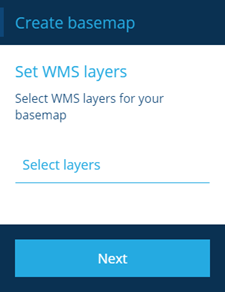
The **Select layers** field will list the available data layers provided by the map service. Select the ones you want and then select **Save**.
[](/img/maps/maps-adding-map_07b.png)
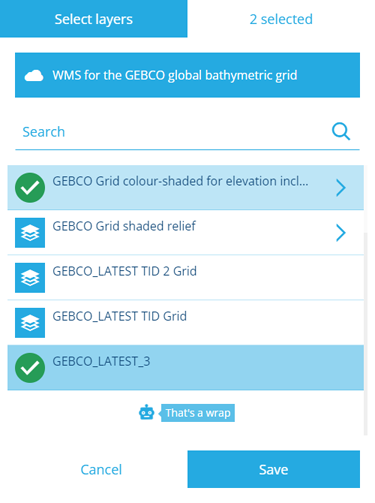
Select **Next** to move to the next page.
[](/img/maps/wms-style_01.png)
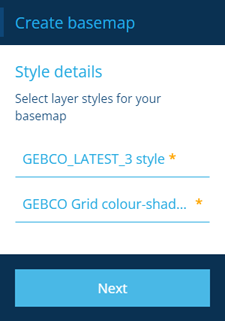
There will be a field for each layer you selected. Select each field to choose an available style for that layer.
[](/img/maps/wms-style_02.png)
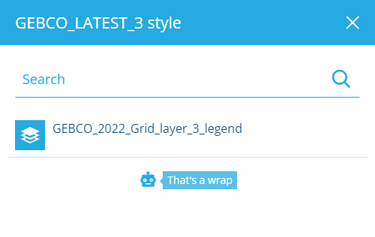
Select **Next** to choose the next step.
Set WMTS parameters
A WMTS URL typically looks like this: `https://domain.com/service/wmts/1.0.0/WMTSCapabilities.xml`
Ensure the URL begins with `https` (not `http`) and doesn't include any layer parameters at the end.
Example: ArcGIS WorldTimeZones
Select **Next** to move to the next page.
[](/img/maps/wmts-layers.png)
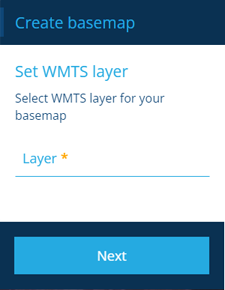
The **Layers** field will list the available data layers provided by the map service. Select one and then select **Save**.
[](/img/maps/wmts-layers_01.png)
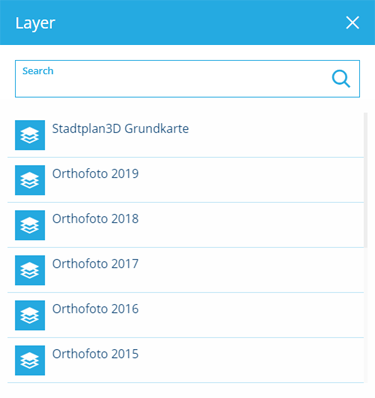
Select **Next** to move to the next page.
[](/img/maps/wmts-styles.png)
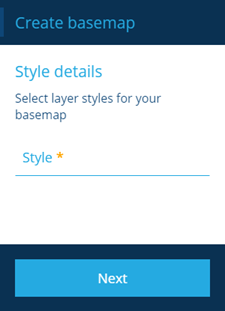
The **Style** field will list the available layer styles provided by the map service. Select one and then select **Save**.
[](/img/maps/wmts-styles_01.png)
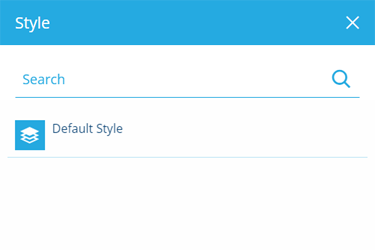
Select **Next** to choose the next step.
Select **Next** to continue.
[](/img/maps/maps-adding-map_05.png)
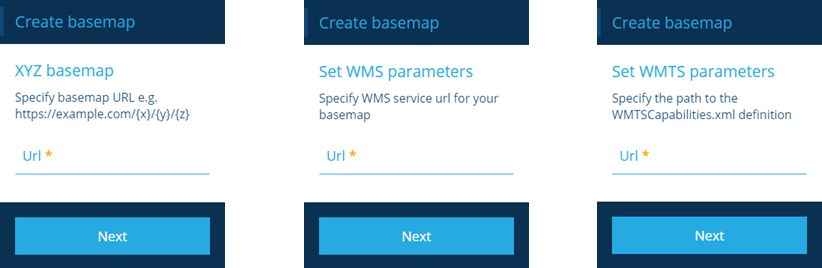
#### 3 Enter basemap details[](#-3--enter-basemap-details "Direct link to -3--enter-basemap-details")
This step is required. Fill in the following fields according to the map server type and your preference.
| Field | Description | XYZ | WMS | WMTS |
| --------------------- | ---------------------------------------------------------------------------------------------------------------------------------------------------------------------- | --- | --- | ---- |
| **Title** \* | Enter a distinct name that clearly identifies the basemap | ✔ | ✔ | ✔ |
| **Colour** | Use the [colour picker](/web/getting-started/selection/selecting-colours.md) to set the initial colour of the map area while the map is being drawn (white by default) | ✔ | ✔ | ✔ |
| **Coordinate System** | Choose one from the list offered by the map server (otherwise *EPSG:4326* will be used) | | ✔ | ✔ |
| **High DPI tiles** | If enabled, the map server is requested to send high resolution tiles (*512 x 512*) if available, instead of standard resolution (*256 x 256*) | ✔ | | ✔ |
| **Image WMS** | If enabled, the map server is requested to send the map as a single image, instead of a tile set | | ✔ | |
| **Watermark** | Enter text to be superimposed in the bottom-right corner of the map area (required by some map servers) | ✔ | ✔ | ✔ |
Select **Next** to choose the next step.
[](/img/maps/maps-adding-map_07.png)
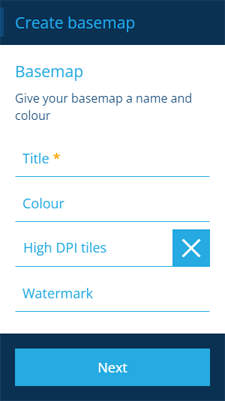
### Finish the process[](#finish-the-process "Direct link to Finish the process")
After completing all the steps, select **Create** to finish.
[](/img/maps/maps-adding-map_08.png)
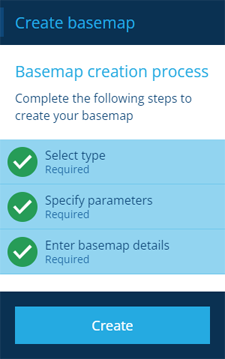
A notification indicates whether the basemap was created successfully or an error occurred.
---
# Switching basemaps
### Visualise your data in different contexts[](#visualise-your-data-in-different-contexts "Direct link to Visualise your data in different contexts")
The active basemap is applied throughout CausewayOne Asset Management, including the main map area, the [Geometry Editor](/web/items/editing-items/editing-geometry.md), and in [map pickers](/web/getting-started/selection/selecting-map.md) (except for [Map controls](/web/reporting/report-builder/report-documents/flow-controls/flow-map-control.md) in custom reports).
To switch basemaps, select **Basemaps** in the [right panel menu](/web/getting-started/right-panel-menu.md) and enable the basemap you want.
[](/img/maps/maps-selecting-map_01.png)
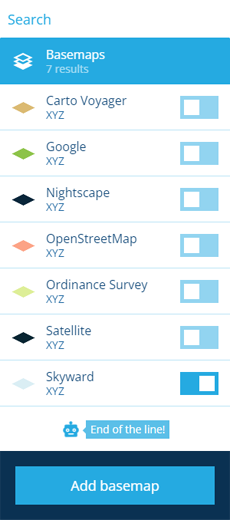
### Basemap alignment[](#basemap-alignment "Direct link to Basemap alignment")
In CausewayOne Asset Management, all geometry is saved using the **WGS84 Lat/Lng** ([EPSG:4326](https://epsg.io/4326)) coordinate system.
If the active basemap uses another coordinate system, item geometry is automatically transformed (by us or the map service) to keep things in proportion. As a result, item geometry may appear slightly misaligned with the basemap.
Therefore, switch to the most relevant basemap before editing an item's geometry, so you can draw directly over the basemap's features as needed.
---
# Editing basemap details
### Edit the properties of a basemap[](#edit-the-properties-of-a-basemap "Direct link to Edit the properties of a basemap")
You can edit the properties of any basemap, including [system basemaps](/web/maps/basemaps/.md#system-basemaps):
1. Select **Basemaps** in the [right panel menu](/web/getting-started/right-panel-menu.md).
2. Select a basemap in the list, then select **Edit** in the [action bar](/web/getting-started/action-bar.md).
3. Edit the following fields as needed and then select **Save** to finish:
* **Name** **\***- enter a distinct name that clearly identifies the basemap.
* **Colour** - use the [colour picker](/web/getting-started/selection/selecting-colours.md) to set the initial colour of the map area while the map is being drawn (white by default).
* **Watermark** - enter text to be superimposed in the bottom-right corner of the map area.
* **API Key** - if the map service requires an API key, enter it here.
---
# Deleting basemaps
### Delete an unused basemap[](#delete-an-unused-basemap "Direct link to Delete an unused basemap")
If you no longer need a basemap, you can permanently delete it from the list (unless it's a [system basemap](/web/maps/basemaps/.md#system-basemaps)):
1. Select **Basemaps** in the [right panel menu](/web/getting-started/right-panel-menu.md).
2. Select a basemap in the list.
3. Select **Delete** in the [action bar](/web/getting-started/action-bar.md) and answer yes to the confirmation. A notification indicates whether the basemap was deleted successfully or an error occurred.
Important
Remember, basemaps are shared with other users in your [company project](/web/getting-started/choosing-project.md), so please think carefully before doing so!
---
# Layers
### Overlay data items on the map[](#overlay-data-items-on-the-map "Direct link to Overlay data items on the map")
Layers can include just about anything you might want to see overlaid on the map and provide a way to declutter the data that is presented.
[](/img/layers/layers-example_01.png)
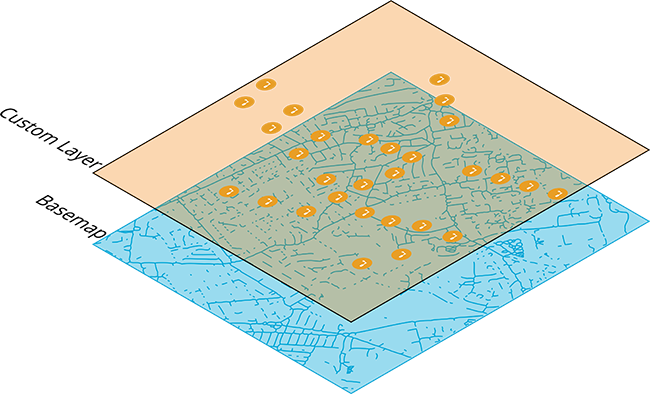
The structure of layers in your project can be as simple or complex as you want it to be and the [Layers panel](/web/maps/layers/layer-panel.md) provides an easy way to select, hide, and change the appearance of data on your map. When working with a complex project, it is a challenge to keep track of all your items, where small items get hidden under larger items, and selecting items becomes difficult.
There are three types of layers:
* **Network** - special layers that you can create to display network related items and are always placed immediately on top of the basemap.
* **Standard** - these are layers that are included either as part of the core installation, for example, defect or job status layers, or module layers, such as Street Lighting, Waste, Budgets, etc.
* **Custom** - these are layers that you can [create](/web/maps/layers/creating-layers.md) in addition to system layers. There are no limitations on the use of custom layers or how many you can create. Custom layers are those that you and other users with permission can manage using the Layers panel.
When a layer is active, it is overlaid on the map, and toggled **on**, in the [Layers panel](/web/maps/layers/layer-panel.md). Select the individual [items](/web/items.md) within the layer to view the item's components, history, and much more.
All the layer types can be updated at any time by you, or other users with permissions. When a layer is active, notifications may pop up to let you know about updates. For example, you will see a notification if another user creates a street light while you have the street lighting layer active.
[](/img/layers/layers-example_02.png)
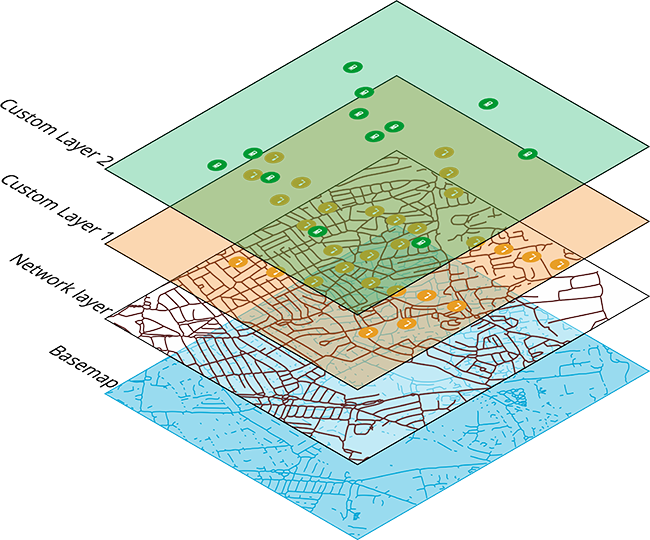
info
Developers can use the Alloy API to extract layer data for external use! See the [Developer Docs](https://developer.alloyapp.io/dev/alloy-api/examples/use-alloy-layers).
### Layer styles[](#layer-styles "Direct link to Layer styles")
Layers require [layer styles](/web/maps/layers/layer-styles.md), which define the data that is displayed on the map. A style acts as a database query that is configured to extract and display only the data that you need to see. You can turn data such as inspection results into an infographic. Compare different sets of data visually to get more context when making decisions. Each layer must have at least one style to display any data when it is active.
### Item clusters and zoom levels[](#item-clusters-and-zoom-levels "Direct link to Item clusters and zoom levels")
Where a layer contains many items that are close together, for example street lights or waste bins, when the map is zoomed out the system clusters items to avoid cluttering up the map.
info
Point based items are not clustered on network layers, items with line geometry are reduced in density, see [Selecting items from the map](/web/maps/selecting-items.md).
As you zoom in, layers become more detailed. Rather than appearing as individual items, they begin to look like separate items represented by icons. You can select an item's icon to view its details. Or in the case of a carriageway, the layer remains a solid line, but you can select it to view the details of a given section.
Depending on your zoom level and active layers, you may see item icons replaced by numbers.
[](/img/items/item-cluster-select.png)
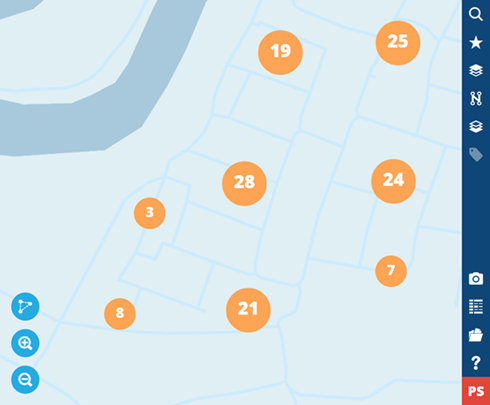
This happens when multiple items of the same style are located close together. It also happens when multiple layers include data referenced against the same asset.
### Layer build frequency[](#layer-build-frequency "Direct link to Layer build frequency")
By default, layers are rebuilt every **30 minutes**. Any changes to the items in a layer will be reflected on the map.
If you expect the underlying data of a layer to change more frequently, you can decrease this interval. For layers with slower data changes, we recommend increasing the interval for better overall performance.
To edit a layer's build frequency:
1. In the [Layers panel](/web/maps/layers/layer-panel.md), select the layer to view its details.
2. Select **Edit** in the [action bar](/web/getting-started/action-bar.md) and change the value of **Build frequency minutes**.
3. Select **Save** to finish.
[](/img/layers/layer-build-frequency.png)
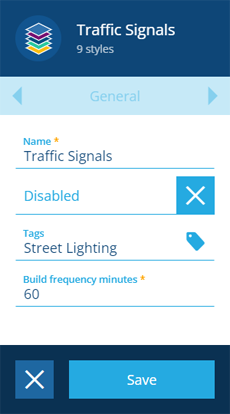
---
# Layer tags
### Use tags to categorise layers[](#use-tags-to-categorise-layers "Direct link to Use tags to categorise layers")
A tag is a keyword or phrase that typically describes a category or shared characteristic, e.g. *Lighting assets, Highways Department, Zone D*.
By creating a tag and assigning it to multiple layers, you can define a relationship between them. A layer can have multiple tags, so it's possible to create many overlapping relationships without conflict.
This provides a way to quickly and easily filter the Layers panel when you want to focus on certain layers. Simply select the relevant tag(s) and the list will only show the layers you're interested in!
[](/img/layers/layer-tag-filter.png)
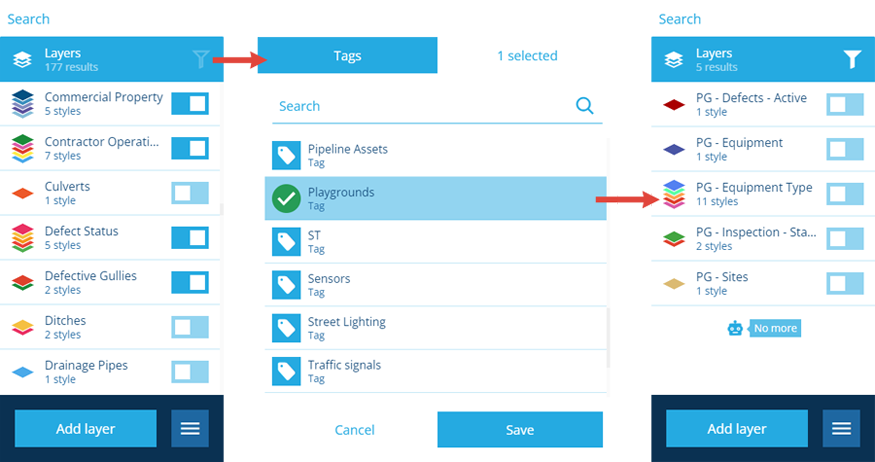
### Assigning tags to a layer[](#assigning-tags-to-a-layer "Direct link to Assigning tags to a layer")
To assign one or more tags to a layer:
1. Select **Layers** in the [right panel menu](/web/getting-started/right-panel-menu.md) to open the Layers panel.
2. Select the desired layer to view its styles list.
3. Select **Edit** in the [action bar](/web/getting-started/action-bar.md) and then select the **Tags** field.
4. Select one or more existing tags, or add a custom tag, then select **Save** to finish.
[](/img/layers/layer-tag-add-04.png)
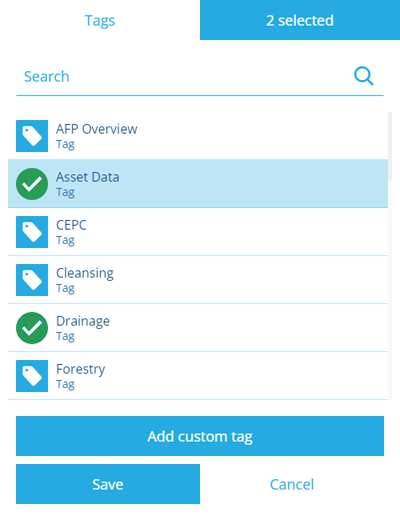
info
To learn more about using the Tag Manager, see [Tags](/web/tags.md)
---
# Adding a WFS layer style
### How to add WFS layer styles to layers[](#how-to-add-wfs-layer-styles-to-layers "Direct link to How to add WFS layer styles to layers")
### Overview[](#overview "Direct link to Overview")
The Web Feature Service (WFS) Interface Standard provides an interface allowing requests for geographical features across the web using platform-independent calls.
You can create styles that connect to a WFS server, which allows you to overlay external objects onto your map to provide additional context to your data. A WFS style provides access to feature like point-based measurements, polygon information or Legacy Text product information. The WFS style also handles numeric properties in labels and the ability to get WFS descriptions for style id.
info
WFS styles support the following output formats, JSON, KML, EsriJSON, GML2 and GML3.
### Adding a WFS style to a layer[](#adding-a-wfs-style-to-a-layer "Direct link to Adding a WFS style to a layer")
To add a WFS style to a newly created layer use the following procedure:
1. When you create a new layer, the **Styles** tab is displayed on completion.
[](/img/layers/layers-created-new-layer.png)
2. Select **More** in the action bar and choose **Add style**. The *Create style* page appears on the left.
[](/img/layers/style-create-wfs-01.png)
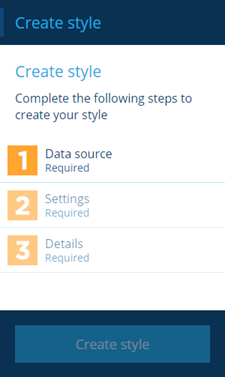
3. Select step 1 **Data source** and choose **WFS**. This allows you to associate the style with a Web Feature Service to import and display external information on the map. For **Design**, see [Adding Layer styles](/web/maps/layers/adding-layer-styles.md).
[](/img/layers/style-create-02.png)
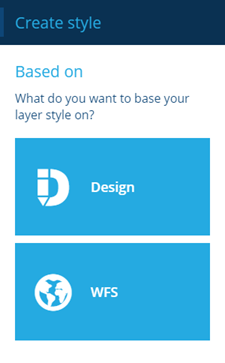
info
When you add a WFS style to a layer it becomes a custom WFS layer, any additional styles that you add to the layer can only be WFS styles.
4. Select step 2 to configure the layer settings, the *Set WFS parameters* form is displayed. There are two fields to complete:
* **URL** - this allows you to enter the URL for a WFS server that hosts the data that you want to display on the map. The URL is validated and must begin with `https://`. If the validation is successful then the connection to the WFS server is established.
* **WFS version** - this allows you to enter the WFS version of the service. This is optional and not required for the link to function, however, some sites require you to specify the WFS version.
[](/img/layers/styles-create-wfs_02.png)
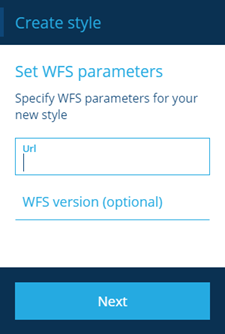
5. When you have completed the fields, select **Next**. The second part of the *Set WFS parameters* form is displayed. Complete the following fields:
* **EPSG code** - EPSG stands for European Petroleum Survey Group and is an organization that maintains a geodetic parameter database with standard codes, the EPSG codes, for coordinate systems, datums, spheroids, units and similar parameters. You should be able to get the required code from the server you connect to, however, you should check with the service provider to ensure you have the right code.
* **WFS feature type** - this field allows you to define which feature, within the service, that you are connected to. When you select this field a dialog is displayed of the available features within this service. You can select one of the features listed.
* **Output format** - this field allows you to select the output format of the WFS service, a list of formats is displayed in a dialog. This field is optional, if you do not make a selection the default format, JSON, is used.
* **Load all items strategy** - by default the feature objects are loaded in tiles within the area that you are viewing. If you select this option then all the objects are loaded on to the map.
Select the preview button to display the features that you selected in the **WFS feature type** field on the map.
[](/img/layers/styles-create-wfs_02a.png)
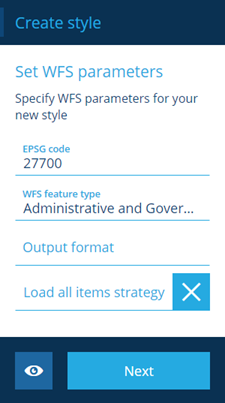
6. Step 3 allows you to configure the basic details of the style. The default settings are applied automatically. You can change the following form fields (all the fields are mandatory):
* **Name** - A name is taken from service, however, you can give the style a meaningful and unique name that can be easily identified.
* **Colour** - This allows you to choose the colour applied to the style icon, see [Selecting Colours](/web/getting-started/selection/selecting-colours.md).
* **Icon** - This allows you to choose an icon from the built in library to identify the style, see [Selecting Icons](/web/getting-started/selection/selecting-icons.md).
[](/img/layers/styles-create-wfs_03.png)
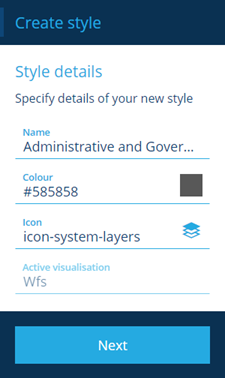
7. When you have completed all the required fields select **Next**.
8. To complete the style select **Create**. The new style details are displayed in the [right panel](/web/getting-started/workspace.md).
---
# Adding a layer style
### How to add new styles to layers[](#how-to-add-new-styles-to-layers "Direct link to How to add new styles to layers")
### Overview[](#overview "Direct link to Overview")
Layers require layer styles in order to display data on the map. When you [create a layer](/web/maps/layers/creating-layers.md) it has no styles associated with it. You need to plan which items you want to display on the map and which designs or design interfaces are required to achieve the correct overlay of data.
info
System layers contain predefined styles but you're free to add more to them!
### Adding a layer style[](#adding-a-layer-style "Direct link to Adding a layer style")
To add a style to a newly created layer use the following procedure:
1. When you create a new layer, the **Styles** tab is displayed on completion.
[](/img/layers/layers-created-new-layer.png)

2. Select **More** in the action bar and choose **Add style**. The *Create style* page appears on the left.
[](/img/layers/style-create-01.png)
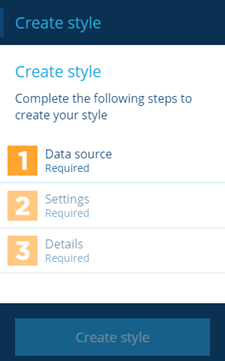
3. Select step 1 **Data source** and choose **Design**. This allows you to associate the style with a design or design interface. For **WFS**, see [Adding a WFS layer style](/web/maps/layers/add-wfs-style.md).
[](/img/layers/style-create-02.png)

4. Select step 2 **AQS settings**. Selecting the **Design or interface** field displays a list of designs and interfaces, which allows you to select the design or interface for the items you want to appear on the layer style. The name of the design or interface is used by default to name the style. You can edit this later, see [editing layer styles](/web/maps/layers/editing-layers-styles.md).
[](/img/layers/style-create-04.png)
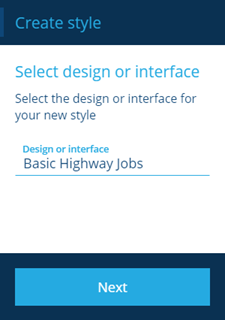
5. Select the **Next** button to continue to the *Select type* page. Choose one of the following:
* **All live items** - this allows you to create a query to view all the items in the Live collection for the design or interface you select.
* **Match query** - this allows you to create a query that allows you to view an item matched with specified attribute value for the design or interface you select.
* **Range query** - this allows you to create a query that allows you to view a range of items matched with specific range of attribute values for the design or interface you select.
* **Custom query** - this allows you to create a custom query to view items for the design or interface you select. Use the [AQS Builder](/web/aqs/aqs-builder.md) to build a query that fetches items which meet your criteria.
[](/img/layers/style-create-10.png)
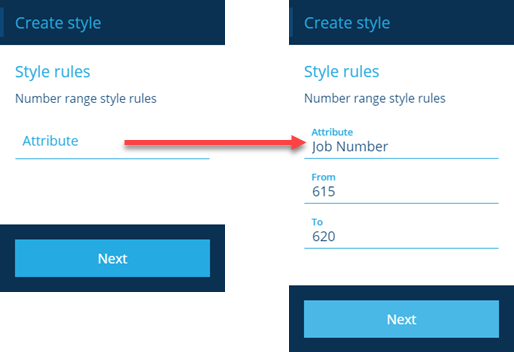
6. Select step 3 **Details**, this allows you to change the default detail settings.
* **Name** - Give your style a meaningful and unique name that can be easily identified. By default the name of the design or interface you selected is used.
* **Colour** - This allows you to choose the colour applied to the style icon, see [Selecting Colours](/web/getting-started/selection/selecting-colours.md).
* **Icon** - This allows you to choose an icon from the built in library to identify the style, see [Selecting Icons](/web/getting-started/selection/selecting-icons.md).
* **Active visualisation** - This allows you to select the style visualisation that you want to use. You can select from the following visualisation types:
* **Cluster** - the cluster visualisation can be used for standard style types. Where a layer contains many items that are close together, for example street lights or waste bins, when the map is zoomed out, the system clusters items to avoid cluttering up the map, see [Selecting items](/web/maps/selecting-items.md).
* **Basic** - the basic visualisation can be used for standard style types. Where the layer contains many items, each individual item is displayed irrespective of the map scale.
* **Network** - the network visualisation is used for network layer styles, with settings that are specific to networks.
[](/img/layers/style-create-09.png)
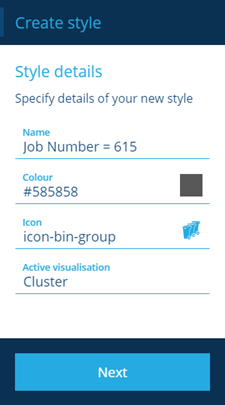
7. Select the **Next** button to continue to the *Select type* page.
8. When you have completed all the required steps select **Create style**. The new style details are displayed in the [right panel](/web/getting-started/workspace.md).
[](/img/layers/style-create-13.png)
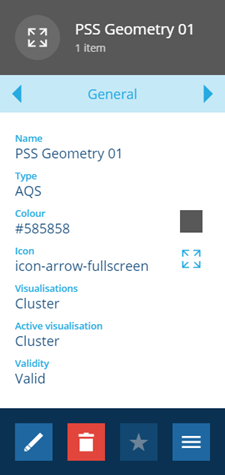
So, you have now created a standard style that can be used to display items based on a design, on the map when the layer is activated. You can further customise the style query to display a refined dataset if required, see [Customising styles](/web/maps/layers/editing-styles-query.md).
---
# Cloning a layer style
### How to clone styles within layers[](#how-to-clone-styles-within-layers "Direct link to How to clone styles within layers")
### Overview[](#overview "Direct link to Overview")
It's possible to clone an existing style. This allows you to create multiple styles that have similar settings quickly.
### Cloning a style[](#cloning-a-style "Direct link to Cloning a style")
To clone an existing style use the following procedure:
1. Select **Layers** in the right panel menu to open the list of all layers.
2. Select a layer to display its list of styles.
3. Select the style that you want to clone.
4. Select **More** in the [action bar](/web/getting-started/action-bar.md) and choose **Clone style**.
5. The *Create style* panel is displayed on the left hand side. All the steps in the process are shown complete. All the settings are copied from the previously selected style, you can select any of the steps to change the settings for the new style, see [Adding layer styles](/web/maps/layers/adding-layer-styles.md).
6. Select **Create style** to finish.
[](/img/layers/clone-style-settings.png)
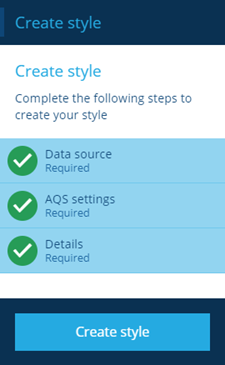
info
When you can create the new style without changing any details it is an exact copy of the source style and can edit them later, see [Editing layer styles](/web/maps/layers/editing-layers-styles.md).
---
# Creating layers
### Ready to create a new layer?[](#ready-to-create-a-new-layer "Direct link to Ready to create a new layer?")
### Overview[](#overview "Direct link to Overview")
In addition to the included system layers, you can create your own custom layers to manage how your data is displayed on the map.
### Creating layers[](#creating-layers "Direct link to Creating layers")
To create a new custom layer:
1. Select **Layers** in the [right panel menu](/web/getting-started/right-panel-menu.md) to open the Layers panel.
2. Select **Add layer** at the bottom of the panel.
3. Fill out the following fields and then select **Create**:
* **Title** - enter a distinct name that clearly identifies the layer.
* **Tags** - use tags to categorise layers for easy management going forward. Select any tags that apply to this new layer. Tags can be set at any time, see [Layer tags](/web/maps/layers/add-layer-tags.md).
4. The newly created layer will open on the right, displaying its empty **Styles** page. To configure the layer to show specific asset information, you need to [add a layer style](/web/maps/layers/adding-layer-styles.md).
[](/img/layers/layers-created-new-layer.png)

---
# Deleting layer styles
### Fine-tune your layer styles until they're just right[](#fine-tune-your-layer-styles-until-theyre-just-right "Direct link to Fine-tune your layer styles until they're just right")
### Overview[](#overview "Direct link to Overview")
You can delete the styles in a layer to change the appearance of the data associated with the layer.
info
Styles associated with System layers may be restricted.
#### Deleting layer styles[](#deleting-layer-styles "Direct link to Deleting layer styles")
1. Select **Layers** in the right panel menu to open the list of all layers.
2. Select a layer to display its list of styles.
3. Select the style that you want to delete.
4. Select the **Delete** button.
5. A confirmation dialog is displayed. Select **Yes** to confirm the deletion.
info
You cannot delete layer styles that have items associated with them.
---
# Deleting layers
### Delete layers that you no longer need[](#delete-layers-that-you-no-longer-need "Direct link to Delete layers that you no longer need")
### Overview[](#overview "Direct link to Overview")
Deleting a custom layer is a straightforward process, however, when you delete a layer you remove all the styles associated with it.
System layers associated with modules can only be deleted by System Administrators and Layer Managers. Users can only delete custom layers providing they have the permissions to do so.
### Deleting a layer[](#deleting-a-layer "Direct link to Deleting a layer")
To delete a layer use the following procedure:
1. Select **Layers** in the right panel menu to open the list of all layers.
2. In the right panel, select a layer to view its details.
3. Select **Delete** in the action bar.
4. A confirmation dialog is displayed. Select **Yes** to confirm the deletion.
### Removing a temporary layer[](#removing-a-temporary-layer "Direct link to Removing a temporary layer")
To remove a temporary layer, select its button. Temporary layers are removed automatically when your CausewayOne Asset Management session ends.
[](/img/layers/temp-layers-panel.png)
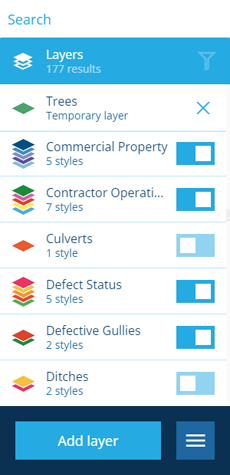
---
# Editing layer styles
### Fine-tune your layer styles until they're just right[](#fine-tune-your-layer-styles-until-theyre-just-right "Direct link to Fine-tune your layer styles until they're just right")
### Overview[](#overview "Direct link to Overview")
Layers do not have any details that you can edit. You can edit the styles in a layer to change the appearance of the data associated with the layer.
info
Styles associated with System layers may be restricted.
#### Editing layer style details[](#editing-layer-style-details "Direct link to Editing layer style details")
1. Select **Layers** or **Networks** in the right panel menu to open a list of all layers or networks.
2. Select a layer or network to display the list of available styles.
3. Select the style that you want to edit.
4. Select **Edit** in the action bar. You can now edit the fields displayed in the **General** tab.
5. Select the **Save** button when you have finished editing the style details.
[](/img/layers/layers-styles-general-details-edit.png)
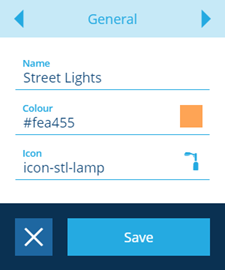
You can also update the style visualisation, which allows you to manage the appearance of the items within the layer, see [Style visualisation](/web/maps/layers/layer-style-visualisation.md).
---
# Customising styles
### Fine-tune your layer styles until they're just right[](#fine-tune-your-layer-styles-until-theyre-just-right "Direct link to Fine-tune your layer styles until they're just right")
### Overview[](#overview "Direct link to Overview")
Layer styles are defined by an AQS query, which determines the asset data that is overlaid on to a map when the associated layer is active.
#### Editing layer style query[](#editing-layer-style-query "Direct link to Editing layer style query")
You can also edit the query that defines the data that is displayed by the style.
1. Select **Layers** in the right panel menu to open the Layers panel.
2. Select a layer to display its list of styles.
3. Select the style that you want to edit.
4. On the **Style rules** tab, select **Edit** in the action bar, then select **Query**. Use the [AQS Builder](/web/aqs/aqs-builder.md) to define the data shown by the style.
5. Select **Save** to finish.
### Example style structure[](#example-style-structure "Direct link to Example style structure")
This is an example of a simple inspections query that is created when you add a style based on the inspections design to a layer, in this example all the inspections are included in the overlay on the map, see [AQS Query](/web/aqs/root-node-types.md#aqs-query).
```
{
"type": "Query",
"properties": {
"dodiCode": "designs_inspections",
"attributes": ["all"]
}
}
```
You can edit the query so that the style only displays inspections with a specific status, for example, Proposed inspections.
```
{
"type": "Query",
"properties": {
"dodiCode": "designInterfaces_inspections"
},
"children": [
{
"type": "Equals",
"properties": {
"ignoreCase": false
},
"children": [
{
"type": "Attribute",
"properties": {
"attributeCode": "attributes_taskStatusTypesStatus",
"path": "root.attributes_tasksStatus.attributes_taskStatusesStatusType"
}
},
{
"type": "String",
"properties": {
"value": ["Proposed"]
}
}
]
}
]
}
```
---
# Layers panel
### The Layers panel lets you manage your layers[](#the-layers-panel-lets-you-manage-your-layers "Direct link to The Layers panel lets you manage your layers")
The Layers panel provides you with the tools to manage the layers in your company project. It allows you to [create](/web/maps/layers/creating-layers.md) and [edit](/web/maps/layers/editing-layers-styles.md) custom layers in addition to the system layers included with CausewayOne Asset Management.
The Layers panel allows you to activate layers and its associated styles to display the overlaid data on the map.
To open the Layers panel, select **Layers** in the right panel menu.
[](/img/layers/layers-layer-panel.png)
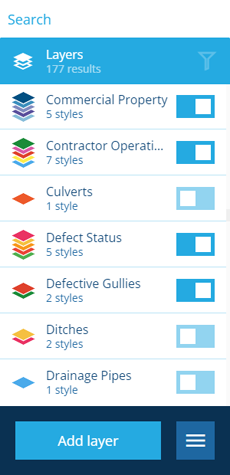
info
If you're unable to view or manage layers, your user account may lack the required [permissions](/web/permissions.md).
### Activate layers[](#activate-layers "Direct link to Activate layers")
Layers are not active when you first log in to the system. The Layers panel allows you to select the layers that you want to see overlaid on your map.
Open the Layers panel, then use the switch alongside the layer you want to activate.
[](/img/layers/layers-single-layer.png)

The order in which layers are displayed on the map is determined by the order in which you turn them on, the first layer is at the bottom and the last layer is at the top.
Where a layer contains one or more styles, then all the styles within the layer are activated. The number of styles within a layer are listed under the name of the layer and the icon indicates one or more styles are present.
Once a layer is active you can activate or deactivate individual styles within the layer by selecting the layer to view all the styles.
[](/img/layers/layers-activate-styles.png)
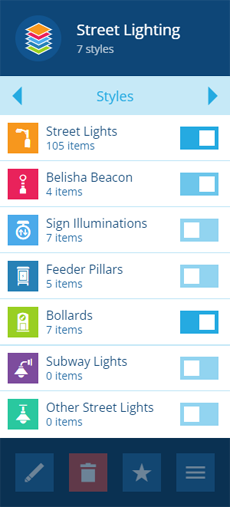
Use the switch alongside the style to either activate or deactivate styles.
The order in which styles are displayed on the map is determined by the order in which they appear in the style list.
### Temporary layers[](#temporary-layers "Direct link to Temporary layers")
In the Data Explorer, you can use the **Show on map** action to [display query results](/web/data-explorer/show-results-map.md) in a temporary layer. Temporary layers appear at the top of the list and can't be deactivated, only removed. They disappear when your CausewayOne Asset Management session ends.
[](/img/layers/temp-layers-panel.png)

### Clear all active layers[](#clear-all-active-layers "Direct link to Clear all active layers")
To quickly deactivate all visible layers and clear the map, select **More** in the [action bar](/web/getting-started/action-bar.md) and choose **Turn off all layers**.
Important
This will remove any temporary layers from the list.
### Filter the list of layers[](#filter-the-list-of-layers "Direct link to Filter the list of layers")
You can use [tags](/web/tags.md) to filter the list of layers that are displayed in the panel. To assign tags to layers, see [Layer tags](/web/maps/layers/add-layer-tags.md).
To filter the list of layers, select **Filter** in the top-right corner of the Layers panel. Select one or more available tags and then select **Save**. The **Filter** button will change to indicate that the list is being filtered.
[](/img/layers/layer-tag-filter.png)

info
Temporary layers are always listed, regardless of any filtering.
---
# Layer style visualisation
### How to change the way items are visualised[](#how-to-change-the-way-items-are-visualised "Direct link to How to change the way items are visualised")
### Overview[](#overview "Direct link to Overview")
A [layers style](/web/maps/layers/layer-styles.md) defines the items and how they are displayed within a layer on the map. You can change various display attributes to alter the way in which items are visualised on the map. Style visualisation can be configured in all types of layers using one of the following types of visualisation:
* **Basic** - for Standard / Custom layer styles, item icons remain as individual items when you scale the map
* **Cluster** - for Standard / Custom layer styles, item icons are clustered when you scale the map
* **Network** - for network layer styles
* **WFS** - for WFS layer styles
info
The Basic visualisation type has a limit of 500 items, this is to guard against degraded performance if a large amount of individual items are loaded and rendered. Attempting to build a Basic layer style with more than 500 items will cause an error.
### Accessing the style visualisation feature[](#accessing-the-style-visualisation-feature "Direct link to Accessing the style visualisation feature")
To access style visualisation use the following procedure:
1. For Standard or Custom layers (including WFS layers) select **Layers** in the [right panel menu](/web/getting-started/right-panel-menu.md) to open the list of all layers.
For network layers select **Networks** in the right panel to open the list of all networks.
2. Select a layer or network to display its list of styles.
3. Select the style that you want to edit.
4. Use the [tab bar](/web/getting-started/tab-bar.md) to switch tabs:
* For a standard or custom layer, select **Basic visualisation** or **Cluster visualisations**.
* For a network style use the tab bar to select the **Network visualisations** tab.
* For a WFS style use the tab bar to select the **WFS visualisations** tab.
* For Standard, Custom and Network styles the visualisation page is the same. The WFS visualisation page contains additional fields.
[](/img/layers/layer-style-visualisation_01.png)
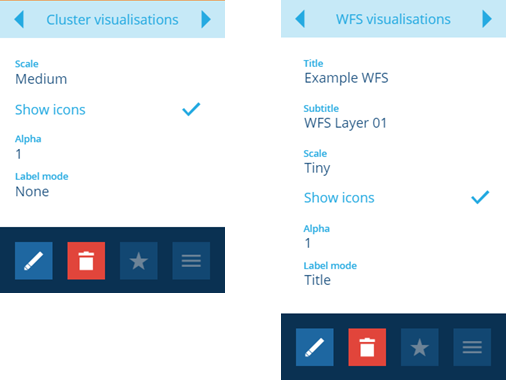
5. Select **Edit** in the action bar to change the visualisation settings.
WFS related fields
* **Title** - this allows you to enter a field title linked to data from the WFS service, for example if you link to a field in the data named `service`, then the contents is displayed in the layer labels as the title.
* **Subtitle** - this allows you enter an additional field subtitle linked to data from the WFS service, for example if you link to a field in the data named `address`, then the contents are transferred to the Subtitle field.
The data from the WFS service will be displayed in the labels if you activate the **Label mode**.
[](/img/layers/wfs-labels-example.png)
Common visualisation fields
* **Scale** - this allows you to set the size of item icons or the line thickness for objects with geometry. There are five settings, Tiny (0.25), Extra small (0.5), Small (0.75), Medium (1.0) and Large (1.25). The default setting is **Medium**.
[](/img/layers/visualisation-scale.png)
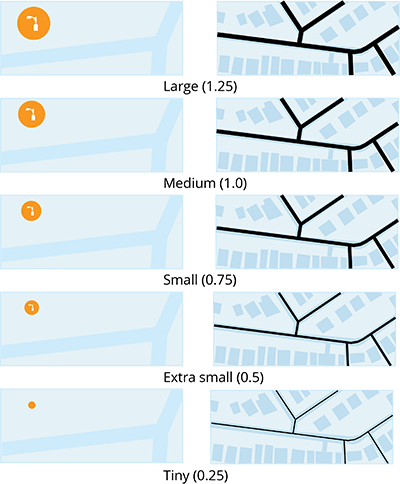
* **Show icon** - this allows you to show or hide the icon within an item object. The default is **Show icon**.
[](/img/layers/visualisation-icon-view.png)
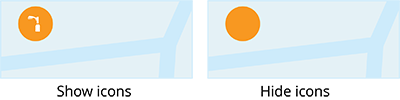
* **Alpha** - this allows you to set the transparency setting of the item object, you can set any value between 0 and 1, the default is **1** (100% or opaque), you cannot use 0 as a setting.
[](/img/layers/visualisation-alpha.png)
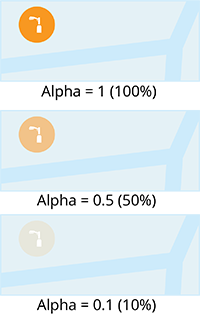
* **Label mode** - this allows you to attach labels to items on the map to include the title and subtitle of the item. The default is **None**.
[](/img/layers/visualisation-labels.png)
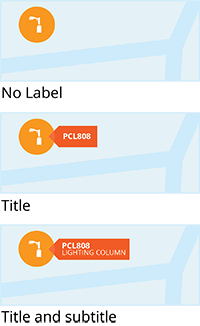
6. When you have completed editing the visualisation settings, select **Save** to apply the new settings.
---
# Layer styles
### Apply unique styles to make your data layers pop\
### Overview[](#overview "Direct link to Overview")
A layer can have any number of styles associated with it. When you create a new layer it contains no styles and activating the layer has no effect on the map. A layer requires at least one layer style to display some data on the map.
### Understanding styles[](#understanding-styles "Direct link to Understanding styles")
Layers can include multiple [layer styles](/web/maps/layers/layer-styles.md) that act like sub-layers within a layer and can be used to visualise different subsets of the data found in the layer. The example below illustrates a layer (bounded in red) that contains 3 styles, which can be switched on and off to display data within a layer. These layers include a set of preconfigured styles that allow you to quickly view data on your map. These layers can be customised by the addition of styles.
[](/img/layers/layers-example_03.png)

info
System layers, that are associated with modules can only be deleted by System Administrators and Layer Managers. Users can only delete user layers providing they have the permissions to do so.
Each style consists of an [AQS query](/web/aqs.md), which fetches items of a design/interface that meet specific criteria, e.g. *fetch items of the **Street Lighting Jobs** design with a **Status** attribute of "Proposed"*.
Once you have associated a style with a layer you will see data overlaid on the map based on the query within the style. You can edit the style to refine or enhance the query, for example you can have a layer for jobs that contains styles that display only jobs based on their status:
[](/img/layers/layer-style-example.png)
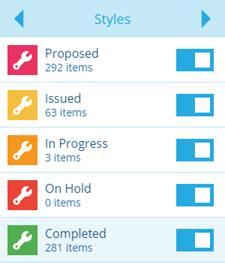
The query for each style would be similar, but differ by the status attribute you filter on within the query. This would allow you to view jobs by status overlaid on the map.
---
# Locations of Interest
### Maintain a list of commonly used places[](#maintain-a-list-of-commonly-used-places "Direct link to Maintain a list of commonly used places")
If a particular place or area is often used by your organisation, you can save it as a **Locations of Interest** item, which can then be referenced elsewhere in CausewayOne Asset Management.
info
Not to be confused with [Locations](/web/search/location-search.md), which represent addresses or landmarks obtained from Google Maps.
#### Use in Alloy Mobile[](#use-in-alloy-mobile "Direct link to Use in Alloy Mobile")
Locations of Interest are especially useful for defining buildings that mobile users travel to regularly as part of their [assigned work](/mobile/menu/assigned-work.md), e.g. *depots, warehouses, offices*.
Although [projects](/web/activities/projects/.md) can have defined routes, it can be counterproductive to include a "return to base" waypoint if workers perform several routes a day.
Therefore, Locations of Interest can serve as handy shortcuts for workers to change their navigation on the fly, which are easily accessible from the [main menu](/mobile/menu/.md) of the app.
[](/img/maps/locations-of-interest-mobile.png)
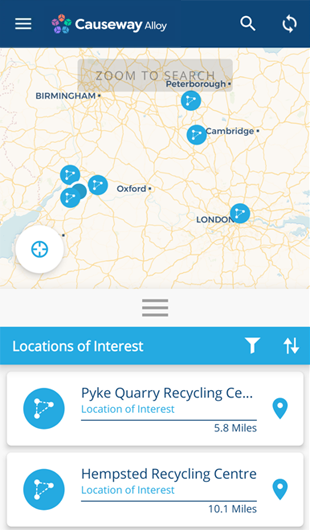
#### Use in AQS queries[](#use-in-aqs-queries "Direct link to Use in AQS queries")
As Locations of Interest can include any [geometry type](/web/designer/geometry-types/.md), you can also use them to define polygonal areas, e.g. *districts, zones, counties*. This makes them useful for performing [AQS queries](/web/aqs.md) that fetch item data based on geographic location.
When building an AQS query that contains a [geographic comparison](/web/aqs/child-node-types/comparison-nodes/geographic-comparisons.md) node (Within, Intersects, Disjoint), you can point it to a **Locations of Interest** item instead of supplying a constant value.
[](/img-cw1/shared/tools/aqs/example-02/example02-07.png)
This helps to ensure that data collection is accurate and consistent across different AQS queries. It also makes future maintenance easier, as you can simply edit the **Locations of Interest** item, rather than having to edit all the related AQS queries individually (some of which may reside within [reports](/web/reporting.md) or [workflows](/web/workflows.md)).
### Create a Location of Interest[](#create-a-location-of-interest "Direct link to Create a Location of Interest")
To create a new **Locations of Interest** item:
1. Select **Search** in the [right panel menu](/web/getting-started/right-panel-menu.md).
2. If necessary, select to clear the previous search. Start typing *locations of interest* and select the design when it appears.
[](/img/maps/locations-of-interest-02.png)
3. Select **More** in the [action bar](/web/getting-started/action-bar.md) and choose **Create Locations of Interest** to start the [Item creation process](/web/items/creating-items/.md) in the dashboard panel.
[](/img/maps/locations-of-interest-03.png)
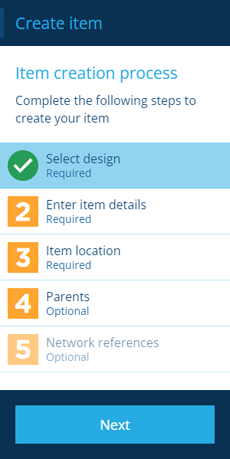
4. In step 2, supply a meaningful **Name** and then select **Next**.
[](/img/maps/locations-of-interest-04.png)
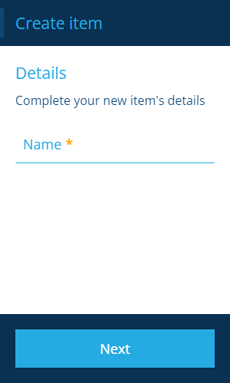
5. In step 3, select **Set location** to show the [Geometry Editor](/web/items/editing-items/editing-geometry.md). Draw the desired geometry or copy in existing coordinates. Select **Save** and then **Next**.
[](/img/maps/locations-of-interest-05.png)
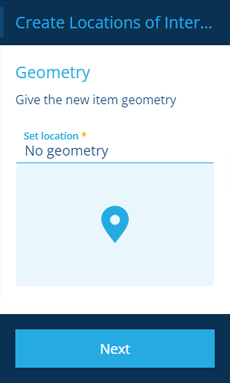
6. Select **Create** to finish.
---
# Map tools
### Navigate the map and use its tools[](#navigate-the-map-and-use-its-tools "Direct link to Navigate the map and use its tools")
In CausewayOne Asset Management, the map is always at the centre of your workspace, and is designed to be as intuitive as possible to control and use.
### Navigation controls[](#navigation-controls "Direct link to Navigation controls")
You can use a mixture of keyboard, mouse and touch controls to navigate around the map.
#### Pan the map[](#pan-the-map "Direct link to Pan the map")
| Action | Description |
| ------------------------------------ | ------------------------------------------------------------------------ |
|  | Drag the map in any direction to pan around it. |
|  | Select anywhere on the map and then use the arrow keys to pan around it. |
#### Zoom in[](#zoom-in "Direct link to Zoom in")
| Action | Description |
| ------------------------------------------------------------------- | ------------------------------------------------------------------------------------------------------------ |
|  | Roll the mouse wheel forward to zoom into the map at the current mouse pointer position. |
|  | Double-click a point on the map to zoom into it. |
|  +  | While holding the **Shift** key, click and drag a box over an area, and then release to zoom into that area. |
|  | Select anywhere on the map and then use the **Plus** key to zoom into the centre. |
#### Zoom out[](#zoom-out "Direct link to Zoom out")
| Action | Description |
| -------------------------------------------------------------------- | ------------------------------------------------------------------------------------- |
|  | Roll the mouse wheel back to zoom out of the map from the current pointer position. |
|  +  | While holding the **Shift** key, double-click a point on the map to zoom out from it. |
|  | Select anywhere on the map and then use the **Minus** key to zoom out of the centre. |
#### Rotate the map[](#rotate-the-map "Direct link to Rotate the map")
| Action | Description |
| ----------------------------------------------------------------------- | --------------------------------------------------------------------------------------------------- |
|  +  | While holding the **Shift** and **Alt** keys, click and drag the map to rotate it in any direction. |
### Map tools[](#map-tools "Direct link to Map tools")
| Tool | Description |
| ---- | --------------------------------------------------------------------------------------------------------------------------------------------------------------------------------------------------------------------------------------------------------------------------------------------------------------------------------------------------------------------------------------------------------------------------------------------------------------------------------------------------------------------------------------------------------------------------------------------------- |
| | The **Save Map Image** tool lets you capture a screenshot of the current map area and download it as JPG. It will include items from all [layers](/web/maps/layers/.md) and [networks](/web/maps/networks/.md) that are visible at the time. Note: if the saved screenshot is blank, it means the current basemap uses a map service whose [cross-origin](https://developer.mozilla.org/en-US/docs/Web/HTML/CORS_enabled_image) configuration forbids this. Contact the map service provider for assistance. For now, try [switching basemaps](/web/maps/basemaps/changing-basemaps.md). |
| | The **Toggle selection** tool lets you select multiple items on the map. After enabling the tool, you can then select each item in succession. |
| | The **Draw selection area** tool lets you select multiple items on the map. After enabling the tool, select points around the items to draw a polygon around them. Select the last point twice to select the items inside. |
| | The **Pan controls** tool reveals four direction buttons. Use them to move the map up, down, left and right. |
| | Zoom into the centre of the map. |
| | Zoom out from the centre of the map. |
| | The **Measure** tool lets you draw lines and polygons on the map and displays their [measurements](/web/maps/measuring-tool.md) in real-time. |
---
# Measuring length and area
### Draw lines and polygons on the map[](#draw-lines-and-polygons-on-the-map "Direct link to Draw lines and polygons on the map")
You can accurately measure the length between two points on the map, the total length between multiple points, and the area of a polygon (closed shape).
This reduces the need to visit sites, thereby saving considerable time, costs and emissions.
[](/img/maps/measuring-tool.png)
### Using the Measure tool[](#using-the-measure-tool "Direct link to Using the Measure tool")
To draw measurement lines on the map:
1. Select the **Measure** tool (bottom-left).
2. Select two points on the map to draw a line between them.
3. Continue selecting points to draw more lines.
4. Double-select the last point to finish your initial drawing. If you're drawing a polygon, do this over the first point to close the shape.
5. If necessary, you can then adjust your drawing by dragging any of its points, or adding new points along any of its lines.
The length of each line is calculated and displayed in real-time, as is the total **Length** and **Area** (if applicable) displayed in the bottom-left corner. To clear what you've drawn, select .
---
# Networks
### Reference your assets against a network framework[](#reference-your-assets-against-a-network-framework "Direct link to Reference your assets against a network framework")
A network is a special [layer](/web/maps/layers/.md) that provides a framework with which you can reference assets. For example a network can represent all the roads with an area of responsibility. You can select a network to view it on the map and use it to reference other spatial data, for example all street lighting can be referenced to a network. You can switch between different networks and asset types.
You can view all available networks by selecting the button in the right panel. The networks are listed and a toggle switch indicates whether they are active and displayed on the the map.
[](/img/layers/network-list.png)
[](/img/network/network-layer.png)
info
A network layer requires at least one style in order to display the network items on the layer, see [Adding layer styles](/web/maps/layers/adding-layer-styles.md).
#### Active network and data referencing[](#active-network-and-data-referencing "Direct link to Active network and data referencing")
All spatial data you can select is referenced against the selected network. Any reports you select are run for the selected network by default. Make sure the network type you have selected matches the asset type you want to work with (e.g. Gazetteer for Street Works, or a centreline network for carriageways).
Since you can load multiple networks, you can include different networks for different [user groups](/web/permissions.md).
#### Networks and zoom levels[](#networks-and-zoom-levels "Direct link to Networks and zoom levels")
When the map is zoomed out, the active network appears as solid lines that you cannot select.
As you zoom in, you can select sections from the active network. When you select an item or carriageway section, its details show in the right panel.
[](/img/layers/network-settings.png)
You can also view a graph of each component the section is made of. See [Viewing items](/web/items/viewing-items.md).
---
# Adding a network layer
### How to add a network layer[](#how-to-add-a-network-layer "Direct link to How to add a network layer")
### Overview[](#overview "Direct link to Overview")
When you have created a network design, you need to associate it with a network layer to allow you to view the network and any network items within it, as well as assets referenced to the network.
There are two ways to create a network layer:
* using the Network module and creating a new network
* using the Network panel and adding a new layer.
### Creating a network layer[](#creating-a-network-layer "Direct link to Creating a network layer")
To create a network using the Network module you can use the following procedure:
1. Select the **Network** module, then select **Networks** option to display the list of networks in the search panel.
[](/img/network/create-network-01.png)
2. Select **More** in the [action bar](/web/getting-started/action-bar.md).
3. Then select the **Create Networks** button to display Item creation process on the right hand side.
[](/img/network/create-network-02.png)
4. To create the network you need to complete step 1 by selecting the network design that you have created.
[](/img/network/create-network-03.png)
info
Step 3 allows you to add lines or polygons to the network, but they behave as one object within the network. If you require individual separate network items do not use this step.
5. To complete the network select **Create**. The completed network is displayed in the Item details panel.
[](/img/network/create-network-06.png)
6. To add the network layer to the list of networks you need to ensure that the [style visualisation](/web/maps/layers/layer-style-visualisation.md) is changed to **Network**.
[](/img/network/create-network-layer-04.png)
The network layer you have created is added to the list of available networks.
[](/img/network/create-network-layer-05.png)
### Adding a network layer[](#adding-a-network-layer "Direct link to Adding a network layer")
To add a network layer using the network panel use the following procedure:
1. To add a network you need to access the [network panel](/web/maps/networks/viewing-networks.md) by selecting the icon in the [right menu panel](/web/getting-started/right-panel-menu.md).
[](/img/network/network-layers-select.png)
2. Select **More** in the [action bar](/web/getting-started/action-bar.md).
3. Then select the **Add layer** button to display Layer creation process on the left hand side.
[](/img/network/create-network-layer-01.png)
Enter a network layer name and select **Create**. A notification pops up to confirm that the network layer was created.
The right panel opens and displays the **Styles** page for your new network layer.
By default, all new network layers do not contain any styles.
[](/img/network/create-network-layer-02.png)
4. To configure the network layer to display the network and related asset information you need to [add layer styles](/web/maps/layers/adding-layer-styles.md).
5. Once you have added a layer style, the network layer appears in the list of layers if you [view layers](/web/maps/networks/viewing-networks.md).
6. To add the network layer to the list of networks you need to ensure that the [style visualisation](/web/maps/layers/layer-style-visualisation.md) is changed to **Network**.
[](/img/network/create-network-layer-04.png)
The network layer you have created is added to the list of available networks.
[](/img/network/create-network-layer-05.png)
---
# Creating a network item
### How to create a network item[](#how-to-create-a-network-item "Direct link to How to create a network item")
### Overview[](#overview "Direct link to Overview")
A network is defined by network items associated with it and can represent an area of responsibility, for example a transport system, roads or railways. This then allows you to reference assets to the network.
### Creating a network item[](#creating-a-network-item "Direct link to Creating a network item")
To create a network item use the following procedure:
1. From the dashboard select the *Designer* module.
2. Select **Create item**, the *Item creation process* page is displayed on the left.
[](/img/items/items-basic-steps.png)
info
Depending on the design, some steps may be optional. For items that have geometry see [Geometry types](/web/designer/geometry-types/.md).
3. Select step 1, the *Design* selection page is displayed. Select the network design that you want to create the item for.
[](/img/items/item-create_01.png)
Use the following fields to define the item:
* **Design** - Select this field to display a dialog that allows you to select a network design.
* **Collection** - Select this field to display a dialog that allows you to select the collection that the item belongs to. The list of available collections is dependent on the design that you selected and includes one or all of the following [collections](/web/items/item-collections.md):
* Live
* Archive
* Template
* Inventory
* **Template** - When you select this field a dialog displays the list of available template items associated with the selected design. This field is only available for designs that support templates and if template items already exist.
4. When you have completed all the necessary fields, select **Next** and move to the next step.
5. The first step of the process indicates that it is complete.
#### Adding an item location[](#adding-an-item-location "Direct link to Adding an item location")
To add a location (geometry) use the following procedure:
1. Select step 3, the *Geometry* page is displayed.
[](/img/items/item-create_07.png)
2. Select the editor button to display the [Geometry Editor](/web/items/editing-items/editing-geometry.md). The drawing tools at the bottom of the editor indicate the type of geometries that are available, which you can use to place the item on the map. See [Geometry types](/web/designer/geometry-types/.md).
[](/img/layers/network-item-location.png)
3. When you have completed placing the item on the map and closed the Geometry Editor, select **Next**. The third step of the process indicates that it is complete.
4. When you have completed all the required steps for the item that you are creating, select **Next**. A notification is displayed to indicate that the item was created successfully.
info
The steps described above are the minimum that you are required to complete to create a network item. Depending on the structure of your network design you can use step 2 to enter additional details for each item.
You can repeat the whole procedure to create all the items that make up the network.
---
# Creating a network
### How to create a network[](#how-to-create-a-network "Direct link to How to create a network")
### Overview[](#overview "Direct link to Overview")
Networks are basically layers that contain network items, which define the network, for example, utilities or roads. For a layer to function as a network you must associate it with a network design, see [Creating a network design](/web/designer/creating-designs/creating-network-designs.md).
There are two ways to create a network:
* Import existing network data from NSG and NLPG files. All the necessary designs and items will be created for you! See [Importing NSG and NLPG files](/web/gateway/importing-nsg-nlpg-files.md).
* Manually create a network and reference assets to the network. This involves several steps:
* Create a network design
* [Create a network layer](/web/maps/networks/adding-network-layer.md)
* Create network items to define the network
* Create and associate assets with the network
### Creating a network[](#creating-a-network "Direct link to Creating a network")
When you want to create a network you need to create a network design that allows you to create network referenceable assets, see [Creating a network design](/web/designer/creating-designs/creating-network-designs.md).
When you have created a network design the details are displayed on in the Item details panel. Now you can proceed to create the network layer.
[](/img/network/create-network-design.png)
Once you have created a network layer you can create network items that define the network, for example roads, utilities, etc. By default the network design allows you to create items with all the [geometry types](/web/designer/geometry-types/.md) available. When you create network items you can create multi-line or multi-polygon type items or you can create individual line or polygon items.
[](/img/network/geometry-types.png)
---
# Network picker
### How to work with the network picker[](#how-to-work-with-the-network-picker "Direct link to How to work with the network picker")
### Overview[](#overview "Direct link to Overview")
The network picker is designed to allow you to easily select a network or network item within a network when referencing assets to a network.
#### Using the network picker[](#using-the-network-picker "Direct link to Using the network picker")
In addition to the simple list, the network picker provides you the option to use a map picker that allows you to find and select a network or part of a network from the map. The network picker displays every time you select the network reference field to select the network to which you want to reference an asset.
[](/img/network/network-editor-tools.png)
The map picker is centred on the area you were looking at in the main map and uses the same basemap. It displays any network that you have access to in the map picker window.
#### 1 Map[](#-1--map "Direct link to -1--map")
The map picker displays a map area centred on the main map. It uses the same basemap as the main map. All visible networks that occur within the map area are displayed by default. You can pan and zoom the map, however, you will need to use the **Search here** button to refresh the screen and display more networks if you move away from the original location.
#### 2 Map tools[](#-2--map-tools "Direct link to -2--map-tools")
The map tools can be used to zoom in and out of the map and select one or more networks contained within the map window.
You can select a group of items using the draw area tool. This allows you to draw a marquee around the network items that you want to select.
[](/img/network/network-editor-02.png)
When you have completed the marquee select the **Show selected items** tool to view a list of the selected network items in the network panel on the right.
You can deselect any network items you do not want to include by selecting the network item on list to clear the selection.
#### 3 Items panel[](#-3--items-panel "Direct link to -3--items-panel")
The network panel lists all the network items that are displayed on the map by default, in numeric and alphabetical order. You can scroll through the list and select one or more network items that you want to work with.
Alternatively, you can select network items on the map, which are automatically selected in the item panel.
[](/img/network/network-editor-03.png)
#### 4 Search field[](#-4--search-field "Direct link to -4--search-field")
The search field allows you to locate a specific network item within the list. At the same time the number of items on the map is reduced to the list of items.
#### 5 Search here button[](#-5--search-here-button "Direct link to -5--search-here-button")
When you pan or zoom the map you should use this button to refresh the items that are visible in the new map display, as well as updating the list in the network panel. If you filter the network items by design you need to use this button to refresh the display.
#### 6 More tools[](#-6--more-tools "Direct link to -6--more-tools")
The map picker has a set of tools that allow you to manage the display and selection of the items that you want to within the map.
You can access the map picker tools using the **Menu** button.
* **Auto select** - this selects a network or network item on the map.
* **Clear selection** - this clears all the selected network items.
* **Filter designs** - this allows you to filter the display of networks and network items by selecting a design that networks are associated with. When you have selected a design select **Search here** to refresh the map.
[](/img/network/network-editor-04.png)
To return the display of all the items you need to deselect the designs you used to filter the display and selecting **Search here**.
* **Show all items** - this allows you to list all the network items within the window, if you filtered the list to display only selected items. If you filtered the display of items by design, this displays all the filtered items in the network panel.
* **Show selected items** - this allows you to filter the view to just the selected network items.
* **Zoom to selection** - this allows you to zoom the view of the map to the location of the selected network or network items.
#### 7 Title bar[](#-7--title-bar "Direct link to -7--title-bar")
The title bar to the map displays the number of selected network items and the total number of network items on the map on the right.
#### 8 Done button[](#-8--done-button "Direct link to -8--done-button")
When you have finished selecting items use the **Done** button to close the network picker and transfer your selections to the entry field.
---
# Referencing a Network
### How to reference a network[](#how-to-reference-a-network "Direct link to How to reference a network")
### Overview[](#overview "Direct link to Overview")
Once you have created a network and its network layer, you can create assets that can be associated with the network. Assets that are associated with a network must each be referenced to the network. The following figure illustrates a road network with lighting assets that are associated with it.
[](/img/network/network-layer-reference.png)
Each lighting asset has a unique network reference that associates it with the road network. When you create an asset and reference it to the network, a network reference item is automatically created.
There are two default network reference designs:
* **Basic** - as the name implies this allows you to create a basic network reference that connects an asset with a network item.
Default Basic network reference design
[](/img/network/network-reference-basic-design-attributes.png)
* **Chainage XSP** - this type of network reference allows you to add chainage information, which is most commonly used in transportation networks, for example roads or railways.
Default Basic network reference design
[](/img/network/network-reference-xsp-design-attributes.png)
### Referencing an asset to a network[](#referencing-an-asset-to-a-network "Direct link to Referencing an asset to a network")
To reference assets to a network use the following procedure:
1. Start the process of creating an asset item, see [Creating an item](/web/items/creating-items/.md).
2. When you have completed the steps to create the item select step 5 to display the *Network references* panel.
[](/img/network/create-network-reference.png)
3. Select the **Add network reference** button, this allows you to select the **Network item**, the **Network picker** is displayed.
[](/img/network/create-network-reference-04.png)
This allows you to select the network item to which you want to reference the asset. If there are multiple network items, then all the items that appear within the map display are listed. When you select an item it is shown as selected in the list displayed on the right of the picker.
4. When you have completed you selection, select the **Done** button. The selected item is displayed in the **Network item** field.
[](/img/network/create-network-reference-05.png)
5. Select the **Next** button. The reference is listed in the *Network references* panel.
6. Select **Done** to complete the step, you can than complete the asset by selecting the **Create** button.
You can repeat the process for all the assets that you want to create and reference to a network.
---
# Viewing networks
### View your network and all of its details\
### Overview[](#overview "Direct link to Overview")
Once you have created a network layer and the assets that belong to the network you can now view the network. You can create and view multiple networks, which are overlaid on to the basemap.
### Viewing a network[](#viewing-a-network "Direct link to Viewing a network")
To view a network you need to access the network panel to by selecting the icon in the [right menu panel](/web/getting-started/right-panel-menu.md).
[](/img/network/network-layers-select.png)
When you toggle a network layer to be active, the network assets appear overlaid on the map.
[](/img/layers/networks-hires-view.png)
#### Networks and zoom levels[](#networks-and-zoom-levels "Direct link to Networks and zoom levels")
When the map is zoomed out, the active network appears as solid lines for items with line geometry that you cannot select.
info
Point based items are not clustered on network layers, see [Selecting items from the map](/web/maps/selecting-items.md).
[](/img/layers/network-zoom-in.png)
As you zoom in, you will be able to select sections from the active network. When you select an item for example a carriageway section, its details are displayed in the *item details* panel. You can also view a [graph](/web/items/item-graphs.md) of each component the section is made of.
### Hiding the network[](#hiding-the-network "Direct link to Hiding the network")
1. Go to the right panel and select the button to view all the available networks.
2. Use the toggle alongside the active network to deselect it. This allows you to view the map without network assets blocking your view.
info
You can switch between different networks by selecting a new network from the networks panel.
---
# Selecting items on the map
### Find and select items geographically[](#find-and-select-items-geographically "Direct link to Find and select items geographically")
The map is always at the centre of your workspace. It provides you with a quick way of finding and selecting items by their location, so you can view their details or perform [bulk actions](/web/data-explorer/bulk-action-function.md) on them.
For items to appear on the map:
* they must have [geometry](/web/designer/geometry-types/.md)
* their design must be included in at least one [layer style](/web/maps/layers/layer-styles.md) that's enabled
* your account must have [permission](/web/permissions.md) to view items of that design
info
To navigate around the map, see [Map tools](/web/maps/map-tools.md).
### Select an item[](#select-an-item "Direct link to Select an item")
To select a single item on the map:
1. Ensure at least one layer style is enabled that includes the item's design. To learn more, see [Layers panel](/web/maps/layers/layer-panel.md).
2. Use the **Zoom in** tool (or scroll your mouse wheel) until the layer shows icons for individual items.
3. Select an item's icon to view its details in the right panel.
By default, the **General** tab is displayed, which shows the item's attribute data. Use the [tab bar](/web/getting-started/tab-bar.md) to view other details of the selected item (depending on the item's design and your account's permissions).
Use the bottom [action bar](/web/getting-started/action-bar.md) to do things like [edit the item](/web/items/editing-items/.md) or add it to your [favourites](/web/getting-started/right-panel-menu/favourites.md).
[](/img/maps/items-select-item-map.png)
info
To view a [graph](/web/items/item-graphs.md) of the item's connections, select the coloured button above the map.
#### Overlapping items[](#overlapping-items "Direct link to Overlapping items")
It's possible for multiple items to occupy the same location on the map, e.g. *an asset with multiple defects, jobs or inspections registered against it*.
When this happens, you can only see the topmost icon. If you select it, that item's details will be displayed in the right panel.
However, any other items at that location will also be listed (subject to layer visibility). Select one to view its details. If there are more than five, scroll the list to see the rest.
[](/img/items/items-select-group-items_01.png)
If you move your pointer over an item with [polygonal geometry](/web/designer/geometry-types/design-polygon-geometry-type.md), it will be highlighted, obscuring any items underneath. To prevent this, hold the Alt key as you move the pointer.
[](/img/maps/alt-select.png)
#### Clustered items[](#clustered-items "Direct link to Clustered items")
By default, layer styles have their **Active visualisation** set to *Cluster*.
When items in these layer styles get too close, they become clustered together into a single icon for neatness. The further out you zoom the map, the more items become clustered together.
The number inside the icon represents the number of clustered items.
[](/img/maps/item-cluster-select.png)
Selecting a cluster zooms in the map to show smaller clusters or individual items, which you can then select to open.
[](/img/maps/items-selected-from-cluster.png)
info
[Network layers](/web/maps/networks/.md) don't use the *Cluster* visualisation. To learn about other visualisation types, see [Layer Style Visualisation](/web/maps/layers/layer-style-visualisation.md).
### Select multiple items[](#select-multiple-items "Direct link to Select multiple items")
It's possible to select multiple items on the map at once.
You can enable the **Toggle selection** tool and then select items in succession.
Alternatively, you can enable the **Draw selection area** tool, select multiple points in the area around items to draw a line shape around them, and then double-select the last point to finish.
[](/img/maps/draw-area-tool.png)
Selected items will be listed to the right of the map. To remove an item from the list, select its .
[](/img/general/general-selected-assets.png)
To perform a [bulk action](/web/data-explorer/bulk-action-function.md) on your selected items, select **Open data explorer**, select **Menu** (bottom-right) and choose **Bulk action all items**.
---
# Pathfinder
### Select attributes on connected designs/interfaces[](#select-attributes-on-connected-designsinterfaces "Direct link to Select attributes on connected designs/interfaces")
When configuring a query, use the Pathfinder to explore available attributes and select which ones to include in the results.
Browse the attributes of the queried design/interface. You can also visit any designs/interfaces linked to it:
* [Follow](/web/pathfinder/quick-path.md) a Link attribute to visit a **child** design/interface.
* [Navigate](/web/pathfinder/navigate-to-path.md) to a **parent** design/interface with a Link attribute that points to the current one.
You can repeat this in either direction for any number of possible "hops". This lets you select multiple attributes across multiple connected designs/interfaces.
### Open the Pathfinder[](#open-the-pathfinder "Direct link to Open the Pathfinder")
The Pathfinder appears whenever you need to specify an attribute path. For example:
* adding attribute columns to a [new](/web/data-explorer/creating-query.md) or [existing](/web/data-explorer/refining-query.md) query in the Data Explorer
* selecting which attributes are fetched by an [AQS data source](/web/reporting/report-builder/data-sources/create-aqs-data-source.md) in the Report Builder
* defining the path of a [Relation action](/web/workflows/building-workflow/actions/action-relation-relation.md) in a workflow
* using the AQS builder:
* selecting which attributes are fetched by the [root node](/web/aqs/building-aqs-query.md) of a query
* configuring an [Attribute](/web/aqs/child-node-types/reference-nodes/attribute-node.md), [Property](/web/aqs/child-node-types/reference-nodes/property-node.md) or [Count](/web/aqs/child-node-types/count-node.md) node
info
You can also open the Pathfinder when viewing a design/interface. Select **More** in the [action bar](/web/getting-started/action-bar.md) and choose **Pathfinder**.
### Key features[](#key-features "Direct link to Key features")
[](/img-cw1/shared/tools/pathfinder/pathfinder-overview.png)
#### 1 Attributes[](#-1--attributes "Direct link to -1--attributes")
By default, the left-hand list shows the attributes of the current design/interface. When you hop to a linked design/interface, the list updates to show the new set of attributes. Use the top search box to filter the list by keyword.
Select any attributes you want to include in the query results. For Link attributes, [see below](#-4--link-attributes).
info
In the two contexts below, this list shows linked designs/interfaces or standard paths instead.
#### 2 Navigate[](#-2--navigate "Direct link to -2--navigate")
To hop to a parent or child design/interface, select **Navigate** in the left-hand list. Choose a design/interface, then choose a Link attribute that connects it to the current design/interface. To learn more, see [Navigating paths](/web/pathfinder/navigate-to-path.md).
#### 3 Standard paths[](#-3--standard-paths "Direct link to -3--standard-paths")
For a list of predefined shortcuts to attributes on connected designs/interfaces, select **Standard paths** in the left-hand list. Select a standard path to include the target attribute in the query, without leaving the current design/interface. To learn more, see [Using standard paths](/web/pathfinder/navigate-std-path.md).
#### 4 Link attributes[](#-4--link-attributes "Direct link to -4--link-attributes")
Select a Link attribute's arrow to hop to the corresponding child design/interface. The left-hand list will update to show the attributes of that design/interface. To learn more, see [Quick path selection](/web/pathfinder/quick-path.md).
To include a Link attribute itself in the query results, select its arrow and then **Select this**. When the query runs, this returns any [Item IDs](/web/items/item-id.md) stored in the attribute. In the Data Explorer, the attribute value appears as a single item or an **X results** link.
[](/img-cw1/shared/tools/pathfinder/pathfinder-link-select-this.gif)
info
Selecting a Link attribute does not automatically select any attributes on the child design/interface, and vice versa.
#### 5 Path graph[](#-5--path-graph "Direct link to -5--path-graph")
As you hop between designs/interfaces, the path graph provides a visualisation of the path you've taken. Select a previous design/interface to return to it. The initial design/interface always appears at the top.
#### 6 Selected attribute paths[](#-6--selected-attribute-paths "Direct link to -6--selected-attribute-paths")
As you select attributes in the left-hand list, they appear in the right-hand list, grouped by design/interface. This helps you keep track of which attributes are included in the query and their processing order. To deselect an attribute, select its **Remove** button.
#### 7 Menu actions[](#-7--menu-actions "Direct link to -7--menu-actions")
To perform an action, select **Menu** at the bottom:
* **Copy current path** - copy the path visualised in the path graph to your device's clipboard.
* **Copy selected paths** - copy the paths of all the selected attributes to your device's clipboard.
These can be useful when using the Alloy API. Define paths visually with the Pathfinder, then copy them into the relevant part of an AQS query.
Example outputs
Based on the following image:
* **Copy current path**
```
root.attributes_defectsAssignableDefects.attributes_defectsRaisingJobsRaisedJobs
```
* **Copy selected paths**
```
root.attributes_groundsAssetsReferenceNumber
root.attributes_treesLocationDescription_5dfa13c5ca31500cec413ec9
root.attributes_treesTreeProtectionOrder
root.attributes_assetsInstalledDate
root.attributes_defectsAssignableDefects.attributes_defectsDefectNumber
root.attributes_defectsAssignableDefects.attributes_defectsReportedDate
root.attributes_defectsAssignableDefects.attributes_defectsDescription
root.attributes_defectsAssignableDefects.attributes_defectsRaisingJobsRaisedJobs.attributes_jobsJobNumber
```
[](/img-cw1/shared/tools/pathfinder/pathfinder-copy-path-example.png)

#### 8 Done button[](#-8--done-button "Direct link to -8--done-button")
When you're finished, select **Done** to save your changes. To leave without saving, select **Close** in the top-right corner.
---
# Using standard paths
### Predefined shortcuts to attributes[](#predefined-shortcuts-to-attributes "Direct link to Predefined shortcuts to attributes")
A design/interface can have any number of **standard paths**. Each one is a predefined shortcut to an attribute on a connected design/interface, which can otherwise be reached in the Pathfinder by [following Link attributes](/web/pathfinder/quick-path.md) or manually [navigating a path](/web/pathfinder/navigate-to-path.md).
Standard paths provide a quick way to select specific attributes, without having to navigate to them yourself!
*For example, imagine your organisation stores [National Street Gazetteer (NSG)](https://en.wikipedia.org/wiki/National_Street_Gazetteer) data in CausewayOne Asset Management for all streets within a region of England/Wales (we can provide a [module](/basics/fundamentals/modules.md) for this). NSG data is highly structured and includes reference values for each street, e.g. USRN, DfT Code, Street Type.*
*Now, imagine viewing items of the **Street Lighting Jobs** interface in the Data Explorer. You want to see the street name of each job's location. Using [network references](/web/maps/networks/referencing-network.md), it's possible to navigate a path from that interface to the relevant NSG design, as illustrated below. By defining this as a standard path, the **Primary Descriptor** attribute can be selected in one go, without having to perform four manual hops to reach it.*
info
A design/interface can have standard paths to its own attributes! This can be useful for surfacing key attributes in a long list.
### Select a standard path[](#select-a-standard-path "Direct link to Select a standard path")
To include the target attribute of a standard path in the query:
1. Select **Standard paths** in the left-hand list. This is only available on the design/interface being queried.
[](/img-cw1/shared/tools/pathfinder/standard-paths-example-1.png)

2. The left-hand list now shows any standard paths defined on the current design/interface (or inherited via an interface). Related paths may be grouped together. Choose the standard path you want to include. Alternatively, select at the top to go back.
[](/img-cw1/shared/tools/pathfinder/standard-paths-example-2.png)

3. The target attribute for the selected standard path appears in the right-hand list, under the design/interface it belongs to. You can continue selecting standard paths in the left-hand list, without leaving the current design/interface.
[](/img-cw1/shared/tools/pathfinder/standard-paths-example-3.png)

4. To visualise the path to the target attribute, select it in the right-hand list. The Pathfinder will hop to the corresponding design/interface and the left-hand list will update to show its attributes.
To return to a previous design/interface, select it in the path graph. Select **Done** to finish.
[](/img-cw1/shared/tools/pathfinder/standard-paths-example-4.png)

info
Use the [Designer](/apps/designer.md) app to create and edit the standard paths of a design/interface.
---
# Navigating paths
### Hop to a parent or child design/interface[](#hop-to-a-parent-or-child-designinterface "Direct link to Hop to a parent or child design/interface")
The [Pathfinder](/web/pathfinder.md) lets you browse the attributes of a design/interface and "hop" to any others that are linked to it.
While following a Link attribute is the simplest way to hop, navigating manually gives you more control. This is particularly useful when a Link attribute points to an interface rather than a design.
*For example, imagine querying a **Carriageways** design. If you follow its **Tasks** attribute, you'll hop to the **Tasks Assignable** interface, which only has generic task attributes. Alternatively, you could navigate to a **Carriageways Jobs** design that implements that interface and contains both generic and design-specific attributes.*
Navigating also lets you hop to a **parent** design/interface, which has a Link attribute pointing to the current one.
info
[Following Link attributes](/web/pathfinder/quick-path.md) is preferable if:
* you're unsure which designs/interfaces can be navigated to
* you only want to hop to **child** designs/interfaces
### Navigate to a design/interface[](#navigate-to-a-designinterface "Direct link to Navigate to a design/interface")
To browse the attributes of a linked design/interface:
1. Select **Navigate** in the left-hand list.
[](/img-cw1/shared/tools/pathfinder/navigate-path-01.png)

2. The left-hand list now shows all the designs/interfaces in your [company project](/web/getting-started/choosing-project.md). Use the top search box to filter the list by keyword. Choose the design/interface you want to hop to.
[](/img-cw1/shared/tools/pathfinder/navigate-path-02.png)

3. The left-hand list now shows any Link attributes connecting the current design/interface and your chosen one. They can be located on either. Choose the Link attribute you want to travel via. If there aren't any, select at the top to choose another design/interface.
[](/img-cw1/shared/tools/pathfinder/navigate-path-03.png)

4. The left-hand list now shows the attributes of your chosen design/interface. Select any you want to include in the query. The path graph visualises the path you've taken.
[](/img-cw1/shared/tools/pathfinder/navigate-path-04.png)

5. You can repeat this process according to your needs. At each stage, the attributes you select appear in the right-hand list, in the order you selected them. To deselect an attribute, select its **Remove** button.
To return to a previous design/interface, select it in the path graph. Select **Done** to finish.
[](/img-cw1/shared/tools/pathfinder/navigate-path-05.png)

---
# Quick path selection
### Hop to a child design/interface[](#hop-to-a-child-designinterface "Direct link to Hop to a child design/interface")
The [Pathfinder](/web/pathfinder.md) lets you browse the attributes of a design/interface and "hop" to any others that are linked to it.
The simplest way to do this is to follow a [Link attribute](/web/designer/attributes/types/link-attribute.md) to the design/interface it points to. From there, browse the attributes and repeat as needed.
*For example, imagine querying a **Street Lights** design. Select the attributes on it you want to see data for. Follow its **Defects** attribute to browse and select attributes on the **Defects** interface (e.g. Reported Date, Status). Then select the **Reporters** attribute on that to browse attributes on the **Contacts** design.*
info
[Navigating a path](/web/pathfinder/navigate-to-path.md) is preferable if you want to:
* hop to a compatible design instead of following a Link attribute to an interface
* hop to a **parent** design/interface with a Link attribute pointing to the current one
### Follow a Link attribute[](#follow-a-link-attribute "Direct link to Follow a Link attribute")
To follow a Link attribute to a child design/interface:
1. Select the arrow beside the Link attribute to "step into" it.
[](/img-cw1/shared/tools/pathfinder/quick-path-01.png)

2. The left-hand list now shows the attributes of the child design/interface. Select any you want to include in the query. The path graph visualises the path you've taken.
If the child design/interface has any Link attributes, select the arrow beside one to visit the next child design/interface.
[](/img-cw1/shared/tools/pathfinder/quick-path-02.png)

3. You can repeat this process across multiple Link attributes. At each stage, the attributes you select appear in the right-hand list, in the order you selected them. To deselect an attribute, select its **Remove** button.
To return to a previous design/interface, select it in the path graph. Select **Done** to finish.
[](/img-cw1/shared/tools/pathfinder/quick-path-03.png)

### Select a Link attribute[](#select-a-link-attribute "Direct link to Select a Link attribute")
To include a Link attribute itself in the query results, select its arrow and then **Select this**. When the query runs, this returns any [Item IDs](/web/items/item-id.md) stored in the attribute. In the Data Explorer, the attribute value appears as a single item or an **X results** link.
[](/img-cw1/shared/tools/pathfinder/pathfinder-link-select-this.gif)

info
Selecting a Link attribute does not automatically select any attributes on the child design/interface, and vice versa.
---
# Permissions
### Give users access to features and data[](#give-users-access-to-features-and-data "Direct link to Give users access to features and data")
Manage user access to CausewayOne Asset Management's features and your organisation's data using permission groups and roles:
* A [**group**](/web/permissions/groups/.md) is a set of permissions that grant access to certain objects in one or more data categories. These include Asset Management features such as layers, item forms and workflows, along with the designs and interfaces in your [company project](/web/getting-started/choosing-project.md). You can even set permissions on individual attributes! Various [system groups](/web/permissions/groups/system-groups.md) are provided to help you get started.
*For example, the **Defect Viewers** system group gives read only access to the **Defects** interface, the **Defect Statuses** design and the **Defect Status** layer*.
* A [**role**](/web/permissions/roles/.md) is a combination of groups and users. It typically represents a position, persona or responsibility within your organisation. Once you've set up your permission groups, you can add any number of them to a role, and the role's users will inherit those combined permissions.
*For example, an **Asset Inspection** role might include the **Defects Managers**, **Inspection Managers** and **Job Viewers** groups*.
You can then grant permissions to [users](/web/permissions/users/.md) by adding them to one or more roles.
[](/img/permissions/permissions-structure.png)
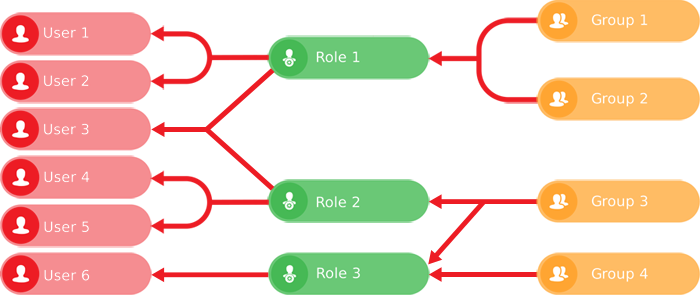
info
Only users in the **Admins** group can create and manage users, groups and roles.
#### Roles vs Groups[](#roles-vs-groups "Direct link to Roles vs Groups")
While users can be assigned directly to groups, we recommend assigning them to roles where possible (even if it means having a role with just one group). This builds in flexibility that'll make permissions management easier as your organisation evolves:
* If a user's responsibilities change, it's easier to edit a few roles than many groups.
* If a new group is created (e.g. *to cover a new asset class*), it's easier to add the group to a few roles than to many users.
### Access policies[](#access-policies "Direct link to Access policies")
This advanced feature lets you extend your permissions with item-based access control rules.
If a group has the **Read** permission enabled for a design/interface, the group can view all items of that design/interface. To limit which items can be accessed, you can then use access policies to make item access **conditional**, based on each item's attribute values.
*For example, imagine an access policy that targets the **Street Cleaning Jobs** design. It has a rule stating that Group A users can only see items whose **Geometry** attribute is located within a specific area*.
To learn more, see [Access policies](/apps/permissions/access-policies/.md) in the Permissions app. Developers can also create and manage access policies using the [Alloy API](https://developer.alloyapp.io/dev/access-policies). Unfortunately, it isn't possible to manage access policies using Asset Classic.
---
# Access Advisor
### Examine a user's permissions[](#examine-a-users-permissions "Direct link to Examine a user's permissions")
Admins can use the Access Advisor to check what permissions a user has.
While it resembles the Permission Manager, the Access Advisor provides a simplified, read-only view of the combined permissions inherited by the user from all the [roles](/web/permissions/roles/.md) and [groups](/web/permissions/groups/.md) they're assigned to.
To examine the permissions of a user:
1. Open the **Permissions** [dashboard card](/web/getting-started/dashboard.md) and select **Users**.
2. In the right panel, select a user from the search results to view their details.
3. Select **More** in the [action bar](/web/getting-started/action-bar.md) and choose **Access advisor**.
### Key features[](#key-features "Direct link to Key features")
[](/img/permissions/access-advisor-screen.png)
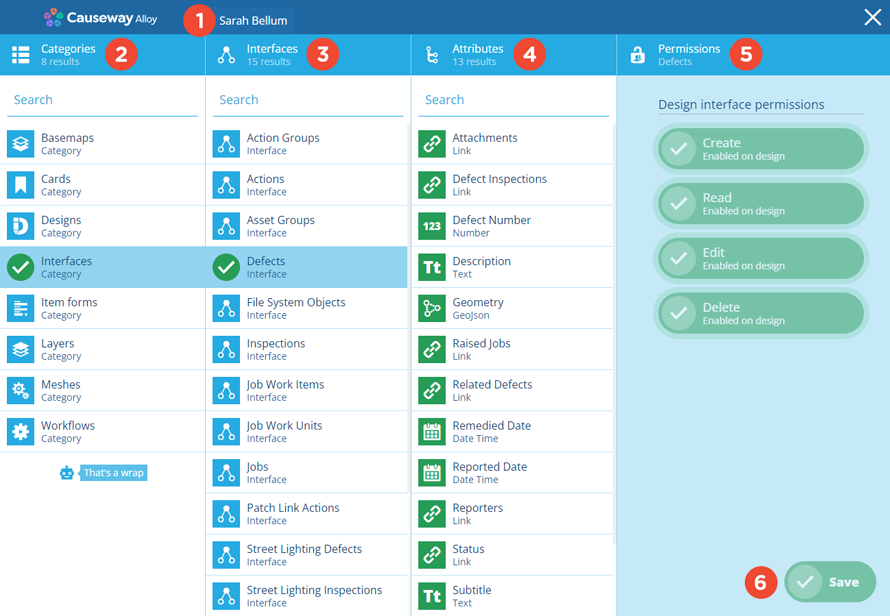
#### 1 User name[](#-1--user-name "Direct link to -1--user-name")
The name of the user you're examining is displayed at the top.
#### 2 Categories column[](#-2--categories-column "Direct link to -2--categories-column")
This column lists the available data categories. Select a category to list any configured objects in the **Objects** column.
Category article links
If you're unfamiliar with any data categories, follow the links below to visit their help articles.
* [Basemaps](/web/maps/basemaps/.md)
* [Cards](/web/dash-cards.md)
* [Designs](/web/designer.md)
* [Interfaces](/web/designer.md)
* [Item forms](/web/designer/item-forms/.md)
* [Layers](/web/maps/layers/.md)
* Meshes (3rd party integrations included with [modules](/basics/fundamentals/modules.md))
* [Workflows](/web/workflows.md)
#### 3 Objects column[](#-3--objects-column "Direct link to -3--objects-column")
This column lists objects in the selected data category. To filter the list by one or more keywords, use the top search box.
It only lists objects with permissions set directly or inherited from an interface. If an object isn't listed, the user has no permission to access it.
Select an object to show its permission settings in the **Permissions** column.
#### 4 Attributes column[](#-4--attributes-column "Direct link to -4--attributes-column")
This column only appears if a design or interface is selected in the **Objects** column. To filter the list by one or more keywords, use the top search box.
It only lists attributes with permissions set directly or inherited from an interface. If an attribute isn't listed, the user has no permission to access it.
The colour of an attribute's icon indicates its permission status:
* **Read only**
* **Read write**
Select an attribute to show its permission settings in the **Permissions** column.
#### 5 Permissions column[](#-5--permissions-column "Direct link to -5--permissions-column")
This column displays the permission settings of the selected object or attribute. They appear dimmed to indicate that they aren't editable.
#### 6 Save button[](#-6--save-button "Direct link to -6--save-button")
The Access Advisor is read-only, so the **Save** button is always dimmed. To finish, select **Close** in the top-right corner.
---
# Groups
A **group** is a set of permissions that grant access to objects across one or more data categories, including designs and interfaces.
[](/img/groups/group-permissions-04.png)
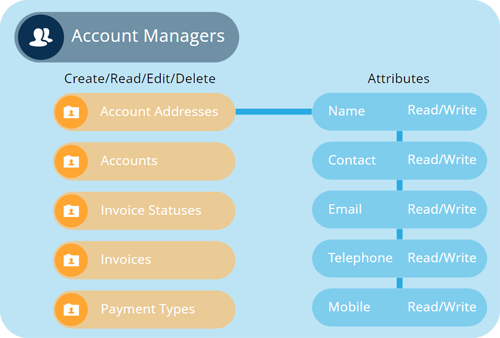
A number of preconfigured system groups are included to you get started! However, admins can also create new groups to represent different sets of resources in the organisation, and then use the [Permissions Manager](/web/permissions/permissions-manager/.md) to define the permissions on each one.
A group can be added to one or more [roles](/web/permissions/roles/.md). Each role inherits the permissions of its groups. When [users](/web/permissions/users/.md) are added to that role, they inherit those combined permissions.
For optimal permissions management, keep groups minimal and modular, so they can be reused across multiple roles.
## [📄️System groups](/web/permissions/groups/system-groups.md)
[Preconfigured user groups](/web/permissions/groups/system-groups.md)
## [📄️Viewing groups](/web/permissions/groups/viewing-groups.md)
[View the details of a group](/web/permissions/groups/viewing-groups.md)
## [📄️Creating groups](/web/permissions/groups/creating-groups.md)
[Create a new group](/web/permissions/groups/creating-groups.md)
## [📄️Editing groups](/web/permissions/groups/editing-groups.md)
[Edit a group's roles, users and permissions](/web/permissions/groups/editing-groups.md)
## [📄️Deleting groups](/web/permissions/groups/deleting-groups.md)
[Delete an unused group](/web/permissions/groups/deleting-groups.md)
---
# Creating groups
### Create a new group[](#create-a-new-group "Direct link to Create a new group")
Admins can create any number of permission groups. While the included [system groups](/web/permissions/groups/system-groups.md) cover the essentials, new groups will be needed to control access to the custom designs/interfaces created by your organisation.
Additionally, you may want to create groups with more granular permissions, e.g. *a **Jobs Editor** group that grants permission to view, create and edit jobs but not delete them*. For more advice, see [Planning your permissions](/web/permissions/planning-permissions.md).
To start creating a group, open the **Permissions** [dashboard card](/web/getting-started/dashboard.md) and select **Create group**.
[](/img/permissions/permissions-card.png)
### The group creation process[](#the-group-creation-process "Direct link to The group creation process")
The key steps of this process will appear in the dashboard panel:
* 1 [**Enter group details**](#-1--enter-group-details) - required
* 2 [**Roles**](#-2--roles) - optional
* 3 [**Users**](#-3--users) - optional
Fields marked with an asterisk **\*** require a value to continue.
#### 1 Enter group details[](#-1--enter-group-details "Direct link to -1--enter-group-details")
This is a required step. Supply a distinct **Name** for the new group.
Select **Next** to choose the next step.
[](/img/groups/groups-create-01.png)
#### 2 Roles[](#-2--roles "Direct link to -2--roles")
This is an optional step. Select the **Roles** that will inherit the new group's permissions. If you're unsure, these can be added or removed later by [editing](/web/permissions/groups/editing-groups.md) the group.
Select **Next** to choose the next step.
[](/img/groups/groups-create-02.png)
#### 3 Users[](#-3--users "Direct link to -3--users")
This is an optional step. Select the **Users** that will inherit permissions directly from this new group.
We recommend assigning users to roles where possible (even if it means having a role with just one group). This builds in flexibility that'll make permissions management easier going forward.
Select **Next** to choose the next step.
[](/img/groups/groups-create-03.png)
### Finish the process[](#finish-the-process "Direct link to Finish the process")
After completing the relevant steps for your group, select **Create** to finish. A notification indicates whether the group was created successfully or an error occurred.
[](/img/groups/groups-create-04.png)
### Set group permissions[](#set-group-permissions "Direct link to Set group permissions")
To set the permissions of your new group:
1. Select the group to [view its details](/web/permissions/groups/viewing-groups.md) in the right panel.
2. Select **More** in the [action bar](/web/getting-started/action-bar.md) and choose **Permissions**.
3. Use the [Permissions Manager](/web/permissions/permissions-manager/.md) to add and configure permissions on the group. We recommend keeping groups minimal and modular, so they can be reused across multiple roles.
---
# Deleting groups
### Delete an unused group[](#delete-an-unused-group "Direct link to Delete an unused group")
Admins can delete groups when they're no longer needed (except for [system groups](/web/permissions/groups/system-groups.md)). Any [roles](/web/permissions/roles/.md) and [users](/web/permissions/users/.md) assigned to the group will no longer inherit its permissions, so it's worth checking these before proceeding.
To permanently delete a group:
1. Open the **Permissions** dashboard card and select **Groups**.
2. In the right panel, select the group from the search results to view its details.
3. Select **Delete** in the [action bar](/web/getting-started/action-bar.md) and answer **Yes** to the confirmation.
[](/img/groups/groups-delete.png)
Important
Deletions can't be undone, so please think carefully before doing so!
---
# Editing groups
### Edit a group's roles, users and permissions[](#edit-a-groups-roles-users-and-permissions "Direct link to Edit a group's roles, users and permissions")
Admins can edit the permissions of a group, along with the [roles](/web/permissions/roles/.md) and [users](/web/permissions/users/.md) that inherit those permissions:
1. Open the **Permissions** [dashboard card](/web/getting-started/dashboard.md) and select **Groups** to list them in the [Search panel](/web/getting-started/right-panel-menu/alloy-search.md).
2. Select a group from the search results to view its details.
[](/img/groups/groups-edit-01.png)
3. To edit the group's **Name**, select **Edit** in the [action bar](/web/getting-started/action-bar.md). Select **Save** to finish.
4. Use the [tab bar](/web/getting-started/tab-bar.md) to switch to the **Roles** or **Users** tab.
[](/img/groups/groups-edit-02.png)
#### Add roles or users[](#add-roles-or-users "Direct link to Add roles or users")
To assign more roles or users to the group, select **More** in the [action bar](/web/getting-started/action-bar.md) and choose **Add roles/users**.
Select the roles or users that will inherit the groups's permissions and then select **Save**.
[](/img/groups/groups-edit-03.png)
#### Remove roles or users[](#remove-roles-or-users "Direct link to Remove roles or users")
To remove roles or users from the group, select **Edit** in the [action bar](/web/getting-started/action-bar.md). Select **Remove** beside each one and select **Save**.
[](/img/groups/groups-edit-04.png)
### Configure group permissions[](#configure-group-permissions "Direct link to Configure group permissions")
To configure the permissions of the group, select **More** at the bottom of the **General** tab and choose **Permissions**.
Use the [Permissions Manager](/web/permissions/permissions-manager/.md) to add and configure permissions on the group. We recommend keeping groups minimal and modular, so they can be reused across multiple roles.
---
# System groups
### Preconfigured user groups[](#preconfigured-user-groups "Direct link to Preconfigured user groups")
Many preconfigured system groups exist for granting access to CausewayOne Asset Management's key features. They can be added to your organisation's [roles](/web/permissions/roles/.md), making it quick and easy to define who can access what.
Broadly speaking, the **Viewer** groups give read access to one or more features and the **Manager** groups give write access. While system groups can't be edited, you can [view their permissions](/web/permissions/groups/editing-groups.md#configure-group-permissions) in the Permissions Manager to see what they do.
### Overview[](#overview "Direct link to Overview")
The following table provides a handy overview for getting started. It lists all the system groups, the features they correspond to and the permissions they grant.
It also indicates which groups are typically required for basic use. To ensure everyone receives the permissions, you can [create a role](/web/permissions/roles/creating-roles.md) containing those groups and apply it to all users. For Alloy Mobile guidance, see [Mobile permissions](/web/permissions/mobile-permissions.md).
| System group | Feature | View / Run | Create / Edit / Delete | Recommended for basic use | Recommended for Alloy Mobile |
| ------------------------ | ------------------------------------------------------------------------------------------------------------------------------------------------------------------------------------------ | ---------- | ---------------------- | ------------------------------ | ---------------------------- |
| **Admins** | Everything, including permission management | | | | |
| **Basemap Managers** | [Basemaps](/web/maps/basemaps/.md) | | | | |
| **Basemap Viewers** | [Basemaps](/web/maps/basemaps/.md) | | | | |
| **Budget Managers** | [Budgets](/web/financial-accounts/budgets/.md) | | | | |
| **Budget Viewers** | [Budgets](/web/financial-accounts/budgets/.md) | | | | |
| **Card Managers** | [Dashboard cards](/web/dash-cards.md) | | | | |
| **Card Viewers** | [Dashboard cards](/web/dash-cards.md) | | | | |
| **Contact Managers** | The **Contacts** design | | | | |
| **Contact Viewers** | The **Contacts** design | | | | |
| **Core Managers** | Various core designs, interfaces and items | | | | |
| **Core Viewers** | Various core designs, interfaces and items | | | | |
| **Defect Managers** | [Defects](/web/activities/defects/.md) | | | | |
| **Defect Viewers** | [Defects](/web/activities/defects/.md) | | | | |
| **Design Managers** | [Designer](/web/designer.md), [Item Forms](/web/designer/item-forms/.md), [Stencil Editor](/web/designer/stencil-editor/.md) | | | | |
| **File System Managers** | [File Explorer](/web/getting-started/right-panel-menu/file-explorer.md), [Attachments](/web/items/item-attachments.md), [Upload files](/web/gateway/attach-files.md) | | | | |
| **File System Viewers** | [File Explorer](/web/getting-started/right-panel-menu/file-explorer.md), [Attachments](/web/items/item-attachments.md) | | | | |
| **Import Managers** | [Gateway](/web/gateway.md) | | | | |
| **Import Viewers** | [Gateway](/web/gateway.md) | | | | |
| **Inspection Managers** | [Inspections](/web/activities/tasks/inspections/.md) | | | | |
| **Inspection Viewers** | [Inspections](/web/activities/tasks/inspections/.md) | | | | |
| **Job Managers** | [Jobs](/web/activities/tasks/jobs/.md), [Work items](/web/activities/tasks/jobs/work-units/work-items/.md), [Job work items](/web/activities/tasks/jobs/work-units/job-work-items.md) | | | | |
| **Job Viewers** | [Jobs](/web/activities/tasks/jobs/.md), [Work items](/web/activities/tasks/jobs/work-units/work-items/.md), [Job work items](/web/activities/tasks/jobs/work-units/job-work-items.md) | | | | |
| **Layer Managers** | [Layers](/web/maps/layers/.md) | | | | |
| **Layer Viewers** | [Layers](/web/maps/layers/.md) | | | | |
| **Mesh Managers** | Meshes included with modules | | | | |
| **Mesh Viewers** | Meshes included with modules | | | | |
| **Network Managers** | [Networks](/web/maps/networks/.md) | | | | |
| **Network Viewers** | [Networks](/web/maps/networks/.md) | | | | |
| **Project Managers** | [Projects](/web/activities/projects/.md), [Routing](/web/activities/routing/.md), [Teams](/web/activities/teams/.md) | | | | |
| **Project Viewers** | [Projects](/web/activities/projects/.md), [Routing](/web/activities/routing/.md), [Teams](/web/activities/teams/.md) | | | | |
| **Report Managers** | [Report Managers](/web/reporting.md) | | | | |
| **Report Viewers** | [Report Viewers](/web/reporting.md) | | | | |
| **Saved Query Managers** | [Saving and loading queries](/web/data-explorer/saving-loading-query.md) | | | | |
| **Saved Query Viewers** | [Saving and loading queries](/web/data-explorer/saving-loading-query.md) | | | | |
| **Workflow Managers** | [Workflows](/web/workflows.md) | | | | |
| **Workflow Viewers** | [Workflows](/web/workflows.md) | | | | |
### Module groups[](#module-groups "Direct link to Module groups")
Some [modules](/basics/fundamentals/modules.md) include permission groups relating to the extra designs/interfaces supplied by the module, e.g. *the **Waste** module includes two groups named **Waste Viewers** and **Waste Managers***.
If any modules were installed for your organisation, these extra groups will be listed alongside the system ones. You're free to add these groups to existing roles or create new roles for them accordingly.
For a detailed breakdown of what each module includes, see **Blueprints** in the [Developer Docs](https://developer.alloyapp.io).
---
# Viewing groups
### View the details of a group[](#view-the-details-of-a-group "Direct link to View the details of a group")
To see which [roles](/web/permissions/roles/.md) and [users](/web/permissions/users/.md) are assigned to a group:
1. Open the **Permissions** [dashboard card](/web/getting-started/dashboard.md) and select **Groups**.
Alternatively, select **Search** in the right panel menu and choose the **Groups** category (select to clear the previous search if necessary). You can then search by keyword or scroll the list of available users.
[](/img/groups/groups-list.png)
2. Select a group to view its details in the right panel. If its **Context** property is *Customer*, it was created by your organisation. Otherwise, it's a [system group](/web/permissions/groups/system-groups.md).
3. Use the [tab bar](/web/getting-started/tab-bar.md) to switch to the **Roles** or **Users** tab.
[](/img/groups/groups-view-groups_03.png)
### View group permissions[](#view-group-permissions "Direct link to View group permissions")
Admins can view the permissions of the group. Select **More** at the bottom of the **General** tab and choose **Permissions**.
Using the [Permissions Manager](/web/permissions/permissions-manager/.md), you can browse the configured permissions and edit them if needed.
---
# Mobile permissions
### Permissions required for Alloy Mobile[](#permissions-required-for-alloy-mobile "Direct link to Permissions required for Alloy Mobile")
To use [Alloy Mobile](/mobile.md) on phones and tablets, users require permissions to view, edit and create items as needed. While the exact permissions are different for each organisation, this is a summary of what's typically required. For tailored advice, please [contact Support](https://www.causeway.com/support/asset-management/support/).
If a user experiences sync errors, the first thing to troubleshoot is their permissions.
info
Alloy Mobile users cannot delete items.
### View activities[](#view-activities "Direct link to View activities")
To download and view activities, users must belong to the relevant system groups and module groups:
* Core Viewers
* Defect Viewers
* Inspection Viewers
* Job Viewers
* Project Viewers
* Budget Viewers
* File System Viewers (for viewing [attachments](/web/items/item-attachments.md))
* Event Viewers
* Notification Viewers
* Street Manager Viewers
* Waste Viewers
The simplest way to do this:
1. [Create a role](/web/permissions/roles/.md).
2. Add the relevant groups to it.
3. Add one or more custom groups that grant:
* read access to the **Tasks** and **Tasks Assignable** interfaces
* read access to any asset designs/interfaces related to your activity type, e.g. *a **Trees** design for pruning jobs*.
4. Assign users to the role.
info
Users must also belong to at least one [team](/web/activities/teams/.md).
### Create and edit activities[](#create-and-edit-activities "Direct link to Create and edit activities")
To create and edit activity items, users must belong to the relevant groups listed below, and to custom groups that grant read/write access to the listed designs and attributes.
To do this, create another role as described above. While you can add all the "view" and "create/edit" groups to one role, we recommend splitting them across two roles for more flexibility.
Large organisations may benefit from having multiple roles that govern access to different activity types.
#### Assets[](#assets "Direct link to Assets")
* Read/write access to the relevant asset designs, including any required attributes
#### Defects[](#defects "Direct link to Defects")
* Defect Managers
* Project Managers
* Read/write access to any custom defect designs, including any required attributes
* Write access to the **Defects** attribute on the **Defects Assignable** interface
#### Jobs[](#jobs "Direct link to Jobs")
* Job Managers
* Project Managers
* Read/write access to any custom job designs, including any required attributes
* Write access to the **Tasks** attribute on the **Tasks Assignable** interface
#### Inspections[](#inspections "Direct link to Inspections")
* Inspection Managers
* Project Managers
* Read/write access to any custom inspection designs, including any required attributes
* Write access to the **Tasks** attribute on the **Tasks Assignable** interface
#### Events[](#events "Direct link to Events")
* Event Managers
* Read access to the **Event Filter Applicable Types** design
* Read access to the **Event Filters** design
* Read/write access to any custom event designs, including any required attributes
### Downloaded designs[](#downloaded-designs "Direct link to Downloaded designs")
During [mobile synchronisation](/mobile/sync.md), items of the following designs are downloaded at the **Required Lookups** stage. Users therefore require at least read access to these designs. This can be accomplished using the system groups as described above, or by creating custom groups that grant access to the necessary designs.
* `designs_users`
* `designs_teams`
* `designs_teamMembers`
* `designs_taskStatuses`
* `designs_taskStatusTypes`
If the **Notifications** module is installed:
* `designInterfaces_notificationTypes`
* `designs_notificationResponseTypes`
If the **Waste** module is installed:
* `designs_wasteEventTypes`
If the **Risk Assessment** module is installed:
* `designs_riskLikelihoodLevels`
* `designs_riskConsequenceLevels`
* `designs_riskSeverityLevels`
If the **DEFRA Categories** module is installed:
* `designs_defraActionTypes`
* `designs_defraLandTypes`
* `designs_defraSizes`
* `designs_defraWasteTypes`
If the **Street Works Street Manager** module is installed:
* `designs_streetManagerTrafficManagementCarriagewayRestrictionTypes`
* `designs_streetManagerPermitConditionTypes`
* `designs_streetManagerWorksActivityTypes`
* `designs_streetManagerLocationTypes`
* `designs_streetManagerWorksCategories`
* `designs_streetManagerWorksStatuses`
* `designs_streetManagerPermitStatuses`
If the **Trails** module is installed:
* `designs_locationTrails`
---
# Permissions Manager
### Configure group permissions[](#configure-group-permissions "Direct link to Configure group permissions")
Admins can use the Permissions Manager to define the permissions of any custom [group](/web/permissions/groups/.md):
1. Open the **Permissions** [dashboard card](/web/getting-started/dashboard.md) and select **Groups**.
2. In the right panel, select a group from the search results to view its details.
3. Select **More** in the [action bar](/web/getting-started/action-bar.md) and choose **Permissions**.
info
Admins can also use the Permissions Manager to view (but not edit) the preconfigured permissions of a [system group](/web/permissions/groups/system-groups.md) and the permissions inherited by a [role](/web/permissions/roles/viewing-roles.md).
### Key features[](#key-features "Direct link to Key features")
[](/img/permissions/permission-screen-layout.png)
#### 1 Group name[](#-1--group-name "Direct link to -1--group-name")
The group you're configuring is displayed at the top. Any permissions set will affect all users of this group, whether they're assigned to it directly, or assigned to a role that inherits the group's permissions.
#### 2 Categories column[](#-2--categories-column "Direct link to -2--categories-column")
This column lists the available data categories. Select a category to list its objects in the **Objects** column.
Where possible, we recommend configuring as few categories as possible in a single group. This will reduce potential complications and provide greater flexibility going forward, as you can use roles to combine permissions from multiple groups.
Category article links
If you're unfamiliar with any data categories, follow the links below to visit their help articles.
* [Basemaps](/web/maps/basemaps/.md)
* [Cards](/web/dash-cards.md)
* [Designs](/web/designer.md)
* [Interfaces](/web/designer.md)
* [Item forms](/web/designer/item-forms/.md)
* [Layers](/web/maps/layers/.md)
* Meshes (3rd party integrations included with [modules](/basics/fundamentals/modules.md))
* [Workflows](/web/workflows.md)
#### 3 Objects column[](#-3--objects-column "Direct link to -3--objects-column")
This column lists the objects in the selected data category for your [company project](/web/getting-started/choosing-project.md). To filter the list by one or more keywords, use the top search box.
To only see objects with permissions set, select **Filter** and choose one of the following:
* **All** - display all objects.
* **With permissions** (designs/interfaces only) - display only objects with permissions set directly or inherited from an implemented interface.
* **With permission overrides** - display only objects with permissions set directly.
Select an object to show its permission settings in the **Permissions** column.
[](/img/permissions/permissions-manager-objects-column.png)
#### 4 Attributes column[](#-4--attributes-column "Direct link to -4--attributes-column")
This column only appears if a design or interface is selected in the **Objects** column. To filter the list by one or more keywords, use the top search box.
Attributes can have default permissions set on their design (or inherited from an implemented interface). You can also set permissions on individual attributes.
[](/img/permissions/permissions-manager-attributes-column.png)
The colour of an attribute's icon indicates its permission status:
* **Not set** - no permission is currently set.
* **None** - the attribute is hidden from users of this group.
* **Read only** - the attribute can be read by users of this group.
* **Read write** - the attribute can be read and edited by users of this group.
Greater permissions take precedence over lesser permissions, e.g. *if a user belongs to a role with two groups, where one group grants **Read only** to an object and the other grants **Read write**, the user will receive **Read write** access*.
Select an attribute to show its permission settings in the **Permissions** column.
info
You can also use [stencils](/web/designer/stencil-editor/.md) and [item forms](/web/designer/item-forms/.md) to control which attributes are visible and editable. However, permissions always take precedence!
#### 5 Permissions column[](#-5--permissions-column "Direct link to -5--permissions-column")
This column displays the permission settings of the selected object or attribute. For most categories, you can set one of three permission types on the object. The default is **None**.
[](/img/permissions/permissions-settings-shuffle.gif)
If a design or interface is selected, the permissions are more granular and you can select one or more of them. To learn more, see [Group permissions for designs](/web/permissions/permissions-manager/group-permissions-designs.md) and [Group permissions for interfaces](/web/permissions/permissions-manager/group-permissions-interfaces.md).
[](/img/permissions/permissions-manager-designs_05.png)
#### 6 Save button[](#-6--save-button "Direct link to -6--save-button")
When you're finished, select **Save** to save your changes. To leave without saving, select **Close** in the top-right corner.
---
# Group permissions for designs
### Set permissions for designs and their attributes[](#set-permissions-for-designs-and-their-attributes "Direct link to Set permissions for designs and their attributes")
When using the Permissions Manager to configure a [group](/web/permissions/groups/.md), you can set permissions for any [design](/web/designer.md) in your [company project](/web/getting-started/choosing-project.md). This includes the system designs and any custom designs made by your organisation.
For each design, you can define a granular level of access. This affects all items of the design and determines what the group's users can do with them, e.g. *Group A can read and edit items of the **Bollards** design. Group B can also create and delete them*.
For the attributes on the design, you can set a default level of access, which can then be overridden for individual attributes if needed, e.g. *Group B has read/write access to all attributes of the **Bollards** design but Group A has no access to the **Owner** attribute*.
info
Permissions affect all items of a design. To grant conditional access to items based on their values, consider [Access policies](/apps/permissions/access-policies/.md).
### Design permissions[](#design-permissions "Direct link to Design permissions")
To set permissions on a design when configuring a group in the Permissions Manager:
1. Select **Designs** in the **Categories** column.
2. Select the relevant design in the next column.
3. Enable one or more of the following **Design permissions**, according to your needs:
* **Create** - allow the group's users to [create items](/web/items/creating-items/.md) of this design.
* **Read** - allow the group's users to [view items](/web/items/viewing-items.md) of this design.
* **Edit** - allow the group's users to [edit items](/web/items/editing-items/.md) of this design.
* **Delete** - allow the group's users to [delete items](/web/items/removing-items/deleting-items.md) of this design.
info
These permissions let users perform these actions on items. However, attribute permissions should also be set accordingly.
*For example, if the **Create** permission is enabled on a design, but the **Read write** permission isn't enabled for all required attributes, it won't be possible to create an item of that design*.
4. Enable one of the following **Default attribute permissions**, according to your needs:
* **None** - attributes will be hidden from users of this group.
* **Read only** - allow the group's users to view the attributes.
* **Read write** - allow the group's users to view and edit the attributes.
You can override this default permission for individual attributes ([see below](#override-attribute-permissions)).
[](/img/permissions/design-permissions-02.png)
#### Inheritance[](#inheritance "Direct link to Inheritance")
If the design [implements](/web/designer/managing-interfaces.md) one or more interfaces, it will inherit any permissions set on those interfaces by this group.
Inherited permissions are highlighted purple. You can select an inherited permission to enable it on the design (so it stays enabled if the interface's permissions change). However, you can't disable an inherited permission.
[](/img/permissions/permissions-settings-inherit-toggle.gif)
### Override attribute permissions[](#override-attribute-permissions "Direct link to Override attribute permissions")
To override the **Default attribute permission** for a particular attribute on the selected design:
1. Select the attribute in the **Attributes** column.
2. In the **Permissions** column, enable one of the following **Override attribute permissions**, according to your needs:
* **None** - the selected attribute will be hidden from users of this group.
* **Read only** - allow the group's users to view the selected attribute.
* **Read write** - allow the group's users to view and edit the selected attribute.
[](/img/permissions/design-permissions-03.png)
#### Inheritance[](#inheritance-1 "Direct link to Inheritance")
If the design [implements](/web/designer/managing-interfaces.md) one or more interfaces, some of its attributes will be inherited from those interfaces.
The permission of an inherited attribute can't be overridden. However, the Permissions Manager will tell you where it comes from, so you can edit the attribute on that interface if needed. Remember, doing so will affect that attribute on all designs/interfaces that implement that interface!
[](/img/permissions/design-permissions-04.png)
### Link attributes[](#link-attributes "Direct link to Link attributes")
When granting access to any [Link attribute](/web/designer/attributes/types/link-attribute.md) on this design, ensure the group also has access to the design of the linked items (or an implemented interface). Otherwise, the group's users will receive an E1539905172 error whenever they view items of this design.
For more information, see [Planning permissions](/web/permissions/planning-permissions.md).
---
# Group permissions for interfaces
### Set permissions for interfaces and their attributes[](#set-permissions-for-interfaces-and-their-attributes "Direct link to Set permissions for interfaces and their attributes")
When using the Permissions Manager to configure a [group](/web/permissions/groups/.md), you can set permissions for any [interface](/web/designer.md) in your [company project](/web/getting-started/choosing-project.md). This includes the system interfaces and any custom interfaces made by your organisation.
As designs inherit permissions from any interface they [implement](/web/designer/managing-interfaces.md), setting permissions on an interface provides a way to set them across multiple designs simultaneously.
For each interface, you can define a granular level of access. This affects all items of all designs that implement the interface and determines what the group's users can do with them, e.g. *Group C can read and edit items that implement the **Defects** interface. Group D can also create and delete them*.
For the attributes on the interface, you can set a default level of access, which can then be overridden for individual attributes if needed, e.g. *Group D has read/write access to all attributes of the **Tasks** interface but Group C has no access to the **Priority** attribute*.
info
Setting permissions on interfaces can potentially affect a wide range of designs and other interfaces. However, inherited permissions can be overridden by setting permissions directly on a design/interface.
### Interface permissions[](#interface-permissions "Direct link to Interface permissions")
To set permissions on an interface when configuring a group in the Permissions Manager:
1. Select **Interfaces** in the **Categories** column.
2. Select the relevant interface in the next column.
3. Enable one or more of the following **Design interface permissions**, according to your needs:
* **Create** - allow the group's users to [create items](/web/items/creating-items/.md) that implement this interface.
* **Read** - allow the group's users to [view items](/web/items/viewing-items.md) that implement this interface.
* **Edit** - allow the group's users to [edit items](/web/items/editing-items/.md) that implement this interface.
* **Delete** - allow the group's users to [delete items](/web/items/removing-items/deleting-items.md) that implement this interface.
info
These permissions let users perform these actions on items. However, attribute permissions should also be set accordingly, otherwise they won't be accessible.
*For example, if the **Create** permission is enabled on an interface, but the **Read write** permission isn't enabled for all required attributes, it won't be possible to create an item (unless the permission is set on its design)*.
4. Enable one of the following **Default attribute permissions**, according to your needs:
* **None** - attributes will be hidden from users of this group.
* **Read only** - allow the group's users to view the attributes.
* **Read write** - allow the group's users to view and edit the attributes.
You can override this default permission for individual attributes ([see below](#override-attribute-permissions)).
info
**Default attribute permissions** will apply to all attributes on the designs/interfaces that implement this interface.
*For example, if set to "Read only" on the **Jobs** interface, all attributes on the **Bench Jobs** design will be read only by default (not just the inherited attributes)*.
[](/img/permissions/permissions-interface-manager_03.png)
#### Inheritance[](#inheritance "Direct link to Inheritance")
If the interface implements one or more other interfaces, it will inherit any permissions set on those interfaces by this group.
Inherited permissions are highlighted purple. You can select an inherited permission to enable it on the interface (so it stays enabled if the other interface's permissions change). However, you can't disable an inherited permission.
[](/img/permissions/permissions-settings-inherit-toggle.gif)
### Override attribute permissions[](#override-attribute-permissions "Direct link to Override attribute permissions")
To override the **Default attribute permission** for a particular attribute on the selected interface:
1. Select the attribute in the **Attributes** column.
2. In the **Permissions** column, enable one of the following **Override attribute permissions**, according to your needs:
* **None** - the selected attribute will be hidden from users of this group.
* **Read only** - allow the group's users to view the selected attribute.
* **Read write** - allow the group's users to view and edit the selected attribute.
Remember, this will affect the attribute on all designs that implement this interface!
[](/img/permissions/permissions-interface-manager_05.png)
#### Inheritance[](#inheritance-1 "Direct link to Inheritance")
If the interface implements one or more other interfaces, some of its attributes will be inherited from those interfaces.
The permission of an inherited attribute can't be overridden. However, the Permissions Manager will tell you where it comes from, so you can edit the attribute on that interface if needed. Remember, doing so will affect that attribute on all designs/interfaces that implement that interface!
[](/img/permissions/permissions-interface-manager_06.png)
### Link attributes[](#link-attributes "Direct link to Link attributes")
When granting access to any [Link attribute](/web/designer/attributes/types/link-attribute.md) on this interface, ensure the group also has access to the design of the linked items (or an implemented interface). Otherwise, the group's users will receive an E1539905172 error whenever they view items that implement this interface.
For more information, see [Planning permissions](/web/permissions/planning-permissions.md).
---
# Planning permissions
### Tips and suggestions[](#tips-and-suggestions "Direct link to Tips and suggestions")
If your organisation is new to CausewayOne Asset Management, you can use the [system groups](/web/permissions/groups/system-groups.md) to get started. By assigning users to these preconfigured permission groups, you can give them access to the features they need.
Over time, you can [create](/web/permissions/groups/creating-groups.md) and [configure](/web/permissions/permissions-manager/.md) custom permission groups that are better suited to your organisation. The flexible permissions system in CausewayOne Asset Management lets you define multiple levels of access to specific objects within various data categories. You can even control access to individual attributes!
While every organisation is different, here are some general tips and suggestions to help you plan your permissions structure.
info
For bespoke advice on setting up permissions, please contact [Causeway Support](https://www.causeway.com/support).
### Create variations of the system groups[](#create-variations-of-the-system-groups "Direct link to Create variations of the system groups")
The included system groups are fairly broad in scope. As your organisation develops its own designs and interfaces, you can create variations of these groups for each of your asset or activity types.
*For example, the **Defect Managers** system group applies to all defects. Consider replacing it with groups like **Bollard Defect Managers**, **Postbox Defect Managers**, and so on*.
Additionally, the system groups provide two levels of access: **Viewers** (read) and **Managers** (create, read, edit, delete). You can expand on these concepts by defining other access levels and creating groups for them.
*For example, you could have **Editor** groups that let users read and edit items but not create or delete them.*
### Use an interface to target multiple designs[](#use-an-interface-to-target-multiple-designs "Direct link to Use an interface to target multiple designs")
By setting permissions on an interface, you're setting them on all the designs that implement it. This makes it easy to set the same permissions across multiple related designs.
*For example, for an **Asset Viewers** group, you could enable the **Read** permission on the **Asset Heads** interface, which is implemented by all asset designs*.
If you set permissions on any of the interface's attributes, the designs will inherit them too. This means you can control access to inherited attributes independently from whatever permissions are set on the design.
*For example, you want a group that can register defects against assets, even if they lack write access to those assets. To do this, set the **Defects** attribute of the **Defects Assignable** interface to "Read write".*
*For example, you don't want a group to see the **Target Time** of tasks, even if they otherwise have full access to those tasks. To do this, set the **Target Time** attribute of the **Tasks Assignable** interface to "None"*.
info
Inherited interface permissions can be overridden by permissions set directly on a design. However, inherited attribute permissions can't be overridden.
### Ensure users can view Link attributes[](#ensure-users-can-view-link-attributes "Direct link to Ensure users can view Link attributes")
[Link attributes](/web/designer/attributes/types/link-attribute.md) often store items of a different design. Therefore, when setting permissions on a design/interface, make sure the group also has read access to the relevant design of any Link attributes. Otherwise, users will receive an E1539905172 error whenever they view, create or edit items of the initial design/interface.
*For example, the **Defects** interface has a Link attribute named **Status** that stores items of the **Defect Statuses** design. If you enable the **Read** permission for the **Defects** interface, do the same for the **Defect Statuses** design*.
Some organisations like to create a single group (e.g. ***Lookup Viewers***) that enables the **Read** permission on a custom interface (e.g. ***Lookup Designs***) implemented by all their lookup designs (e.g. ***Material Types**, **Ground Conditions***). This is a convenient way to ensure users don't experience errors when viewing items, though it may be unsuitable for some organisations.
### Restrict access to job work items[](#restrict-access-to-job-work-items "Direct link to Restrict access to job work items")
You may want to grant access to jobs while restricting access to their constituent [job work items](/web/activities/tasks/jobs/work-units/job-work-items.md). This is a common scenario for organisations that employ multiple contractors, as job work items can contain sensitive information like costs.
If a group has no access to the **Job Work Items** interface, its users will experience errors when viewing, creating or editing jobs. Besides, you probably do want them to see a job's work items, just not the sensitive bits!
The solution is to enable permissions as needed on the **Job Work Items** interface but set the **None** permission on some or all of its attributes, e.g. *Estimated Rate Used*, *Actual Cost*.
Alternatively, you can create custom job work item types (create a design that implements the **Job Work Items** interface). You can then govern access at the design level, so that only certain groups can see certain job work item types.
### Keep things minimal[](#keep-things-minimal "Direct link to Keep things minimal")
When defining a group's permissions, it's best practice to keep them as minimal as possible. Focus on a handful of data categories, only set permissions on objects that need them, and create separate groups when appropriate.
By keeping groups minimal, they can be readily combined with other groups across multiple [roles](/web/permissions/roles/.md). This makes user management easier, as users can be assigned to a couple of roles rather than dozens of groups.
---
# Roles
A **role** is a combination of [groups](/web/permissions/groups/.md) and [users](/web/permissions/users/.md). It typically represents a position, persona or responsibility within your organisation.
[](/img/permissions/permissions-role-structure.png)
Any number of groups can be added to a role. The combined permissions of those groups are then inherited by the role's users.
Roles effectively let you match up multiple users with multiple groups. By keeping your groups minimal and modular, you can reuse them across multiple roles. This provides great flexibility and simplifies user management going forward, as it's easier to add/remove users on a single role instead of multiple groups!
## [📄️Viewing roles](/web/permissions/roles/viewing-roles.md)
[View the details of a role](/web/permissions/roles/viewing-roles.md)
## [📄️Creating roles](/web/permissions/roles/creating-roles.md)
[Create a new role](/web/permissions/roles/creating-roles.md)
## [📄️Editing roles](/web/permissions/roles/editing-roles.md)
[Edit a role's groups and users](/web/permissions/roles/editing-roles.md)
## [📄️Deleting roles](/web/permissions/roles/deleting-roles.md)
[Delete an unused role](/web/permissions/roles/deleting-roles.md)
---
# Creating roles
### Create a new role[](#create-a-new-role "Direct link to Create a new role")
Admins can create any number of roles to represent the positions and responsibilities in your organisation.
To start creating a role, open the **Permissions** [dashboard card](/web/getting-started/dashboard.md) and select **Create role**.
[](/img/permissions/permissions-card.png)
### The group creation process[](#the-group-creation-process "Direct link to The group creation process")
The key steps of this process will appear in the dashboard panel:
* 1 [**Enter role details**](#-1--enter-role-details) - required
* 2 [**Groups**](#-2--groups) - optional
* 3 [**Users**](#-3--users) - optional
Fields marked with an asterisk **\*** require a value to continue.
#### 1 Enter role details[](#-1--enter-role-details "Direct link to -1--enter-role-details")
This is a required step. Supply a distinct **Name** for the new role.
Select **Next** to choose the next step.
[](/img/permissions/role-create_03.png)
#### 2 Groups[](#-2--groups "Direct link to -2--groups")
This is an optional step. Select the **Groups** that the new role will inherit permissions from. If you're unsure, these can be added or removed later by [editing](/web/permissions/roles/editing-roles.md) the role.
All roles should be assigned to the **Core Viewers** group. For other recommendations for basic use, see [System groups](/web/permissions/groups/system-groups.md).
Select **Next** to choose the next step.
[](/img/permissions/role-create_04.png)
#### 3 Users[](#-3--users "Direct link to -3--users")
This is an optional step. Select the **Users** that will inherit the combined permissions from the new role. If you're unsure, these can be added or removed later by [editing](/web/permissions/roles/editing-roles.md) the role.
Select **Next** to choose the next step.
[](/img/permissions/role-create_06.png)
### Finish the process[](#finish-the-process "Direct link to Finish the process")
After completing the relevant steps for your role, select **Create** to finish. A notification indicates whether the role was created successfully or an error occurred.
[](/img/permissions/role-create_07.png)
---
# Deleting roles
### Delete an unused role[](#delete-an-unused-role "Direct link to Delete an unused role")
Admins can delete roles when they're no longer needed. Any [users](/web/permissions/users/.md) assigned to the role will no longer inherit its permissions, so it's worth checking them before proceeding.
To permanently delete a role:
1. Open the **Permissions** dashboard card and select **Roles**.
2. In the right panel, select the group from the search results to view its details.
3. Select **Delete** in the [action bar](/web/getting-started/action-bar.md) and answer **Yes** to the confirmation.
[](/img/permissions/role-delete.png)
Important
Deletions can't be undone, so please think carefully before doing so!
---
# Editing roles
### Edit a role's groups and users[](#edit-a-roles-groups-and-users "Direct link to Edit a role's groups and users")
Admins can edit the [groups](/web/permissions/groups/.md) and [users](/web/permissions/users/.md) associated with a role:
1. Open the **Permissions** [dashboard card](/web/getting-started/dashboard.md) and select **Roles** to list them in the [Search panel](/web/getting-started/right-panel-menu/alloy-search.md).
2. Select a role from the search results to view its details.
[](/img/permissions/role-edit_01.png)
3. To edit the role's **Name**, select **Edit** in the [action bar](/web/getting-started/action-bar.md). Select **Save** to finish.
4. Use the [tab bar](/web/getting-started/tab-bar.md) to switch to the **Groups** or **Users** tab.
[](/img/permissions/role-edit_02.png)
#### Add groups[](#add-groups "Direct link to Add groups")
To assign the role to more groups, select **More** at the bottom of the **Groups** tab and choose **Add groups**.
Select the groups that the role will inherit permissions from and then select **Save**.
[](/img/permissions/role-edit_04.png)
#### Add users[](#add-users "Direct link to Add users")
To assign more users to the role, select **More** at the bottom of the **Users** tab and choose **Add users**.
Select the users that will inherit the role's combined permissions and then select **Save**.
[](/img/permissions/role-edit_07.png)
#### Remove groups or users[](#remove-groups-or-users "Direct link to Remove groups or users")
To remove groups or users from the role, select **Edit** in the [action bar](/web/getting-started/action-bar.md). Select **Remove** beside each one and select **Save**.
[](/img/permissions/role-edit_08.png)
---
# Viewing roles
### View the details of a role[](#view-the-details-of-a-role "Direct link to View the details of a role")
To view the [groups](/web/permissions/groups/.md) and [users](/web/permissions/users/.md) associated with a role:
1. Open the **Permissions** [dashboard card](/web/getting-started/dashboard.md) and select **Roles**.
Alternatively, select **Search** in the right panel menu and choose the **Roles** category (select to clear the previous search if necessary). You can then search by keyword or scroll the list of available users.
[](/img/permissions/roles-list.png)
2. Select a role to view its details in the right panel.
3. To see the groups this role is assigned to, use the [tab bar](/web/getting-started/tab-bar.md) to switch to the **Groups** tab.
[](/img/permissions/role-view-02.png)
4. To see the users assigned to this role, use the [tab bar](/web/getting-started/tab-bar.md) to switch to the **Users** tab.
[](/img/permissions/role-view-03.png)
### View role permissions[](#view-role-permissions "Direct link to View role permissions")
Admins can view the combined permissions inherited by the role from its groups. Select **More** at the bottom of the **General** tab and choose **Permissions**.
Using the [Permissions Manager](/web/permissions/permissions-manager/.md), you can browse the inherited permissions. While they can't be edited directly, you can:
* edit the permissions on the role's groups, see [Editing groups](/web/permissions/groups/editing-groups.md).
* assign the role to different groups, see [Editing roles](/web/permissions/roles/editing-roles.md).
---
# Users
A **user** represents an account that someone can sign into CausewayOne Asset Management with.
New users have no permissions by default! They inherit permissions from each [role](/web/permissions/roles/.md) and [group](/web/permissions/groups/.md) they're assigned to. This saves you from having to configure permissions for every user individually.
For a history of user sessions, including the login time and IP address, admins can [run the report](/web/reporting/run-reports.md) named **User Login Reports** (if the relevant [module](/basics/fundamentals/modules.md) is installed).
## [📄️Viewing users](/web/permissions/users/viewing-users.md)
[View the details of a user](/web/permissions/users/viewing-users.md)
## [📄️Creating users](/web/permissions/users/creating-users.md)
[Create an account for a new user](/web/permissions/users/creating-users.md)
## [📄️Editing users](/web/permissions/users/editing-users.md)
[Edit a user's groups and roles](/web/permissions/users/editing-users.md)
## [📄️Removing users](/web/permissions/users/deleting-users.md)
[Remove a user's access to Asset Management](/web/permissions/users/deleting-users.md)
---
# Creating users
### Create an account for a new user[](#create-an-account-for-a-new-user "Direct link to Create an account for a new user")
Admins can create accounts for new users without needing to [contact Support](https://www.causeway.com/support/asset-management/support). This is a quick process that requires just a valid email address:
1. Open the **Permissions** [dashboard card](/web/getting-started/dashboard.md) and select **Create user**.
2. In the dashboard panel, fill in the following fields, and then select **Next**:
* **Username** \* - enter a unique username. It can contain lowercase letters, numbers, hyphens and underscores.
* **Email** \* - enter a unique, valid email address. The user will need to respond to a verification email.
* **First name** \*
* **Last name** \*
[](/img/users/users-create-user_01.png)
3. Choose one of the following options.
**Set custom** - assign the new user to groups and roles
Select the **Groups** and/or **Roles** that you want the new user to inherit permissions from.
We recommend adding users to roles where possible (even if it means having a role with just one group). This builds in flexibility that'll make permissions management easier going forward.
If you plan to add these later, you can proceed without selecting anything. But remember, the new user won't have permission to do anything until then!
[](/img/users/users-create-user_03.png)
**Copy from existing user** - assign them to the same groups/roles as someone else
Select the **User** you want to copy. The new user will be assigned to the same groups/roles as them.
[](/img/users/users-create-user_05.png)
4. Select **Create** to finish. The new user's details will appear in the right panel.
[](/img/users/users-create-user_06.png)
info
The number of users you can create depends on your organisation's product. For more information, [contact Support](https://www.causeway.com/support/asset-management/support).
### User verification[](#user-verification "Direct link to User verification")
Before the new user can sign in, they must verify their email address. When a user is created, an email is sent to the supplied address. It contains a link for them to follow, which will validate their account and let them set a password.
---
# Removing users
### Remove a user's access to Asset Management[](#remove-a-users-access-to-asset-management "Direct link to Remove a user's access to Asset Management")
Admins can remove a user's access to CausewayOne Asset Management without needing to [contact Support](https://www.causeway.com/support/asset-management/support). User accounts can be disabled or permanently deleted.
### Disable a user[](#disable-a-user "Direct link to Disable a user")
To prevent a user from logging into CausewayOne Asset Management on any platform, you can disable their account. This is often preferable to outright deletion, as it ensures the work they did for the organisation remains visible and usable.
To disable a user:
1. Open the **Permissions** [dashboard card](/web/getting-started/dashboard.md) and select **Users**.
2. In the right panel, select the user from the search results to view their details.
3. Select **More** in the [action bar](/web/getting-started/action-bar.md), choose **Disable user** and answer **Yes** to the confirmation.
The user's **Enabled** property will change to a . To re-enable the user, repeat these actions and choose **Enable user**.
[](/img/users/view-user-03.png)
### Delete a user[](#delete-a-user "Direct link to Delete a user")
While users can be deleted, please note that doing so may cause issues with anything the user is linked to, e.g. *any [activities](/web/activities.md) that are assigned to them*.
To permanently delete a user's account:
1. Open the **Permissions** [dashboard card](/web/getting-started/dashboard.md) and select **Users**.
2. In the right panel, select the user from the search results to view their details.
3. Select **Delete** in the [action bar](/web/getting-started/action-bar.md) and answer **Yes** to the confirmation.
[](/img/users/user-delete.png)
Important
Deletions can't be undone, so please think carefully before doing so!
---
# Editing users
### Edit a user's groups and roles[](#edit-a-users-groups-and-roles "Direct link to Edit a user's groups and roles")
Admins can edit the [groups](/web/permissions/groups/.md) and [roles](/web/permissions/roles/.md) that a user is assigned to:
1. Open the **Permissions** [dashboard card](/web/getting-started/dashboard.md) and select **Users** to list them in the [Search panel](/web/getting-started/right-panel-menu/alloy-search.md).
2. Select a user from the search results to view their details.
3. Use the [tab bar](/web/getting-started/tab-bar.md) to switch to the **Groups** or **Roles** tab.
[](/img/users/view-user-02.png)
#### Add groups or roles[](#add-groups-or-roles "Direct link to Add groups or roles")
To assign the user to more groups or roles, select **More** in the [action bar](/web/getting-started/action-bar.md) and choose **Add to groups/roles**.
Select the groups or roles that the user will inherit permissions from and then select **Save**.
[](/img/users/select-user-role.png)
#### Remove groups or roles[](#remove-groups-or-roles "Direct link to Remove groups or roles")
To remove the user from groups or roles, select **Edit** in the [action bar](/web/getting-started/action-bar.md). Select **Remove** beside each one and select **Save**.
[](/img/users/users-edit-user_04.png)
---
# Viewing users
### View the details of a user[](#view-the-details-of-a-user "Direct link to View the details of a user")
To view the details of any user in your [company project](/web/getting-started/choosing-project.md) and see which [groups](/web/permissions/groups/.md) and [roles](/web/permissions/roles/.md) they're assigned to:
1. Open the **Permissions** [dashboard card](/web/getting-started/dashboard.md) and select **Users**.
Alternatively, select **Search** in the right panel menu and choose the **Users** category (select to clear the previous search if necessary). You can then search by keyword or scroll the list of available users.
[](/img/users/users-list.png)
2. Select a user to view their details in the right panel.
[](/img/users/view-user-01.png)
3. Use the [tab bar](/web/getting-started/tab-bar.md) to switch to the **Groups** or **Roles** tab.
[](/img/users/view-user-02.png)
### Access advisor[](#access-advisor "Direct link to Access advisor")
Admins can see the permissions inherited by the user from their groups and roles. Select **More** at the bottom of the **General** tab and choose [**Access Advisor**](/web/permissions/access-advisor.md).
### Open the user's item[](#open-the-users-item "Direct link to Open the user's item")
For a data-orientated view of the user, select **More** at the bottom of the user's **General** tab and choose **Open user item**.
The user will be replaced with the relevant item of the **Users** design in the right panel. This displays extra data, such as when the user was created and by whom.
[](/img/users/view-user-04.png)
To edit the following attributes, select **Edit** in the [action bar](/web/getting-started/action-bar.md):
* **Track User** - when enabled, the user's position can be seen on the map (in any [layer](/web/maps/layers/.md) displaying items of the **Users** design). Position data is updated automatically while using [Alloy Mobile](/mobile.md).
* **Team Members** - this [Link attribute](/web/designer/attributes/types/link-attribute.md) stores a **Team Members** item for each [team](/web/activities/teams/.md) the user belongs to.
As with other items, you can view the item's [audit log](/web/items/audit-log.md) to see the history of changes, and view the item's [graph](/web/items/item-graphs.md) to visualise the user's **Team Members** connections and the contents of their user folder.
info
If you're unable to view the user's item, your user account may lack permission to access the **Users** design.
---
# Reporting
### Stay informed about your assets and operations[](#stay-informed-about-your-assets-and-operations "Direct link to Stay informed about your assets and operations")
CausewayOne Asset Management provides you with the tools to create, manage and run reports.
A report can capture a snapshot of related data from your [company project](/web/getting-started/choosing-project.md) and present it in a format that's easy to read and understand.
[](/img/reports/standard-example-01.png)
info
If you're unable to create or manage reports, your user account may lack the required [permissions](/web/permissions.md).
### Run and view reports[](#run-and-view-reports "Direct link to Run and view reports")
When you [run a report](/web/reporting/run-reports.md), a new report item is generated. Data is collected from the sources defined in the report and compiled into one or more documents.
You can then view the [generated report item](/web/reporting/viewing-reports.md) and download its document files to your device.
### Report types[](#report-types "Direct link to Report types")
#### Standard[](#standard "Direct link to Standard")
These are included with CausewayOne Asset Management and are based around system designs and interfaces. They're blueprinted to ensure they always function consistently, so they can't be modified.
Other standard reports are available via optional [modules](/basics/fundamentals/modules.md), which can be enabled for your company project upon request, e.g. *Highways Activity Report*, *Waste Round Report*. For more information, contact [Causeway Support](https://www.causeway.com/support).
#### Custom[](#custom "Direct link to Custom")
Design your own [custom reports](/web/reporting/custom-reports.md) in accordance with your organisation's requirements. You define what data is collected from where and how it is presented across one or more report documents.
---
# Custom reports
### Design your own reports\
In addition to the included standard reports, you can create and design your own **custom reports**. Using the [Report Builder](/web/reporting/report-builder/.md), you can define what data is collected from where, and how it is presented across one or more report documents.
[Run your custom report](/web/reporting/run-reports.md) at any time to generate document files based on the current state of the report's data sources.
[](/img/reports/custom-example-01.png)
### See all custom reports[](#see-all-custom-reports "Direct link to See all custom reports")
To list all the custom reports within your [company project](/web/getting-started/choosing-project.md):
1. Open the **Reports** [dashboard card](/web/getting-started/dashboard.md) and select **Custom Reports** to list them in the [Search panel](/web/getting-started/right-panel-menu/alloy-search.md).
2. Scroll the list or use the top search box to filter the list by keyword.
3. Select a custom report to view its details.
[](/img/reports/custom-reports-01.png)
### Create a custom report[](#create-a-custom-report "Direct link to Create a custom report")
To create a new custom report:
1. Open the **Reports** [dashboard card](/web/getting-started/dashboard.md) and select **Create custom report**.
2. Fill in the following fields:
* **Name** - provide a distinct name that identifies the custom report.
* **Applies to** - choose the design/interface to be reported on.
3. Select **Create** to finish. A notification will appear to indicate success or failure. You can then proceed to edit the custom report.
[](/img/reports/create-custom-report-01.png)
### Edit a custom report[](#edit-a-custom-report "Direct link to Edit a custom report")
To open a custom report for editing:
1. Select the custom report to view its details.
2. Select **More** in the [action bar](/web/getting-started/action-bar.md) and choose **Open report builder**. To learn more, see [Report Builder](/web/reporting/report-builder/.md).
3. To rename the custom report, select **Edit** in the [action bar](/web/getting-started/action-bar.md). Change its **Name** and then select **Save**.
4. To delete the custom report, select **Delete** in the [action bar](/web/getting-started/action-bar.md). If any generated [report items](/web/reporting/viewing-reports.md) exist for the custom report, they must be deleted first.
[](/img/reports/custom-reports-03.png)
---
# Downloading report documents
### Download the documents of a generated report[](#download-the-documents-of-a-generated-report "Direct link to Download the documents of a generated report")
After a report has been run, you can [view the report item](/web/reporting/viewing-reports.md) that was generated and download its document files to your device.
Depending on how the report was configured, the available documents may be in any of these formats:
* **CSV** - compatible with spreadsheet software, e.g. *Microsoft Excel*, *Power BI*, *Tableau*.
* **HTML** - compatible with web browsers.
* **PDF** - compatible with web browsers and PDF software, e.g. *Adobe Acrobat Reader*.
Once downloaded, you can view the document files on your device, print them and share them with other people.
### Download all documents[](#download-all-documents "Direct link to Download all documents")
To download all of the documents held by a report item:
1. Select the report item to [view its details](/web/reporting/viewing-reports.md) in the right panel.
2. At the bottom of the **General** tab, select **More** in the [action bar](/web/getting-started/action-bar.md) and choose **Download**.
Your web browser will download a single zip file containing all the document files.
[](/img/reports/download-report-02.png)
### Download individual documents[](#download-individual-documents "Direct link to Download individual documents")
To list the documents held by a report item and download one at a time:
1. Select the report item to [view its details](/web/reporting/viewing-reports.md) in the right panel.
2. Do one of the following:
List documents in the Data Explorer
On the **General** tab, select beside **Documents** to open the [Data Explorer](/web/data-explorer.md).
[](/img/reports/download-report-04a.png)
[](/img/reports/download-report-04.png)
List documents in the Report documents tab
Use the [tab bar](/web/getting-started/tab-bar.md) to switch to the **Report documents** tab.
[](/img/reports/download-report-03.png)
List documents in the item graph
Open the report's [item graph](/web/items/item-graphs.md) and select to list its documents.
[](/img/reports/download-report-05.png)
3. Select a document to view its details in the right panel.
4. At the bottom of the **General** tab, select **More** in the [action bar](/web/getting-started/action-bar.md) and choose **Download**.
Your web browser will download the document file.
[](/img/reports/download-report-06.png)
---
# Report Builder
### Use the Report Builder to compose custom reports[](#use-the-report-builder-to-compose-custom-reports "Direct link to Use the Report Builder to compose custom reports")
The **Report Builder** lets you edit the design of a custom report. You can define what data is collected from where and how it will be presented across one or more documents.
The diagram below illustrates how a custom report is structured.
[](/img/reports/reports-design-layout.png)
### Open the Report Builder[](#open-the-report-builder "Direct link to Open the Report Builder")
To edit a custom report in the Report Builder:
1. Open the **Reports** [dashboard card](/web/getting-started/dashboard.md) and select **Custom Reports** to list them in the [Search panel](/web/getting-started/right-panel-menu/alloy-search.md).
2. Select a custom report in the search results to view its details.
3. Select **More** in the [action bar](/web/getting-started/action-bar.md) and choose **Open report builder**.
4. The **Data sources** tab is shown by default. They determine the content of the report. A data source can represent data collected from your [company project](/web/getting-started/choosing-project.md) (e.g. *attribute data from one or more items*) or a manually entered value (e.g. *date, number, text*).
To learn more, see [Report data sources](/web/reporting/report-builder/data-sources/.md).
[](/img/reports/reports-main_01c.png)
5. On the **Report documents** tab, you can create one or more documents. They determine the layout of the report and how content from the data sources will be displayed. A report document can be generated in multiple file formats (CSV, HTML, PDF).
To learn more, see [Report documents](/web/reporting/report-builder/report-documents/.md).
[](/img/reports/reports-main_01d.png)
info
Once your custom report is ready, you can [run it](/web/reporting/run-reports.md) at any time to generate new document files based on the current state of its data sources.
---
# Custom report limits
### Performance-related limitations[](#performance-related-limitations "Direct link to Performance-related limitations")
To prevent unexpected failures when running very large custom reports, some safety limits are placed on the size of data sources and document layouts.
### Data source limits[](#data-source-limits "Direct link to Data source limits")
Each data source is limited to 500,000 rows of output. This limit applies to each single data source in the report.
For example, if a report contains two [AQS query data sources](/web/reporting/report-builder/data-sources/create-aqs-data-source.md) and one [Join data source](/web/reporting/report-builder/data-sources/create-join-data-source.md) data source, the 500,000 limit applies to each of them separately.
In other words, you can't generate more than 500,000 rows of items via an AQS query data source or generate a Join data source with more than 500,000 rows.
### Document limits[](#document-limits "Direct link to Document limits")
The document layout limits depend on the document type.
#### Tabular document type[](#tabular-document-type "Direct link to Tabular document type")
Tabular (CSV) reports are limited to 500,000 rows of output for each [Table control](/web/reporting/report-builder/report-documents/tabular-table-control.md) added.
#### Flow document type[](#flow-document-type "Direct link to Flow document type")
Flow documents vary in design and content, so their output is limited based on a point scoring system.
Flow reports are limited to 240,000 points in total, where the points are determined by the number of rendered controls in the report.
The points for each control type are as follows:
* **[Text](/web/reporting/report-builder/report-documents/flow-controls/flow-text-control.md)** = 1 point
* **[Field](/web/reporting/report-builder/report-documents/flow-controls/flow-field-control.md)** = 2 points
* **[File link](/web/reporting/report-builder/report-documents/flow-controls/flow-filelink-control.md)** = 2 point
* **[Image](/web/reporting/report-builder/report-documents/flow-controls/flow-image-control.md)** = 50 points
* **[Map](/web/reporting/report-builder/report-documents/flow-controls/flow-map-control.md)** = 50 points + number of items added to the map
* **[Table](/web/reporting/report-builder/report-documents/flow-controls/flow-table-control.md)** = number of rows \* number of columns i.e. 1 point for each cell
* **[Repeater](/web/reporting/report-builder/report-documents/flow-controls/flow-repeater-control.md)** and **[Horizontal](/web/reporting/report-builder/report-documents/flow-controls/flow-horizontal-stack-control.md)/[Vertical](/web/reporting/report-builder/report-documents/flow-controls/flow-vertical-stack-control.md) stack** = sum of points of components added into them.
Score calculation example
Imagine a Flow document with a Repeater control that contains three Field controls, a Map control and a Table control. When the report runs, 200 items are processed. We assume that these items will be listed as table rows, with their 15 attributes listed as columns.
```
Field = 3 * 2 = 6
Map = 50 + 200 = 250
Table = 200 * 15 = 3000
Repeater total cost = 6 + 250 + 3000 = 3256
```
In this scenario, assuming that each Repeater had the same number of items (200 per repeater), you could place up to 73 Repeater controls before reaching the limit, as 73 \* 3256 = 237,688.
### Error Messages[](#error-messages "Direct link to Error Messages")
If these limits are exceeded, the report will fail to generate, with the reason provided by one of these error codes.
| Error code | Description |
| --------------- | ----------------------------------------- |
| **E1621931682** | AQS Query data source over the limit |
| **E1621931923** | AQS Join data source over the limit |
| **E1621932048** | AQS statistics data source over the limit |
| **E1621932238** | Join data source over the limit |
| **E1621938678** | Flow document over the limit |
| **E1621936959** | Tabular document over the limit |
---
# Report data sources
### Bring content into your custom report[](#bring-content-into-your-custom-report "Direct link to Bring content into your custom report")
When using the [Report Builder](/web/reporting/report-builder/.md) to design a custom report, you can define one or more **data sources**. These determine the content of the report, so having at least one is recommended!
A data source can represent data collected from your [company project](/web/getting-started/choosing-project.md) or a manually entered value:
* the attribute data of an individual item
* an [AQS query](/web/aqs.md) that returns attribute data from multiple items which fulfil a set of criteria, e.g. *fetch all completed inspections within this area that were reported in 2026*
* a constant value such as a date, a number, or geometry coordinates
A data source be configured with a default value. When a user runs your report, they'll see the data sources and have the opportunity to change their values before continuing.
info
When adding large data sources, please be mindful of the [custom report limits](/web/reporting/report-builder/custom-report-limits.md).
### Create a data source[](#create-a-data-source "Direct link to Create a data source")
To create a new data source in your custom report:
1. In the Report Builder, open the **Data sources** tab and select **Create data source**.
[](/img/reports/report-edit-report.png)
2. Supply a distinct **Name**. Users see this when running the report, so make sure it describes the data source clearly. To ensure the data source is always populated when running the report, enable **Required**.
[](/img/reports/data-source_01.png)
3. Choose a **Type**. The remaining fields change depending on your choice. For further guidance, see the relevant article. Select **Create** to finish.
| **Type** | **Description** | **Article** |
| ------------------------------ | ----------------------------------------------------------------------------------------------------------------- | ------------------------------------------------------------------------------------------------------------ |
| **Alloy Id** | Represents an [Item ID](/web/items/item-id.md) value | [Constant data source](/web/reporting/report-builder/data-sources/create-constant-data-source.md) |
| **AQS** | Represents an AQS query that returns **attribute data** for qualifying items of a particular design/interface | [AQS data source](/web/reporting/report-builder/data-sources/create-aqs-data-source.md) |
| **AQS statistics aggregation** | Represents an AQS query that returns **statistical data** about qualifying items of a particular design/interface | [AQS statistics data source](/web/reporting/report-builder/data-sources/create-aqs-statistic-data-source.md) |
| **Date** | Represents a date value | [Constant data source](/web/reporting/report-builder/data-sources/create-constant-data-source.md) |
| **Date Time** | Represents a date and time value | [Constant data source](/web/reporting/report-builder/data-sources/create-constant-data-source.md) |
| **Geometry** | Represents geometry coordinates in GeoJSON format that define a point, line or polygon on the map | [Constant data source](/web/reporting/report-builder/data-sources/create-constant-data-source.md) |
| **Item** | Represents a single item of a particular design/interface | [Item data source](/web/reporting/report-builder/data-sources/create-item-data-source.md) |
| **Join** | Joins two other data sources together (typically two AQS types) | [Join data source](/web/reporting/report-builder/data-sources/create-join-data-source.md) |
| **Number** | Represents a number value | [Constant data source](/web/reporting/report-builder/data-sources/create-constant-data-source.md) |
| **Seasonal** | Represents a seasonal value (a date without a year) | [Constant data source](/web/reporting/report-builder/data-sources/create-constant-data-source.md) |
| **Text** | Represents a text value | [Constant data source](/web/reporting/report-builder/data-sources/create-constant-data-source.md) |
| **Time** | Represents a time value | [Constant data source](/web/reporting/report-builder/data-sources/create-constant-data-source.md) |
| **Yes/No** | Represents a boolean value | [Constant data source](/web/reporting/report-builder/data-sources/create-constant-data-source.md) |
### Manage data sources[](#manage-data-sources "Direct link to Manage data sources")
Data sources appear in the left list. Select one to view its details on the right:
* To duplicate the data source, select **Menu** (bottom-right) and choose **Copy data source**.
* To delete the data source, select its **Remove** button and answer *Yes* to the confirmation.
[](/img/reports/data-source_02.png)
---
# AQS data source
### Item data returned by an AQS query[](#item-data-returned-by-an-aqs-query "Direct link to Item data returned by an AQS query")
An **AQS** data source represents the results of an [AQS query](/web/aqs.md) that fetches **attribute data** from items of a particular design/interface.
It can be thought of as a standard table, with each row being an item fetched by the query, and the selected attributes as column headers.
info
Consider testing potential AQS queries in the [Data Explorer](/web/data-explorer.md) first, so you can preview the returned item results.
### Create an AQS data source[](#create-an-aqs-data-source "Direct link to Create an AQS data source")
To create an AQS data source in the Report Builder:
1. Open the **Data sources** tab and select **Create data source**.
[](/img/reports/data-sources/report-datasource-blank.png)
2. Supply a distinct **Name**. Users see this when running the report, so make sure it describes the data source clearly. To ensure the data source is always populated when running the report, enable **Required**.
3. Select **Type** and choose **AQS**.
4. Fill in the remaining fields:
* **Design or interface** - choose the design/interface that the data source will query.
* **Attributes** - use the [Pathfinder](/web/pathfinder.md) to select the attributes on the chosen design/interface that you want to fetch data for.
* **Default AQS query** - consider setting an appropriate default query if possible. This safeguards your report against possible failure. Users can still change the value when running the report. Select this field to open the [AQS Builder](/web/aqs/aqs-builder.md).
* **Tags** - if your report is intended to be run from a [workflow](/web/workflows.md), the data source can be populated automatically with that same AQS query that triggered the workflow. Select this field and set the *Incoming AQS query* tag.
Details
[](/img/reports/data-sources/report-datasource-tags.png)
5. Select **Create** to finish.
[](/img/reports/data-sources/report-datasource-aqs-02.png)
### Customise sorting and headers[](#customise-sorting-and-headers "Direct link to Customise sorting and headers")
To configure these optional fields, edit the data source after creating it:
* **Sorting** - specify how the data should be sorted. See [Data source sorting](/web/reporting/report-builder/data-sources/data-source-sorting.md).
* **Headers** - retitle selected headers for easier identification. See [Data source headers](/web/reporting/report-builder/data-sources/data-source-headers.md).
### Use another data source as a query parameter[](#use-another-data-source-as-a-query-parameter "Direct link to Use another data source as a query parameter")
It's possible to use another data source in the report as a [parameter](/web/aqs/aqs-parameters.md) when setting the **Default AQS query**.
*For example, you want an AQS data source that fetches all items of the **Bollards** design with an **Installed Date** later than a user-supplied value.*
To do this:
1. Create a [constant data source](/web/reporting/report-builder/data-sources/create-constant-data-source.md) and set the **Type** appropriately, e.g. *Date time*.
2. When creating your AQS data source, select **Default AQS query** to show the AQS Builder.
3. In the purple **Parameters** box, select .
[](/img-cw1/shared/tools/aqs/example-04/example04-03.png)
4. Select **Data source headers**, select beside your constant data source, then select the **Value** header.
[](/img/reports/data-sources/report-datasource-parameter-fields-02.png)
5. Set the **Display name** and **Default value** as needed. Select **Save**.
[](/img/reports/data-sources/report-datasource-parameter-fields-03.png)
6. Use the parameter when [building your query](/web/aqs/building-aqs-query.md).
[](/img/reports/data-sources/report-datasource-parameter-fields-04.png)
---
# AQS statistics data source
### Item statistics returned by an AQS query[](#item-statistics-returned-by-an-aqs-query "Direct link to Item statistics returned by an AQS query")
An **AQS statistics** data source represents the results of an [AQS query](/web/aqs.md) that returns **statistical data** about qualifying items of a particular design/interface.
Depending on the query, the result may be a single number value, or multiple numbers (if grouping is applied). To learn more, see [AQS Statistics root node](/web/aqs/root-node-types.md#aqs-statistics).
### Create an AQS statistics data source[](#create-an-aqs-statistics-data-source "Direct link to Create an AQS statistics data source")
To create an AQS statistics data source in the Report Builder:
1. Open the **Data sources** tab and select **Create data source**.
[](/img/reports/data-sources/report-datasource-blank.png)
2. Supply a distinct **Name**. Users see this when running the report, so make sure it describes the data source clearly. To ensure the data source is always populated when running the report, enable **Required**.
3. Select **Type** and choose **AQS statistics aggregation**.
4. Consider setting an appropriate default query if possible. This safeguards your report against possible failure. Users can still change the value when running the report. Select **Default AQS statistics query** to open the [AQS Builder](/web/aqs/aqs-builder.md).
5. Select **Create** to finish.
[](/img/reports/data-sources/report-datasource-aqsstat-02.png)
### Customise sorting and headers[](#customise-sorting-and-headers "Direct link to Customise sorting and headers")
To configure these optional fields, edit the data source after creating it:
* **Sorting** - specify how the data should be sorted. See [Data source sorting](/web/reporting/report-builder/data-sources/data-source-sorting.md).
* **Headers** - retitle selected headers for easier identification. See [Data source headers](/web/reporting/report-builder/data-sources/data-source-headers.md).
### Use another data source as a query parameter[](#use-another-data-source-as-a-query-parameter "Direct link to Use another data source as a query parameter")
It's possible to use another data source in the report as a [parameter](/web/aqs/aqs-parameters.md) when setting the **Default AQS statistics query**.
*For example, you want an AQS statistics data source that counts all items of the **Street Lights** design within a user-supplied area.*
To do this:
1. Create a [constant data source](/web/reporting/report-builder/data-sources/create-constant-data-source.md) and set the **Type** appropriately, e.g. *Geometry*.
2. When creating your AQS statistics data source, select **Default AQS statistics query** to show the AQS Builder.
3. In the purple **Parameters** box, select .
[](/img-cw1/shared/tools/aqs/example-04/example04-03.png)
4. Select **Data source headers**, select beside your constant data source, and then select the **Value** header.
[](/img/reports/data-sources/report-datasource-parameter-fields-02b.png)
5. Set the **Display name** and **Default value** as needed. Select **Save**.
[](/img/reports/data-sources/report-datasource-parameter-fields-03b.png)
6. Use the parameter when [building your query](/web/aqs/building-aqs-query.md).
[](/img/reports/data-sources/report-datasource-parameter-fields-04b.png)
---
# Constant data source
### Types of fixed value[](#types-of-fixed-value "Direct link to Types of fixed value")
There are several types of **constant** data source. They all represent a manually entered value, which can be populated by a user when they run the report.
Constant data sources can be used as query parameters within [AQS](/web/reporting/report-builder/data-sources/create-aqs-data-source.md) and [AQS statistics](/web/reporting/report-builder/data-sources/create-aqs-statistic-data-source.md) data sources, so they provide a handy way for users to customise the output of a report.
*For example, imagine a custom report about defects. There are various possible ways to filter and sort those defects (e.g. by area, by status, by date). By including several constant data sources that take user input, and configuring an AQS data source to use them as parameters, the user can tailor the report to their requirements.*
### Create a constant data source[](#create-a-constant-data-source "Direct link to Create a constant data source")
To create a constant data source in the Report Builder:
1. Open the **Data sources** tab and select **Create data source**.
[](/img/reports/data-sources/report-datasource-blank.png)
2. Supply a distinct **Name**. Users see this when running the report, so make sure it describes the data source clearly. To ensure the data source is always populated when running the report, enable **Required**.
3. Select **Type** and choose one of the following:
| **Type** | **Description** | **Example** | **Input Method** |
| ------------- | ---------------------------------------------------- | --------------------------------------------------- | ----------------------------------------------------------------------------------------------------------------- |
| **Alloy Id** | Represents an [Item ID](/web/items/item-id.md) value | *5f86c84e2bdc0600696cddb7* | Type into the field |
| **Date** | Represents a date value | *11 May 2022* | Select a value with the [calendar picker](/web/getting-started/selection/selecting-dates.md) |
| **Date Time** | Represents a date and time value | *2 July 2022 13:30:00* | Select a value with the [calendar picker](/web/getting-started/selection/selecting-dates.md#date-and-time-picker) |
| **Geometry** | Represents geometry coordinates in GeoJSON format |  | Draw points, lines or polygons using the [Geometry Editor](/web/items/editing-items/editing-geometry.md) |
| **Number** | Represents a number value | *314* | Type into the field |
| **Seasonal** | Represents a seasonal value (a date without a year) | *25th December* | Select a value with the [calendar picker](/web/getting-started/selection/selecting-dates.md#seasonal-picker) |
| **Text** | Represents a text value | *Hello world!* | Type into the field |
| **Time** | Represents a time value | *14:20:00* | Select a value with the [calendar picker](/web/getting-started/selection/selecting-dates.md#date-and-time-picker) |
| **Yes/No** | Represents a boolean value | *Yes* or *No* | Choose an option |
4. Consider setting an appropriate **Default** value if possible. This helps to ensure your report always runs successfully. Users can still change the value when running the report.
5. If **Type** is set to *Alloy Id* and your report is intended to be [run from an item](/web/reporting/run-reports.md#run-a-report-from-an-item), the data source can be populated automatically with that item's ID. Select the **Tags** field, set the *Incoming item id* tag and select **Save**.
Details
[](/img/reports/data-sources/report-datasource-tags.png)
6. Select **Create** to finish.
### Customise sorting and headers[](#customise-sorting-and-headers "Direct link to Customise sorting and headers")
To configure these optional fields, edit the data source after creating it:
* **Sorting** - specify how the data should be sorted. See [Data source sorting](/web/reporting/report-builder/data-sources/data-source-sorting.md).
* **Headers** - retitle selected headers for easier identification. See [Data source headers](/web/reporting/report-builder/data-sources/data-source-headers.md).
### Use as a query parameter[](#use-as-a-query-parameter "Direct link to Use as a query parameter")
For information about using a constant data source as a query parameter, see:
* [AQS data source](/web/reporting/report-builder/data-sources/create-aqs-data-source.md#use-another-data-source-as-a-query-parameter)
* [AQS statistics data source](/web/reporting/report-builder/data-sources/create-aqs-statistic-data-source.md#use-another-data-source-as-a-query-parameter)
---
# Item data source
### The attribute data of a single item[](#the-attribute-data-of-a-single-item "Direct link to The attribute data of a single item")
An **Item** data source represents the attribute data of a single item of a particular design/interface.
It can be thought of as a table with a single row and the selected attribute as column headers.
info
To fetch attribute data from multiple items, see the [AQS data source](/web/reporting/report-builder/data-sources/create-aqs-data-source.md).
### Create an Item data source[](#create-an-item-data-source "Direct link to Create an Item data source")
To create an Item data source in the Report Builder:
1. Open the **Data sources** tab and select **Create data source**.
[](/img/reports/data-sources/report-datasource-blank.png)
2. Supply a distinct **Name**. Users see this when running the report, so make sure it describes the data source clearly. To ensure the data source is always populated when running the report, enable **Required**.
3. Select **Type** and choose **Item**.
4. Fill in the remaining fields:
* **Link report to item?** - if enabled, when the report is run, a link is automatically created from the generated report item (parent) to the data source's item (child). This makes the linked item discoverable from the report item and vice versa.
Details
When viewing [the report item](/web/reporting/viewing-reports.md), the linked item will appear in the **Items Reported On** link on its **General** tab.
When viewing [the linked item](/web/items/viewing-items.md), the generated report item will appear on its **Reports** tab.
* **Design or interface** - choose the design/interface to pick an item from.
* **Default item** - we recommend setting an appropriate default item if possible. This helps to ensure your report will always run successfully. Users can still change the value when running the report.
* **Collections** - select the [collection(s)](/web/items/item-collections.md) that can be searched when picking the item. The list shown depends on the chosen design/interface. By default, only the *Live* collection is searched.
* **Tags** - if your report is intended to be [run from an item](/web/reporting/run-reports.md#run-a-report-from-an-item), the data source can be populated automatically with that item. Select this field and set the *Incoming item id* tag.
Details
[](/img/reports/data-sources/report-datasource-tags.png)
5. Select **Create** to finish.
[](/img/reports/data-sources/report-datasource-item-02.png)
### Customise sorting and headers[](#customise-sorting-and-headers "Direct link to Customise sorting and headers")
To configure these optional fields, edit the data source after creating it:
* **Sorting** - specify how the data should be sorted. See [Data source sorting](/web/reporting/report-builder/data-sources/data-source-sorting.md).
* **Headers** - retitle selected headers for easier identification. See [Data source headers](/web/reporting/report-builder/data-sources/data-source-headers.md).
---
# Join data source
### Combine matching rows from two data sources[](#combine-matching-rows-from-two-data-sources "Direct link to Combine matching rows from two data sources")
A **Join** data source represents a table formed by joining two other tabular data sources together.
You can join together any combination of:
* [AQS data sources](/web/reporting/report-builder/data-sources/create-aqs-data-source.md)
* [AQS statistics data sources](/web/reporting/report-builder/data-sources/create-aqs-statistic-data-source.md)
* other Join data sources
It's therefore possible to join successive pairs to create complex data sources with one to many links.
See diagram
[](/img/reports/example-join-data-sources.png)
info
Join data sources are the only type that won't be shown to the user when they run the report.
### How does it work?[](#how-does-it-work "Direct link to How does it work?")
If you're familiar with SQL, a Join data source is the equivalent of performing an **inner** or **outer join**.
To create the first Join data source in a report, select two AQS data sources that both have a column containing the same data, (***Defects** and **Defect ID** in the example below*).
For each row in the first data source, the value in its nominated column is compared to the values in the second data source's nominated column. For every match, a combined row is created in the Join data source.
Depending on the join type, other rows from either data source may also be included.
[](/img/reports/data-sources/join/join-inner-table.png)
### Create a Join data source[](#create-a-join-data-source "Direct link to Create a Join data source")
To create a Join data source in the Report Builder:
1. Open the **Data sources** tab and select **Create data source**.
[](/img/reports/data-sources/join/report-datasource-b4join.png)
2. Supply a distinct **Name** that describes the data source. Select **Type** and choose **Join**.
[](/img/reports/data-sources/join/create-join-ds-01.png)
3. Select **Join type** and choose one from the list:
Inner join (default)
Includes matching rows only. Each row in the first data source's nominated column is compared to each row in the second data source's nominated column.
[](/img/reports/data-sources/join/join-inner-table.png)
If a value repeats in either data source, each occurrence will be included in a separate combination row.
[](/img/reports/data-sources/join/join-inner-double-table.png)
Left outer join
Includes matching rows, plus all rows from the first data source. As these extra rows have no matches in the second data source, they're combined with null (blank) values.
[](/img/reports/data-sources/join/join-left-table.png)
Right outer join
Includes matching rows, plus all rows from the second data source. As these extra rows have no matches in the first data source, they're combined with null (blank) values.
[](/img/reports/data-sources/join/join-right-table.png)
Full outer join
Includes all rows from both data sources! As with the left/right outer joins, non-matching rows will be combined with null (blank) values.
[](/img/reports/data-sources/join/join-full-table.png)
4. Select **Join from**, select beside the first data source you wish to join, and then select the header you wish to join on.
[](/img/reports/data-sources/join/create-join-ds-02.png)
5. Select **Join to**, select beside the second data source you wish to join, and then select the header you wish to join on (which should match the first).
[](/img/reports/data-sources/join/create-join-ds-03.png)
6. Select **Create** to finish.
### Customise sorting and headers[](#customise-sorting-and-headers "Direct link to Customise sorting and headers")
To configure these optional fields, edit the data source after creating it:
* **Sorting** - specify how the data should be sorted. See [Data source sorting](/web/reporting/report-builder/data-sources/data-source-sorting.md).
* **Headers** - retitle selected headers for easier identification. See [Data source headers](/web/reporting/report-builder/data-sources/data-source-headers.md).
---
# Data source headers
### Customise the headers of a data source[](#customise-the-headers-of-a-data-source "Direct link to Customise the headers of a data source")
After you've created a [data source](/web/reporting/report-builder/data-sources/.md), you can override the title of any of its headers (columns). This works for any data source type, including [constant data sources](/web/reporting/report-builder/data-sources/create-constant-data-source.md), which have a single header named **Value** by default.
This is especially useful when working with multiple data sources containing similarly-named attributes, e.g. *Title*, *Geometry*, *Description*. By customising the headers with more specific titles, it makes it easier to select the correct ones when adding controls to the layout of a [report document](/web/reporting/report-builder/report-documents/report-document-layout.md)!
For [AQS data sources](/web/reporting/report-builder/data-sources/create-aqs-data-source.md), you can also customise how a header reports data that points to multiple values, e.g. *the **Team Members** attribute on a **Teams** item*.
### Change header settings[](#change-header-settings "Direct link to Change header settings")
To change the header settings of a data source in the Report Builder:
1. On the **Data Sources** tab, select a saved data source, then **Header settings**.
[](/img/reports/data-sources/report-header-settings-01.png)
2. Select a header from the list. Each header has its attribute/property code listed beneath its current title.
[](/img/reports/data-sources/report-header-settings-02.png)
3. Fill in the following fields as needed and then select **Save**.
* **Title** - enter a distinct name that clearly identifies this header to anyone who works on the [document layouts](/web/reporting/report-builder/report-documents/report-document-layout.md) of this report. If necessary, they can edit the layout so the header appears with another title when a report is generated.
* **Aggregation types** - only applies to headers representing a [join attribute](/web/aqs/root-node-types.md#aqs-join) on an AQS data source:
* *Count* - display the total number of items that the join attribute points to (used by default).
* *Take One* - display the value of the attribute on a single random item that the join attribute points to.
*For example, imagine a header that represents the **Title** attribute of multiple **Jobs** items, linked to by an asset's **Tasks** attribute. If set to "Count", the header displays `X items`. If set to "Take One", the header displays `JOB-XXXX`.*
4. Select **Save** in the **Headers** list, then **Save** at the bottom of the data source to finish.
---
# Data source sorting
### Sort the contents of a data source[](#sort-the-contents-of-a-data-source "Direct link to Sort the contents of a data source")
After you've created a [data source](/web/reporting/report-builder/data-sources/.md), you can configure how its content will be sorted when the report is run.
While this can be done for all data source types, it's typically suited to tabular data sources ([AQS](/web/reporting/report-builder/data-sources/create-aqs-data-source.md), [Item](/web/reporting/report-builder/data-sources/create-item-data-source.md), [Join](/web/reporting/report-builder/data-sources/create-join-data-source.md)), where you can specify multiple sorting criteria.
### Configure sorting[](#configure-sorting "Direct link to Configure sorting")
To configure the sorting of a data source in the Report Builder:
1. On the **Data Sources** tab, select a saved data source, then select its **Sorting** field.
[](/img/reports/data-sources/report-datasource-sort-01.png)
2. Select the first header you want to sort the data by.
[](/img/reports/data-sources/report-datasource-sort-02.png)
3. By default, **Ascending** order is enabled (*A-Z*). Disable this if you want the data to be sorted in descending order (*Z-A*). Select to continue.
[](/img/reports/data-sources/report-datasource-sort-03.png)
Your selected header will now appear at the top of the list.
[](/img/reports/data-sources/report-datasource-sort-04.png)
4. Repeat for any other headers you wish to sort by. Their position in the list determines the order in which sorting criteria will be applied when the report is run. Drag a configured header to reposition it.
[](/img/reports/data-sources/report-datasource-sort-05.png)
5. To finish, select to close the **Sort headers** list, then select **Save** at the bottom.
---
# Report documents
### Define the layout of your custom report[](#define-the-layout-of-your-custom-report "Direct link to Define the layout of your custom report")
After you've defined the [data sources](/web/reporting/report-builder/data-sources/.md) of your custom report, you can start thinking about how that data is presented.
Using the [Report Builder](/web/reporting/report-builder/.md), you can create one or more **report documents**. These represent the final output files that are generated whenever the report is run.
You can then define the layout of each report document using the [Document Layout Editor](/web/reporting/report-builder/report-documents/report-document-layout.md).
info
When designing a large report document, please be mindful of the [custom report limits](/web/reporting/report-builder/custom-report-limits.md).
### Document types[](#document-types "Direct link to Document types")
#### Flow document[](#flow-document "Direct link to Flow document")
Suitable for presenting different types of data in multiple ways. It provides the most flexibility when it comes to defining the layout. It can be saved in two common file formats, HTML and PDF, which can easily be viewed on most devices.
To learn more, see [Creating a flow document](/web/reporting/report-builder/report-documents/create-flow-document.md).
[](/img/reports/documents/flow-example.png)
#### Tabular document[](#tabular-document "Direct link to Tabular document")
Suitable for recording raw data as a table. It saves as a CSV file, which can easily be imported into other software for analysis and storage, e.g. *Microsoft Excel*, *Power BI*, *Tableau*.
To learn more, see [Creating a tabular document](/web/reporting/report-builder/report-documents/create-tabular-document.md).
[](/img/reports/documents/tabular-example.png)
### Manage report documents[](#manage-report-documents "Direct link to Manage report documents")
Report documents appear in the left list. Select one to view its details on the right:
* To duplicate the report document, select **Menu** (bottom-right) and choose **Copy report document**.
* To delete the report document, select its **Remove** icon and answer *Yes* to the confirmation.
[](/img/reports/report-docs_02.png)
---
# Creating a flow document
### Present the data outputted from a custom report[](#present-the-data-outputted-from-a-custom-report "Direct link to Present the data outputted from a custom report")
A **flow document** is suitable for presenting different types of data in multiple ways. It provides the most flexibility when it comes to defining the layout. It can be saved in two common file formats, HTML and PDF, which are easy to view on most devices.
See example
[](/img/reports/documents/flow-example.png)
### Create a flow document[](#create-a-flow-document "Direct link to Create a flow document")
To create a flow report in the Report Builder:
1. Open the **Report documents** tab and select **Create report document**.
2. Fill in the following fields:
* **Name** \* - enter a distinct name that clearly identifies the custom report type.
* **Type** \* - leave this set to *Flow* (default).
* **Output as HTML** - if enabled, the document will be saved as a HTML file. Compatible with any web browser.
* **Output as PDF** - if enabled, the document will be saved as a PDF file. Compatible with PDF software (e.g. *Adobe Acrobat Reader*) and most web browsers.
* **Orientation** - choose *Portrait* (default) or *Landscape*.
info
If both **Output as** options are disabled, no files will be saved for this document when the report is run.
3. Optionally, select **Show advanced settings** and fill in these extra fields as needed:
* **PDF page size** - choose from a list of standard paper sizes. If left blank, the default is *Letter (216 x 280 mm)* for US locales and *A4 (210 x 297 mm)* elsewhere.
* **Height (mm)** - override the height of the PDF in millimetres.
* **Width (mm)** - override the width of the PDF in millimetres.
* **Set text sizes** - override the font size of various elements in the flow document, including headings, table text and normal text.
* **Set margin sizes** - override the size of the [margins](/web/reporting/report-builder/report-documents/flow-controls/flow-control-margins.md) used for spacing.
4. Select **Create** to finish. Your new document is listed on the left.
[](/img/reports/documents/report-flow-01b.png)
info
If the **Orientation** is changed, the values of **Height** and **Width** will swap accordingly.
### Edit a flow document[](#edit-a-flow-document "Direct link to Edit a flow document")
To edit a flow document, select it on the left, then select **View/Edit layout** to open it in the [Document Layout Editor](/web/reporting/report-builder/report-documents/report-document-layout.md).
You can add one or more [flow controls](/web/reporting/report-builder/report-documents/flow-controls/.md) to a flow document's layout.
[](/img/reports/documents/report-flow-02b.png)
---
# Creating a tabular document
### Record the data outputted from a custom report[](#record-the-data-outputted-from-a-custom-report "Direct link to Record the data outputted from a custom report")
A **tabular document** is suitable for recording raw data as a table. It saves as a CSV file, so it can be easily imported into other software for analysis and storage (e.g. *Microsoft Excel*, *Power BI*, *Tableau*).
See example
[](/img/reports/documents/tabular-example.png)
### Create a tabular document[](#create-a-tabular-document "Direct link to Create a tabular document")
To create a tabular report in the Report Builder:
1. Open the **Report documents** tab and select **Create report document**.
2. Fill in the following fields:
* **Name** \* - enter a distinct name that clearly identifies the custom report type.
* **Type** \* - set this to *Tabular*.
* **Output as CSV** - leave this enabled. If disabled, no files will be saved for this document whenever the report is run.
3. Select **Create** to finish. Your new document is listed on the left.
[](/img/reports/documents/report-tab-01b.png)
### Edit a tabular document[](#edit-a-tabular-document "Direct link to Edit a tabular document")
To edit a tabular document, select it on the left, then select **View/Edit layout** to open it in the [Document Layout Editor](/web/reporting/report-builder/report-documents/report-document-layout.md).
You can add one or more [Table](/web/reporting/report-builder/report-documents/tabular-table-control.md) controls to a tabular document's layout.
[](/img/reports/documents/report-tab-02b.png)
---
# Dynamic report values
### Display values from a data source[](#display-values-from-a-data-source "Direct link to Display values from a data source")
In the [Document Layout Editor](/web/reporting/report-builder/report-documents/report-document-layout.md), you can set a value for each control in the layout. This determines what the control will display whenever the report is run.
Values can be **Static** (set by you while editing the layout) or **Dynamic** (linked to a [data source](/web/reporting/report-builder/data-sources/.md) header).
*For example, a [Field control](/web/reporting/report-builder/report-documents/flow-controls/flow-field-control.md) contains two pill shapes to represent its **Label** and **Value**. Typically, you want the **Value** to be dynamically linked to a value within a data source. For the **Label**, you could do the same, or you may prefer to enter a static text value instead*.
[](/img/reports/documents/report-control-properties.png)
### Configure a control[](#configure-a-control "Direct link to Configure a control")
To set the value of a control, select the pill shape inside it. [Field](/web/reporting/report-builder/report-documents/flow-controls/flow-field-control.md) controls have a second pill to set their label.
For some control types, you need to set their **Data Source** property in the toolbar instead, e.g. *[Map](/web/reporting/report-builder/report-documents/flow-controls/flow-map-control.md#configuration)*, *[Table](/web/reporting/report-builder/report-documents/flow-controls/flow-table-control.md#configuration)*, *container controls*.
[](/img/reports/documents/dynamic-set-pill.png)
#### Set a static value[](#set-a-static-value "Direct link to Set a static value")
A static value is one that you supply while editing the document layout. It always stays the same.
To set a static value:
1. In the window that appears, select **Static**.
2. Select the **Constant** field. The method of input depends on the data type of the property. It may involve typing directly into the field, or choosing a value from a list, or setting geometry.
3. Select **Save** to finish.
To clear an existing static value, clear the **Constant** field and then select **Save**.
info
For information about each control type and what static values can be set, see [Flow controls](/web/reporting/report-builder/report-documents/flow-controls/.md).
[](/img/reports/documents/constant-dialogs.png)
#### Set a dynamic value[](#set-a-dynamic-value "Direct link to Set a dynamic value")
A dynamic value is linked to one of the report's [data sources](/web/reporting/report-builder/data-sources/.md). It will be populated whenever the report is run.
To set a dynamic value:
1. In the window that appears, select **Dynamic** and then the **Data Sources** field.
[](/img/reports/documents/report-dynamic-00.png)
2. Select beside a data source to browse its headers.
[](/img/reports/documents/report-dynamic-01.png)
3. Select the header you wish to link to. Alternatively, select **Data sources** to go back.
[](/img/reports/documents/report-dynamic-02.png)
4. Select **Save** to finish.
To clear an existing dynamic value, select **Data sources**. Deselect the selected header and select **Save**.
---
# Flow controls
### Add controls to flow documents[](#add-controls-to-flow-documents "Direct link to Add controls to flow documents")
When [editing a flow document](/web/reporting/report-builder/report-documents/report-document-layout.md), you can add a variety of controls to its layout.
Controls are primarily used to display data values, which can be **Static** (entered while editing the layout) or **Dynamic** (linked to a [data source](/web/reporting/report-builder/data-sources/.md)). Some controls act as containers that you can use to group other controls together.
Each control type has several configurable properties, which determine its [width](/web/reporting/report-builder/report-documents/flow-controls/flow-control-width.md) and [margins](/web/reporting/report-builder/report-documents/flow-controls/flow-control-margins.md), and how it displays data.
[](/img/reports/documents/report-add-control.png)
#### Data controls[](#data-controls "Direct link to Data controls")
Use these controls to display data:
* [Field control](/web/reporting/report-builder/report-documents/flow-controls/flow-field-control.md) - display a single value from a data source.
* [File image control](/web/reporting/report-builder/report-documents/flow-controls/flow-fileimage-control.md) - display an image stored in CausewayOne Asset Management.
* [File link control](/web/reporting/report-builder/report-documents/flow-controls/flow-filelink-control.md) - display a link to a file stored in CausewayOne Asset Management.
* [Image control](/web/reporting/report-builder/report-documents/flow-controls/flow-image-control.md) - display an image from a URL.
* [Map control](/web/reporting/report-builder/report-documents/flow-controls/flow-map-control.md) - display a Google map area showing the geometry of items from a data source.
* [Table control](/web/reporting/report-builder/report-documents/flow-controls/flow-table-control.md) - display a table generated from the values of a data source.
* [Text control](/web/reporting/report-builder/report-documents/flow-controls/flow-text-control.md) - display text content. Useful for things like titles, headers and descriptions.
#### Container controls[](#container-controls "Direct link to Container controls")
Use these controls to store and group other controls:
* [Horizontal stack control](/web/reporting/report-builder/report-documents/flow-controls/flow-horizontal-stack-control.md) - arrange the stored controls in a horizontal row.
* [Repeater control](/web/reporting/report-builder/report-documents/flow-controls/flow-repeater-control.md) - for data sources containing multiple items. Repeat the stored controls for each item.
* [Vertical stack control](/web/reporting/report-builder/report-documents/flow-controls/flow-vertical-stack-control.md) - arrange the stored controls in a vertical column.
info
To learn about positioning and removing controls, see [Data Layout Editor](/web/reporting/report-builder/report-documents/report-document-layout.md).
---
# Defining a bounding box
### How to set the bounding box of a Map control[](#how-to-set-the-bounding-box-of-a-map-control "Direct link to How to set the bounding box of a Map control")
When you're configuring a [Map control](/web/reporting/report-builder/report-documents/flow-controls/flow-map-control.md), you can optionally set the **bounding box** (the area of the map displayed by the control).
By default, the bounding box of a Map control is calculated automatically whenever the report is run, so that all the items from its data source are visible in the generated report.
However, you can override this with geometry from another data source, or by defining the bounding box manually.
info
If any items from the Map control's data source are located outside the bounding box you set, they won't be visible in the generated report!
### Set the bounding box[](#set-the-bounding-box "Direct link to Set the bounding box")
To set the bounding box of a Map control, select the pill shape inside the control's top-left corner:
Static box
In the window that appears:
1. Select **Static** and then the **Draw bounding box** field.
2. Draw a box in the Bounding Box Editor. Select **Done** to save and close the editor.
3. Select **Save** to finish.
[](/img/reports/controls/map-box-static.png)
Dynamic box
In the window that appears:
1. Select **Dynamic** and then the **Data sources** field.
2. Select beside a data source to browse its headers. To go back, select **Data sources** at the top.
3. Choose the header containing the geometry data you want to use.
4. Select **Save** to finish.
[](/img/reports/controls/map-box-dynamic.png)
### Understanding the Bounding Box Editor[](#understanding-the-bounding-box-editor "Direct link to Understanding the Bounding Box Editor")
[](/img/reports/flow-map-control-bounding-box.png)
#### 1 GeoJSON panel[](#-1--geojson-panel "Direct link to -1--geojson-panel")
This panel displays the coordinates of the current bounding box in GeoJSON format. You may wish to copy the code for use elsewhere.
To edit the code directly, select **Menu** and choose **Edit**.
#### 2 Map[](#-2--map "Direct link to -2--map")
This uses the same [basemap](/web/maps/basemaps/.md) as the main map and initially shows the same area. Drag the map to pan around it.
#### 3 Bounding box[](#-3--bounding-box "Direct link to -3--bounding-box")
The current bounding box appears as a translucent purple box.
#### 4 Map tools[](#-4--map-tools "Direct link to -4--map-tools")
Use these to zoom in and out of the map. Alternatively, use the scroll wheel on your mouse.
#### 5 Draw box tool[](#-5--draw-box-tool "Direct link to -5--draw-box-tool")
To draw a boundary box:
1. Select the tool and then hover over the map. An orange dot will indicate your position.
[](/img/reports/controls/bounding-editor-draw-01.png)
2. Select a point on the map and then move diagonally to start drawing the box.
[](/img/reports/controls/bounding-editor-draw-02.png)
3. When the box looks right, select again to finish drawing.
[](/img/reports/controls/bounding-editor-draw-03.png)
#### 6 Remove Geometry tool[](#-6--remove-geometry-tool "Direct link to -6--remove-geometry-tool")
To remove a corner of the current bounding box, select the tool, and then select as desired.
[](/img/reports/controls/bounding-editor-erase-04.png)
#### 7 Menu actions[](#-7--menu-actions "Direct link to -7--menu-actions")
For more actions, select **Menu** in the bottom-right corner:
* **Clear** - remove all geometry points.
* **Edit** - edit the code in the GeoJSON panel. Tweak the current coordinates or paste in code from elsewhere.
* **Show/hide layers** - show the items of layers that are currently [enabled](/web/maps/layers/layer-panel.md) on the main map.
#### 8 Done button[](#-8--done-button "Direct link to -8--done-button")
To save your changes, select **Done**, and then select **Save** in the next window. To leave without saving, select **Close** in the top-right corner.
---
# Flow control margins
### Set the margins of a flow control[](#set-the-margins-of-a-flow-control "Direct link to Set the margins of a flow control")
When you're [editing a flow document](/web/reporting/report-builder/report-documents/report-document-layout.md), you can set the margins of any [control](/web/reporting/report-builder/report-documents/flow-controls/.md) you add to its layout.
This lets you adjust the "padding" around its content. In other words, the space between the sides of the control and the content within. You can set the value of each margin independently.
[](/img/reports/control-margins-01.png)
The top and bottom margins affect the vertical spacing between controls.
[](/img/reports/control-margins-02.png)
The left and right margins affect the horizontal spacing between controls. This may restrict the width of the content but not the control itself.
[](/img/reports/control-margins-03.png)
### Configure a control[](#configure-a-control "Direct link to Configure a control")
To configure the margins of a control, select it, and then select the **Margin** properties in the toolbar.
[](/img/reports/controls/layout-toolbar.png)
The available sizes are:
* *None (0)* - default for [containers](/web/reporting/report-builder/report-documents/report-document-layout.md#controls)
* *ExtraSmall (XS)* - default for everything else
* *Small (S)*
* *Medium (M)*
* *Large (L)*
* *ExtraLarge (XL)*
---
# Flow control width
### Set the relative width of a flow control[](#set-the-relative-width-of-a-flow-control "Direct link to Set the relative width of a flow control")
When you're [editing a flow document](/web/reporting/report-builder/report-documents/report-document-layout.md), you can set the relative width of any [control](/web/reporting/report-builder/report-documents/flow-controls/.md) you add to its layout.
By default, most controls automatically size themselves to display their full contents (space permitting). Alternatively, you can restrict a control's width to a percentage of the space available to it, or stretch it to always fill the available space.
[](/img/reports/width-control-auto.png)
info
The width of a control includes its [margins](/web/reporting/report-builder/report-documents/flow-controls/flow-control-margins.md).
### Configure a control[](#configure-a-control "Direct link to Configure a control")
To configure the width of a control, select it, and then select **Relative width** in the toolbar:
* *Auto* (default) - the control's width is automatically adjusted to show its content in full, providing there's available space in the document or container control (if this control is positioned within one).
[](/img/reports/control-width-auto-01.png)
* *10%* to *100%* - set the control's width to a percentage of the available width in the document or container control (if this control is positioned within one).
[](/img/reports/control-width-percentage-02.png)
* *Stretch* - the control's width will always fill the available space, regardless of its content.
---
# Field control
### Display a data value[](#display-a-data-value "Direct link to Display a data value")
You can add any number of these to the layout of a [flow document](/web/reporting/report-builder/report-documents/create-flow-document.md).
A **Field** control represents a single labelled data value. It's typically used to display the dynamic value of a header within an [AQS](/web/reporting/report-builder/data-sources/create-aqs-data-source.md), [Item](/web/reporting/report-builder/data-sources/create-item-data-source.md) or [Join](/web/reporting/report-builder/data-sources/create-join-data-source.md) data source, e.g. *Job Number*, *Installed Date*.
However, you can use it to display constant data sources too!
*For example, imagine a report about jobs. It contains a Date Time data source for the user to populate when they run the report. This gets used as a [parameter](/web/reporting/report-builder/data-sources/create-aqs-data-source.md#use-another-data-source-as-a-query-parameter) in an AQS data source, so that only jobs with a **Raised Time** greater than the user-supplied date are included. The document layout includes a Field control to display the Date Time data source, so the reader can see what was chosen*.
[](/img/reports/controls/field-example.png)
### Add a Field control[](#add-a-field-control "Direct link to Add a Field control")
In the [Document Layout Editor](/web/reporting/report-builder/report-documents/report-document-layout.md), select **Add** at the bottom (or within a container control) and then choose **Field**.
[](/img/reports/controls/field-control.png)
### Set a value[](#set-a-value "Direct link to Set a value")
* **Label** - select the first pill shape inside the control.
* **Value** - select the second pill shape inside the control.
For each pill shape, you can set a value that's either **Static** (set by you while editing the layout) or **Dynamic** (linked to a data source header). To learn more, see [Dynamic values](/web/reporting/report-builder/report-documents/dynamic-fields.md).
### Configuration[](#configuration "Direct link to Configuration")
Select the control to show its properties in the toolbar.
[](/img/reports/controls/field-toolbar.png)
#### Layout properties[](#layout-properties "Direct link to Layout properties")
* **Relative width** - *Auto* by default. The control automatically sizes itself to display its content in full (space permitting). Alternatively, you can set a constant width. See [Flow control width](/web/reporting/report-builder/report-documents/flow-controls/flow-control-width.md).
* **Margins** - adjust the gap between each side of the control and the content inside. See [Flow control margins](/web/reporting/report-builder/report-documents/flow-controls/flow-control-margins.md).
#### Field properties[](#field-properties "Direct link to Field properties")
* **Wrap** - enabled by default. If the text content exceeds the maximum width of the control, it'll be wrapped onto multiple lines. If disabled, the control will display a single line of truncated text.
[](/img/reports/controls/field-wrap.png)
* **Header type** - if a dynamic **Label** has been set, this determines what will be used:
* **Id** - the attribute code of the selected data source header, e.g. *attributes_assetsInstalledDate*
* **Name** (default) - the name of the selected data source header, e.g. *Installed Date*.
* **Edit description** - customise the control's description (shown in the toolbar).
* **Remove** - delete the control.
---
# File image control
### Display an image stored in Asset Management[](#display-an-image-stored-in-asset-management "Direct link to Display an image stored in Asset Management")
You can add any number of these to the layout of a [flow document](/web/reporting/report-builder/report-documents/create-flow-document.md).
A **File image** control represents an image stored as a file within CausewayOne Asset Management (e.g. *an [item attachment](/web/items/item-attachments.md)*). It requires the [Item ID](/web/items/item-id.md) of the desired image file, which can be obtained dynamically through a [data source](/web/reporting/report-builder/data-sources/.md) or supplied as a static value.
[](/img/reports/controls/file-image-populated.png)
### Add a File image control[](#add-a-file-image-control "Direct link to Add a File image control")
In the [Document Layout Editor](/web/reporting/report-builder/report-documents/report-document-layout.md), select **Add** at the bottom (or within a container control) and then choose **File image**.
[](/img/reports/controls/file-image-control.png)
### Set the value[](#set-the-value "Direct link to Set the value")
Select the pill shape inside the control and then supply the Item ID of the image file you want to display.
Either select **Dynamic** and link to a data source header (e.g. *the **Attachments** header of an [Item](/web/reporting/report-builder/data-sources/create-item-data-source.md) data source*), or select **Static** and paste in a copied Item ID. To learn more, see [Dynamic values](/web/reporting/report-builder/report-documents/dynamic-fields.md).
Get the Item ID of an image file
1. [Search](/web/search.md) for the image by name or browse to it in the [File Explorer](/web/getting-started/right-panel-menu/file-explorer.md).
2. Select the file to [view its details](/web/items/viewing-items.md) in the right panel.
3. Select **ID** in the item header (top-left). The ID is copied to your device's clipboard.
### Configuration[](#configuration "Direct link to Configuration")
Select the control to show its properties in the toolbar.
[](/img/reports/controls/file-image-toolbar.png)
#### Layout properties[](#layout-properties "Direct link to Layout properties")
* **Relative width** - *Auto* by default. The control automatically sizes itself to display its content in full (space permitting). Alternatively, you can set a constant width. See [Flow control width](/web/reporting/report-builder/report-documents/flow-controls/flow-control-width.md).
* **Margins** - adjust the gap between each side of the control and the content inside. See [Flow control margins](/web/reporting/report-builder/report-documents/flow-controls/flow-control-margins.md).
#### File image properties[](#file-image-properties "Direct link to File image properties")
* **Edit description** - customise the control's description (shown in the toolbar).
* **Remove** - delete the control.
info
To set the alignment of a File image control, move it inside a container control (*[Horizontal stack](/web/reporting/report-builder/report-documents/flow-controls/flow-horizontal-stack-control.md) or [Vertical stack](/web/reporting/report-builder/report-documents/flow-controls/flow-vertical-stack-control.md)*), and then set the container's **Child alignment** property to *Left* (default), *Right* or *Centre*.
---
# File link control
### Link to a file stored in Asset Management[](#link-to-a-file-stored-in-asset-management "Direct link to Link to a file stored in Asset Management")
You can add any number of these to the layout of a [flow document](/web/reporting/report-builder/report-documents/create-flow-document.md).
A **File link** control represents a link to a file stored within CausewayOne Asset Management (e.g. *an [item attachment](/web/items/item-attachments.md)*). It requires the [Item ID](/web/items/item-id.md) of the desired file, which can be obtained dynamically through a [data source](/web/reporting/report-builder/data-sources/.md) or supplied as a static value.
info
The link will only be active in generated report documents.
### Add a File link control[](#add-a-file-link-control "Direct link to Add a File link control")
In the [Document Layout Editor](/web/reporting/report-builder/report-documents/report-document-layout.md), select **Add** at the bottom (or within a container control) and then choose **File link**.
[](/img/reports/controls/file-link-control.png)
### Set the value[](#set-the-value "Direct link to Set the value")
Select the pill shape inside the control and then supply the Item ID of the file you want to link to.
Either select **Dynamic** and link to a data source header (e.g. *the **Attachments** header of an [Item](/web/reporting/report-builder/data-sources/create-item-data-source.md) data source*), or select **Static** and paste in a copied Item ID. To learn more, see [Dynamic values](/web/reporting/report-builder/report-documents/dynamic-fields.md).
Get the Item ID of a file
1. [Search](/web/search.md) for the file by name or browse to it in the [File Explorer](/web/getting-started/right-panel-menu/file-explorer.md).
2. Select the file to [view its details](/web/items/viewing-items.md) in the right panel.
3. Select **ID** in the item header (top-left). The ID is copied to your device's clipboard.
### Configuration[](#configuration "Direct link to Configuration")
Select the control to show its properties in the toolbar.
[](/img/reports/controls/file-link-toolbar.png)
#### Layout properties[](#layout-properties "Direct link to Layout properties")
* **Relative width** - *Auto* by default. The control automatically sizes itself to display its content in full (space permitting). Alternatively, you can set a constant width. See [Flow control width](/web/reporting/report-builder/report-documents/flow-controls/flow-control-width.md).
* **Margins** - adjust the gap between each side of the control and the content inside. See [Flow control margins](/web/reporting/report-builder/report-documents/flow-controls/flow-control-margins.md).
#### File link properties[](#file-link-properties "Direct link to File link properties")
* **Edit description** - customise the control's description (shown in the toolbar).
* **Remove** - delete the control.
---
# Horizontal stack control
### Arrange controls in a horizontal row[](#arrange-controls-in-a-horizontal-row "Direct link to Arrange controls in a horizontal row")
You can add any number of these to the layout of a [flow document](/web/reporting/report-builder/report-documents/create-flow-document.md).
A **Horizontal stack** control acts as a container that you can add any number of other controls to. The "child" controls inside are automatically arranged into a horizontal formation.
By placing container controls within other container controls (e.g. *adding a Horizontal stack to a Vertical stack*), you can build structures that let you place controls pretty much anywhere you want, while keeping things neat and aligned!
[](/img/reports/reports-horizontal-stack.png)
### Add a Horizontal stack control[](#add-a-horizontal-stack-control "Direct link to Add a Horizontal stack control")
In the [Document Layout Editor](/web/reporting/report-builder/report-documents/report-document-layout.md), select **Add** at the bottom (or within another container control) and then choose **Horizontal stack**.
[](/img/reports/controls/container-control.png)
### Configuration[](#configuration "Direct link to Configuration")
Select the control to show its properties in the toolbar.
[](/img/reports/controls/horizontal-toolbar.png)
#### Layout properties[](#layout-properties "Direct link to Layout properties")
* **Relative width** - *Auto* by default. The control automatically sizes itself to display its content in full (space permitting). Alternatively, you can set a constant width. See [Flow control width](/web/reporting/report-builder/report-documents/flow-controls/flow-control-width.md).
* **Margins** - adjust the gap between each side of the control and the content inside. See [Flow control margins](/web/reporting/report-builder/report-documents/flow-controls/flow-control-margins.md).
#### Horizontal stack properties[](#horizontal-stack-properties "Direct link to Horizontal stack properties")
* **Wrap** - disabled by default. Child controls are always displayed in a single row. If enabled, child controls will be displayed on multiple lines if necessary, to ensure their content is displayed at the maximum width possible.
[](/img/reports/controls/horizontal-wrap.png)
* **Child alignment** - align the child controls within the Horizontal stack. Choose *Left* (default), *Centre* or *Right*. This won't affect the alignment of content within the child controls themselves.
[](/img/reports/controls/horizontal-alignment.png)
* **Data source** - this can be left blank. However, if you want all the child controls to use the same dynamic data source, you can set it here instead, and then configure each child control to use the **Parent context** data source.
If the Horizontal stack is positioned within a [Repeater](/web/reporting/report-builder/report-documents/flow-controls/flow-repeater-control.md), and you want the child controls to reference the items being repeated on, do the above and set this to **Parent context** too!
* **Edit description** - customise the control's description (shown in the toolbar).
* **Remove** - delete the control.
### Add child controls to a Horizontal stack[](#add-child-controls-to-a-horizontal-stack "Direct link to Add child controls to a Horizontal stack")
You can drag any existing control into a Horizontal stack. Alternatively, select **Add** within a Horizontal stack to add a new control inside.
If you want a child control to use the same data source as the Horizontal stack, you must choose **Parent context** when setting the child's data source.
[](/img/reports/controls/horizontal-parent-ds.png)
---
# Image control
### Display an image from a URL[](#display-an-image-from-a-url "Direct link to Display an image from a URL")
You can add any number of these to the layout of a [flow document](/web/reporting/report-builder/report-documents/create-flow-document.md).
An **Image** control represents an online image. It requires the image's URL, which can be obtained dynamically through a [data source](/web/reporting/report-builder/data-sources/.md) or supplied as a constant value.
[](/img/reports/controls/image-populated.png)
### Create an Image control[](#create-an-image-control "Direct link to Create an Image control")
In the [Document Layout Editor](/web/reporting/report-builder/report-documents/report-document-layout.md), select **Add** at the bottom (or within a container control) and then choose **Image**.
[](/img/reports/controls/file-image-control.png)
### Set the value[](#set-the-value "Direct link to Set the value")
Select the pill shape inside the control and then supply the URL of the online image you want to display.
Either select **Static** and paste in a copied URL, or select **Dynamic** and link to a data source header. To learn more, see [Dynamic values](/web/reporting/report-builder/report-documents/dynamic-fields.md).
### Configuration[](#configuration "Direct link to Configuration")
[](/img/reports/controls/image-toolbar.png)
#### Layout properties[](#layout-properties "Direct link to Layout properties")
* **Relative width** - *Auto* by default. The control automatically sizes itself to display its content in full (space permitting). Alternatively, you can set a constant width. See [Flow control width](/web/reporting/report-builder/report-documents/flow-controls/flow-control-width.md).
* **Margins** - adjust the gap between each side of the control and the content inside. See [Flow control margins](/web/reporting/report-builder/report-documents/flow-controls/flow-control-margins.md).
#### Image properties[](#image-properties "Direct link to Image properties")
* **Edit description** - customise the control's description (shown in the toolbar).
* **Remove** - delete the control.
info
To set the alignment of an Image control, move it inside a container control (*[Horizontal stack](/web/reporting/report-builder/report-documents/flow-controls/flow-horizontal-stack-control.md) or [Vertical stack](/web/reporting/report-builder/report-documents/flow-controls/flow-vertical-stack-control.md)*), and then set the container's **Child alignment** property to *Left* (default), *Right* or *Centre*.
---
# Map control
### Display geometry on a Google Map[](#display-geometry-on-a-google-map "Direct link to Display geometry on a Google Map")
You can add any number of these to the layout of a [flow document](/web/reporting/report-builder/report-documents/create-flow-document.md).
A **Map** control represents [geometry](/web/designer/geometry-types/.md) data displayed on a Google Maps basemap. It's typically used to visualise the **Geometry** attribute of one or more items fetched by an [AQS](/web/reporting/report-builder/data-sources/create-aqs-data-source.md), [Item](/web/reporting/report-builder/data-sources/create-item-data-source.md) or [Join](/web/reporting/report-builder/data-sources/create-join-data-source.md) data source.
However, you can use it to display constant data sources too!
*For example, imagine a report about assets in a defined area. It contains a Geometry data source for the user to specify the area when they run the report. This gets used as a [parameter](/web/reporting/report-builder/data-sources/create-aqs-data-source.md#use-another-data-source-as-a-query-parameter) in an AQS data source, so that only assets within the user-specified area are included. The document layout includes two Map controls: one to display the area that the user selected, and one to display the assets within that area*.
[](/img/reports/controls/map-example.png)
### Add a Map control[](#add-a-map-control "Direct link to Add a Map control")
In the [Document Layout Editor](/web/reporting/report-builder/report-documents/report-document-layout.md), select **Add** at the bottom (or within a container control) and then choose **Map**.
[](/img/reports/controls/map-control.png)
### Set a boundary box[](#set-a-boundary-box "Direct link to Set a boundary box")
To set an optional boundary box, select the pill shape inside the control. This determines the displayed map area, independently of whatever items are shown from the data source. To learn more, see [Defining a bounding box](/web/reporting/report-builder/report-documents/flow-controls/defining-a-bounding-box.md).
### Configuration[](#configuration "Direct link to Configuration")
Select the control to show its properties in the toolbar.
[](/img/reports/controls/layout-toolbar.png)
[](/img/reports/controls/map-toolbar-2.png)
#### Layout properties[](#layout-properties "Direct link to Layout properties")
* **Relative width** - *Auto* by default. The control automatically sizes itself to display its content in full (space permitting). Alternatively, you can set a constant width. See [Flow control width](/web/reporting/report-builder/report-documents/flow-controls/flow-control-width.md).
* **Margins** - adjust the gap between each side of the control and the content inside. See [Flow control margins](/web/reporting/report-builder/report-documents/flow-controls/flow-control-margins.md).
#### Map properties[](#map-properties "Direct link to Map properties")
* **Data source** - choose the [data source](/web/reporting/report-builder/data-sources/.md) that the control will fetch data from.
* **Geometry header** - choose the header in the selected data source that contains the geometry data you want to display.
* **Colour header** - optionally, choose a header in the selected data source that contains a colour code.
* **Icon header** - optionally, choose a header in the selected data source that contains an icon code.
* **Edit description** - customise the control's description (shown in the toolbar).
* **Remove** - delete the control.
---
# Repeater control
### Repeat a set of controls for multiple items[](#repeat-a-set-of-controls-for-multiple-items "Direct link to Repeat a set of controls for multiple items")
You can add any number of these to the layout of a [flow document](/web/reporting/report-builder/report-documents/create-flow-document.md).
The **Repeater** control is similar to the [Vertical stack control](/web/reporting/report-builder/report-documents/flow-controls/flow-vertical-stack-control.md). It acts as a container that you can add any number of other controls to. The "child" controls inside are automatically arranged into a vertical formation.
However, the big difference is that these child controls will be repeated for each item fetched from a particular [AQS data source](/web/reporting/report-builder/data-sources/create-aqs-data-source.md).
*For example, imagine a report about an asset's inspections. It contains an Item data source for the user to specify the asset when they run the report. This gets used as a [parameter](/web/reporting/report-builder/data-sources/create-aqs-data-source.md#use-another-data-source-as-a-query-parameter) in an AQS data source, so it only fetches inspections for that asset. The document layout contains a Repeater control which uses that AQS data source. The Repeater contains several [Field controls](/web/reporting/report-builder/report-documents/flow-controls/flow-field-control.md) and a [File image control](/web/reporting/report-builder/report-documents/flow-controls/flow-fileimage-control.md), which will collectively appear once for each inspection fetched.*
[](/img/reports/controls/repeater-example.png)
### Add a Repeater control[](#add-a-repeater-control "Direct link to Add a Repeater control")
In the [Document Layout Editor](/web/reporting/report-builder/report-documents/report-document-layout.md), select **Add** at the bottom (or within another container control) and then choose **Repeater**.
[](/img/reports/controls/container-control.png)
### Configuration[](#configuration "Direct link to Configuration")
Select the control to show its properties in the toolbar.
[](/img/reports/controls/repeater-toolbar.png)
#### Layout properties[](#layout-properties "Direct link to Layout properties")
* **Relative width** - *Auto* by default. The control automatically sizes itself to display its content in full (space permitting). Alternatively, you can set a constant width. See [Flow control width](/web/reporting/report-builder/report-documents/flow-controls/flow-control-width.md).
* **Margins** - adjust the gap between each side of the control and the content inside. See [Flow control margins](/web/reporting/report-builder/report-documents/flow-controls/flow-control-margins.md).
#### Repeater properties[](#repeater-properties "Direct link to Repeater properties")
* **Data source** - choose the [AQS data source](/web/reporting/report-builder/data-sources/create-aqs-data-source.md) that will provide the items you wish to repeat on.
* **Header to repeat on** - by default, all items from the chosen data source will be repeated on. However, if you select a header, items without a value for that header will be skipped.
* **Edit description** - customise the control's description (shown in the toolbar).
* **Remove** - delete the control.
### Adding child controls to a Repeater[](#adding-child-controls-to-a-repeater "Direct link to Adding child controls to a Repeater")
You can drag any existing control into a Repeater. Alternatively, select **Add** within a Repeater to add a new control inside.
If you want a child control to use the same data source as its Repeater (e.g. a Field control that represents an attribute from the items being repeated on), you must choose **Parent context** when setting the child's data source.
[](/img/reports/controls/repeater-parent-ds.png)
If the child control is positioned within a container control (*[Horizontal stack](/web/reporting/report-builder/report-documents/flow-controls/flow-horizontal-stack-control.md), [Vertical stack](/web/reporting/report-builder/report-documents/flow-controls/flow-vertical-stack-control.md)*, *another Repeater*) within the Repeater, both the child and container controls must be configured to use the **Parent context** data source.
### Repeaters in containers[](#repeaters-in-containers "Direct link to Repeaters in containers")
If a Repeater is positioned within another container control, its layout properties will be ignored in favour of the container's.
Therefore, if the container is a Horizontal stack, the Repeater's child controls will be arranged horizontally instead of vertically!
Important
To ensure content is displayed correctly, enable the Horizontal stack's **Wrap child controls** property.
### Demonstration[](#demonstration "Direct link to Demonstration")
For a detailed demonstration of using controls within multiple nested Repeaters, see [Using controls within a Repeater](/web/reporting/report-builder/report-documents/flow-controls/using-within-repeater.md).
---
# Table control
### Display data source values in a table[](#display-data-source-values-in-a-table "Direct link to Display data source values in a table")
You can add any number of these to the layout of a [flow document](/web/reporting/report-builder/report-documents/create-flow-document.md).
A **Table** control lets you display the output of a data source as rows and columns. It's typically used to display the attribute data of one or more items fetched by an [AQS](/web/reporting/report-builder/data-sources/create-aqs-data-source.md), [Item](/web/reporting/report-builder/data-sources/create-item-data-source.md) or [Join](/web/reporting/report-builder/data-sources/create-join-data-source.md) data source.
Table controls show dummy values while being edited.
[](/img/reports/controls/flow-table-example-2.png)
Whenever the report is run, the table will display the values from its data source in the [generated report](/web/reporting/viewing-reports.md).
[](/img/reports/controls/flow-table-example.png)
info
A similar [Table control](/web/reporting/report-builder/report-documents/tabular-table-control.md) is available for tabular documents.
### Add a Table control[](#add-a-table-control "Direct link to Add a Table control")
In the [Document Layout Editor](/web/reporting/report-builder/report-documents/report-document-layout.md), select **Add** at the bottom (or within a container control) and then choose **Table**.
[](/img/reports/controls/flow-table-control.png)
### Configuration[](#configuration "Direct link to Configuration")
Select the control to show its properties in the toolbar.
[](/img/reports/controls/flow-table-toolbar.png)
#### Layout properties[](#layout-properties "Direct link to Layout properties")
* **Relative width** - *Auto* by default. The control automatically sizes itself to display its content in full (space permitting). Alternatively, you can set a constant width. See [Flow control width](/web/reporting/report-builder/report-documents/flow-controls/flow-control-width.md).
* **Margins** - adjust the gap between each side of the control and the content inside. See [Flow control margins](/web/reporting/report-builder/report-documents/flow-controls/flow-control-margins.md).
#### Table properties[](#table-properties "Direct link to Table properties")
* **Edit** - open the table for editing (see below).
* **Edit description** - customise the control's description (shown in the toolbar).
* **Remove** - delete the control.
### Edit the table[](#edit-the-table "Direct link to Edit the table")
To edit the table's data source, headers and summary rows, select **Edit** in the toolbar to open the Table Editor.
[](/img/reports/controls/flow-table-editor.png)
#### Data source[](#data-source "Direct link to Data source")
To decide what data the table will display, select **Data Source** in the toolbar and choose one from the list. For best results, choose an [AQS](/web/reporting/report-builder/data-sources/create-aqs-data-source.md), [Item](/web/reporting/report-builder/data-sources/create-item-data-source.md) or [Join](/web/reporting/report-builder/data-sources/create-join-data-source.md) data source.
[](/img/reports/controls/tab-table-01.png)
Important
You can change the data source at any time. However, if the table has headers that don't exist on the new data source, they will display as Unknown and should be removed!
#### Headers[](#headers "Direct link to Headers")
To add headers to the table, select in the table's header bar. Select any headers in the table's data source that you want to include and then select **Save**.
[](/img/reports/controls/flow-table-add-headers.png)
To remove a header from the table, select it and then select **Remove** in the toolbar.
#### Columns[](#columns "Direct link to Columns")
Drag columns by their header to reorder them in the table.
[](/img/reports/controls/flow-table-column-drag.gif)
To edit the properties of a column, select it, and then select a tool in the toolbar:
* **Text align** - align the values of all cells in the column to the *Left* (default), *Centre* or *Right*.
* **Wrap** / **No wrap** - determines how long cell values are displayed. If set to **Wrap** (default), they will be displayed in full across multiple lines. If set to **No wrap**, long values will appear as a single truncated line.
* **Header text** - override the column's header with a custom label. The pill will change colour to indicate the label is now static. To revert back to a dynamic label, save this with a blank value.
[](/img/reports/controls/flow-table-header-override.png)
* **Remove** - delete the selected column.
#### Summary rows[](#summary-rows "Direct link to Summary rows")
Use summary rows to display calculated data values before or after the table's data.
To add a summary row to the table, select in the first or last row. If the table has multiple summary rows, you can drag them around to reorder them. To delete a summary row, select in its final cell.
[](/img/reports/controls/flow-table-summary-row.png)
#### Summary cells[](#summary-cells "Direct link to Summary cells")
Any cell in a summary row can be configured to display either static text (e.g. *a label that says "Total sum:"*) or a dynamically calculated value (e.g. *the sum of a column's values*).
Select a summary cell to configure it.
Static cell
To configure a summary cell to show static text:
1. In the **Summary cell** window, choose **Static**.
2. Select the **Constant** field and enter the text you want to display.
3. Select **Save** to finish.
[](/img/reports/controls/flow-table-summary-static.png)
Dynamic cell
To configure a summary cell to show a dynamic calculation:
1. In the **Summary cell** window, choose **Dynamic**.
2. Select the **Data sources** field and choose the header you want to perform a calculation on. By default, it's the same header as the summary cell. However, you can select any other header, even one within another data source!
[](/img/reports/controls/flow-table-summary-dynamic-source.png)
info
All calculations except *Count* require numerical input values, so choose the data source accordingly!
3. Select the **Calculation** field and choose one to perform:
* *Average* - the mean value (the *Sum* divided by the *Count*).
* *Count* - the number of items in the data source.
* *Max* - the largest value.
* *Min* - the smallest value.
* *Product* - all the values multiplied together.
* *Standard Deviation Population* - the average variance of the values from the *Average* value. For data sources that represent a complete set of values.
* *Standard Deviation Sample* - the average variance of the values from the *Average* value. For data sources that represent a subset of values.
* *Sum* - all the values added together.
4. Select **Save** to finish.
[](/img/reports/controls/flow-table-summary-dynamic.png)
To clear a summary cell, leave its **Constant** or **Data sources** field blank and select **Save**.
#### Table properties[](#table-properties-1 "Direct link to Table properties")
To edit the table's properties, select a tool in the toolbar:
* **Header type** - determines how the table's columns will be labelled:
* *Id* - columns will be labelled with header attribute codes, e.g. *attributes_assetsInstalledDate*
* *Name* (default) - columns will be labelled with header names, e.g. *Installed Date*
* **Direction** - determines what axis the table's headers appear along:
* *Horizontal* (default) - the table's headers run along the top. Each row contains one item's data.
* *Vertical* - the table's headers run down the left side. Each column contains one item's data.
[](/img/reports/controls/flow-table-vertical.png)
* **Summary position** - determines whether summary rows are positioned *Before* or *After* the table's data rows.
Horizontal direction
The appearance of summary rows before and after the data, if the table's **Direction** is *Horizontal*.
[](/img/reports/controls/flow-table-summary-horizontal.gif)
Vertical direction
The appearance of summary rows before and after the data, if the table's **Direction** is *Vertical*.
[](/img/reports/controls/flow-table-summary-vertical.gif)
* **Show** / **Hide values** - determines whether the dummy data rows are shown (default) or hidden for clarity.
[](/img/reports/controls/flow-table-hidevalues-horizontal.png)
---
# Text control
### Display text content[](#display-text-content "Direct link to Display text content")
You can add any number of these to the layout of a [flow document](/web/reporting/report-builder/report-documents/create-flow-document.md).
A **Text** control represents...some text! You can type it yourself or display a dynamic value fetched from a [data source](/web/reporting/report-builder/data-sources/.md).
Text controls are great for creating titles and headings. These are important for optimising the layout of any document, as they give structure to your content. Readers often skim through things, so organising your report document into logical sections will help them to navigate and see key information at a glance.
However, you can also use Text controls to display large sections of text, such as descriptions or instructions.
[](/img/reports/controls/text-example.png)
### Add a Text control[](#add-a-text-control "Direct link to Add a Text control")
In the [Document Layout Editor](/web/reporting/report-builder/report-documents/report-document-layout.md), select **Add** at the bottom (or within a container control) and then choose **Text**.
[](/img/reports/controls/text-control.png)
### Set the value[](#set-the-value "Direct link to Set the value")
Select the pill shape inside the control.
Either select **Static** and enter any amount of text (or paste it in from elsewhere), or select **Dynamic** and link to a data source header. To learn more, see [Dynamic values](/web/reporting/report-builder/report-documents/dynamic-fields.md).
### Configuration[](#configuration "Direct link to Configuration")
Select the control to show its properties in the toolbar.
[](/img/reports/controls/text-toolbar.png)
#### Layout properties[](#layout-properties "Direct link to Layout properties")
* **Relative width** - *Auto* by default. The control automatically sizes itself to display its content in full (space permitting). Alternatively, you can set a constant width. See [Flow control width](/web/reporting/report-builder/report-documents/flow-controls/flow-control-width.md).
* **Margins** - adjust the gap between each side of the control and the content inside. See [Flow control margins](/web/reporting/report-builder/report-documents/flow-controls/flow-control-margins.md).
#### Table properties[](#table-properties "Direct link to Table properties")
* **Wrap** - enabled by default. If the text content exceeds the maximum width of the control, it'll be wrapped onto multiple lines. If disabled, the control will display a single line of truncated text.
[](/img/reports/controls/text-wrap.png)
* **Text align** - align the text within the control. Choose *Left* (default), *Centre* or *Right*.
[](/img/reports/controls/text-align.png)
* **Text style** - make text big and blue! Choose a heading size from *H1* (largest) to *H5* (smallest).
* **Edit description** - customise the control's description (shown in the toolbar).
* **Remove** - delete the control.
---
# Vertical stack control
### Arrange controls in a vertical column[](#arrange-controls-in-a-vertical-column "Direct link to Arrange controls in a vertical column")
You can add any number of these to the layout of a [flow document](/web/reporting/report-builder/report-documents/create-flow-document.md).
A **Vertical stack** control acts as a container that you can add any number of other controls to. The "child" controls inside are automatically arranged into a vertical formation.
[](/img/reports/reports-vertical-stack.png)
By placing container controls within other container controls (e.g. *adding a Vertical stack to a Horizontal stack*), you can build structures that let you place controls pretty much anywhere you want, while keeping things neat and aligned!
### Add a Vertical stack control[](#add-a-vertical-stack-control "Direct link to Add a Vertical stack control")
In the [Document Layout Editor](/web/reporting/report-builder/report-documents/report-document-layout.md), select **Add** at the bottom (or within another container control) and then choose **Vertical stack**.
[](/img/reports/controls/container-control.png)
### Configuration[](#configuration "Direct link to Configuration")
Select the control to show its properties in the toolbar.
[](/img/reports/controls/vertical-toolbar.png)
#### Layout properties[](#layout-properties "Direct link to Layout properties")
* **Relative width** - *Auto* by default. The control automatically sizes itself to display its content in full (space permitting). Alternatively, you can set a constant width. See [Flow control width](/web/reporting/report-builder/report-documents/flow-controls/flow-control-width.md).
* **Margins** - adjust the gap between each side of the control and the content inside. See [Flow control margins](/web/reporting/report-builder/report-documents/flow-controls/flow-control-margins.md).
#### Vertical stack properties[](#vertical-stack-properties "Direct link to Vertical stack properties")
* **Child alignment** - align the child controls within the Vertical stack. Choose *Left* (default), *Centre* or *Right*. This won't affect the alignment of content within the child controls themselves.
[](/img/reports/vertical-stack-alignment.png)
* **Data source** - this can be left blank. However, if you want all the child controls to use the same dynamic data source, you can set it here instead, and then configure each child control to use the **Parent context** data source.
If the Vertical stack is positioned within a [Repeater](/web/reporting/report-builder/report-documents/flow-controls/flow-repeater-control.md), and you want the child controls to reference the items being repeated on, do the above and set this to **Parent context** too!
* **Edit description** - customise the control's description (shown in the toolbar).
* **Remove** - delete the control.
### Adding child controls to a Vertical stack[](#adding-child-controls-to-a-vertical-stack "Direct link to Adding child controls to a Vertical stack")
You can drag any existing control into a Vertical stack. Alternatively, select **Add** within a Vertical stack to add a new control inside.
If you want a child control to use the same data source as the Vertical stack, you must choose **Parent context** when setting the child's data source.
[](/img/reports/controls/vertical-parent-ds.png)
---
# Using controls within a Repeater
### How to use nested Repeater controls[](#how-to-use-nested-repeater-controls "Direct link to How to use nested Repeater controls")
When you're [editing a flow document](/web/reporting/report-builder/report-documents/report-document-layout.md), adding a [Repeater control](/web/reporting/report-builder/report-documents/flow-controls/flow-repeater-control.md) lets you repeat a set of child controls for each item fetched by an [AQS data source](/web/reporting/report-builder/data-sources/create-aqs-data-source.md).
But why stop there? By adding a Repeater to a Repeater, you can display multiple levels of connected data!
This is perfect for scenarios involving data with one-to-many relationships, such as a [Join data source](/web/reporting/report-builder/data-sources/create-join-data-source.md) that combines data from other data sources.
### Example scenario[](#example-scenario "Direct link to Example scenario")
In the example scenario illustrated below, the **Network** has multiple **Network Items** (*Streets*), each **Network Item** can have multiple **Asset types** (*Street lights*, *Bollards*), and each **Asset type** can have multiple **Assets**.
[](/img/reports/example-data-source-fixed.png)
Sample data in table format
A sample data source for the above scenario, outputted as a table.
[](/img/reports/example-aqs-data-source.png)
There's a lot of repeated data! Through the use of nested Repeater controls, you can remove the repeated data and group the remaining data in a meaningful way.
[](/img/reports/example-aqs-data-source-sorted.png)
Sample data in a formatted report
A sample data source for the above scenario, outputted using nested Repeater controls in a report document.
[](/img/reports/repeater-report-example.png)
### Demonstration[](#demonstration "Direct link to Demonstration")
The rest of this article demonstrates the steps taken to produce the sample formatted report illustrated above. As your [company project](/web/getting-started/choosing-project.md) may not contain the same designs used in the example scenario, please understand that this is a general guide to show what's possible and needn't be followed verbatim!
#### Add the first Repeater[](#add-the-first-repeater "Direct link to Add the first Repeater")
First, we add a Repeater control to the layout:
1. In the [Document Layout Editor](/web/reporting/report-builder/report-documents/report-document-layout.md), select **Add** at the bottom of the layout and choose **Repeater**.
2. With the Repeater selected, set the following properties in the toolbar:
* **Data source** - set this to the data source containing the data you wish to repeat on. For this demonstration, we're using our *Network Street lights* data source (mentioned above).
* **Header to repeat on** - set this to the *Network* header. The child controls of this Repeater will be repeated for each value in this column.
[](/img/reports/repeater-example-control-field.png)
#### Add a Text control to the first Repeater[](#add-a-text-control-to-the-first-repeater "Direct link to Add a Text control to the first Repeater")
We create the first heading by adding a [Text control](/web/reporting/report-builder/report-documents/flow-controls/flow-text-control.md) to the first Repeater:
1. Select **Add** within the first Repeater and choose **Text**.
2. To set the value of the Text control, select the pill shape within it.
[](/img/reports/repeater-text-control-field-01.png)
3. Enable **Dynamic**, choose the **Parent context** data source, and then select the *Network* header.
See screenshot
[](/img/reports/repeater-example-level-1a.png)
#### Add the second Repeater[](#add-the-second-repeater "Direct link to Add the second Repeater")
To group the remaining data by **Network Item**, we need to add a second Repeater within the first:
1. Select **Add** within the first Repeater and choose **Repeater**.
2. With the second Repeater selected, set the following properties in the toolbar:
* **Data Source** - set this to the *Parent context* data source. If we select the *Network Street lights* data source directly, it'll stop the first Repeater from working!
* **Header to repeat on** - set this to the *Network Item* header. The child controls of this second Repeater will be repeated for each value in this column.
[](/img/reports/nested-repeater-control-field.png)
#### Add a Text control to the second Repeater[](#add-a-text-control-to-the-second-repeater "Direct link to Add a Text control to the second Repeater")
We create the second heading by adding a [Text control](/web/reporting/report-builder/report-documents/flow-controls/flow-text-control.md) to the second Repeater:
1. Select **Add** within the first Repeater and choose **Text**.
2. To set the value of the Text control, select the pill shape within it.
[](/img/reports/title-nested-repeater-control.png)
3. Enable **Dynamic**, choose the **Parent context** data source, and then select the *Network Item* header.
See screenshot
[](/img/reports/subtitle-repeater-example.png)
#### Add the third Repeater[](#add-the-third-repeater "Direct link to Add the third Repeater")
To group the remaining data by **Asset Type**, we need to add a third Repeater within the second:
1. Select **Add** within the second Repeater and choose **Repeater**.
2. With the second Repeater selected, set the following properties in the toolbar:
* **Data Source** - set this to the *Parent context* data source. If we select the *Network Street lights* data source directly, it'll stop the second Repeater from working!
* **Header to repeat on** - set this to the *Asset type* header. The child controls of this third Repeater will be repeated for each value in this column.
[](/img/reports/nested-nested-repeater-control.png)
#### Add a Text control to the third Repeater[](#add-a-text-control-to-the-third-repeater "Direct link to Add a Text control to the third Repeater")
We create the third heading by adding a [Text control](/web/reporting/report-builder/report-documents/flow-controls/flow-text-control.md) to the third Repeater:
1. Select **Add** within the third Repeater and choose **Text**.
2. To set the value of the Text control, select the pill shape within it.
[](/img/reports/nested-nested-text-control.png)
3. Enable **Dynamic**, choose the **Parent context** data source, and then select the *Asset type* header.
See screenshot
[](/img/reports/nested-asset-type-repeater-example.png)
#### Add a Table control to the third Repeater[](#add-a-table-control-to-the-third-repeater "Direct link to Add a Table control to the third Repeater")
Finally, we list the **Asset** items by adding a [Table control](/web/reporting/report-builder/report-documents/flow-controls/flow-table-control.md) to the third Repeater:
1. Select **Add** within the third Repeater and choose **Table**.
2. With the Table control selected, set the following properties in the toolbar:
* **Data Source** - set this to the *Parent context* data source. If we select the *Network Street lights* data source directly, it'll stop the third Repeater from working!
* **Headers** - ensure only the *Asset* header is selected, as that's the only column we want in our table.
[](/img/reports/nested-nested-table-control.png)
### Demonstration Output[](#demonstration-output "Direct link to Demonstration Output")
Here again is the formatted output of our demonstration after running the report.
[](/img/reports/repeater-report-example.png)
---
# Document Layout Editor
### Edit the layout of a report document[](#edit-the-layout-of-a-report-document "Direct link to Edit the layout of a report document")
After creating a [report document](/web/reporting/report-builder/report-documents/.md), you can modify its layout with the **Document Layout Editor**.
[](/img/reports/documents/report-editor-01.png)
### Open the Document Layout Editor[](#open-the-document-layout-editor "Direct link to Open the Document Layout Editor")
To edit the layout of a report document:
1. In the [Report Builder](/web/reporting/report-builder/.md), open the **Report documents** tab.
2. Select a report document on the left.
3. Select **View/Edit layout** to open the Document Layout Editor.
### Controls[](#controls "Direct link to Controls")
The layout of a report document is made up of **controls**. The purpose of each control type is to either display data or act as a **container** that groups other controls together. They can be stacked vertically or horizontally in a grid-like arrangement.
Controls appear as dashed boxes containing one or two "pill" shapes to represent their **Label** and **Value** fields, which are colour-coded to indicate whether their value is dynamic, static, calculated or not set.
info
The three container controls are: [Horizontal stack](/web/reporting/report-builder/report-documents/flow-controls/flow-horizontal-stack-control.md), [Vertical stack](/web/reporting/report-builder/report-documents/flow-controls/flow-vertical-stack-control.md) and [Repeater](/web/reporting/report-builder/report-documents/flow-controls/flow-repeater-control.md).
[](/img/reports/documents/report-control-pills.png)
#### Add a control[](#add-a-control "Direct link to Add a control")
To add a control to the layout, select **Add** at the bottom of the document or within a container control:
* [Flow documents](/web/reporting/report-builder/report-documents/create-flow-document.md) offer a range of [flow controls](/web/reporting/report-builder/report-documents/flow-controls/.md) for presenting different types of data.
* [Tabular documents](/web/reporting/report-builder/report-documents/create-tabular-document.md) are for recording raw data as a CSV file, so they only support [Table controls](/web/reporting/report-builder/report-documents/tabular-table-control.md).
[](/img/reports/documents/add-control.png)
#### Reposition a control[](#reposition-a-control "Direct link to Reposition a control")
Drag controls to move them around the layout. You can move a control to any position marked by a solid yellow line, in the document or within a container control.
[](/img/reports/documents/drag-drop-example.png)
#### Edit control properties[](#edit-control-properties "Direct link to Edit control properties")
Select a control to show its properties in the toolbar. These determine the control's size and appearance, and the data it displays whenever the report is run.
Use the **Layout** tools to set the control's [relative width](/web/reporting/report-builder/report-documents/flow-controls/flow-control-width.md) and [margins](/web/reporting/report-builder/report-documents/flow-controls/flow-control-margins.md). The toolbar also displays tools unique to the selected control type.
To learn more, see [Flow controls](/web/reporting/report-builder/report-documents/flow-controls/.md).
[](/img/reports/documents/control-toolbar.png)
Important
In older reports (or ones created via the API), a property may be labelled as **Dynamic**. This indicates that its value is set according to a data source. While it's possible to set a new value, it can't be set back easily, so be careful!
#### Edit control description[](#edit-control-description "Direct link to Edit control description")
To customise the description of a control, select it, then select **Edit** in the toolbar.
[](/img/reports/documents/control-desc-toolbar.png)
If it's a container control, the custom description also appears in its top-right corner.
[](/img/reports/documents/control-desc-container.png)
#### Remove a control[](#remove-a-control "Direct link to Remove a control")
To remove a control, select it, then select **Delete** in the toolbar.
### Menu actions[](#menu-actions "Direct link to Menu actions")
To perform an action, select **Menu** in the bottom-right corner:
* **Back to documents** - exit the Document Layout Editor without saving.
* **Preview document** - see an approximate preview of what the document will look like. Does not include data and controls may render slightly differently whenever the report is run.
* **Edit document** - exit the preview.
* **Save layout** - save your changes and exit the Document Layout Editor.
---
# Tabular Table control
### Display data source values[](#display-data-source-values "Direct link to Display data source values")
You can add any number of these to the layout of a [tabular document](/web/reporting/report-builder/report-documents/create-tabular-document.md).
A **Table** control lets you fetch data from one of the report's [data sources](/web/reporting/report-builder/data-sources/.md) and configure its headers, to prepare it for export to CSV format.
[](/img/reports/controls/tab-table-example.png)
info
A similar [Table control](/web/reporting/report-builder/report-documents/flow-controls/flow-table-control.md) is available for flow documents.
### Add a Table control[](#add-a-table-control "Direct link to Add a Table control")
In the [Document Layout Editor](/web/reporting/report-builder/report-documents/report-document-layout.md), select **Add** at the bottom (or within a container control) and then choose **Table**.
[](/img/reports/controls/tab-table-control.png)
### Configuration[](#configuration "Direct link to Configuration")
Select the control to show its properties in the toolbar.
[](/img/reports/controls/tab-table-toolbar.png)
* **Data source** - choose the data source that the control will fetch data from (typically an [AQS](/web/reporting/report-builder/data-sources/create-aqs-data-source.md), [Item](/web/reporting/report-builder/data-sources/create-item-data-source.md) or [Join](/web/reporting/report-builder/data-sources/create-join-data-source.md) type).
[](/img/reports/controls/tab-table-01.png)
* **Headers** - by default, all the data source's headers (columns) are included. Alternatively, select the ones you want.
[](/img/reports/controls/tab-table-02.png)
When you select a header, you can optionally override its name with static or [dynamic](/web/reporting/report-builder/report-documents/dynamic-fields.md) **Text**. Select to continue.
[](/img/reports/controls/tab-table-03.png)
* **Header type** - determines how the table's columns will be labelled:
* *Id* - columns will be labelled with header attribute codes, e.g. *attributes_assetsInstalledDate*
* *Name* (default) - columns will be labelled with header names, e.g. *Installed Date*
* **Edit description** - customise the control's description (shown in the toolbar).
* **Remove** - delete the control.
---
# Run a report
### Generate a report item[](#generate-a-report-item "Direct link to Generate a report item")
When you run a report, its [data sources](/web/reporting/report-builder/data-sources/.md) are used to generate the report's [documents](/web/reporting/report-builder/report-documents/.md) and populate them with information. A report item is created with the generated document files attached, ready for you to [download](/web/reporting/downloading-reports.md).
To run a report in Asset Classic:
1. Open the **Reports** [dashboard card](/web/getting-started/dashboard.md) and select **Run report**.
[](/img/reports/run-report-01.png)
2. Choose **Standard** (system reports) or **Custom report** (reports designed by your organisation).
3. Select the **Report** field, choose one from the list and select **Next**.
[](/img/reports/run-report-03a.png)
4. The report's [data sources](/web/reporting/report-builder/data-sources/.md) are displayed. They determine what data is included in the report. Some may be pre-populated by the report's author, some may need filling in by you. Those marked with an asterisk **\*** require a value to continue.
Select a data source field to edit its contents, by entering text or [selecting values](/web/getting-started/selection.md) from a picker that appears. For AQS data sources, use the [AQS Builder](/web/aqs/aqs-builder.md) to edit the query according to your requirements.
Enter a distinct **Name** for the report item that will be generated.
info
Some data sources may act as a parameter for other data sources. In the example below, the **Installed Date** data source is used to filter the items returned by the **Street Light items** data source above it.
[](/img/reports/run-report-04.png)
5. Select **Create** to start the report. The generated report item appears in the right panel with a **Status** of *Running*. While reports typically process in minutes, complex ones with lots of data can take longer. You can work on other things without interrupting the processing.
6. When the report is processed, its **Status** changes:
* *Completed* - the report was successful. The number of generated documents is shown. See [Downloading report documents](/web/reporting/downloading-reports.md).
[](/img/reports/run-report-06a.png)
* *Failed* - the report failed to process. Hover over the **Error** field to see what went wrong.
[](/img/reports/run-report-06b.png)
### Run a report from an item[](#run-a-report-from-an-item "Direct link to Run a report from an item")
When viewing an item's details, you can run any report that applies to the item's design.
This also provides access to reports that can't be run from the **Reports** dashboard card, because they are designed to operate on a single item, e.g. *Activity By Asset Reports*.
To run a report from an item:
1. Select the item to [view its details](/web/items/viewing-items.md) in the right panel.
2. Use the [tab bar](/web/getting-started/tab-bar.md) to select the **Reports** tab.
3. Select **More** in the [action bar](/web/getting-started/action-bar.md) and choose **Run report**. Choose an applicable report and continue from step 4 above.
[](/img/reports/run-report-08.png)
info
If the chosen report contains any [data sources](/web/reporting/report-builder/data-sources/.md) with the **Incoming item id** tag, they will be populated automatically with the ID of the current item.
### Run a report from a workflow[](#run-a-report-from-a-workflow "Direct link to Run a report from a workflow")
Use [workflows](/web/workflows.md) to run reports automatically or on demand. This makes it possible to generate regular reports according to a schedule, or spontaneous reports in response to item events (*Create, Edit, Delete*).
You can add a [**Run Report**](/web/workflows/building-workflow/actions/action-run-report.md) action to any type of workflow. If followed by a [**Message**](/web/workflows/building-workflow/actions/action-messaging.md) action, specific people can be notified by email/SMS when the report item is created and its documents are available to download.
[](/img/workflow/build-actions-04.png)
---
# Viewing generated reports
### Access previously run reports[](#access-previously-run-reports "Direct link to Access previously run reports")
When you [run a report](/web/reporting/run-reports.md), a report item is created containing the [documents](/web/reporting/report-builder/report-documents/.md) generated by that report.
To access these documents, view the report item and download the document files to your device. You can also see when the report ran and any linked items that it relates to.
#### See all report items[](#see-all-report-items "Direct link to See all report items")
To list all the generated report items in your [company project](/web/getting-started/choosing-project.md):
1. Open the **Reports** [dashboard card](/web/getting-started/dashboard.md) and select **Reports** to list them in the [Search panel](/web/getting-started/right-panel-menu/alloy-search.md).
2. Scroll the list or use the top search box to filter the list by keyword.
3. Select a report item to view its details.
[](/img/reports/viewing-reports-01.png)
#### See an item's linked reports[](#see-an-items-linked-reports "Direct link to See an item's linked reports")
Some reports are designed to operate on a single item. If an item-level standard report is [run from an item](/web/reporting/run-reports.md#run-a-report-from-an-item), the generated report item will appear in that item's **Reports** tab.
Similarly, when running a custom report: if an [Alloy ID](/web/reporting/report-builder/data-sources/create-constant-data-source.md) or [Item](/web/reporting/report-builder/data-sources/create-item-data-source.md) data source is populated with an item, the generated report item will appear in that item's **Parents** tab.
To see if an item has any linked report items:
1. Select the item to [view its details](/web/items/viewing-items.md) in the right panel.
2. Use the [tab bar](/web/getting-started/tab-bar.md) to view both the **Reports** and **Parents** tabs.
3. Select a report item to view its details.
[](/img/reports/viewing-reports-02.png)
### Viewing a report item[](#viewing-a-report-item "Direct link to Viewing a report item")
When viewing a report item's details, its **General** tab shows:
* how the data sources were populated
* the **Status** of the report generation process:
* *Running* - documents are being generated.
* *Completed* - documents have been generated and are available to [download](/web/reporting/downloading-reports.md).
* *Failed* - documents couldn't be generated. Check the **Error** field for more details.
* the number of documents generated
[](/img/reports/viewing-reports-03.png)
#### See when the report was run[](#see-when-the-report-was-run "Direct link to See when the report was run")
Use the [tab bar](/web/getting-started/tab-bar.md) to switch to the **Audit** tab and then select the **Created** entry.
[](/img/reports/viewing-reports-06.png)
#### See linked items[](#see-linked-items "Direct link to See linked items")
Depending on how the report was configured, the report item may be linked to items that were used as data sources:
* For item-level standard reports (), use the [tab bar](/web/getting-started/tab-bar.md) to switch to the **Parents** tab.
* For custom reports (), select the **Items Reported On** button on the **General** tab (if present).
[](/img/reports/viewing-reports-05.png)
---
# Searching
### Search your asset management data[](#search-your-asset-management-data "Direct link to Search your asset management data")
CausewayOne Asset Management provides a powerful search feature to help you find the data you're looking for. You can search for any type of object (e.g. [*items*](/basics/fundamentals/items.md), [*designs*](/basics/fundamentals/designs.md), [*interfaces*](/basics/fundamentals/interfaces.md), [*workflows*](/basics/fundamentals/workflows.md)) within the current [company project](/web/getting-started/choosing-project.md).
After choosing a category and typing a search term, every attribute of every object in that category will be searched. This lets you search for objects based on data that isn't necessarily visible in their title/subtitle. We call this Global Attribute Search (GAS).
info
Items won't appear in search results if you don't have [permission](/web/permissions.md) to view them.
### How to search[](#how-to-search "Direct link to How to search")
1. Select **Search** in the [right panel menu](/web/getting-started/right-panel-menu.md) to open the Search panel.
2. If necessary, select to clear the previous search.
3. Choose a search context:
Select a suggested category
When the search box is empty, a list of suggested feature categories is displayed (which can be [customised](/web/search/configure-suggestions.md)). Select one to continue.
info
**Locations** is a special category that lets you search for any address or landmark and locate it on the map. To learn more, see [Location search](/web/search/location-search.md).
[](/img/search/search-panel.png)
Select a design/interface to search within
To search for items of a particular design or interface, start typing any part of its name and select it when it appears.
info
If you select an interface, you can search the items of all designs that [implement](/web/designer/managing-interfaces.md) it. However, only their interface attributes will be searched.
*For example, searching the **Defects** interface will search the items of all your defect designs. It will include item attributes inherited from the interface (e.g. **Reported Date**) but exclude item attributes defined by a design (e.g. the **BS5837 Category** attribute in your **Tree Defects** design).*
[](/img/search/how-search-03.png)
4. The results of your chosen search context are listed. To filter the list, enter one or more keywords in the search box and press Enter. You can search for text, numbers, dates or times. All results containing full or partial matches will be listed. For more detail, see [Flexible search terms](/web/search.md#flexible-search-terms).
[](/img/search/how-search-05.png)
5. Select a result to open it and view its details.
6. To return to the search results, select **Search** again, or use your web browser's back button. The results will be unchanged, so bear in mind they could be outdated (e.g. *an item may have been deleted*). To refresh the results, select the search box and press Enter.
info
Want to view items in more detail? Select [**Data Explorer**](/web/data-explorer.md) at the top of the search results.
### Recently viewed[](#recently-viewed "Direct link to Recently viewed")
By default, the Search panel shows your 20 most recently viewed objects.
If they're covered by the suggestions popover, press the Esc key to dismiss it (or select an empty area of the right panel menu).
[](/img/search/search-recents.gif)
### Flexible search terms[](#flexible-search-terms "Direct link to Flexible search terms")
After choosing a search category, you can filter the listed objects by typing complete or partial search terms in the search box.
There are three types of search term:
* **Alphanumeric** - type three or more characters to search the [Text](/apps/designer/dodis/attributes/text-attribute.md) attributes of all the listed objects. Search terms are case-insensitive and can appear anywhere within a matching attribute. If your search term is under three characters, only exact matches will appear (e.g. *searching for items with a **Grade** attribute set to "B"*).
[](/img/search/search-flexible-alphanumeric.png)
* **Numeric** - type three or more digits to search the [Number](/apps/designer/dodis/attributes/number-attribute.md) and [Text](/apps/designer/dodis/attributes/text-attribute.md) attributes of all the listed objects. The search term can appear anywhere within a matching attribute. If your search term is under three characters, only exact matches will appear, e.g. *searching for items with a **Length** attribute set to "8"*.
When searching for decimal numbers, it automatically adjusts to your locale, e.g. *searching for `3,14` matches `3.14` and vice versa*.
[](/img/search/search-flexible-numeric.png)
* **Date and time** - use the correct format to search different attribute types:
* **Dates** - use the format `DD/MM/YYYY` (or `MM/DD/YYYY` where relevant) to search for items containing a matching [Date](/apps/designer/dodis/attributes/date-attribute.md) attribute. The search automatically adjusts to your locale, e.g. *`10/01/2024` is interpreted as `10th January 2024` in day-first locales and `1st October 2024` in month-first locales*.
* **DateTime** - use the format `DD/MM/YYYY hh:mm` (or `MM/DD/YYYY hh:mm` where relevant) to search for items containing a matching [Date Time](/apps/designer/dodis/attributes/date-time-attribute.md) attribute. While all DateTime values are stored as UTC, the search automatically adjusts to your local time zone, e.g. *searching for `22/01/2024 9:00` in New Zealand automatically searches for the UTC equivalent `21/01/2024 20:00`*.
* **Time** - use the format `hh:mm` up to `hh:mm:ss:sss` to find items containing a matching [Time](/apps/designer/dodis/attributes/time-attribute.md) attribute (or a [Date Time](/apps/designer/dodis/attributes/date-time-attribute.md) attribute matching today + your search), e.g. *`12:40` or `20:59:15.876`*. You can also include `AM` or `PM` in your search, e.g. *`4 PM` or `3:15pm`*. You must include a colon between the hours and minutes, e.g. *`3.15pm` is **not** valid*.
* **Seasonal** - use the format `DD/MM` (or `MM/DD` where relevant) to search for items containing a matching [Seasonal](/apps/designer/dodis/attributes/seasonal-attribute.md) attribute. The search automatically takes your locale into account, e.g. *`10/01` is interpreted as `10th January` in day-first locales and `1st October` in month-first locales*.
info
When searching a design/interface, you can use the [search settings](/web/search/search-settings.md) to customise how its attributes get searched.
### Search by Item ID[](#search-by-item-id "Direct link to Search by Item ID")
If you have an [Item ID](/web/items/item-id.md), you can paste it into the search box and press Enter to quickly open that item.
You can also enter a partial Item ID of six or more hexadecimal characters. The search results will list all items whose ID starts with your search term.
[](/img/search/search-partial-id-search.png)
---
# Search suggestions
### Search within a suggested feature category[](#search-within-a-suggested-feature-category "Direct link to Search within a suggested feature category")
When the search box in the [Search panel](/web/search.md) is empty, it displays a list of suggested feature categories to search within.
Select a feature category to list all the objects within it. To filter the list, enter one or more [keywords](/web/search.md#flexible-search-terms) in the top search box.
[](/img/search/search-panel.png)
info
**Locations** is a special category that lets you search for any address or landmark and locate it on the map. To learn more, see [Location search](/web/search/location-search.md).
### Configure search suggestions[](#configure-search-suggestions "Direct link to Configure search suggestions")
You can disable suggestions that you don't use. Additionally, if you regularly search for items of a specific design/interface, you can add it to your suggestions to speed up future searches.
1. At the bottom of the list, select **Configure suggestions**.
2. To disable a suggestion, select its icon. To enable it again, select .
[](/img/search/search-suggestion-configure-02.png)
3. To add a design/interface as a suggestion, select **Add custom suggestion**. Scroll or use the search box to find and select the design/interface you want, e.g. *Defects*.
4. Select **Save** to finish. Your suggestions list now reflects your changes.
[](/img/search/search-suggestion-configure-04.png)
---
# Creating items from search
### Quickly create a new item[](#quickly-create-a-new-item "Direct link to Quickly create a new item")
If you're [searching](/web/search.md#how-to-search) for items of a particular design/interface, but the item doesn't exist in your [company project](/web/getting-started/choosing-project.md), you can quickly start the process of creating a new item directly from the Search panel.
Simply select **More** in the [action bar](/web/getting-started/action-bar.md) and choose **Create...** to start the [item creation process](/web/items/creating-items/.md#the-item-creation-process).
[](/img/search/create-item-from-search.png)
info
If you're searching a design, step 1 of the process will be automatically populated with that design. If you're searching an interface, step 1 will be restricted to designs which implement that interface.
---
# Location search
### Go anywhere in the world[](#go-anywhere-in-the-world "Direct link to Go anywhere in the world")
Use the Location search to visit any location on the map 🗺️. You can enter all or part of an address, a business name, or a popular landmark, e.g. *The Tower of London, Empire State Building*. If you can find it on Google Maps, you can find it on the map in Asset Classic!
### Search for a location[](#search-for-a-location "Direct link to Search for a location")
To search for an address or point of interest:
1. Select **Search** in the [right panel menu](/web/getting-started/right-panel-menu.md) to open the Search panel.
2. If necessary, select to clear the previous search.
3. In the suggestions popover, choose **Locations**. If it's missing, see [Configure search suggestions](/web/search/configure-suggestions.md#configure-search-suggestions).
[](/img/search/search-panel-locations.png)
4. Type an address or place name in the search box and press the Enter key.
[](/img/search/search-panel-location-found.png)
info
You can also search for latitude and longitude coordinates in the **Decimal Degree** format, e.g. *41.40338, 2.17403*.
5. Select a result to view its details and travel to its location on the map.
The details displayed depend on the location. Businesses typically display a phone number and website along with the address. To open the location in Google Maps, select the **Url** button.
[](/img/search/location-search-map.png)
---
# Search settings
### Customise how the search works[](#customise-how-the-search-works "Direct link to Customise how the search works")
When searching for items of a design/interface, you can customise how its attributes are searched, which collection(s) are searched, and how item results are sorted.
Search settings are saved per design/interface and apply when:
* using the top-right Search panel
* [selecting items](/web/getting-started/selection/selecting-items.md) in an item picker
info
Search settings are shared between the Search panel and item pickers, so changing the settings in one affects the other.
### Access the search settings[](#access-the-search-settings "Direct link to Access the search settings")
#### From the Search panel[](#from-the-search-panel "Direct link to From the Search panel")
1. Select **Search** in the [right panel menu](/web/getting-started/right-panel-menu.md).
2. If necessary, select to clear the previous search.
3. Select the search box, type the name of the design/interface to be searched, then press Enter.
4. Select **More** in the [action bar](/web/getting-started/action-bar.md) and choose **Search settings**.
[](/img/search/search-settings-01.png)
info
The **Search settings** button isn't available when searching within a [suggested category](/web/search/configure-suggestions.md), as these provide access to CausewayOne Asset Management features rather than items of designs/interfaces.
*For example, the button isn't available for the **Users** category because it provides access to user profiles. However, the button is available when searching the **Users** design that underpins those user profiles.*
#### From an item picker[](#from-an-item-picker "Direct link to From an item picker")
Whenever you need to select one or more items of a design/interface, an item picker will appear.
*For example, when [creating a defect](/web/activities/defects/creating-defects.md). In step* 2*, you're prompted to select the asset(s) you want to create a defect against. An item picker will appear, showing items of the **Defects Assignable** interface.*
To access the search settings, select beside the search box. The orange dot indicates that custom search settings are already set for the current design/interface, which will affect the appearance and order of items shown in the picker.
[](/img/search/item-picker-settings.png)
### Customise the search settings[](#customise-the-search-settings "Direct link to Customise the search settings")
Adjust the settings to best suit the design/interface being searched and then select **Save**:
* **Search type** - find items that meet the chosen condition:
* *All attributes* - any searchable attribute (Text, Number, Date, Time) that contains all words in the query.
* *Exact match* - the title/subtitle is identical to the query (case sensitive).
* *Starts with* - the title/subtitle begins with the query (case sensitive).
* *Word match* - the title/subtitle contains all words in the query.
* **Search in collection** - select one or more item [collections](/web/items/item-collections.md) to search in.
* **Sort by** - choose how the resulting item list is sorted (deselect all for *No sorting*):
* *Title*
* *Subtitle*
* *Created time*
* *Last edited time*
* **Sort order** - sort the results in *Ascending* (A -> Z) or *Descending* (Z -> A) order.
info
Search settings are stored in your web browser. If you clear your browsing data or use a different browser, they will revert to default.
---
# Tags
### Use tags to identify and group things[](#use-tags-to-identify-and-group-things "Direct link to Use tags to identify and group things")
Throughout CausewayOne Asset Management, you can mark things with **tags**. A tag can be any keyword or phrase, often describing a category or shared characteristic, e.g. *Street furniture, Highways Department, Zone D*.
By assigning the same tag to multiple things, you define a relationship between them while keeping them separate. Each one can have multiple tags, so you can create overlapping relationships without conflict. This provides a way to filter lists and narrow down searches.
For some things, you can assign system tags to change how they're treated or acted upon, e.g. *tag a Number attribute as "Currency"*.
### Where can I use tags?[](#where-can-i-use-tags "Direct link to Where can I use tags?")
You can tag the following:
* [**Item forms**](/web/designer/item-forms/creating-item-forms.md) - assign at least one screen tag to determine where the item form can be used (platform, application and screen). Select an existing screen tag or add your own.
* [**Layers**](/web/maps/layers/layer-panel.md) - assign custom tags to categorise your layers, so you can filter the contents of the Layers panel.
* [**Report data sources**](/web/reporting/report-builder/data-sources/.md) - assign system tags to capture contextual data:
* [Item](/web/reporting/report-builder/data-sources/create-item-data-source.md) - if tagged with *Incoming item id*, it will default to the current item's ID when running the report [from an item](/web/reporting/run-reports.md#run-a-report-from-an-item).
* [AQS](/web/reporting/report-builder/data-sources/create-aqs-data-source.md) - if tagged with *Incoming AQS query*, it will default to the query configured in the [Run Report](/web/workflows/building-workflow/actions/action-run-report.md) workflow action.
* [**Attributes**](/web/designer/attributes/.md) - assign system tags to change how an attribute is treated or acted upon:
* [Number](/web/designer/attributes/types/number-attribute.md)
* [Text](/web/designer/attributes/types/text-attribute.md)
* [Link](/web/designer/attributes/types/link-attribute.md)
* [Geometry](/web/designer/attributes/types/geometry-attribute.md)
### Using the Tag Manager[](#using-the-tag-manager "Direct link to Using the Tag Manager")
To manage the tags of something you're creating or editing:
1. Select the **Tags** field to show the Tag Manager.
[](/img-cw1/shared/tools/tags/tag-manager-01a.png)
2. The Tag Manager lists any system tags that are relevant to what you're doing, plus any recently used custom tags. Select the tags you want.
[](/img-cw1/shared/tools/tags/tag-manager-02.png)
3. To create a new tag, select **Add custom tag**. Enter your text and select **Add**. Your new tag will be available to everyone in your company project.
4. To review the selected tags, open the **X selected** tab. To deselect tags, select **Remove** or use the **Remove all** button.
[](/img-cw1/shared/tools/tags/tag-manager-05.png)
5. Select **Save** to finish.
---
# Workflows
### Automate your business processes[](#automate-your-business-processes "Direct link to Automate your business processes")
Use **workflows** to automate the management of your [assets](/web/assets.md) and [activities](/web/activities.md), perform complex business processes, generate reports and notify users of data changes.
A workflow is a series of programmed actions that can be triggered automatically or on demand.
The action sequence can be linear or have multiple branches. This enables a single trigger to spark multiple actions at once. You can also use **Filter** actions to enforce conditional logic, so that certain branches are only performed for certain items.
[](/img/workflow/editor-workspace.png)
Complex example
You can include any number of actions and branches in a workflow!
[](/img/workflow/workflow-complex-example_02.png)
info
If you're unable to view or manage workflows, your user account may lack the required [permissions](/web/permissions.md).
### Create workflows[](#create-workflows "Direct link to Create workflows")
You can create three types of workflow:
* **Event** - a workflow that can trigger when items of a design/interface are created, updated, or deleted.
* **Manual** - a workflow that a user can [trigger on demand](/web/workflows/trigger-workflow.md).
* **Schedule** - a workflow that's scheduled to trigger at specific dates or regular intervals.
To learn more, see [Creating workflows](/web/workflows/creating-workflows.md).
### Build workflows[](#build-workflows "Direct link to Build workflows")
After creating a workflow, you can build a sequence of actions for it to perform when triggered. A wide range of [actions](/web/workflows/building-workflow/actions/.md) can be added, many of which can be configured with [dynamic values](/web/workflows/building-workflow/dynamic-actions.md) that link to attributes on items processed by the workflow.
To learn more, see [Building a workflow](/web/workflows/building-workflow/.md).
### Workflow logs[](#workflow-logs "Direct link to Workflow logs")
Whenever a workflow triggers, a run log is created to record a summary of the actions performed and the items involved.
To learn more, see [Workflow logs](/web/workflows/workflow-logs.md).
---
# Building a workflow
### Define a sequence of actions[](#define-a-sequence-of-actions "Direct link to Define a sequence of actions")
Once you've [created a workflow](/web/workflows/creating-workflows.md), you can build a sequence of [actions](/web/workflows/building-workflow/actions/.md) for it to perform when triggered. Select the workflow to [view its details](/web/workflows/viewing-workflows.md) and then select **Edit** in the [action bar](/web/getting-started/action-bar.md).
New workflows start out with just their root node.
[](/img/workflow/workflow-create-event_02.png)
### Add an action[](#add-an-action "Direct link to Add an action")
To add an action node to the sequence:
1. Select the preceding node that you want to build from. This can be the root node or another action node.
2. Select the **Add action** button that appears beside it.
[](/img/workflow/build-actions-01.png)
3. Choose an action in the dashboard panel. Use the tab bar to switch between the different categories. The actions available depend on the output of the preceding node, see [Actions](/web/workflows/building-workflow/actions/.md).
[](/img/workflow/build-actions-02b.png)
4. Configure the new action's attributes in the right panel. Fill in the displayed fields as needed. Those marked with an asterisk **\*** require a value to continue. Select **Validate** and then **Save** to finish.
info
Fields marked with can accept a [dynamic value](/web/workflows/building-workflow/dynamic-actions.md).
[](/img/workflow/build-actions-03b.png)
[](/img/workflow/build-actions-02.png)
### Create a branch[](#create-a-branch "Direct link to Create a branch")
You can continue adding actions to the latest node in the sequence.
[](/img/workflow/build-actions-04.png)
You can also select any other node in the sequence and build a new branch from that.
[](/img/workflow/build-branch-02.png)
Complex example
You can include any number of actions and branches in a workflow!
[](/img/workflow/workflow-complex-example_02.png)
#### Branch execution[](#branch-execution "Direct link to Branch execution")
Branches are effectively executed simultaneously, rather than the order they appear. However, if a branch depends on the output of an action from another branch, the process will pause until that output is available.
By using actions creatively, it's possible to implement some conditional logic.
*For example, imagine an event workflow with multiple branches. To make the branches conditional, each branch starts with a [**Filter**](/web/workflows/building-workflow/actions/action-relation-filter.md) action that requires a specific value for a specific attribute. When an item triggers the workflow, the value it holds for that attribute determines which branch is executed.*
[](/img/workflow/workflow-complex-example_01.png)
### Delete an action[](#delete-an-action "Direct link to Delete an action")
To delete an action, and any actions that branch off from it, select the action to view its details and then select **Delete** in the [action bar](/web/getting-started/action-bar.md). If an error notification appears, it may be because another action is [linked](/web/workflows/building-workflow/dynamic-actions.md) to the action's output.
Important
Deletions can't be undone, so please think carefully before doing so!
### Enable the workflow[](#enable-the-workflow "Direct link to Enable the workflow")
All workflows are created in a disabled state, to prevent any accidental triggering while you're building them!
When the workflow is ready to use:
1. Select the root node to view its details in the right panel.
2. Select **Edit** in the [action bar](/web/getting-started/action-bar.md).
3. Set the workflow's **Enabled** field and then select **Save**.
Repeat this to disable the workflow at any point.
---
# Inputs and outputs
### Understand how items are passed between actions[](#understand-how-items-are-passed-between-actions "Direct link to Understand how items are passed between actions")
A key concept behind workflows is how each node can take **input** from the previous node and pass **output** to the next. While most action nodes do both, some don't require input ([***Create Item***](/web/workflows/building-workflow/actions/action-create.md) ) and some don't produce output ([***Delete Item***](/web/workflows/building-workflow/actions/action-delete.md) ).
Every workflow starts with a root node. Depending on the [workflow type](/web/workflows/creating-workflows.md), it may output one or more trigger items to the sequence, or none at all.
When [adding an action](/web/workflows/building-workflow/.md) to the sequence, consider what items may be coming from the previous node. They determine how many times your new action will be performed.
If the previous node outputs no items, only some actions will be available to add. You may want to add a [**Query**](/web/workflows/building-workflow/actions/action-relation-query.md) action first, to fetch some items to work on.
info
For a complete listing of the inputs and outputs of all node types, see [Actions](/web/workflows/building-workflow/actions/.md).
### Example[](#example "Direct link to Example")
The following event workflow illustrates the concept of actions having input and output items.
[](/img/workflow/workflow-action-inputs-outputs_01.png)
| Icon | Stage | Input | Times performed | Description | Output |
| ---- | --------------- | --------------------------- | --------------- | ---------------------------------------------------------------------------- | --------------------------- |
| | Root node | None | 1 | Triggers the workflow when a project is created | One **Projects** item |
| | **Relation** | One **Projects** item | 1 | Outputs the contents of the **Teams** attribute on the incoming project | Two **Teams** items |
| | **Relation** | Two **Teams** items | 2 | Outputs the contents of the **Team Members** attribute on each incoming team | Four **Team Members** items |
| | **Create Item** | Four **Team Members** items | 4 | Creates a new item for each incoming team member | Four new items |
In more detail...
| Icon | Stage | Input | Description | Output |
| ---- | --------------- | ------------------------ | --------------------------------------------------------------------------- | -------------------------- |
| | Root node | None | Triggers the workflow when a project is created | The **Projects** item |
| | **Relation** | Project item | Outputs the contents of the **Teams** attribute on the incoming project | Two **Teams** items |
| | **Relation** | Team 1 item | Outputs the contents of the **Team Members** attribute on the incoming team | Two **Team Members** items |
| | | Team 2 item | Outputs the contents of the **Team Members** attribute on the incoming team | Two **Team Members** items |
| | **Create Item** | Member 1 item (*Team 1*) | Creates a new item for the incoming team member | Item 1 |
| | | Member 2 item (*Team 1*) | Creates a new item for the incoming team member | Item 2 |
| | | Member 3 item (*Team 2*) | Creates a new item for the incoming team member | Item 3 |
| | | Member 4 item (*Team 2*) | Creates a new item for the incoming team member | Item 4 |
### Single instance[](#single-instance "Direct link to Single instance")
Some actions have a **Single Instance** attribute. When enabled, the action is always performed once, regardless of how many input items it receives.
Continuing the example above, if **Single Instance** is enabled on the **Create Item** action, it'll only output one new item despite having four input items. To learn more, see [Single Instance](/web/workflows/building-workflow/single-instance.md).
[](/img/workflow/workflow-action-inputs-outputs_05.png)
### Dynamic values[](#dynamic-values "Direct link to Dynamic values")
When configuring an action, attributes marked with can be configured with a dynamic value. This involves linking to the output of another node in the sequence, which can be done in two ways:
* **Link** - link to the corresponding output of any preceding stage in the current branch path (one item).
* **Output** - reference the total output of any action in the sequence (one or more items).
Continuing the example above, we can illustrate the concept of the **Link** method.
On the **Create Item** action, the **Subtitle** attribute (representing that attribute on the new items) now links to the **Name** attribute of the first **Relation** action (representing that attribute on the **Teams** items).
The links are chronological, so each new item gets its value from the corresponding **Teams** item in its own causal chain.
[](/img/workflow/workflow-action-inputs-outputs_06.png)
If the **Output** method was used instead, each new item would get the combined values of all the **Teams** items output by the first **Relation** action. The **Subtitle** of each new item would be *Team 1 Name, Team 2 Name*.
To learn more, see [Dynamic action values](/web/workflows/building-workflow/dynamic-actions.md).
---
# Actions
### Learn about the actions that workflows can perform[](#learn-about-the-actions-that-workflows-can-perform "Direct link to Learn about the actions that workflows can perform")
Workflows can perform a wide range of **actions**. When [building a workflow](/web/workflows/building-workflow/.md), you can define the sequence of actions that will be performed when the workflow is triggered.
You can add an action at any point in the sequence. However, if the previous node produces no output, only some actions will be available to add.
info
To understand how items get passed between actions, see [Inputs and outputs](/web/workflows/building-workflow/action-io.md).
[](/img/workflow/action-create.png)
### Root nodes[](#root-nodes "Direct link to Root nodes")
The sequence always starts with a root node that represents the workflow's properties. If the root node produces no output, only some actions will be available when adding the first node.
| Icon | Root node | Description | Output | Default Mode |
| ---------------------------- | ---------------------------------------------------------------------------------------- | --------------------------------------------------------------------------------------- | --------------------- | ------------------------------- |
| Same as the design/interface | [**Event**](/web/workflows/creating-workflows/event-workflows.md) | Triggers when an item of the configured design/interface is created, updated or deleted | The triggering item | One workflow per trigger item |
| Same as the design/interface | [**Manual**](/web/workflows/creating-workflows/manual-workflows.md) | Triggers on demand, against one or more items of the configured design/interface | The triggered item(s) | Many trigger items per workflow |
| | [**Manual**](/web/workflows/creating-workflows/manual-workflows.md) (no set design) | Triggers on demand | None | N/A |
| | [**Schedule**](/web/workflows/creating-workflows/scheduled-workflows.md) | Triggers on specific dates or regular intervals | None | N/A |
### Actions[](#actions "Direct link to Actions")
When adding an action, the available actions are listed in the dashboard panel. Use the tab bar to switch categories.
| Icon | Action | Description | Availability | Input | Output |
| ---- | ---------------------------------------------------------------------------------- | ------------------------------------------------------------------- | --------------------- | ------------------------------ | ----------------------------- |
| | [**Add Links**](/web/workflows/building-workflow/actions/action-add-link.md) | Add one or more items to a Link attribute on the input item(s) | If input is available | Item(s) from the previous node | The edited item(s) |
| | [**Clone Item**](/web/workflows/building-workflow/actions/action-clone.md) | Create a copy of the input item(s) | If input is available | Item(s) from the previous node | The new clone item(s) |
| | [**Create Item**](/web/workflows/building-workflow/actions/action-create.md) | Create a new item of any design | Always | None | The new item |
| | [**Delete Item**](/web/workflows/building-workflow/actions/action-delete.md) | Delete the input item(s) | If input is available | Item(s) from the previous node | None |
| | [**Edit Item**](/web/workflows/building-workflow/actions/action-edit.md) | Edit the properties and attributes of the input item(s) | If input is available | Item(s) from the previous node | The edited item(s) |
| | [**Output**](/web/workflows/building-workflow/actions/action-output.md) | Fetch specific items or JSON data for the workflow to act on | Always | None | The specified item(s) or data |
| | [**Remove Links**](/web/workflows/building-workflow/actions/action-remove-link.md) | Remove one or more items from a Link attribute on the input item(s) | If input is available | Item(s) from the previous node | The edited item(s) |
| | [**Stop**](/web/workflows/building-workflow/actions/action-stop.md) | Conditionally halt execution for subsequent actions in the branch | Always | None | None |
#### Manual workflow[](#manual-workflow "Direct link to Manual workflow")
| Icon | Action | Description | Availability | Input | Output |
| ------------------------ | --------------------------------------------------------------------------------------- | ----------------------------------------------------- | -------------------------------------------------------- | ------------------------------ | ------------------------------------- |
| Same as parameter design | [**Manual workflow reference**](/web/workflows/building-workflow/actions/action-mwr.md) | Perform a manual workflow during the current workflow | If the manual workflow has a unique parameter design set | Item(s) from the previous node | Item(s) output by the manual workflow |
#### Mesh[](#mesh "Direct link to Mesh")
| Icon | Action | Description | Availability | Input | Output |
| ---- | ------------------------------------------------------------------------ | ------------------------------------ | ------------ | ------------------------------ | ----------------------------------------------- |
| | [**Call Mesh**](/web/workflows/building-workflow/actions/action-mesh.md) | Contact a Push or Pull Mesh endpoint | Always | Item(s) from the previous node | None (Push) The endpoint's response (Pull) |
#### Messaging[](#messaging "Direct link to Messaging")
| Icon | Action | Description | Availability | Input | Output |
| ---- | ----------------------------------------------------------------------------------- | ---------------------------------------------- | --------------------- | ------------------------------ | ------------------------- |
| | [**Http Request**](/web/workflows/building-workflow/actions/action-http-request.md) | Send an outgoing web request | If input is available | Item(s) from the previous node | None |
| | [**Message**](/web/workflows/building-workflow/actions/action-messaging.md) | Send an email or SMS to one or more recipients | Always | None | None |
| | [**Run Report**](/web/workflows/building-workflow/actions/action-run-report.md) | Run a standard or custom report | Always | None | The generated report item |
#### Relation[](#relation "Direct link to Relation")
| Icon | Action | Description | Availability | Input | Output |
| ---- | ------------------------------------------------------------------------------------ | ------------------------------------------------------------------------------------------ | --------------------- | ------------------------------ | -------------------- |
| | [**Filter**](/web/workflows/building-workflow/actions/action-relation-filter.md) | Exclude input items that don't meet the given criteria | If input is available | Item(s) from the previous node | The filtered item(s) |
| | [**Query**](/web/workflows/building-workflow/actions/action-relation-query.md) | Fetch qualifying items for the workflow to act on | Always | None | The queried item(s) |
| | [**Relation**](/web/workflows/building-workflow/actions/action-relation-relation.md) | Travel the data structure to fetch the parent or child item(s) linked to the input item(s) | If input is available | Item(s) from the previous node | The linked item(s) |
---
# Add Links action
### Populate a Link attribute on the input item(s)[](#populate-a-link-attribute-on-the-input-items "Direct link to Populate a Link attribute on the input item(s)")
Use the **Add Links** action to add one or more items to a specific [Link attribute](/web/designer/attributes/types/link-attribute.md) on the input item(s).
*For example, in the [event workflow](/web/workflows/creating-workflows/event-workflows.md) illustrated below, the triggering item is a [project](/web/activities/projects/.md) linked to two jobs. The root node outputs one project item. The **Add Links** action adds two more jobs to the incoming project's **Tasks** attribute (`attribute_projectTasks`)*.
[](/img/workflow/workflow-add-link-example.png)
info
There's also a [**Remove Links**](/web/workflows/building-workflow/actions/action-remove-link.md) action!
### Details[](#details "Direct link to Details")
| Icon | Action | Description | Availability | Input | Output |
| ---- | ------------- | -------------------------------------------------------------- | --------------------- | ------------------------------ | ------------------ |
| | **Add Links** | Add one or more items to a Link attribute on the input item(s) | If input is available | Item(s) from the previous node | The edited item(s) |
### Configuration[](#configuration "Direct link to Configuration")
To configure an **Add Links** action node when building a workflow:
1. [Add a new action](/web/workflows/building-workflow/.md#add-an-action). Alternatively, select an existing action, then select **Edit** in the [action bar](/web/getting-started/action-bar.md).
2. In the right panel, fill in the following fields as needed:
* **Action description** - write an optional description of what this action does.
* **Attribute** \* - choose from the list of Link attributes on the design of the input item(s).
* **Links** - select one or more compatible items to add to the chosen attribute.
3. Select **Save** in the [action bar](/web/getting-started/action-bar.md) to finish.
[](/img/workflow/add-link_01.png)
### Dynamic values[](#dynamic-values "Direct link to Dynamic values")
Fields marked with can accept a [dynamic value](/web/workflows/building-workflow/dynamic-actions.md):
* **Constant** - select or enter static values.
* **Offset** - set a date/time relative to when the workflow triggers.
* **Link** - link to the corresponding output of any preceding stage in the current branch path (one item).
* **Output** - reference the total output of any action in the sequence (one or more items).
Important
If an action attribute displays as **<\>**, its value is determined by the output of a [workflow computation](/web/workflows/computations.md). If you enter a new value and save, the computation will be overwritten!
---
# Clone Item action
### Clone the input item(s)[](#clone-the-input-items "Direct link to Clone the input item(s)")
Use the **Clone Item** action to create a copy of the input item(s).
The clone will typically be created with the same attribute and property values as the original. However, if the original is a [template](/web/items/creating-items/template-items.md), the clone will be created in the *Live* collection. Similarly, any linked items that are themselves templates will also be cloned. To learn more, see [Cloning items](/web/items/creating-items/cloning-items.md).
info
To create an item from a template, use this action instead of [**Create Item**](/web/workflows/building-workflow/actions/action-create.md).
### Details[](#details "Direct link to Details")
| Icon | Action | Description | Availability | Input | Output |
| ---- | -------------- | ---------------------------------- | --------------------- | ------------------------------ | --------------------- |
| | **Clone Item** | Create a copy of the input item(s) | If input is available | Item(s) from the previous node | The new clone item(s) |
### Configuration[](#configuration "Direct link to Configuration")
To configure a Clone Item action node when building a workflow:
1. [Add a new action](/web/workflows/building-workflow/.md#add-an-action). Alternatively, select an existing action, then select **Edit** in the [action bar](/web/getting-started/action-bar.md).
2. In the right panel, fill in the following fields as needed:
* **Action description** - write an optional description of what this action does.
3. Select **Save** in the [action bar](/web/getting-started/action-bar.md) to finish.
[](/img/workflow/clone-create_01.png)
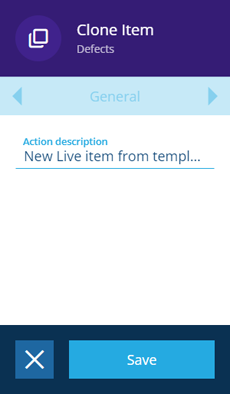
---
# Create Item action
### Create a new item of any design[](#create-a-new-item-of-any-design "Direct link to Create a new item of any design")
Use the **Create Item** action to create a new item of any design you choose.
The new item's attributes and properties can be populated dynamically, based on the output of other nodes in the workflow.
The action will output the new item to the next action(s) in the sequence. Other actions can also reference the outputted item.
info
To create a new item from a template, use a [**Clone Item**](/web/workflows/building-workflow/actions/action-clone.md) action instead.
### Details[](#details "Direct link to Details")
| Icon | Action | Description | Availability | Input | Output |
| ---- | --------------- | ------------------------------- | ------------ | ----- | ------------ |
| | **Create Item** | Create a new item of any design | Always | None | The new item |
### Configuration[](#configuration "Direct link to Configuration")
To configure a **Create Item** action node when building a workflow:
1. [Add a new action](/web/workflows/building-workflow/.md#add-an-action). Alternatively, select an existing action, then select **Edit** in the [action bar](/web/getting-started/action-bar.md).
2. In the right panel, fill in the following fields as needed:
* **Action description** - write an optional description of what this action does.
* **Design** \* - choose the design you want to create an item of.
* **Collection** \* - choose the [collection](/web/items/item-collections.md) the new item will belong to (usually *Live* by default).
* **Colour** - use the [colour picker](/web/getting-started/selection/selecting-colours.md) to override the new item's colour.
* **Icon** - use the [icon picker](/web/getting-started/selection/selecting-icons.md) to override the new item's icon.
* **Parents** - link the new item to one or more parent items of a valid design/interface (one with a Link attribute pointing to the new item's design or an interface the design implements). When creating an activity item, this can be useful for linking to an asset parent (and typically inheriting its geometry).
*In the above screenshot, the action is configured to create a new inspection that's related to a defect. By setting the defect item as its parent, the new inspection will inherit the defect's geometry (which is itself inherited from a parent asset item)*.
* **Parents link attribute** - if **Parents** is set, choose the Link attribute on the parent(s) to add the new item to.
* **Locked** - if enabled, the new item will be created in a [locked](/web/items/editing-items/locking-items.md) state.
* [**Single Instance**](/web/workflows/building-workflow/single-instance.md) - if enabled, the action will always be performed once, no matter how items are output by the previous node. Consequently, the action will always output one item only. If any fields are configured with a dynamic value, the values for all input items are combined into one.
[](/img/workflow/create-action_01.png)
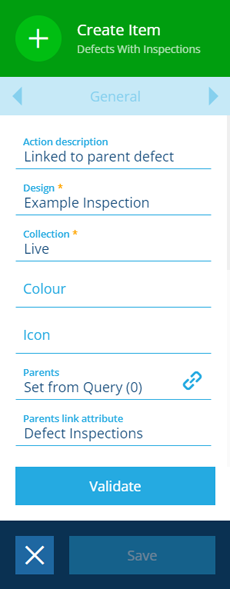
3. Populate any of the new item's attributes as needed.
[](/img/workflow/create-action_02.png)
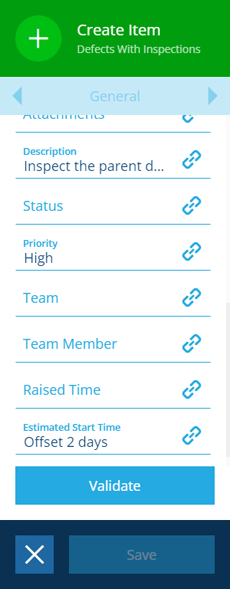
4. Select **Validate** to check if the action can be saved as configured. A notification appears to indicate success or failure.
5. If successful, select **Save** to finish.
### Dynamic values[](#dynamic-values "Direct link to Dynamic values")
Fields marked with can accept a [dynamic value](/web/workflows/building-workflow/dynamic-actions.md):
* **Constant** - select or enter static values.
* **Offset** - set a date/time relative to when the workflow triggers.
* **Link** - link to the corresponding output of any preceding stage in the current branch path (one item).
* **Output** - reference the total output of any action in the sequence (one or more items).
Important
If an action attribute displays as **<\>**, its value is determined by the output of a [workflow computation](/web/workflows/computations.md). If you enter a new value and save, the computation will be overwritten!
---
# Delete Item action
### Delete the input item(s)[](#delete-the-input-items "Direct link to Delete the input item(s)")
Use the **Delete Item** action to delete the input item(s) received from the previous node.
Important
Deletions can't be undone, so please think carefully before doing so!
### Details[](#details "Direct link to Details")
| Icon | Action | Description | Availability | Input | Output |
| ---- | --------------- | ------------------------ | --------------------- | ------------------------------ | ------ |
| | **Delete Item** | Delete the input item(s) | If input is available | Item(s) from the previous node | None |
### Configuration[](#configuration "Direct link to Configuration")
To configure a Delete Item action node when building a workflow:
1. [Add a new action](/web/workflows/building-workflow/.md#add-an-action). Alternatively, select an existing action, then select **Edit** in the [action bar](/web/getting-started/action-bar.md).
2. In the right panel, fill in the following fields as needed:
* **Action description** - write an optional description of what this action does.
3. Select **Save** in the [action bar](/web/getting-started/action-bar.md) to finish.
[](/img/workflow/delete-node_01.png)
---
# Edit Item action
### Edit the input item(s)[](#edit-the-input-items "Direct link to Edit the input item(s)")
Use the **Edit Item** action to update the attributes and properties of the input item(s).
These can be populated dynamically, based on the output of other nodes in the workflow.
### Details[](#details "Direct link to Details")
| Icon | Action | Description | Availability | Input | Output |
| ---- | ------------- | ------------------------------------------------------- | --------------------- | ------------------------------ | ------------------ |
| | **Edit Item** | Edit the properties and attributes on the input item(s) | If input is available | Item(s) from the previous node | The edited item(s) |
### Configuration[](#configuration "Direct link to Configuration")
To configure an **Edit Item** action node when building a workflow:
1. [Add a new action](/web/workflows/building-workflow/.md#add-an-action). Alternatively, select an existing action, then select **Edit** in the [action bar](/web/getting-started/action-bar.md).
2. In the right panel, fill in the following fields as needed:
* **Action description** - write an optional description of what this action does.
* **Collection** - move the input item(s) to another [collection](/web/items/item-collections.md).
* **Colour** - use the [colour picker](/web/getting-started/selection/selecting-colours.md) to change the colour of the input item(s).
* **Icon** - use the [icon picker](/web/getting-started/selection/selecting-icons.md) to change the icon of the input item(s).
* **Locked** - if enabled, the input item(s) will become [locked](/web/items/editing-items/locking-items.md).
[](/img/workflow/edit-action_01.png)
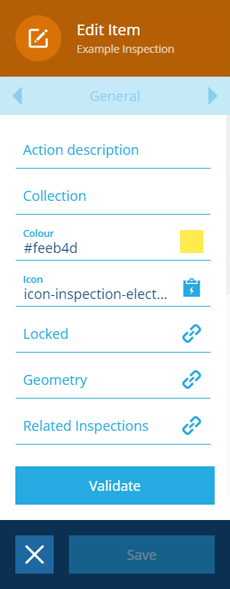
3. Populate any of the attributes to update the input item(s) with new values.
[](/img/workflow/edit-action_02.png)
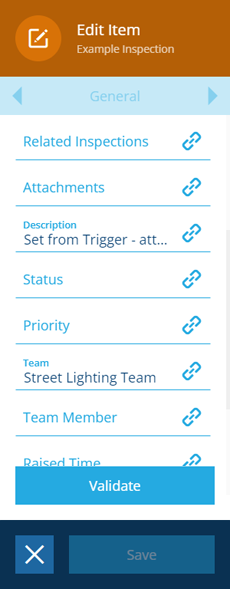
4. Select **Validate** to check if the action can be saved as configured. A notification will appear to indicate success or failure.
5. If successful, select **Save** to finish.
### Dynamic values[](#dynamic-values "Direct link to Dynamic values")
Fields marked with can accept a [dynamic value](/web/workflows/building-workflow/dynamic-actions.md):
* **Constant** - select or enter static values.
* **Offset** - set a date/time relative to when the workflow triggers.
* **Link** - link to the corresponding output of any preceding stage in the current branch path (one item).
* **Output** - reference the total output of any action in the sequence (one or more items).
Important
If an action attribute displays as **<\>**, its value is determined by the output of a [workflow computation](/web/workflows/computations.md). If you enter a new value and save, the computation will be overwritten!
---
# Http Request action
### Send an outgoing web request[](#send-an-outgoing-web-request "Direct link to Send an outgoing web request")
Use the **Http Request** action to send a web request to a specific URL.
The action can be configured with dynamic values, based on the output of other nodes in the workflow.
info
Currently, it's only possible to send data. Responses will be received but can't yet be acted upon.
### Details[](#details "Direct link to Details")
| Icon | Action | Description | Availability | Input | Output |
| ---- | ---------------- | ---------------------------- | --------------------- | ------------------------------ | ------ |
| | **Http Request** | Send an outgoing web request | If input is available | Item(s) from the previous node | None |
### Configuration[](#configuration "Direct link to Configuration")
To configure an **Http Request** action node when building a workflow:
1. [Add a new action](/web/workflows/building-workflow/.md#add-an-action). Alternatively, select an existing action, then select **Edit** in the [action bar](/web/getting-started/action-bar.md).
2. In the right panel, fill in the following fields as needed:
* **Action description** - write an optional description of what this action does.
* **HTTP method** \* - choose from the list of HTTP methods:
* *GET*
* *PUT*
* *POST*
* *DELETE*
* *HEAD*
* *OPTION*
* *TRACE*
* **Url** - specify the full URL to connect to.
* **Body** - specify the body of the request.
* **Http Headers** - specify any HTTP headers you want to include (as a single string).
* **Key Items** - specify one or more items containing secret attribute values. See below for details.
3. Select **Save** in the [action bar](/web/getting-started/action-bar.md) to finish.
[](/img/workflow/web-request-node_01.png)
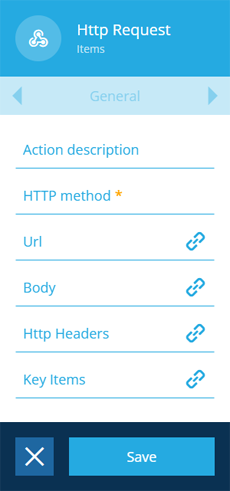
### Secrets[](#secrets "Direct link to Secrets")
To include sensitive data in the request (e.g. *authentication details*), it can be stored securely within a [Text attribute](/web/designer/attributes/types/text-attribute.md) on an item of any design.
To make a Text attribute secure, edit its **Tags** property and set a custom tag named `Secret`. When the attribute is populated on an item, the value will now be saved as an encrypted text string. The original text won't be viewable to anyone!
To include a secret within a property of the Http Request action, enter a dollar sign `$` plus the attribute's code. The item containing the desired value must also be added to the action's **Key Items** property.
*In the example below, `$attributes_credentialsPassword_66ceecb95527bff1c0a108c8` is included in the action's **Url** and **Http Headers** properties. The decrypted value will be used when the request is sent:*
```
GET /test?pass=mypassword1234 HTTP/1.1
Host: alloytest.requestcatcher.com
Authorization: Bearer mypassword1234
Connection: Keep-Alive
```
[](/img/workflow/web-request-secret.png)
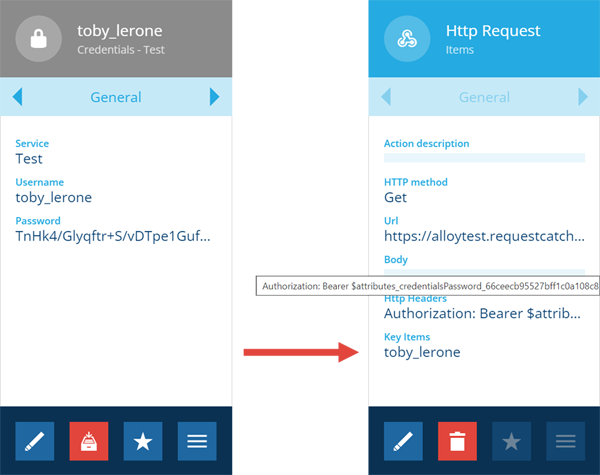
info
If multiple items are added to the action's **Key Items** property, they must be of different designs.
### Dynamic values[](#dynamic-values "Direct link to Dynamic values")
Fields marked with can accept a [dynamic value](/web/workflows/building-workflow/dynamic-actions.md):
* **Constant** - select or enter static values.
* **Offset** - set a date/time relative to when the workflow triggers.
* **Link** - link to the corresponding output of any preceding stage in the current branch path (one item).
* **Output** - reference the total output of any action in the sequence (one or more items).
Important
If an action attribute displays as **<\>**, its value is determined by the output of a [workflow computation](/web/workflows/computations.md). If you enter a new value and save, the computation will be overwritten!
---
# Call Mesh action
### Communicate with a Mesh endpoint[](#communicate-with-a-mesh-endpoint "Direct link to Communicate with a Mesh endpoint")
Use the **Call Mesh** action to contact an [Mesh endpoint](https://mesh.uk.alloyapp.io/docs/#/).
Data can be sent to a Push Mesh endpoint (e.g. *AWS IoT*, *Telensa*) or received from a Pull Mesh endpoint (e.g. *Street Manager*, *SupaTrak*).
info
All Meshes require a corresponding [module](/basics/fundamentals/modules.md) to be installed and configured on your [company project](/web/getting-started/choosing-project.md).
### Details[](#details "Direct link to Details")
| Icon | Action | Description | Availability | Input | Output |
| ---- | ------------- | ------------------------------------ | ------------ | ------------------------------ | ----------------------------------------------- |
| | **Call Mesh** | Contact a Push or Pull Mesh endpoint | Always | Item(s) from the previous node | None (Push) The endpoint's response (Pull) |
### Configuration[](#configuration "Direct link to Configuration")
To configure a **Call Mesh** action node when building a workflow:
1. [Add a new action](/web/workflows/building-workflow/.md#add-an-action). Alternatively, select an existing action, then select **Edit** in the [action bar](/web/getting-started/action-bar.md).
[](/img/workflow/mesh-configure.png)
2. In the right panel, fill in the following fields as needed:
* **Action description** - write an optional description of what this action does.
* **Mesh** \* - choose from the list of available Meshes.
* [**Single Instance**](/web/workflows/building-workflow/single-instance.md) - if enabled, the action will always be performed once, no matter how many input items there are. Multiple input items will be processed in one go, rather than contacting the Mesh multiple times. This is recommended for Pull Mesh actions, as they're typically used in [schedule](/web/workflows/creating-workflows/scheduled-workflows.md) workflows that trigger with no input items.
3. Select **Validate** to check if the action can be saved as configured. A notification will appear to indicate success or failure.
[](/img/workflow/successful.png)
4. If successful, select **Save** to finish.
### Dynamic values[](#dynamic-values "Direct link to Dynamic values")
Fields marked with can accept a [dynamic value](/web/workflows/building-workflow/dynamic-actions.md):
* **Constant** - select or enter static values.
* **Offset** - set a date/time relative to when the workflow triggers.
* **Link** - link to the corresponding output of any preceding stage in the current branch path (one item).
* **Output** - reference the total output of any action in the sequence (one or more items).
Important
If an action attribute displays as **<\>**, its value is determined by the output of a [workflow computation](/web/workflows/computations.md). If you enter a new value and save, the computation will be overwritten!
---
# Message action
### Send an email or SMS[](#send-an-email-or-sms "Direct link to Send an email or SMS")
Use the **Message** action to send a customisable email or SMS message to one or more recipients.
The message can include links to the input item(s) and emails can include attachments. All fields can be populated dynamically, based on the output of other nodes in the workflow.
All messages begin with a default template:
```
We are messaging you because the workflow: X was triggered
```
This is followed by the contents of the action's **Message Text** attribute. However, if **Message type** is set to *Email*, you can override this by populating the **Template** attribute.
### Details[](#details "Direct link to Details")
| Icon | Action | Description | Availability | Input | Output |
| ---- | ----------- | --------------------------------------------- | ------------ | ----- | ------ |
| | **Message** | Send a email or SMS to one or more recipients | Always | None | None |
### Configuration[](#configuration "Direct link to Configuration")
To configure a **Message** action node when building a workflow:
1. [Add a new action](/web/workflows/building-workflow/.md#add-an-action). Alternatively, select an existing action, then select **Edit** in the [action bar](/web/getting-started/action-bar.md).
2. In the right panel, set the **Message type**, and then fill in the following fields as needed:
Email
The following fields will appear:
* **Email to** - specify the email address(es) to send to. If you supply a **Constant** value, you can enter multiple email addresses separated by a comma with no spaces.
* **Subject** - specify a distinctive subject line for easy identification.
* **Attachments** - optionally select one or more [files stored in CausewayOne Asset Management](/web/gateway/attach-files.md).
* **Template** - override the default message template with custom text. Enter `{{message}}` to include the contents of the action's **Message Text**.
[](/img/workflow/messaging-message-node_01.png)
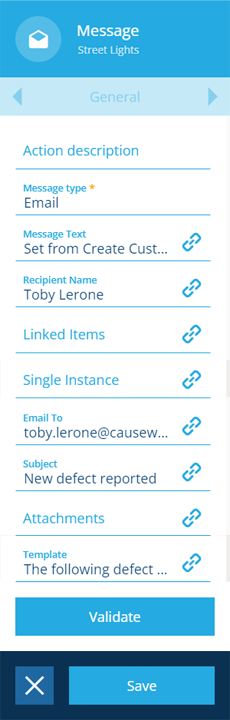
Sms
The following field will appear:
* **Mobile Number** - the phone number to send to. Include the country code and no spaces!
[](/img/workflow/messaging-message-node_02.png)
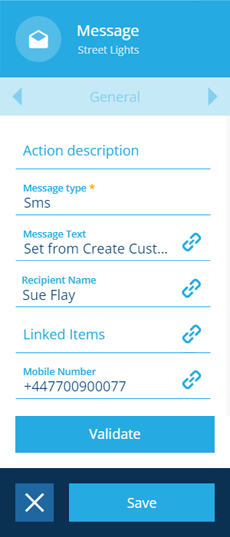
3. Fill in the following fields as needed:
* **Message Text** - specify the message's text content.
* **Recipient Name** - specify the name of the recipient.
* **Linked Items** - the message will include hyperlinks to the specified items.
* [**Single Instance**](/web/workflows/building-workflow/single-instance.md) - if enabled, the action will always be performed once, no matter how many input items there are. If any fields are configured with a dynamic value, the values for all input items are combined into one.
*For example, imagine a **Message** action where **Linked Items** is dynamically linked to the output of the preceding stage. It receives three input items. If **Single Instance** is disabled, three emails are sent containing one item. If enabled or undefined, one message is sent containing three items.*
[](/img/workflow/messaging-message-node_00.png)
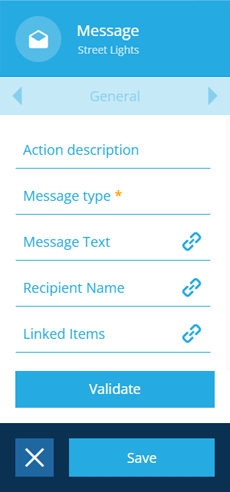
4. Select **Validate** to check if the action can be saved as configured. A notification will appear to indicate success or failure.
5. If successful, select **Save** to finish.
### Dynamic values[](#dynamic-values "Direct link to Dynamic values")
Fields marked with can accept a [dynamic value](/web/workflows/building-workflow/dynamic-actions.md):
* **Constant** - select or enter static values.
* **Offset** - set a date/time relative to when the workflow triggers.
* **Link** - link to the corresponding output of any preceding stage in the current branch path (one item).
* **Output** - reference the total output of any action in the sequence (one or more items).
Important
If an action attribute displays as **<\>**, its value is determined by the output of a [workflow computation](/web/workflows/computations.md). If you enter a new value and save, the computation will be overwritten!
---
# Manual workflow reference
### Perform a manual workflow and use its output[](#perform-a-manual-workflow-and-use-its-output "Direct link to Perform a manual workflow and use its output")
Use a **manual workflow reference (MWR)** to perform a specific manual workflow during the current workflow. Any items from the previous node will pass to the manual workflow. Any items output by the manual workflow will pass to the next action in the current workflow.
Unlike other workflow actions, MWRs require some preparation before they can be used! This involves creating a unique trigger parameter design for the relevant manual workflow, and configuring the workflow's actions to receive the relevant parameter values. Currently, this requires using the Alloy API. To learn more, see [Manual workflow references](https://developer.alloyapp.io/dev/wf-computations/manual-workflow-actions) in the Developer Docs.
Prepare a basic MWR
If you just want to trigger a manual workflow without providing any parameter values, you can do the following:
1. [Create a design](/web/designer/creating-designs/.md) and make it [implement](/web/designer/managing-interfaces.md) the **Workflow Manual Trigger** interface.
2. [Edit the properties](/web/workflows/editing-workflows.md) of the manual workflow and switch to the **Trigger** tab.
3. Set the following trigger properties:
* **Output action** - choose the action in the manual workflow that will provide the final output of the MWR.
* **Parameters design** - choose the design you created. Ensure no other manual workflow uses the same design!
Once a MWR has been prepared, its parameter design will be listed in the **Manual workflow** tab in the left actions panel.
[](/img/workflow/mwr-actions-list.png)
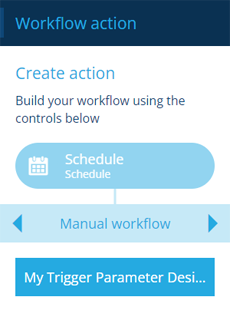
### Details[](#details "Direct link to Details")
| Icon | Action | Description | Availability | Input | Output |
| ------------------------ | ----------------------------- | ----------------------------------------------------- | -------------------------------------------------------- | ------------------------------ | ------------------------------------- |
| Same as parameter design | **Manual workflow reference** | Perform a manual workflow during the current workflow | If the manual workflow has a unique parameter design set | Item(s) from the previous node | Item(s) output by the manual workflow |
### Configuration[](#configuration "Direct link to Configuration")
To configure a MWR when building a workflow:
1. [Add a new action](/web/workflows/building-workflow/.md#add-an-action) and choose the relevant parameter design from the dashboard panel. Alternatively, select an existing MWR, and then select **Edit** in the [action bar](/web/getting-started/action-bar.md).
2. In the right panel, the attributes of the parameter design will appear (if they have the *ActionParameter* tag set).
Fill in each attribute field as needed. Any values you specify here will be used by the manual workflow's actions. Hopefully, the name of each attribute describes how its value will be used! If in doubt, contact the manual workflow's author (check the [Failure notification](/web/workflows/editing-workflows.md#failure-notification) tab for an email address).
If any required attributes are left blank, users will be [prompted](/web/workflows/trigger-workflow.md#input-parameter-values) to provide values at runtime.
3. Select **Save** to finish.
[](/img/workflow/mwr-configure.png)
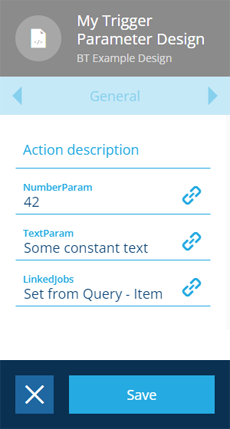
### Dynamic values[](#dynamic-values "Direct link to Dynamic values")
Fields marked with can accept a [dynamic value](/web/workflows/building-workflow/dynamic-actions.md):
* **Constant** - select or enter static values.
* **Offset** - set a date/time relative to when the workflow triggers.
* **Link** - link to the corresponding output of any preceding stage in the current branch path (one item).
* **Output** - reference the total output of any action in the sequence (one or more items).
Important
If an action attribute displays as **<\>**, its value is determined by the output of a [workflow computation](/web/workflows/computations.md). If you enter a new value and save, the computation will be overwritten!
---
# Output action
### Fetch specific items or JSON data[](#fetch-specific-items-or-json-data "Direct link to Fetch specific items or JSON data")
Use the **Output** action to fetch items of any design/interface. This is useful for situations where you want to fetch a specific set of known items for use in other actions within the sequence, e.g. *the "Low" and "High" items of the **Task Priorities** design*.
It also provides a way to reclassify a set of input items as another compatible design/interface, to make them suitable for use in another action.
For example...
*Imagine a workflow that fetches and edits the parent asset of a given defect:*
1. *First, a [**Relation**](/web/workflows/building-workflow/actions/action-relation-relation.md) action is used to navigate from the defect's design to the **Defects Assignable** interface. This fetches the asset item whose **Defects** attribute links to the defect.*
2. *The item is passed to an **Output** action, which reclassifies it as an **Asset Heads** item. This works because the **Asset Heads** interface implements the **Defects Assignable** interface, so the item can be classified as either.*
3. *The item is passed to an [**Edit Item**](/web/workflows/building-workflow/actions/action-edit.md) action, which changes the value of the item's **Default Team** attribute. This wouldn't be possible without the **Output** action, as that attribute isn't available on the original **Defects Assignable** interface!*
Less commonly, an **Output** action can also make JSON data available for use in other actions within the sequence.
info
To fetch items that fulfil specific criteria, use a [**Query**](/web/workflows/building-workflow/actions/action-relation-query.md) action instead.
### Details[](#details "Direct link to Details")
| Icon | Action | Description | Availability | Input | Output |
| ---- | ---------- | ------------------------------------------------------------ | ------------ | ----- | ----------------------------- |
| | **Output** | Fetch specific items or JSON data for the workflow to act on | Always | None | The specified item(s) or data |
### Configuration[](#configuration "Direct link to Configuration")
To configure an **Output** action node when building a workflow:
1. [Add a new action](/web/workflows/building-workflow/.md#add-an-action). Alternatively, select an existing action, then select **Edit** in the [action bar](/web/getting-started/action-bar.md).
2. In the right panel, fill in the following fields as needed:
* **Action description** - write an optional description of what this action does.
* **Items** - use the [item picker](/web/getting-started/selection/selecting-items.md) to select one or more specific items. Alternatively, set a dynamic value that fetches items from elsewhere in the workflow.
* [**Single Instance**](/web/workflows/building-workflow/single-instance.md) \* - if enabled, the action will always be performed once, no matter how many input items there are. If the **Items** field is configured with a dynamic value, a combination of all input items will be output in one go.
*For example, imagine an **Output** action where **Items** is dynamically linked to the output of a **Query** action earlier in the workflow. It receives three input items from the preceding action. If **Single Instance** is disabled, the action is performed three times, outputting one set of query results each time. If enabled or undefined, the action is performed once, outputting a combination of all three query results.*
* **Data** - use the JSON Editor to enter code or set a dynamic value that fetches JSON data from elsewhere in the workflow. This is primarily intended for storing and sharing data in [workflow computations](/web/workflows/computations.md).
* **Output design or interface** - determines how the selected items will be outputted. If they all have the same design, choose it from the list. Alternatively, choose a compatible interface (one that's implemented by all the designs of the selected items).
[](/img/workflow/action-output_01.png)
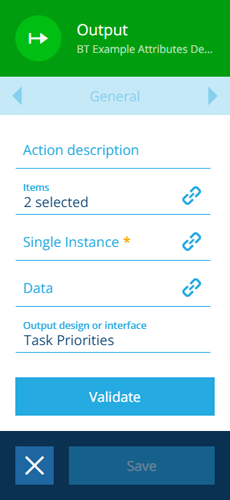
3. Select **Validate** to check if the action can be saved as configured. A notification will appear to indicate success or failure.
4. If successful, select **Save** to finish.
### Dynamic values[](#dynamic-values "Direct link to Dynamic values")
Fields marked with can accept a [dynamic value](/web/workflows/building-workflow/dynamic-actions.md):
* **Constant** - select or enter static values.
* **Offset** - set a date/time relative to when the workflow triggers.
* **Link** - link to the corresponding output of any preceding stage in the current branch path (one item).
* **Output** - reference the total output of any action in the sequence (one or more items).
Important
If an action attribute displays as **<\>**, its value is determined by the output of a [workflow computation](/web/workflows/computations.md). If you enter a new value and save, the computation will be overwritten!
---
# Filter action
### Filter out unwanted input items[](#filter-out-unwanted-input-items "Direct link to Filter out unwanted input items")
Use the **Filter** action to refine a set of input items by excluding those that don't meet certain criteria.
This is particularly useful when building a workflow with [branching paths](/web/workflows/building-workflow/.md#create-a-branch). If you want a branch to be conditional, just start it with a **Filter** action! This lets you control the flow of items along your sequence. You can use the filtered items directly in the next action, or do something else and [reference](/web/workflows/building-workflow/dynamic-actions.md) the filtered items from a subsequent action.
[](/img/workflow/workflow-complex-example_01.png)
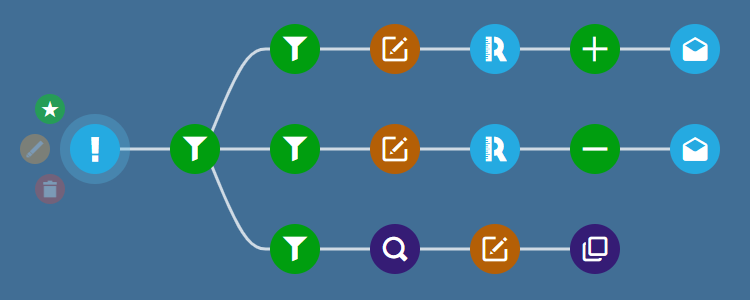
### Details[](#details "Direct link to Details")
| Icon | Action | Description | Availability | Input | Output |
| ---- | ---------- | ------------------------------------------------------ | --------------------- | ------------------------------ | -------------------- |
| | **Filter** | Exclude input items that don't meet the given criteria | If input is available | Item(s) from the previous node | The filtered item(s) |
### Configuration[](#configuration "Direct link to Configuration")
To configure a **Filter** action node when building a workflow:
1. [Add a new action](/web/workflows/building-workflow/.md#add-an-action). Alternatively, select an existing action, then select **Edit** in the [action bar](/web/getting-started/action-bar.md).
2. In the right panel, fill in the following fields as needed:
* **Action description** - write an optional description of what this action does.
* **Design or interface** - this read-only field shows the design/interface of the incoming input items.
* **Query** \* - use the [AQS Builder](/web/aqs/aqs-builder.md) to define the condition(s) that input items must fulfil to pass through this action.
3. Select **Save** in the [action bar](/web/getting-started/action-bar.md) to finish.
[](/img/workflow/filter-node-create_02.png)
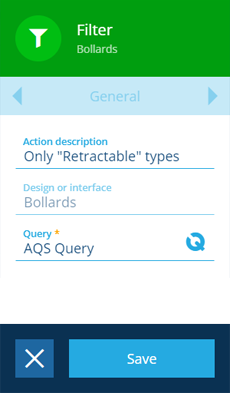
Important
If an action attribute displays as **<\>**, its value is determined by the output of a [workflow computation](/web/workflows/computations.md). If you enter a new value and save, the computation will be overwritten!
---
# Query action
### Fetch qualifying items[](#fetch-qualifying-items "Direct link to Fetch qualifying items")
Use the **Query** action to fetch all items that fulfil the given criteria.
With the power of [AQS](/web/aqs.md), you can define one or more conditions that items must meet in order to qualify. The action will output the queried items to the next action(s) in the sequence. Other actions can also reference the outputted items.
As scheduled workflows don't start with any trigger items, you can use a **Query** action to fetch items to work on.
info
To fetch one or more specific items, use an [**Output**](/web/workflows/building-workflow/actions/action-output.md) action instead.
### Details[](#details "Direct link to Details")
| Icon | Action | Description | Availability | Input | Output |
| ---- | --------- | ------------------------------------------------- | ------------ | ----- | ------------------- |
| | **Query** | Fetch qualifying items for the workflow to act on | Always | None | The queried item(s) |
### Configuration[](#configuration "Direct link to Configuration")
To configure a **Query** action node when building a workflow:
1. [Add a new action](/web/workflows/building-workflow/.md#add-an-action). Alternatively, select an existing action, then select **Edit** in the [action bar](/web/getting-started/action-bar.md).
2. In the right panel, fill in the following fields as needed:
* **Action description** - write an optional description of what this action does.
* **Design or interface** - choose the design/interface that you want to query. By default, this matches the incoming items from the previous node.
* **Query** \* - use the [AQS Builder](/web/aqs/aqs-builder.md) to build a query that fetches items according to the criteria you define.
* [**Single Instance**](/web/workflows/building-workflow/single-instance.md) - if enabled, the action will always be performed once, no matter how many items are output by the previous node.
3. Select **Save** in the [action bar](/web/getting-started/action-bar.md) to finish.
[](/img/workflow/query-node-create_01.png)
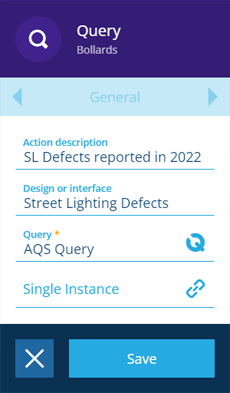
### Dynamic values[](#dynamic-values "Direct link to Dynamic values")
Fields marked with can accept a [dynamic value](/web/workflows/building-workflow/dynamic-actions.md):
* **Constant** - select or enter static values.
* **Offset** - set a date/time relative to when the workflow triggers.
* **Link** - link to the corresponding output of any preceding stage in the current branch path (one item).
* **Output** - reference the total output of any action in the sequence (one or more items).
Important
If an action attribute displays as **<\>**, its value is determined by the output of a [workflow computation](/web/workflows/computations.md). If you enter a new value and save, the computation will be overwritten!
---
# Relation action
### Fetch items related to the input item(s)[](#fetch-items-related-to-the-input-items "Direct link to Fetch items related to the input item(s)")
Use the **Relation** action to fetch items that are connected to the input item(s) via [Link attributes](/web/designer/attributes/types/link-attribute.md).
Depending on how it's configured, the action can navigate to an input item's parent, or follow a Link attribute on the input item to its children. This can be repeated in either direction for any number of "hops" (where possible).
*For example, if the input items are jobs, you could follow their **Job Work items** attribute to fetch their [job work items](/web/activities/tasks/jobs/work-units/job-work-items.md), which you could then update with a subsequent [**Edit Item**](/web/workflows/building-workflow/actions/action-edit.md) action*.
### Details[](#details "Direct link to Details")
| Icon | Action | Description | Availability | Input | Output |
| ---- | ------------ | -------------------------------------------------------------------------------------- | --------------------- | ------------------------------ | ------------------ |
| | **Relation** | Travel the data structure to fetch parent or child item(s) linked to the input item(s) | If input is available | Item(s) from the previous node | The linked item(s) |
### Configuration[](#configuration "Direct link to Configuration")
To configure a **Relation** action node when building a workflow:
1. [Add a new action](/web/workflows/building-workflow/.md#add-an-action). Alternatively, select an existing action, then select **Edit** in the [action bar](/web/getting-started/action-bar.md).
2. In the right panel, fill in the following fields as needed:
* **Action description** - write an optional description of what this action does.
* **AQS Path** - using the Pathfinder, you can [navigate](/web/pathfinder/navigate-to-path.md) to a parent design/interface that links to the input, or [follow](/web/pathfinder/quick-path.md) a Link attribute on the input to a child design/interface. Repeat until you reach the desired destination and then select **Done**.
*In the example below, the input items are **Bollards** items. The saved path follows their **Defects** attribute to the **Defects** interface, and then follows the **Status** attribute to the **Defect Statuses** design. The action will output the **Defect Statuses** items of the defects of the bollards*.
3. Select **Save** in the [action bar](/web/getting-started/action-bar.md) to finish.
[](/img/workflow/relation-create_02.png)
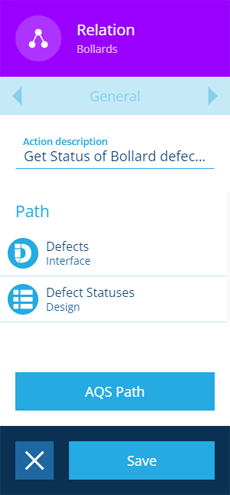
---
# Remove Links action
### Edit a Link attribute on the input item(s)[](#edit-a-link-attribute-on-the-input-items "Direct link to Edit a Link attribute on the input item(s)")
Use the **Remove Links** action to remove one or more items from a specific [Link attribute](/web/designer/attributes/types/link-attribute.md) on the input item(s).
*For example, in the [event workflow](/web/workflows/creating-workflows/event-workflows.md) illustrated below, the triggering item is a [project](/web/activities/projects/.md) linked to four jobs. The root node outputs one project item. The **Remove Links** action removes two jobs from the incoming project's **Tasks** attribute (`attribute_projectTasks`)*.
[](/img/workflow/workflow-remove-link-example.png)
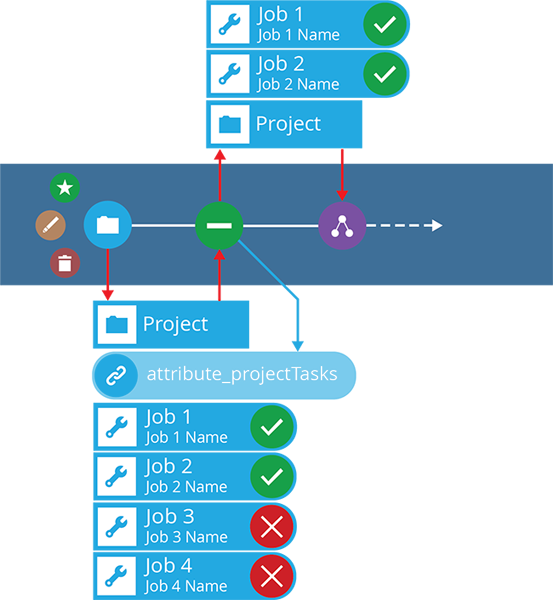
info
There's also an [**Add Links**](/web/workflows/building-workflow/actions/action-add-link.md) action!
### Details[](#details "Direct link to Details")
| Icon | Action | Description | Availability | Input | Output |
| ---- | ---------------- | ------------------------------------------------------------------- | --------------------- | ------------------------------ | ------------------ |
| | **Remove Links** | Remove one or more items from a Link attribute on the input item(s) | If input is available | Item(s) from the previous node | The edited item(s) |
### Configuration[](#configuration "Direct link to Configuration")
To configure a **Remove Links** action node when building a workflow:
1. [Add a new action](/web/workflows/building-workflow/.md#add-an-action). Alternatively, select an existing action, then select **Edit** in the [action bar](/web/getting-started/action-bar.md).
2. In the right panel, fill in the following fields as needed:
* **Action description** - write an optional description of what this action does.
* **Attribute** \* - choose from the list of Link attributes on the design of the input item(s).
* **Links** - select one or more compatible items to remove from the chosen attribute.
3. Select **Save** in the [action bar](/web/getting-started/action-bar.md) to finish.
[](/img/workflow/remove-link_01.png)
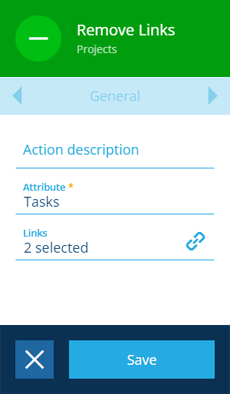
### Dynamic values[](#dynamic-values "Direct link to Dynamic values")
Fields marked with can accept a [dynamic value](/web/workflows/building-workflow/dynamic-actions.md):
* **Constant** - select or enter static values.
* **Offset** - set a date/time relative to when the workflow triggers.
* **Link** - link to the corresponding output of any preceding stage in the current branch path (one item).
* **Output** - reference the total output of any action in the sequence (one or more items).
Important
If an action attribute displays as **<\>**, its value is determined by the output of a [workflow computation](/web/workflows/computations.md). If you enter a new value and save, the computation will be overwritten!
---
# Run Report action
### Run a system or custom report[](#run-a-system-or-custom-report "Direct link to Run a system or custom report")
Use the **Run Report** action to run any [report](/web/reporting.md) that's been set up for your [company project](/web/getting-started/choosing-project.md).
The action doesn't require any input items to act on directly. Instead, you can populate the data sources of the chosen report while configuring the action.
### Details[](#details "Direct link to Details")
| Icon | Action | Description | Availability | Input | Output |
| ---- | -------------- | ------------------------------- | ------------ | ----- | ------------------------- |
| | **Run Report** | Run a standard or custom report | Always | None | The generated report item |
### Configuration[](#configuration "Direct link to Configuration")
To configure a **Run Report** action node when building a workflow:
1. [Add a new action](/web/workflows/building-workflow/.md#add-an-action). Alternatively, select an existing action, then select **Edit** in the [action bar](/web/getting-started/action-bar.md).
2. In the right panel, fill in the following fields as needed:
* **Action description** - write an optional description of what this action does.
* **Report** \* - choose from the list of available reports.
[](/img/workflow/messaging-run-report_01.png)
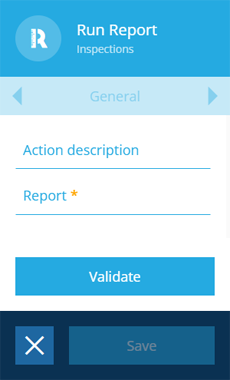
3. Fields will appear to represent the data sources of the chosen report. Fill them in as needed. Standard reports may require you to set a **Query** that fetches the items to be reported on. All reports require a **Name** to be entered.
[](/img/workflow/messaging-run-report_02.png)
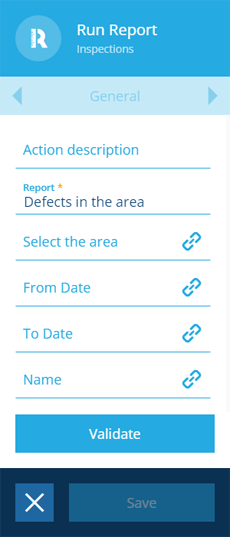
4. Select **Validate** to check if the action can be saved as configured. A notification will appear to indicate success or failure.
5. If successful, select **Save** to finish.
### Dynamic values[](#dynamic-values "Direct link to Dynamic values")
Fields marked with can accept a [dynamic value](/web/workflows/building-workflow/dynamic-actions.md):
* **Constant** - select or enter static values.
* **Offset** - set a date/time relative to when the workflow triggers.
* **Link** - link to the corresponding output of any preceding stage in the current branch path (one item).
* **Output** - reference the total output of any action in the sequence (one or more items).
Important
If an action attribute displays as **<\>**, its value is determined by the output of a [workflow computation](/web/workflows/computations.md). If you enter a new value and save, the computation will be overwritten!
---
# Stop action
### Halt execution[](#halt-execution "Direct link to Halt execution")
Use the **Stop** action to prevent any subsequent actions in the branch from being performed.
The action can be configured dynamically, so that it becomes enabled or disabled based on the output of another node in the workflow.
### Details[](#details "Direct link to Details")
| Icon | Action | Description | Availability | Input | Output |
| ---- | -------- | ----------------------------------------------------------------- | ------------ | ----- | ------ |
| | **Stop** | Conditionally halt execution for subsequent actions in the branch | Always | None | None |
### Configuration[](#configuration "Direct link to Configuration")
To configure a **Stop** action node when building a workflow:
1. [Add a new action](/web/workflows/building-workflow/.md#add-an-action). Alternatively, select an existing action, then select **Edit** in the [action bar](/web/getting-started/action-bar.md).
2. In the right panel, fill in the following fields as needed:
* **Action description** - write an optional description of what this action does.
* **Stop** - if enabled, none of the subsequent actions in the branch will be performed. You can set this value dynamically, according to the [Yes/No attribute](/web/designer/attributes/types/yes-no-attribute.md) of an output item from another node in the workflow.
3. Select **Save** in the [action bar](/web/getting-started/action-bar.md) to finish.
[](/img/workflow/action-stop.png)
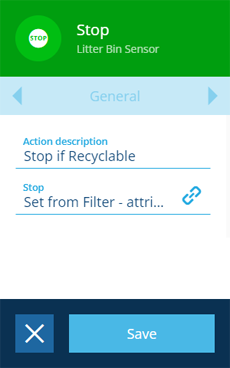
### Dynamic values[](#dynamic-values "Direct link to Dynamic values")
Fields marked with can accept a [dynamic value](/web/workflows/building-workflow/dynamic-actions.md):
* **Constant** - select or enter static values.
* **Offset** - set a date/time relative to when the workflow triggers.
* **Link** - link to the corresponding output of any preceding stage in the current branch path (one item).
* **Output** - reference the total output of any action in the sequence (one or more items).
Important
If an action attribute displays as **<\>**, its value is determined by the output of a [workflow computation](/web/workflows/computations.md). If you enter a new value and save, the computation will be overwritten!
---
# Dynamic action values
### Link to values in other nodes[](#link-to-values-in-other-nodes "Direct link to Link to values in other nodes")
When [building a workflow](/web/workflows/building-workflow/.md), some actions have attributes that can be configured with a **dynamic value**, which is determined when the workflow runs. This can be the output of another node in the workflow sequence, or a computed date/time relative to the time of execution.
You can set a dynamic value for any action attribute marked with a link icon.
[](/img/workflow/link-attrib_00.png)
When you select the field, a window will appear. Switch to the desired tab depending on what you want to do. Fill out the fields as needed, then select **Save** to finish.
info
To understand how items get passed between actions, see [Inputs and outputs](/web/workflows/building-workflow/action-io.md).
### Constant[](#constant "Direct link to Constant")
The **Constant** tab lets you enter a non-dynamic value, just like you would normally. Depending on the data type, you can write directly into the field, or [select a value](/web/getting-started/selection.md) using a picker.
[](/img/workflow/dynamic-constant.png)
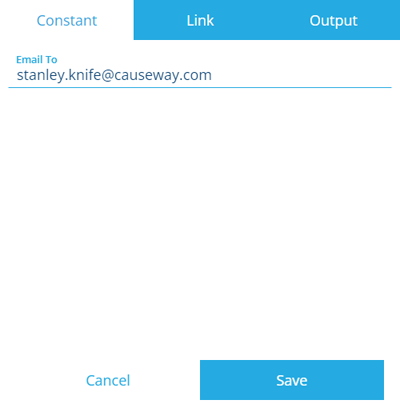
### Offset[](#offset "Direct link to Offset")
The **Offset** tab only appears when setting the value of a [Date](/web/designer/attributes/types/date-attribute.md), [Date Time](/web/designer/attributes/types/date-time-attribute.md) or [Time](/web/designer/attributes/types/time-attribute.md) attribute within a [**Create Item**](/web/workflows/building-workflow/actions/action-create.md) or [**Edit Item**](/web/workflows/building-workflow/actions/action-edit.md) action.
It lets you set a date/time value relative to when the workflow was triggered. This is particularly useful when configuring [activity](/web/activities.md) items, which typically contain several attributes of these types.
*For example, imagine an [event workflow](/web/workflows/creating-workflows/event-workflows.md) that creates a pre-populated inspection when a new defect is created. It sets the inspection's **Target Time** attribute to 9 working days after the new defect was created (and the workflow was triggered).*
To record the immediate date/time, set the lowest available unit to `0`.
[](/img/workflow/dynamic-offset.png)
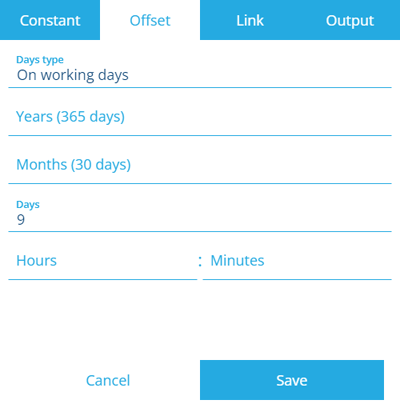
The **Days type** field can be set to:
* *On working days*
* *On non-working days*
* *Both* (default)
To configure the working days for your organisation, see [Working days and holidays](/web/activities/working-days-holidays.md).
The following examples illustrate how the **Days type** field can affect the offset values you enter:
Example 1: An offset of 12 hours
Using *On working days*.
[](/img/workflow/example-date-time-offset_02.png)
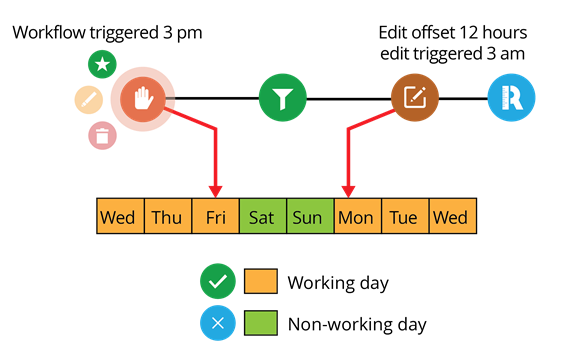
Using *On non-working days*.
[](/img/workflow/example-date-time-offset_03.png)
Using *Both*.
[](/img/workflow/example-date-time-offset_01.png)
Example 2: An offset of 48 hours
Using *On working days*.
[](/img/workflow/example-date-time-offset_05.png)
Using *On non-working days*.
[](/img/workflow/example-date-time-offset_06.png)
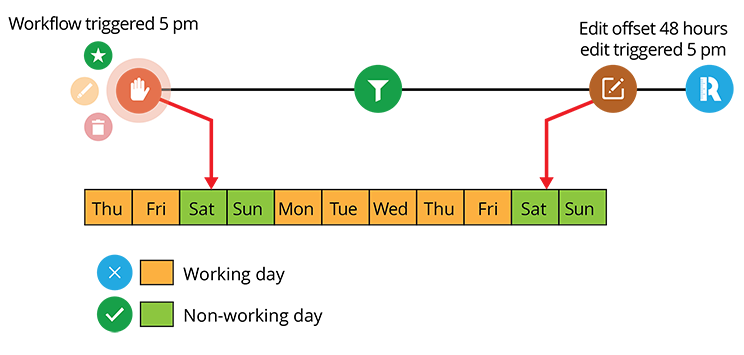
Using *Both*.
[](/img/workflow/example-date-time-offset_04.png)
### Link[](#link "Direct link to Link")
The **Link** tab lets you link to a value in the output of any preceding stage in the current branch path.
If the selected stage outputs multiple items, the value will be taken from the output item that corresponds to the input item on the action you're configuring.
In other words, you can travel backwards along the causal chain of items and link to the one outputted at a particular stage.
[](/img/workflow/dynamic-link-sequence.png)
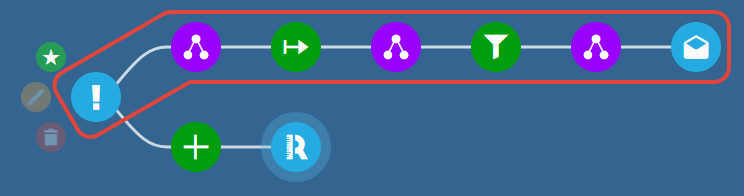
[](/img/workflow/dynamic-link-stages.png)
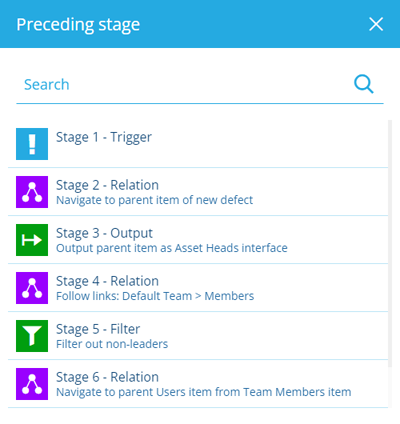
After selecting a stage, choose an attribute on the output item to link to. Only compatible attributes will be listed. If the action attribute you're configuring expects an item, select the listed **Item** property.
[](/img/workflow/dynamic-link-stage-attributes.png)
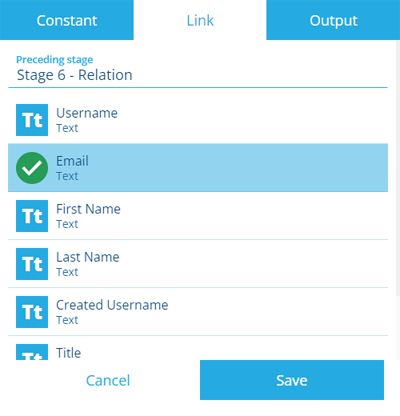
*For example, imagine an [event workflow](/web/workflows/creating-workflows/event-workflows.md) that messages a team's leaders when a defect is created for a team asset. Using [**Relation**](/web/workflows/building-workflow/actions/action-relation-relation.md), [**Output**](/web/workflows/building-workflow/actions/action-output.md) and [**Filter**](/web/workflows/building-workflow/actions/action-relation-filter.md) actions, we can fetch the **Users** item linked to the **Team Members** item of the **Teams** item that's set as the **Default Team** of the parent asset of the new defect item*.
*When configuring the final [**Message**](/web/workflows/building-workflow/actions/action-messaging.md) action, we can set its **Email To** and **Recipient Name** attributes dynamically, by linking them to the **Email address** and **First Name** attributes of the **Users** item output by the previous node (Stage 6). Similarly, we can populate the action's **Linked Items** attribute with the new defect by linking to the root node (Stage 1)*.
[](/img/workflow/dynamic-link-fields.png)
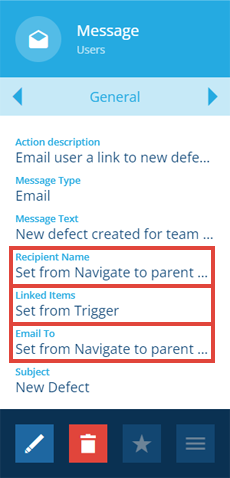
### Output[](#output "Direct link to Output")
The **Output** tab lets you reference the value(s) of the total output of any action in the sequence.
This means you can reference actions on different branches. If the selected action outputs multiple items, a value will be taken from all of them!
[](/img/workflow/dynamic-output-sequence.png)
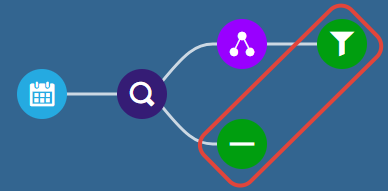
[](/img/workflow/dynamic-output-actions.png)
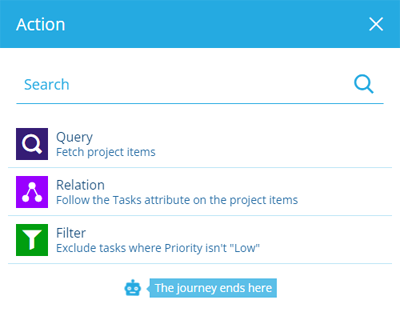
After selecting an action, choose an attribute on the output item(s) to link to. Only compatible attributes will be listed. If the action attribute you're configuring expects items, select the listed **Item** property.
[](/img/workflow/dynamic-output-actions-attributes.png)
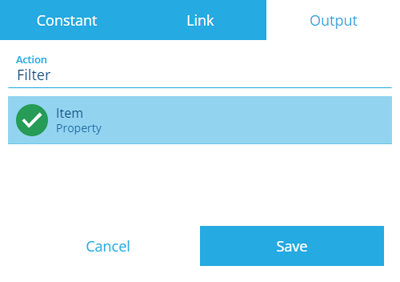
*For example, imagine a [schedule workflow](/web/workflows/creating-workflows/scheduled-workflows.md) that removes low priority tasks from projects every 2 months. It uses a [**Relation**](/web/workflows/building-workflow/actions/action-relation-relation.md) action to follow the **Tasks** attribute on the **Projects** design. It then uses a [**Filter**](/web/workflows/building-workflow/actions/action-relation-filter.md) action to exclude the task items whose **Priority** attribute isn't "Low"*.
*Starting a new branch from the **Query** action, we can then add a [**Remove Links**](/web/workflows/building-workflow/actions/action-remove-link.md) action that targets the **Tasks** attribute on the project items. We can set the action's **Items** attribute dynamically, by referencing the **Item** property of all the task items output by the **Filter** action*.
[](/img/workflow/dynamic-output-fields.png)
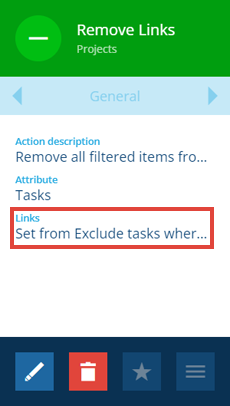
---
# Single Instance
### Always perform an action once[](#always-perform-an-action-once "Direct link to Always perform an action once")
The **Single Instance** attribute is available when configuring the following actions: [**Create Item**](/web/workflows/building-workflow/actions/action-create.md), [**Output**](/web/workflows/building-workflow/actions/action-output.md), [**Call Mesh**](/web/workflows/building-workflow/actions/action-mesh.md), [**Message**](/web/workflows/building-workflow/actions/action-messaging.md) and [**Query**](/web/workflows/building-workflow/actions/action-relation-query.md).
[](/img/workflow/single-instance-setting.png)
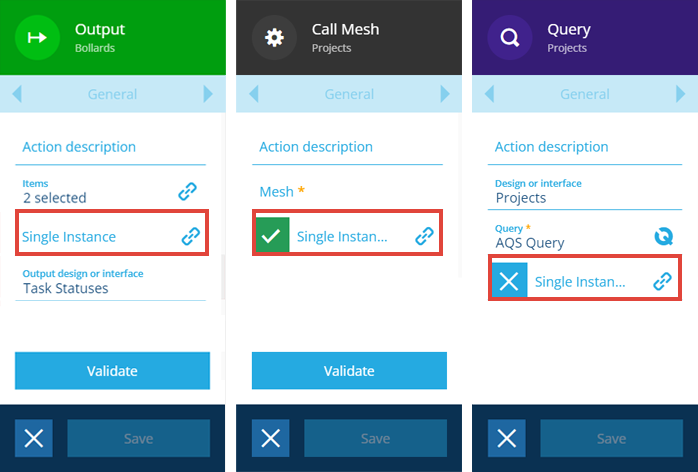
If **Single Instance** is enabled or undefined, the action will always be performed once, regardless of whether the previous node outputs one item, many items, or none at all!
This is particularly useful for **Call Mesh** actions, as it guarantees the Mesh will be contacted, even in [schedule workflows](/web/workflows/creating-workflows/event-workflows.md) that trigger with no input items. Additionally, it means the data of multiple items can be sent in one go, without contacting the Mesh multiple times.
[](/img/workflow/workflow-single-instance-mesh.png)
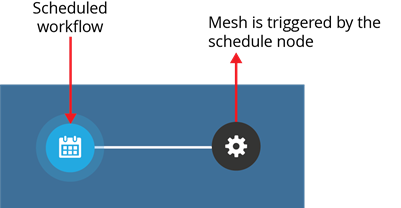
If **Single Instance** is explicitly disabled, the action is performed for each input item instead. To do this, you must select the field, disable the checkbox if necessary, and then select **Save**.
[](/img/workflow/single-instance-disabled.png)
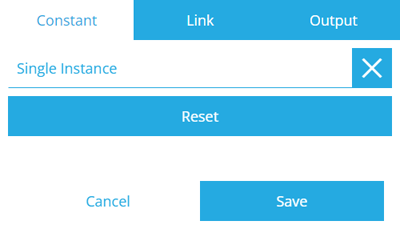
### Example[](#example "Direct link to Example")
The workflow below fetches a set of asset items, creates a job for each asset, and then adds those jobs to a new project. By default, the final **Create Item** action is performed for each input item, so a new project item is created for each job item.
[](/img/workflow/workflow-single-instance-disabled.png)
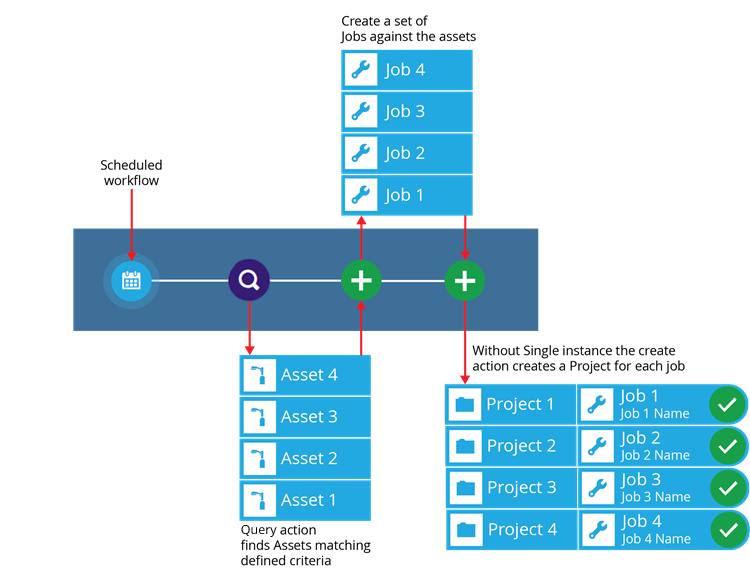
With **Single Instance** enabled, the final **Create Item** action is performed once, for all input items simultaneously. As a result, only one project item is created, with all the jobs added to its **Tasks** attribute.
[](/img/workflow/workflow-single-instance.png)
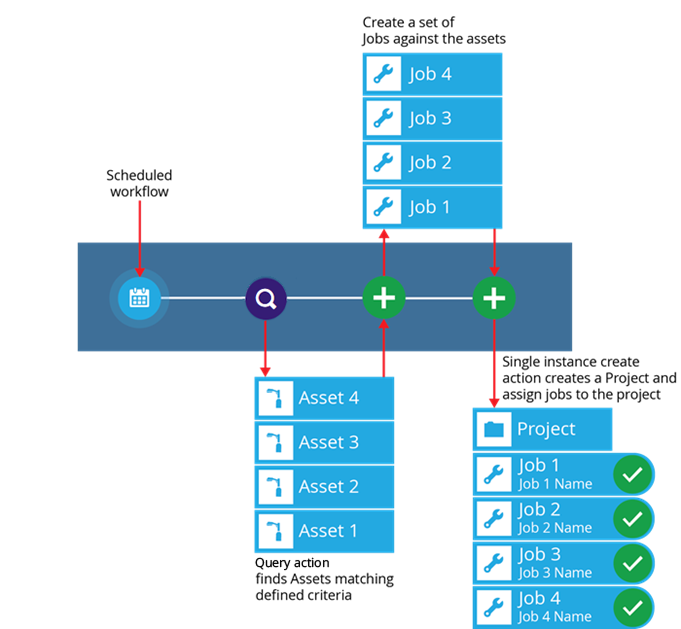
---
# Computations
### Compute attribute values via the API[](#compute-attribute-values-via-the-api "Direct link to Compute attribute values via the API")
Take your workflows to the next level with **Workflow Computations**. This advanced feature lets you compute a value for any attribute on an action.
Using a subset of C# syntax, you can write scripts that perform arithmetic operations, manipulate strings and construct AQS queries. You can define variables to store computed values and access them from other nodes. We've also defined some convenient helper functions for you to make use of!
This lets you do cool things like:
* compute dimensions like area, length and volume
* manipulate date and time values
* calculate the centroid point of a polygon
* generate a bounding box around item geometry
* customise email/SMS messages even further using variables
* generate random numbers
To learn more about Workflow Computations and read some code examples, please consult our [Developer Docs](https://developer.alloyapp.io).
---
## [📄️Event workflows](/web/workflows/creating-workflows/event-workflows.md)
[Trigger when items change](/web/workflows/creating-workflows/event-workflows.md)
---
# Event workflows
### Trigger when items change[](#trigger-when-items-change "Direct link to Trigger when items change")
Use **event workflows** to respond to data changes. An event workflow can be configured to trigger when an item of a specific design/interface is created, updated or deleted.
info
If you're unable to create a workflow, your user account may lack the required [permissions](/web/permissions.md).
### Create an event workflow[](#create-an-event-workflow "Direct link to Create an event workflow")
To create an event workflow:
1. Open the **Workflows** [dashboard card](/web/getting-started/dashboard.md), select **Create workflow** and choose **Event**.
2. Fill in the following fields as needed, then select **Next**:
* **Design or interface** \* - choose the design/interface that will be monitored for changes. This acts as the top-level filter for the workflow. To further refine the scope, you can add [**Filter**](/web/workflows/building-workflow/actions/action-relation-filter.md) actions when building the workflow.
* **Collections** - select the [collection(s)](/web/items/item-collections.md) that will be monitored for changes.
* **Listen on create** - if enabled, the workflow will trigger when an item of the design/interface is created.
* **Listen on update** - if enabled, the workflow will trigger when an item of the design/interface is updated.
* **Attribute** - if **Listen on update** is enabled, you can restrict it to one or more of the item's attributes. Only the selected attributes will trigger the workflow if they're updated.
* **Listen on delete** - if enabled, the workflow will trigger when an item of the design/interface is deleted.
[](/img/workflow/workflow-create-event_01.png)
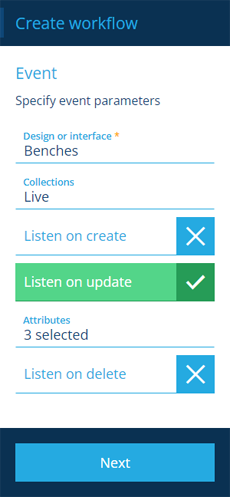
3. Fill in the following fields as needed, then select **Create** to finish:
* **Title** \* - enter a distinct title that clearly identifies the workflow.
* **Failure notification user** - nominate a user in your company project to be emailed if the workflow fails.
* **Days type** - restrict the workflow to trigger only on [working days](/web/activities/working-days-holidays.md), non-working days, or both (default).
* **Days exceptions** - specify date ranges when the workflow shouldn't be triggered. You can exclude up to, and after, a certain date.
[](/img/workflow/workflow-create-event_04.png)
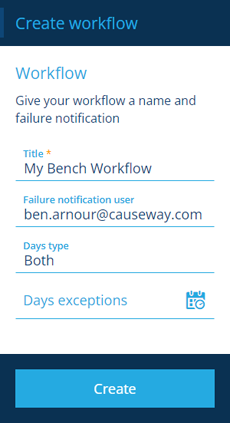
### Build the workflow[](#build-the-workflow "Direct link to Build the workflow")
Once you've created your workflow, you can start to [build the sequence](/web/workflows/building-workflow/.md) of actions that you want it to perform.
---
# Manual workflows
### Trigger on demand[](#trigger-on-demand "Direct link to Trigger on demand")
Use **manual workflows** to perform actions on demand. A manual workflow can be configured to operate independently or on items of a specific design/interface.
Manual workflows can only be triggered by a user. This can be done when viewing the workflow, or any item of the relevant design/interface, or when performing a bulk action. See [Triggering a manual workflow](/web/workflows/trigger-workflow.md).
info
If you're unable to create a workflow, your user account may lack the required [permissions](/web/permissions.md).
### Create a manual workflow[](#create-a-manual-workflow "Direct link to Create a manual workflow")
To create a manual workflow:
1. Open the **Workflows** [dashboard card](/web/getting-started/dashboard.md), select **Create workflow** and choose **Manual**.
2. Fill in the following fields as needed, then select **Next**:
* **Design or interface** - when a user triggers the workflow, they'll need to select at least one item of the chosen design/interface. If left blank, the workflow will operate without any input items.
* **Output mode** - choose one:
* *Many items* (default) - all input items will be processed by a single workflow.
* *One item* - each input item will be processed by a separate workflow. Slower but makes certain operations possible, e.g. *if a workflow creates an invoice when supplied with an account's Item ID, it will run once for each account, thereby generating an invoice for each one.*
* **Parameter design** - if the workflow needs to receive input parameters when triggered, choose the prepared parameter design ([see below](#workflow-trigger-parameters)).
info
Only manual workflows operate in *Many items* mode by default. [Event](/web/workflows/creating-workflows/event-workflows.md) and [schedule](/web/workflows/creating-workflows/scheduled-workflows.md) workflows operate in *One item* mode.
[](/img/workflow/workflow-create-event_08.png)
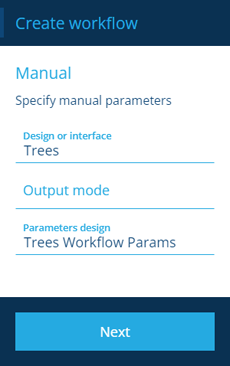
3. Fill in the following fields as needed, then select **Create** to finish:
* **Title** \* - enter a distinct title that clearly identifies the workflow.
* **Failure notification user** - nominate a user in your company project to be emailed if the workflow fails.
[](/img/workflow/workflow-create-event_09.png)
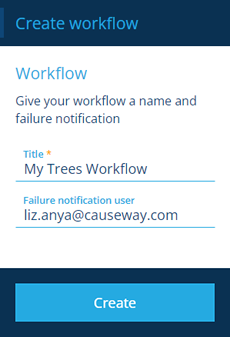
### Build the workflow[](#build-the-workflow "Direct link to Build the workflow")
Once you've created your workflow, you can start to [build the sequence](/web/workflows/building-workflow/.md) of actions that you want it to perform.
### Workflow trigger parameters[](#workflow-trigger-parameters "Direct link to Workflow trigger parameters")
You can create a manual workflow that requires one or more parameters when triggered. This enables it to take input from the user and adapt its actions according to the supplied values, making it possible for a single workflow to handle multiple scenarios!
To define a set of parameters for a manual workflow:
1. [Create a design](/web/designer/creating-designs/.md) and make it [implement](/web/designer/managing-interfaces.md) the **Workflow Manual Trigger** interface.
2. [Add an attribute](/web/designer/attributes/adding-custom-attributes.md) to the design for each parameter you want to define. When configuring the attribute, select its **Tag** field and choose *ActionParameter*. If you enable the attribute's **Required** field, users will need to supply a value for that parameter to run the workflow. If not, the parameter will be optional.
3. When creating or editing the manual workflow, select the **Parameter design** field and choose your prepared design.
Currently, to utilise these parameters within the actions of the workflow, you must use the Alloy API. To learn more, see [Manual trigger parameters](https://developer.alloyapp.io/dev/wf-computations/trigger-parameters#use-trigger-parameters-in-actions) in the Developer Docs.
---
# Schedule workflows
### Trigger at certain times[](#trigger-at-certain-times "Direct link to Trigger at certain times")
Use **schedule workflows** to perform actions at certain times. A schedule workflow can be configured to trigger on specific dates or at regular intervals.
To create a schedule workflow that automatically clones a task or project item, see [Activity schedules](/web/workflows/creating-workflows/schedules.md).
info
If you're unable to create a workflow, your user account may lack the required [permissions](/web/permissions.md).
### Create a schedule workflow[](#create-a-schedule-workflow "Direct link to Create a schedule workflow")
To create a schedule workflow:
1. Open the **Workflows** [dashboard card](/web/getting-started/dashboard.md), select **Create workflow** and choose **Schedule**.
2. Choose a schedule type:
**Calendar** - trigger at specific dates and times, e.g. *2 July 2022 13:00*
Select the **Dates** field and use the [calendar picker](/web/getting-started/selection/selecting-dates.md#multi-date-picker) to add one or many dates to the list. Select **Done** to continue.
[](/img/workflow/create-calendar-01.png)
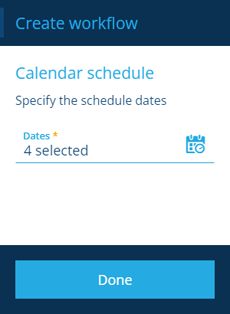
[](/img/workflow/create-calendar-02.png)
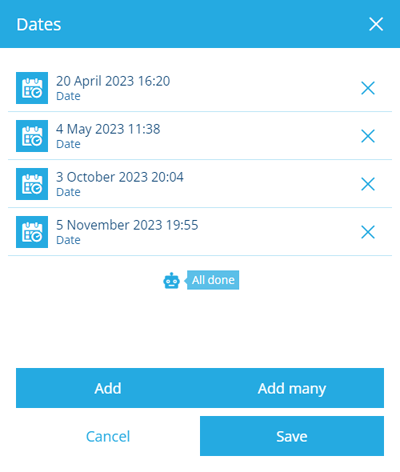
**Repeat** - trigger on certain days of the week/month, e.g. *every Monday and Friday, the 23rd of each month*
Fill in the following fields as needed and then select **Done** to continue:
* **At** \* - set the time for the workflow to trigger.
* **Of every** \* - choose a weekly or monthly period.
* **On** \* - select one or more days of the week or dates in the month.
[](/img/workflow/create-repeat-01.png)
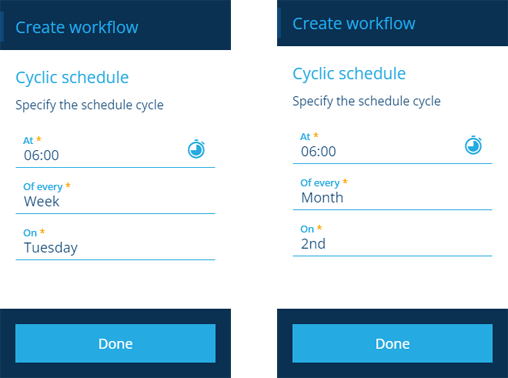
**Frequency** - trigger at set intervals, e.g. *every 6 hours, every 2 weeks, every year*
Fill in the following fields as needed and then select **Done** to continue:
* **Starting at** \* - set the date and time for the workflow to first trigger.
* **Every** \* - enter the number of time units.
* **Units** \* - choose a time unit, e.g. *Minute*, *Day*, *Month*.
[](/img/workflow/create-freq-01.png)
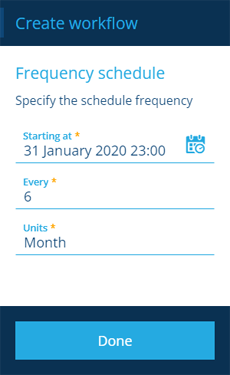
3. Fill in the following fields as needed, then select **Create** to finish:
* **Title** \* - enter a distinct title that clearly identifies the workflow.
* **Failure notification user** - nominate a user in your company project to be emailed if the workflow fails.
* **Days type** - restrict the workflow to trigger only on [working days](/web/activities/working-days-holidays.md), non-working days, or both (default).
* **Days exceptions** - specify date ranges when the workflow shouldn't be triggered. You can exclude up to, and after, a certain date.
[](/img/workflow/create-sched-01.png)
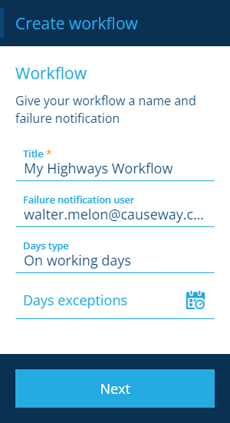
### Build the workflow[](#build-the-workflow "Direct link to Build the workflow")
Once you've created your workflow, you can start to [build the sequence](/web/workflows/building-workflow/.md) of actions that you want it to perform.
As scheduled workflows don't start with any trigger items, add an [**Output**](/web/workflows/building-workflow/actions/action-output.md) or [**Query**](/web/workflows/building-workflow/actions/action-relation-query.md) action to fetch items to work on.
---
# Activity schedules
### Clone tasks/projects automatically[](#clone-tasksprojects-automatically "Direct link to Clone tasks/projects automatically")
A **schedule** is a [schedule workflow](/web/workflows/creating-workflows/scheduled-workflows.md) that automatically clones a particular item on specific dates or at regular intervals. It's particularly useful for creating [activities](/web/activities.md) that need to be routinely repeated (e.g. *inspections*, *jobs*, *projects*).
Schedules work best with [template items](/web/items/creating-items/template-items.md), which are partially filled in "drafts" that new items can be based on. Cloning a template item will create a new item in the *Live* collection.
info
If you're unable to create a schedule, your user account may lack the required [permissions](/web/permissions.md).
### Start the process[](#start-the-process "Direct link to Start the process")
There are two ways to start creating a schedule:
Start from the dashboard
Open the **Workflows** [dashboard card](/web/getting-started/dashboard.md) and select **Create schedule**.
[](/img/workflow/dashboard-workflows.png)
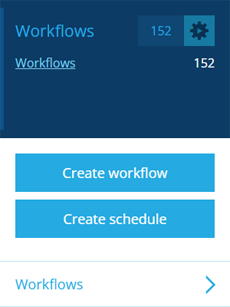
Start from an item
When [viewing an item](/web/items/viewing-items.md) in the right panel, select **More** at the bottom of its **Schedules** [tab](/web/getting-started/tab-bar.md) and choose **Create Schedule**.
[](/img/workflow/schedule-from-item.png)
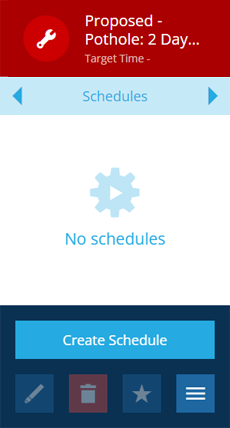
### The schedule creation process[](#the-schedule-creation-process "Direct link to The schedule creation process")
The key steps of this process will appear in the dashboard panel:
* 1 [**Select activity**](#-1--select-activity) - required
* 2 [**Set schedule type**](#-2--set-schedule-type) - required
* 3 [**Enter schedule details**](#-3--enter-schedule-details) - required
Fields marked with an asterisk **\*** require a value to continue.
#### 1 Select activity[](#-1--select-activity "Direct link to -1--select-activity")
Select the activity item you want create a schedule for:
* **Design** \* - select the design of the activity.
* **Collection** \* - select the [collection](/web/items/item-collections.md) that the activity belongs to. Schedules work best with items of the *Template* collection.
* **Item** \* - select the relevant item from the list.
Select **Done** to choose the next step.
info
If you [started](#start-the-process) the process from an item, these fields will be populated automatically.
[](/img/workflow/schedule-create-01.png)
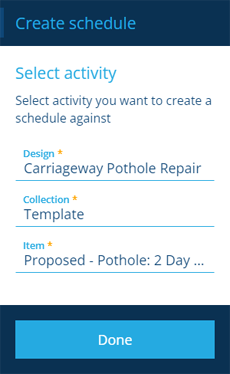
#### 2 Set schedule type[](#-2--set-schedule-type "Direct link to -2--set-schedule-type")
Choose the type of schedule and configure it as needed:
**Calendar** - trigger at specific dates and times, e.g. *2 July 2022 13:00*
Select the **Dates** field and use the [calendar picker](/web/getting-started/selection/selecting-dates.md#multi-date-picker) to add one or many dates to the list. Select **Done** to continue.
[](/img/workflow/create-calendar-01.png)

[](/img/workflow/create-calendar-02.png)

**Repeat** - trigger on certain days of the week/month, e.g. *every Monday and Friday, the 23rd of each month*
Fill in the following fields as needed and then select **Done** to continue:
* **At** \* - set the time for the workflow to trigger.
* **Of every** \* - choose a weekly or monthly period.
* **On** \* - select one or more days of the week or dates in the month.
[](/img/workflow/create-repeat-01.png)

**Frequency** - trigger at set intervals, e.g. *every 6 hours, every 2 weeks, every year*
Fill in the following fields as needed and then select **Done** to continue:
* **Starting at** \* - set the date and time for the workflow to first trigger.
* **Every** \* - enter the number of time units.
* **Units** \* - choose a time unit, e.g. *Minute*, *Day*, *Month*.
[](/img/workflow/create-freq-01.png)

#### 3 Enter schedule details[](#-3--enter-schedule-details "Direct link to -3--enter-schedule-details")
Enter a distinct name that clearly identifies the schedule. Select **Done** to continue.
[](/img/workflow/schedule-create-03.png)
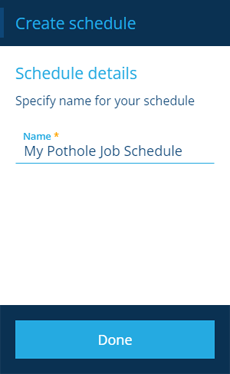
### Finish the process[](#finish-the-process "Direct link to Finish the process")
After completing all three steps, select **Create** to finish. A notification indicates whether the item was created successfully or an error occurred.
[](/img/workflow/schedule-create-04.png)
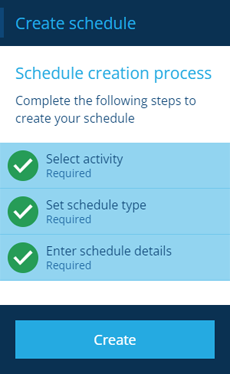
### Extend the workflow[](#extend-the-workflow "Direct link to Extend the workflow")
Schedules are automatically configured with actions to fetch and clone the chosen item, so there's no need to [build the workflow](/web/workflows/building-workflow/.md). However, you're free to add more actions if you like!
---
# Editing workflow properties
### Configure a workflow's triggers[](#configure-a-workflows-triggers "Direct link to Configure a workflow's triggers")
After [creating a workflow](/web/workflows/creating-workflows.md), you can edit any of the properties set during its creation. You can even change it to a different type!
To edit the workflow you're [viewing](/web/workflows/viewing-workflows.md), select the root node to display its properties in the right panel. Use the [tab bar](/web/getting-started/tab-bar.md) to switch to the relevant tab and then select **Edit** in the [action bar](/web/getting-started/action-bar.md).
### General properties[](#general-properties "Direct link to General properties")
Edit any of the following fields:
* **Name** \* - enter a distinct name that clearly identifies the workflow.
* **Enabled** - disabled by default! Enable when the workflow is built and ready to use.
Event / schedule workflows only:
* **Days type** - restrict the workflow to trigger only on [working days](/web/activities/working-days-holidays.md), non-working days, or both.
* **Days exceptions** - specify date ranges when the workflow shouldn't be triggered. You can exclude up to, and after, a certain date.
Select **Save** to finish.
[](/img/workflow/edit-properties-general.png)
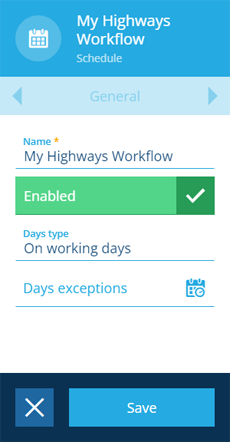
### Failure notification[](#failure-notification "Direct link to Failure notification")
Edit the following field:
* **User** - nominate a user in your company project to be emailed if the workflow fails.
The tab also displays these read-only fields:
* **Failures count** - the total number of times the workflow has failed.
* **Time of last failure notification** - when the chosen **User** was last notified.
Select **Save** to finish.
[](/img/workflow/edit-properties-failure.png)
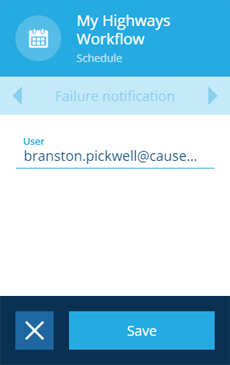
### Trigger properties[](#trigger-properties "Direct link to Trigger properties")
The contents of this tab differ depending on the workflow type.
#### Event workflows[](#event-workflows "Direct link to Event workflows")
Edit any of the following fields:
* **Listen on create** - if enabled, the workflow will trigger when an item of the design/interface is created.
* **Listen on update** - if enabled, the workflow will trigger when an item of the design/interface is updated.
* **Listen on delete** - if enabled, the workflow will trigger when an item of the design/interface is deleted.
* **Design or interface** - choose the design/interface that will be monitored for changes. This acts as the top-level filter for the workflow. To further refine the scope, you can add [**Filter**](/web/workflows/building-workflow/actions/action-relation-filter.md) actions when building the workflow.
* **Collections** - select the [collection(s)](/web/items/item-collections.md) that will be monitored for changes.
* **Attribute** - if **Listen on update** is enabled, you can restrict it to one or more of the item's attributes. Only the selected attributes will trigger the workflow if they're updated.
Select **Save** to finish.
Important
If changing **Design or interface** or **Attributes** invalidates the current [action sequence](/web/workflows/building-workflow/.md), saving will fail with an error.
[](/img/workflow/edit-properties-event.png)
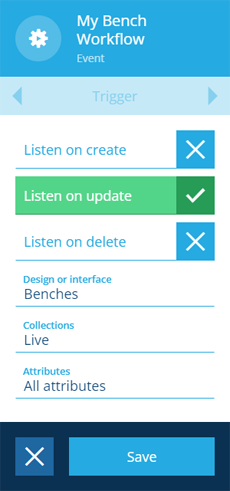
#### Manual workflows[](#manual-workflows "Direct link to Manual workflows")
Edit the following fields as needed:
* **Design or interface** - when a user triggers the workflow, they'll need to select at least one item of the chosen design/interface. If left blank, the workflow will operate without any input items.
* **Output mode** - choose one:
* *Many items* (default) - all input items will be processed by a single workflow.
* *One item* - each input item will be processed by a separate workflow. Slower but makes certain operations possible, e.g. *if a workflow creates an invoice when supplied with an account's Item ID, it will run once for each account, thereby generating an invoice for each one.*
* **Output action** - choose the action in the manual workflow that represents its final output. This determines the output of a [manual workflow reference](/web/workflows/building-workflow/actions/action-mwr.md).
* **Parameter design** - if the workflow needs to receive input parameters when triggered, choose the prepared parameter design. See [Workflow trigger parameters](/web/workflows/creating-workflows/manual-workflows.md#workflow-trigger-parameters).
Select **Save** to finish.
Important
If changing **Design or interface** invalidates the current [action sequence](/web/workflows/building-workflow/.md), saving will fail with an error.
[](/img/workflow/edit-properties-manual.png)
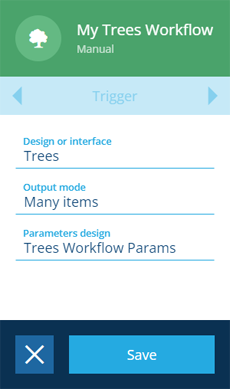
#### Schedule workflows[](#schedule-workflows "Direct link to Schedule workflows")
Different fields are shown for different schedule workflow types.
**Calendar** - trigger at specific dates and times, e.g. *2 July 2022 13:00*
Select the **Dates** field and use the [calendar picker](/web/getting-started/selection/selecting-dates.md#multi-date-picker) to add one or many dates to the list. Select **Done** to continue.
[](/img/workflow/edit-properties-calendar.png)
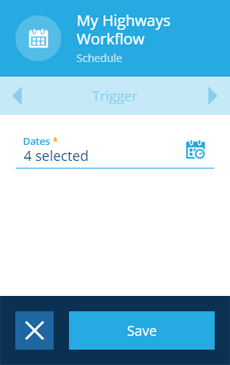
[](/img/workflow/create-calendar-02.png)

**Repeat** - trigger on certain days of the week/month, e.g. *every Monday and Friday, the 23rd of each month*
Fill in the following fields as needed, then select **Done** to continue:
* **At** \* - set the time for the workflow to trigger.
* **Of every** \* - choose a weekly or monthly period.
* **On** \* - select one or more days of the week or dates in the month.
[](/img/workflow/edit-properties-repeat.png)
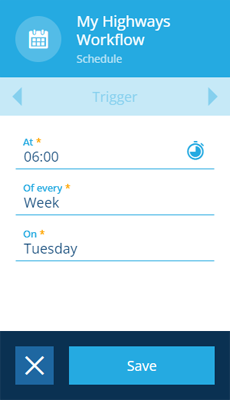
**Frequency** - trigger at set intervals, e.g. *every 6 hours, every 2 weeks, every year*
Fill in the following fields as needed, then select **Done** to continue:
* **Starting at** \* - set the date and time for the workflow to first trigger.
* **Every** \* - enter the number of time units.
* **Units** \* - choose a time unit, e.g. *Minute*, *Day*, *Month*.
[](/img/workflow/edit-properties-freq.png)
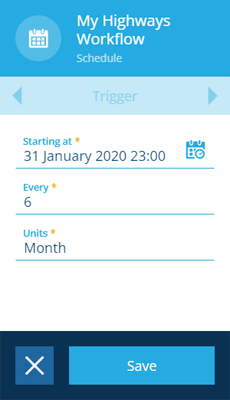
### Change the workflow type[](#change-the-workflow-type "Direct link to Change the workflow type")
It's often possible to change the workflow type without resetting its action sequence.
To do this, switch to the **Triggers** tab, select **More** in the [action bar](/web/getting-started/action-bar.md) and choose the relevant button.
Check compatibility
| From 🠛 to 🠚 | Event | Manual | Calendar schedule | Repeat schedule | Frequency schedule |
| ------------------ | ----- | ------ | ----------------- | --------------- | ------------------ |
| Event | - | | | | |
| Manual | | - | | | |
| Calendar schedule | | | - | | |
| Repeat schedule | | | | - | |
| Frequency schedule | | | | | - |
[](/img/workflow/edit-properties-change.png)
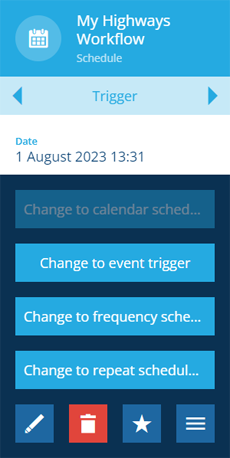
### Delete the workflow[](#delete-the-workflow "Direct link to Delete the workflow")
To delete the workflow, select its root node, then select **Delete** in the [action bar](/web/getting-started/action-bar.md).
Important
Deletions can't be undone, so please think carefully before doing so!
---
# Triggering a manual workflow
### How to run a manual workflow[](#how-to-run-a-manual-workflow "Direct link to How to run a manual workflow")
As the name suggests, [manual workflows](/web/workflows/creating-workflows/manual-workflows.md) don't run automatically! Instead, they must be purposefully triggered by a user. There are several ways to trigger a manual workflow against one or more items.
info
A manual workflow can't be triggered if its **Enabled** property is disabled.
#### From the workflow itself[](#from-the-workflow-itself "Direct link to From the workflow itself")
To trigger a manual workflow:
1. Select the workflow to [view its details](/web/workflows/viewing-workflows.md) in the right panel.
2. Select **More** in the [action bar](/web/getting-started/action-bar.md) and choose **Trigger now**.
[](/img/workflow/manual-workflow-trigger-now.png)
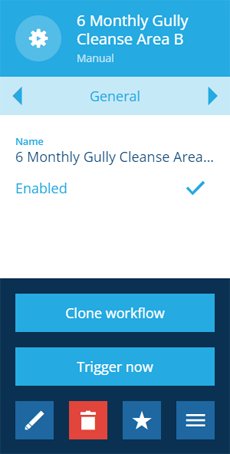
3. If prompted, fill in the following fields and then select **Trigger now**:
* **AQS** \* - if the workflow requires items to perform work on, create a query with the [AQS Builder](/web/aqs/aqs-builder.md) to fetch them.
* **Workflow parameters** - if the workflow has any, you can view them and enter values accordingly ([see below](#input-parameter-values)).
[](/img/workflow/manual-workflow-trigger-now-02.png)
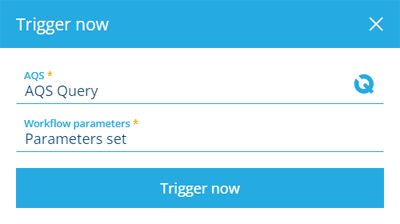
#### From a relevant item[](#from-a-relevant-item "Direct link to From a relevant item")
To trigger a manual workflow on a particular item (of the same design as the workflow):
1. Select the item to [view its details](/web/items/viewing-items.md) in the right panel.
2. Select **More** in the [action bar](/web/getting-started/action-bar.md) and choose **Trigger workflow**.
[](/img/workflow/manual-workflow-trigger-workflow.png)
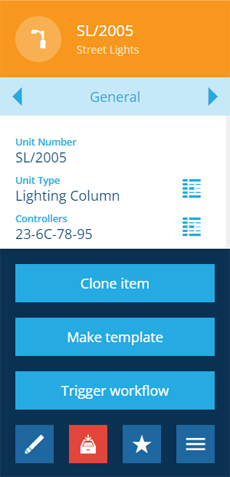
3. Fill in the following fields and then select **Trigger now**:
* **Workflow** \* - choose from a list of applicable workflows.
* **Workflow parameters** - if your chosen workflow has any, you can view them and enter values accordingly ([see below](#input-parameter-values)).
[](/img/workflow/manual-workflow-trigger-workflow-02.png)
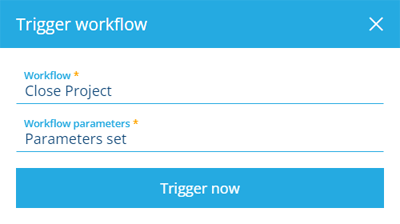
#### As a bulk action[](#as-a-bulk-action "Direct link to As a bulk action")
To trigger a manual workflow on multiple items at once:
1. Select **Data Explorer** in the right panel menu and [create a query](/web/data-explorer/creating-query.md).
2. In the query results, select the items you want to work on. To include the entire list, select nothing.
3. Select **Menu** (bottom-right) and choose **Bulk action**.
4. In the dashboard panel, choose **Trigger workflow**.
5. Fill in the following fields, then select **Submit** to finish:
* **Workflow** \* - choose from a list of applicable workflows that apply to your selected items.
* **Workflow parameters** - if your chosen workflow has any, you can view them and enter values accordingly ([see below](#input-parameter-values)).
[](/img/workflow/manual-workflow-trigger-bulk-02.png)
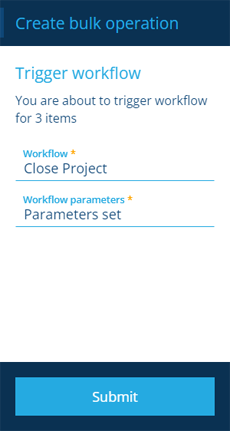
### Input parameter values[](#input-parameter-values "Direct link to Input parameter values")
It's possible for manual workflows to have one or more [trigger parameters](/web/workflows/creating-workflows/manual-workflows.md#workflow-trigger-parameters). This lets the workflow take input from you to customise the work it performs.
If your chosen workflow has any parameters, select the **Workflow parameters** field in the **Trigger workflow** window to view them and input any values accordingly. Parameters that require values are indicated with an asterisk **\***.
*For example, the **Close Project** workflow is included with CausewayOne Asset Management. When triggered against a [project](/web/activities/projects/.md), it sets the **Status** attribute of all the project's tasks to a single value. The workflow contains one required parameter named **Close Project Status**, which lets you choose the **Task Status** item to be applied.*
[](/img/workflow/manual-workflow-parameter.png)
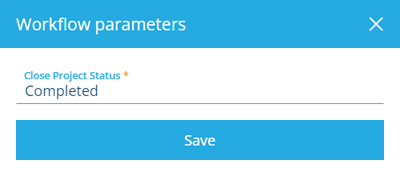
---
# Viewing workflows
### See a workflow's actions and properties[](#see-a-workflows-actions-and-properties "Direct link to See a workflow's actions and properties")
Browse or search the workflows within your [company project](/web/getting-started/choosing-project.md) and then select one to view its details. You can see its sequence of actions, its trigger properties and whether it's **Enabled** for use.
Some workflows are included with CausewayOne Asset Management, e.g. *Close Project*. Others are included in optional [modules](/basics/fundamentals/modules.md), e.g. *Create Customer Invoice in the Finance module*. However, most of the workflows you see were probably created by your colleagues!
### Select a workflow[](#select-a-workflow "Direct link to Select a workflow")
To list available workflows in the [Search panel](/web/getting-started/right-panel-menu/alloy-search.md), open the **Workflows** [dashboard card](/web/getting-started/dashboard.md) and select **Workflows**.
Alternatively, select **Search** in the right panel menu and choose the **Workflows** category (select to clear the previous search if necessary). You can then search by keyword or scroll the list of available workflows.
Select a workflow to view its details.
[](/img/workflow/dashboard-workflows-search.png)
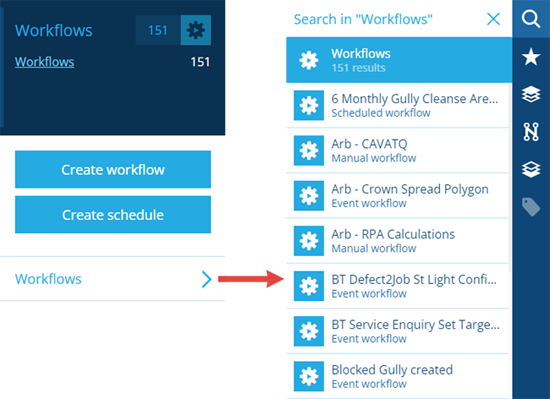
### Workflow properties[](#workflow-properties "Direct link to Workflow properties")
The workflow's action sequence appears over the map area, showing which actions will be performed and in what order. The root node at the start of the sequence indicates the [type of workflow](/web/workflows/creating-workflows.md), with trigger icons displayed for event workflows.
Trigger icons
These indicate which triggers are enabled on an event workflow, for items of the configured design/interface.
* **Listen on create** - whenever an item is created.
* **Listen on update** - whenever an item is edited and saved.
* **Listen on delete** - whenever an item is deleted.
[](/img/workflow/workflow-create-event_02.png)
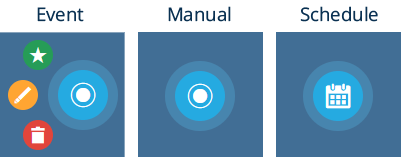
The root node is selected by default, which displays the workflow's properties in the right panel. Use the [tab bar](/web/getting-started/tab-bar.md) to switch between these tabs:
* **General** (default) - see if the workflow is **Enabled** and which days it will or won't automatically trigger on.
* **Failure notification** - see who'll be informed if the workflow fails and details of any previous failures.
* **Logs** - see [what happened](/web/workflows/workflow-logs.md) each time the workflow ran previously.
* **Triggers** - see the conditions that determine when and how the workflow will run.
To change any of the workflow's properties, see [Editing workflow properties](/web/workflows/editing-workflows.md).
[](/img/workflow/view-workflow-01.png)
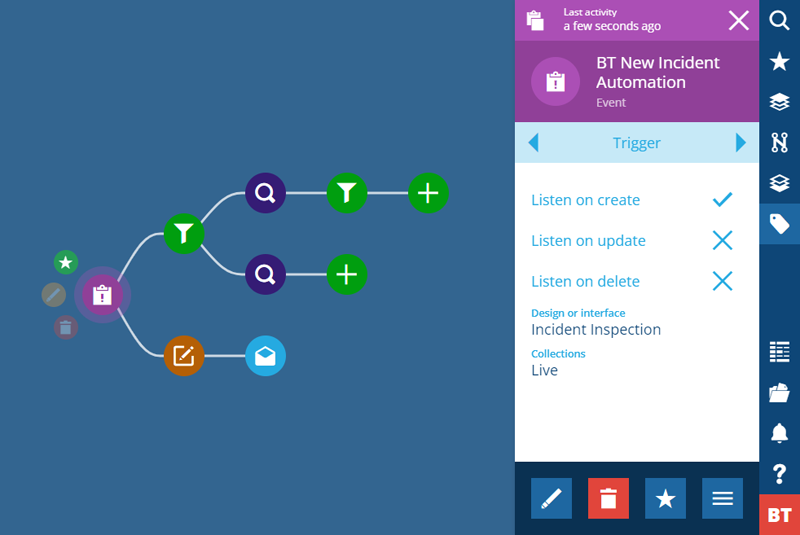
### Action attributes[](#action-attributes "Direct link to Action attributes")
Select any action in the workflow to view its attributes in the right panel. For guidance on adding and configuring actions, see [Building a workflow](/web/workflows/building-workflow/.md).
[](/img/workflow/view-workflow-02.png)
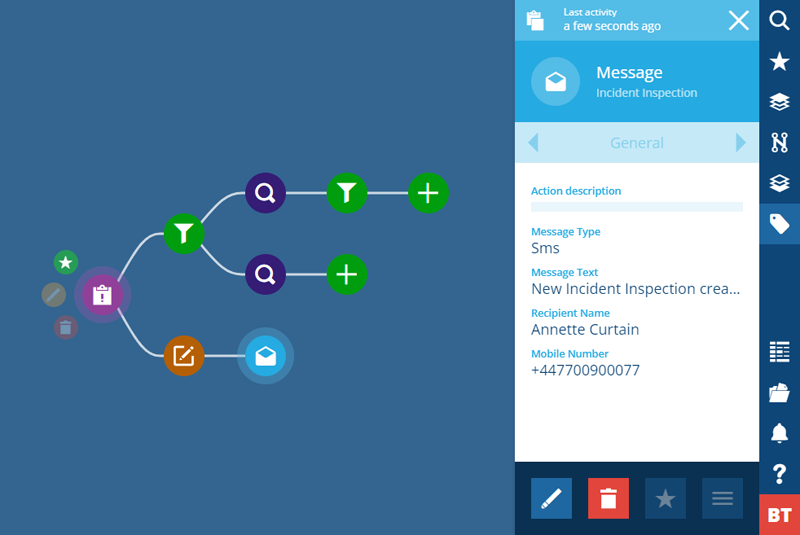
---
# Workflow logs
### See what's been happening[](#see-whats-been-happening "Direct link to See what's been happening")
Whenever a workflow triggers, a run log is created to record a summary of the actions performed and the items involved.
To view the logs of the workflow you're [viewing](/web/workflows/viewing-workflows.md), select the root node to display its properties in the right panel, and then use the [tab bar](/web/getting-started/tab-bar.md) to switch to the **Logs** tab. Logs are listed in descending order (newest first).
[](/img/workflow/workflow-logs.png)
Select a run log to view its details.
[](/img/workflow/workflow-run-log-item.png)
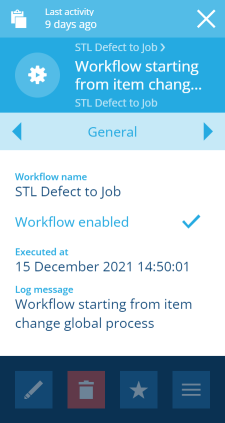
To view the sequence of actions performed, switch to the **Run log** tab. Actions are listed in ascending order (first at the top).
Select an item to [view its details](/web/items/viewing-items.md), where you can do things like cross-reference its own [audit log](/web/items/audit-log.md) or download a [report document](/web/reporting/downloading-reports.md).
[](/img/workflow/workflow-run-log-output.png)
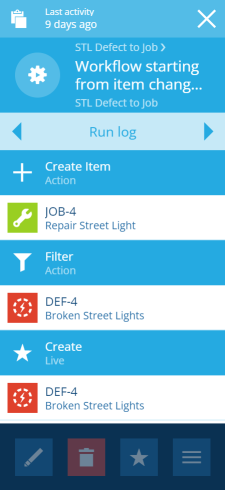
### Retention period[](#retention-period "Direct link to Retention period")
By default, schedule workflow logs are stored for **45 days** and other workflow logs are stored for **14 days**. Older logs are automatically deleted to save storage space.
You can customise the retention period of individual workflows as needed. Currently, this requires using the [Alloy API](https://developer.alloyapp.io/dev/alloy-api). When creating or editing a workflow via the relevant **Workflow** endpoint ([ReDoc](https://api.uk.alloyapp.io/docs/index.html?url=/openapi.json#tag/Workflow) / [Swagger](https://api.uk.alloyapp.io/swagger/ui/index.html?url=/openapi.json#/Workflow)), you can include the optional `logsRetentionDays` property to set the desired number of days.
See JSON code
```
{
"name": "My Workflow",
"enabled": true,
"trigger": {
...
},
"logsRetentionDays": 90,
...
}
```
---