Basemaps
Set the map's background imagery
The map is central to Alloy Mobile. It provides a convenient way to locate and interact with your assigned tasks and company assets. You can see where things are in relation to each other and where you need to be, enabling you to plan and perform your work accordingly.
A basemap provides the background imagery of the map. Switch between multiple basemaps to view your company's data items in different geographical contexts. Choose from system basemaps, company basemaps, or add your own!
System basemaps
The following basemaps are included with Alloy Mobile:
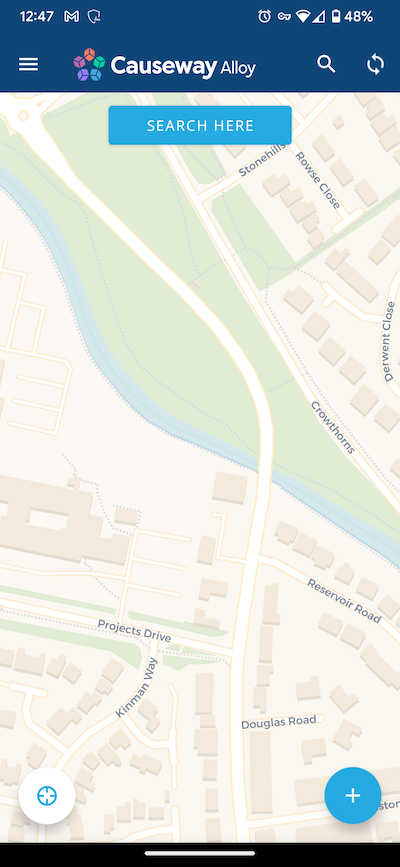
OpenStreetMap
A popular open-source map provided and maintained by a global community of volunteers. Displays outlined roads, building footprints, geographical features and points of interest.
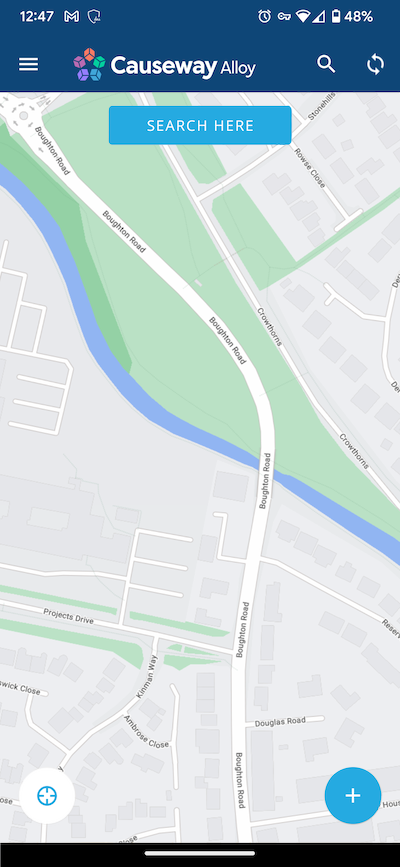
Primary
A beautifully coloured map with a hierarchical road structure, building footprints and geographical features. Roads display their numbers, street names and directional arrows where relevant. Labelled points of interest are also shown, including businesses, amenities and landmarks.
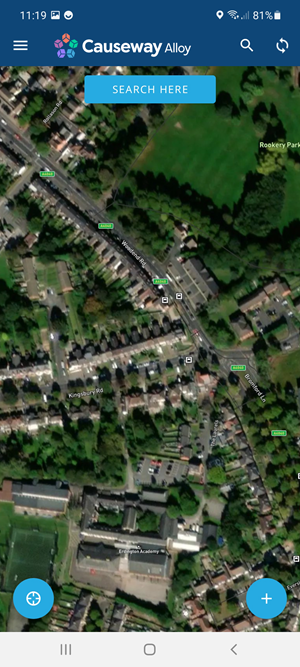
Satellite
Detailed photo imagery with road numbers, street names and labelled points of interest.
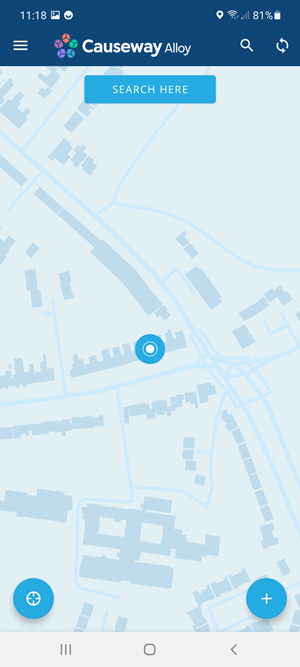
Skyward
A light-blue themed map with simplified roads, building footprints and minimal clutter. Focus on your tasks and assets with minimal distractions!
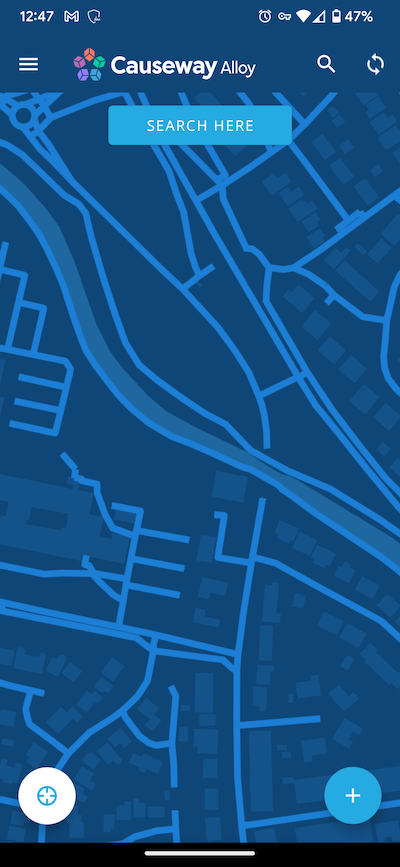
Nightscape
A dark-blue version of Skyward optimised for night-time use. Focus on your tasks and assets with minimal distractions!
Change the basemap
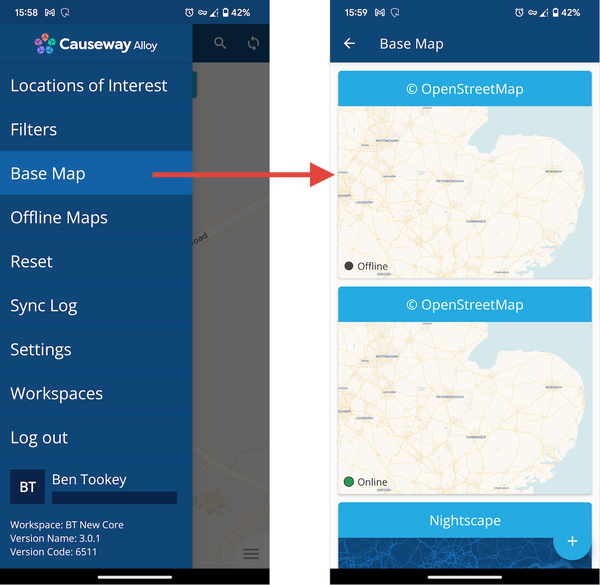
To change the basemap at any time, open the Main menu and choose Base Map. The list includes:
-
system basemaps
-
company basemaps fetched during synchronisation
-
any basemaps added to your device
Each basemap displays a thumbnail preview. Some basemaps are listed twice because they have online and offline variants, as indicated in the bottom-left corner of their thumbnail.
Select a basemap to use it. If your device is offline, the map may display an empty grid until the basemap can be loaded from the internet.
Add a basemap
To add a basemap to your device:
-
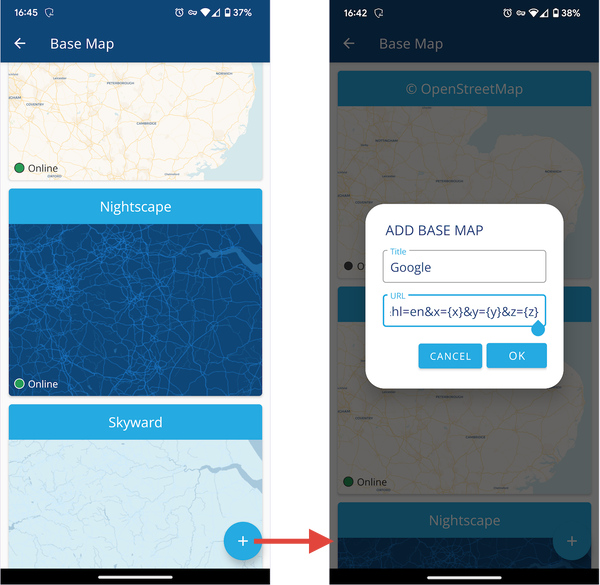
Open the Main menu and choose Base Map.
-
Select Add in the bottom-right corner.
-
Fill in the following fields:
-
Title - enter a distinct name for the basemap.
-
URL - enter the URL of the XYZ map service you want to use. A variety of URL formats are accepted, such as:
https://example.com/service/{z}/{x}/{y}https://example.com/service?z={z}&x={x}&y={y}https://example.com/service/{x}/{y}/{z}.png
-
-
Select OK to finish.
The basemap will now be available in the list. To delete a basemap from your device, select in the top-right corner of its thumbnail.
Basemaps added to your device are not synchronised with your company project.