Viewing routes
View your project's active routes
Every route is defined within a project. To view a route, you need to first select the project it belongs to.
-
Select a project to view its details.
-
Use the tab bar to switch to the Routes tab.
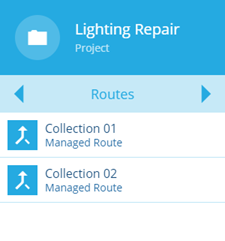
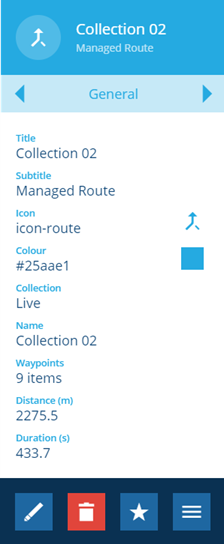
- Select a route to view its details and visualise it on the map. To edit the route, select More in the action bar and choose Open routing.
Using the route graph to view tasks
-
Select a project to view its details.
-
In the Item details panel, select the Routes page.
-
Select the route that you want to view, a graph button is displayed at the top of the map.
-
Select the graph open button at the top of the screen.
-
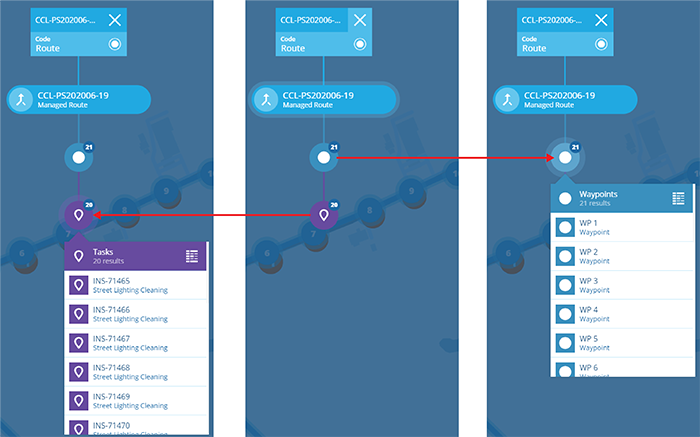
A graph opens with an icon for for the waypoints and tasks within the route, the number on the icon indicates the number of waypoints and tasks. Selecting either icon allows you to access a list of waypoints or tasks and select one for more details, see Item graphs.
When you select a task or waypoint from the displayed list, the details are displayed in the Item details panel.