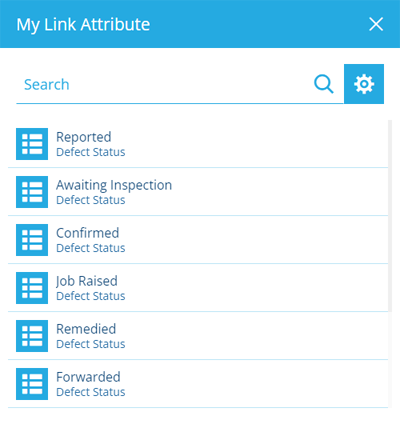
Link attribute
Store links to other items
A Link attribute can reference one or more items of a single design/interface (by storing their Item IDs).
This lets you define connections between items. The item containing the attribute is considered the parent and the stored items are its children.
To learn about the ways you can link items, see Linking items together.
Configuration
When adding or editing a Link attribute on a design/interface, you can configure the following properties:
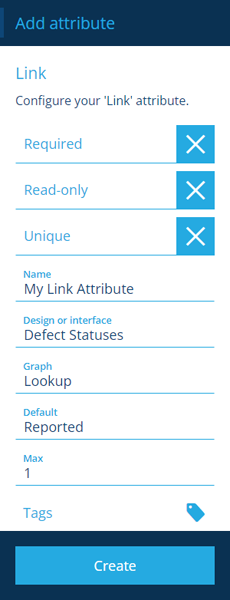
- Name * - enter a distinct name that clearly identifies the attribute.
- Code (read-only) - the attribute's Global Unique Code (Guc) identifier.
- Required - if enabled, the attribute must be populated before an item can be saved. It can't be left blank!
- Read-only - if enabled, the attribute can only be populated when creating items. It can't be edited afterwards!
- Unique - if enabled, the attribute only accepts values that aren't already stored in other items of the design/interface.
-
Design or interface * - choose the type of items the attribute will link to.
-
Graph * - choose the item graph type that linked items will appear on.
-
Default value - if set, the attribute will automatically be populated with this, unless another value is entered.
-
Max - limit the number of items the attribute can link to.
-
Tags - use the Tag Manager to assign custom tags or a relevant system tag.
Available system tags
Treat the attribute as:
- Image - if the attribute links to an item of the Files design that stores an image, its thumbnail is displayed. If multiple items are linked, the count is shown as usual.
-
RequiredOnTaskStatus[Completed/Cancelled] - only relevant if the design/interface implements the Tasks interface. The attribute becomes required when a task's status changes to Completed or Cancelled.
-
ActionParameter[Dynamic] - for internal use only. Marks the attribute as a configurable parameter on a workflow action.
Once a Link attribute is created, there's one more property you can configure:
- Weak link - if disabled, the attribute's Reference Type will become Strong. This means, when an item is removed, any child items referenced by this attribute will also be removed! However, child items may always be cloned, regardless of this property.
Populate the attribute on items
When creating or editing an item, select the attribute to enter a value using the item picker.