Titles and subtitles
Configure your designs to ensure clear labelling of items
Title and Subtitle are mandatory attributes included in all designs and subsequently all items created from those designs. Use them to identify items by displaying key information at a glance.
An item's title/subtitle is defined by its design. When editing a design, there are three ways you can configure its Title and Subtitle attributes:
Leave the fields blank
If left blank, items created from the design will use their Item ID for their title and the design's name for their subtitle.

Enter a fixed title/subtitle
If you simply enter text in these fields, all items created from the design will have the same title/subtitle.
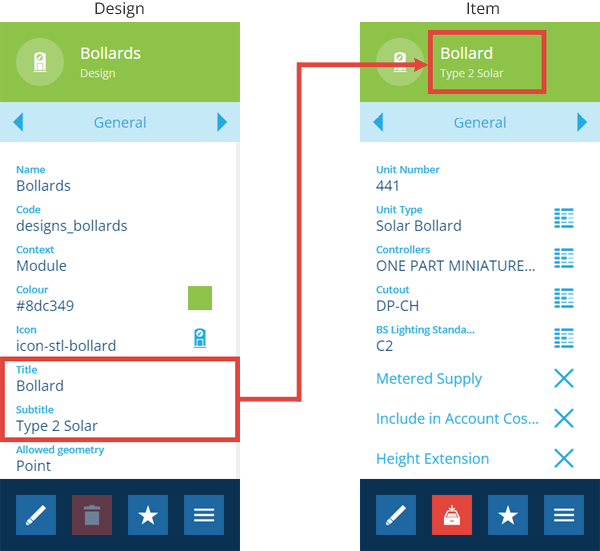
In the example below, every item created from the Bollard design will have Title set to Bollard and Subtitle set to Type 2 Solar. This may be preferable for some scenarios.
Create a variable title/subtitle
A variable links to an attribute on the design and displays its content.
If you include variables in these fields using the Title/Subtitle Editor, each item created from the design will have a unique title/subtitle.
In the example below, Title contains a variable linking to Unit Number, and Subtitle contains a variable linking to Unit Type. The created item can be clearly identified by its unique title.

Update existing items with changes
Once you've saved your changes, they'll apply to new items created from the design.
Existing items will be updated the next time they're edited (by a person or a system process). Alternatively, you can perform a bulk Touch action to update them all immediately, see Bulk actions.