Editing items
How to edit item attributes and properties
An item stores a set of values for the attributes defined by its design. You can typically edit these values after the item is created.
Items also have several editable properties that affect their appearance.
Your ability to edit an item depends on its context, its lock status, and whether your user account has read/write permissions for the item's design.
All changes are recorded in the item's audit log, enabling you to review and compare past values.
Edit item attributes
To edit the values of an item's attributes:
-
Select the item to view its details in the right panel.
-
Select Edit in the action bar to enter Edit Mode. The General tab will reload to display the attributes that are editable (read-only and calculated attributes are excluded).
-
Select an attribute to edit its value. Depending on the attribute type, either type directly into the field or select values using the picker that appears.
-
Select Save to finish.
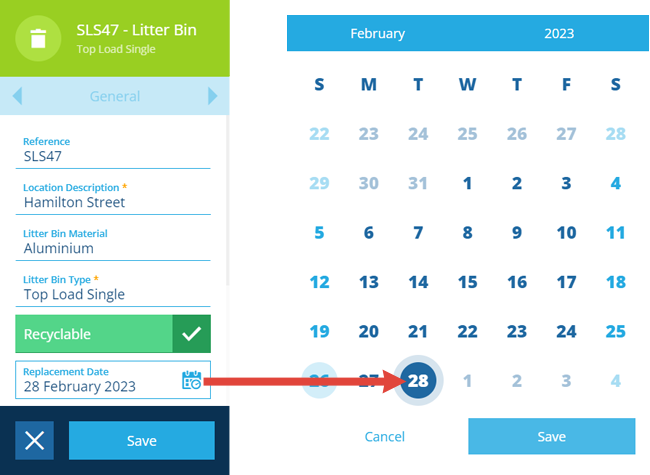
The order and visibility of attributes in Edit Mode may be customised by an item form created by your organisation.
Edit item properties
To edit the properties of an item:
-
Select the item to view its details in the right panel.
-
Use the tab bar to switch to the Settings tab.
-
Select Edit in the action bar to enter Edit Mode. The Settings tab will reload to display the editable attributes:
-
Icon - use the icon picker to change the item's icon. Deselect the current icon to revert back to the design's icon.
-
Colour - use the colour picker to change the item's colour. Deselect the current colour to revert back to the design's colour.
-
Collection - move the item to another collection (if allowed by the item's design).
-
-
Select Save to finish.
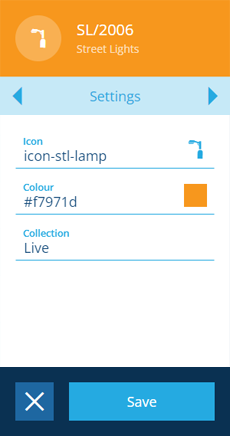
You can always edit an item's Colour and Icon properties, regardless of the item's Context.
Edit multiple items
Bulk actions
To edit multiple items of the same design, select them in the Data Explorer and perform a bulk action to Edit their properties, attributes and location.
Workflows
For more complex scenarios, you can build workflows that perform conditional Edit Item actions on items of any design, which can be triggered automatically or on demand.