Report Builder
Use the Report Builder to compose custom reports
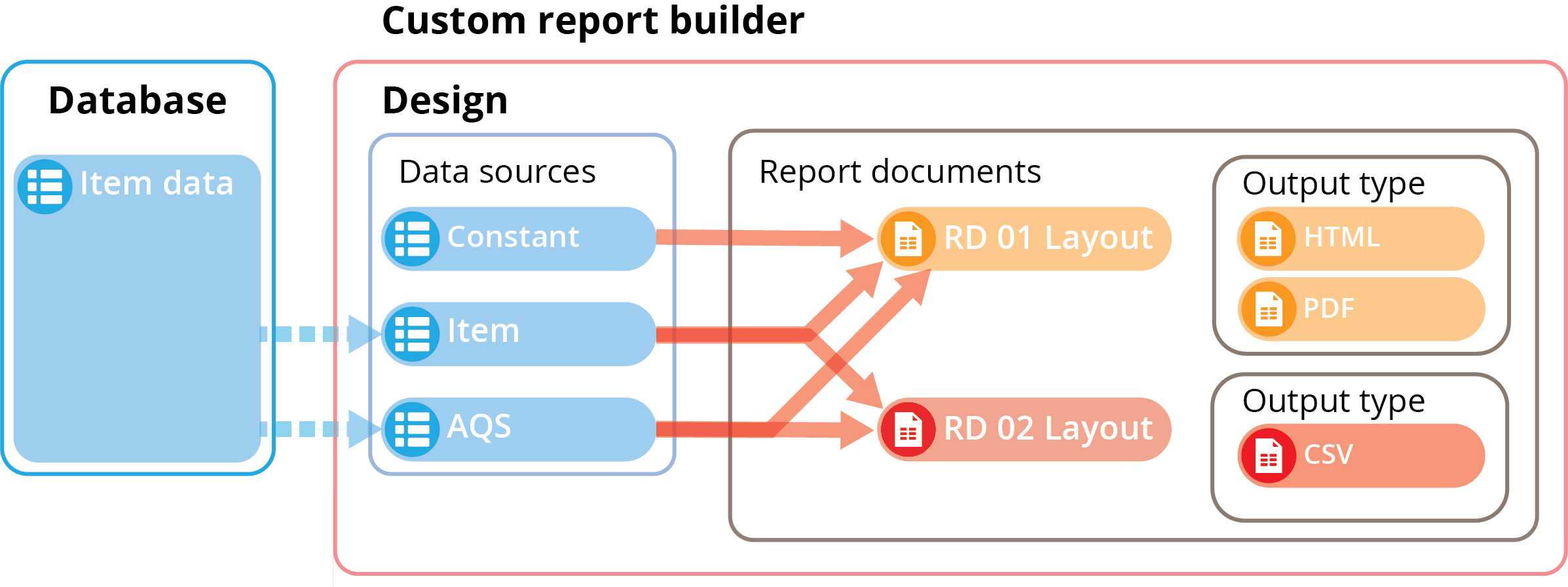
The Report Builder lets you edit the design of a custom report. You can define what data is collected from where and how it will be presented across one or more documents.
The diagram below illustrates how a custom report is structured.
Open the Report Builder
To edit a custom report in the Report Builder:
-
Open the Reports dashboard card and select Custom Reports to list them in the Search panel.
-
Select a custom report in the search results to view its details.
-
Select More in the action bar and choose Open report builder.
-
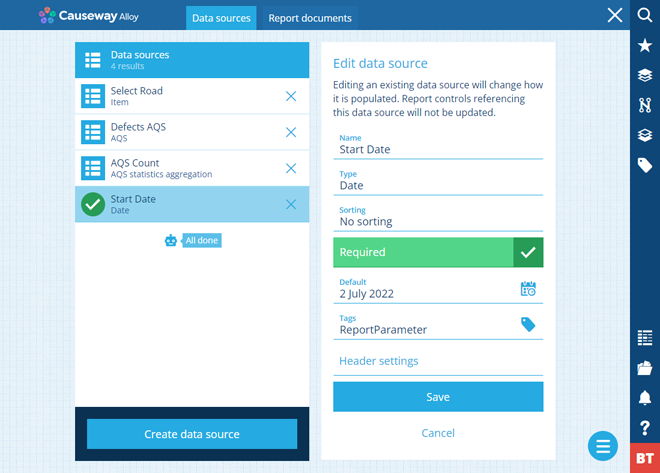
The Data sources tab is shown by default. They determine the content of the report. A data source can represent data collected from your company project (e.g. attribute data from one or more items) or a manually entered value (e.g. date, number, text).
To learn more, see Report data sources.
-
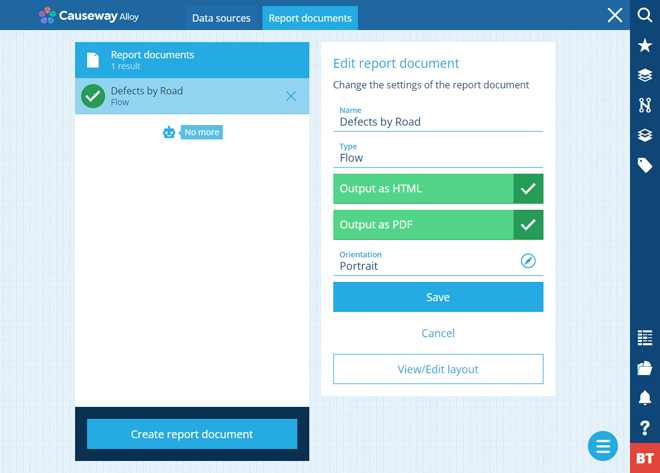
On the Report documents tab, you can create one or more documents. They determine the layout of the report and how content from the data sources will be displayed. A report document can be generated in multiple file formats (CSV, HTML, PDF).
To learn more, see Report documents.
Once your custom report is ready, you can run it at any time to generate new document files based on the current state of its data sources.