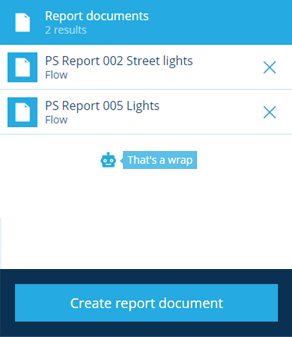
Report documents
Define the layout of your custom report
After you've defined the data sources of your custom report, you can start thinking about how that data is presented.
Using the Report Builder, you can create one or more report documents. These represent the final output files that are generated whenever the report is run.
You can then define the layout of each report document using the Document Layout Editor.
When designing a large report document, please be mindful of the custom report limits.
Document types
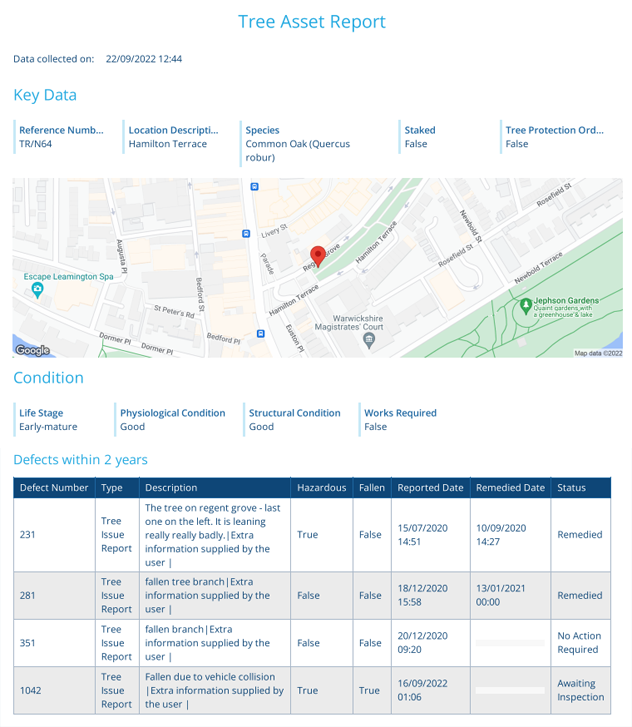
Flow document
Suitable for presenting different types of data in multiple ways. It provides the most flexibility when it comes to defining the layout. It can be saved in two common file formats, HTML and PDF, which can easily be viewed on most devices.
To learn more, see Creating a flow document.
Tabular document
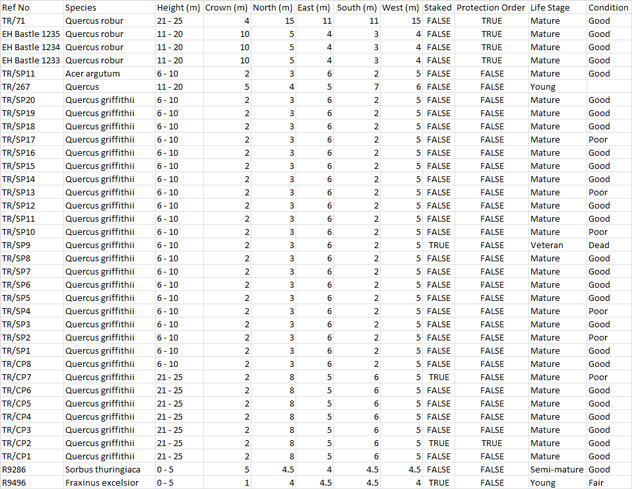
Suitable for recording raw data as a table. It saves as a CSV file, which can easily be imported into other software for analysis and storage, e.g. Microsoft Excel, Power BI, Tableau.
To learn more, see Creating a tabular document.
Manage report documents
Report documents appear in the left list. Select one to view its details on the right:
-
To duplicate the report document, select Menu (bottom-right) and choose Copy report document.
-
To delete the report document, select its Remove icon and answer Yes to the confirmation.