Viewing generated reports
Access previously run reports
When you run a report, a report item is created containing the documents generated by that report.
To access these documents, view the report item and download the document files to your device. You can also see when the report ran and any linked items that it relates to.
See all report items
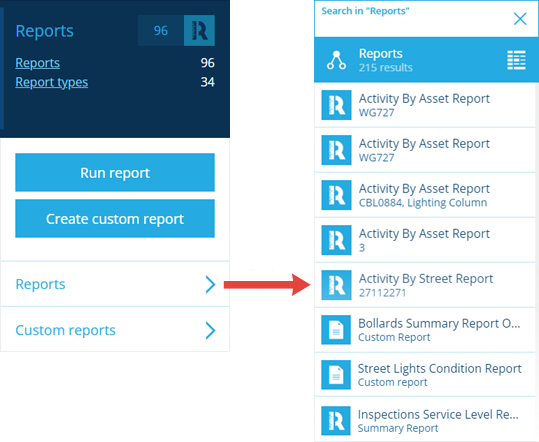
To list all the generated report items in your company project:
-
Open the Reports dashboard card and select Reports to list them in the Search panel.
-
Scroll the list or use the top search box to filter the list by keyword.
-
Select a report item to view its details.
See an item's linked reports
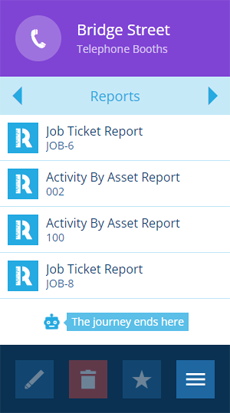
Some reports are designed to operate on a single item. If an item-level standard report is run from an item, the generated report item will appear in that item's Reports tab.
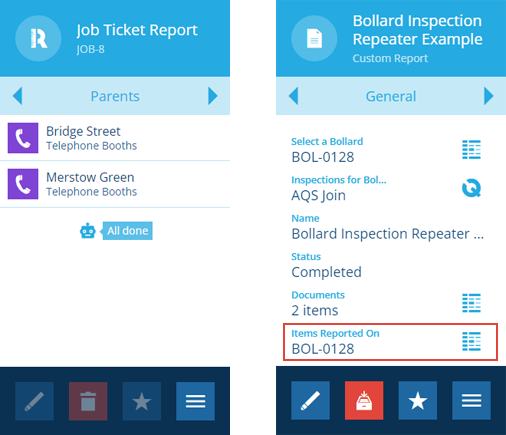
Similarly, when running a custom report: if an Alloy ID or Item data source is populated with an item, the generated report item will appear in that item's Parents tab.
To see if an item has any linked report items:
-
Select the item to view its details in the right panel.
-
Use the tab bar to view both the Reports and Parents tabs.
-
Select a report item to view its details.
Viewing a report item
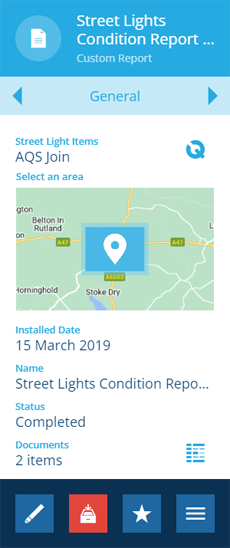
When viewing a report item's details, its General tab shows:
-
how the data sources were populated
-
the Status of the report generation process:
-
Running - documents are being generated.
-
Completed - documents have been generated and are available to download.
-
Failed - documents couldn't be generated. Check the Error field for more details.
-
-
the number of documents generated
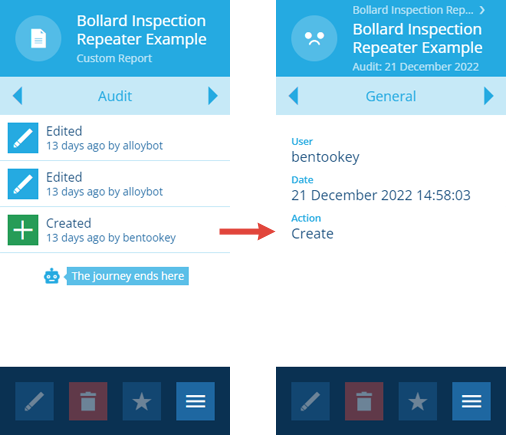
See when the report was run
Use the tab bar to switch to the Audit tab and then select the Created entry.
See linked items
Depending on how the report was configured, the report item may be linked to items that were used as data sources:
-
For item-level standard reports (), use the tab bar to switch to the Parents tab.
-
For custom reports (), select the Items Reported On button on the General tab (if present).